
Introduction
Looping motion in After Effects is easy, but sometimes you only want to loop movement along one axis — X or Y. By separating dimensions and adding a loop expression, you can create clean, seamless looping animations for UI elements, objects, and motion graphics.
Step 1: Select Your Layer
Open your project and click the layer you want to animate and loop.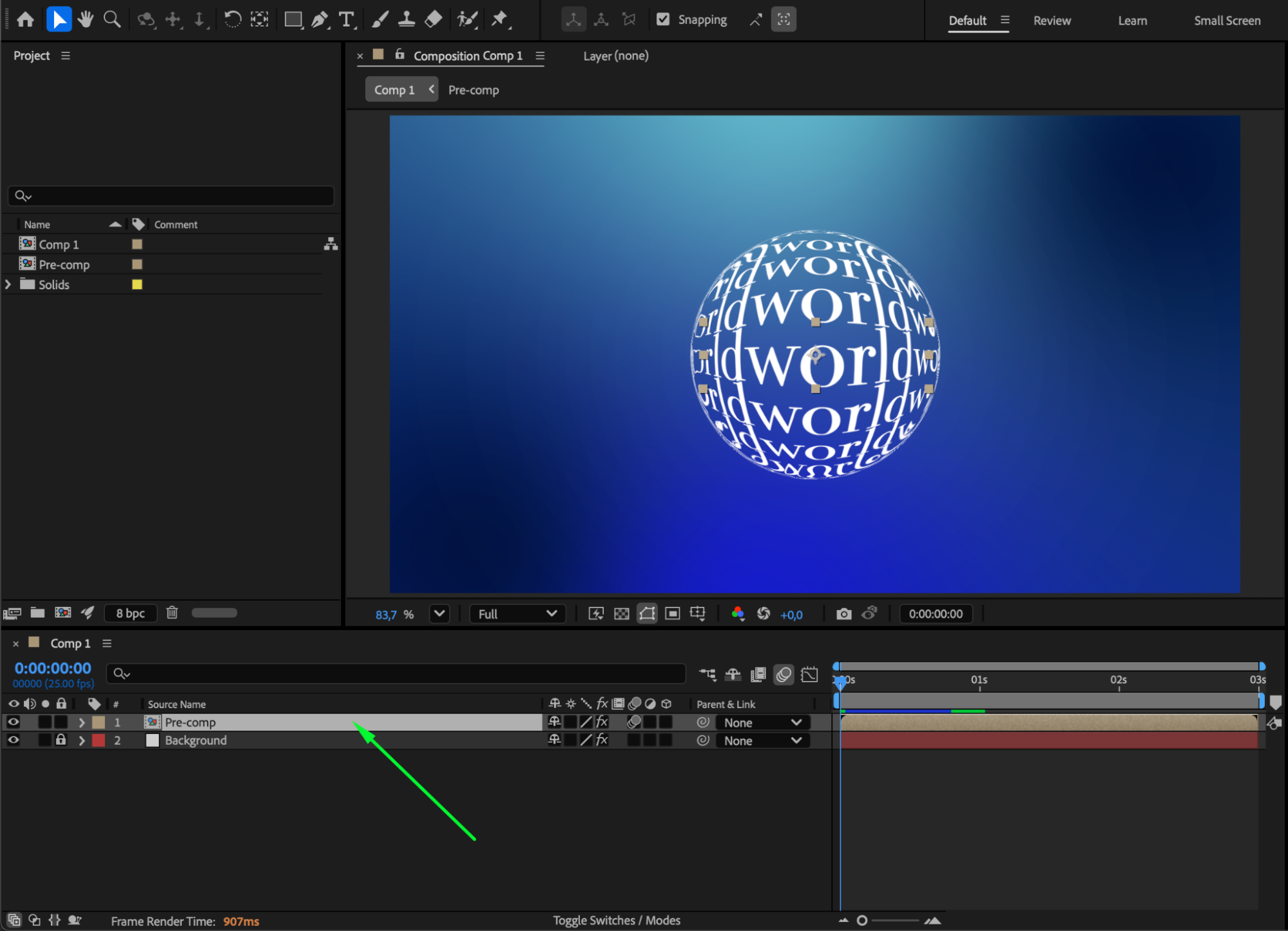 Step 2: Reveal and Separate Position Dimensions
Press “P” to open the Position property. Right-click Position and choose Separate Dimensions. This splits the movement into X Position, Y Position, and (if the layer is 3D) Z Position, allowing you to animate only one axis.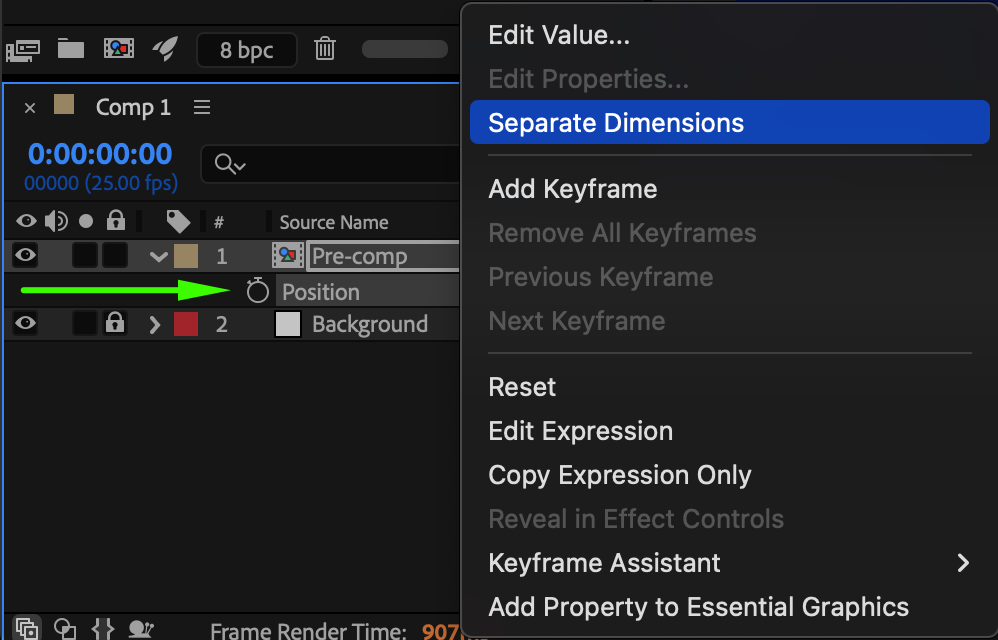
Step 3: Animate One Axis
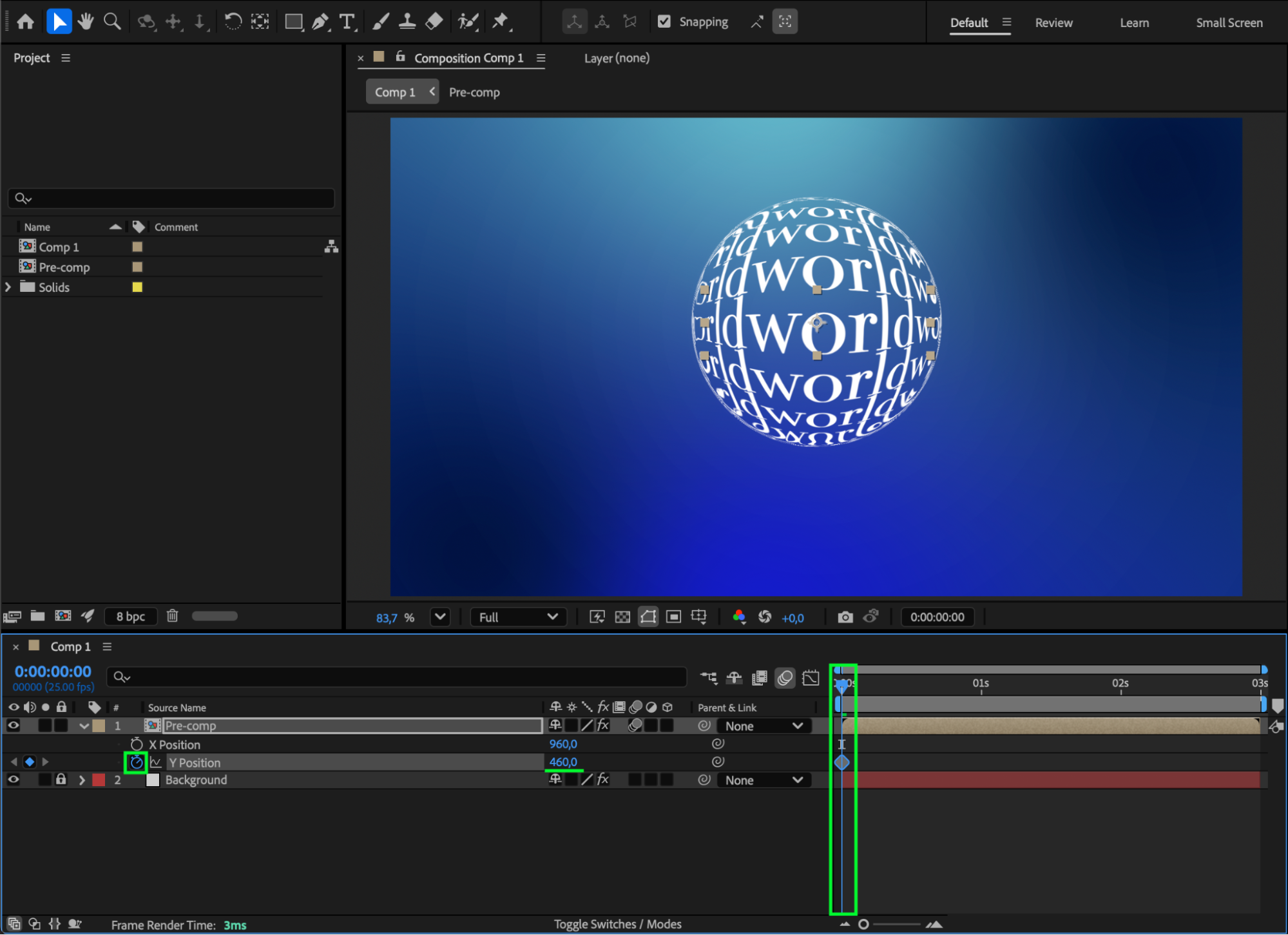
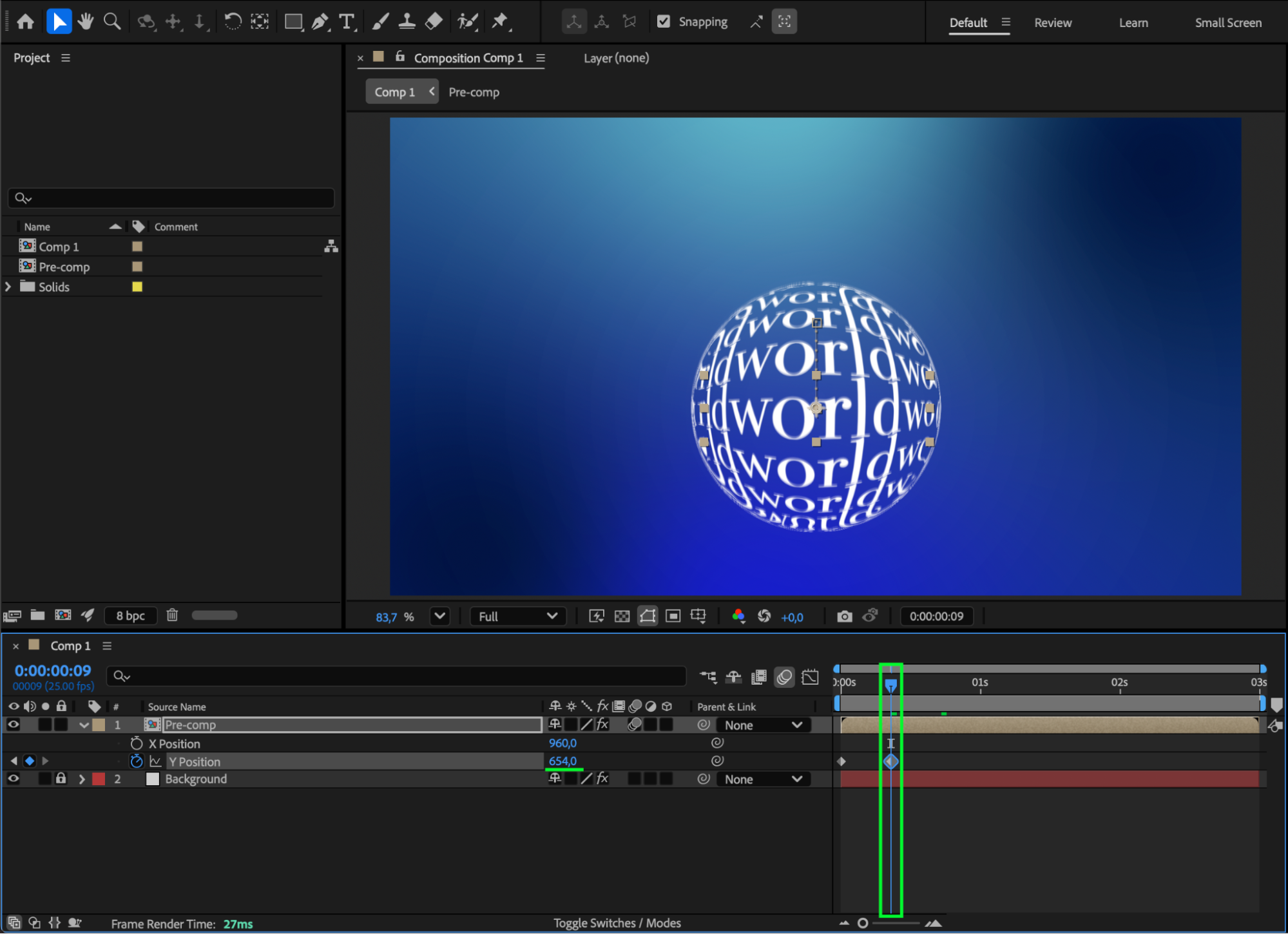
Move the CTI to the start of the composition. Click the stopwatch on X Position or Y Position — whichever axis you want to loop. Move the CTI forward in time and change the value to create the desired movement.
 Step 4: Apply Easy Ease and Adjust the Curve
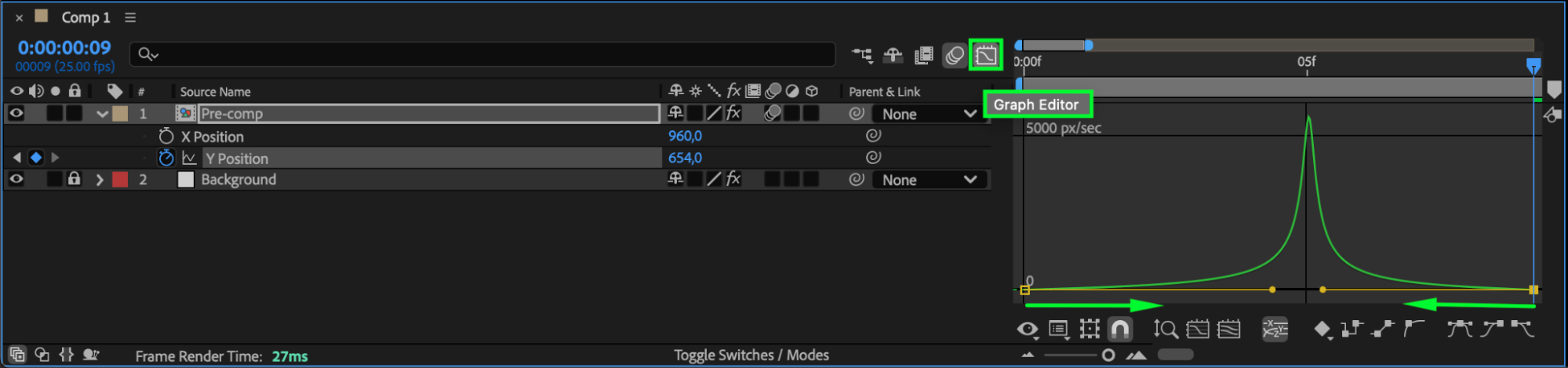
Select your keyframes and press F9 to apply Easy Ease. Then open the Graph Editor to fine-tune the animation curve for smoother motion.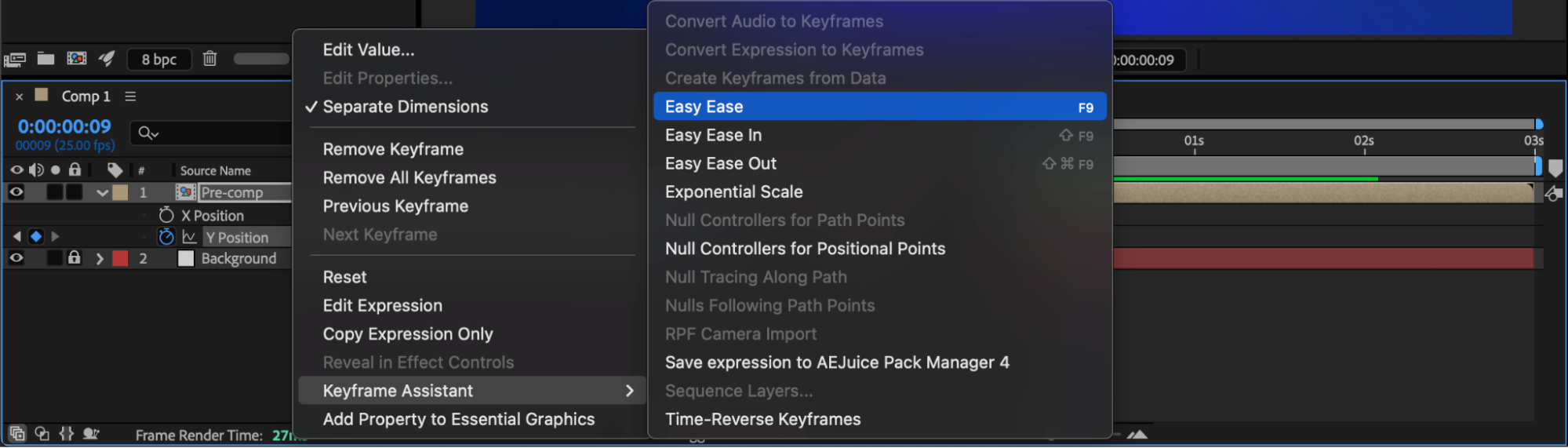
Step 5: Add the Loop Expression
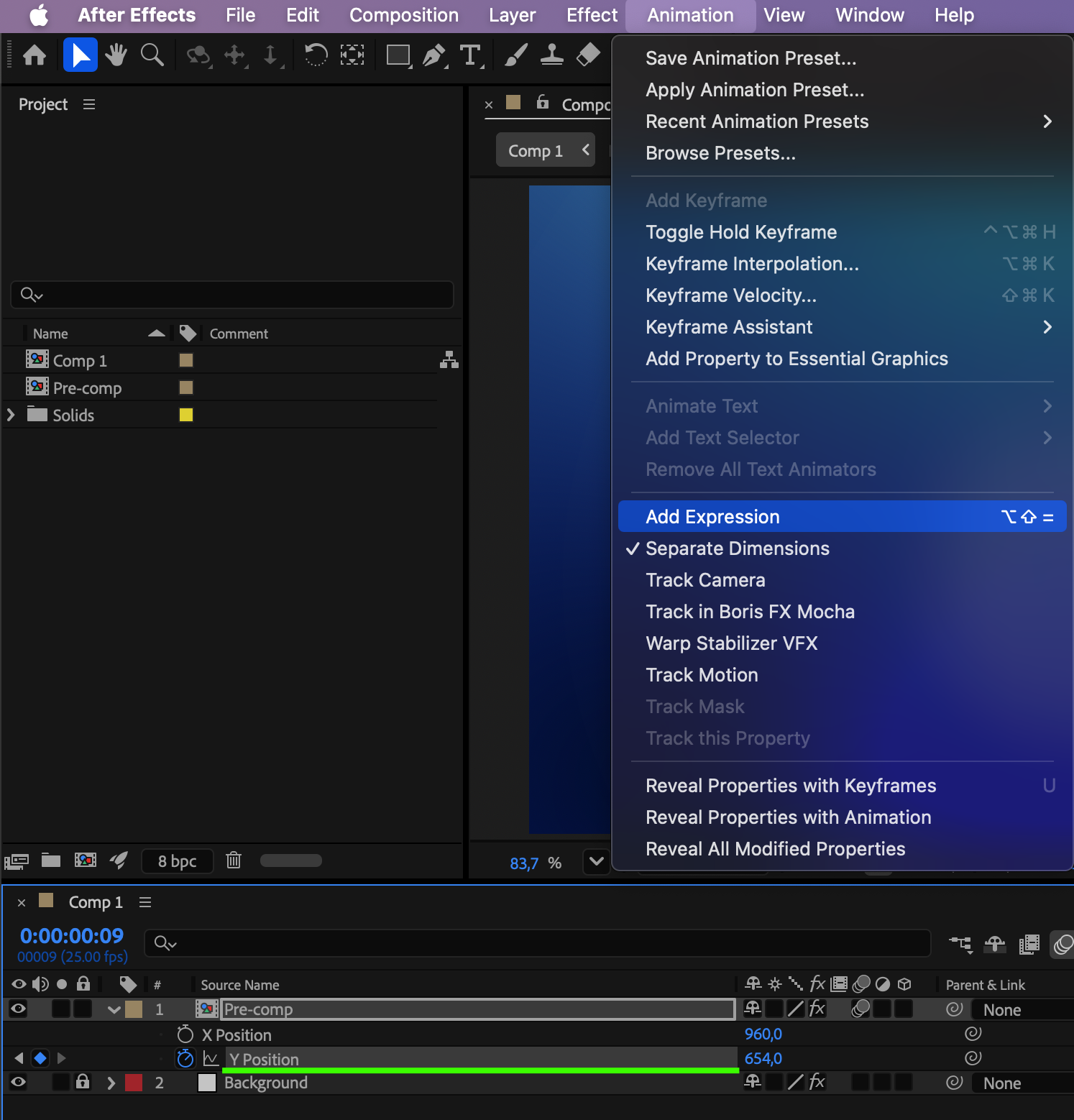
Select the axis you animated (X or Y). Go to Animation > Add Expression and type:
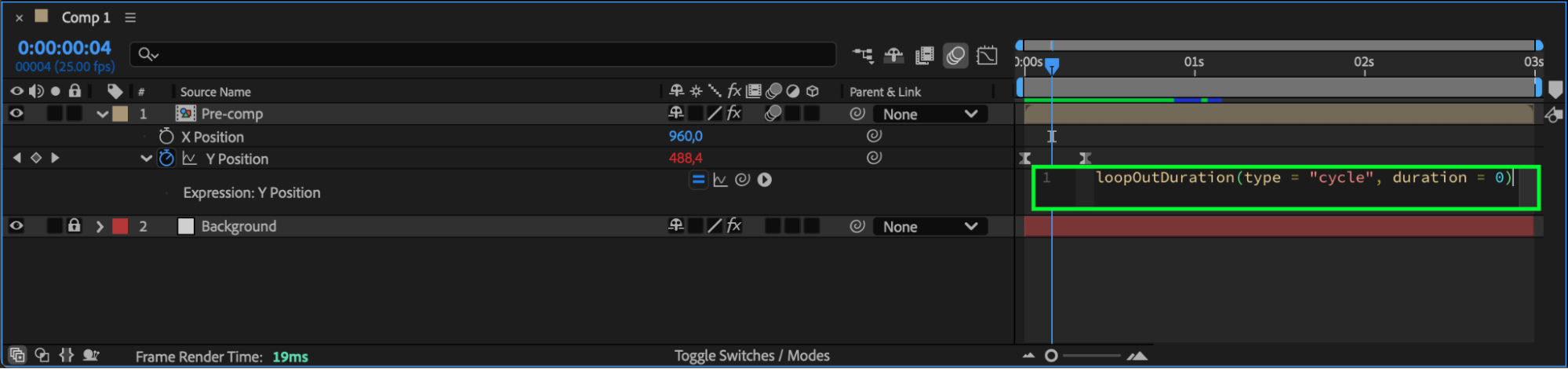
loopOutDuration(type = “cycle”, duration = 0)
This loops only the animated axis, leaving the others untouched.
 Step 6: Preview and Refine
Press Spacebar to preview. Adjust timing, values, or curve until the loop looks seamless.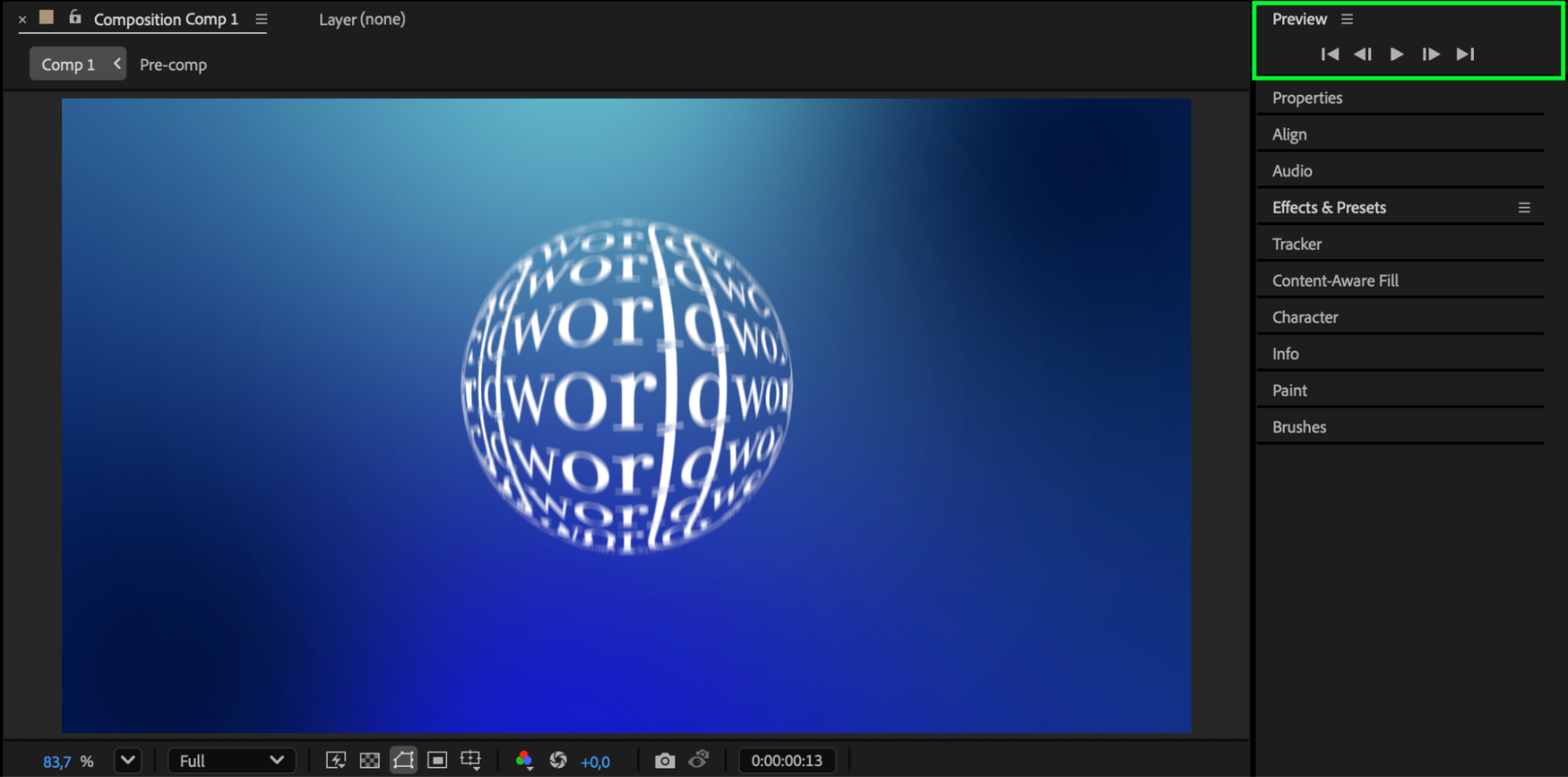
Conclusion
By separating dimensions and applying a simple loop expression, you can easily loop position animation on just one axis in After Effects. This method is perfect for smooth repeating motion in motion graphics, UI, background loops, and character movement.
Our Bestsellers
Our Bestsellers


