
Introduction
Motion blur can make your animations look smoother and more natural, but sometimes the effect appears too strong. In After Effects, you can reduce motion blur either by slowing down your animation or by using CC Force Motion Blur for direct control over blur intensity.
Method 1: Lower Motion Blur by Adjusting Keyframe Timing
This method works when Motion Blur is enabled on the layer and you don’t mind adjusting the animation speed slightly.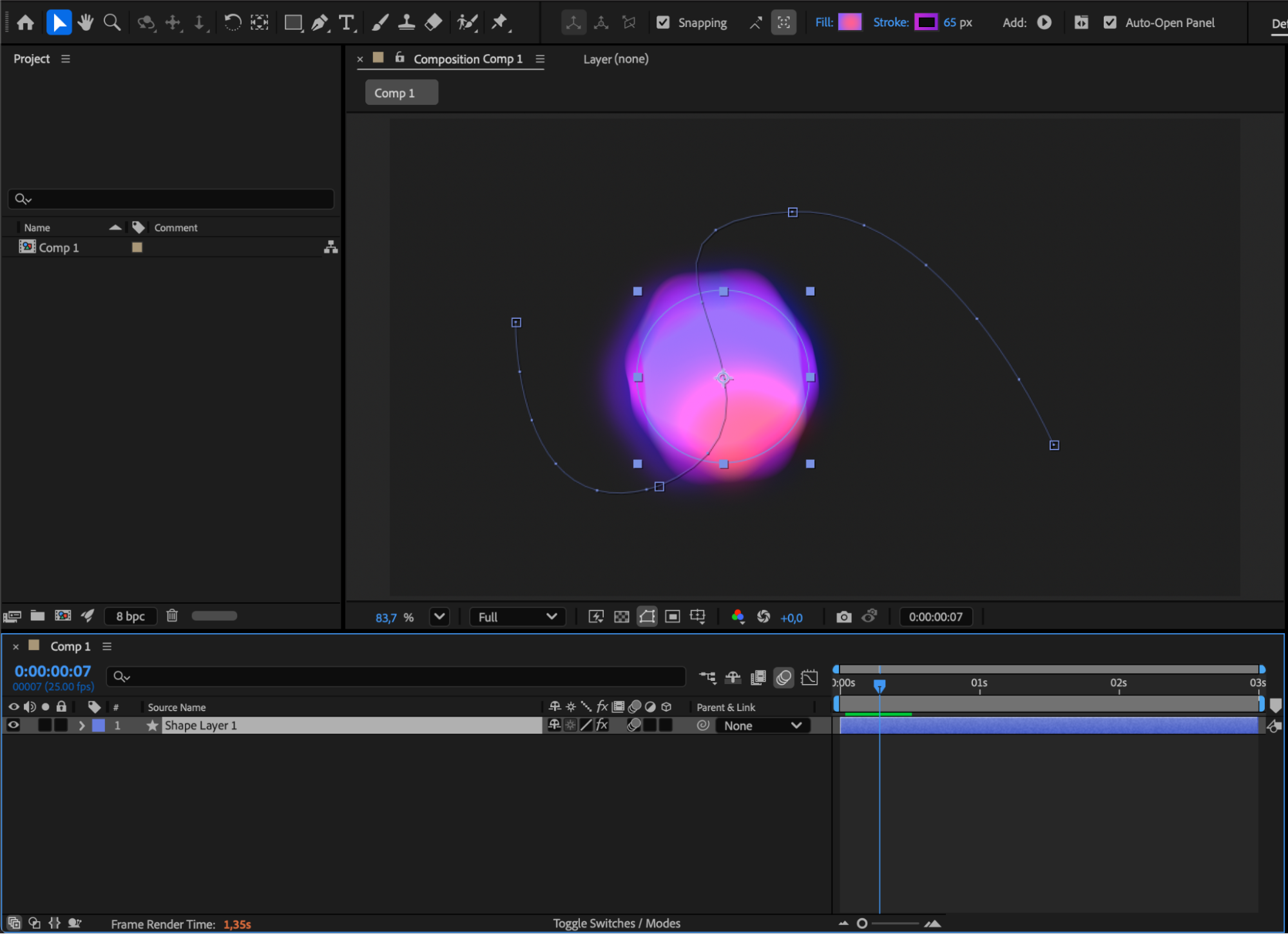
Step 2: Reveal and Select All Keyframes
Press “U” to display all keyframes. Select them all.
Step 3: Stretch the Animation to Reduce Blur
Hold “Alt/Option”, then drag the last keyframe further to the right. This increases the animation duration, resulting in softer and more realistic motion blur.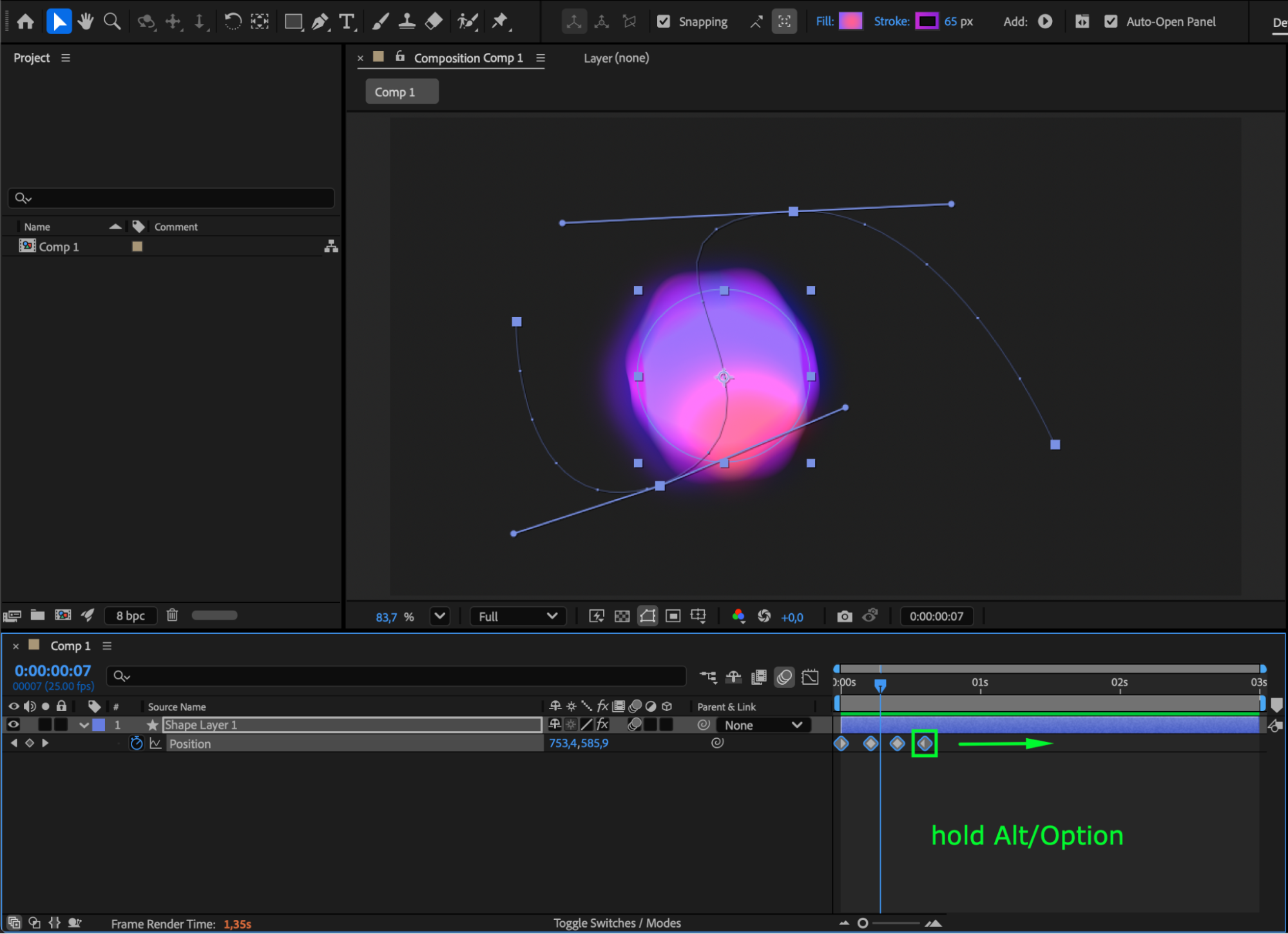
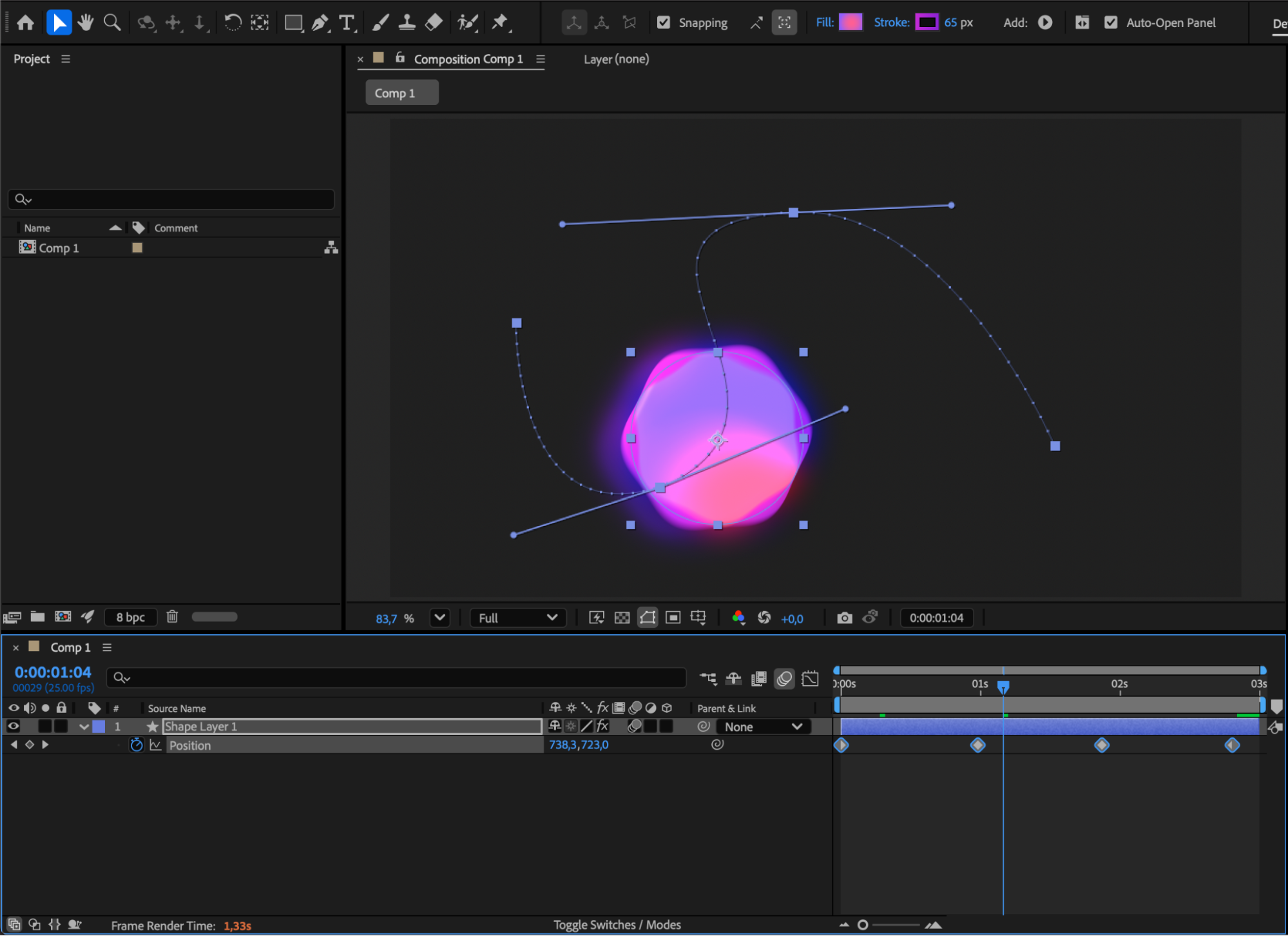
Method 2: Lower Motion Blur Without Changing Animation Speed
If you want to reduce blur without affecting the timing of your animation, use CC Force Motion Blur.
Step 1: Disable Built-In Motion Blur
Turn off the motion blur switch for your layer. This prevents the default blur from affecting the result.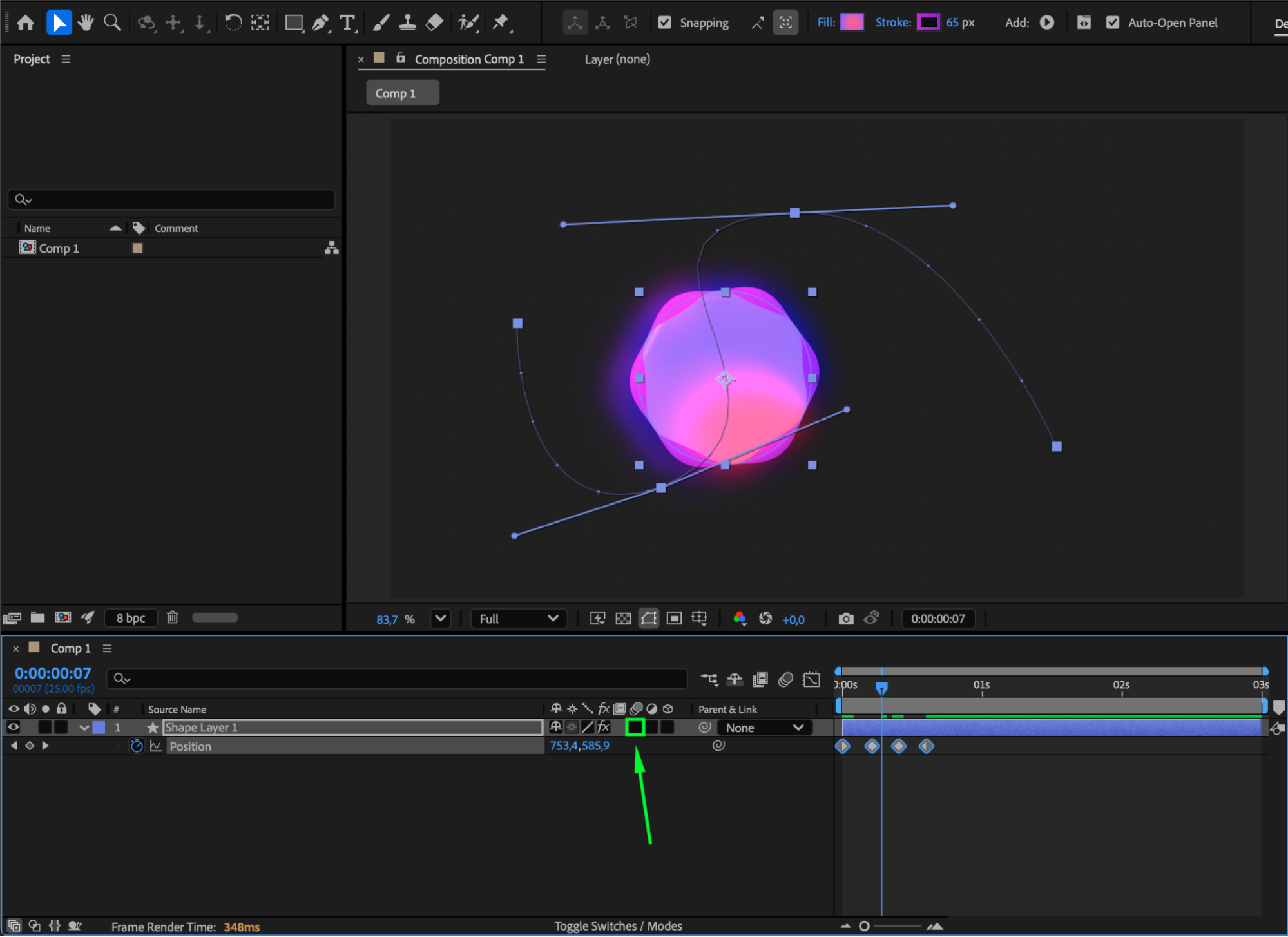 Step 2: Apply CC Force Motion Blur
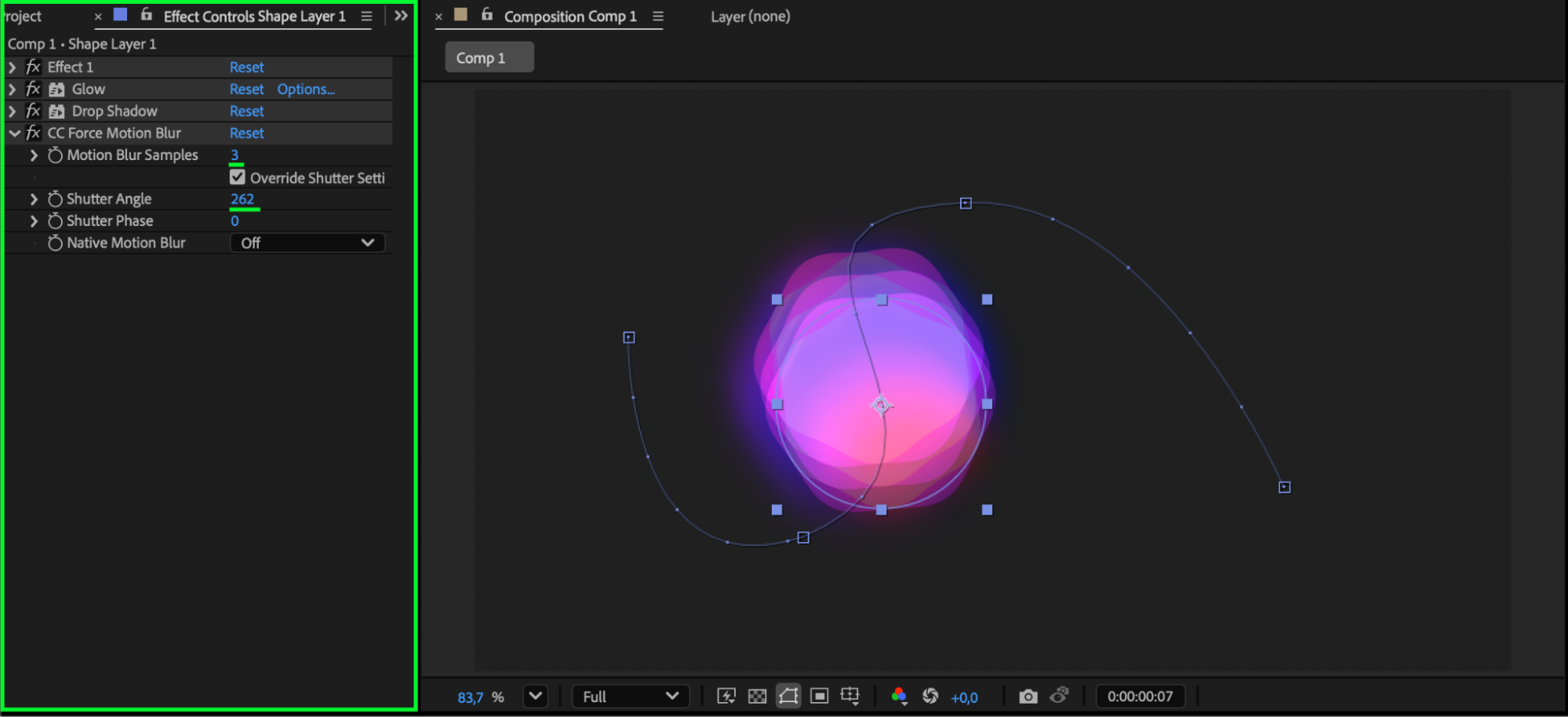
From the Effects & Presets panel, drag CC Force Motion Blur onto the layer. Then adjust:
Motion Blur Samples
Shutter Angle
Lower values = softer, lighter blur
Higher values = stronger blur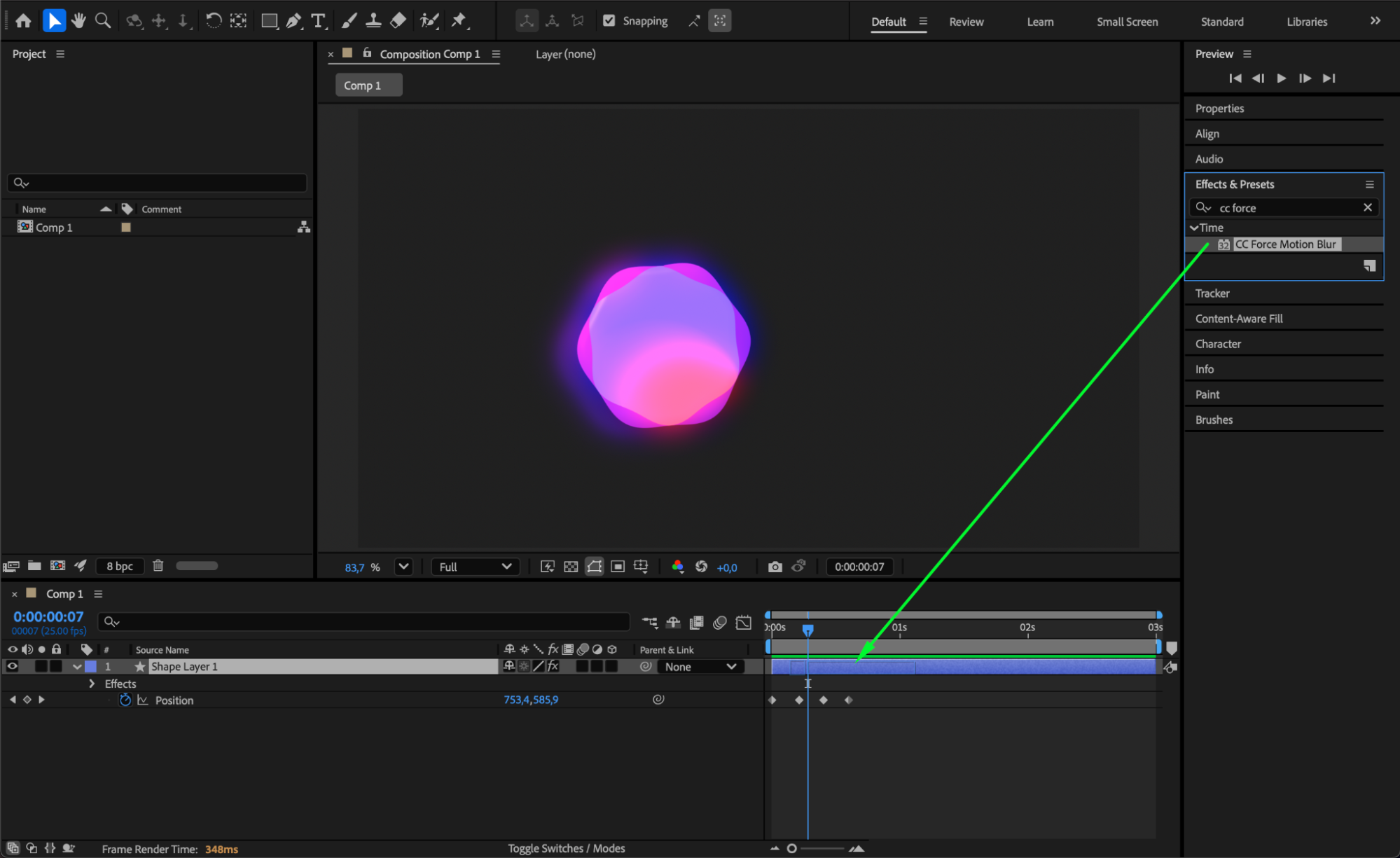
 Step 3: Preview and Fine-Tune
Press Spacebar to preview your animation. Refine the shutter angle and samples until you get the blur level you want.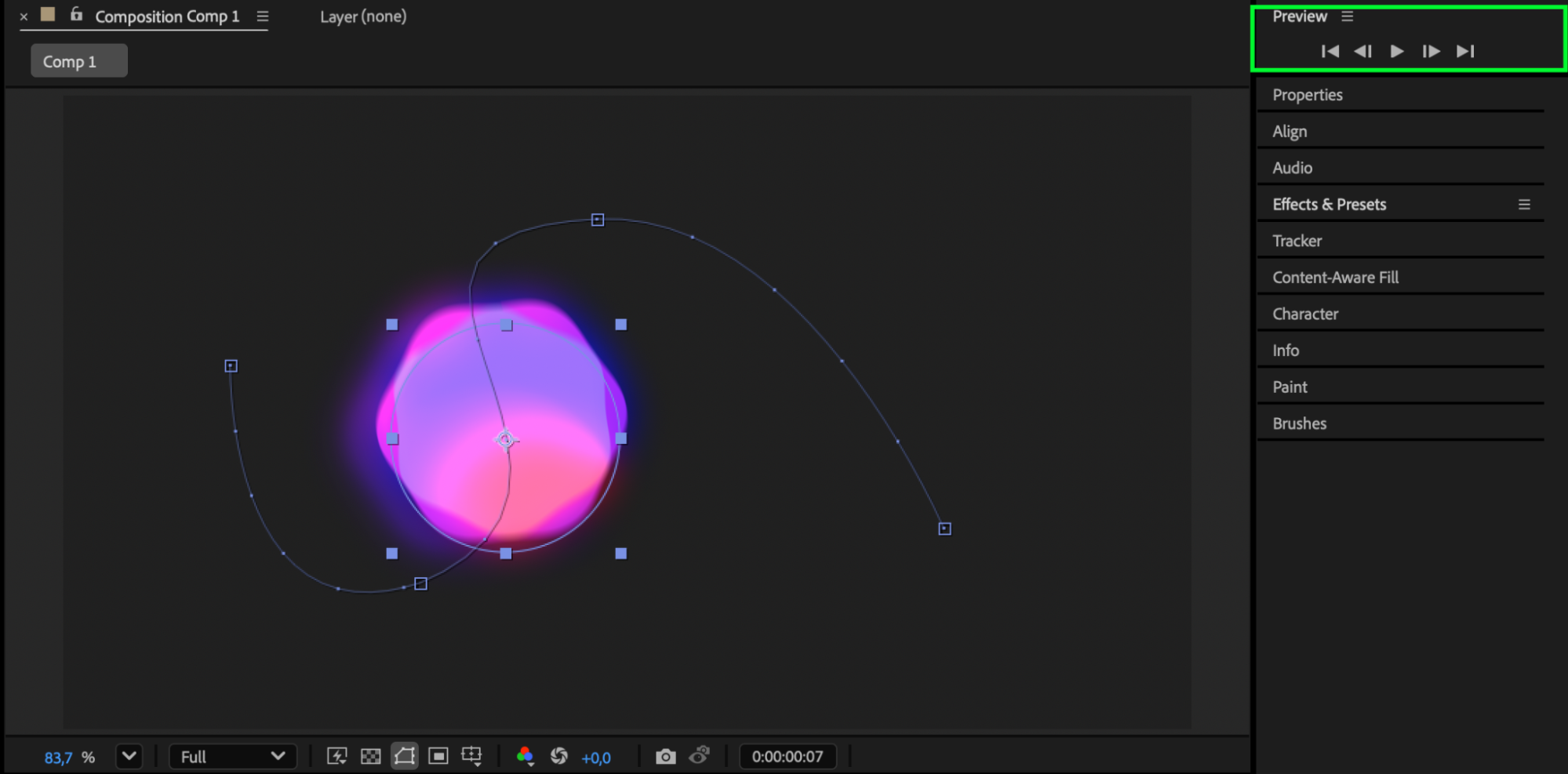
Conclusion
You can lower motion blur in After Effects by extending animation timing or by using CC Force Motion Blur for full control. Both approaches produce smoother and more natural results depending on how much blur you need.
Our Bestsellers
Our Bestsellers


