
Introduction
A screen bounce effect adds energy and impact to your footage by briefly scaling it up and snapping it back into place. This effect is perfect for transitions, UI animations, punch-ins, or stylized motion moments. Follow the steps below to create a clean, smooth bounce using only the Scale property.
Step 1: Import Your Footage
Go to File > Import > File, select your video, and drag it onto the timeline so it’s ready for animation.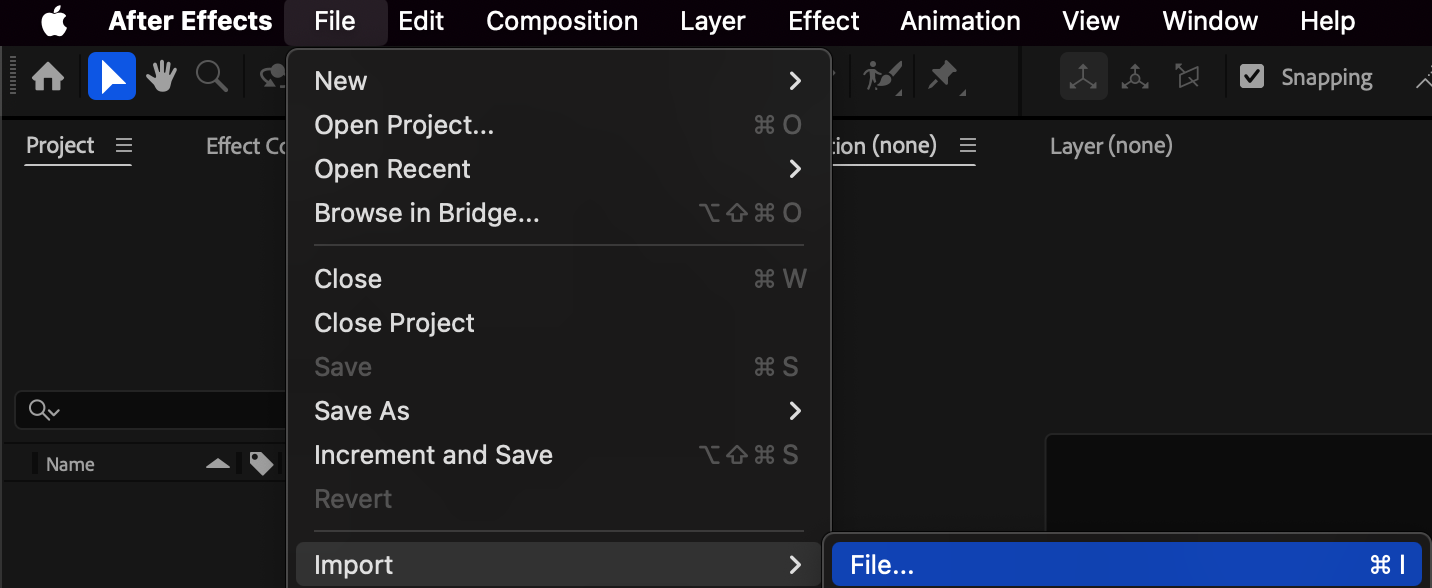
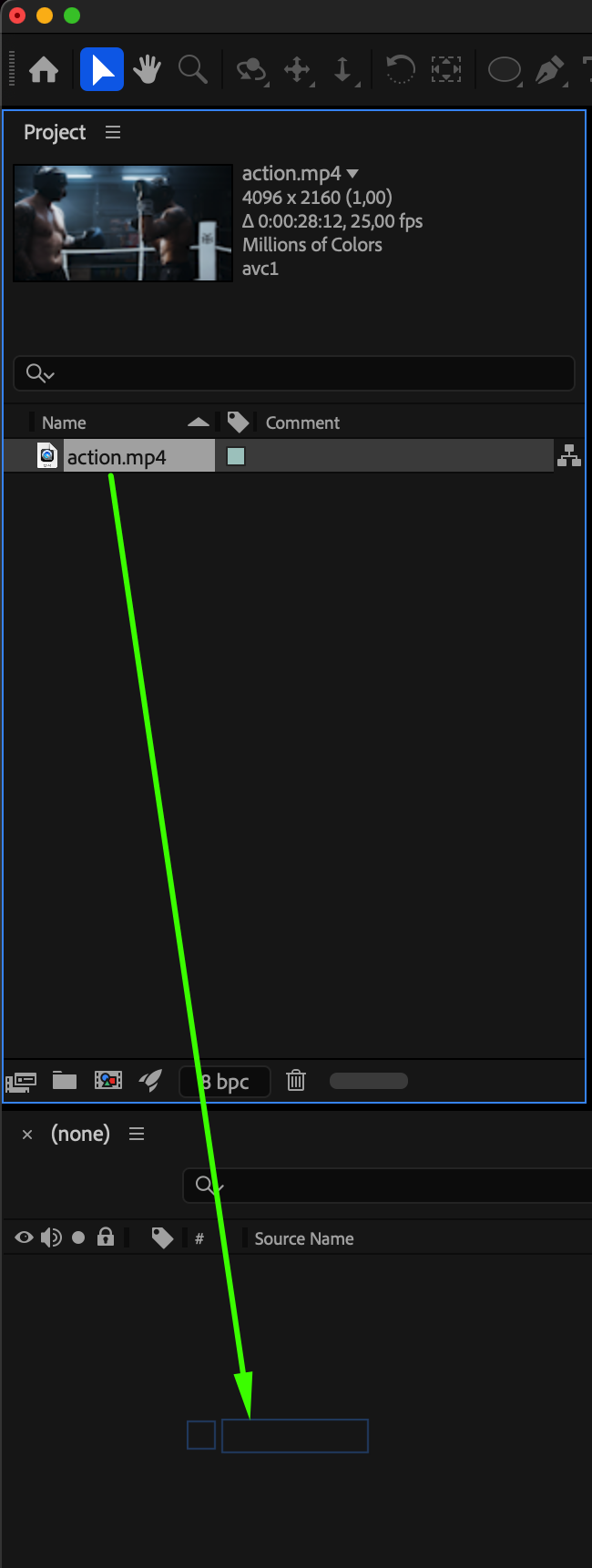
Step 2: Animate the Scale for the Bounce Effect
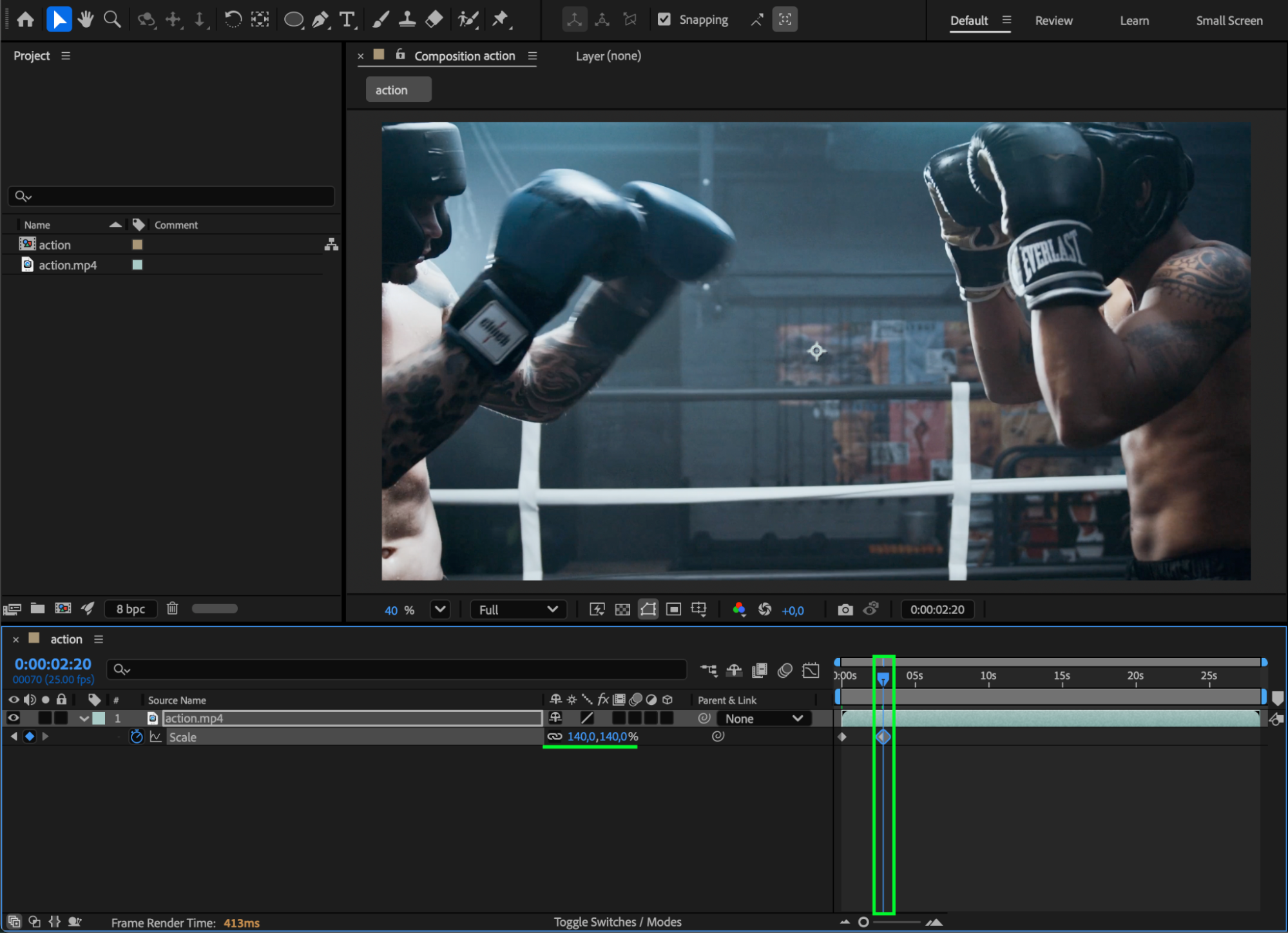
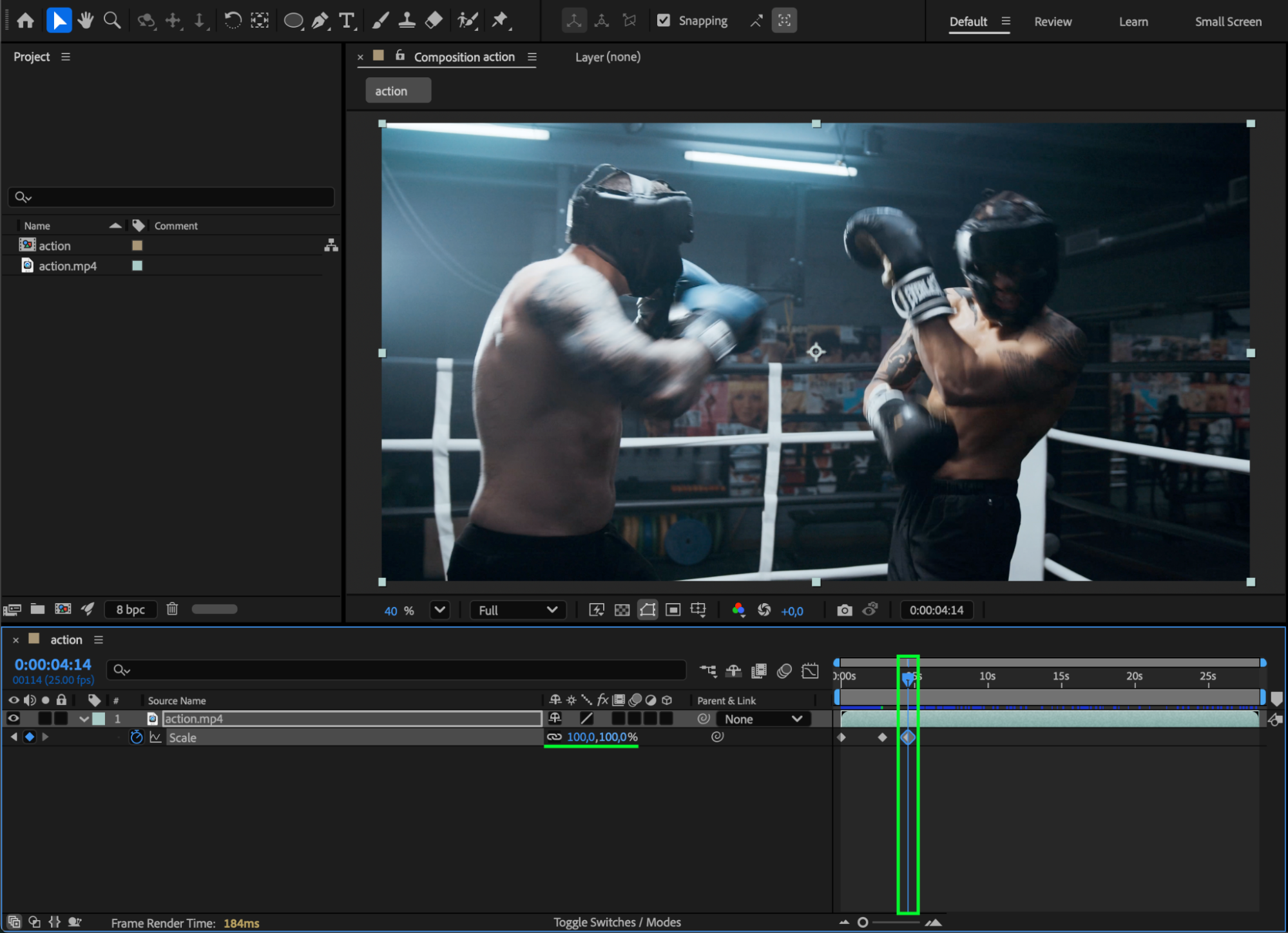
Select your layer and press “S” to reveal the Scale property. Move the CTI to the start of the composition and click the stopwatch to set the first keyframe at 0%. Move the CTI slightly forward and set Scale to around 140%. Move the CTI forward a few more frames and set the final Scale to 100% to complete the bounce snap.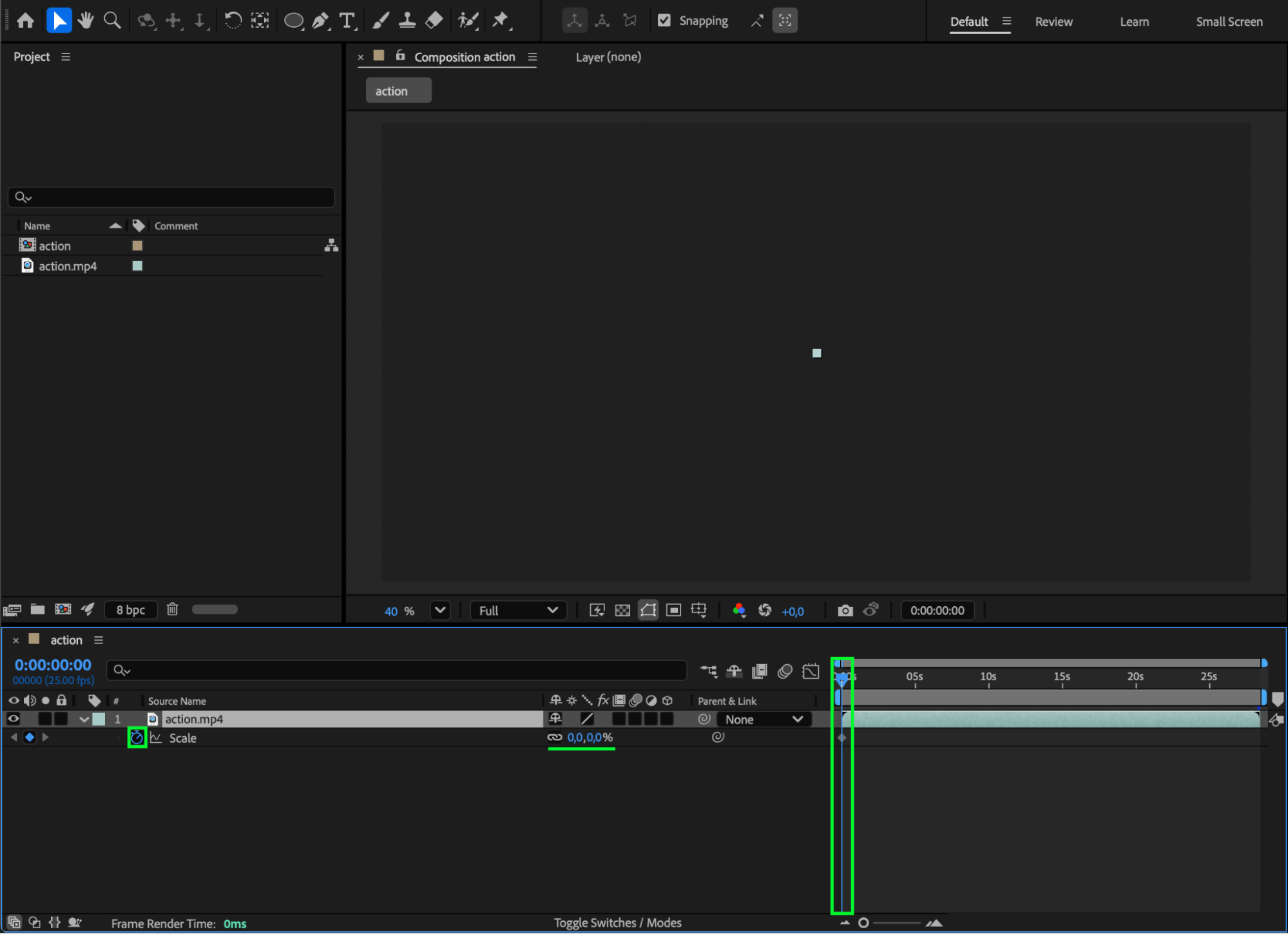
 Step 3: Smooth the Motion Using Easy Ease and the Graph Editor
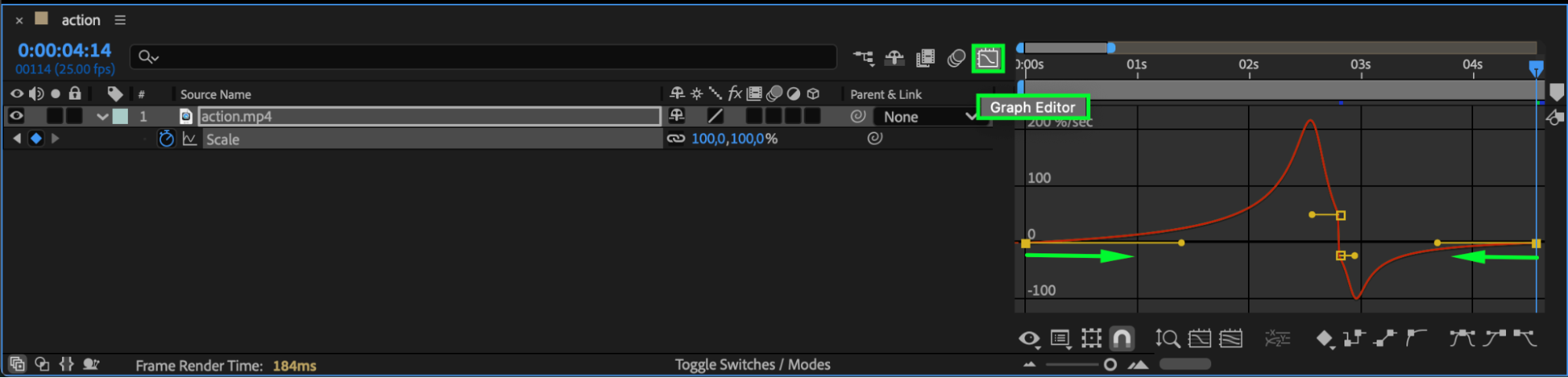
Select the first and third keyframes, right-click, and choose Keyframe Assistant > Easy Ease. Then open the Graph Editor and adjust the curve for a more elastic, natural-looking bounce.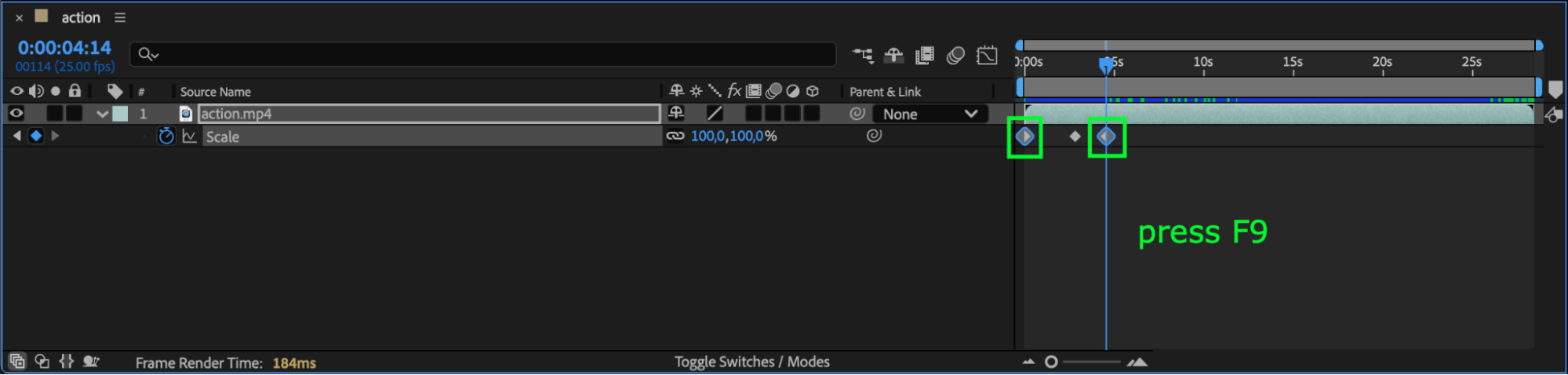
Step 4: Enable Motion Blur
Turn on Motion Blur for the layer (the three-circle icon), and then enable Motion Blur for the entire composition to give the bounce more realism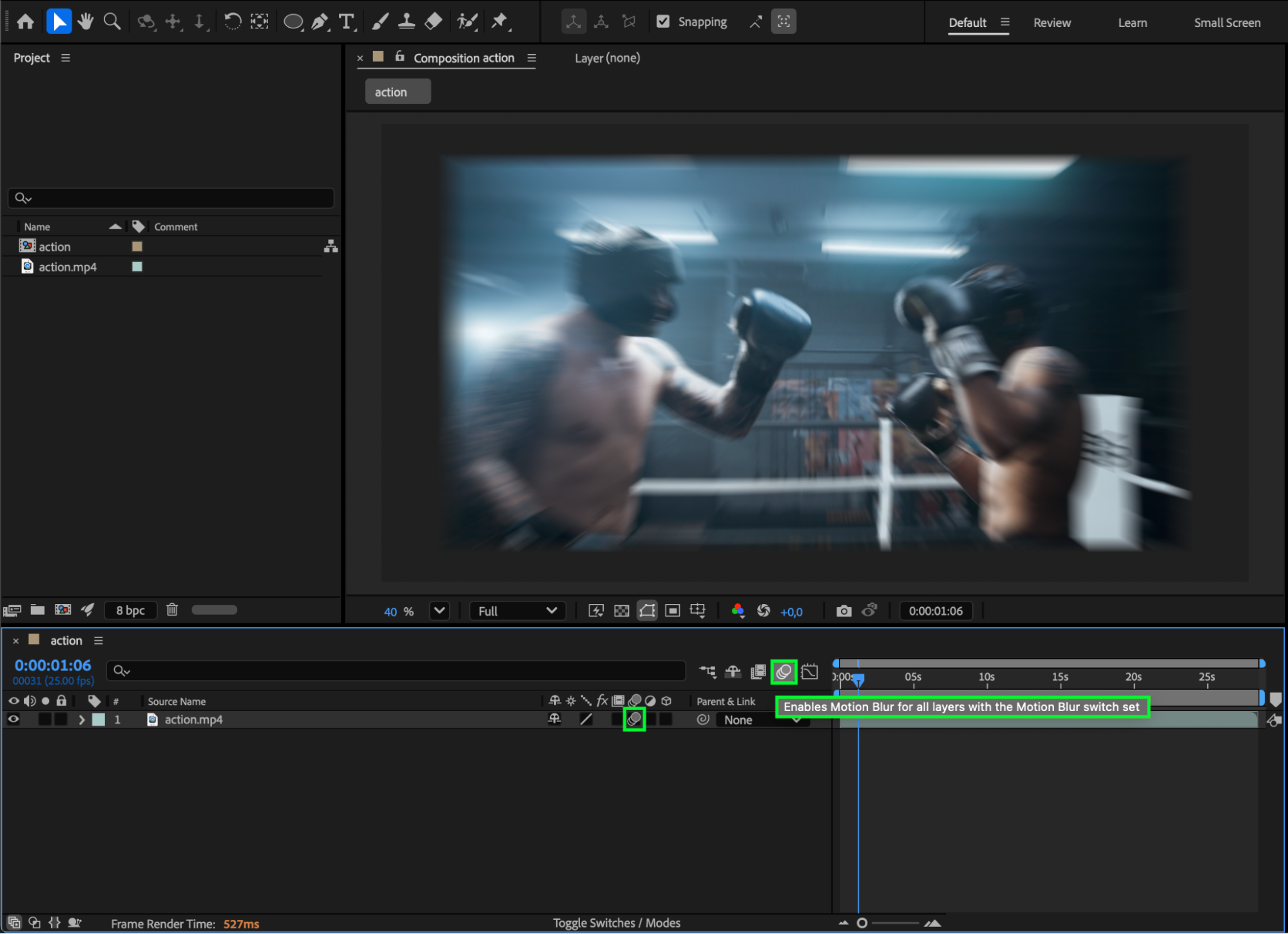 Step 5: Preview Your Animation
Press Spacebar to preview the screen bounce. Adjust the timing or scale values if you want a softer, harder, faster, or slower bounce.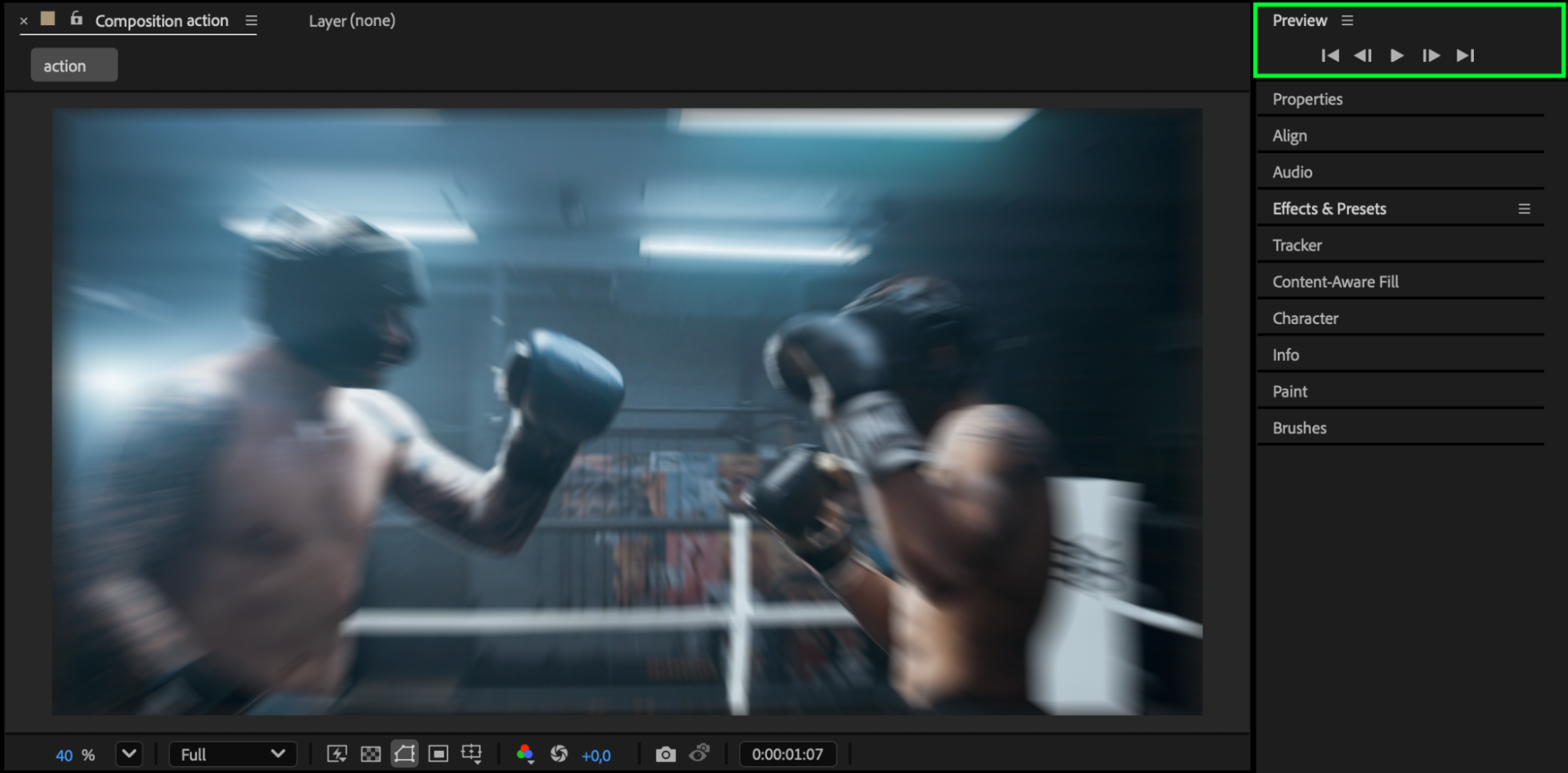
Conclusion
With just a few scale keyframes, easing, and motion blur, you can create a clean and energetic screen-bounce effect in After Effects. This quick technique works well for transitions, motion graphics, and stylized cuts, bringing extra impact to your videos.
Our Bestsellers
Our Bestsellers


