
Introduction
Attaching a shape to a path allows you to make smooth and dynamic animations where your object follows a curved trajectory. This technique is commonly used for motion graphics, logo reveals, and animated icons. Let’s go step by step on how to do it.
Step 1: Create a New Composition
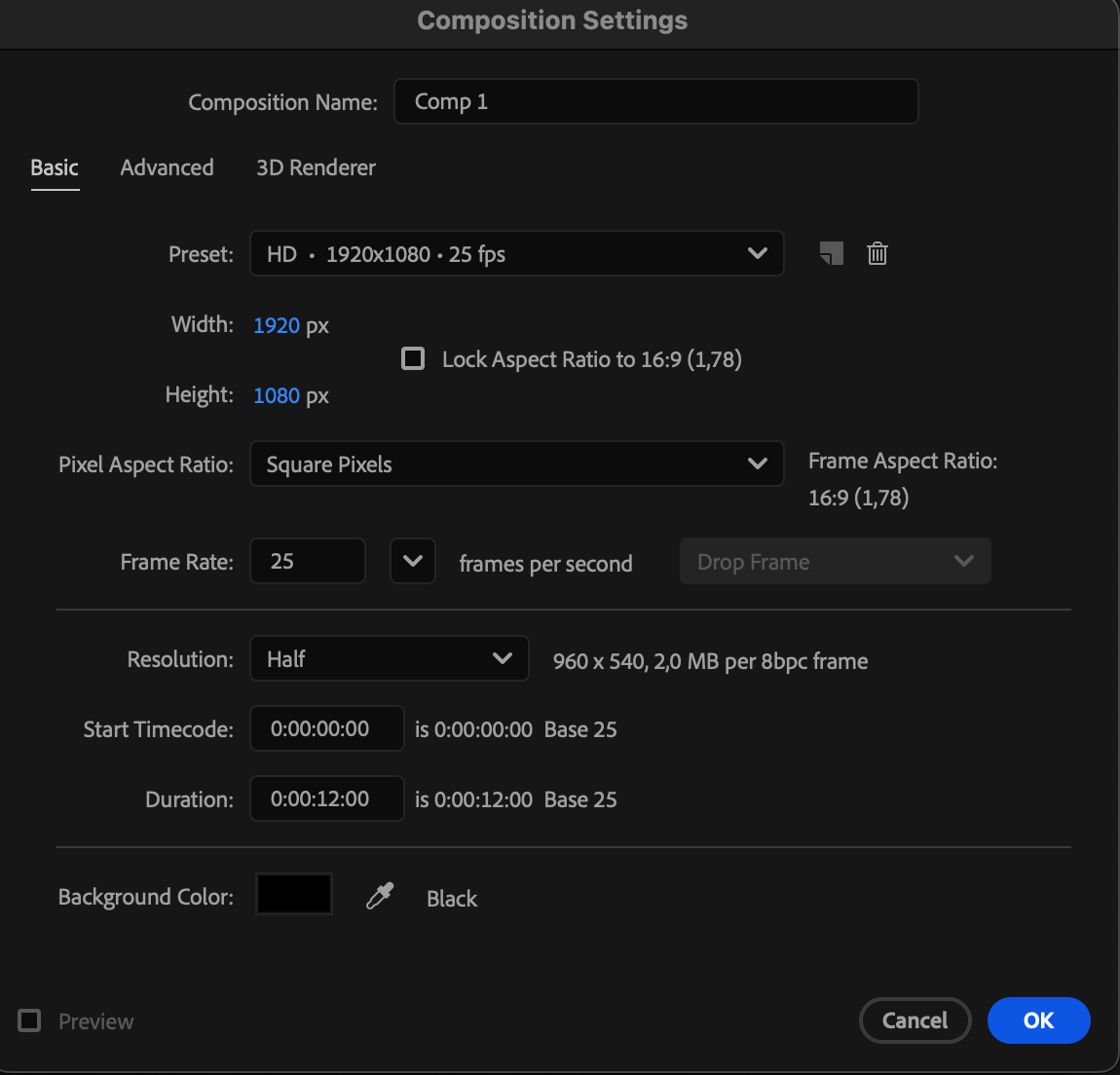
Go to Composition > New Composition and set your preferred settings such as resolution, frame rate, and duration. Click OK to confirm.
Step 2: Draw Your Shape
Select the Shape Tool (Q) and create any shape you like — for example, a circle or rectangle. You can customize the fill and stroke colors at the top toolbar to make your shape more visible.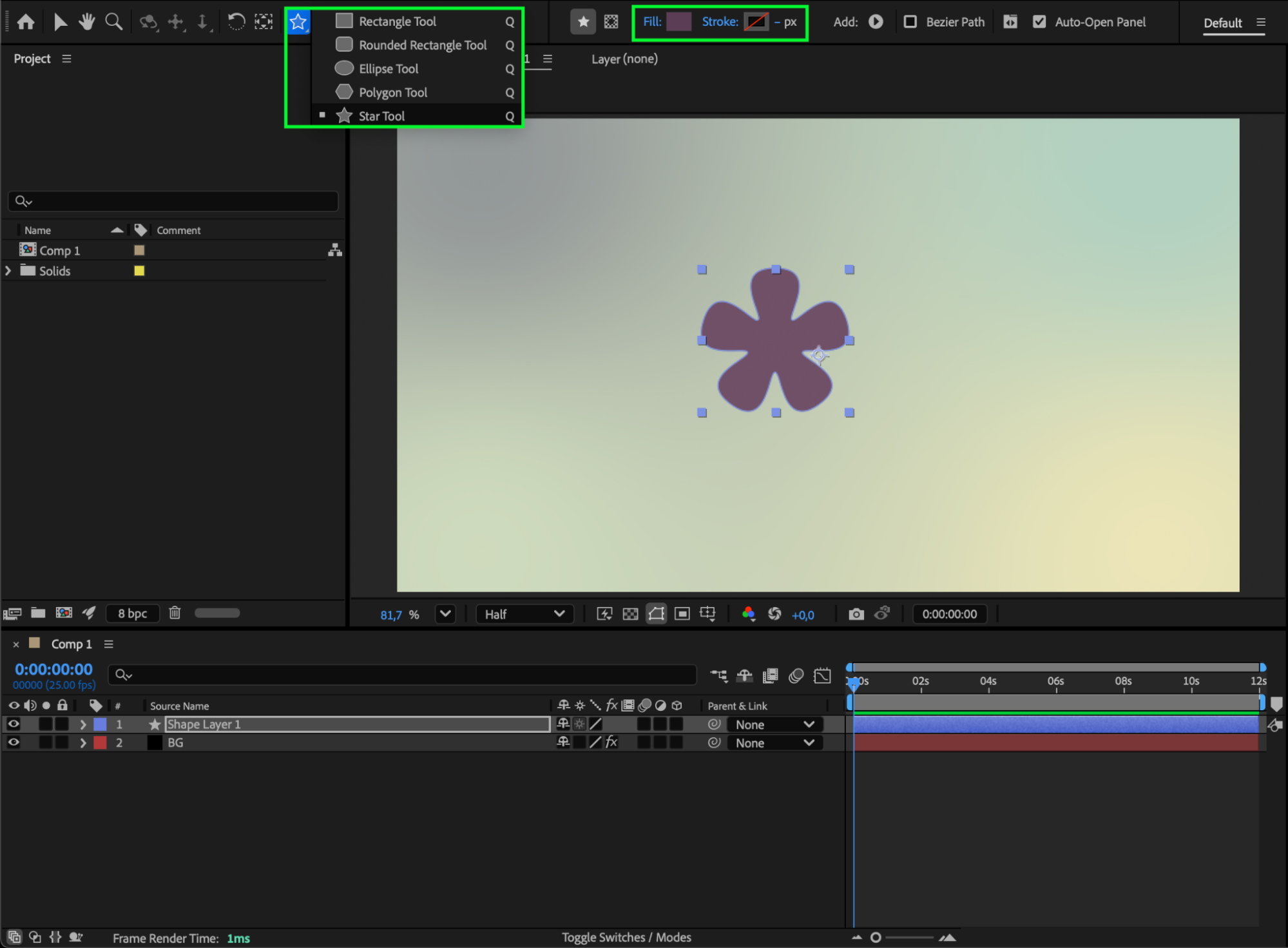 Step 3: Set the Anchor Point
Select the Pan Behind Tool (Y) and move the anchor point of your shape to the position you want to attach to the path. This point will act as the center of transformation as your shape moves.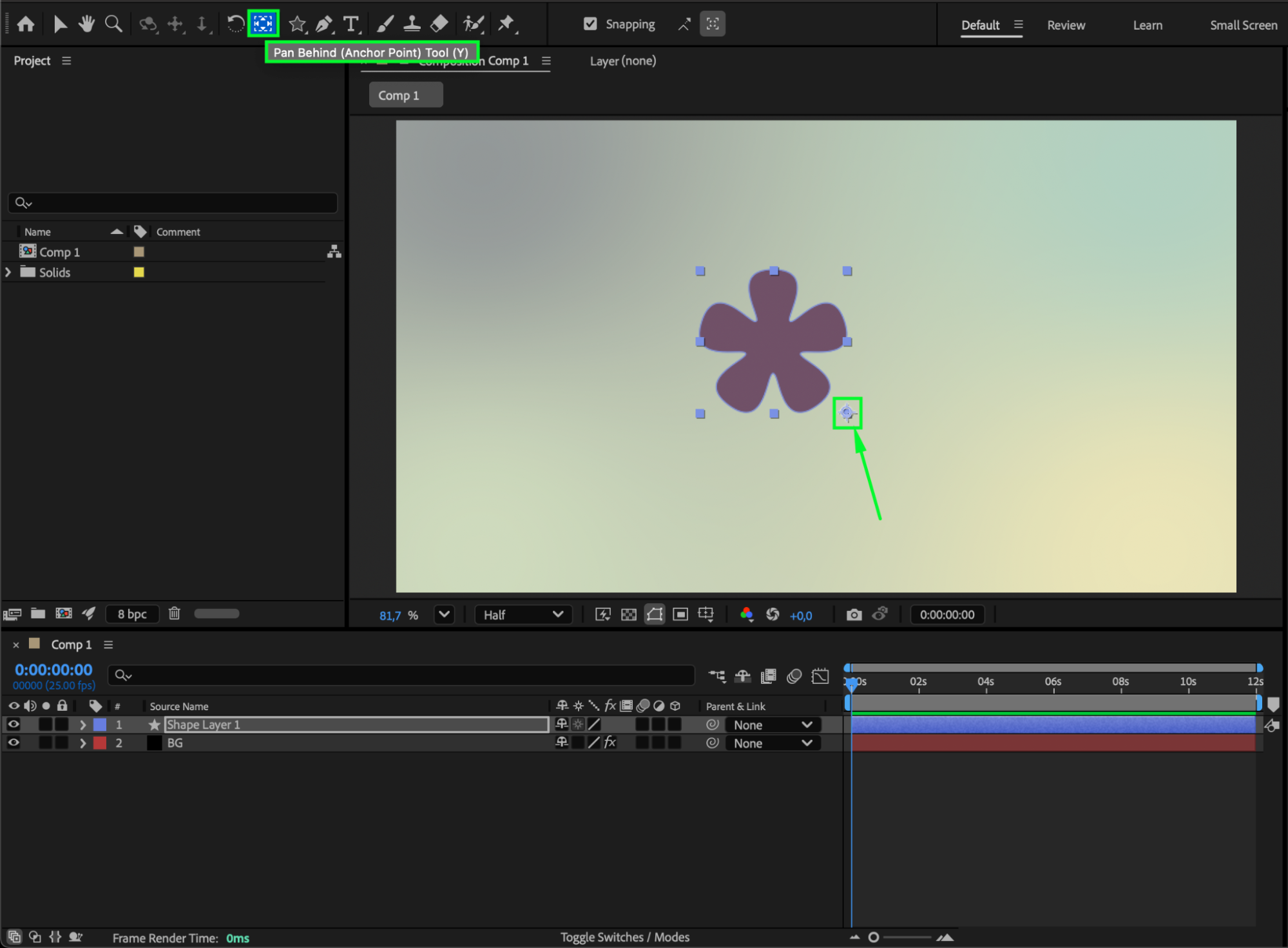
Step 4: Create and Attach the Path
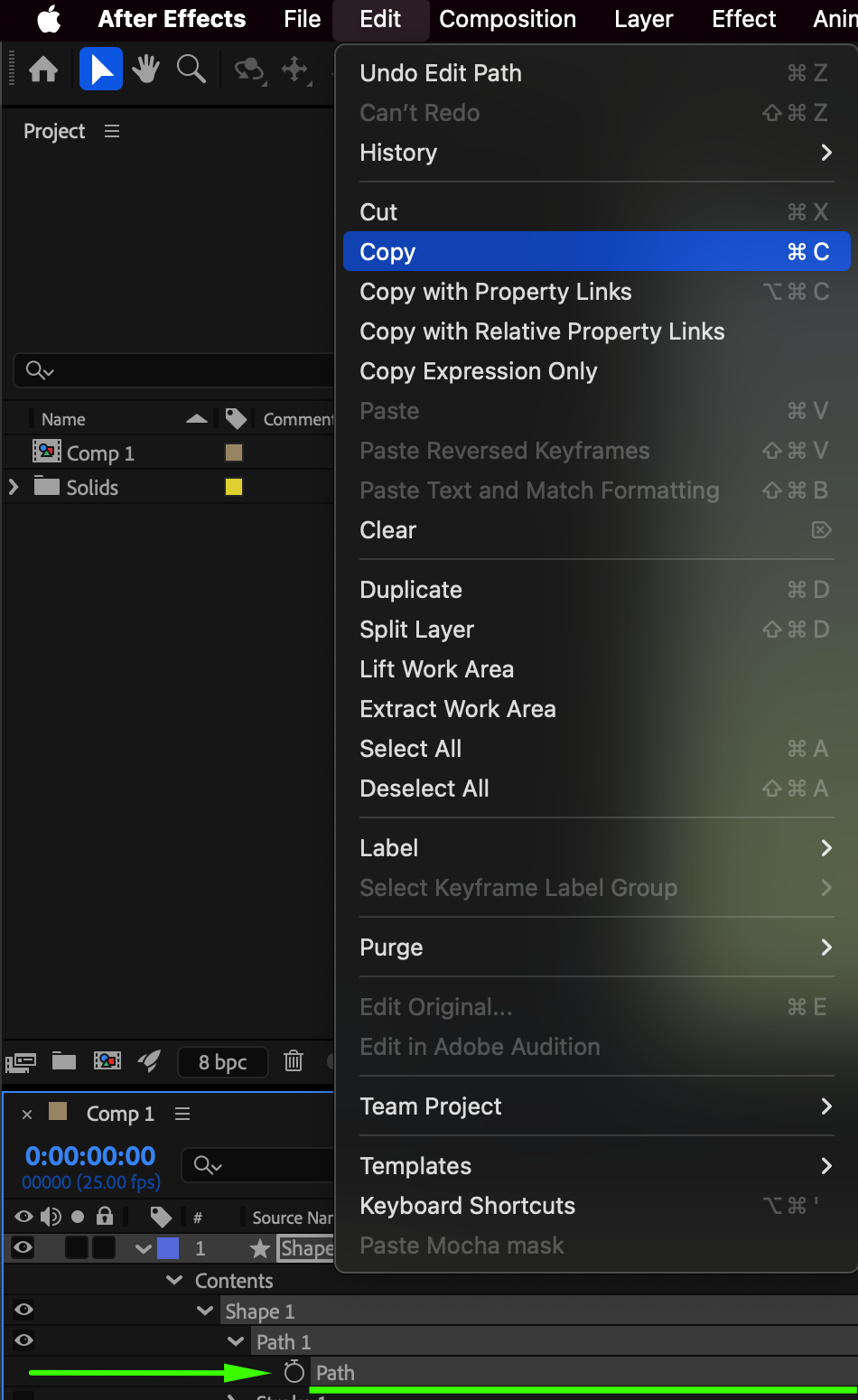
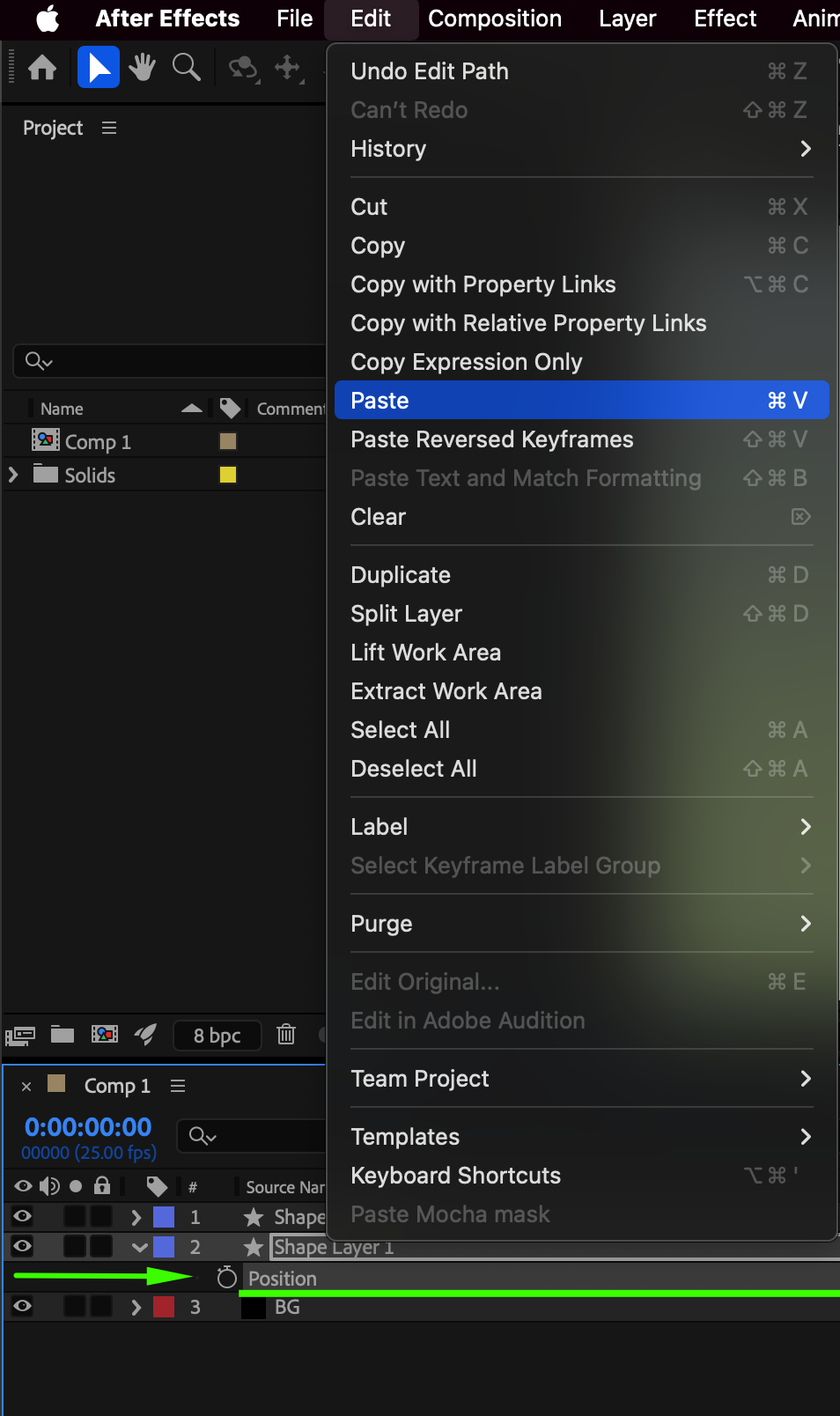
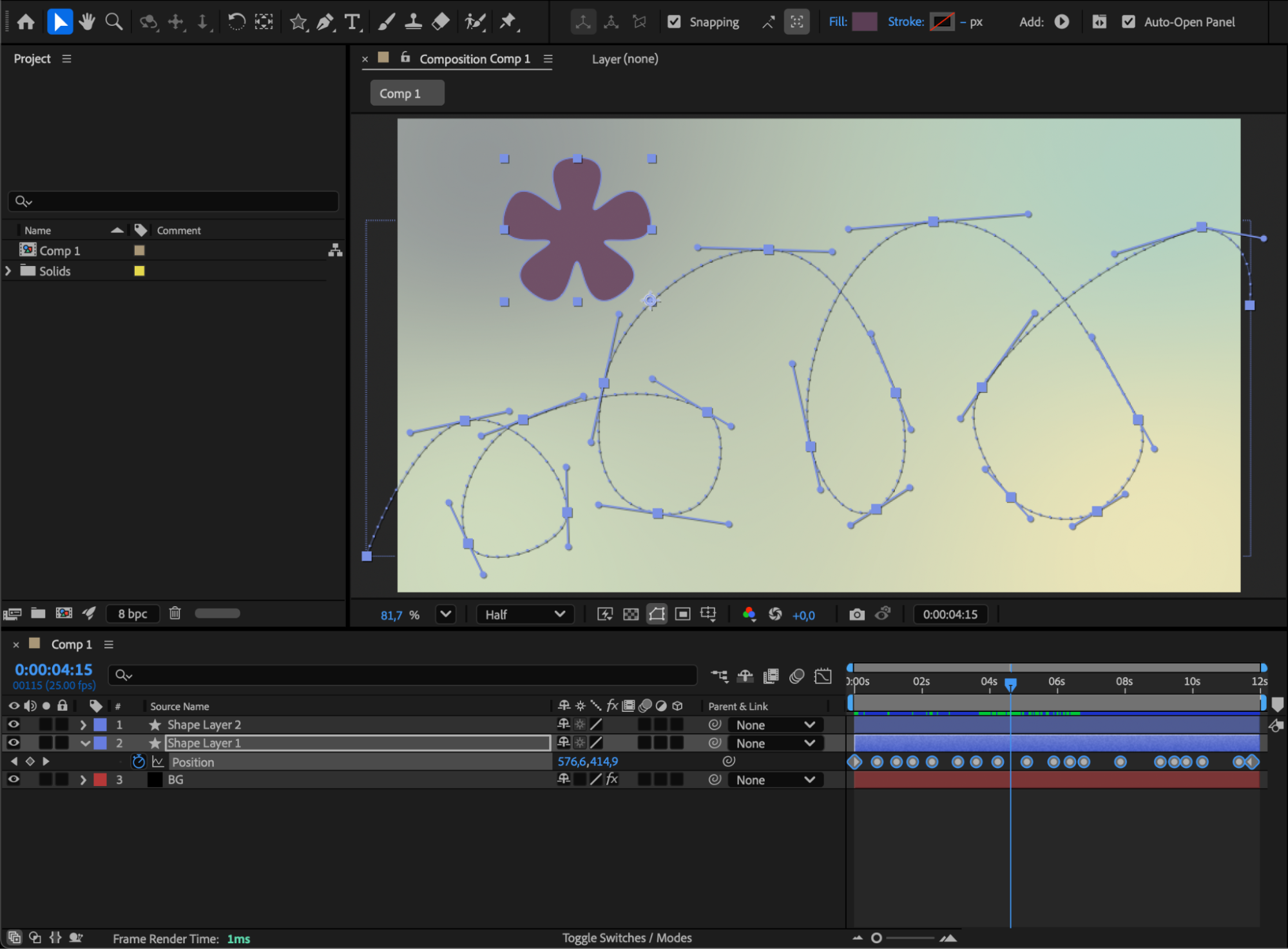
Use the Pen Tool (G) to draw your custom motion path on the composition. Expand the shape layer properties by going to Contents > Shape 1 > Path 1 > Path. Then, go to the Edit menu and choose Copy. Next, select your shape layer, press “P” to open the Position property, and Paste the copied path. Your shape will now automatically follow the motion path you created with the Pen Tool.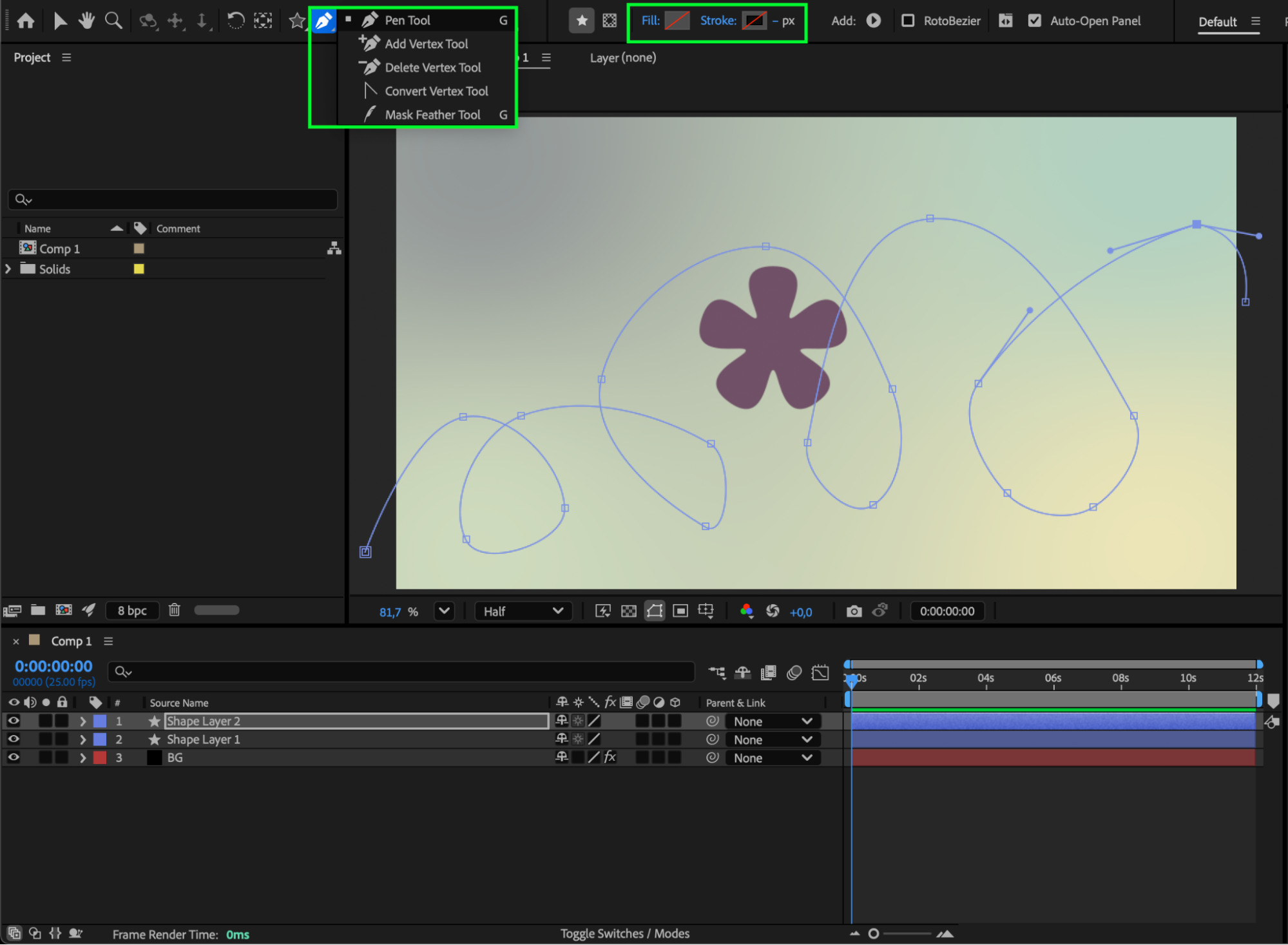
 Step 5: Preview
Press the Spacebar to preview your animation. Adjust keyframes or motion speed if needed to create smoother movement.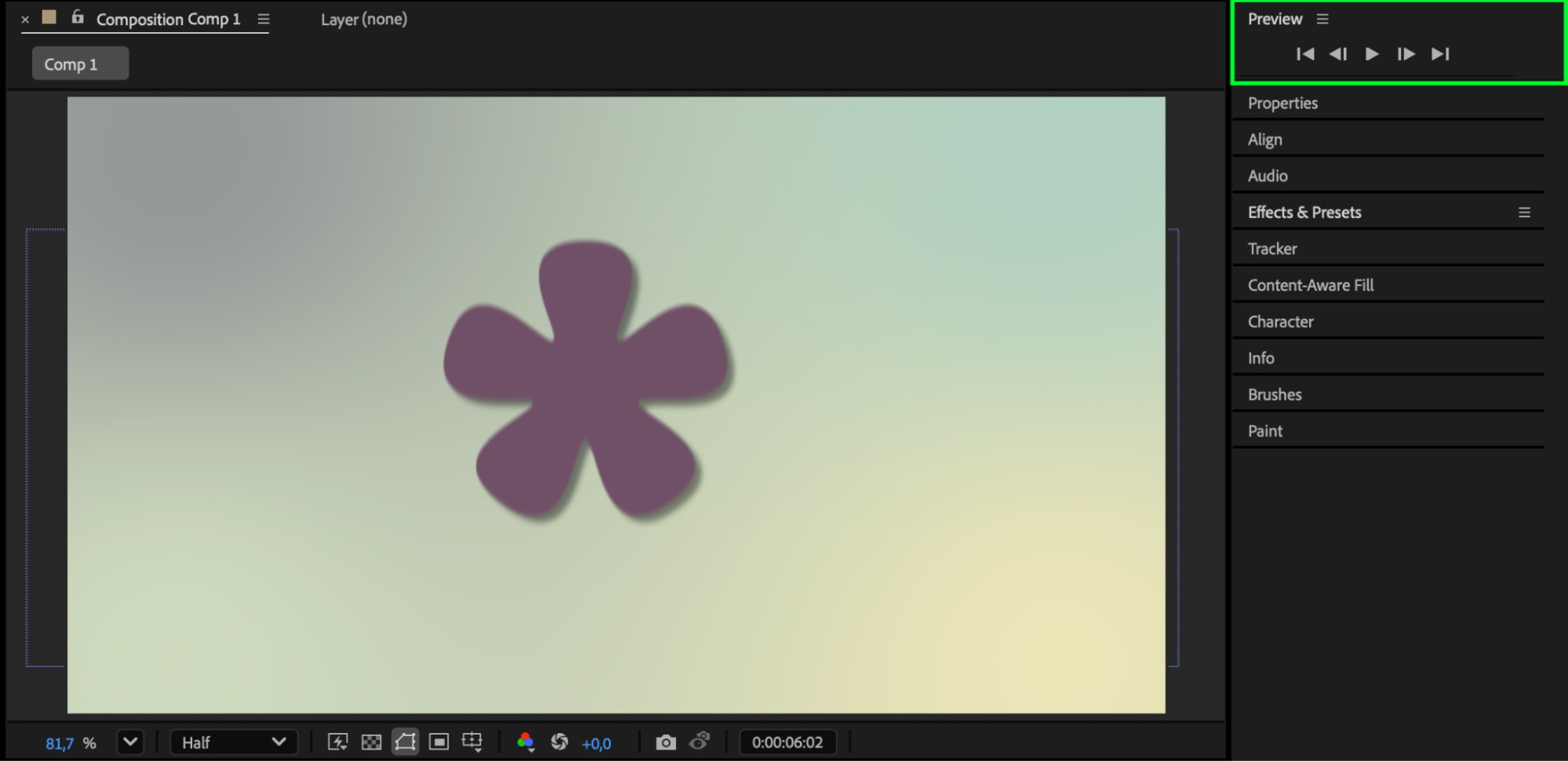
Conclusion
Now your shape moves perfectly along the path you designed. This simple method can be used to create elegant motion graphics or dynamic title animations in After Effects.
Our Bestsellers
Our Bestsellers


