
Introduction
Sometimes you need a solid layer for effects, masks, or guides — but don’t want it visible in the final render. In this tutorial, you’ll learn how to make a solid layer invisible or transparent, while still keeping its effects or masks active.
Step 1: Create a New Composition
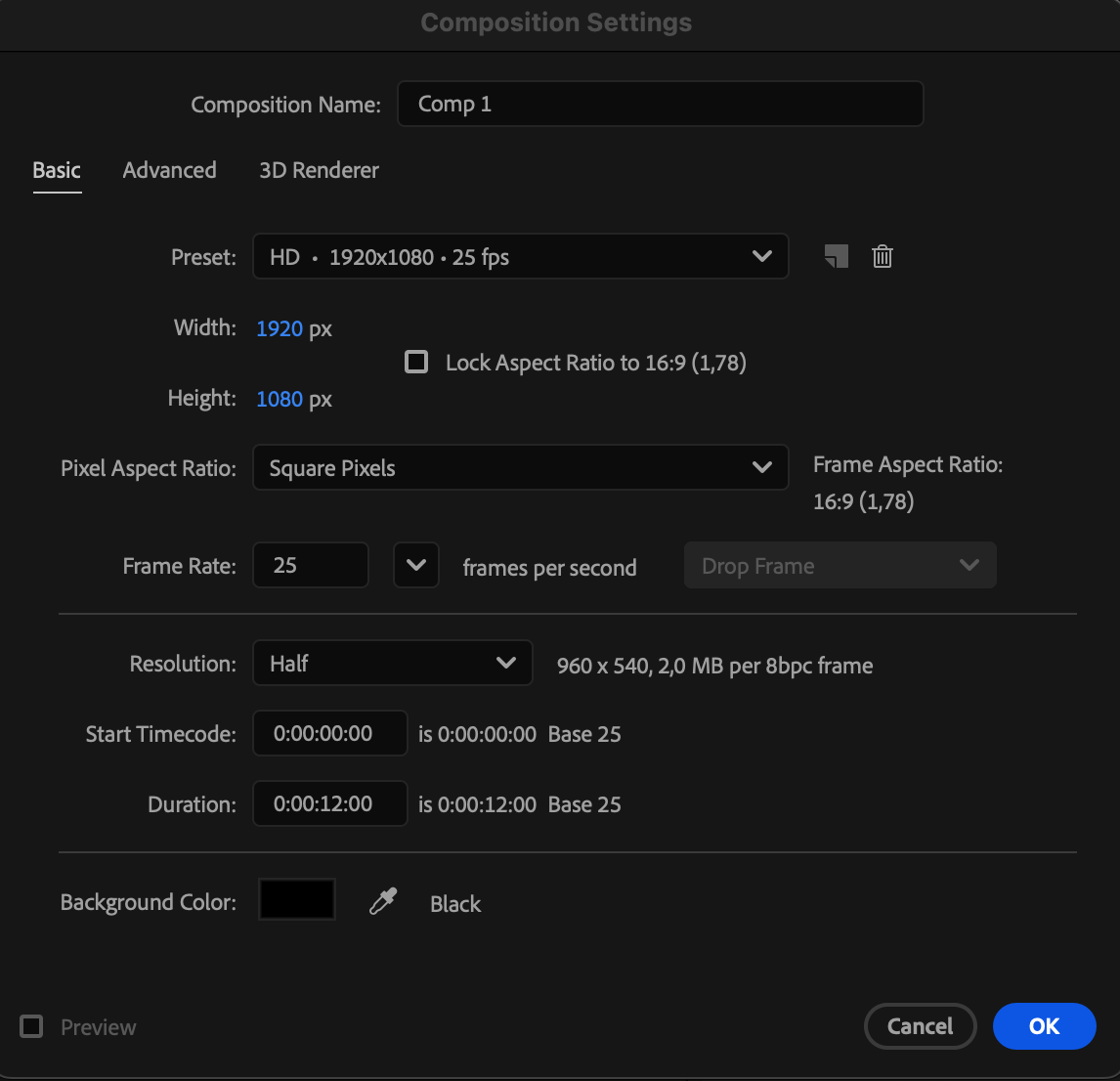
Go to Composition > New Composition, set your desired settings, and click OK. This will be your main working area for the effect.
 Step 2: Add a Solid Layer
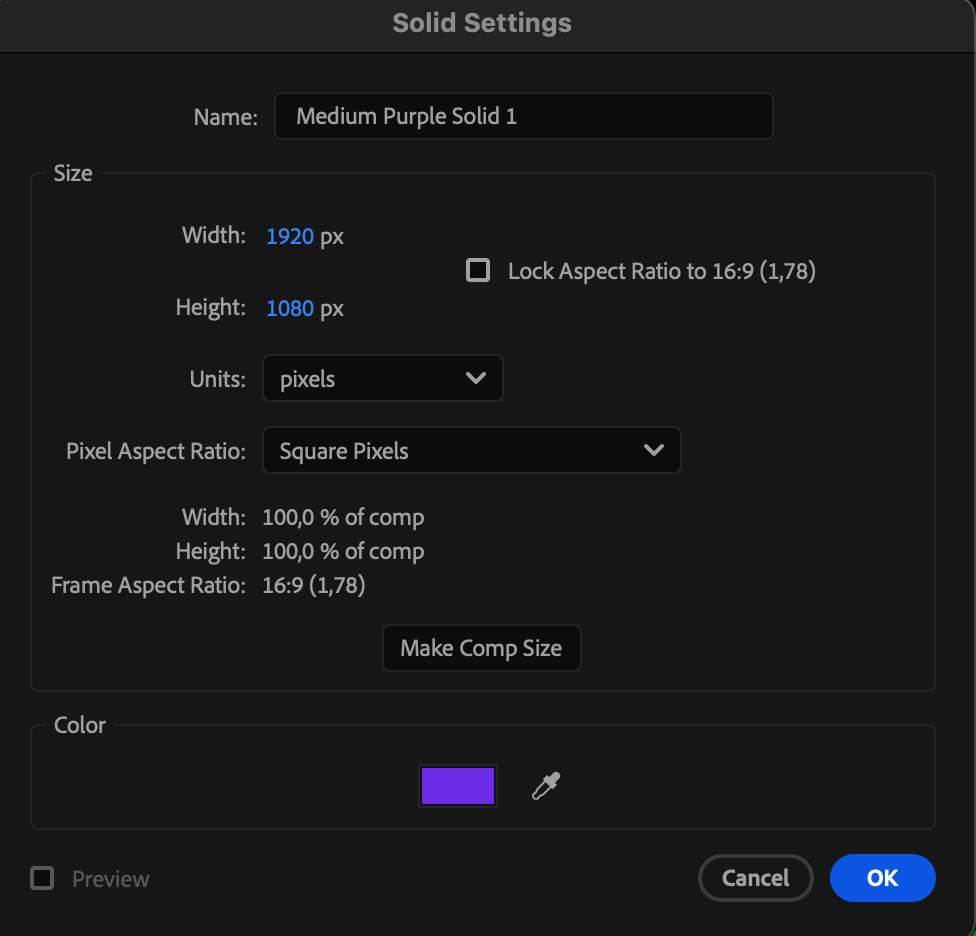
Go to Layer > New > Solid and choose a color for the solid. You can use this solid as a background, mask, or control layer for effects.

Step 3: Make the Solid Layer Invisible
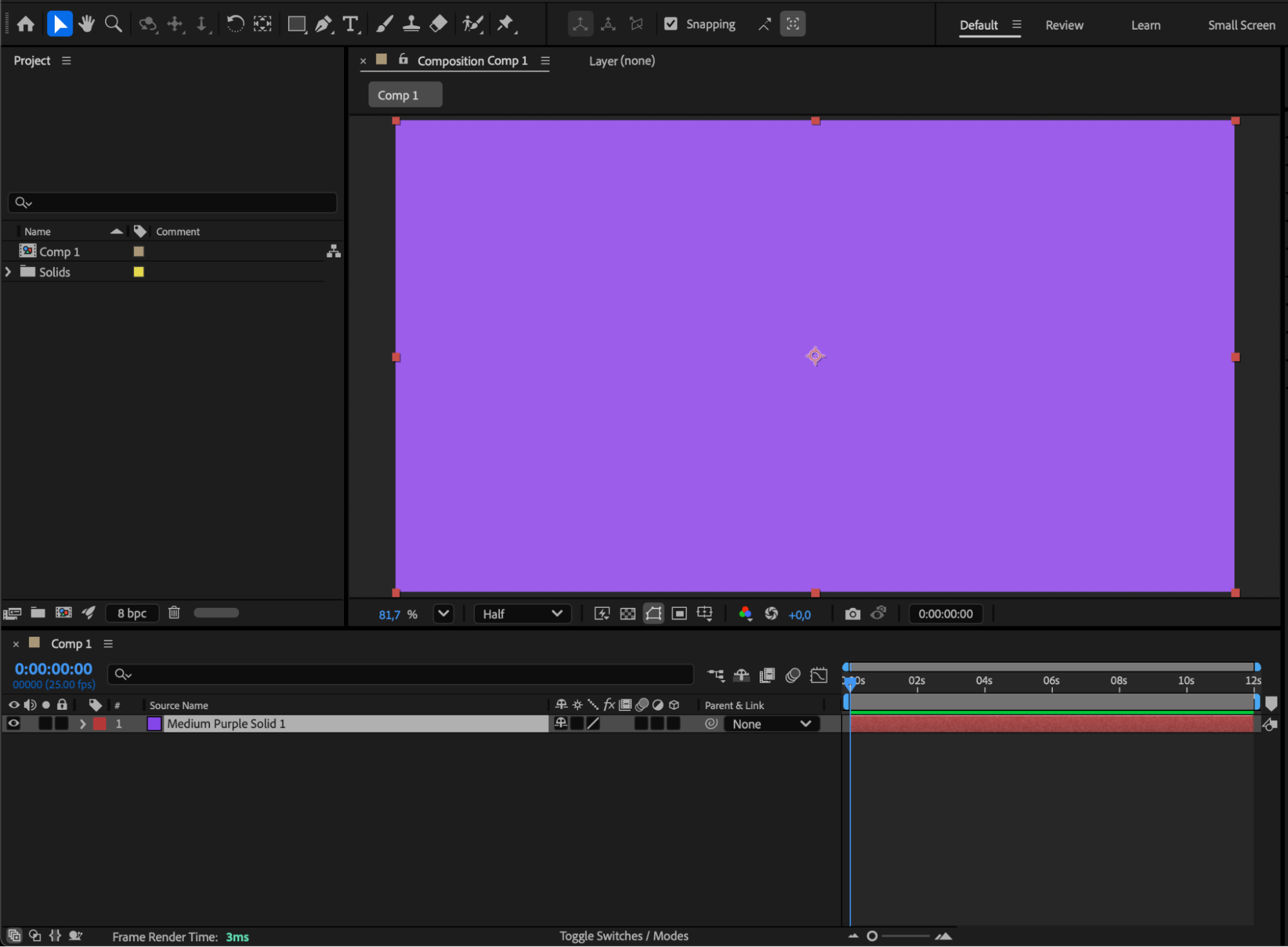
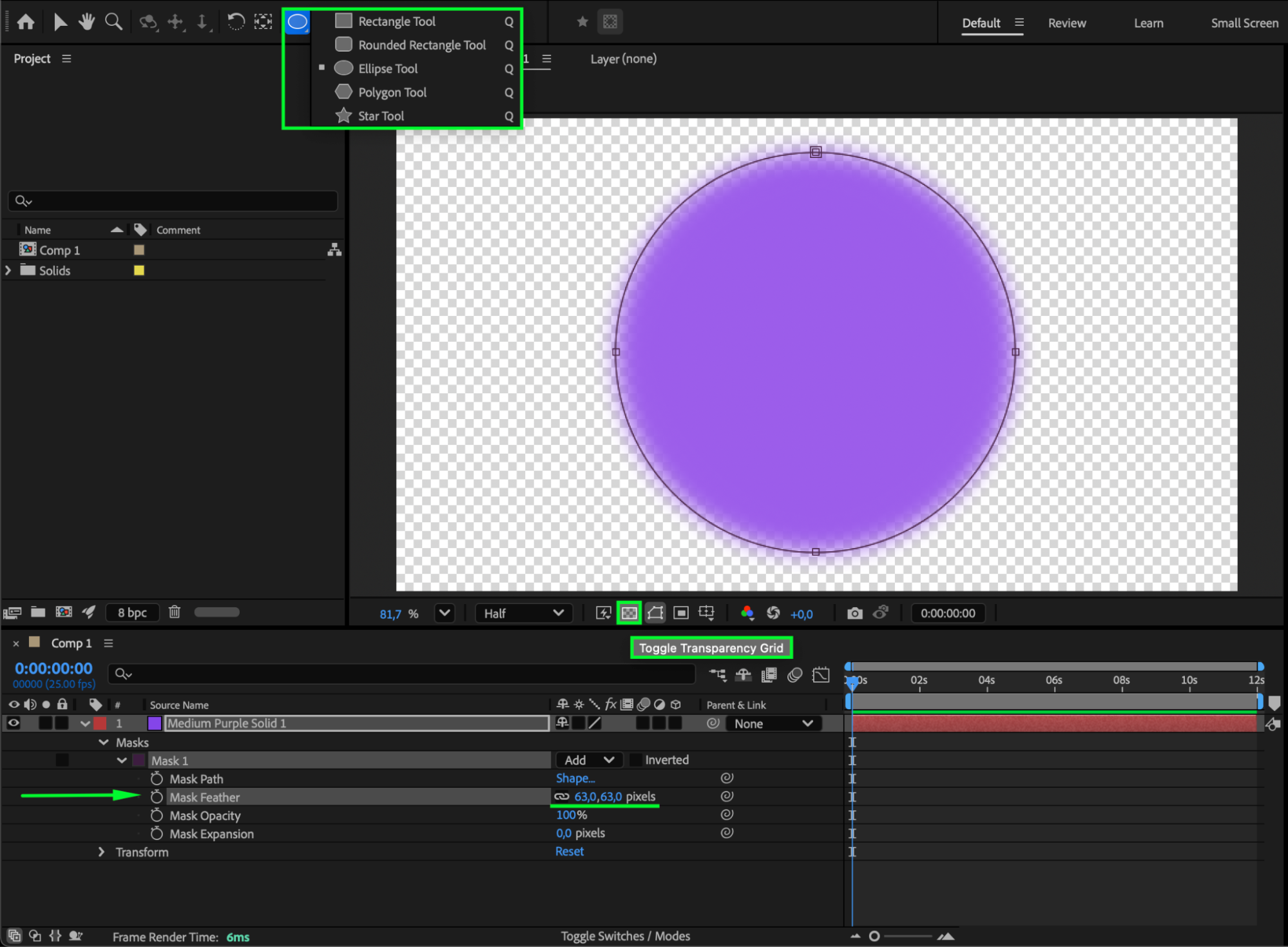
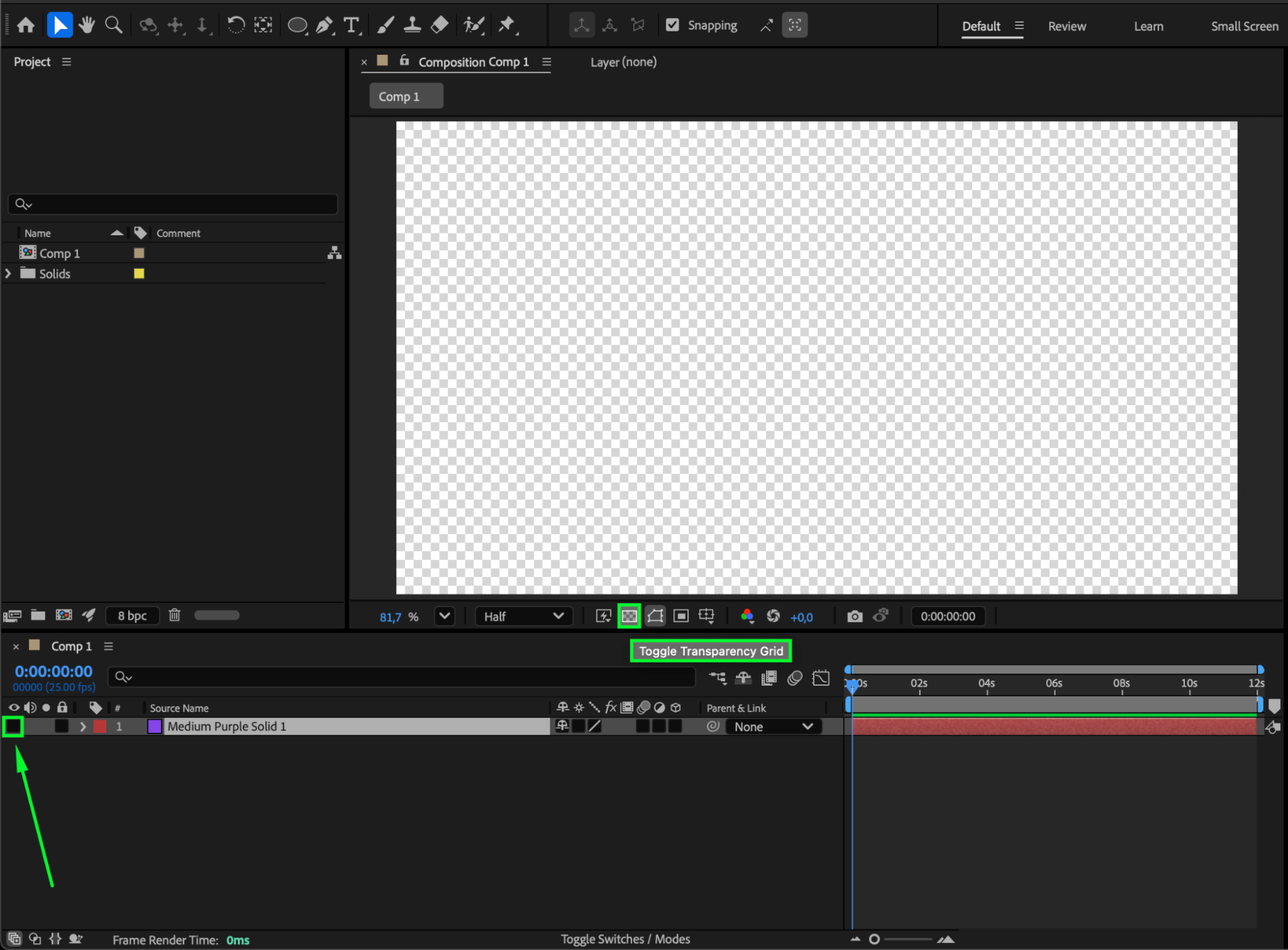
If you only want to hide the solid’s visibility but keep its effects active, click the eyeball icon next to the layer in the timeline. This turns off the layer’s visibility in the composition but keeps its effects or adjustment functions working.
If you need partial transparency instead of full invisibility, select the solid layer, press T to open the Opacity property, and lower it to your preferred level (for example, 0% to make it completely transparent).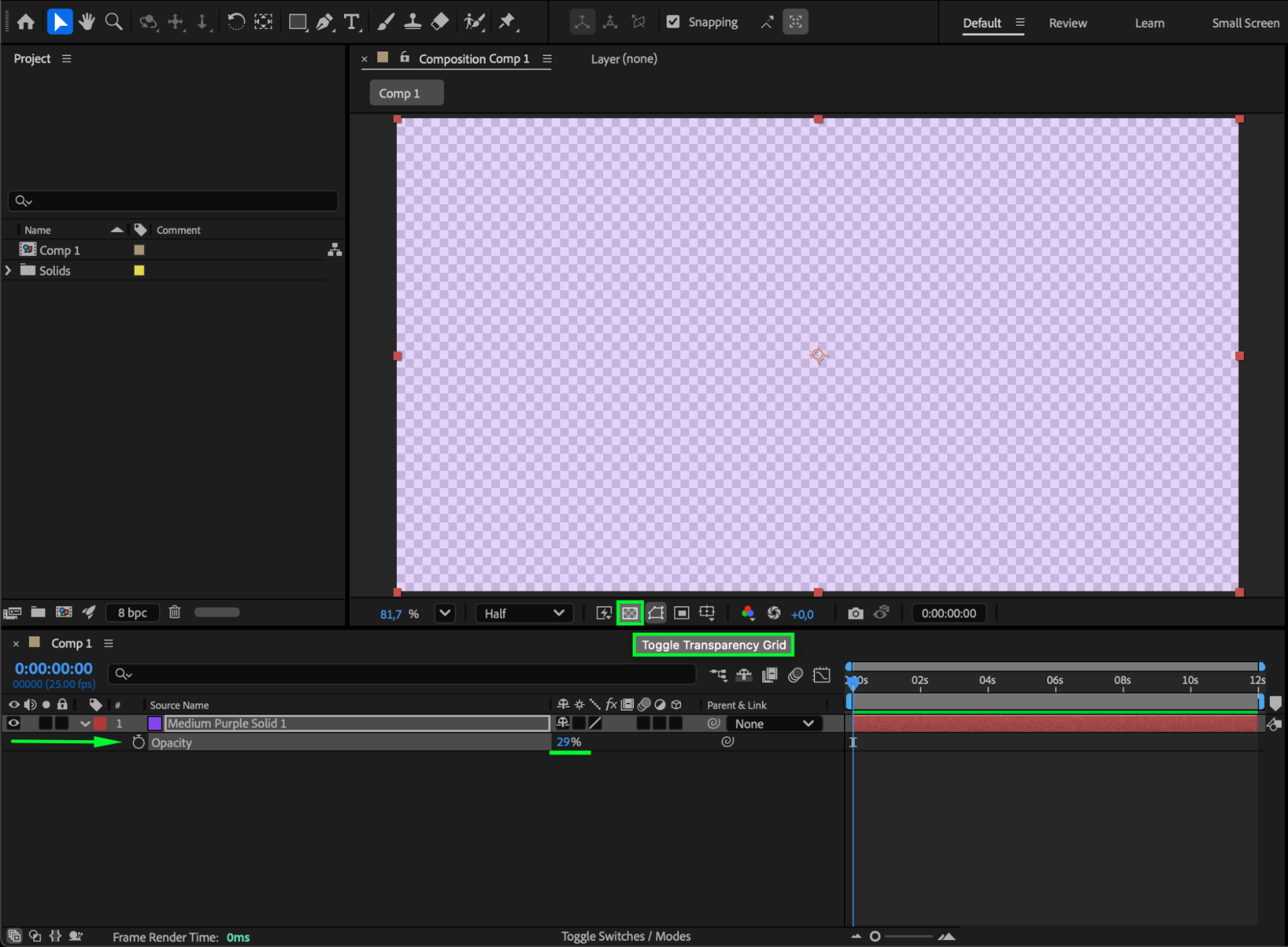
Step 4: Optional – Use as an Adjustment Layer
If you want to apply effects that affect layers below without showing the solid itself, go to Layer > Adjustment Layer. This creates a transparent layer that affects everything beneath it — perfect for color grading or global effects.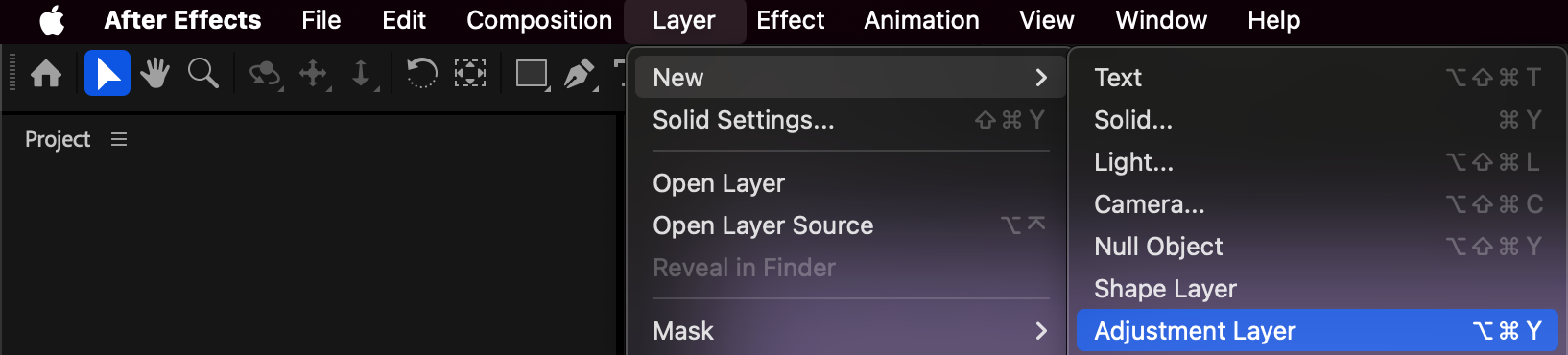
Step 5: Export With Transparency
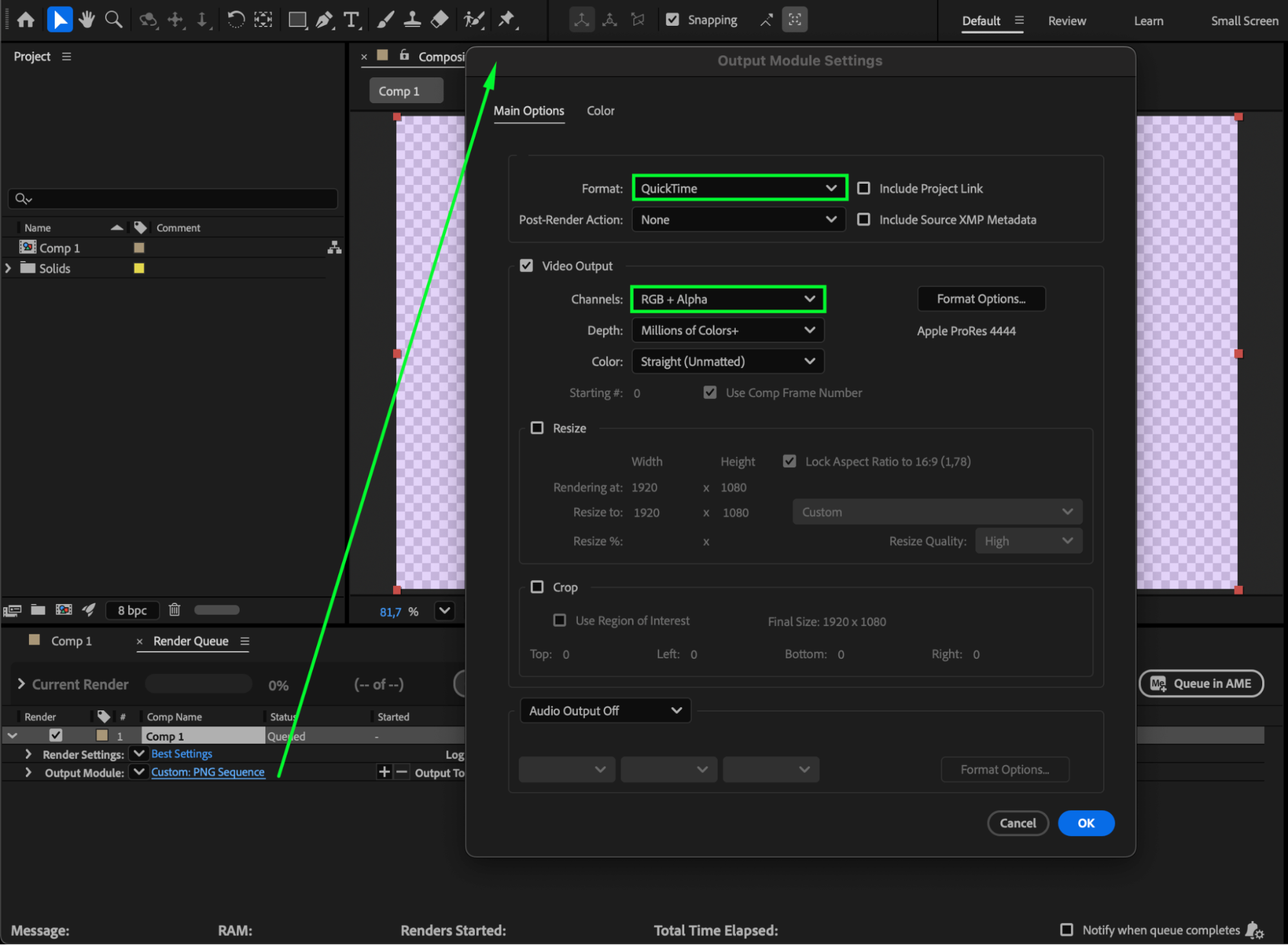
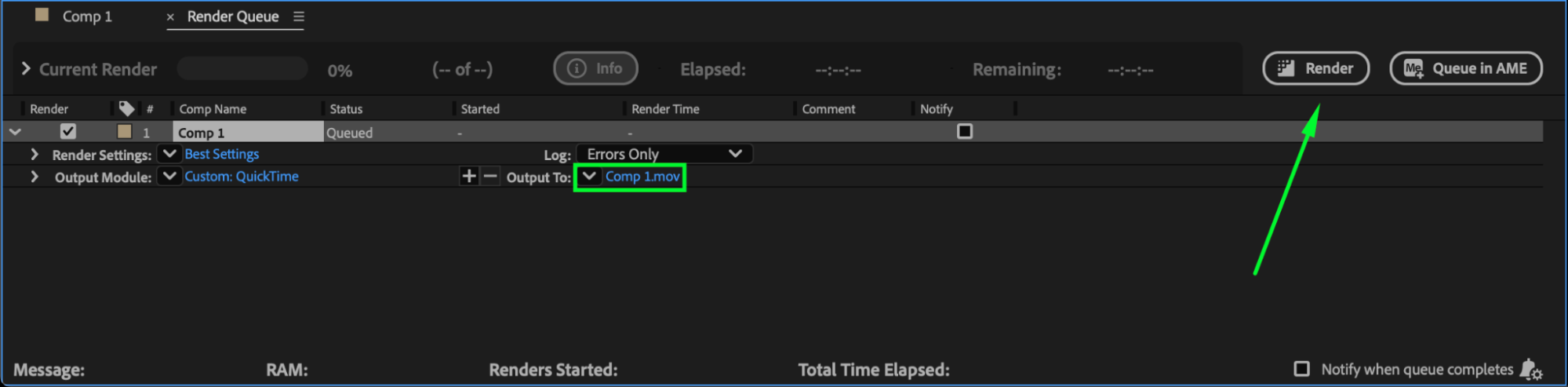
To export your project with transparency, go to Composition > Add to Render Queue. In the Output Module, choose QuickTime as the format, then click on Channels and select RGB + Alpha to include transparency. Finally, click Render to export your video with a transparent background.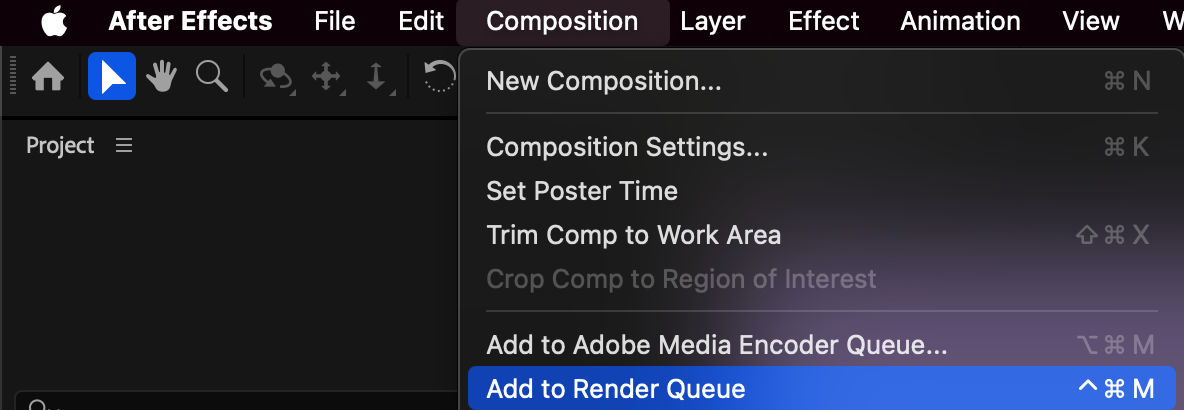
 Conclusion
Now you know how to make a solid layer invisible or transparent in After Effects and export your video with alpha support. This is essential when creating overlays, motion graphics, or any visual element meant to be placed over other footage.
Our Bestsellers
Our Bestsellers


