
Introduction to Path-Based Transformation
Animating an object along a path is a powerful way to create dynamic motion in After Effects. You can make a layer follow a custom trajectory while changing its position, scale, rotation, or opacity over time. This technique is often used in logo reveals, motion infographics, and stylized transitions.
Step 1: Open Your Project
Launch After Effects and open your project. Make sure you have the composition and layers ready for animation — for example, an image, icon, or any object you want to move along a path.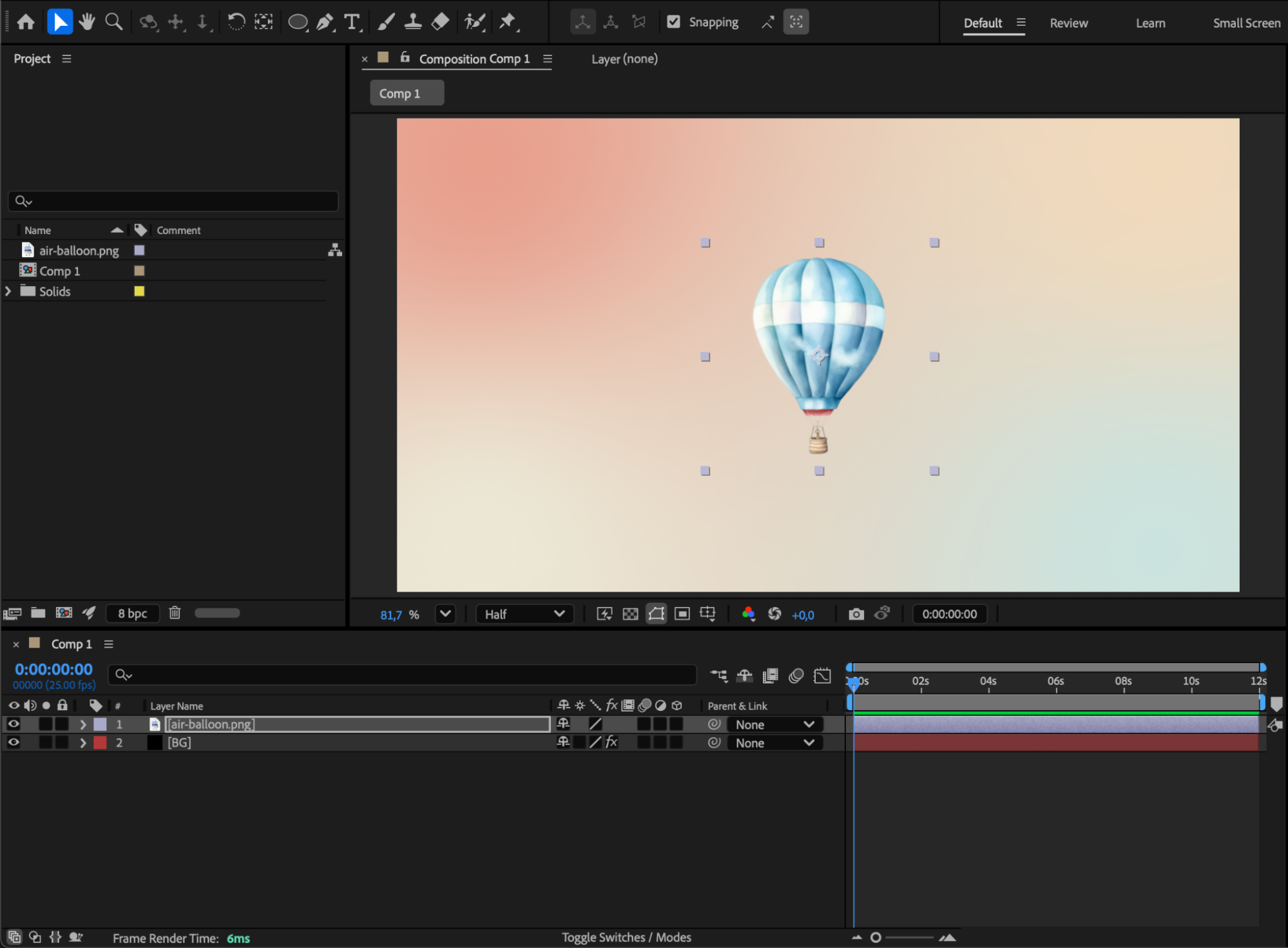
Step 2: Create a Custom Path
Select the Pen Tool (G) from the toolbar and draw a curved or angled line directly in your composition panel. This will act as your motion path for the animation.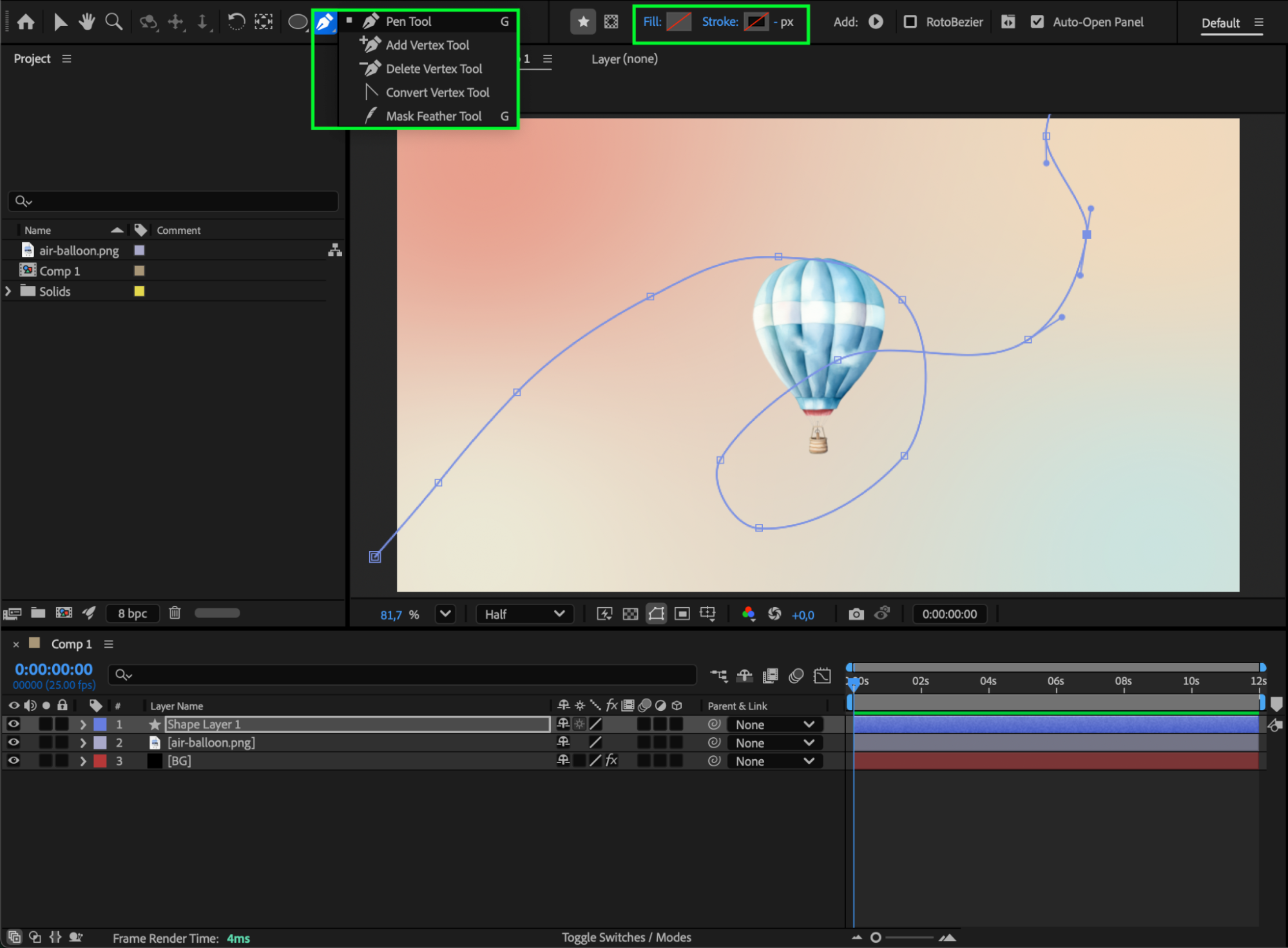
Step 3: Copy the Path to Position
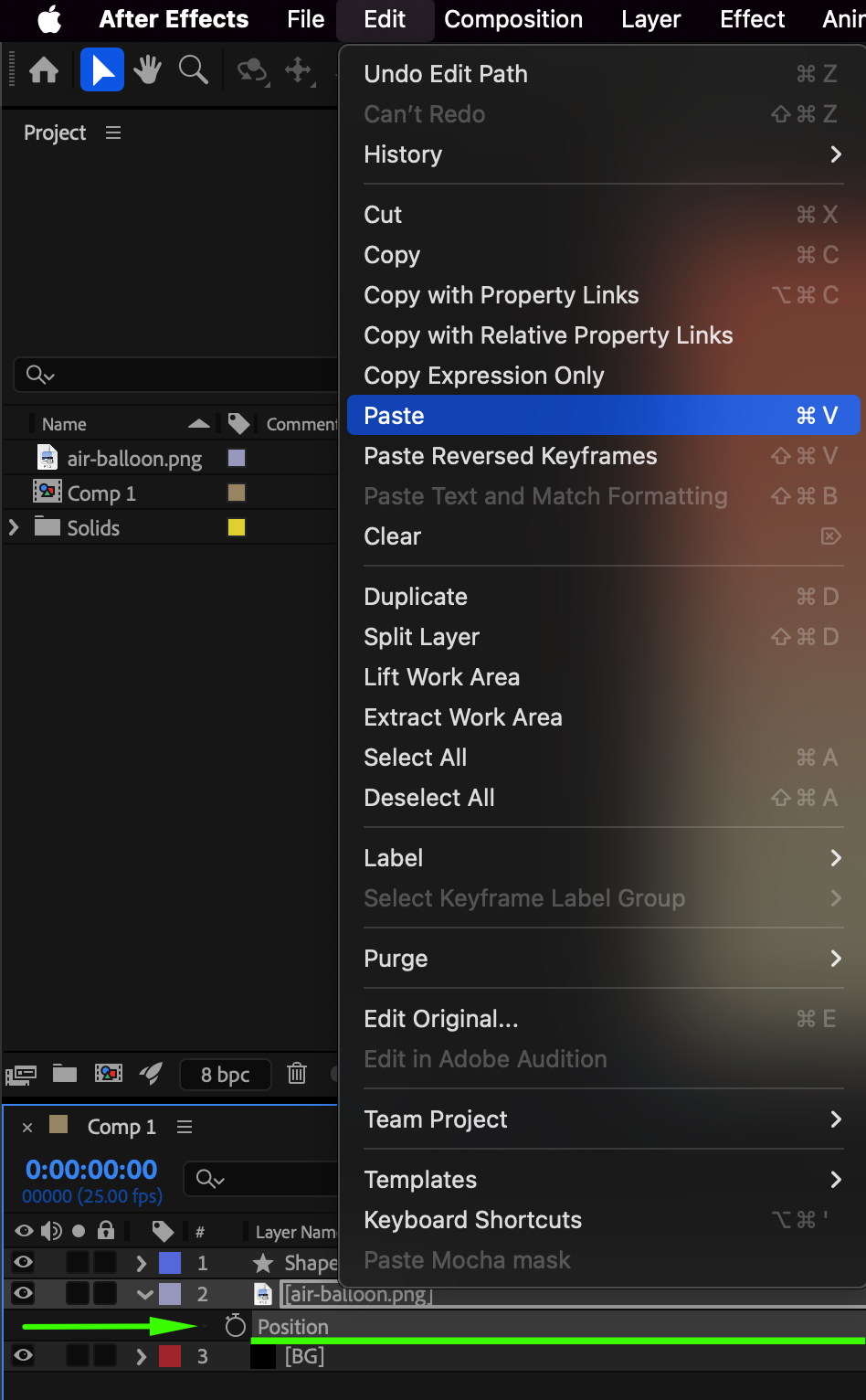
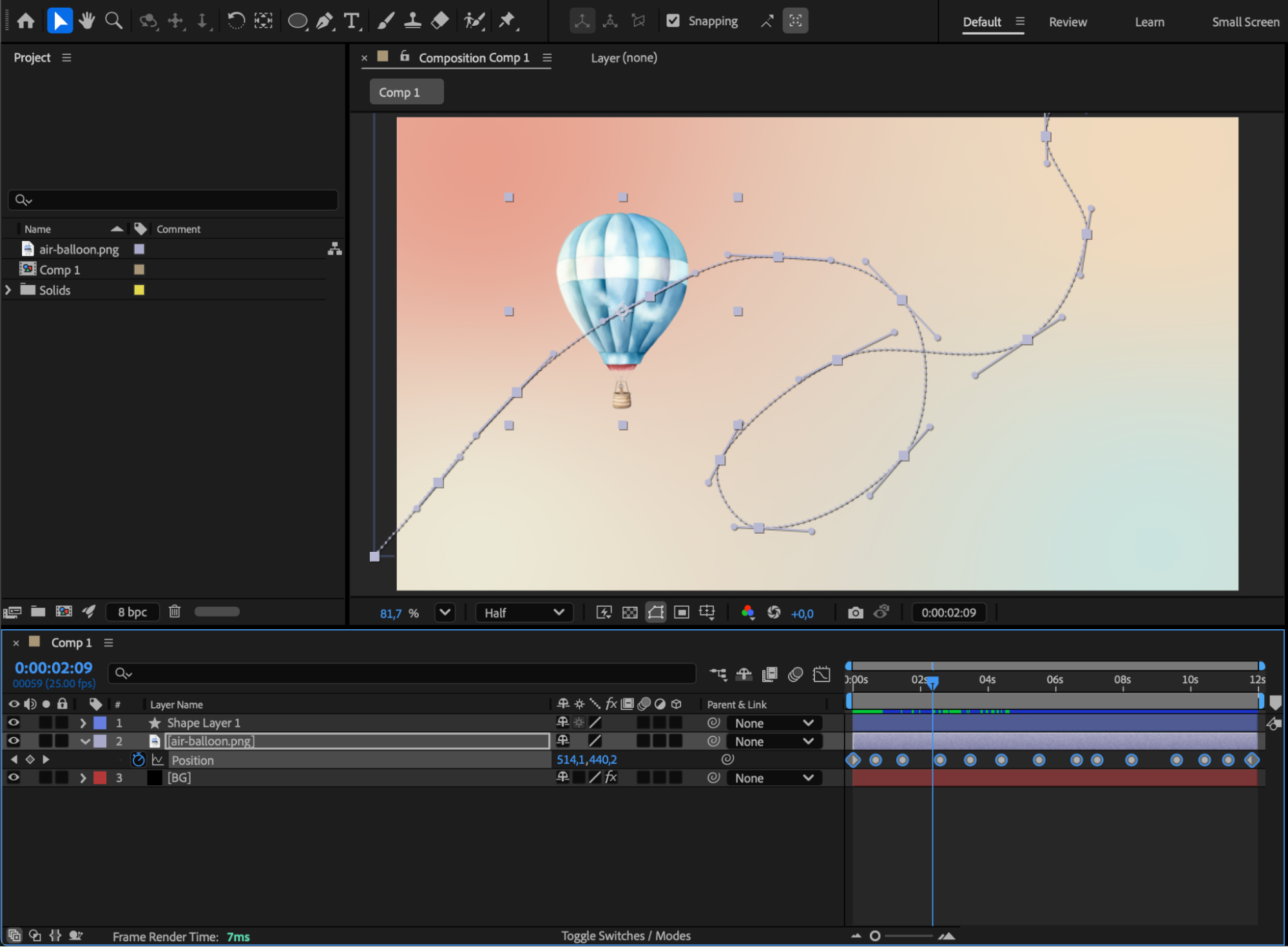
Expand the shape layer properties by going to Contents > Shape 1 > Path 1 > Path. Then, go to the Edit menu and choose Copy. Next, select your image or object layer, press “P” to open the Position property, and Paste the copied path. Your object will now automatically follow the motion path you created with the Pen Tool.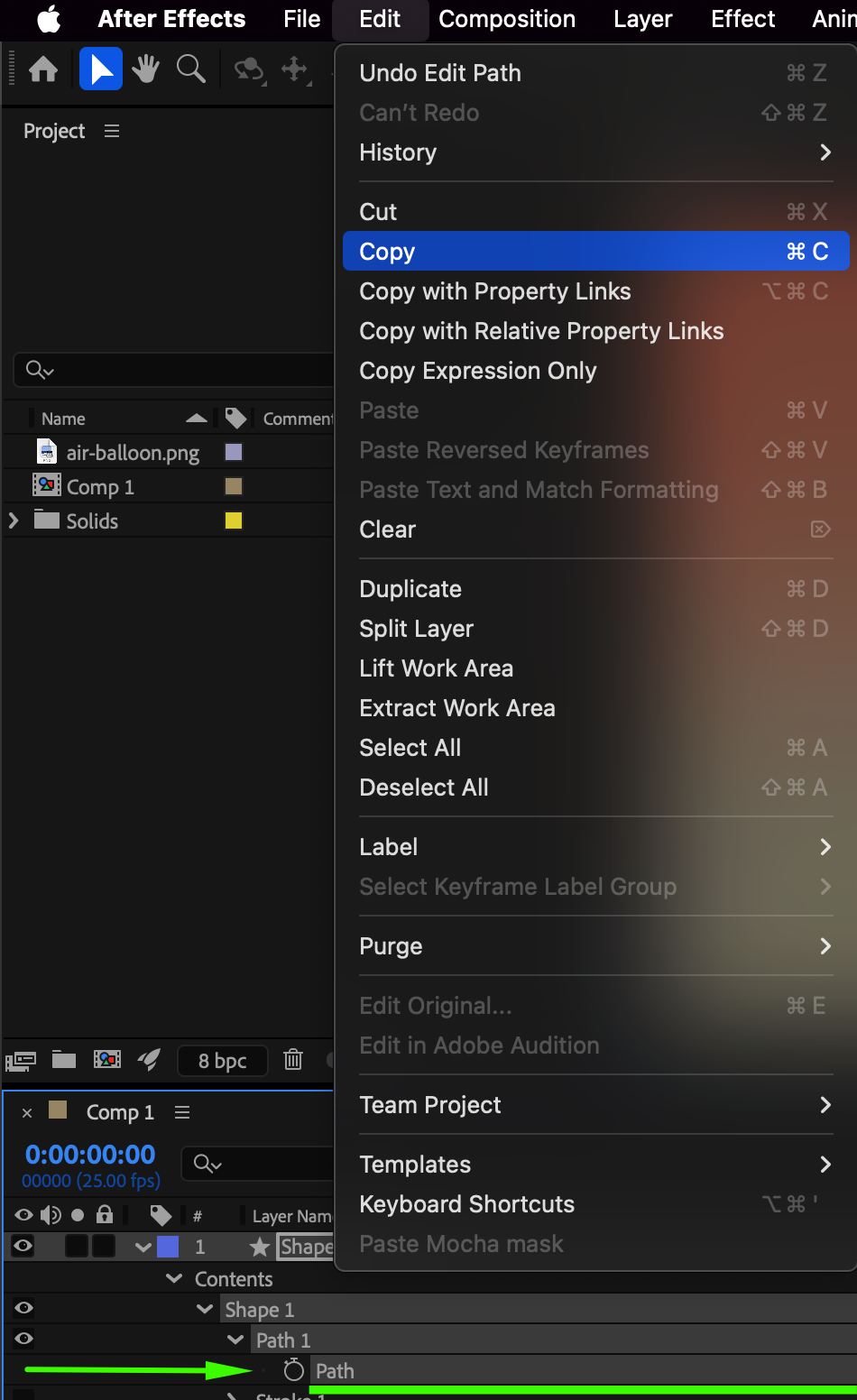
 Step 4: Animate Other Transform Properties
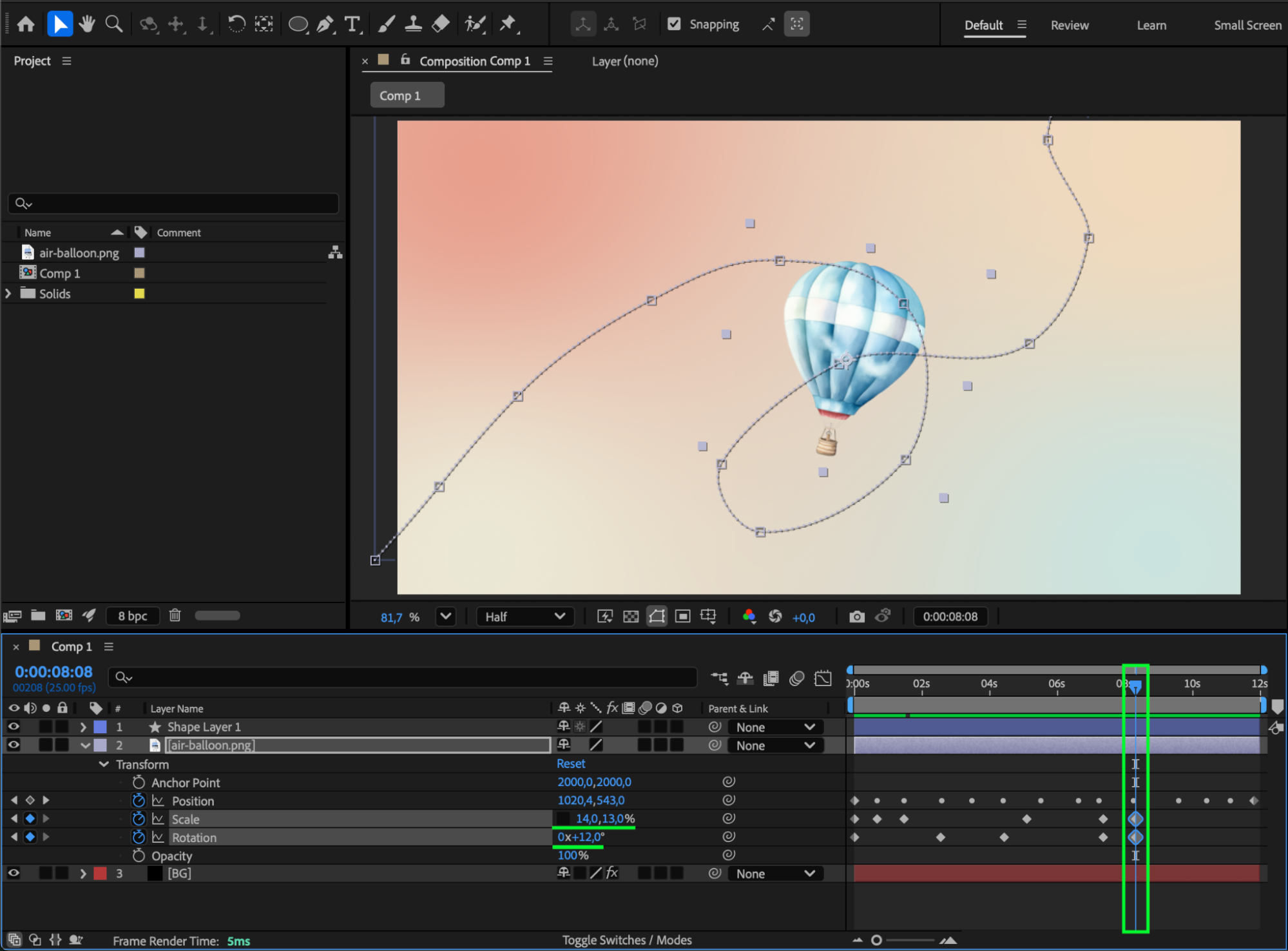
Expand the object layer and locate its Transform section. At the same keyframes where the position animation occurs, you can also animate Scale, Rotation, or Opacity to add more life and realism to your motion. For instance, make the object slightly rotate as it follows curves or fade in and out at specific moments.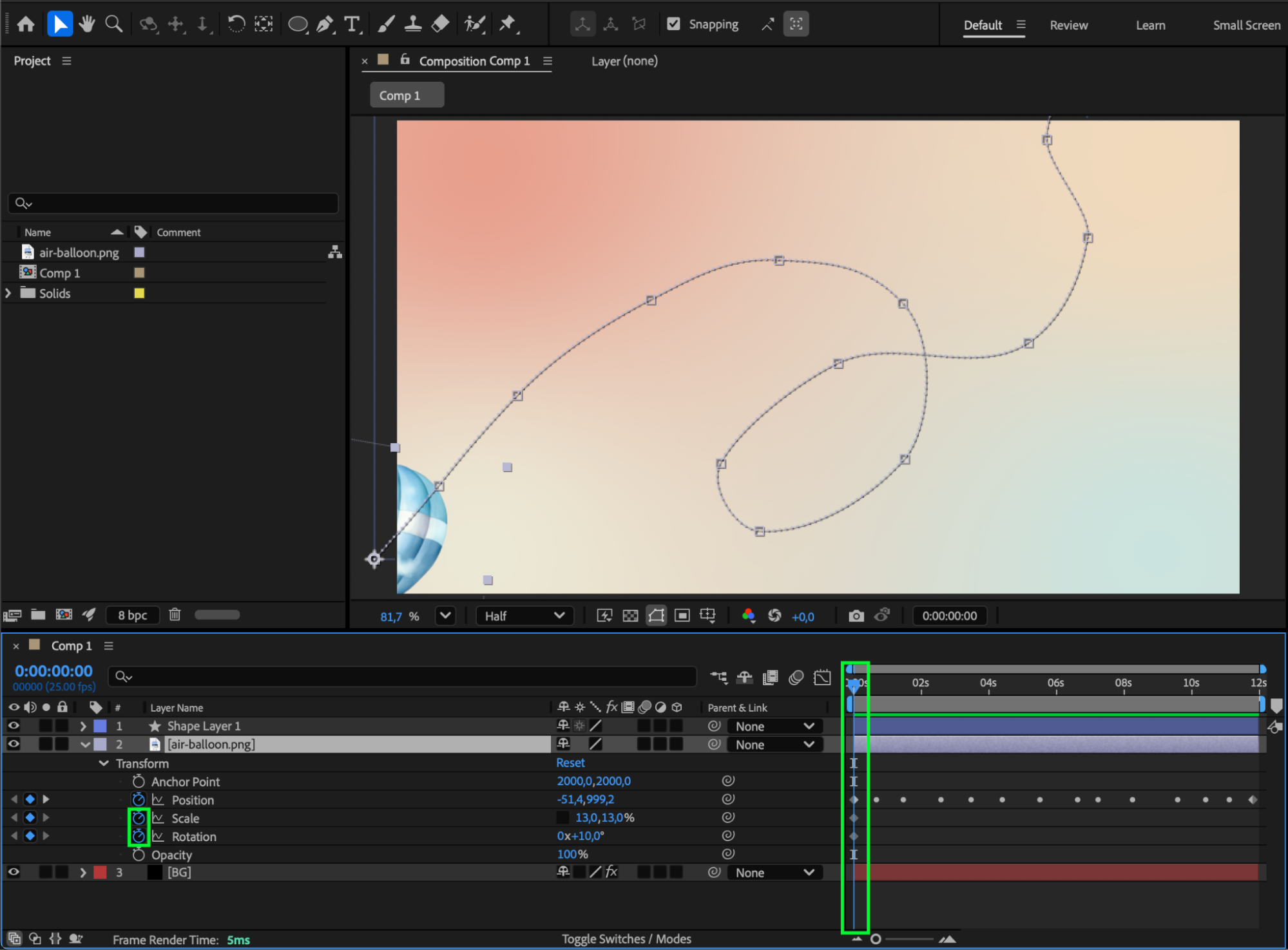
 Step 5: Apply Easy Ease
Select all your keyframes, then right-click and choose Keyframe Assistant > Easy Ease.
This smooths out your animation, giving it more natural acceleration and deceleration along the path.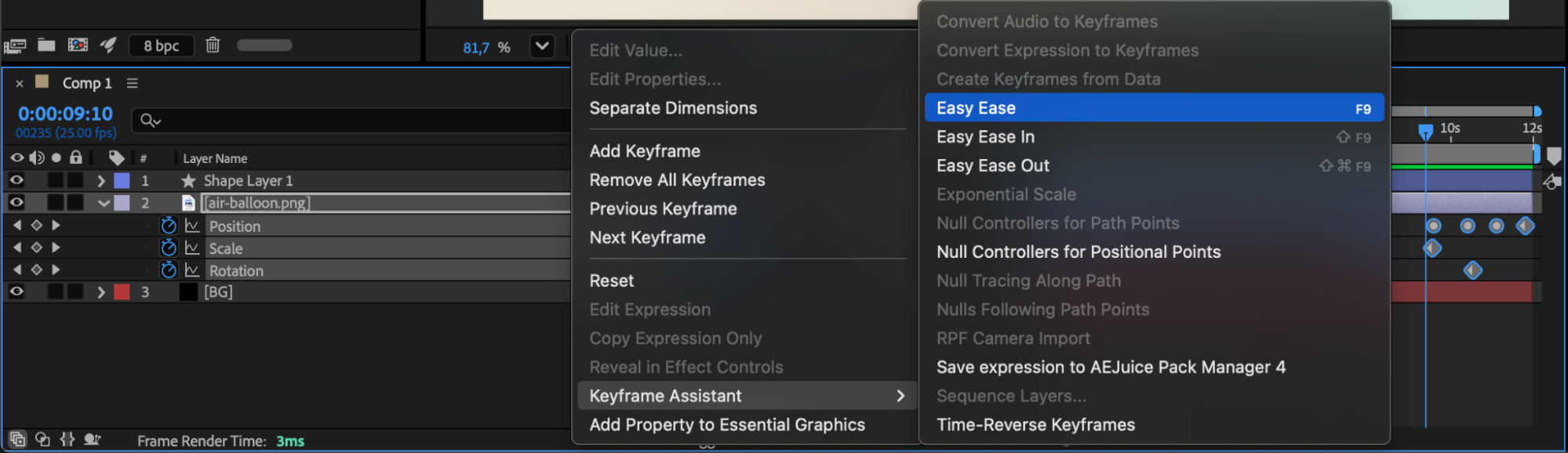
Step 6: Enable Motion Blur
Enable Motion Blur for your animated layer and make sure it’s also turned on in the composition settings. This adds realistic blur to fast-moving parts of the animation, enhancing its fluidity and depth.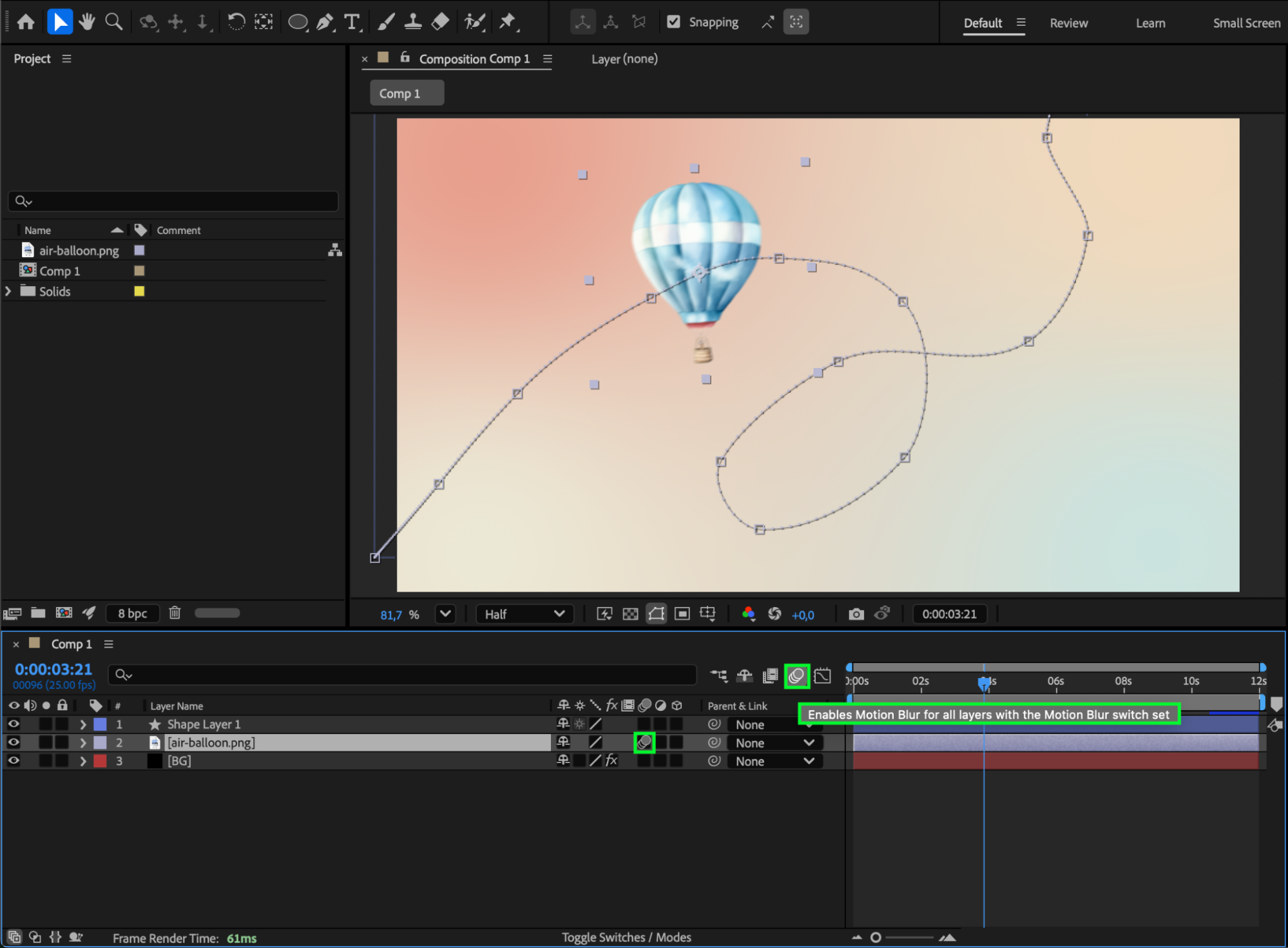 Step 7: Preview and Adjust
Press the Spacebar to preview your animation. If needed, tweak your keyframes or path shape until the movement feels natural and visually balanced.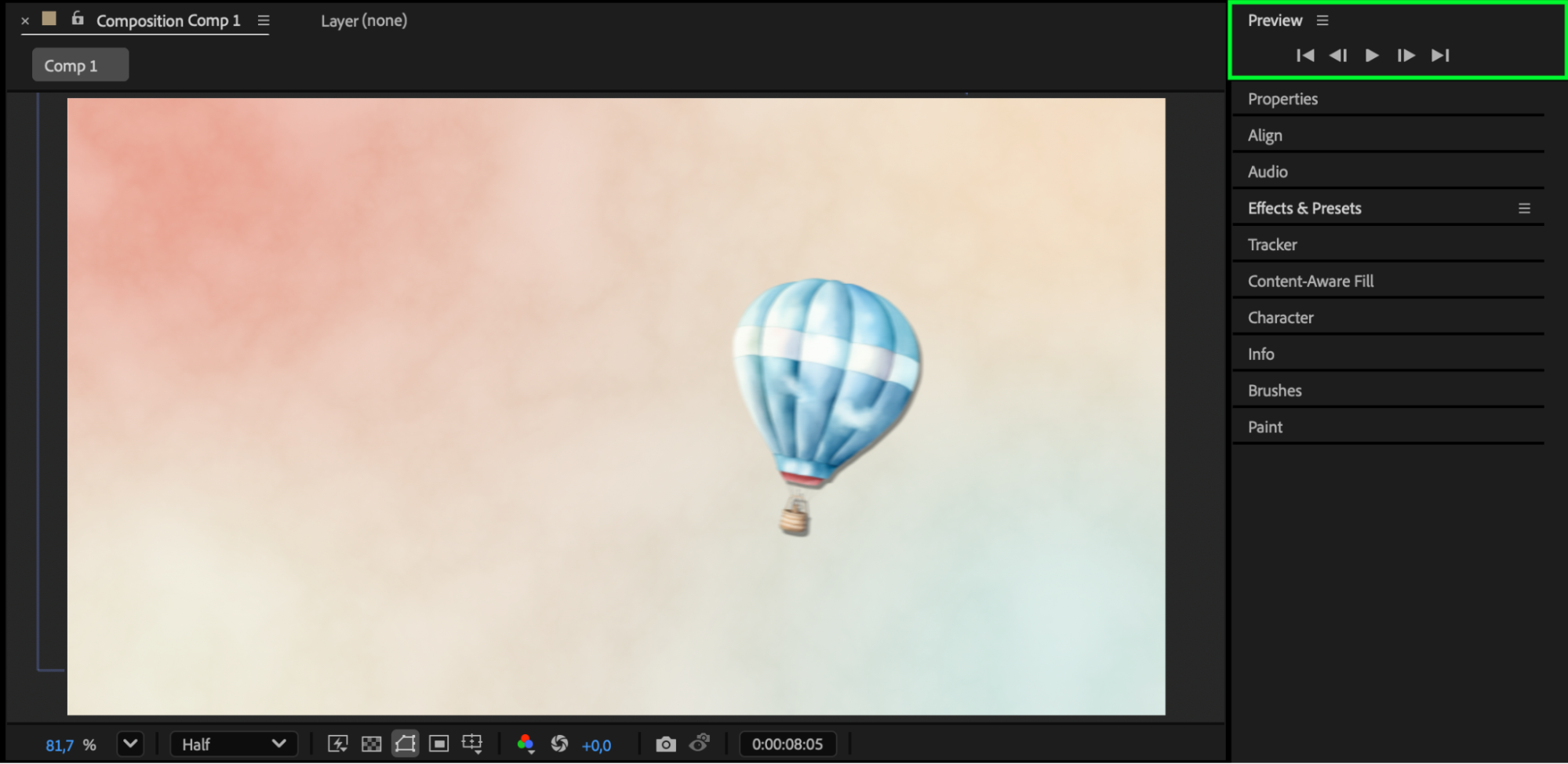
Conclusion
By copying a path into the Position property, you can make any component follow a precise motion trajectory in After Effects. Adding transformations like scale, rotation, and opacity along that path allows for smooth, expressive animations that look professional and dynamic — all without the need for extra plugins.
Our Bestsellers
Our Bestsellers


