
Introduction
Brightening the eyes in a photo can make the entire portrait feel more vivid and expressive. In After Effects, you can achieve this effect using simple masking and brightness adjustments.
Step 1: Import Your Photo
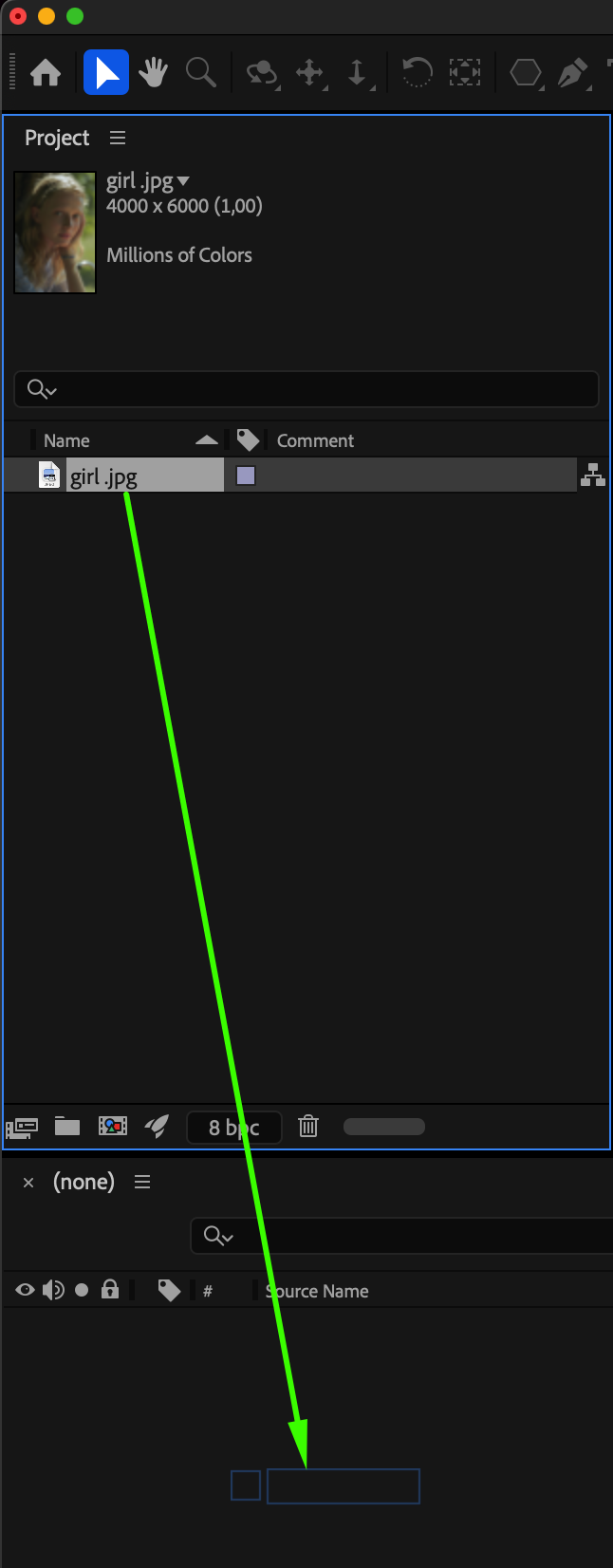
Go to File > Import > File, select your image, and drag it into your composition timeline to begin editing.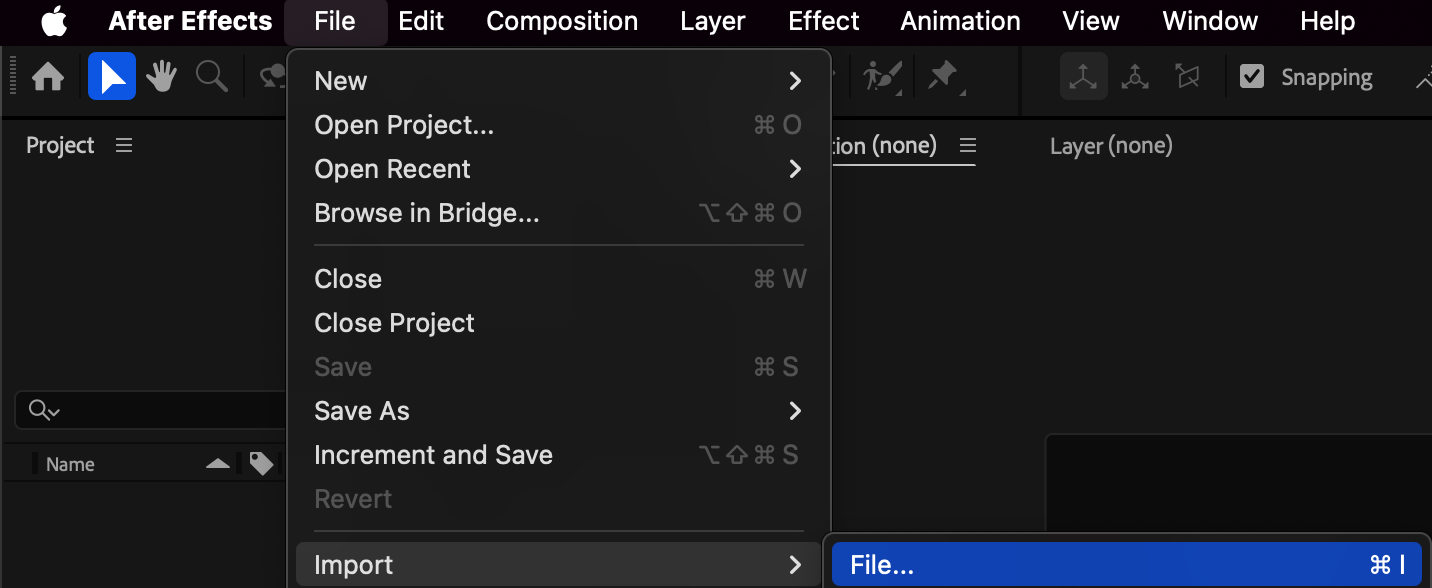
Step 2: Duplicate the Layer
Select the photo layer and press “Ctrl/Cmd + D” to create a duplicate, which will be used for the eye enhancement.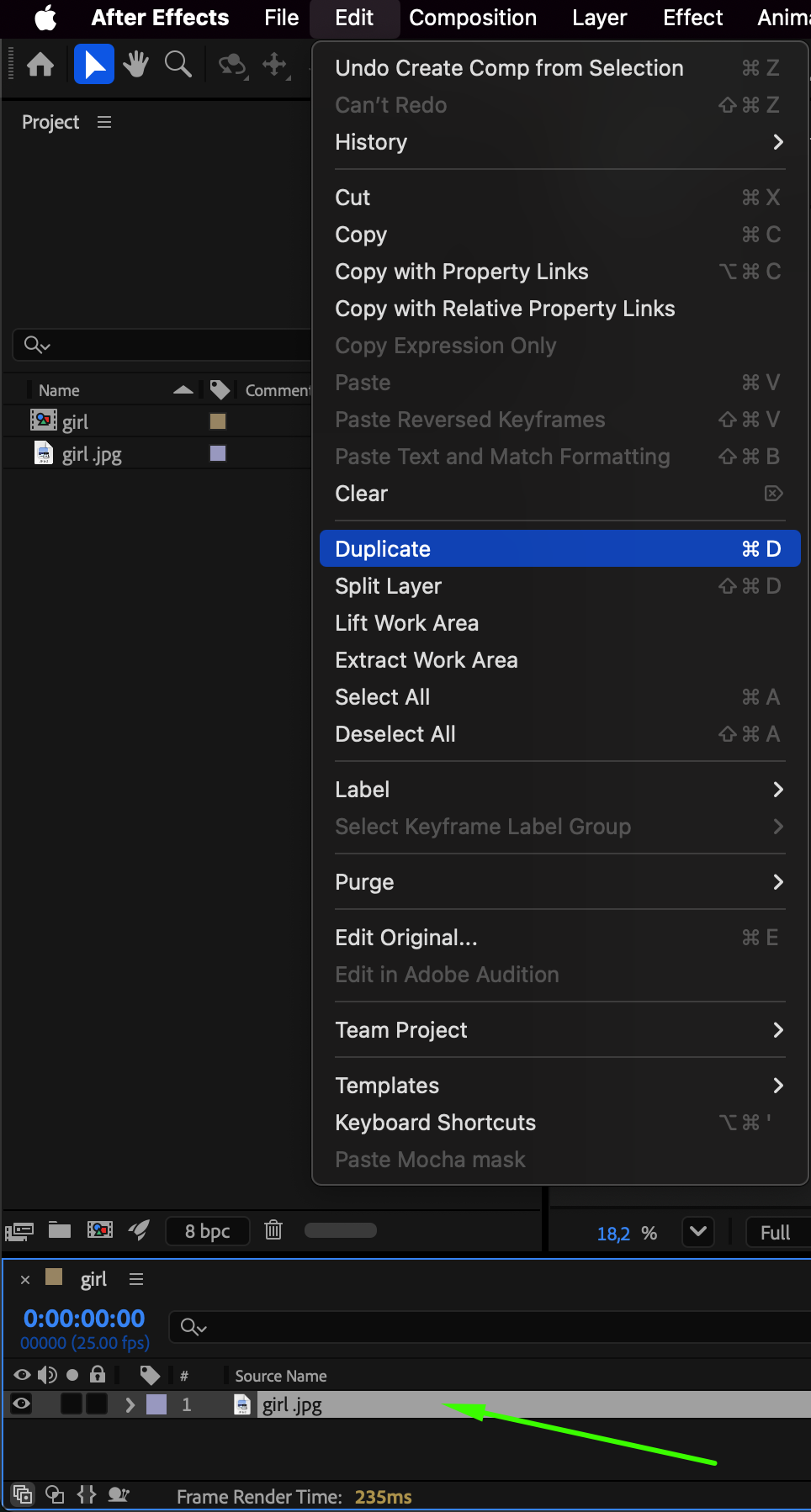 Step 3: Mask the Eyes
Choose the Pen Tool (G), select the duplicated layer, and draw two masks around the eyes. Set Mask Mode to Add so only the eye areas will be affected.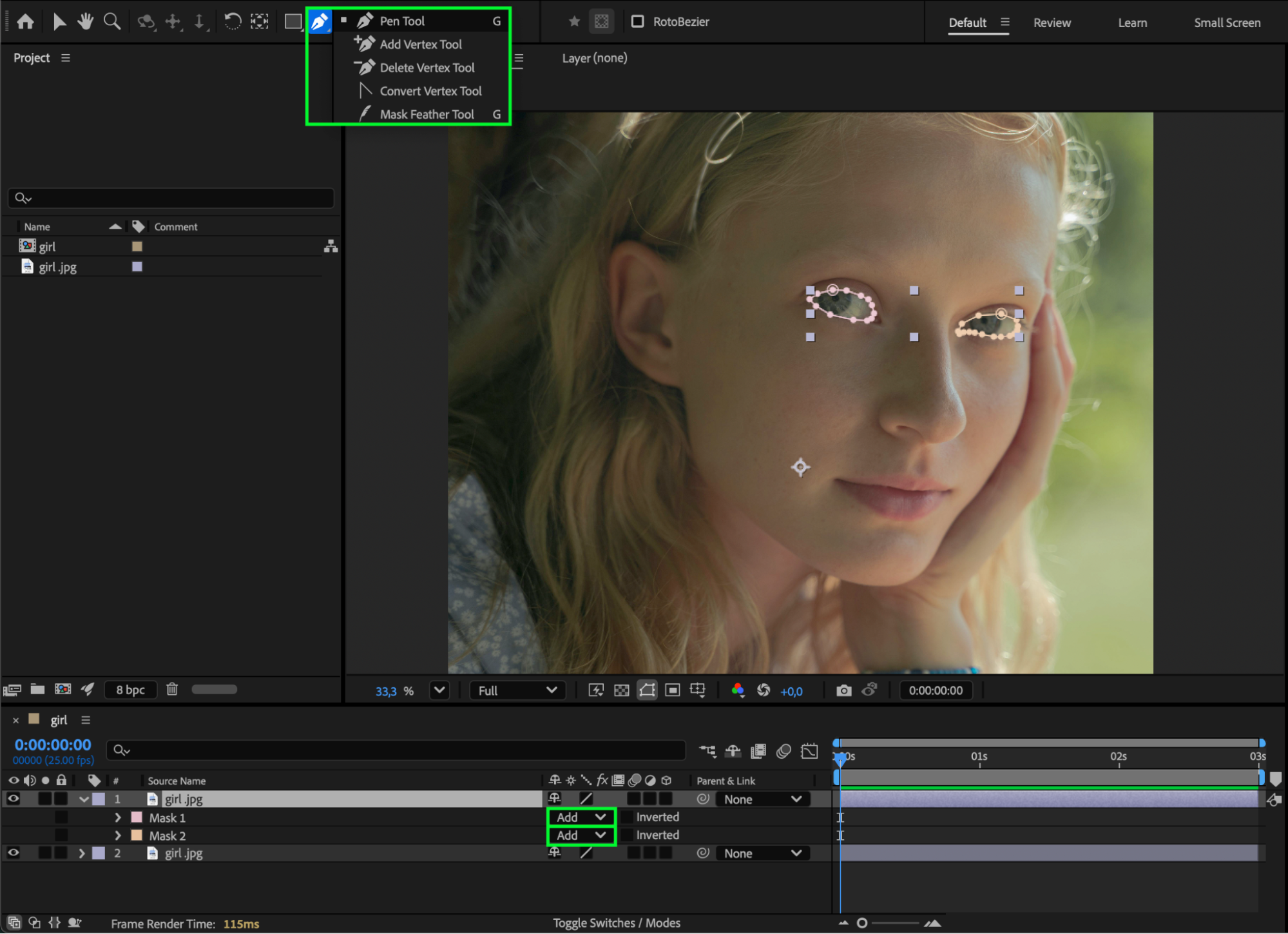 Step 4: Apply Brightness & Contrast
From the Effects & Presets panel, drag the Brightness & Contrast effect onto the masked layer. Adjust the sliders to make the eyes brighter and more defined.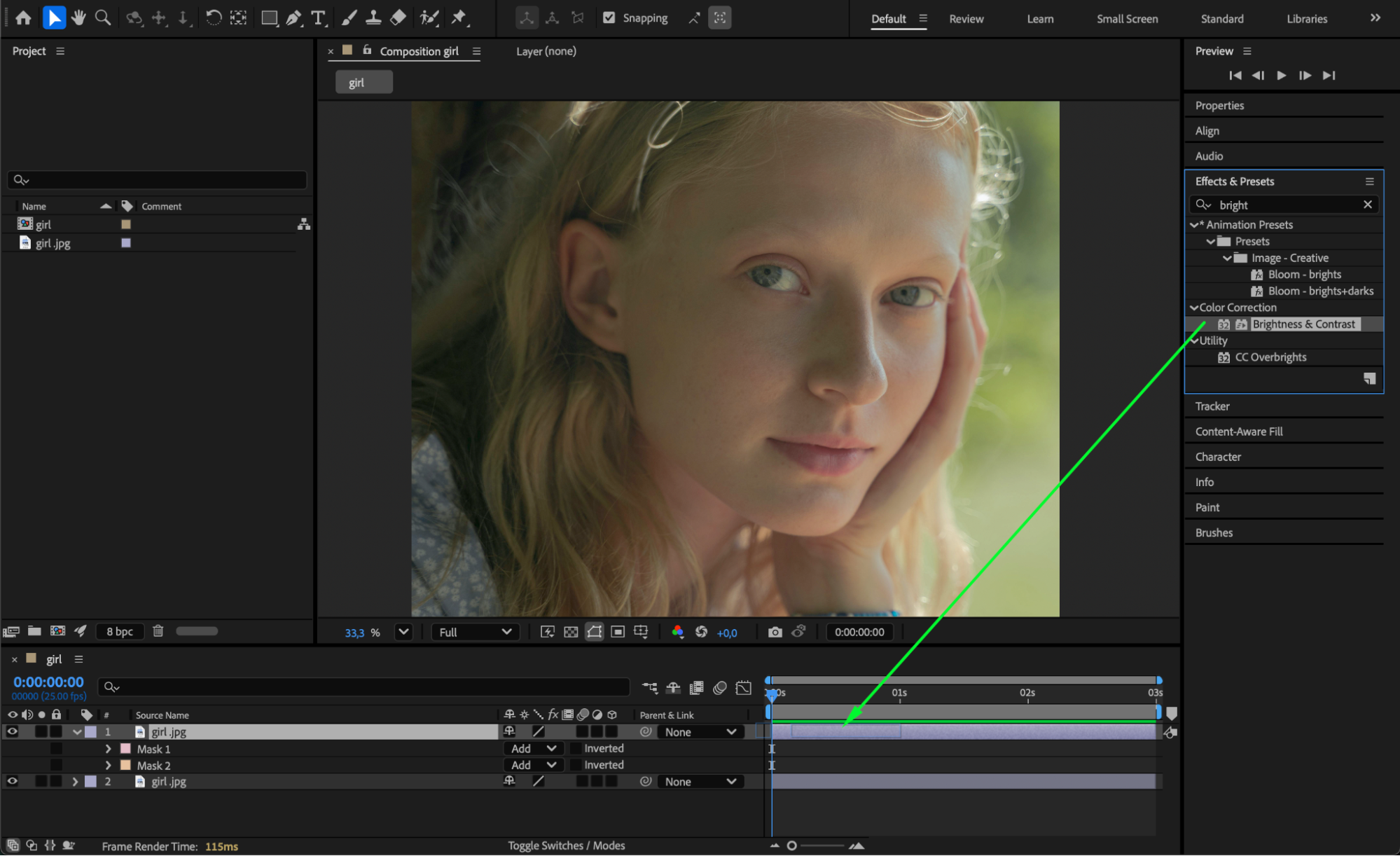
Step 5: Feather the Masks
In the mask settings, increase Mask Feather to around 3 to soften the edges and make the adjustment blend naturally into the photo.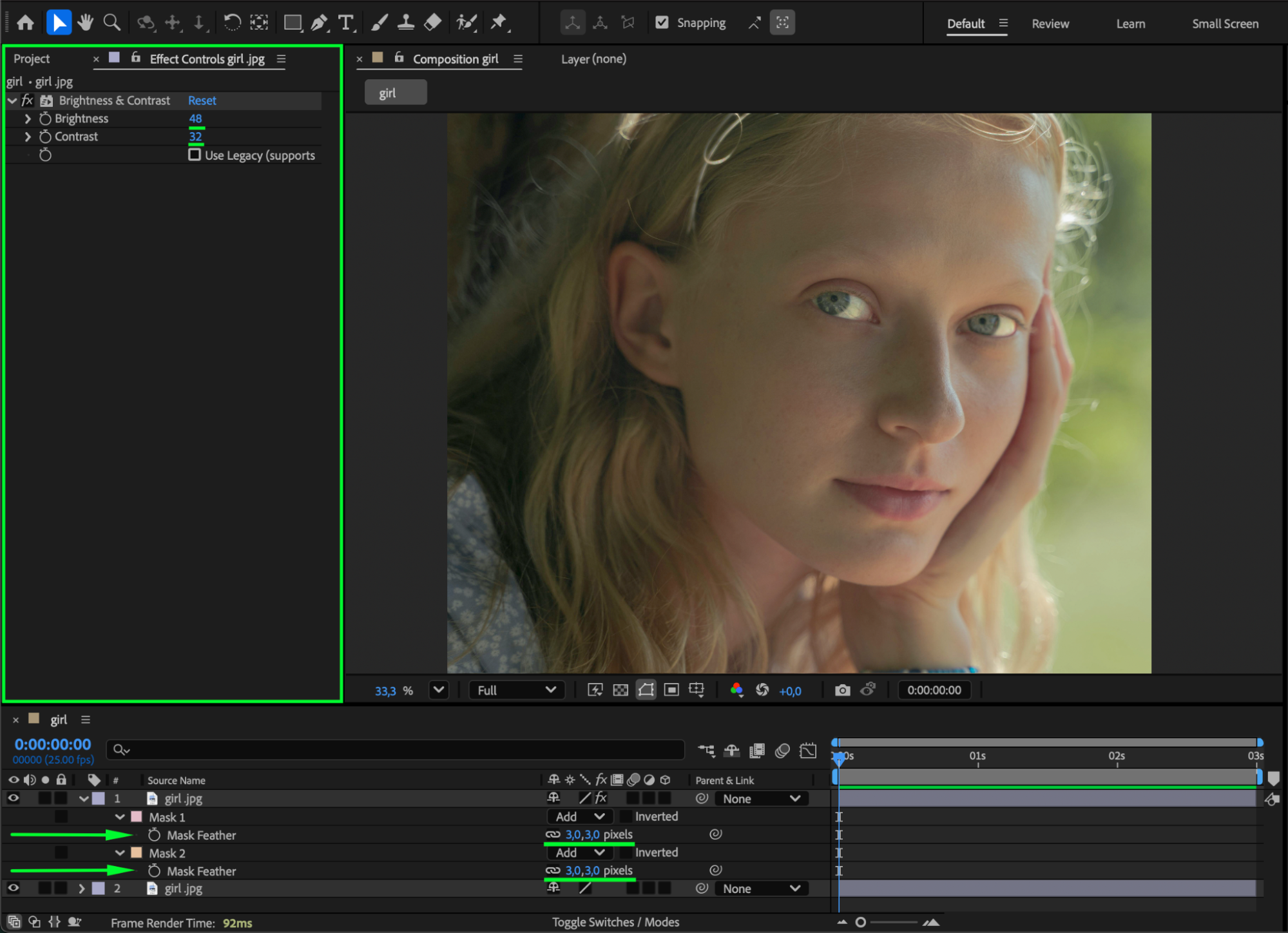 Step 6: Optional — Apply Color Correction to the Entire Photo
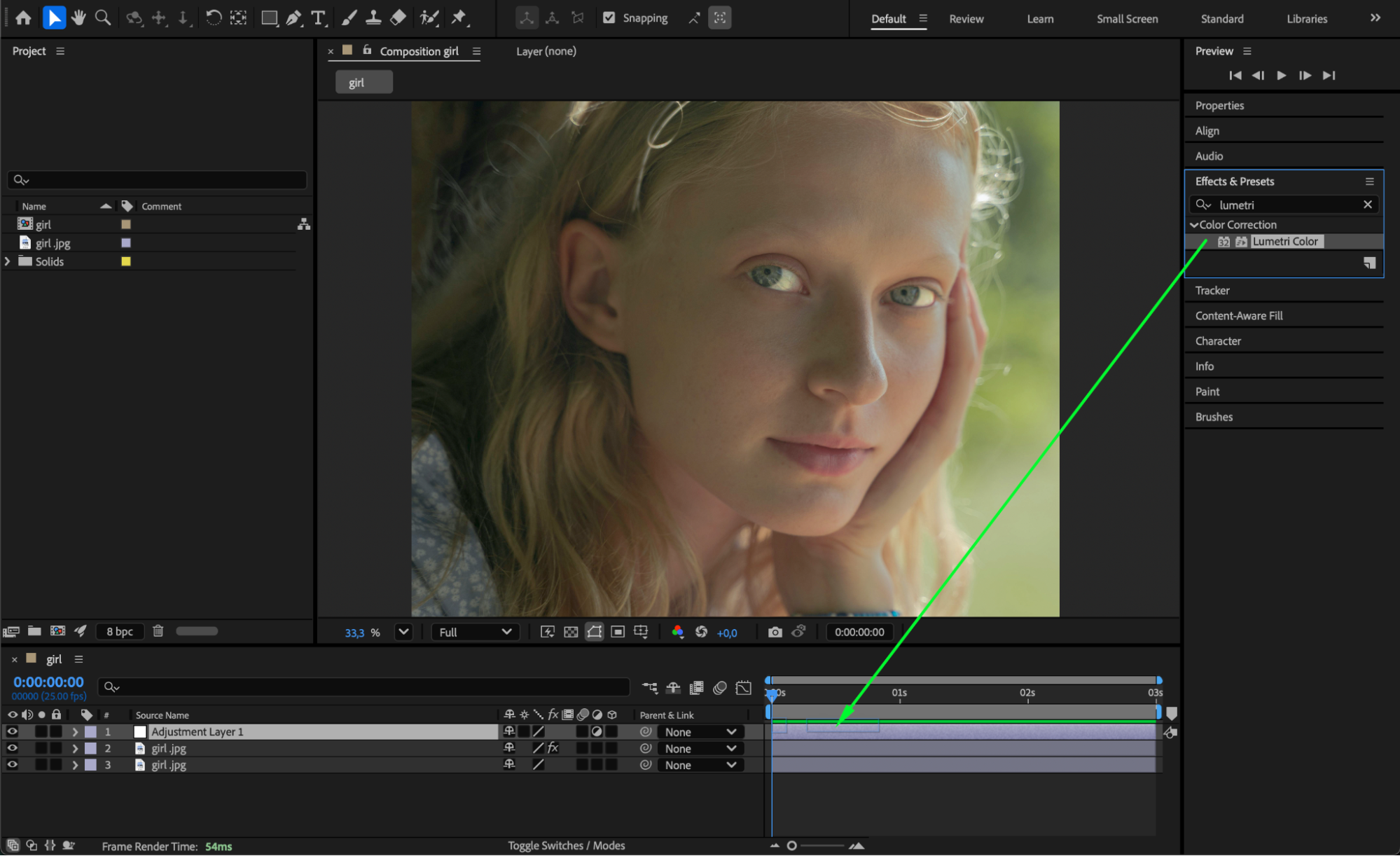
If you want overall color enhancement, go to Layer > New > Adjustment Layer and apply Lumetri Color (or any other color correction effect you need) to refine the look of the whole image.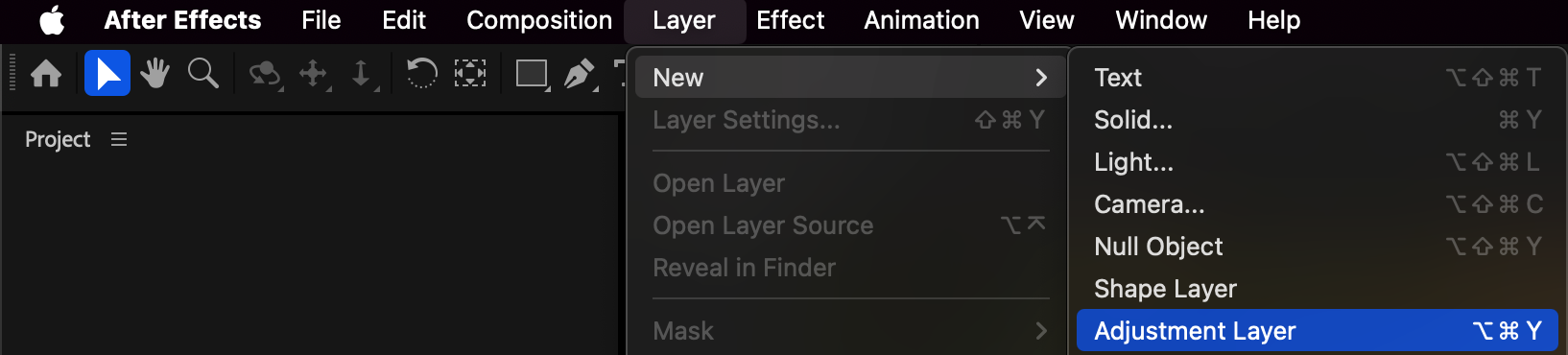
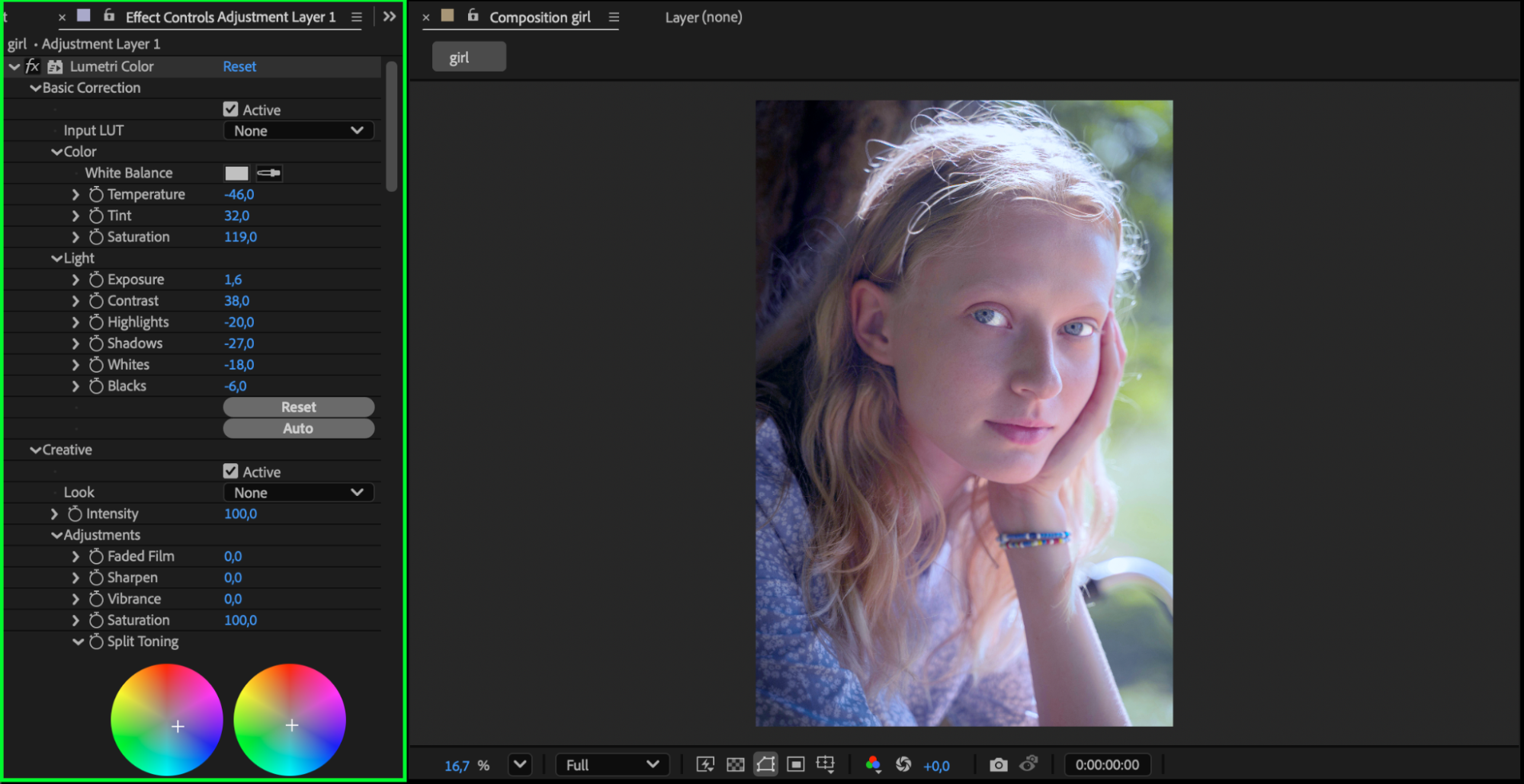 Step 7: Preview Your Result
Press Spacebar to preview the adjustment. If needed, refine the mask shape or effect settings until the eyes look bright, natural, and well-balanced.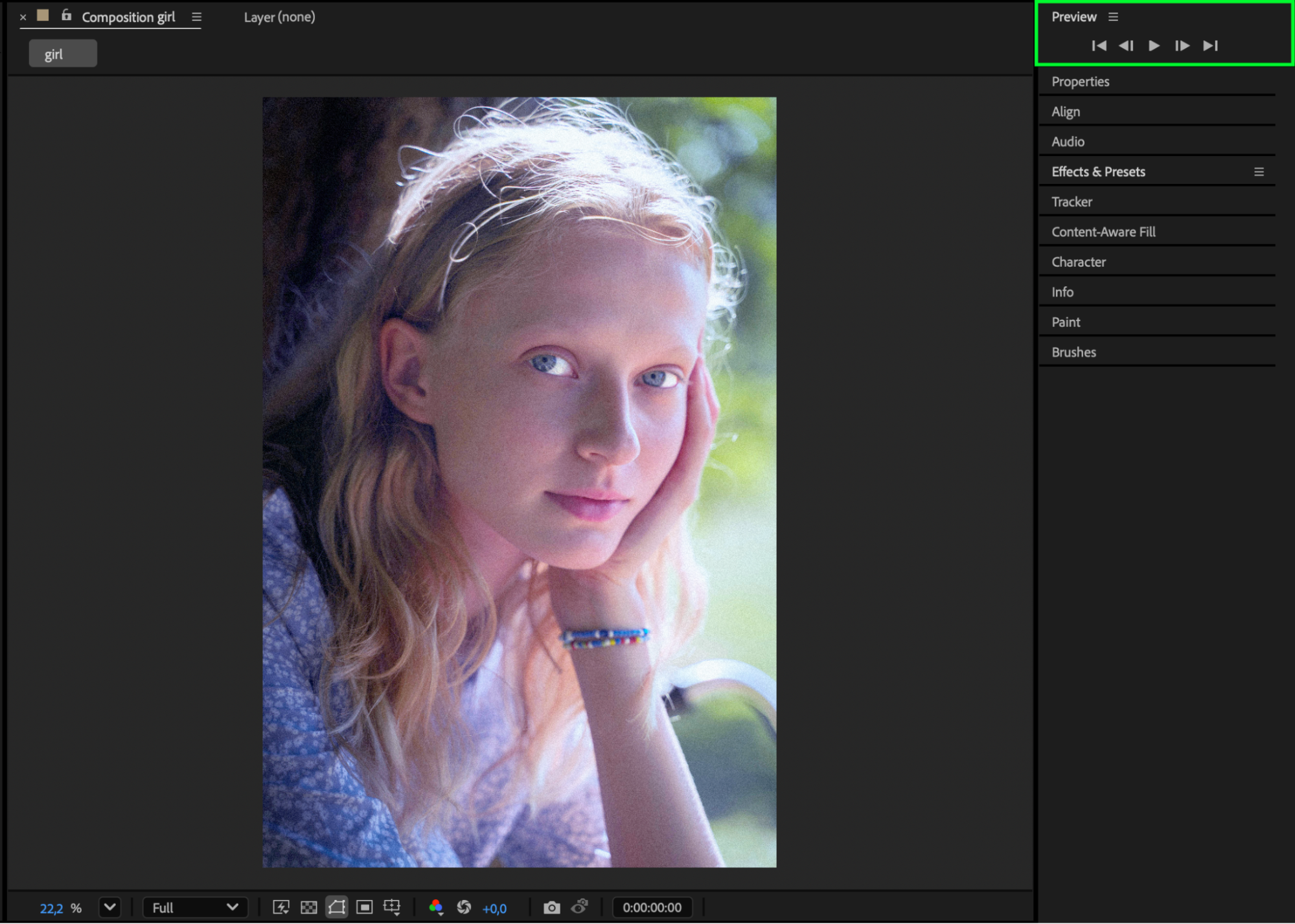
Conclusion
With simple masking and brightness adjustments, After Effects allows you to enhance eyes in a photo quickly and effectively. Feathering and optional color corrections help keep the result natural while making the eyes stand out more vividly.
Our Bestsellers
Our Bestsellers


