
Introduction
Creating a fire-inside-text effect is a great way to make titles look dynamic and intense. With a few built-in effects and simple expressions, you can generate realistic animated flames directly inside your typography.
Step 1: Create a New Composition
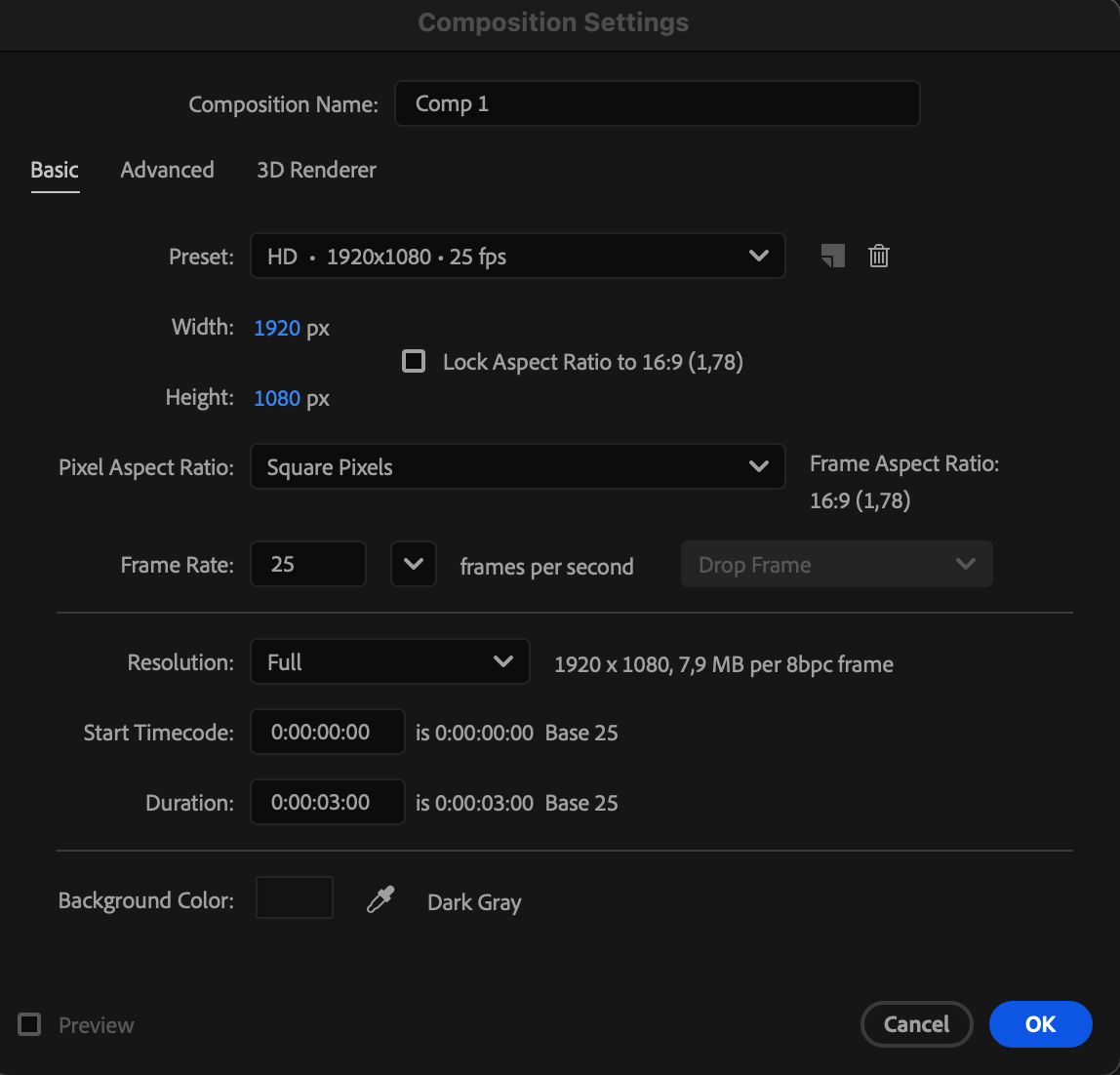
Go to Composition > New Composition, set your resolution and duration, and click OK.
 Step 2: Create Your Text Layer
Select the Type Tool (Ctrl/Cmd + T) and type your text. Choose an orange color to help the fire effect blend naturally.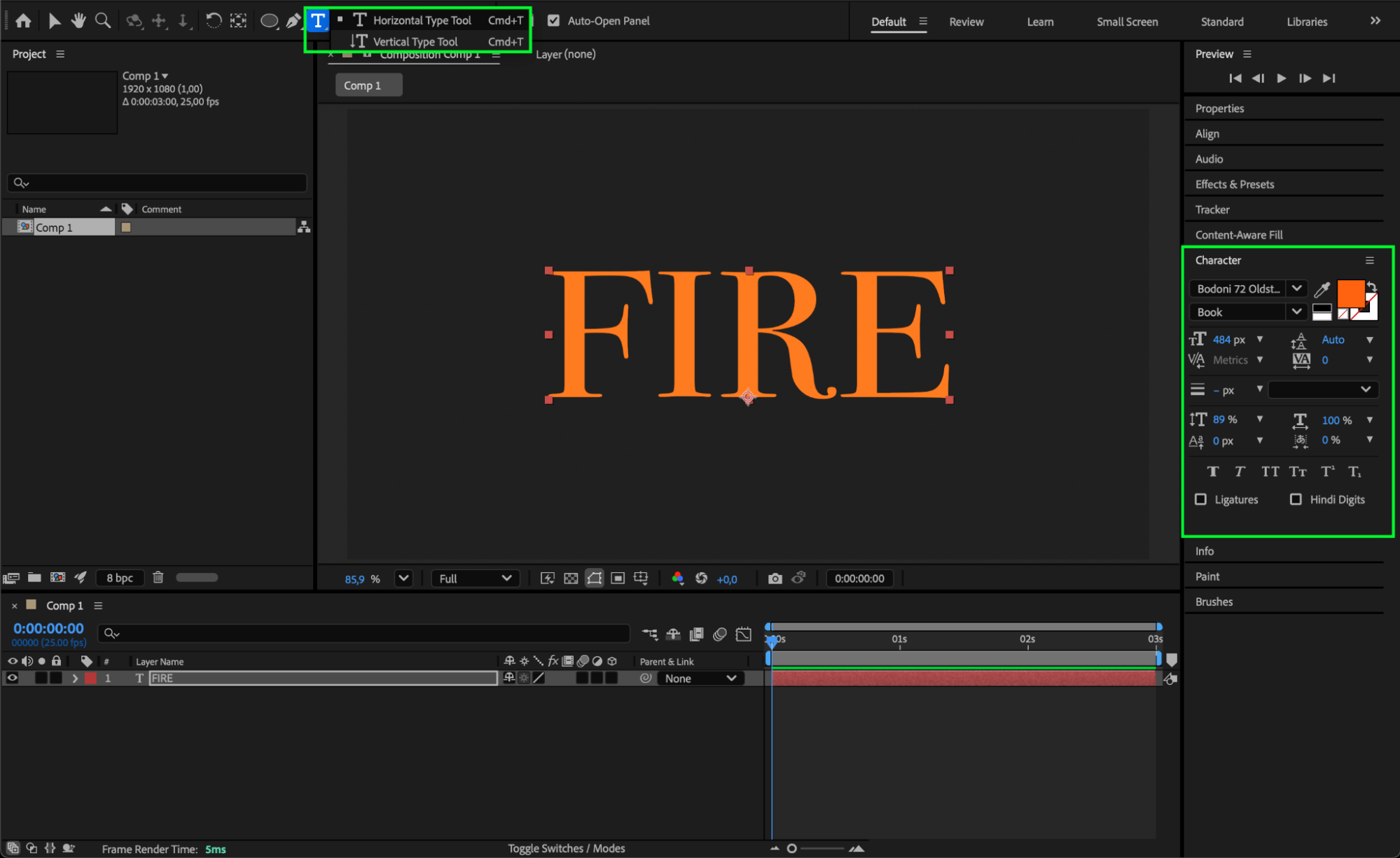
Step 3: Apply Fractal Noise
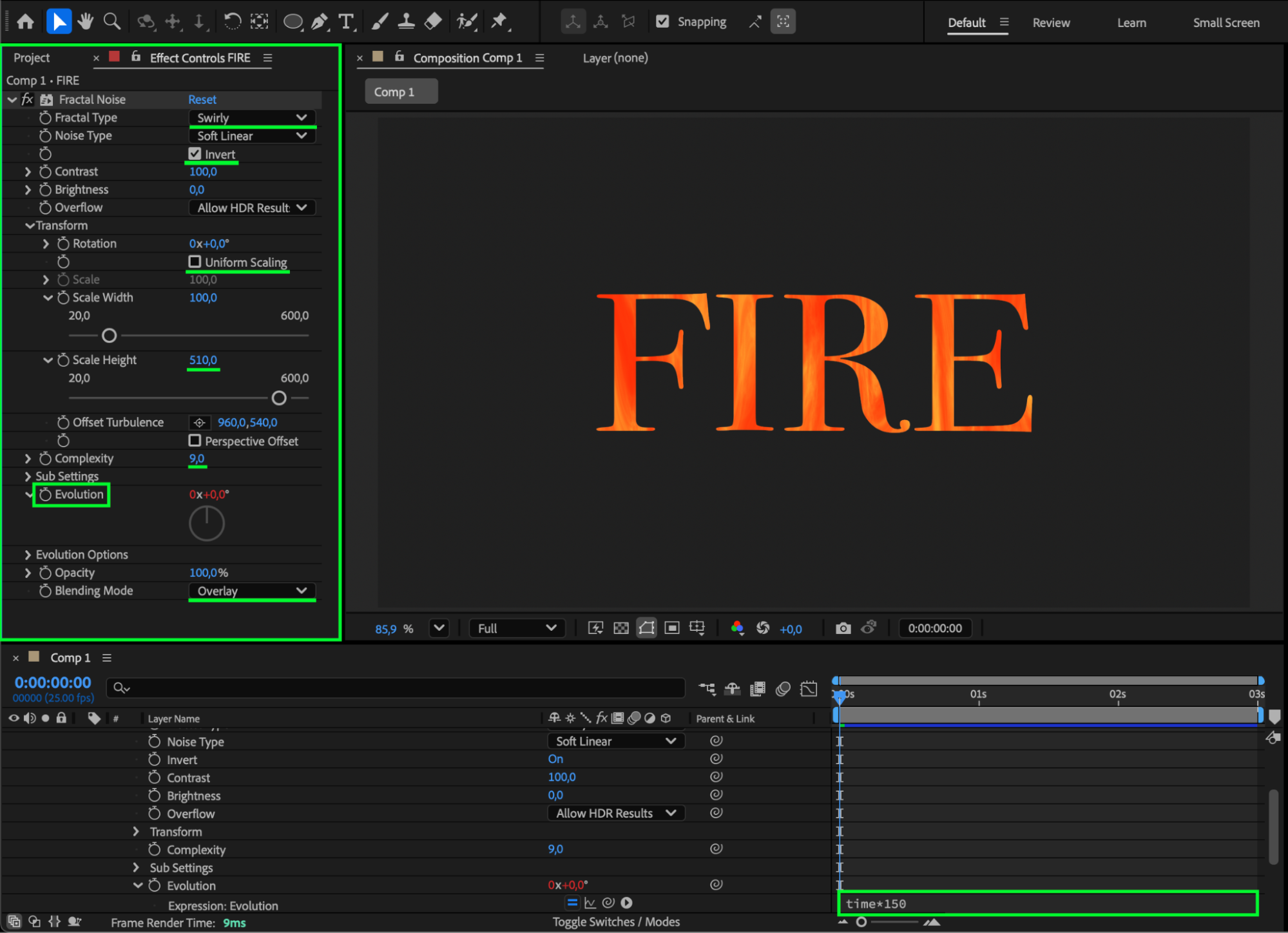
Drag Fractal Noise from the Effects & Presets panel onto the text layer. Adjust the settings:
Fractal Type: Swirly
Invert: ON
Uniform Scaling: OFF
Scale Height: 510
Complexity: 9
Blending Mode: Overlay
Add animation by applying an expression to Evolution:
Hold Alt/Option and click the stopwatch, then type: time * 150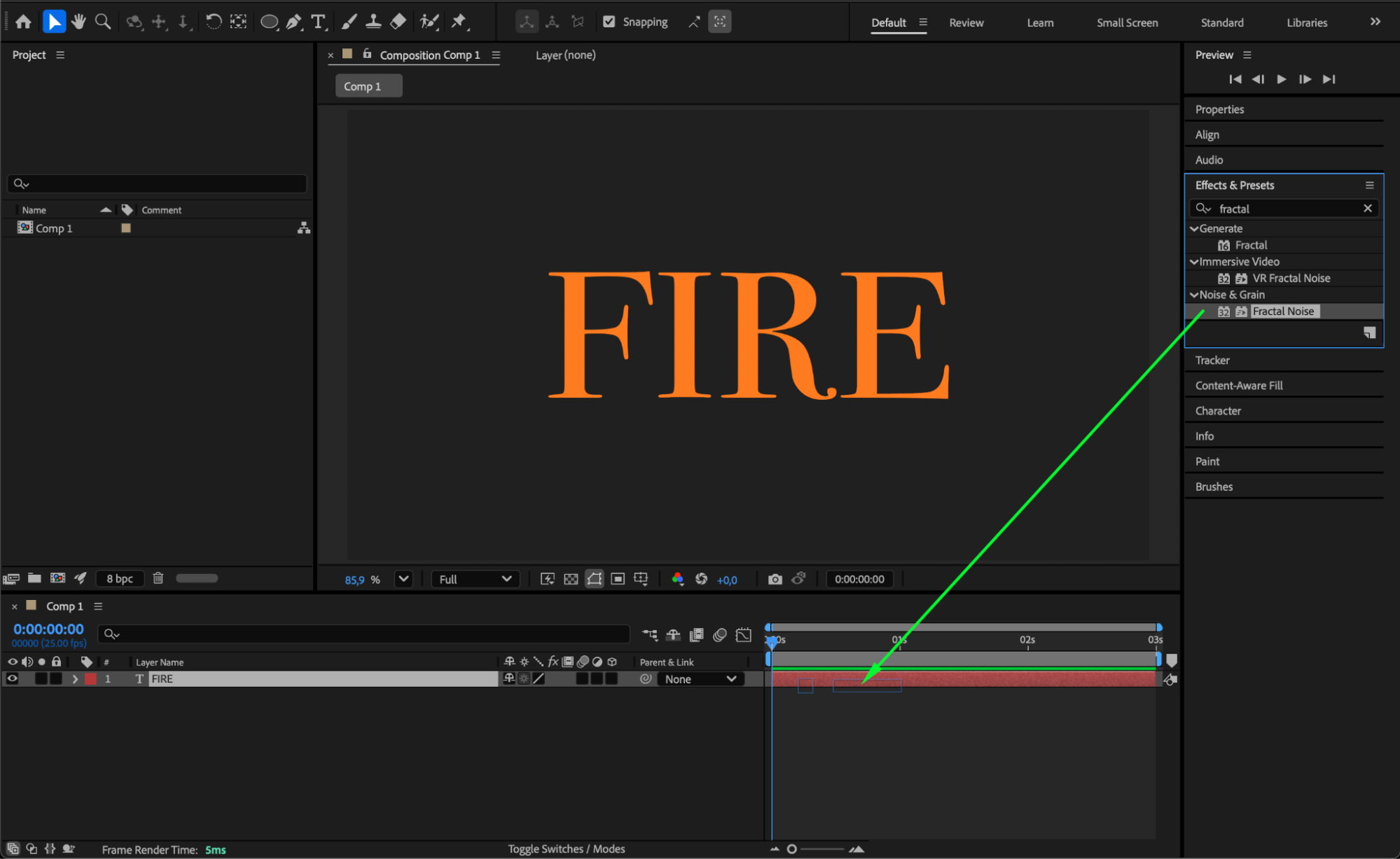
 Step 4: Add Roughen Edges
Drag Roughen Edges onto the text layer and adjust:
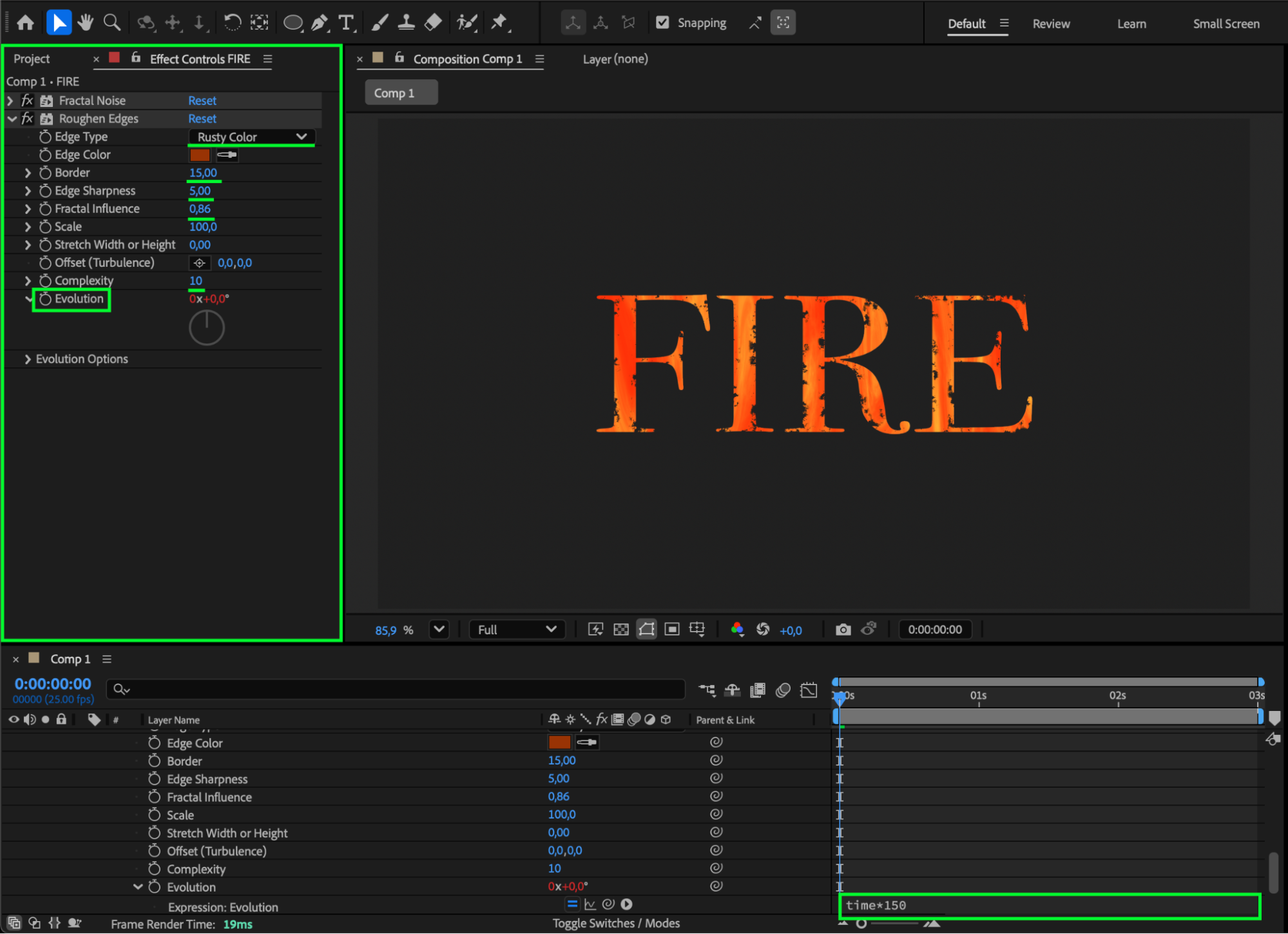
Edge Type: Rusty
Border: 15
Edge Sharpness: 5
Fractal Influence: 0.86
Complexity: 10
Animate Evolution with the same expression: time * 150
This distorts the edges to look like flickering flames.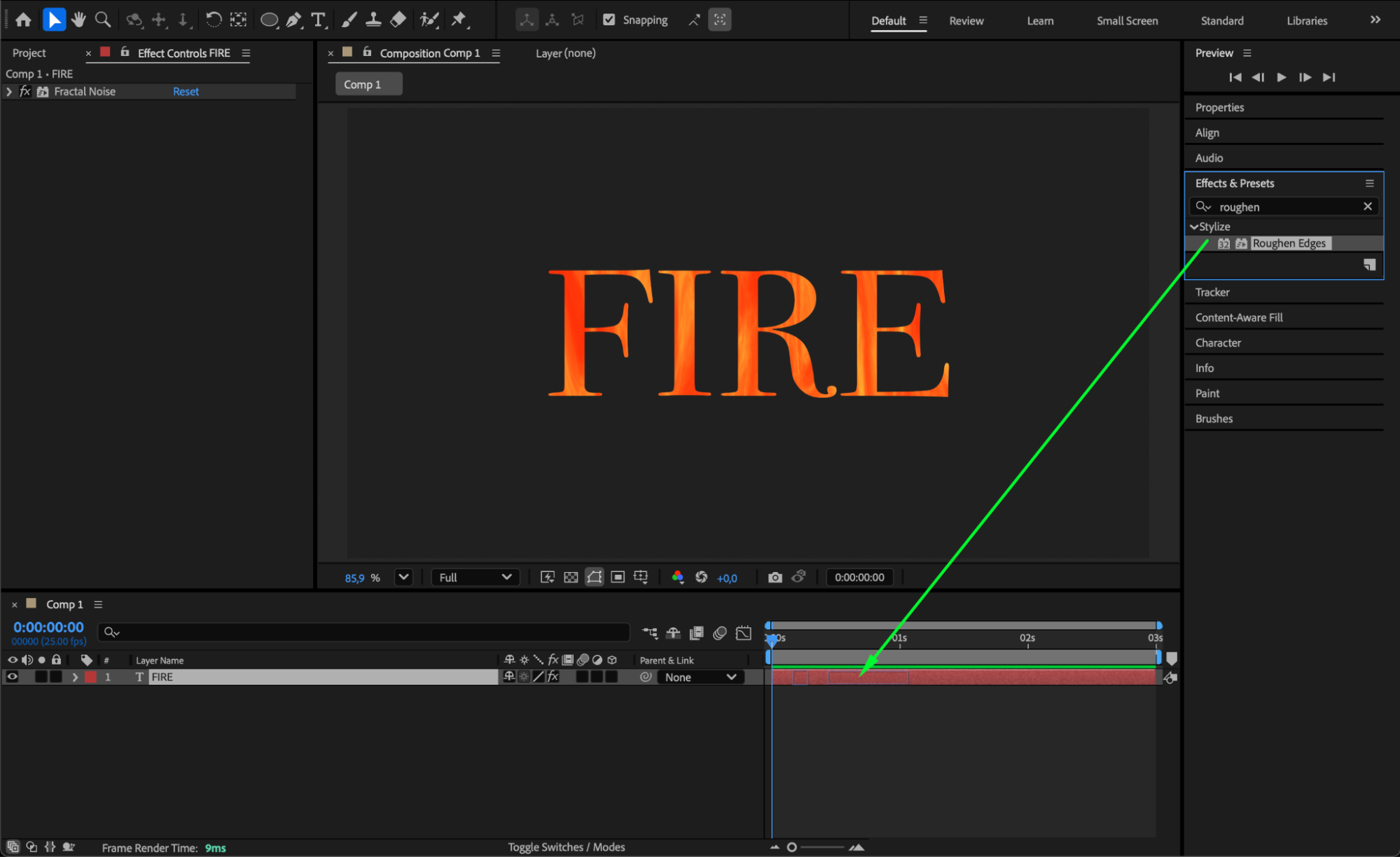
Step 5: Add Glow for Realistic Fire
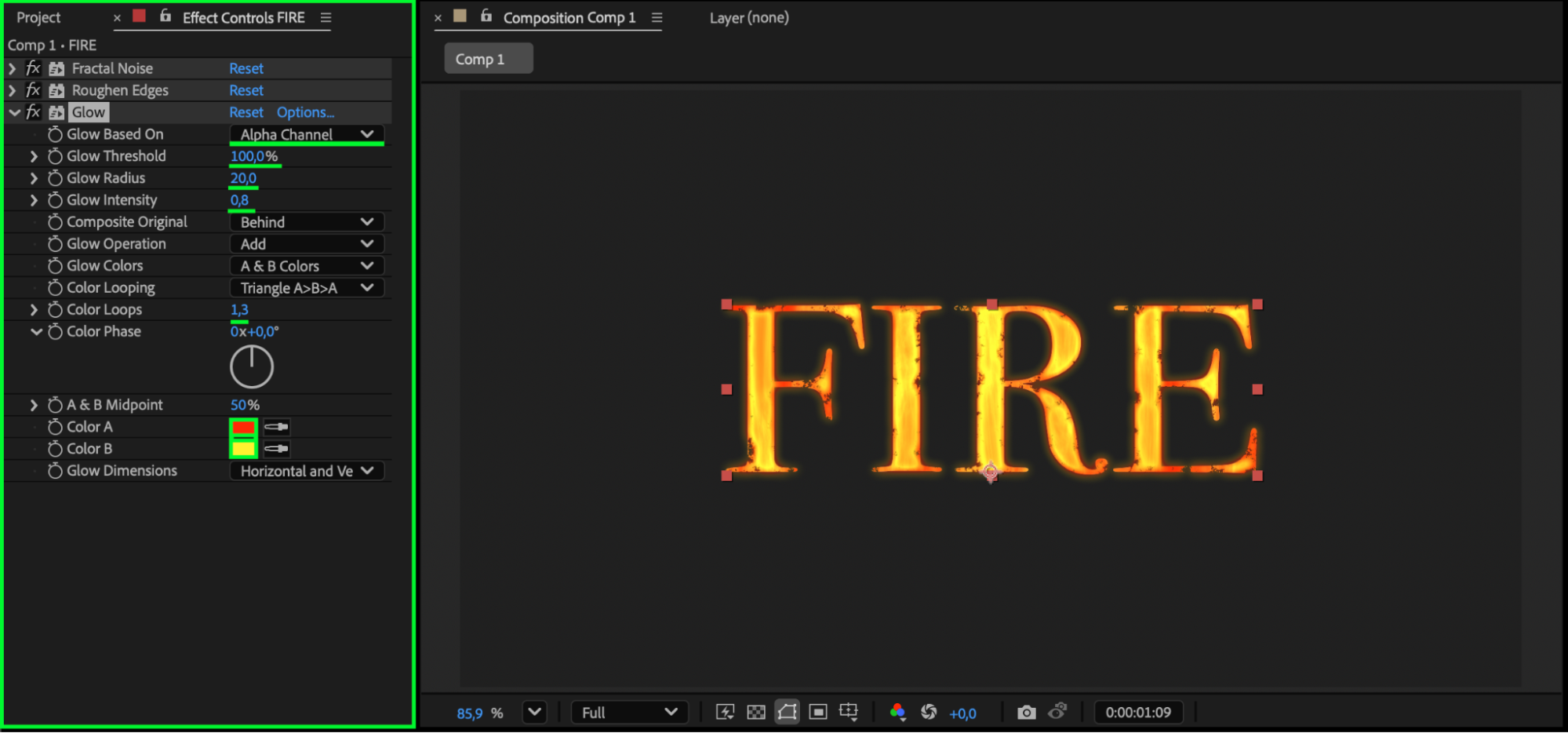
Apply Glow and configure:
Glow Based On: Alpha
Glow Threshold: 100
Glow Radius: 20
Glow Intensity: 0.8
Color Loops: 1.3
Color A: Orange
Color B: Yellow
This enhances the fiery appearance with warm highlights.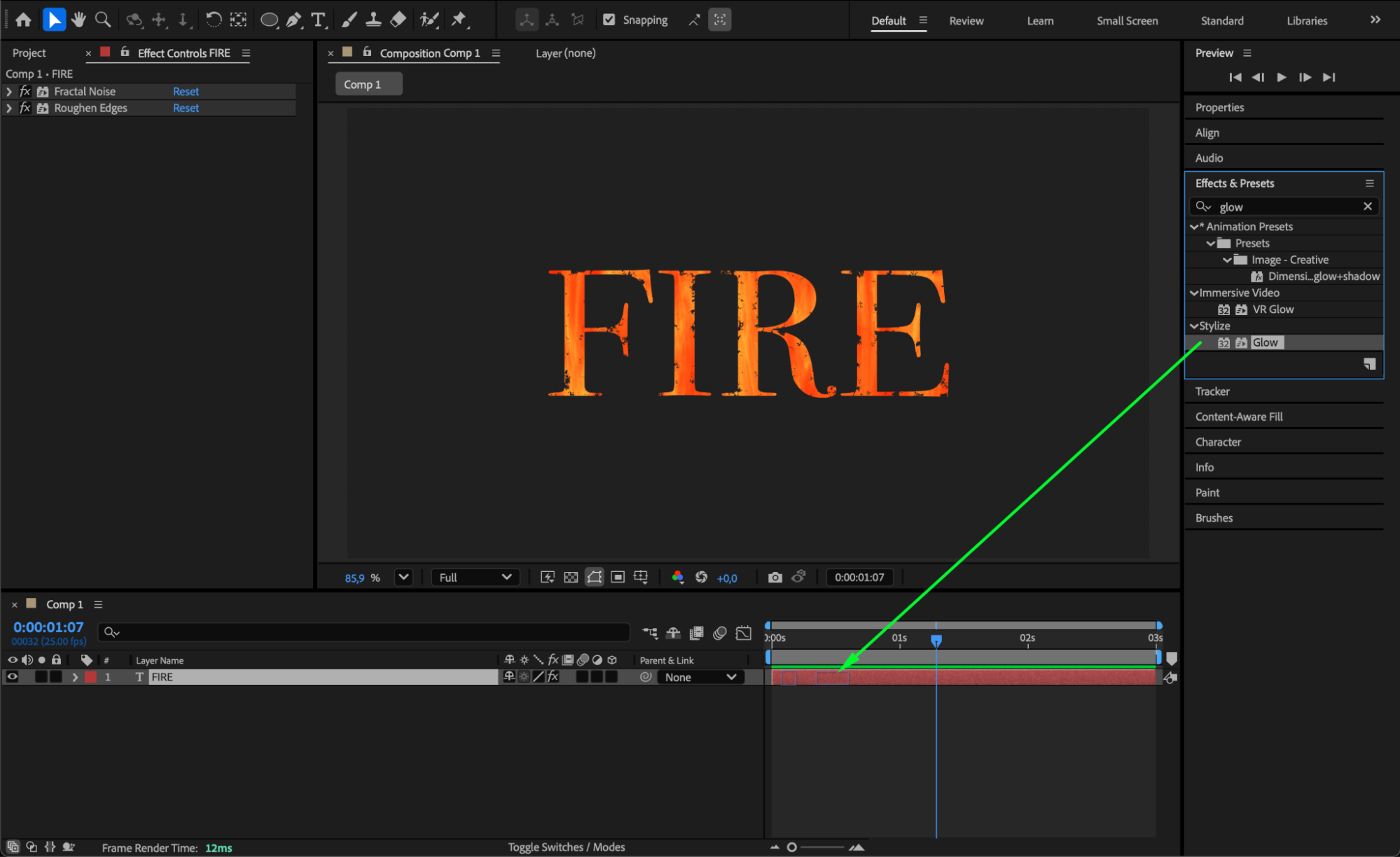
 Step 6: Preview and Refine
Press Spacebar to preview the animation. Fine-tune Fractal Noise, Roughen Edges, or Glow settings until your fire looks natural and dynamic.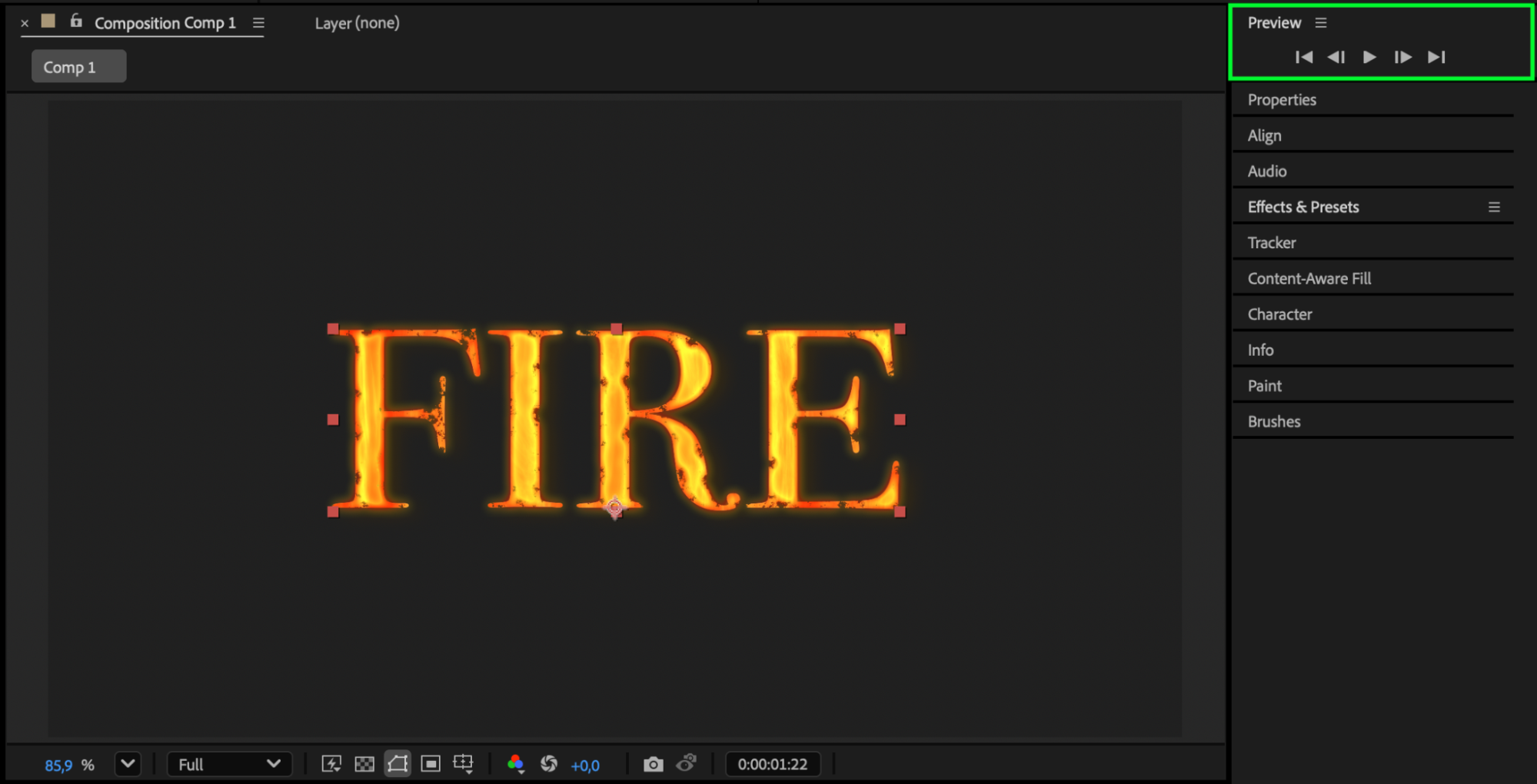 Conclusion
By combining Fractal Noise, Roughen Edges, and Glow, you can easily create a convincing fire-inside-text effect in After Effects. Adjusting expressions and effect settings allows you to customize the flames for anything from subtle warmth to intense burning titles.
Our Bestsellers
Our Bestsellers


