
Create Glowing Line Effects from Video in After Effects
Introduction to Glowing Line Animations
Glowing lines can give your video a stylized, futuristic look by highlighting the contours and edges of the visuals. In After Effects, you can create this effect by duplicating your video layer, extracting edges, enhancing contrast, and applying glow and color effects. Follow these simple steps to transform your footage with glowing lines.
Step 1: Import Your Video
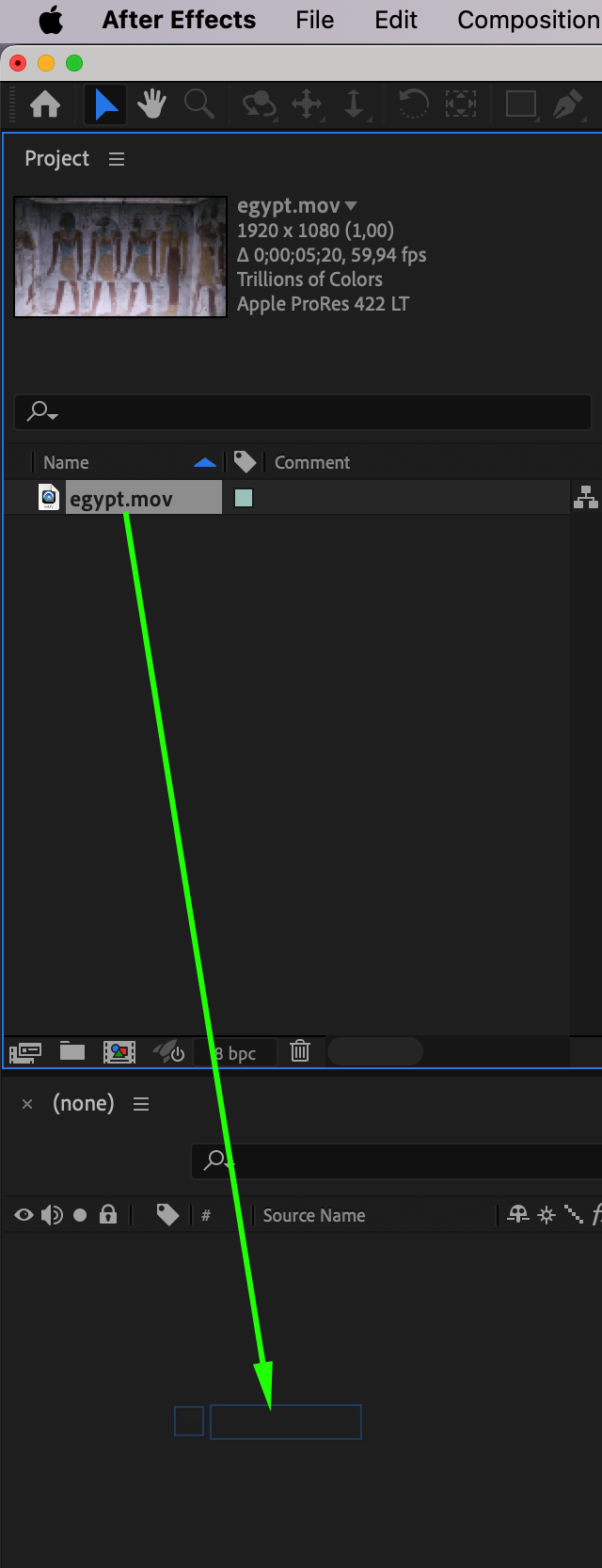
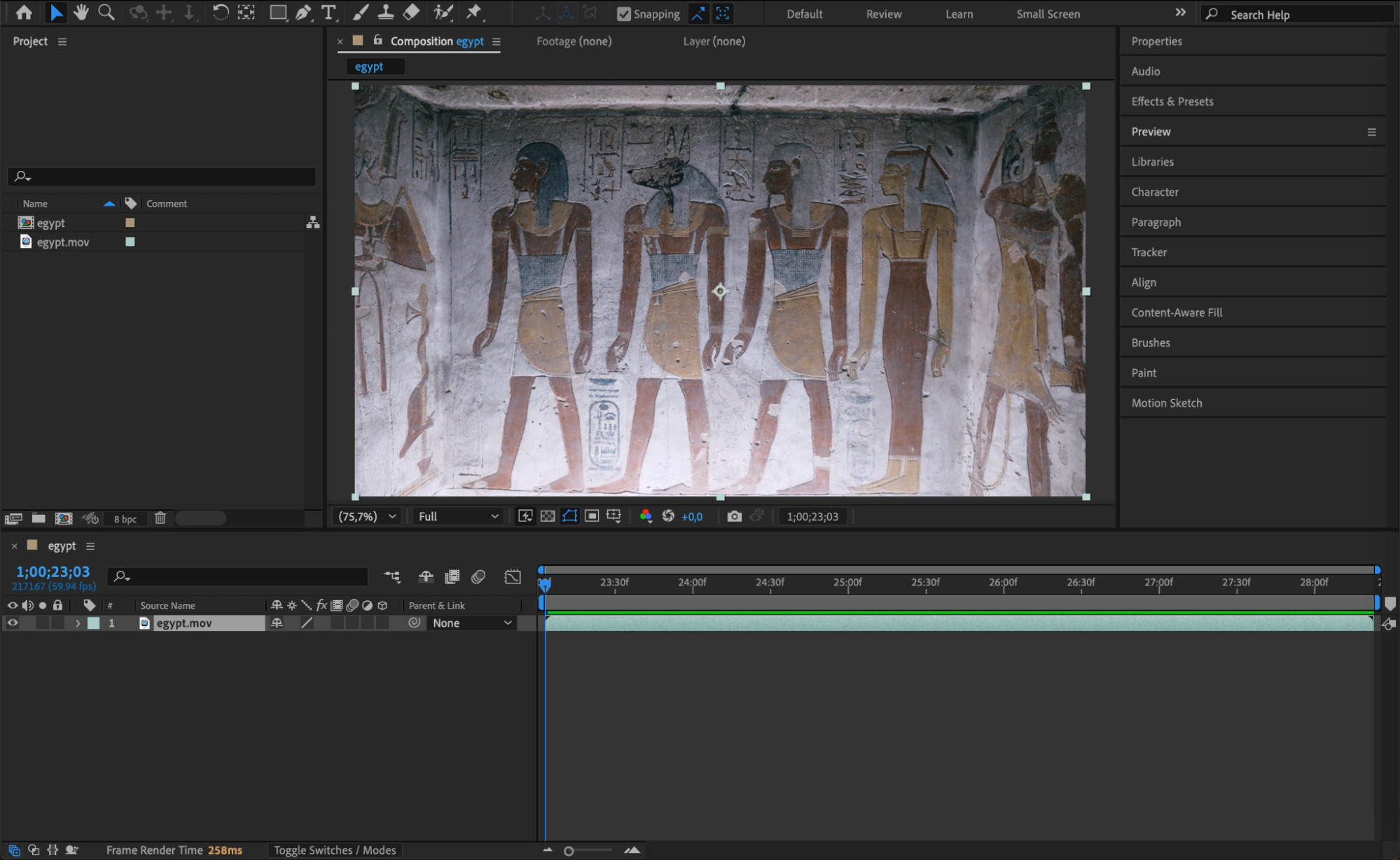
Go to File > Import > File and choose the video you want to use. Drag the imported footage onto the timeline to create a new composition.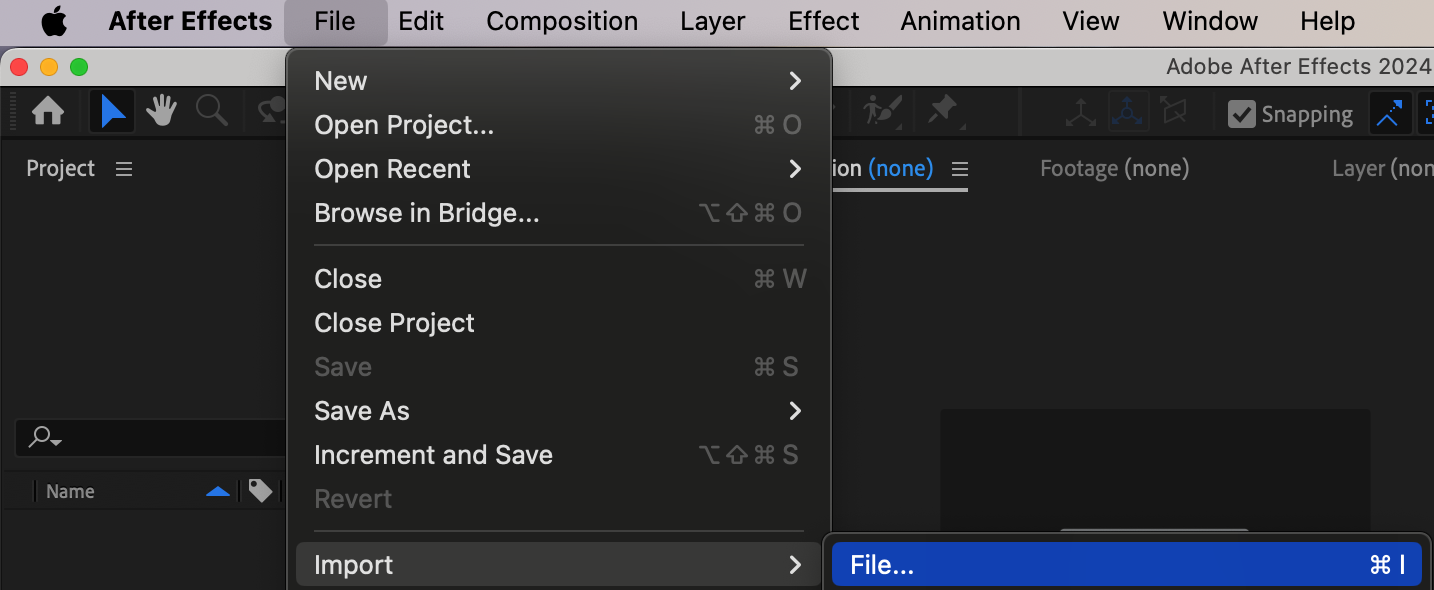
 Step 2: Duplicate the Video Layer
Select the video layer in the timeline and press “Ctrl/Cmd + D” to duplicate it. You’ll apply the glowing line effects to this duplicate.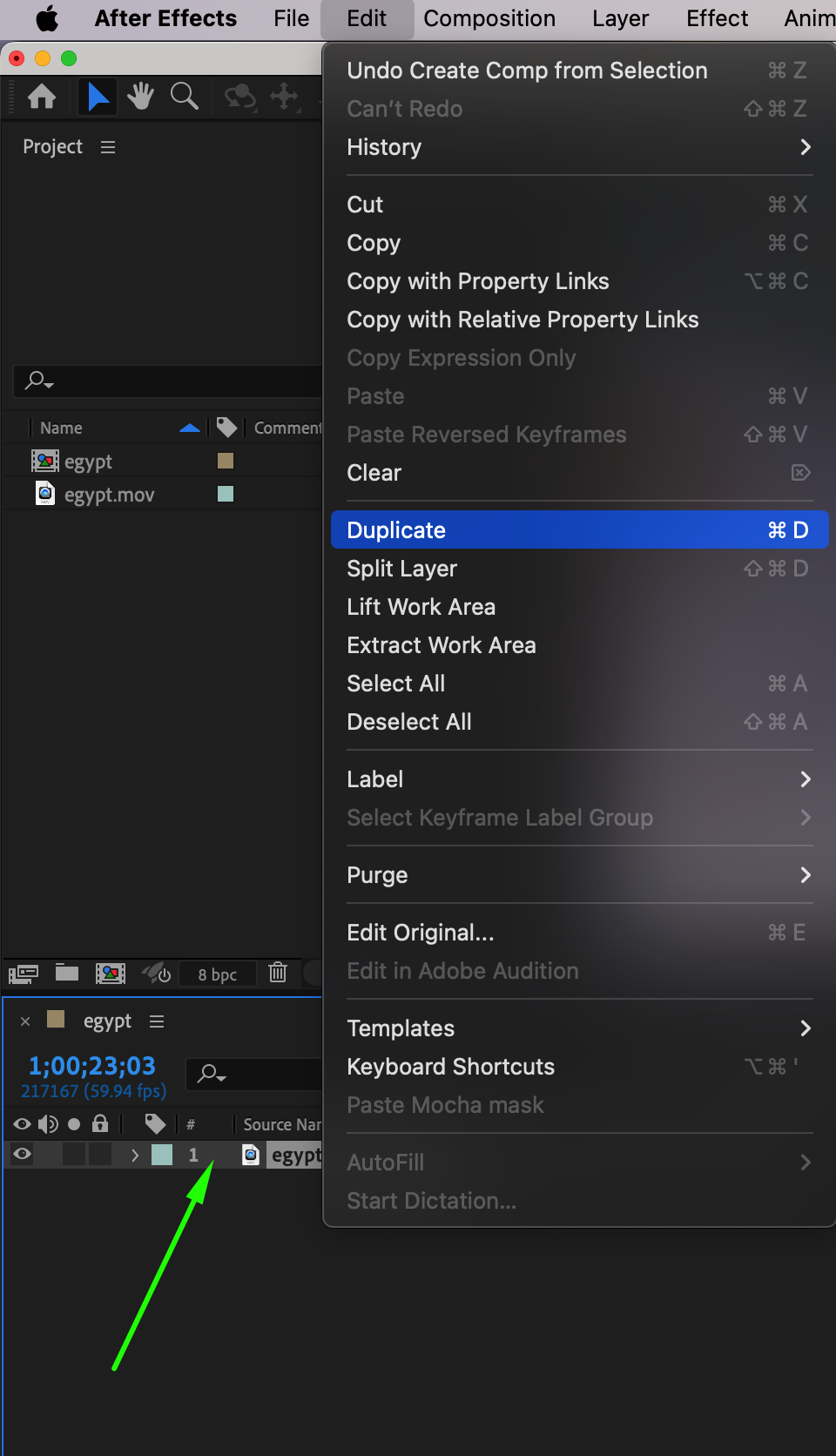
Step 3: Apply the Find Edges Effect
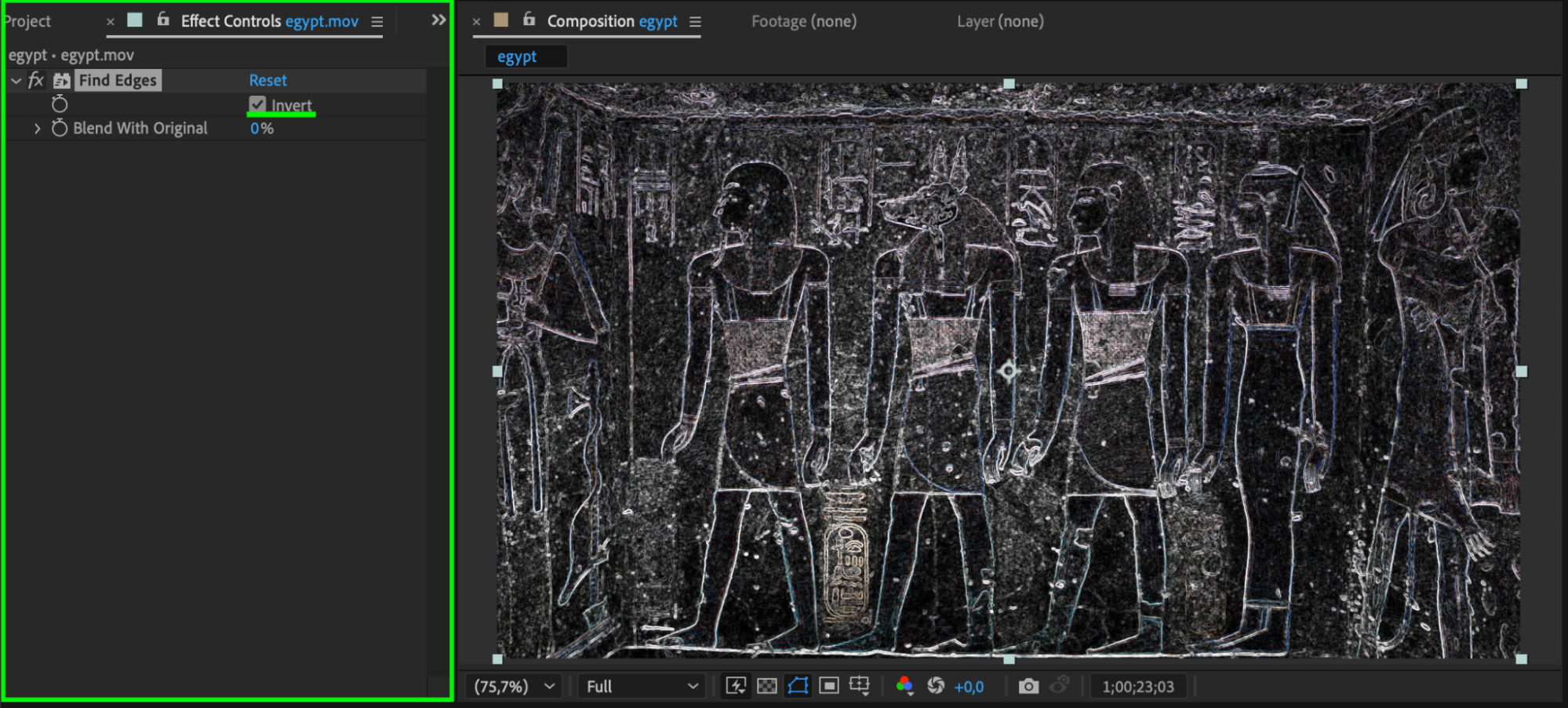
Go to the Effects & Presets panel and search for Find Edges. Drag it onto the duplicated layer. In the effect settings, check the box for Invert. This will highlight the edges in white against a black background.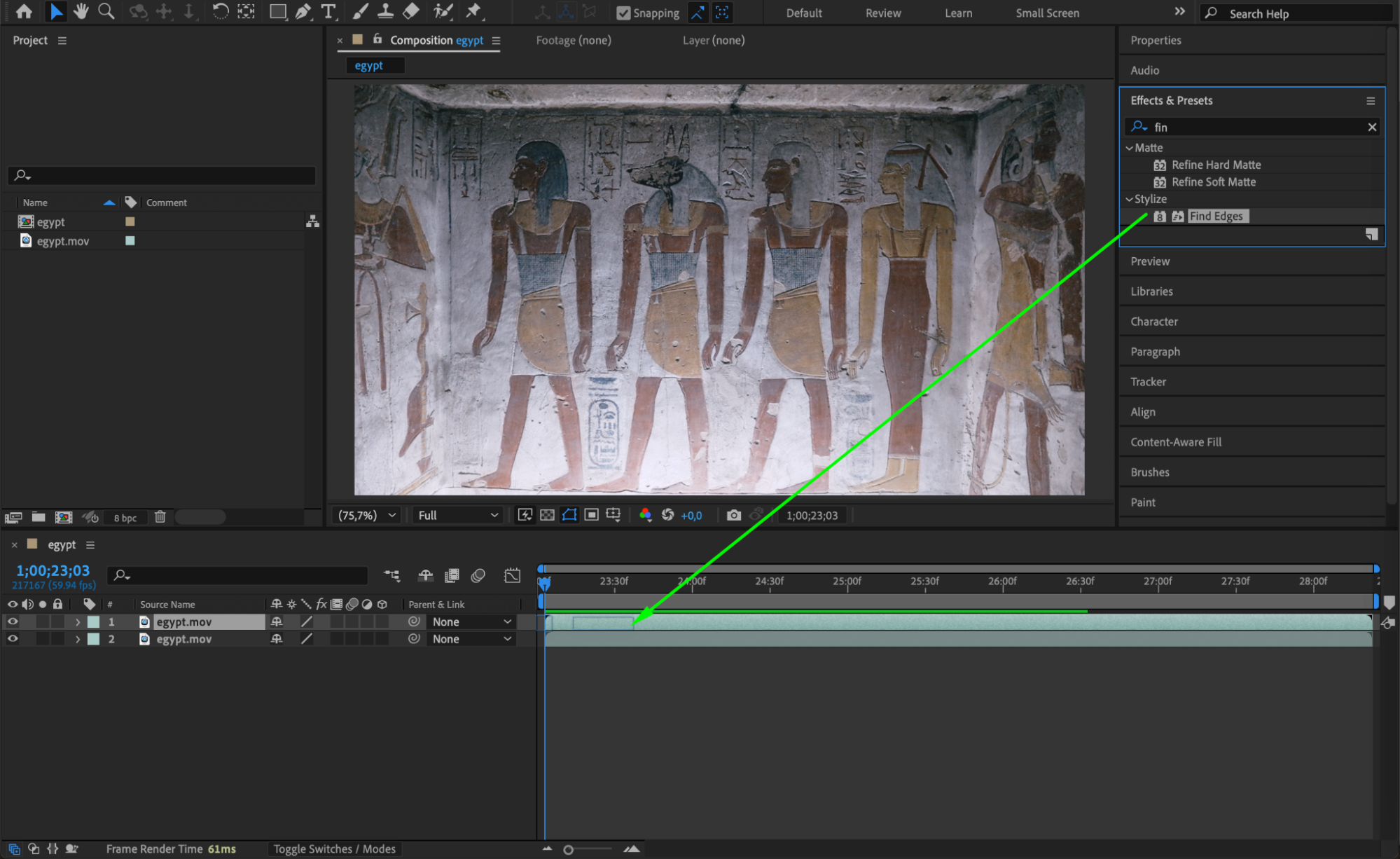
 Step 4: Tint and Levels for Line Definition
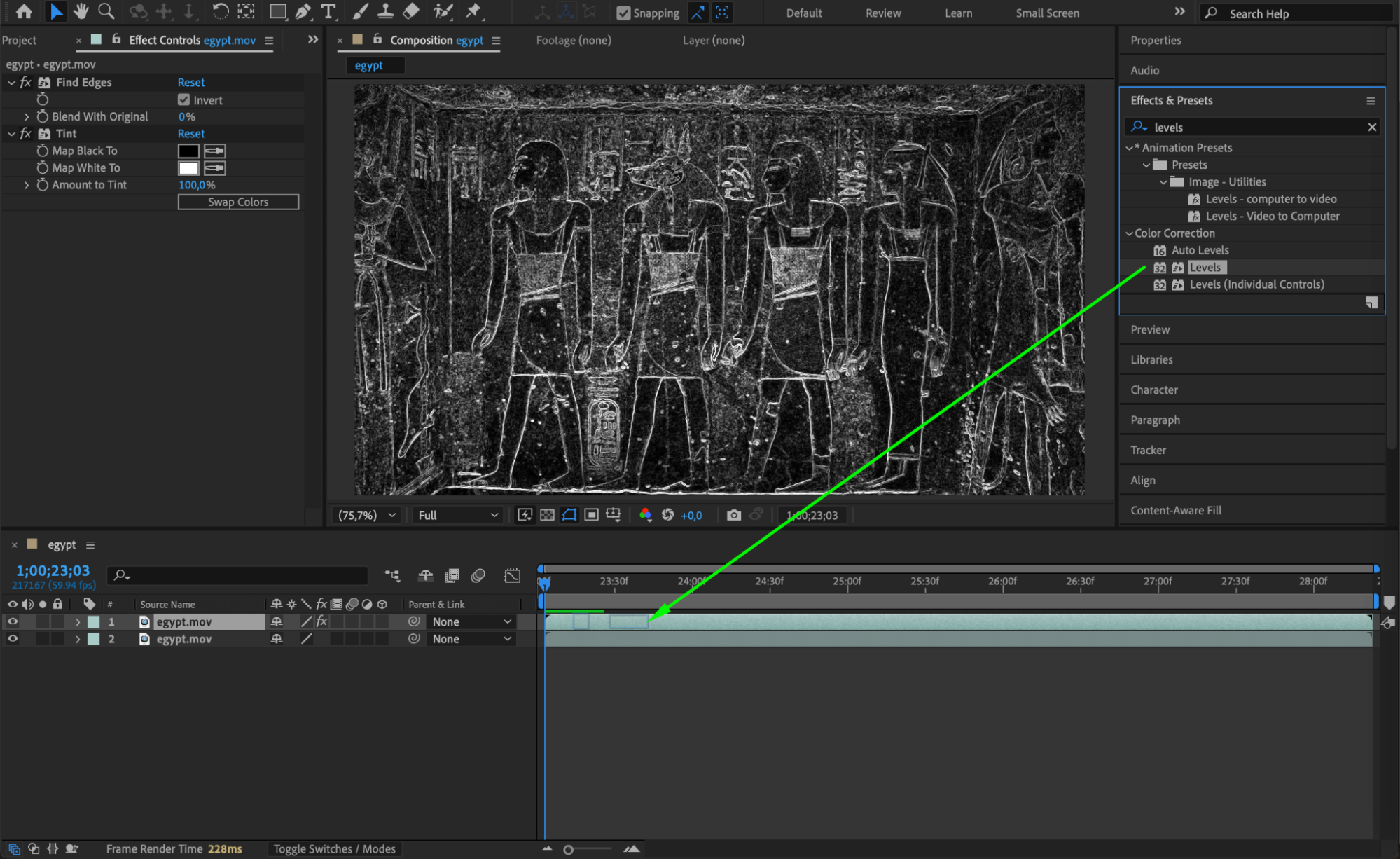
Apply the Tint effect to convert the layer to black and white, and then add the Levels effect to adjust contrast. Drag the black and white sliders closer together to darken the background and sharpen the lines. This helps isolate the edges for a cleaner glowing effect.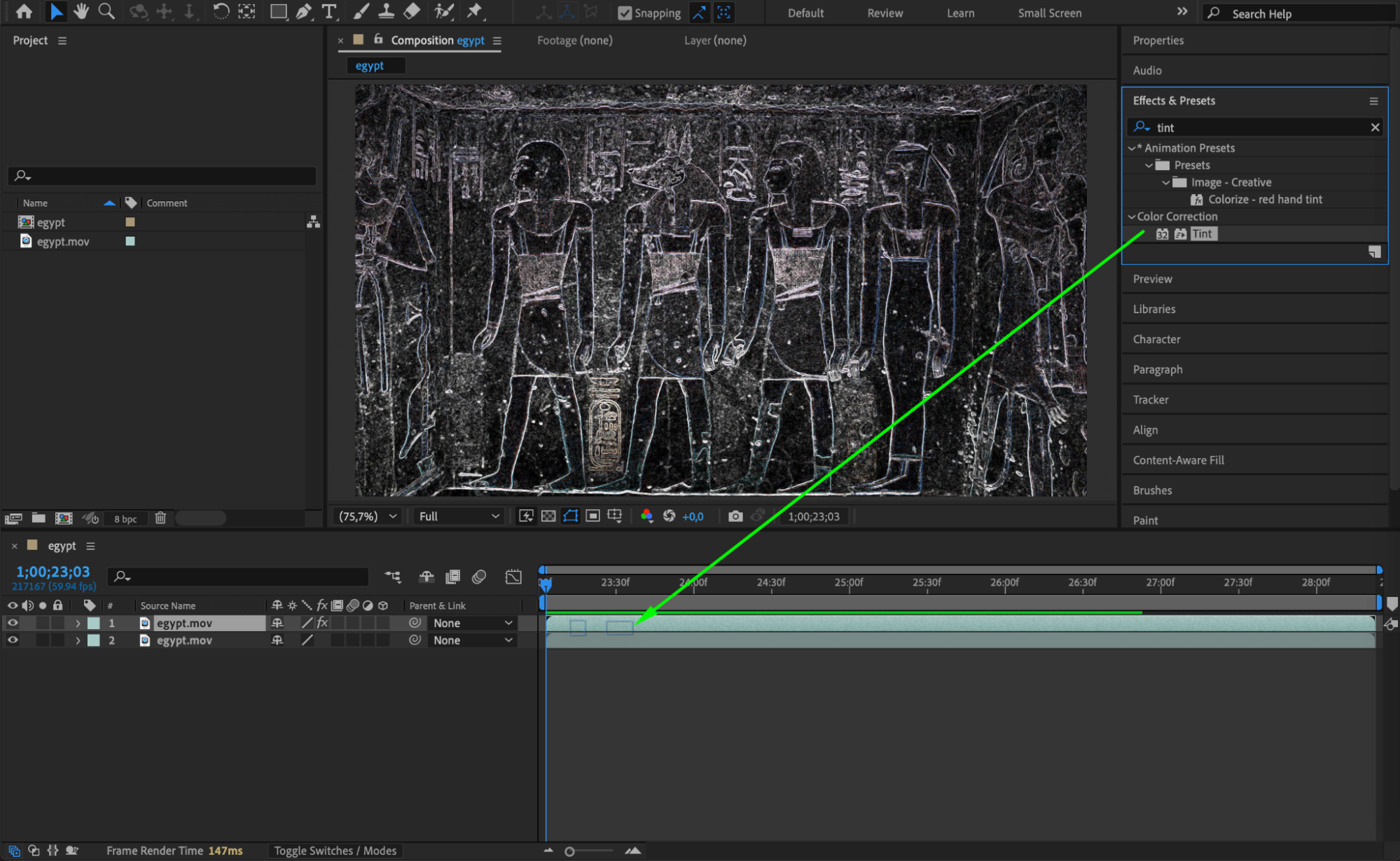
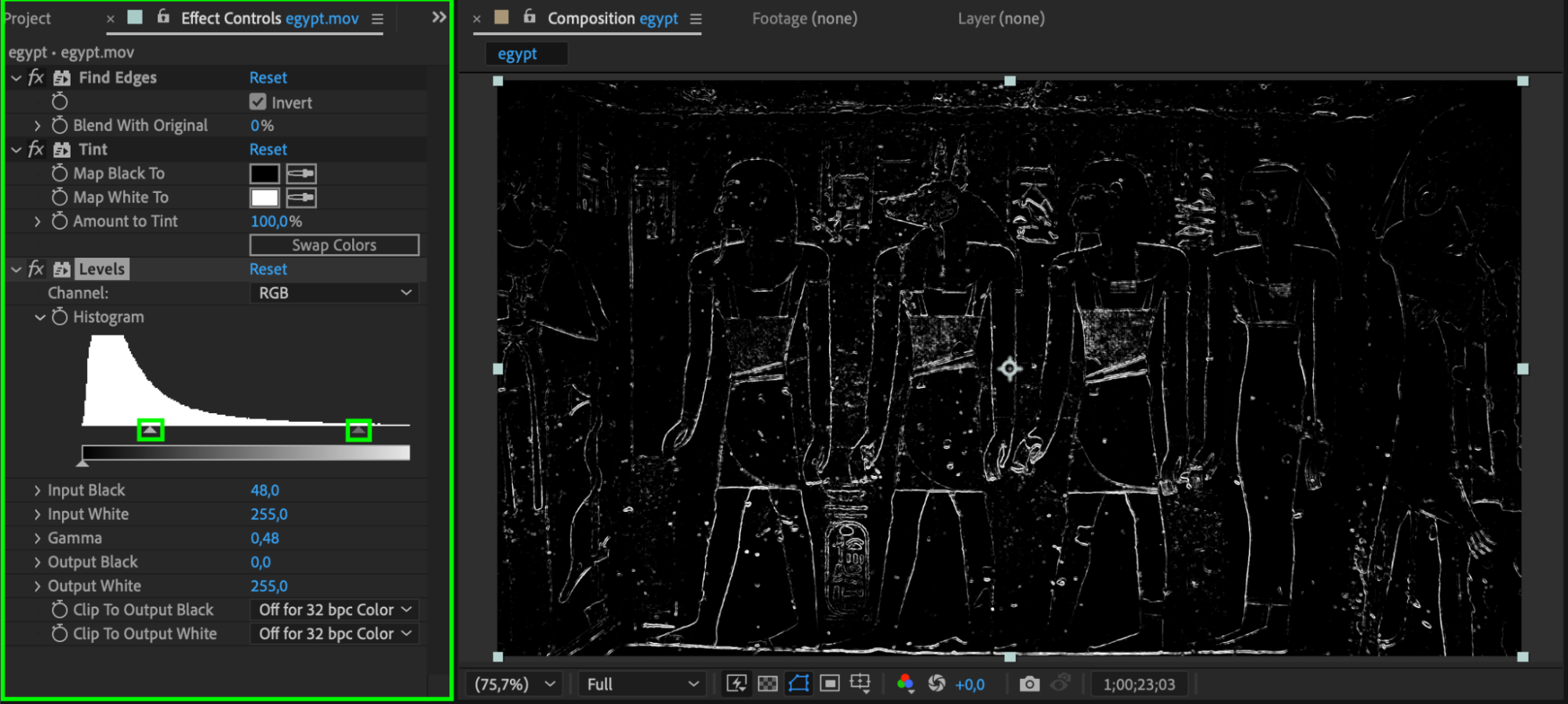 Step 5: Add Gaussian Blur
Search for Gaussian Blur and apply it to the duplicate layer. Set Blurriness to around 5. This softens the edges slightly to make the glow smoother and more organic.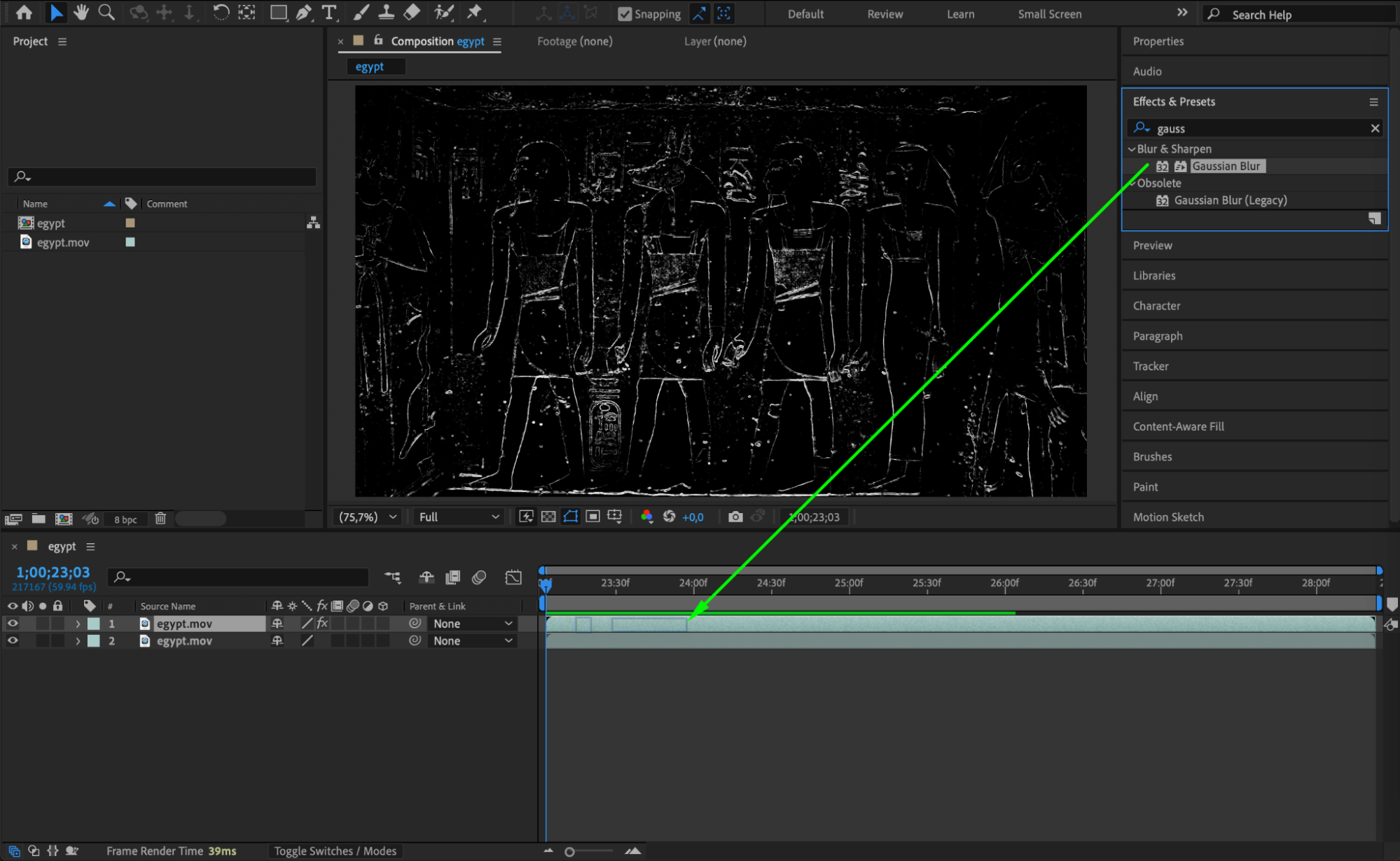
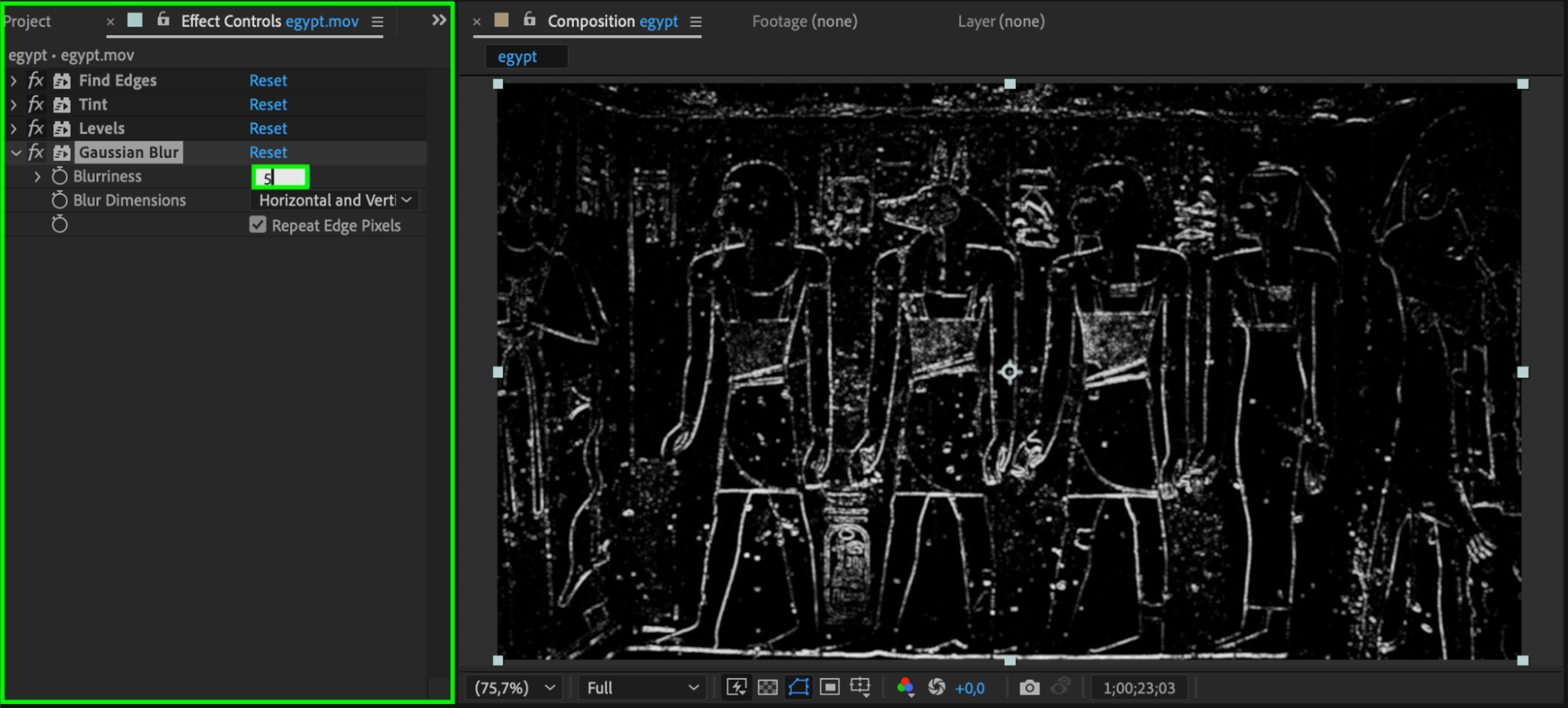
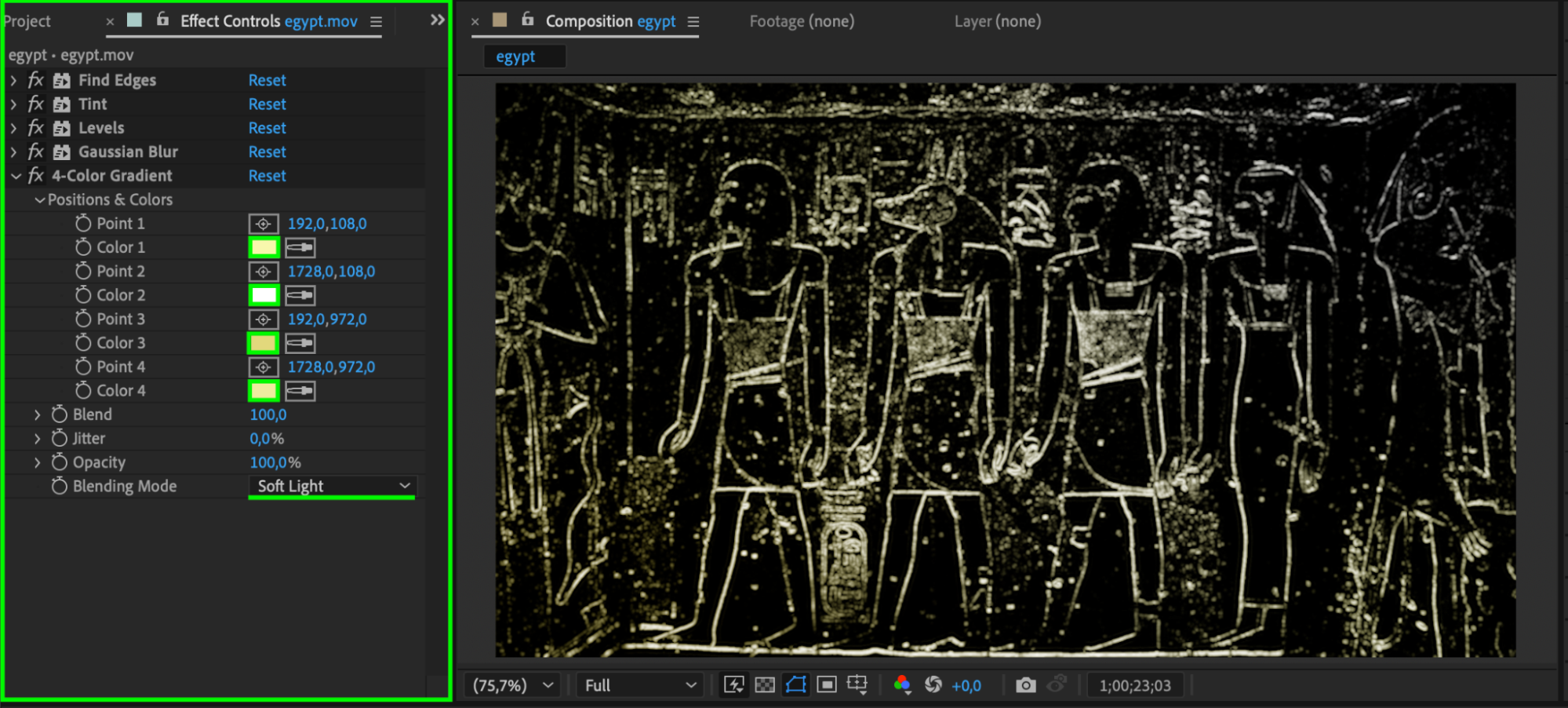
Step 6: Add 4-Color Gradient
Apply the 4-Color Gradient effect to bring in glowing colors. Choose four vibrant colors and set the Blending Mode of this effect to Soft Light. Adjust the position of each color point to create a unique gradient across your edges.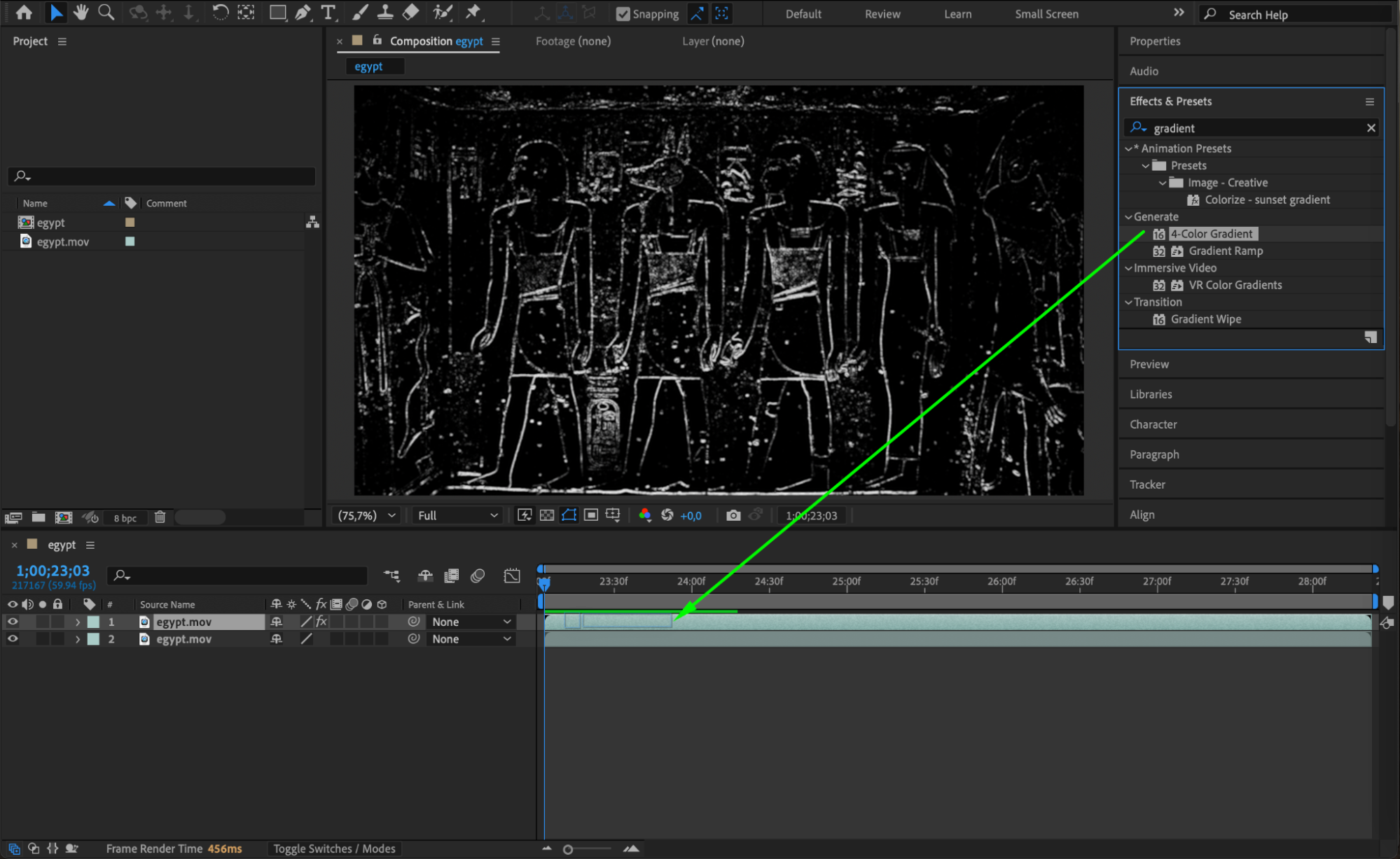
 Step 7: Add and Duplicate the Glow Effect
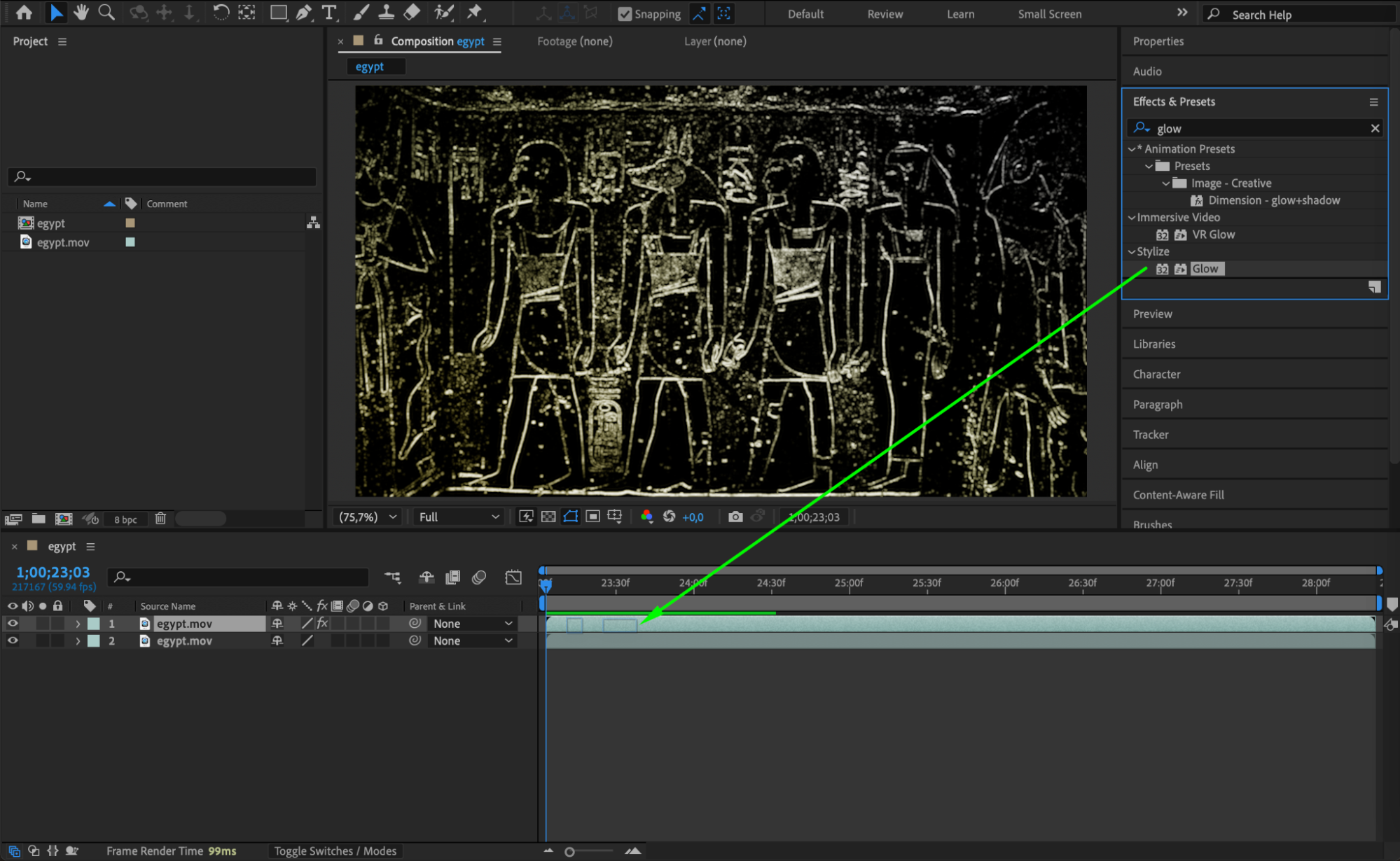
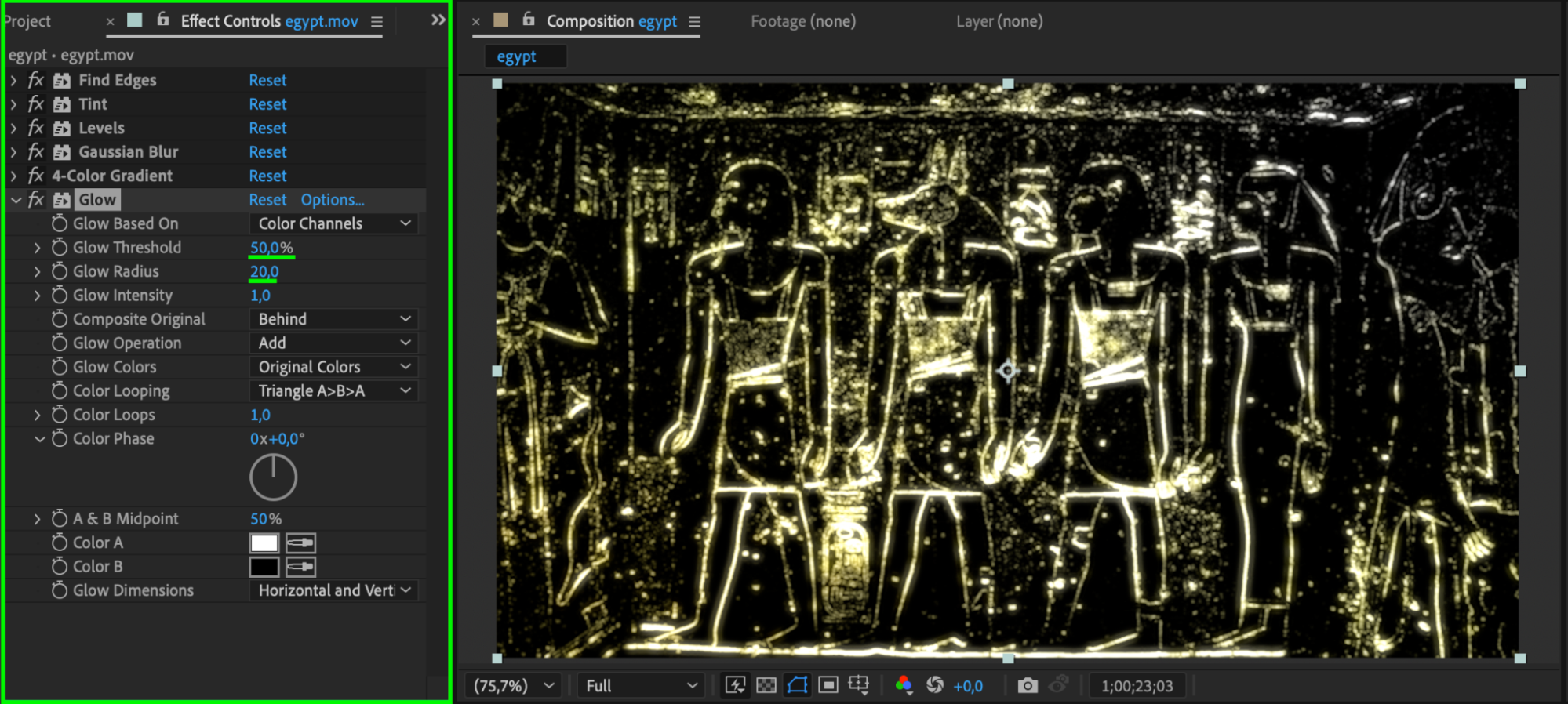
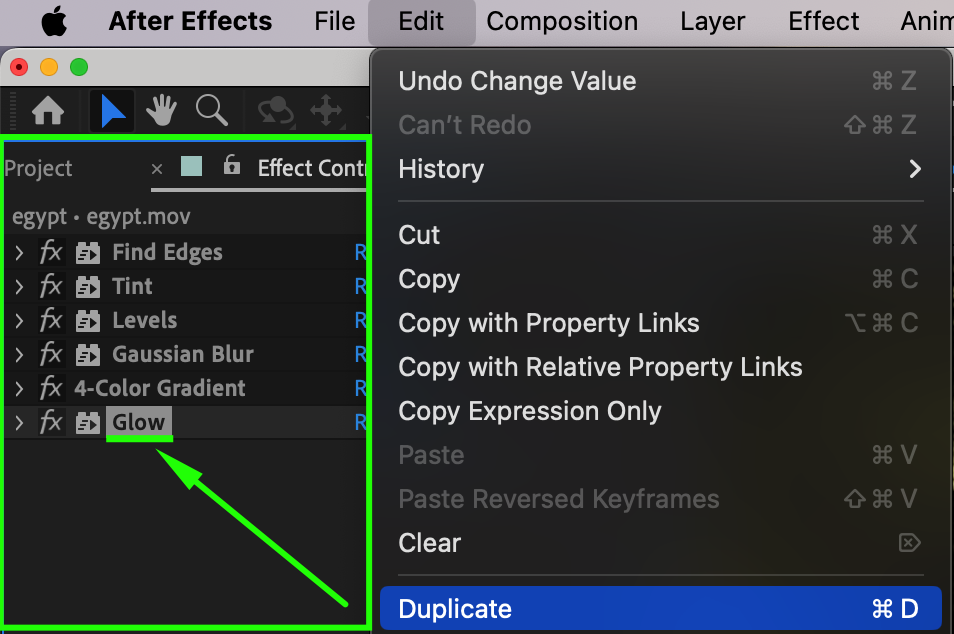
Search for Glow in the Effects & Presets panel and drag it onto the layer. Set Glow Threshold to 50 and Glow Radius to 20. Then, duplicate the Glow effect twice. For the second Glow, set the Radius to 200, and for the third, set it to 600. This creates a layered glow with depth and intensity.
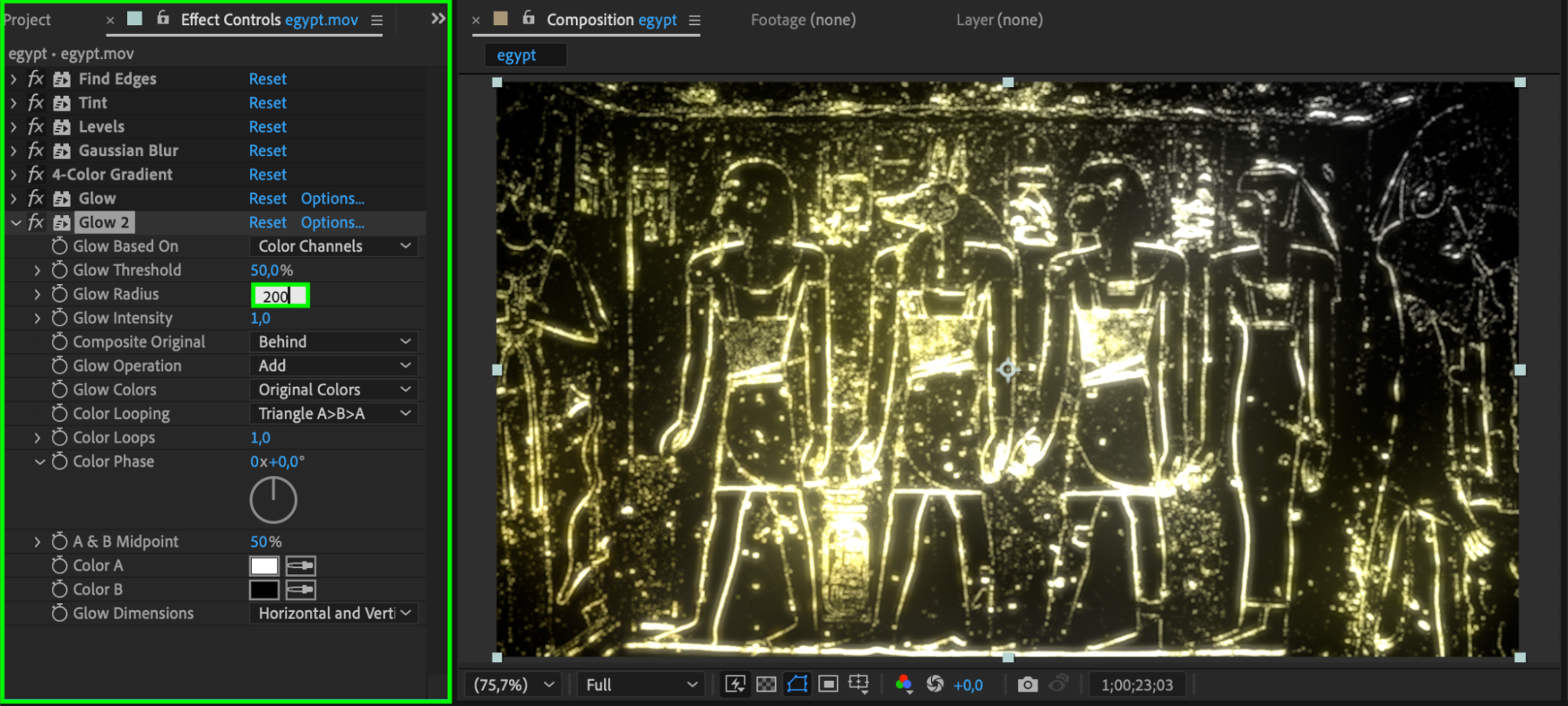
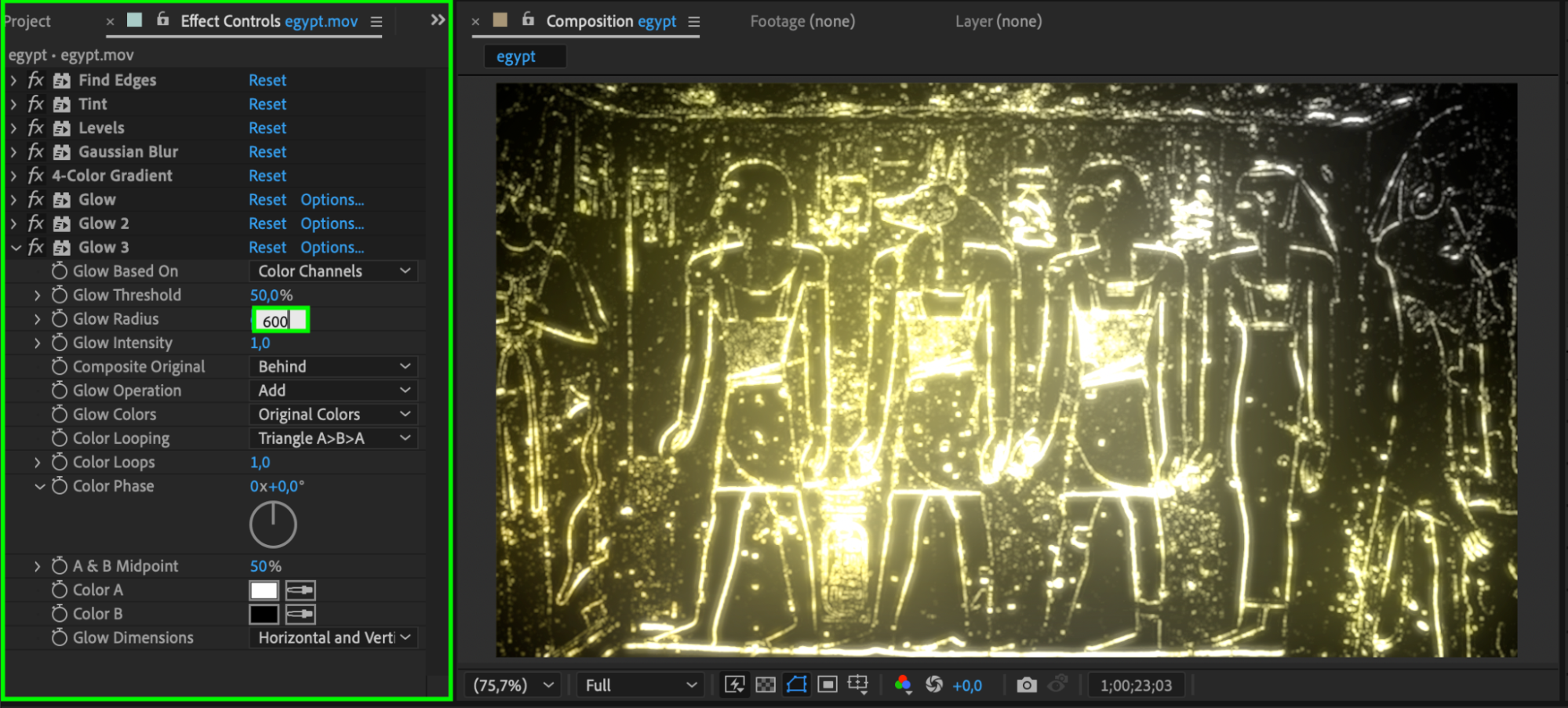 Step 8: Change the Blending Mode
Right-click the duplicate video layer and change its Blending Mode to Screen. This blends the glowing lines with the original video and removes the dark background.
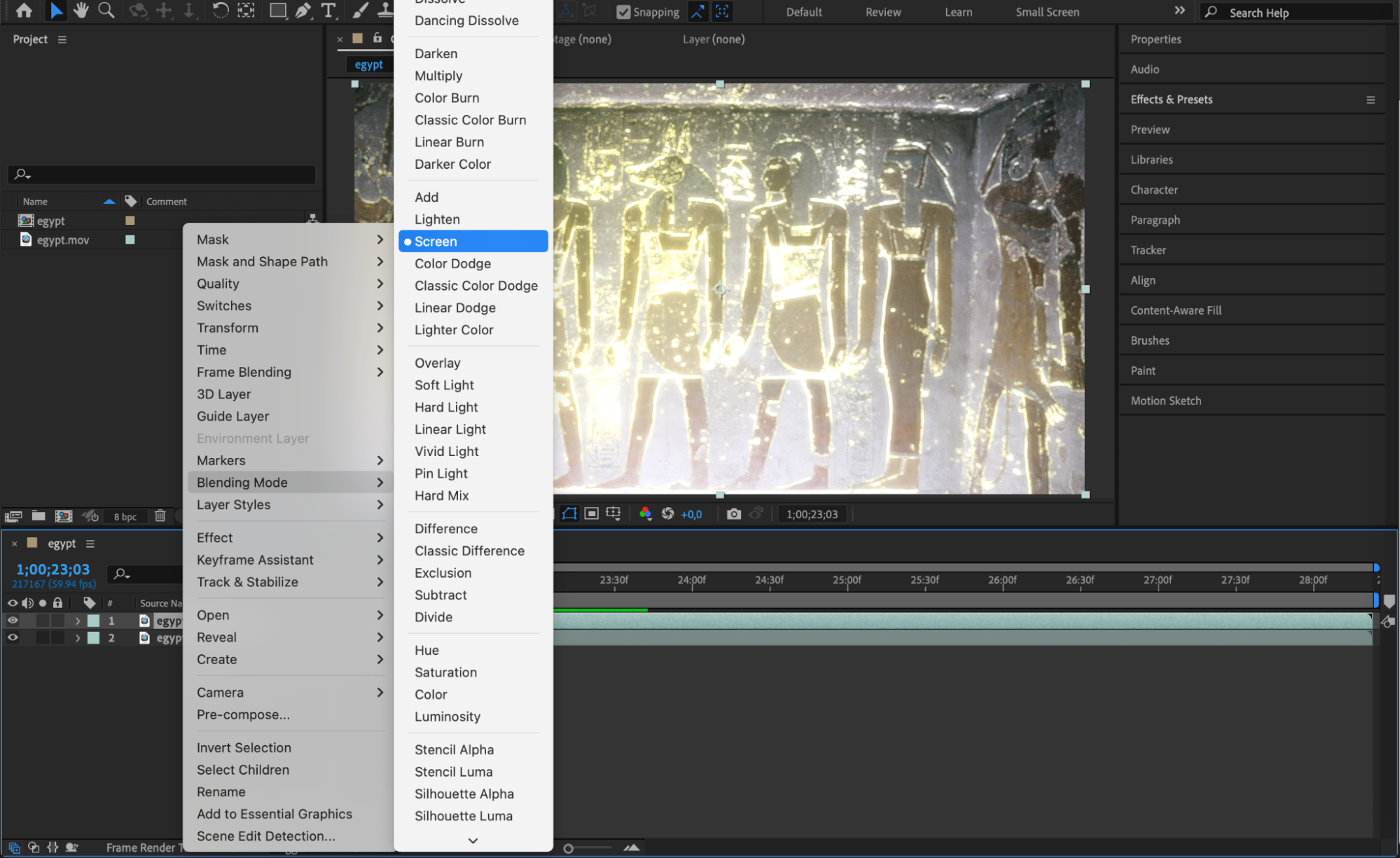
Step 9: Animate the Effect
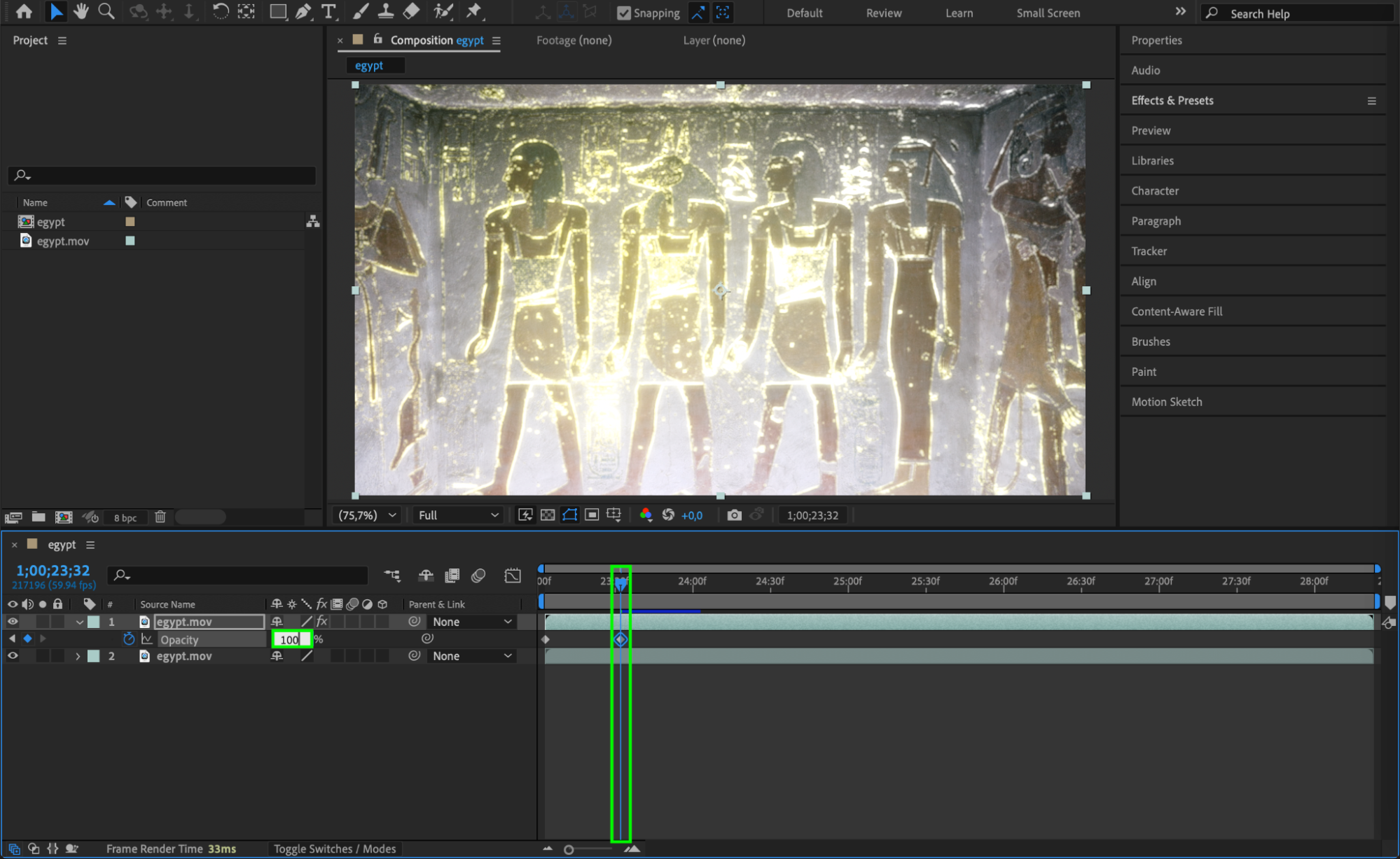
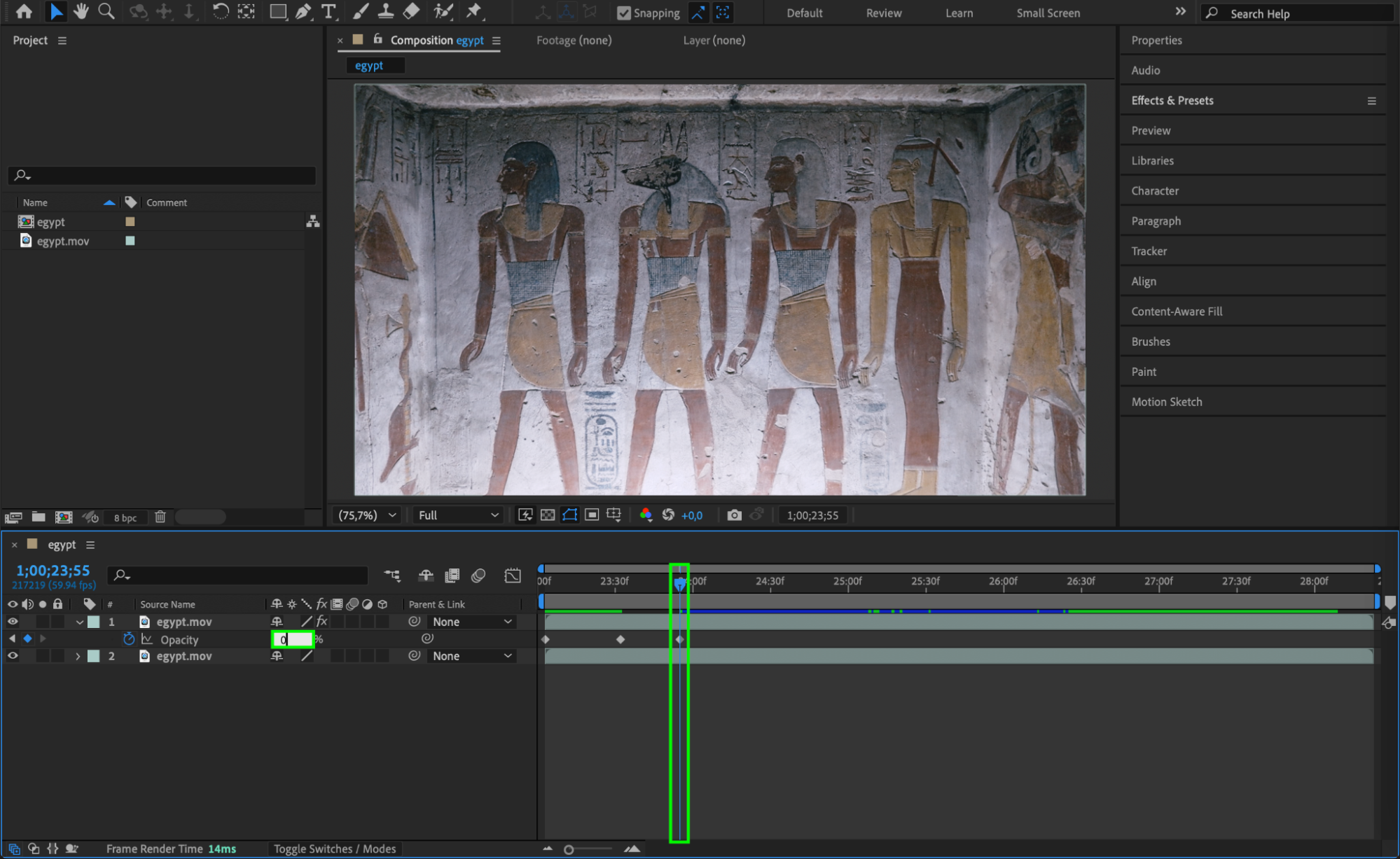
For extra visual interest, animate properties like Opacity or Scale of the glowing line layer. This can create pulsating, breathing, or zoom effects that make the glow feel more alive and dynamic.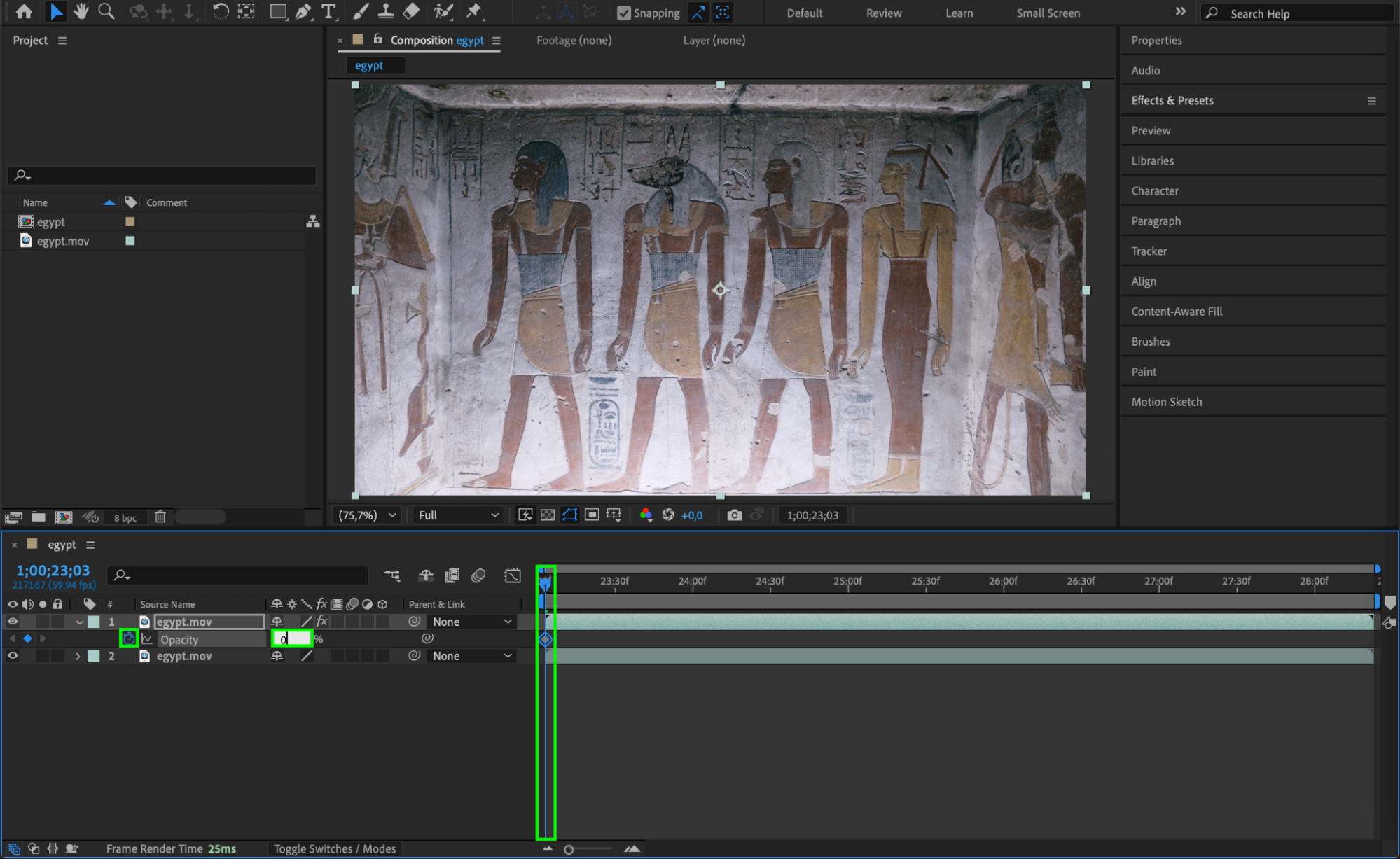
 Step 10: Preview the Animation
Press the Spacebar to preview your animation. Make sure the glow effect looks smooth and enhances the video without overwhelming it. Adjust any effect settings if needed.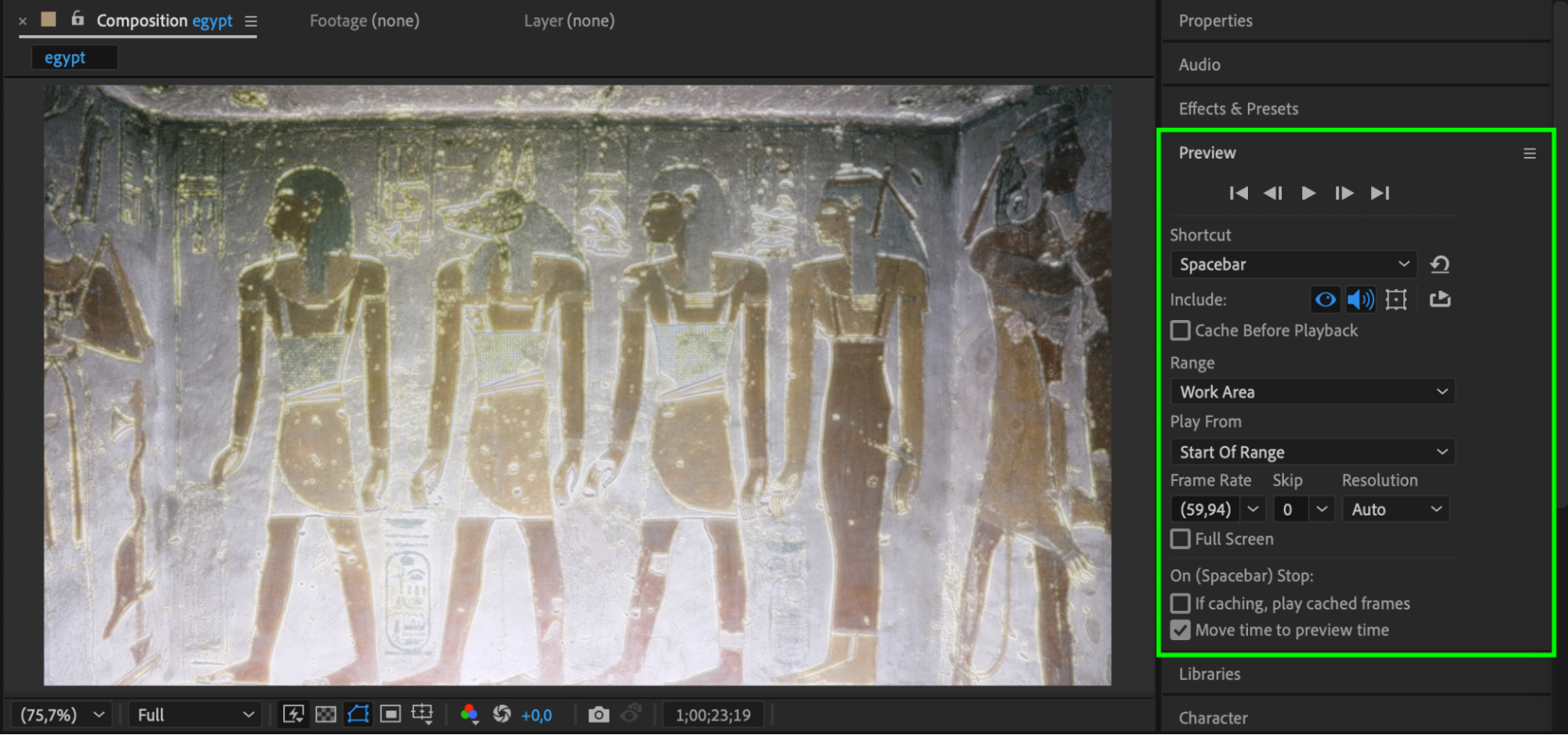
Conclusion
By combining edge detection, blur, color gradients, and glow effects, you can turn ordinary video footage into something visually striking and artistic. Glowing line effects are perfect for music videos, sci-fi scenes, or stylized intros. Try experimenting with different glow colors, gradient setups, and animations to match your creative vision.
Our Bestsellers
Our Bestsellers


