
How to Create a Snowfall Effect in After Effects
Introduction
In this tutorial, we will show you how to create a realistic snow effect in After Effects. By using solids, the Gradient Ramp effect, and the CC Particle World effect, you’ll be able to make snowflakes fall across your scene. The result is a visually appealing winter atmosphere.
Step 1: Create a New Composition
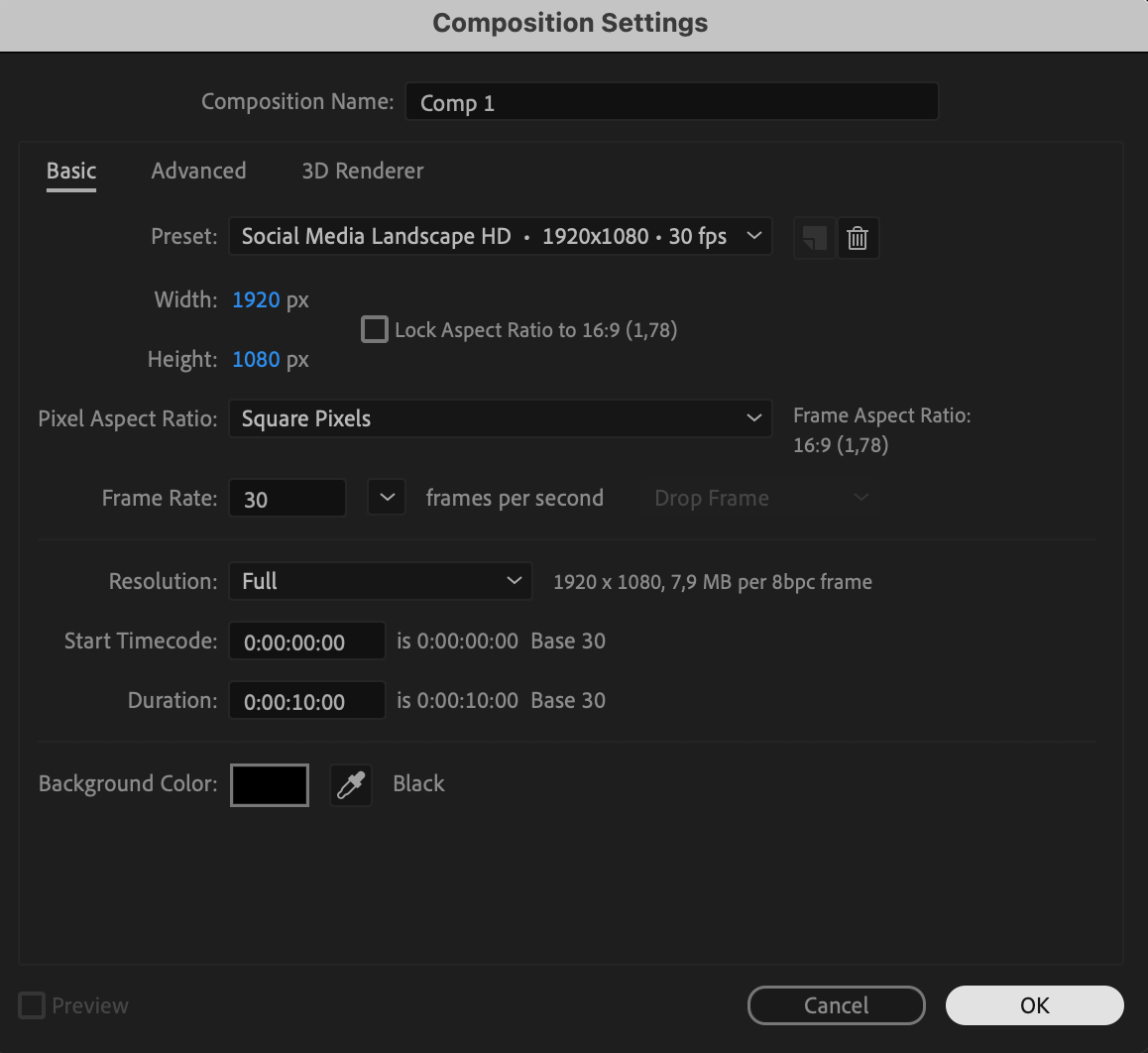
Start by creating a new composition. Choose your desired settings such as resolution, frame rate, and duration, then click OK to proceed.
 Step 2: Add a Background Layer
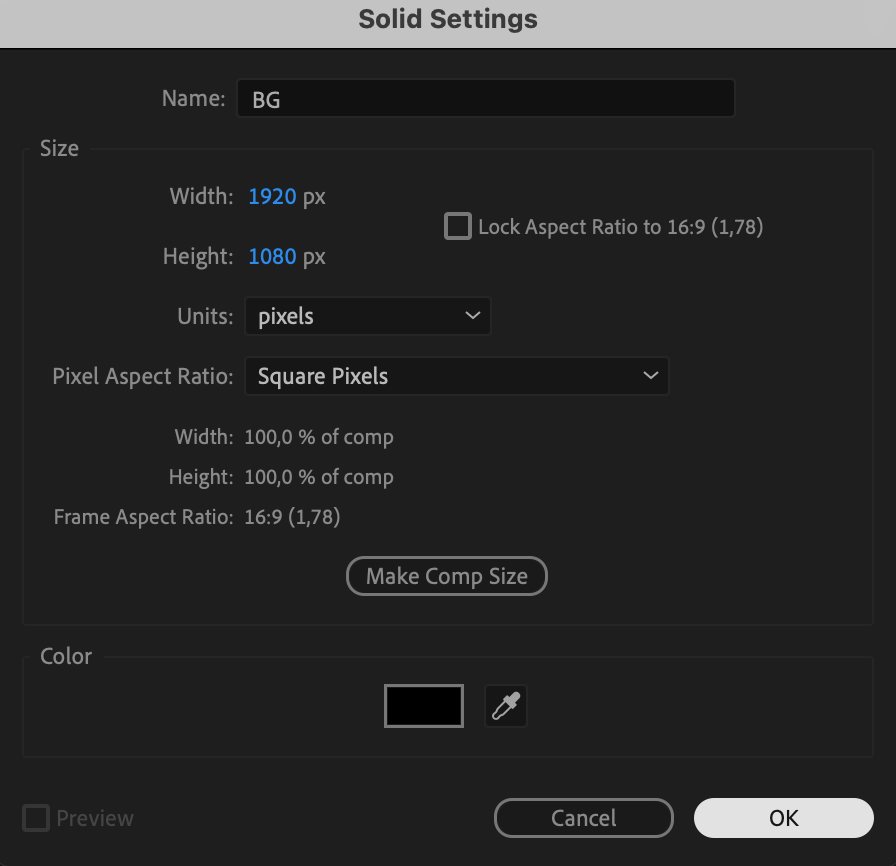
Go to Layer > New > Solid and choose any color for your background. Name this layer “Background.” You can use a sky color like light blue or any color that matches the winter atmosphere.
Step 3: Apply the Gradient Ramp Effect
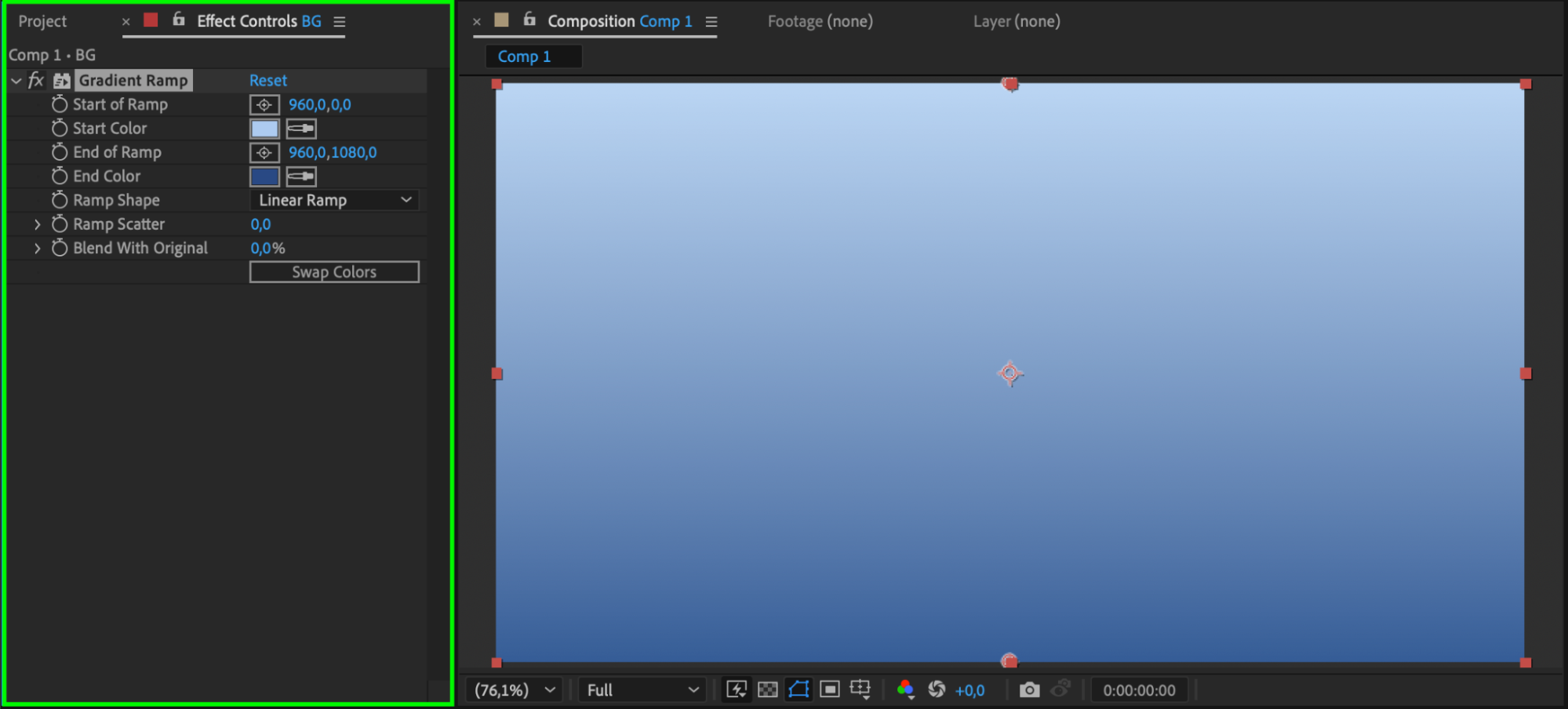
In the Effects & Presets panel, search for the Gradient Ramp effect and drag it onto the Background layer. Set the ramp’s colors to represent a snowy sky — typically white and blue. Adjust the gradient’s direction and length for a smooth, wintery look.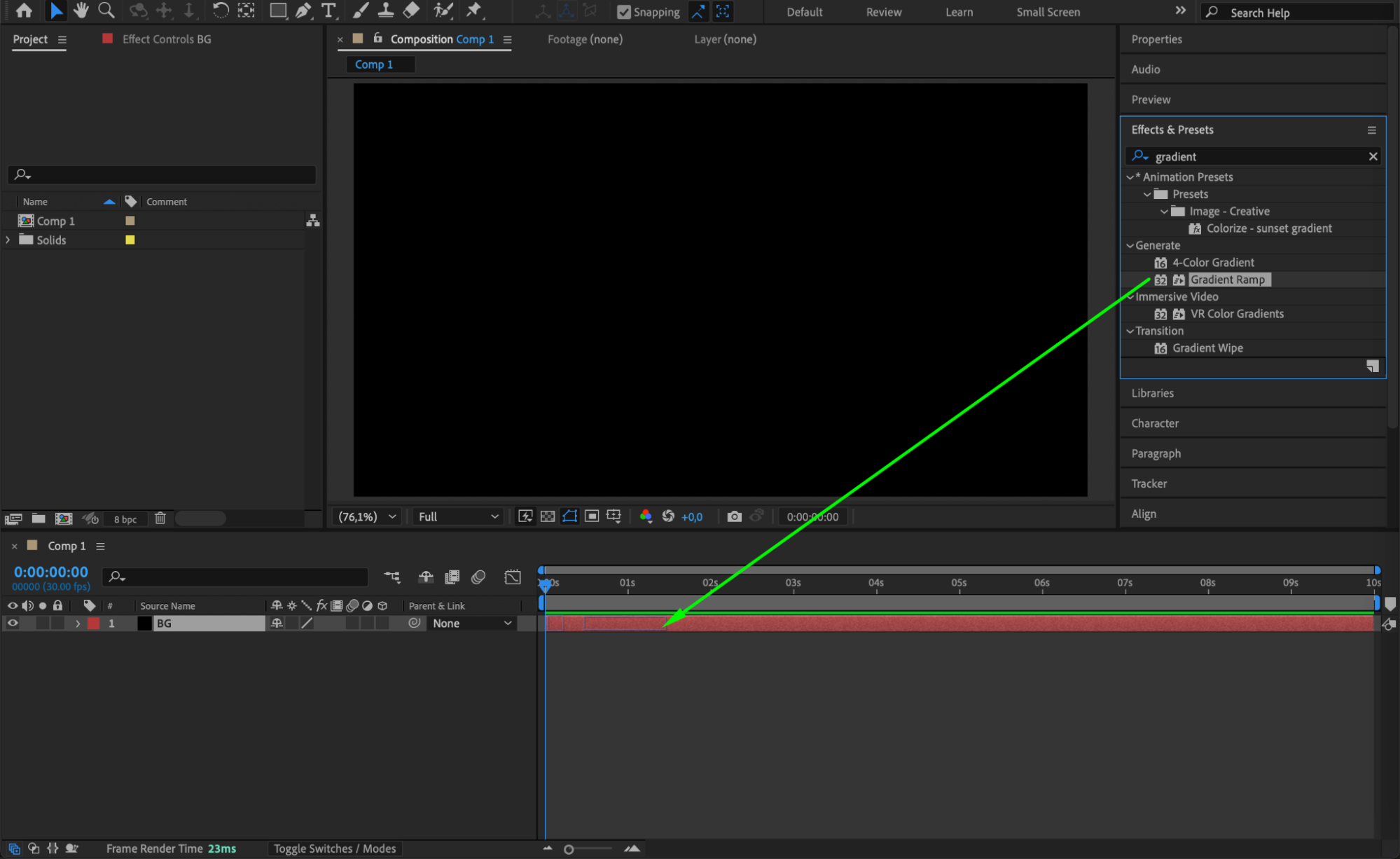
 Step 4: Import Snowflake Image
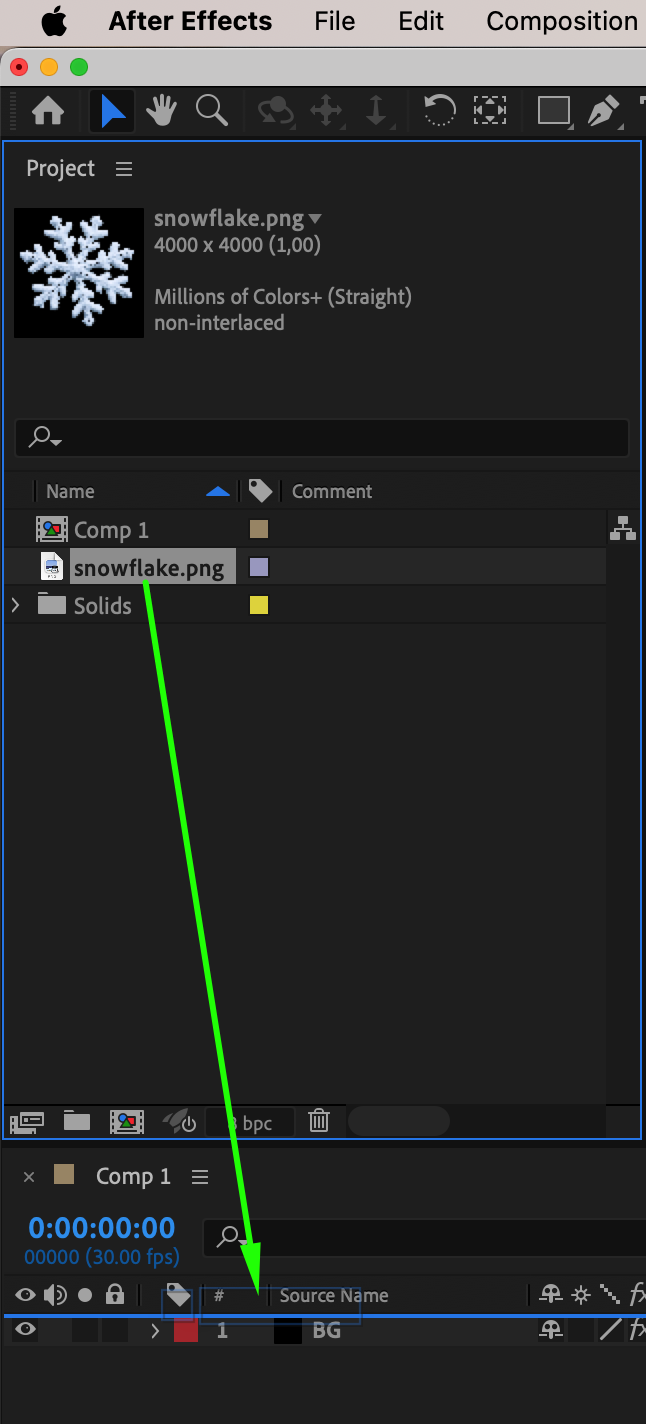
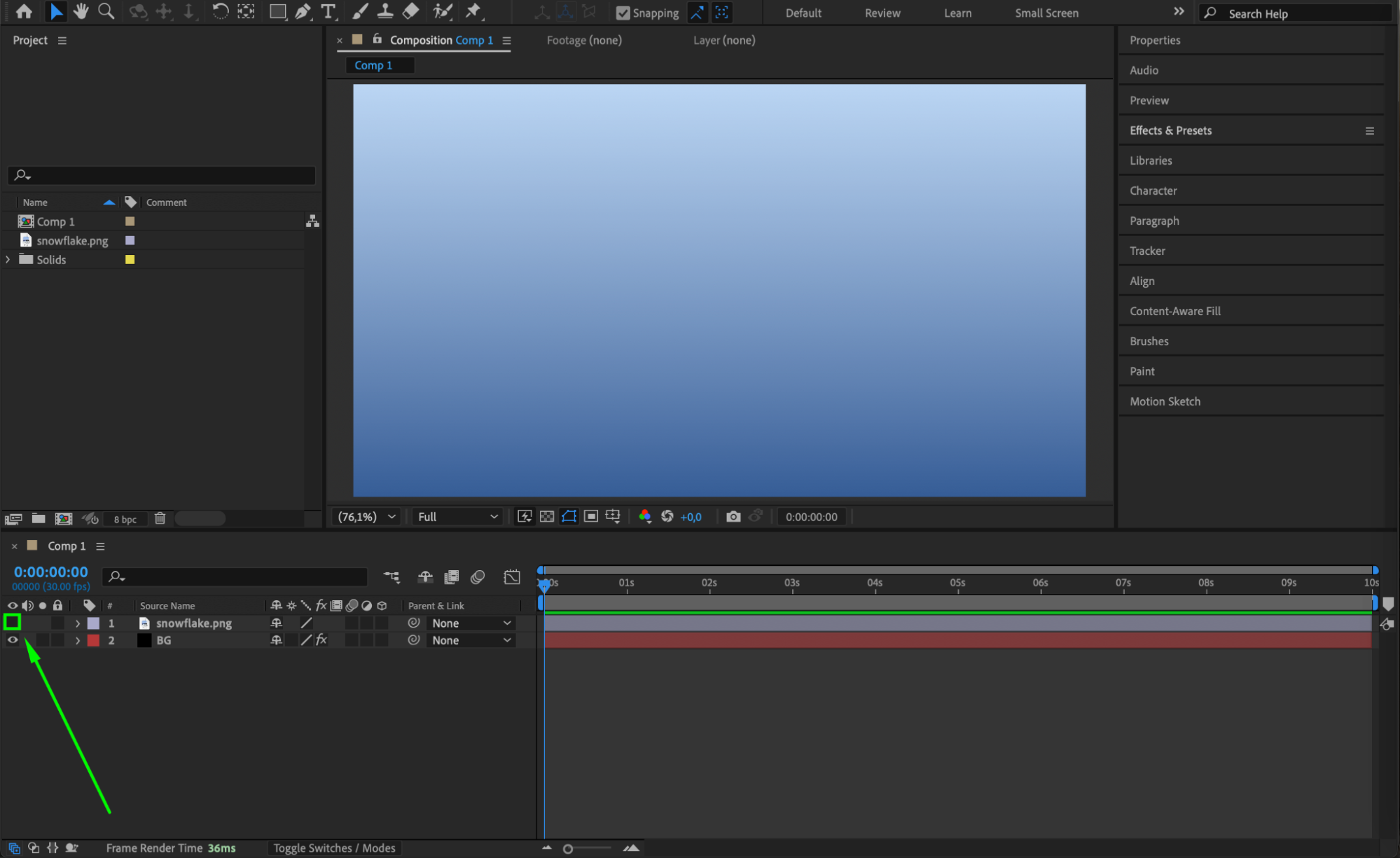
Go to File > Import > File and select a snowflake image (PNG works best for transparent backgrounds). Drag the snowflake onto your timeline. Then, click on the eye icon next to the snowflake layer to hide it temporarily. This snowflake will be used as the texture for the falling snow particles.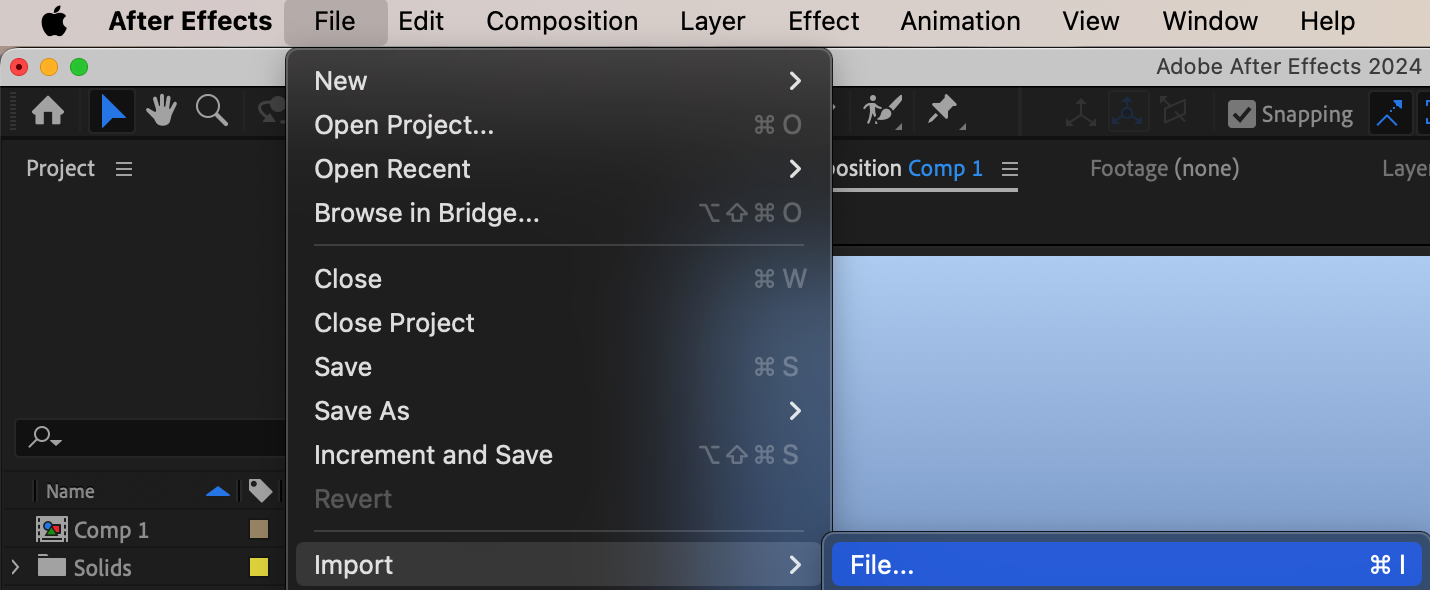
 Step 5: Create a Solid for Snow
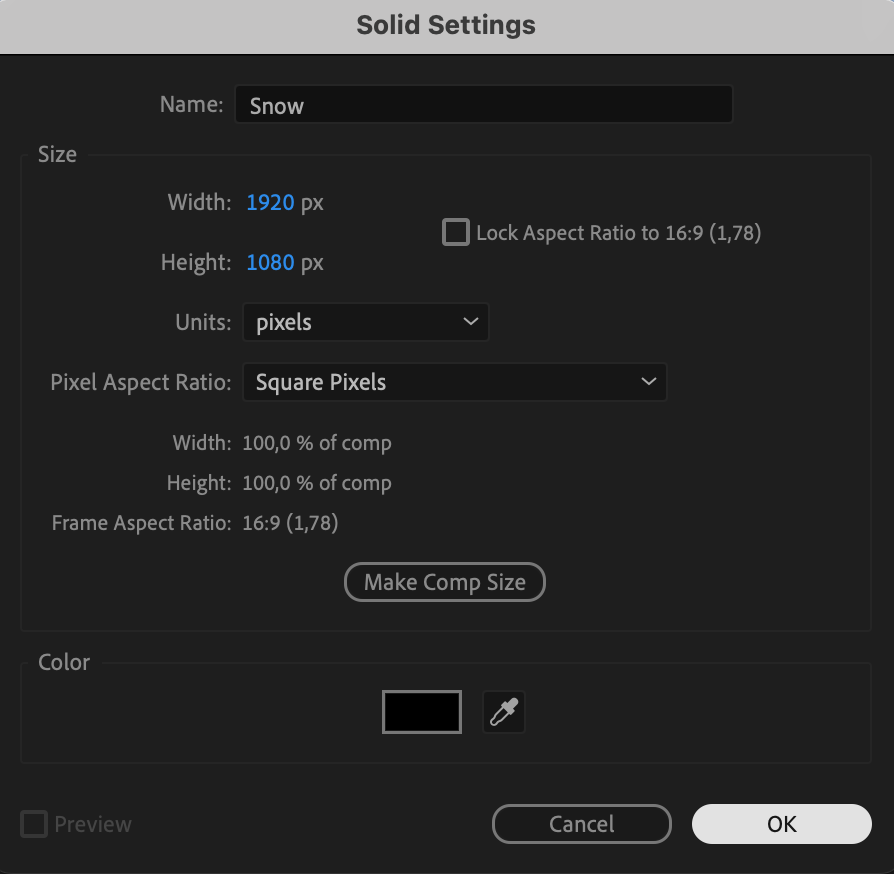
Go to Layer > New > Solid and choose any color. Name this layer “Snow.” This will be the base layer for your particle system.
Step 6: Apply the CC Particle World Effect
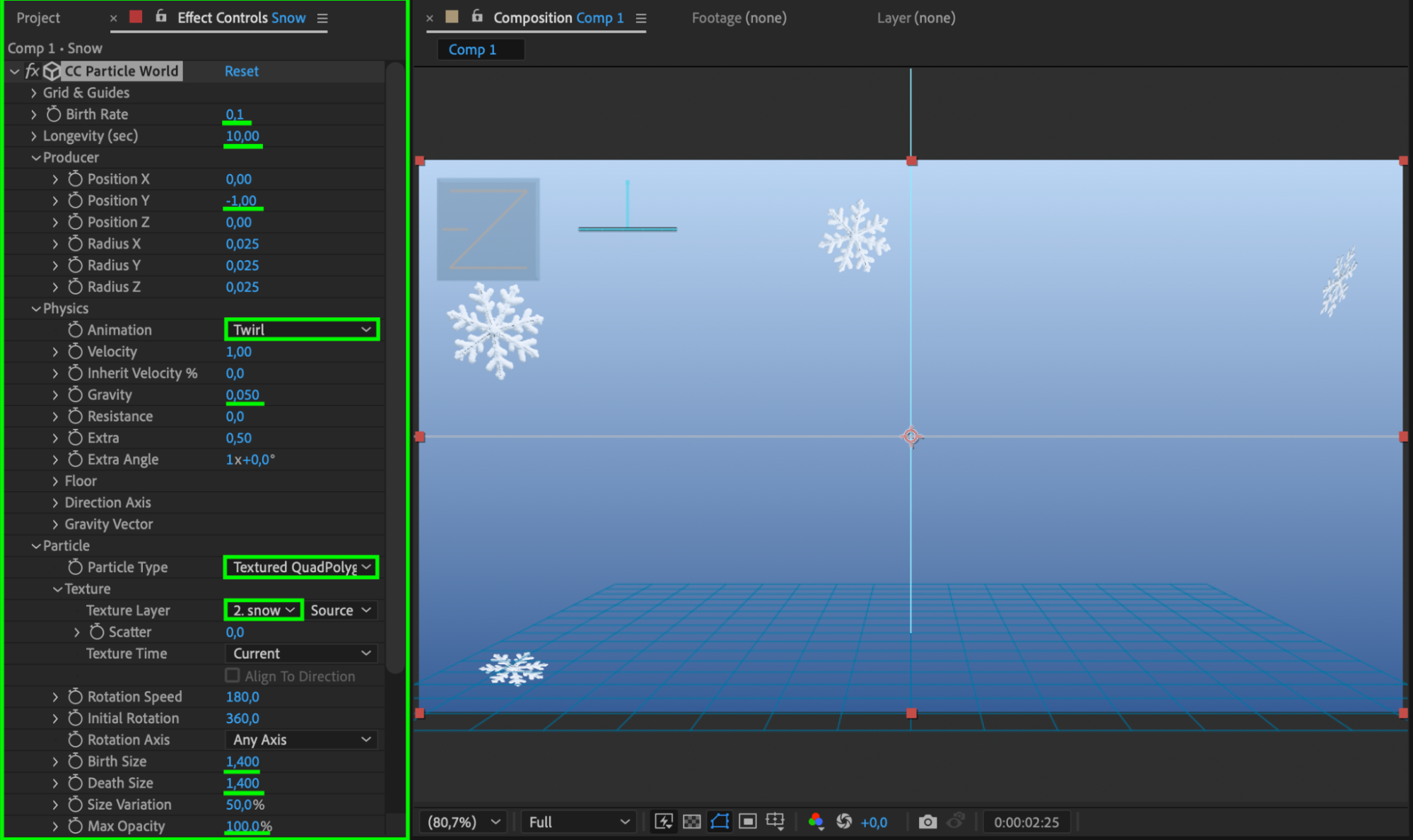
In the Effects & Presets panel, search for CC Particle World and apply it to the Snow layer. Adjust the settings to achieve the snowfall effect:
Birth Rate: Set to 0.1 for a gentle snowfall.
Longevity: Set to 10 for the duration of the particles.
Position Y: Set to -1 to start the particles just above the screen.
Animation: Set to “Twirl” for a realistic swirling motion.
Gravity: Set to 0.05 to reduce the effect of gravity on the snowflakes.
Particle Type: Choose “Textured Quad Polygon.”
Texture Layer: Set to the snowflake image you imported earlier.
Birth Size and Death Size: Set both to 1.4 for consistent snowflake size.
Max Opacity: Set to 100 for full opacity on the particles.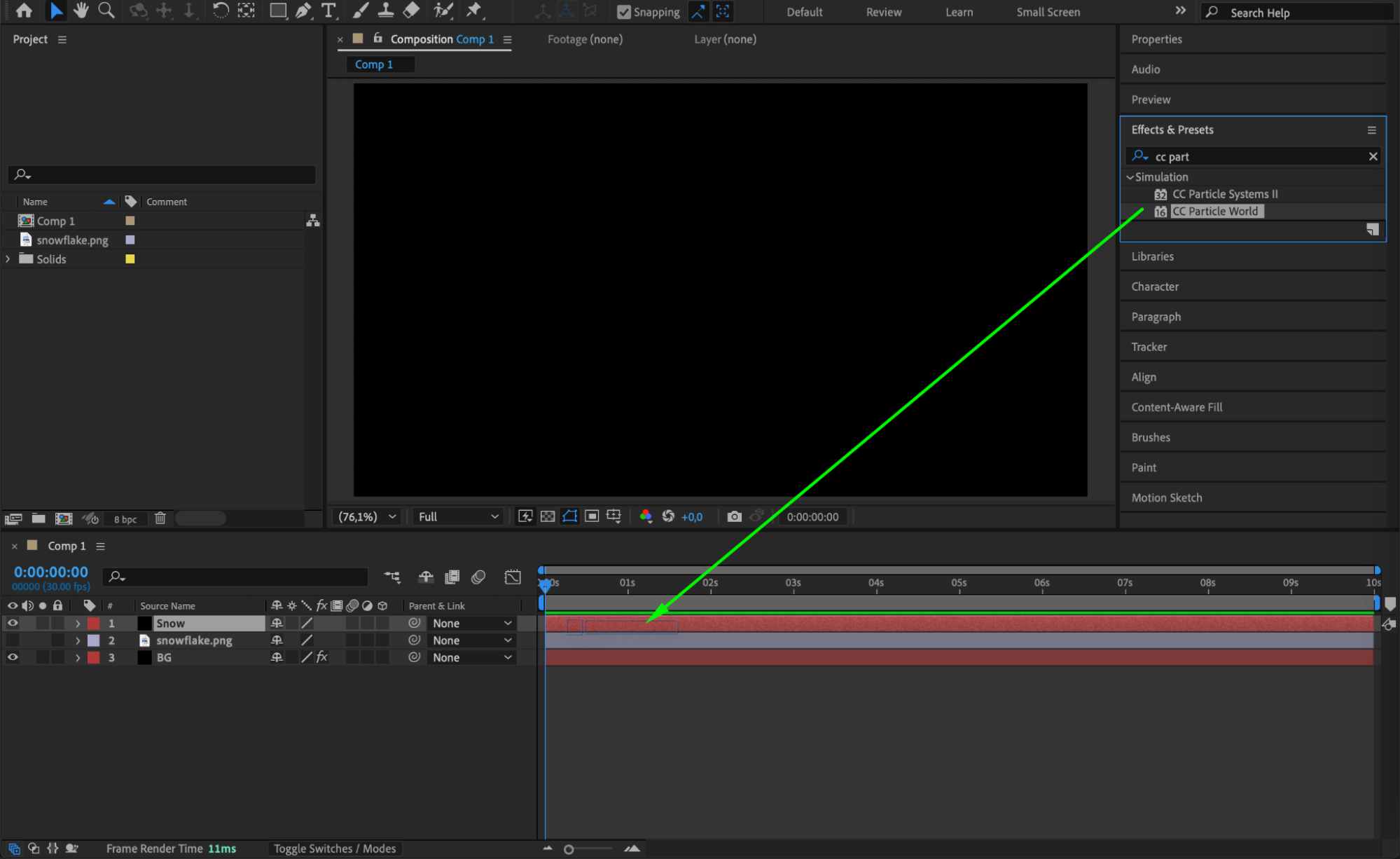
 Step 7: Duplicate the Snow Layer (Optional)
If you want to increase the density of the snowfall, duplicate the Snow layer. You can adjust the settings to create variations in the snowflakes’ size, speed, and distribution.
Step 8: Preview and Render
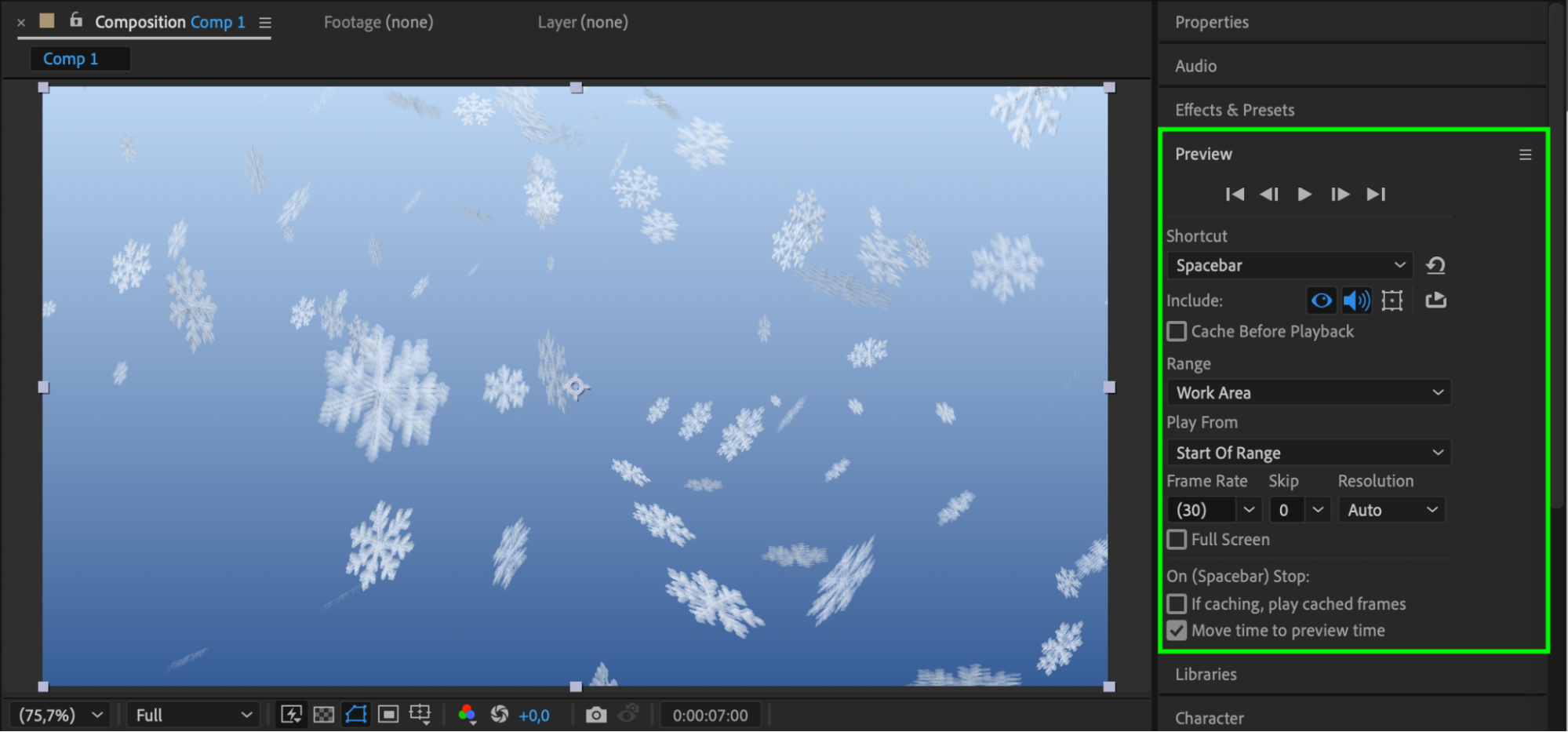
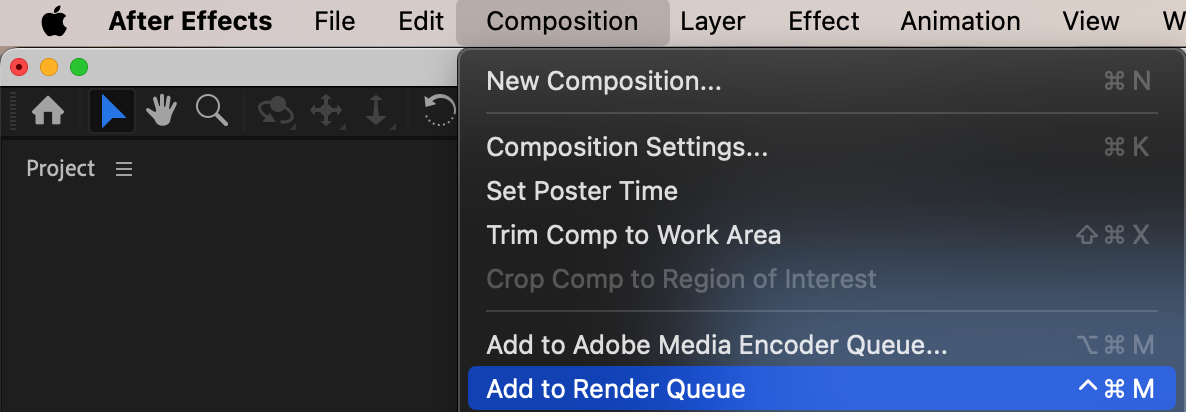
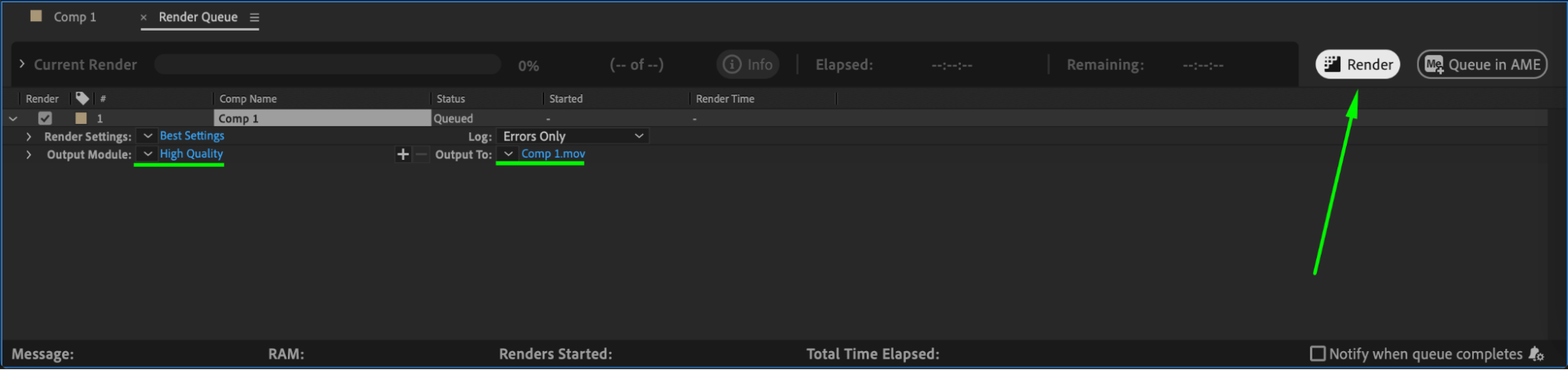
Once you’re happy with the effect, preview the animation to check how the snow looks. If everything is to your liking, go to Composition > Add to Render Queue to render the composition. Choose your preferred format and resolution, then click Render to save your snowfall animation.
Conclusion
By following these steps, you can create a realistic snow effect in After Effects, perfect for holiday-themed projects or winter scenes. This technique uses particle systems to simulate falling snowflakes, giving your compositions a dynamic and seasonal feel.
Our Bestsellers
Our Bestsellers


