
Creating Glowing Light Trails in After Effects
Introduction to Light Trail Animation
Light trails can add a vibrant and energetic touch to your motion design. This tutorial will show you how to make light trails using built-in effects in Adobe After Effects. You’ll learn how to control the movement, add glow, and create smooth trails using Echo and animation techniques.
Step 1: Create a New Composition
Go to the top menu and select Composition > New Composition. Set your desired resolution, duration, and frame rate, then click OK. This will be the main area where you build your light trail animation.
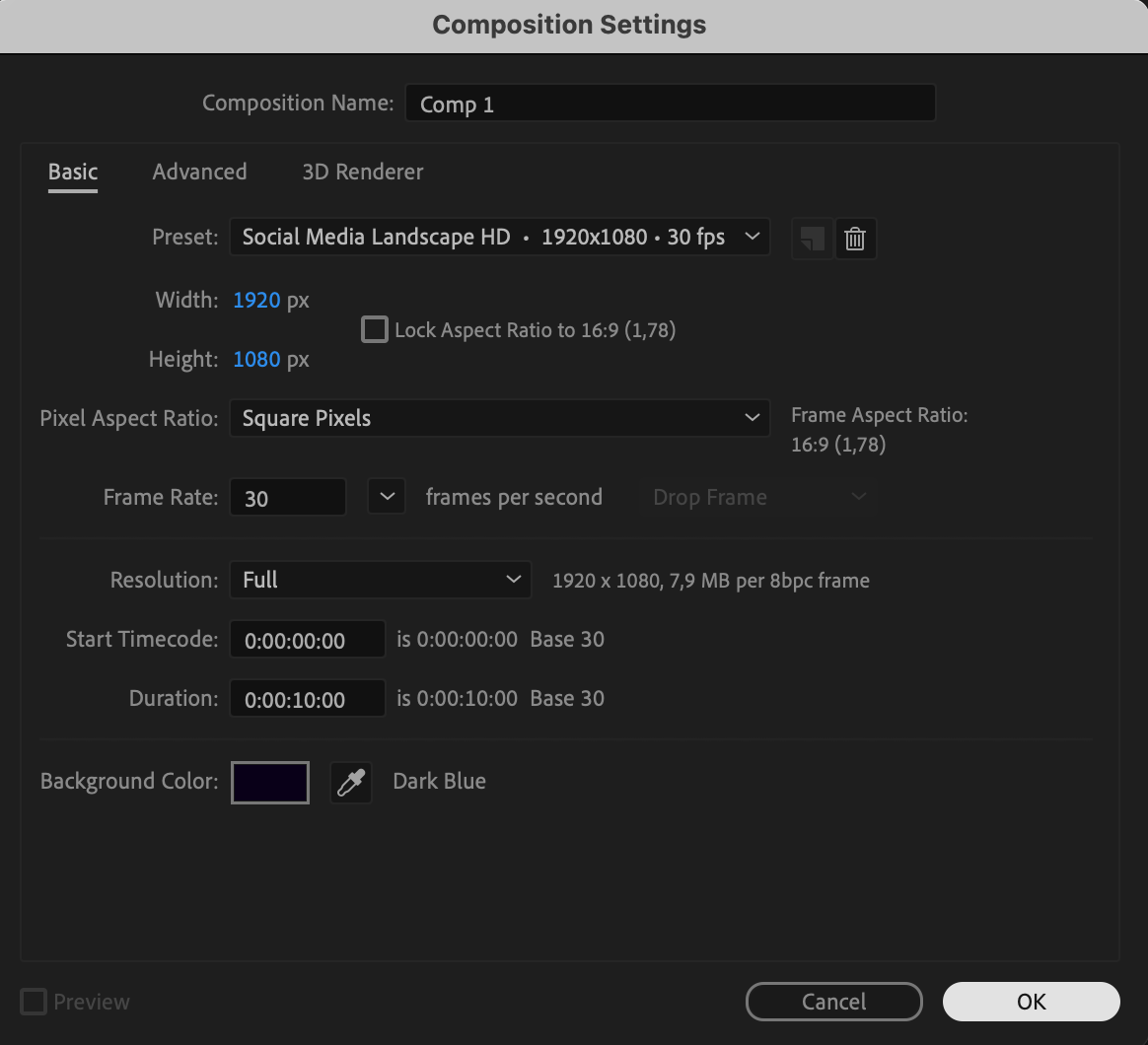 Step 2: Add a Solid Layer
From the top menu, go to Layer > New > Solid. In the dialog box, choose white as the color and click OK. This solid layer will be used as the base for your light trail effects.
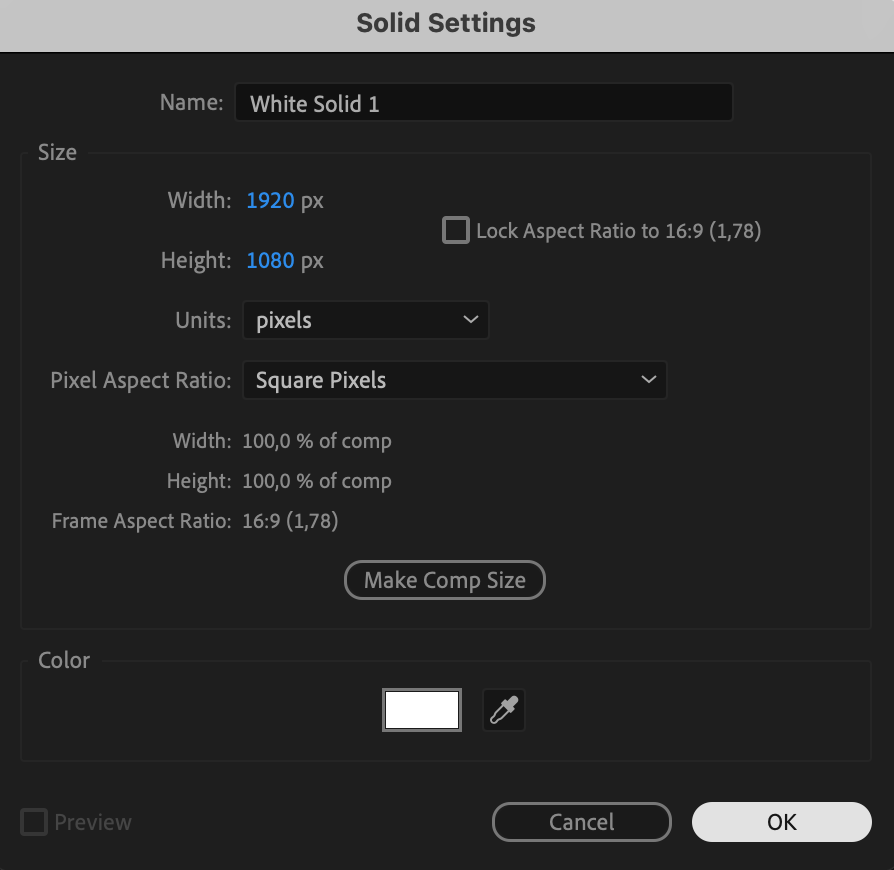 Step 3: Apply the CC Star Burst Effect
Go to the Effects & Presets panel and search for CC Star Burst. Drag it onto your solid layer. In the Effect Controls panel, set Grid Spacing to 5, Size to 50, Scatter to 200, and Speed to 0. Make sure the CTI (Current Time Indicator) is at the beginning, click the stopwatch next to Speed, and animate it from 0 to 1 by the middle of the comp, then back to 0 at the end.
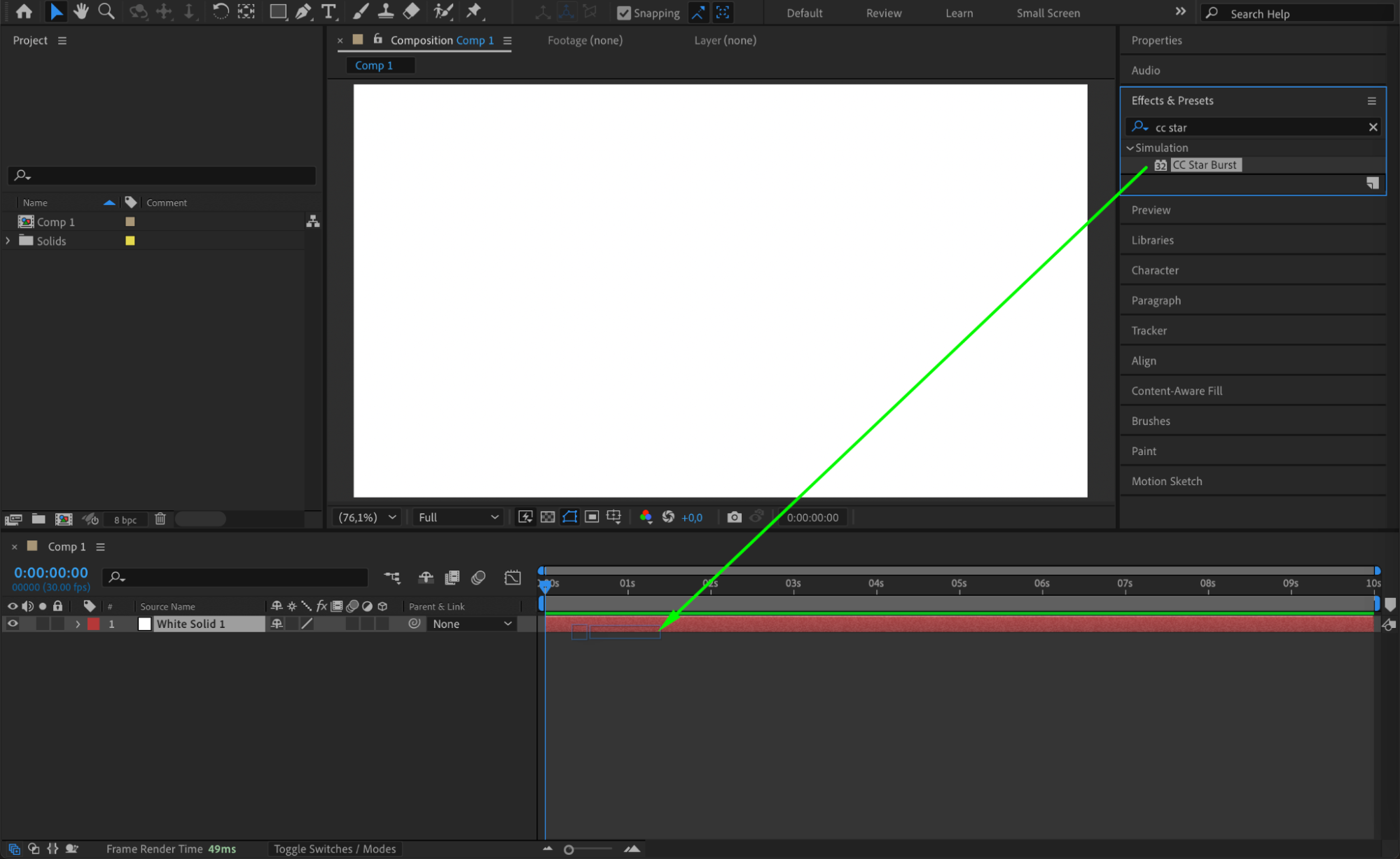
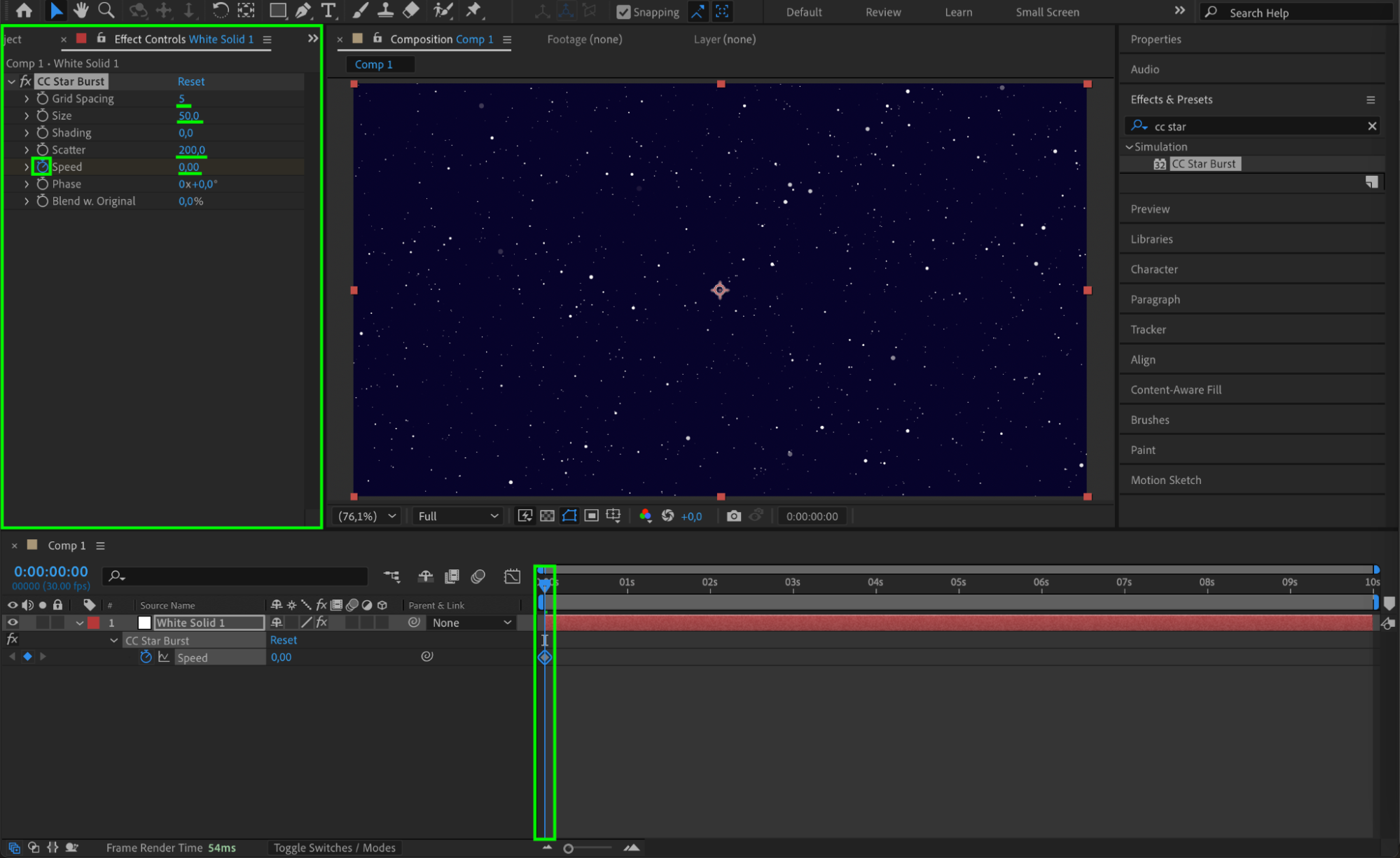
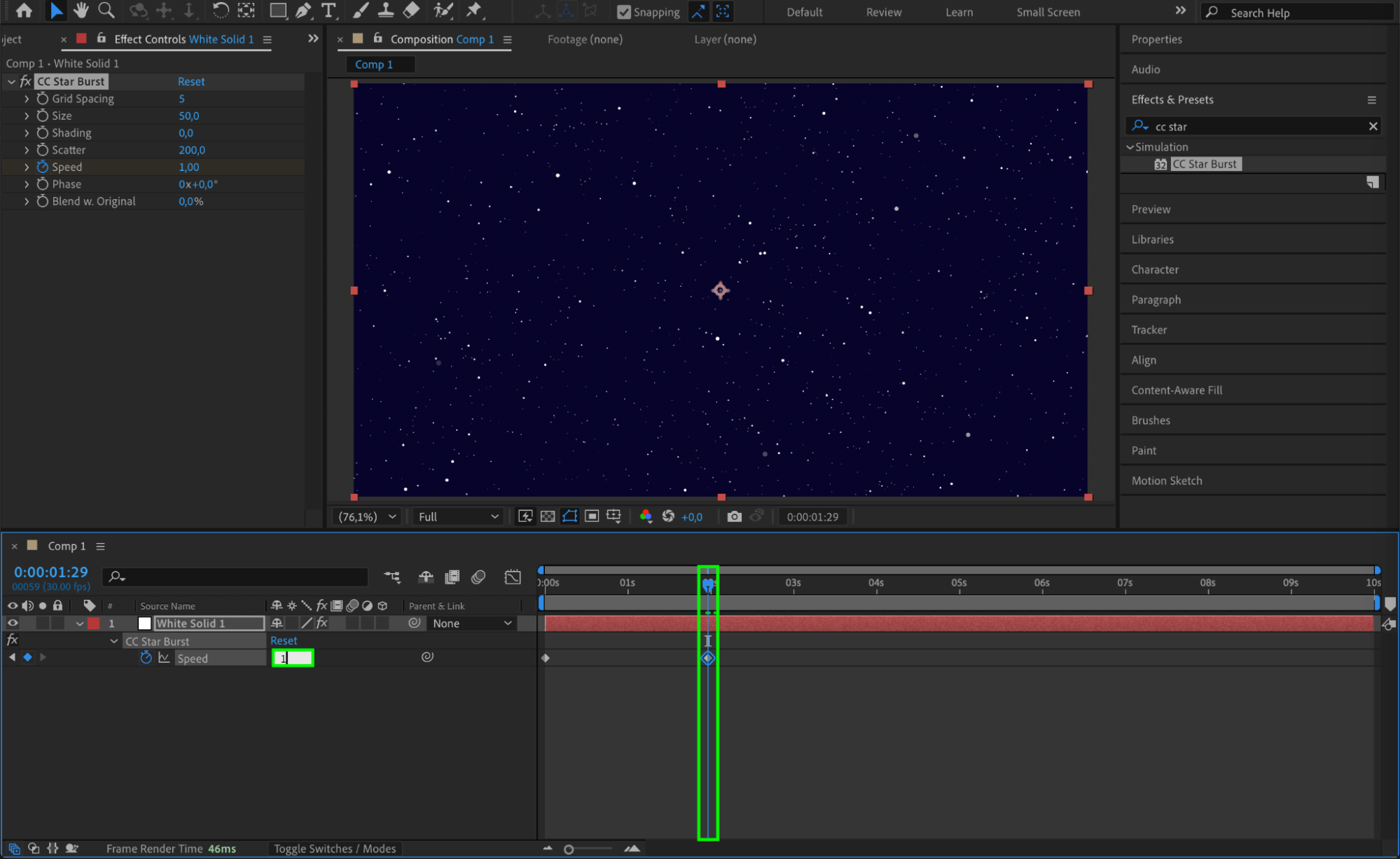
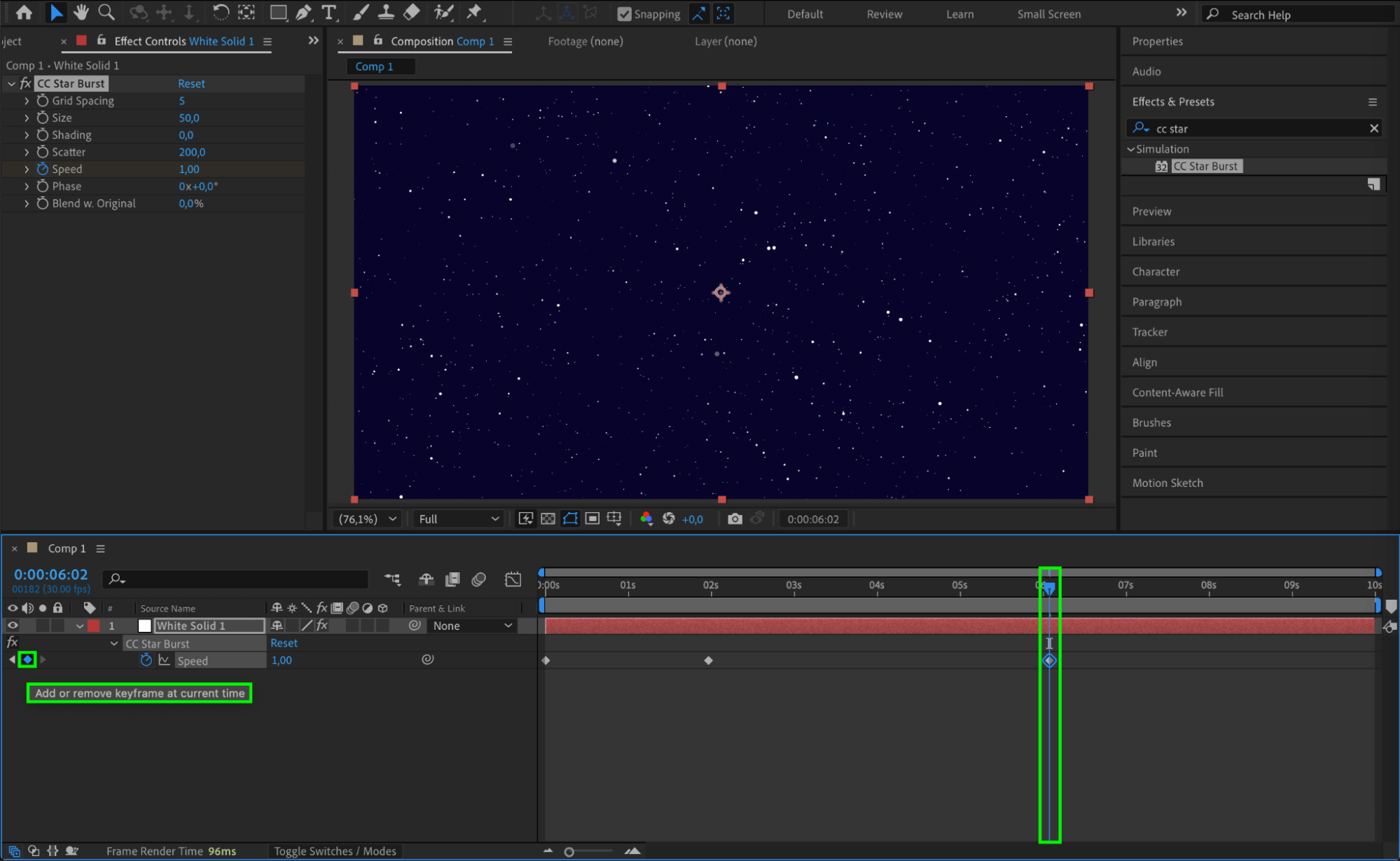
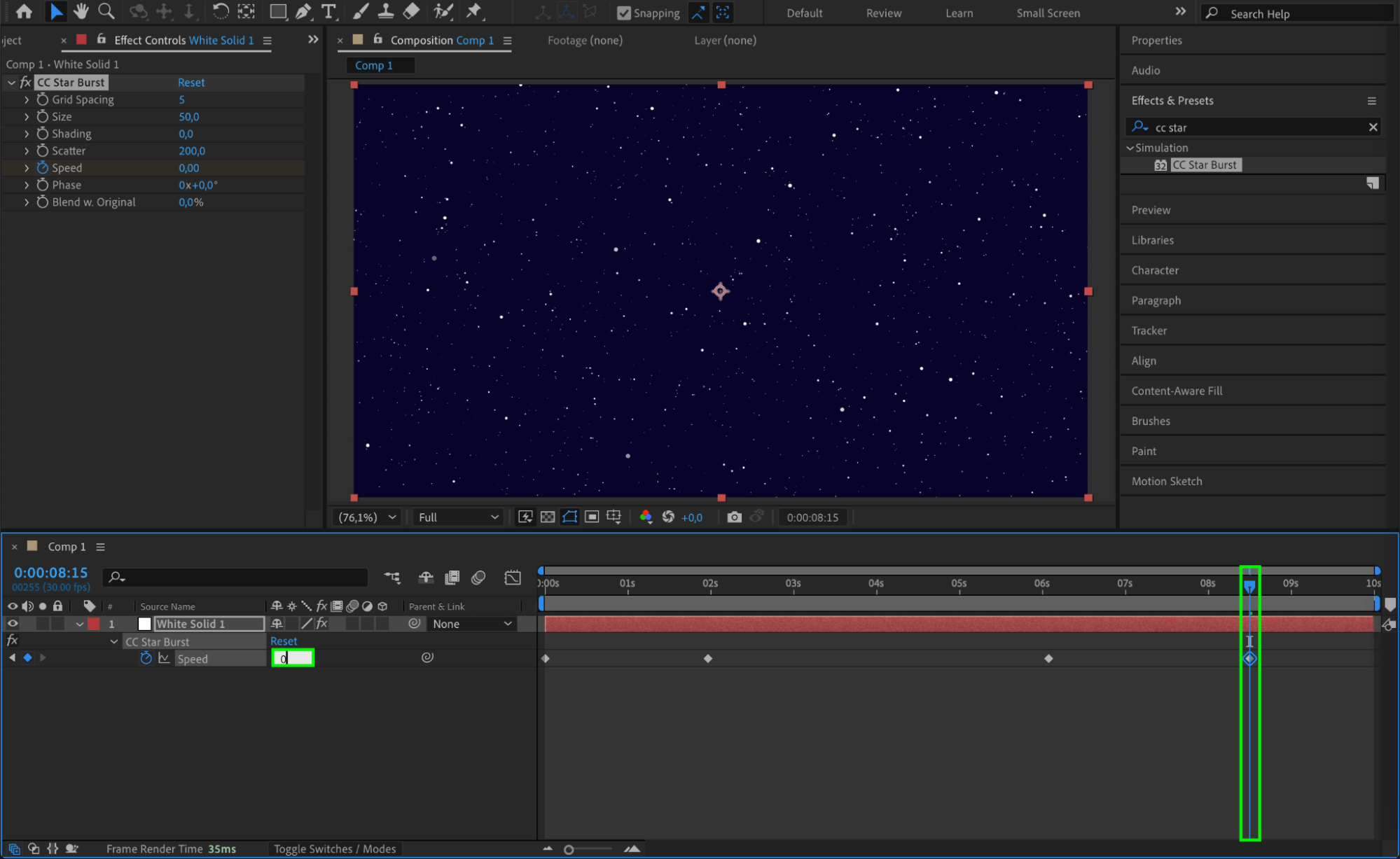 Step 4: Smooth the Animation
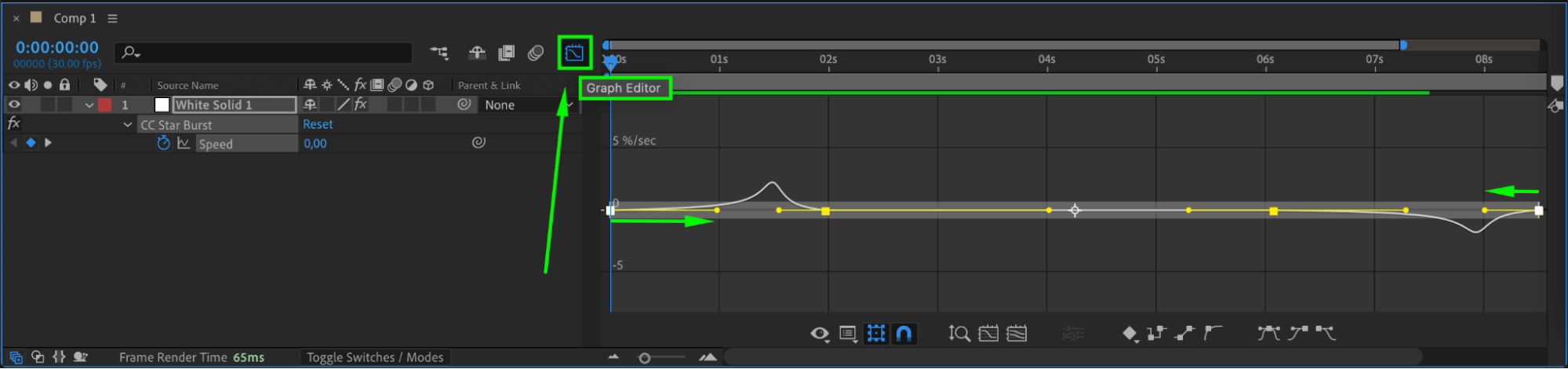
Select the keyframes for the speed parameter, right-click and choose Keyframe Assistant > Easy Ease. Then open the Graph Editor and adjust the curves to make the animation more natural and dynamic.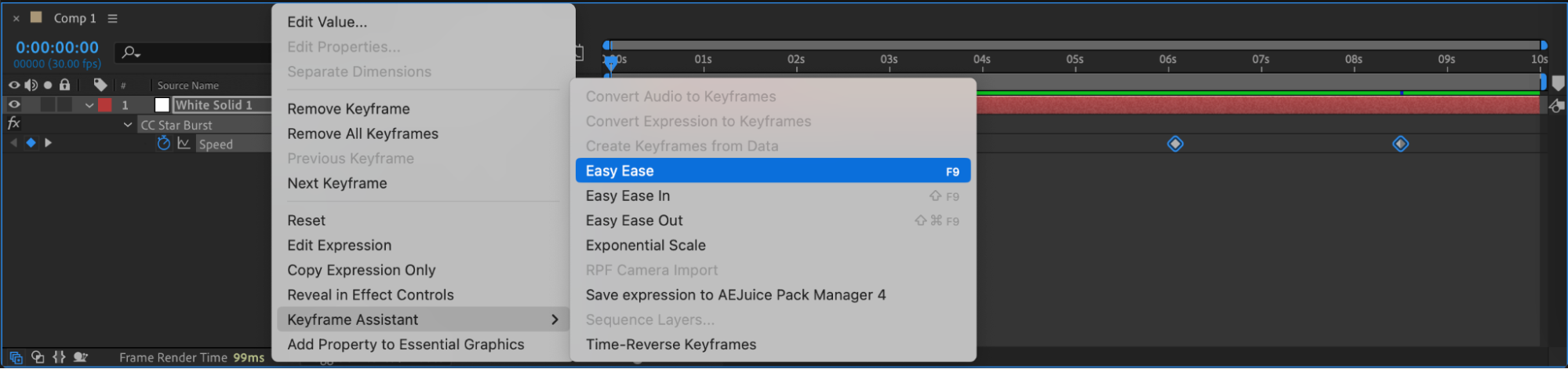
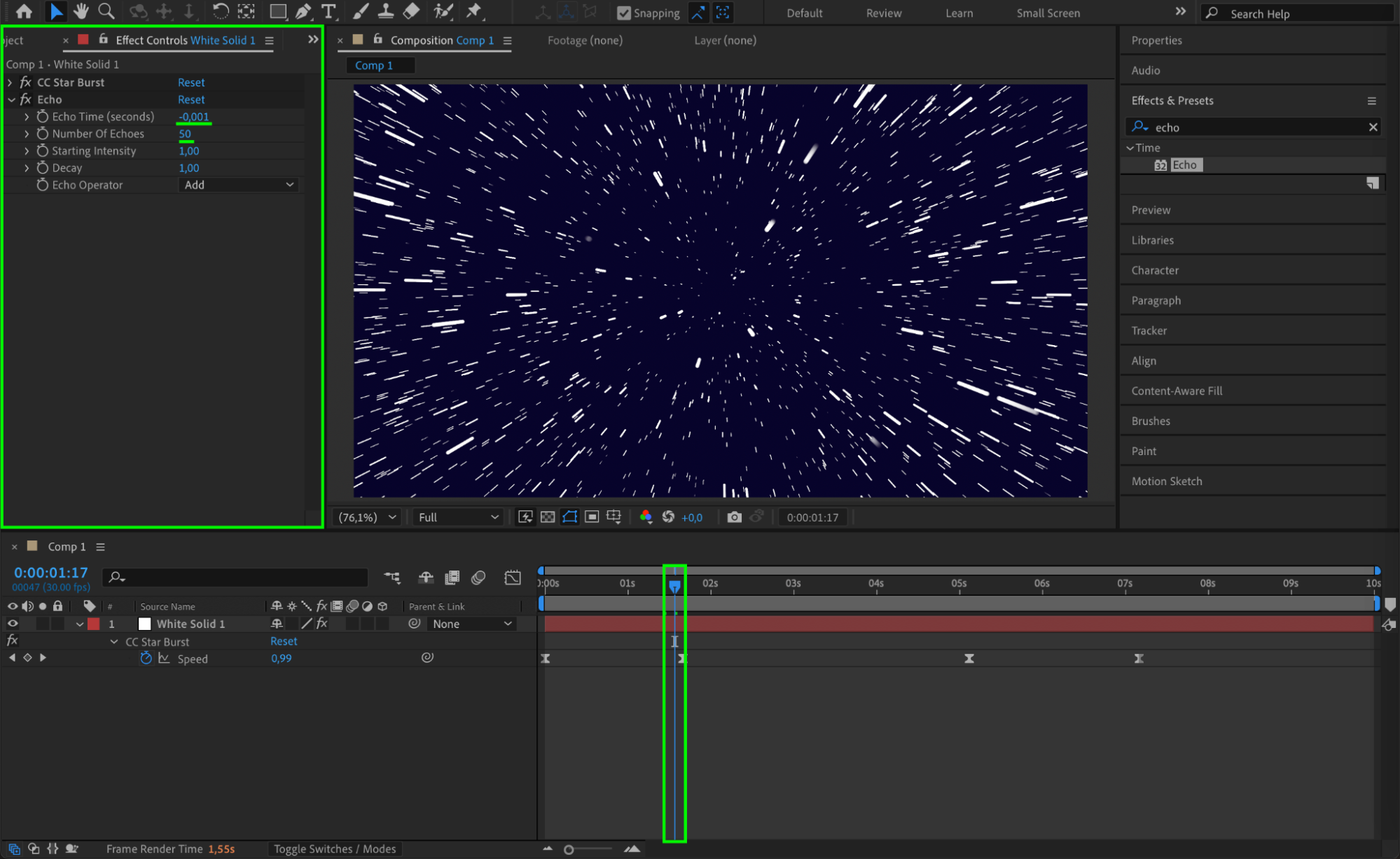
Step 5: Add Echo Effect
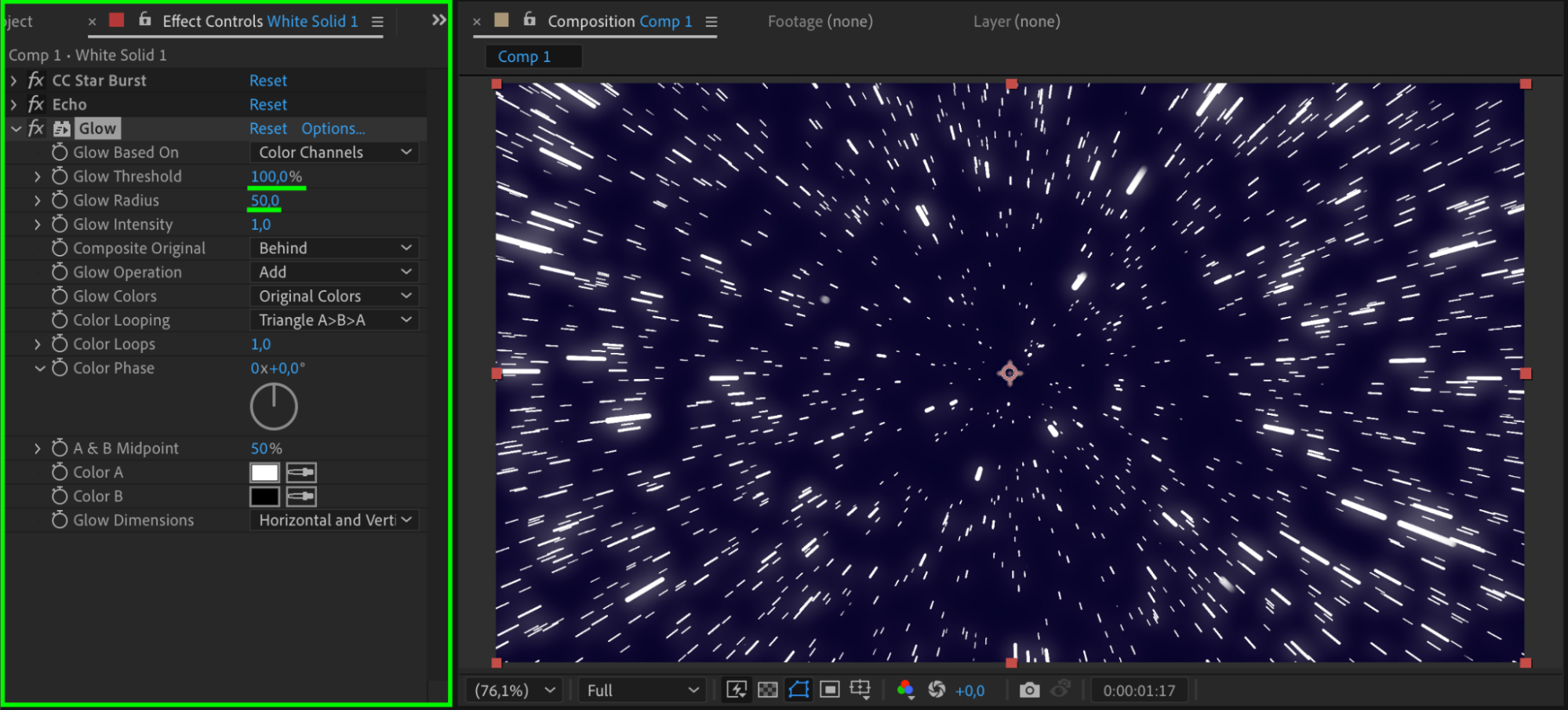
Search for Echo in the Effects & Presets panel and apply it to the same solid layer. Set Echo Time to -0.001 and Number of Echoes to 50. This will create the trailing effect behind the particles.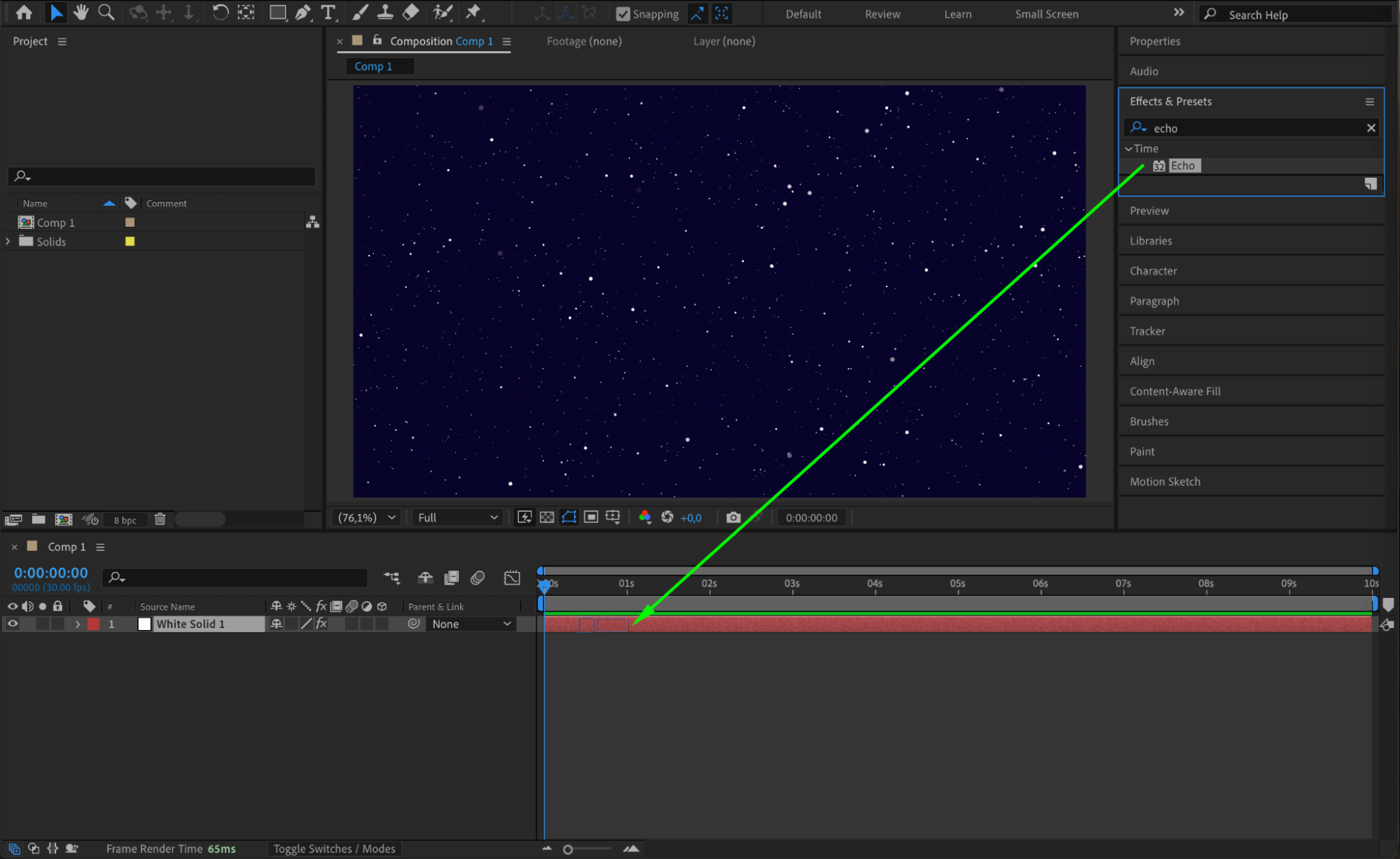
 Step 6: Apply the Glow Effect
Find the Glow effect in the Effects & Presets panel and apply it to the same layer. In the Effect Controls panel, set Glow Threshold to 100 and Glow Radius to 50. This will give your light trails a bright and polished look.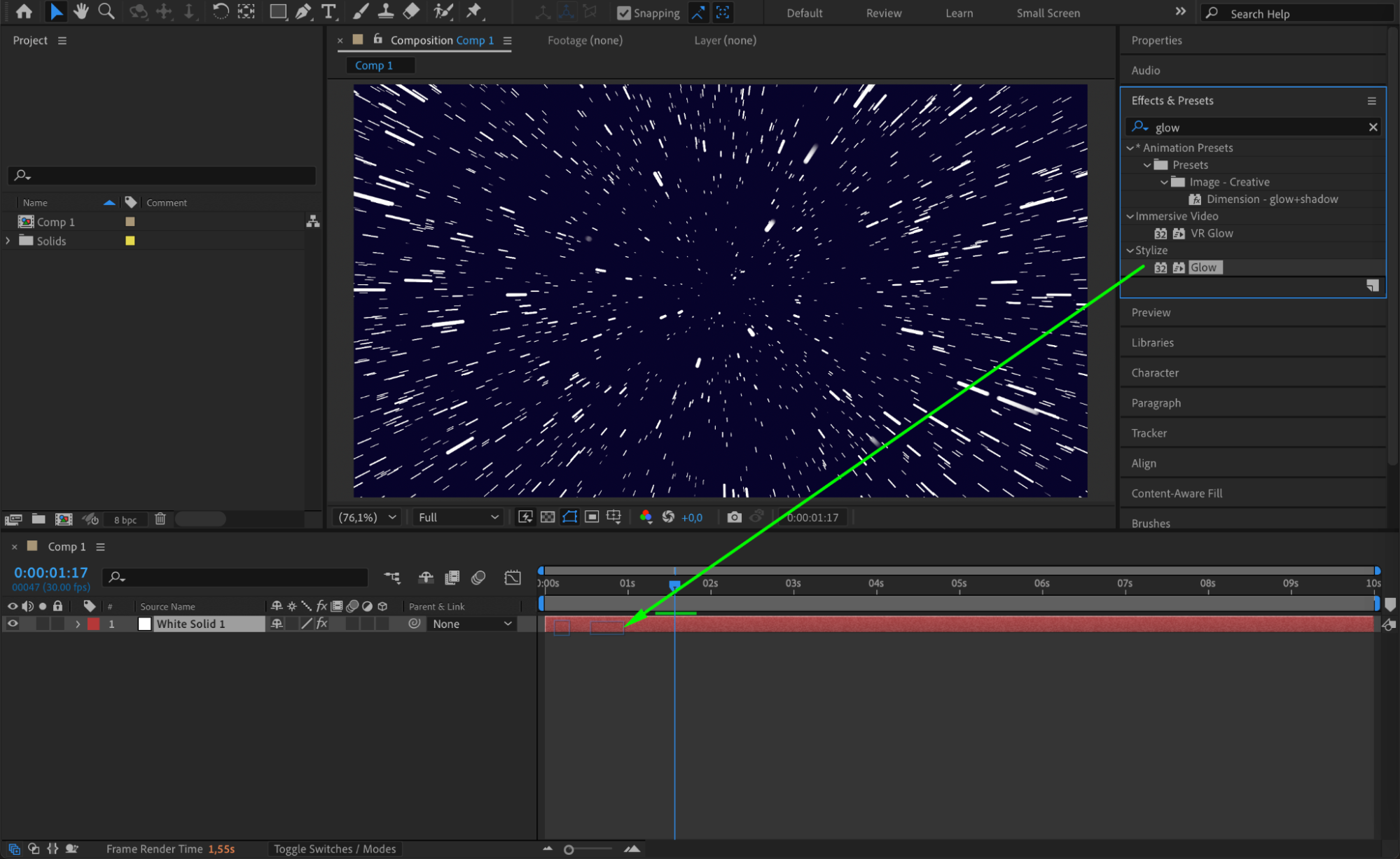
 Step 7: Preview the Animation
Press the spacebar or use the Preview panel to watch your animation. Make sure the movement feels smooth and the light trails look vibrant.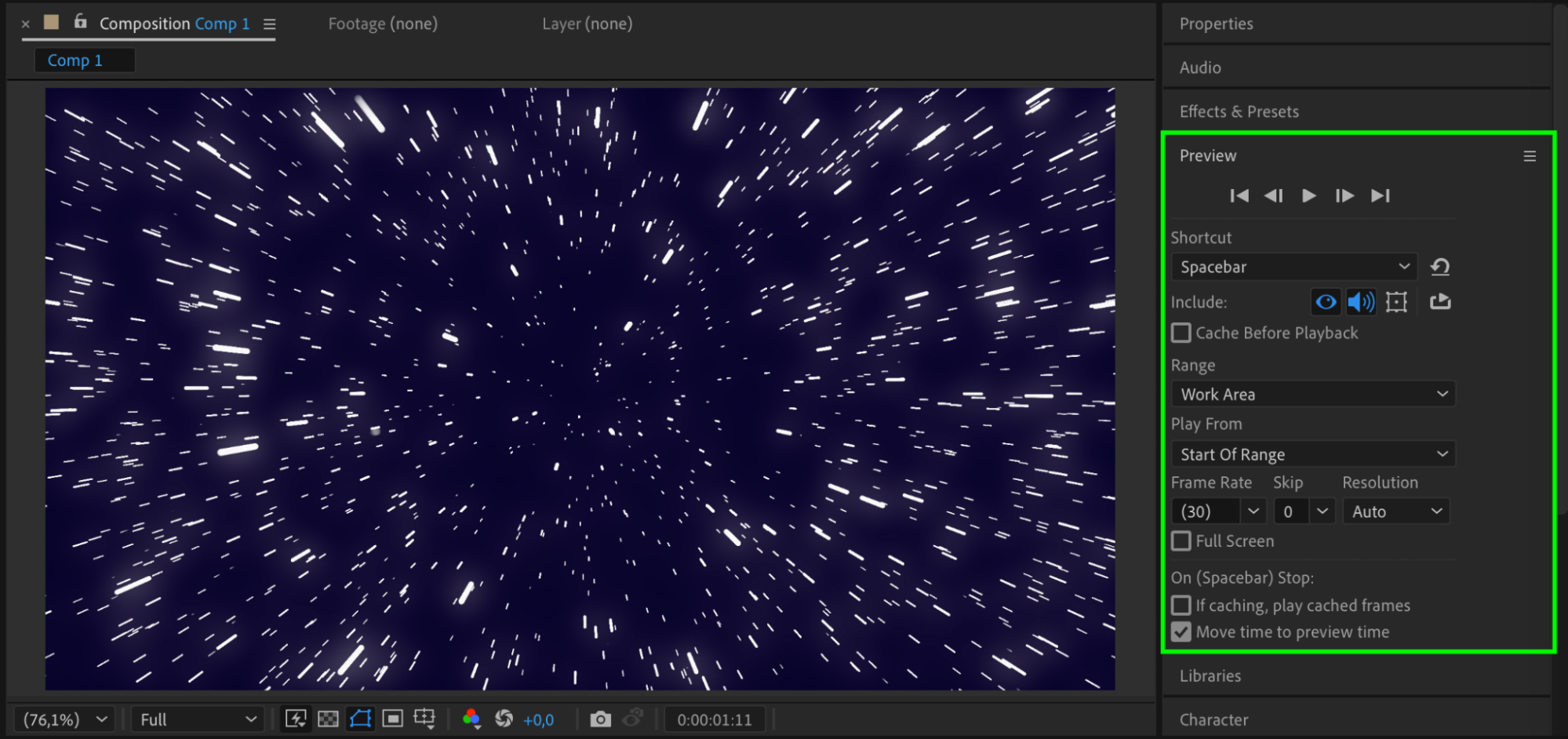 Step 8: Render the Final Result
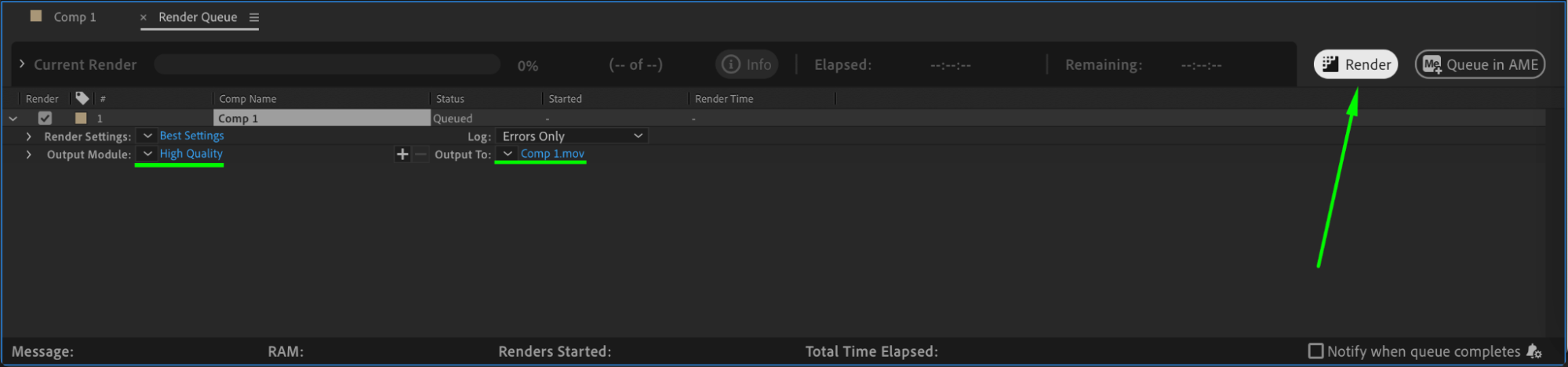
When you’re satisfied with the animation, go to Composition > Add to Render Queue. Choose your desired settings and export your final animation.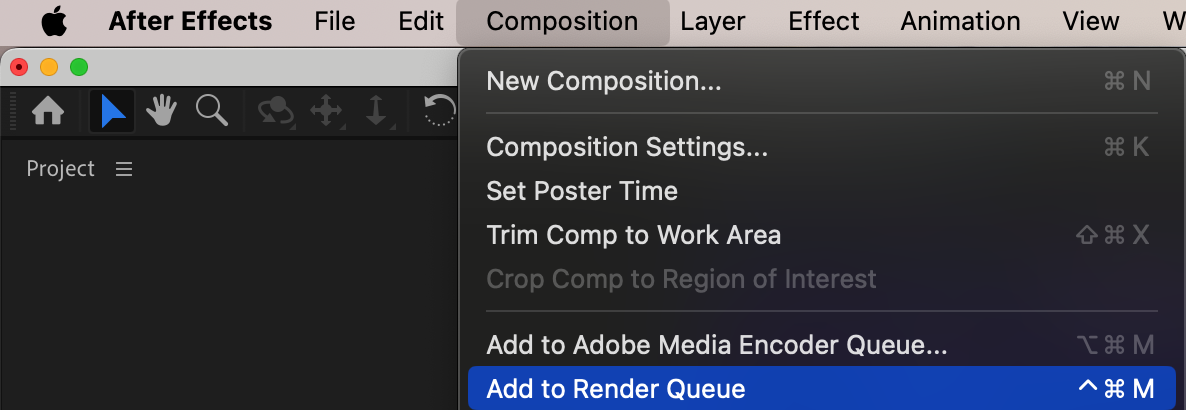
 Conclusion
Now you’ve created glowing light trails using just a few built-in effects in After Effects. You can experiment with different grid spacing, glow levels, and echo settings to match your creative style. This effect is great for music videos, intros, and motion graphics projects.
Our Bestsellers
Our Bestsellers


