
Introduction
Creating shapes with gradients in After Effects is simple and highly customizable. Using the Shape Tool and Gradient Fill/Stroke options, you can design modern, colorful graphics for motion projects, lower thirds, UI elements, and more. Follow the steps below to apply both linear and radial gradients to your shapes.
Step 1: Create a New Composition
Start by creating a new composition to work in.
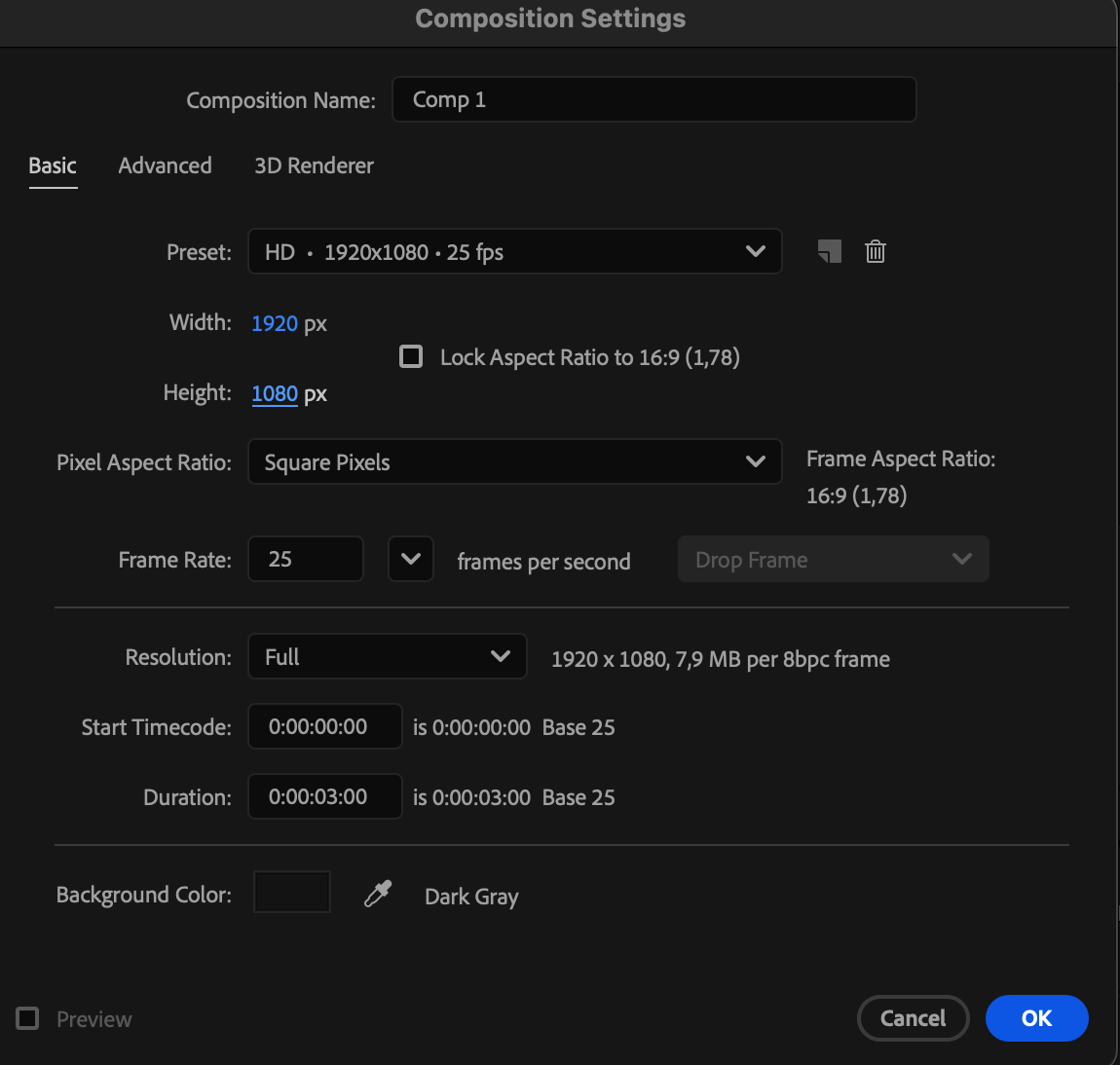
Step 2: Create a Shape Using the Shape Tool
Select the Shape Tool (Q) and draw your shape. Locate the Fill and Stroke options in the toolbar to begin customizing your figure.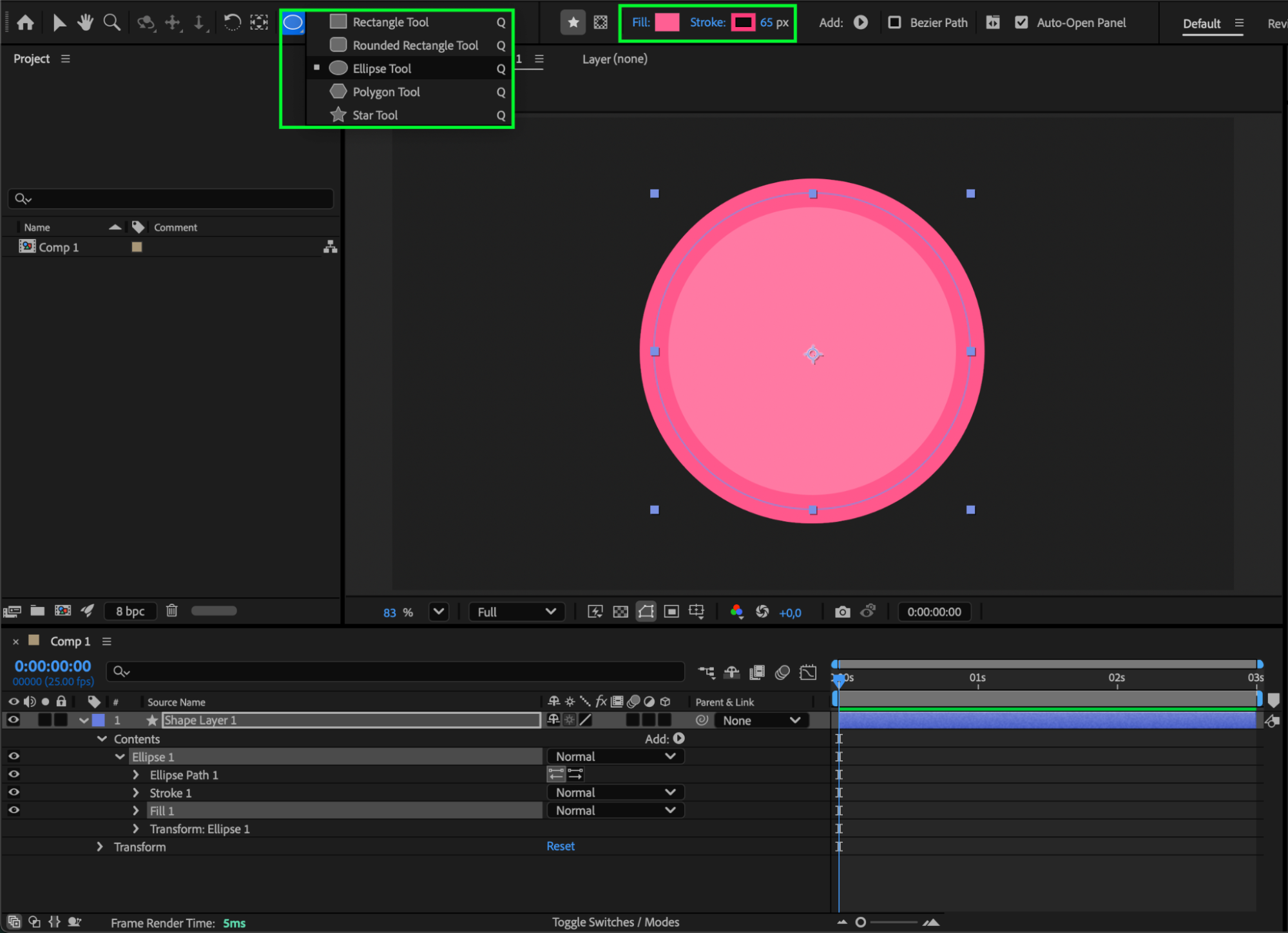
Step 3: Apply a Gradient Fill
Click the Fill text next to the color box. Choose Linear Gradient or Radial Gradient, then click OK. Next, click the gradient swatch (the black-to-white box) and select the colors you want for your gradient.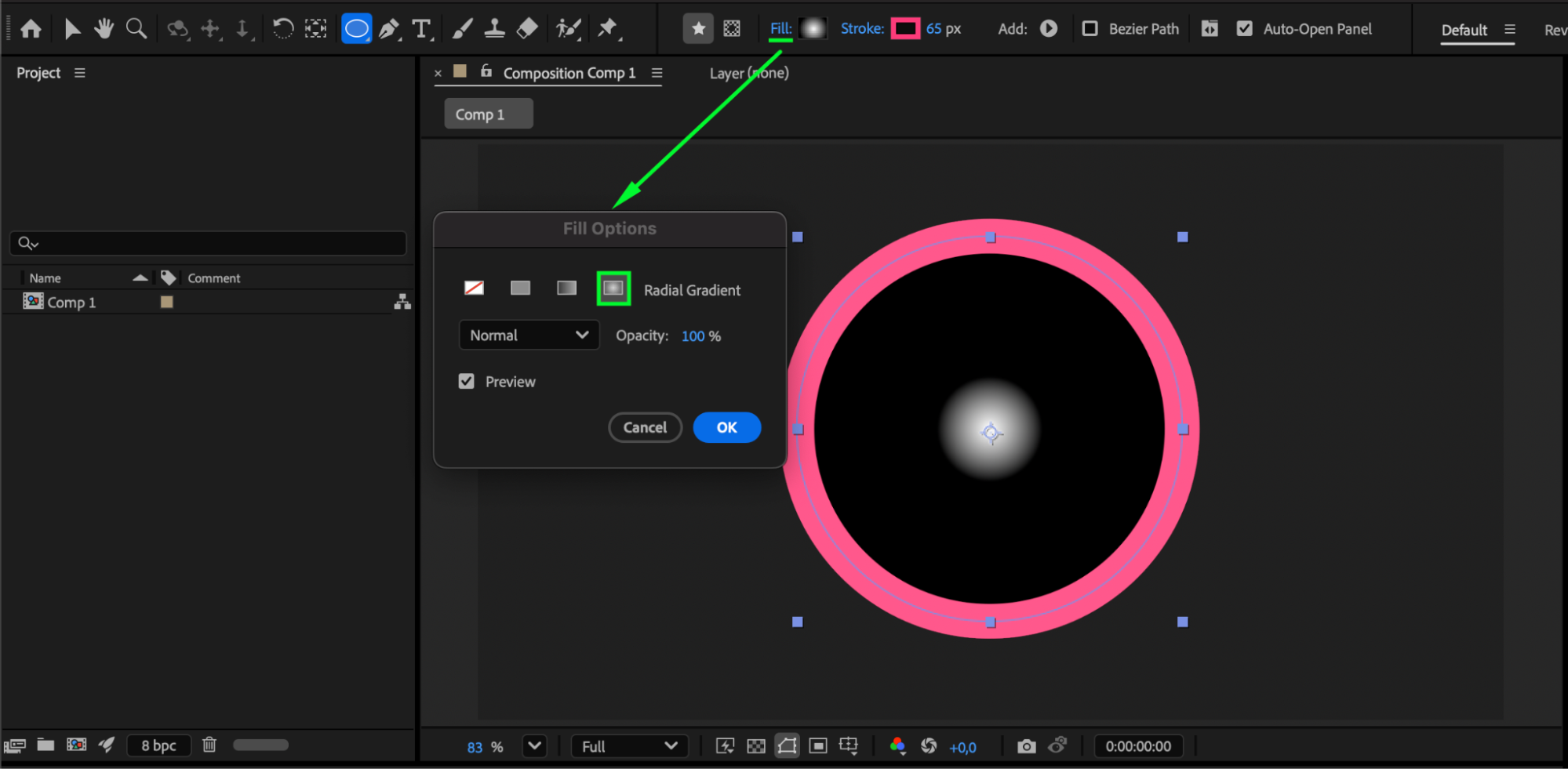
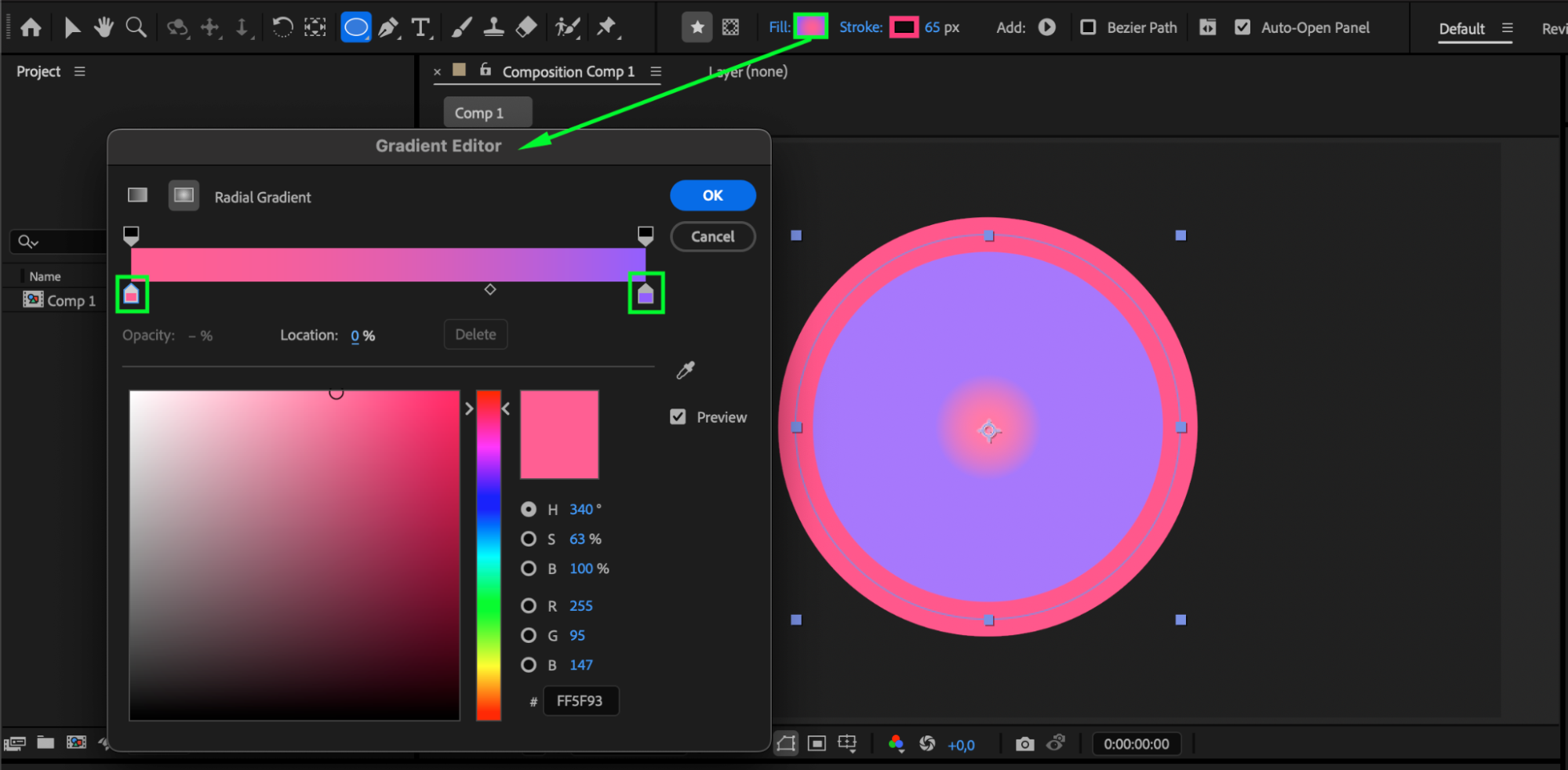 Step 4: Apply a Gradient Stroke (Optional)
Repeat the same process for the Stroke: open the Stroke menu, choose a gradient style, and customize the colors.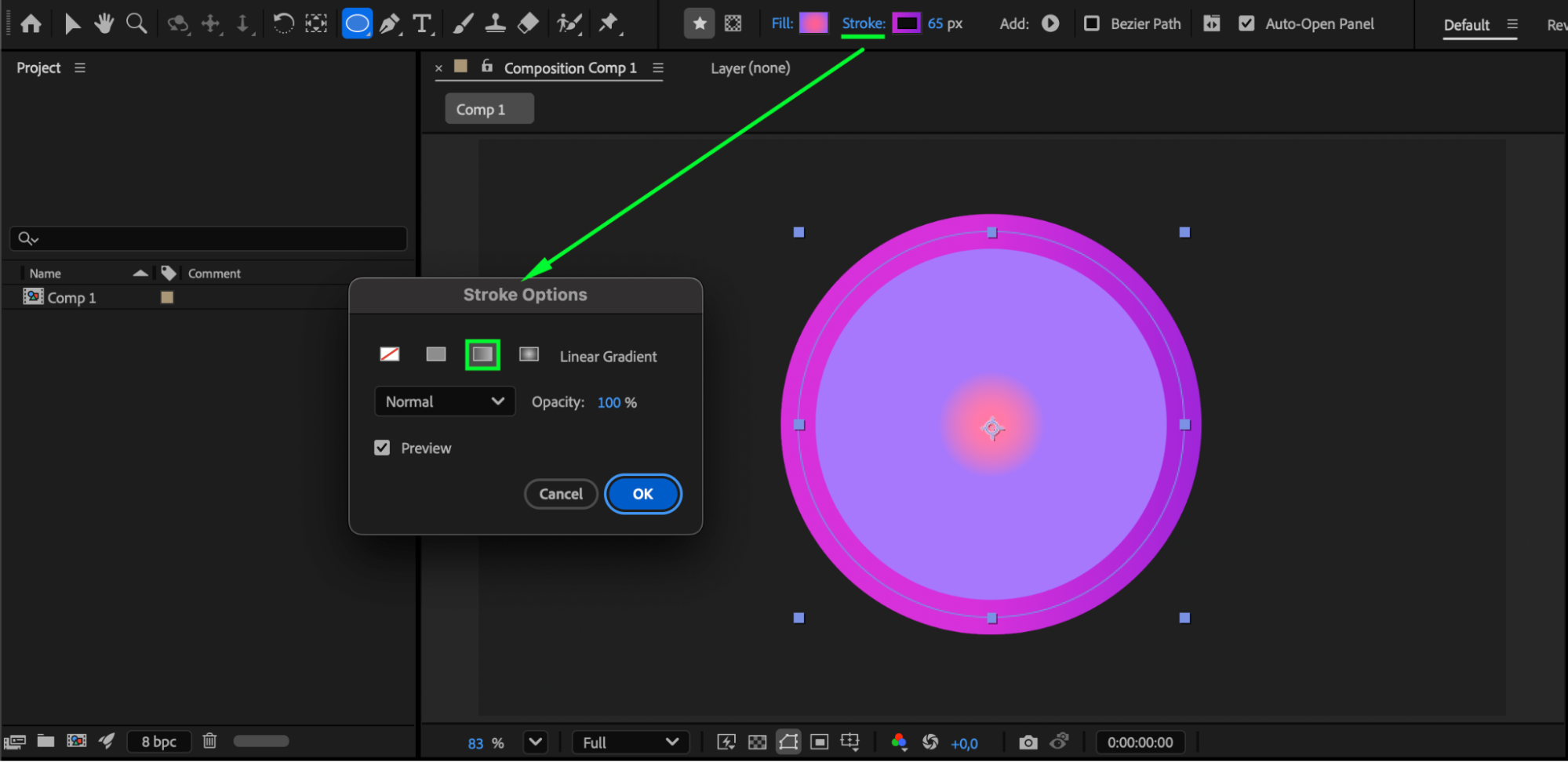 Step 5: Adjust Gradient Fill Properties
Open the shape layer properties and locate Gradient Fill 1. Here you can refine detailed settings such as:
- Start Point
- End Point
- Highlight Length
- Highlight Angle
And other gradient controls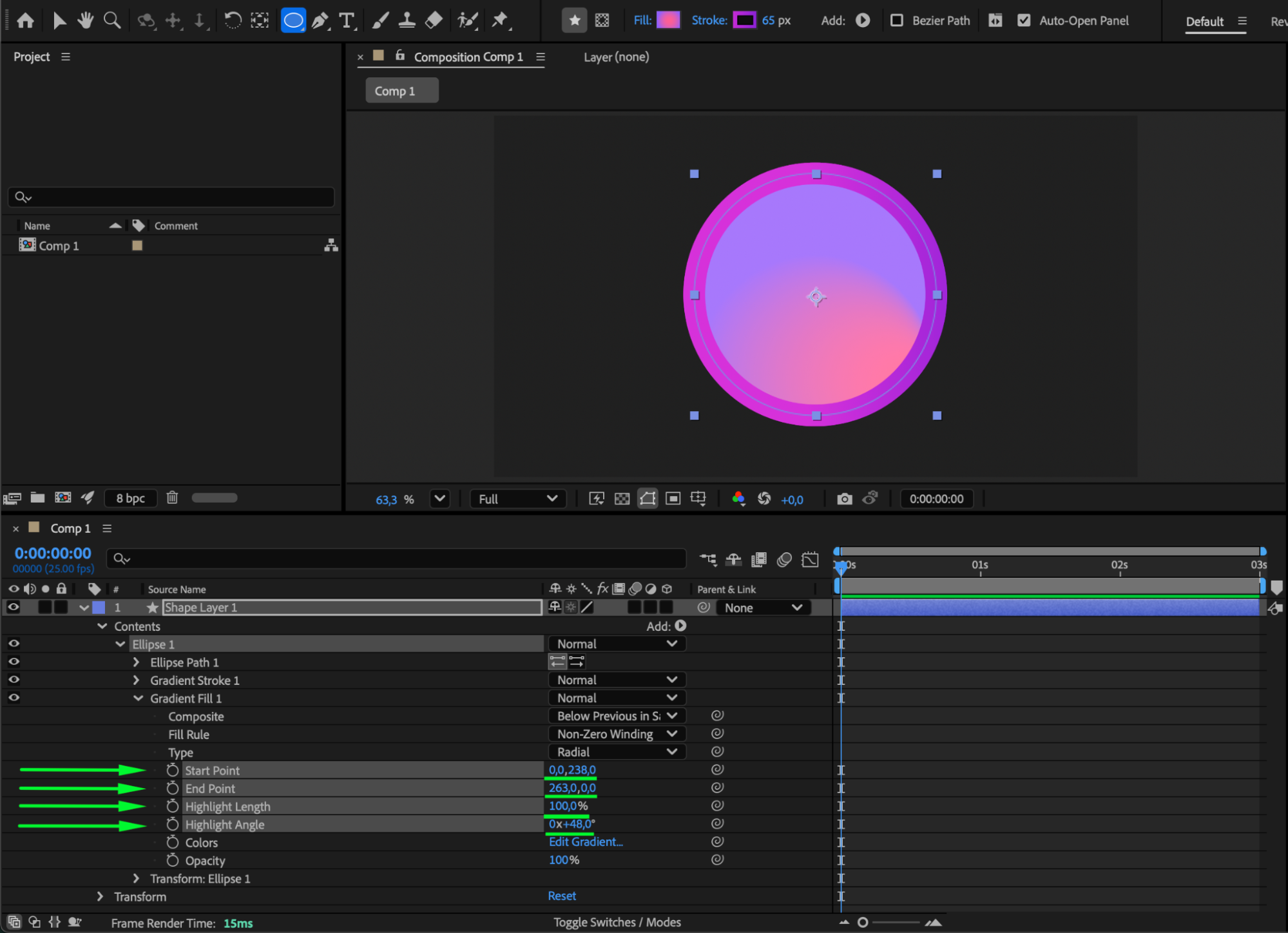
Step 6: Adjust Gradient Stroke Properties
Find Gradient Stroke 1 to customize additional stroke settings, such as:
Start and End Point
Stroke Width
Dashes
Taper
Wave options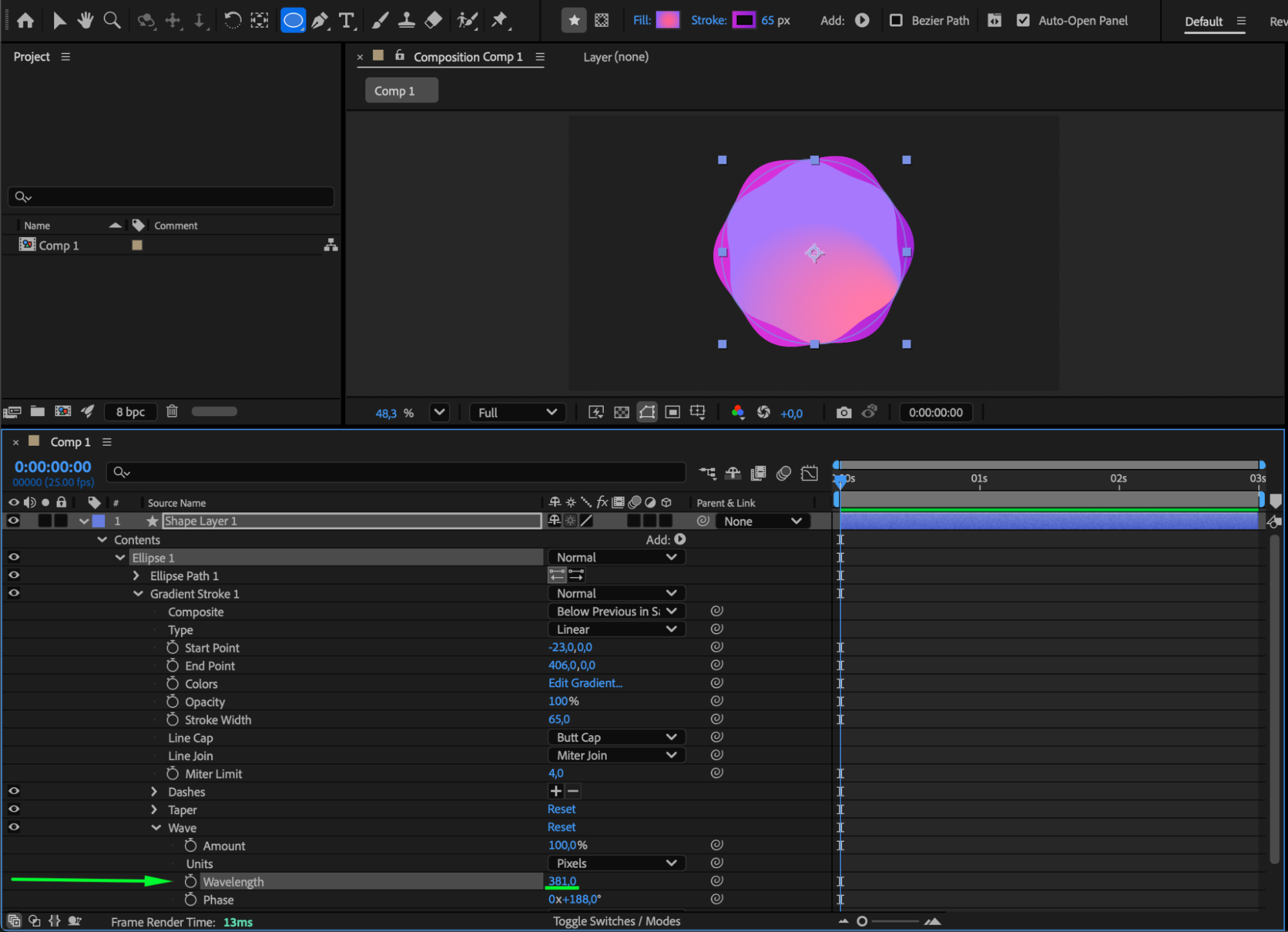
Step 7: Add Additional Effects (Optional)
Enhance your design with effects like Glow, Drop Shadow, or Blur to give the shape more depth or style.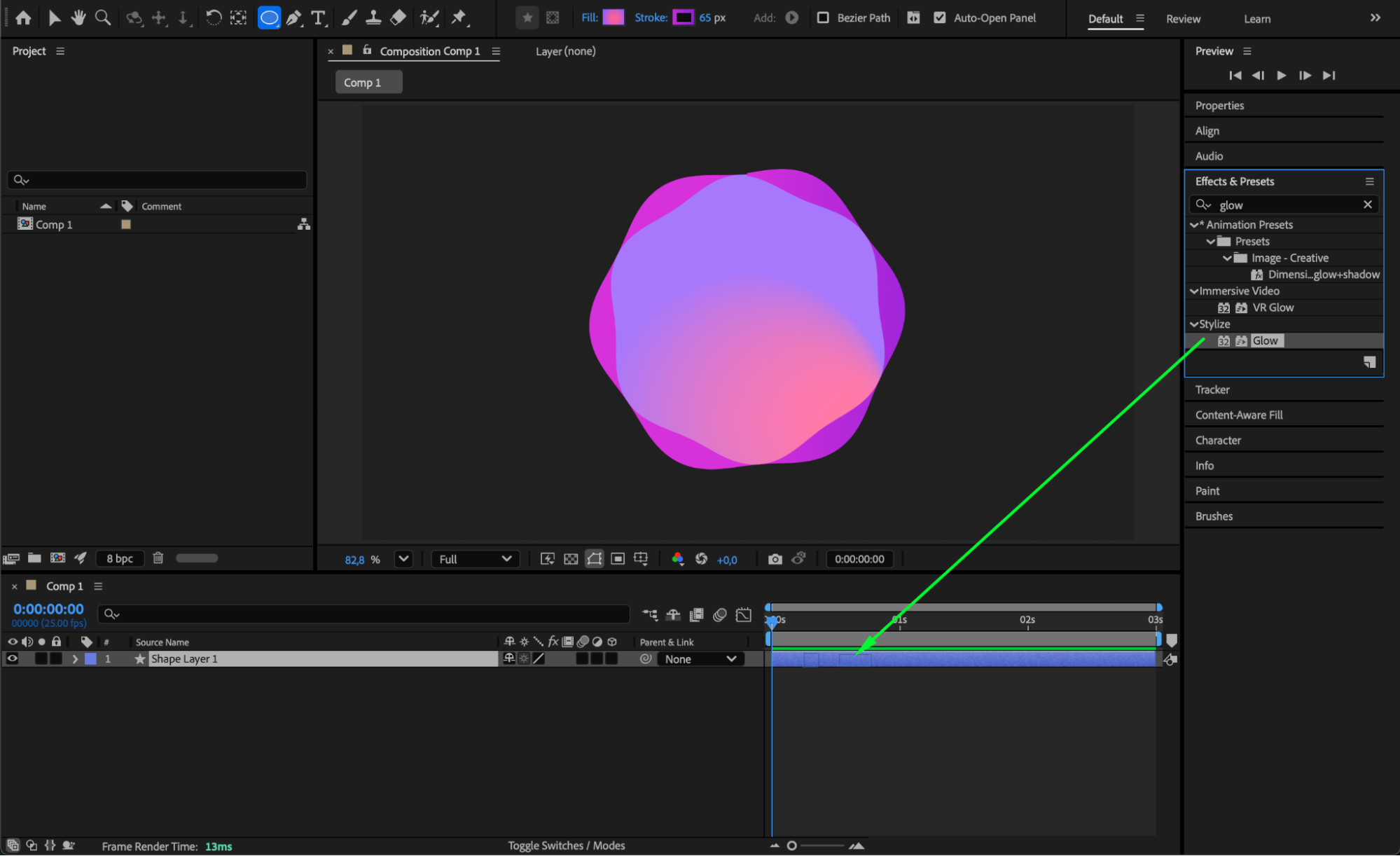
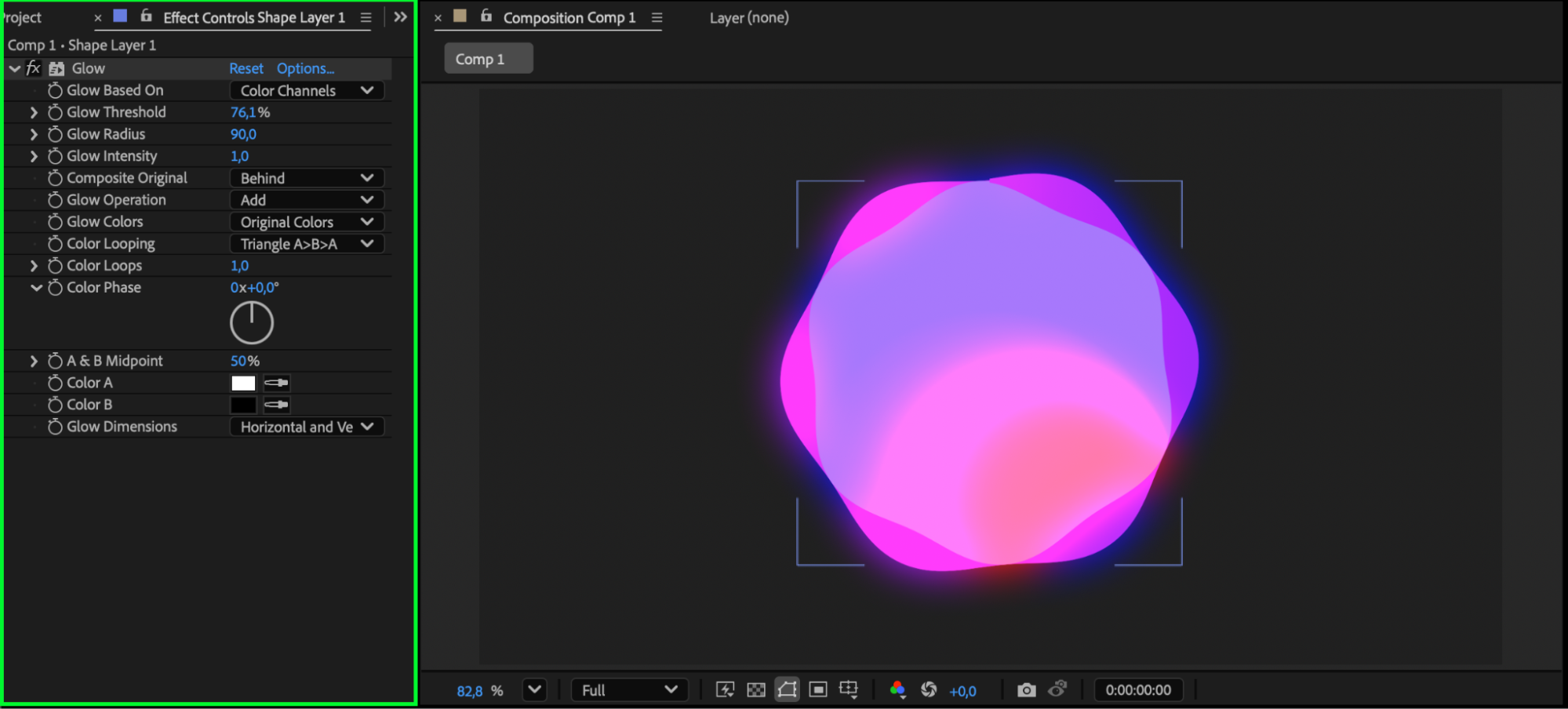 Step 8: Preview and Finalize
Press Spacebar to preview your gradient shape. Adjust fill, stroke, or shape properties until the design looks exactly how you want.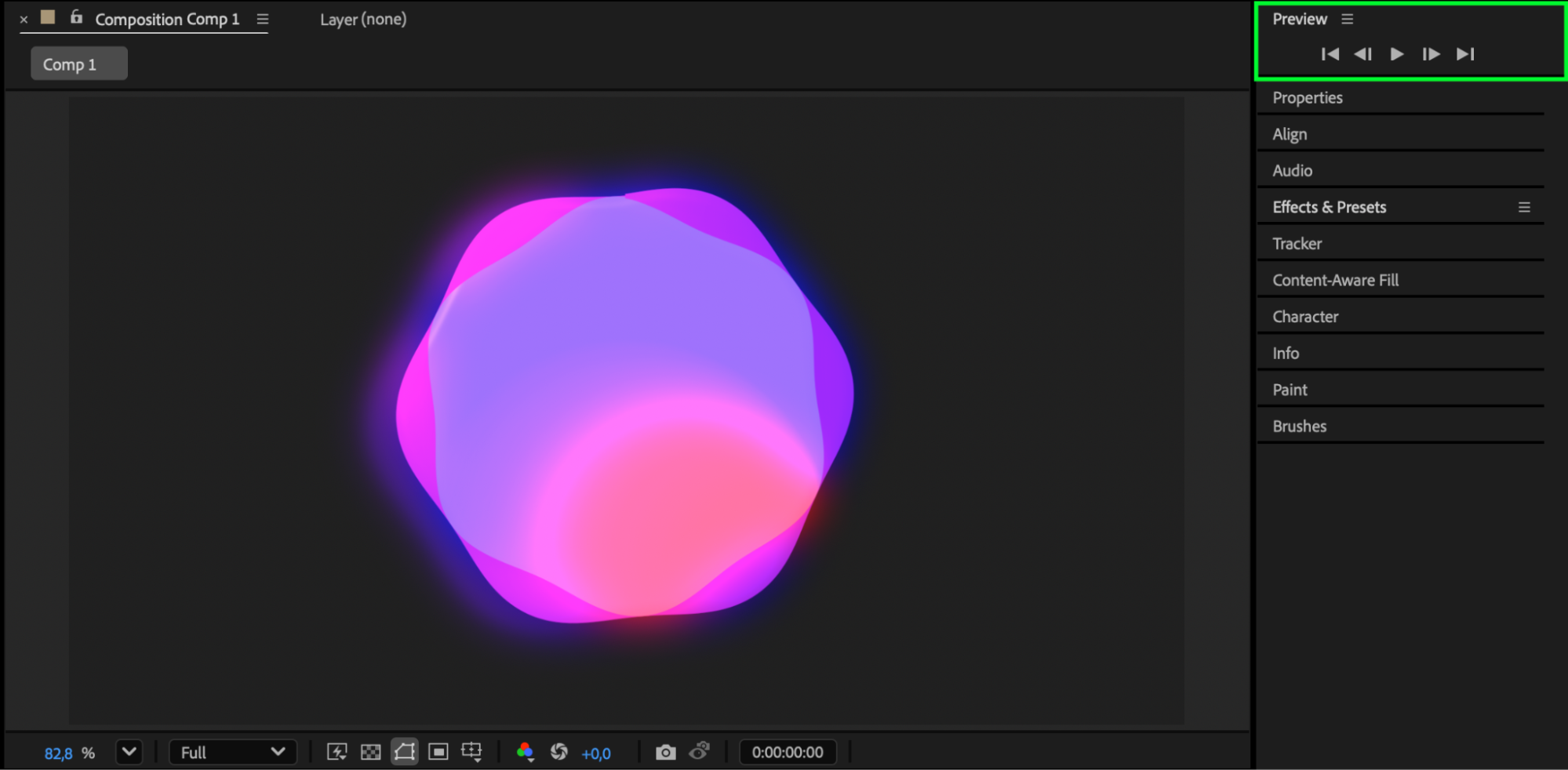 Conclusion
Creating shapes with gradients in After Effects offers endless creative possibilities. By combining Gradient Fill and Gradient Stroke settings with shape customization, you can build polished graphics that stand out in any motion design project.
Our Bestsellers
Our Bestsellers


