
Spinning Text Around an Object in After Effects
Introduction – Wrap Text Around an Object with a 3D Look
In this tutorial, you’ll learn how to make text rotate around an object in After Effects. This effect can be useful for creating stylized titles or attention-grabbing visuals. We’ll use the CC Cylinder effect and layer placement to simulate depth and rotation.
Step 1: Create a Wide Text Composition
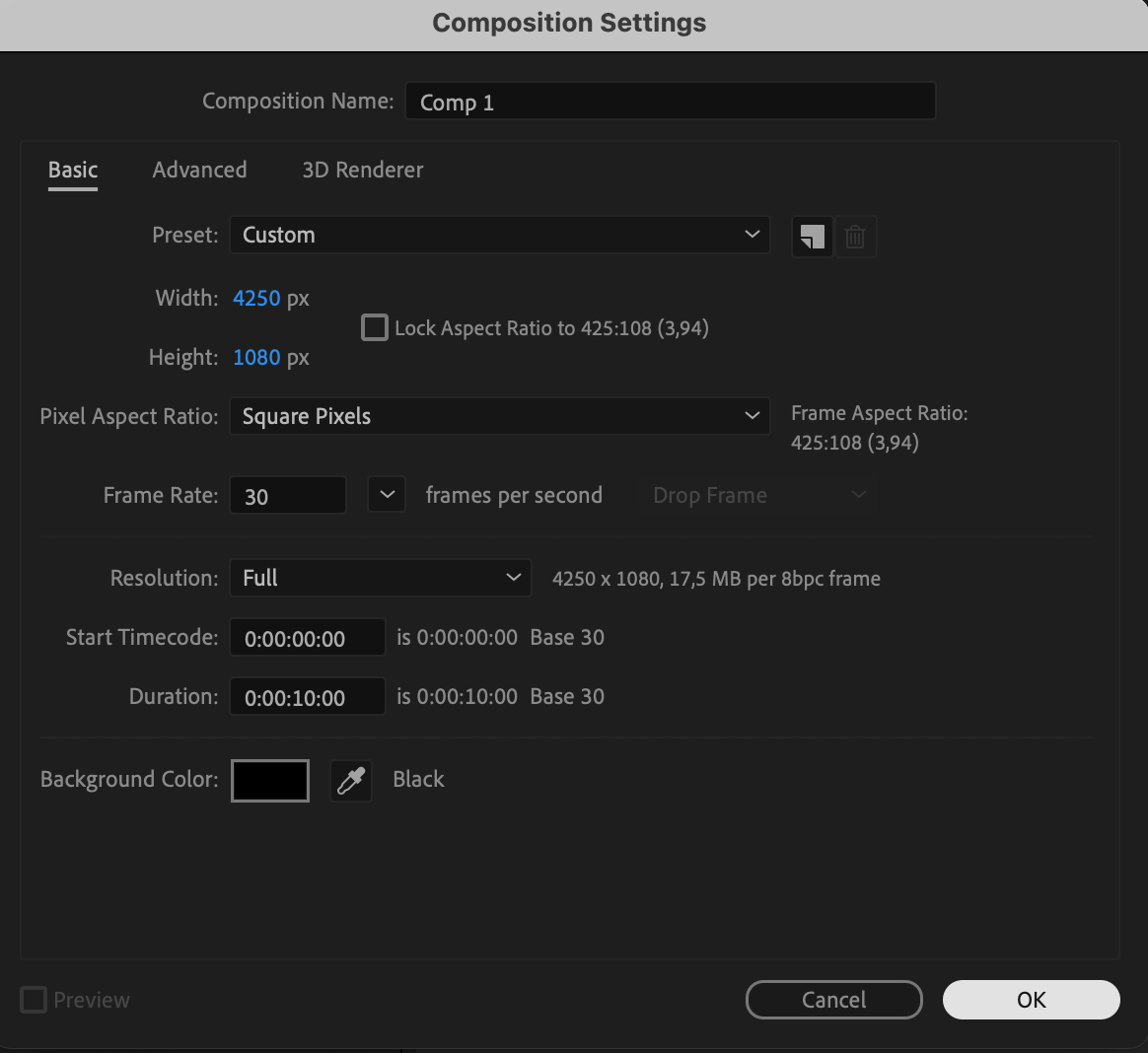
Start by creating a new composition with a wide format — for example, 4250×1080. This wide comp will allow your text to fully wrap around the object when animated. 
 Step 2: Add Your Text
Use the Type Tool (Ctrl/Cmd + T) to create your message across the full width of the comp. Keep the text horizontally aligned and large enough to be clearly visible when rotated. Choose a bold and readable font.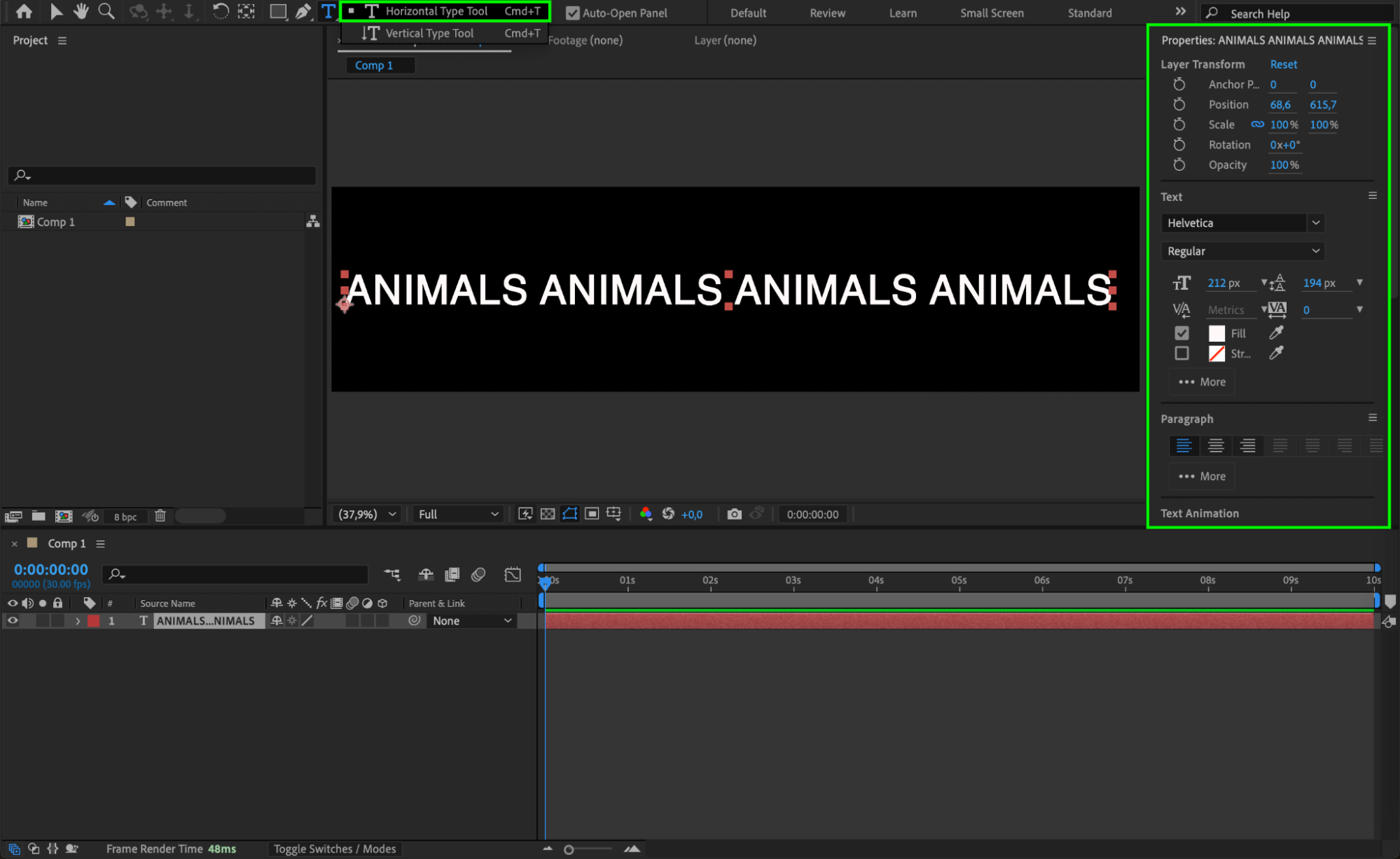
Step 3: Create a Main Composition
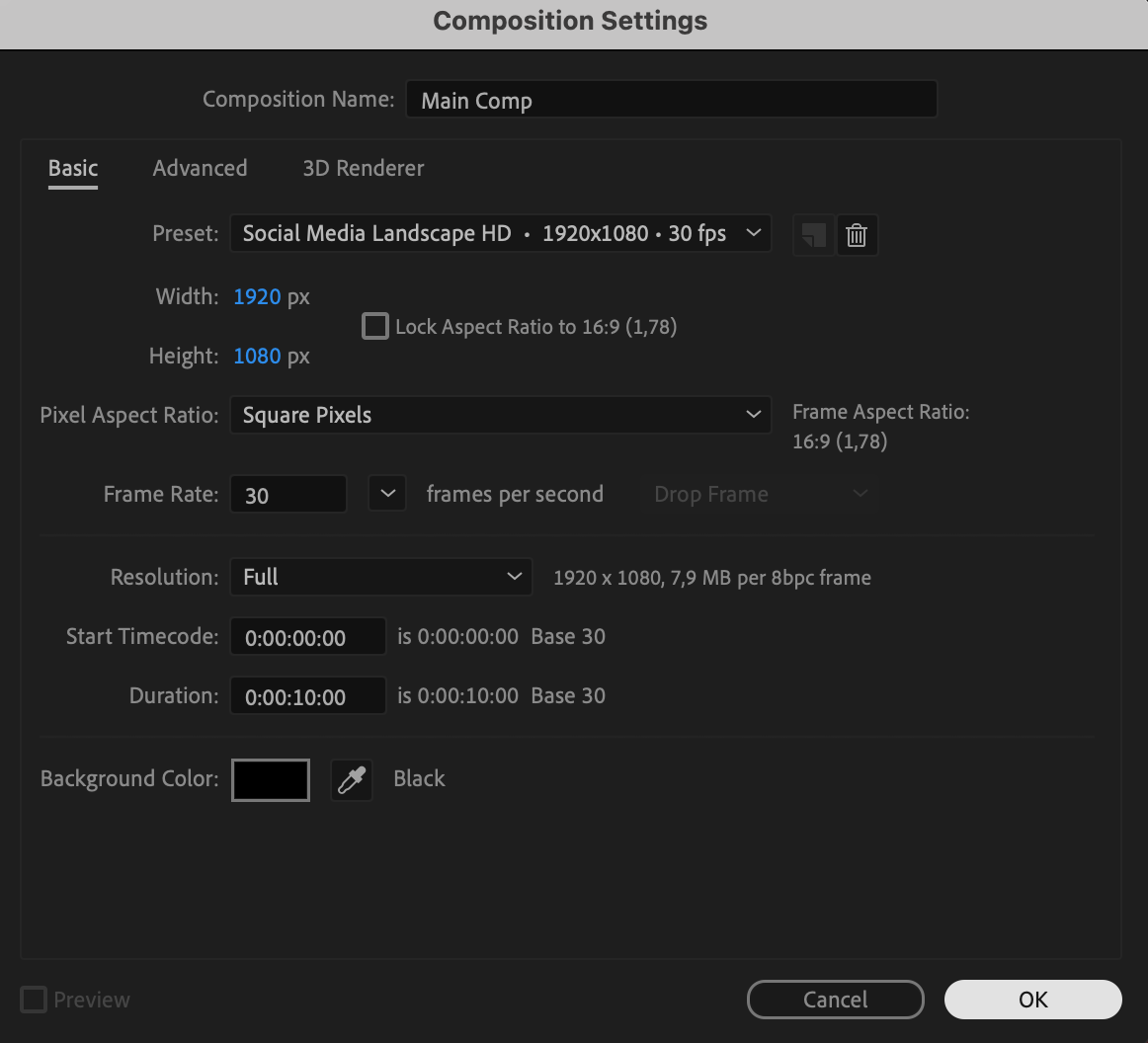
Now, create your main composition with a standard size like 1920×1080. This will be your final scene where you place both the object and the rotating text layers.
 Step 4: Add Your Object
Import and add your pre-cut object (image, logo, or character) to the center of the timeline in the main composition. Make sure the object is properly aligned and scaled for best results.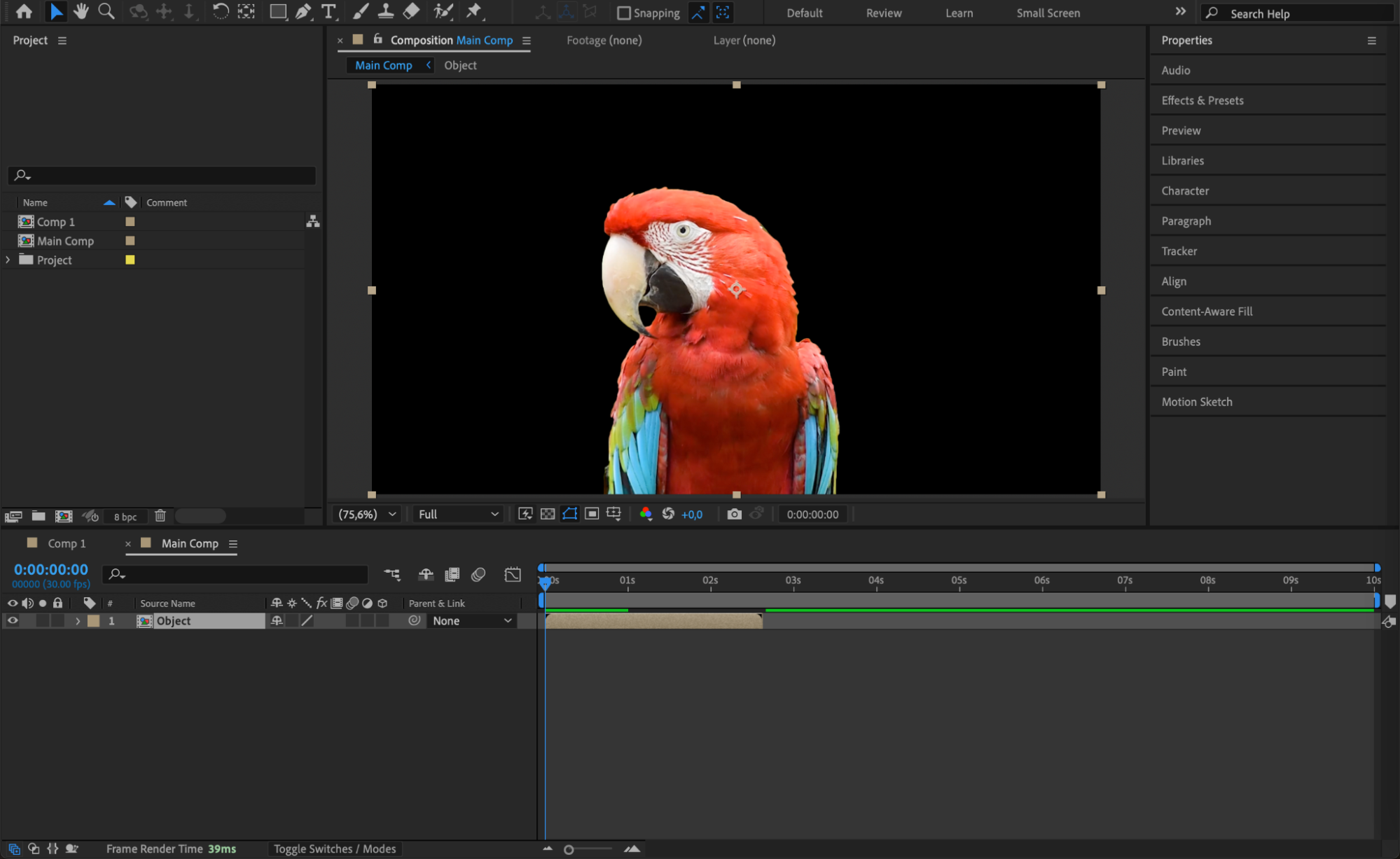 Step 5: Add the Text Comp
Drag the wide text composition into the main comp and position it above the object layer. This will be the layer that appears to rotate in front of the object.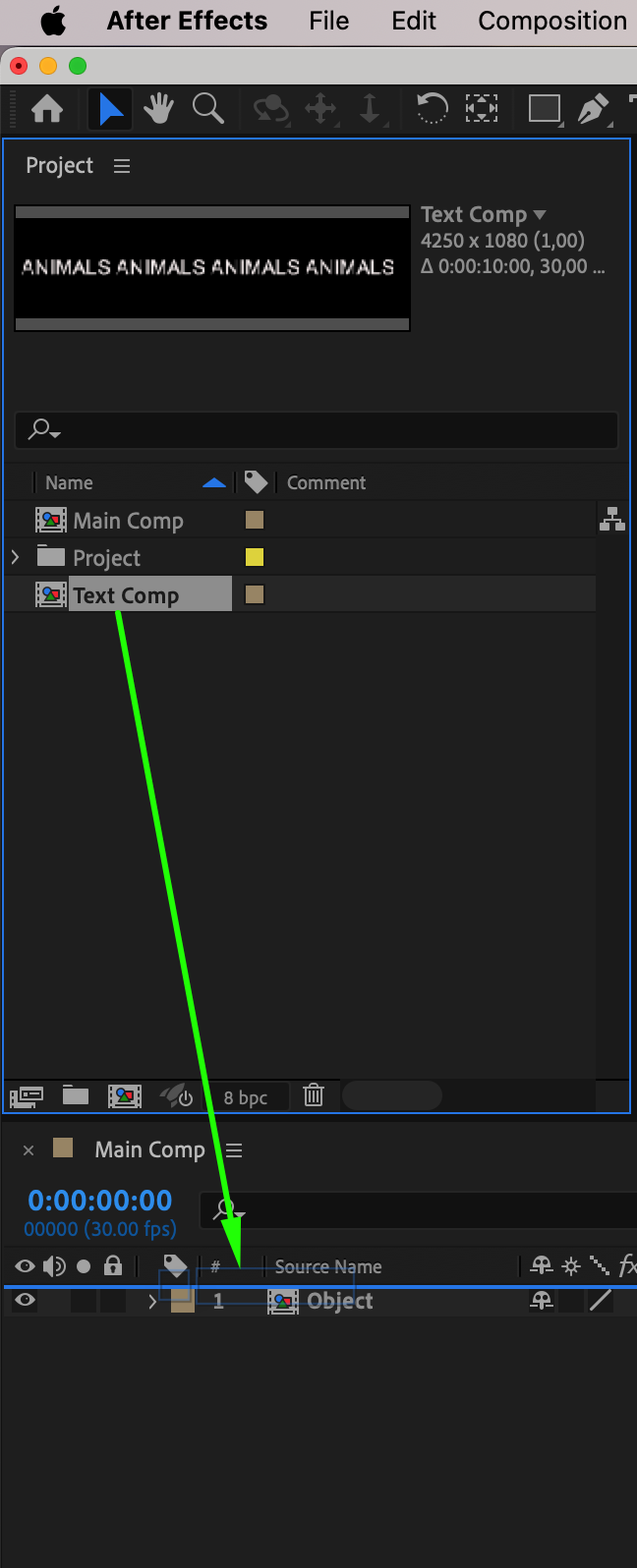 Step 6: Apply CC Cylinder Effect
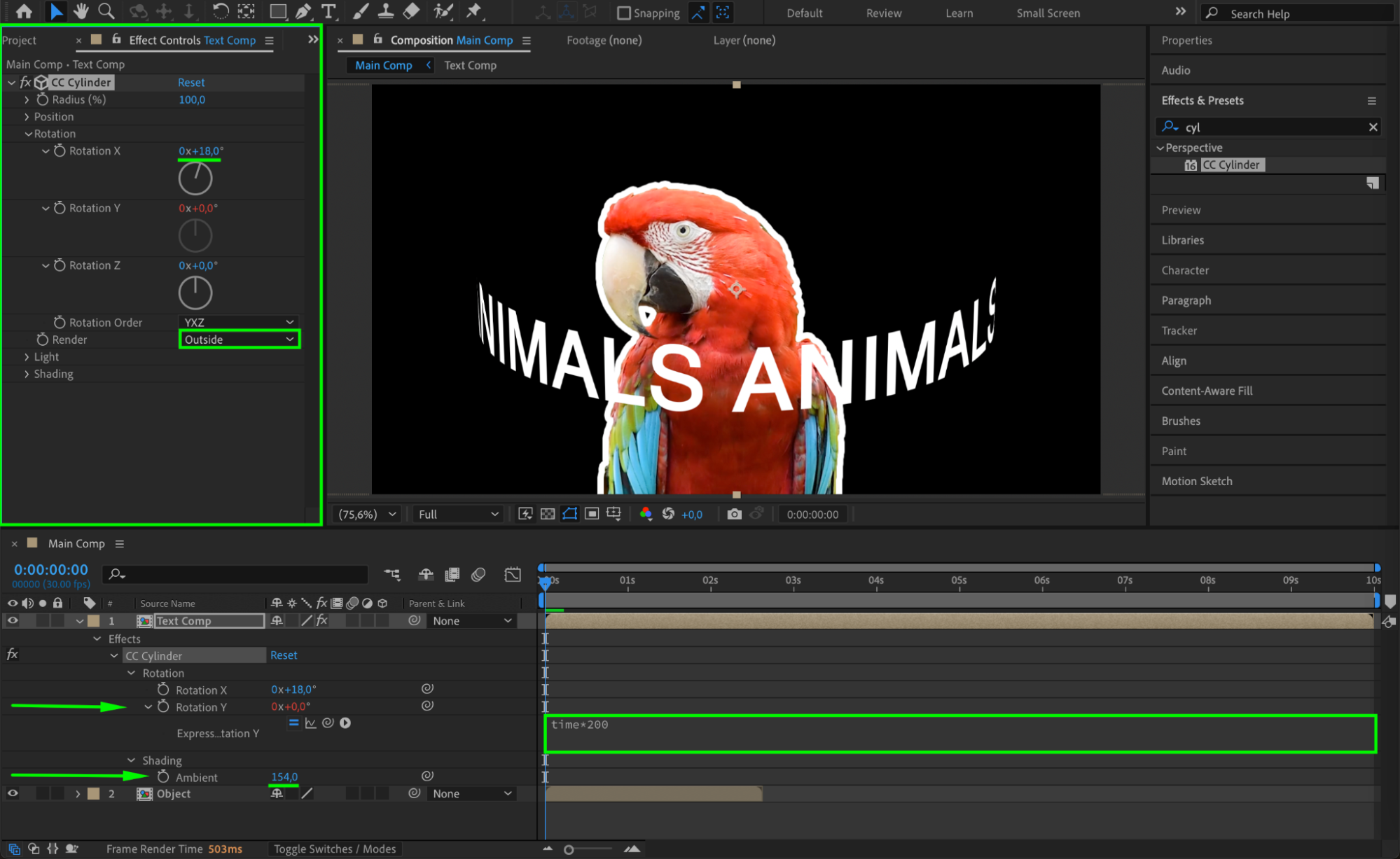
With the text layer selected, apply the CC Cylinder effect from the Effects & Presets panel. In the effect settings, adjust the following:
Rotation X: 18
Rotation Y: Add the expression time*200
Render: Set to Outside
Ambient: 154
This wraps the text around a virtual cylinder and starts spinning it horizontally.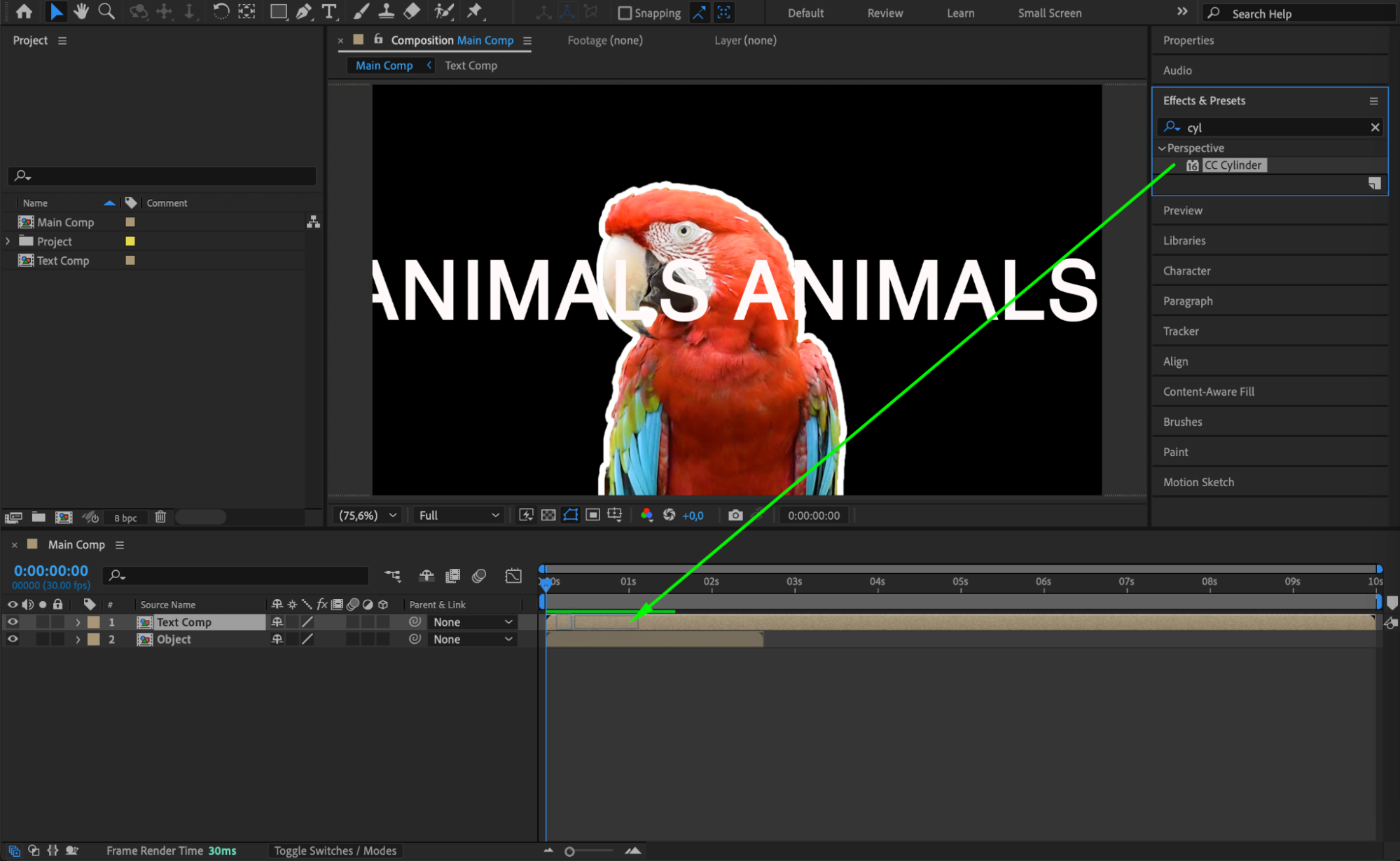
Step 7: Add a Second Text Layer Behind the Object
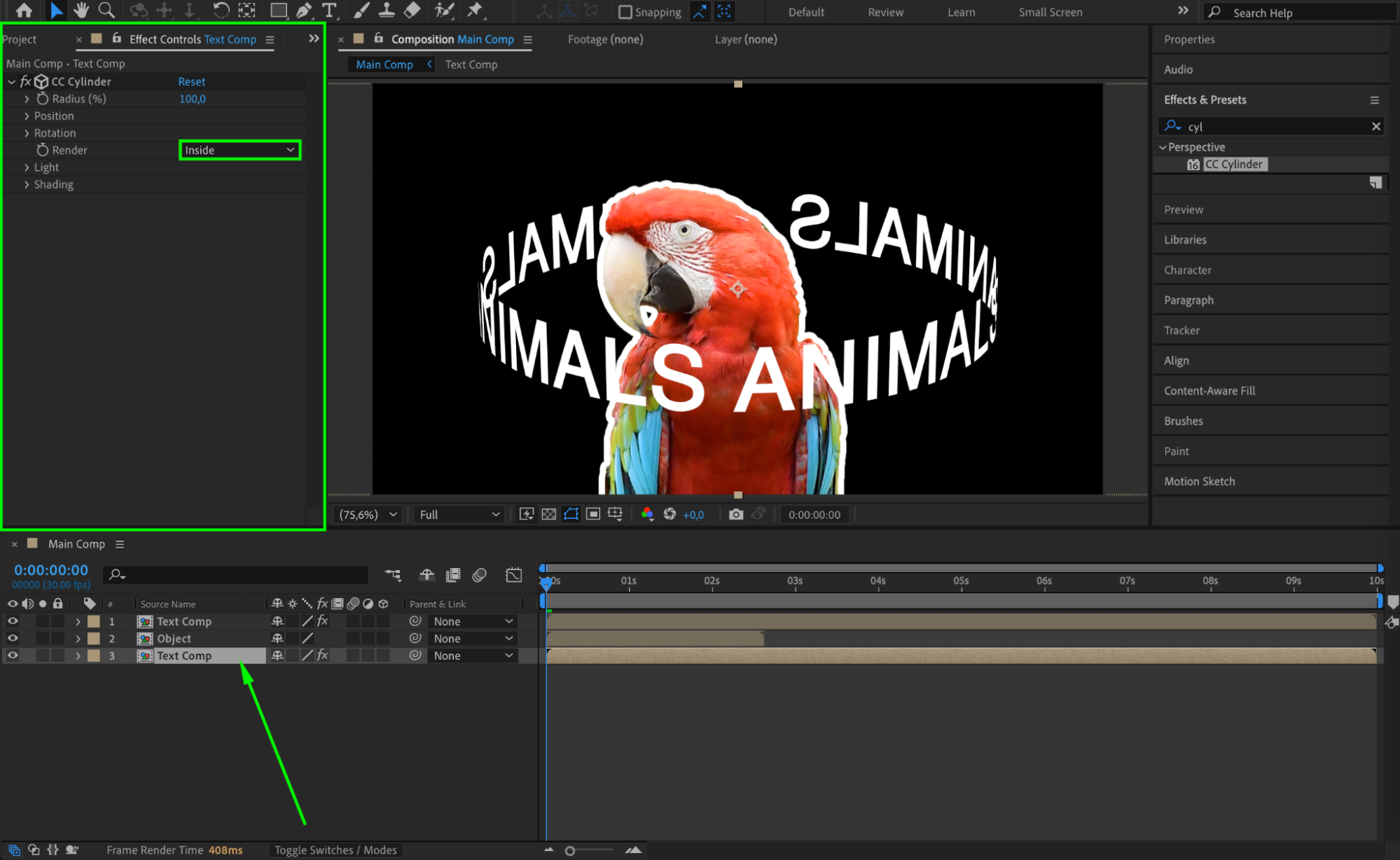
Duplicate the text layer and move the duplicate below the object layer on the timeline.
Change the Render setting in CC Cylinder to Inside on this copy. This makes it look like the text is rotating behind the object, creating a full 3D wraparound effect.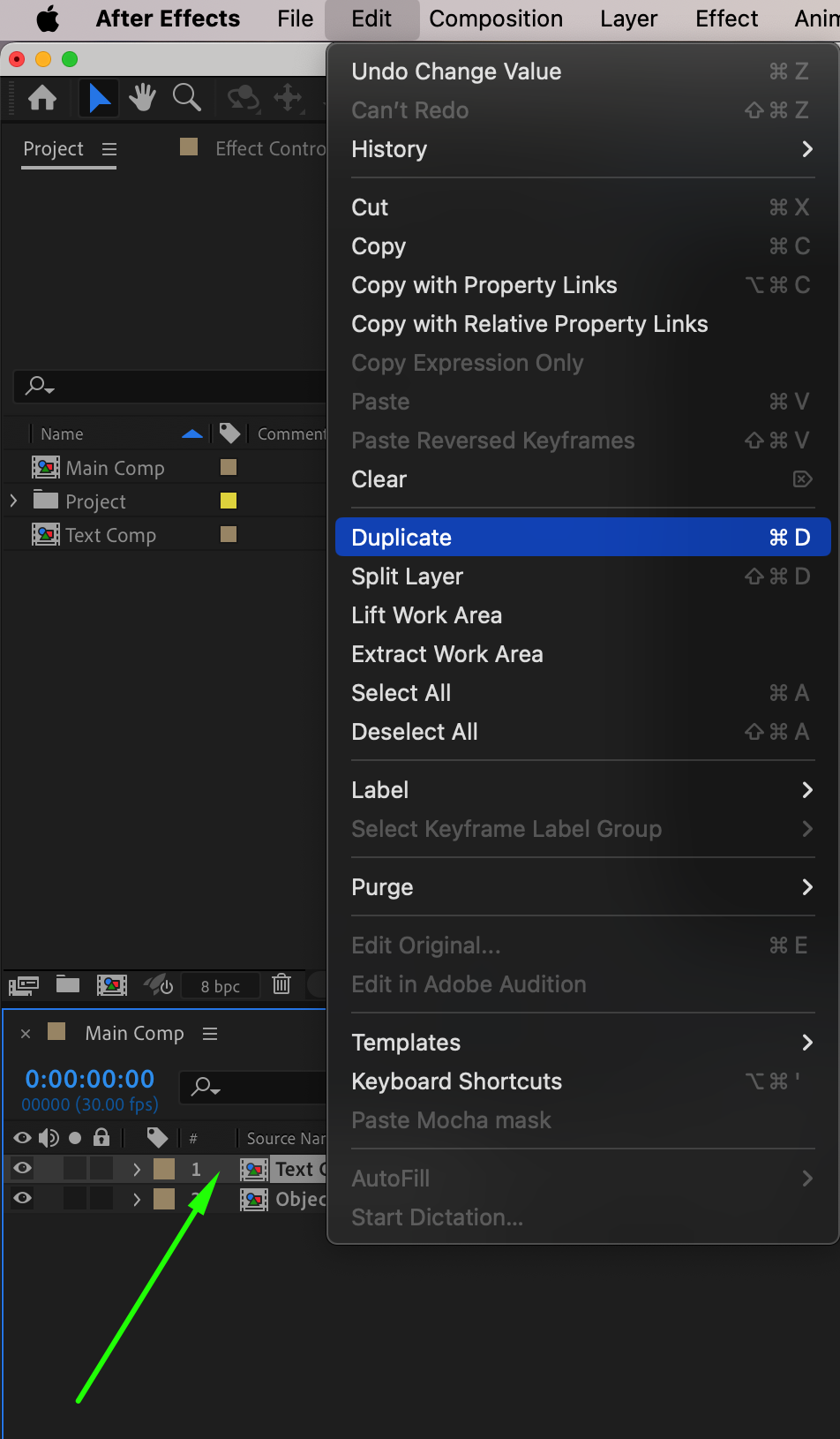
 Step 8: Preview the Animation
Press the spacebar to preview the animation. Adjust the rotation speed, text size, or cylinder settings if needed. Make sure the illusion of spinning text around the object looks smooth and seamless.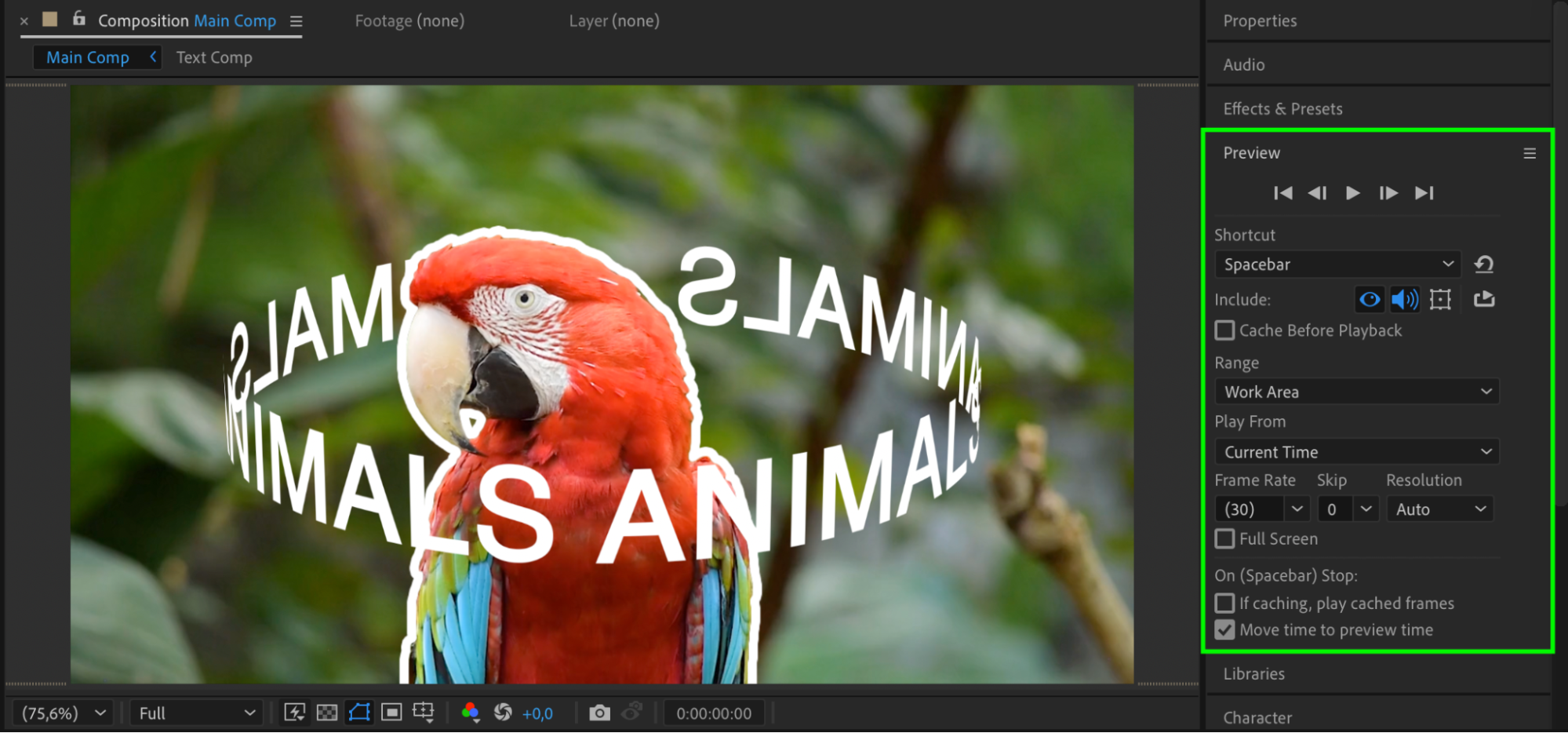
Conclusion
This effect gives your composition a cinematic and professional feel. By using CC Cylinder and layering techniques, you can simulate 3D depth in After Effects without plugins. Great for dynamic titles, logos, or stylized visual effects.
Our Bestsellers
Our Bestsellers


