
Introduction
If you want your text to wrap, bend, and roll like a spherical object, After Effects allows you to achieve this using a combination of pre-composing and distortion effects. Follow the steps below to create a smooth, ball-like rolling text animation.
Step 1: Create Your Text
Use the Type Tool (Ctrl/Cmd + T) to create your text. Customize the font, size, spacing, and styling in the Character panel.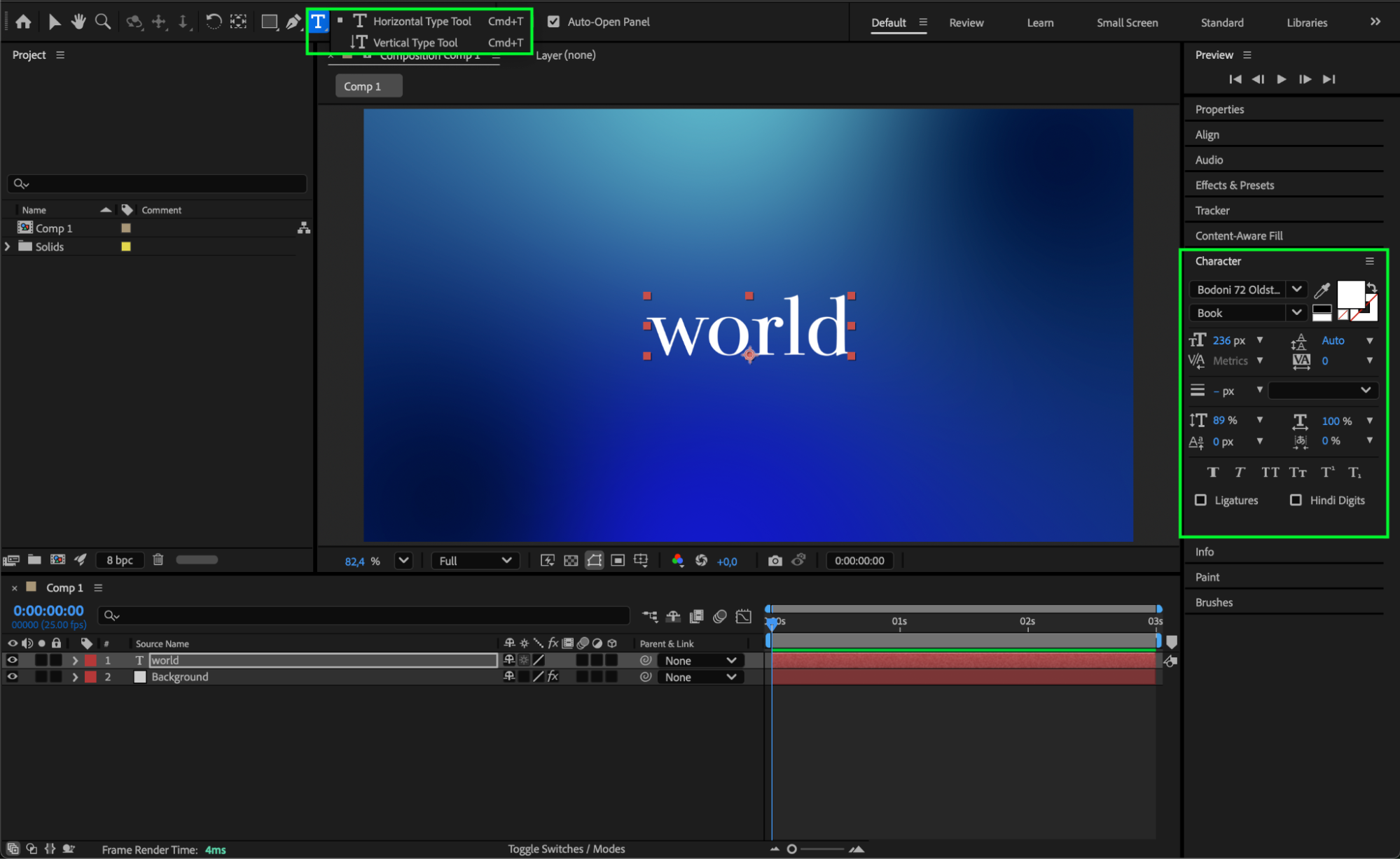 Step 2: Pre-Compose the Text Layer
Right-click your text layer and choose Pre-compose. Select Move all attributes into the new composition.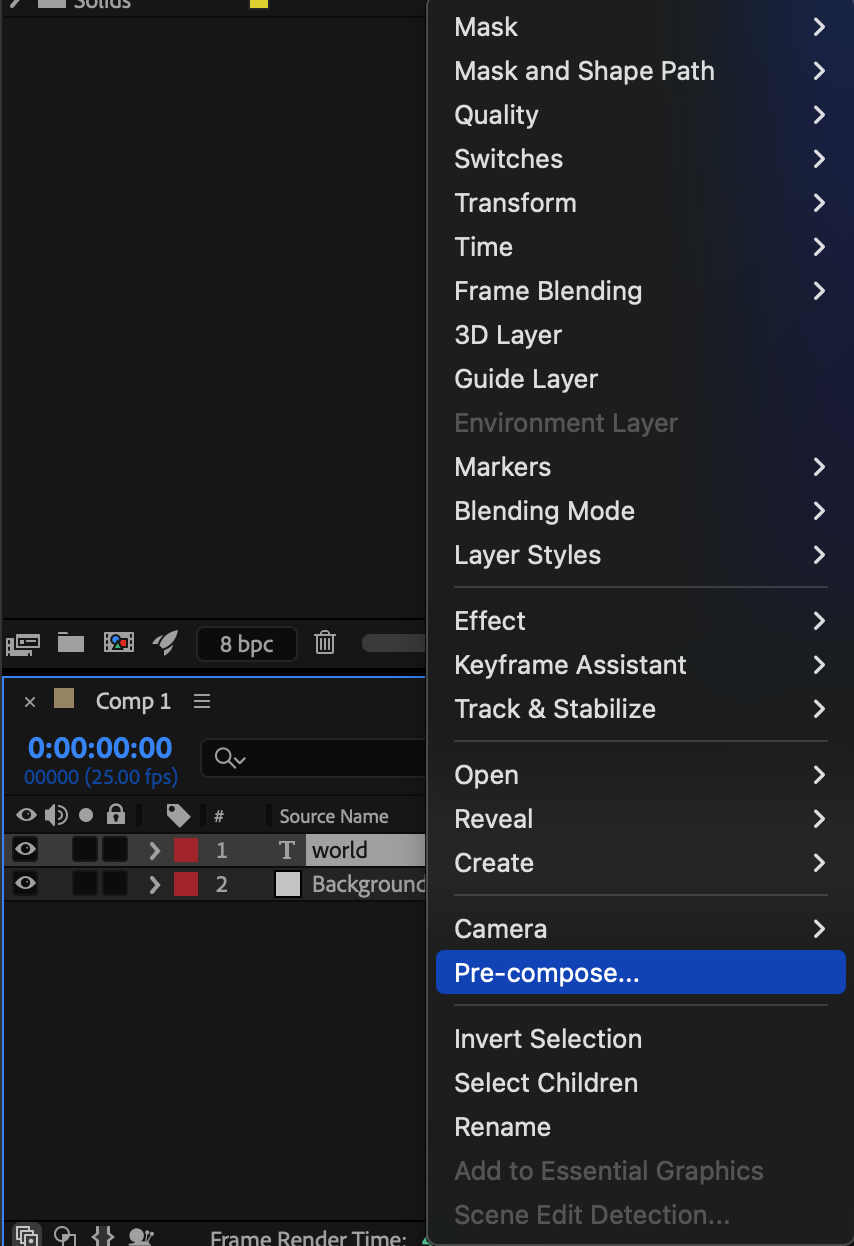
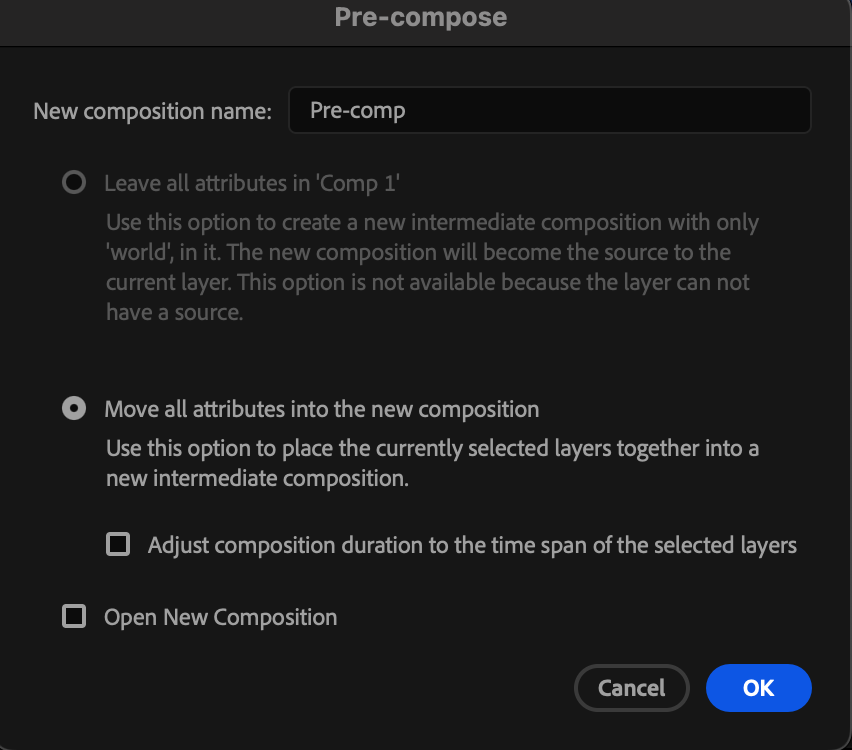
Step 3: Adjust the Pre-Comp Size
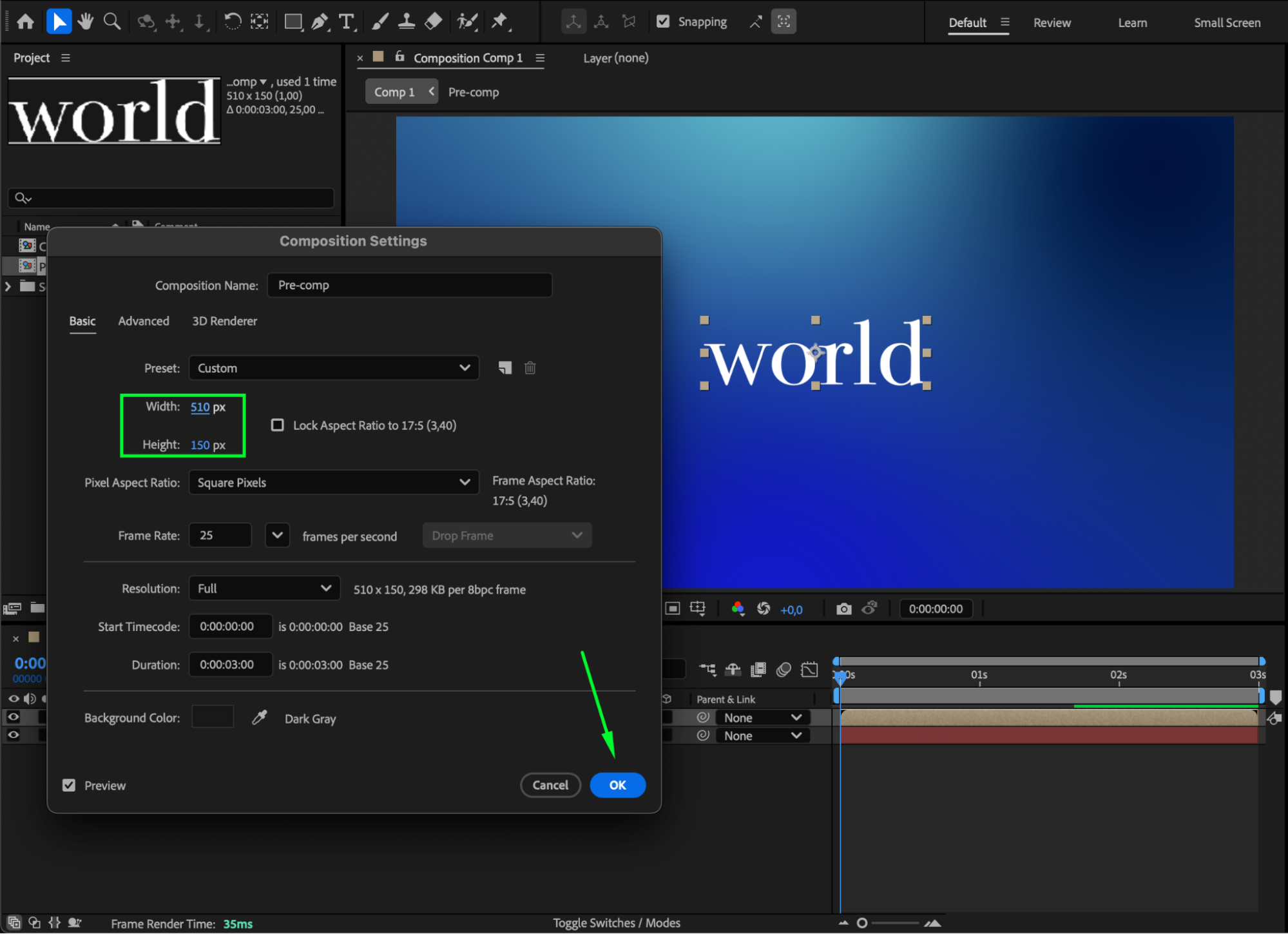
In the Project panel, select your new pre-comp. Open Composition Settings and adjust the Width and Height so the comp fits your text tightly. A taller comp helps create a better wrap effect.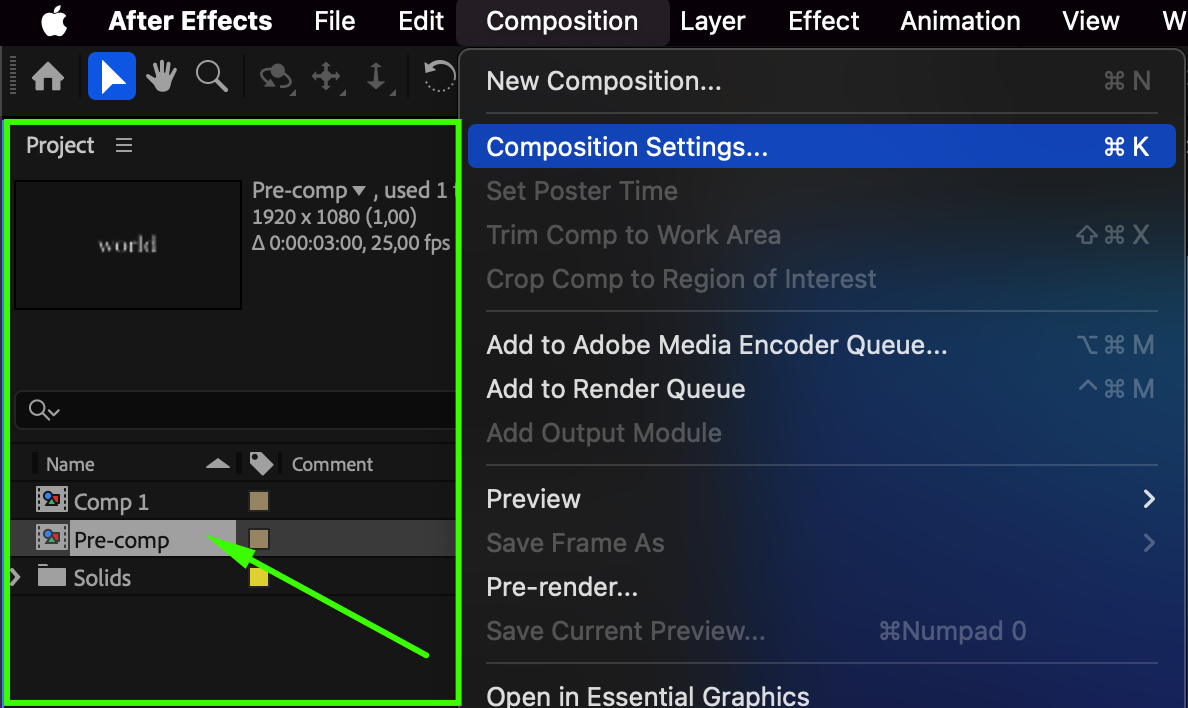
 Step 4: Add the Motion Tile Effect
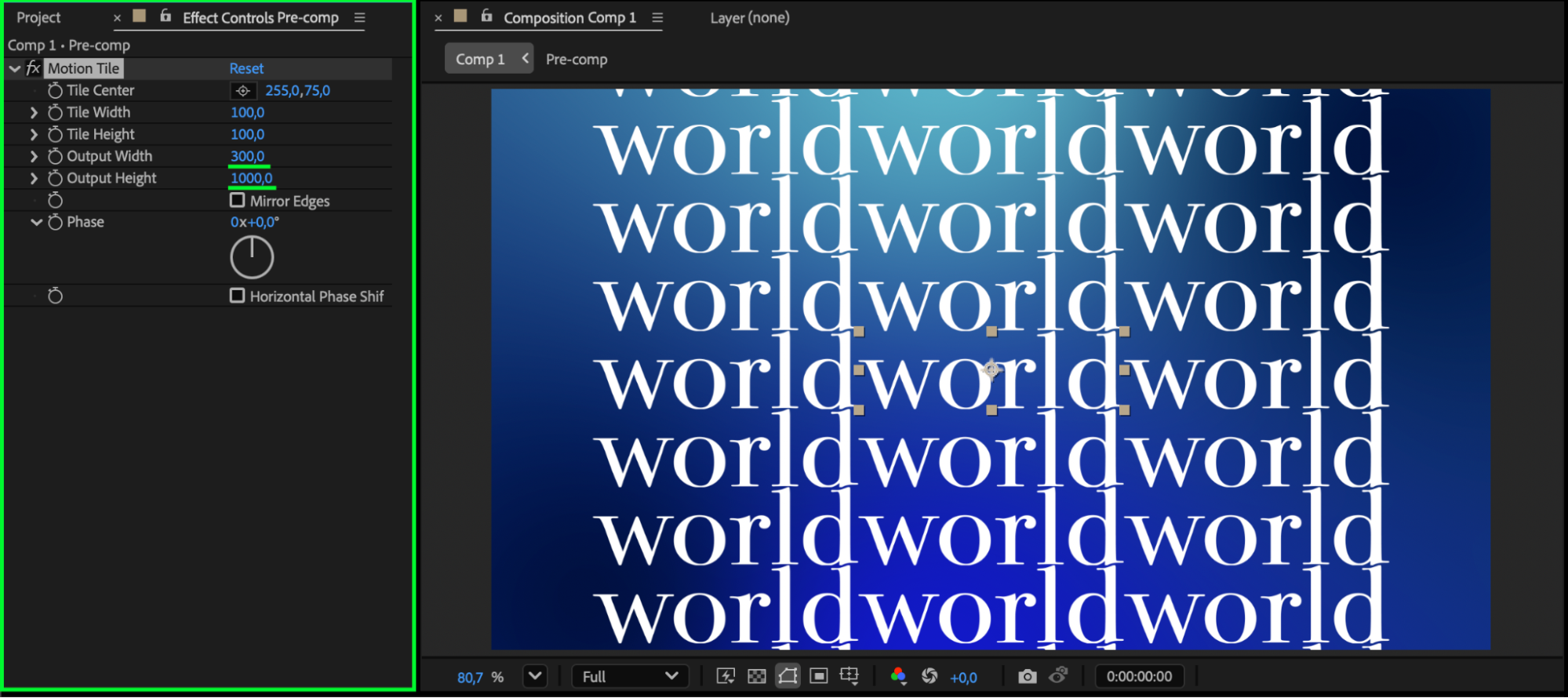
Go to Effects & Presets and apply Motion Tile to the pre-comp layer. Set:
Output Width: 300
Output Height: 1000
These values extend the text vertically so it wraps around like a sphere.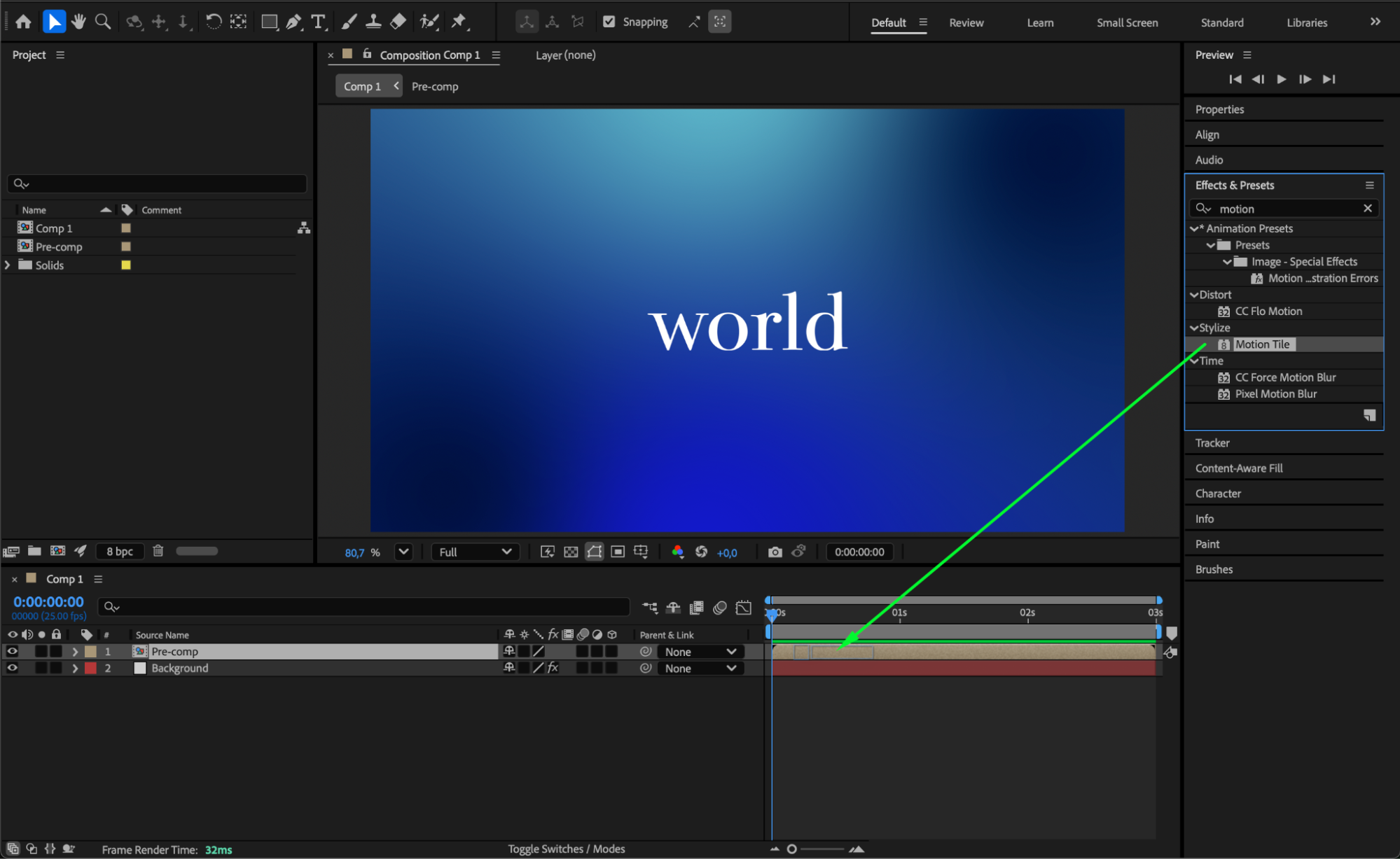
 Step 5: Add the CC Lens Effect
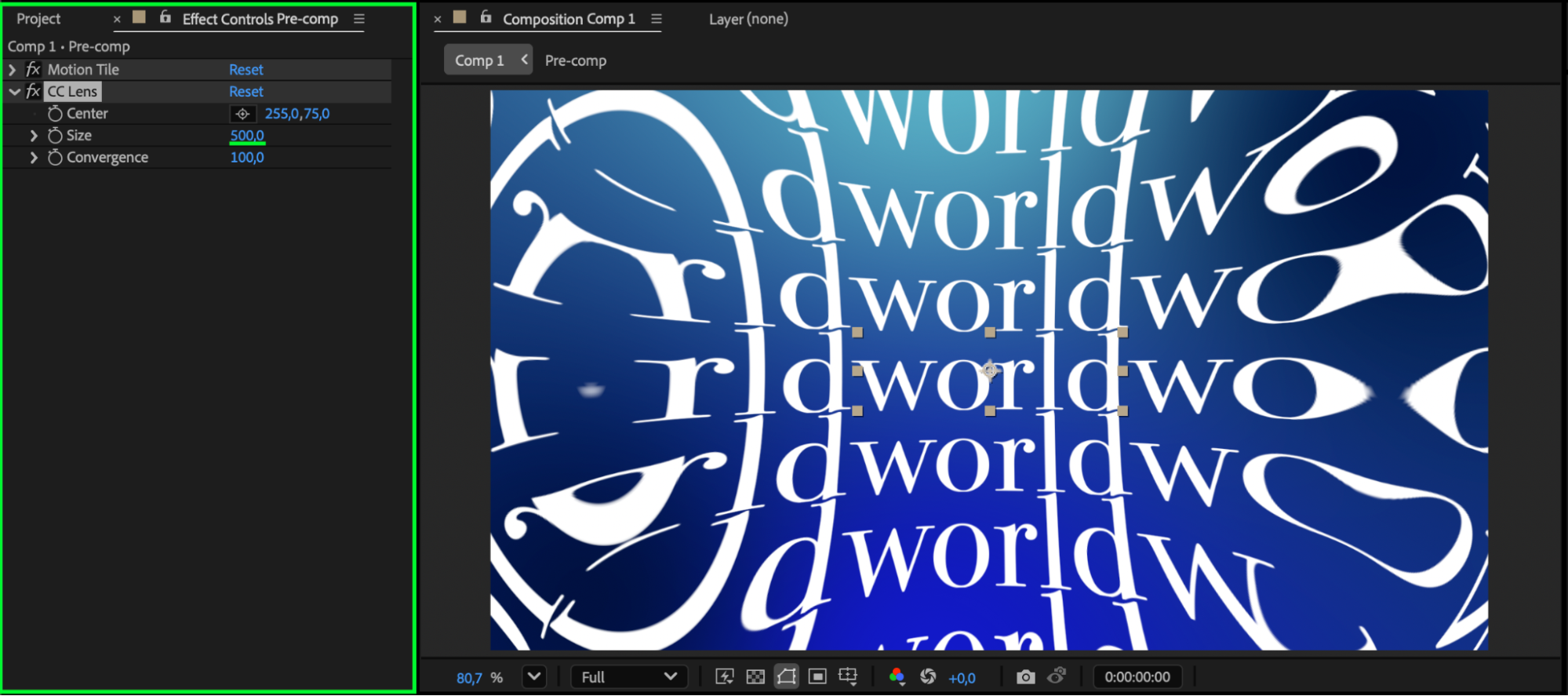
Apply CC Lens from Effects & Presets. Set:
Size: 500
This creates the spherical distortion.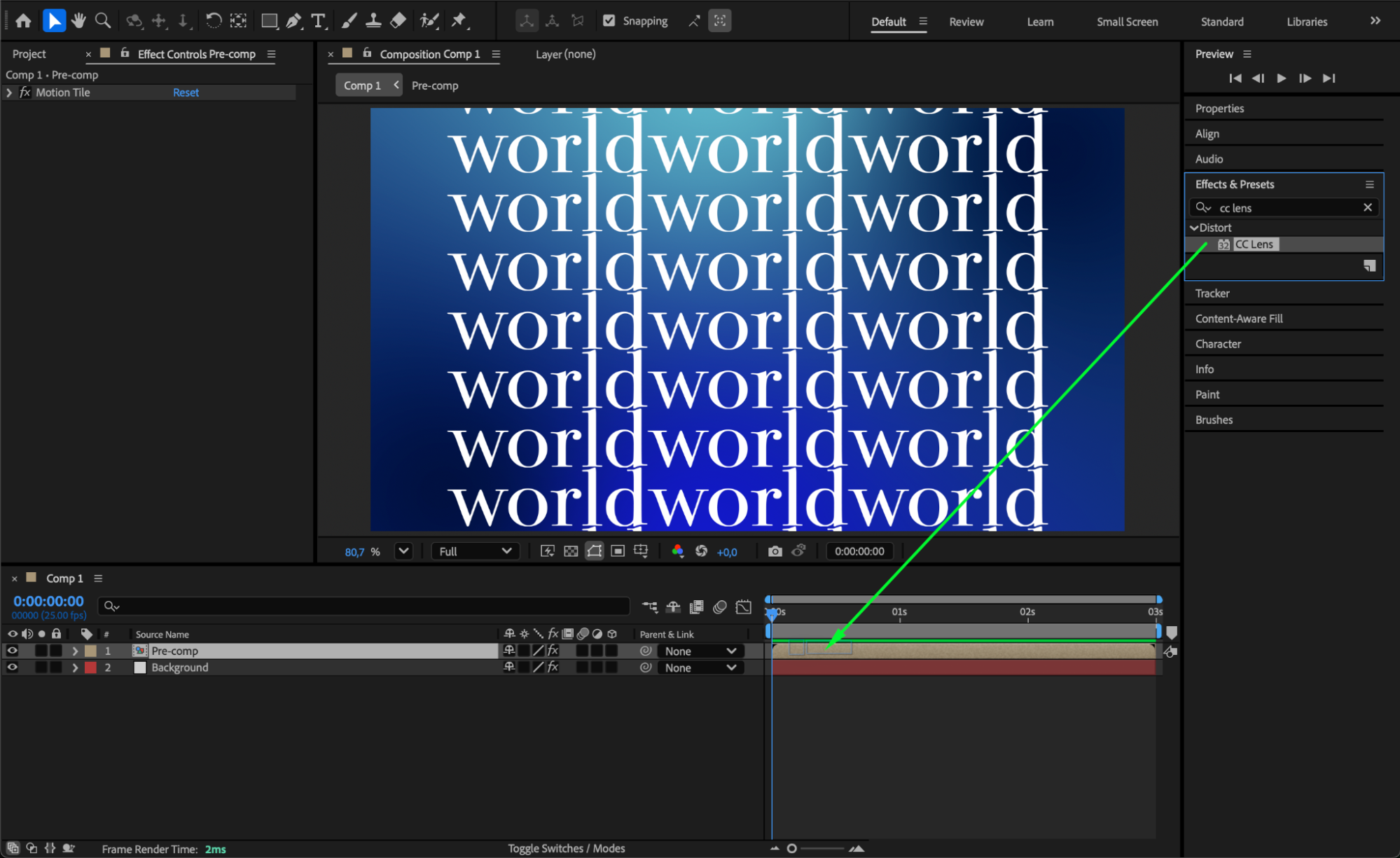
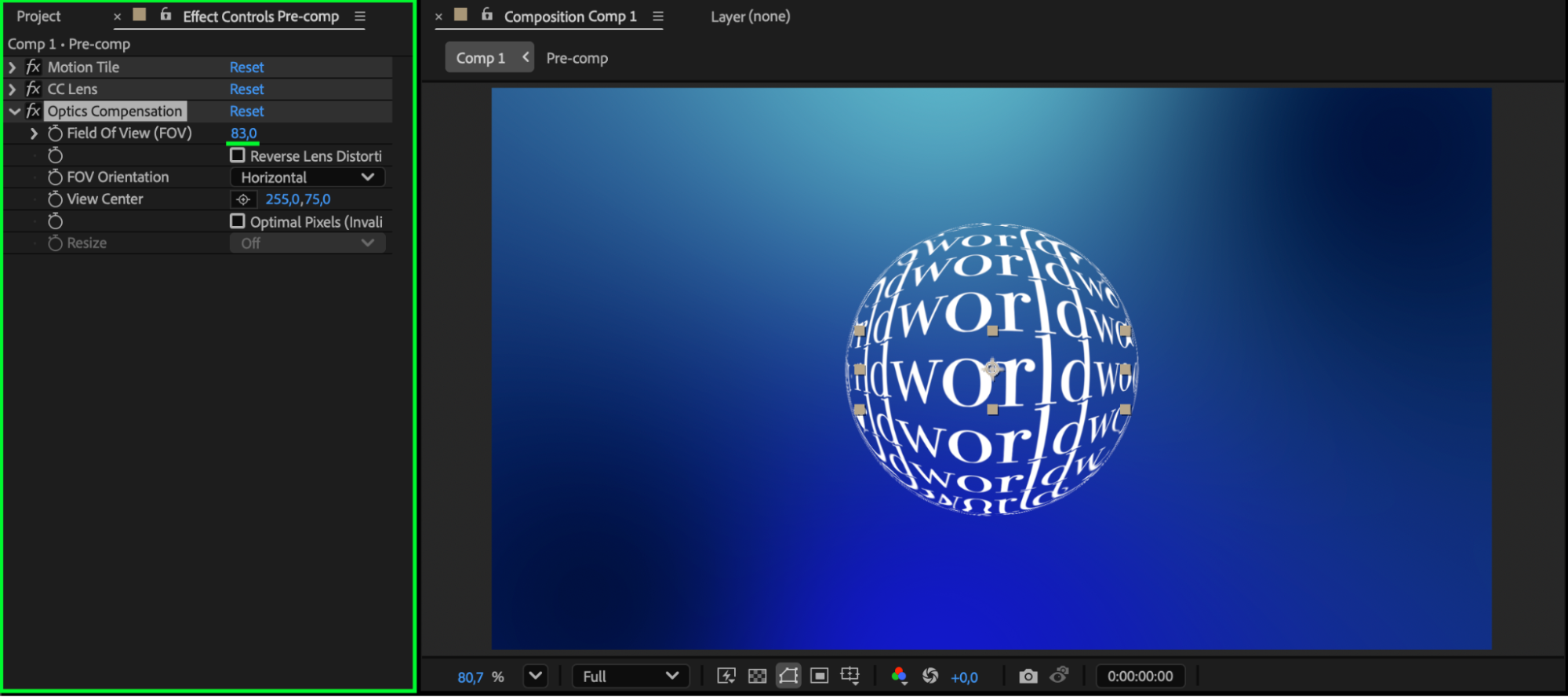
Step 6: Add Optics Compensation
Apply Optics Compensation. Set:
Field of View (FOV): 83
This enhances the curvature and makes the text look more globe-like.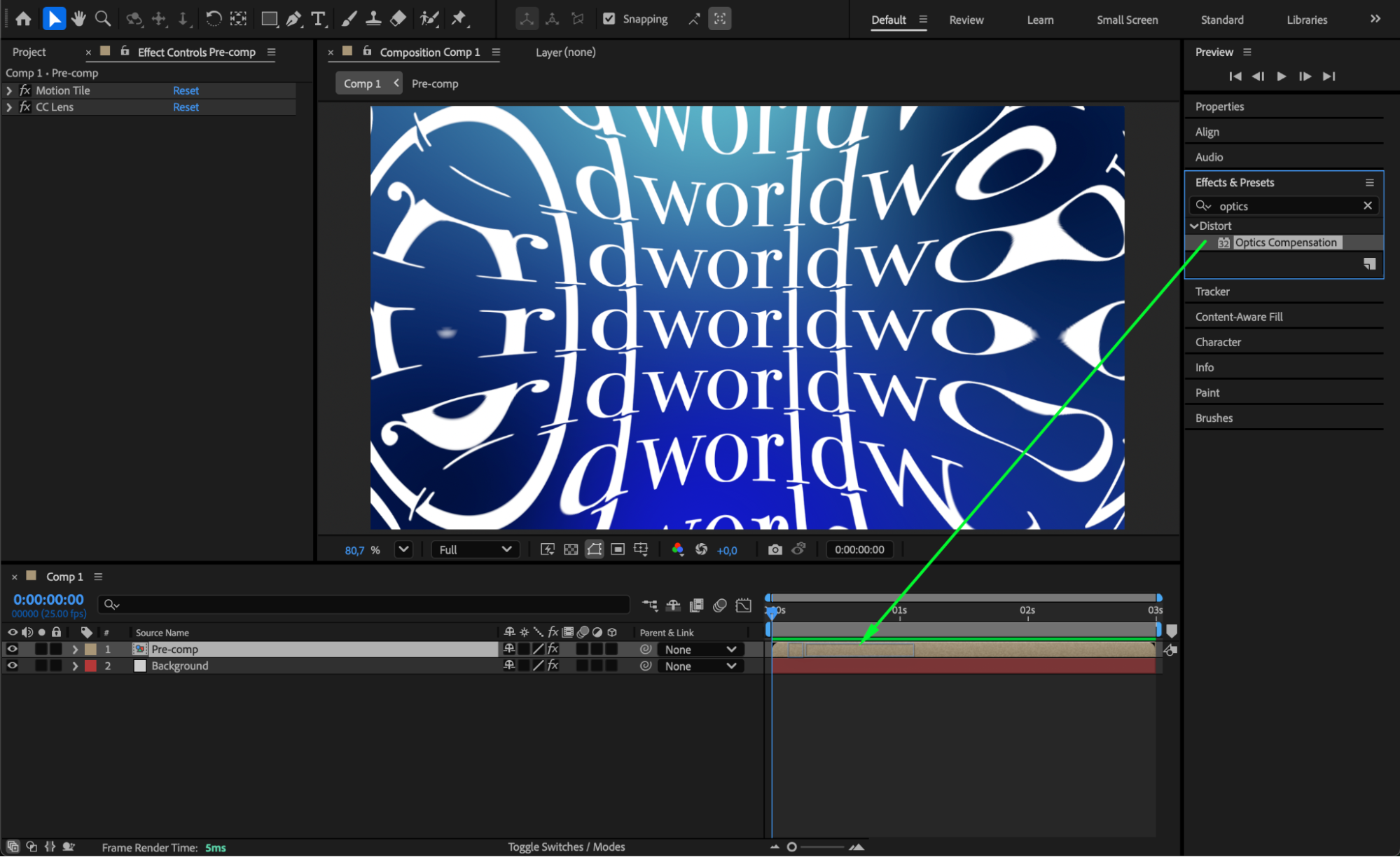
 Step 7: Add Glow for Style (Optional)
Apply Glow for a polished look. Suggested settings:
Glow Threshold: 100
Glow Radius: 1000
Feel free to adjust for your desired style.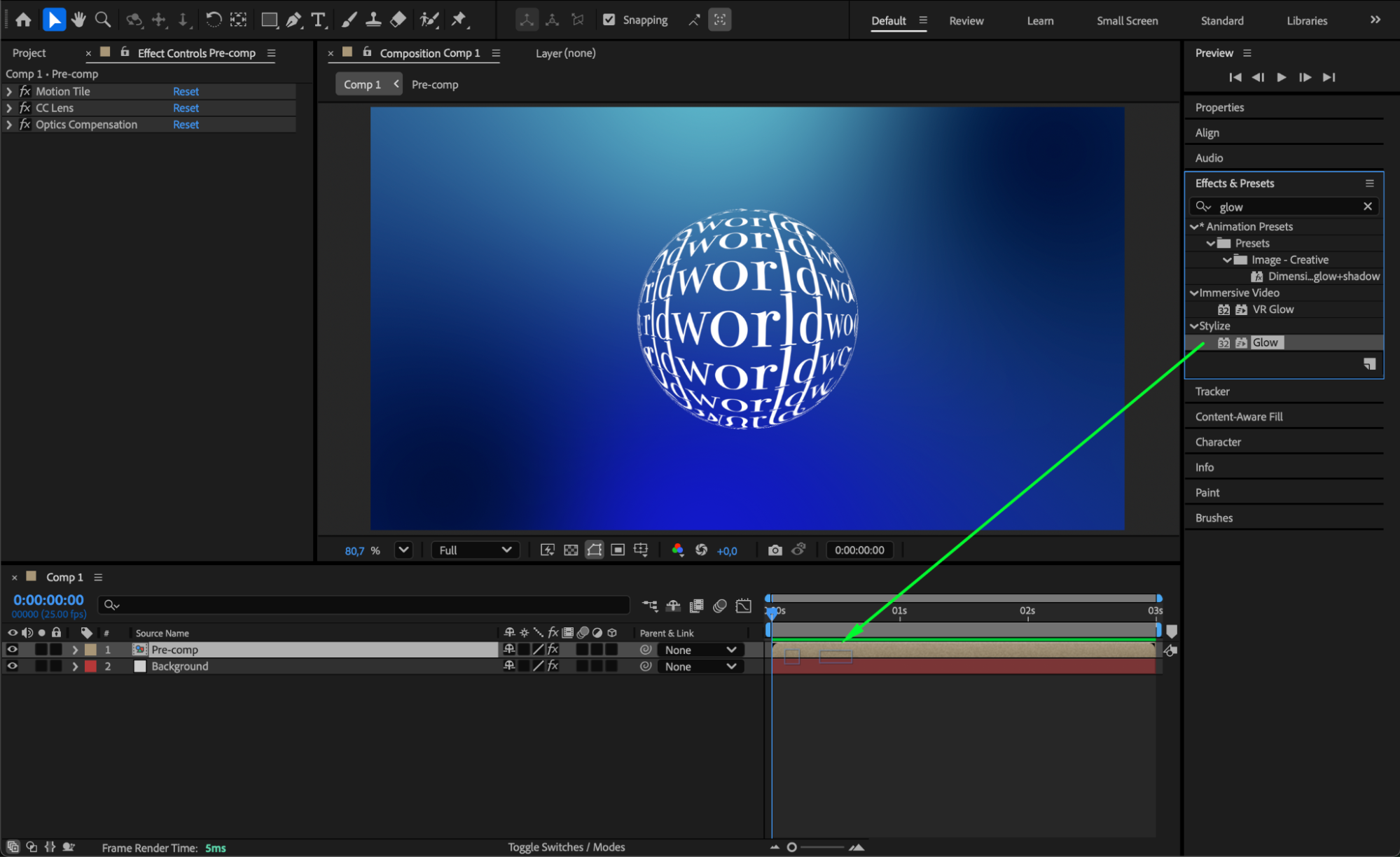
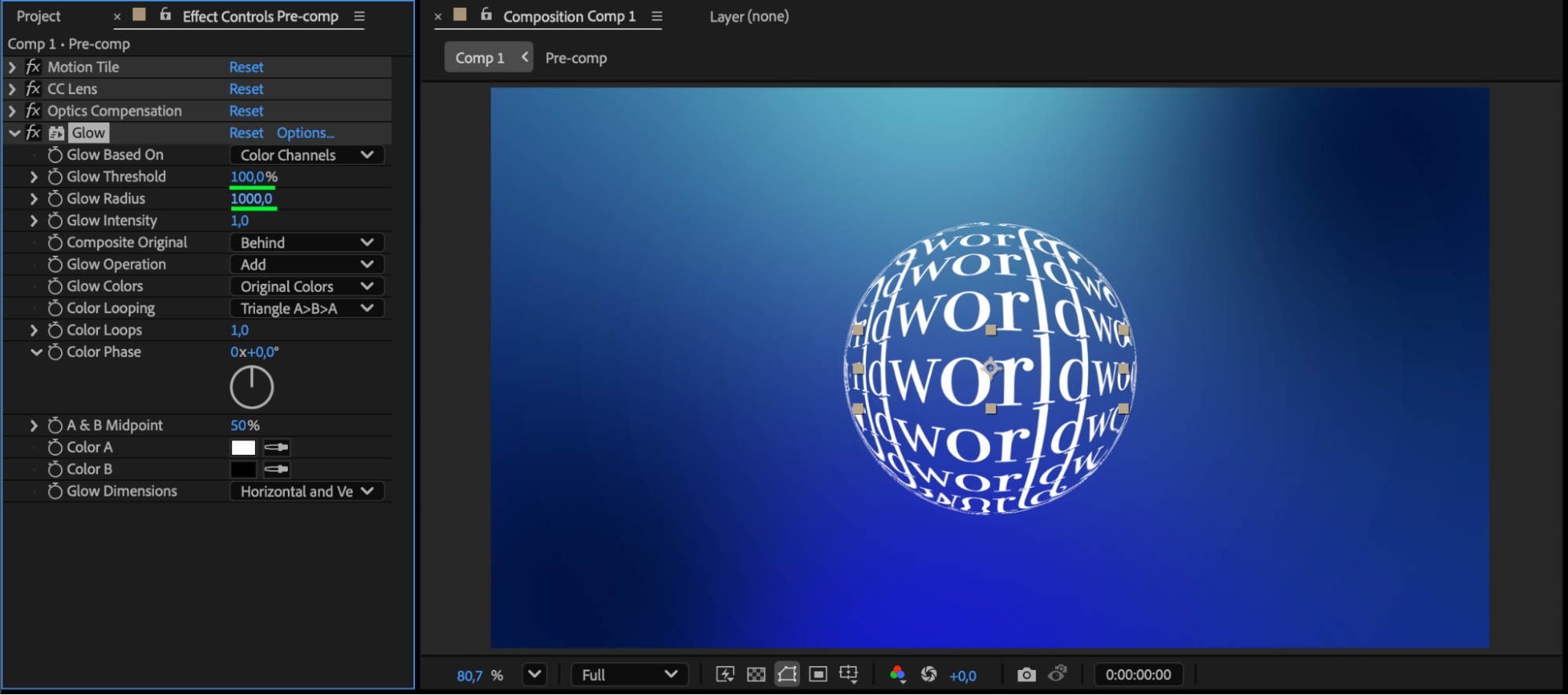 Step 8: Animate the Rolling Motion
Move the CTI (playhead) to the end of the composition. In Effect Controls, find Motion Tile > Tile Center. Click the stopwatch to create a keyframe (e.g., at 255, 75). Move the CTI to the start of the composition. Change the X value of Tile Center to a higher value (e.g., 832, 75) so the text scrolls horizontally. This creates the rolling ball motion.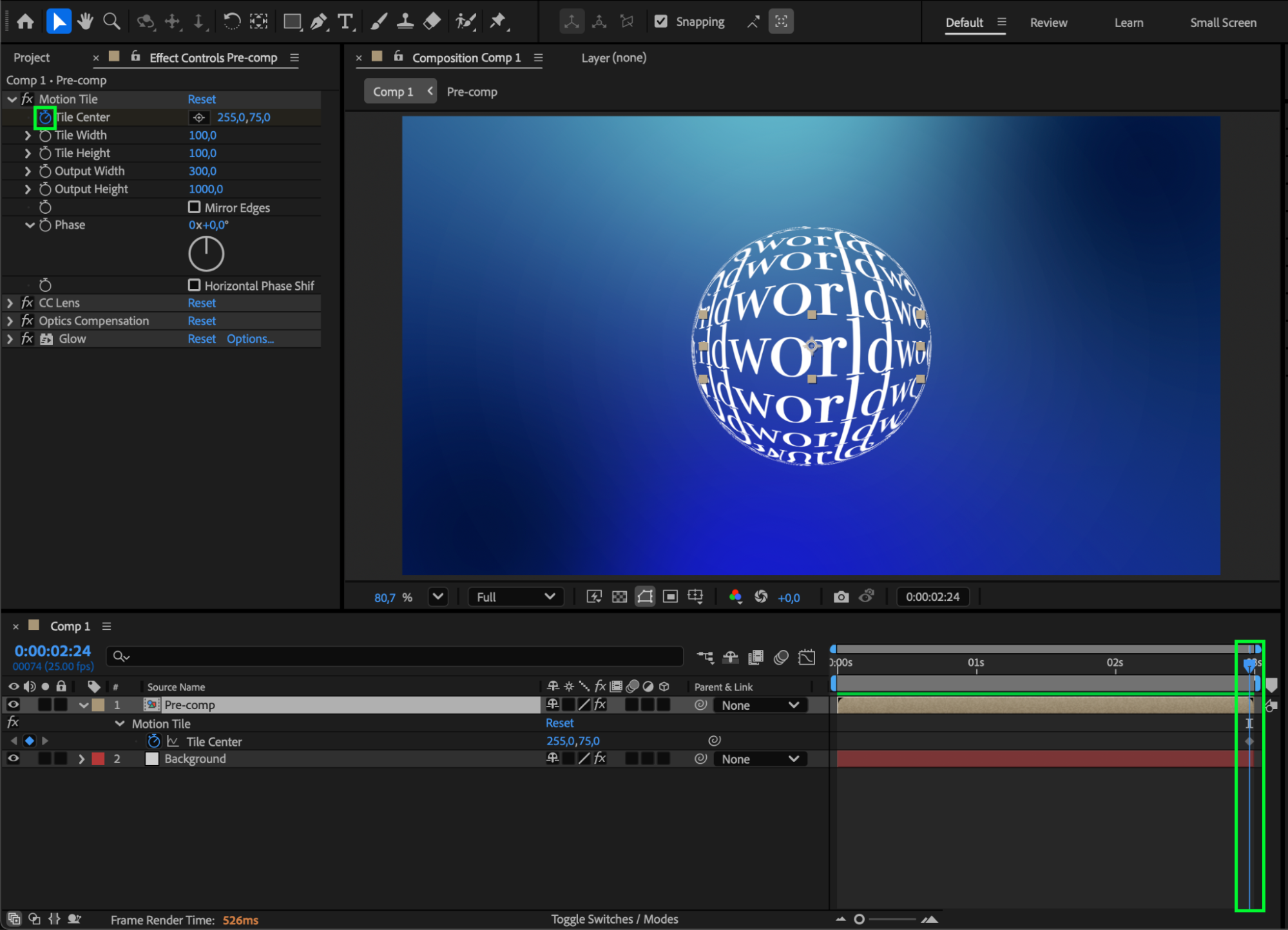
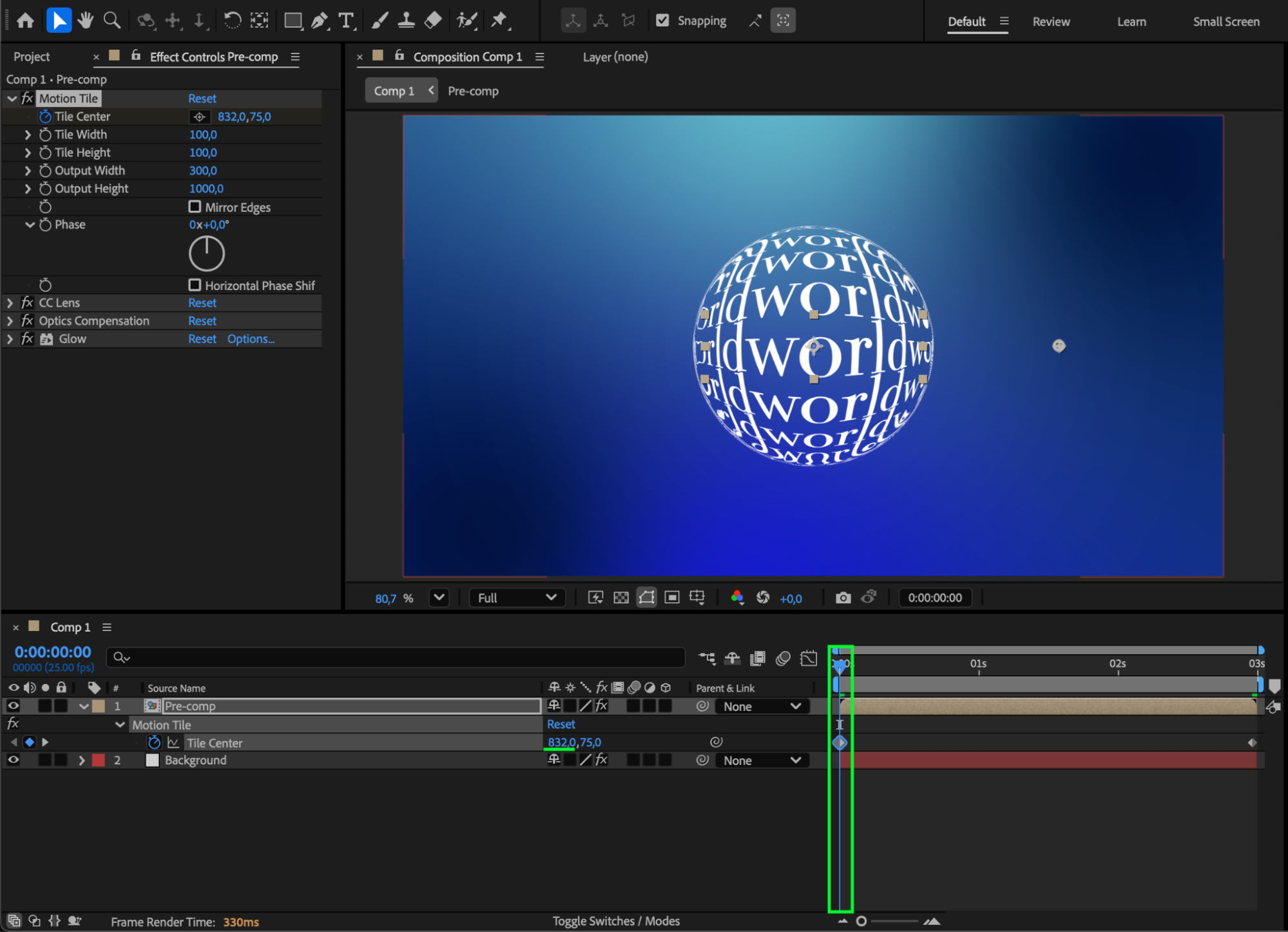 Step 9: Preview Your Animation
Press Spacebar to preview the composition and check how smoothly the text rolls across the sphere. Adjust the distortion effects or the Tile Center animation values if the motion feels too fast, too slow, or not curved enough.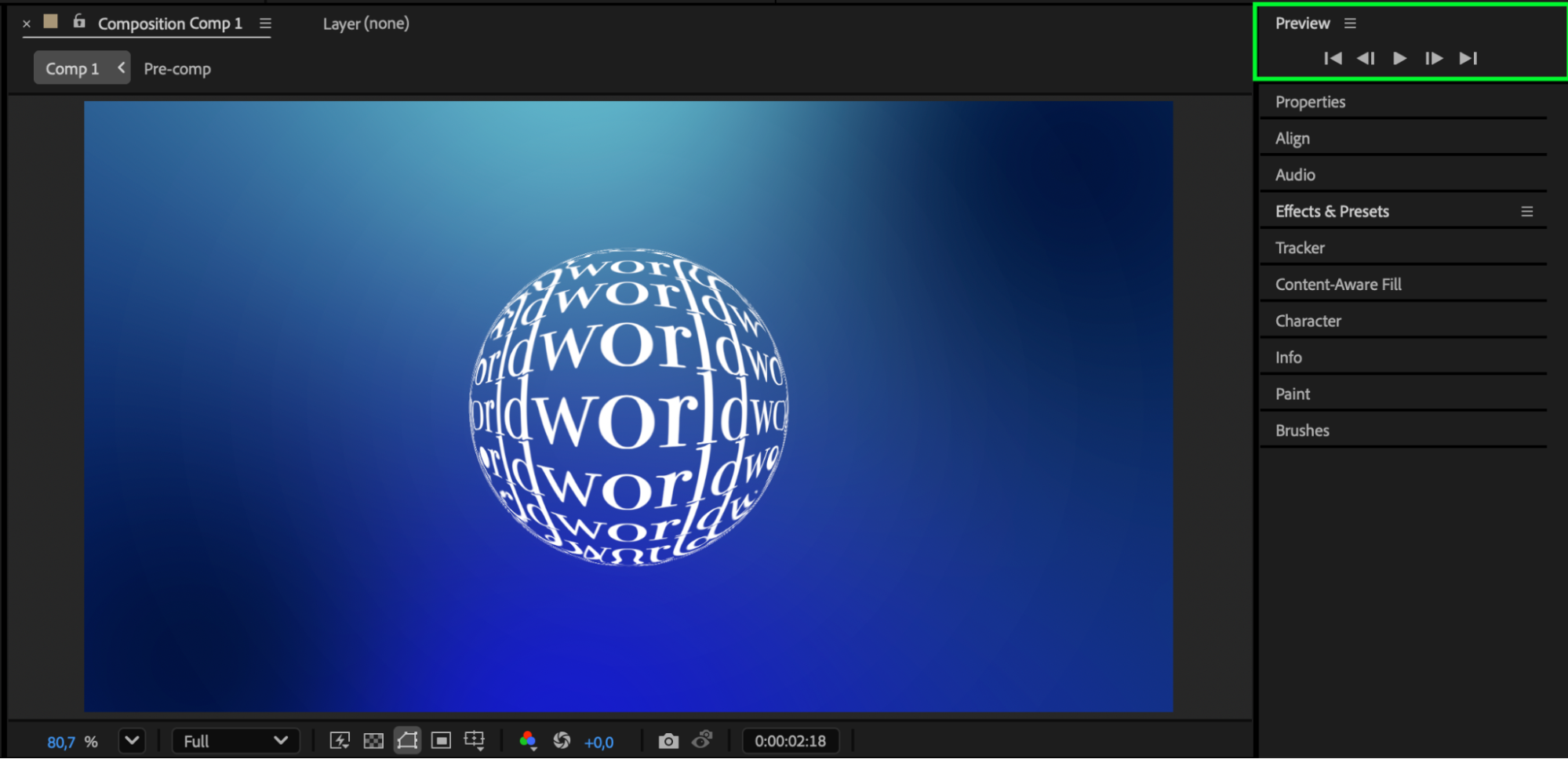
Conclusion
By combining Motion Tile, CC Lens, and Optics Compensation, you can easily transform flat text into a dynamic spherical animation that rolls like a ball. Customize the effects and keyframes to match your style, and you’ll achieve a polished, eye-catching motion design suitable for intros, titles, and visual effects.
Our Bestsellers
Our Bestsellers


