
Introduction
Matching colors between different photos is essential for creating visually unified compositions or slideshows. After Effects provides powerful color correction tools that let you adjust exposure, contrast, and hues so that all images appear consistent and professional.
Step 1: Import Your Photos
Go to File > Import > File and select all the photos you want to work with. Drag them into your composition timeline so that each photo appears as a separate layer.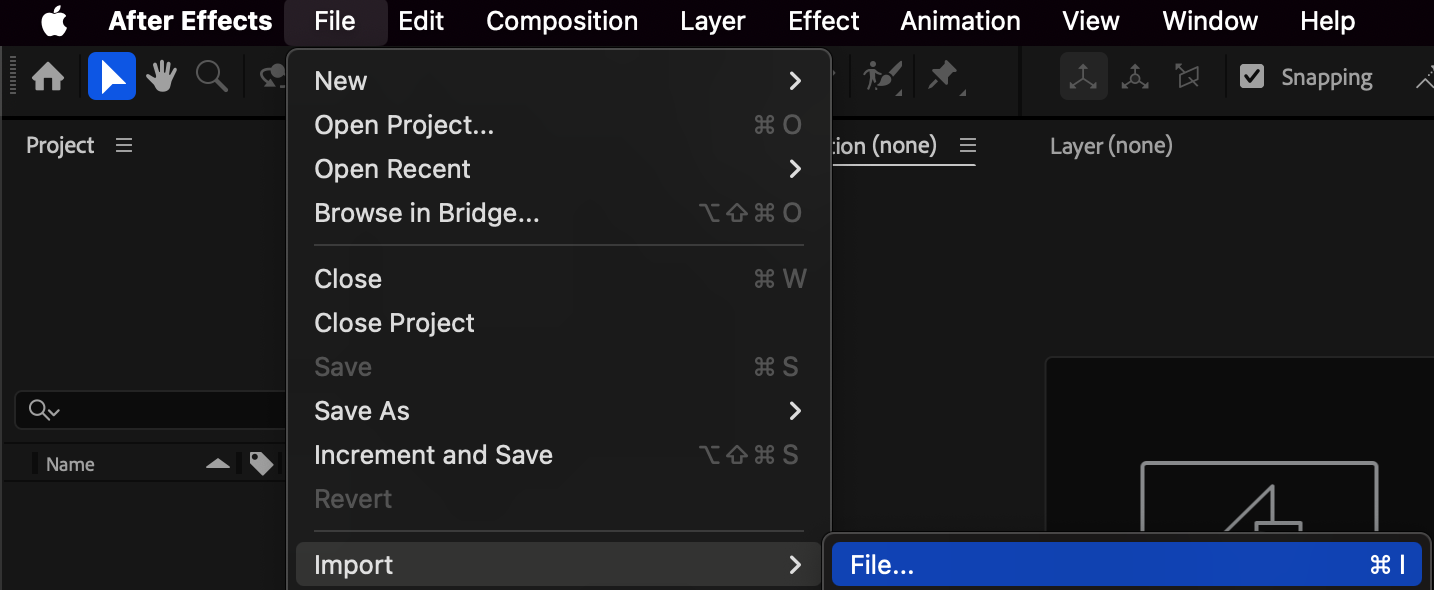
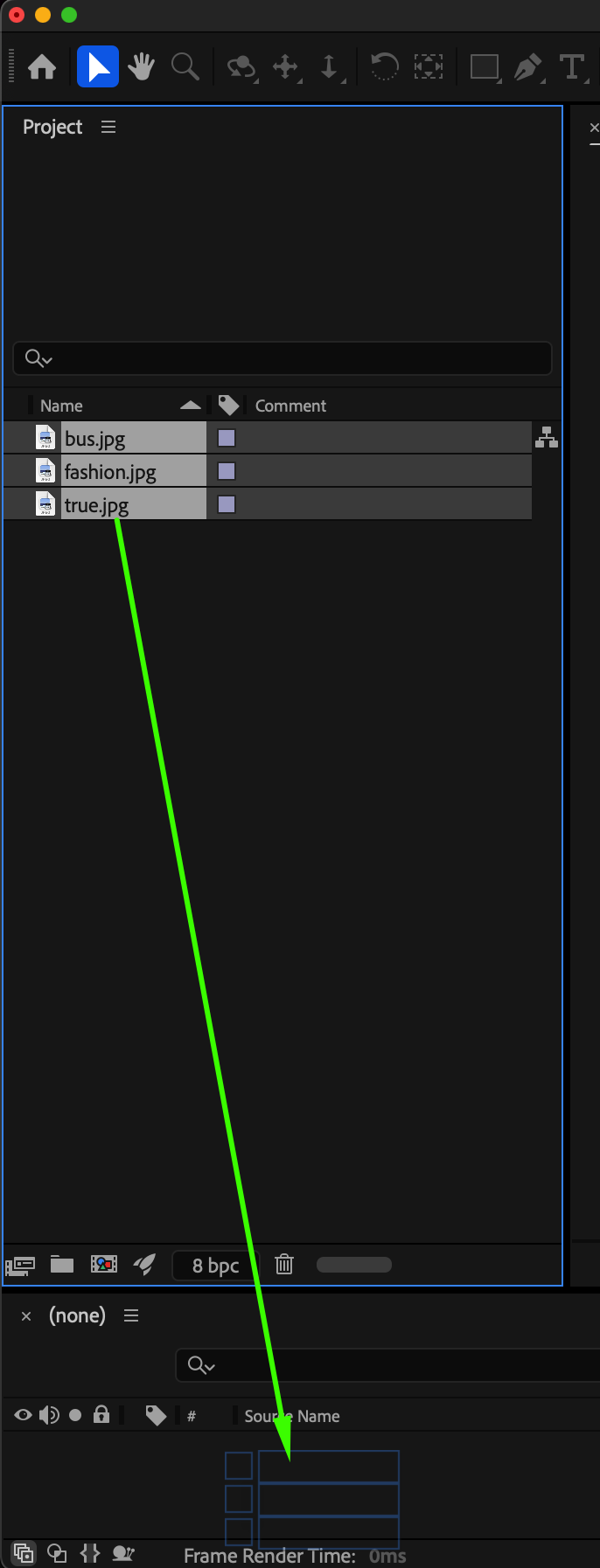
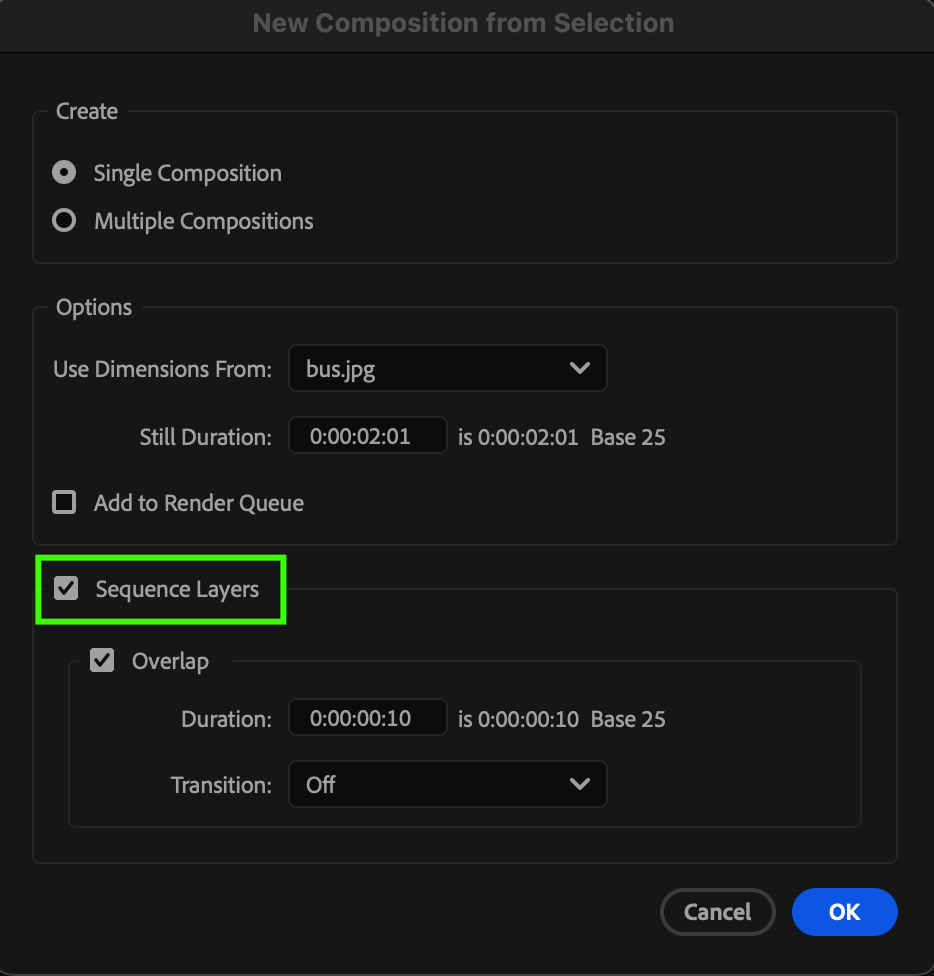 Step 2: Apply Lumetri Color to Your Reference Photo
Select the photo that has the color tones you want to match (your reference image). Go to Effect > Color Correction > Lumetri Color. Adjust Basic Correction, Tone, and Color Wheels to achieve the desired look. This layer will serve as the color reference for the rest of your images.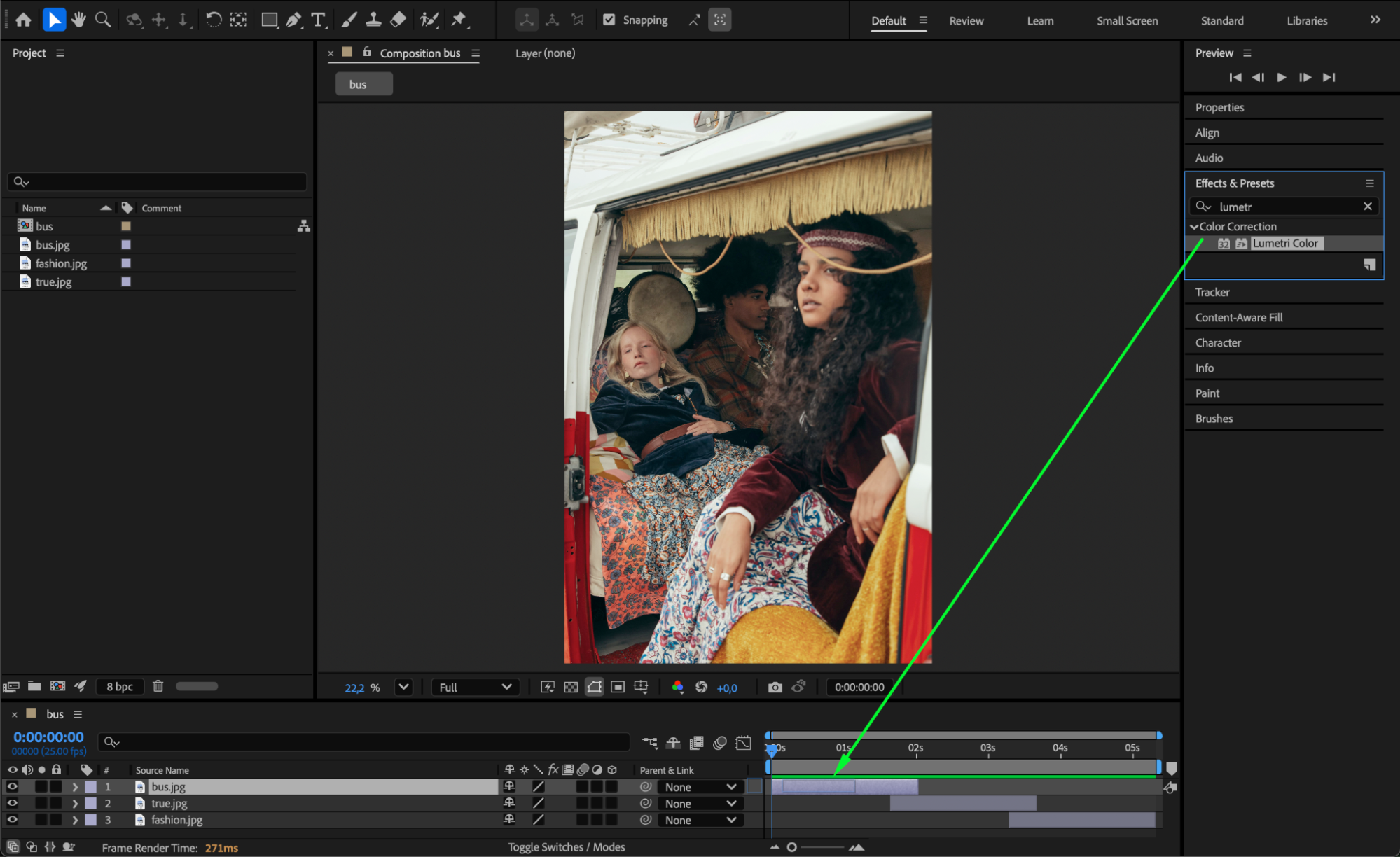
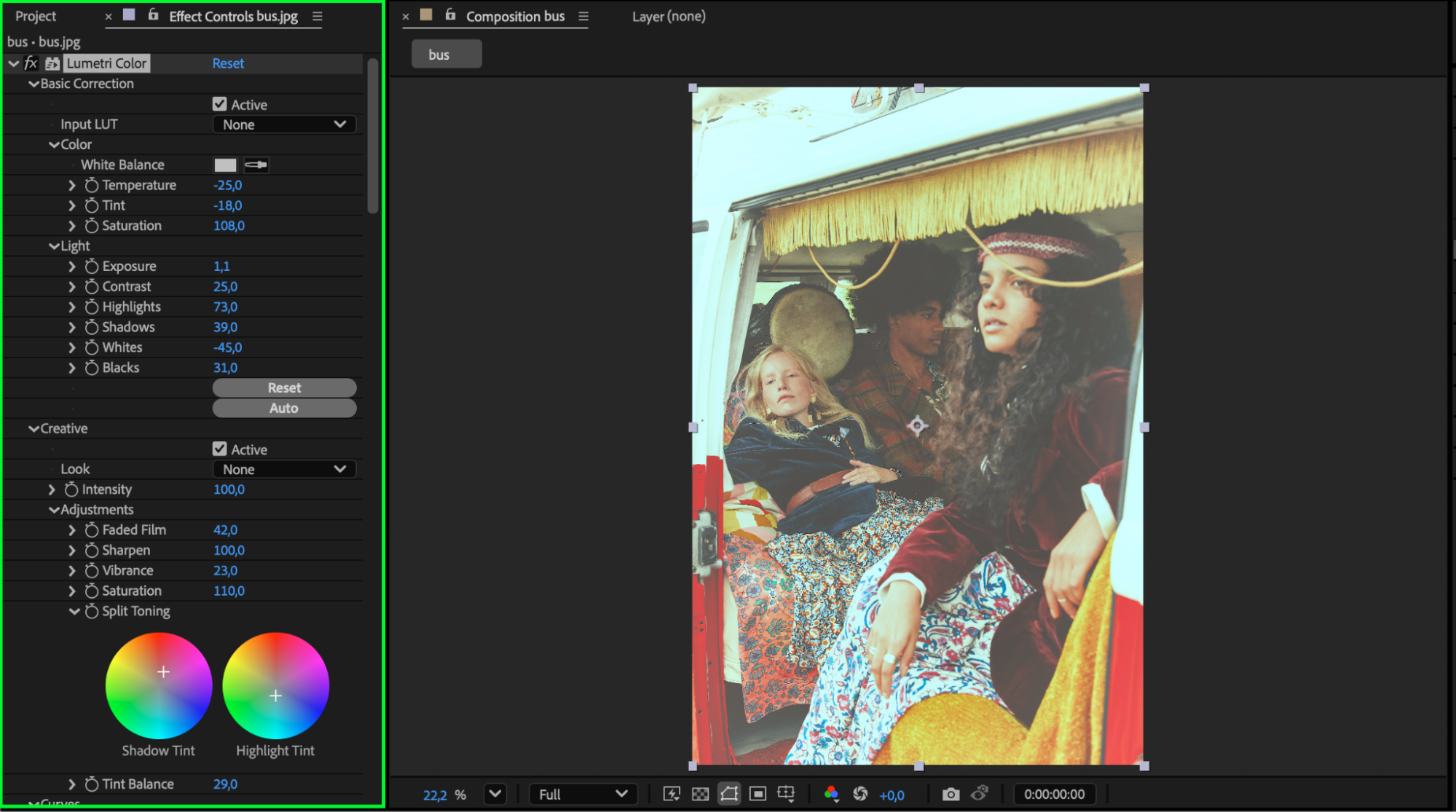
Step 3: Copy and Customize Lumetri Color for Other Photos
Copy the Lumetri Color effect from your reference photo and paste it onto the other photo layers in the Effect Controls panel. Adjust settings like Brightness, Contrast, and Color Correction individually for each photo, as different images may require slightly different adjustments to match the overall look.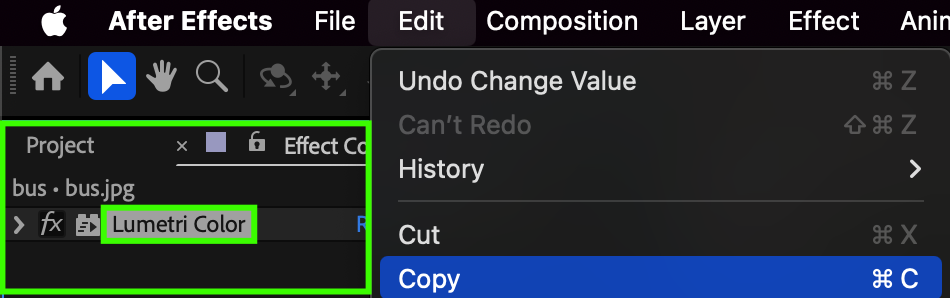
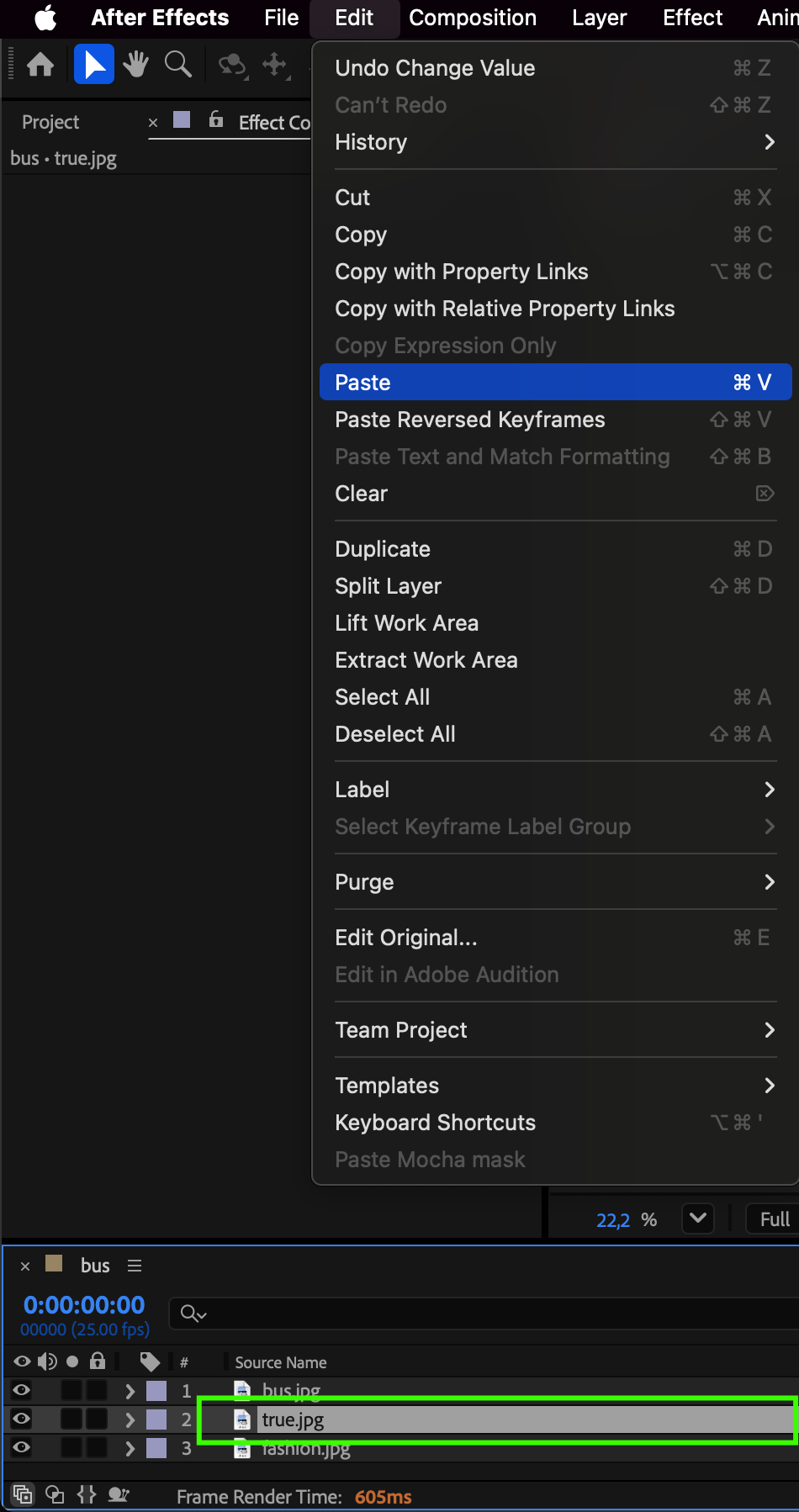
 Step 4: Use Curves for Fine-Tuning
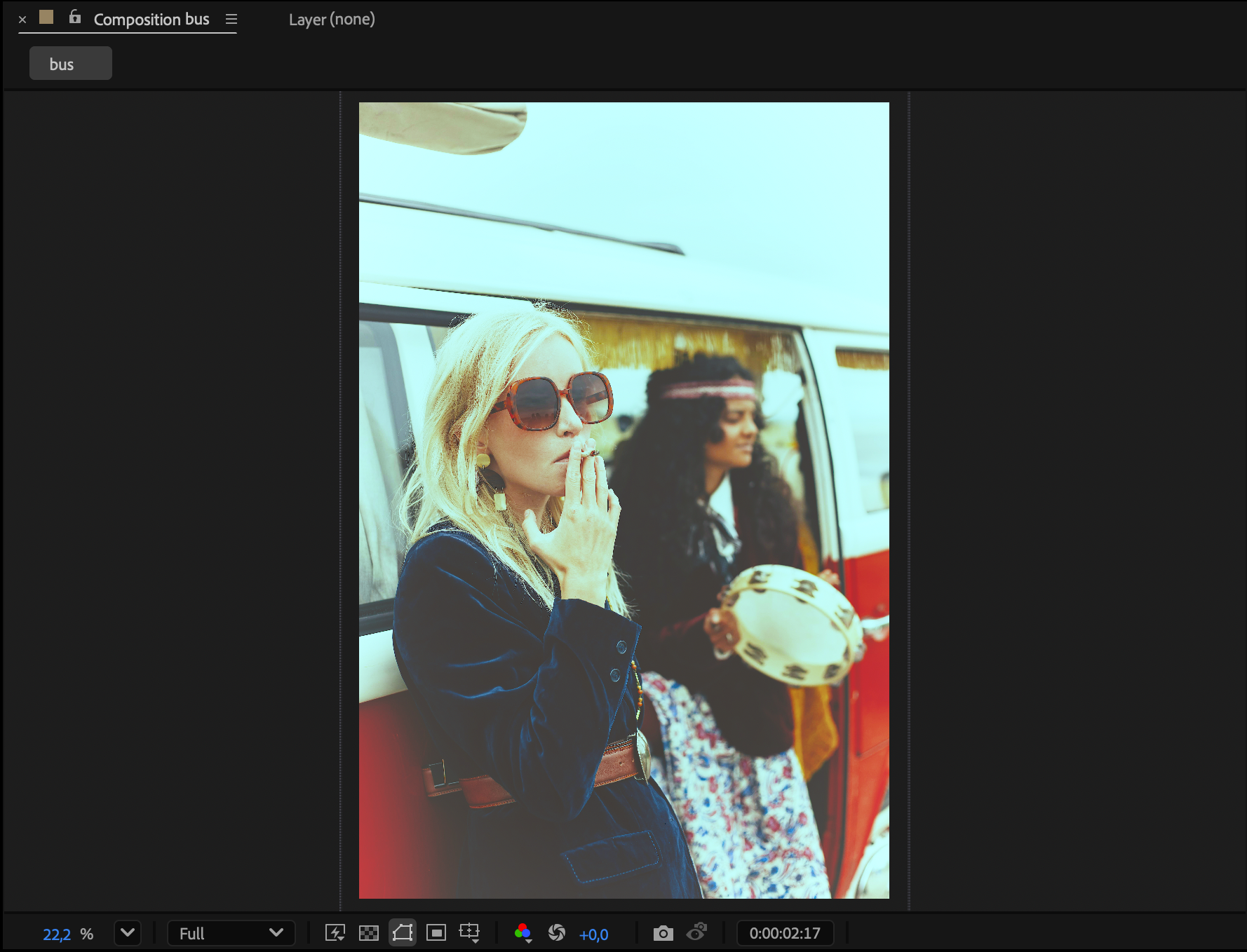
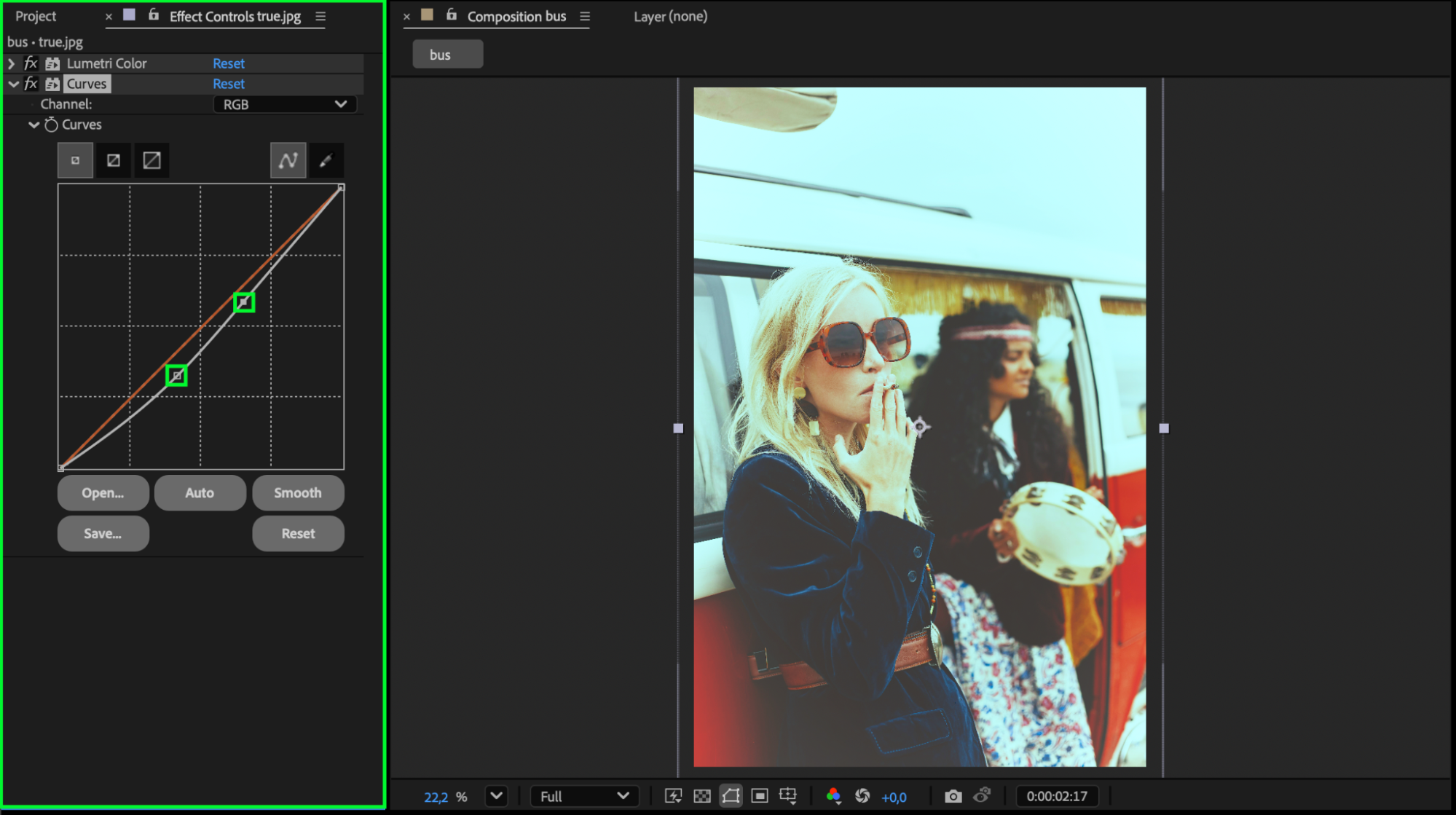
For precise color alignment, go to Effect > Color Correction > Curves. Adjust the RGB channels individually to better match the tones of your reference photo. Compare each image with your reference to ensure highlights, midtones, and shadows are consistent across all layers.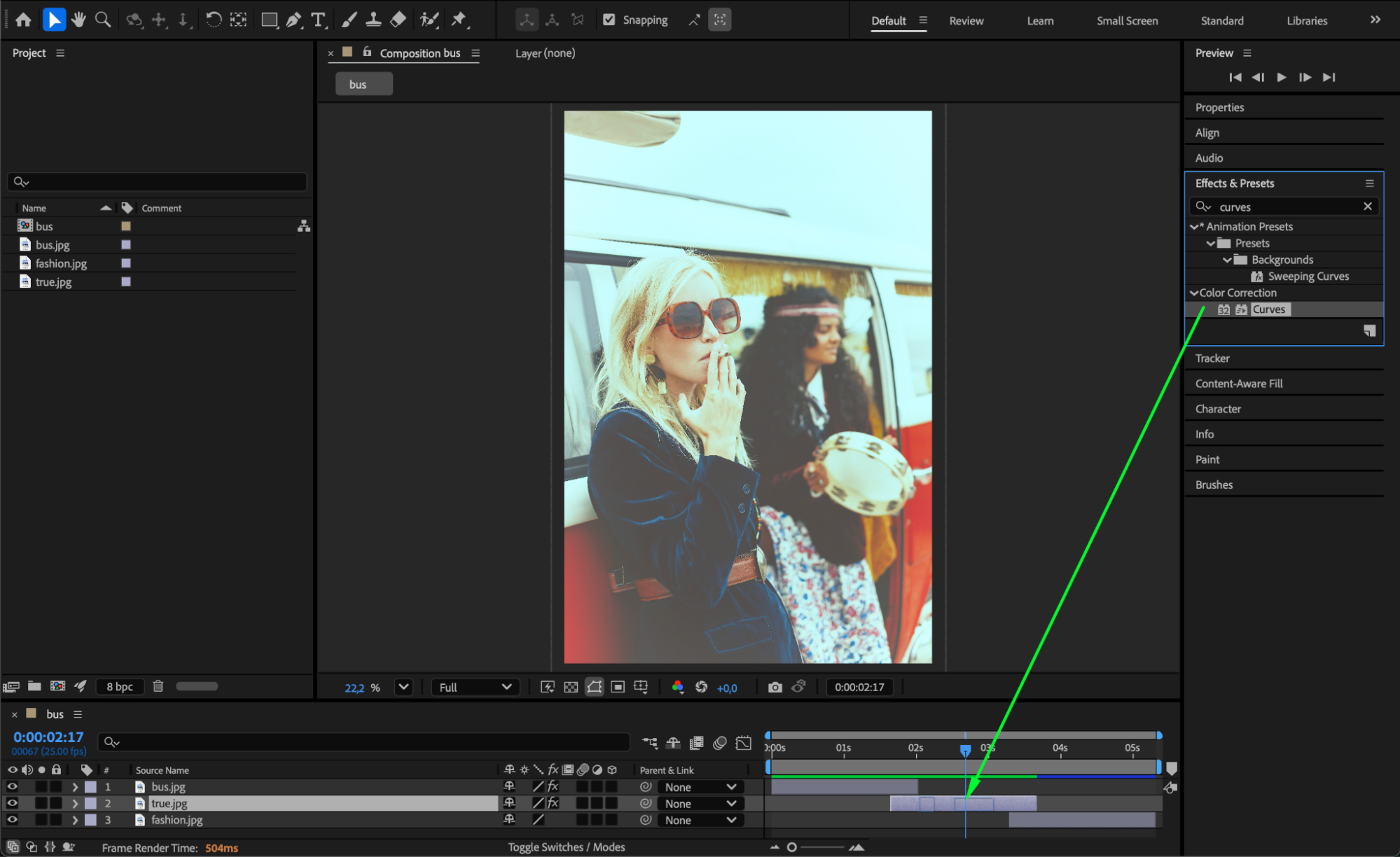
Step 5: Compare Layers Quickly
Toggle the Eye icon on individual layers to compare them side by side. This helps you spot any differences in color and make further refinements if necessary.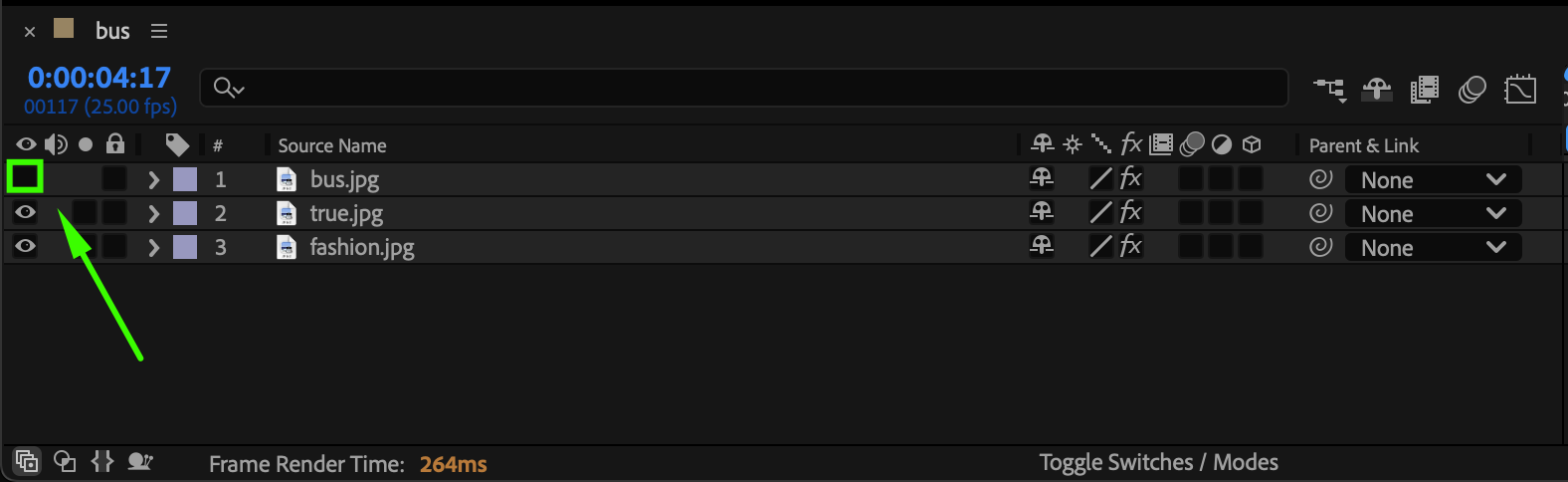 Step 6: Preview and Refine
Press Spacebar to preview your composition. Continue adjusting the Lumetri Color and Curves until all photos look cohesive and uniform in tone and color.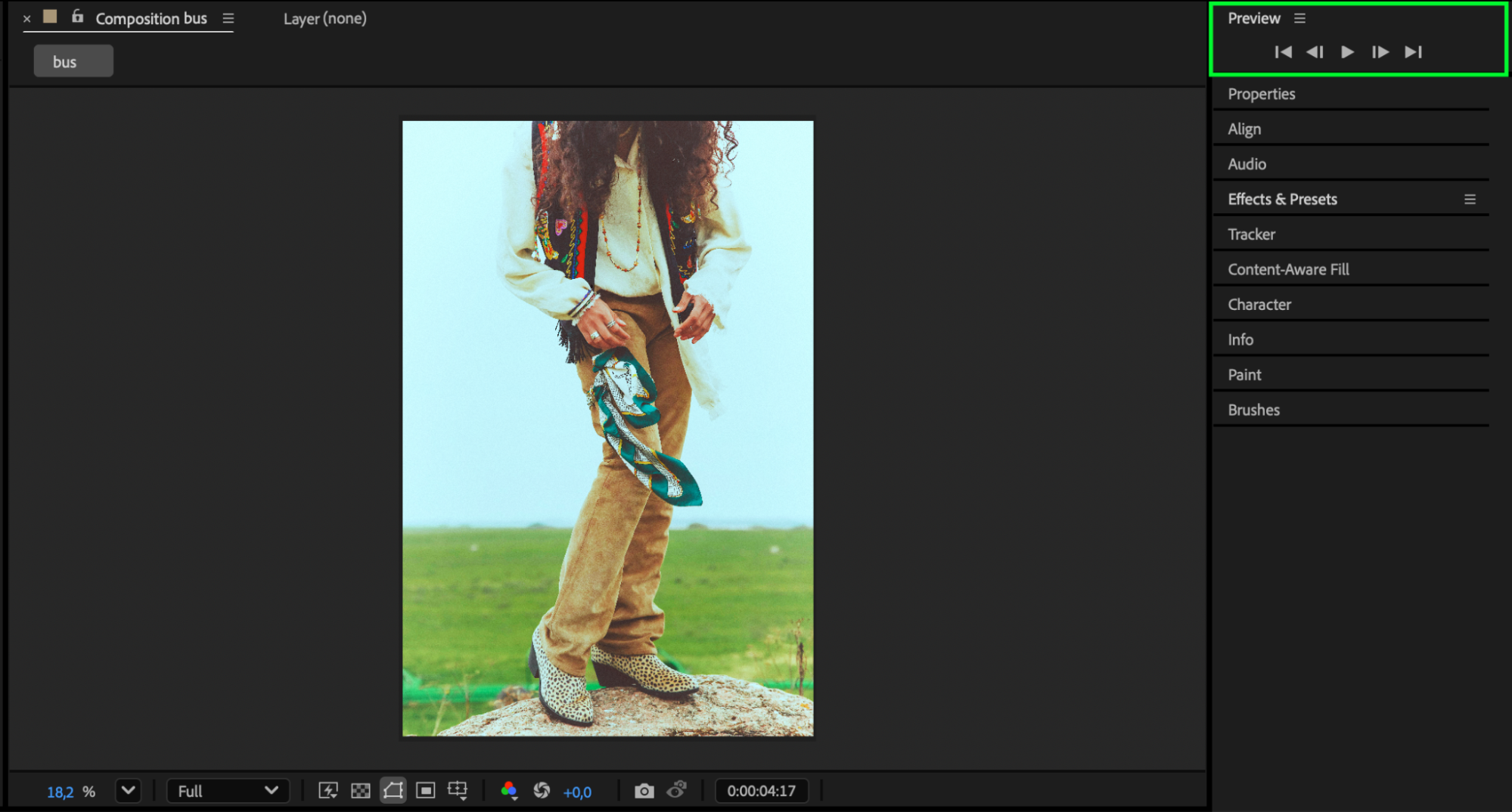 Conclusion
Using Lumetri Color, Curves, and custom layer adjustments, you can match colors across multiple photos in After Effects efficiently. This technique is ideal for slideshows, video compositions, or any project where visual consistency between images is essential.
Our Bestsellers
Our Bestsellers


