
How to Combine and Merge Multiple Masks in After Effects
Introduction – Creating Unified Effects with Multiple Masks
Combining multiple masks in After Effects allows you to create complex designs, control visibility, and apply effects more precisely. This tutorial will guide you through different ways to merge masks using modes, adjustment layers, and animation, giving you full control over your visual elements.
Step 1: Create a New Composition and Solid Layer
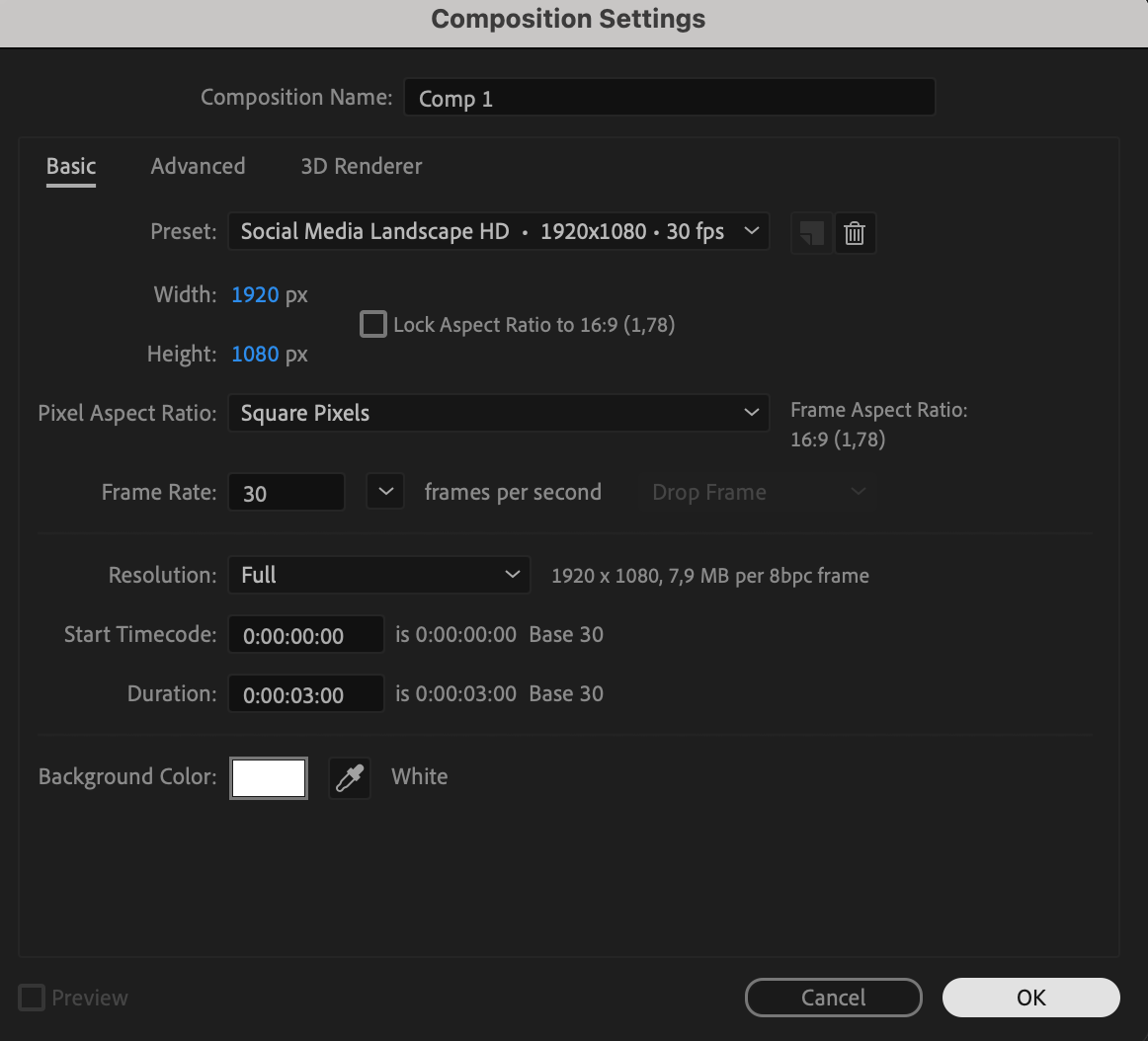
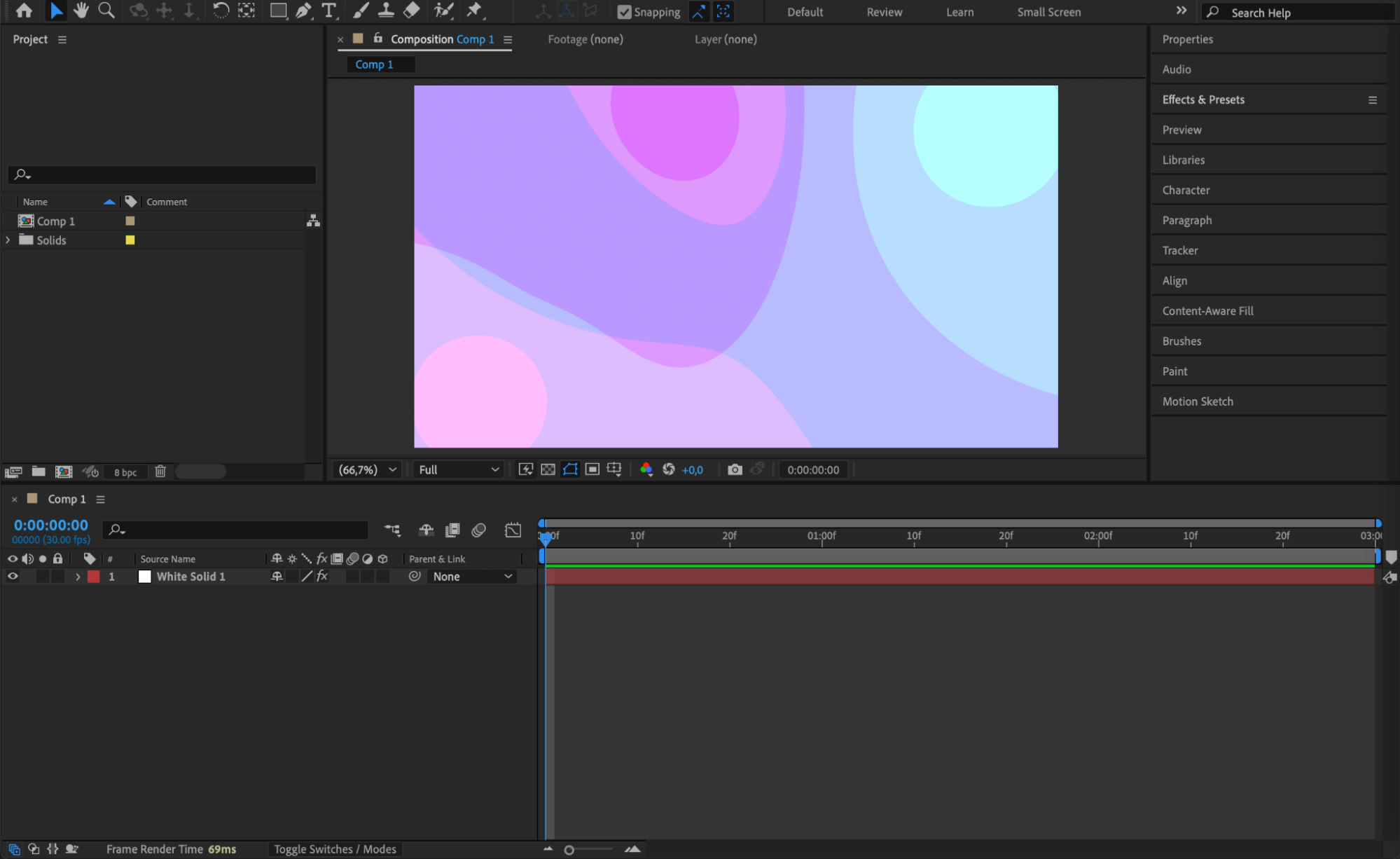
Begin by creating a new composition through Composition > New Composition. Then go to Layer > New > Solid to create a solid background. This solid will be used to apply and merge your masks.


 Step 2: Draw and Merge Multiple Masks
Select your solid layer first, then use the Shape Tool (Q) or Pen Tool (G) to draw several masks. Each new shape will appear as Mask 1, Mask 2, etc. These masks are independent by default. To control how they interact, expand each mask’s settings and change the Mask Mode:
Add merges shapes together.
Subtract cuts one shape from another.
Intersect keeps only overlapping areas.
To combine them visually, ensure all masks use the same mode.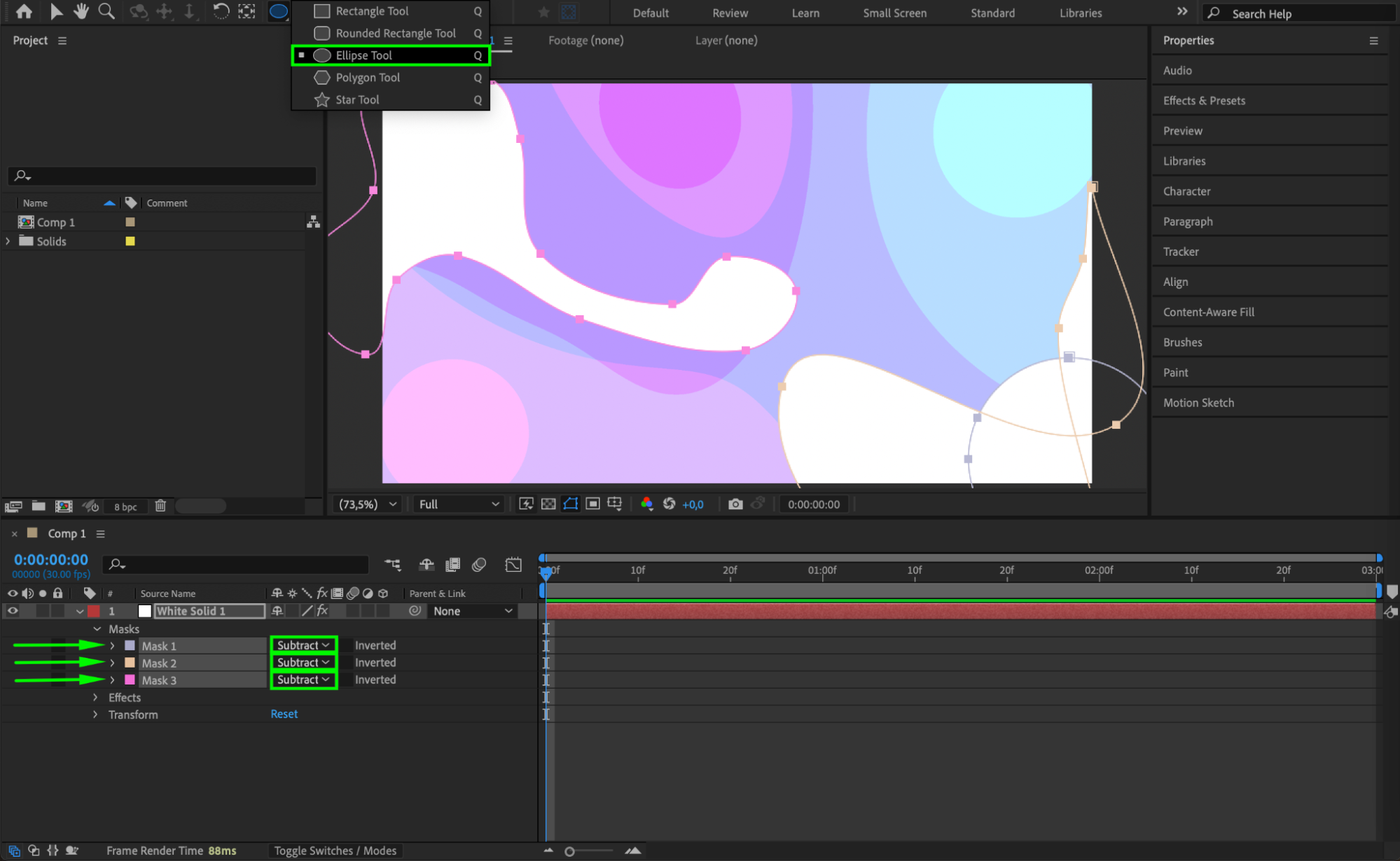
Step 3: Refine with Feather and Expansion
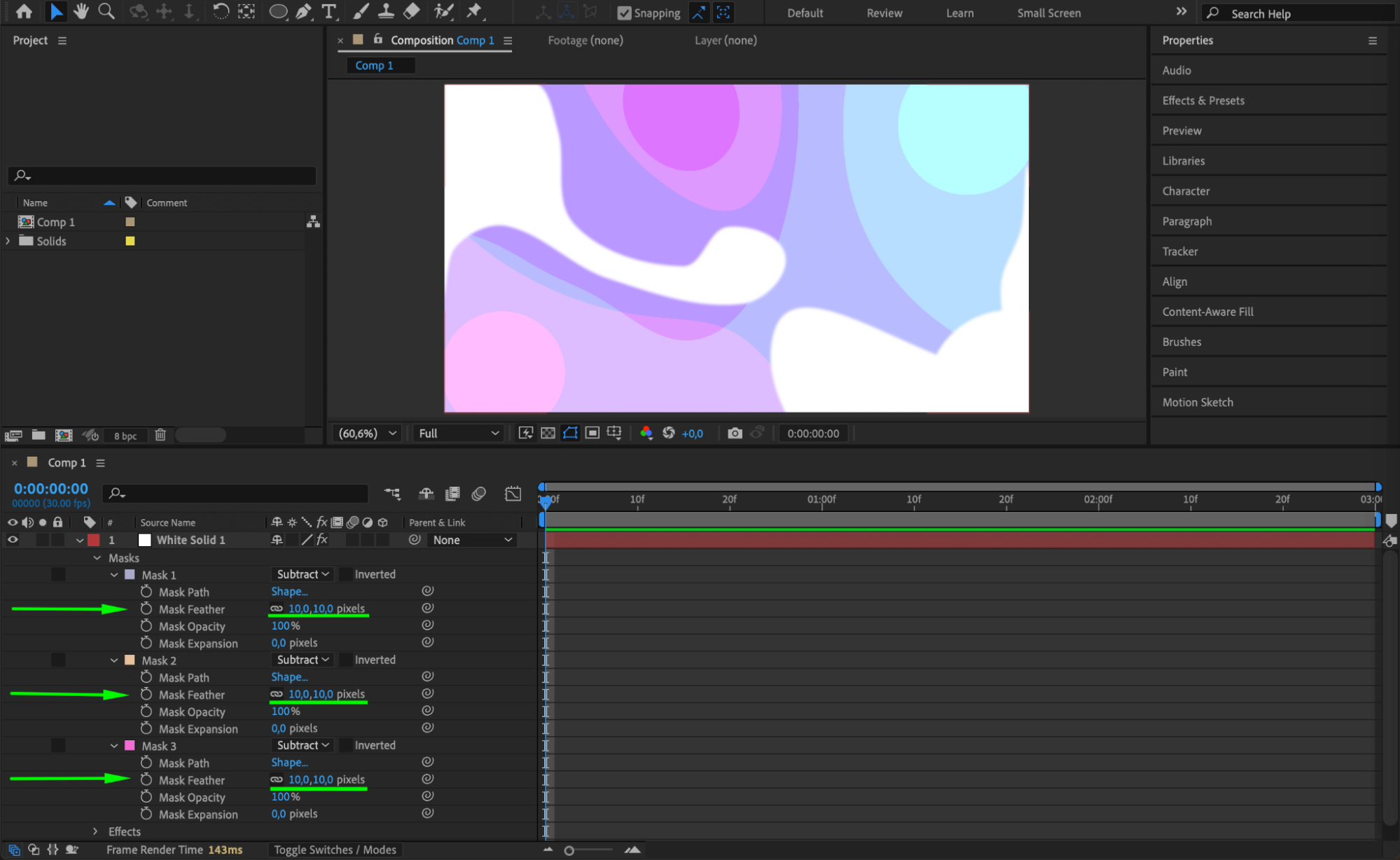
After creating your masks, you can soften their edges using the Mask Feather property. This helps create smooth blending between them. Additionally, use Mask Expansion to adjust the scale of each mask and help merge their boundaries more naturally.
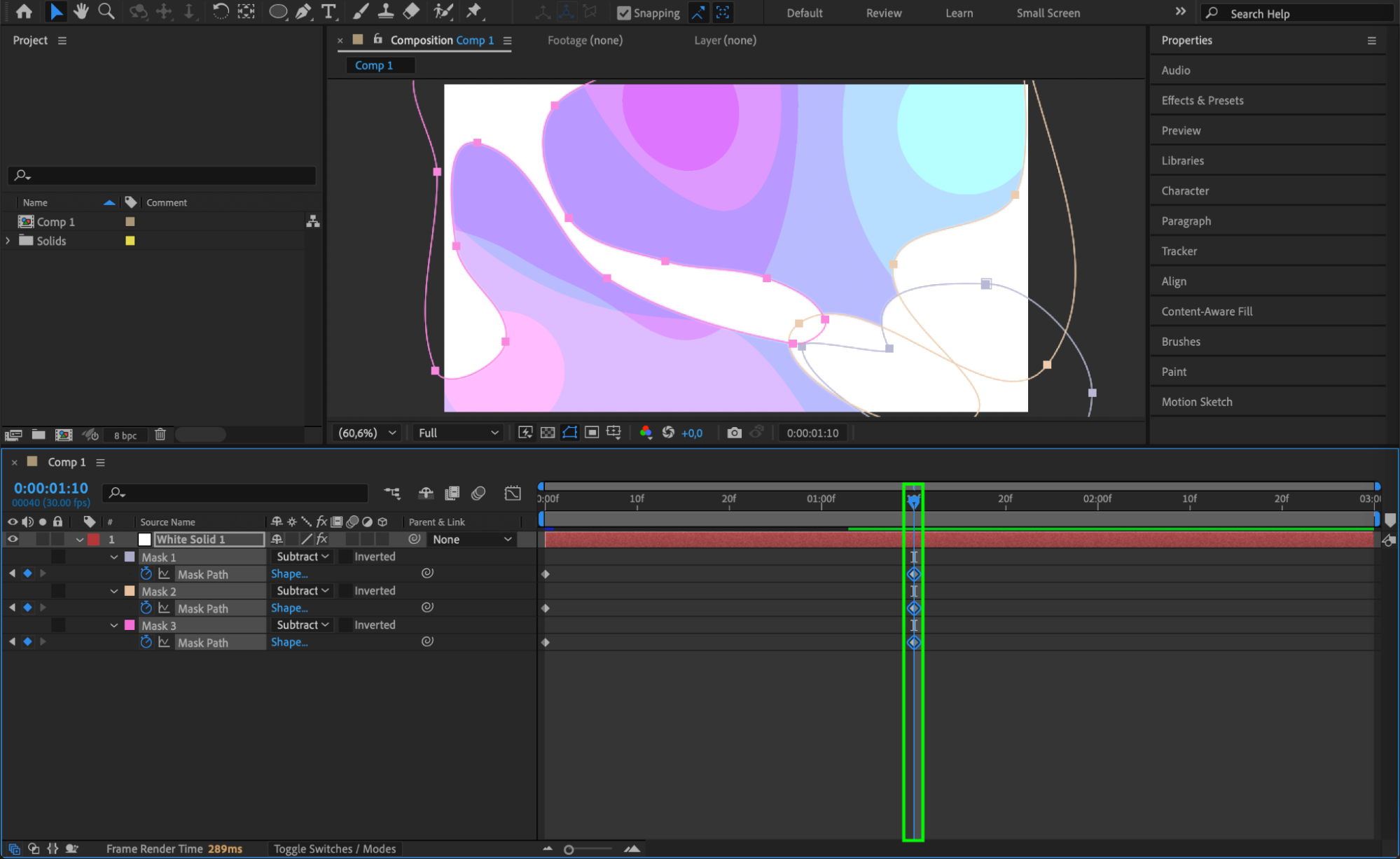
Step 4: Animate Mask Paths for Dynamic Merging
For more advanced effects, animate the Mask Path property. You can change the shape of the masks over time, creating a morphing or merging animation. Set keyframes and adjust the vertices to guide the transformation smoothly.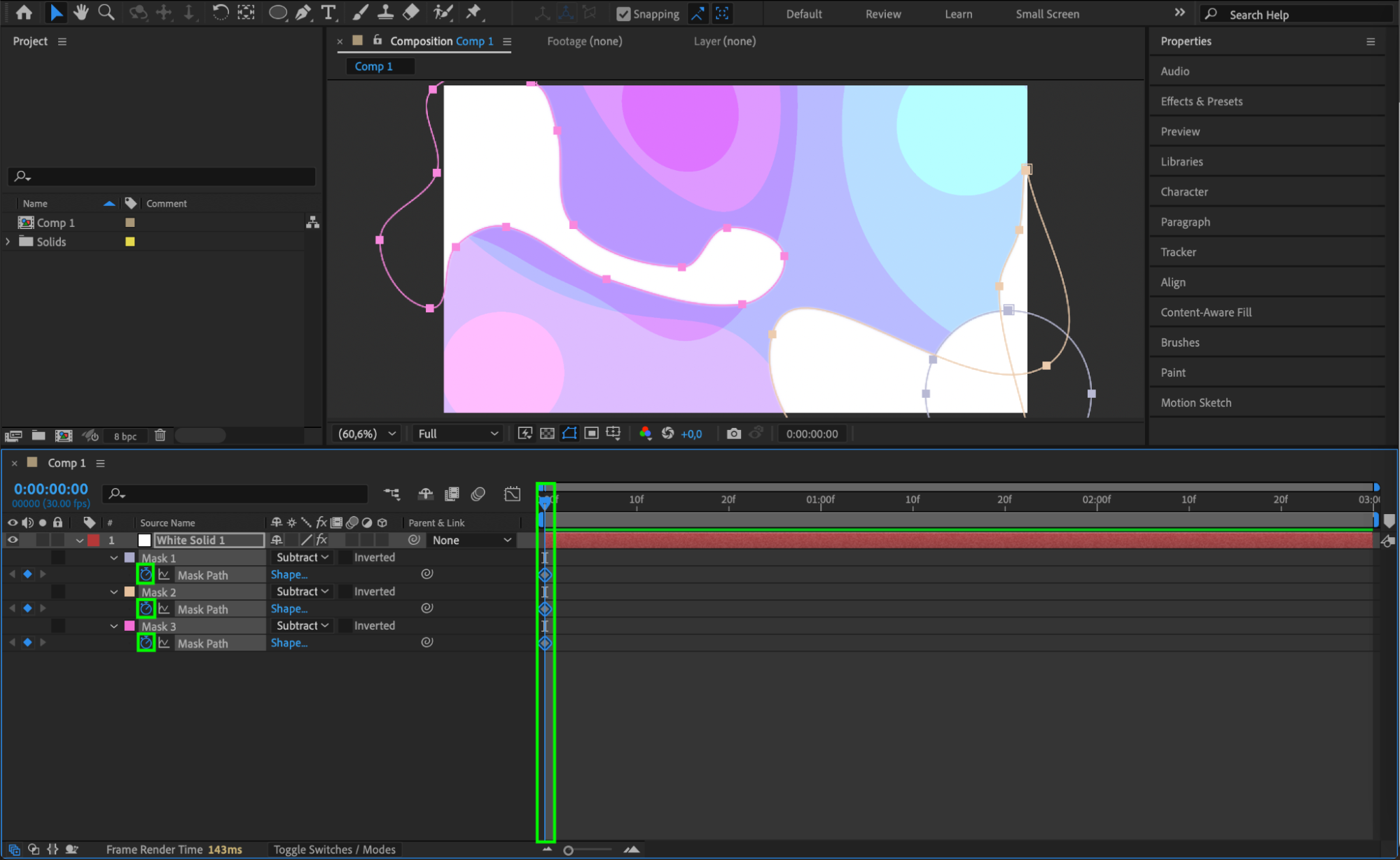
Step 5: Use Adjustment Layers for Unified Mask Effects
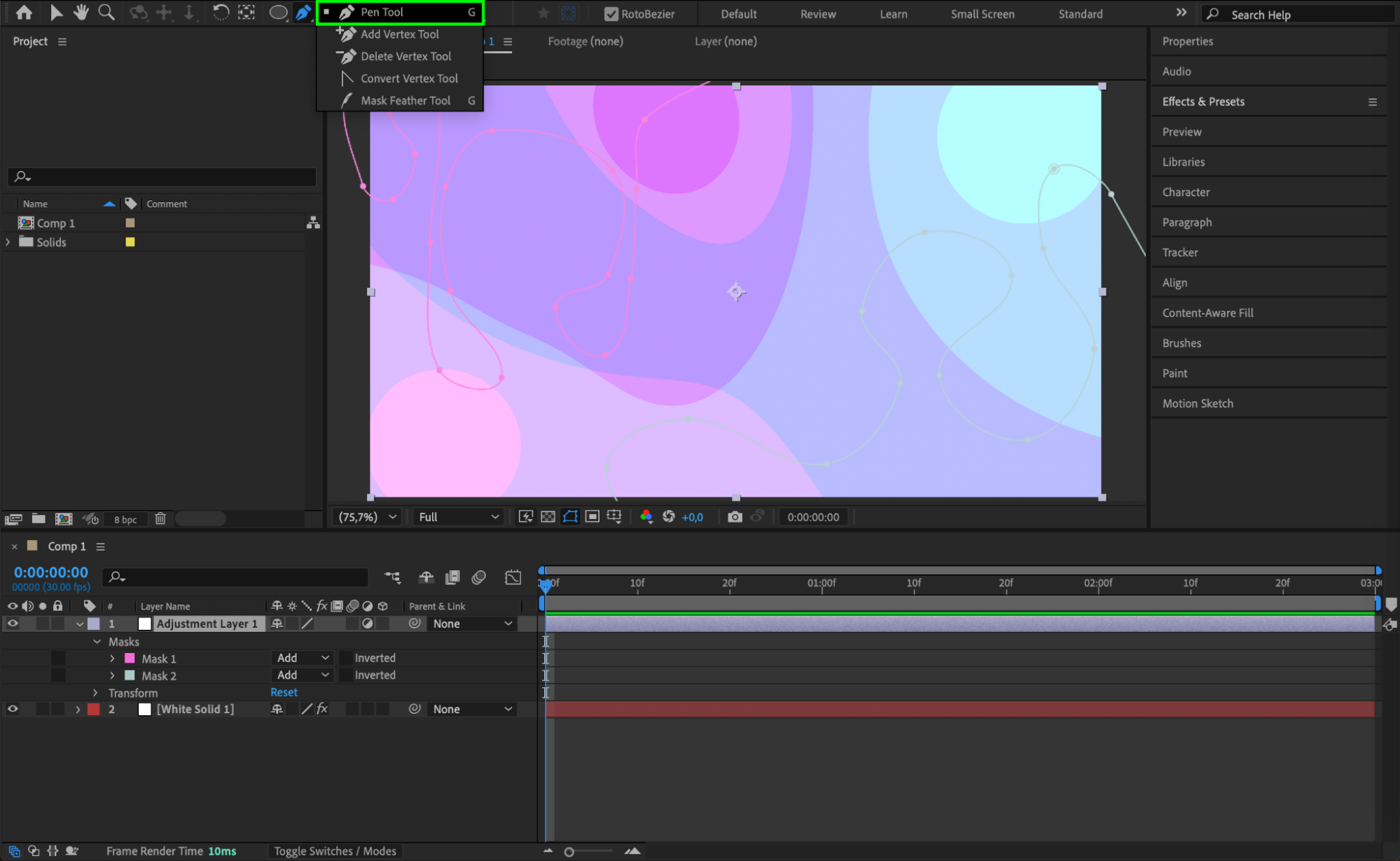
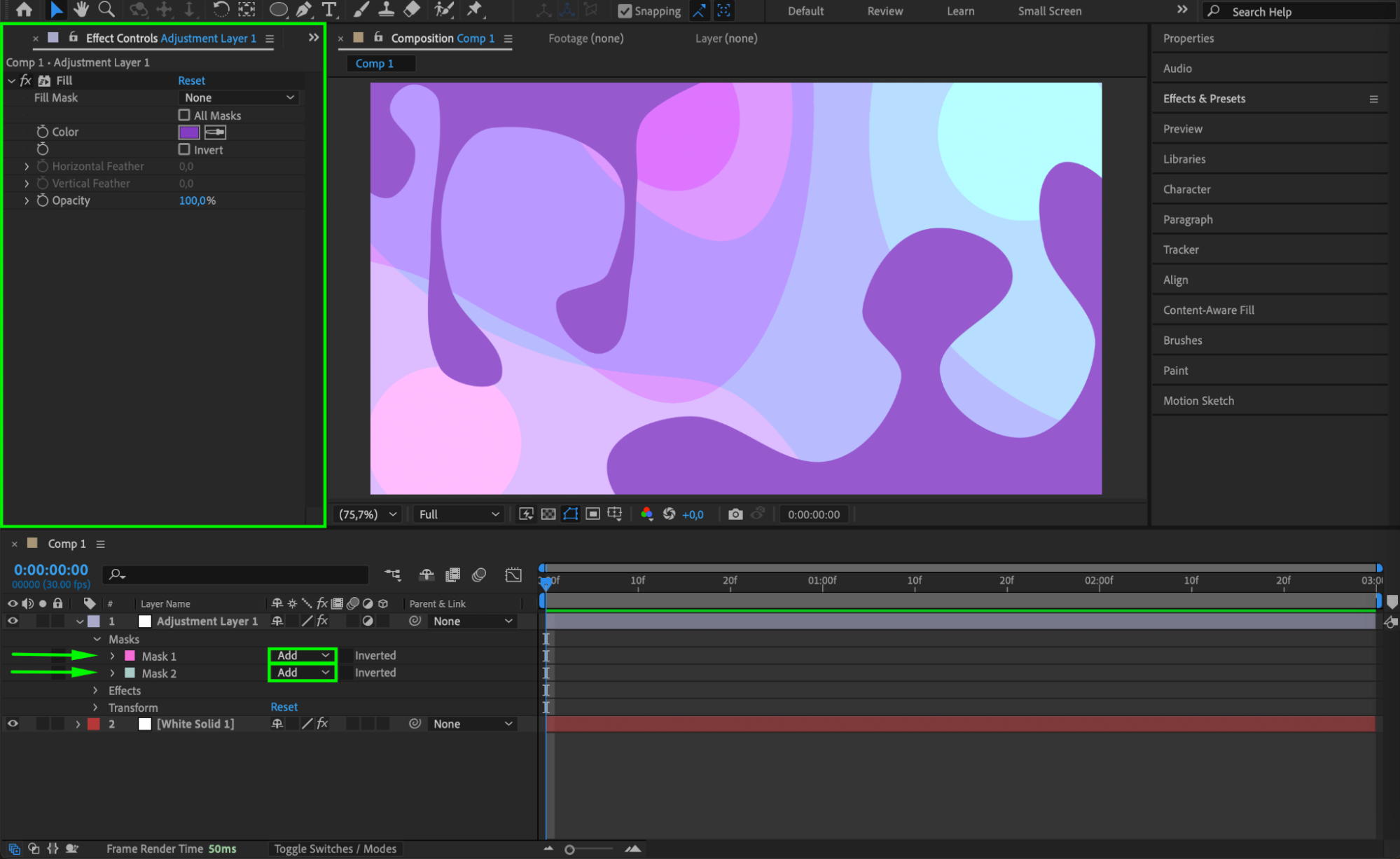
Another useful method is to go to Layer > New > Adjustment Layer, and draw masks directly on it using the Pen Tool (G). Set all masks to the same mode (e.g., Add or Subtract). Now any effect you apply to the adjustment layer will be limited to the masked area, and will apply uniformly across all masks.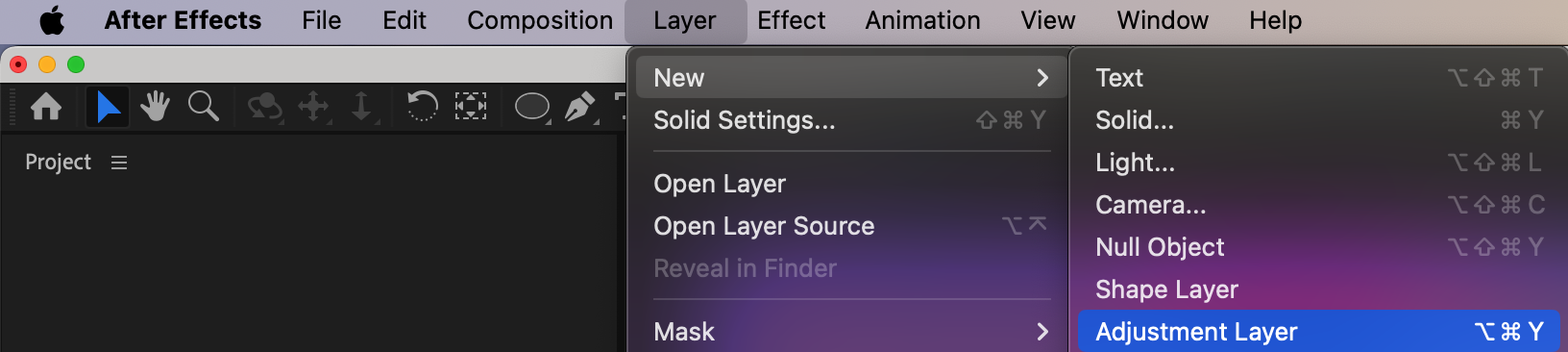
 Step 6: Preview the Mask Merge
Hit the Spacebar to preview your result in real time. This helps ensure the blending or animation between masks looks the way you intended.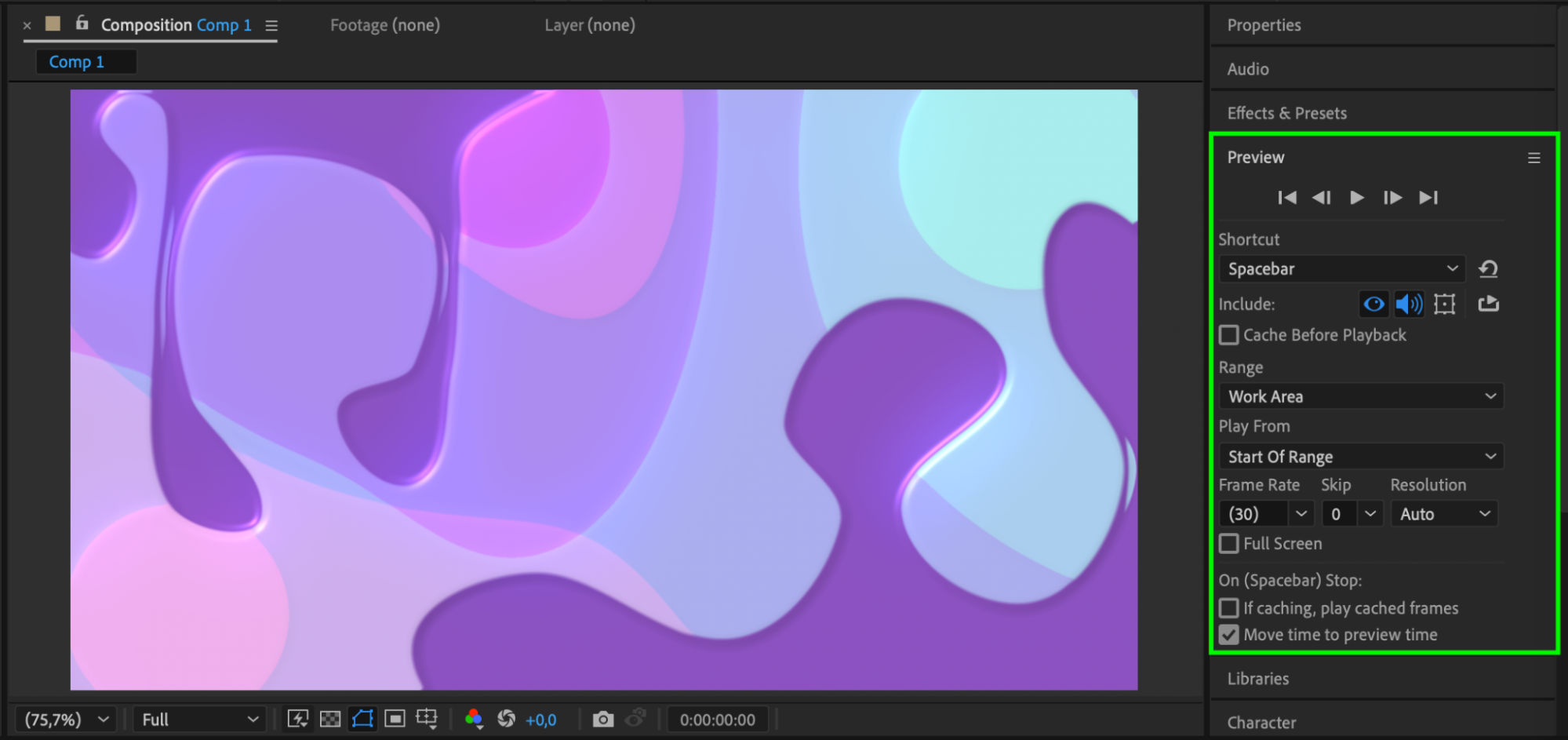 Step 7: Export the Final Result
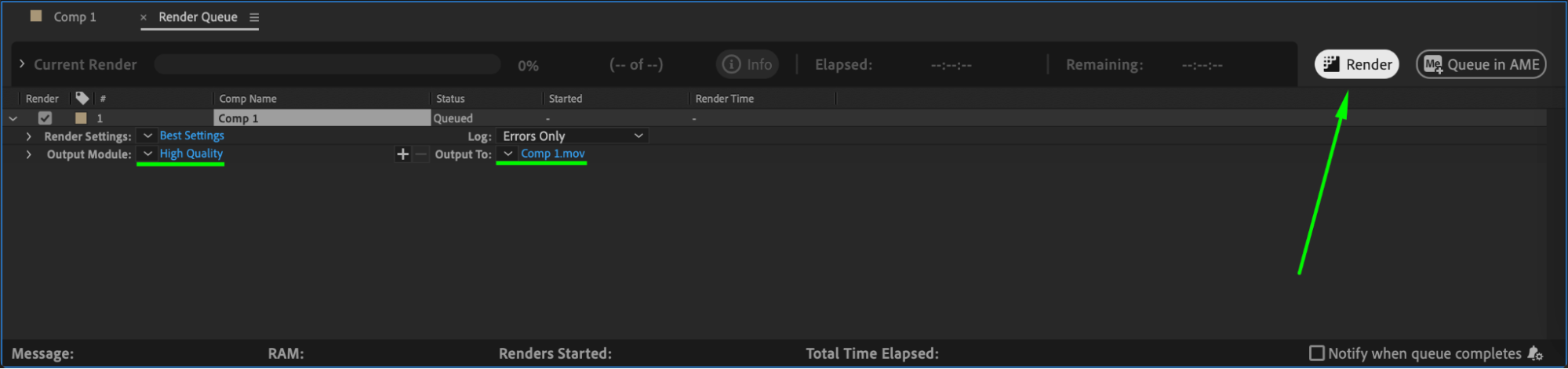
Once everything looks good, render your composition using the Render Queue or Media Encoder. This will output a video file with the merged and animated mask effects included.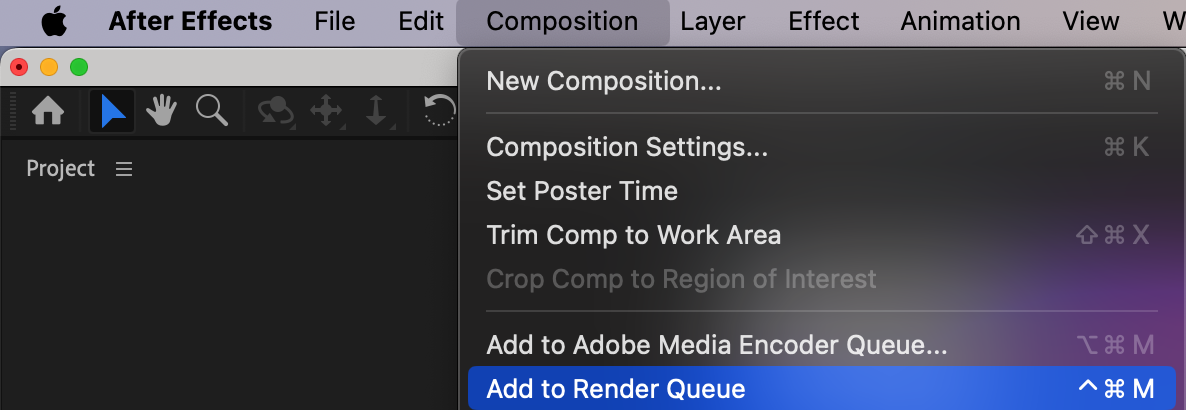
 Conclusion
Merging masks in After Effects opens up many creative possibilities – from building custom shapes to animating mask transitions. Whether you’re using Mask Modes, Path Animation, or Adjustment Layers, each method gives you more power to design visually rich effects with control and precision.
Our Bestsellers
Our Bestsellers


