
Creating a Morph Effect Between Pictures in After Effects
Introduction to Picture Morphing
Morphing images can add a surreal and cinematic feel to your video. In After Effects, you can simulate this effect using keyframes, masks, and distortion tools like Turbulent Displace. This tutorial walks you through the process step by step.
Step 1: Create a New Composition
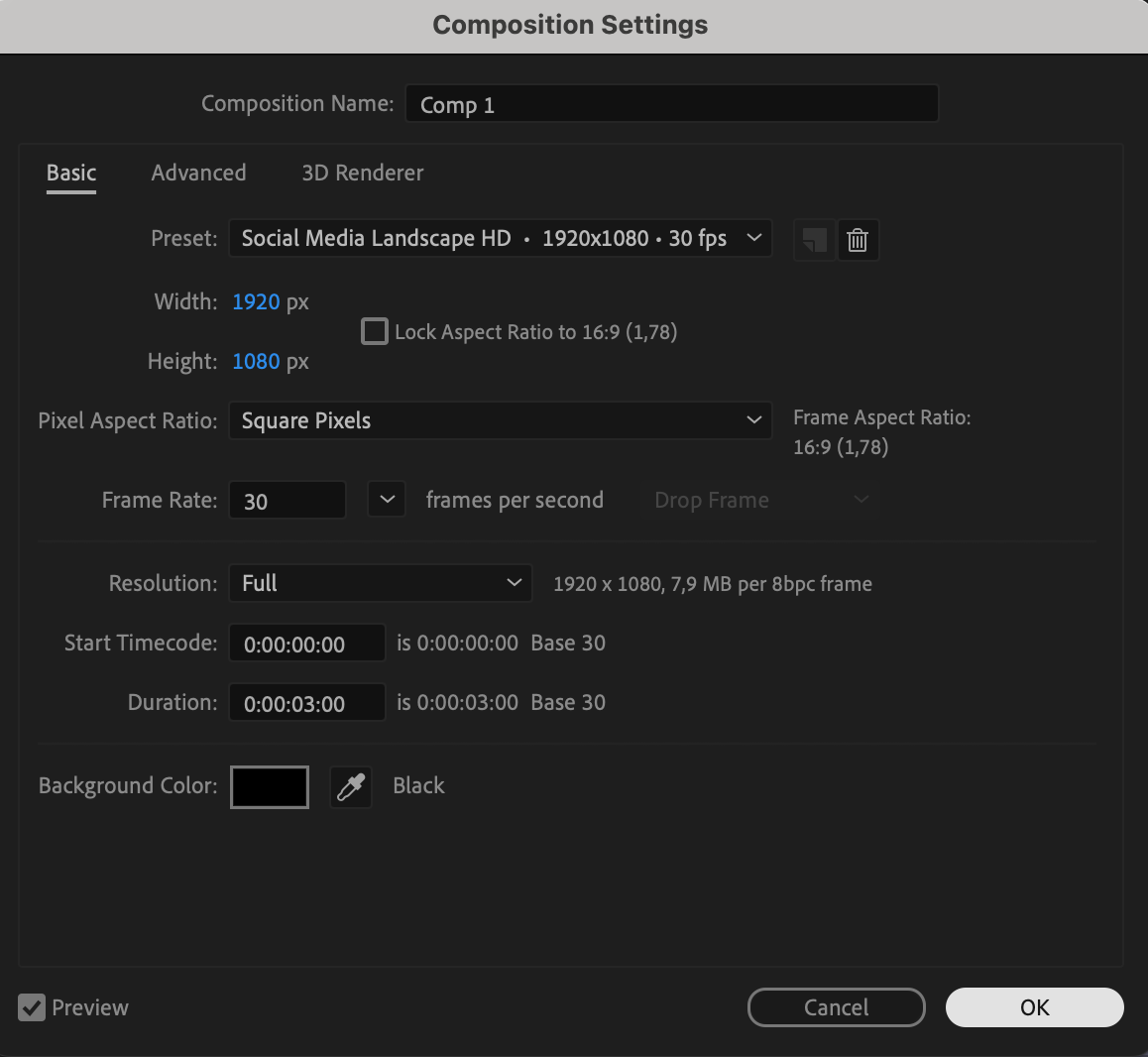
Go to Composition > New Composition, set the duration to 3 seconds, and click OK. This will be your main timeline for the morph transition.
 Step 2: Import and Add Images to Timeline
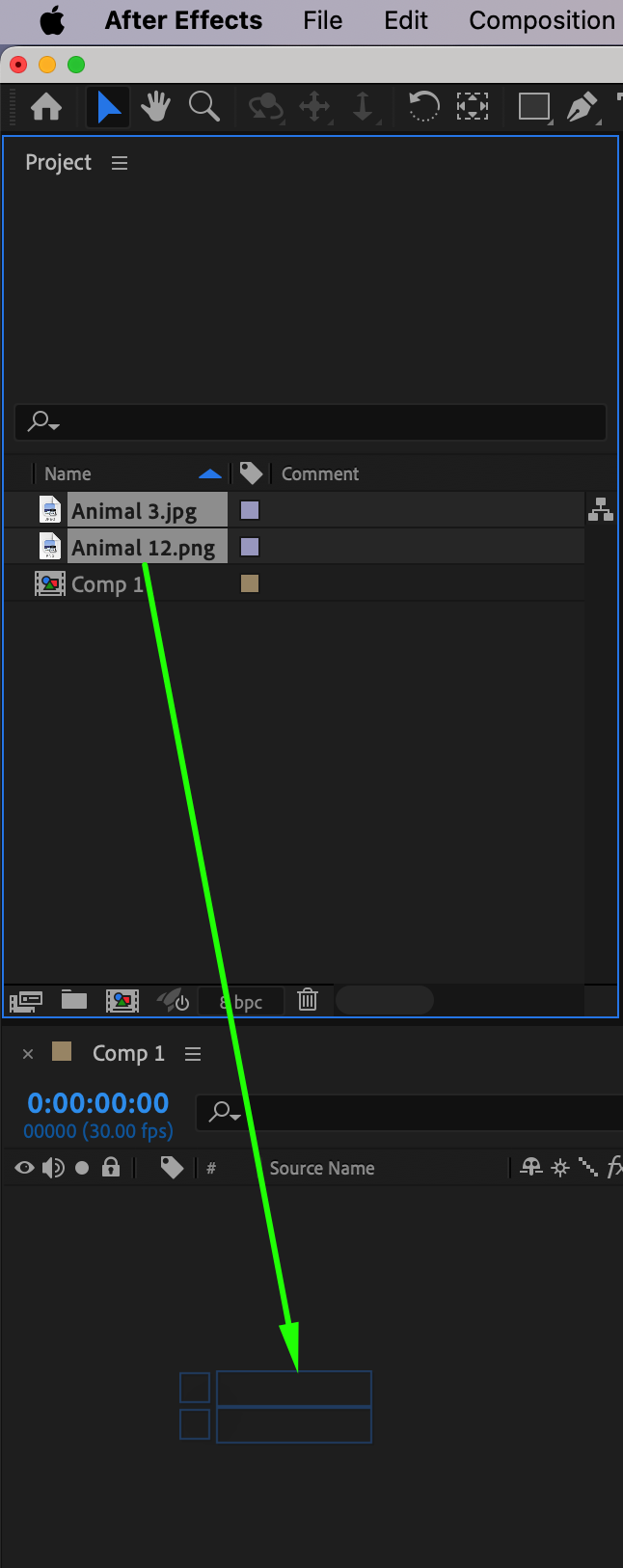
Use File > Import > File to bring your images into the project. Drag both images onto the timeline.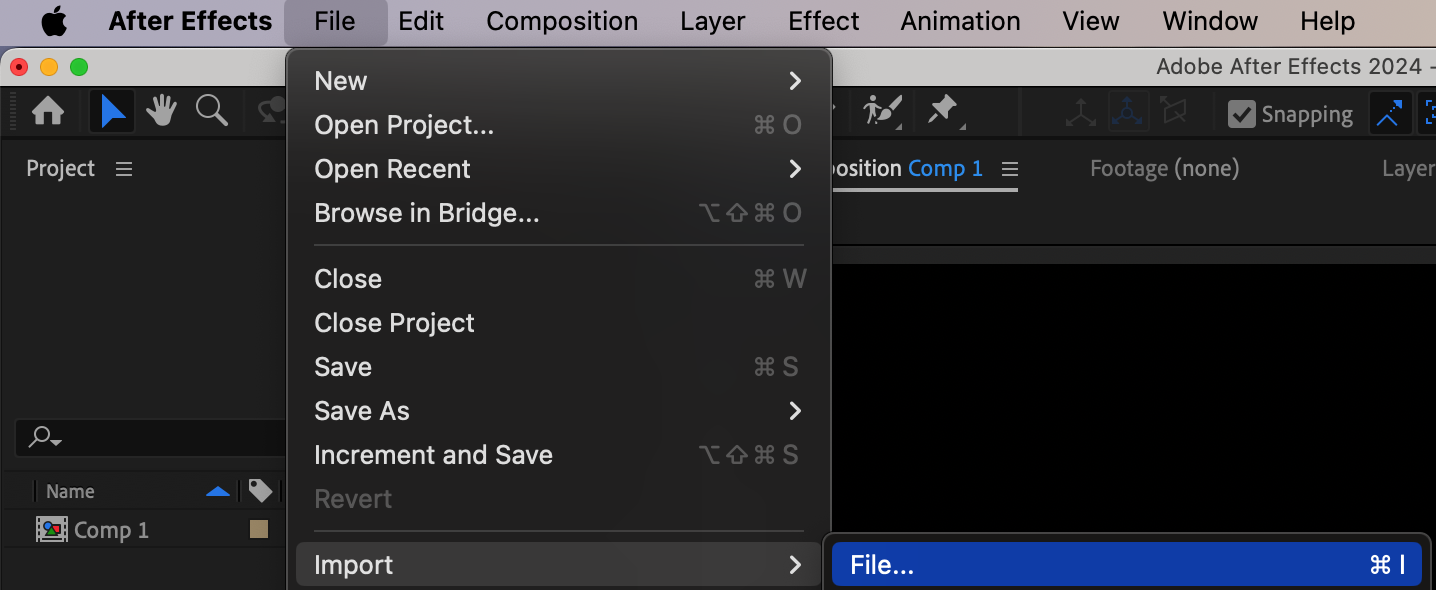
Step 3: Align Key Features
Lower the opacity of the top image to around 60% so you can see both images at the same time. Then, use the Selection Tool (V) to reposition and scale both images so that a specific feature (like the eyes) aligns perfectly between them. This makes the transition cleaner.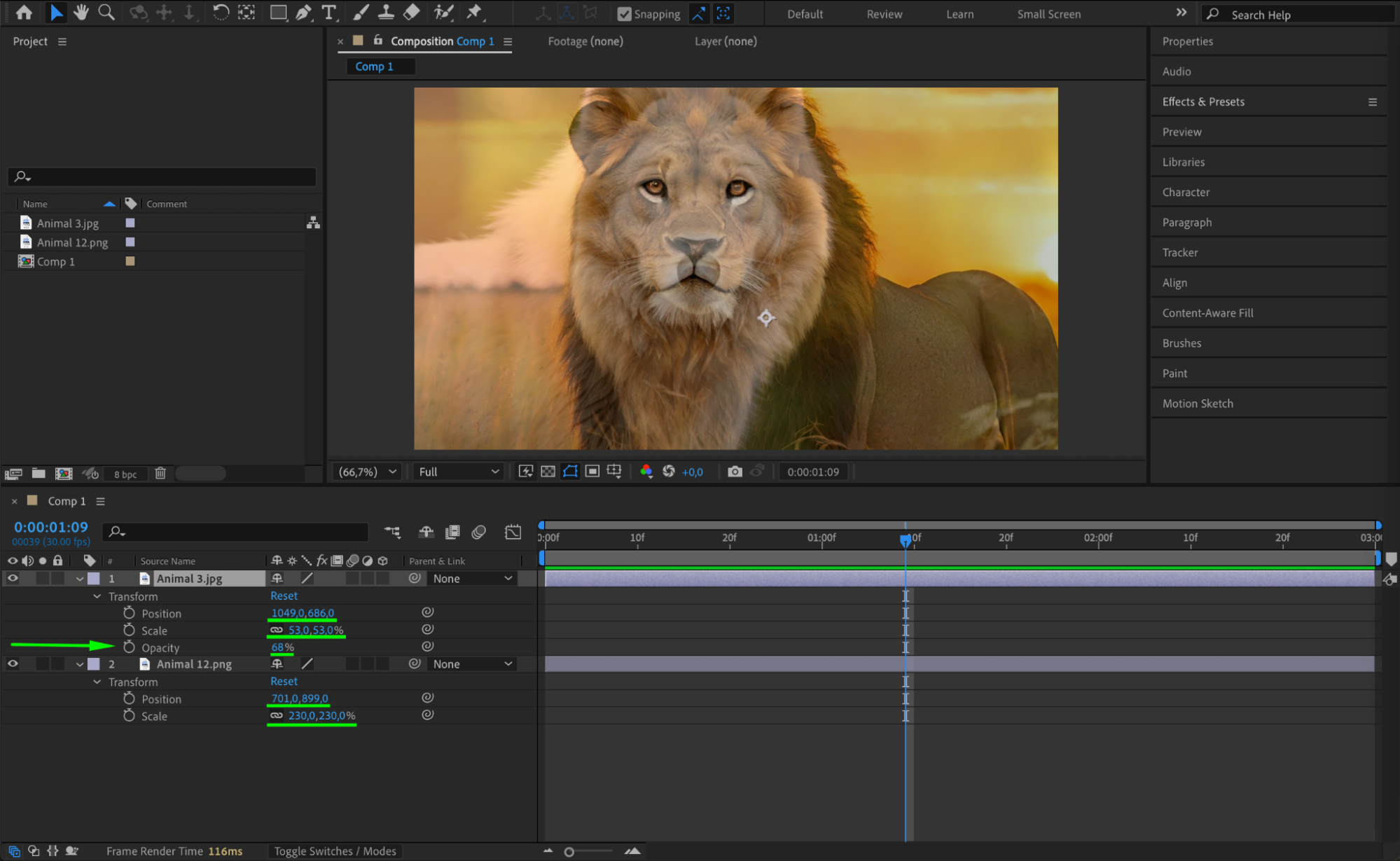 Step 4: Animate Opacity for Crossfade
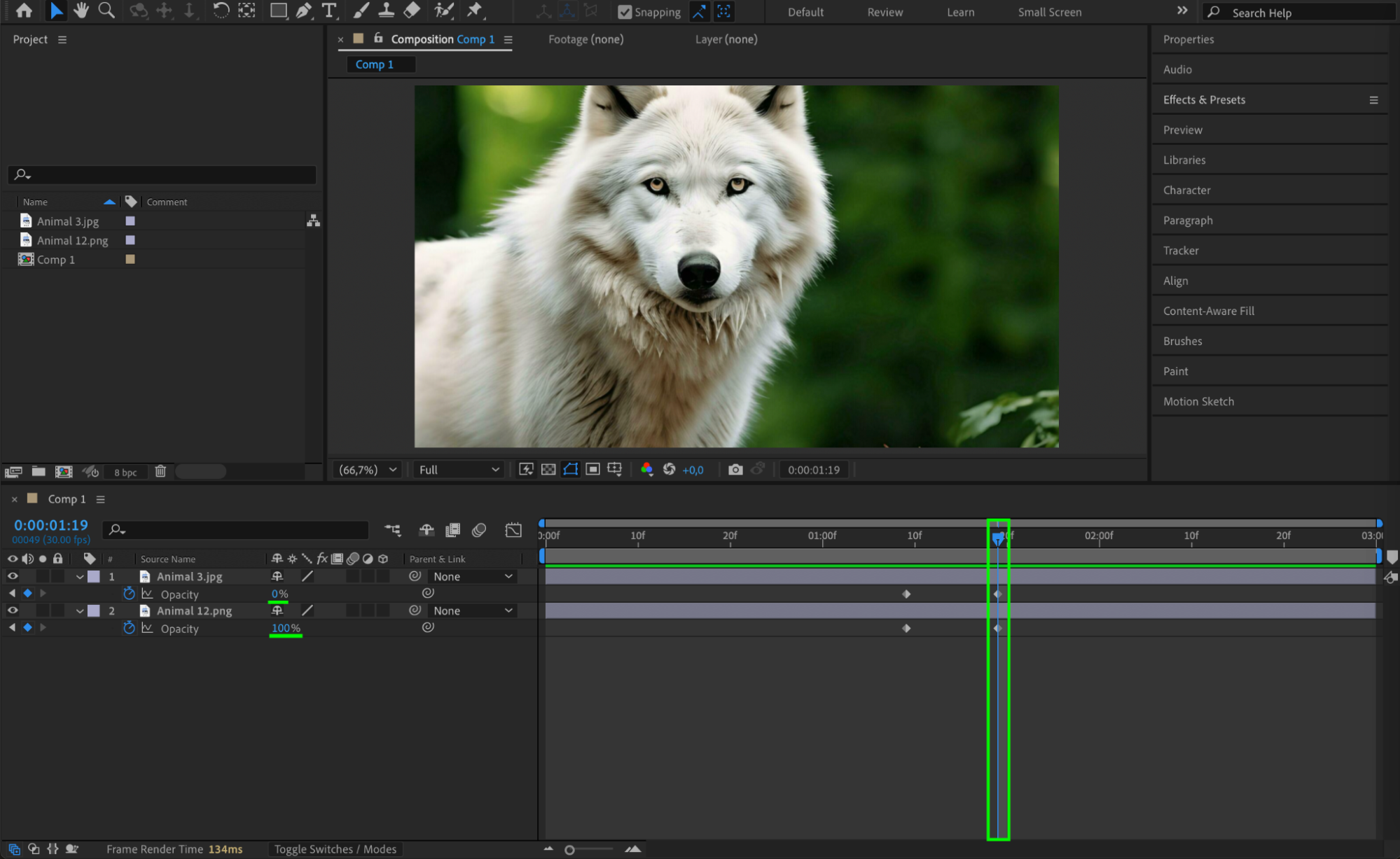
Move the CTI (Current Time Indicator) to the start of the transition. Set the opacity of the first image to 100% and the second image to 0%. Move forward 10 frames, then reverse the opacity values (first image to 0%, second image to 100%). This creates a smooth crossfade.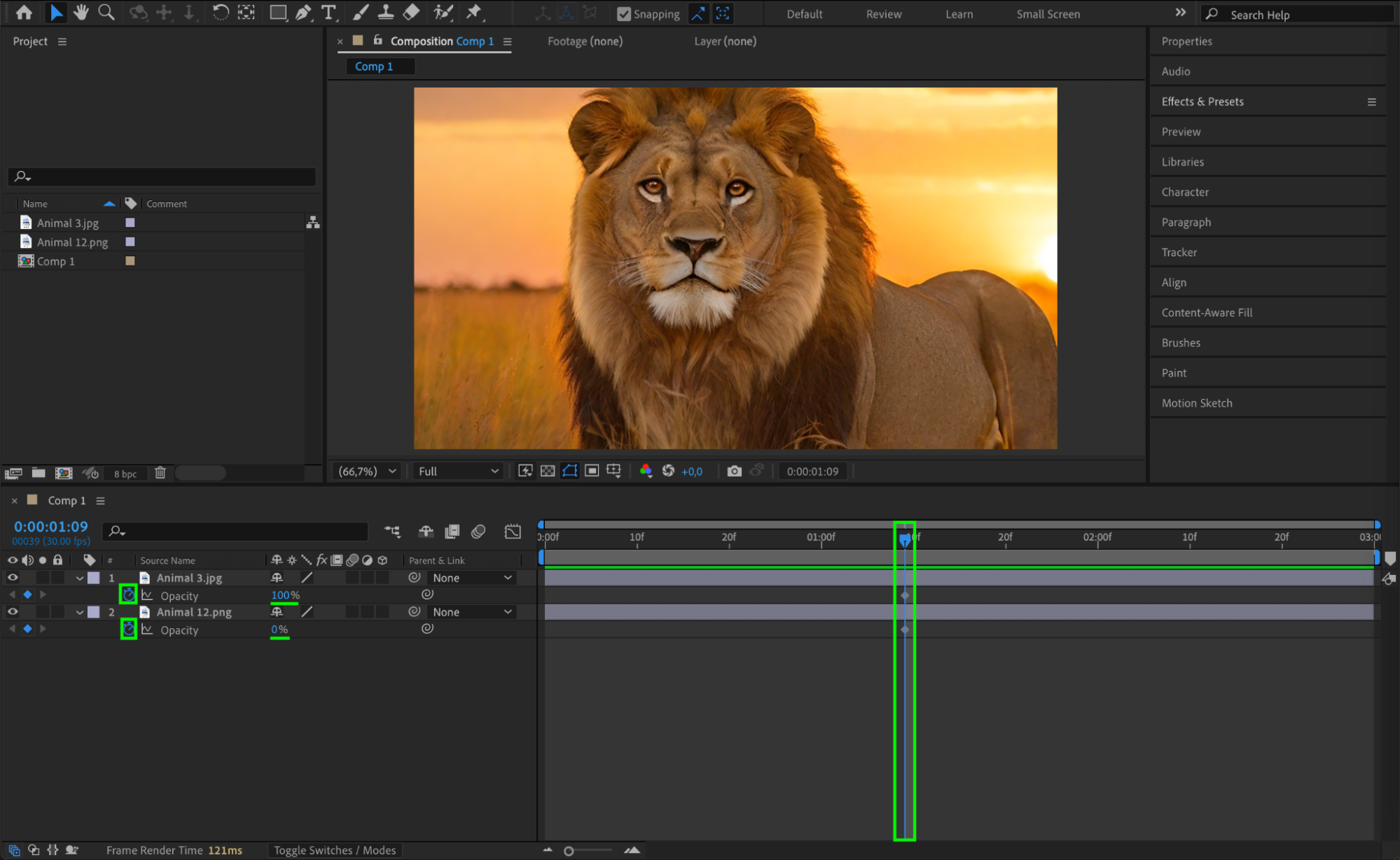
 Step 5: Smooth Keyframes
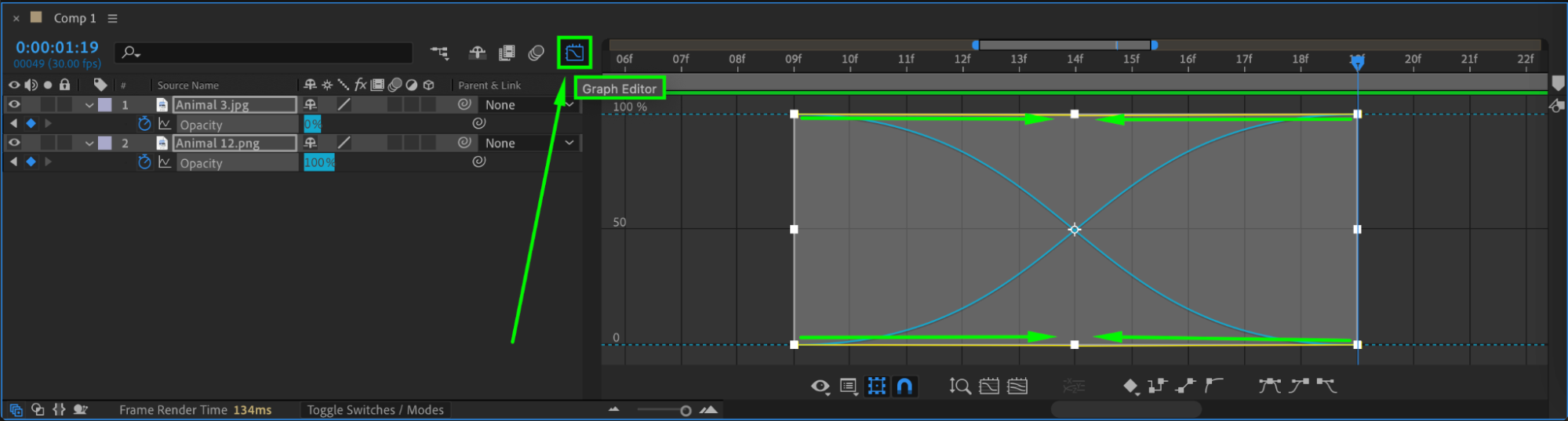
Select all four opacity keyframes, right-click > Keyframe Assistant > Easy Ease. Then open the Graph Editor and adjust the curve for smoother animation speed.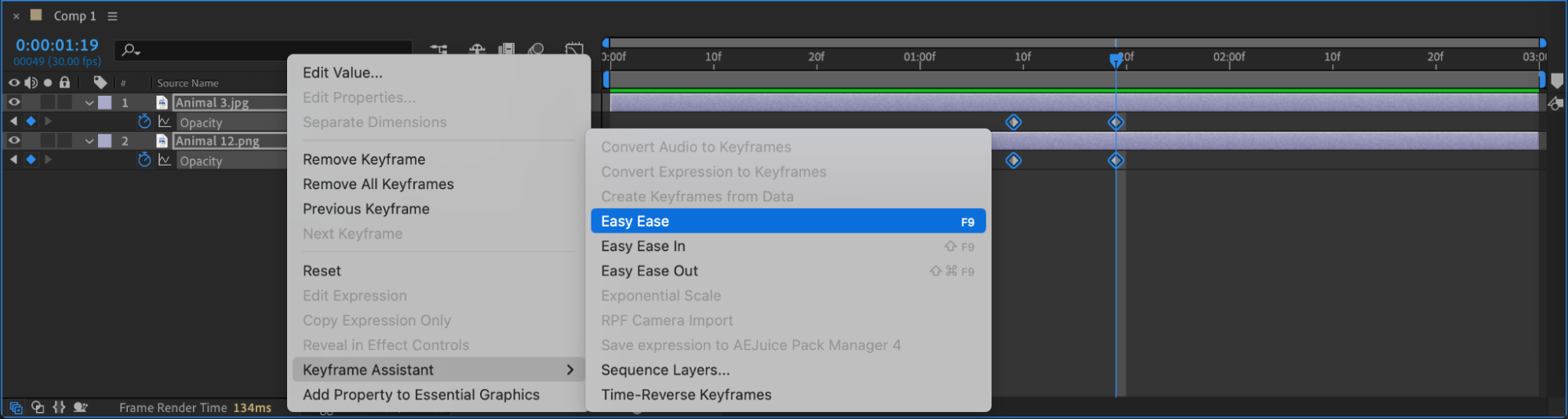
Step 6: Add an Adjustment Layer for Distortion
Go to Layer > New > Adjustment Layer. Shorten its duration to 6 frames and place it above both images, exactly between the start and end of the transition.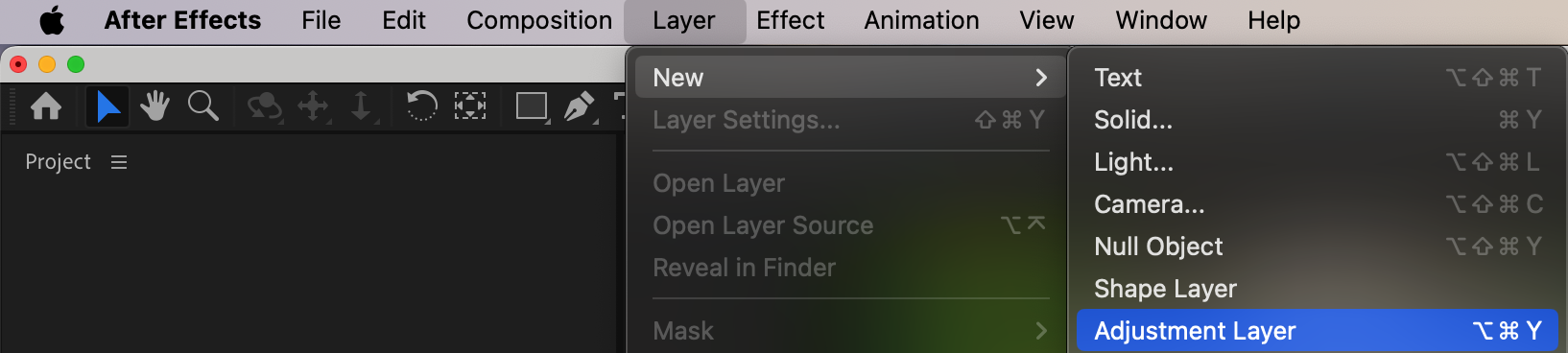 Step 7: Mask Key Feature
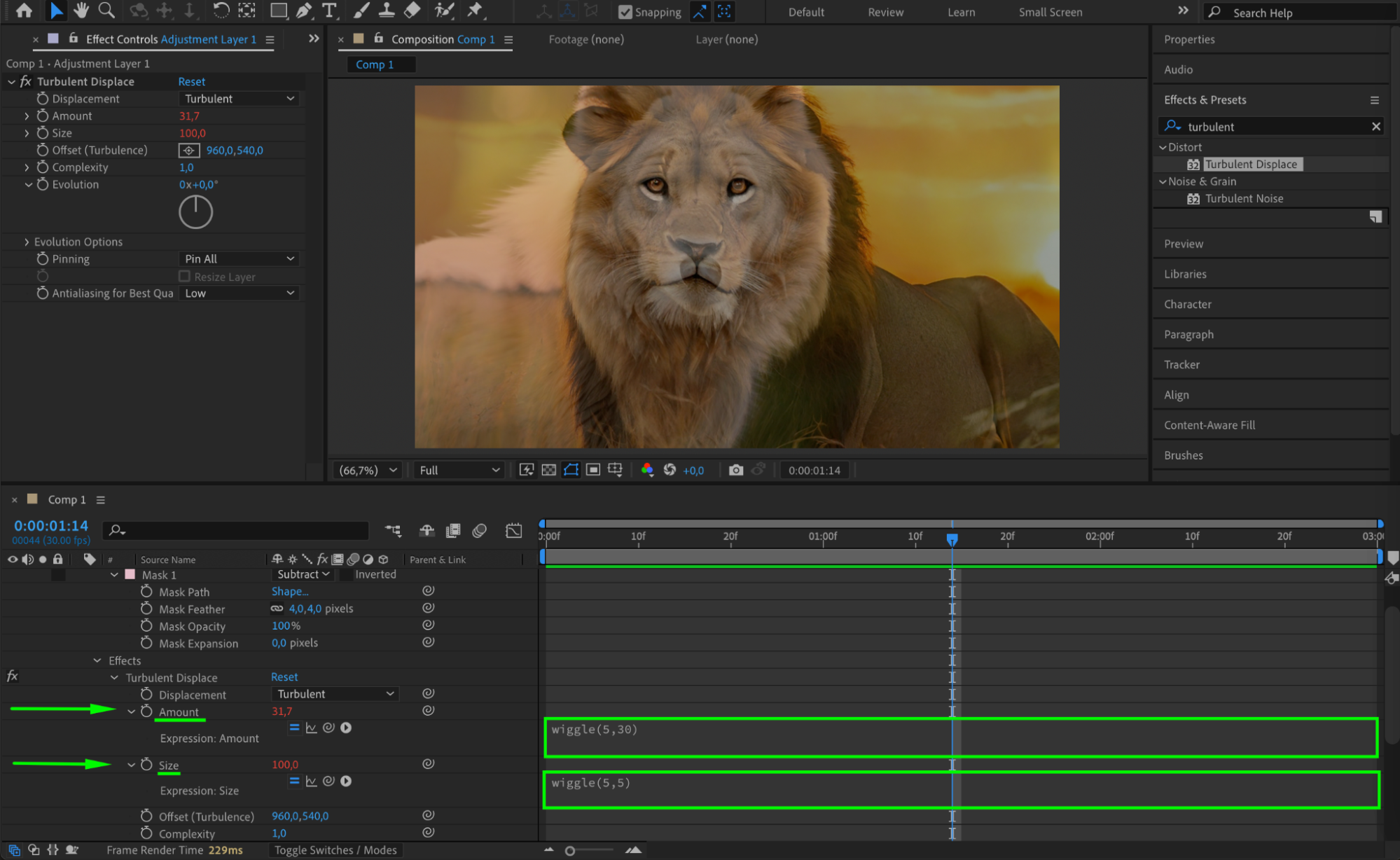
Use the Rectangle Tool (Q) to draw a mask around the area you do not want to distort (for example, the eyes). Set the mask mode to Subtract so the distortion only affects the area outside the mask. Then, apply a Mask Feather of around 4 pixels to create a smooth and natural blend between the masked and distorted areas.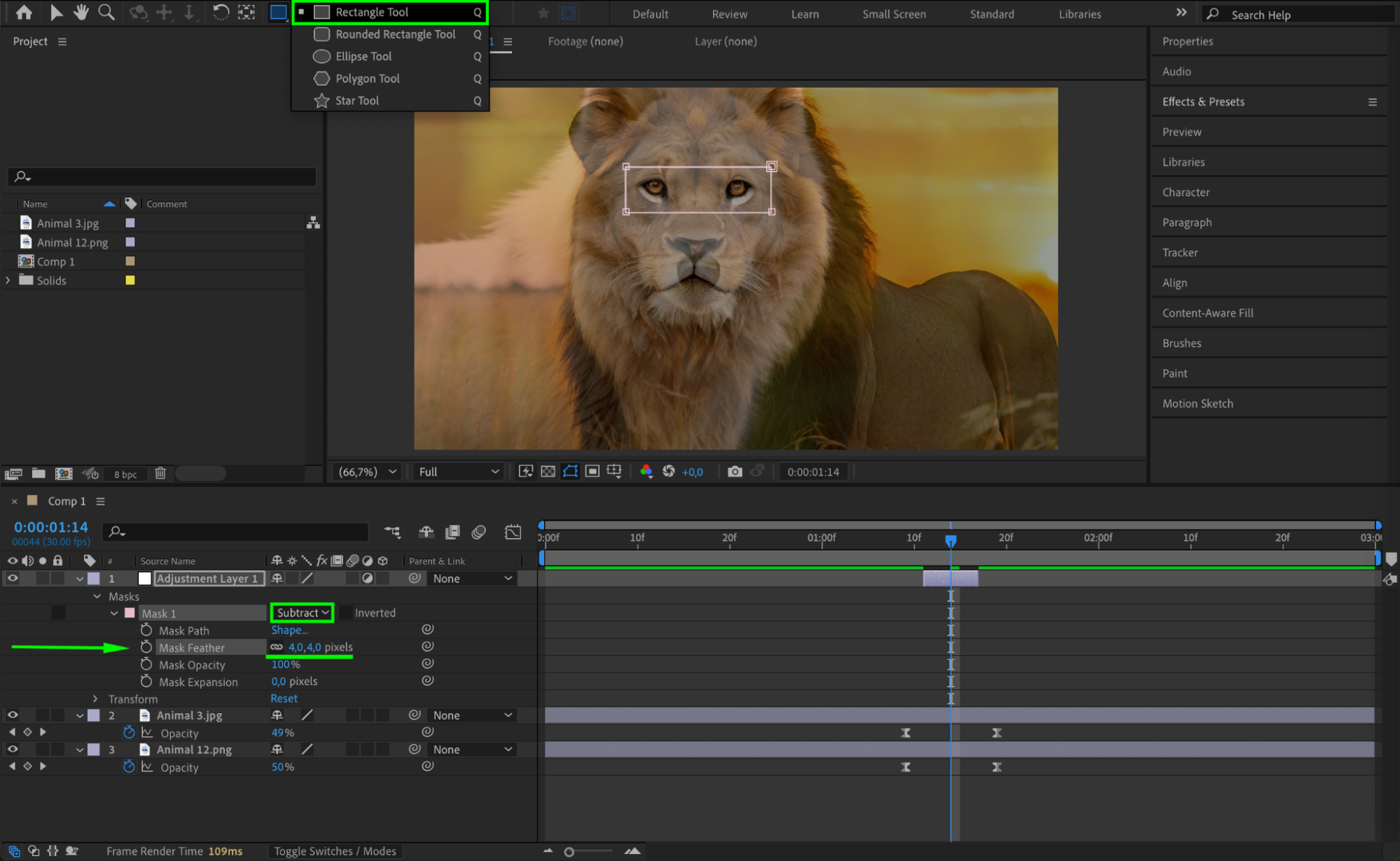 Step 8: Apply Distortion Effects
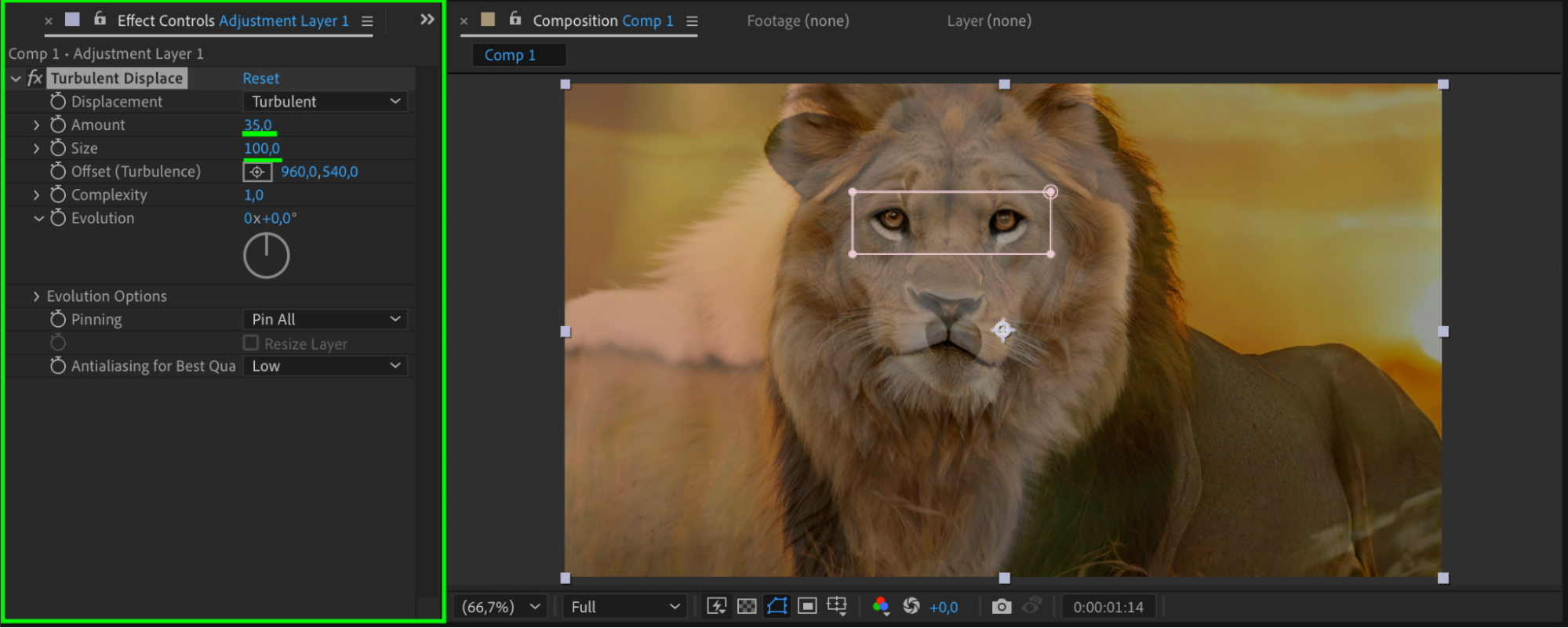
Select the adjustment layer and apply the Turbulent Displace effect. Set:
Amount to 35, then Alt/Option-click the stopwatch and enter wiggle(5,30)
Size to 100, then Alt/Option-click and enter wiggle(5,5)
This creates a subtle warping during the morph.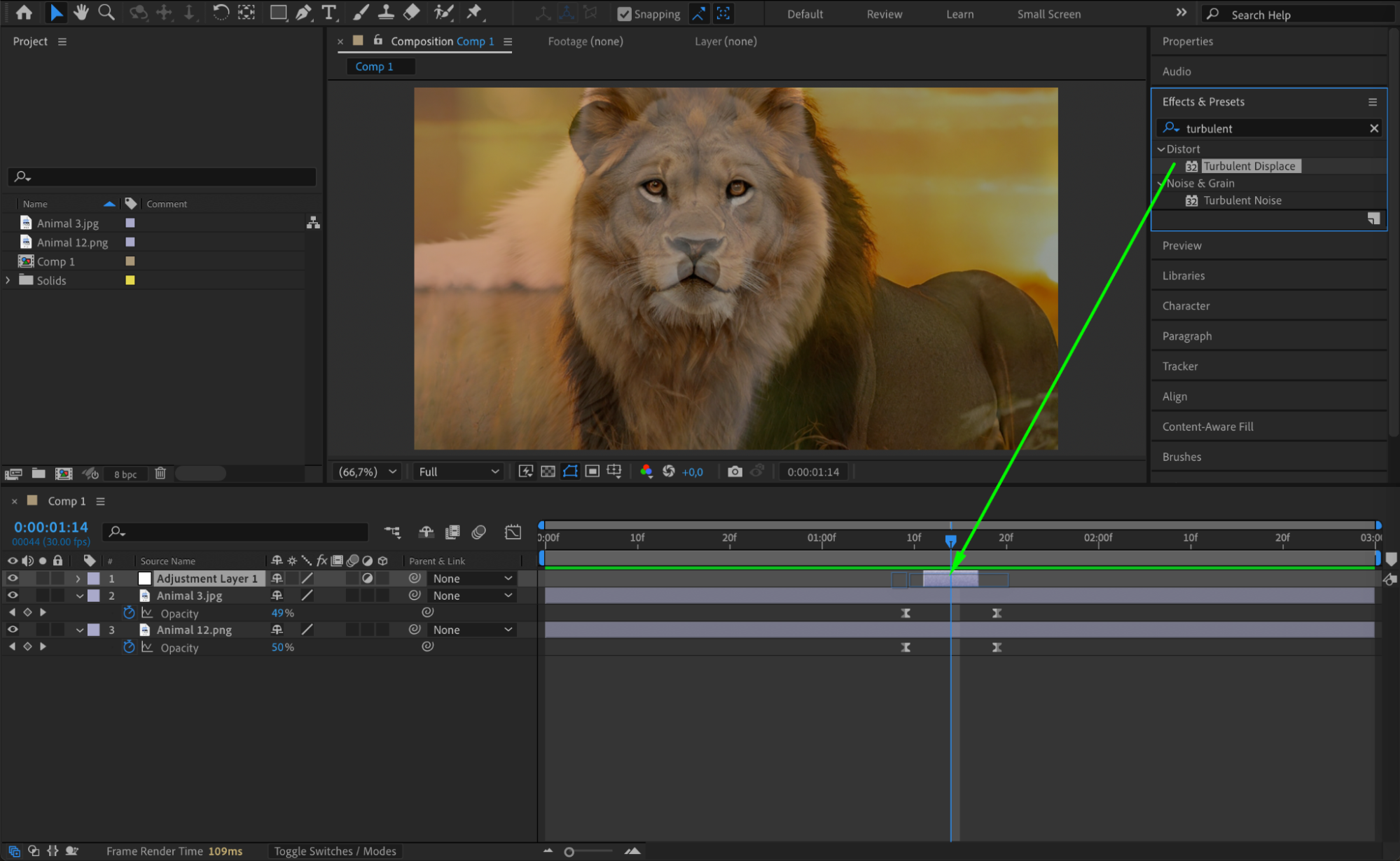
 Step 9: Preview the Animation
Press the spacebar to preview your morph. The combination of crossfade, alignment, and distortion should give a smooth and stylized transition.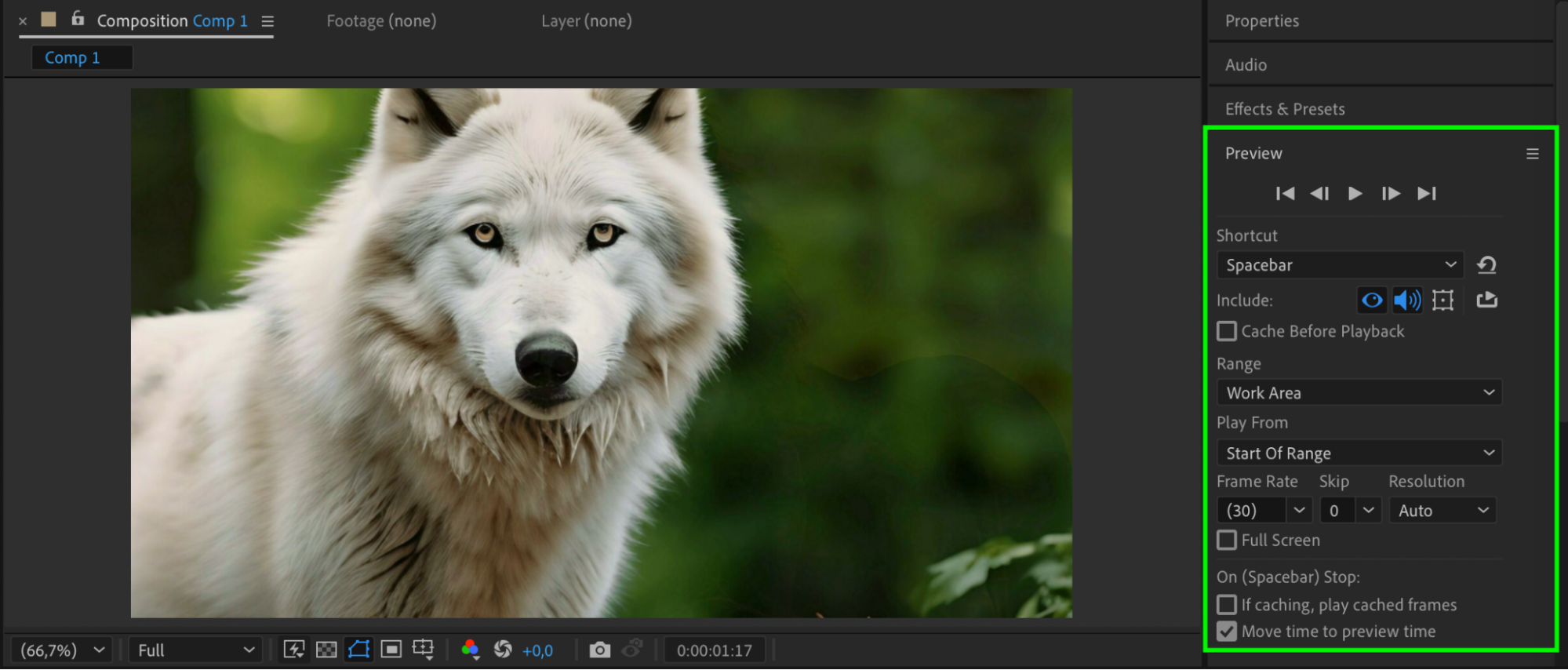 Conclusion
By combining opacity transitions, precise alignment, and animated distortion effects, you can create an effective morph between two pictures. This technique is great for visual storytelling, dream sequences, or creative edits in music videos and motion graphics.
Our Bestsellers
Our Bestsellers


