
Introduction
When working in After Effects, you may want a mask to move independently from the layer it’s applied to. This is useful for tracking, reveals, and custom animations. Follow the steps below to easily reposition or animate a mask separately from the layer.
Step 1: Select the Layer and Reveal the Mask
Click the layer that contains your mask and press “MM” quickly to reveal all mask properties. This gives you full access to Mask Path, Feather, Expansion, and Opacity so you can start editing the mask independently.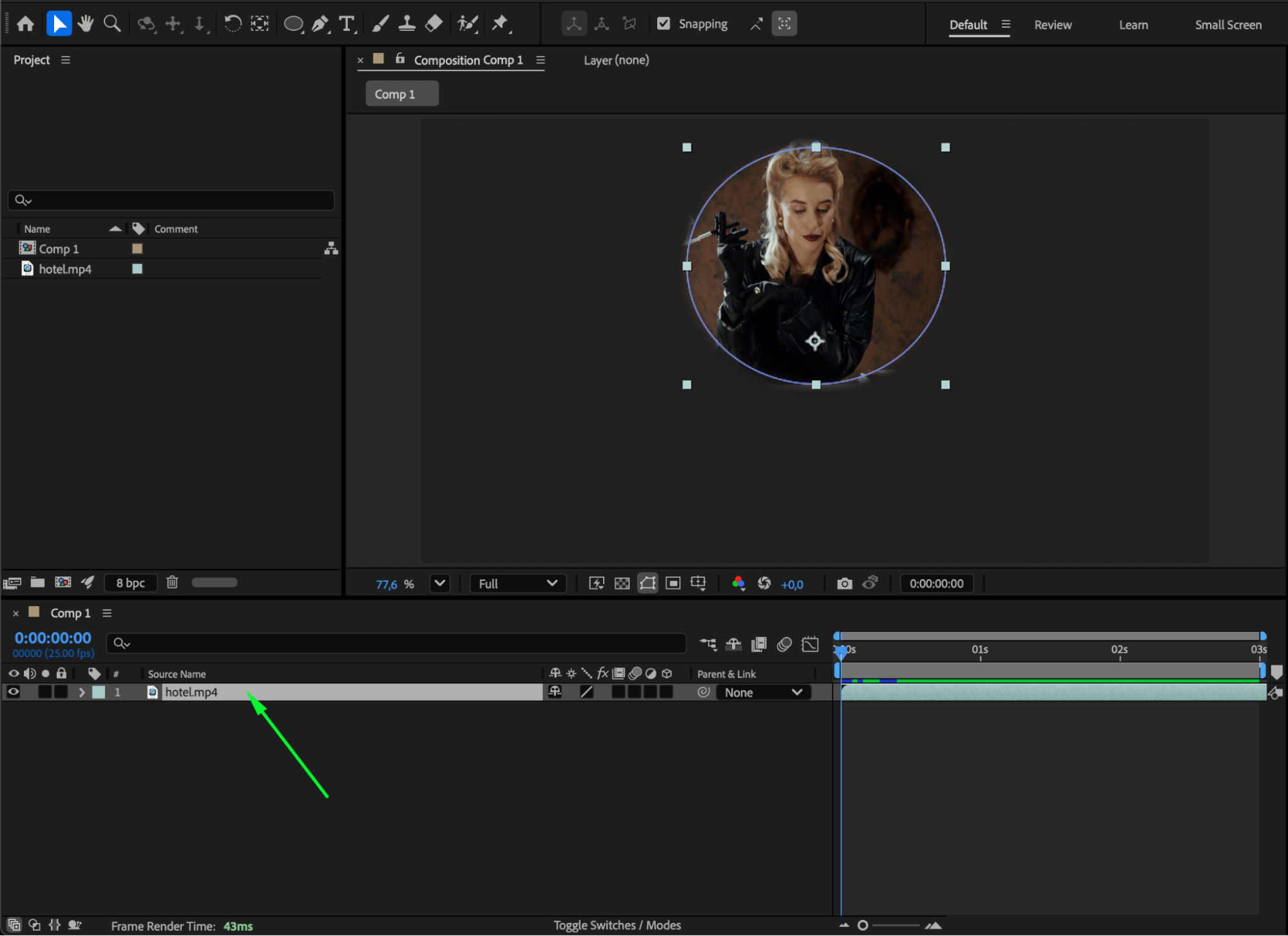 Step 2: Move the Mask Using the Mask Path
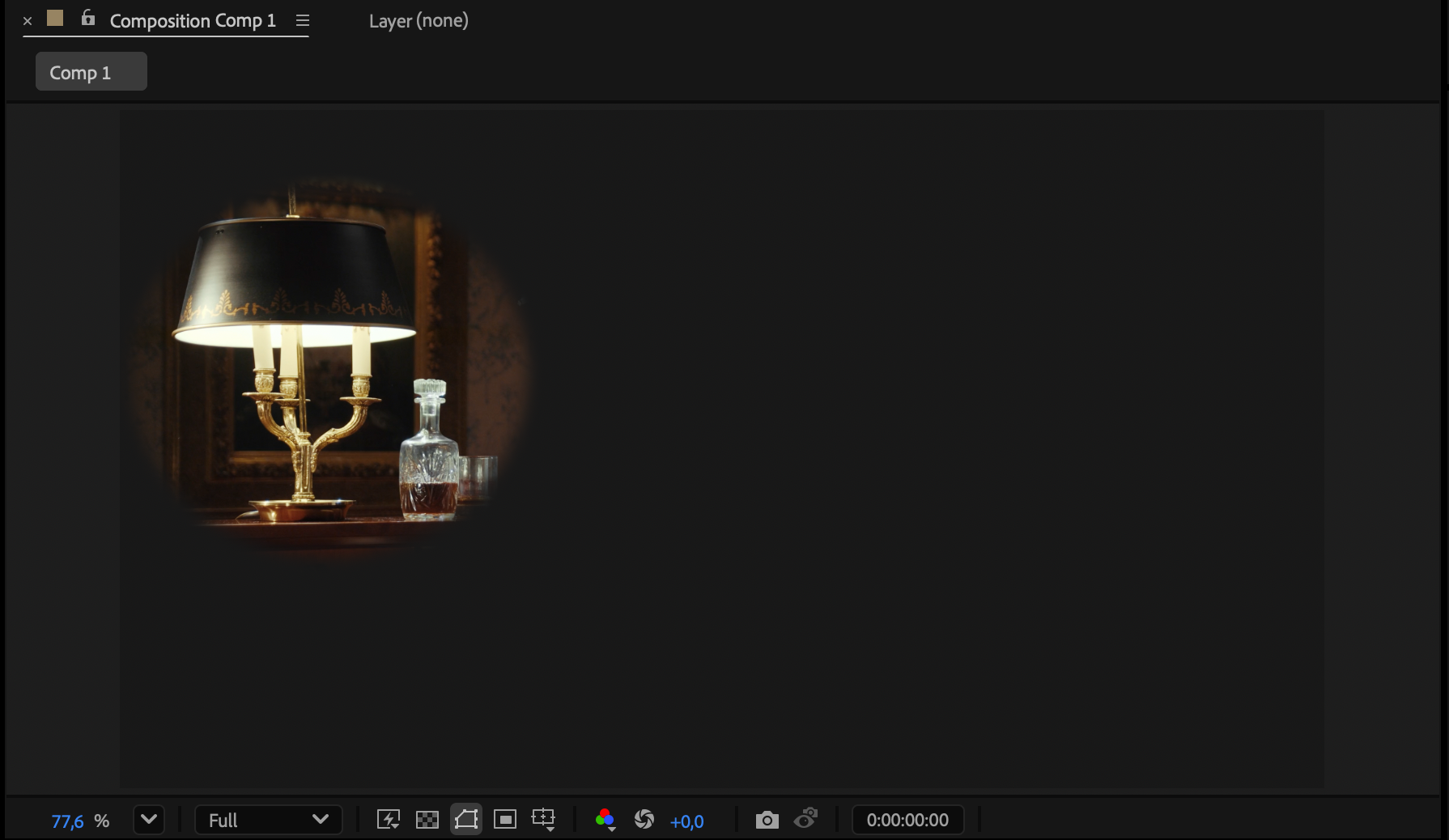
First click on Mask Path, then click any point of the mask, and drag to move the whole mask around the Composition panel. This shifts the mask without affecting the layer’s position.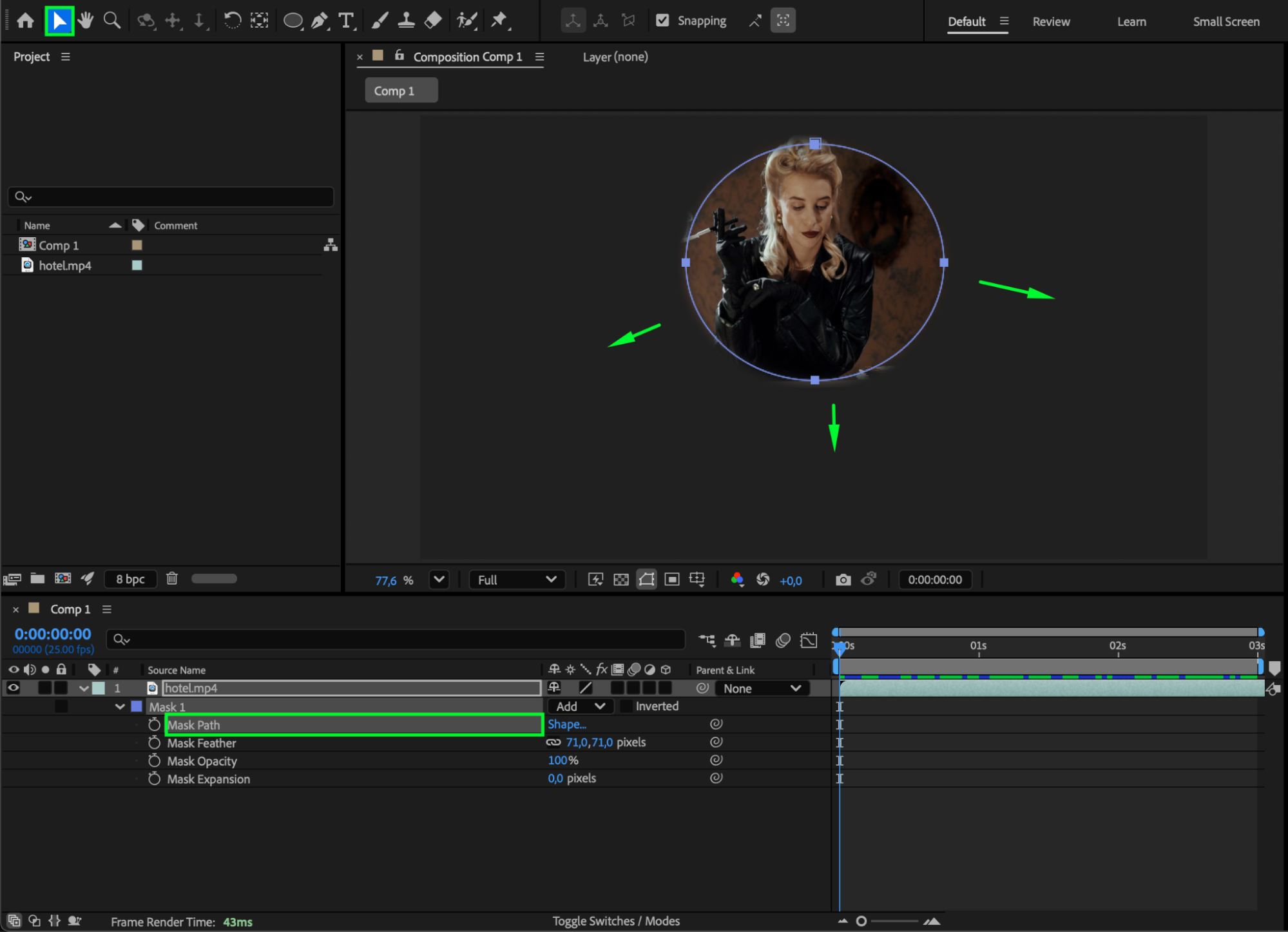
Step 3: Adjust Individual Mask Points
For more precise control, first click the video layer to activate it, then use the Selection Tool to click and move individual points or Bezier handles. This allows you to reshape or reposition specific parts of the mask independently of the layer.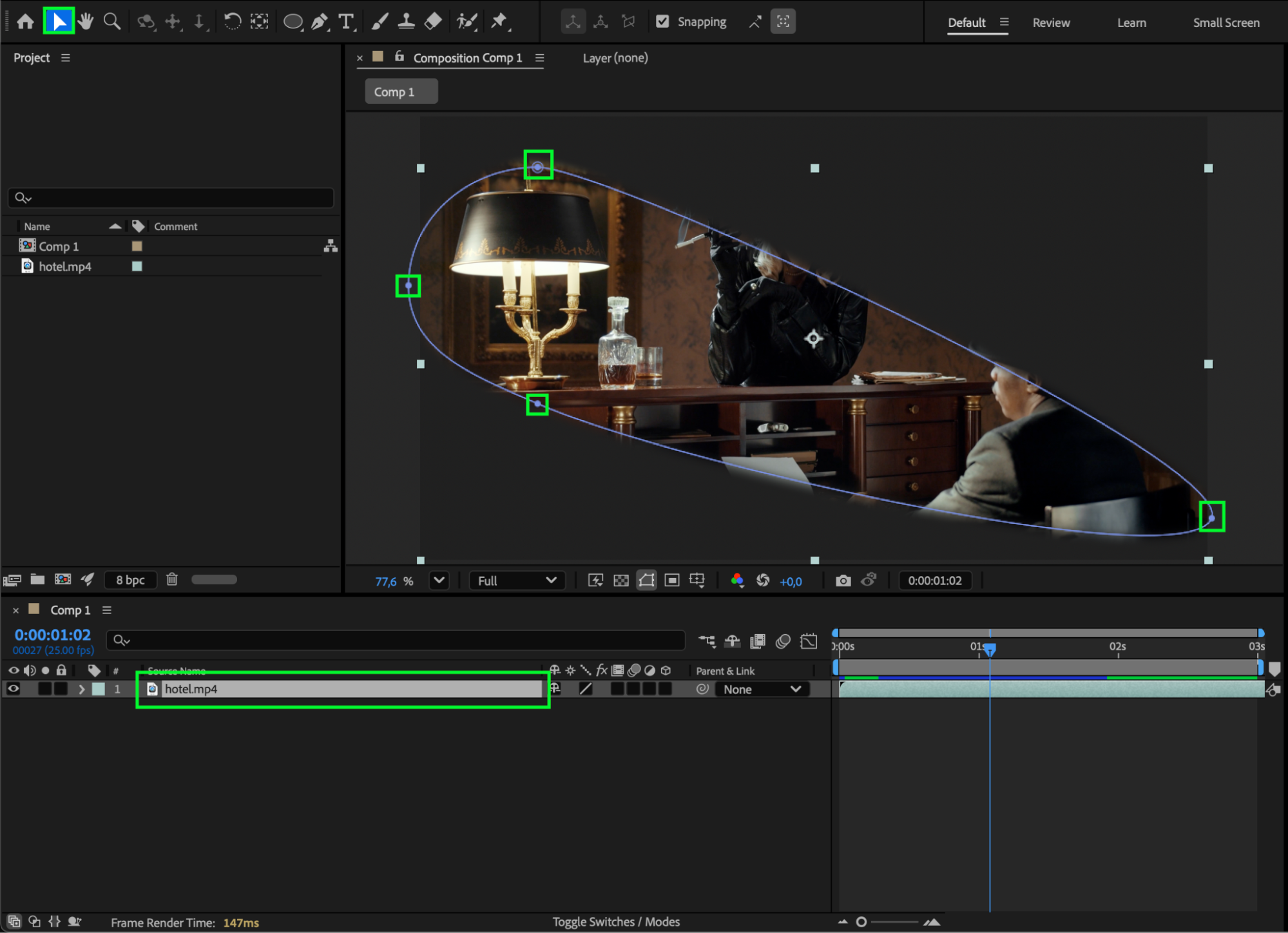 Step 4: Animate the Mask Path (Optional)
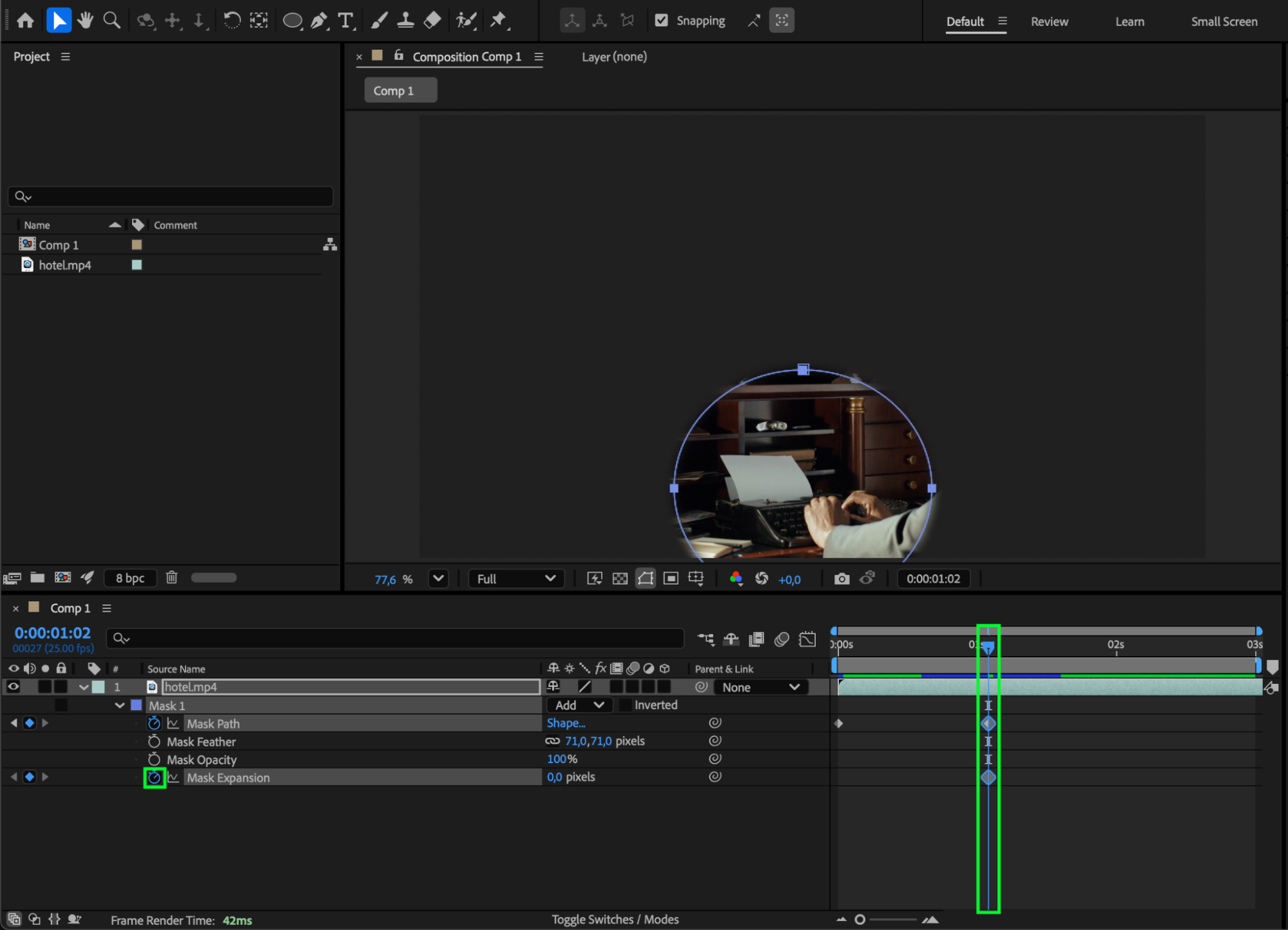
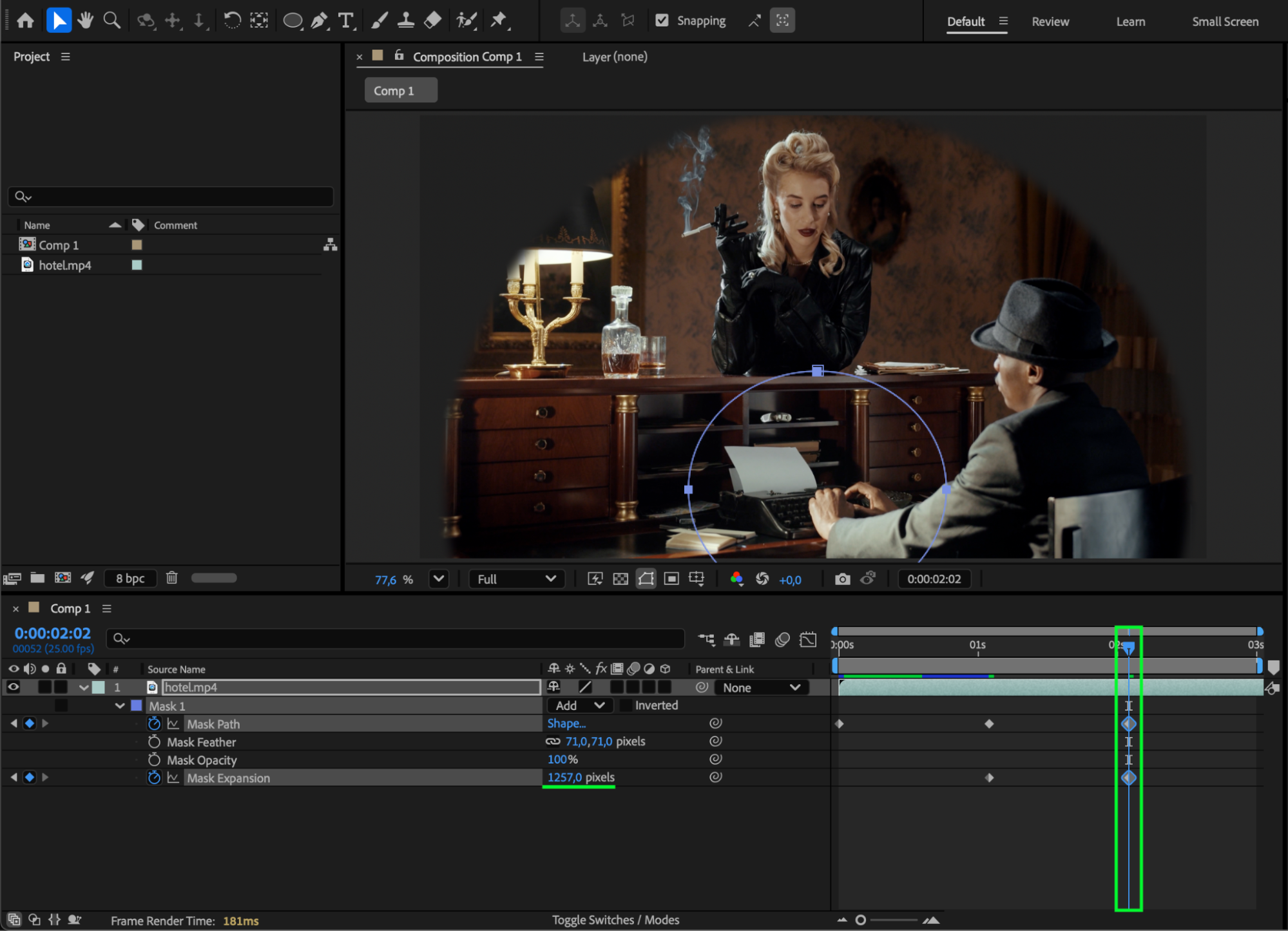
If you want the mask to move over time, click the stopwatch next to Mask Path to add your first keyframe. Then reposition the mask or its points at different times in the timeline. After Effects will animate the motion between keyframes, giving you smooth mask movement.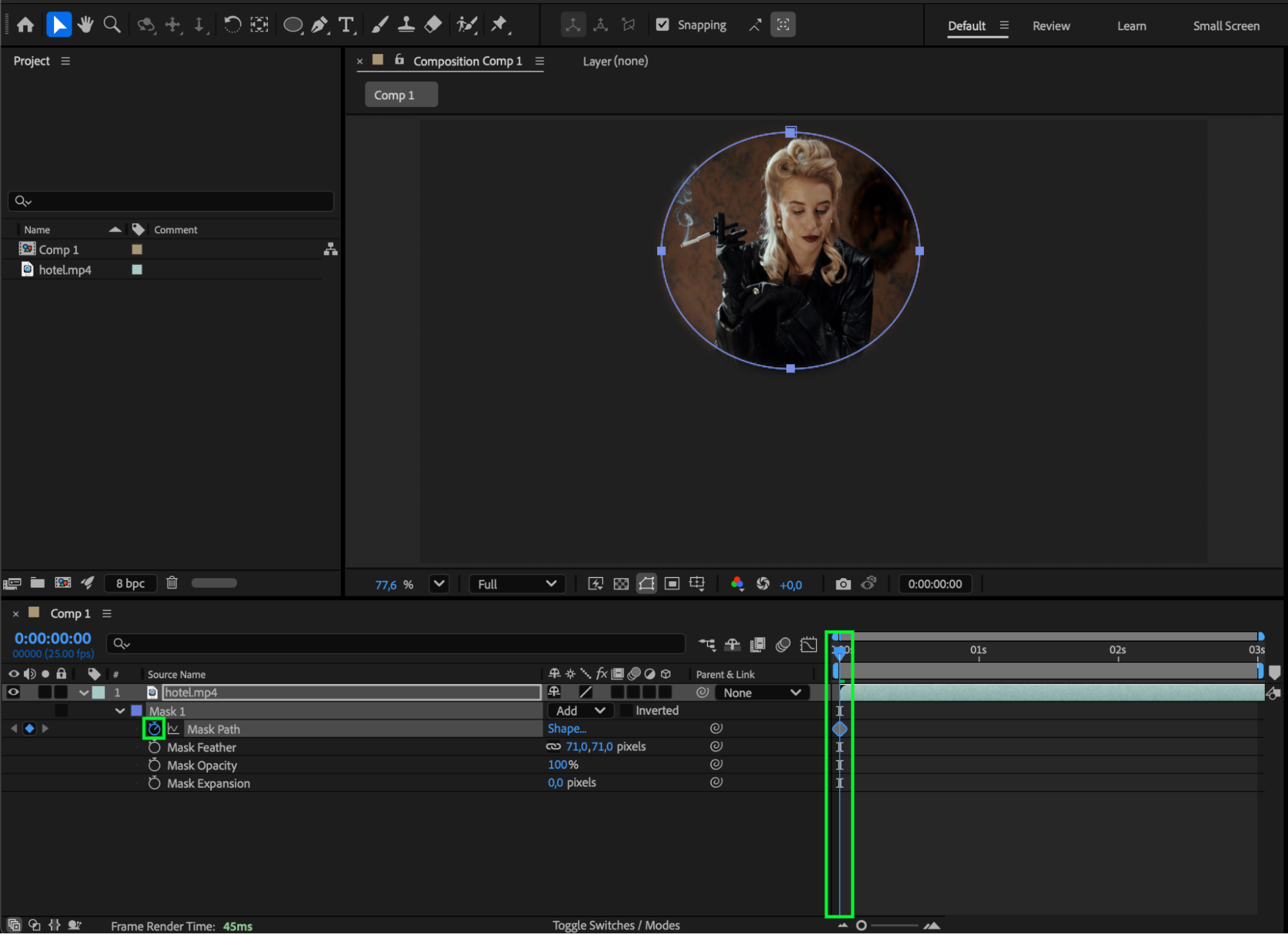
Step 5: Preview and Refine
Press Spacebar to preview your animation. Adjust Mask Path keyframes, Feather, Expansion, or mask point placement until the motion looks natural and aligned with your intended effect.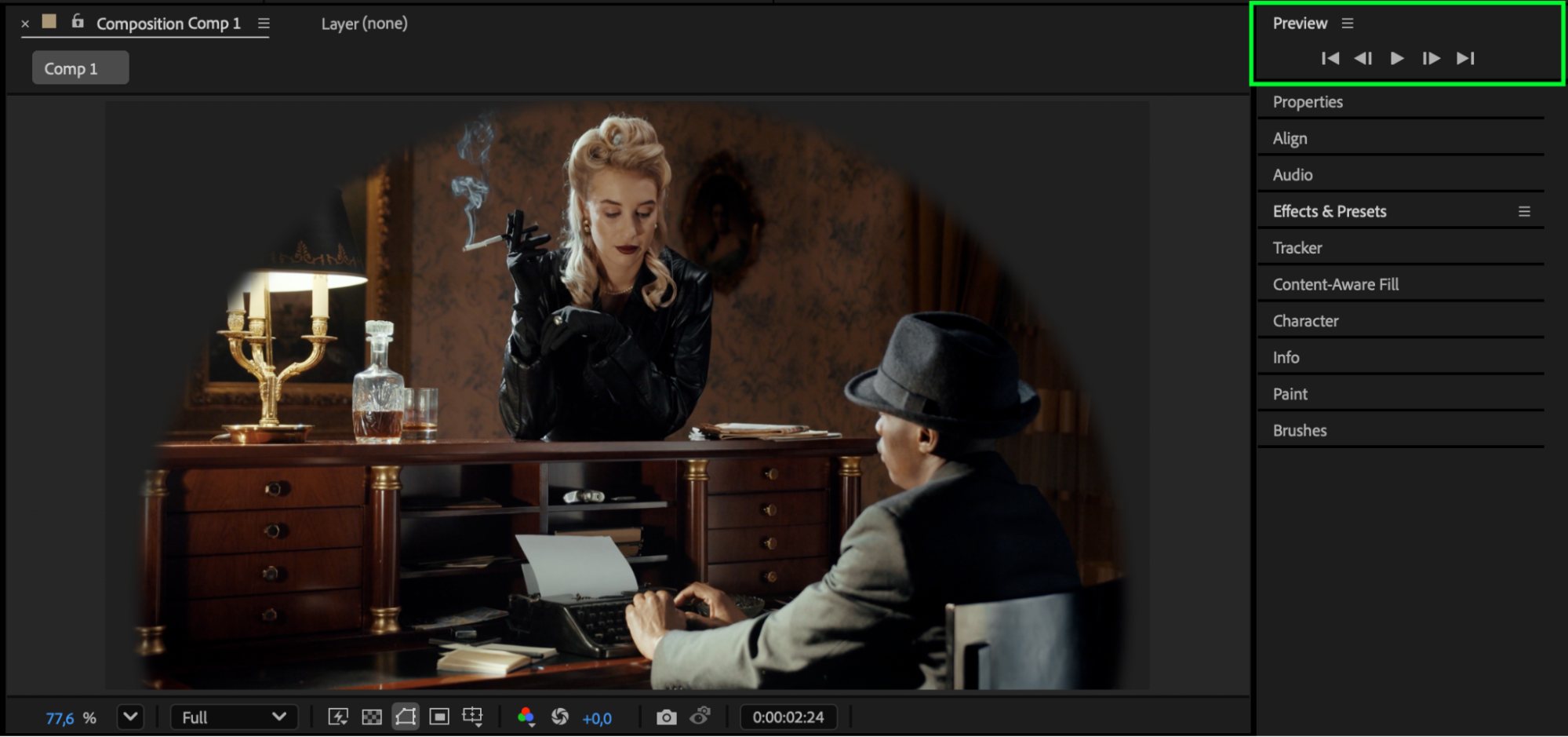 Conclusion
Moving a mask separately from a layer in After Effects is simple once you understand how Mask Path works. Whether you want to animate a reveal, isolate part of your footage, or create stylized motion, these techniques give you full control over mask behavior independent of the layer itself.
Our Bestsellers
Our Bestsellers


