
Mastering Movement and Rotation in After Effects
Introduction to Moving and Rotating 3D Objects in After Effects
In After Effects, you can create stunning 3D animations by moving and rotating objects like text, shapes, or 3D models. This guide will walk you through the steps to animate 3D objects and make them rotate smoothly in your composition.
Step 1: Create a New Composition
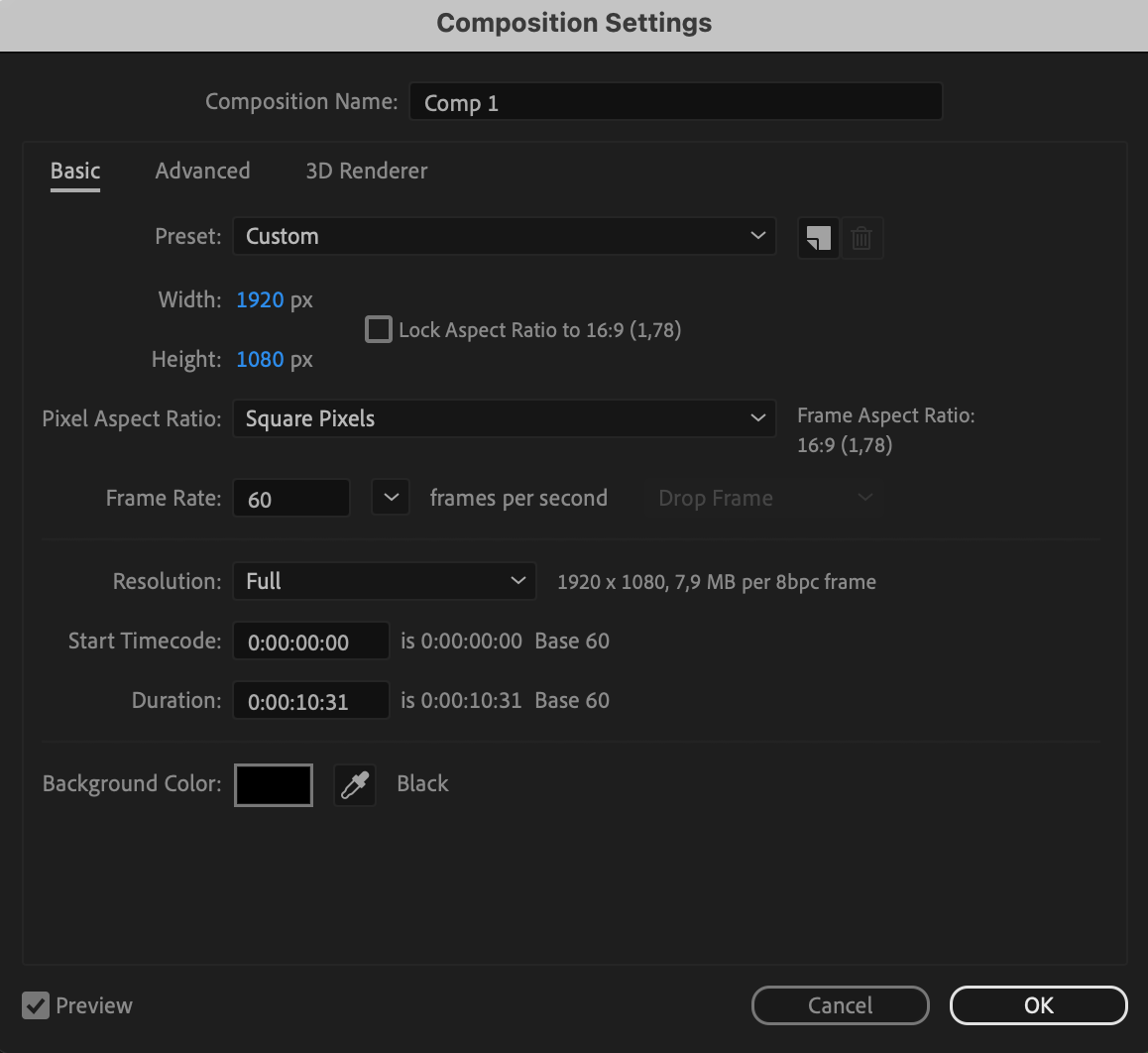
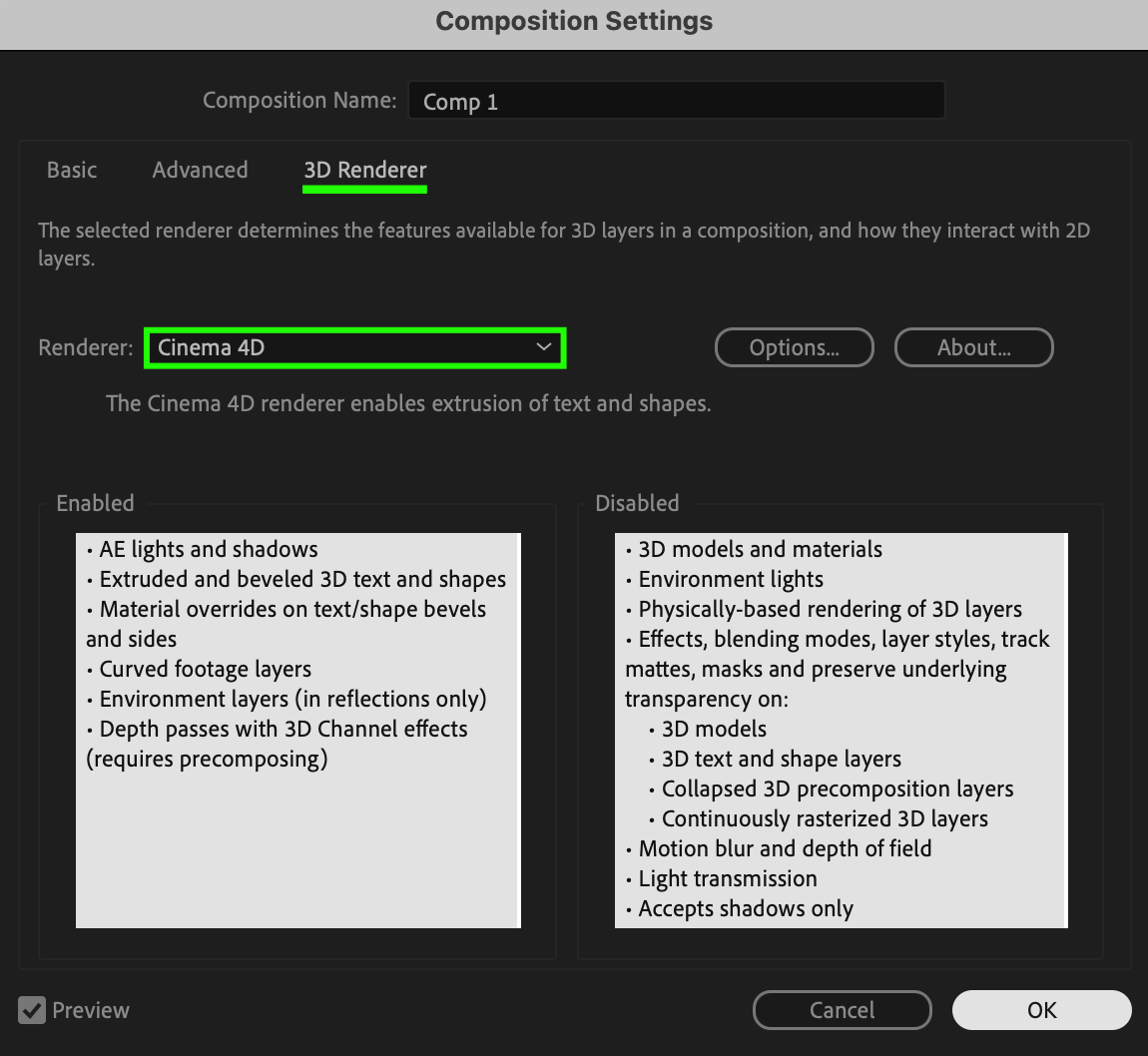
First, create a new composition by going to Composition > New Composition. In the 3D Renderer tab, select Cinema 4D as the renderer. This will allow you to work with 3D objects, such as text or shapes, in your project.
 Step 2: Add a Background Layer
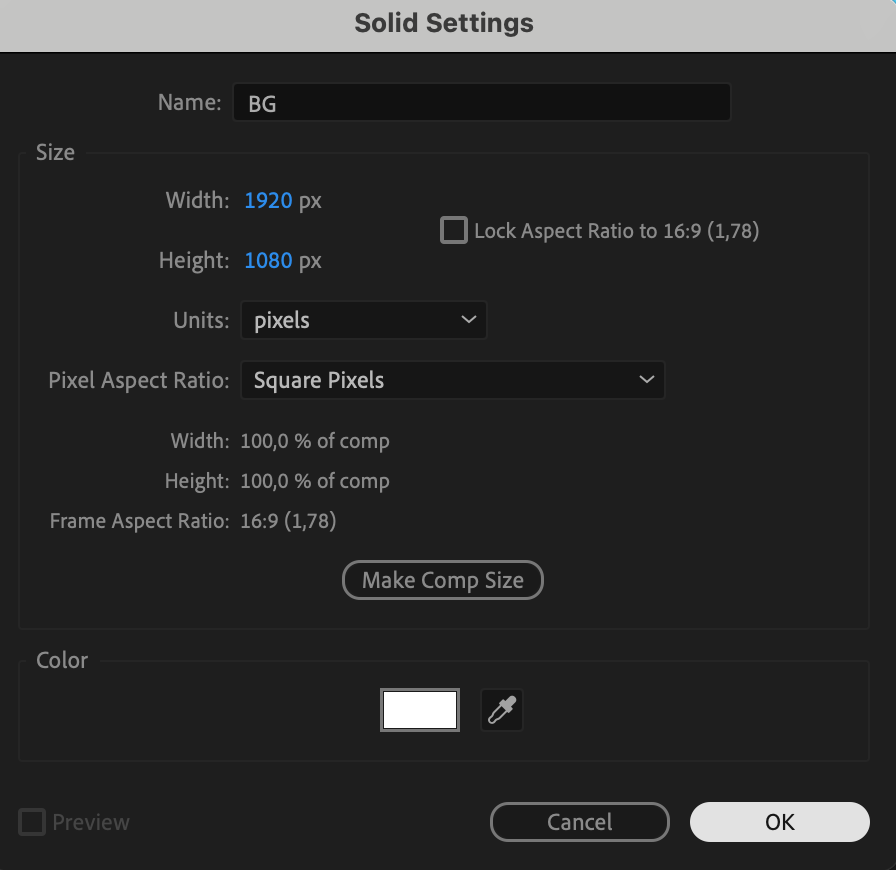
Go to Layer > New > Solid, and name it BG. This solid color layer will act as the background for your composition. You can choose any color that fits your project.
Step 3: Apply Background Effects
In the Effects & Presets panel, search for and apply effects such as 4-Color Gradient to your background layer. This will create a visually appealing background gradient that can enhance the depth of your composition.
Step 4: Create a Shape or Text
Use the Shape Tool (Q) to create a shape or the Text Tool (Ctrl/Cmd + T) to create text. Alternatively, you can import a 3D model if you are working with one. This layer will be the object that you move or rotate in the composition.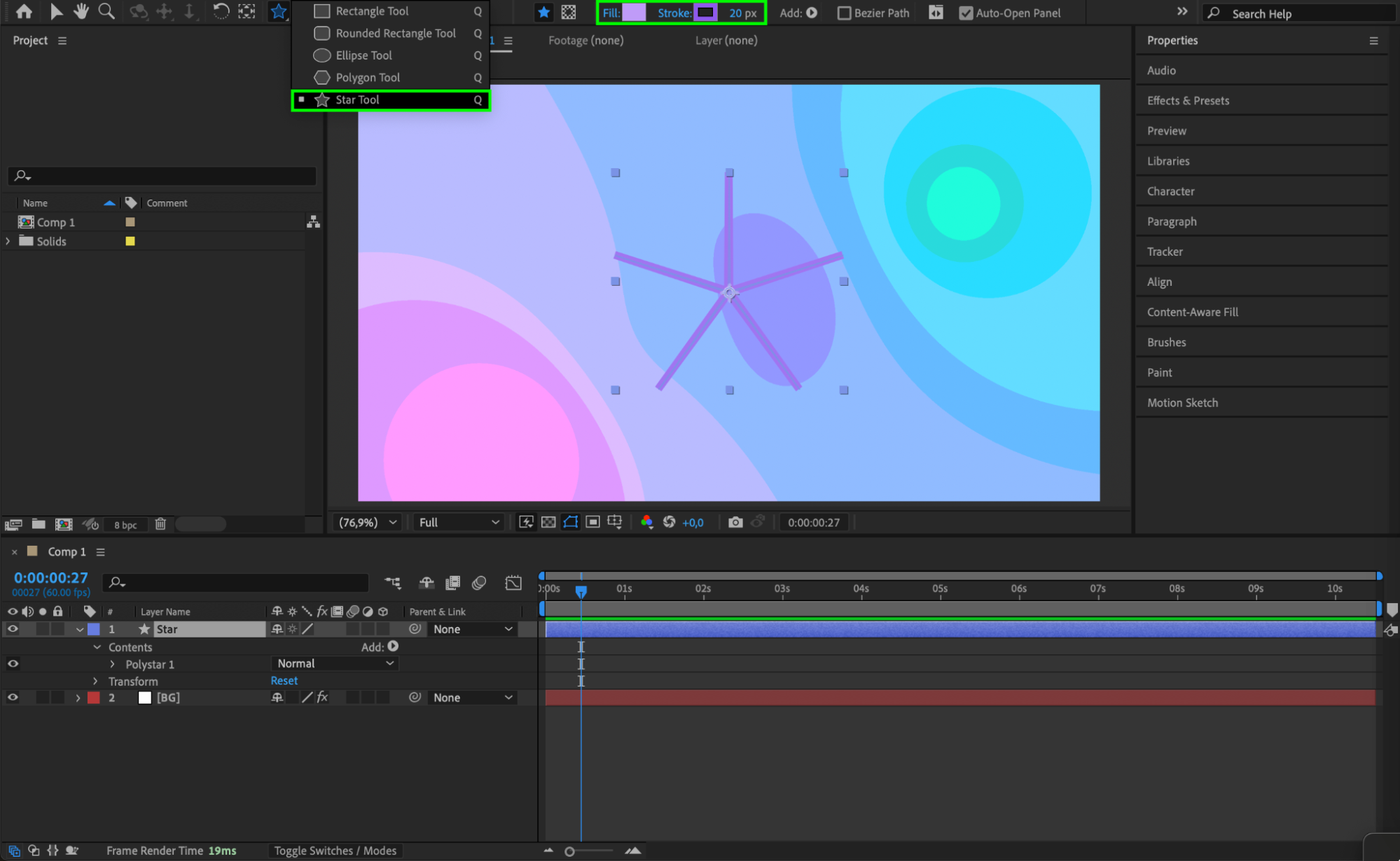 Step 5: Make the Layer 3D
To make your object 3D, select the layer and check the 3D Layer box (the cube icon) in the timeline. This step is essential for enabling rotation and movement in 3D space.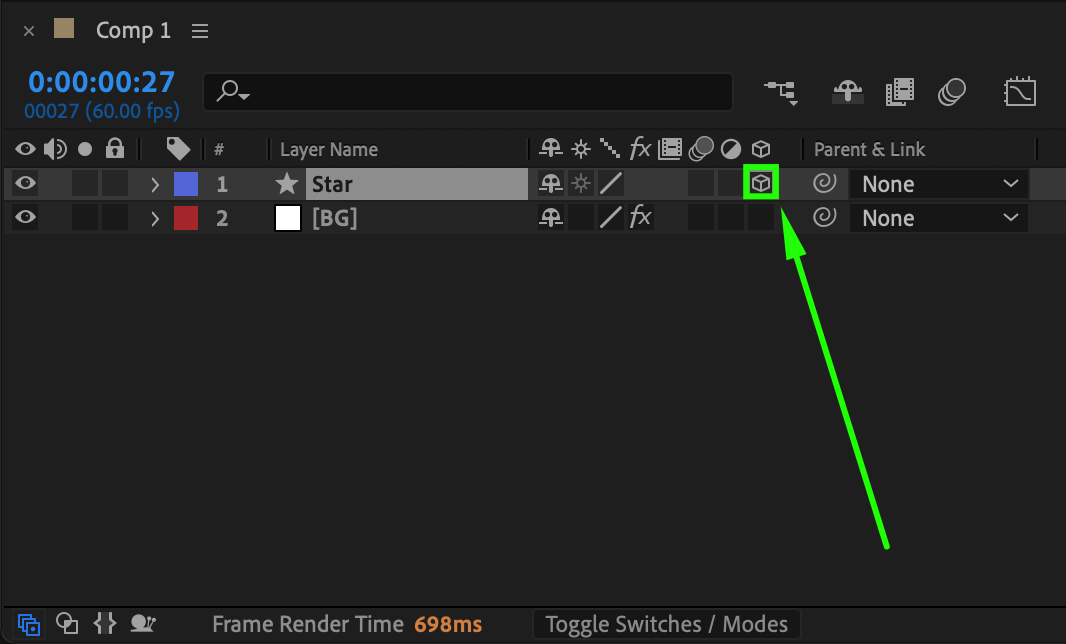
Step 6: Adjust the 3D Object’s Properties
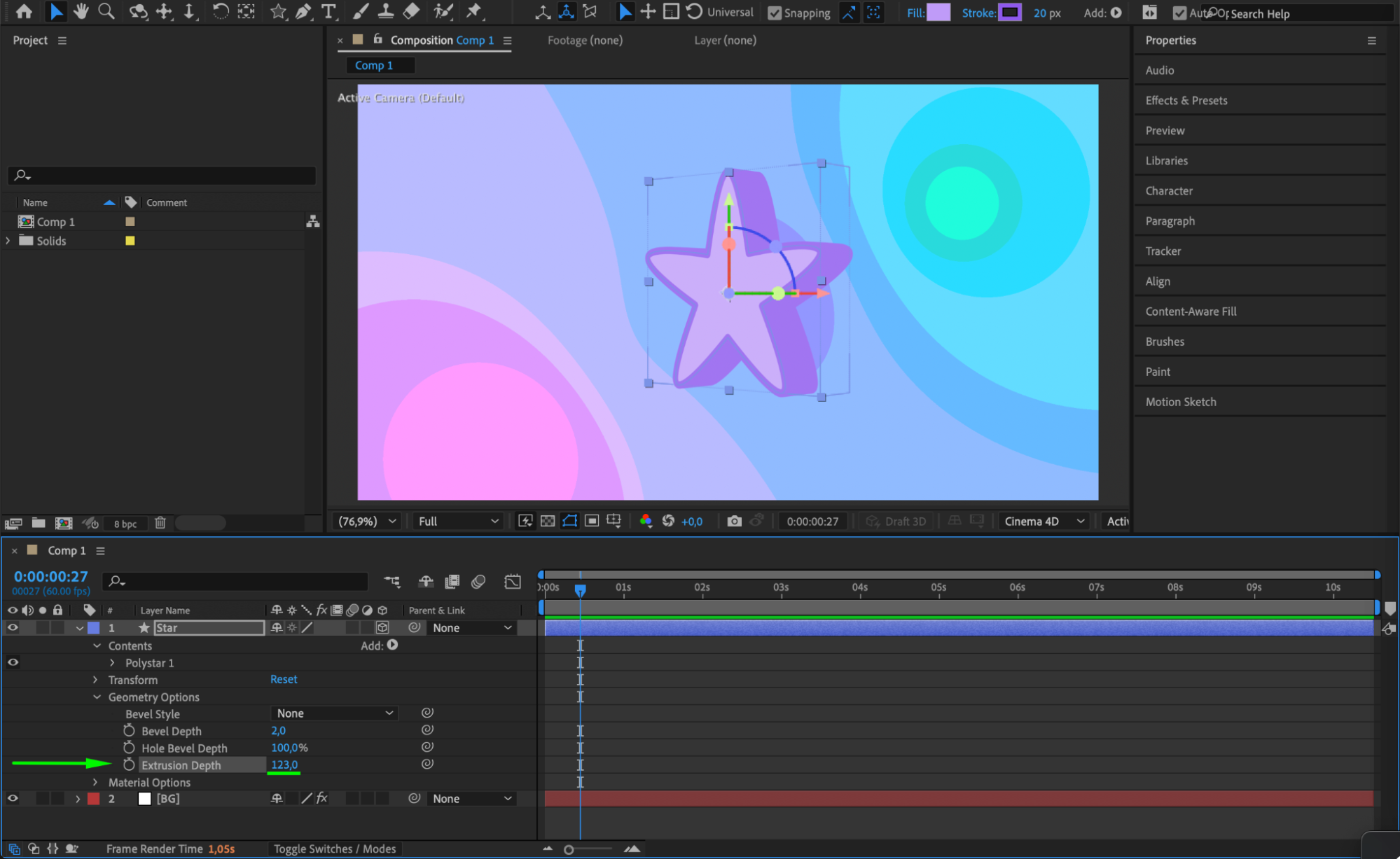
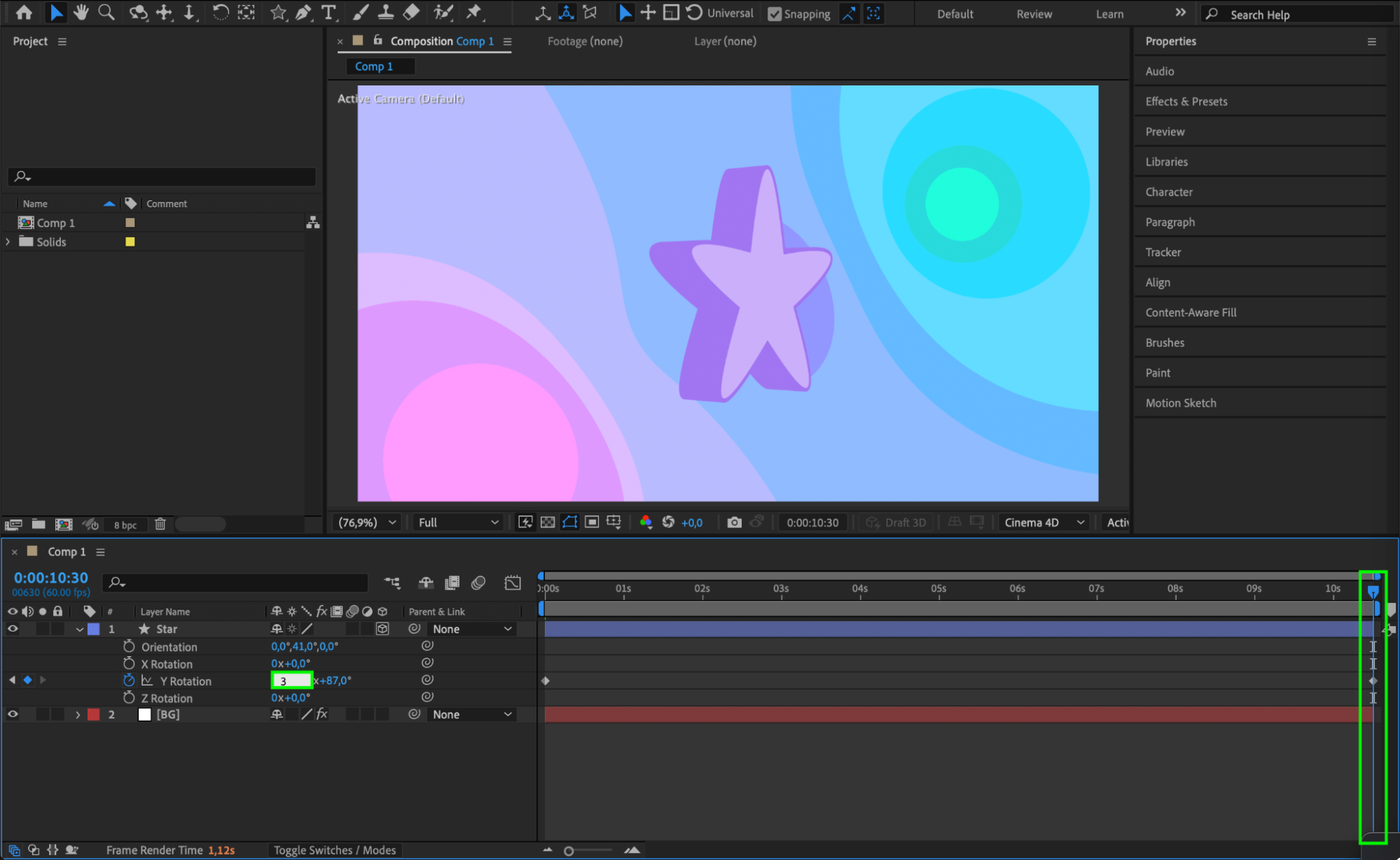
If you’re working with a shape or 3D object, you can adjust its properties such as Color, Stroke, and Radius to change its appearance. For text or shapes, you can also modify the Extrusion Depth (for example, set it to 123) to add 3D depth. To preview how the object looks in 3D space, adjust the Orientation under the Transform settings – try setting the Y value to 41 to view the changes in real time.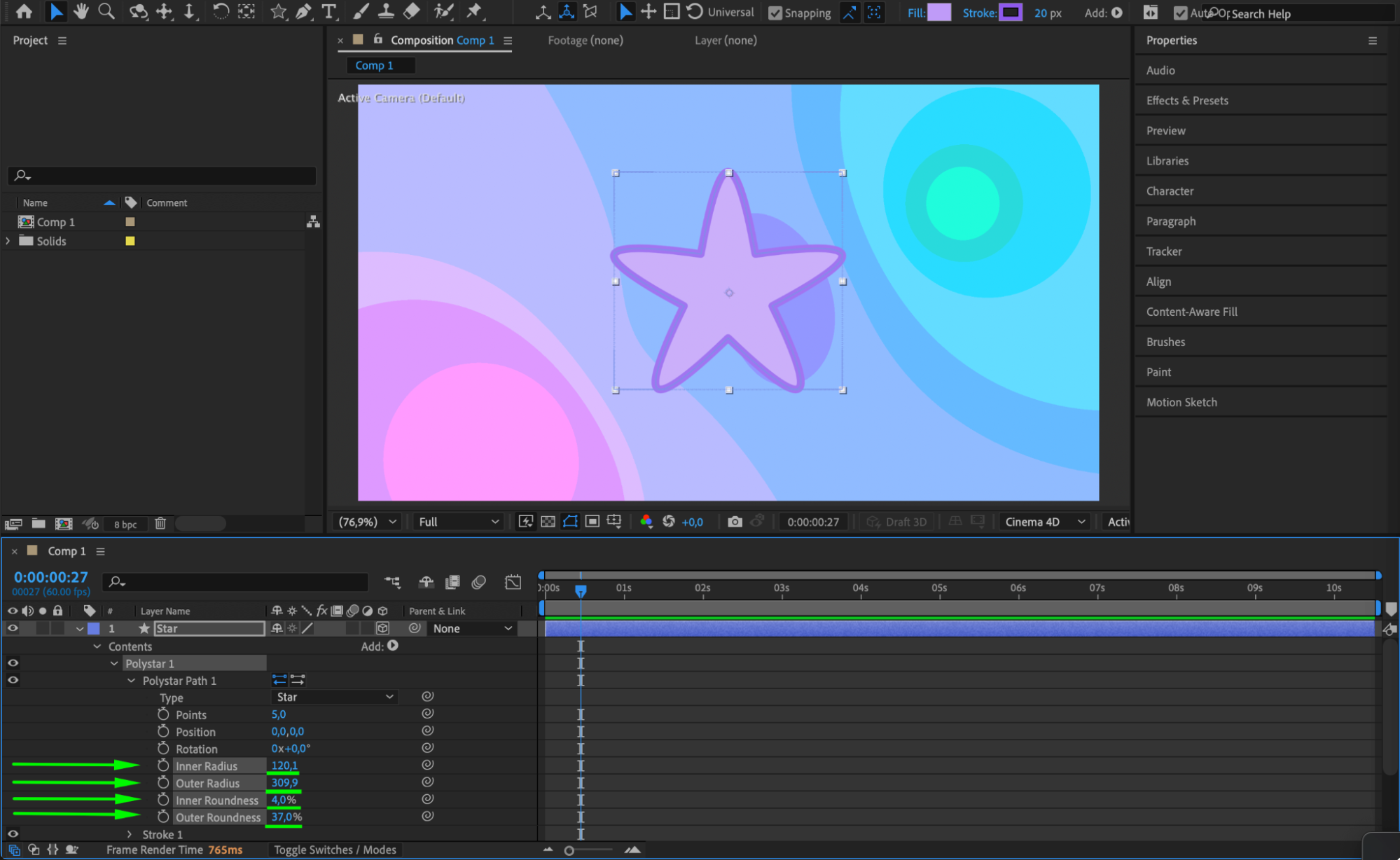
 Step 7: Animate the Object’s Rotation
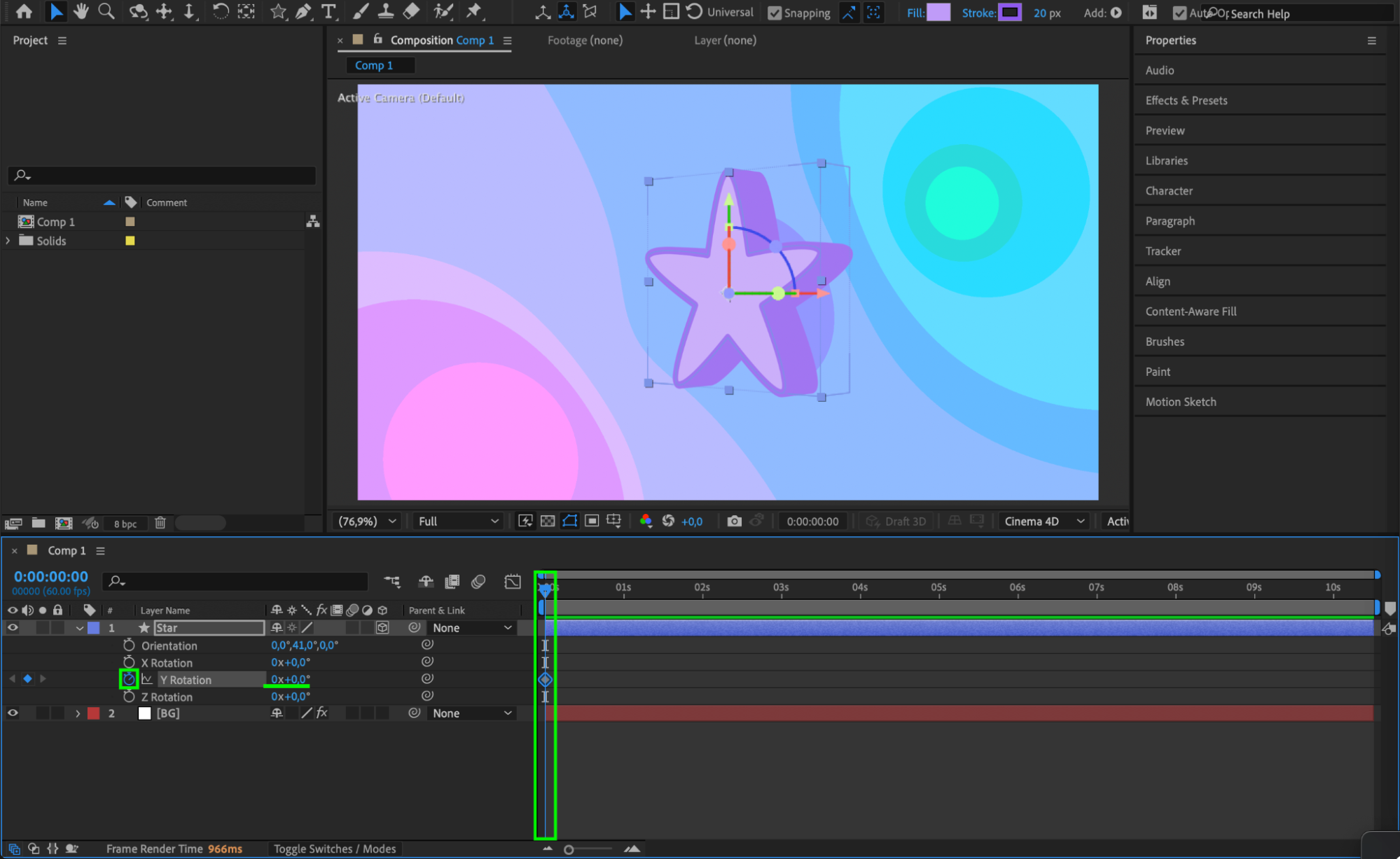
Press “R” to open the Rotation properties. At the beginning of the timeline, click the stopwatch icon next to Y Rotation to set a keyframe. Move the timeline indicator to the end of the timeline, and change the Y Rotation value to create a full rotation. Set it to 3-4 full rotations to make your text, shape, or 3D model rotate multiple times.
 Step 8: Preview the Animation
Press the spacebar to preview the animation. Watch how the object moves and rotates smoothly over time. Adjust the keyframes if needed to fine-tune the animation.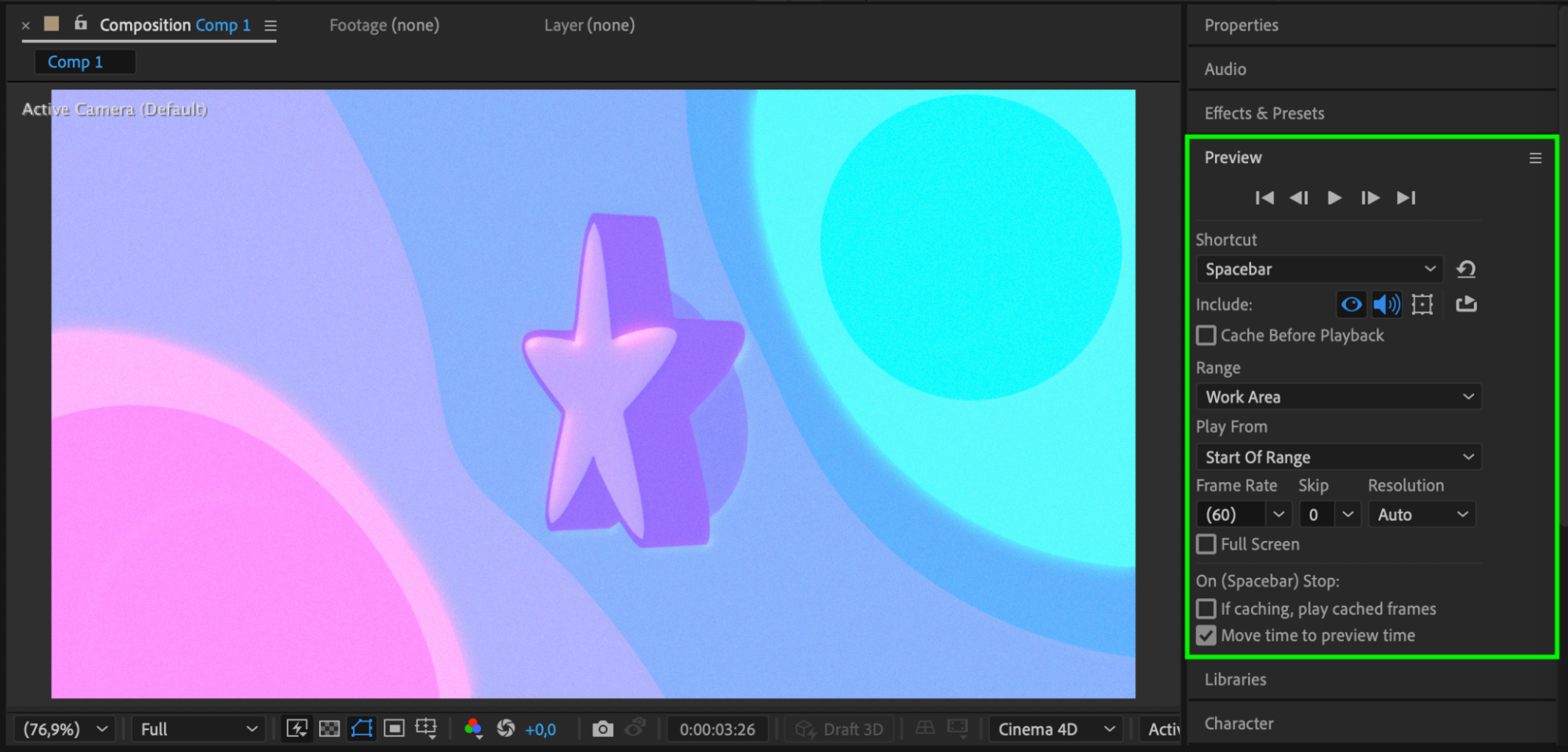 Conclusion
In After Effects, moving and rotating 3D objects is a straightforward process that can add depth and dynamism to your compositions. By following these steps, you can create rotating text, shapes, or 3D models that stand out in your project. Experiment with different effects and settings to achieve the desired look and feel.
Our Bestsellers
Our Bestsellers


