
Introduction to Object Movement in After Effects
This tutorial shows how to cut out and move an object in After Effects while keeping the background clean using the Roto Brush and Content-Aware Fill tools. This technique is great for repositioning subjects in a scene or creating dynamic compositions without reshooting your footage.
Step 1: Import Your Footage
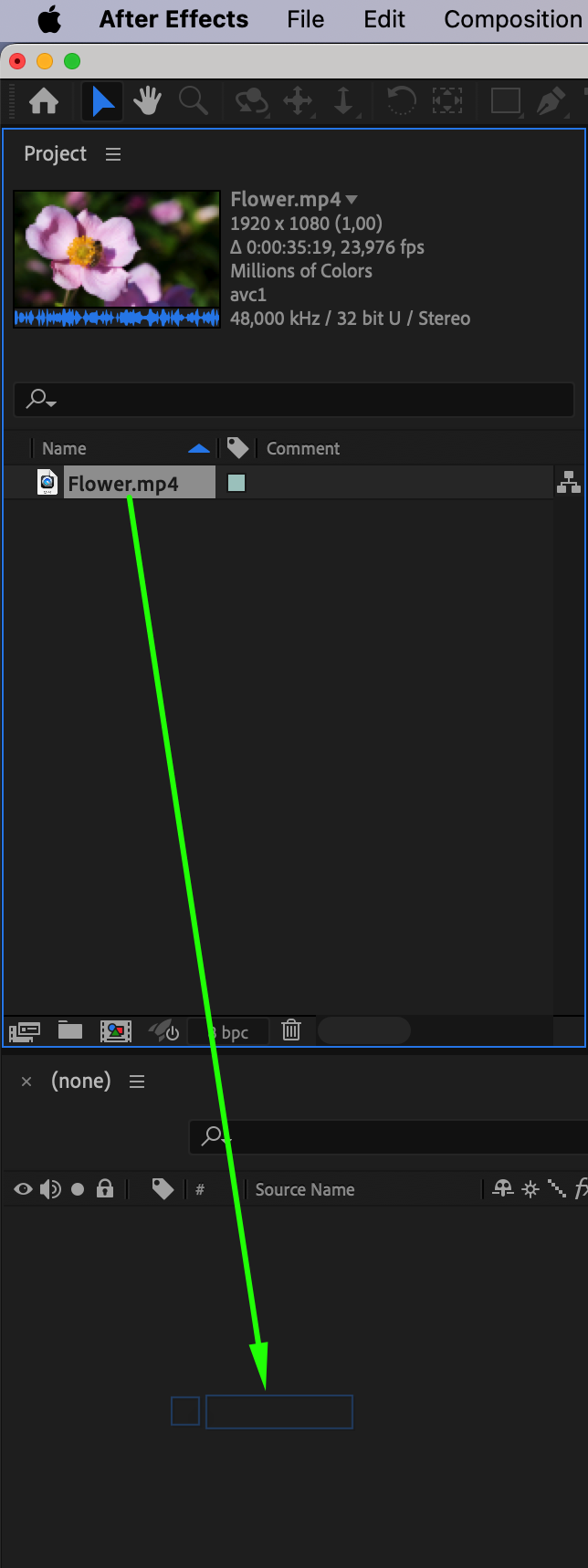
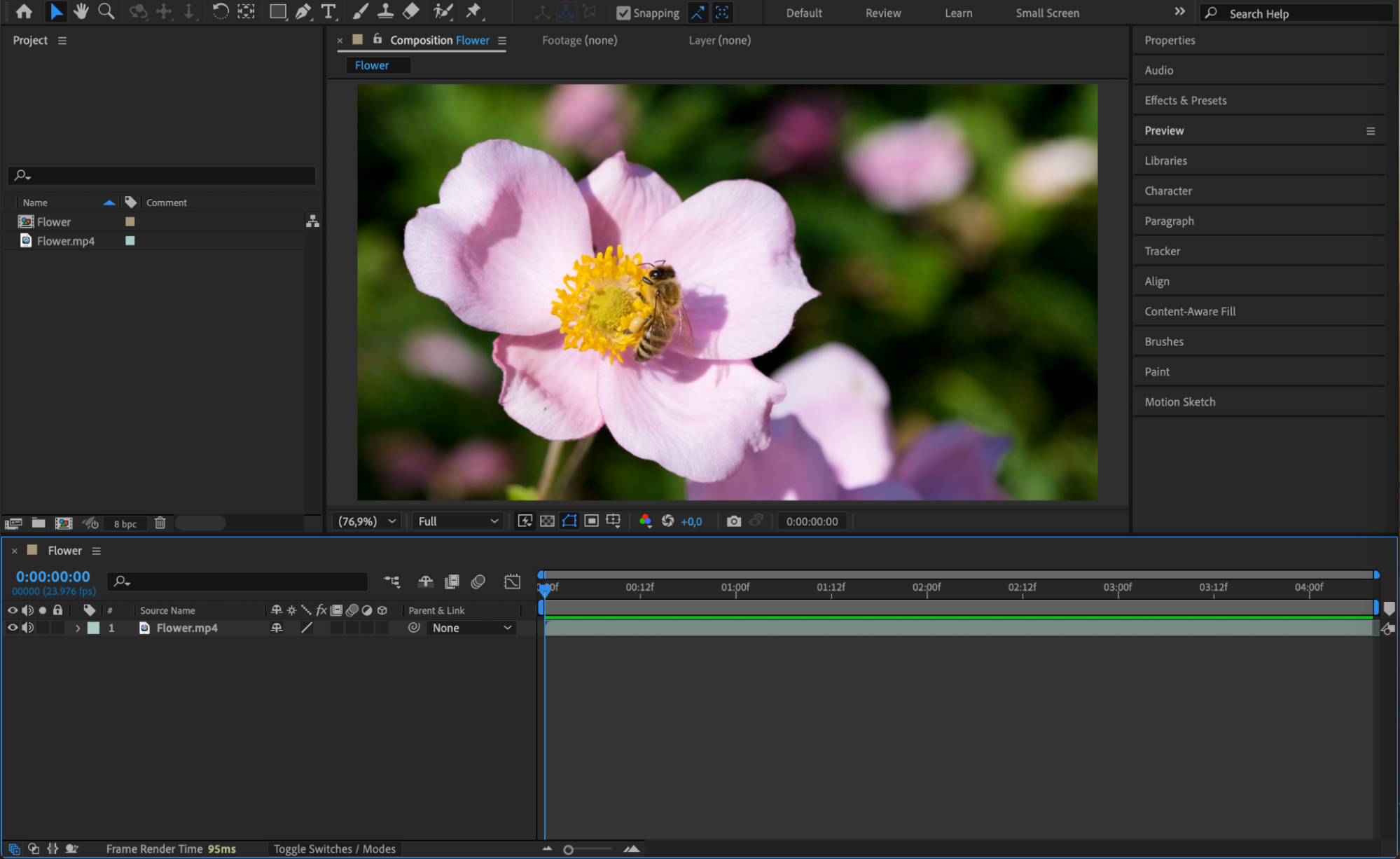
Go to File > Import > File and choose the video clip you want to edit. Drag it to the timeline to create a new composition.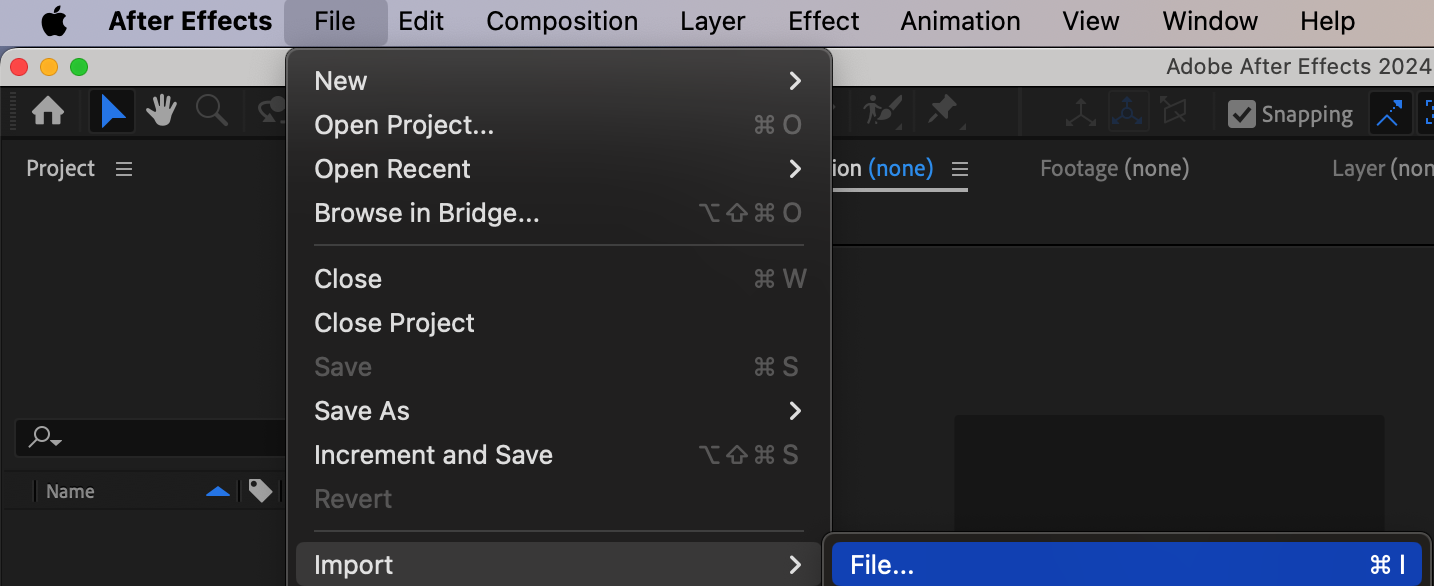
 Step 2: Duplicate the Layer
In the timeline, select your video layer and press “Ctrl/Cmd + D” to duplicate it. Rename the top layer to “fg” (foreground) and the original to “bg” (background) for better organization.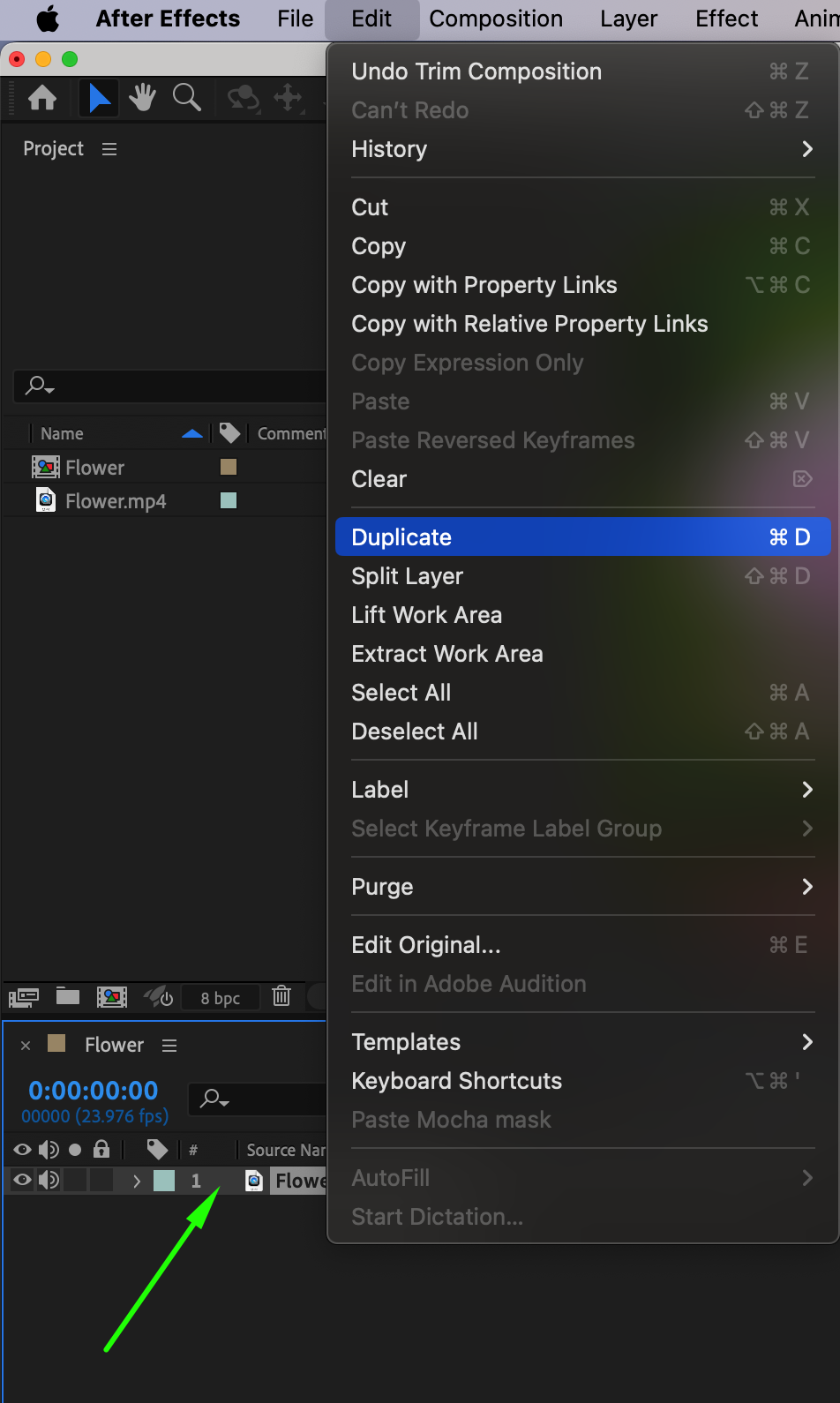
Step 3: Isolate the Object with Roto Brush
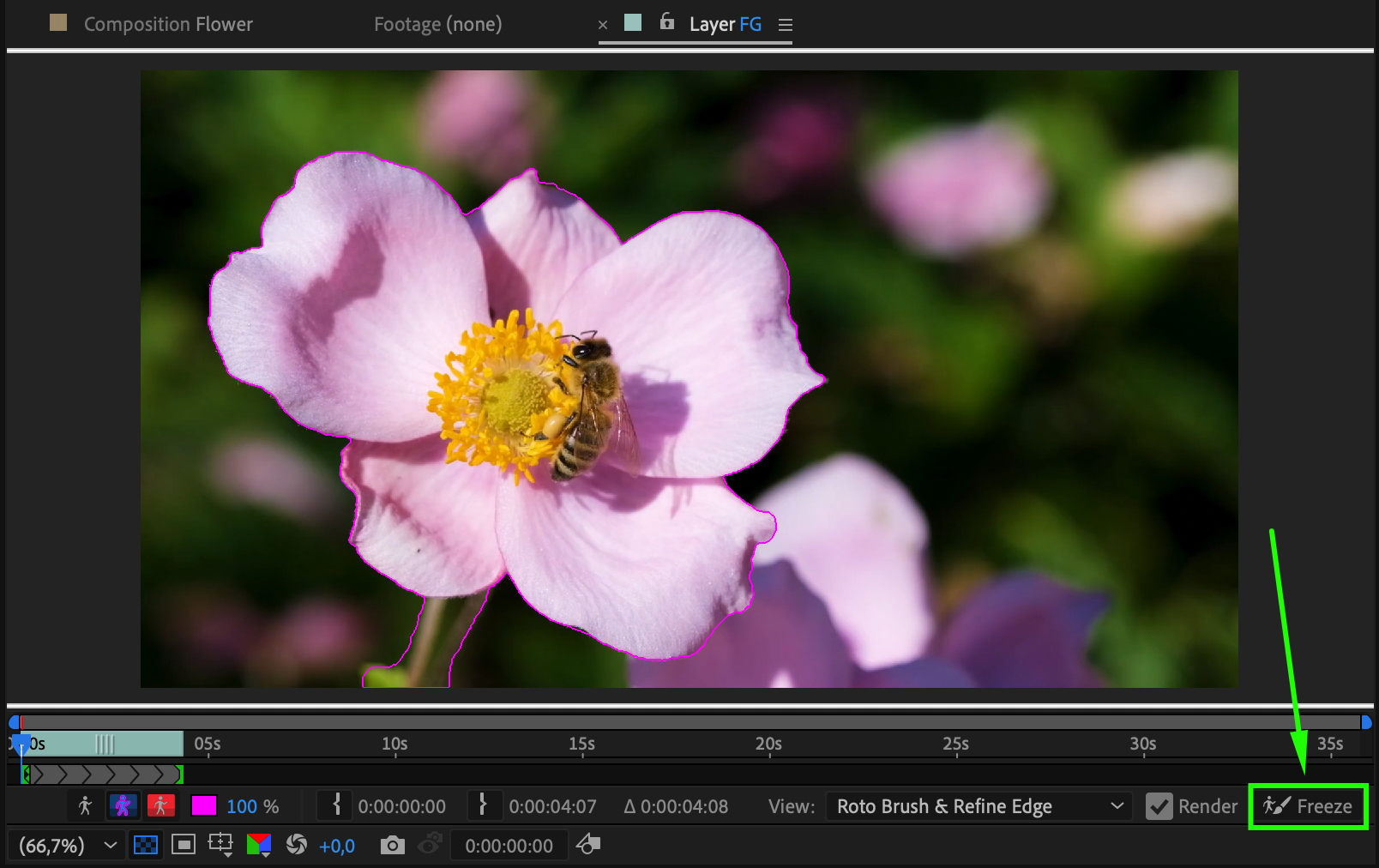
Double-click on the fg layer to open it in the Layer panel. Choose the Roto Brush Tool by pressing Alt/Option + W, then draw over the object you want to move. After adjusting the selection frame by frame, click Freeze at the bottom of the Layer panel to lock the selection.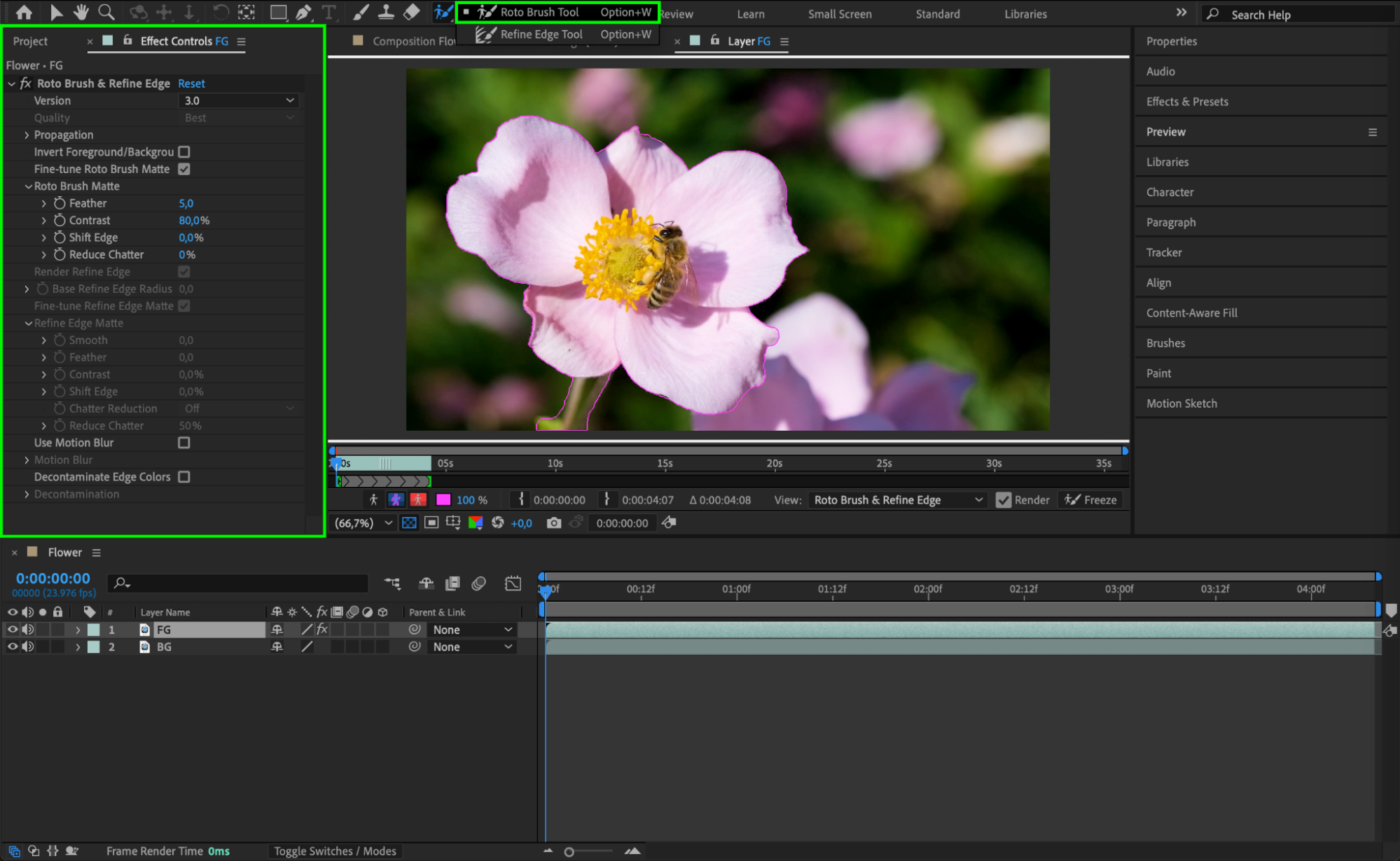
 Step 4: Hide the Foreground Layer
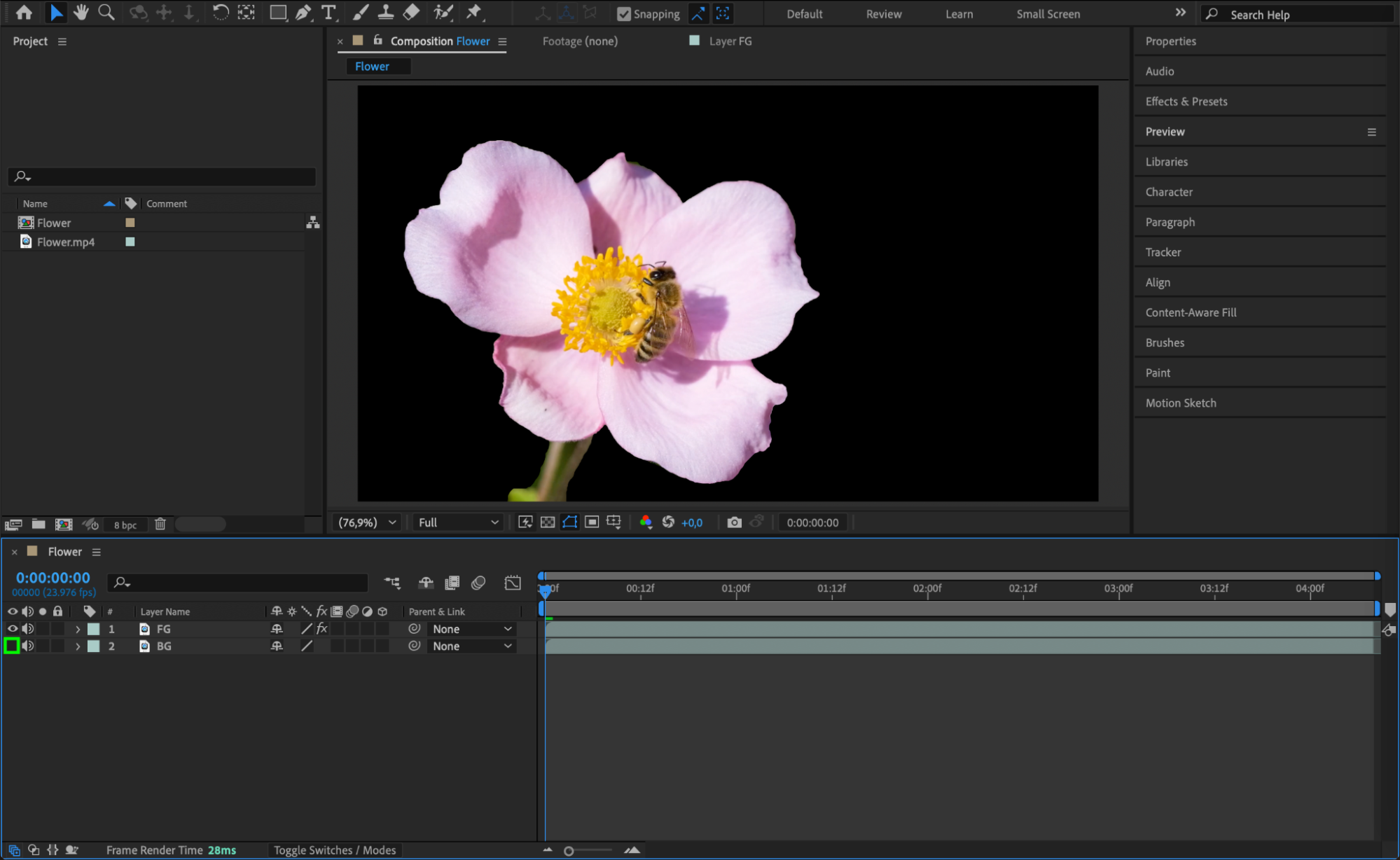
Return to the Composition panel and turn off the visibility of the fg layer by clicking the eye icon. Select the bg layer and use the Pen Tool (G) to draw a rough mask around where the object was. Set the mask mode to Subtract to remove the object from view.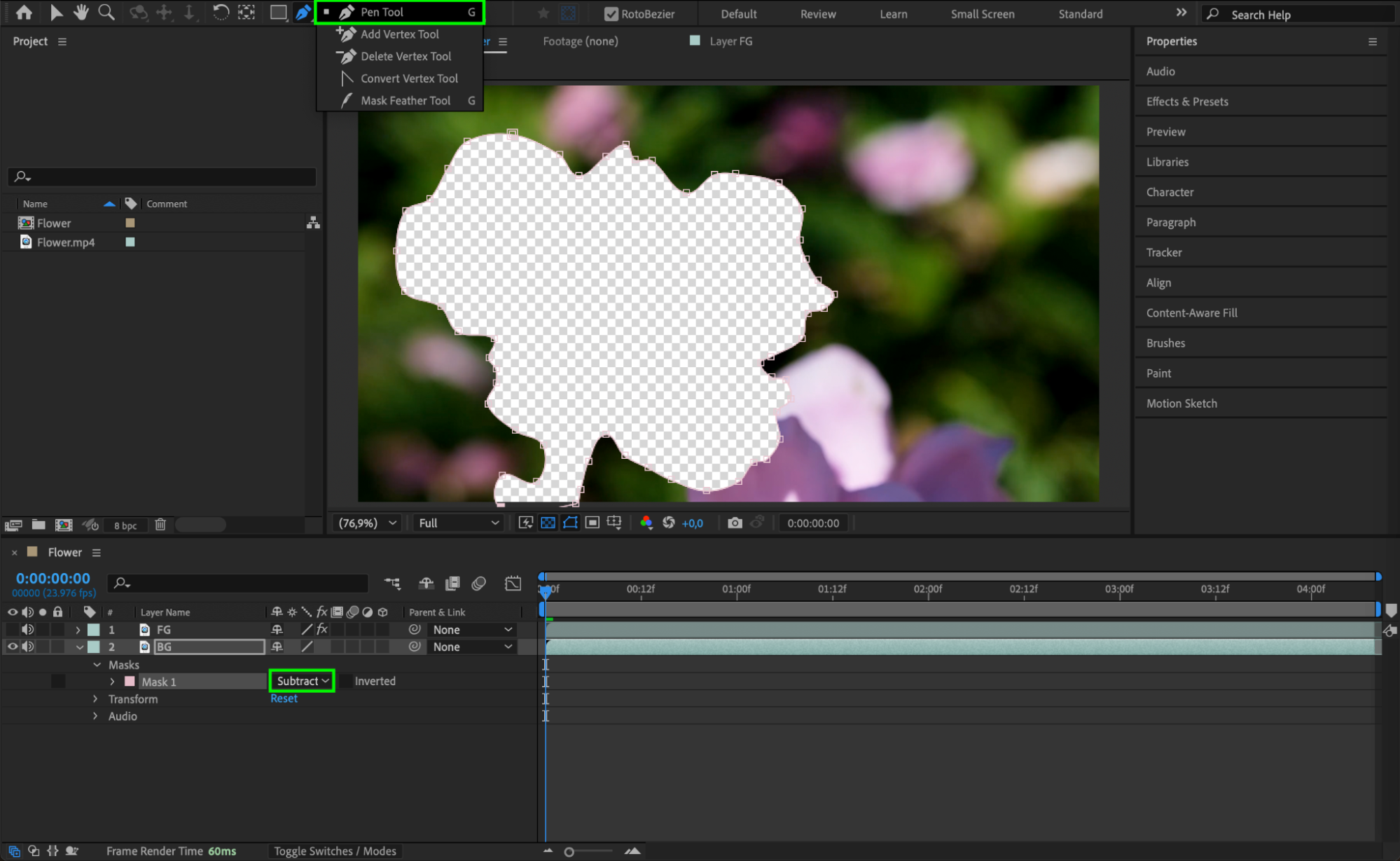 Step 5: Open Content-Aware Fill
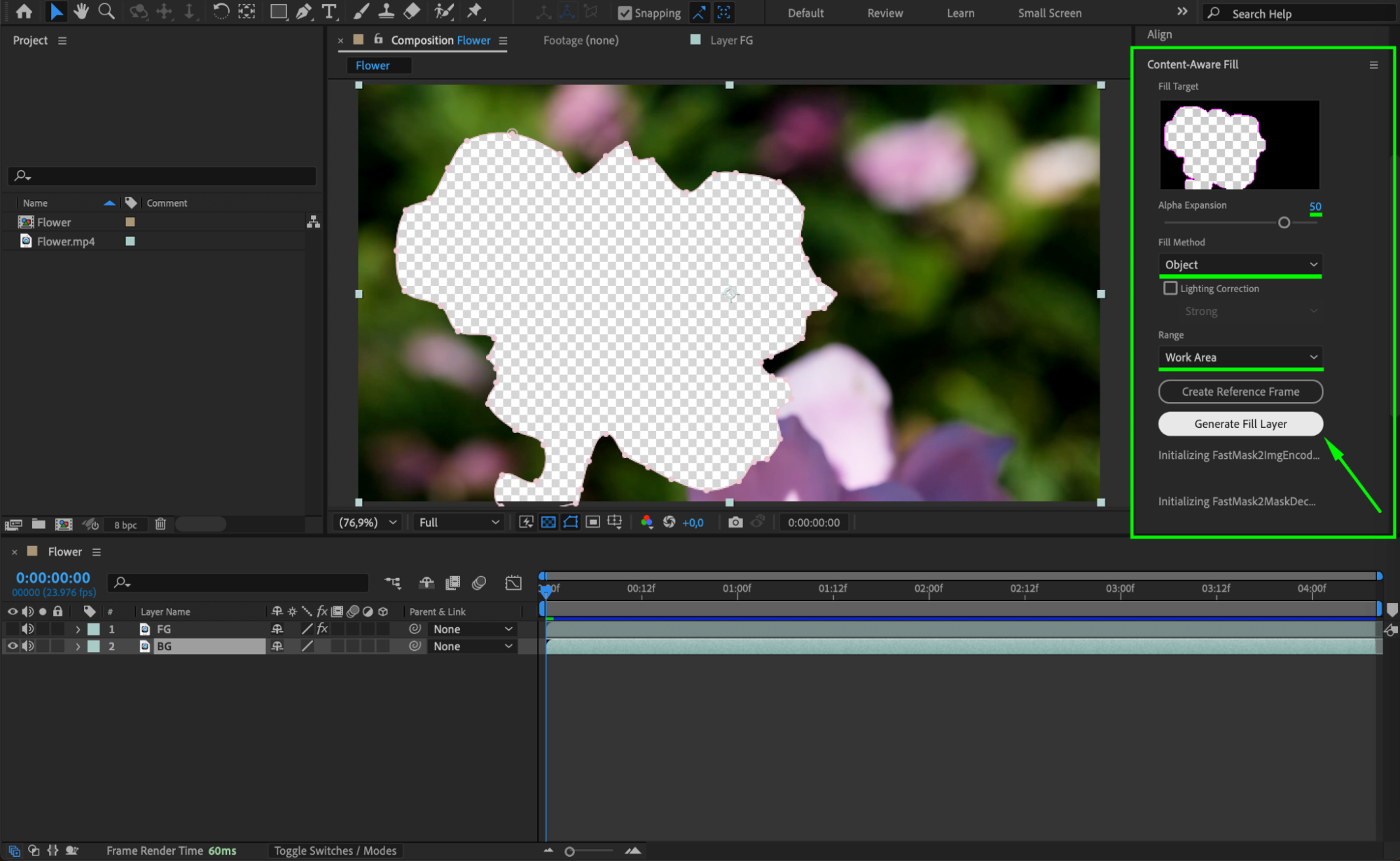
Go to Window > Content-Aware Fill to open the panel. In the panel, set Alpha Expansion to 50, Fill Method to Object, and Range to Work Area. Then press Generate Fill Layer to fill in the masked area based on surrounding pixels.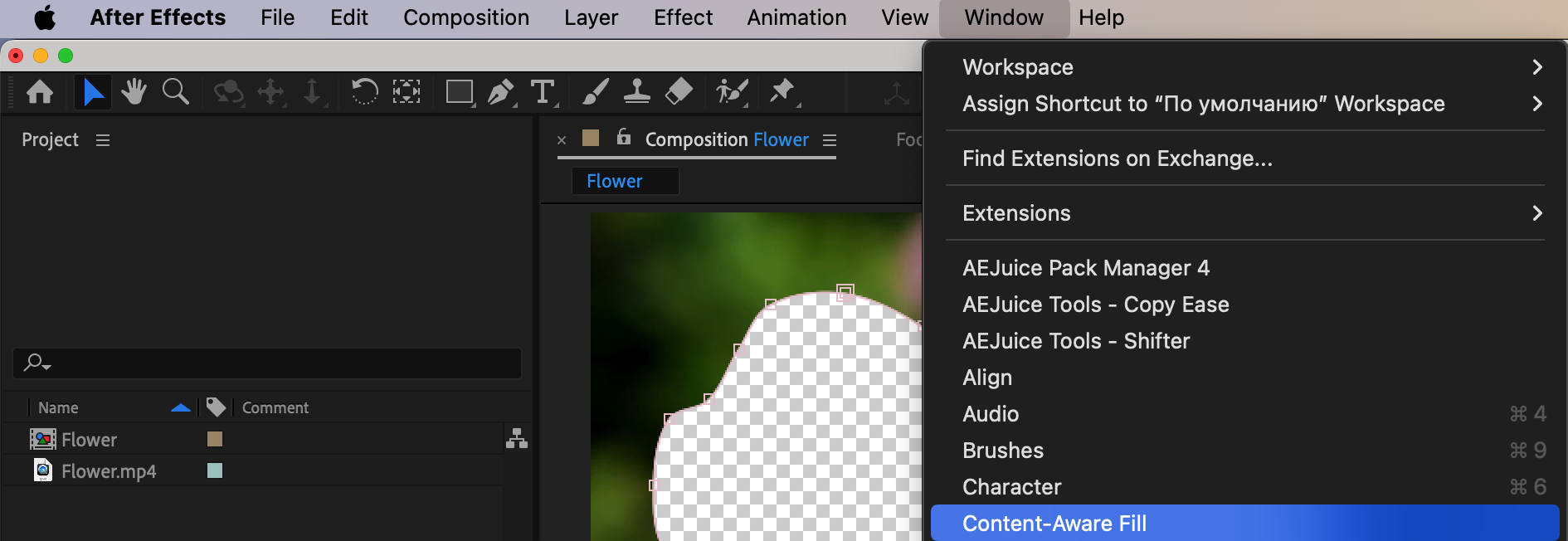
Step 6: Reveal and Move the Foreground Object
Once the fill is complete, make the fg layer visible again. The object is now separate from the background and can be moved freely. Use the Position, Scale, or Rotation properties in the Transform panel to animate or relocate the object as needed.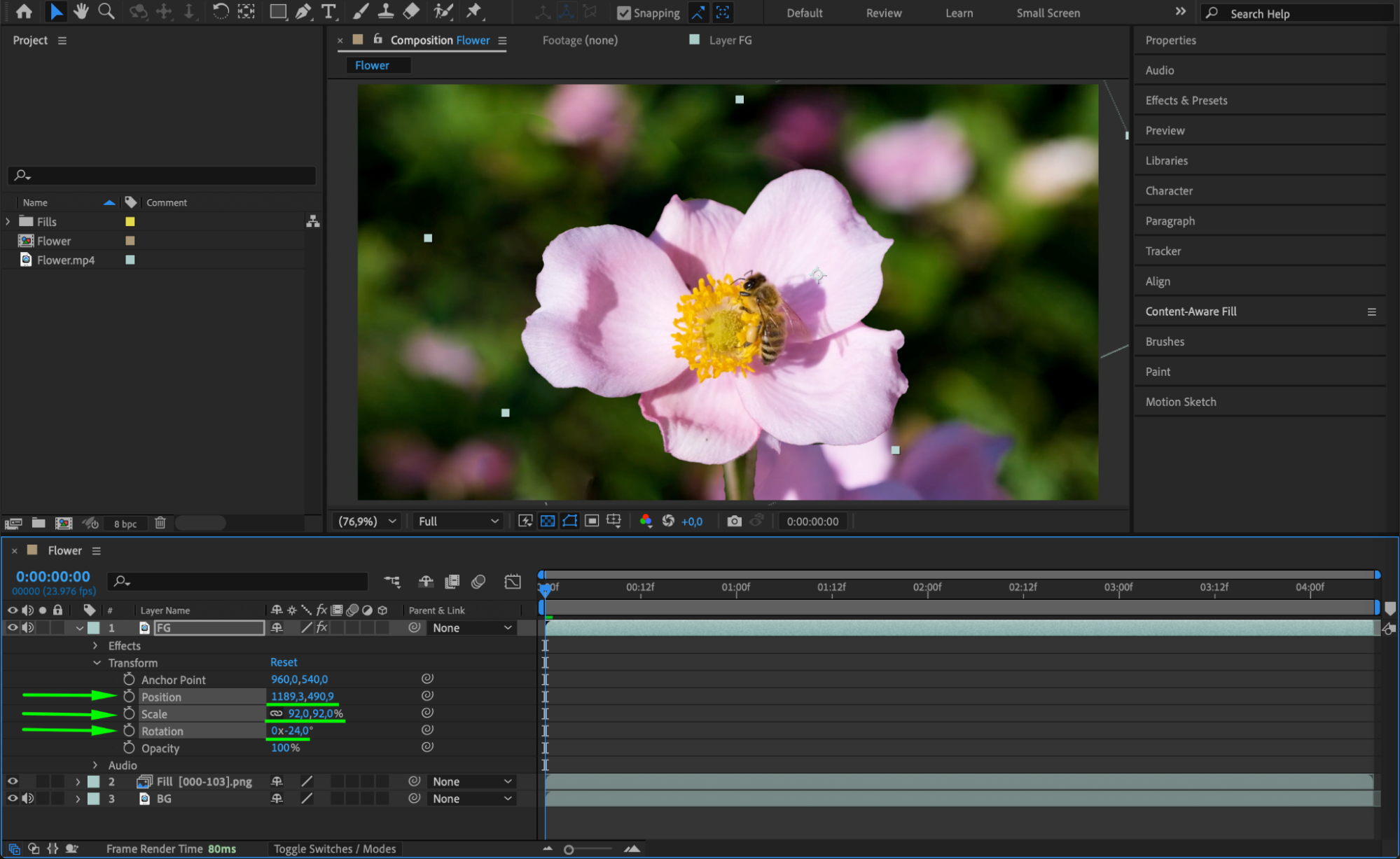 Step 7: Preview Your Animation
Press the spacebar or use the Preview panel to review your animation and ensure everything looks smooth and natural.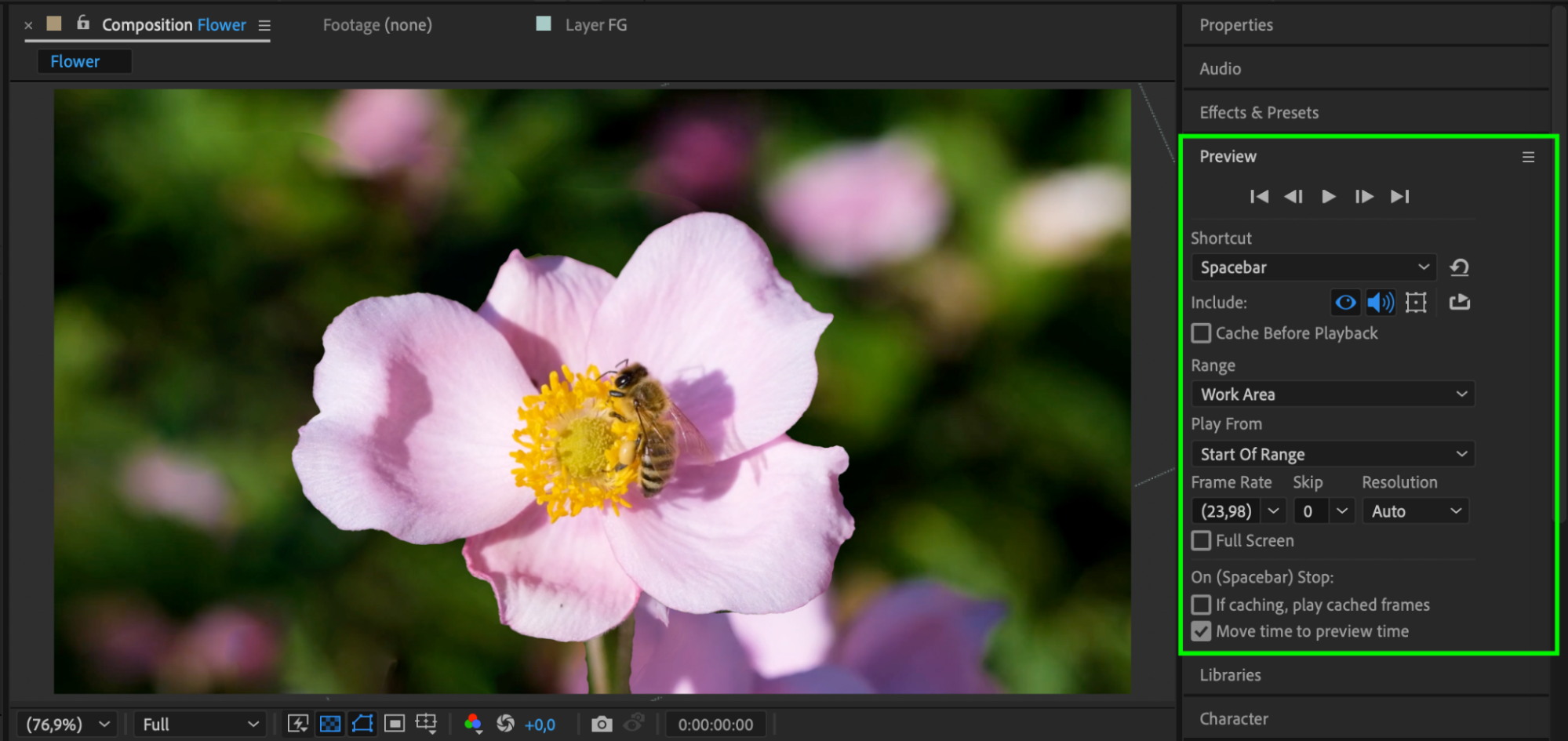 Step 8: Export Your Final Video
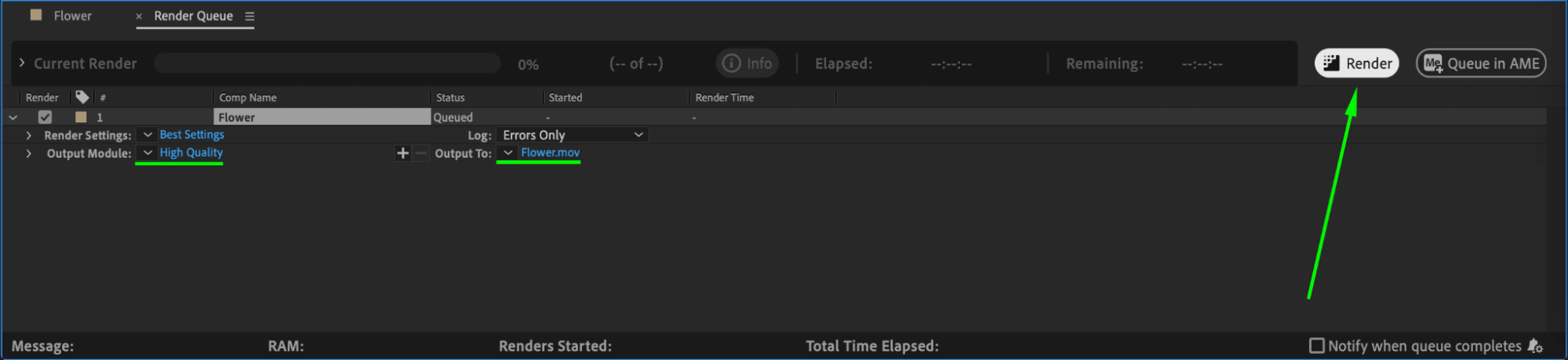
When you’re happy with the result, go to Composition > Add to Render Queue to export your final composition.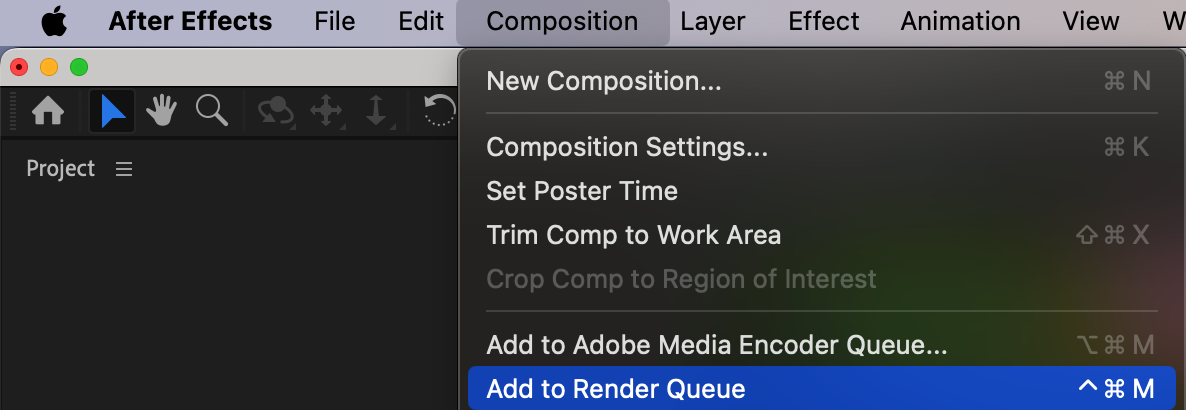
Conclusion
This workflow allows you to seamlessly move elements in a video without disturbing the background, perfect for visual effects or creative edits.
Our Bestsellers
Our Bestsellers


