
How to Access and Use the Effect Controls Panel in After Effects
Introduction to the Effect Controls Panel
The Effect Controls panel in After Effects is the main place to manage all the effects applied to a layer. If you’re working with visual effects, color correction, or text styling, this panel is where you adjust those settings. Here’s how to open it and make the most of it.
Step 1: Select a Layer with Effects
Click on the layer in your timeline that has effects applied, or to which you plan to apply effects. The Effect Controls panel only shows information for the currently selected layer.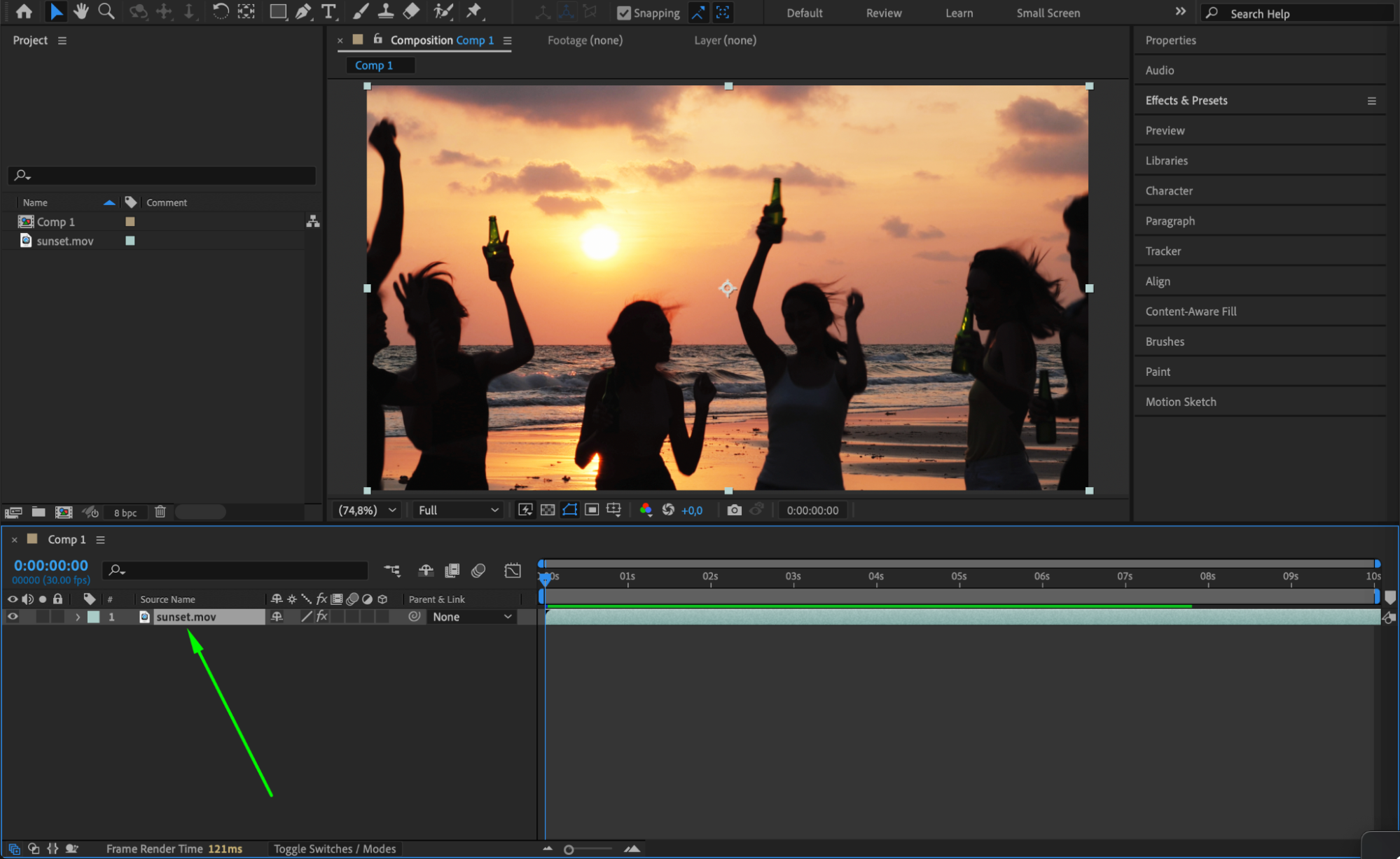 Step 2: Open the Effect Controls Panel
To open the panel, go to the top menu bar and choose Effect > Effect Controls, or simply press the F3 shortcut key. This will open the panel, which usually appears docked in the upper-left area of the workspace. If the panel is already open but hidden behind other tabs, this action will bring it to the front.
Step 3: View and Adjust Applied Effects
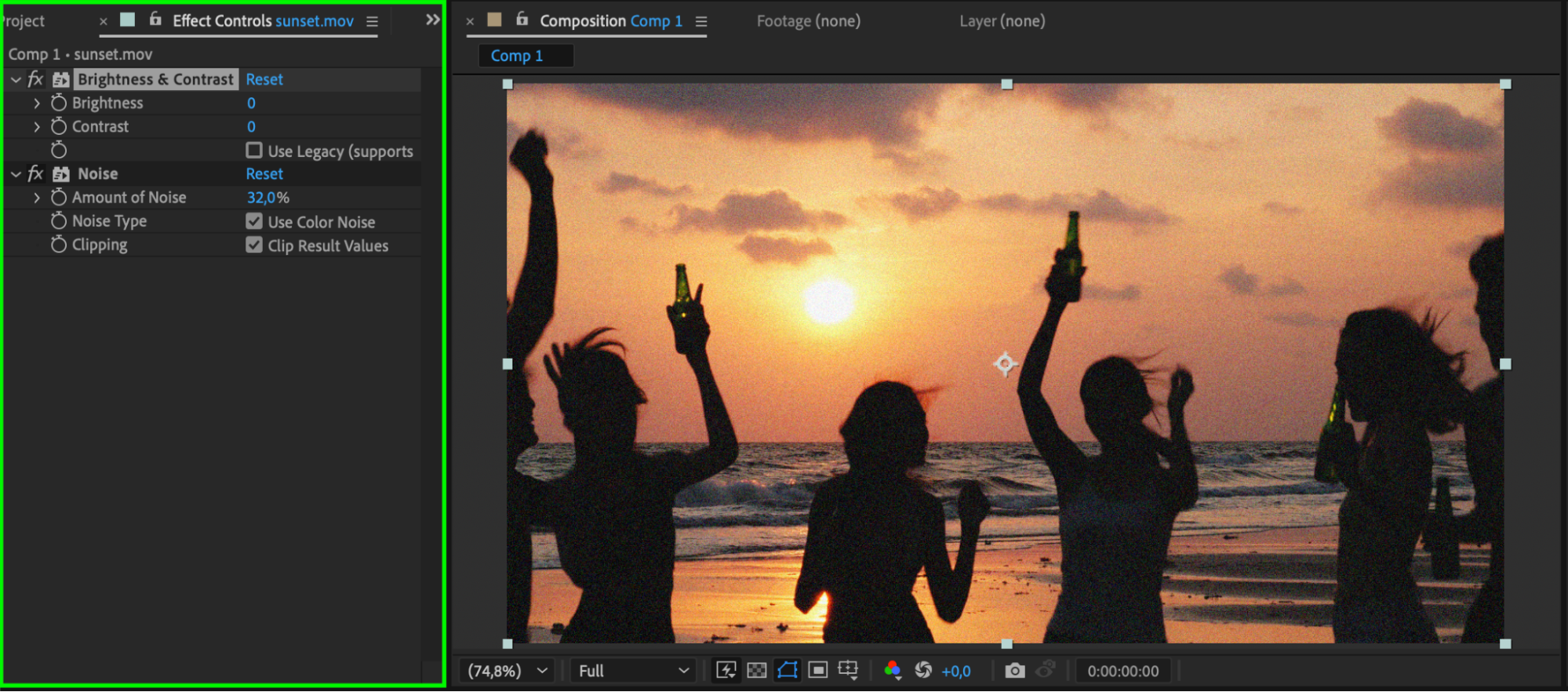
Once open, the panel displays all the effects applied to the selected layer. You can change effect settings, keyframe animations, or remove effects directly from this panel.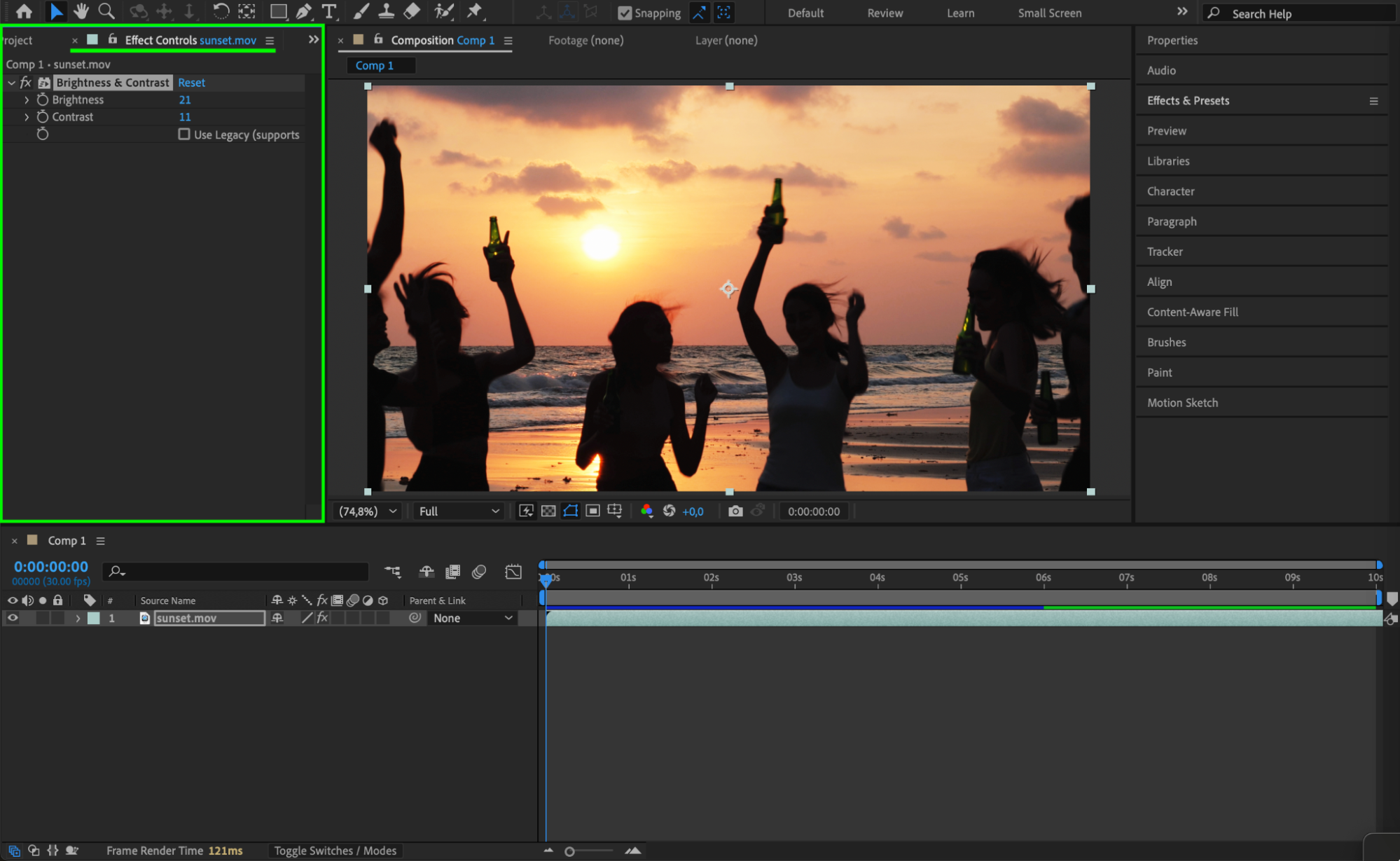 Step 4: Apply a New Effect
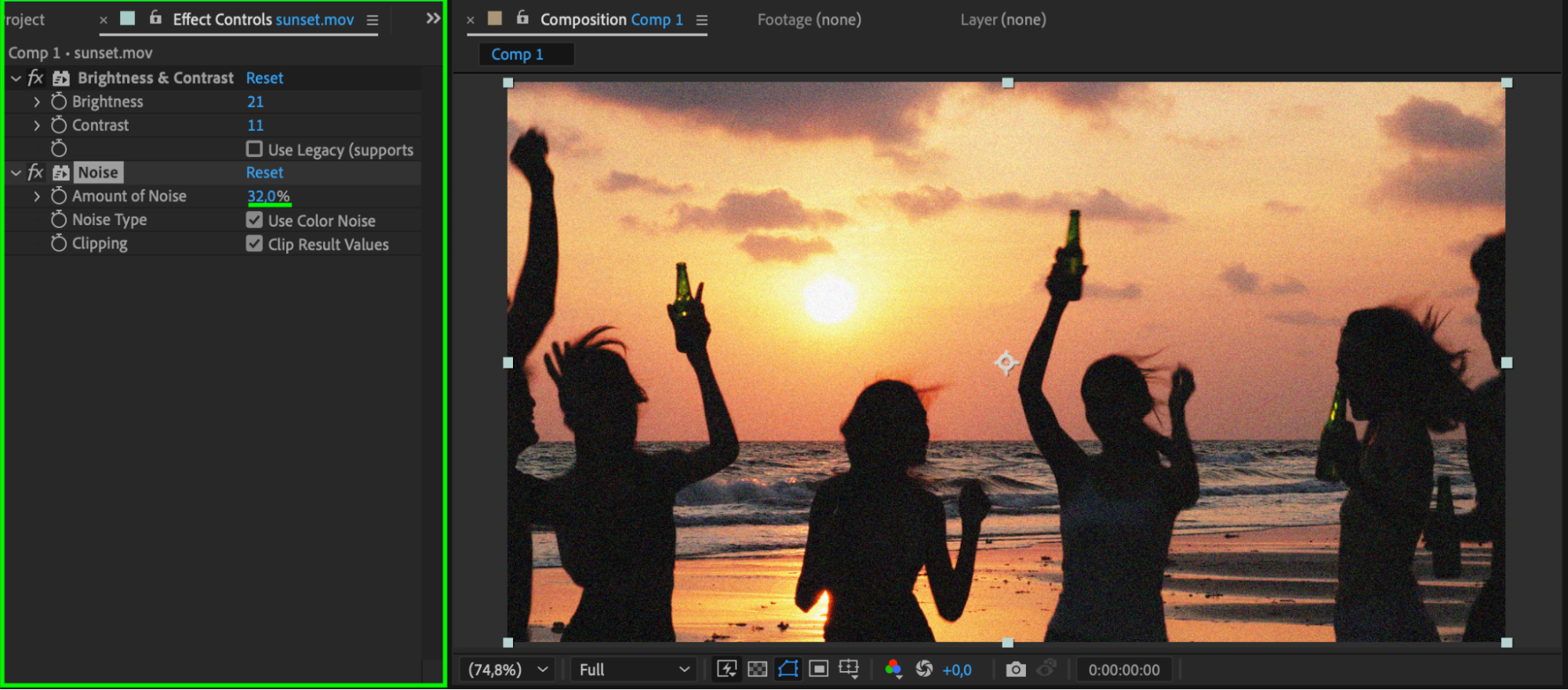
Go to the Effects & Presets panel, find the effect you want, and drag it onto your selected layer. It will automatically appear in the Effect Controls panel for editing.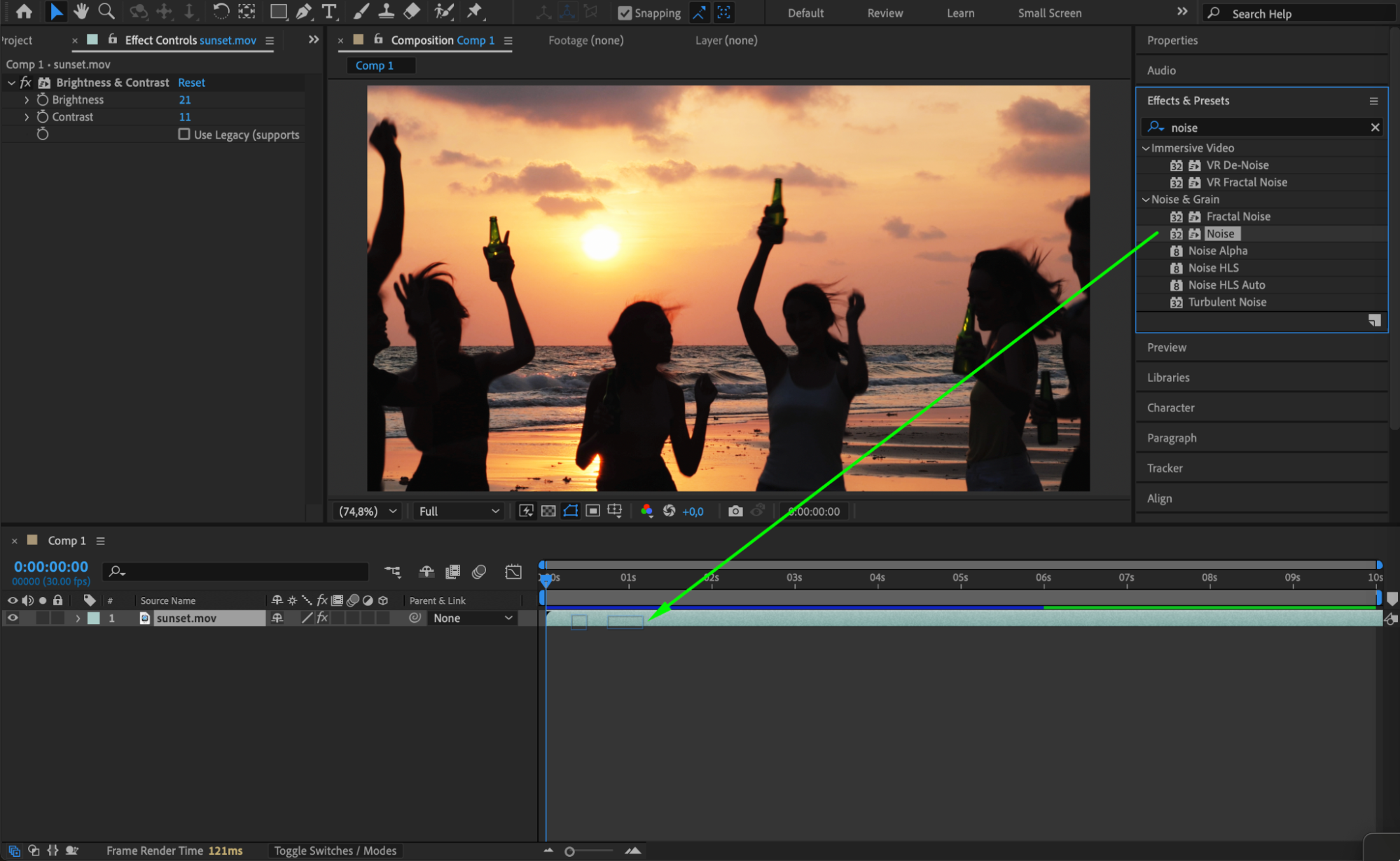
 Step 5: Organize or Reset Effects
You can collapse or expand each effect group to keep things tidy. To reset an effect to its default settings, click the small Reset button beside its name.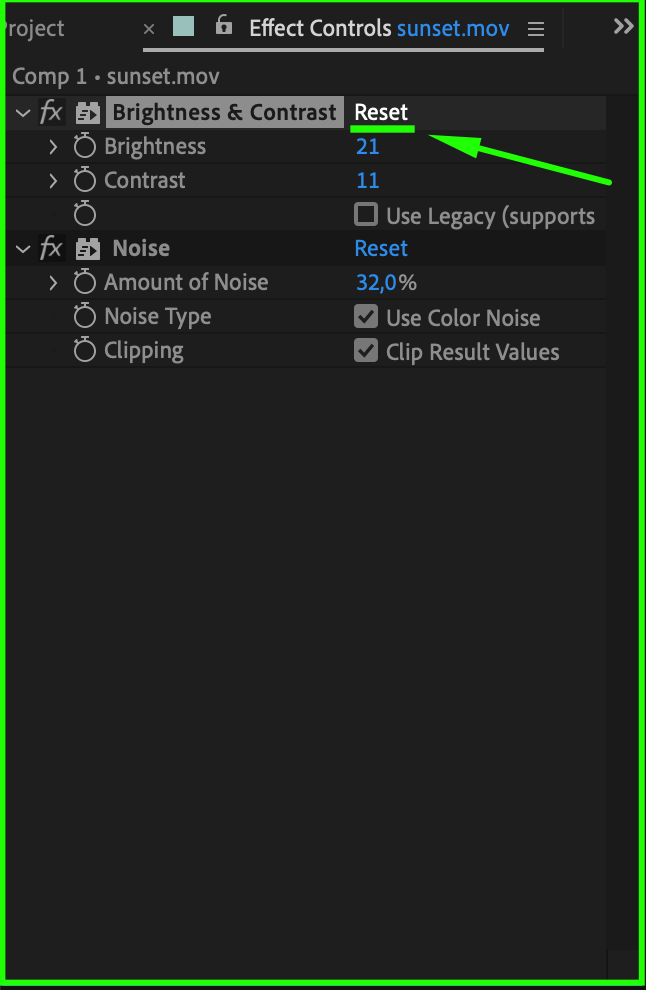
 Step 6: Switch Between Layers in Effect Controls
When you select a different layer in the timeline, the Effect Controls panel will automatically update to show the effects applied to that specific layer. This makes it easy to manage and adjust effects across multiple layers without switching panels.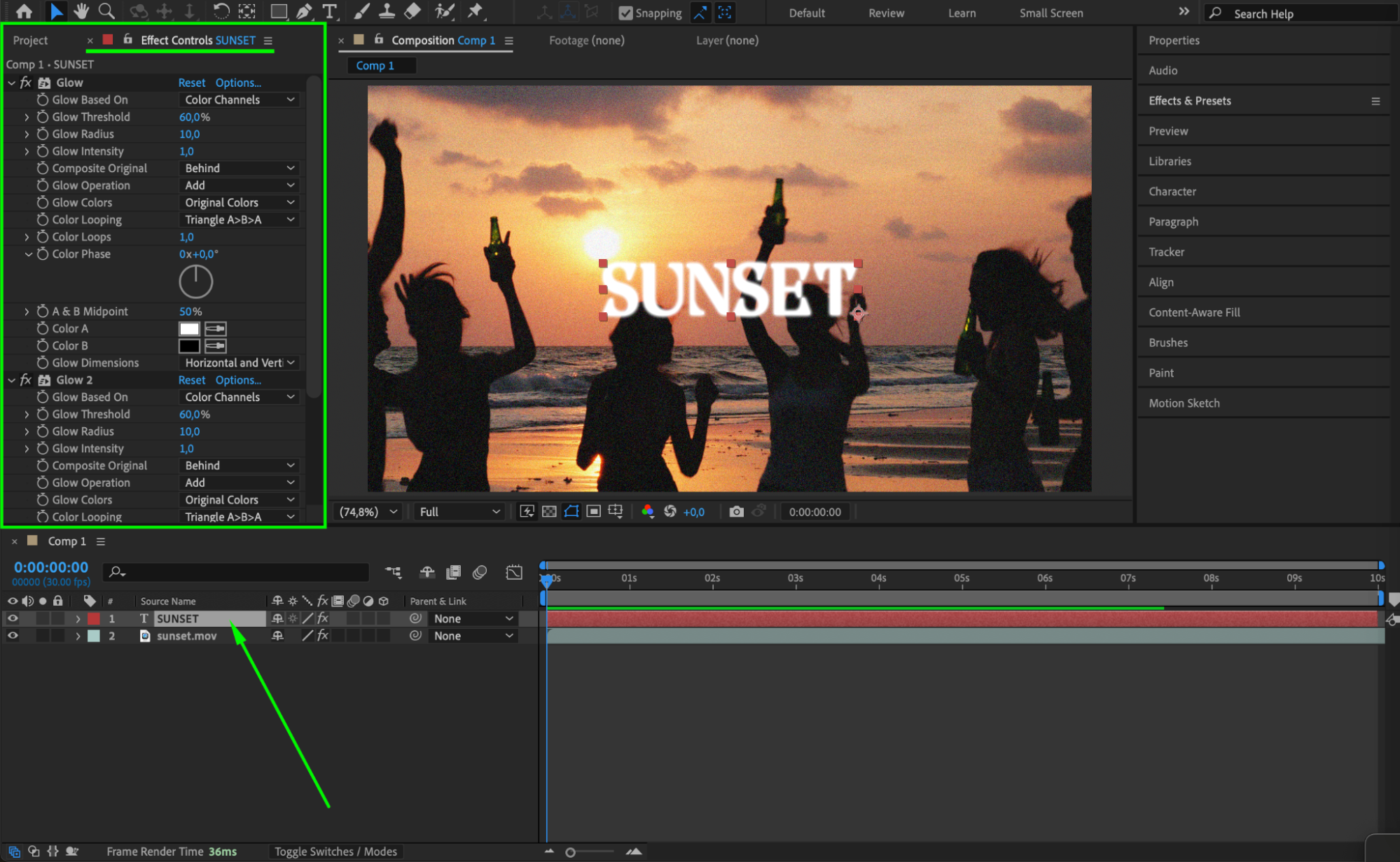
Step 7: Toggle Effects On and Off
Next to each effect in the Effect Controls panel, there is an fx icon. By clicking it, you can temporarily disable the effect and see how the layer looks without it. Click it again to re-enable the effect. This is useful for comparing changes or troubleshooting.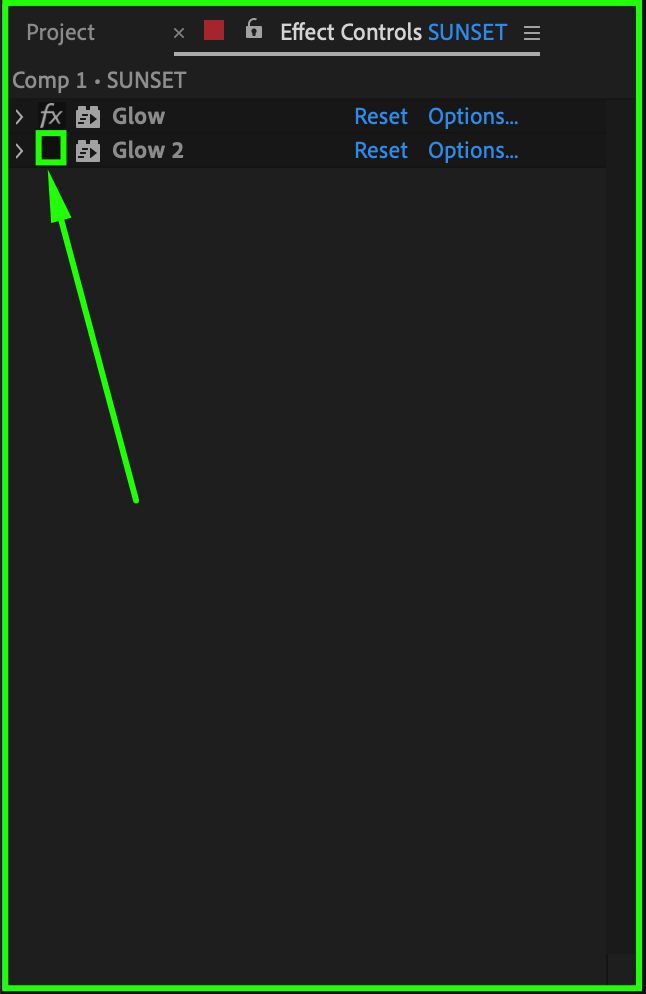
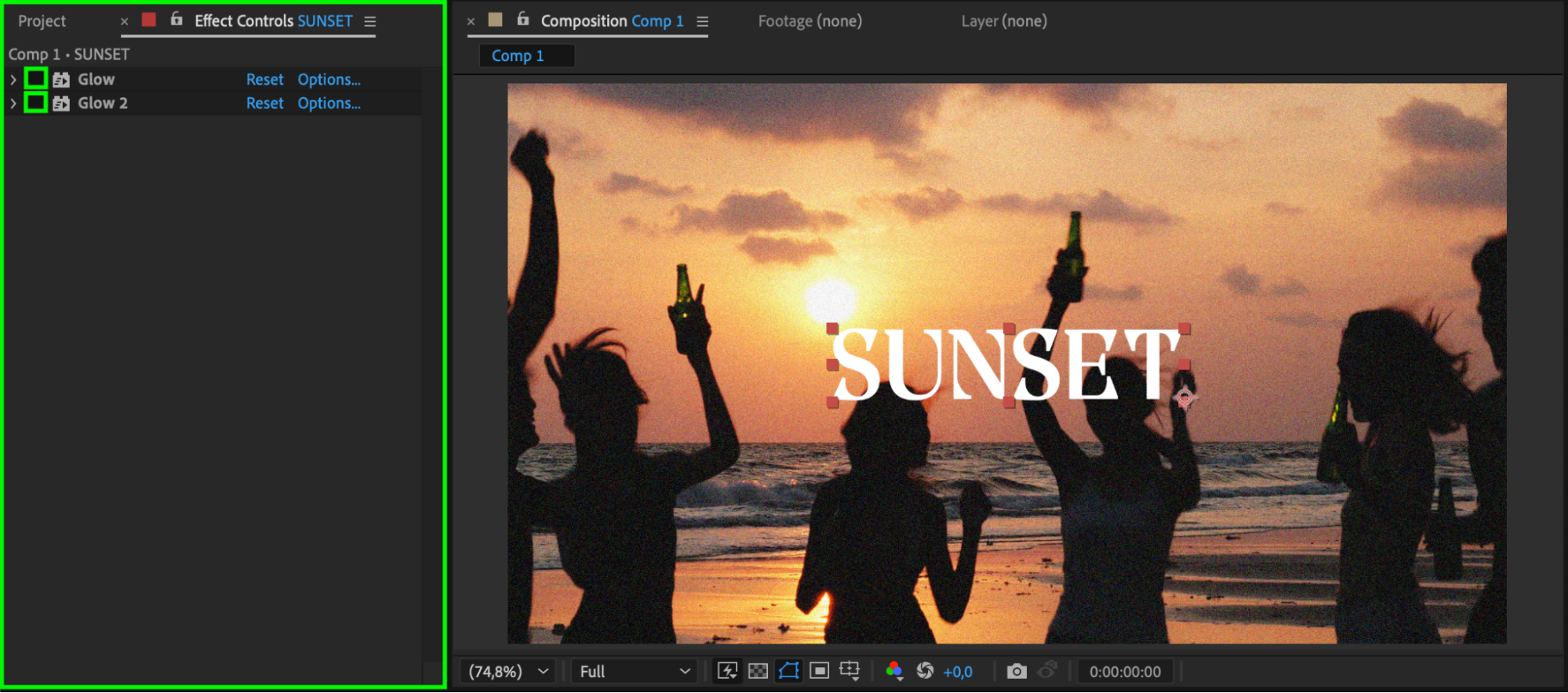 Step 8: Preview and Fine-Tune
Make adjustments in the Effect Controls panel while previewing your animation in real-time. This lets you fine-tune parameters for the best visual result.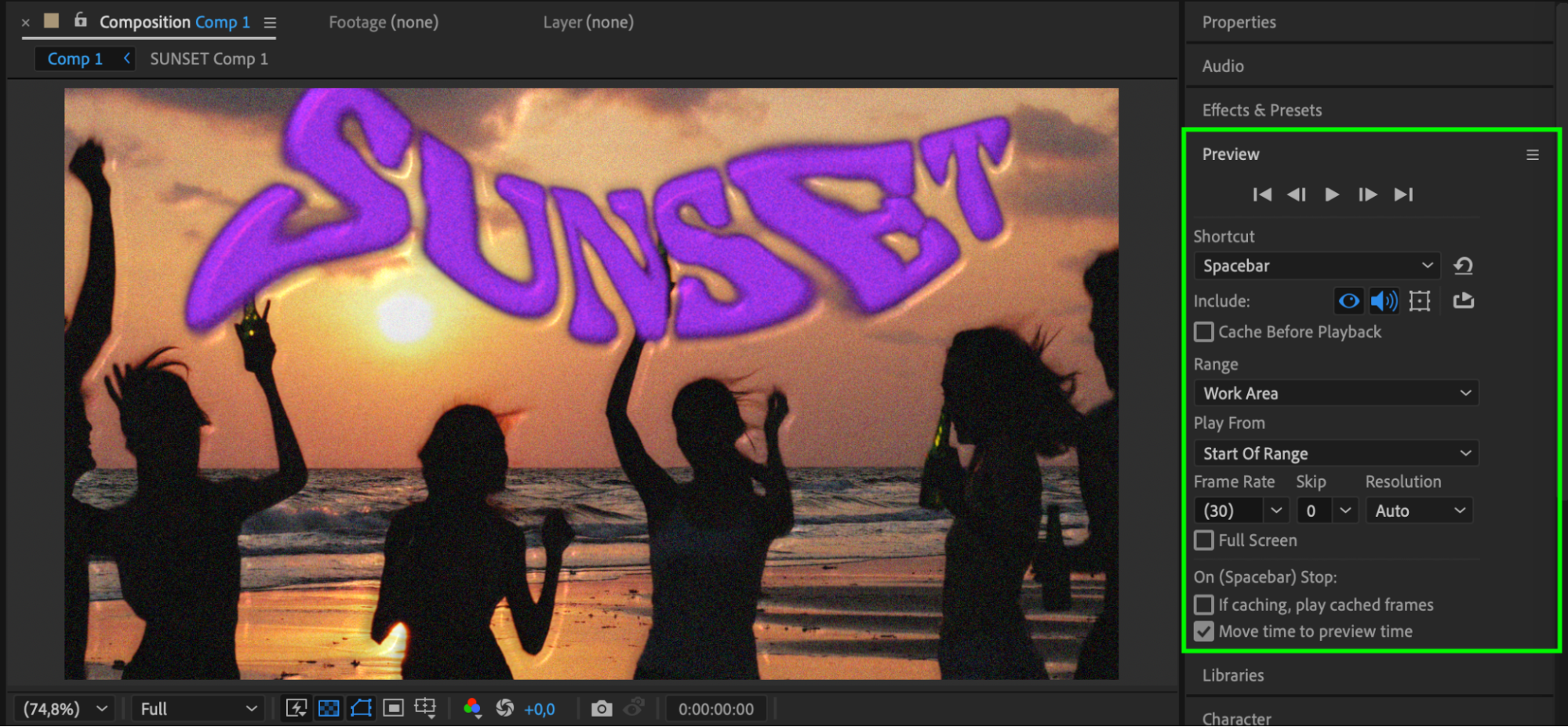 Conclusion
The Effect Controls panel is essential for working efficiently in After Effects. With it, you can control all aspects of your effects in one place, giving you more flexibility and precision in your creative projects.
Our Bestsellers
Our Bestsellers


