
How to Keep Vector and Text Layers Sharp in After Effects
Introduction
When working in After Effects, you may notice that some elements, like vector files or pre-composed text, become blurry when scaled up. This is because After Effects treats them like raster images unless told otherwise. To avoid this problem, you can enable a special feature called Continuous Rasterization. It ensures your artwork stays sharp and clean at any size. This guide will show you how to properly rasterize vector files and text using this simple but powerful tool.
Step 1: Import an EPS or Vector File
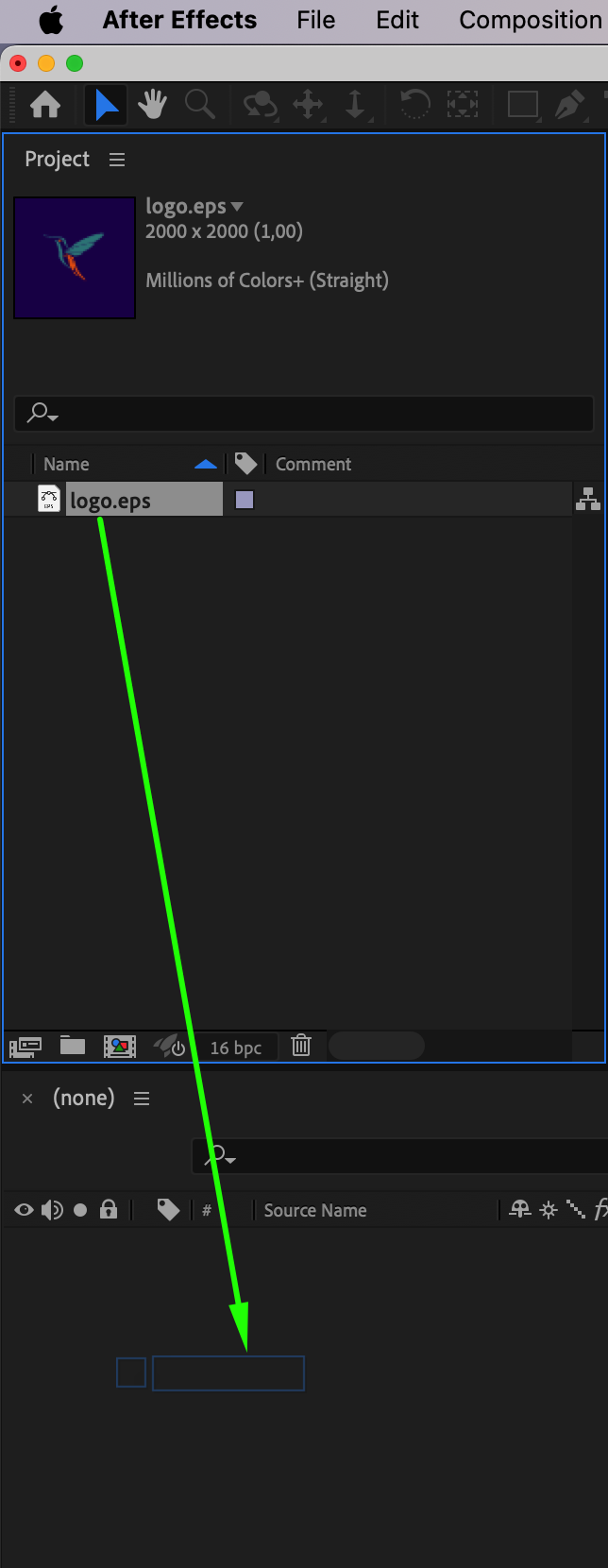
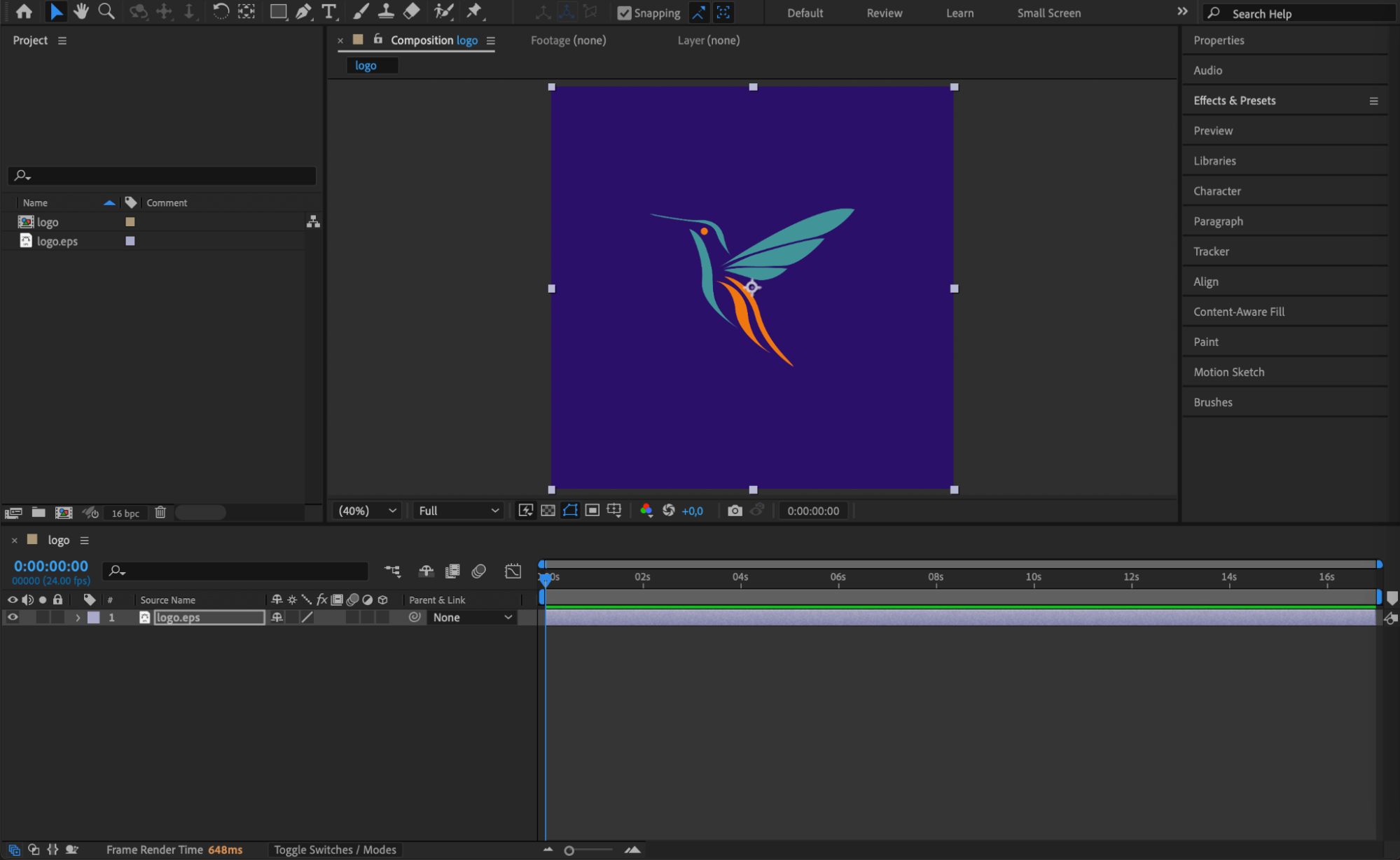
Go to File > Import > File and select your EPS or AI vector graphic. Drag it into your composition timeline. By default, it will look fine at normal size, but if you scale it up, the quality may drop unless you enable continuous rasterization.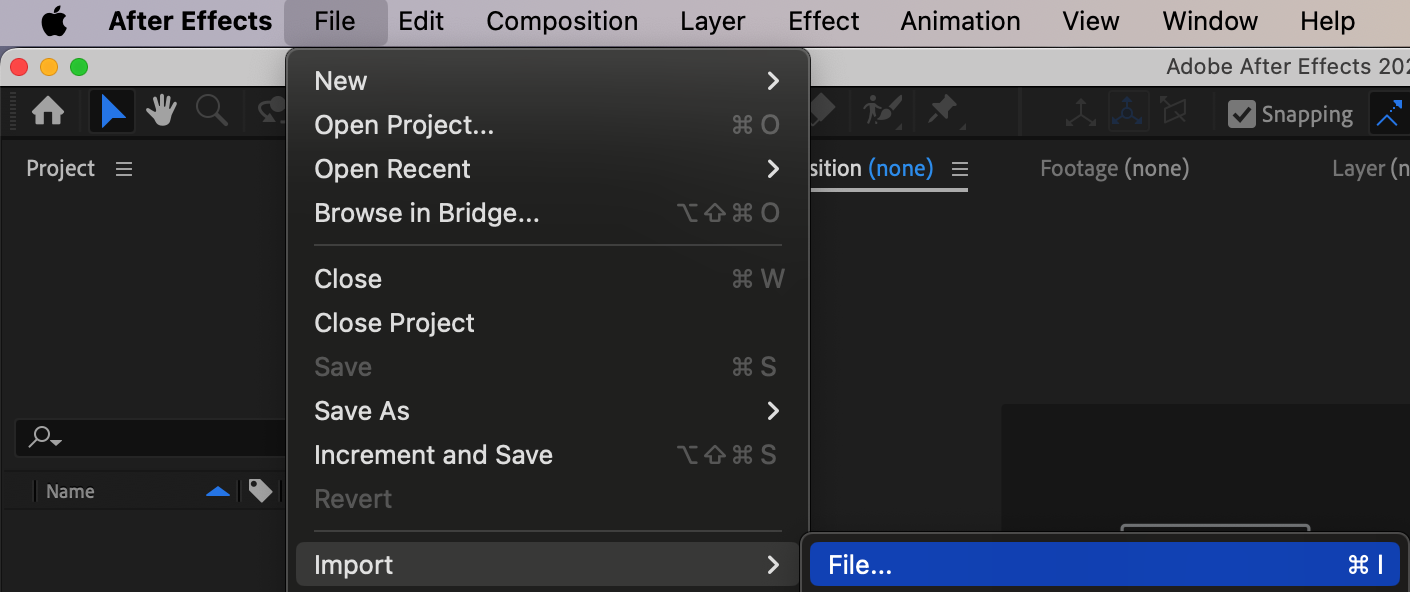
 Step 2: Scale the Vector Layer
Click on the vector layer, press “S” to open the Scale property, and increase its value. You may notice it starts to look pixelated. This happens because After Effects is rasterizing the vector only at its current resolution. To fix this, proceed to the next step.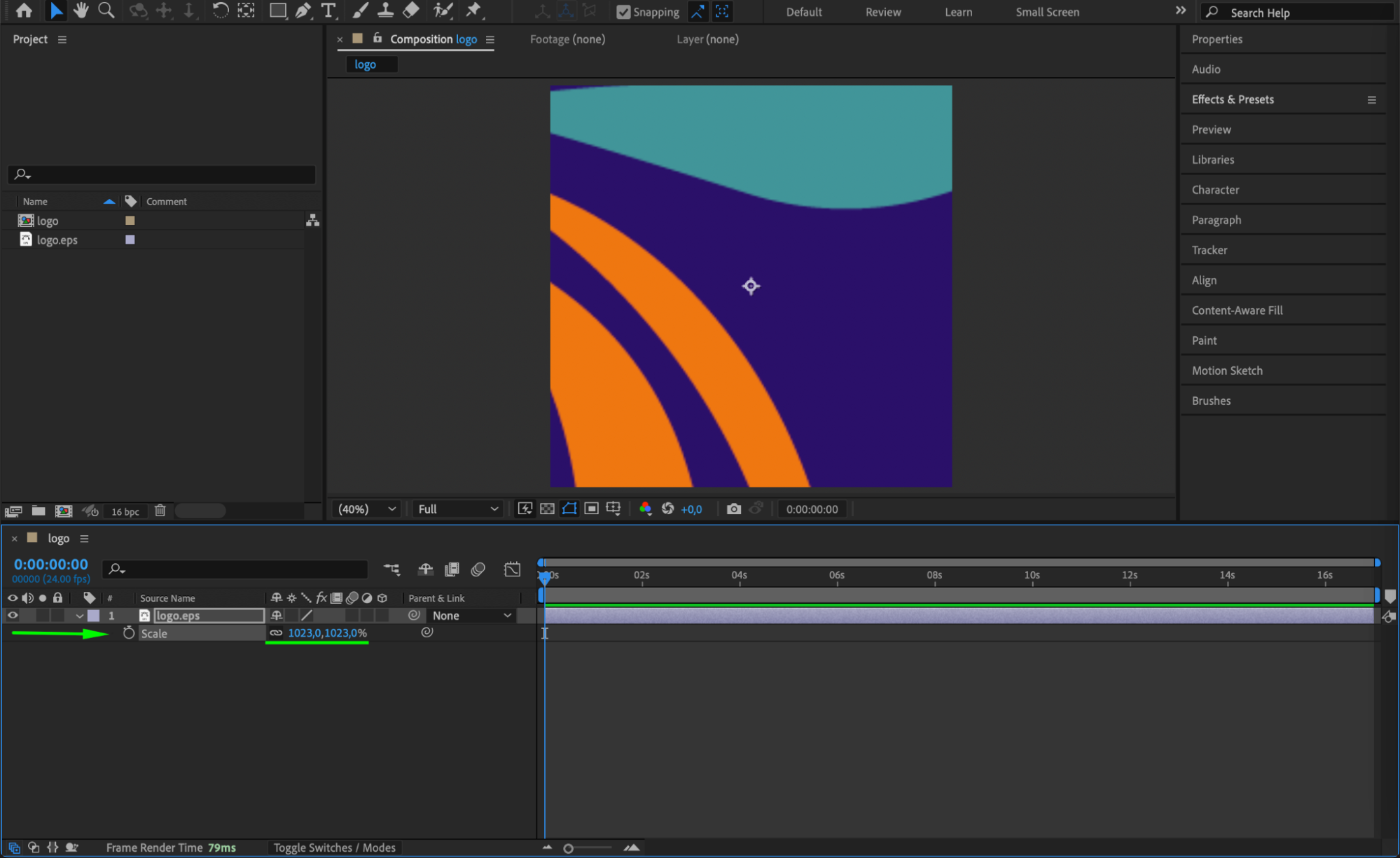
Step 3: Enable Continuous Rasterization
In the timeline, find the sun/star icon in the Switches column next to your vector layer. Click it to turn on Continuous Rasterization. After doing this, your vector file will stay sharp no matter how much you scale it up. This tells After Effects to render the vector detail freshly every frame.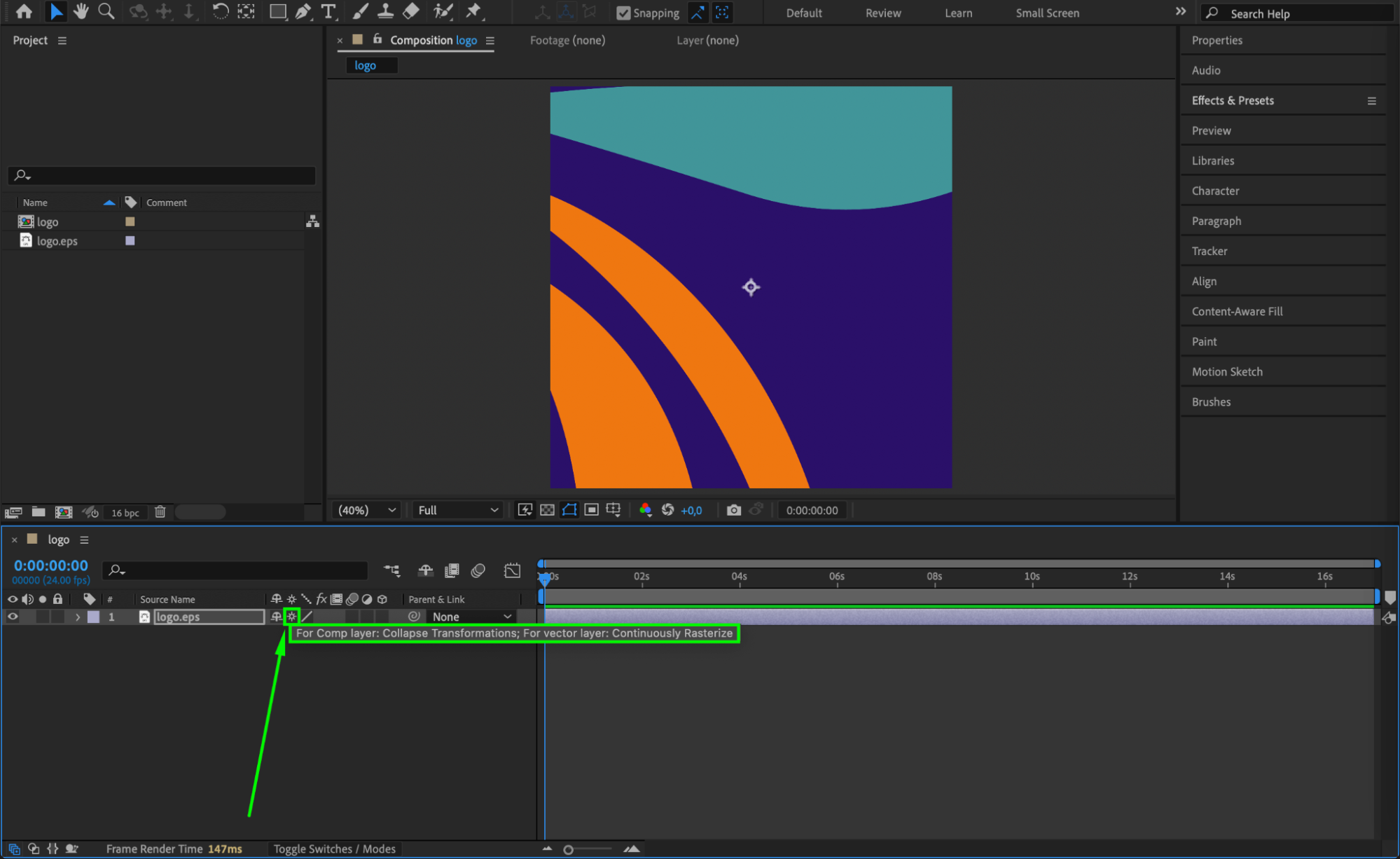 Step 4: Create a Text Layer
Use the Type Tool (Cmd/Ctrl + T) to create a new text layer. Scale it up using the Scale property or by adjusting the font size. Unlike vector files, text layers in After Effects are automatically resolution-independent and will remain sharp when enlarged.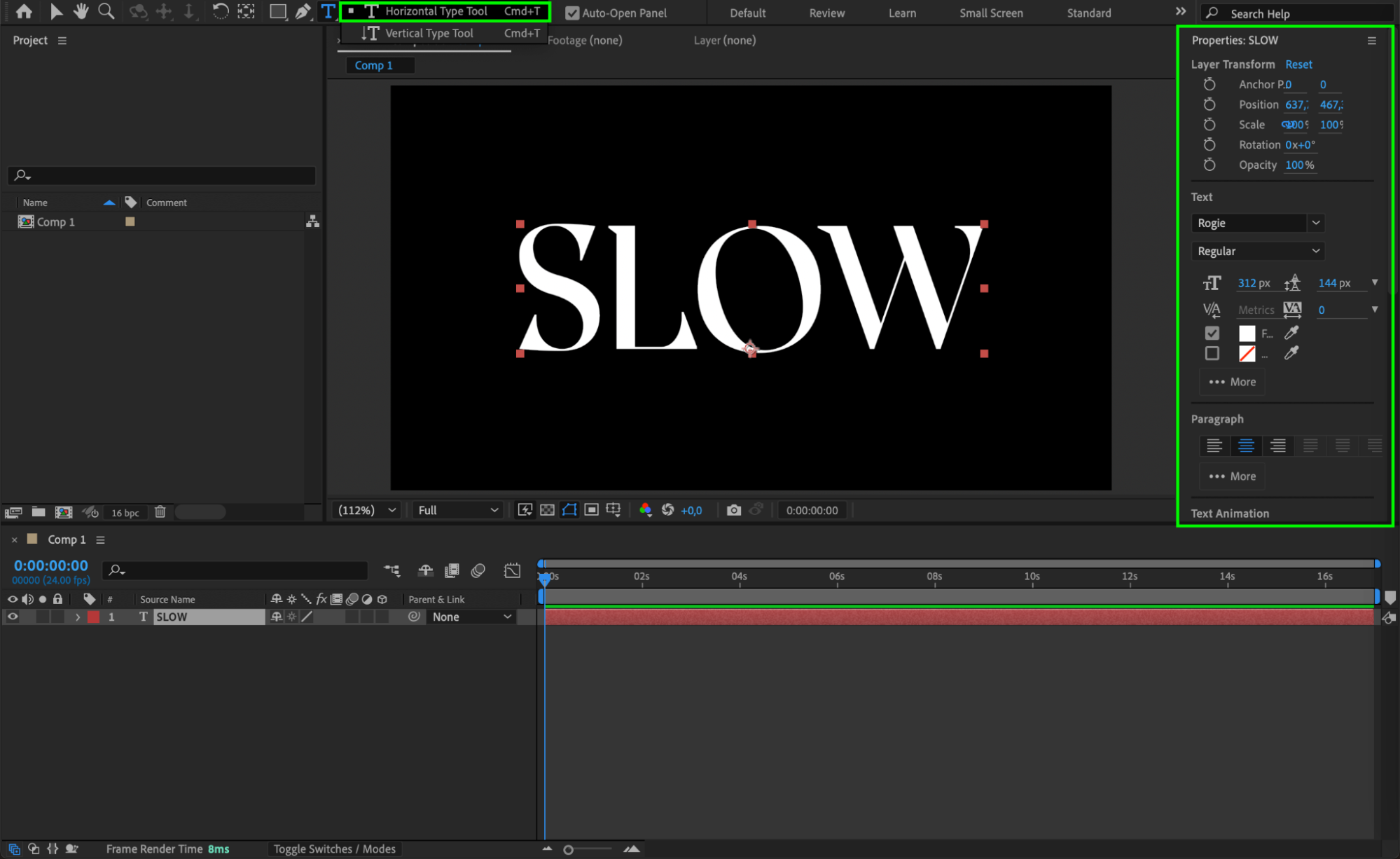 Step 5: Pre-compose the Text Layer
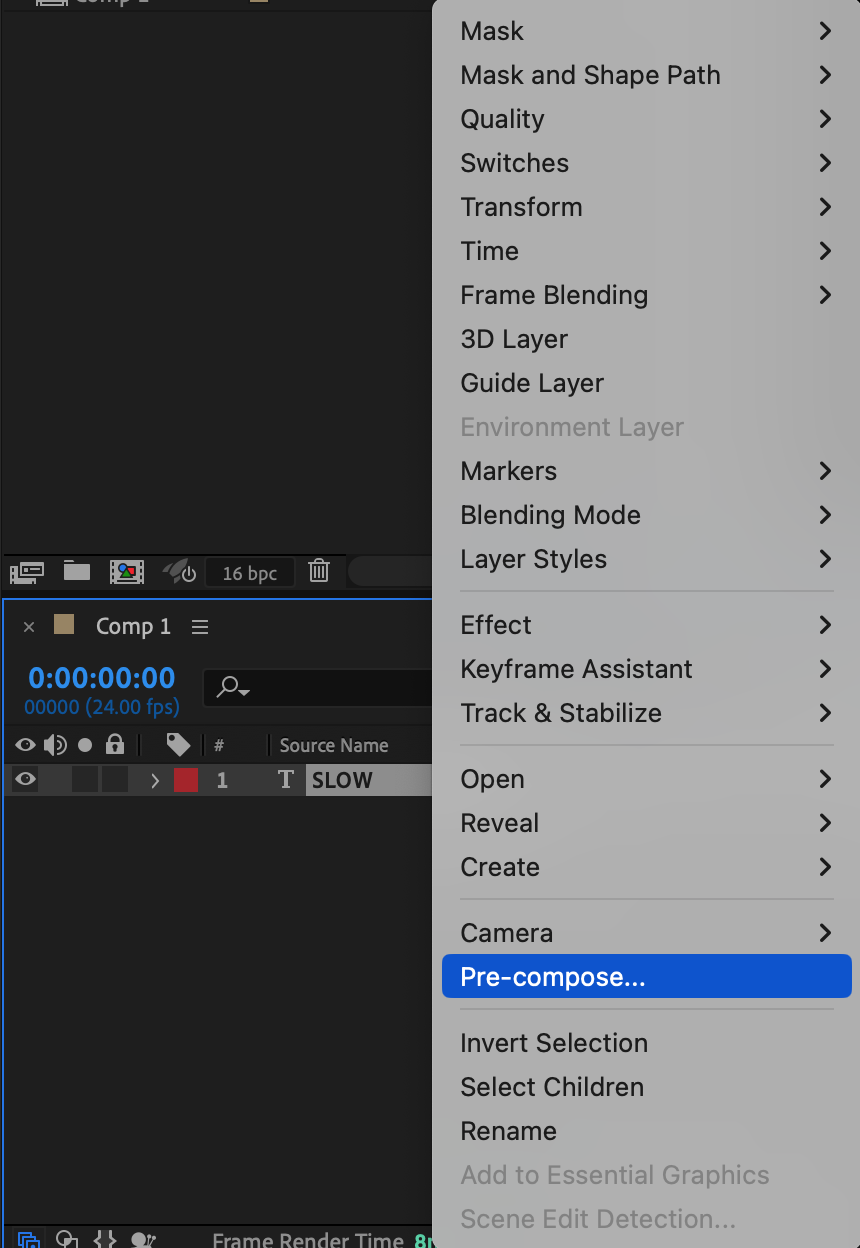
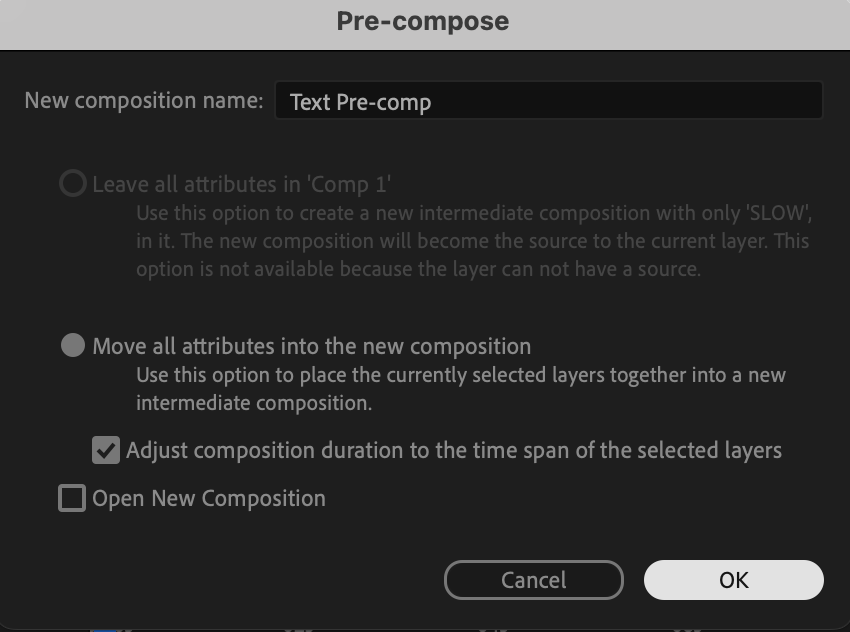
Select your text layer and go to Layer > Pre-compose. This creates a new composition with the text inside. Now, if you scale the pre-comp in the main composition, you’ll notice the text may become blurry.
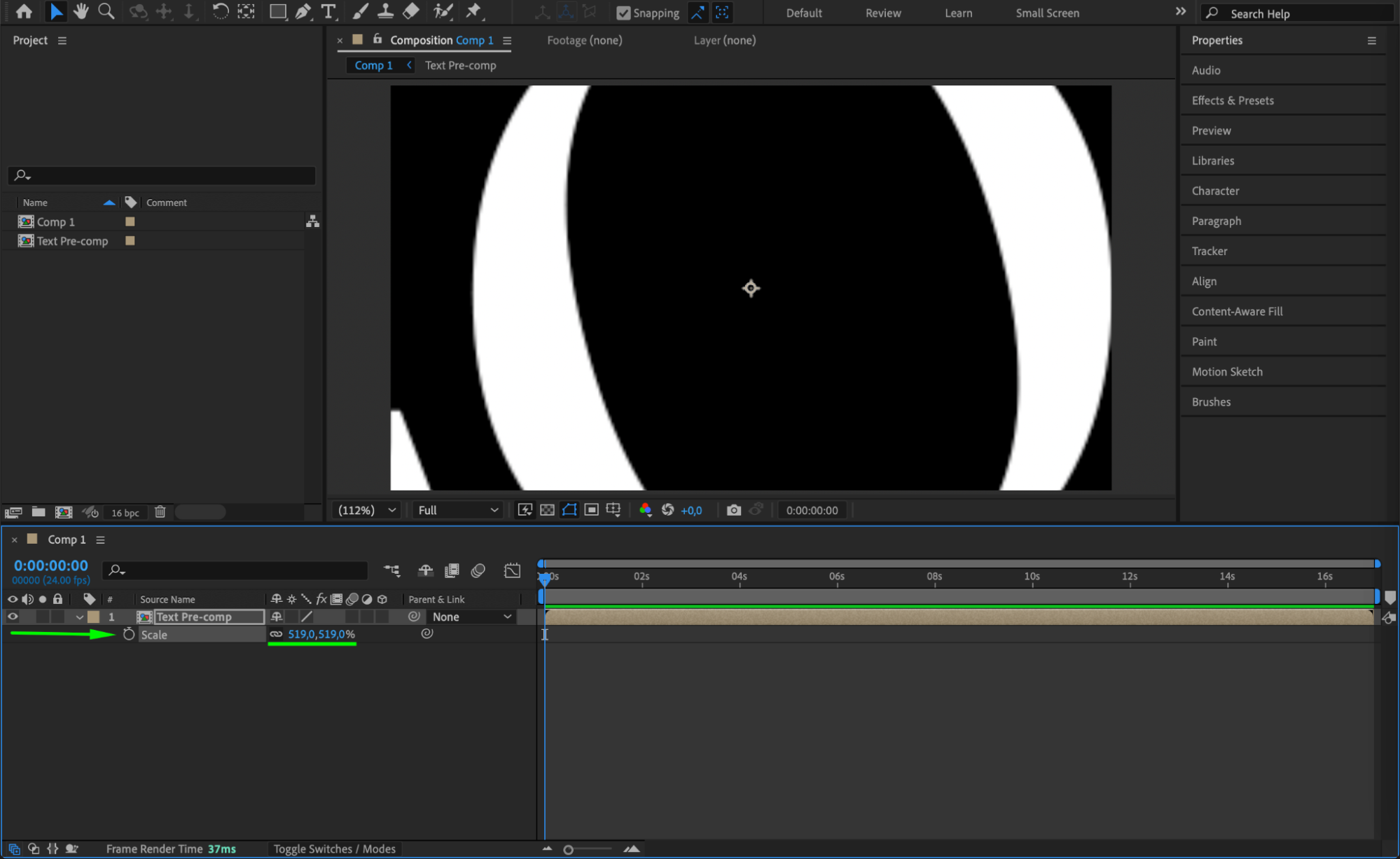
Step 6: Enable Continuous Rasterization on Pre-composed Text
To make the pre-composed text sharp again, click the sun/star icon next to the pre-comp layer in the timeline. This activates Continuous Rasterization, and your text will once again look sharp even when scaled.
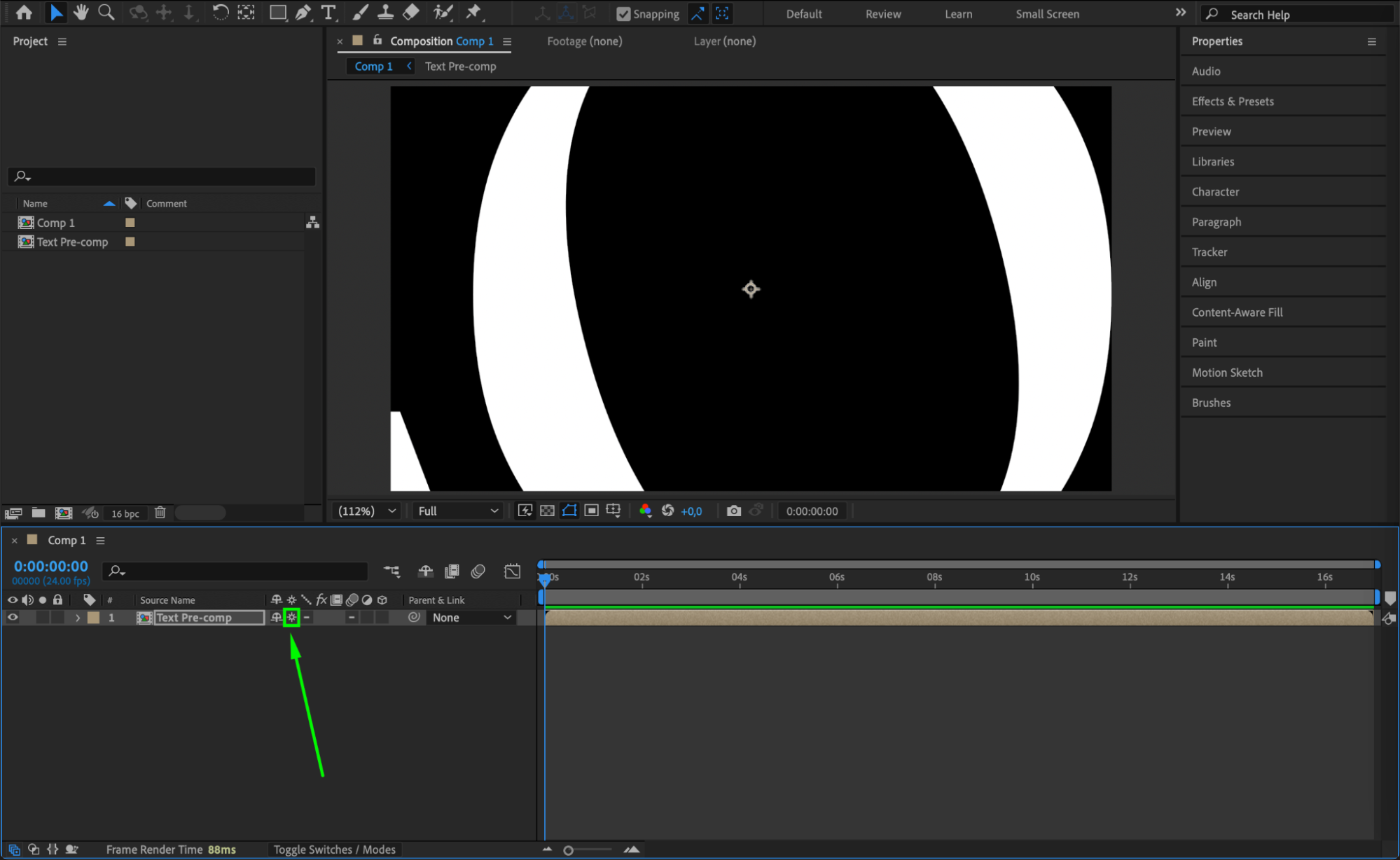
Step 7: Use This Technique for Logos and Icons
This method also works well for logo animations, illustrations, or icons that were designed in Illustrator or exported as EPS. As long as you enable Continuous Rasterization, you can scale or rotate your vector artwork without any quality loss.
Step 8: Combine with Motion Graphics
If you’re creating motion graphics that require zooming in or scaling up vector shapes or pre-composed text, always remember to activate the rasterization switch. It ensures smooth animation without the distraction of pixelation or blurred edges.
Conclusion
Rasterizing in After Effects isn’t about converting something into pixels — it’s about keeping things vector-based and sharp. By enabling Continuous Rasterization for EPS files, Illustrator files, and pre-composed text, you maintain professional-quality visuals even when scaling. It’s a small checkbox with a big impact on the final result
Our Bestsellers
Our Bestsellers


