
Recovering Lost or Unsaved After Effects Project Files
Introduction
It’s frustrating to lose progress on an After Effects project due to a crash, power failure, or an accidental close without saving. Fortunately, After Effects offers several built-in recovery tools to help restore your work. In this guide, you’ll learn how to find autosaved versions, access temporary files, and prevent data loss in the future.
Step 1: Check the Auto-Save Folder
After Effects automatically creates backup versions of your project. Go to your Documents folder and navigate to:
Windows: DocumentsAdobeAfter Effects [version]Auto-Save
Mac: Documents/Adobe/After Effects [version]/Auto-Save
Open the most recent .aep file in that folder to restore your latest progress.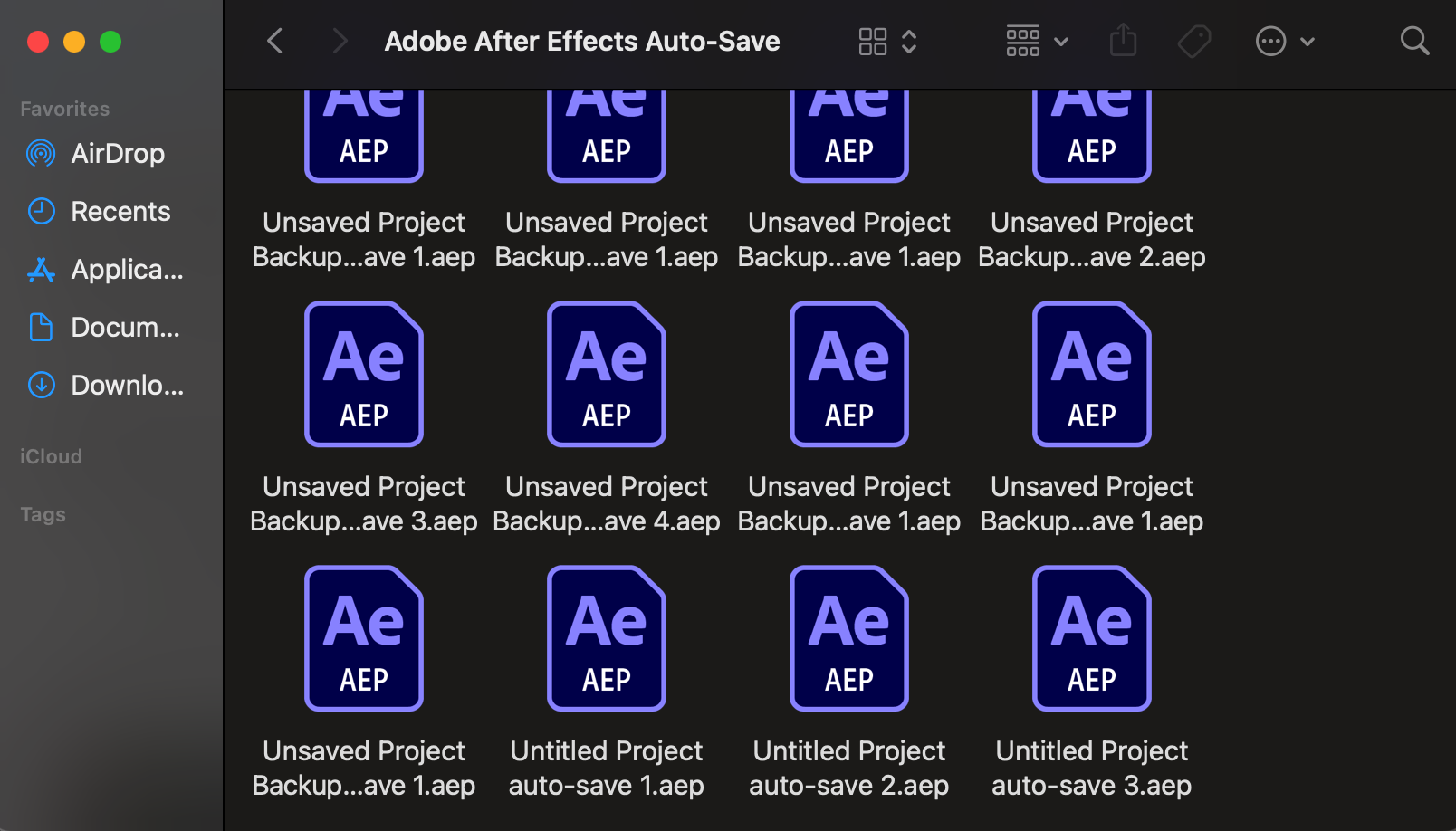
Step 2: Use “Open Recent” from the File Menu
If your project was saved before the issue occurred, go to File > Open Recent in After Effects. This menu lists the most recently opened projects. It’s a quick way to reopen your last file if you forgot the name or location.
Step 3: Search for Temporary Files
Sometimes After Effects saves temporary data. On Windows, press Windows + R, type %temp%, and hit Enter. On Mac, open Finder, then click Go > Go to Folder and enter /private/var/folders/. Look for recent .aep files or large files modified at the time of your crash. If found, copy and try opening them.
Step 4: Restore from Cloud Backup or External Drive
If you store your project in cloud services like Dropbox, Google Drive, or OneDrive, check their file history or version restore features. You may be able to download a previous version. If you use an external backup drive, see if a recent copy of the project was saved there.
Step 5: Check the Adobe Creative Cloud Sync Folder
If you use Adobe Creative Cloud Sync, go to the synced folder on your computer. This folder might contain an older version of your project or files that didn’t appear in your Auto-Save folder. Look for .aep files in your synced directories.
Step 6: Enable and Customize Auto-Save Settings
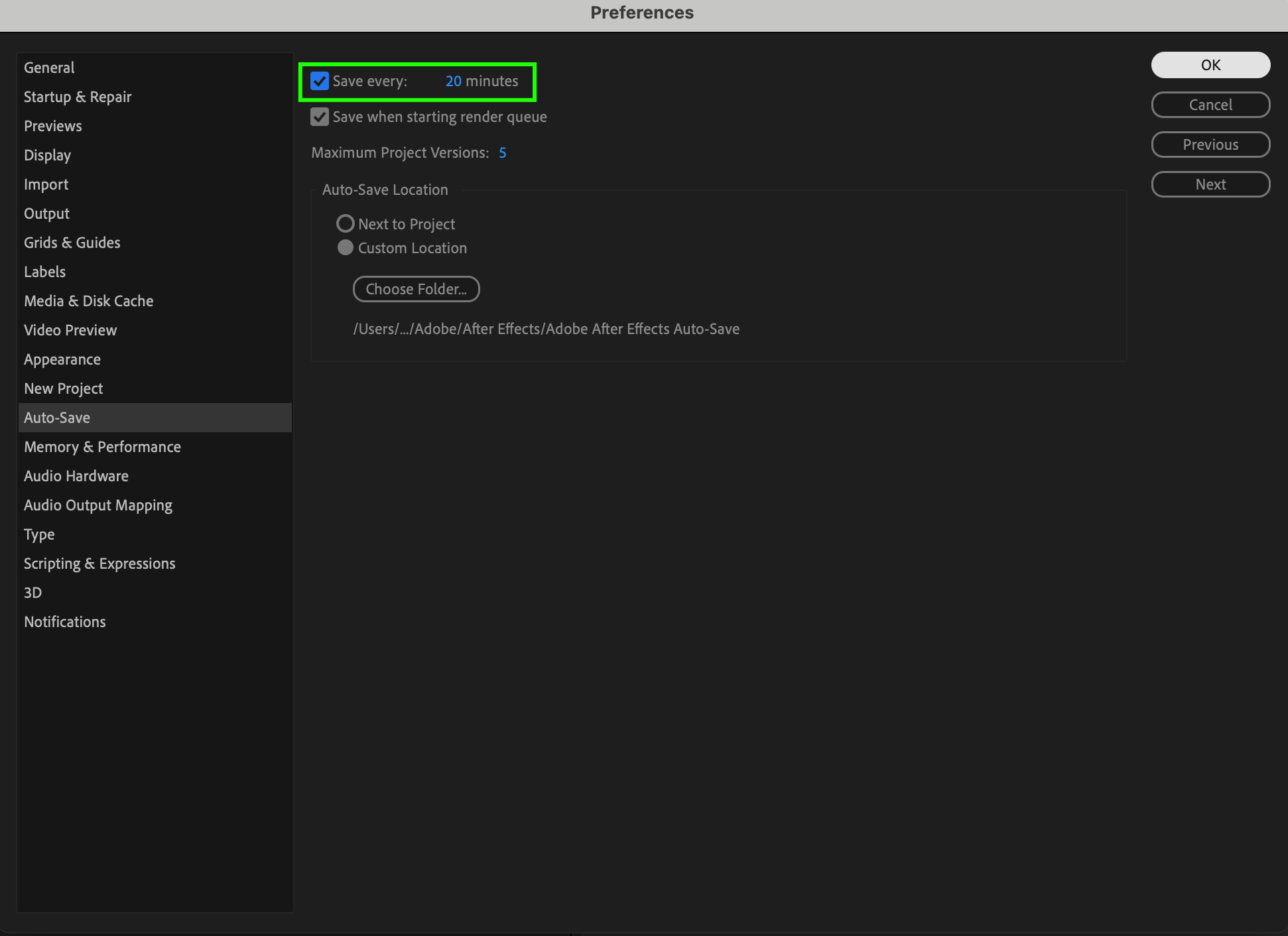
To prevent data loss in the future, go to Edit > Preferences > Auto-Save (or After Effects > Settings > Auto-Save on Mac). Make sure Save Every is enabled. Set it to save every 5 or 20 minutes, and keep at least 5 versions. This ensures you always have recent backups.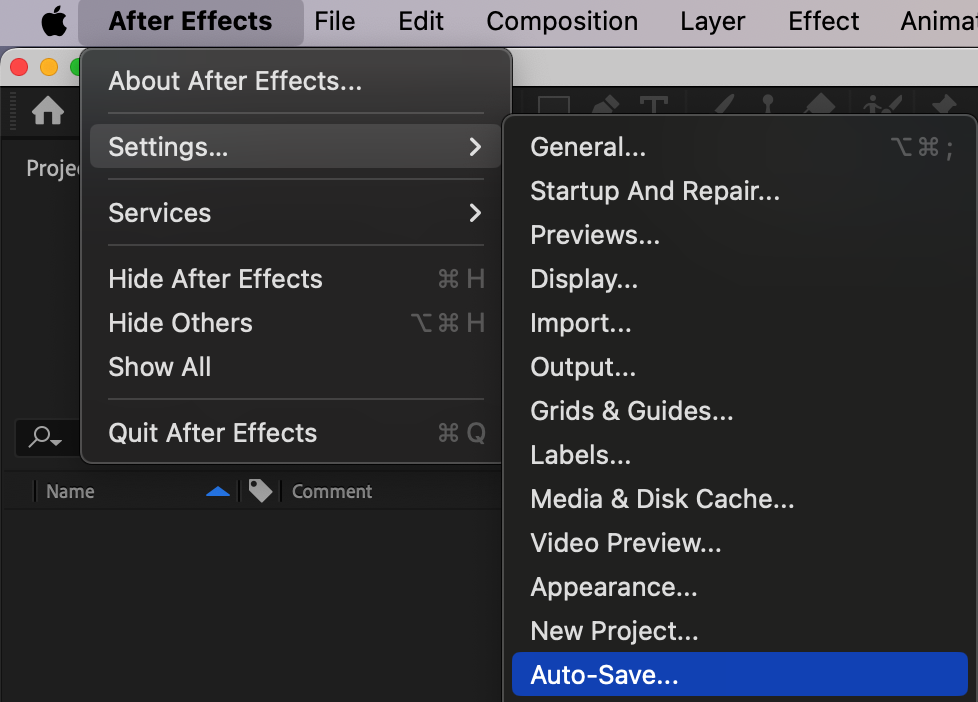
 Conclusion
Losing your After Effects project can feel overwhelming, but with autosave, temp files, and backup solutions, there’s a good chance your work can be recovered. Follow these steps to find your lost file and remember to customize your auto-save settings to avoid future issues.
Our Bestsellers
Our Bestsellers


