
Removing Flickering Light from Video in After Effects
Introduction
Flickering lights can ruin an otherwise great video. Flicker is often caused by inconsistent lighting, such as fluorescent lights or camera shutter mismatch. In this tutorial, you’ll learn a simple method to reduce flicker in After Effects by layering your footage with time offsets and opacity adjustments.
Step 1: Import Your Video
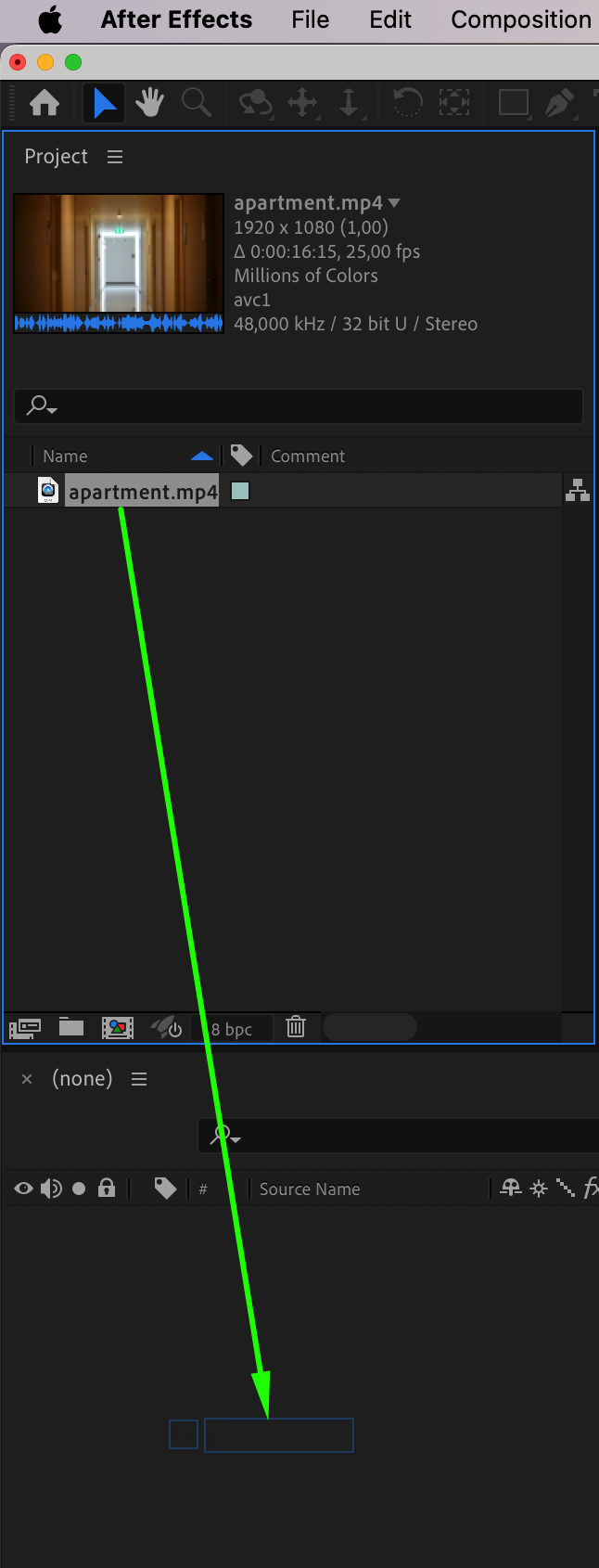
Open After Effects and go to File > Import > File to bring in your video. Drag it into the timeline to start editing.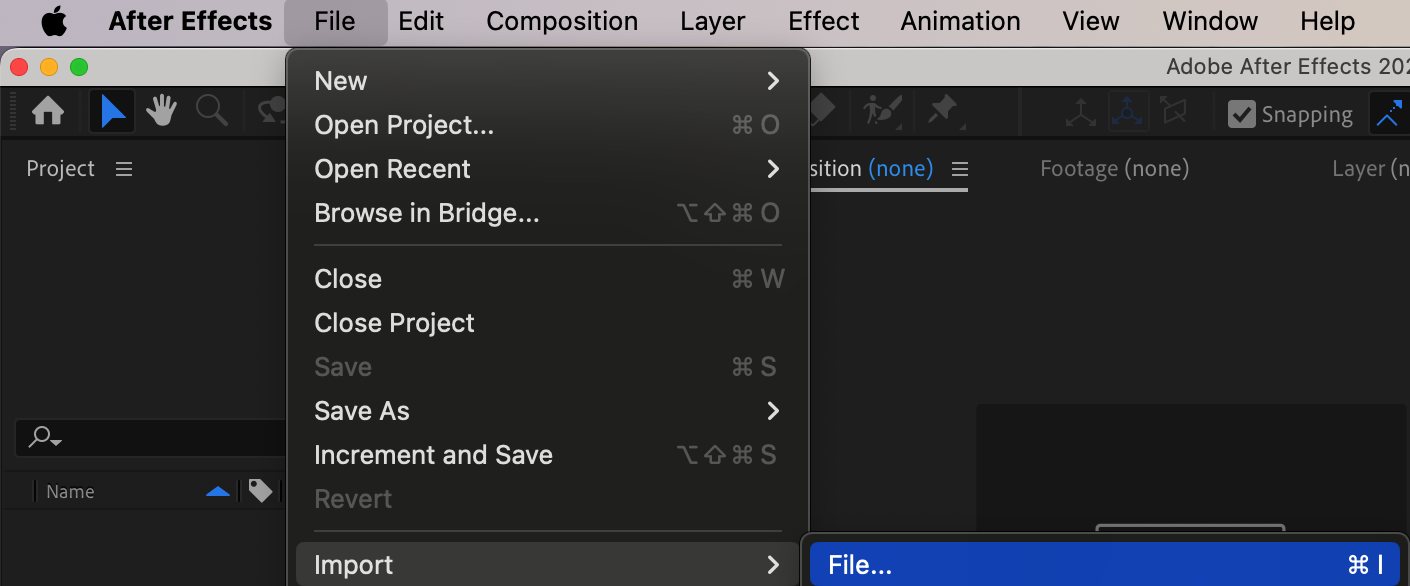
 Step 2: Review the Flicker
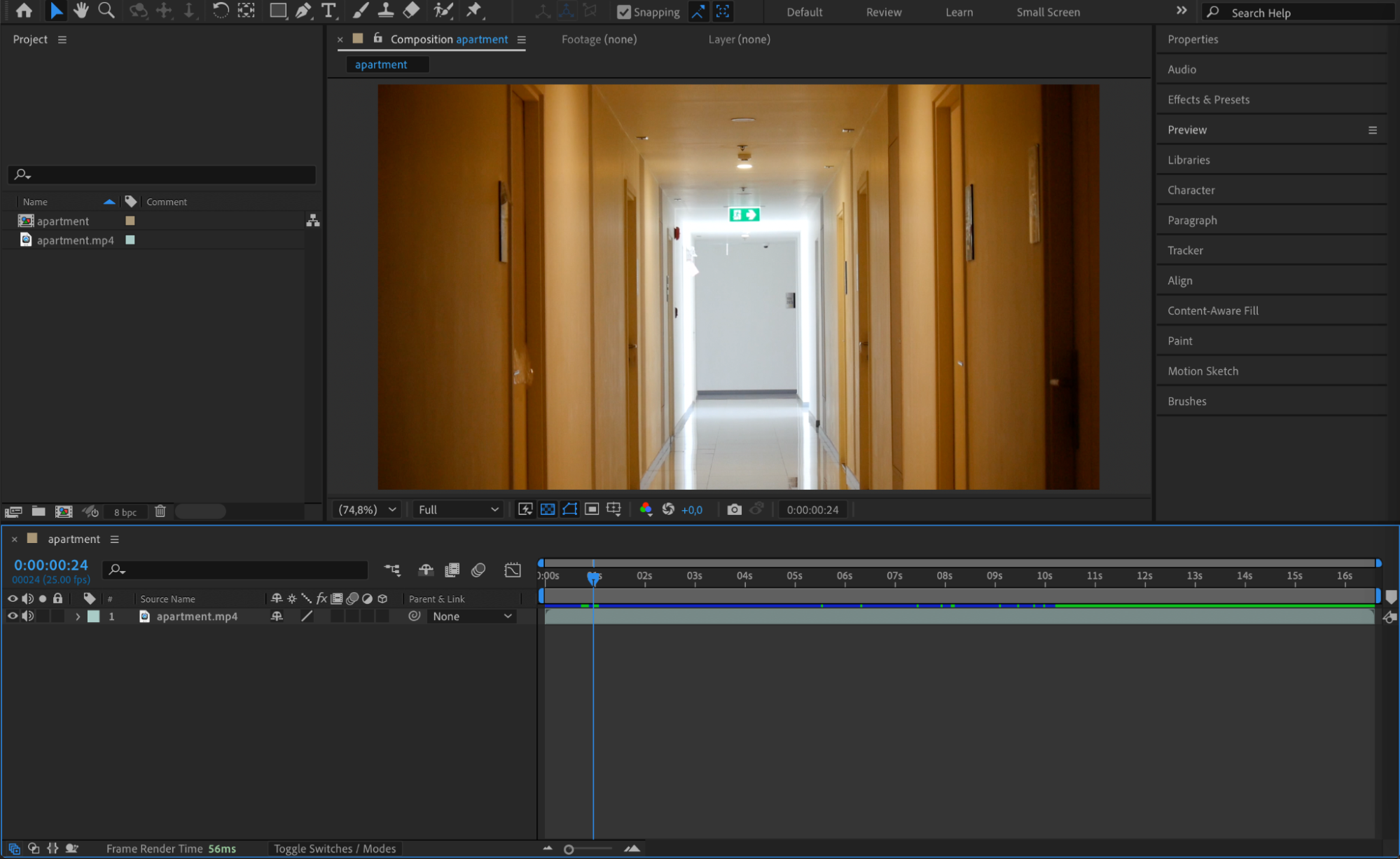
Play through your footage and identify where the flicker happens. For example, in this case, the light not only changes slowly but also flashes suddenly. The goal is to smooth out those sharp brightness jumps.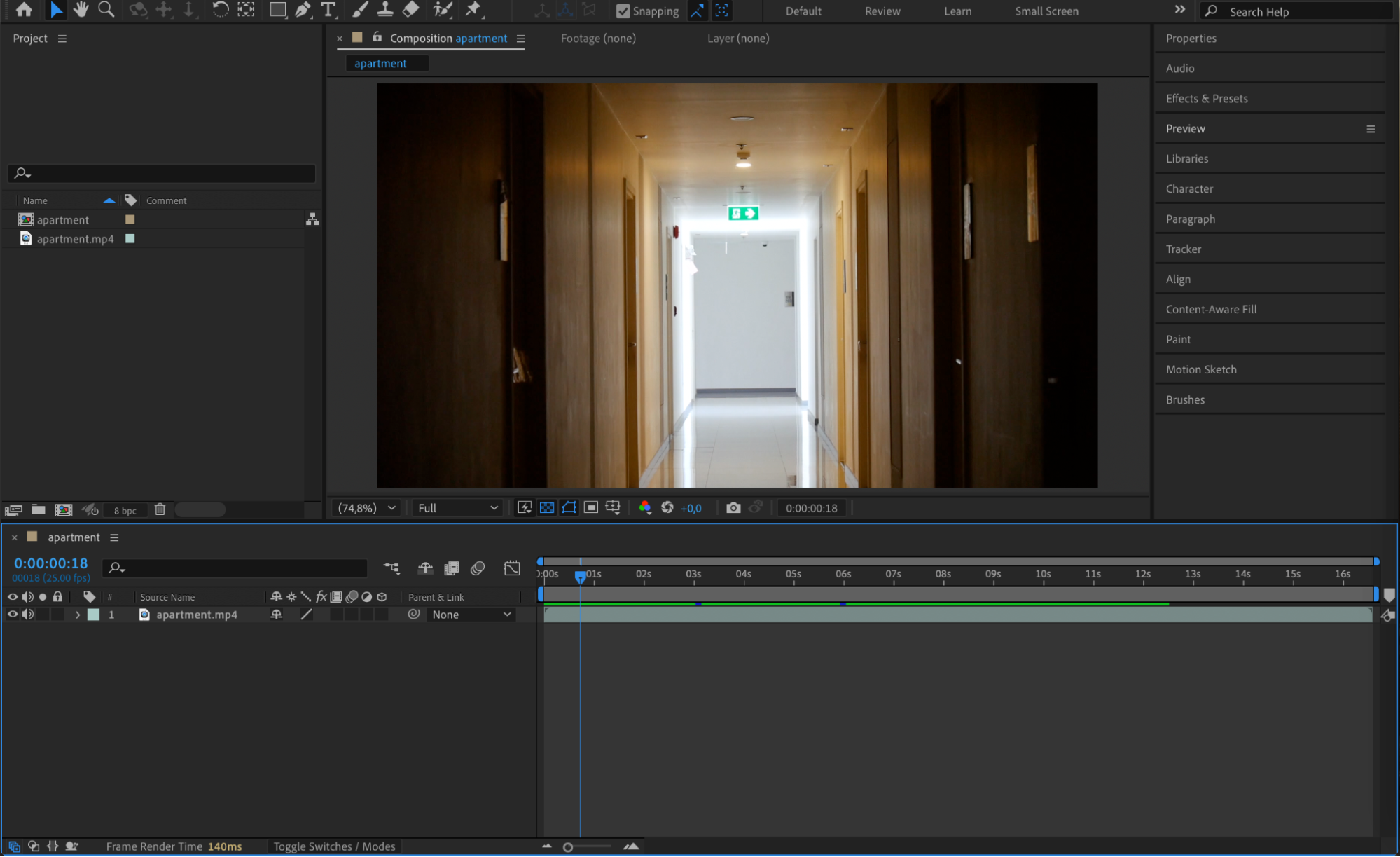
Step 3: Duplicate the Layer Multiple Times
Select your video layer and press “Ctrl/Cmd + D” to duplicate it four times. You should now have five identical video layers stacked on top of each other in the timeline.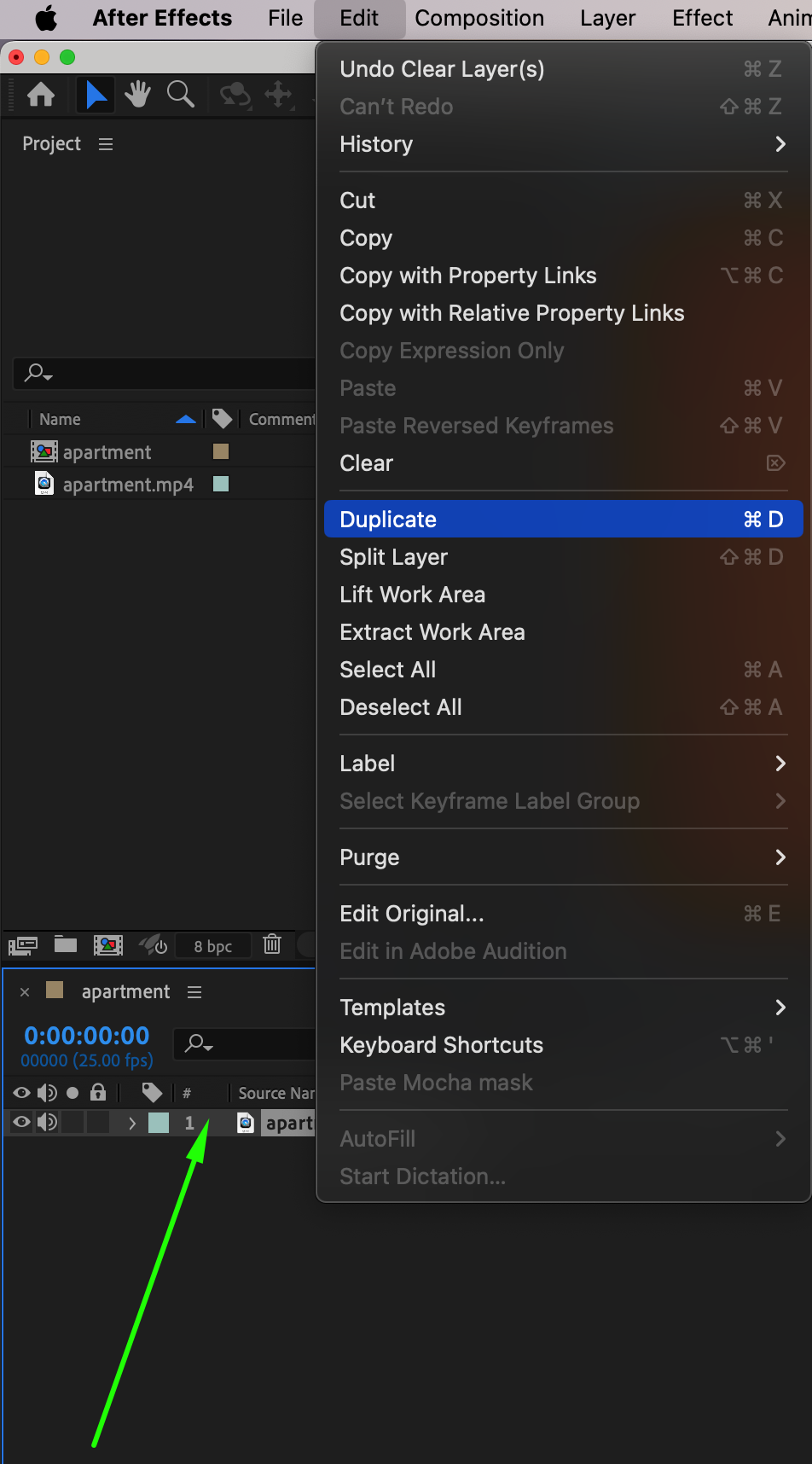 Step 4: Adjust Opacity of Each Layer
Press “T” on your keyboard to reveal the Opacity property for each layer. Set the opacity as follows:
Layer 1: 33%
Layer 2: 44%
Layer 3: 50%
Layer 4: 66%
Leave the original base layer at 100%. This combination helps to average the brightness and reduce flicker intensity.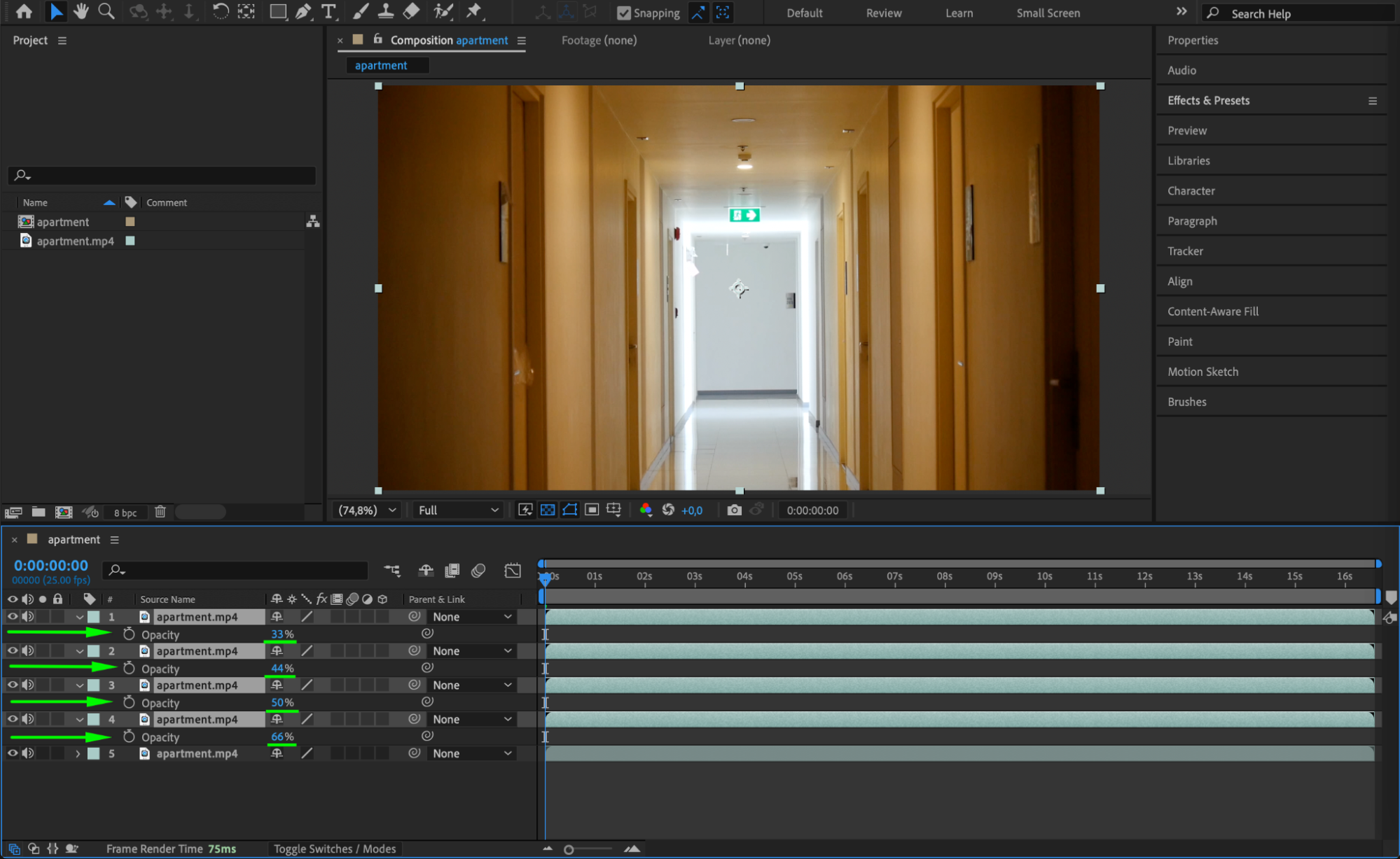
Step 5: Offset Layers in Time
To spread the visual data over time, shift the duplicate layers slightly. Select Layer 1 and Layer 3 and move them forward by 1 frame in the timeline. Then select Layer 2 and Layer 4 and move them forward by 2 frames. This creates a subtle temporal blur that helps smooth out flicker.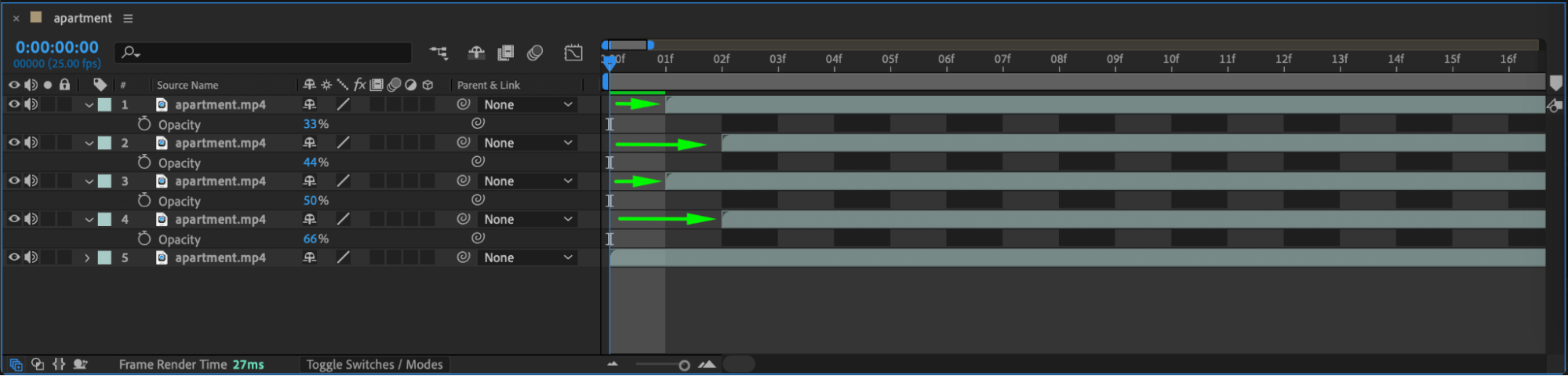
Step 6: Preview Your Result
Press the spacebar to preview the composition. You should notice a significant reduction in flicker. If needed, adjust the opacities or time offsets to fine-tune the result.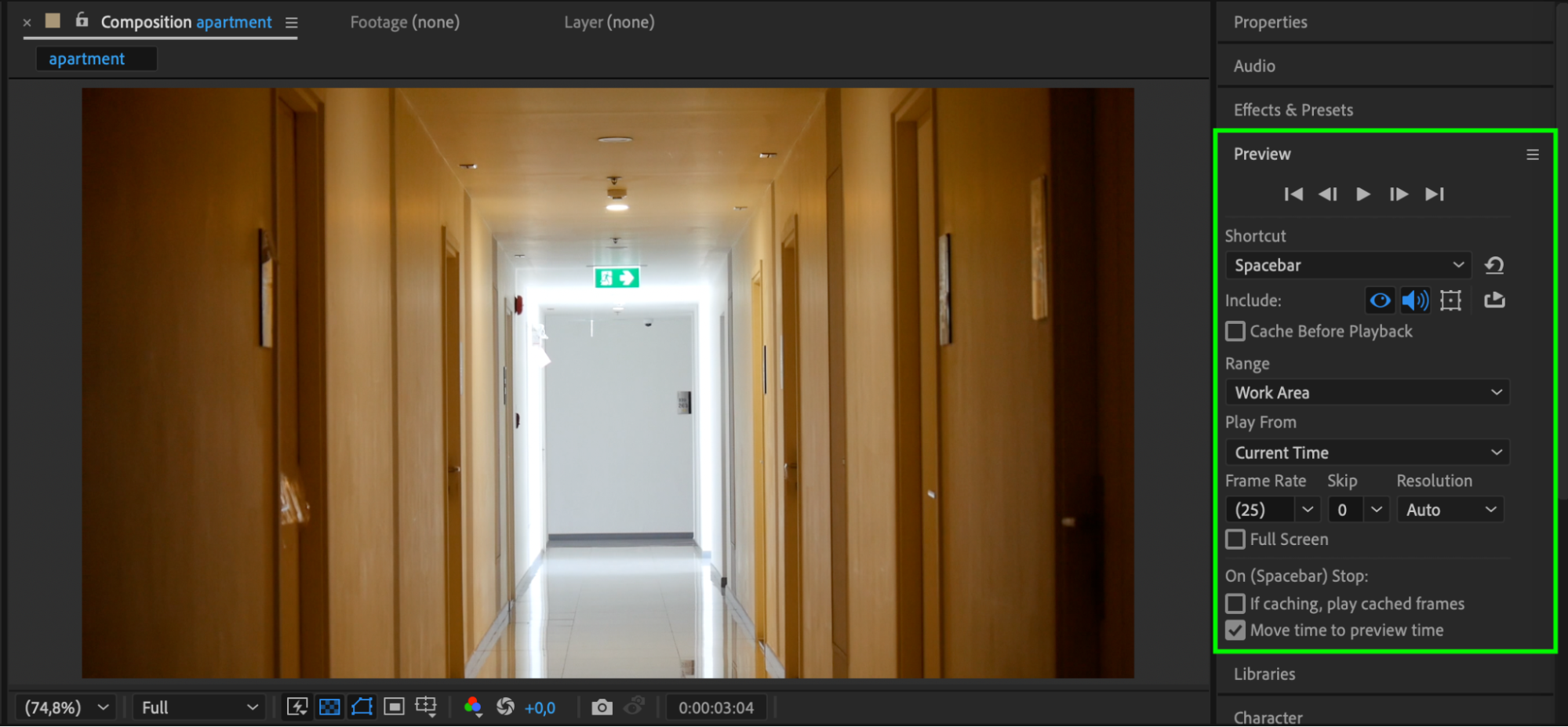
Conclusion
Removing flicker in After Effects doesn’t require complex plugins. By duplicating your footage, adjusting opacity, and shifting layers in time, you can blend frames together and greatly reduce unwanted flashing. This quick method is effective for basic flicker problems and can improve the overall look of your video.
Our Bestsellers
Our Bestsellers


