
Wire Removal Using Content-Aware Fill in After Effects
Introduction
Wire removal is a common task in visual effects work, especially in stunt scenes or green screen setups. Adobe After Effects offers a powerful built-in tool called Content-Aware Fill that allows you to erase unwanted objects like wires from your footage. In this tutorial, you’ll learn a clear step-by-step method to remove wires using masks and Content-Aware Fill.
Step 1: Import Your Footage
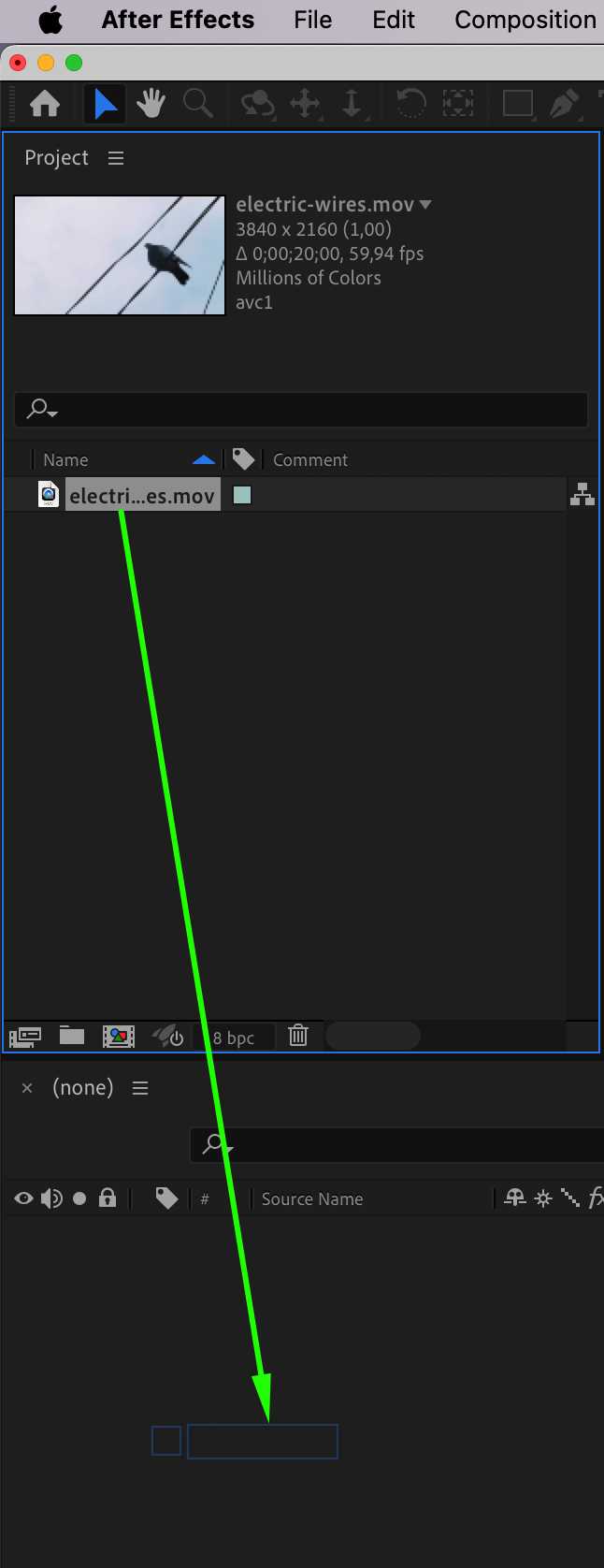
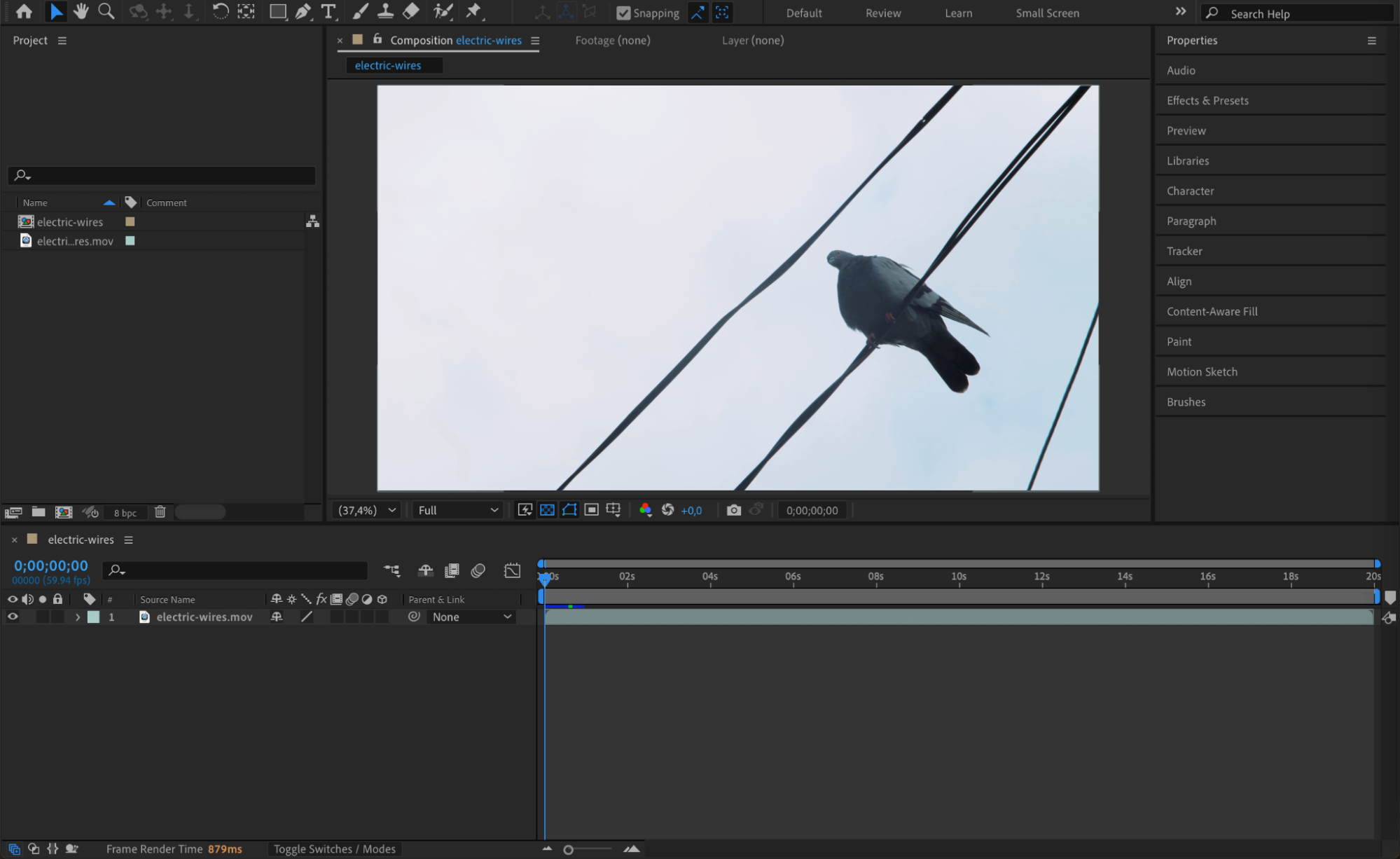
Open After Effects and go to File > Import > File. Choose your video clip and drag it onto the timeline to start working with it.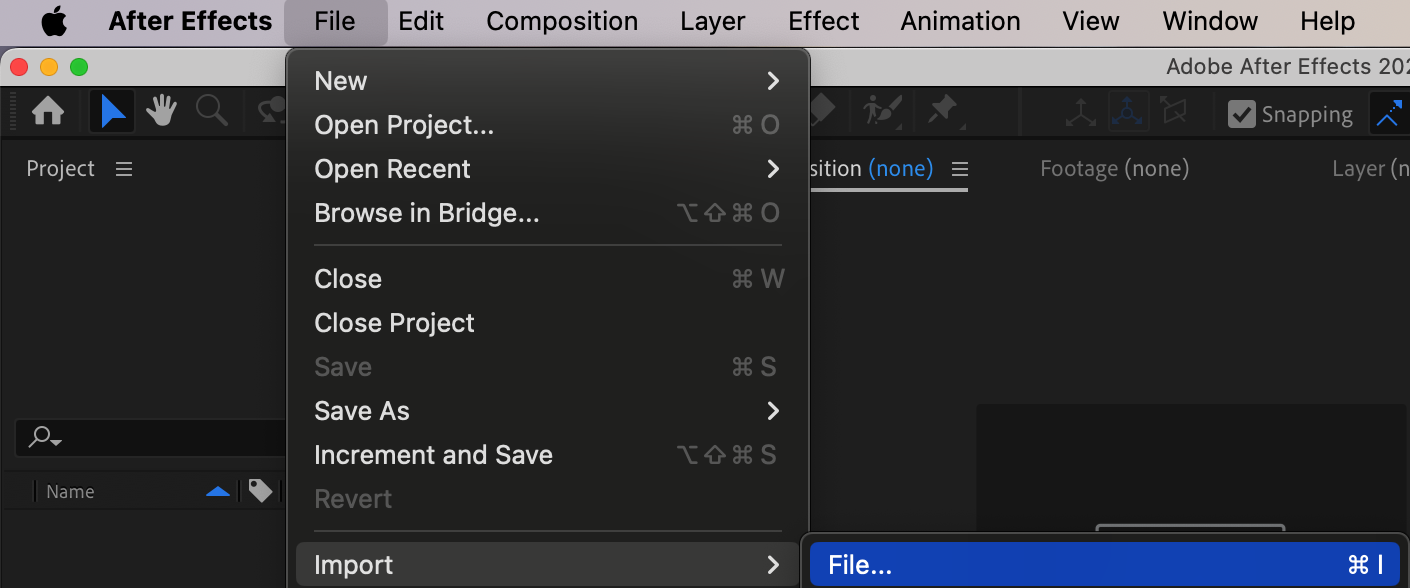
Step 2: Create a Mask Around the Wires
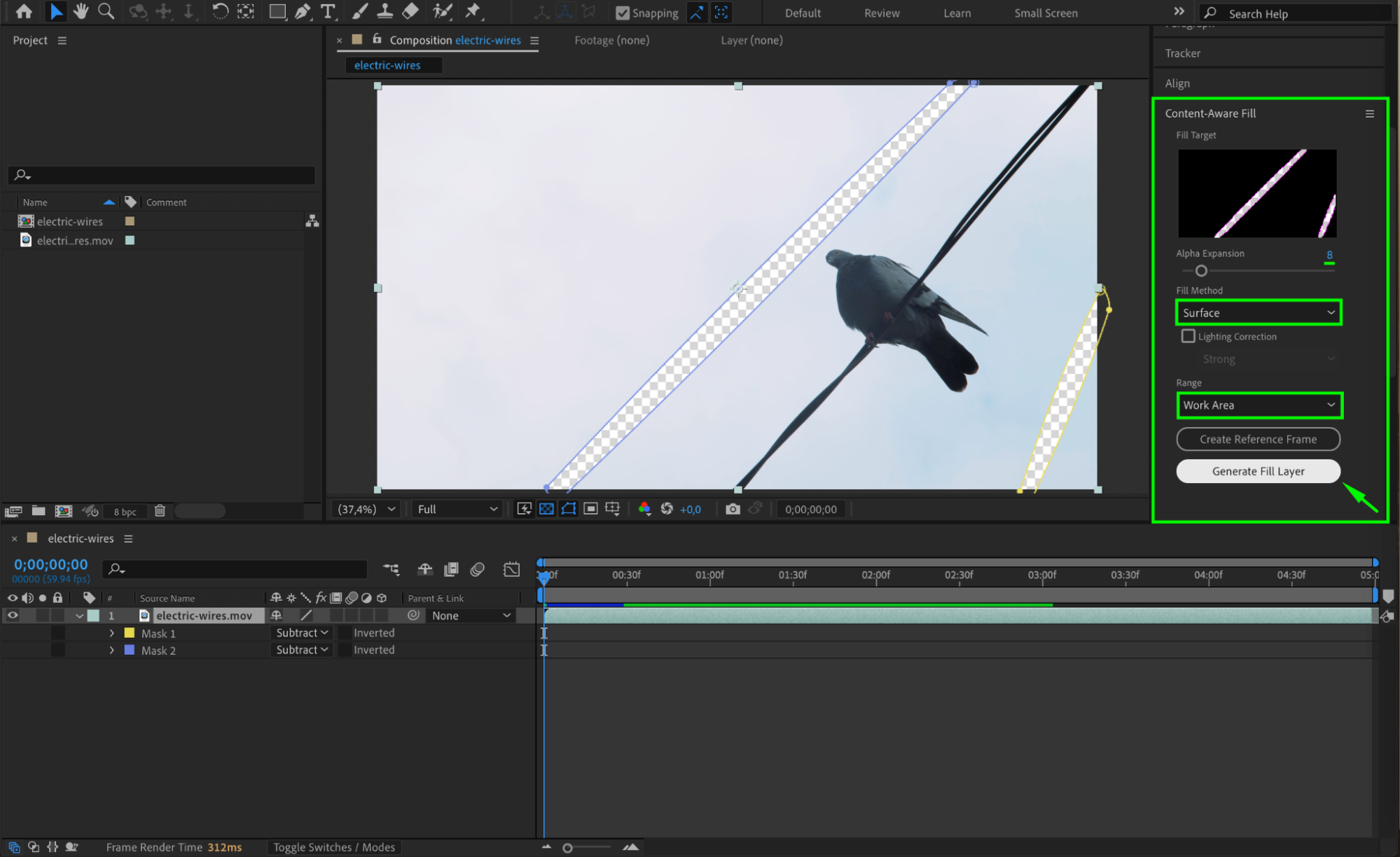
Select your video layer in the timeline, then choose the Pen Tool (G) from the toolbar. Carefully draw a mask around the wires you want to remove. In the mask settings, change the Mask Mode to Subtract so only the selected area is targeted for removal.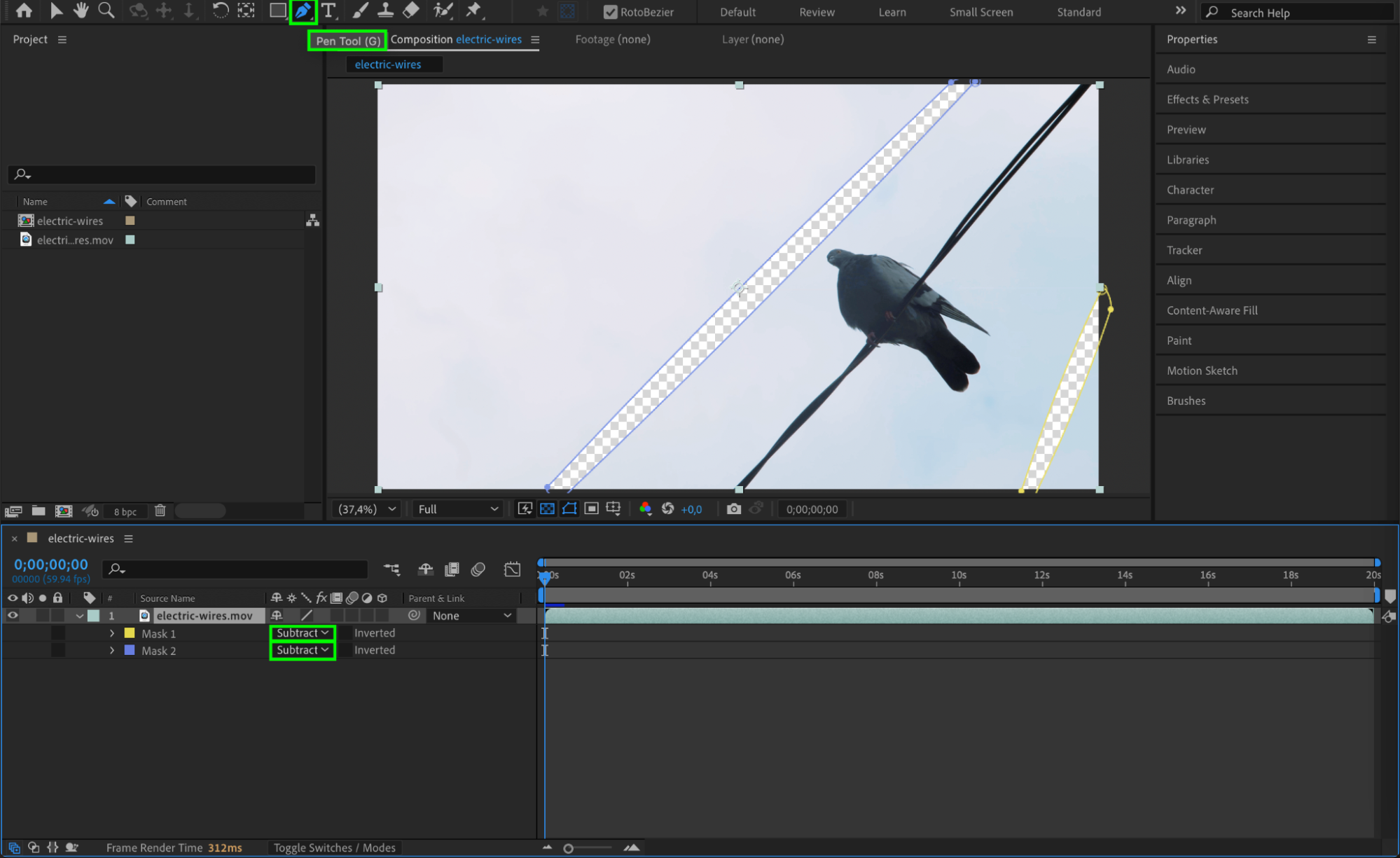 Step 3: Open the Content-Aware Fill Panel
Go to Window > Content-Aware Fill to open the panel. In the settings, set Alpha Expansion to 8 (or adjust depending on the area), choose Fill Method as Surface, and set the Range to Work Area. When ready, click Generate Fill Layer to let After Effects analyze and create a new layer that removes the wires.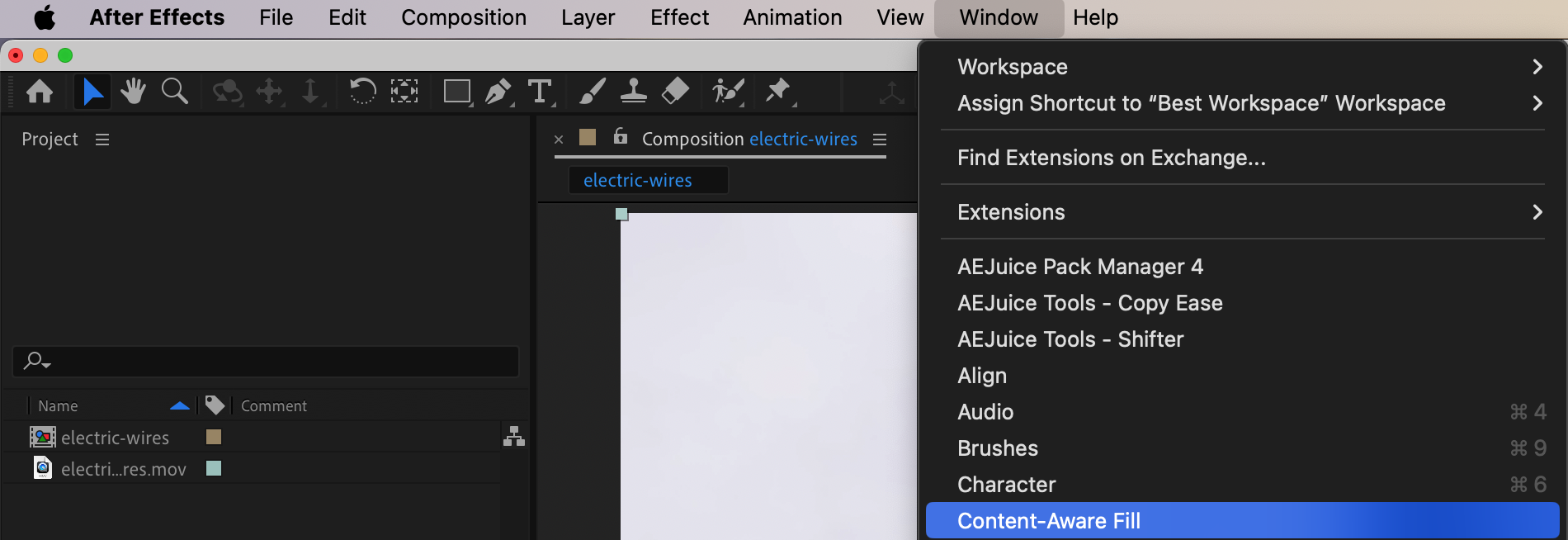
Step 4: Preview the Result
After the fill layer is generated, preview your timeline using the spacebar. The wires should now be removed and replaced with automatically generated background pixels that match the surrounding area.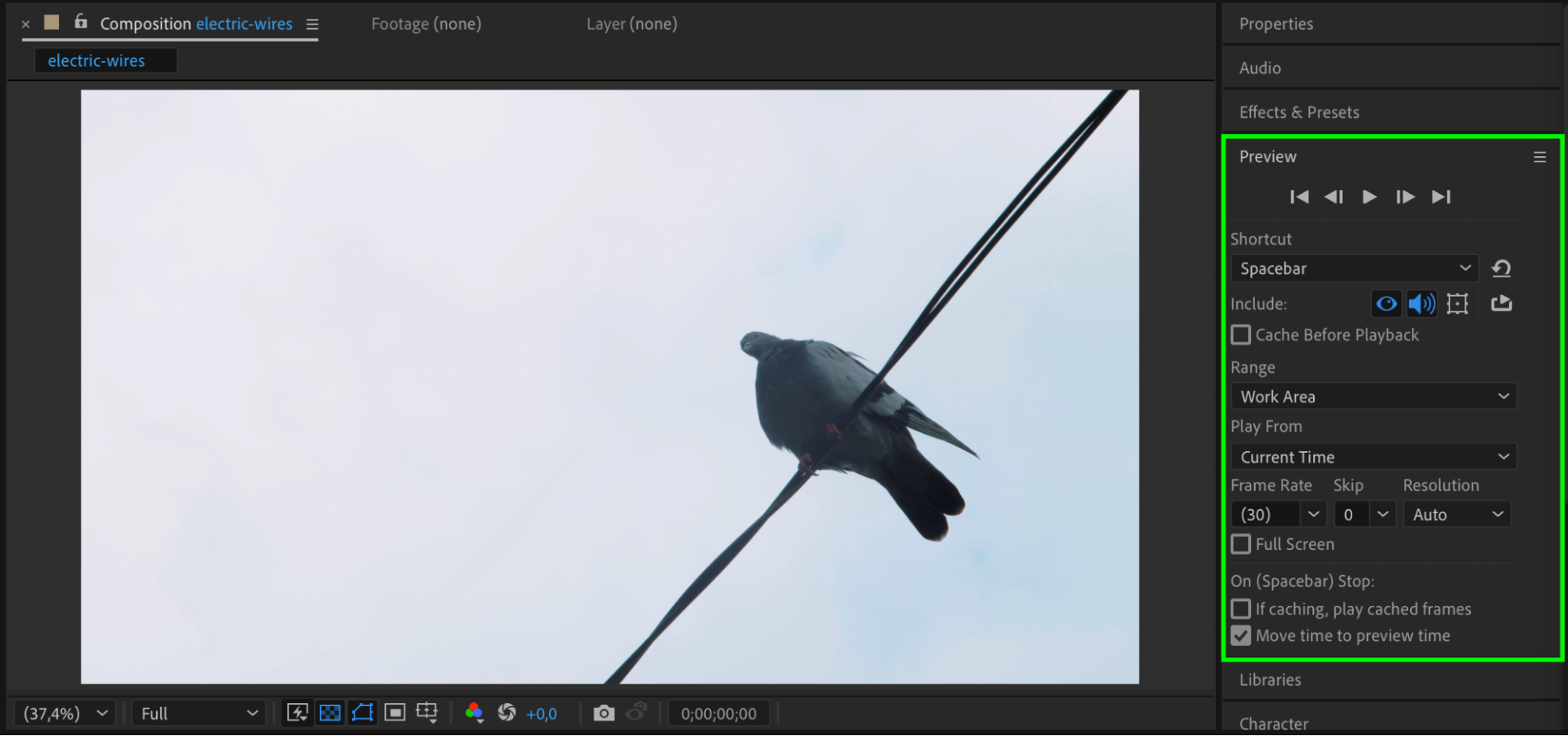 Step 5: Render Your Final Video
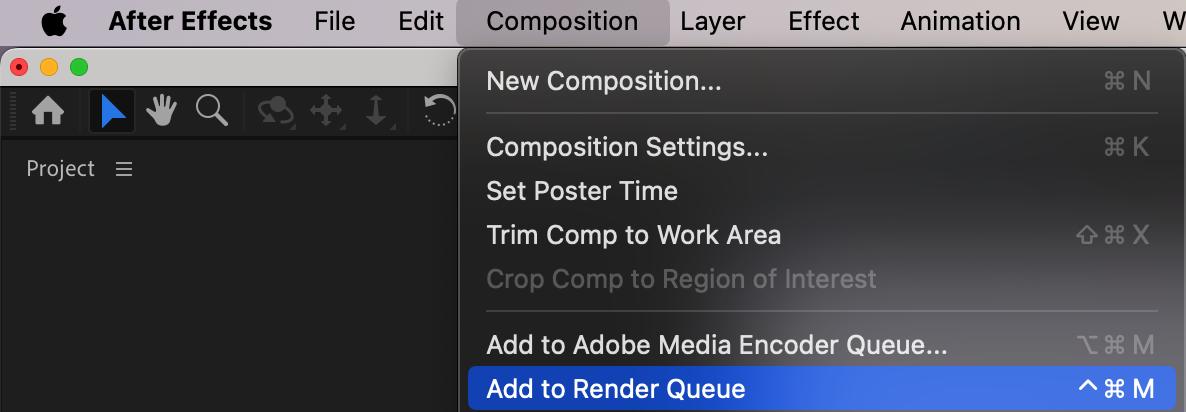
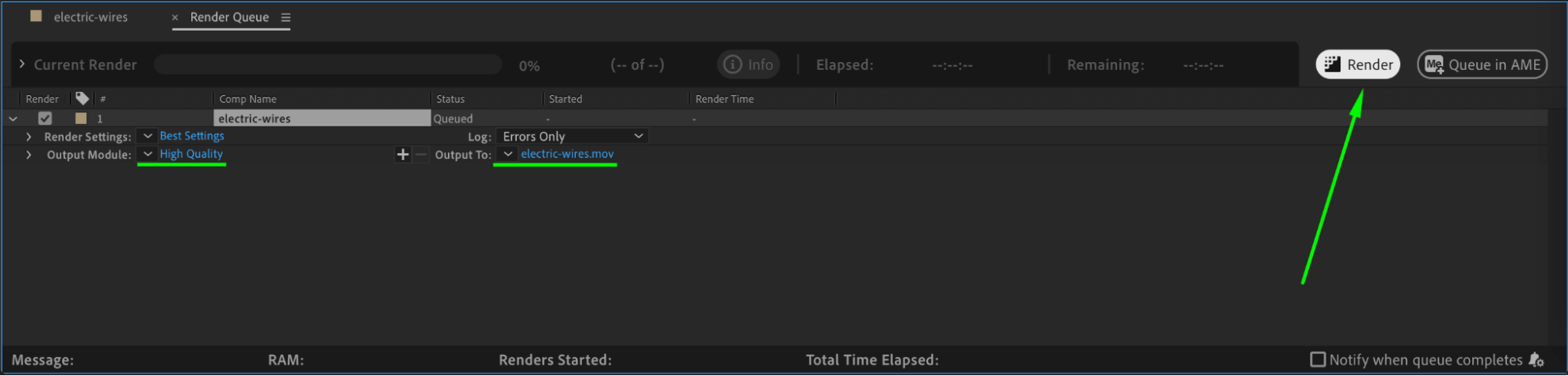
If you’re satisfied with the result, go to Composition > Add to Render Queue or use Adobe Media Encoder to export the final version of your cleaned-up footage.
 Conclusion
Removing wires in After Effects is simple with the help of the Content-Aware Fill tool. By drawing a precise mask and letting After Effects intelligently fill in the missing background, you can quickly clean up your scenes and keep the focus on the action — no manual painting or frame-by-frame editing needed.
Our Bestsellers
Our Bestsellers


