
Renaming Effects for Better Workflow in After Effects
Introduction
When working on complex compositions in After Effects, you may apply multiple effects to a single layer. Renaming those effects can make your project much easier to manage, especially when using expressions or organizing multiple effects of the same type. In this short tutorial, you’ll learn how to rename any effect directly in the Effects Controls panel.
Step 1: Apply an Effect to a Layer
Start by applying any effect to a layer. Select the layer in the timeline, then go to Effects & Presets and drag your desired effect (like Glow, Turbulent Displace, or Fill) onto the layer. The effect will appear in the Effect Controls panel.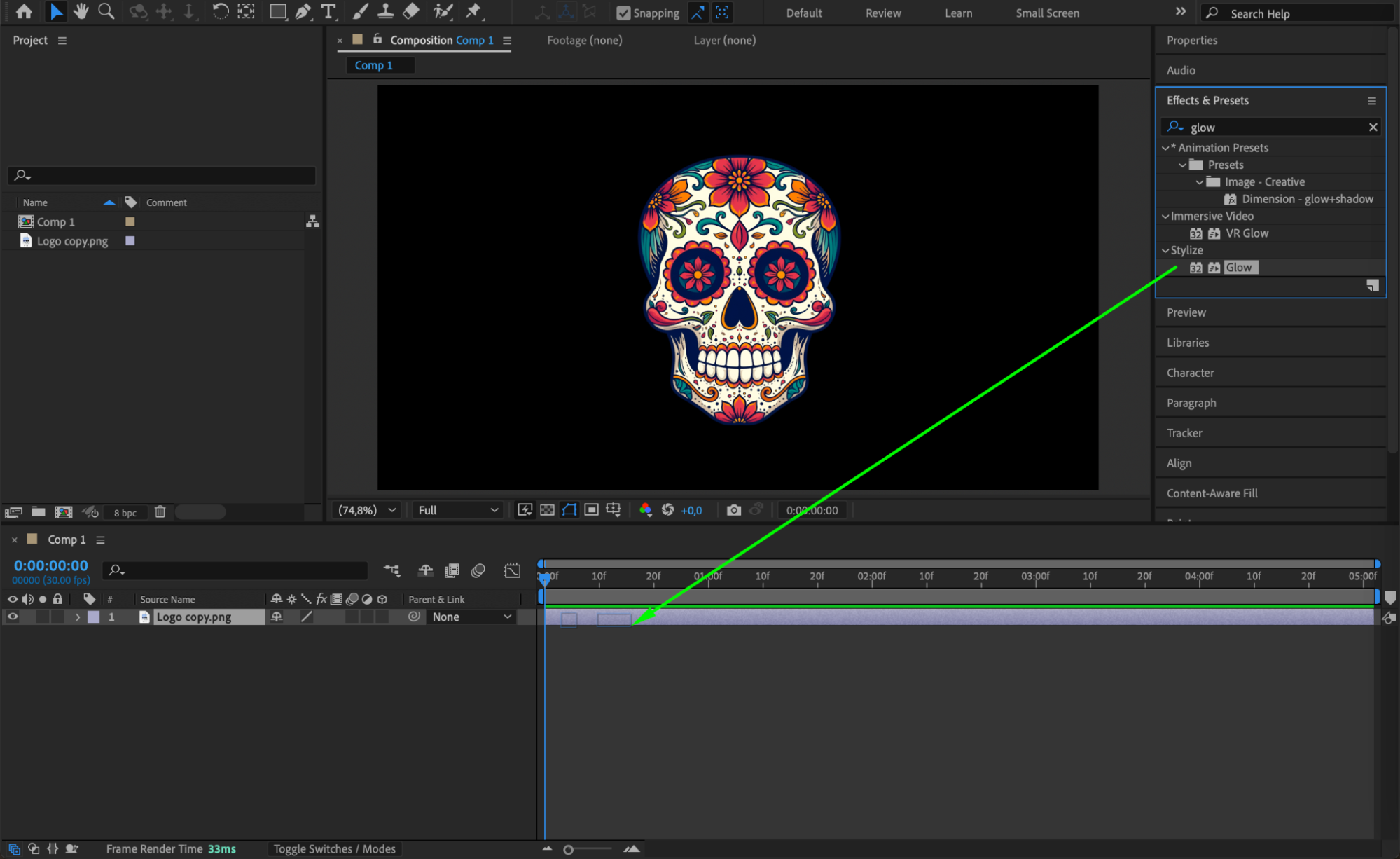
Step 2: Open the Effects Controls Panel
If it’s not already open, go to Effect > Effect Controls to open the panel. You should now see a list of all effects applied to the selected layer.

Step 3: Rename the Effect
Click once on the name of the effect (e.g., “Glow”) in the Effect Controls panel. Wait a moment, then press Enter (Windows) or Return (macOS) to activate rename mode. Type your custom name — for example, “Main Glow” or “Wiggle Left” — and press Enter/Return again to confirm.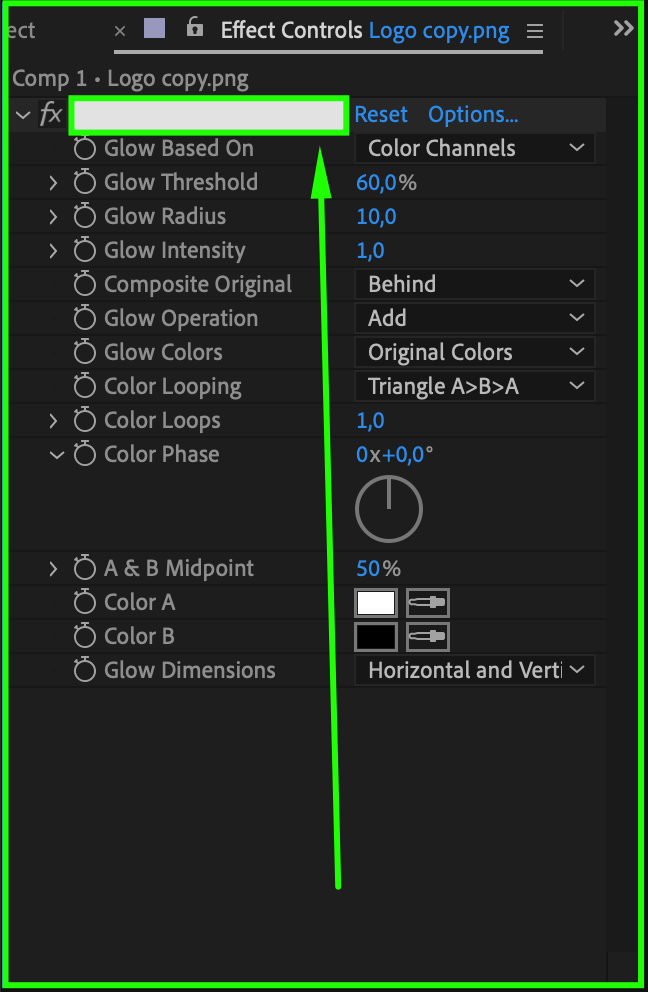
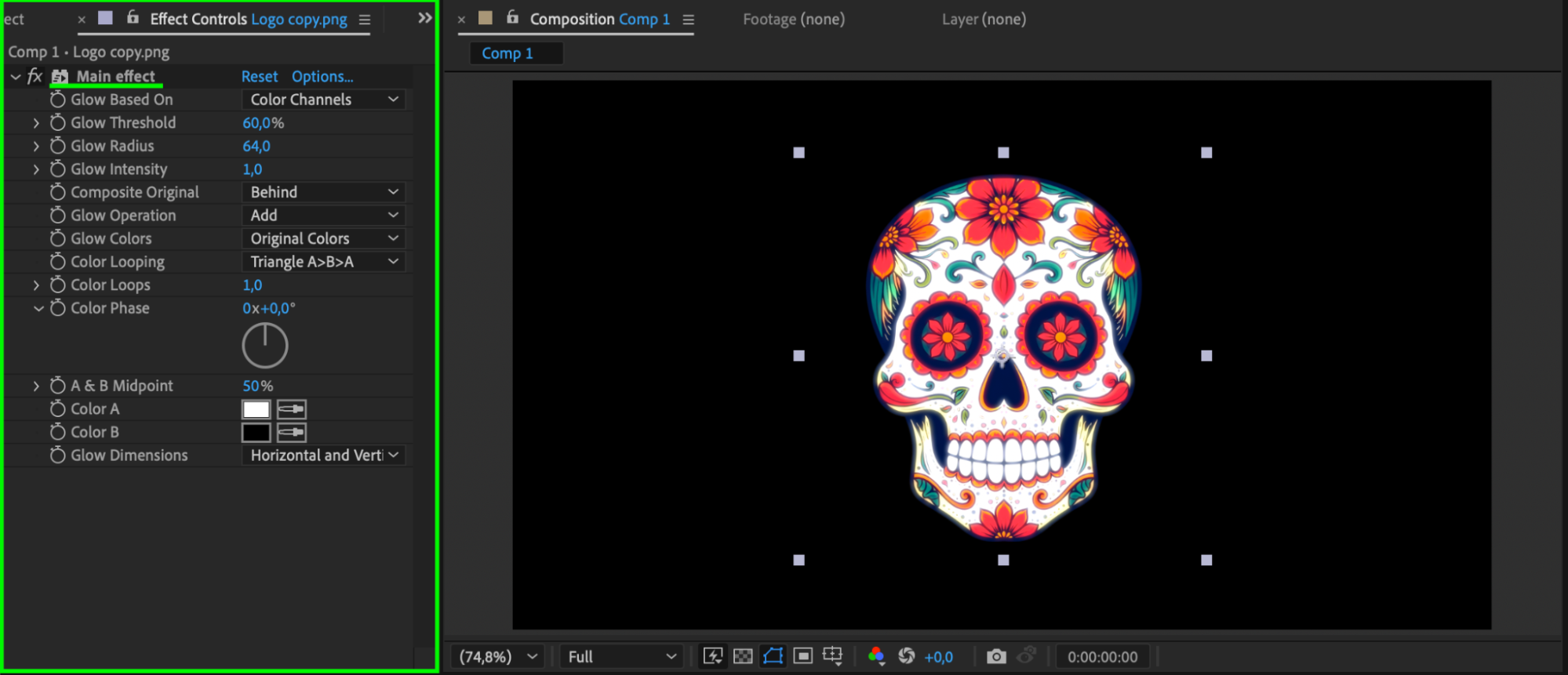
Step 4: Use the New Name in Expressions (Optional)
If you’re using expressions and you’ve renamed the effect, make sure to reference the new name in your code. For example:
effect(“Main Glow”)(“Glow Intensity”) Step 5: Continue Organizing
You can repeat the same process for every effect in your project. Giving meaningful names helps you keep track of which effect does what, especially when sharing the project with others or revisiting it later.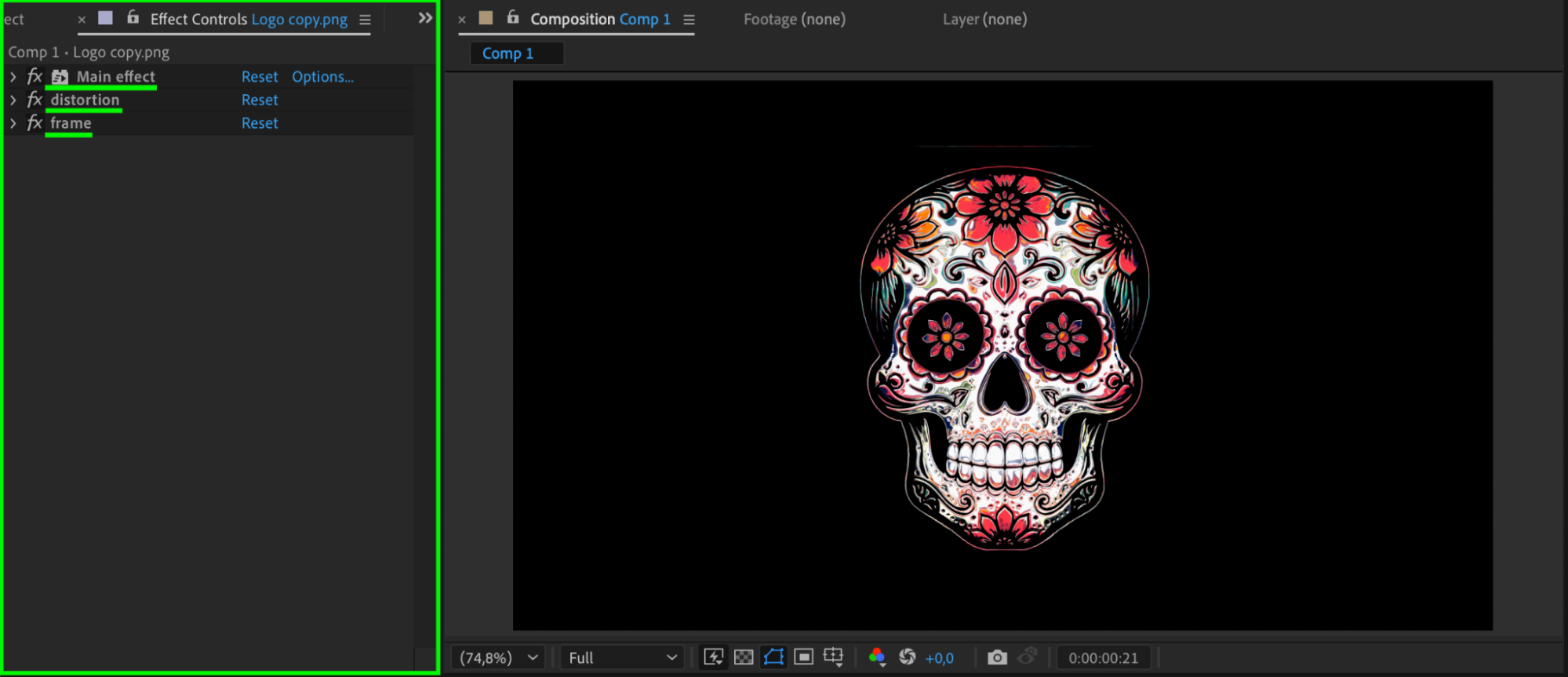
Conclusion
Renaming effects in After Effects is a small but powerful habit that can greatly improve your workflow. It helps keep your layers clean, your expressions readable, and your entire project easier to manage. Whether you’re working solo or on a team, organizing your effects with clear labels is a simple way to stay efficient and professional.
Our Bestsellers
Our Bestsellers


