
How to Reposition a Video or Image in After Effects
Introduction
Sometimes you need to shift or reposition a shot in your composition—whether to reframe a scene, create motion, or align elements correctly. In Adobe After Effects, you can easily move your footage or images using simple transform controls. This guide will show you how to do it step by step.
Step 1: Import Your Footage
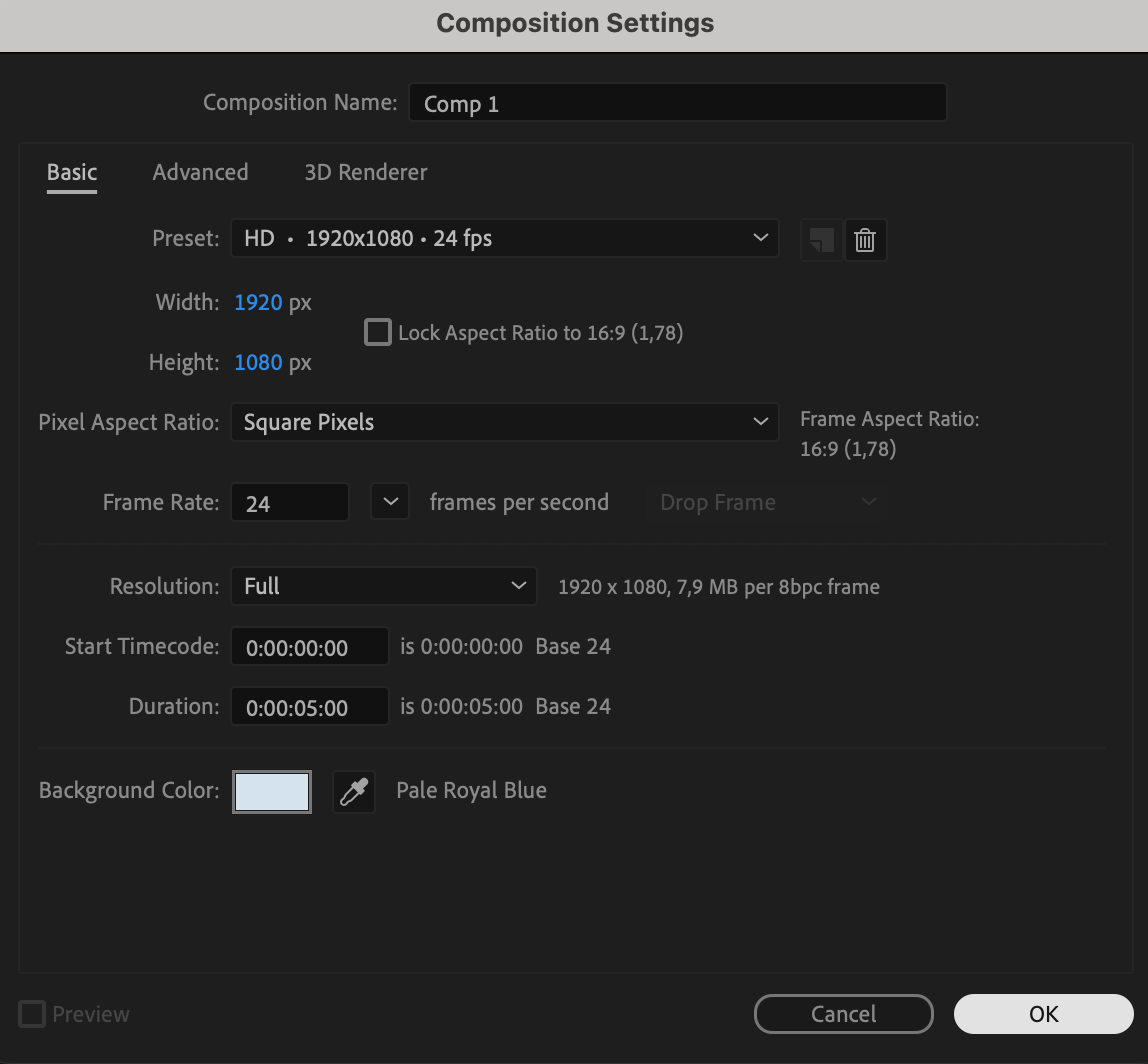
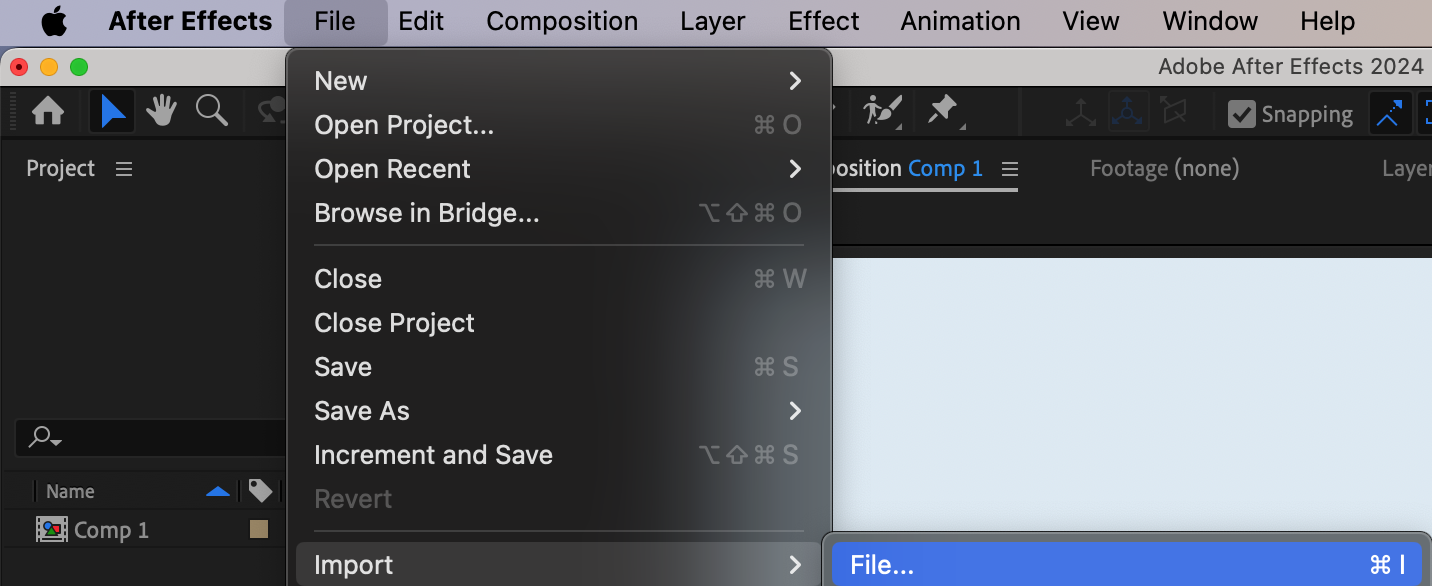
Start by creating a new composition from Composition > New Composition. Set the resolution, duration, and frame rate to fit your project. Then go to File > Import > File and bring in the footage or image you want to reposition.
 Step 2: Add the Footage to the Timeline
Drag your footage from the Project panel to the Timeline. You will now see it appear in the Composition panel, where you can view and edit it directly.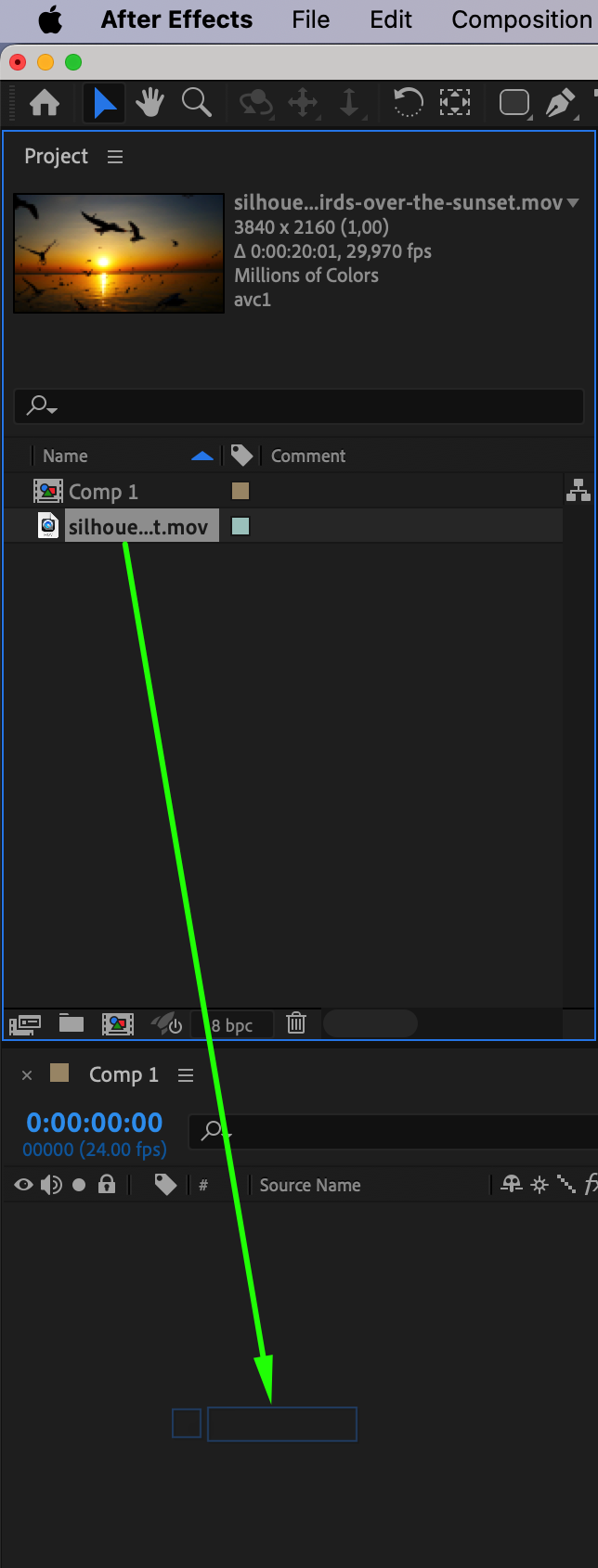
Step 3: Select the Layer
Click on the layer you want to reposition in the Timeline panel. This will allow you to modify its properties using either the keyboard shortcuts or the toolbar at the top.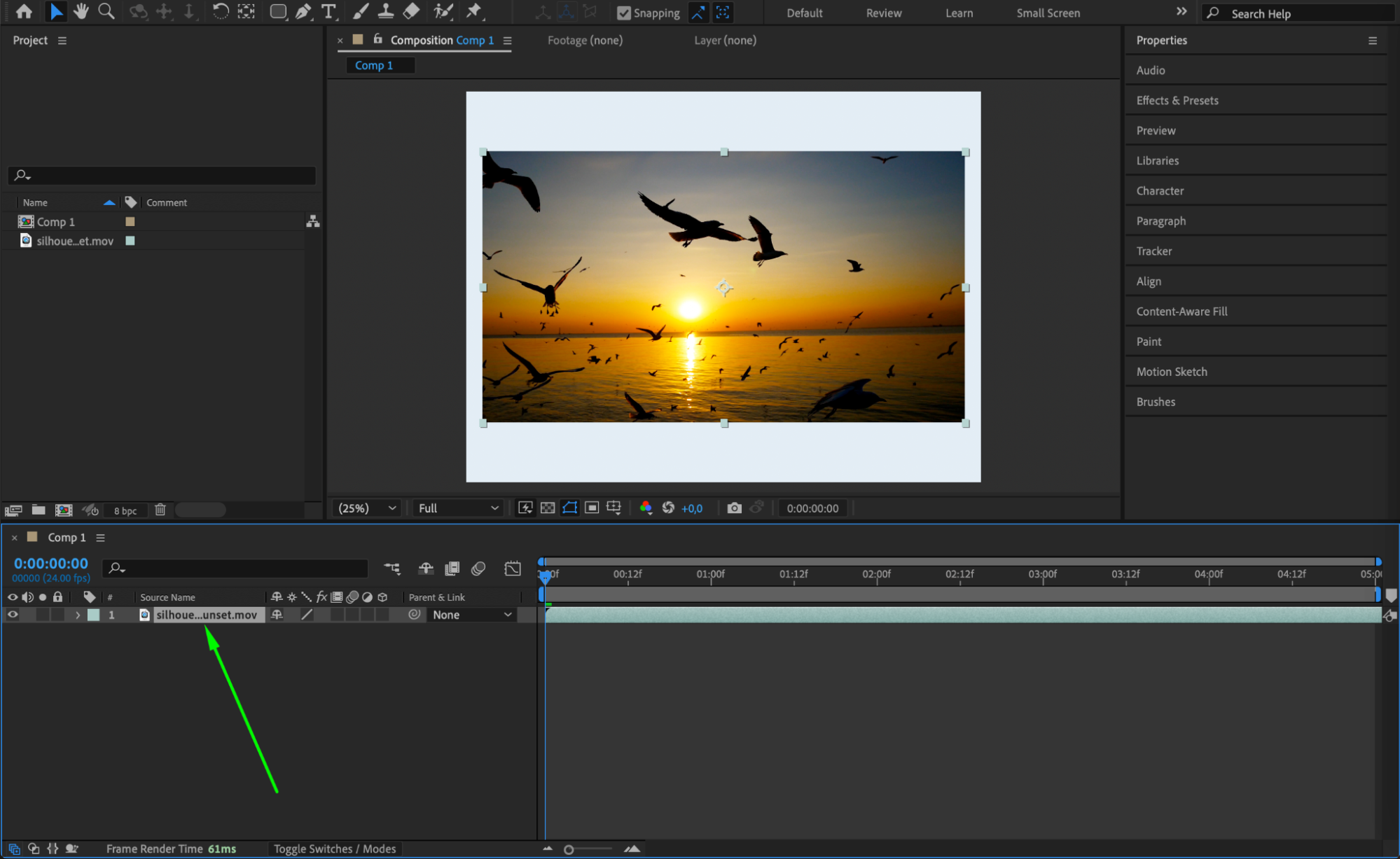 Step 4: Activate the Selection Tool
Make sure the Selection Tool (V) is active. You can now click and drag your footage directly in the Composition panel to move it to a new position.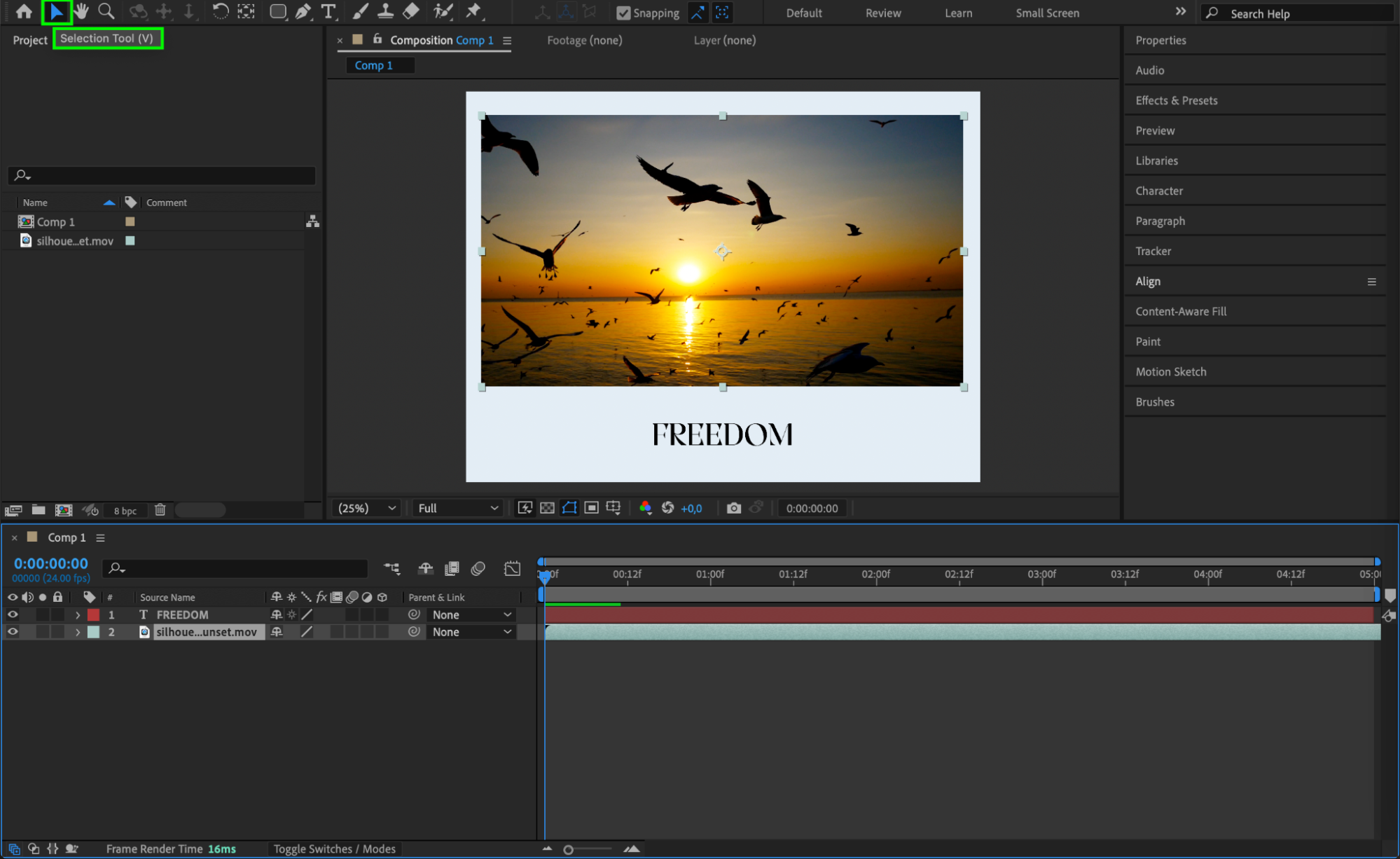 Step 5: Use the Position Property
Press “P” on your keyboard to bring up the Position property. You can manually adjust the X and Y values to precisely control where your shot appears in the frame.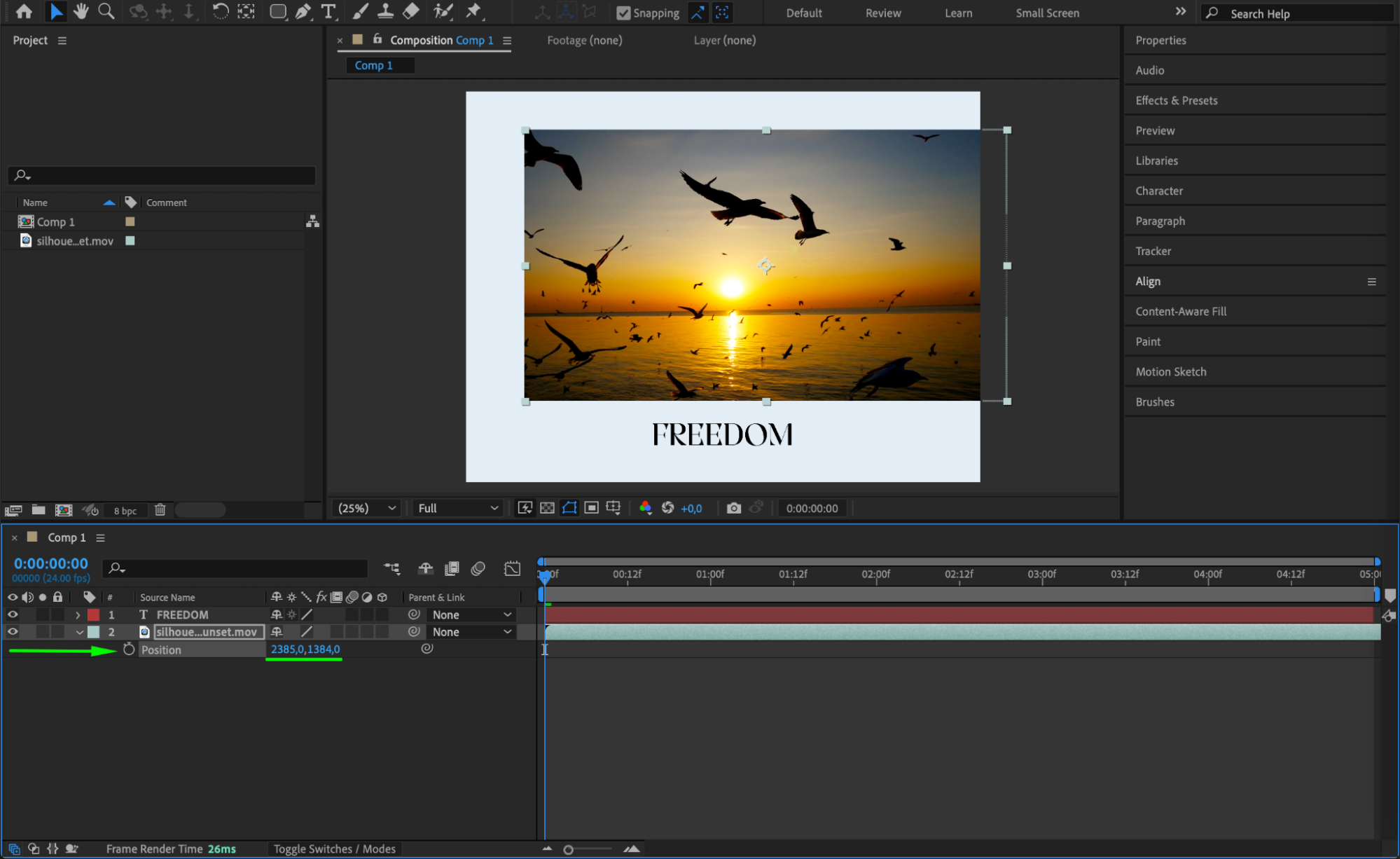 Step 6: Reposition the Anchor Point (Optional)
If needed, press “Y” to activate the Pan Behind Tool, and move the anchor point to a new location. This is helpful if you plan to scale or rotate the shot from a specific edge or corner rather than the center.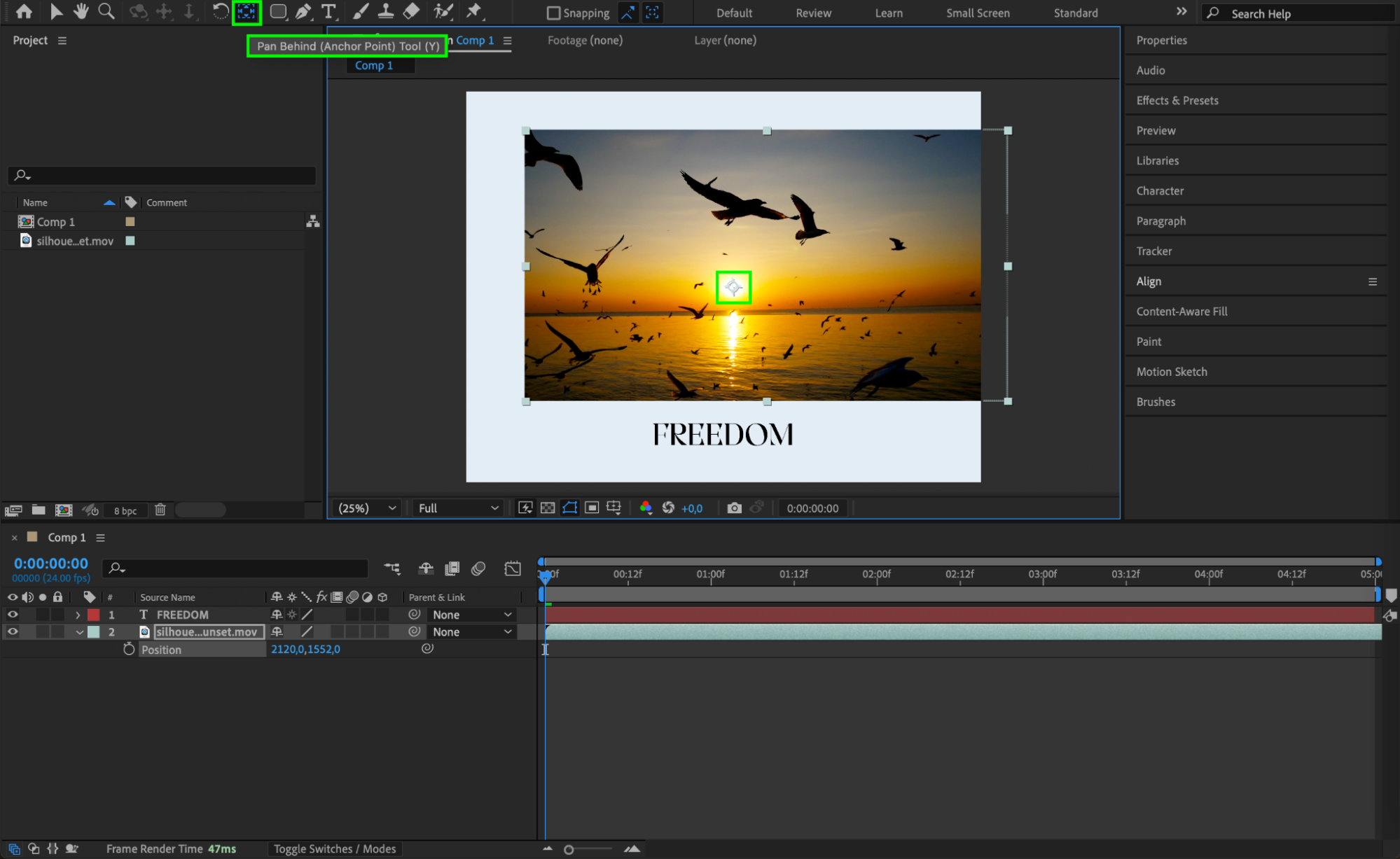
Step 7: Scale or Rotate for Better Framing
Press “S” for Scale or “R” for Rotation if you also want to adjust the size or orientation of your footage after repositioning it. Be sure to unlink the scale dimensions if you want non-uniform scaling.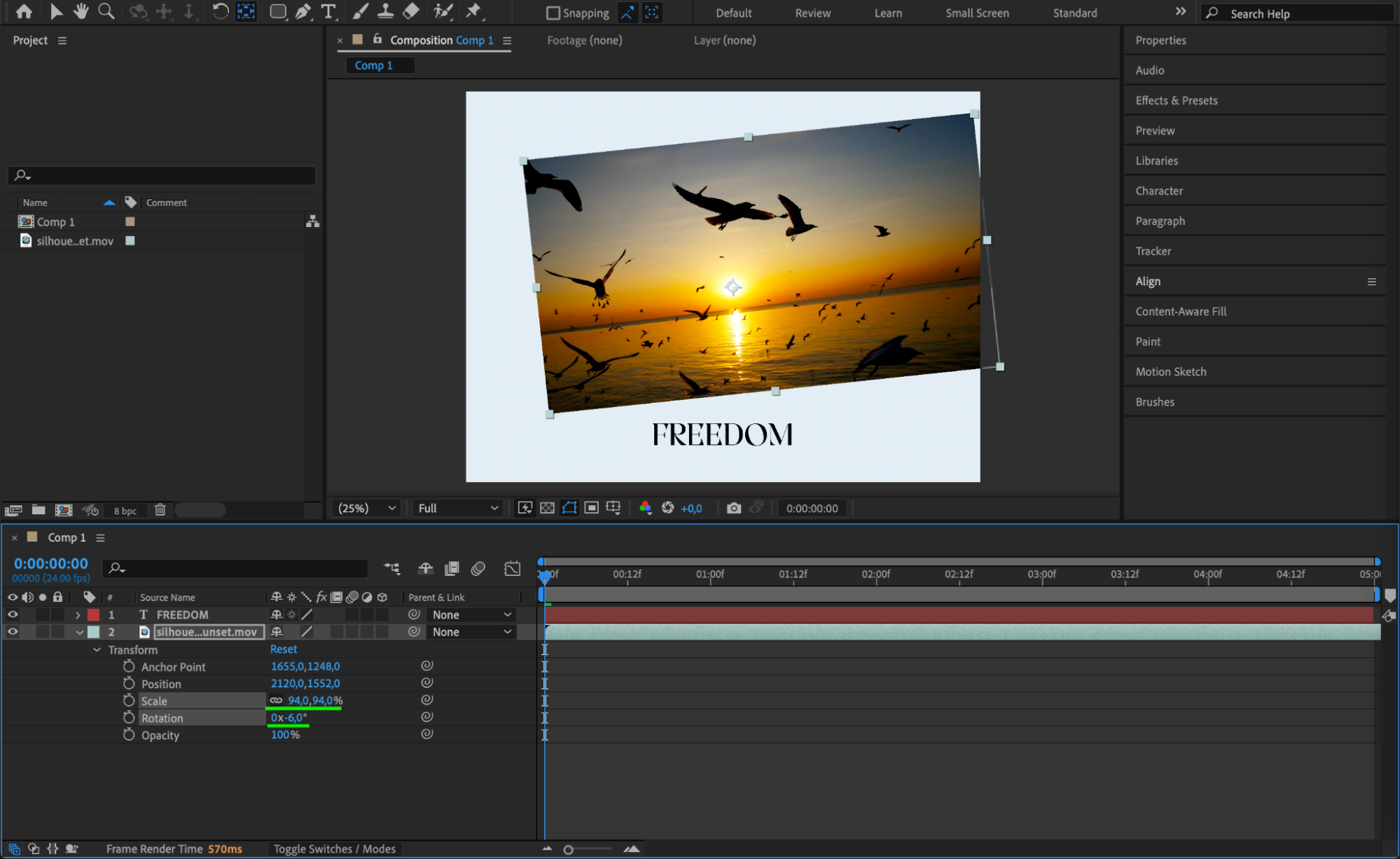 Step 8: Animate the Movement (Optional)
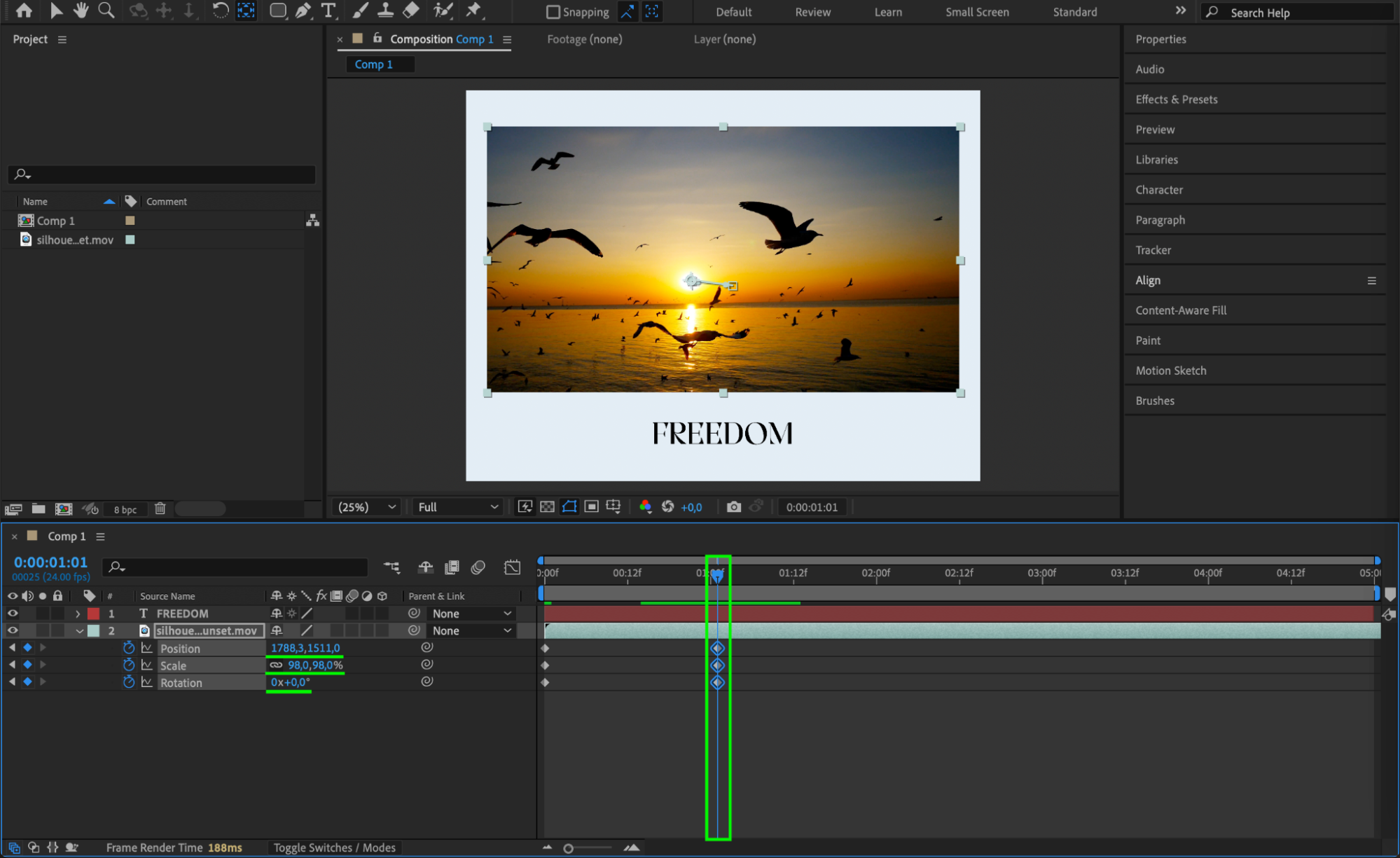
To animate the repositioning over time, click the stopwatch icon next to the Position property to add keyframes. Move the CTI (current time indicator) forward, change the position, and After Effects will automatically animate the shot.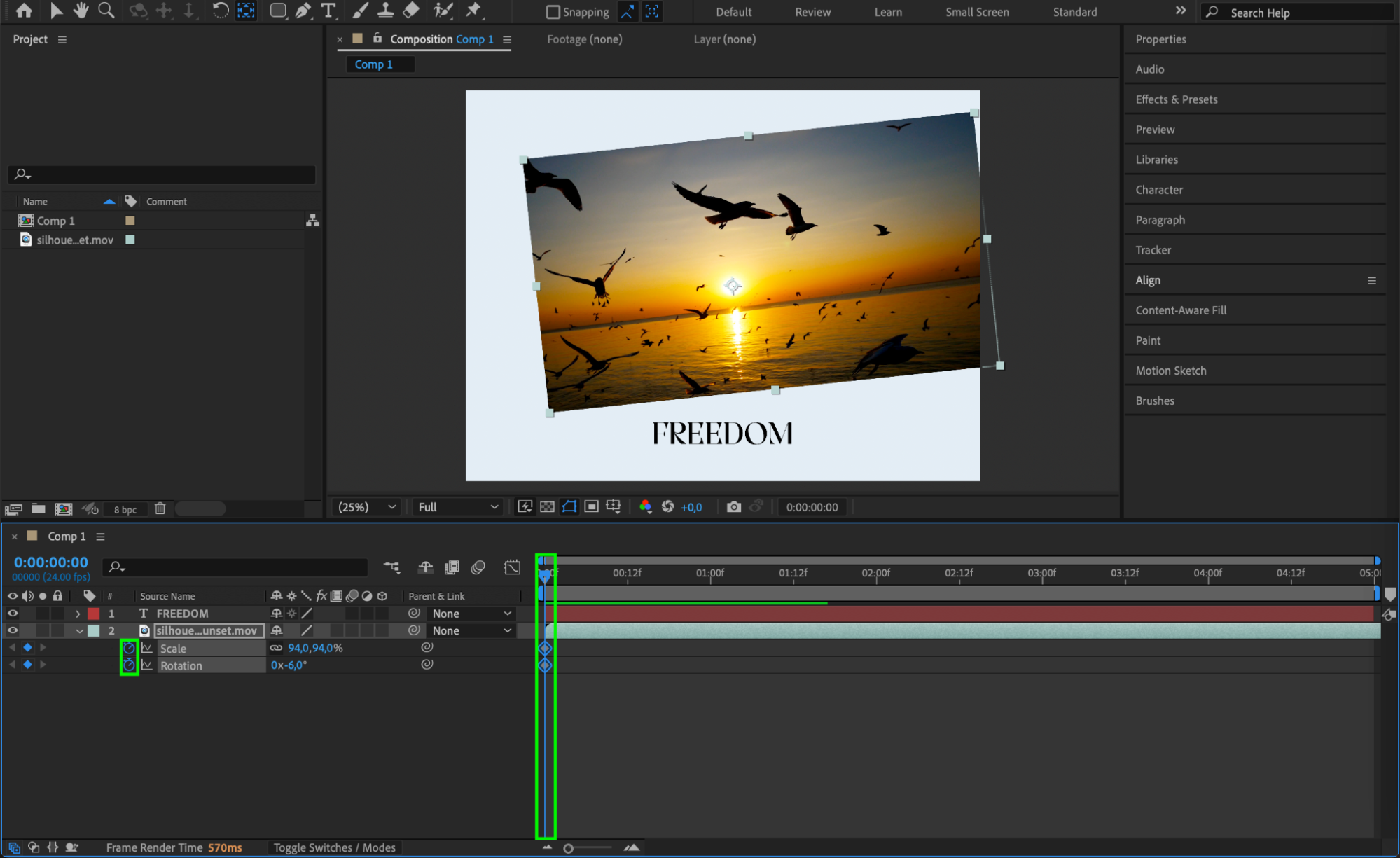
 Step 9: Preview Your Result
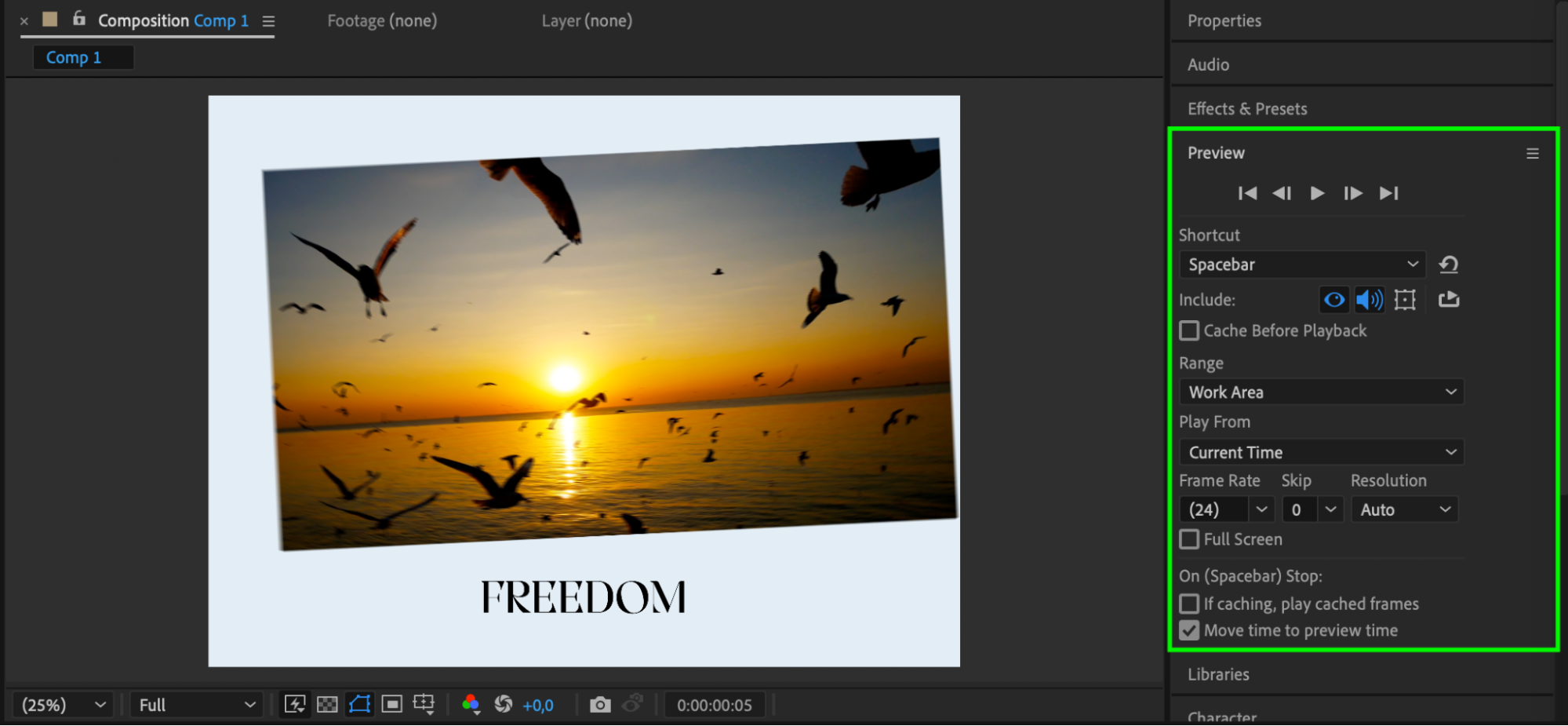
Press the Spacebar to preview your composition and check how your repositioned shot looks. Make any additional tweaks as needed using the position or scale controls.
Conclusion
Repositioning a shot in After Effects is a simple yet powerful technique to improve your composition and storytelling. By adjusting the position, anchor point, or adding animation, you can direct the viewer’s focus and create more dynamic visuals with just a few clicks.
Our Bestsellers
Our Bestsellers


