
Introduction
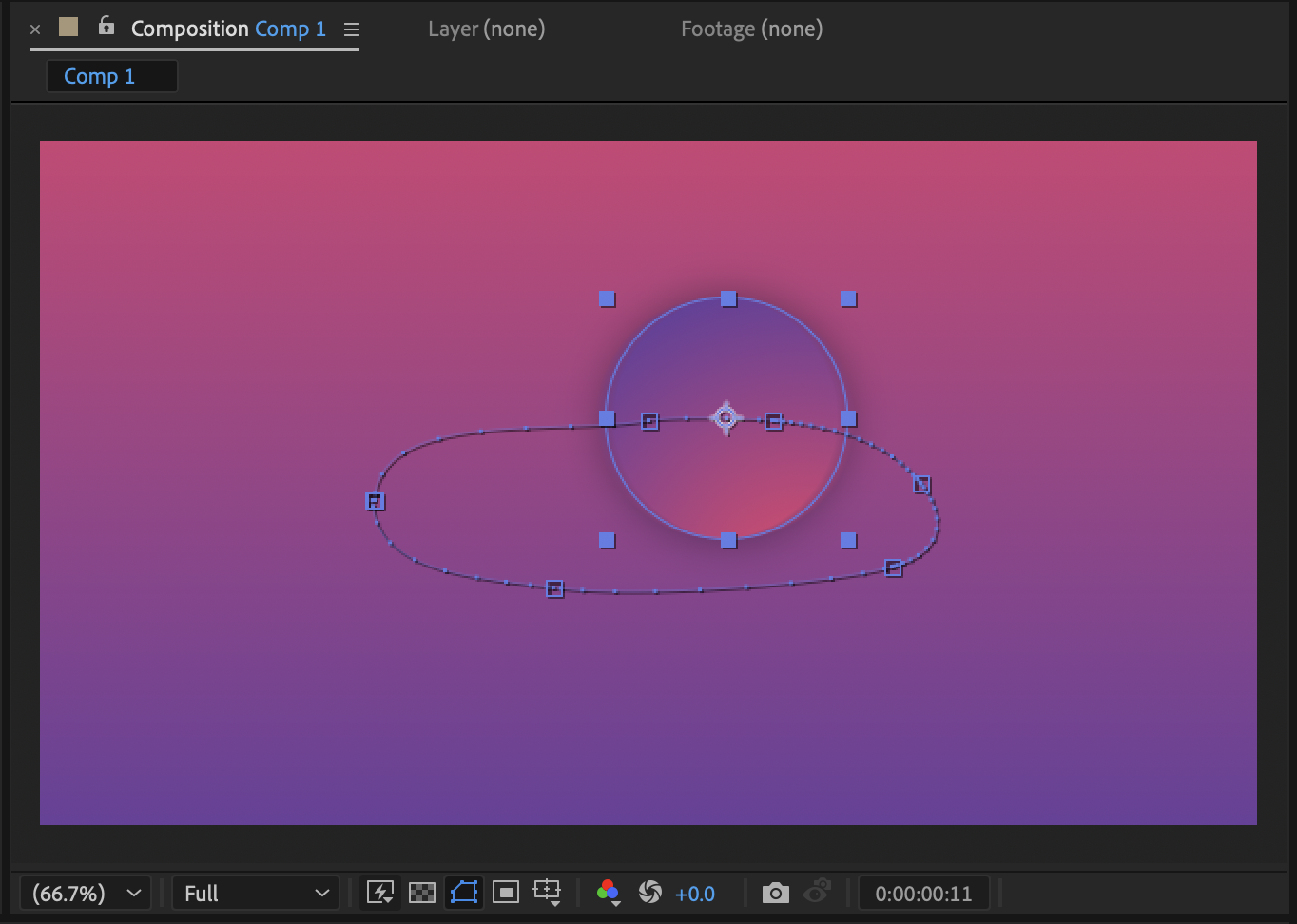
Many effects and tools in After Effects use Start and End controls — for example, Gradient Ramp, Beam, Write-on, Paths, and shape layers. These controls appear as on-screen points and lines in the Composition panel. If you don’t see them, it usually means layer controls are hidden. In this tutorial, you’ll learn how to quickly show Start and End controls in After Effects.
Step 1: Select the Layer
Click on the layer that contains the effect, mask, or shape path with Start and End points. Controls will only appear for the currently selected layer.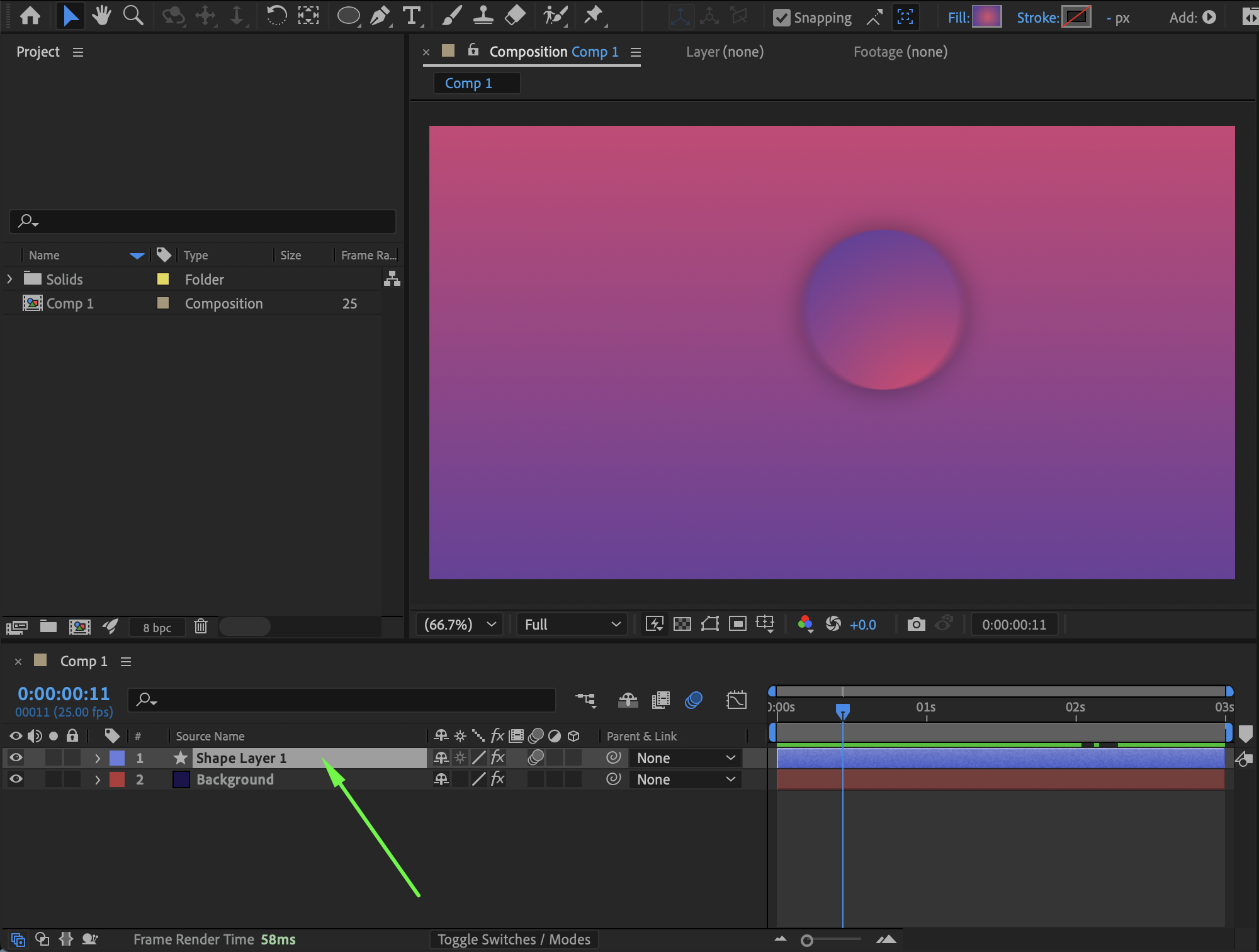
Step 2: Enable Layer Controls
Go to the top menu and choose: View → Show Layer Controls. Or use the keyboard shortcut:
Ctrl + Shift + H (Windows)
Cmd + Shift + H (Mac)
This toggles all on-screen controls on and off.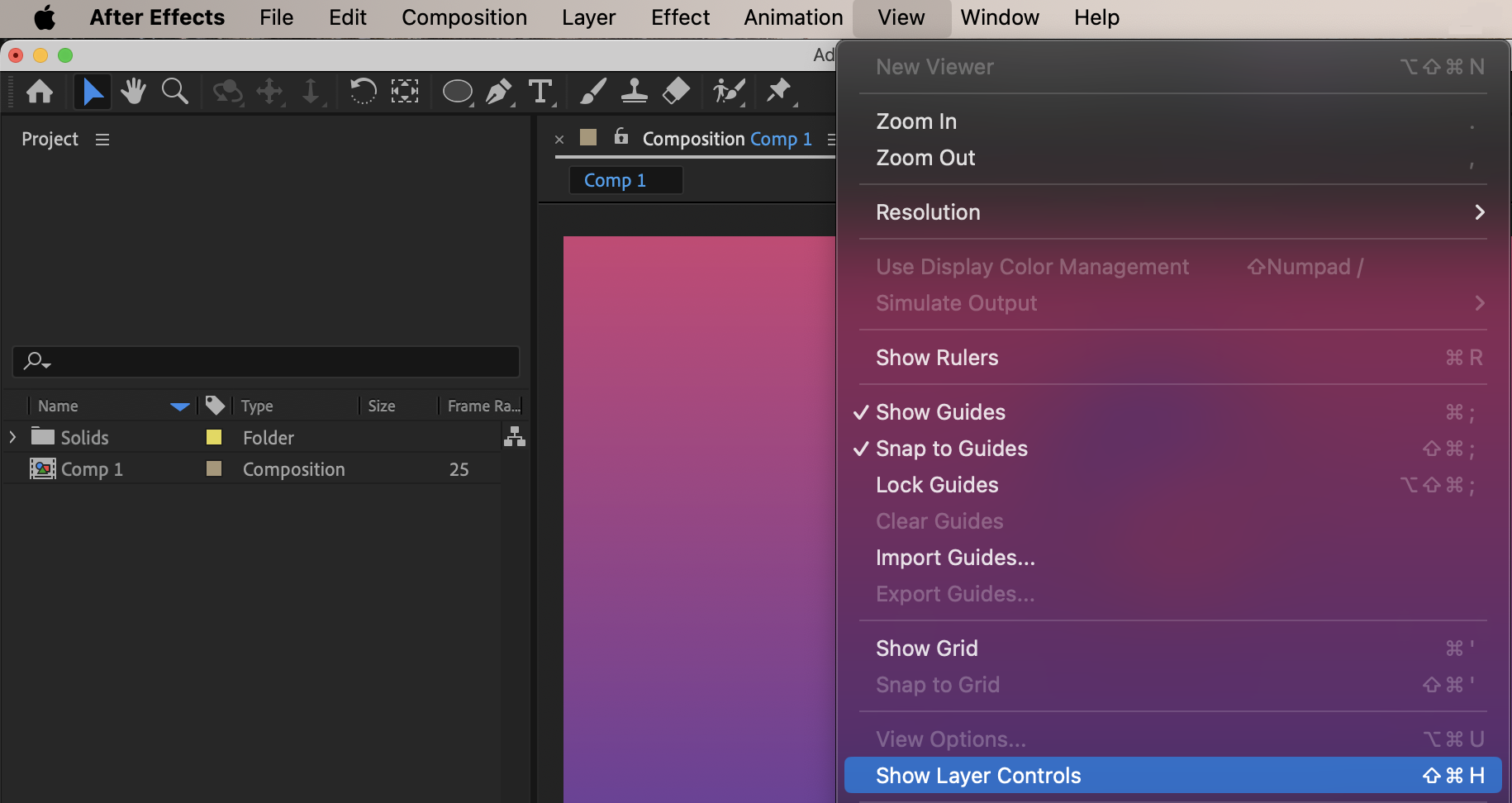
 Step 3: Verify the Effect or Path Settings
Some effects only show Start and End controls when specific options are enabled. For example:
Gradient Ramp: Start and End of Ramp
Beam: Start Point and End Point
Shape Paths: Path vertices and direction handles
Expand the effect or path in the Timeline to confirm it includes Start/End parameters.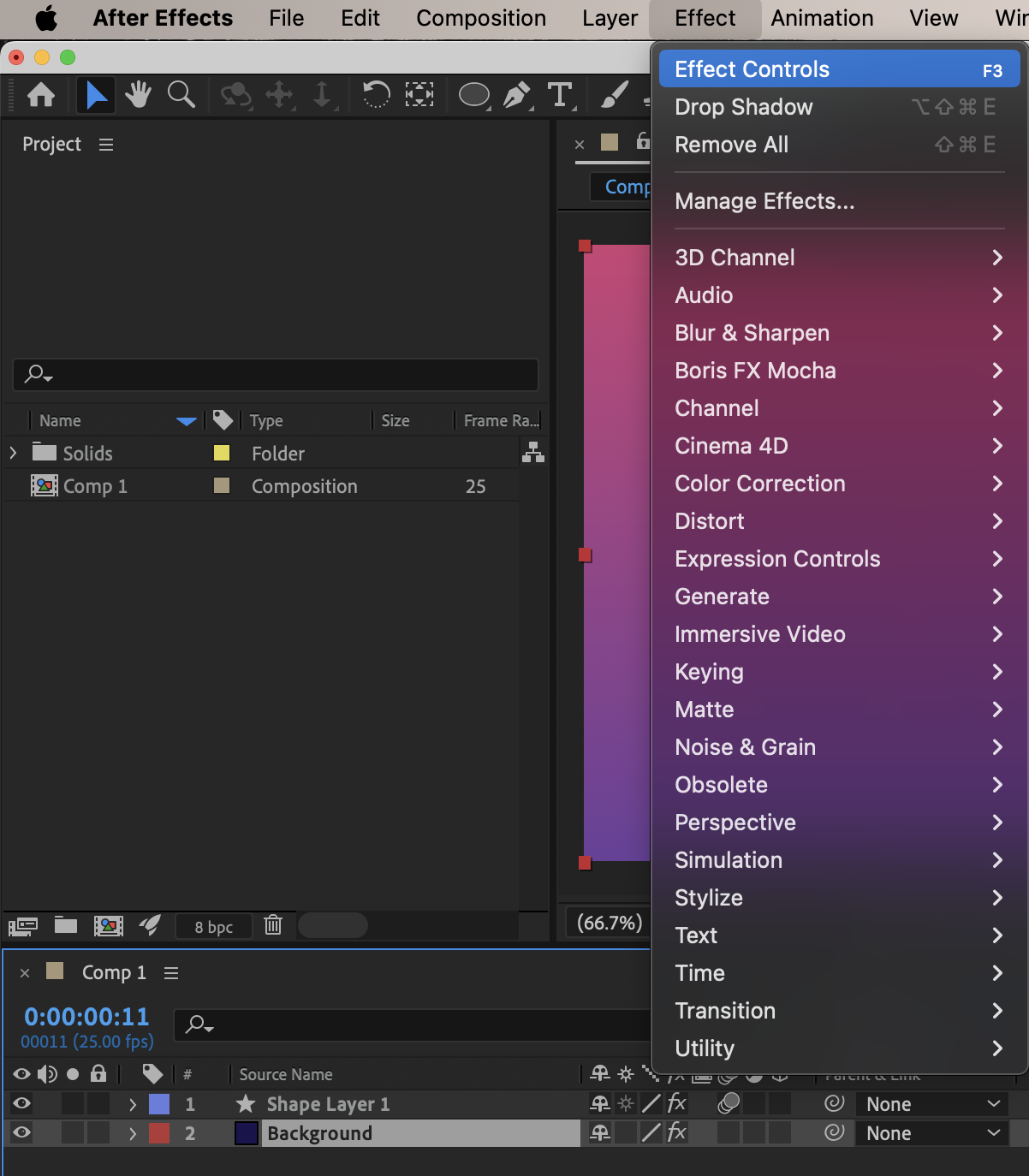
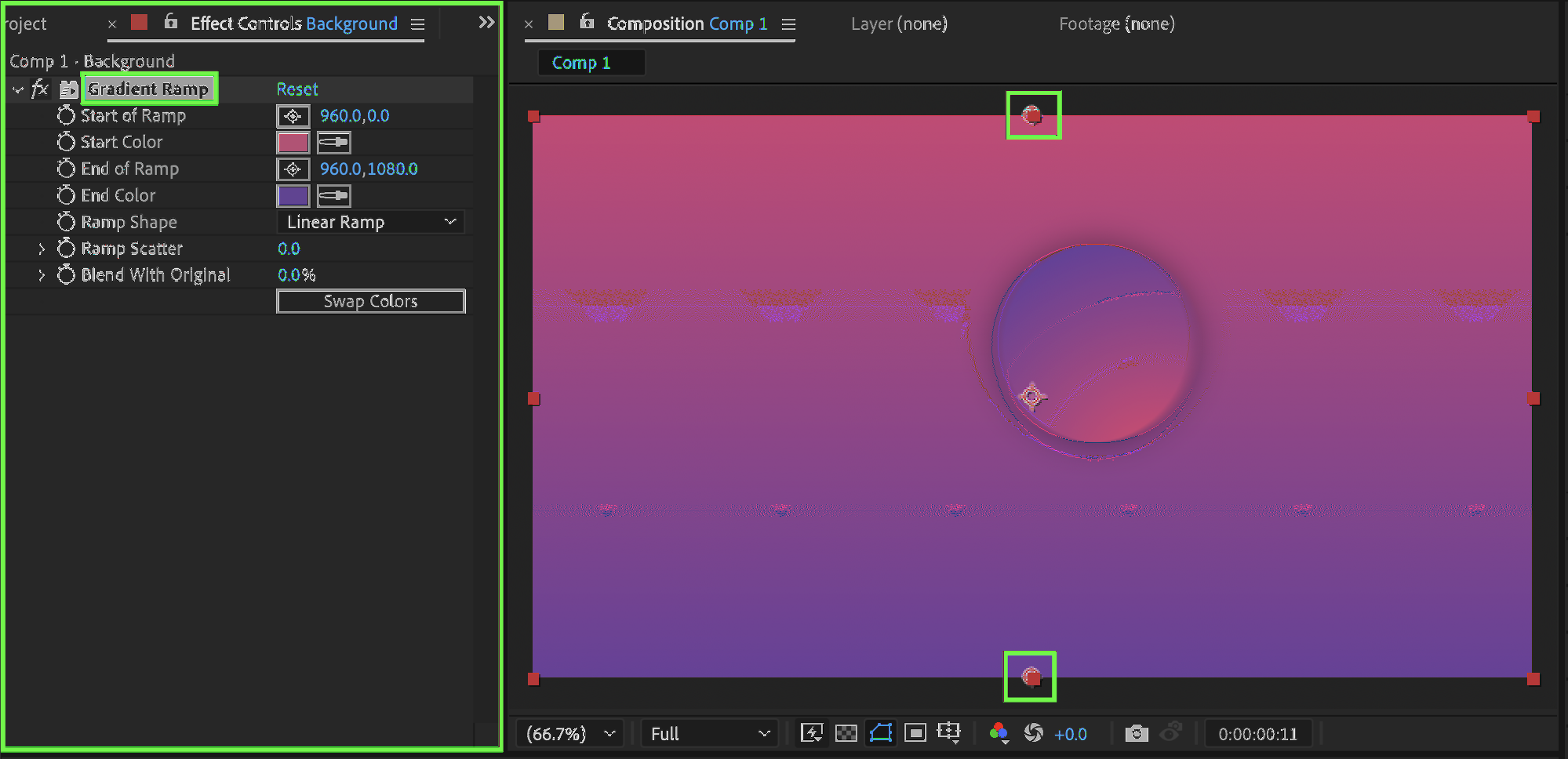
Step 4: Zoom In if Needed
If controls are hard to see:
Zoom into the Composition panel
Temporarily change the layer color or background for contrast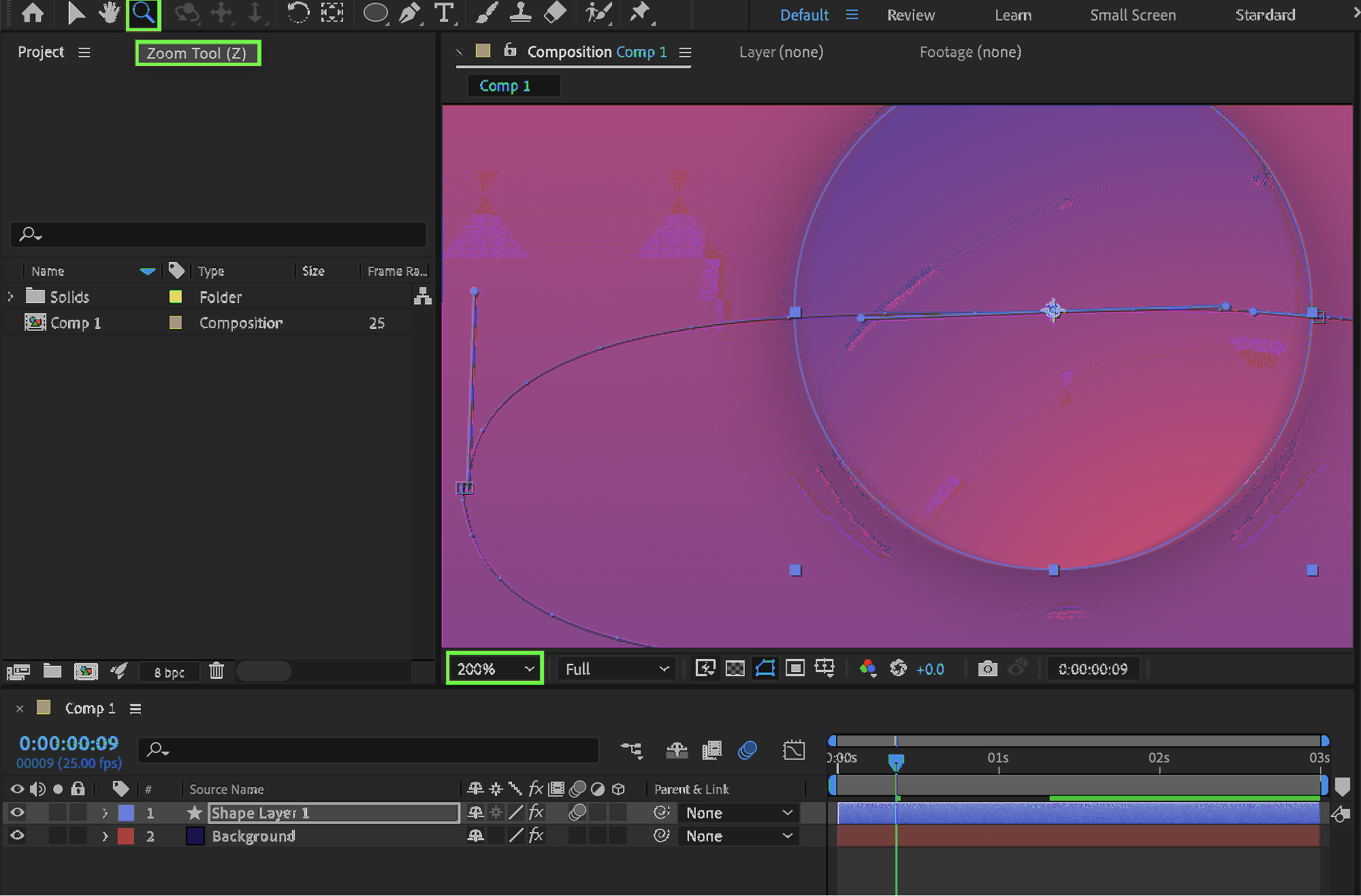
Preview the Result
With Layer Controls enabled, you can now interactively adjust Start and End points directly in the Composition panel.
Conclusion
Showing Start and End controls in After Effects is essential for precise animation and effect placement. By enabling Layer Controls and selecting the correct layer, you can easily access and adjust on-screen handles for gradients, beams, paths, and more — making your workflow faster and more intuitive.
Our Bestsellers
Our Bestsellers


