
Managing and Turning Off Lights in After Effects
Introduction
Lights in Adobe After Effects allow you to create realistic depth and shadow for 3D layers. However, you might need to temporarily or selectively turn off lights to simplify your editing process or isolate visual elements. In this guide, you’ll learn several practical methods to turn off or control light layers in your composition, depending on your needs.
Step 1: Open Your Project
Start by opening the project in After Effects where you have light layers set up.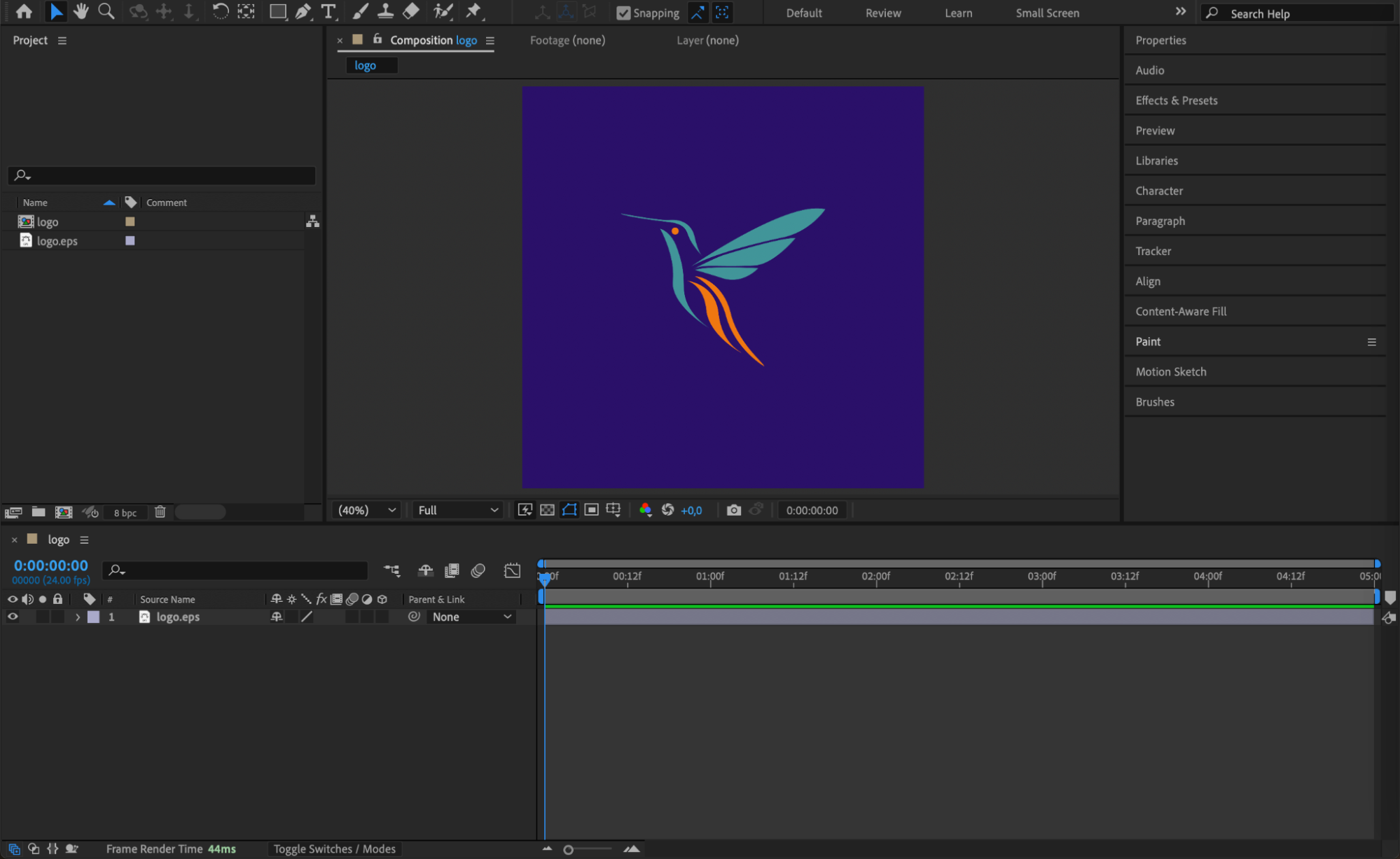 Step 2: Create a Light Layer (If Needed)
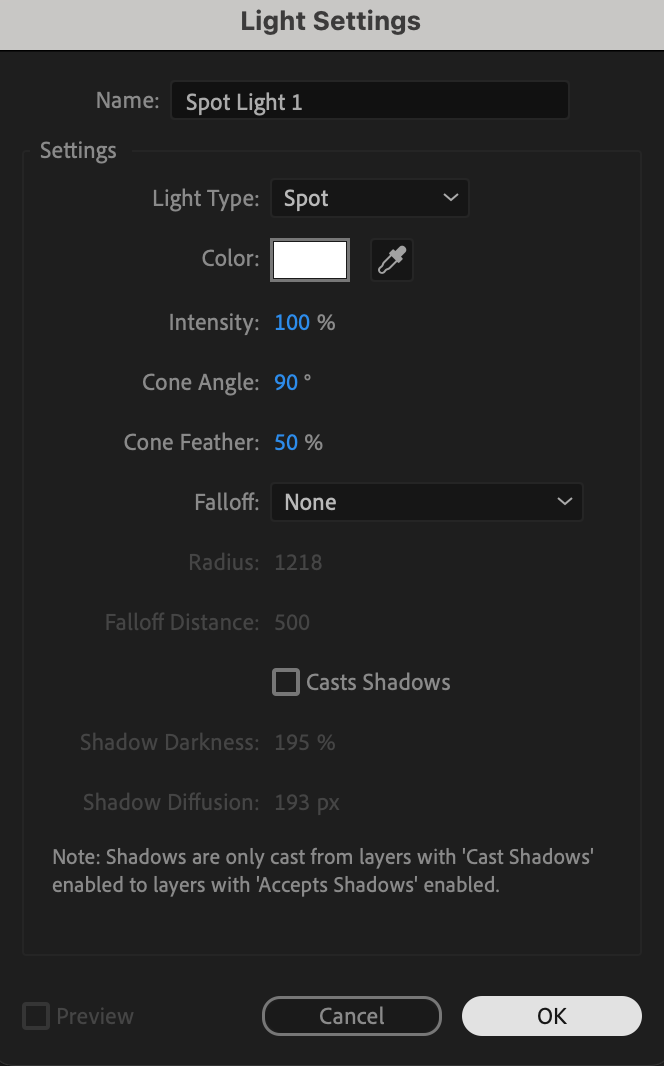
If your project doesn’t already include a light, go to Layer > New > Light. Choose the light type, such as Spot, and click OK. The light will be added to your timeline and will begin affecting all 3D layers.
Step 3: Make the Target Layer 3D
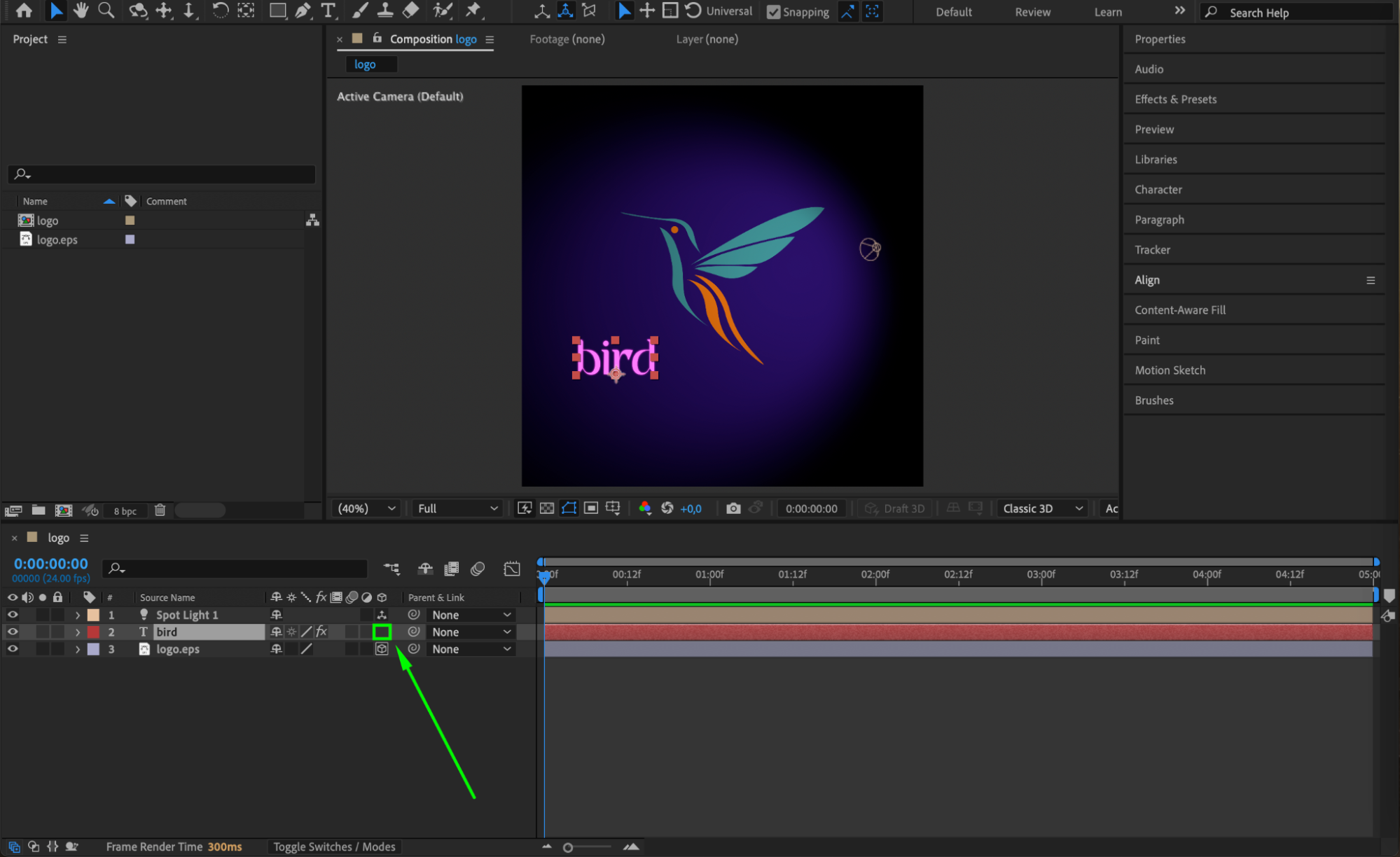
To be affected by light, a layer must be 3D. Enable the 3D switch (the cube icon) for the layer you want the light to influence. Without this, the light will have no visible effect on the layer.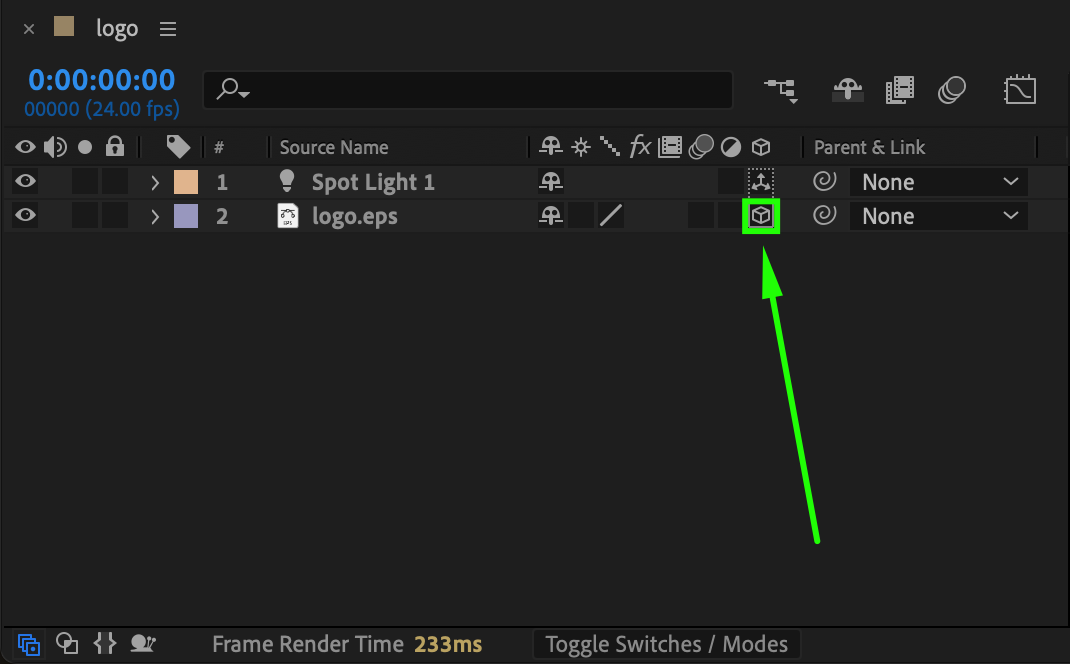 Step 4: Adjust Light Position and Direction
Use the Selection Tool to move or rotate your light in 3D space. You can also press AA to reveal its settings and fine-tune Intensity, Color, Cone Angle, and more.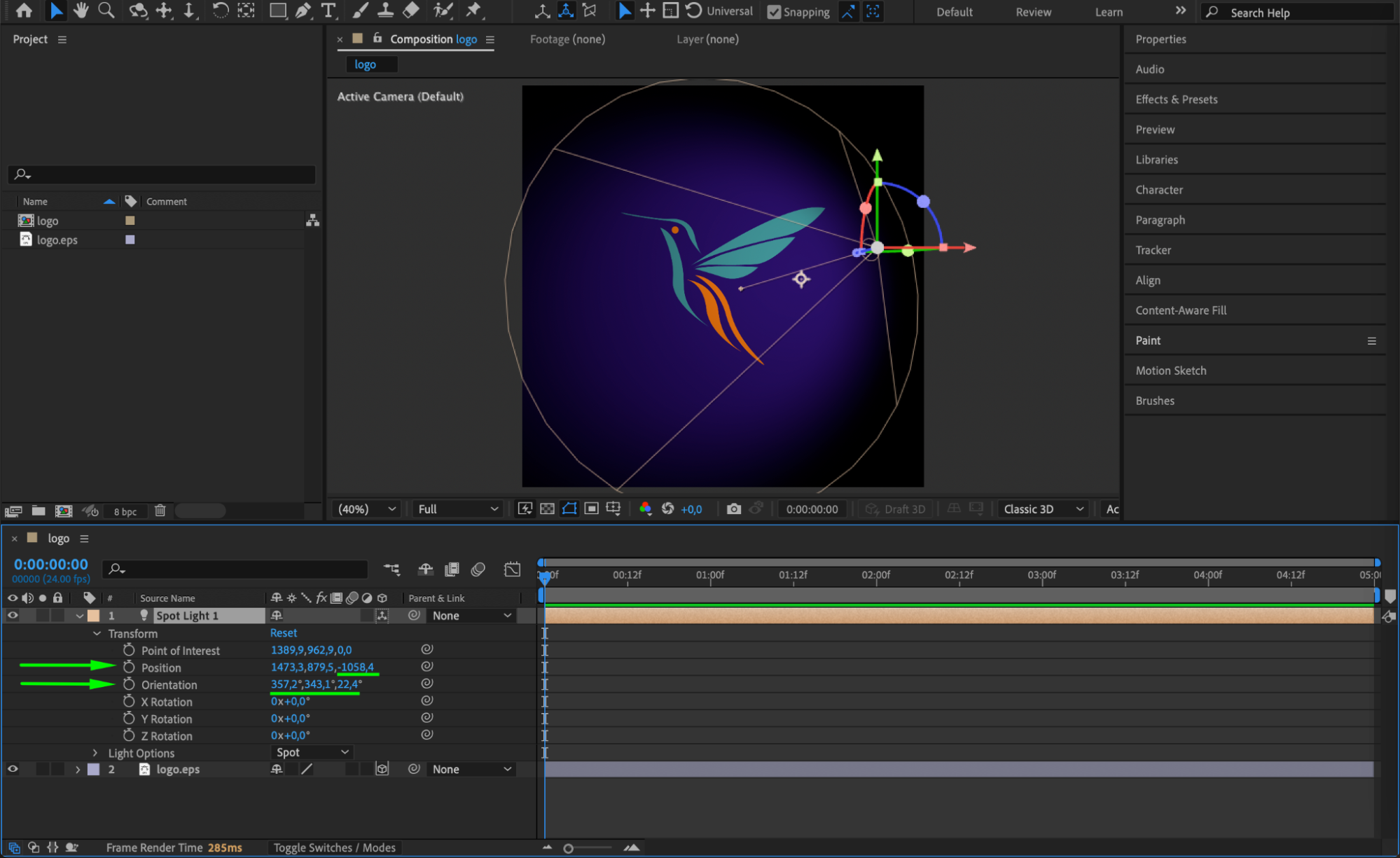 Step 5: Temporarily Disable the Light
To quickly turn off a light without deleting it, click the Eyeball icon (👁) next to the light layer in the timeline. This hides the layer and removes its influence from the scene, which is helpful when editing.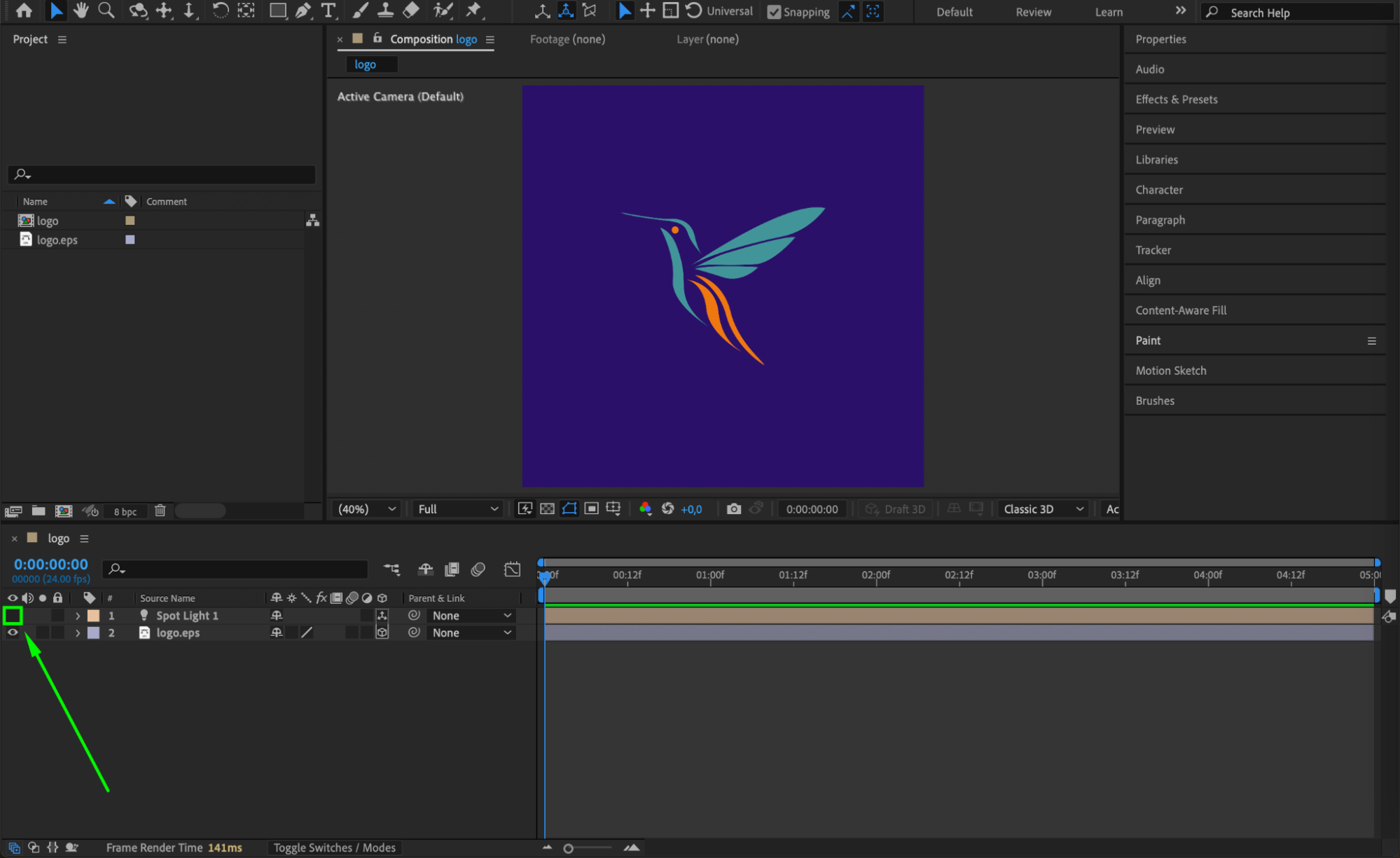 Step 6: Prevent Light from Affecting a Specific Layer
If you want to disable the light on one specific 3D layer, you can turn off the 3D switch (the cube icon) for that layer. This makes the layer 2D again, so it won’t be influenced by any lights in the scene.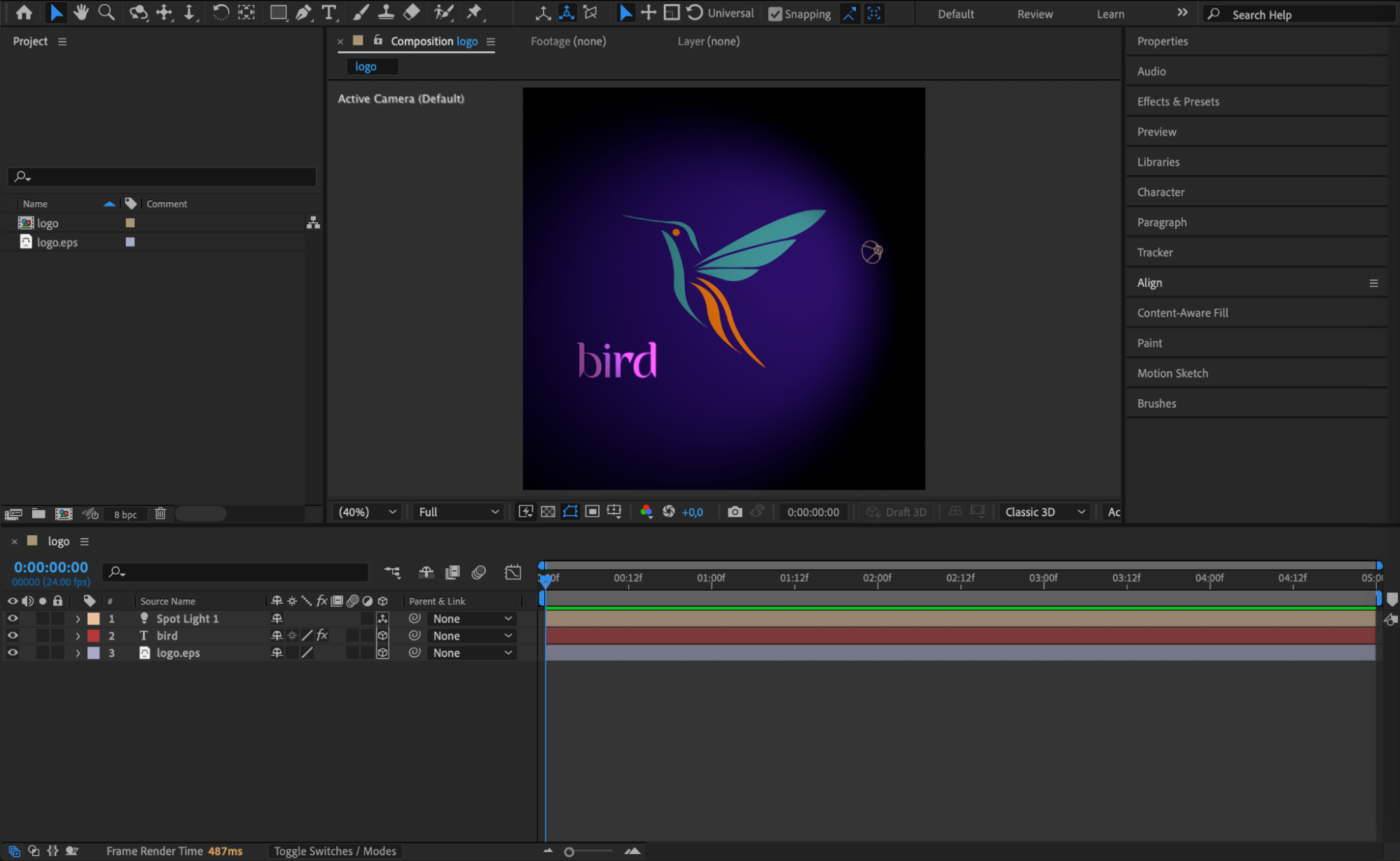
 Step 7: Trim the Light Layer’s Duration
To make the light only affect part of your composition, drag the in/out points of the light layer in the timeline. This limits the light’s active time, which is useful for controlling lighting during specific scenes or moments.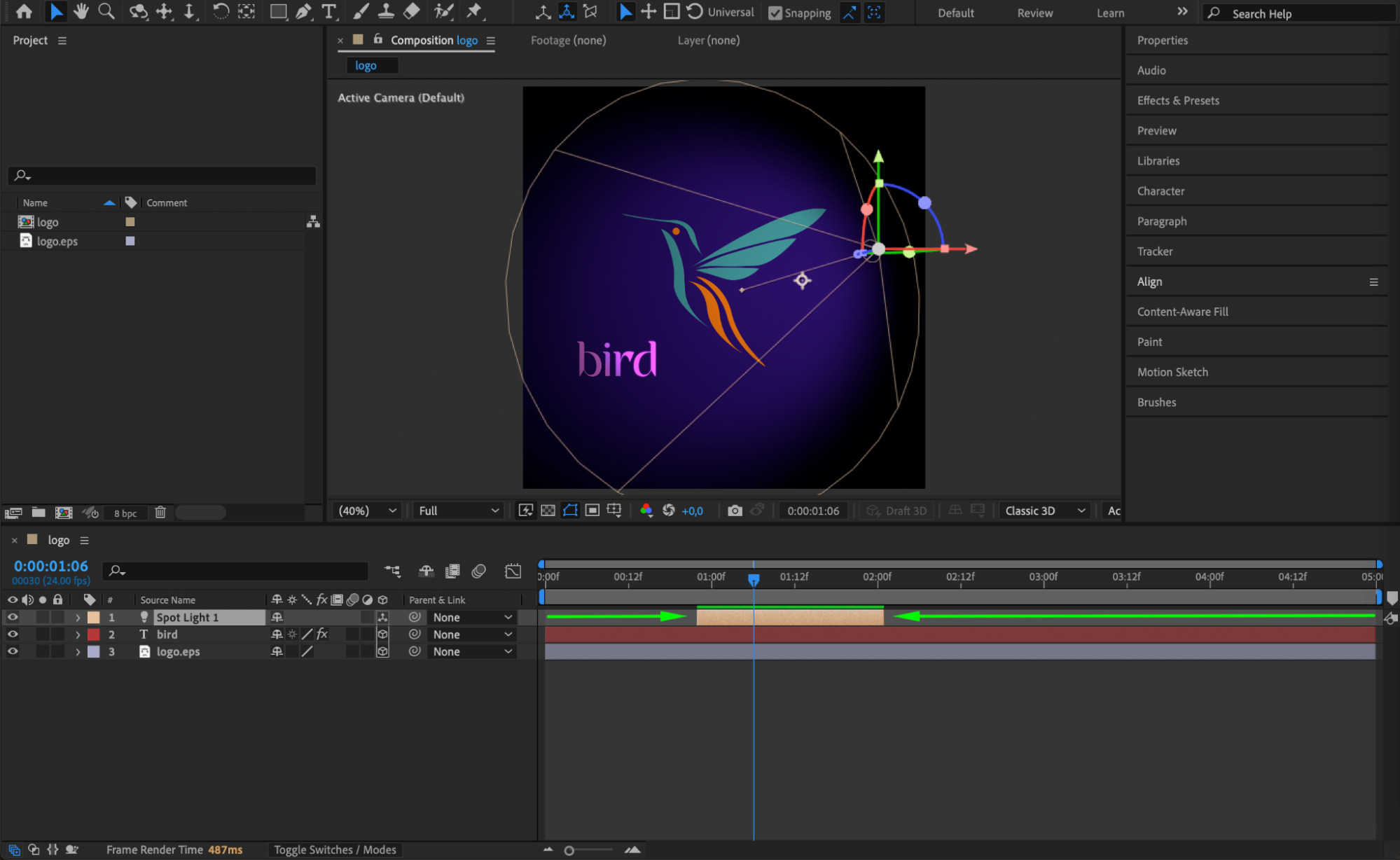
Step 8: Delete the Light (If Not Needed)
If you no longer need the light in your composition, simply select the light layer in the timeline and press Delete. This removes it permanently.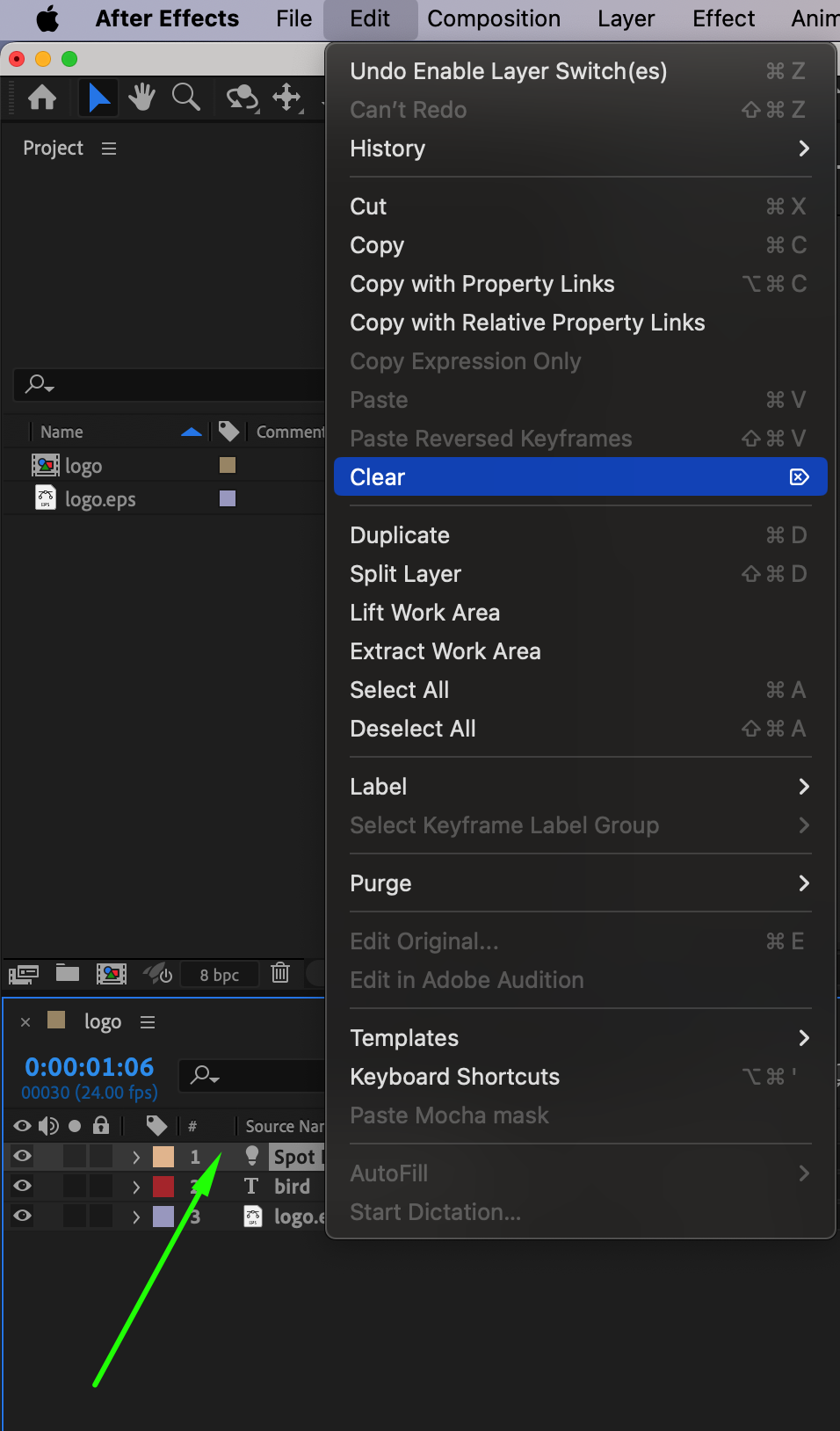 Step 9: Preview and Choose the Best Option
Use spacebar to preview your composition and see the effect of enabling, disabling, or trimming the light. Choose the method that works best for your workflow or visual goal.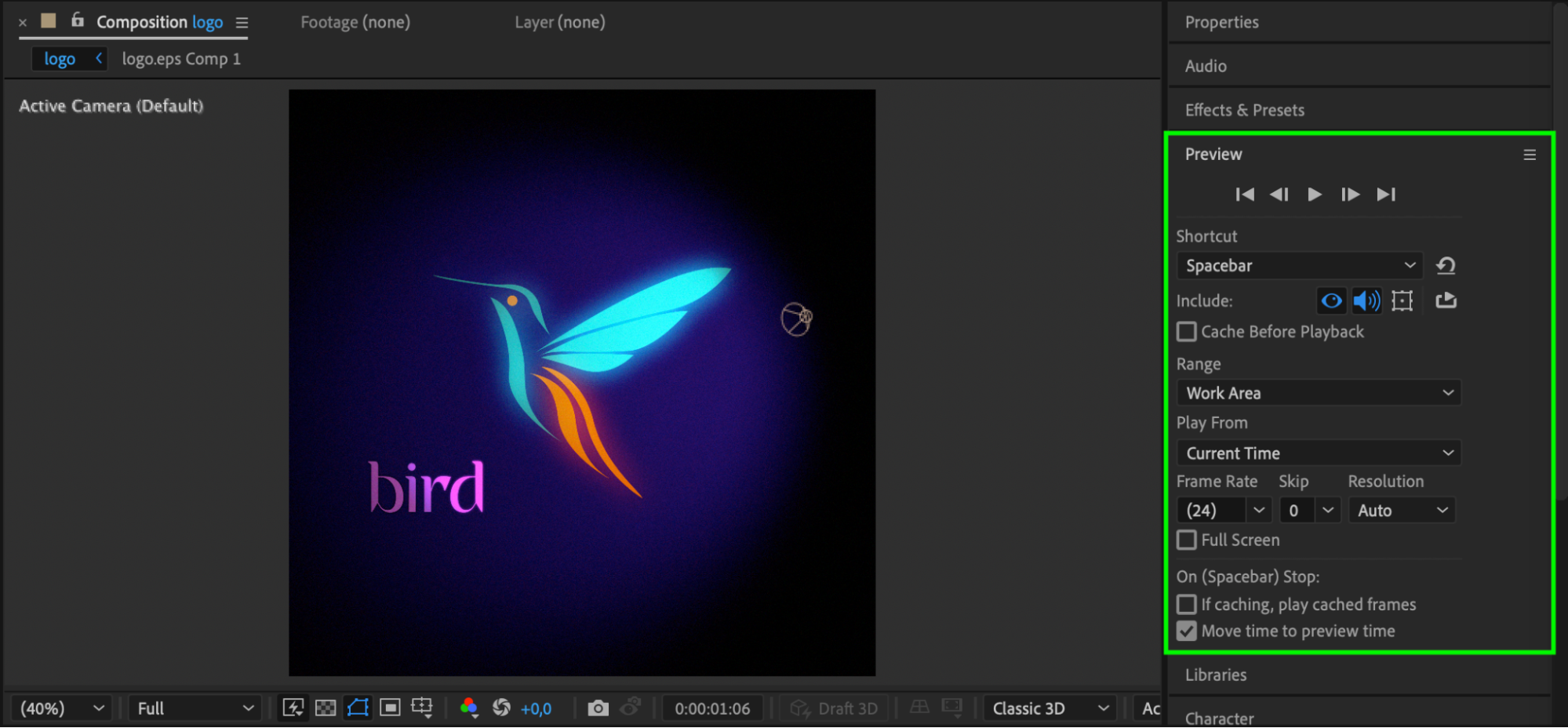 Step 10: Turn Off Parallel or Ambient Lights
If you’re using Parallel or Ambient light types, you can’t rotate them like a Spot or Point light. To effectively turn them off, simply set the Intensity value to 100% in the layer’s properties. Press AA to reveal light settings, then reduce Intensity to remove their influence from the scene without deleting the layer.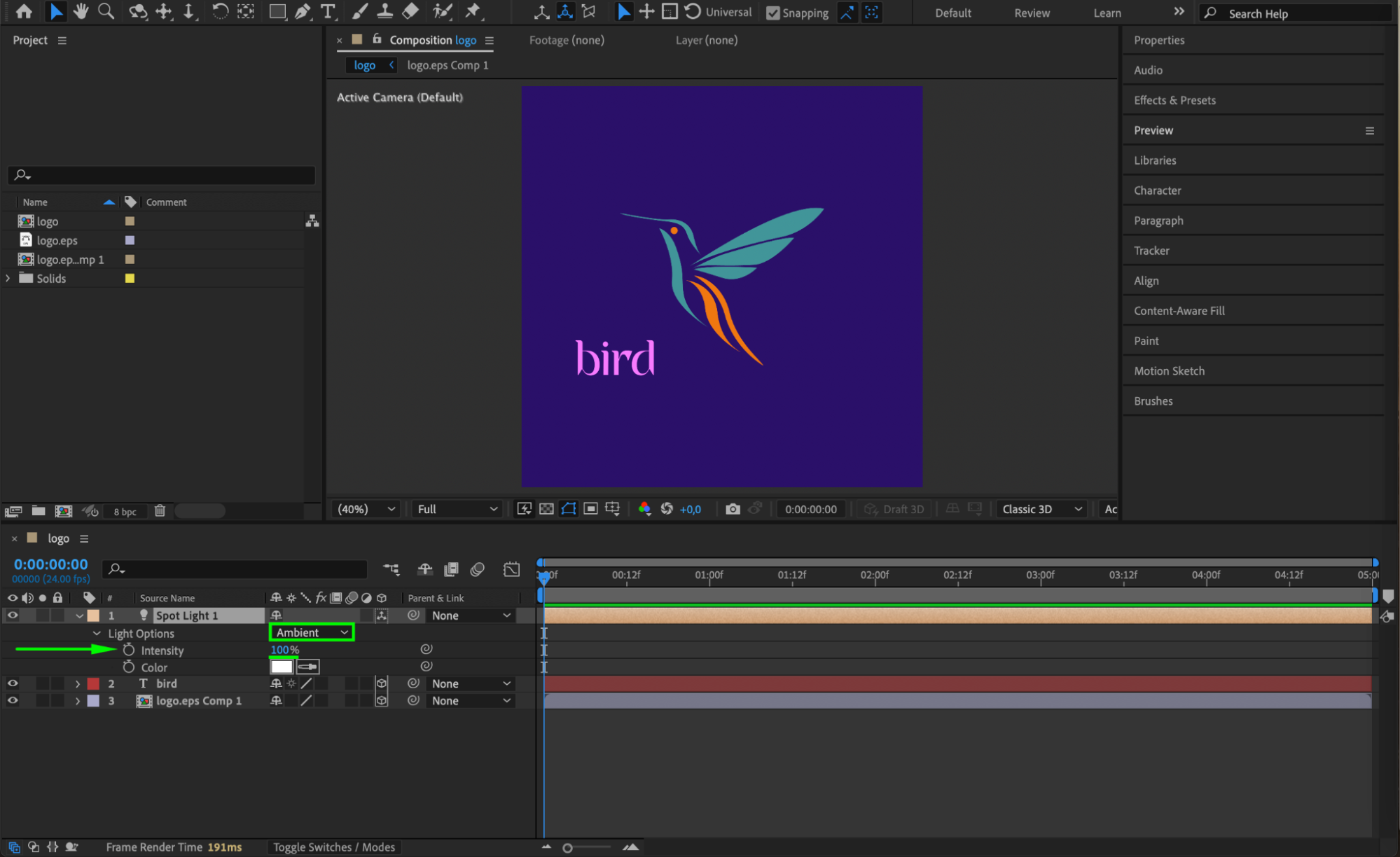 Conclusion
Controlling light layers in After Effects gives you flexibility when working with 3D compositions. Whether you want to temporarily hide a light, prevent it from affecting certain layers, or fine-tune its duration and intensity, you have several options to manage how lighting interacts with your scene. This is especially useful for improving preview performance, isolating elements during editing, or refining the final look of your animation. Understanding how to manage light layers keeps your workflow clean, efficient, and visually consistent.
Our Bestsellers
Our Bestsellers


