
Learn how to add motion elements using AEJuice packs in After Effects to enhance your video edits with dynamic animated visuals.
Enhancing Video Projects with Motion Elements in After Effects
Introduction: Creative Motion Elements for Editors
Motion elements are small animated assets that add energy, rhythm, and visual interest to your videos. Whether it’s animated shapes, bursts, lines, or transitions, these elements help emphasize motion and give your work a professional edge. AEJuice offers one of the best motion element packs available for editors, and this tutorial will show you exactly how to use them inside After Effects — from import to customization.
Step 1: Create a New Composition
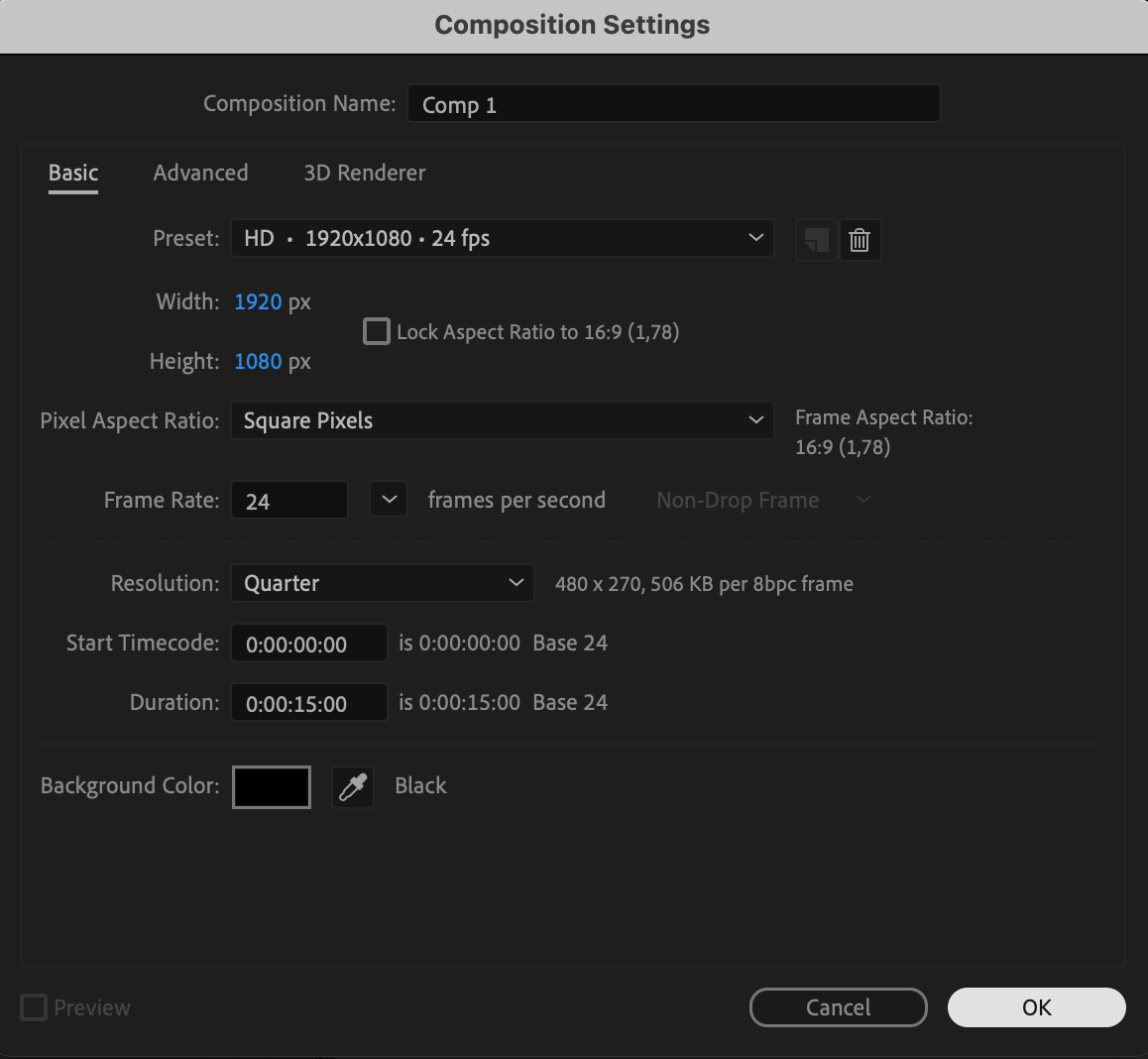
Open After Effects and navigate to Composition > New Composition. Set your resolution (e.g., 1920×1080), frame rate, and duration according to your project needs. This will be the base where you’ll add your motion elements.
 Step 2: Open AEJuice Pack Manager
Go to Window > AEJuice Pack Manager 4 to open the AEJuice plugin. This panel allows you to access a wide range of animation assets and tools. Make sure AEJuice is installed and activated before proceeding.
Step 3: Download the Motion Elements Pack
Inside the Pack Manager, find the Motion Elements Pack. Click on it to download if it’s not already installed. Once installed, you can browse through hundreds of animated graphics designed for overlays, transitions, and accents.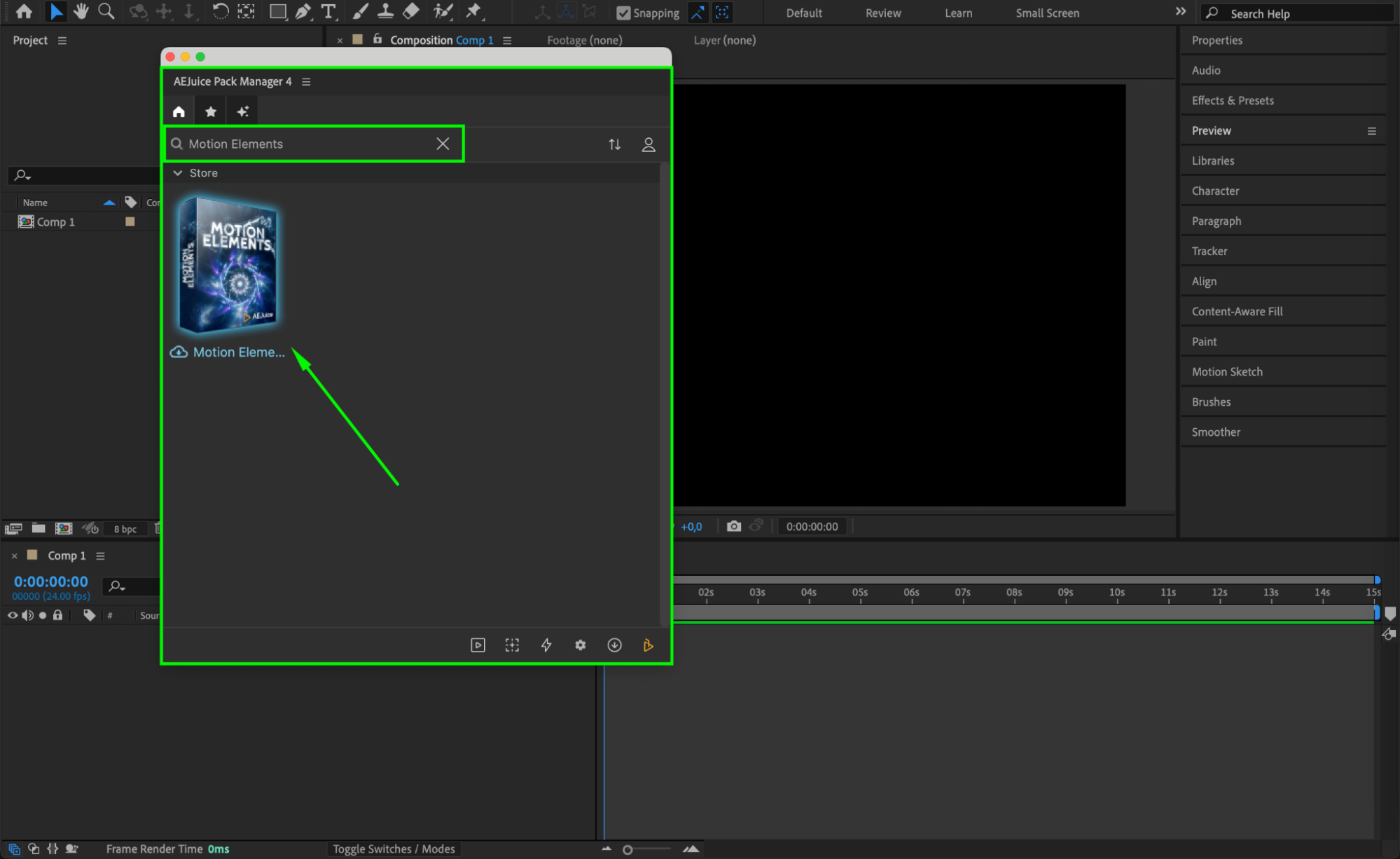 Step 4: Choose and Import a Motion Element
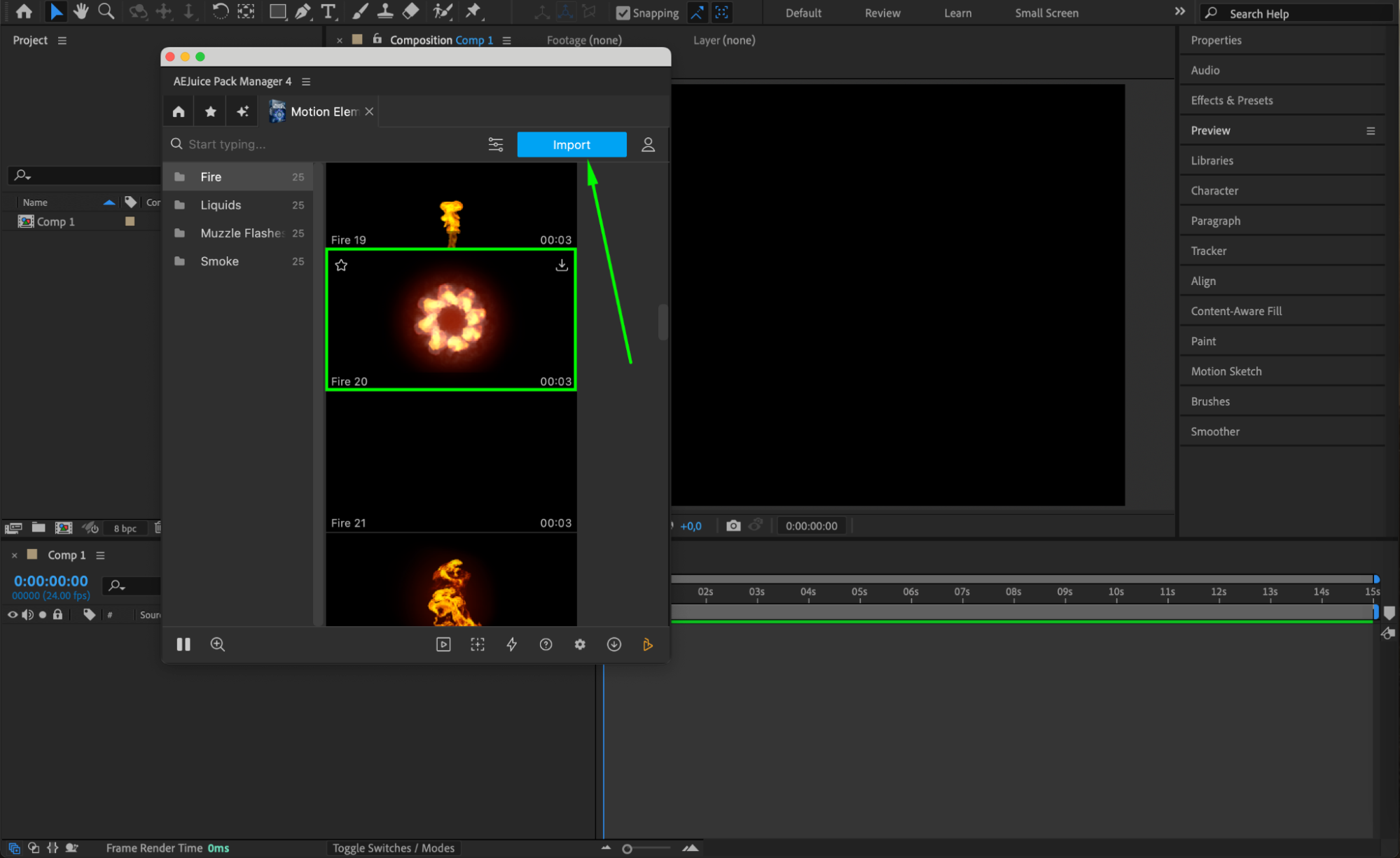
Scroll through the available motion elements in the pack. Pick one that fits your scene — for example, an energy burst or animated line. Click on it and press Import. It will appear in your timeline as a video layer or pre-composition depending on the asset.
 Step 5: Adjust Size, Position, and Rotation (Optional)
Select the imported motion element layer in the timeline. Use shortcut keys S (Scale), P (Position), and R (Rotation) to adjust its placement and size in your composition. These elements can be layered above footage to highlight actions or transitions.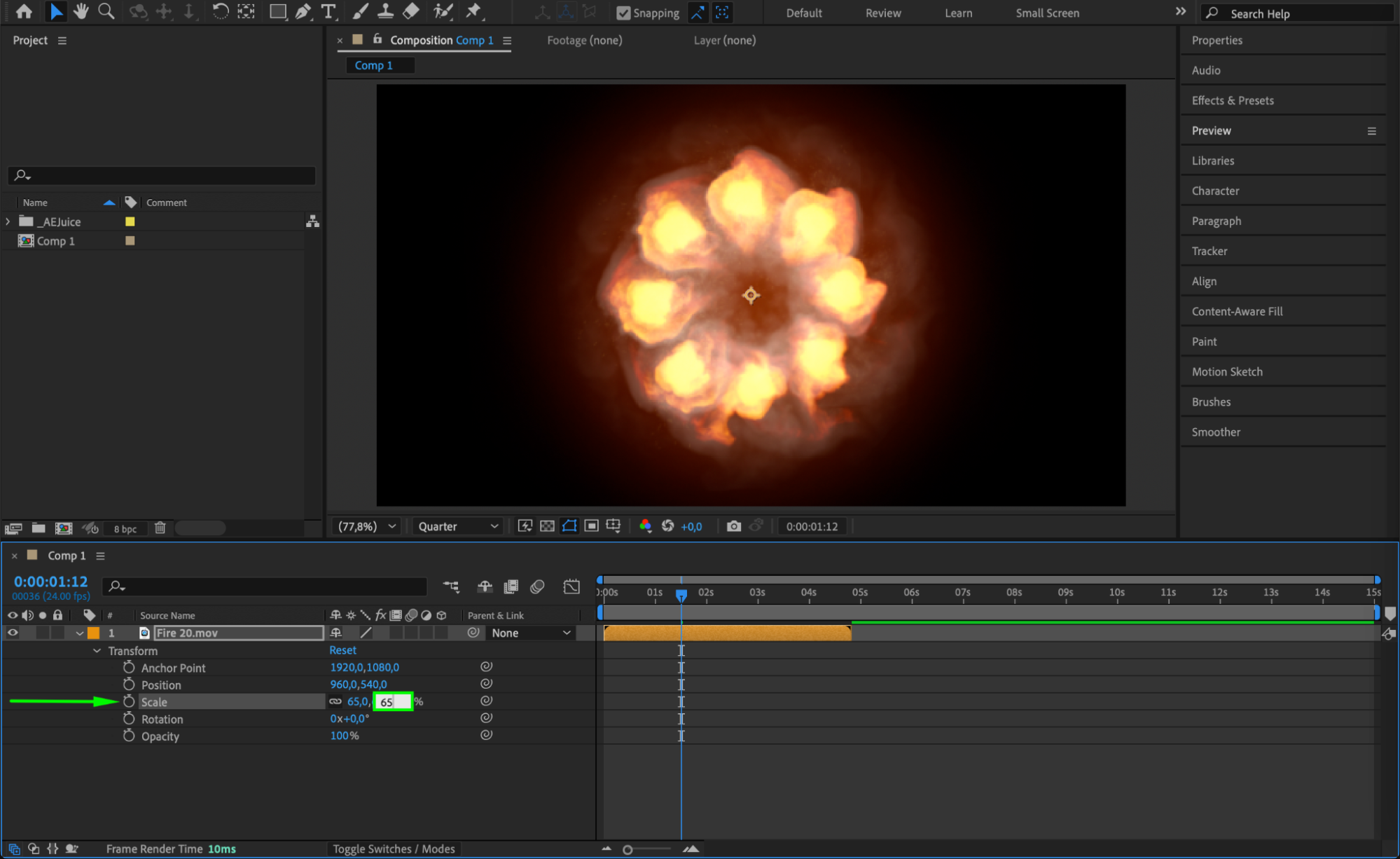
Step 6: Customize with Effects (Optional)
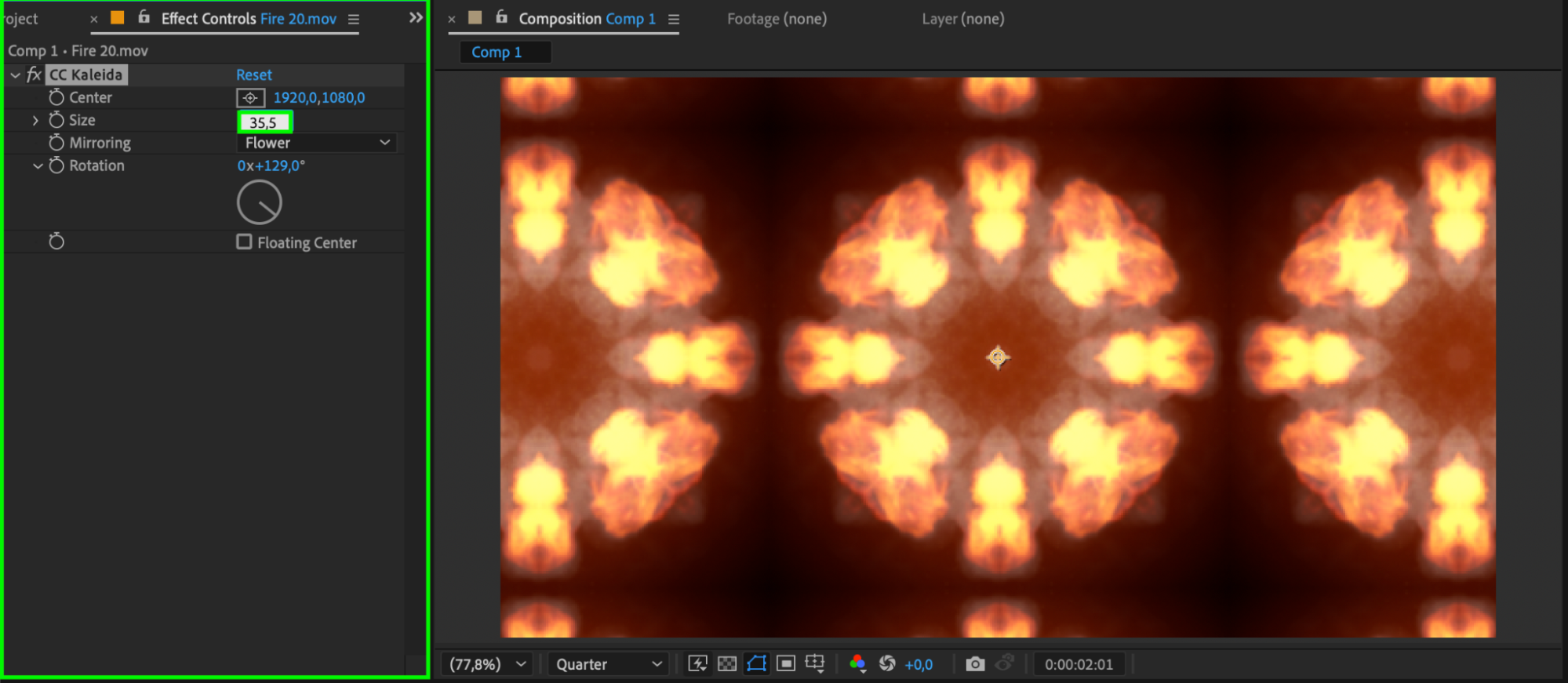
To give the motion element a unique style, apply effects from the Effects & Presets panel. For example, use CC Kaleida to create a mirrored or kaleidoscopic look, or try Glow, Turbulent Displace, or Tint for stylized motion. These effects help integrate the element into your visual theme.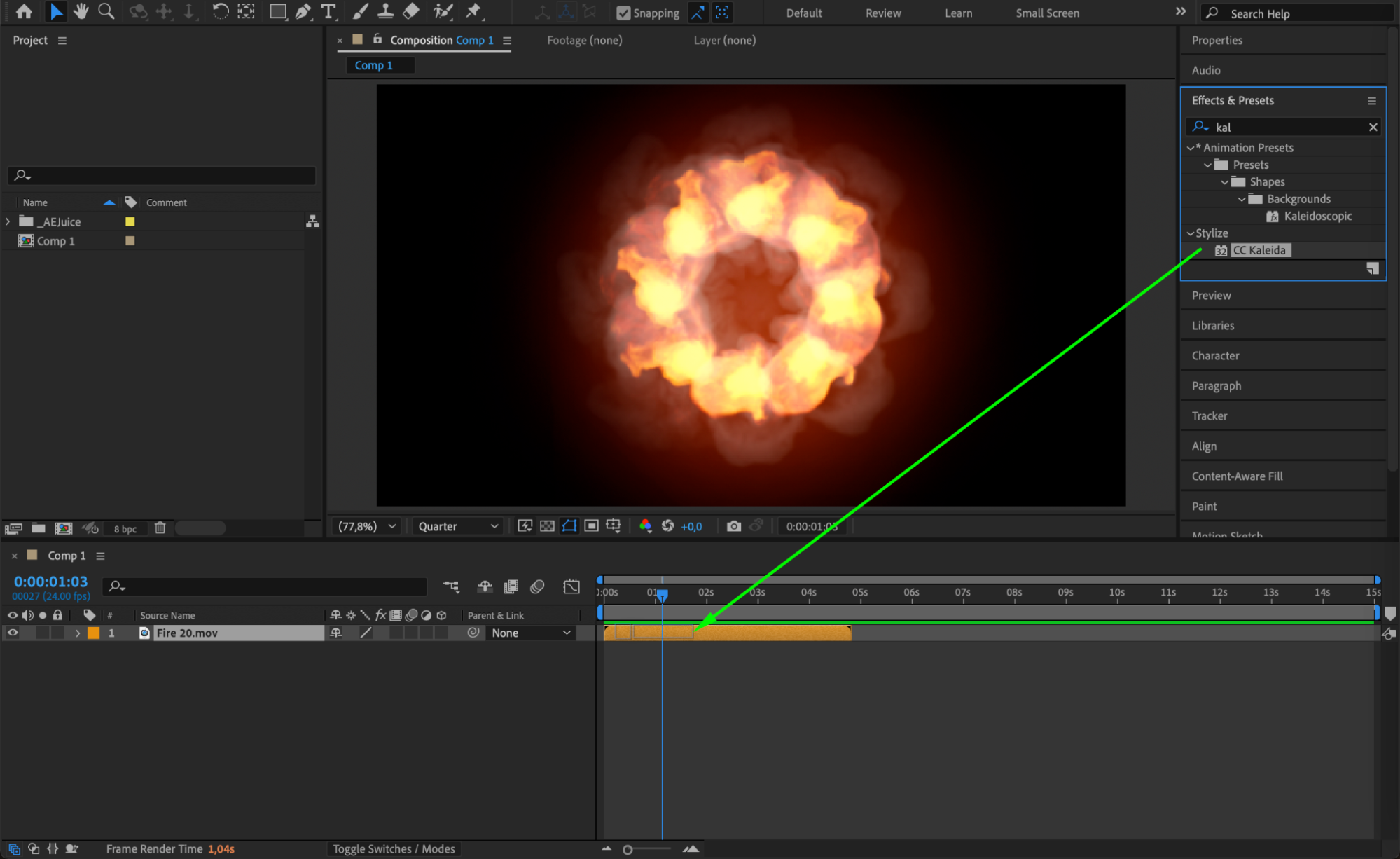
 Step 7: Preview and Finalize
Use the Spacebar to preview your composition. Make sure the motion element is well-timed and fits with the rhythm of your edit. Tweak the scale, opacity, or color as needed. Once satisfied, you can export or continue editing your video project.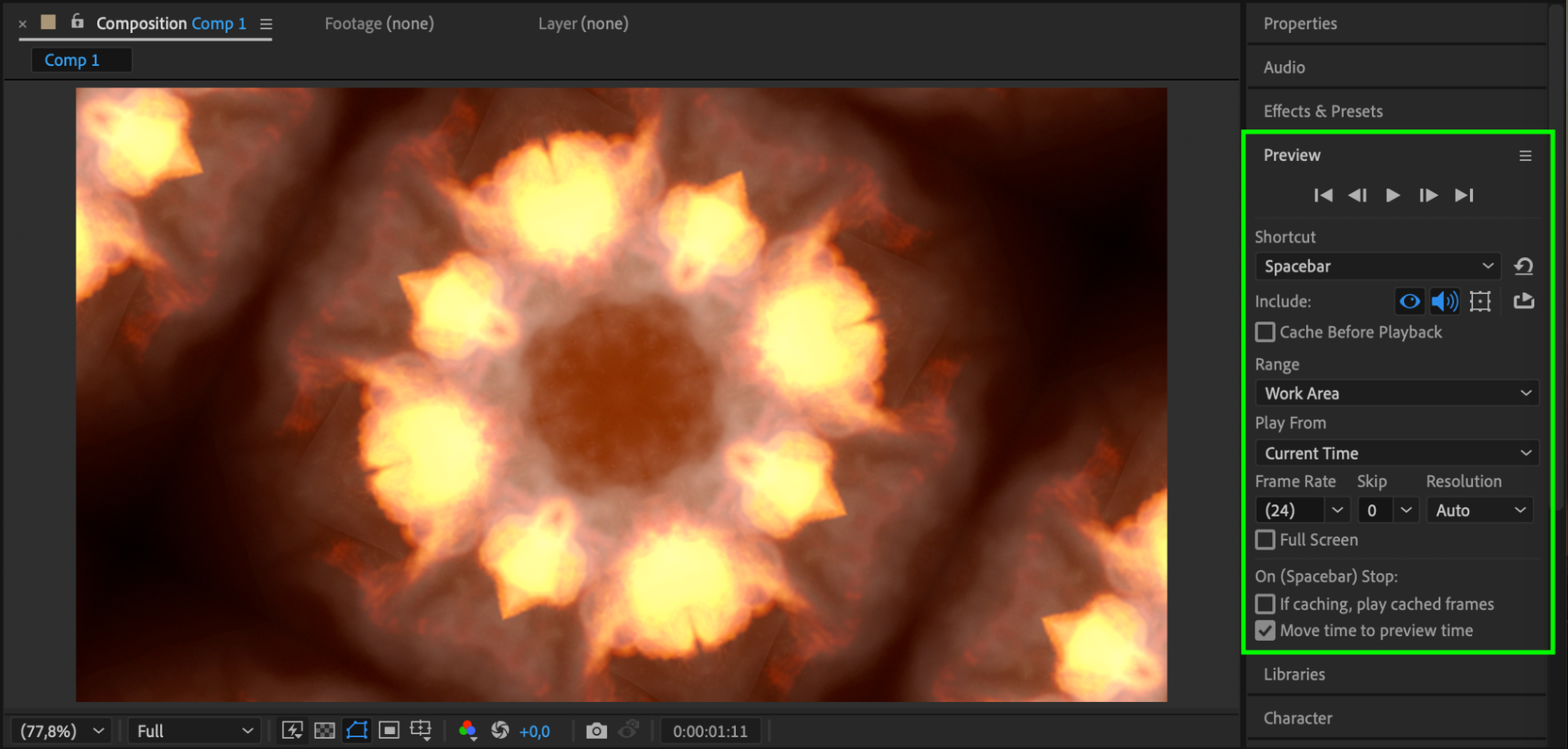 Conclusion
Motion elements are a powerful tool for editors who want to create dynamic, polished videos. With the AEJuice Motion Elements Pack, you can quickly drag and drop animated assets and customize them to match your project’s look. Perfect for YouTube videos, commercials, intros, or social media content, these elements add that extra layer of visual professionalism with minimal effort.
Our Bestsellers
Our Bestsellers


