Introduction
A speedometer animation is a great way to visualize progress, performance, or dynamic data in motion graphics. In After Effects, you can build a fully customizable speedometer using shape layers and simple rotation animation. In this tutorial, you’ll learn how to design the dial, create tick marks, and animate the needle smoothly.
Step 1: Create a New Composition
Click New Composition, choose your desired resolution and frame rate, and press OK to create your working timeline.
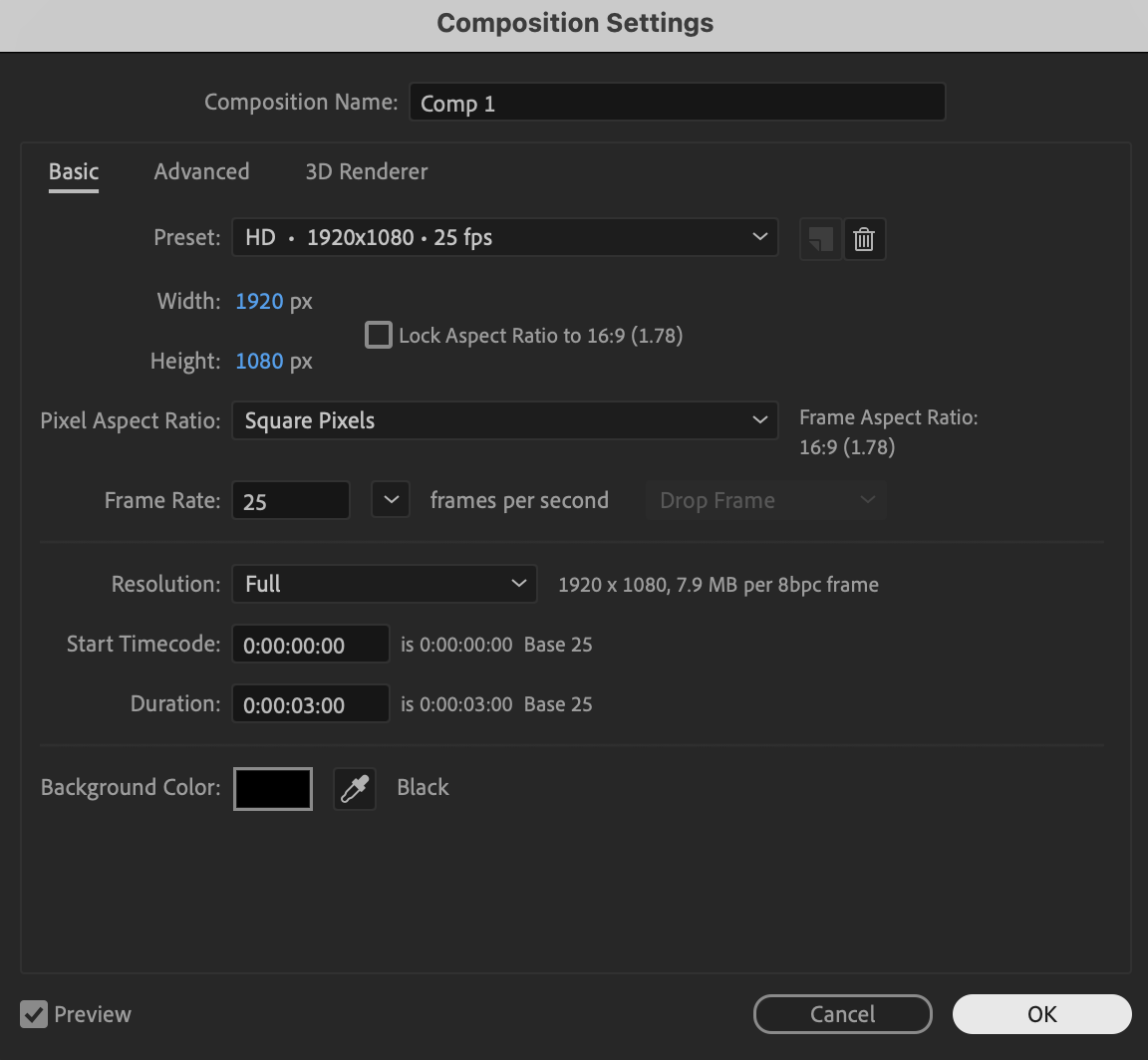 Step 2: Create the Main Circle
Select the Ellipse Tool (Q) and hold Ctrl + Shift (Windows) or Cmd + Shift (Mac) while dragging to create a perfect circle from the center; set Fill to None and set the Stroke color to Black with a Stroke Width of 48 px.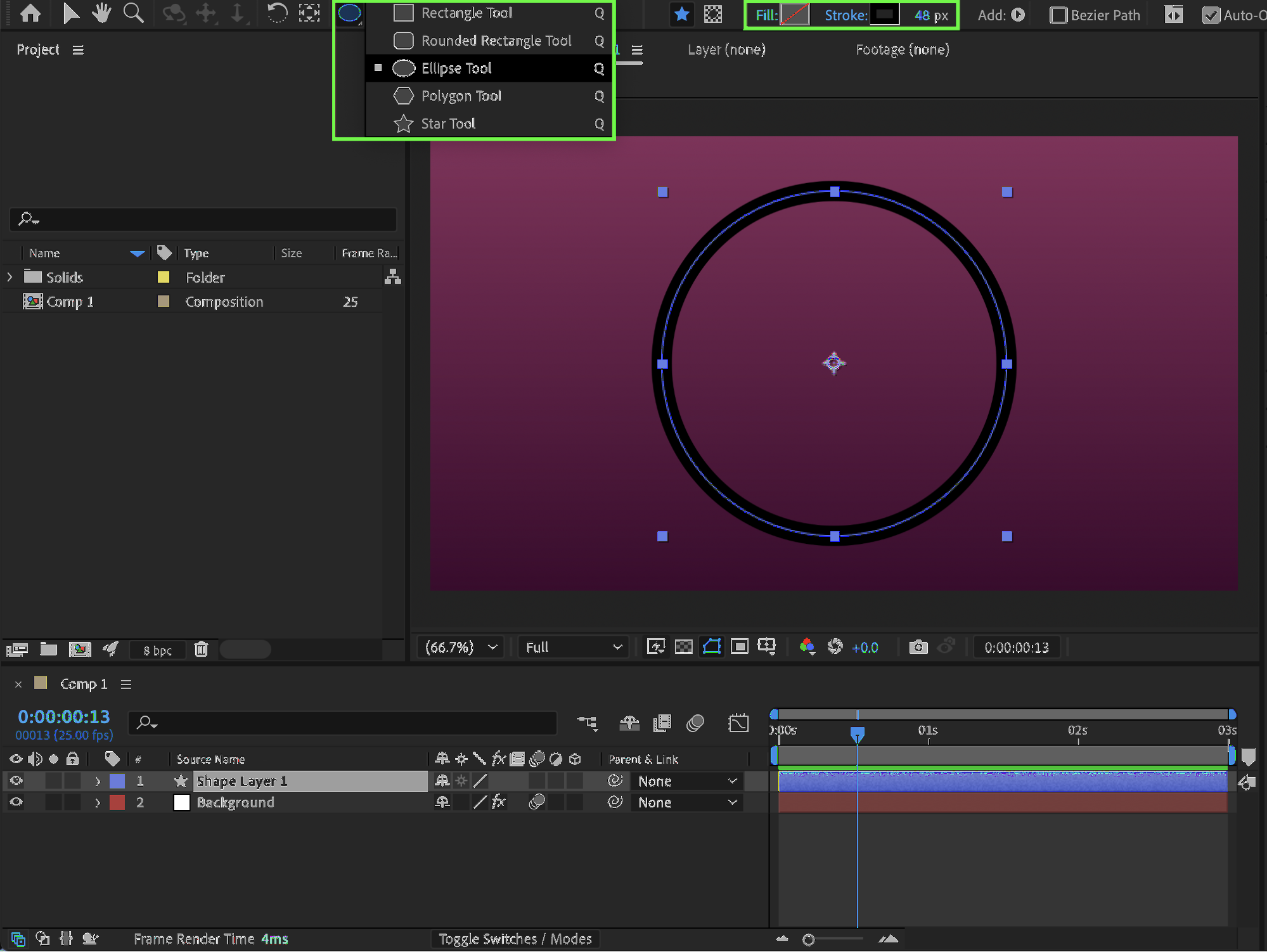
Step 3: Create a Tick Mark
Using the Pen Tool (G), draw a short horizontal line on the left-middle side of the circle to represent a speed mark, then expand the layer properties and set Line Cap to Round Cap for smoother edges.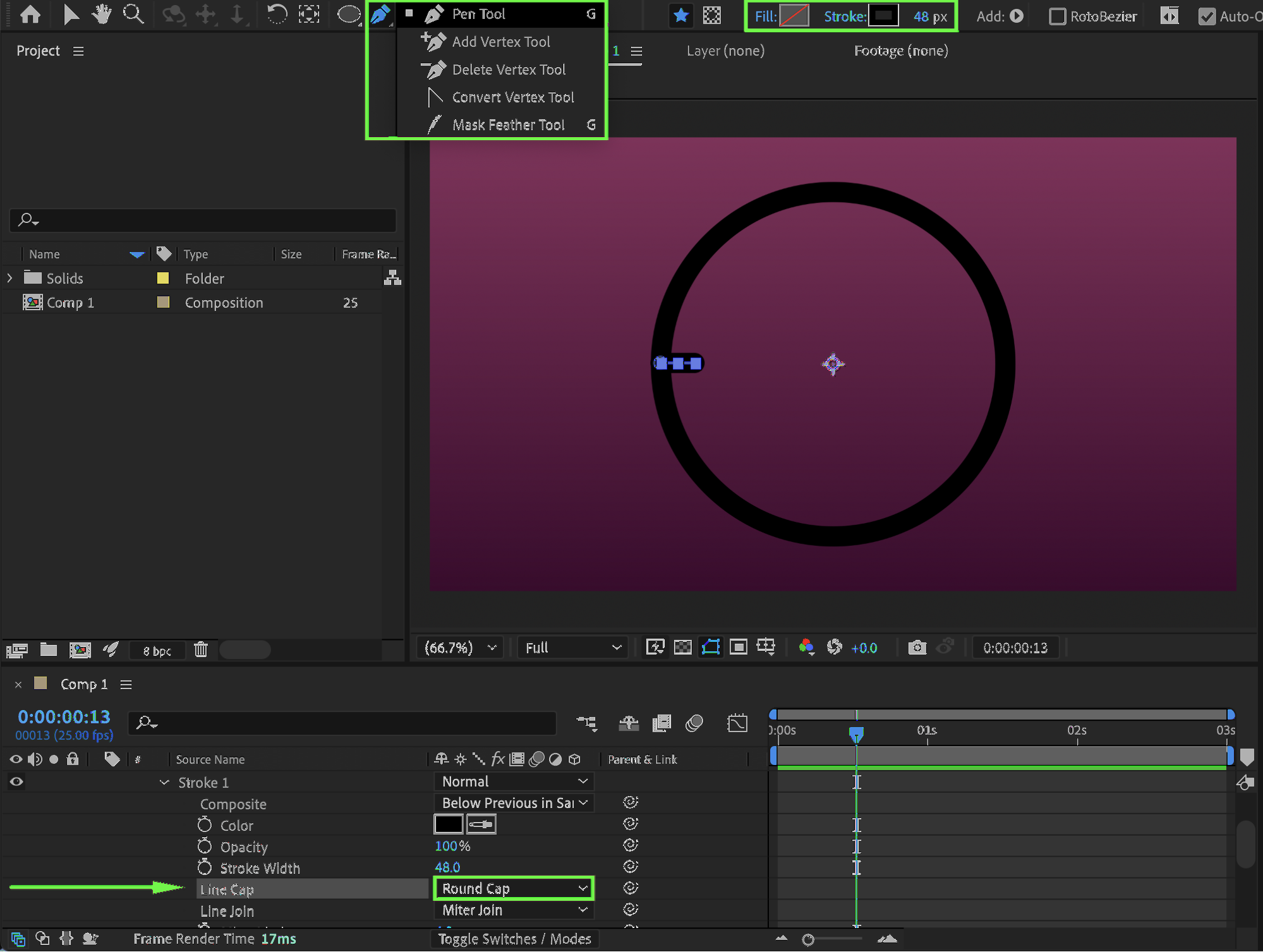
Ganhe 10% de desconto ao assinar nossa newsletter

Step 4: Adjust the Anchor Point
If necessary, use the Pan Behind Tool (Y) to move the tick mark’s Anchor Point to the center of the main circle so it rotates correctly around the dial.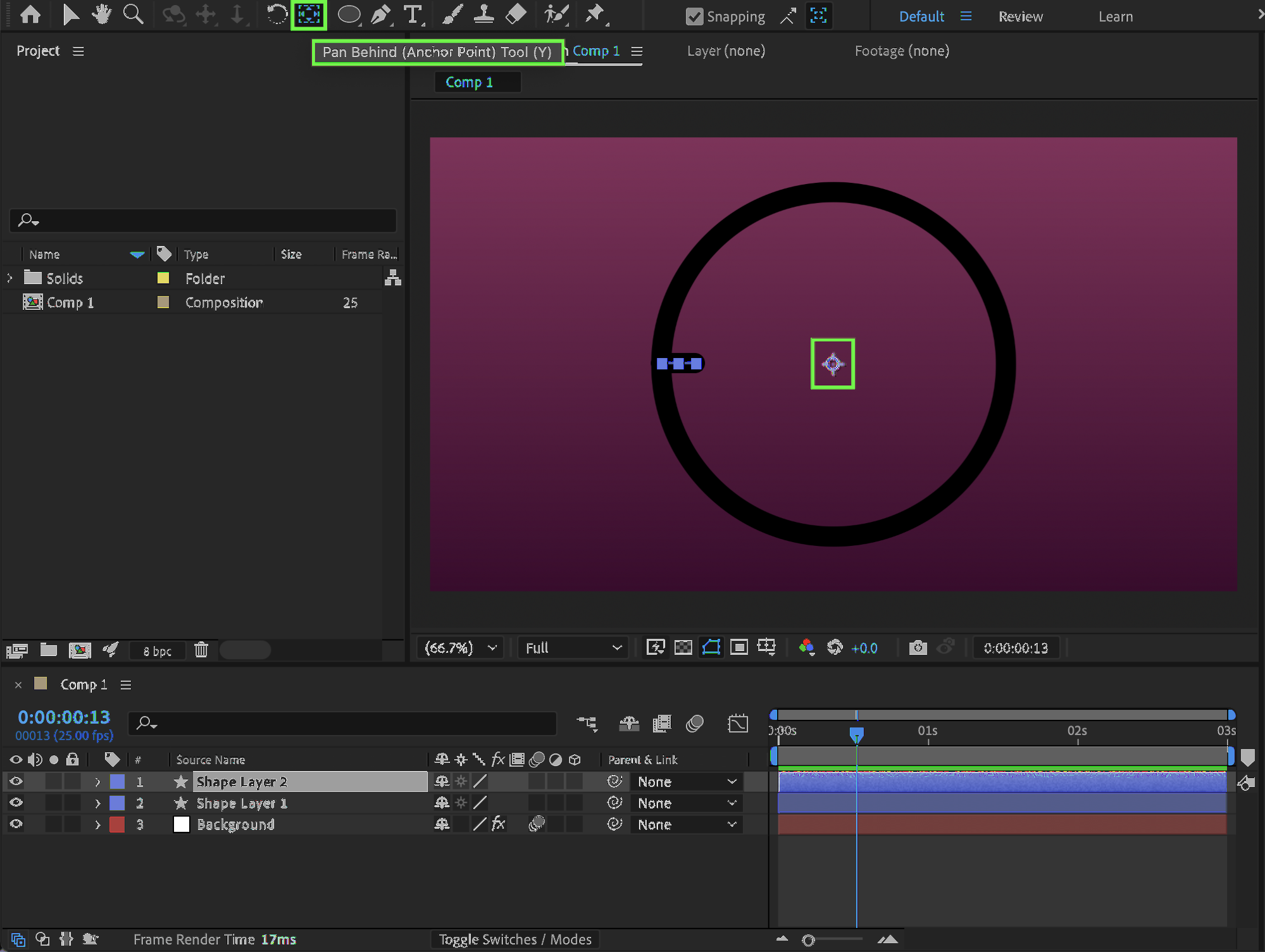 Step 5: Duplicate and Rotate Tick Marks
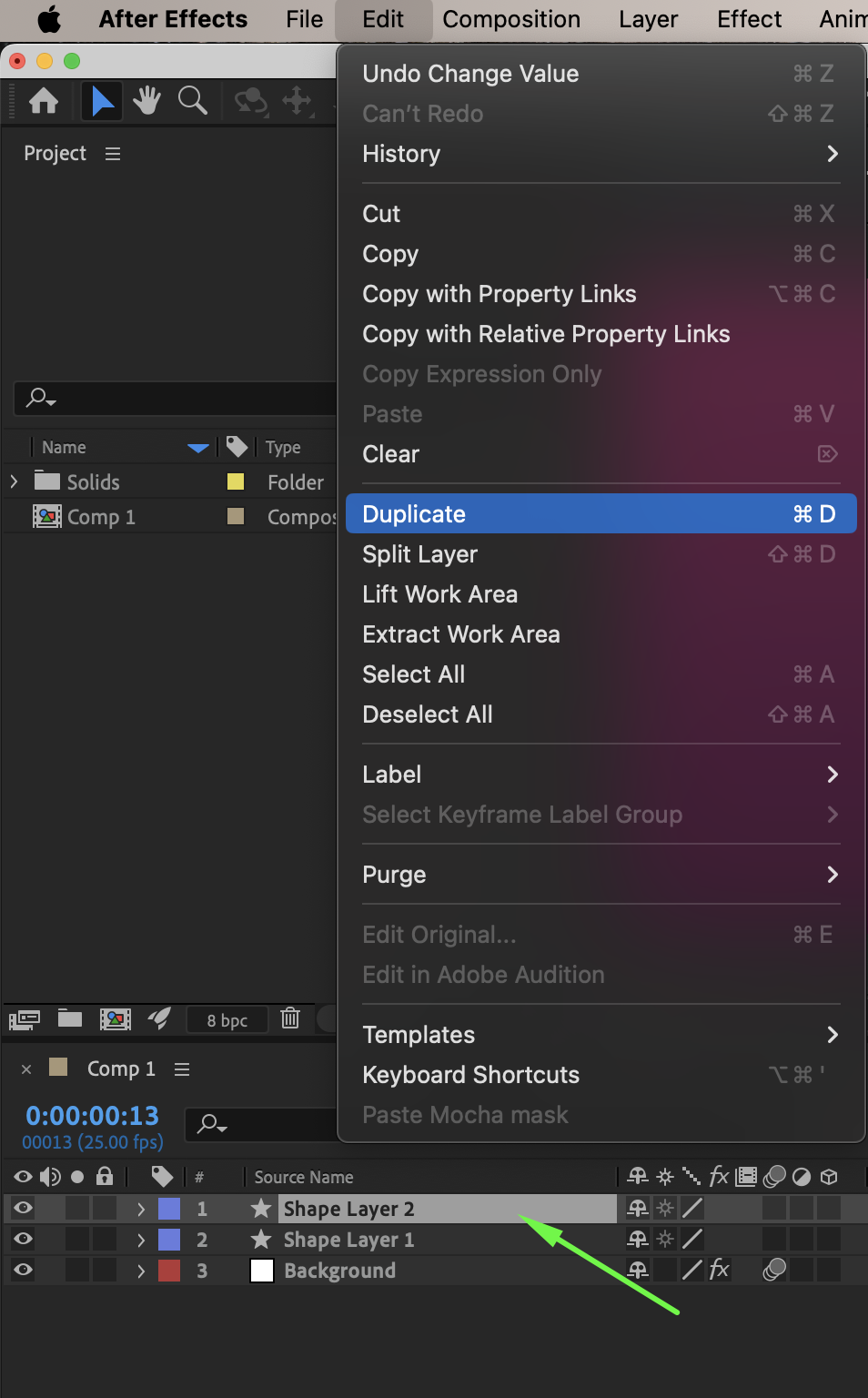
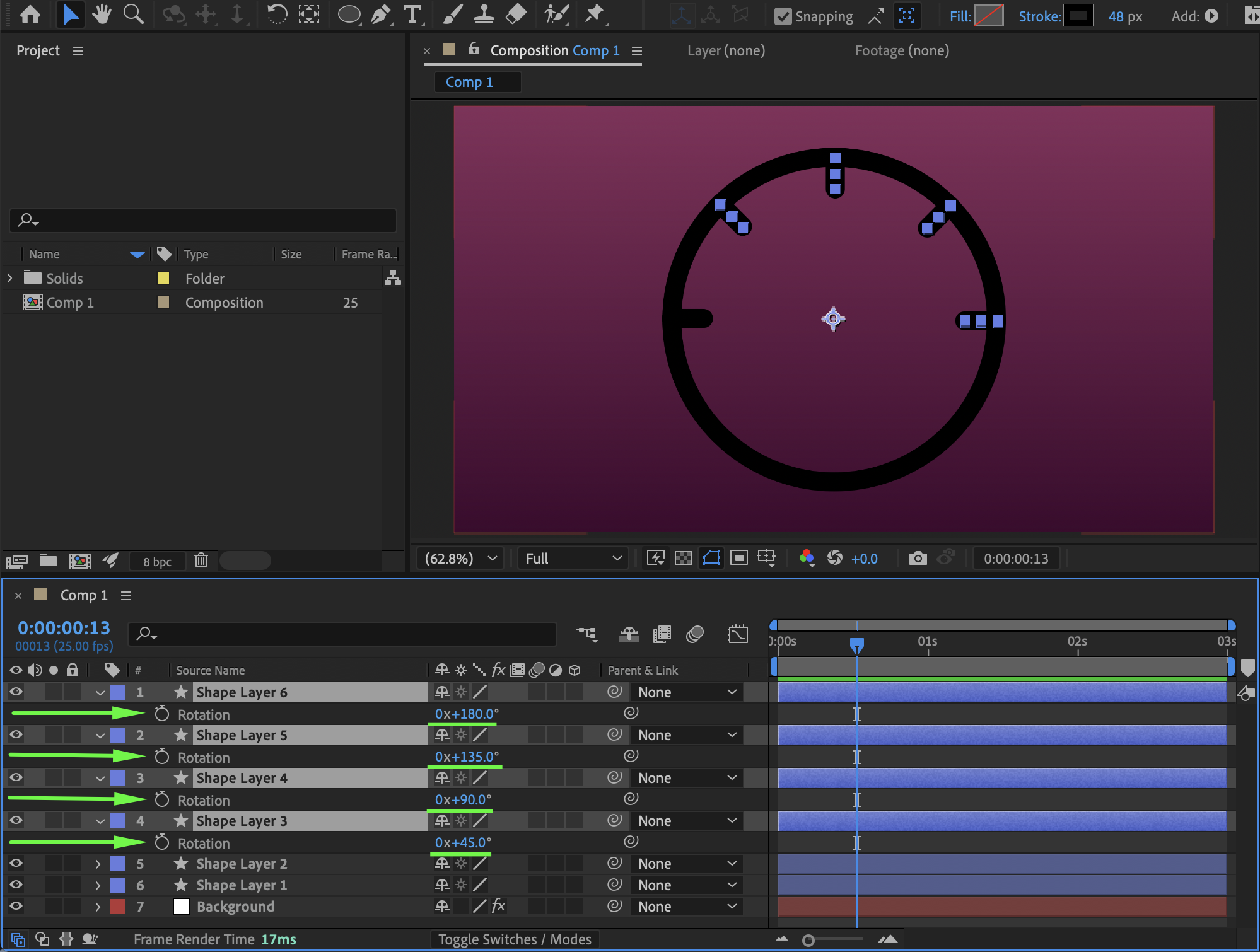
Duplicate the tick mark layer several times using Ctrl + D (Windows) or Cmd + D (Mac) and set their Rotation values to 45°, 90°, 135°, and 180° to create evenly spaced markings for a realistic speedometer look.
 Step 6: Create the Center Cap
Select the Ellipse Tool (Q) again and draw a small circle in the center of the speedometer that will act as the pivot point, then rename this layer “Center.”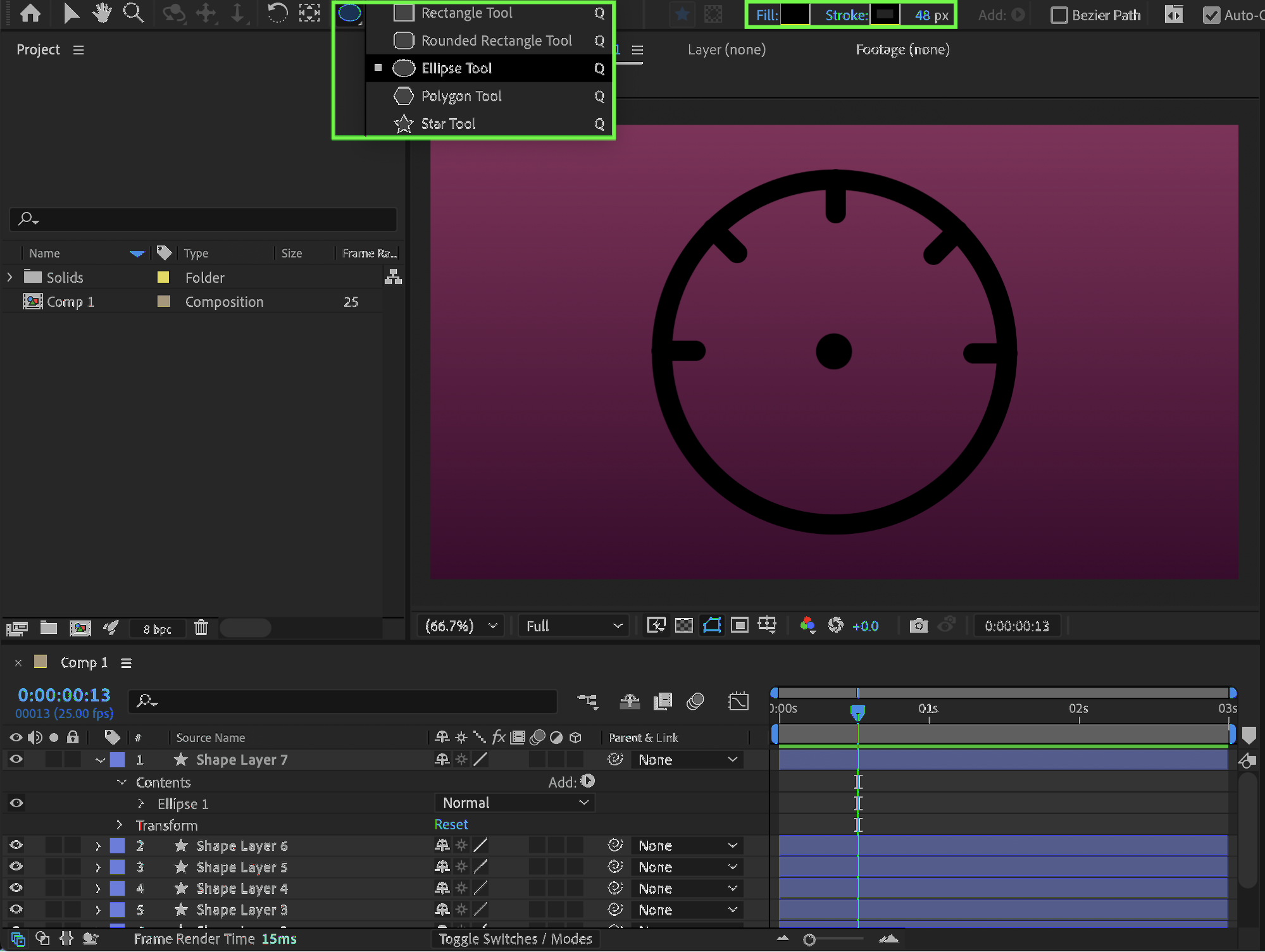 Step 7: Create the Needle (Hand)
Using the Pen Tool (G), draw a straight line extending outward from the center circle to form the needle, place this layer below the “Center” layer in the timeline, choose a contrasting Stroke color, and set Line Cap to Round Cap, then rename this layer “Hand.”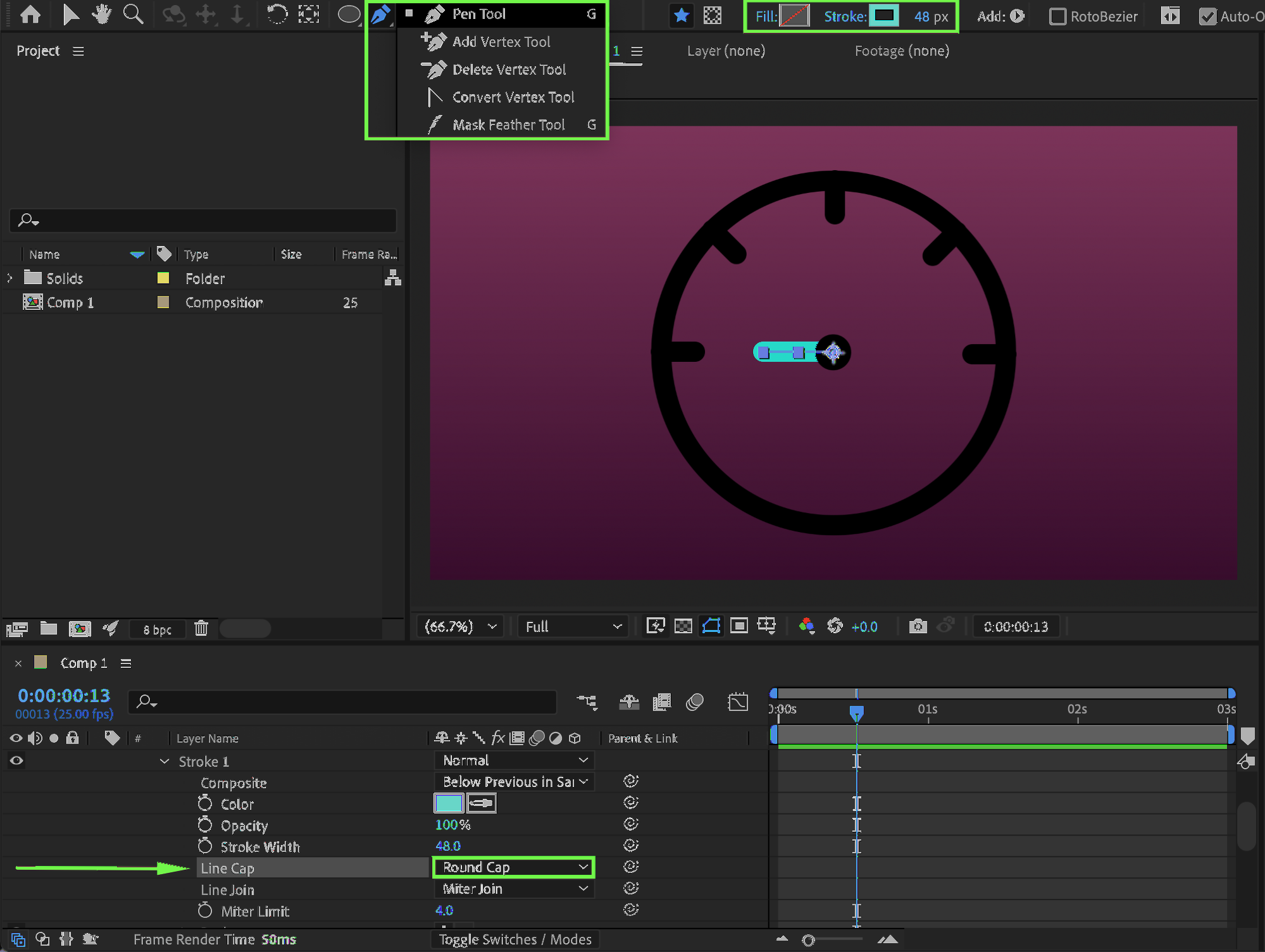
Step 8: Animate the Needle Rotation
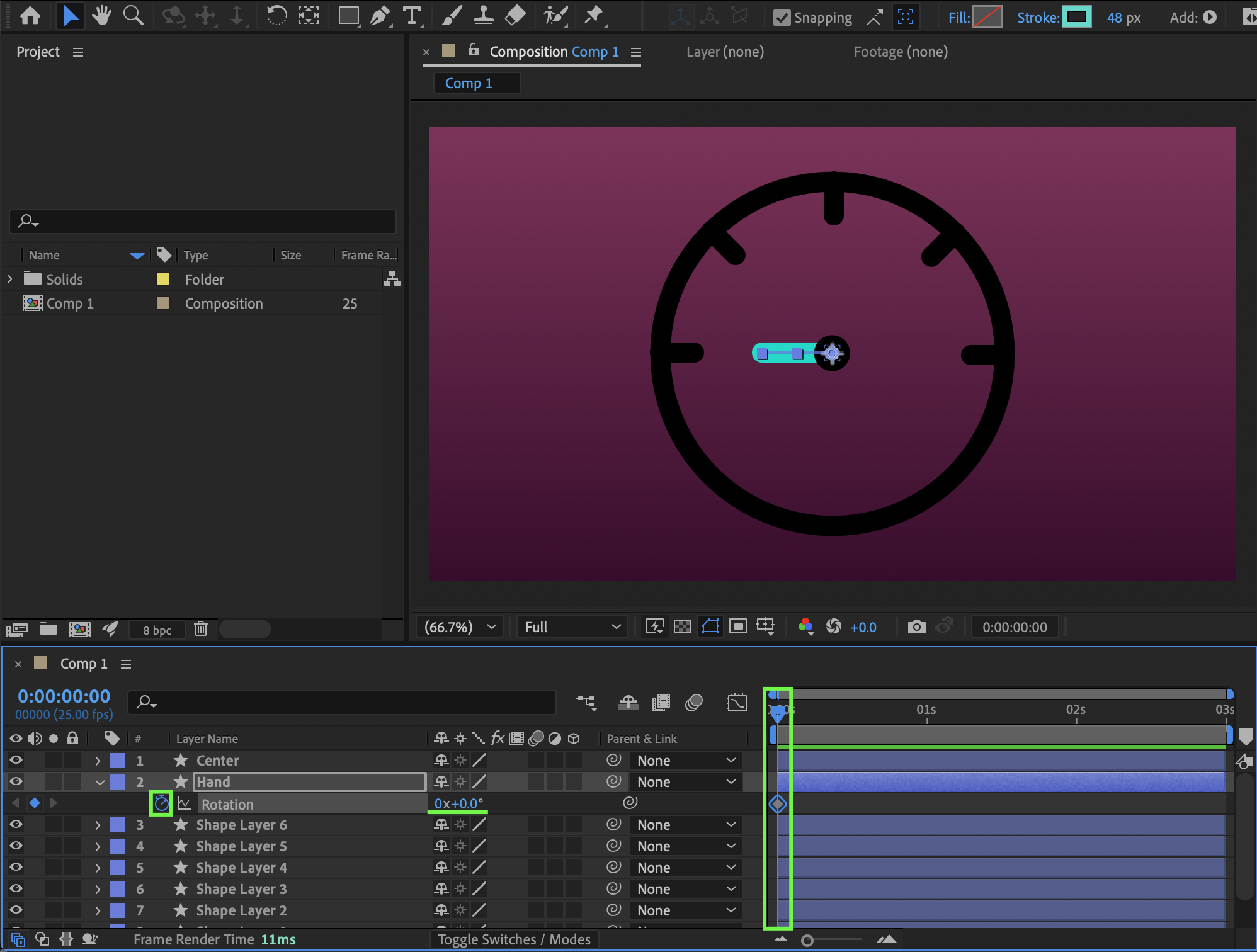
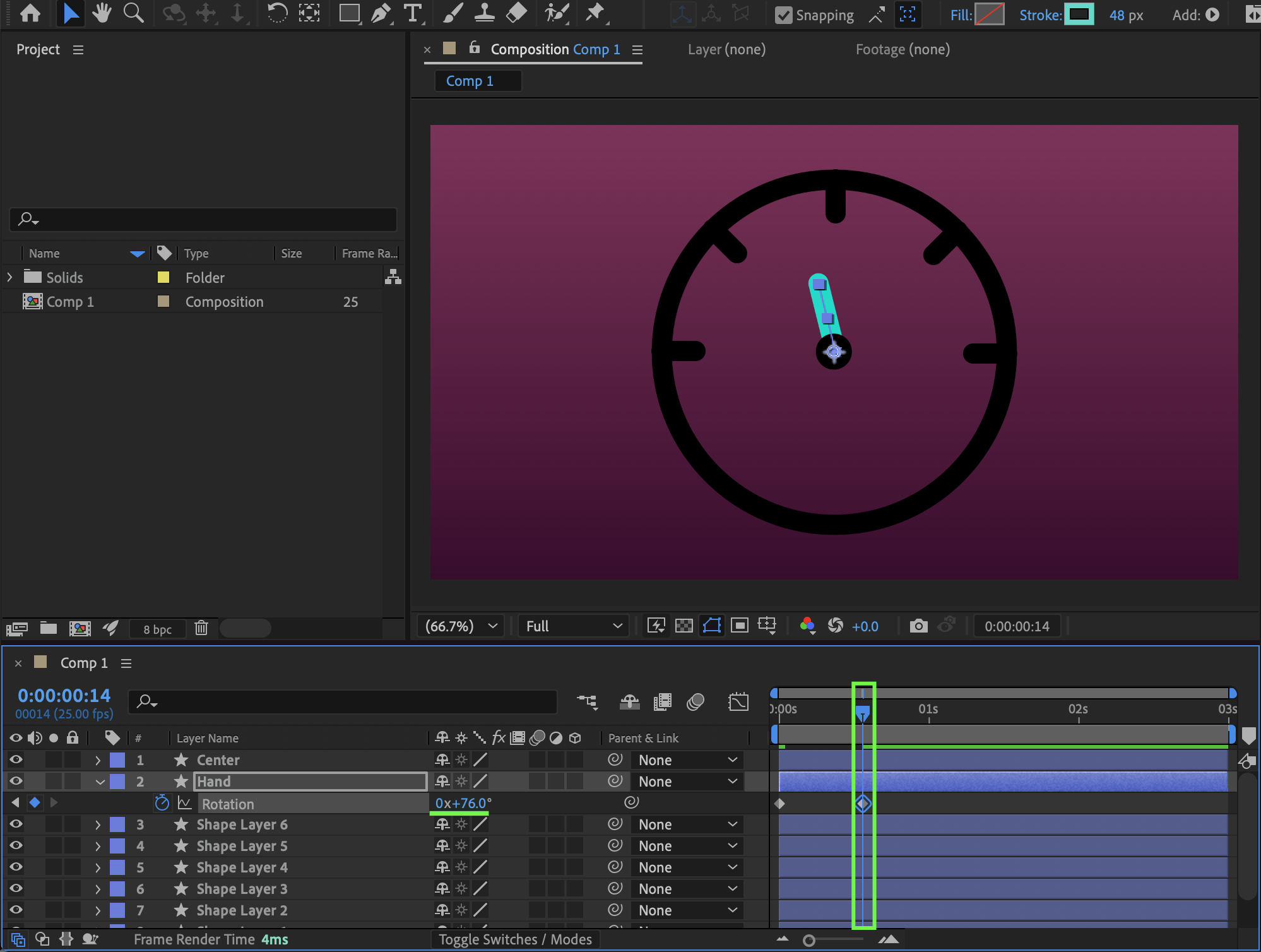
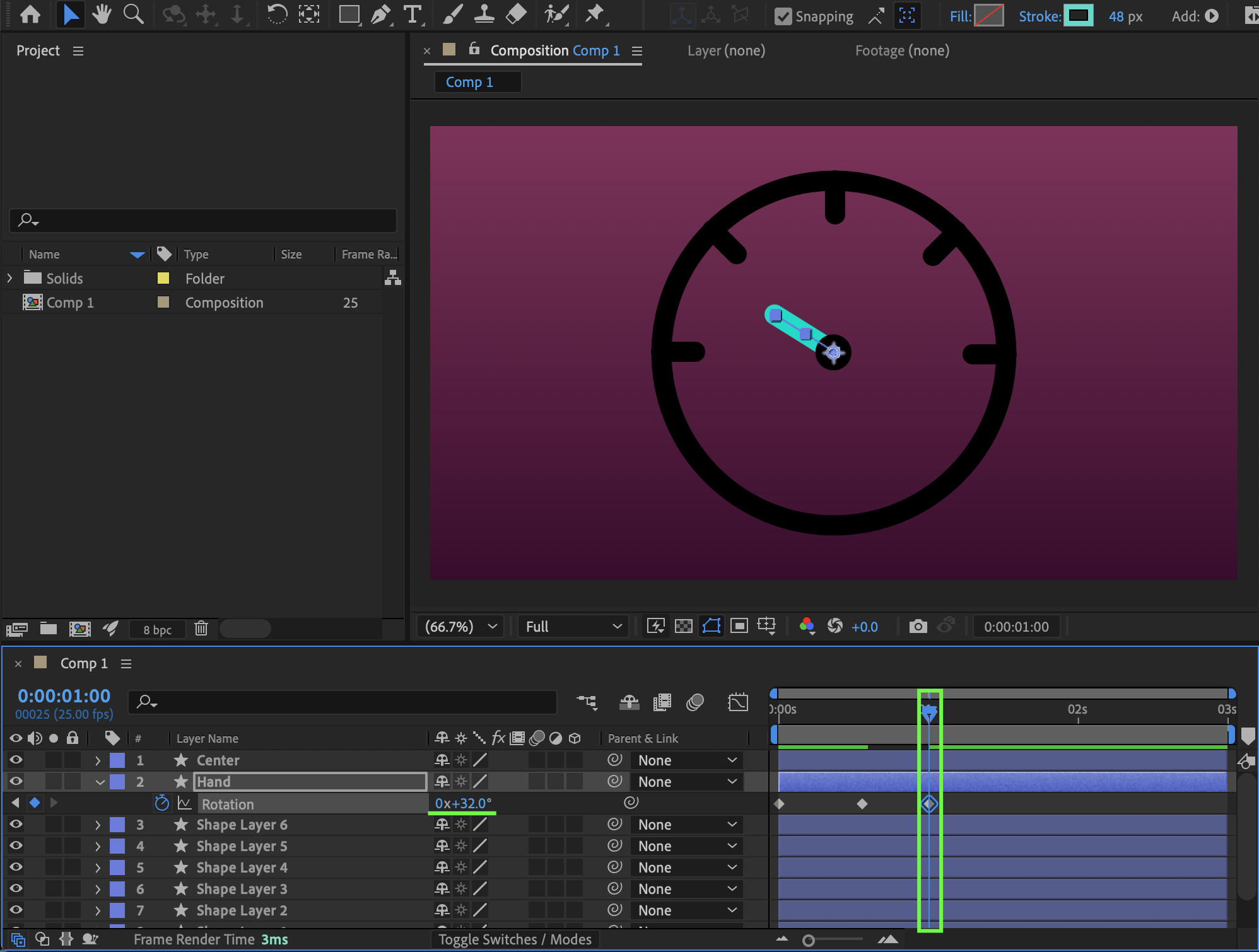
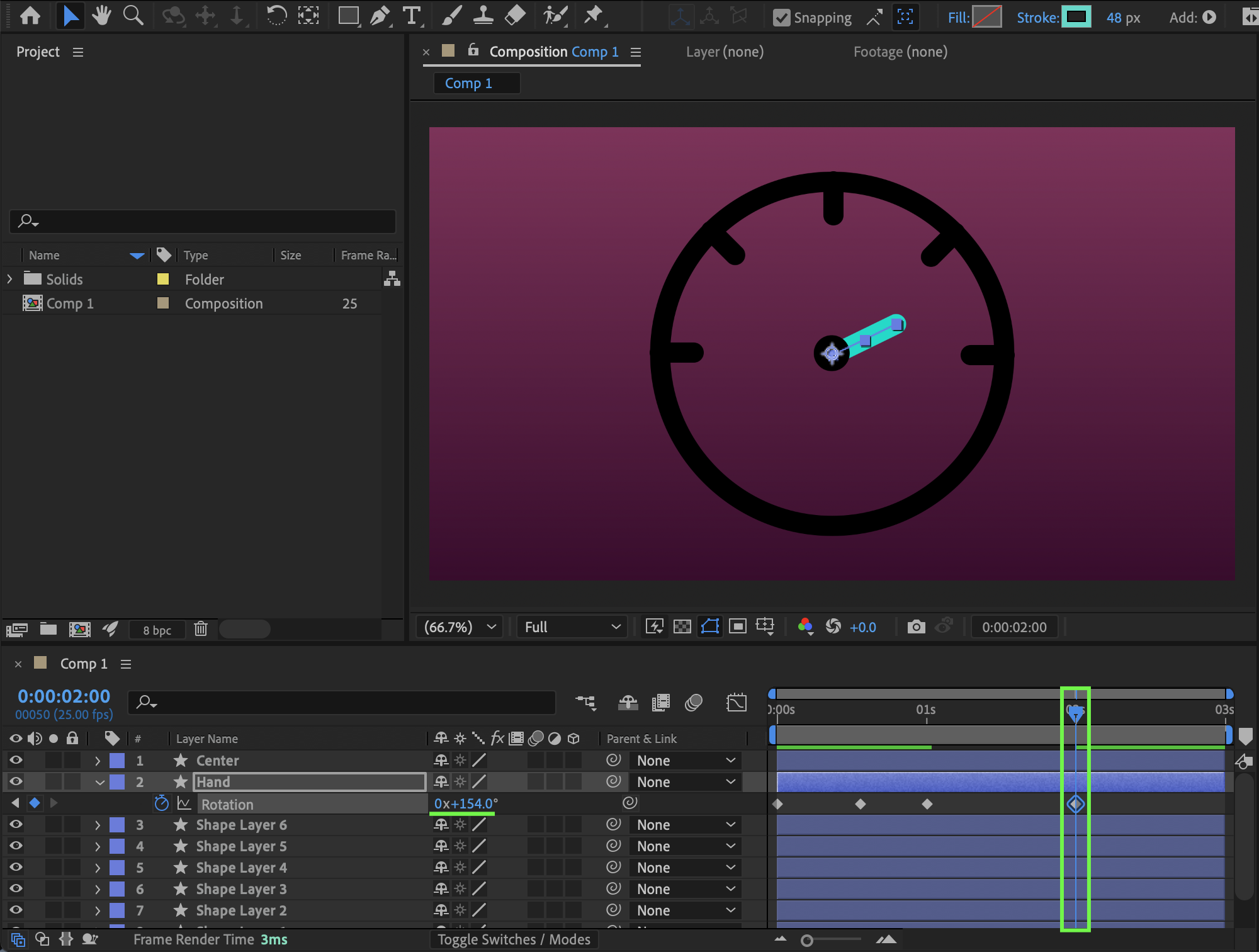
Select the Hand layer, press R to reveal Rotation, set a keyframe at 0° at the beginning of the composition, move forward 30 frames and set Rotation to 76°, at 1 second set it to 32°, and near the end of the composition set it to 154°.
 Step 9: Apply Easy Ease
Select all rotation keyframes and press F9 to apply Easy Ease for smoother motion.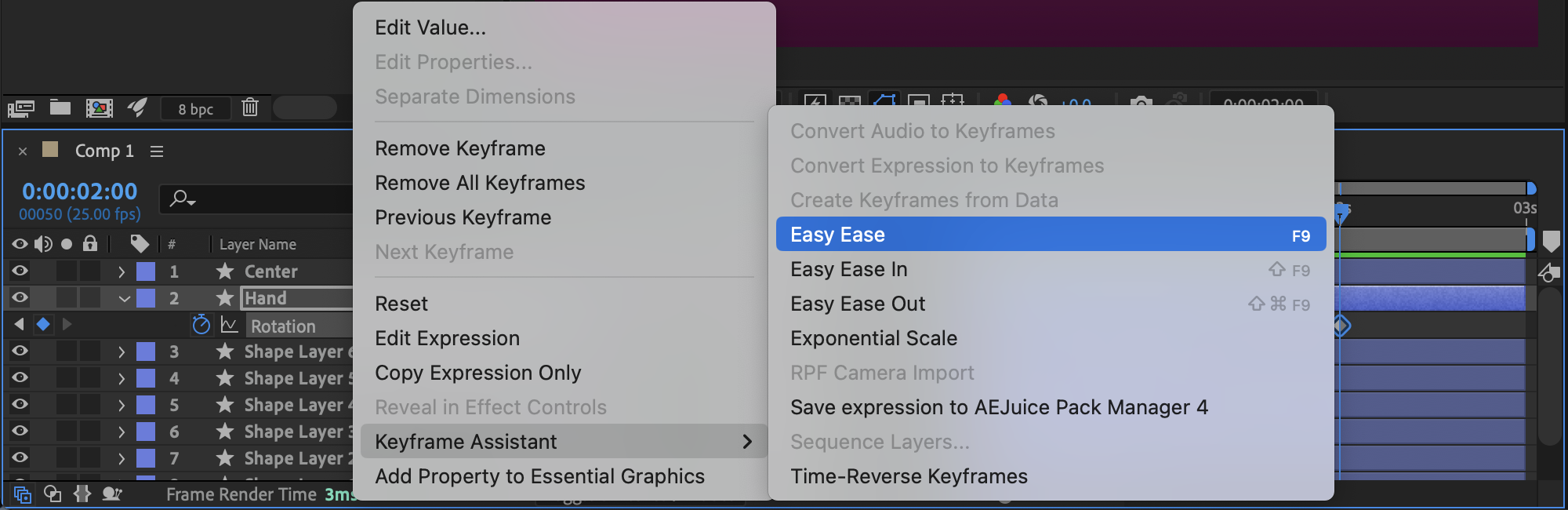 Step 10: Preview the Animation
Press Spacebar or use RAM Preview to play the animation and adjust timing or rotation values if needed.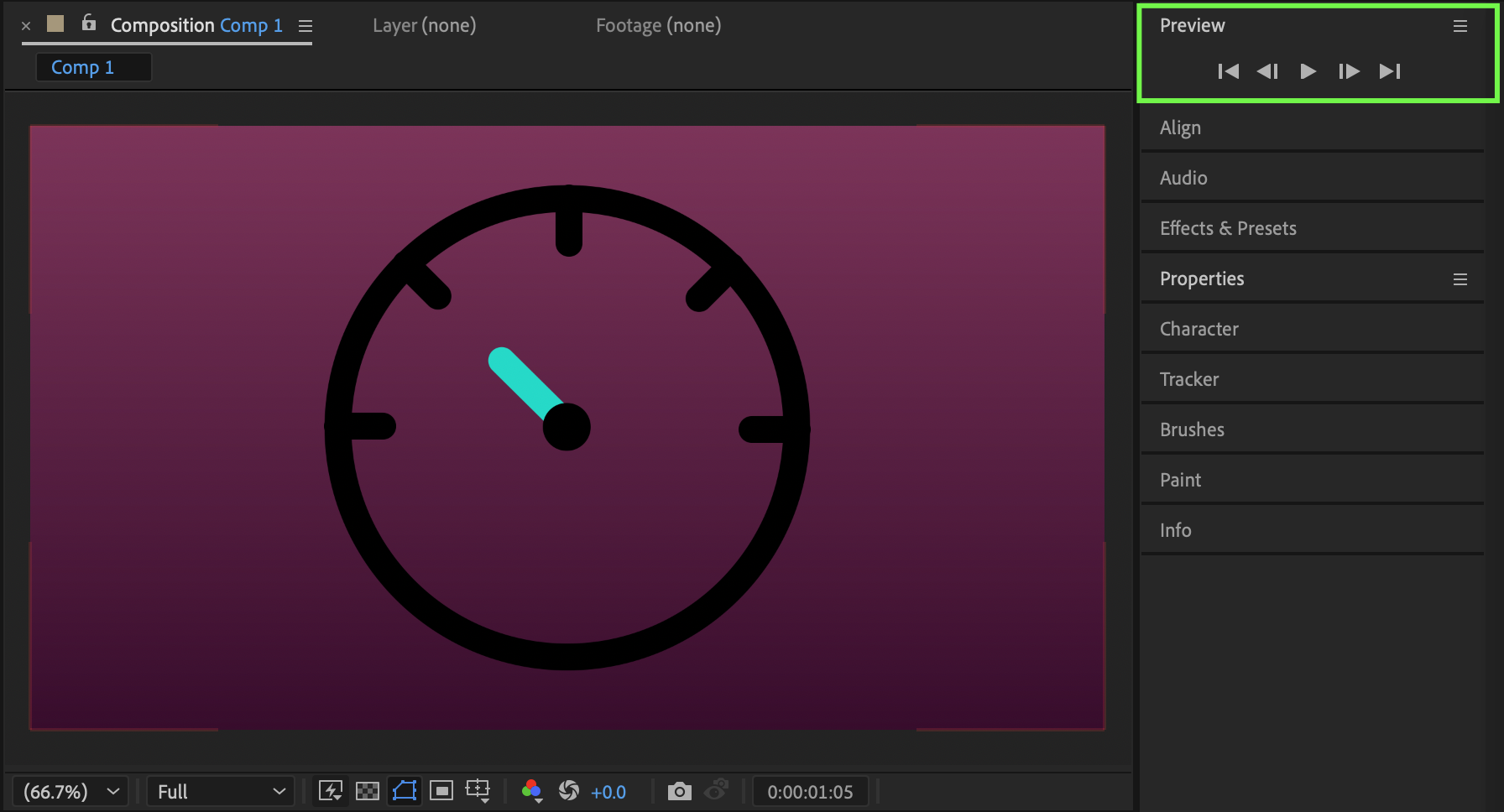 Conclusion
By creating a circular dial, adding rotated tick marks, and animating the needle’s rotation with Easy Ease, you can build a clean and dynamic speedometer animation in After Effects. This technique is perfect for dashboards, infographics, and modern motion graphics projects.
Our Bestsellers
Our Bestsellers

