
Introduction
A transparent blur filter is commonly used for UI elements, titles, and modern motion design. In this tutorial, you’ll learn how to create a customizable blur overlay with a subtle glass effect using shape layers and adjustment layers in Adobe After Effects.
Step 1: Open Your Project
Open the After Effects project where you want to add the transparent blur filter.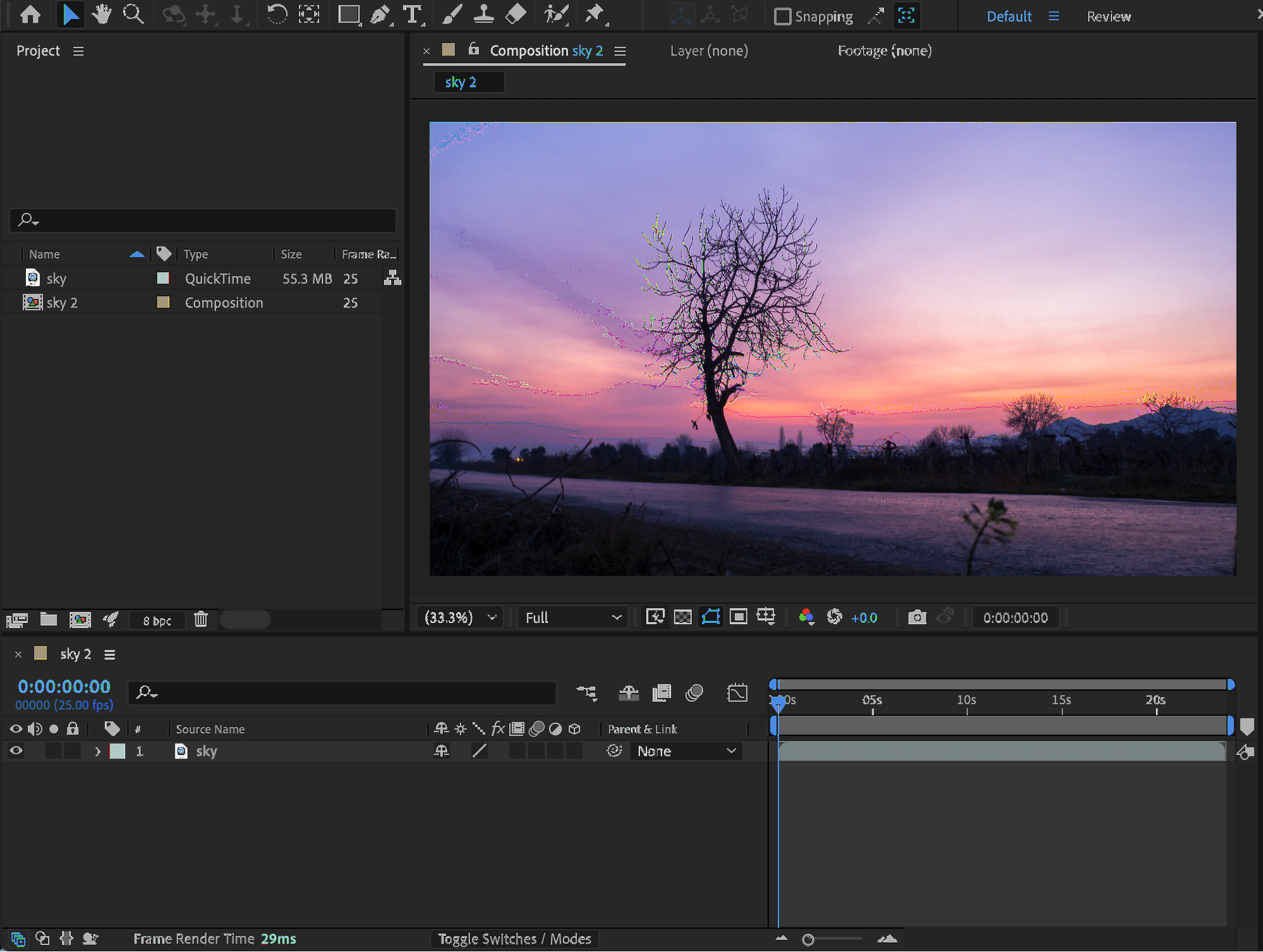 Step 2: Create the Blur Shape
Select the Rounded Rectangle Tool (Q). Set Fill to White and Stroke to None. Draw a rectangle in the Composition panel at the size and position where you want the blur filter to appear.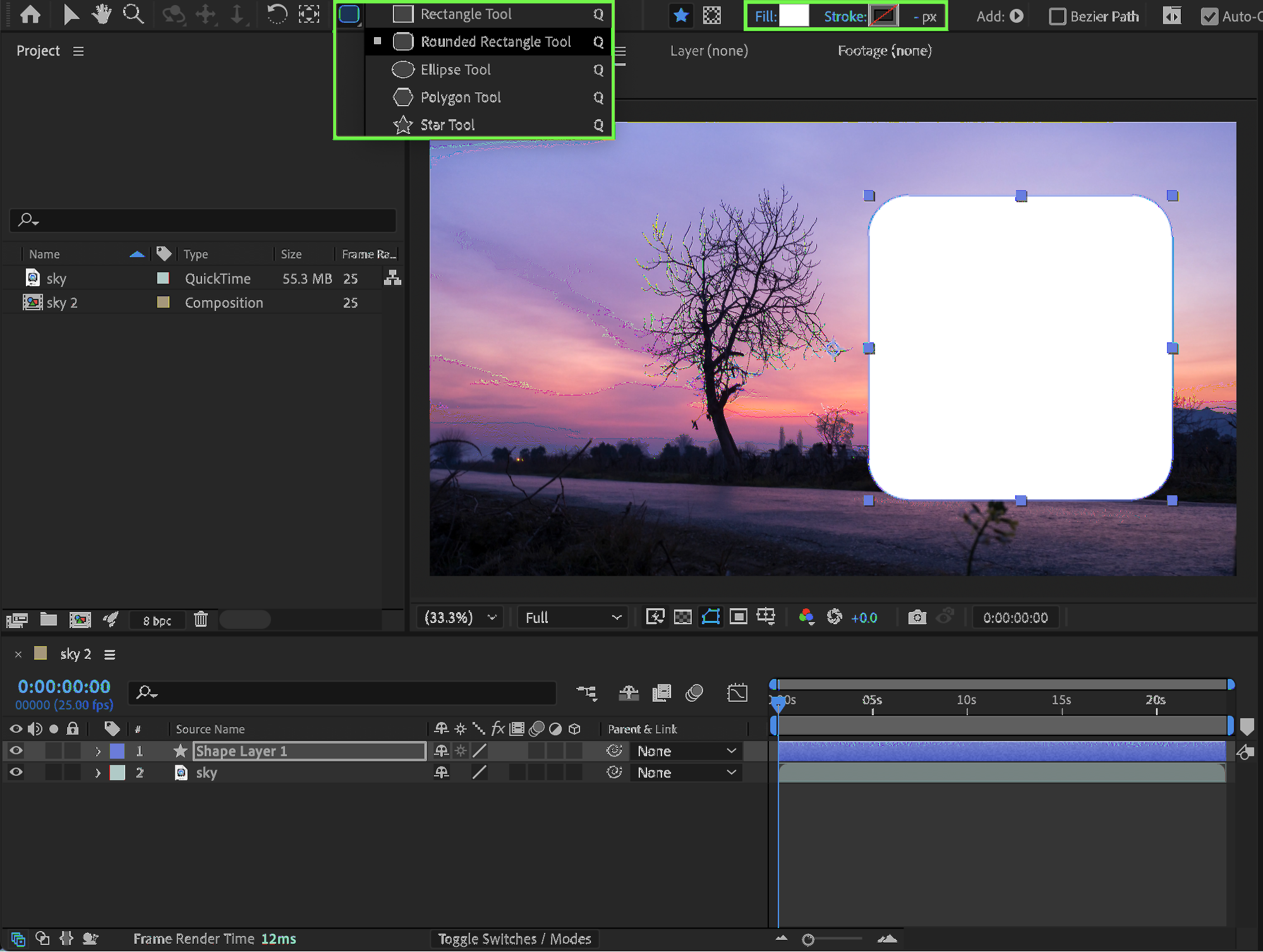
Step 3: Convert the Shape into an Adjustment Layer
Select the shape layer and enable the Adjustment Layer switch (the black-and-white circle icon). This allows the blur to affect only the area inside the shape.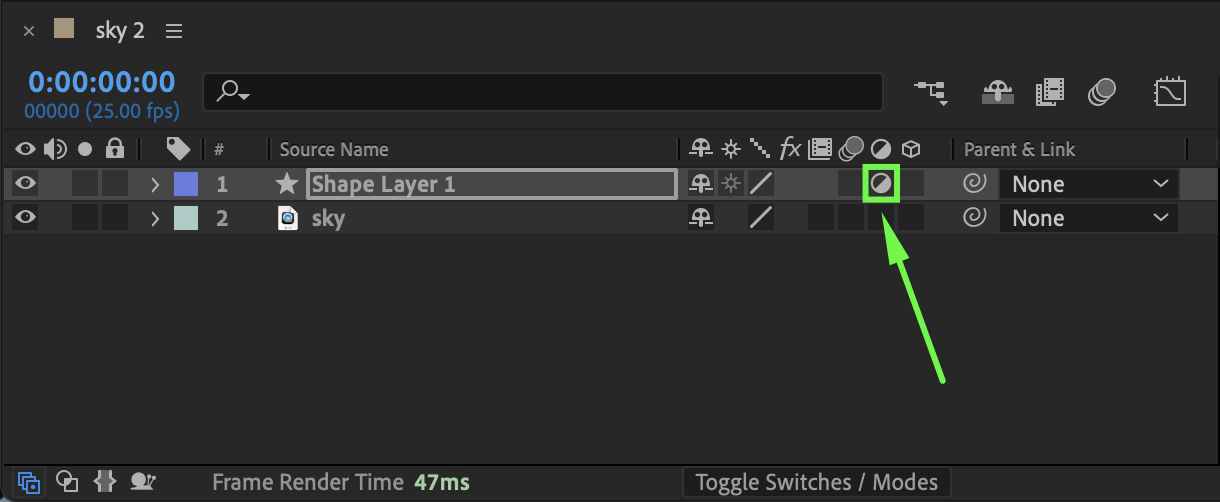 Step 4: Apply Blur and Color Effects
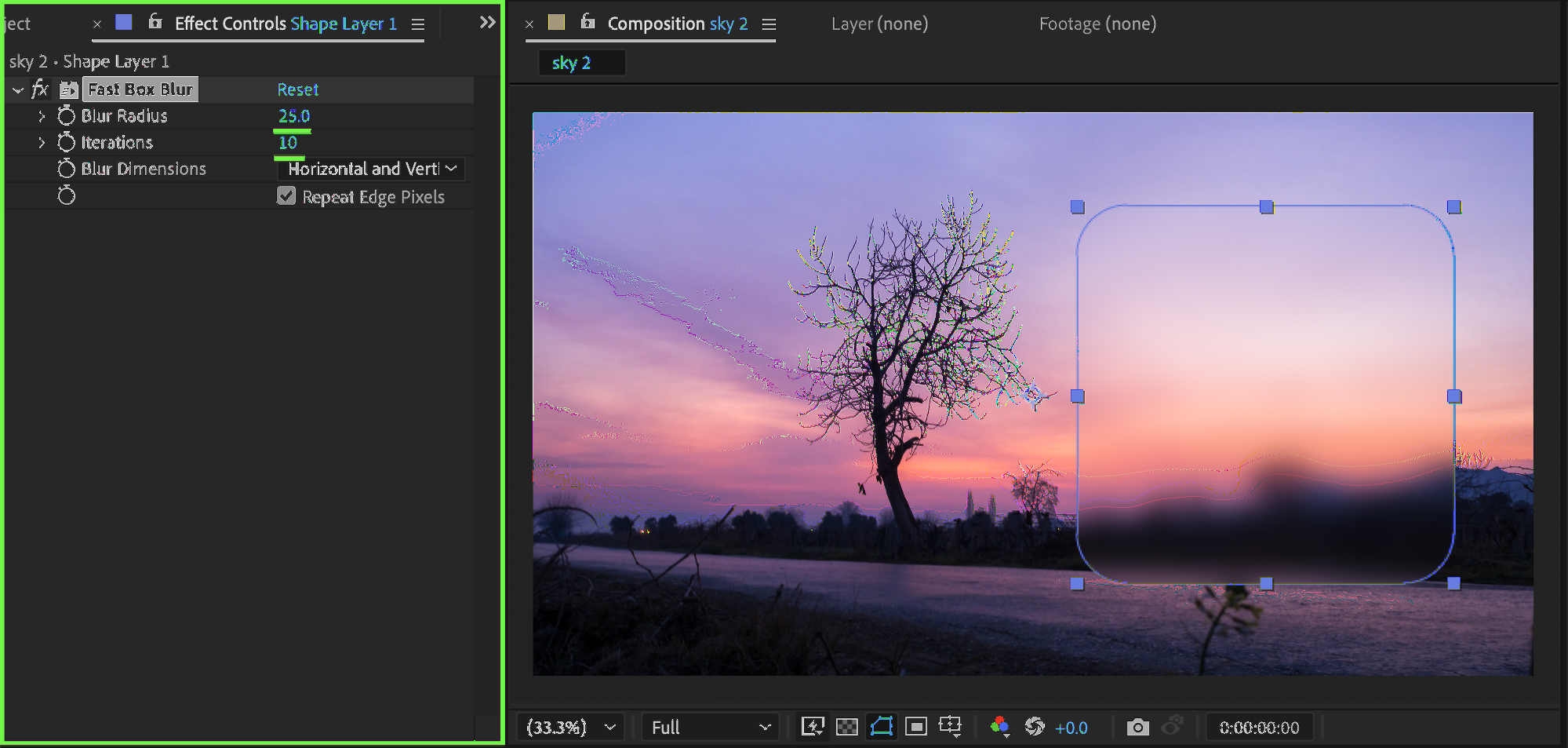
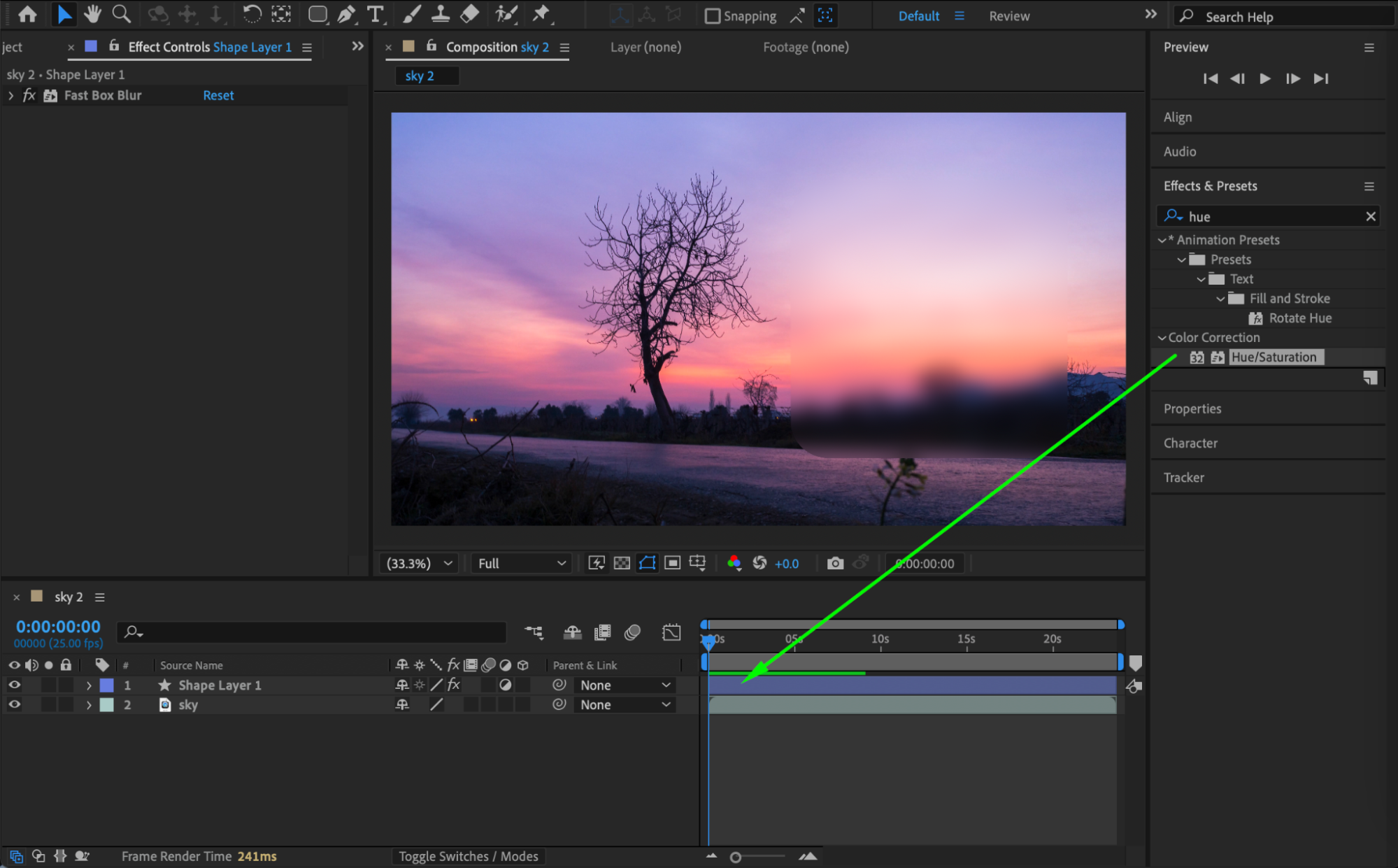
From the Effects & Presets panel, apply Fast Box Blur to the adjustment layer and set:
Blur Radius: 25
Iterations: 10
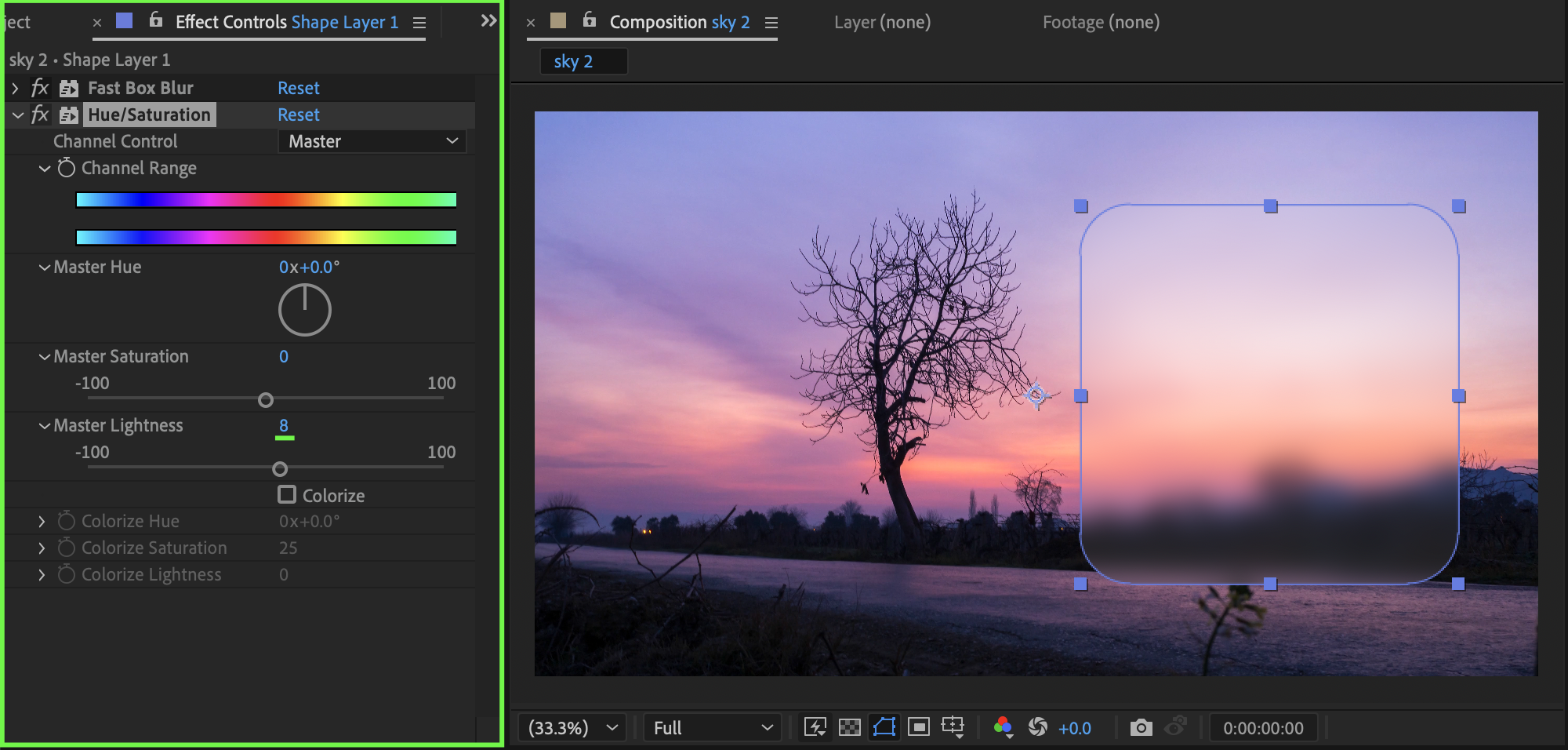
Next, add Hue/Saturation and set:
Master Lightness: 8
This adds brightness and improves clarity inside the blurred area.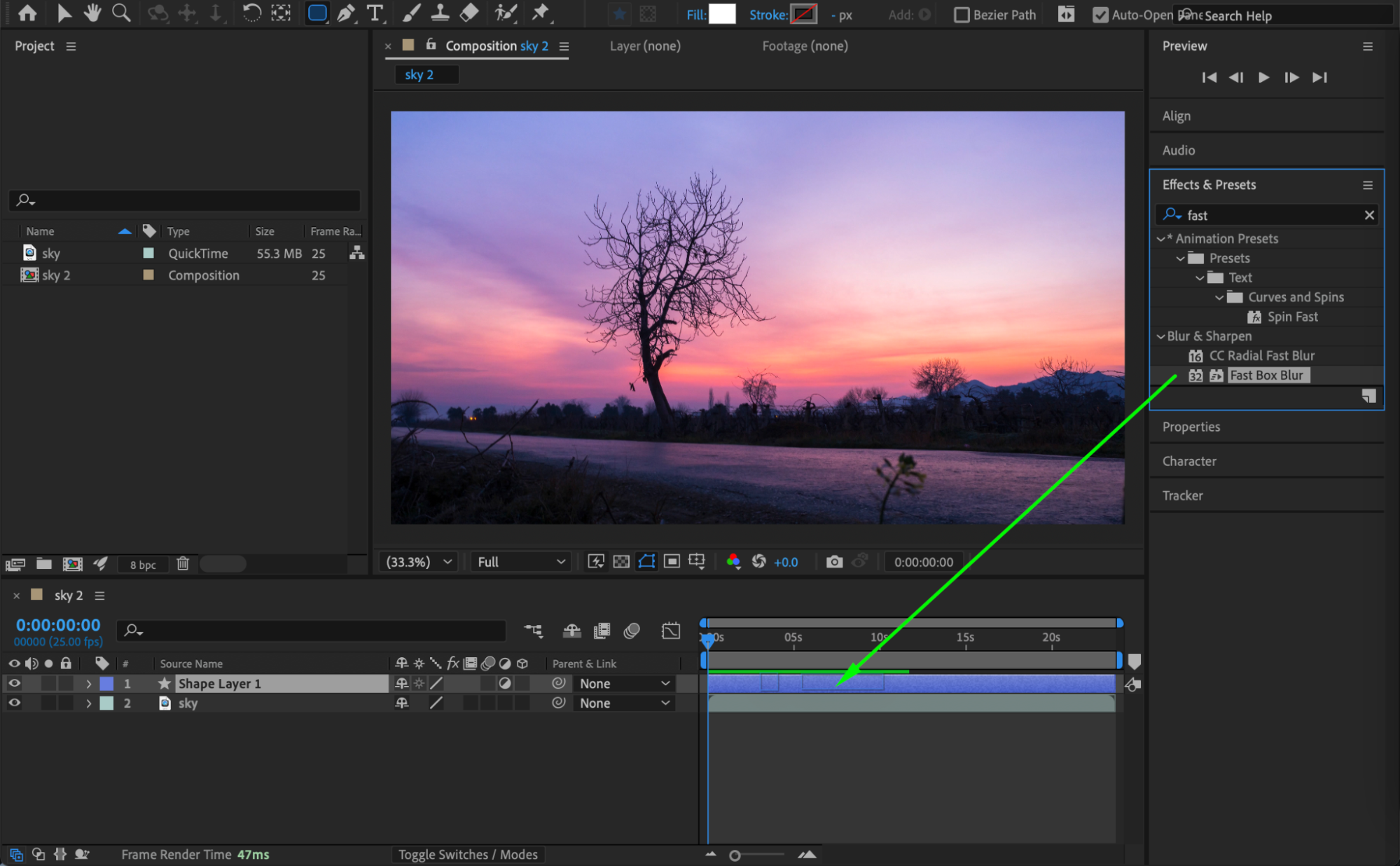
Step 5: Create the Glass Border
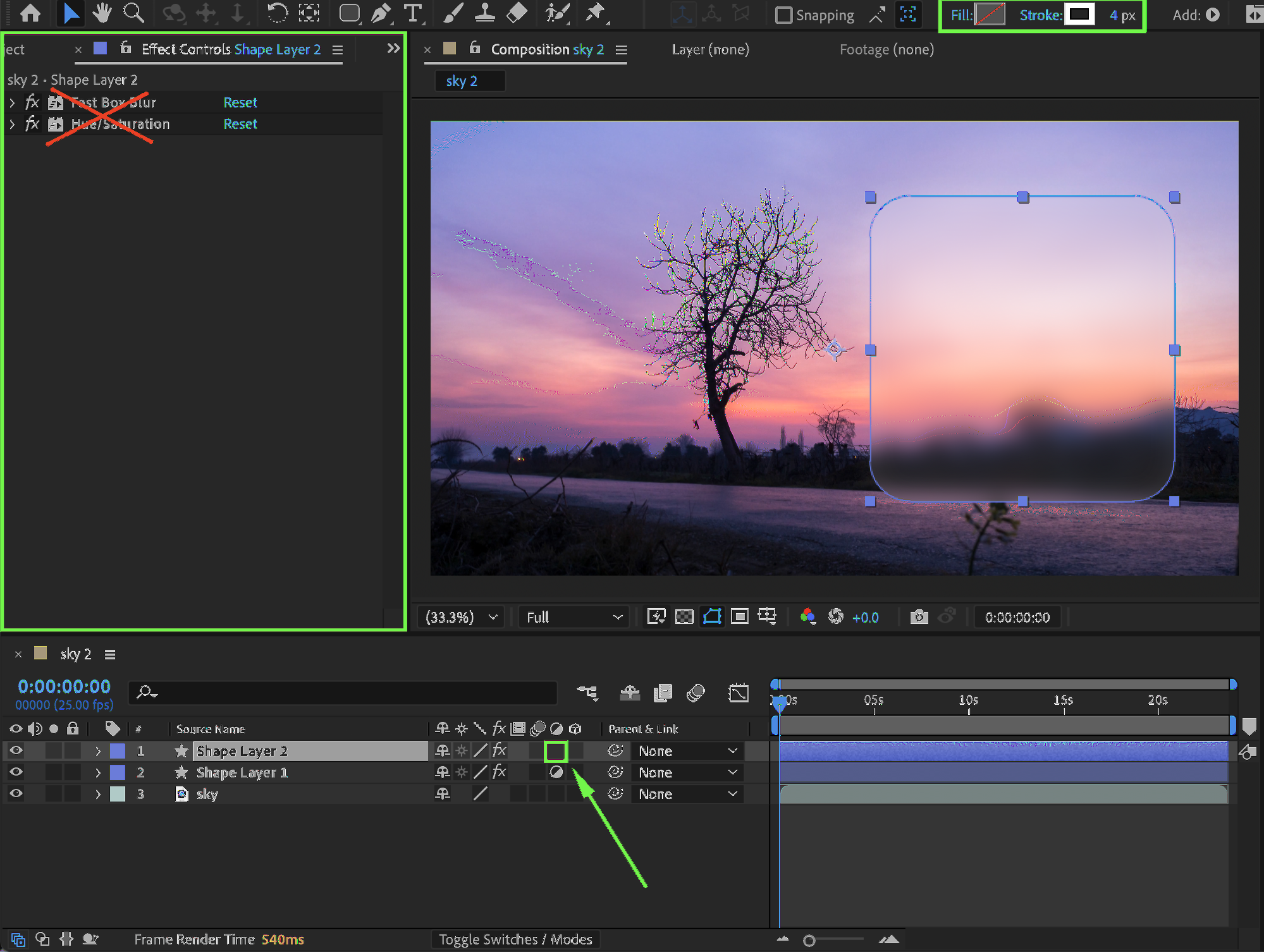
Duplicate the shape layer. On the duplicated layer:
Disable Adjustment Layer
Remove all effects from the Effect Controls panel
Set Fill to None
Set Stroke to White, 4 px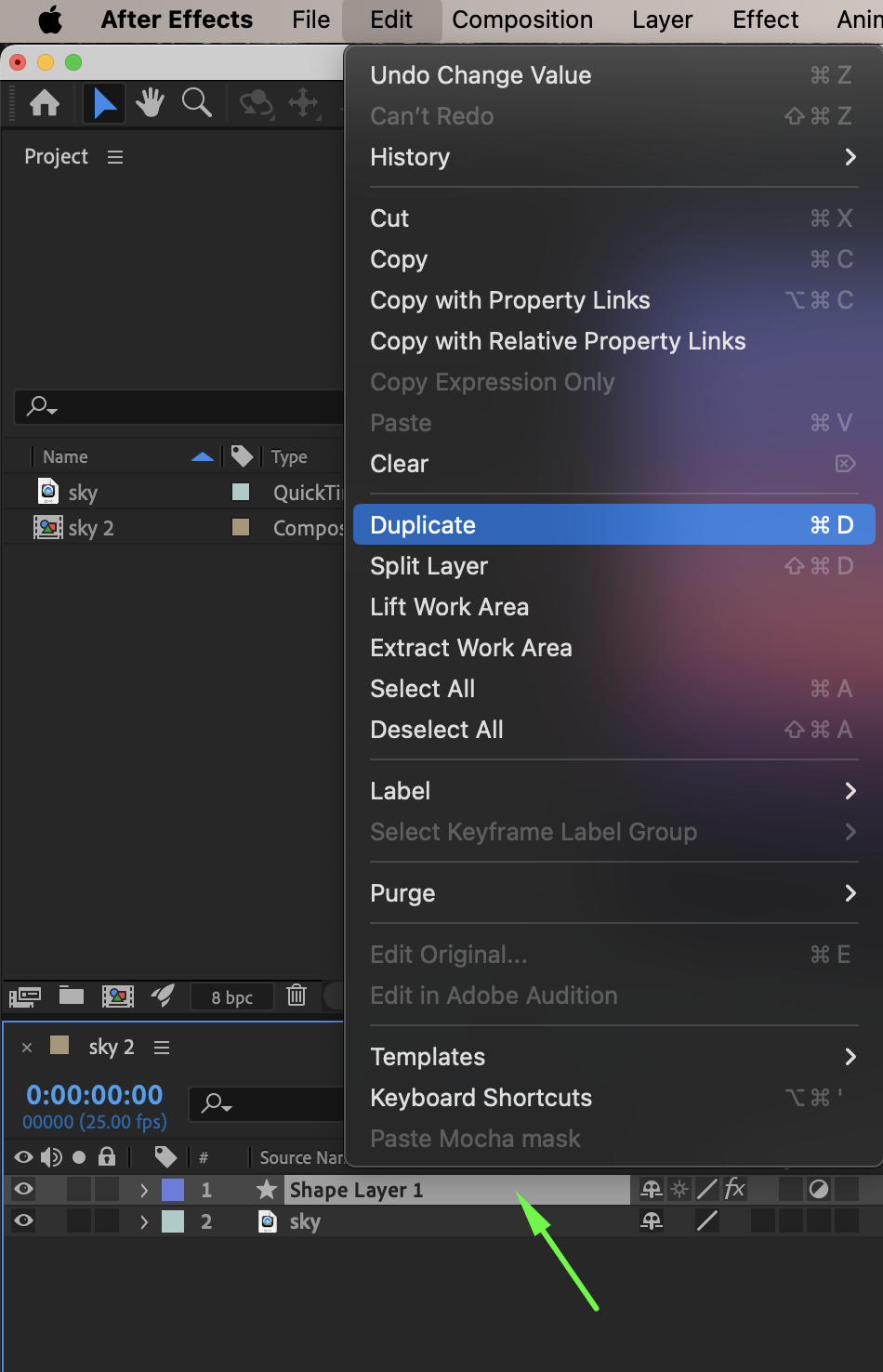
 Step 6: Add the Glass Distortion Effect
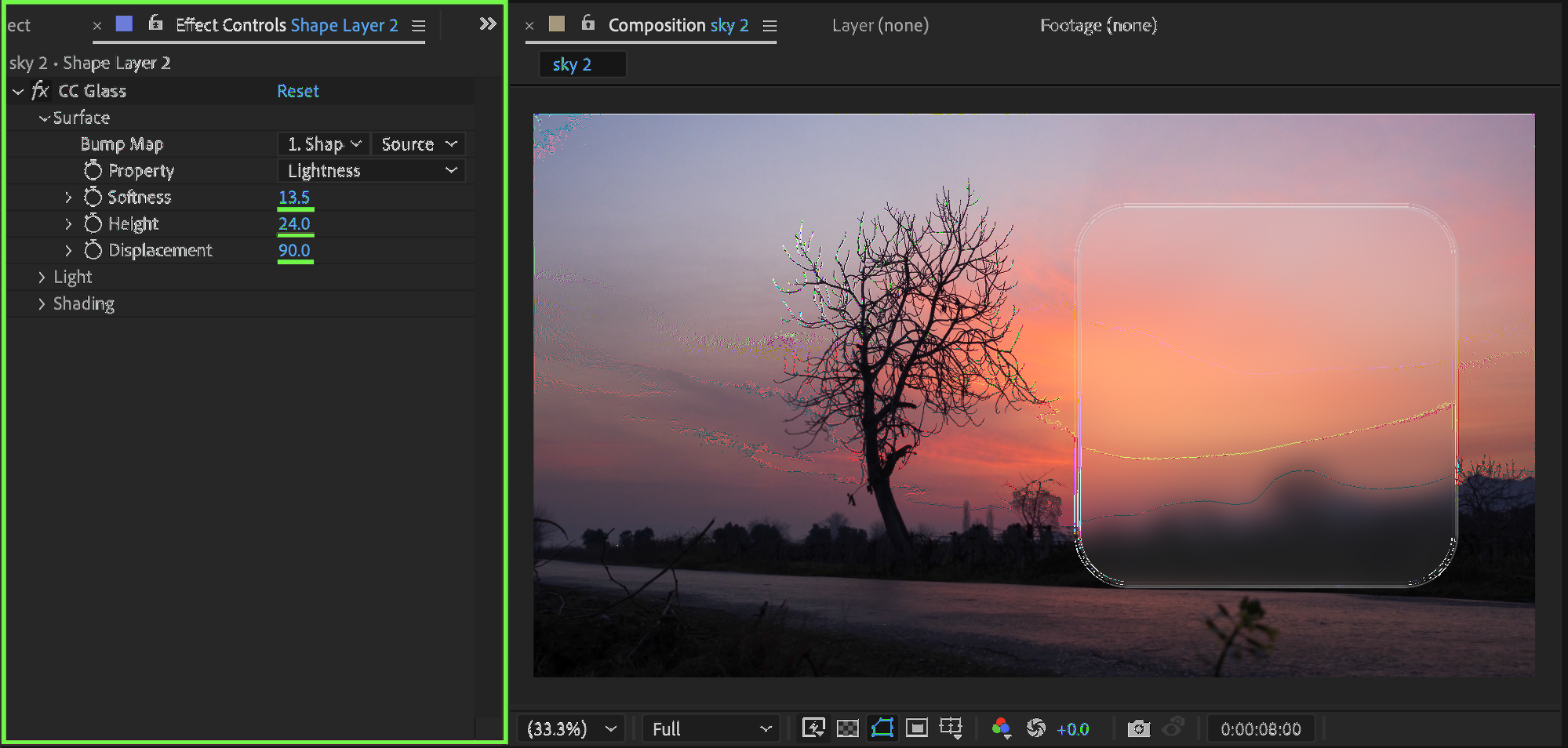
Apply CC Glass to the duplicated shape layer and set:
Softness: 13
Height: 24
Displacement: 90
This creates a subtle glass-like distortion around the edges.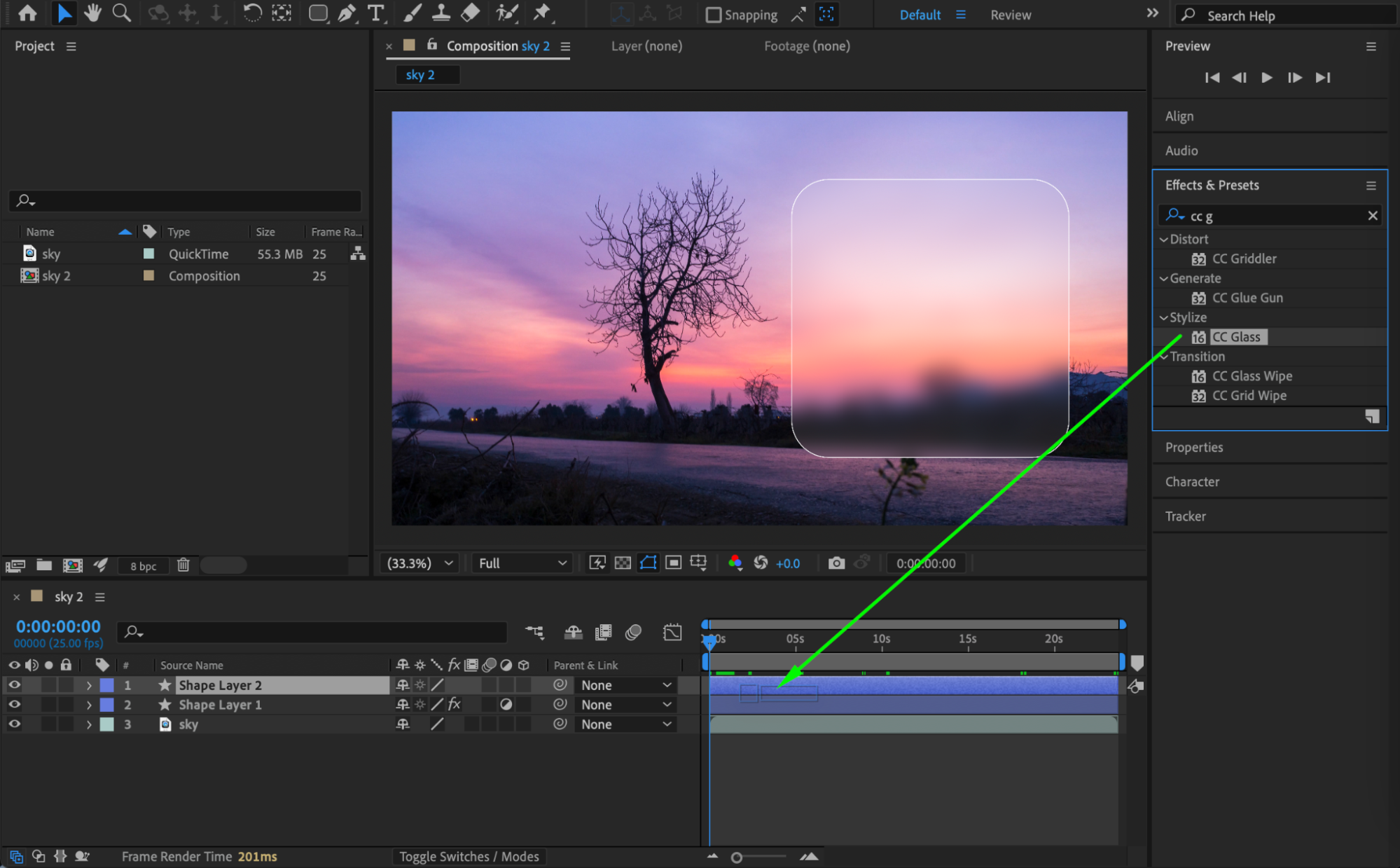
 Step 7: Preview the Result
Preview the composition and adjust blur strength or distortion values as needed to refine the transparent blur filter.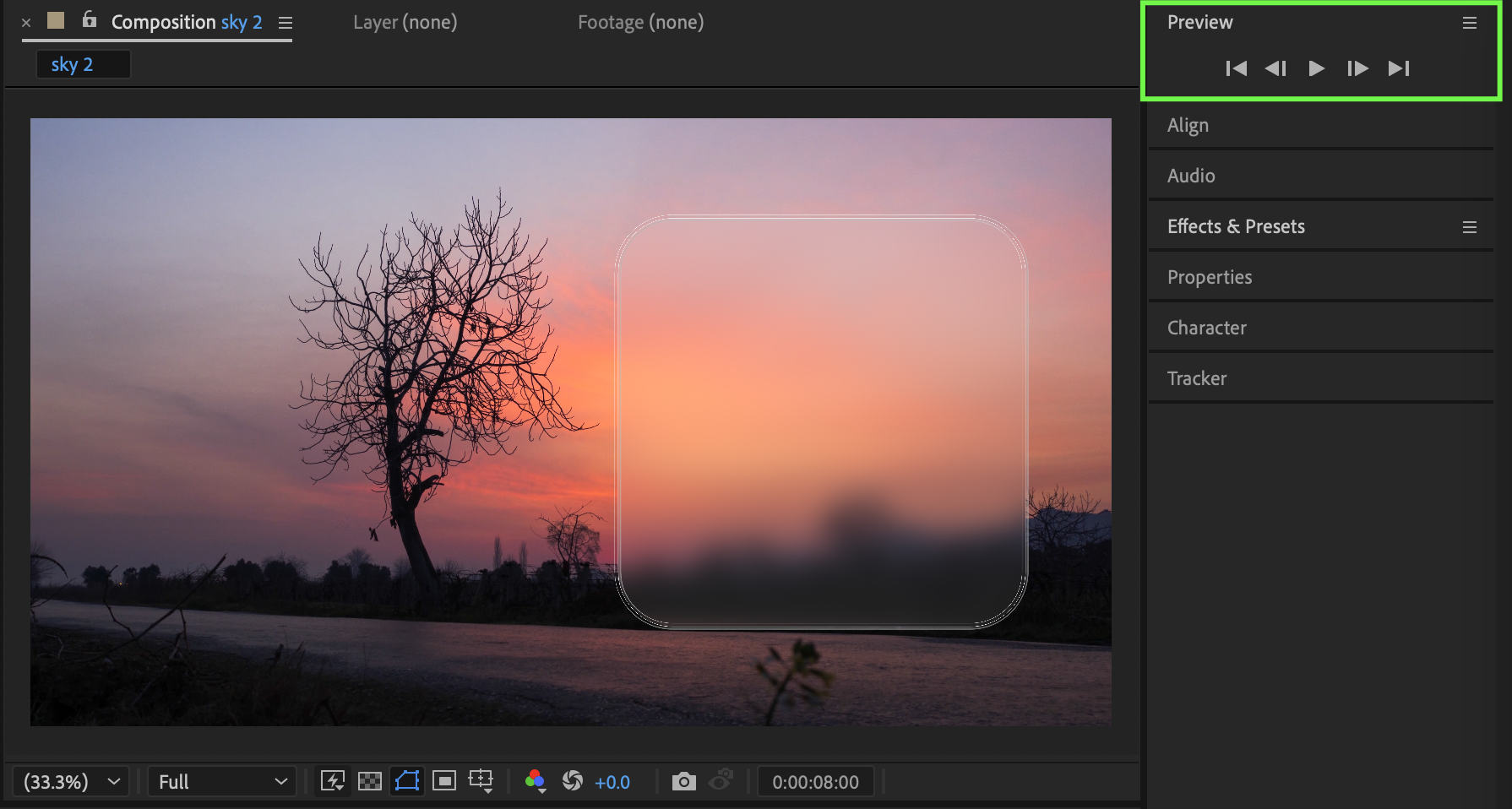
Conclusion
This transparent blur filter technique is perfect for modern UI elements, lower thirds, and glass-style overlays. Using adjustment layers and shape-based distortion gives you full control while keeping the effect clean and professional.
Our Bestsellers
Our Bestsellers


