
Introduction
This tutorial shows how to add flaming borders to a video in Adobe After Effects using fire frame footage. You’ll learn how to composite the footage, remove the green screen, adjust timing, and fit the flames perfectly around your video.
Step 1: Import Your Files
Go to File → Import → File and import:
Your main video
The fire border footage (with a green screen)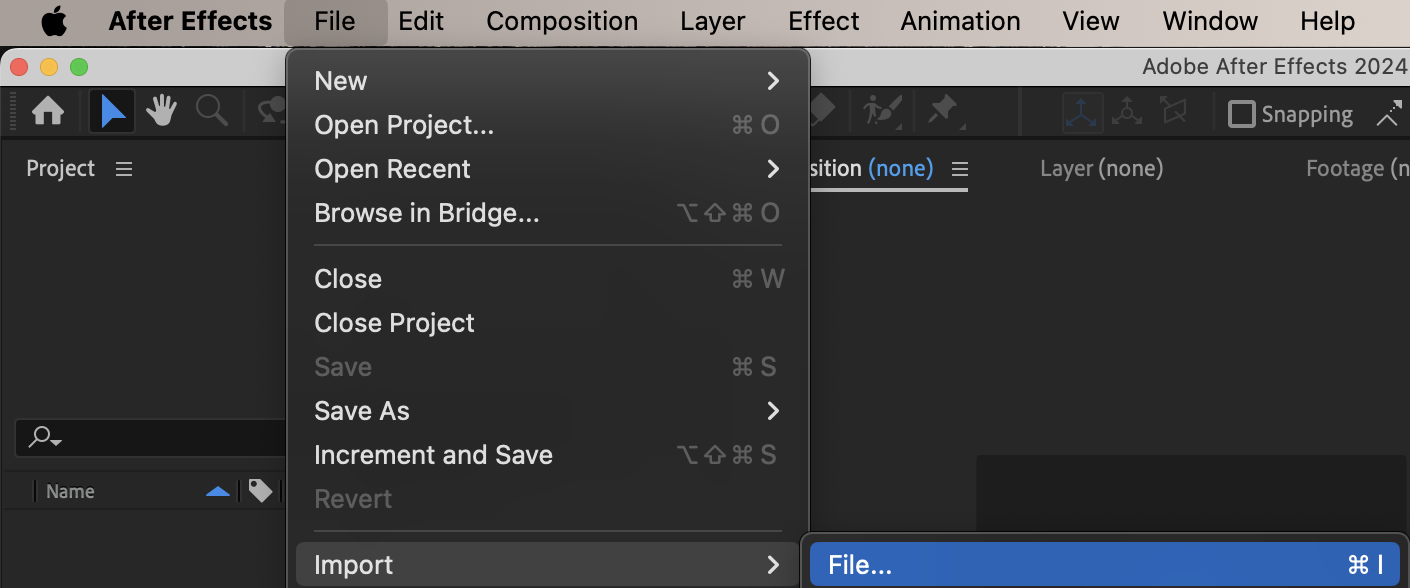 Step 2: Create a Composition
Drag your video onto the timeline first. This will automatically create a composition that matches the video’s resolution and frame rate.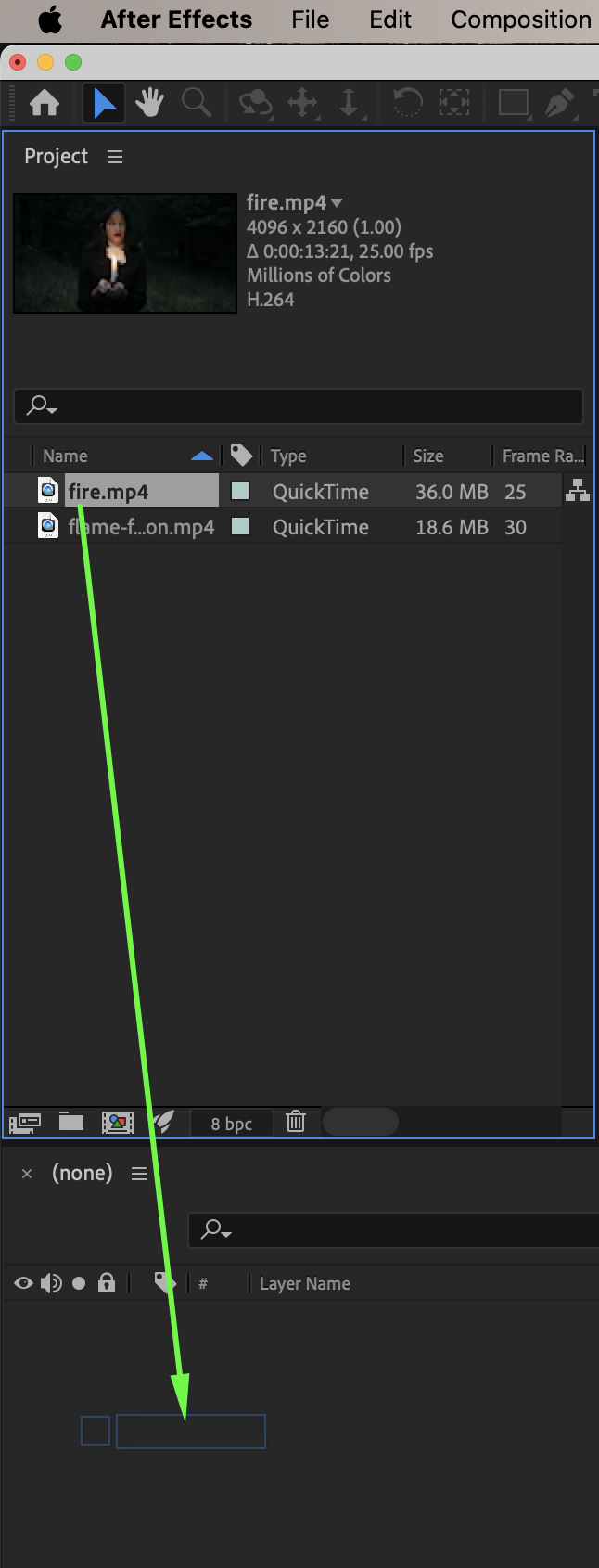
Step 3: Add the Fire Border Footage
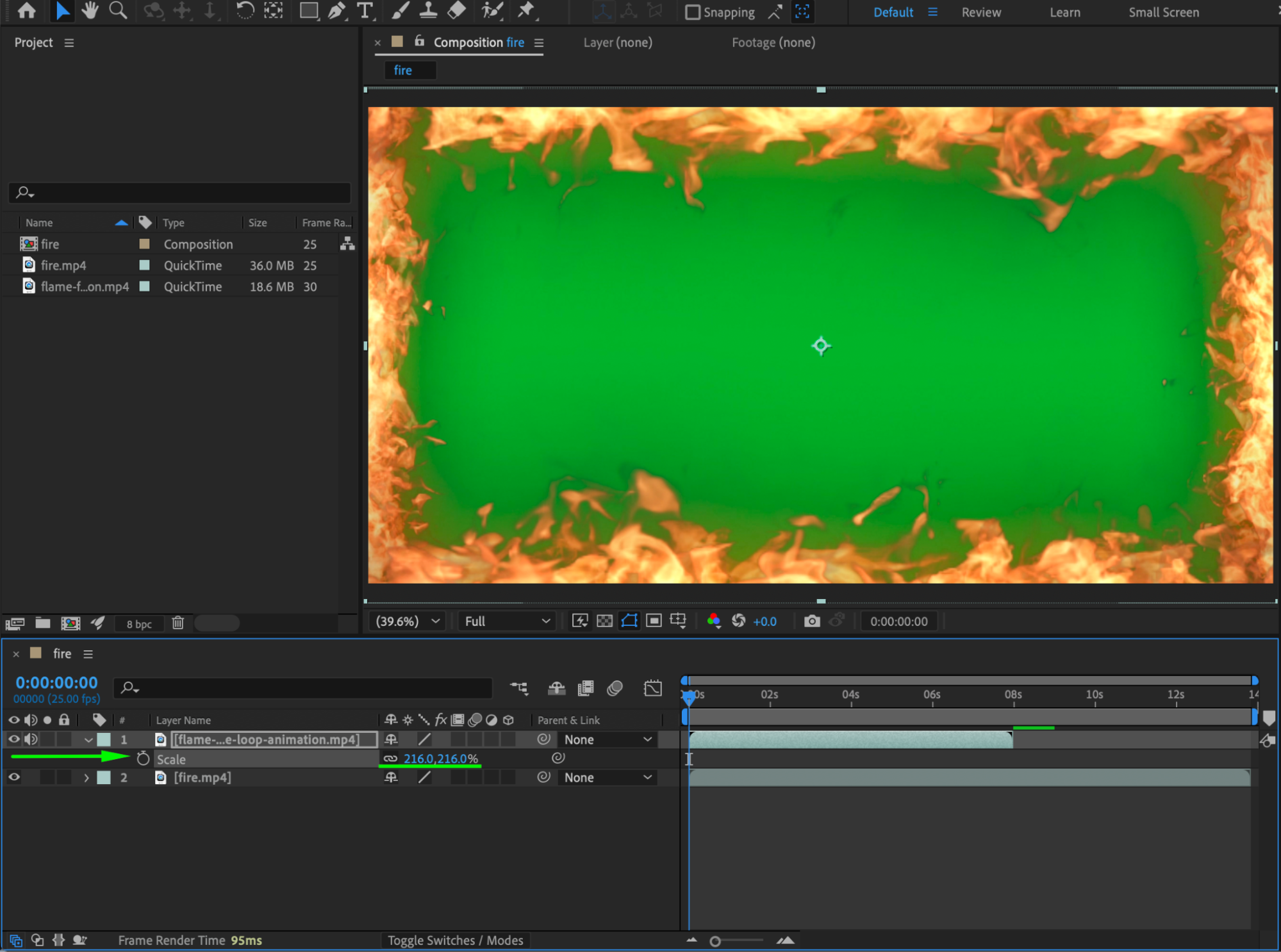
Drag the fire border footage above the video layer in the timeline. Adjust the Scale and Position so the flaming frame properly surrounds the video.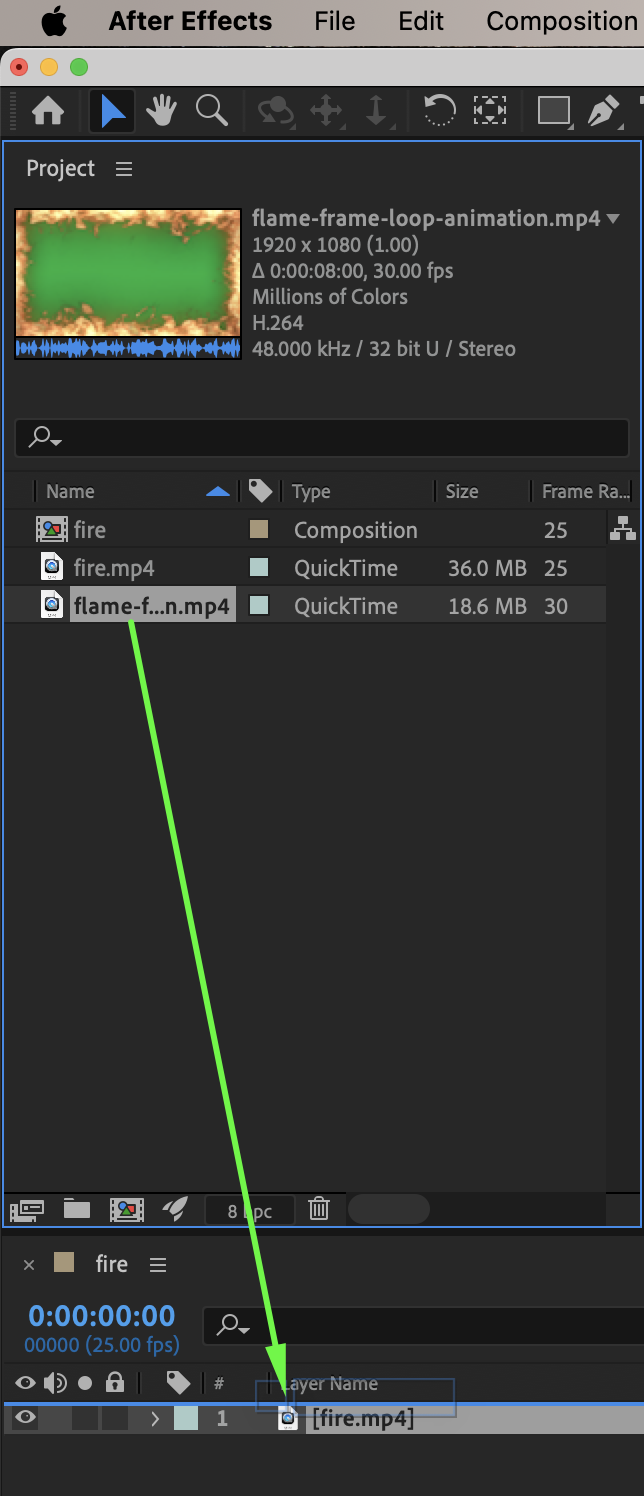
 Step 4: Remove the Green Screen
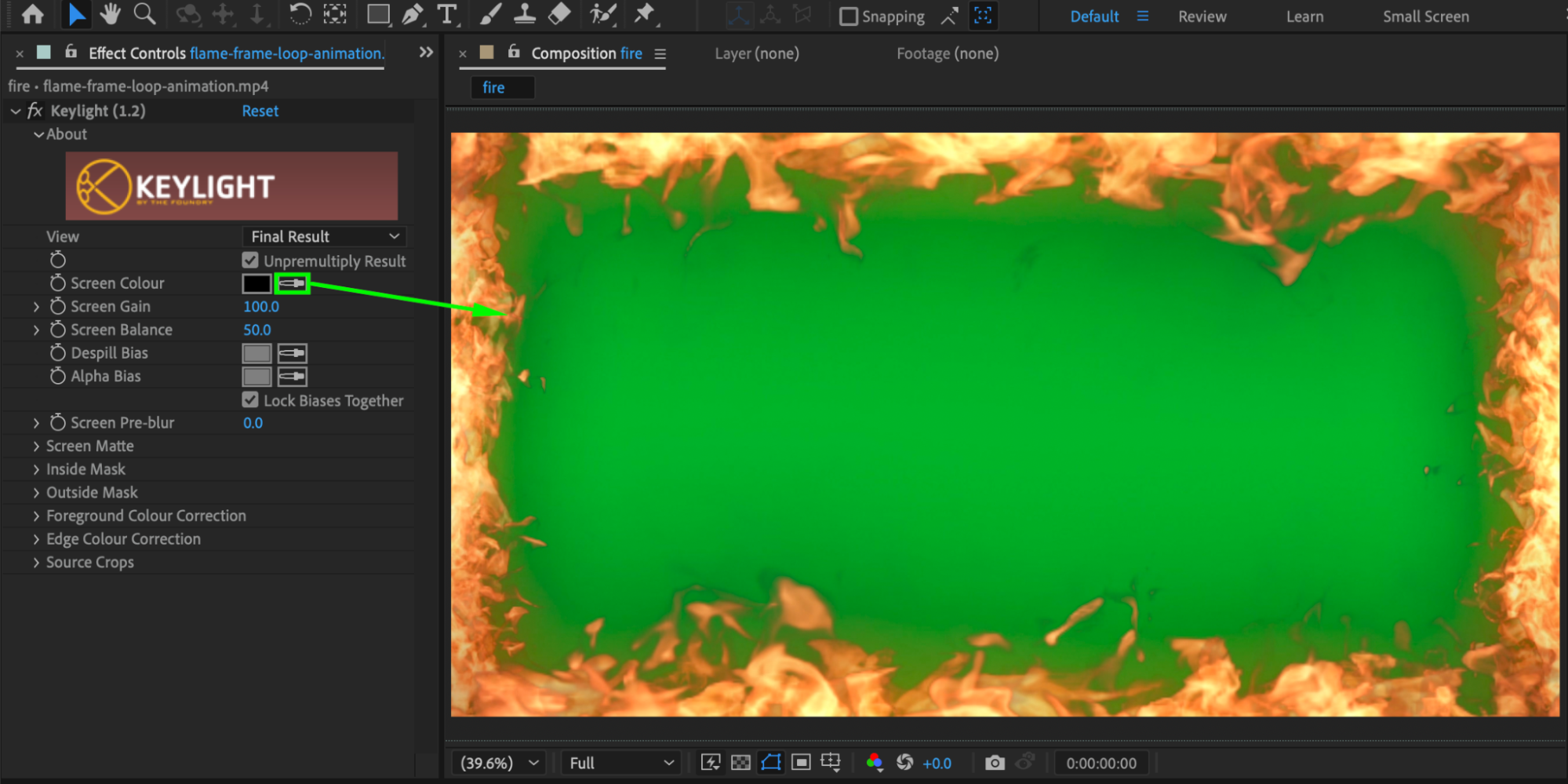
Select the fire border layer. From Effects & Presets, apply Keylight (1.2). Using the Screen Colour eyedropper, click on the green area inside the flame border to remove the background. Fine-tune the Keylight settings if needed.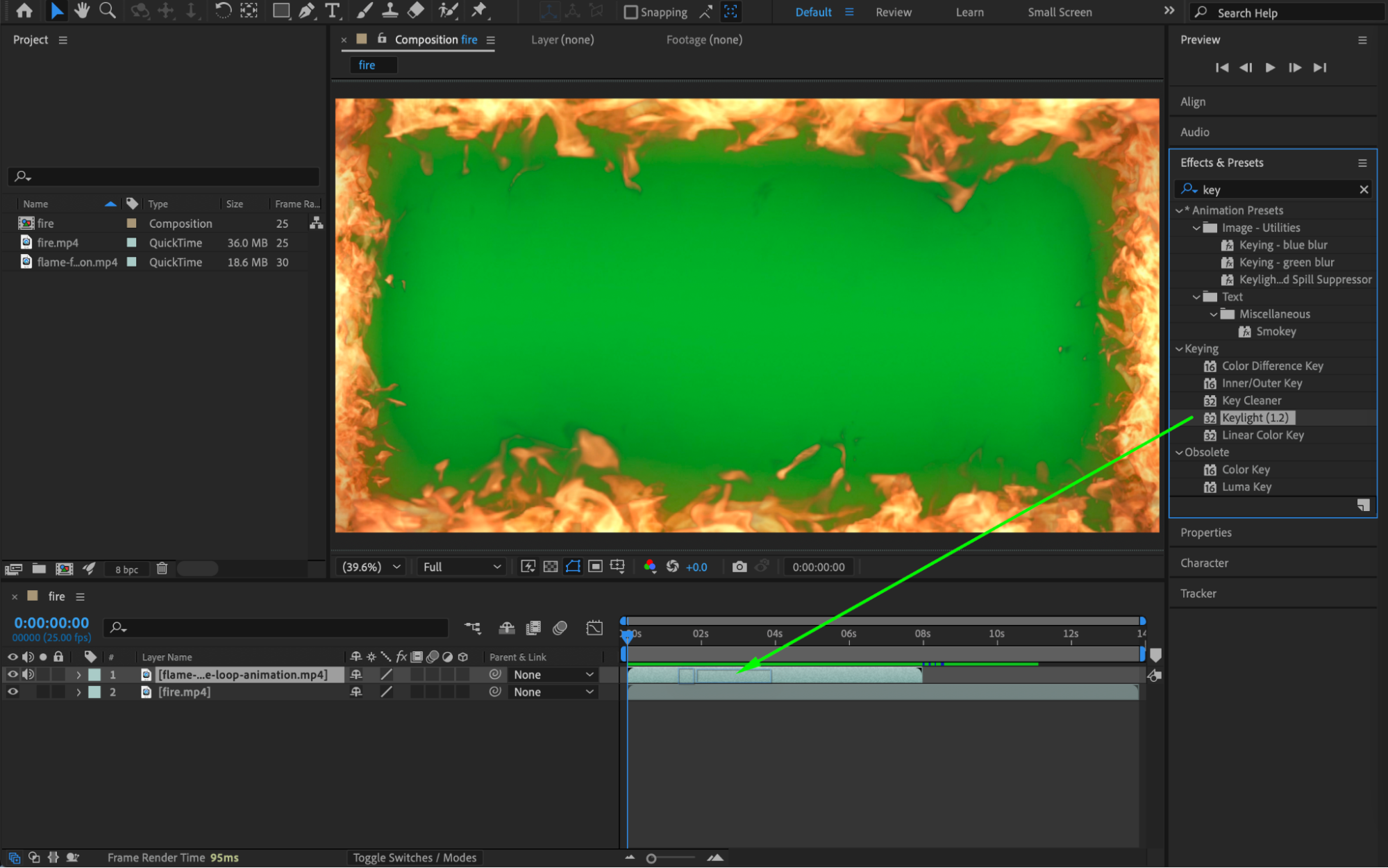
Step 5: Extend the Fire Animation
To make the fire footage longer:
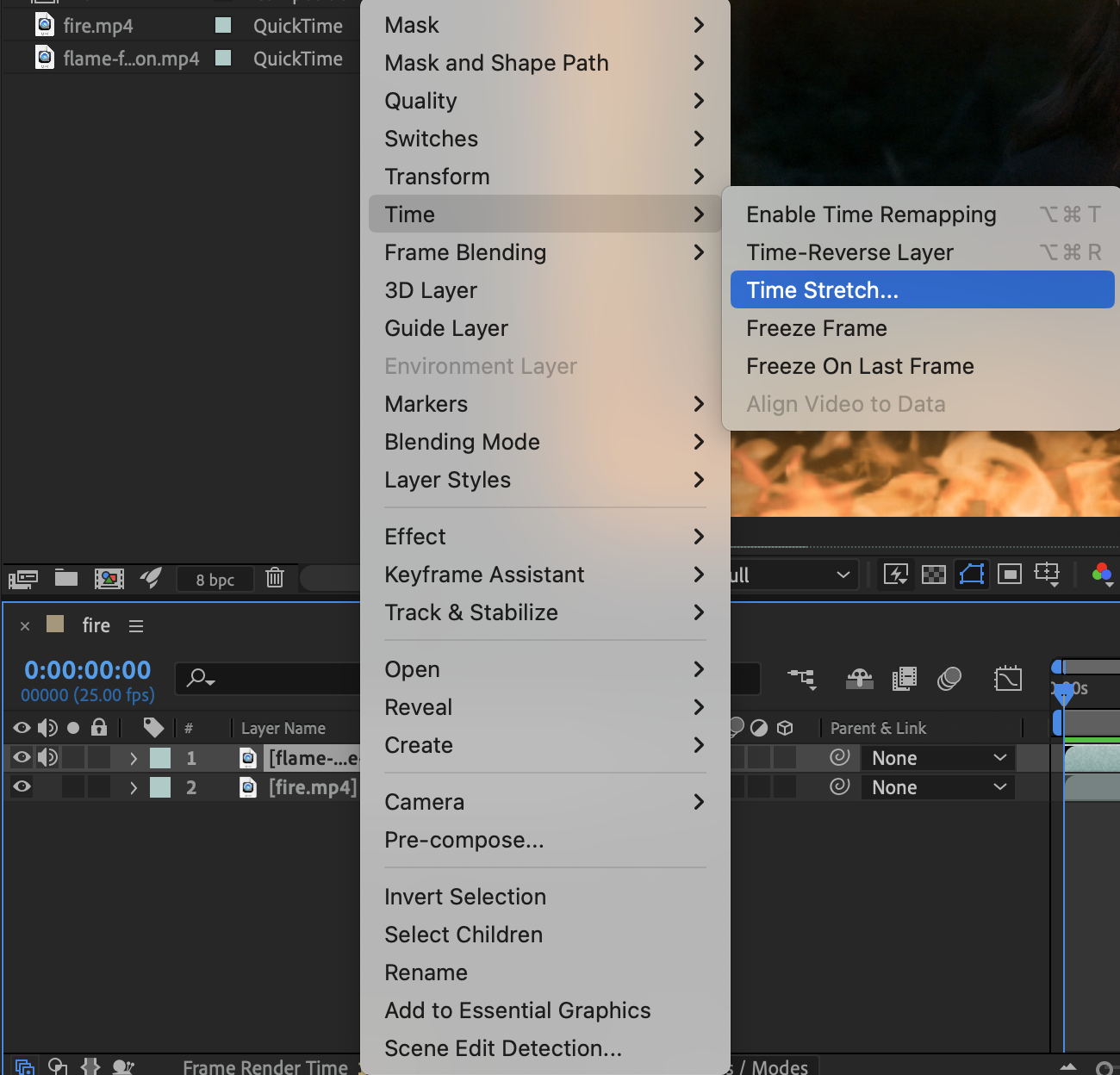
Right-click the fire border layer → Time → Time Stretch.
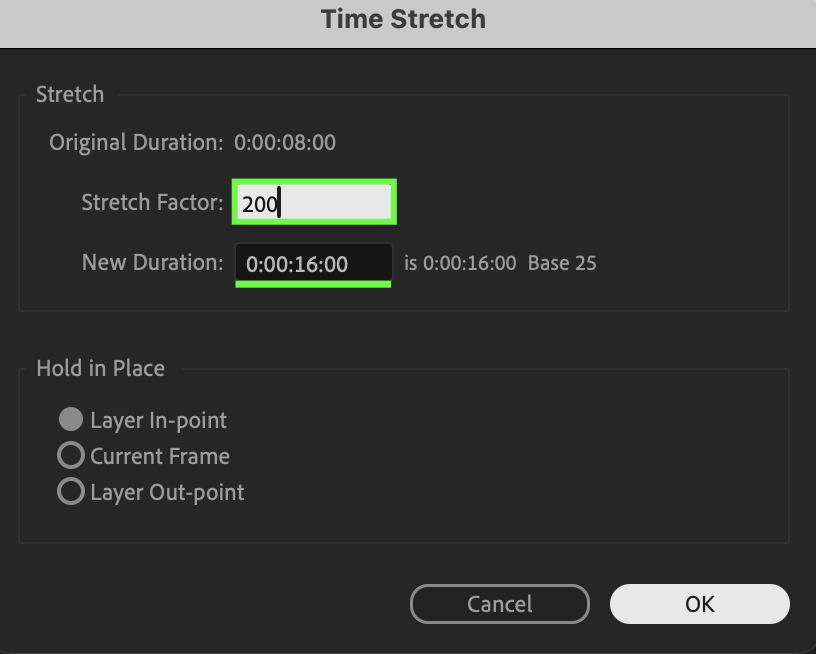
Set the Stretch Factor to 200% (or any value you prefer).
This slows down the animation and extends its duration.
Step 6: Preview the Result
Preview the composition to check the animation, timing, and edges of the flaming border.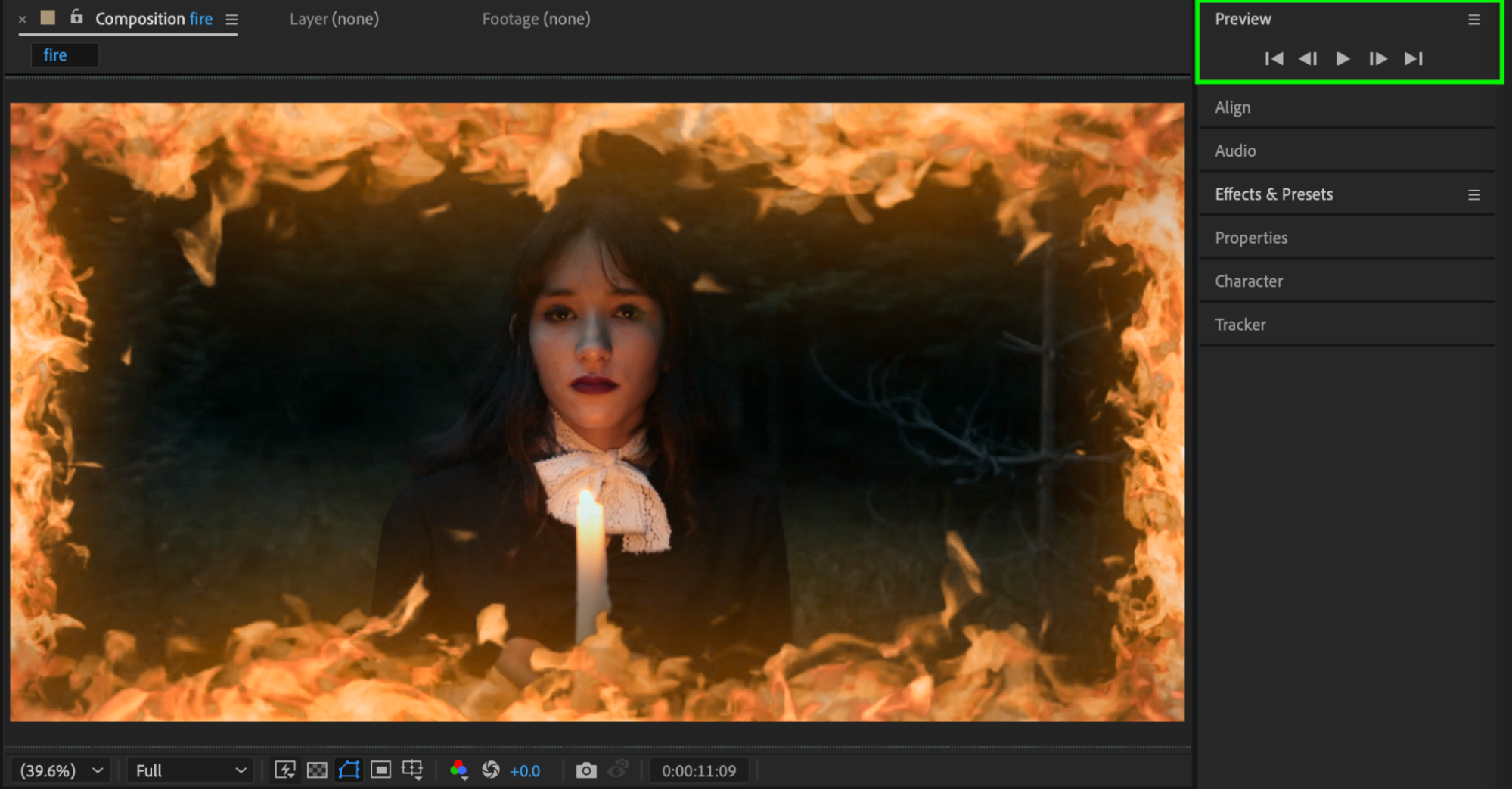
Conclusion
Using flame footage and Keylight, you can quickly create dramatic flaming borders in After Effects. This technique works great for music videos, promos, and cinematic intros.
Our Bestsellers
Our Bestsellers


