
Introduction
This tutorial explains how to use premade transitions in After Effects. You’ll learn how to import transitions, place them over your footage, and adjust them for a smooth and professional result.
Step 1: Download a Premade Transition
Find the transition you want online and download it in .aep format.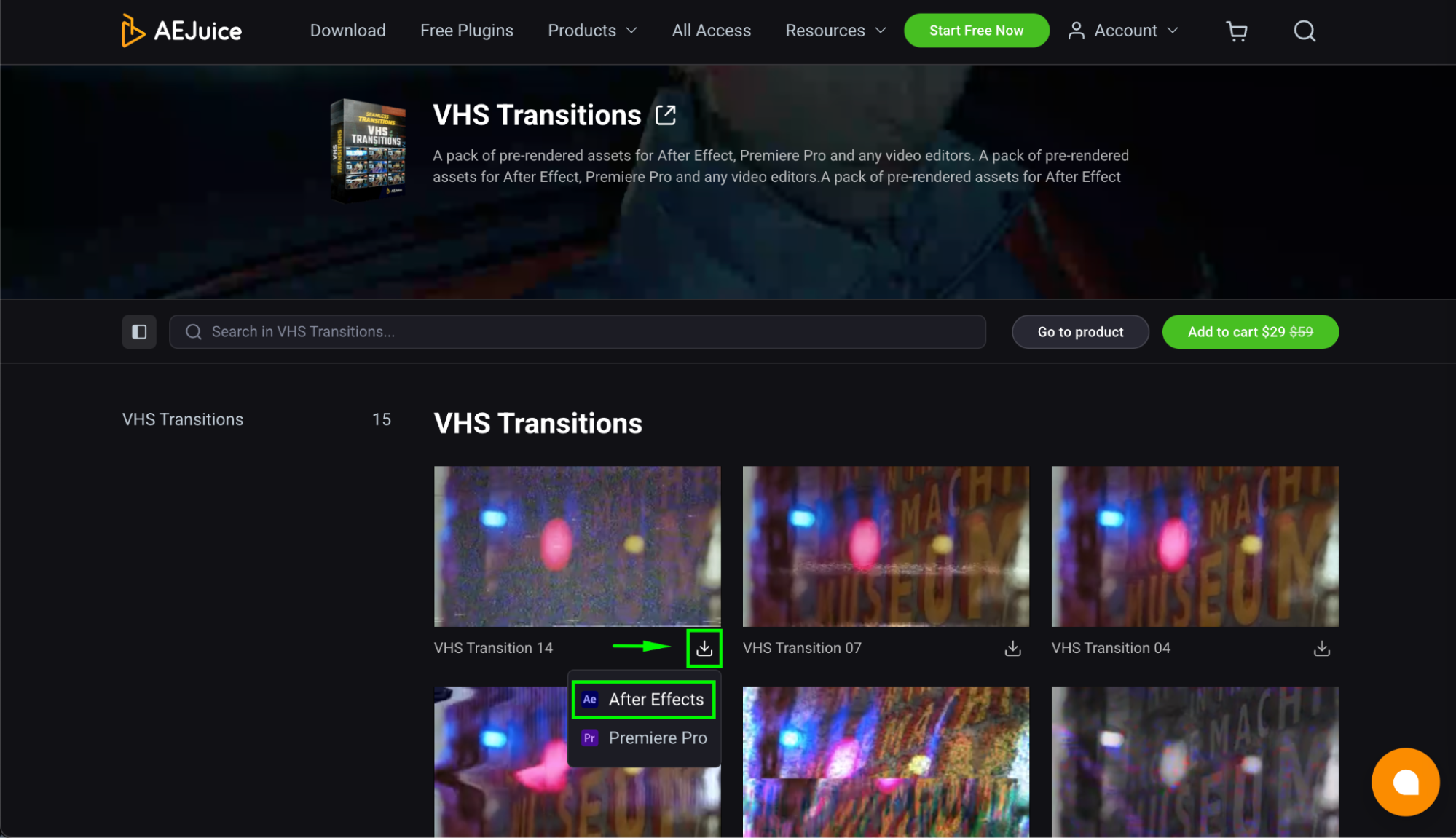 Step 2: Import Videos and Transition
Open After Effects. Go to File > Import > File and import your videos and the downloaded transition.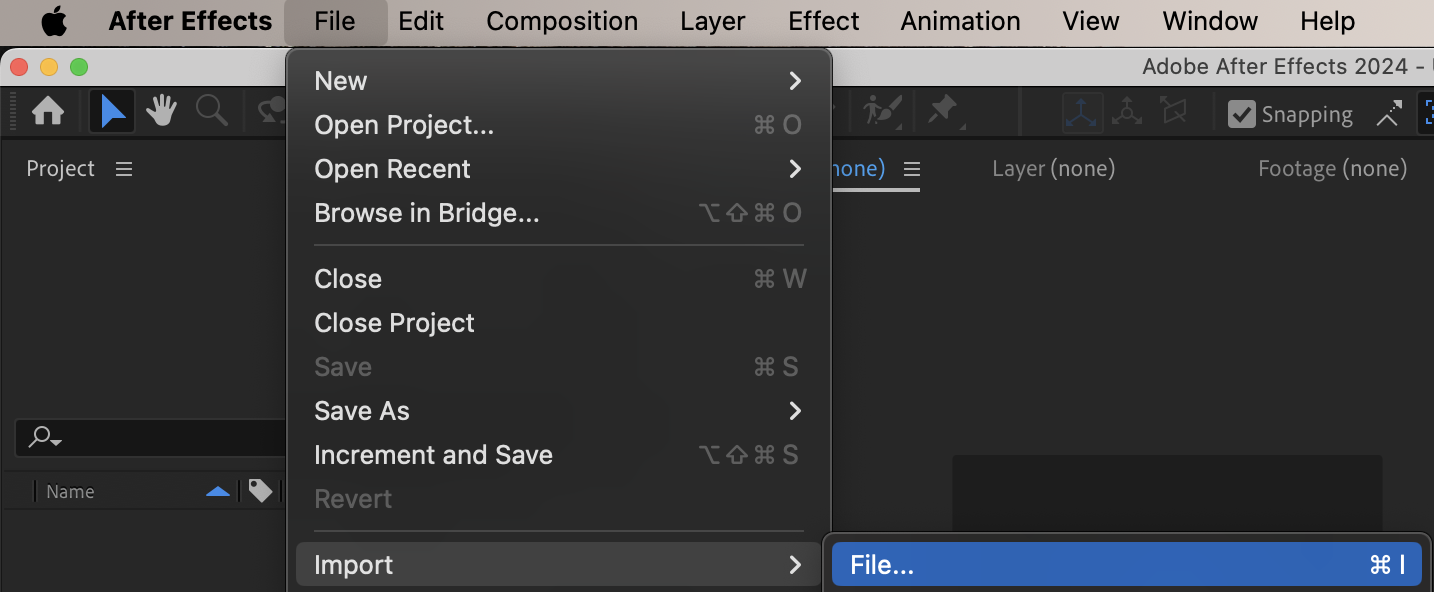
Step 3: Create a Composition
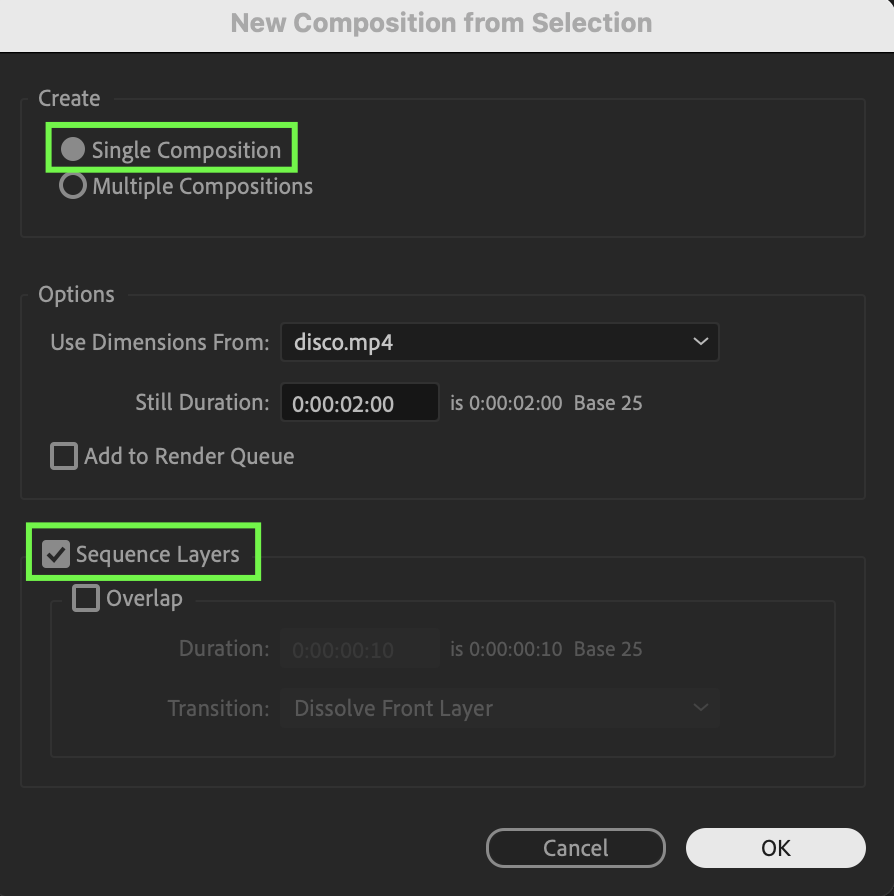
Drag your video onto the timeline. In the New Composition from Selection window, select:
Single Composition
Sequence Layers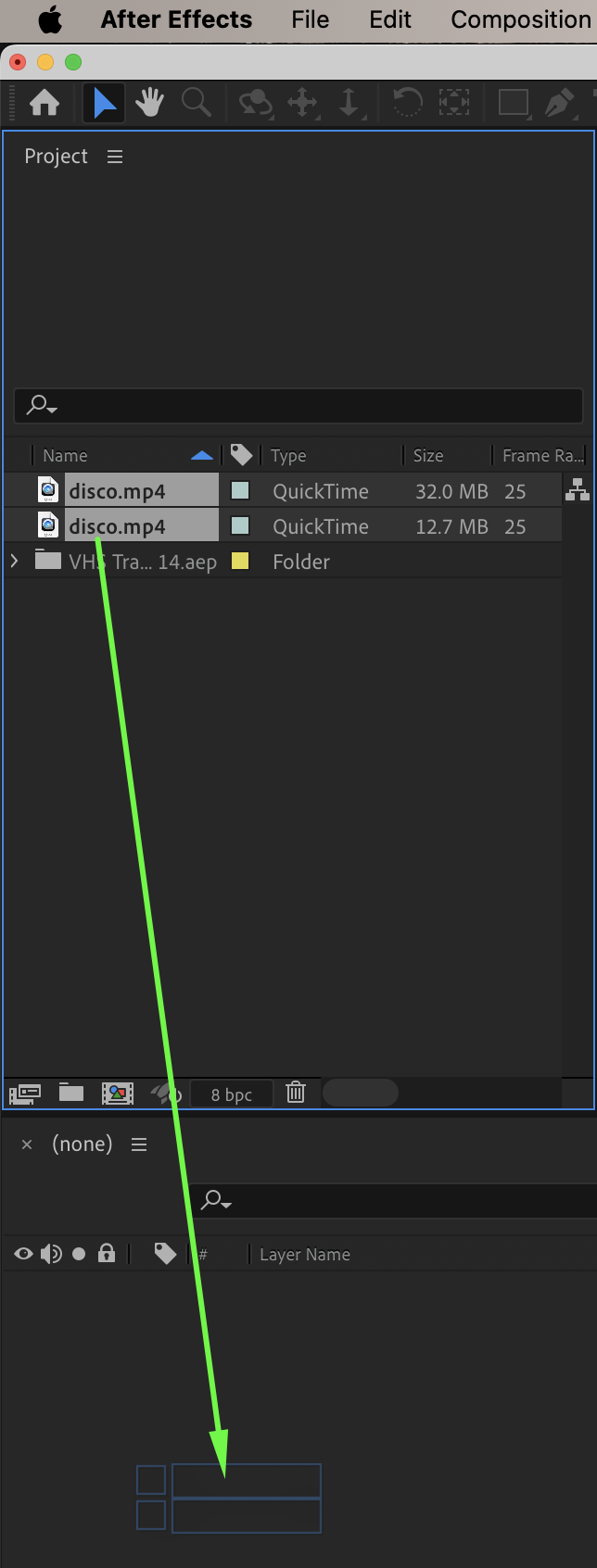
 Step 4: Place the Transition
Drag the transition from the Project panel above your video layers.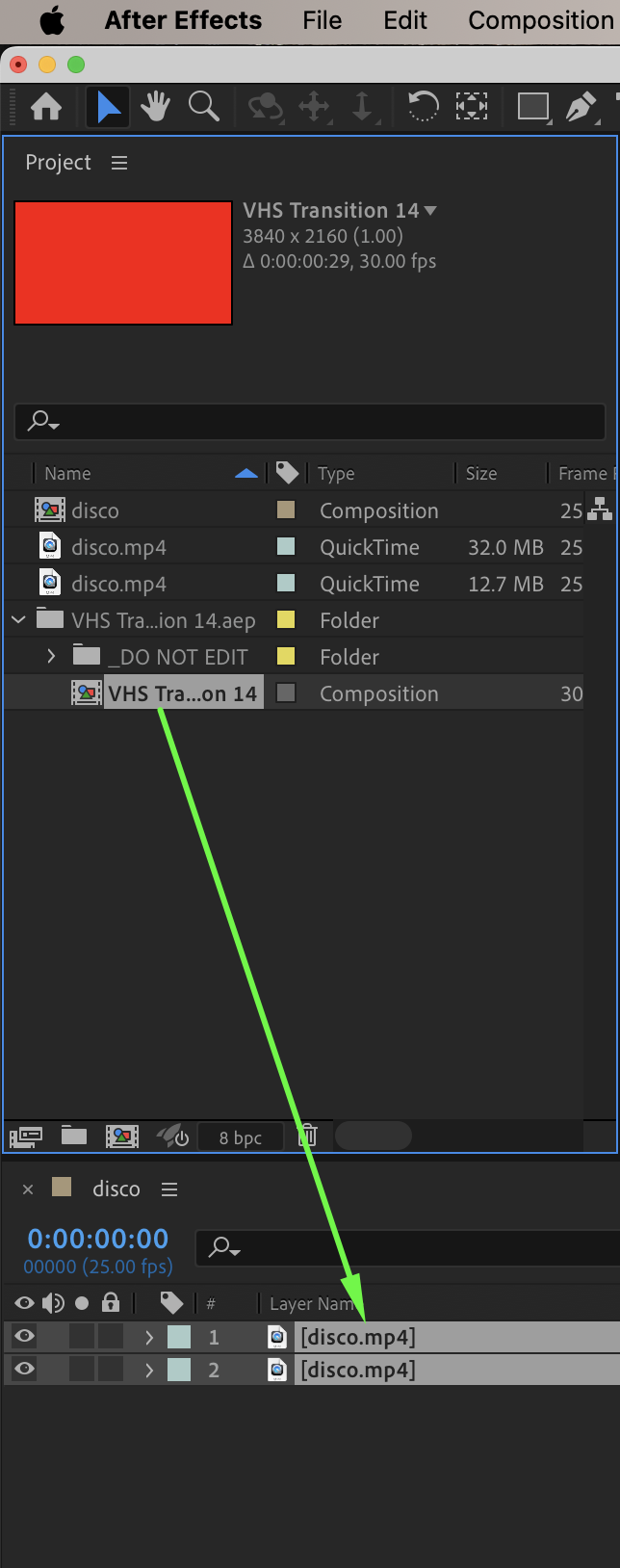
Step 5: Method 1 – Blending Mode
Place the transition exactly in the middle of your video layers. Right-click on the transition layer and choose Blending Mode > Lighten. This method works for most simple transitions.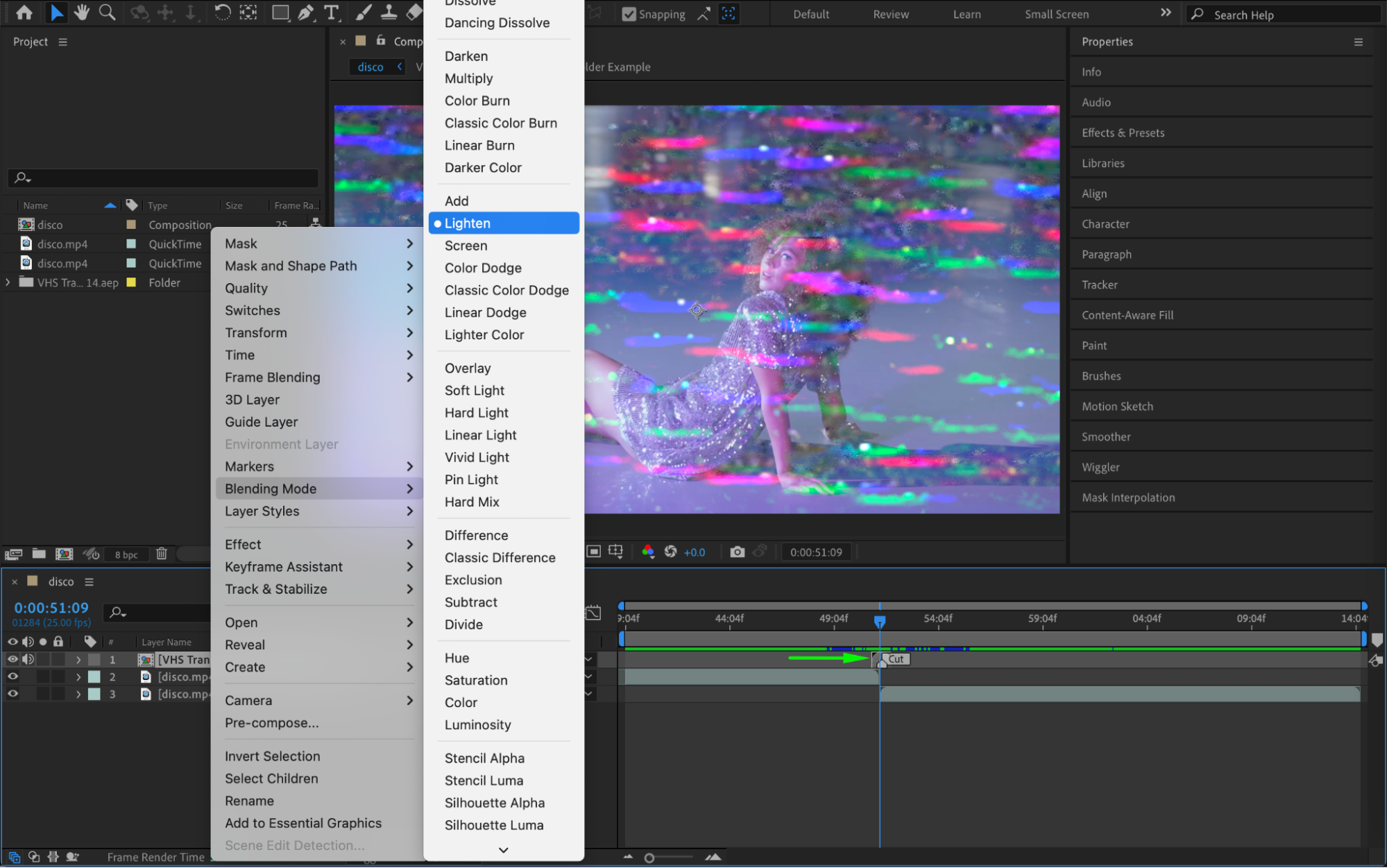
Step 6: Method 2 – Using Video Duplicates (Optional)
For more control (less commonly used):
Duplicate your video and rename the layers 1 Video and 2 Video. Trim each duplicate to 10–15 frames, matching the length of the transition. Pre-compose these trimmed layers.
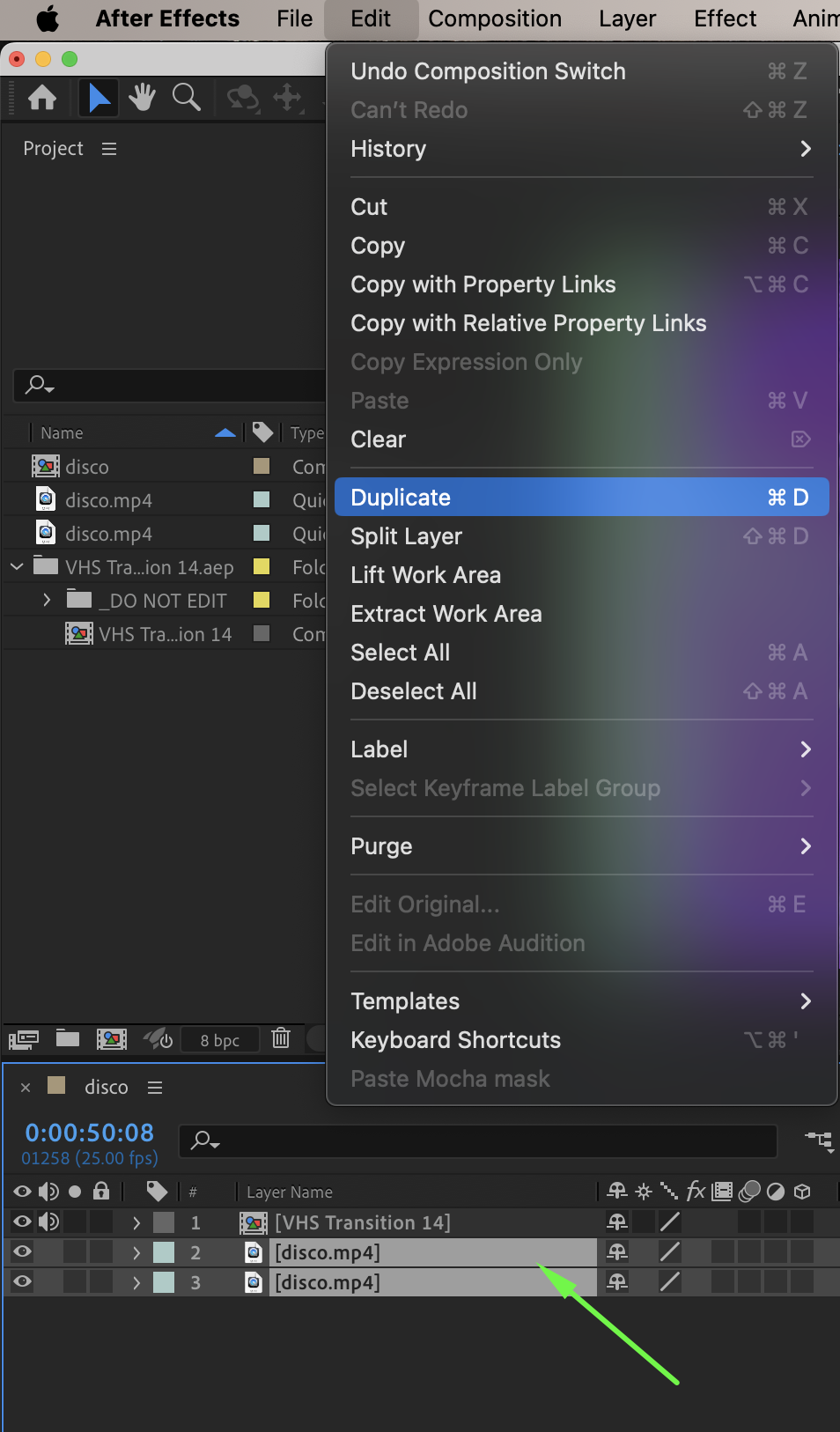
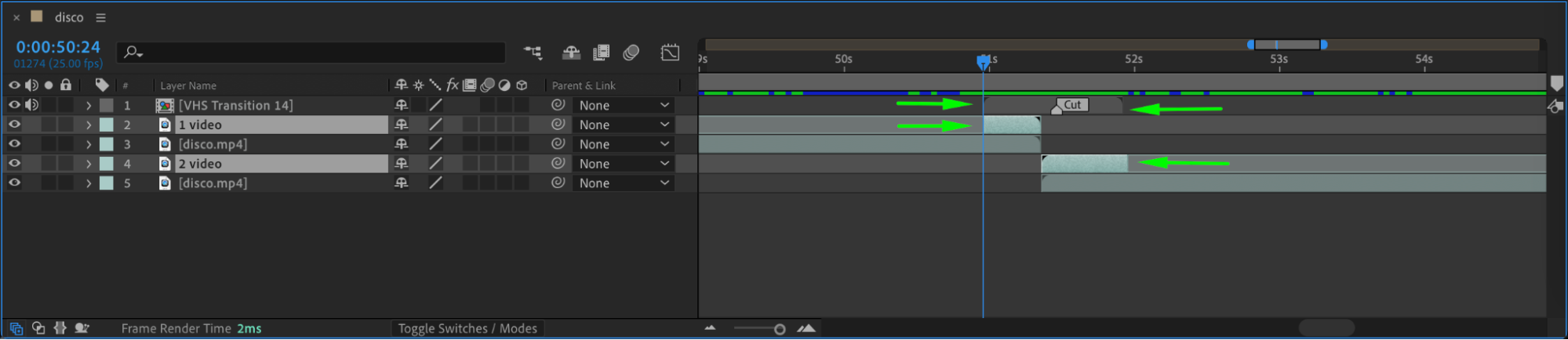
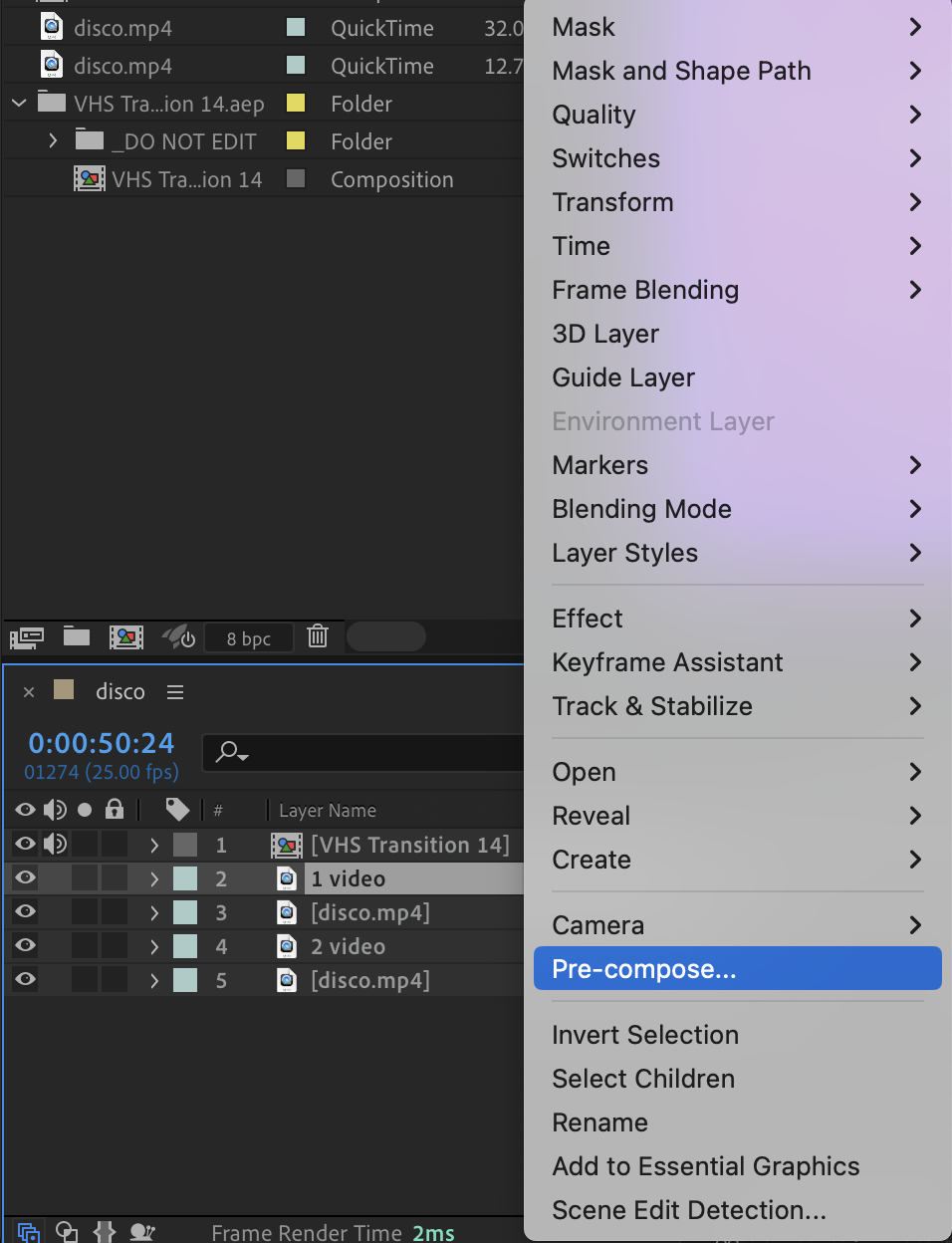
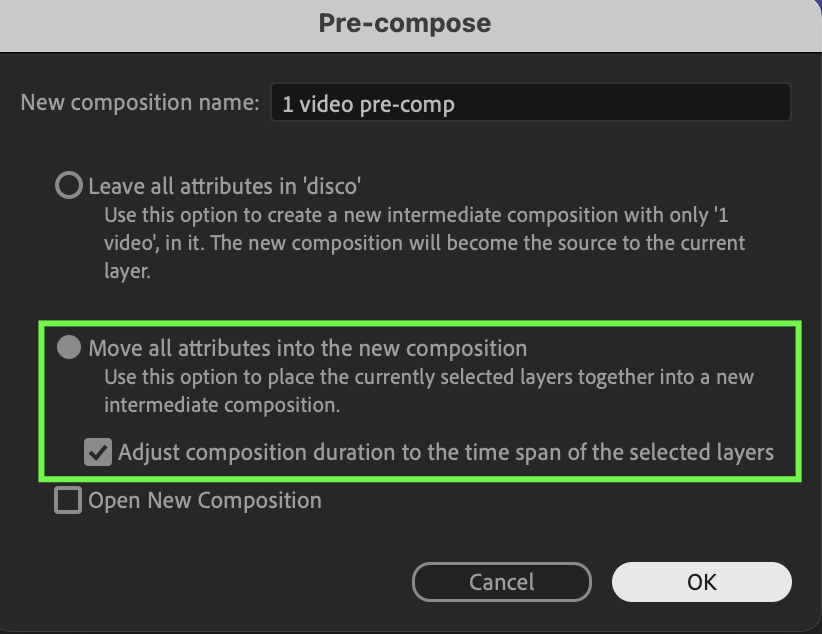 Step 7: Replace Placeholders in the Transition
Open your transition composition. Locate the placeholder compositions inside the transition. Replace the existing placeholder footage with your own video layers.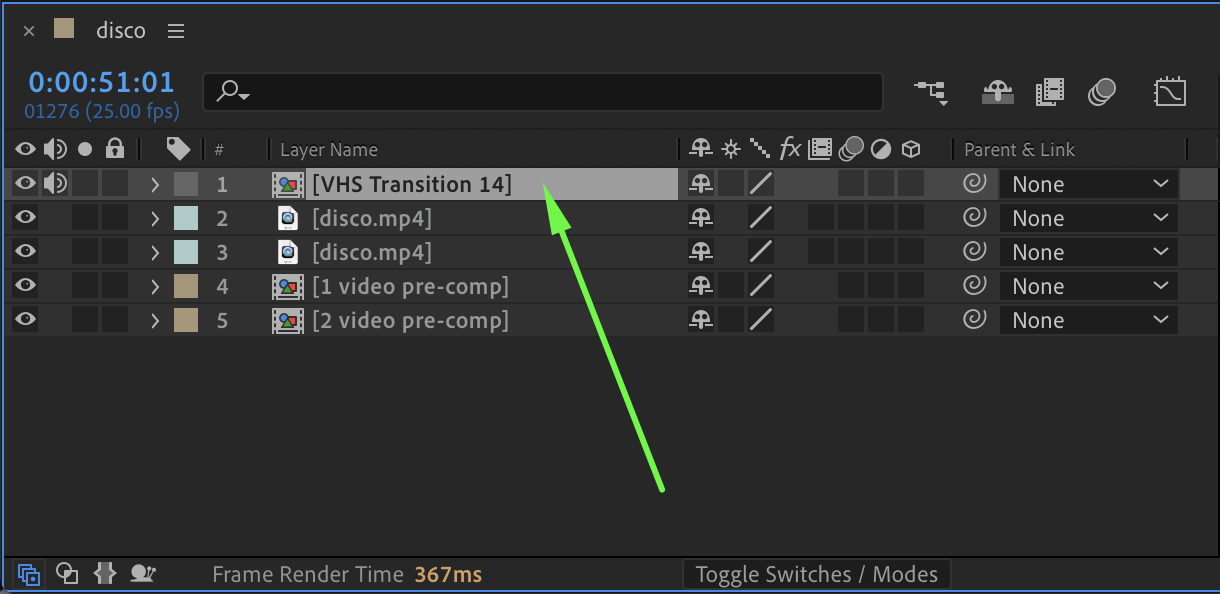
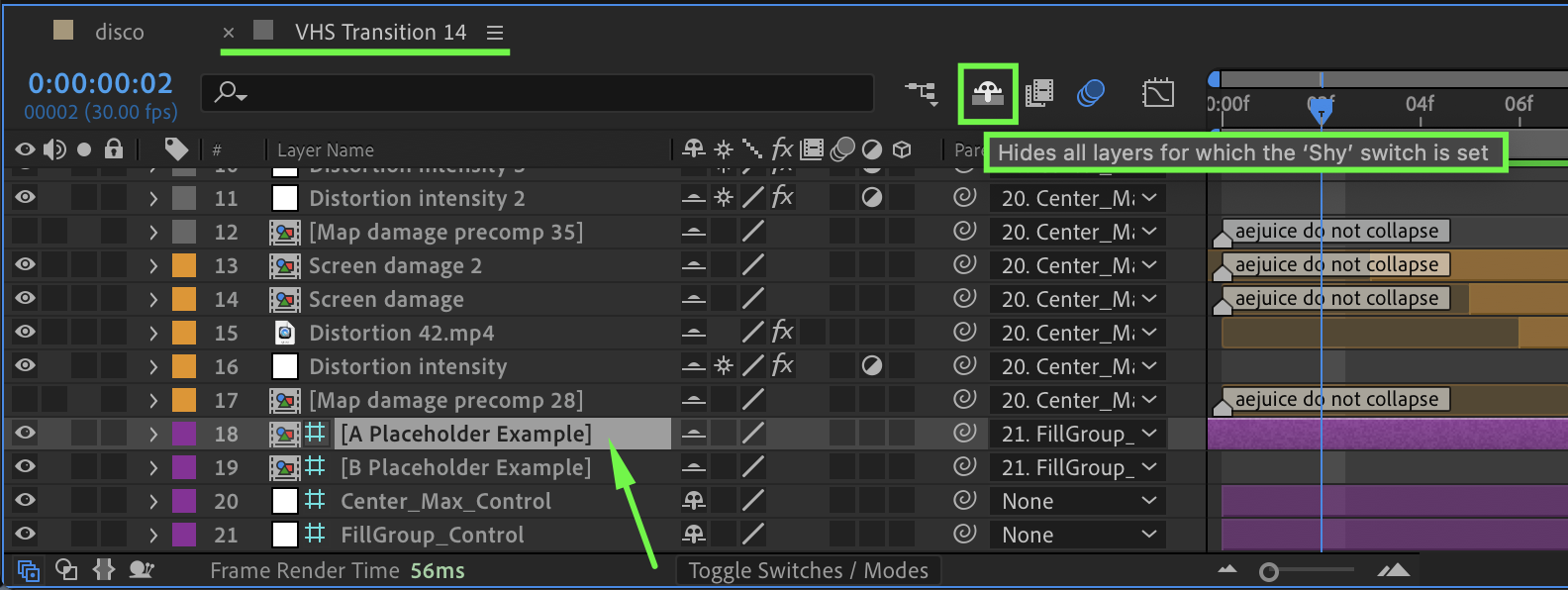
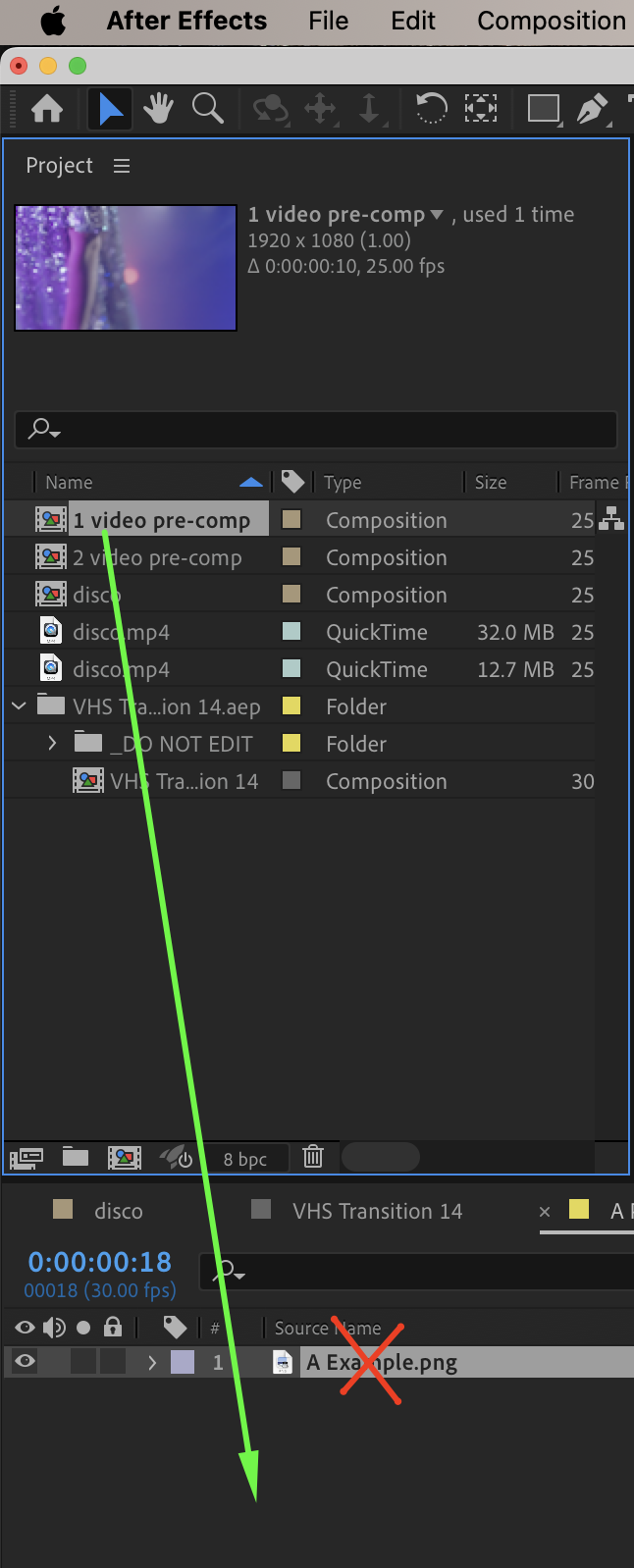 Step 8: Preview and Finalize
Preview the composition. Adjust the placement, blending, and timing of the transition until it looks smooth and natural.
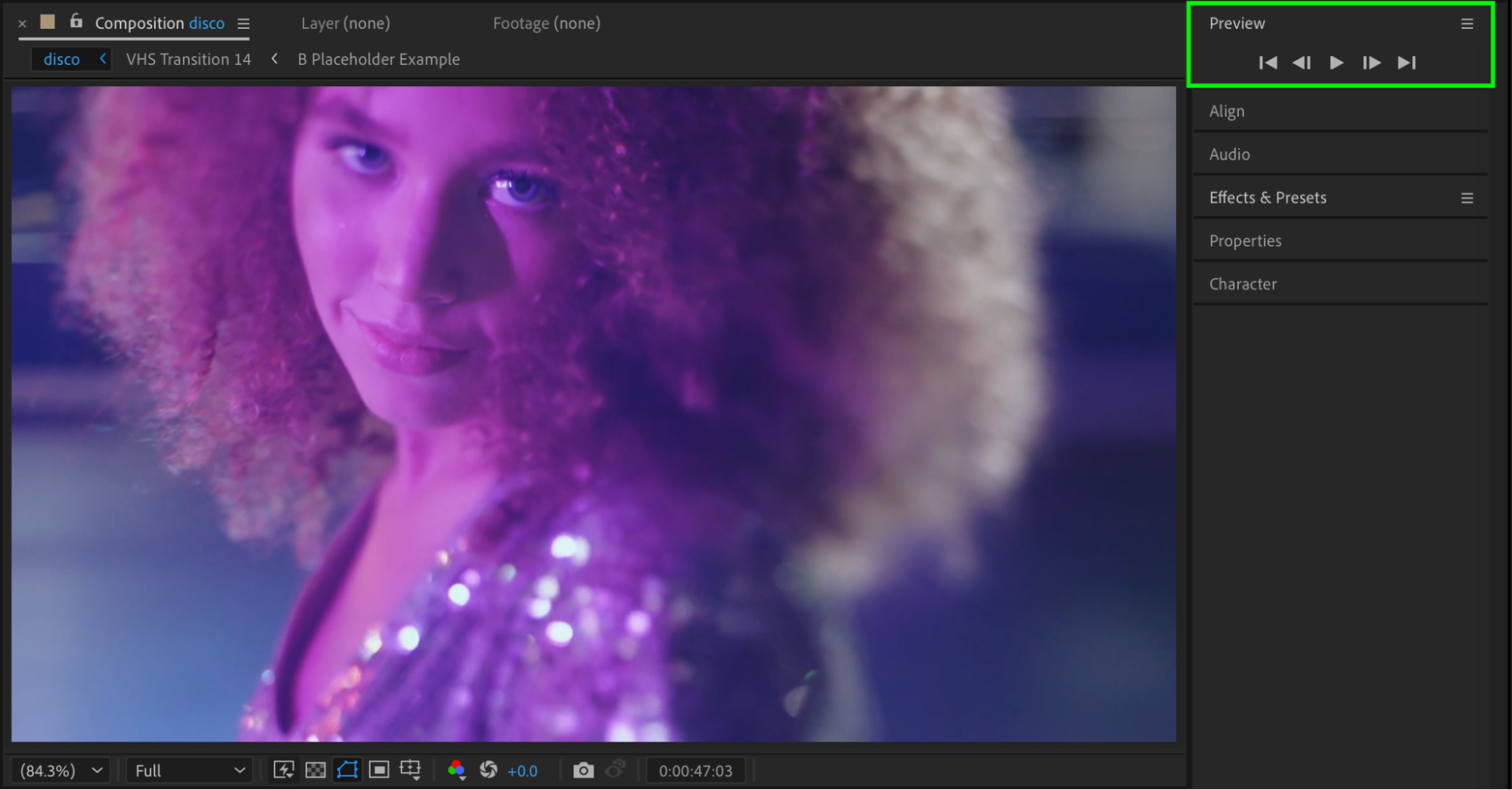
Conclusion
By importing premade transitions and replacing placeholders with your footage, you can quickly add professional-looking transitions to your videos in After Effects. Both blending mode and duplicate video methods give flexibility depending on your project needs.
Our Bestsellers
Our Bestsellers


