
Introduction
This tutorial shows how to create a sepia tone effect in After Effects to give your video a warm, vintage look. You’ll learn how to apply the Sepia effect from the Effects & Presets panel and optionally add film grain for a cinematic finish.
Step 1: Import and Place Your Video
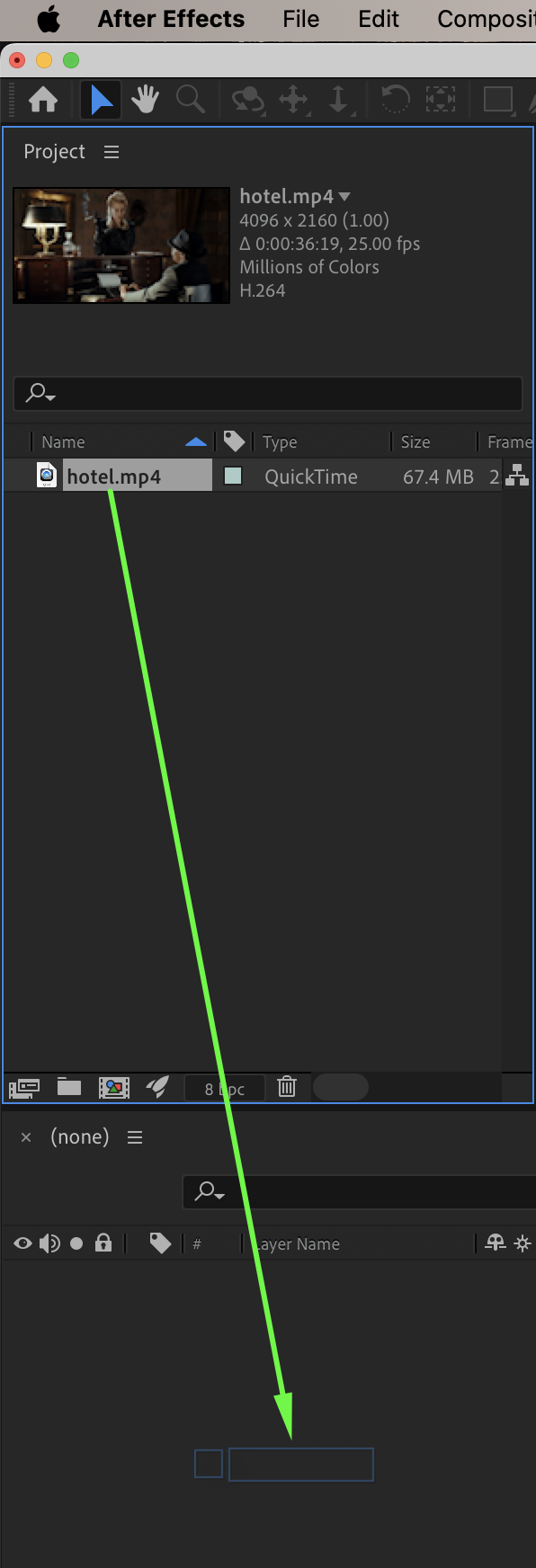
Go to File > Import > File and import your video. Drag the video onto the timeline.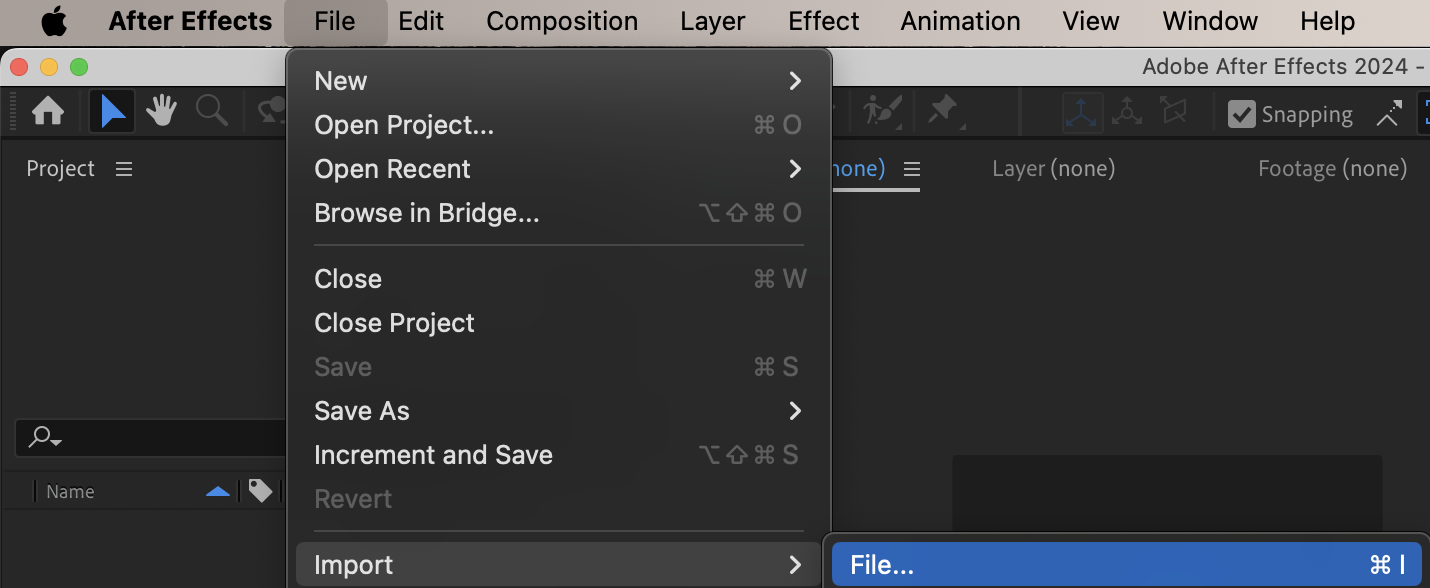
Step 2: Apply the Sepia Effect
From the Effects & Presets panel, find Colorize – Sepia and drag it onto your video layer.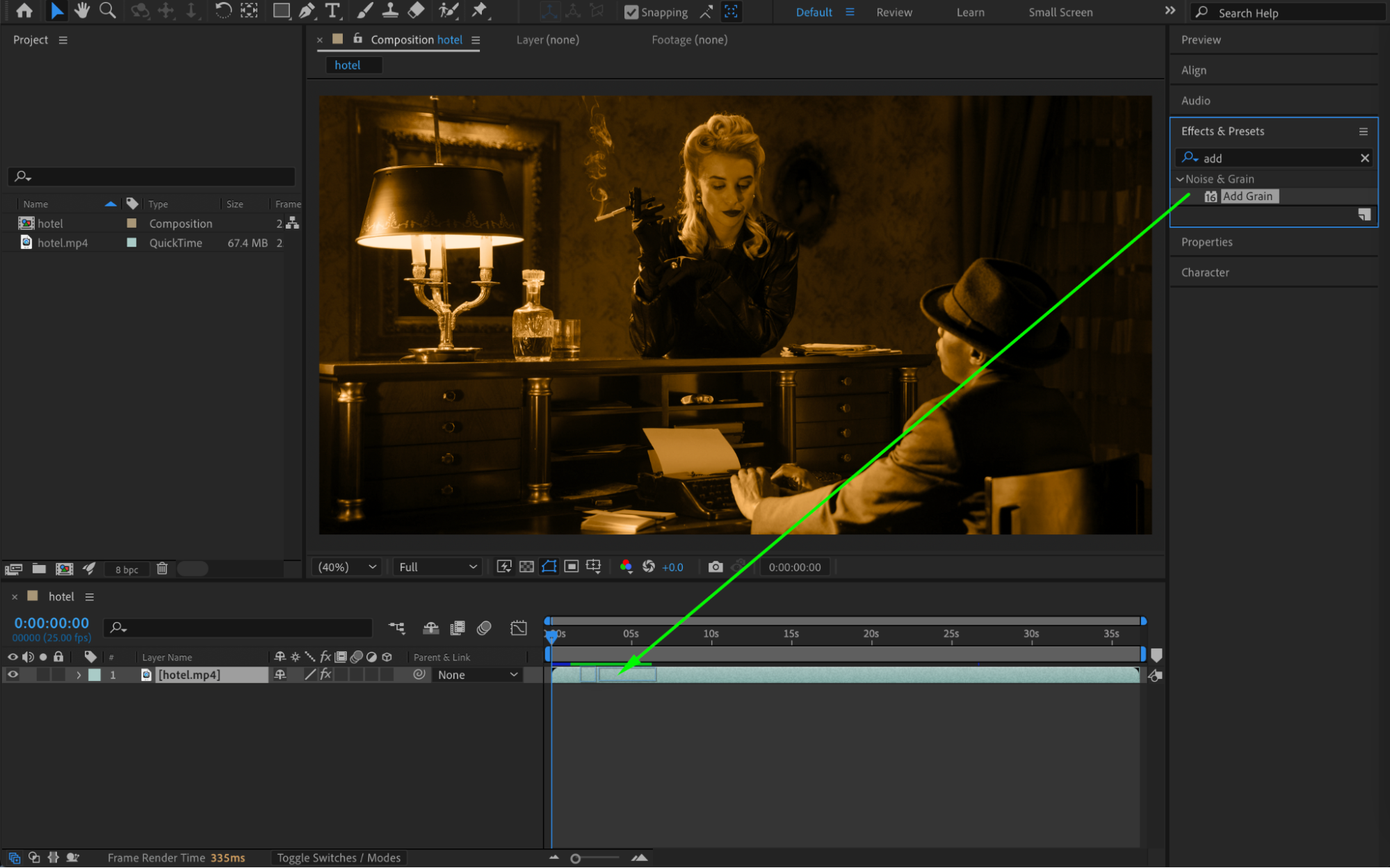
Step 3: Adjust Sepia Settings
In the Effect Controls panel, adjust the Sepia settings as needed to achieve the desired tone.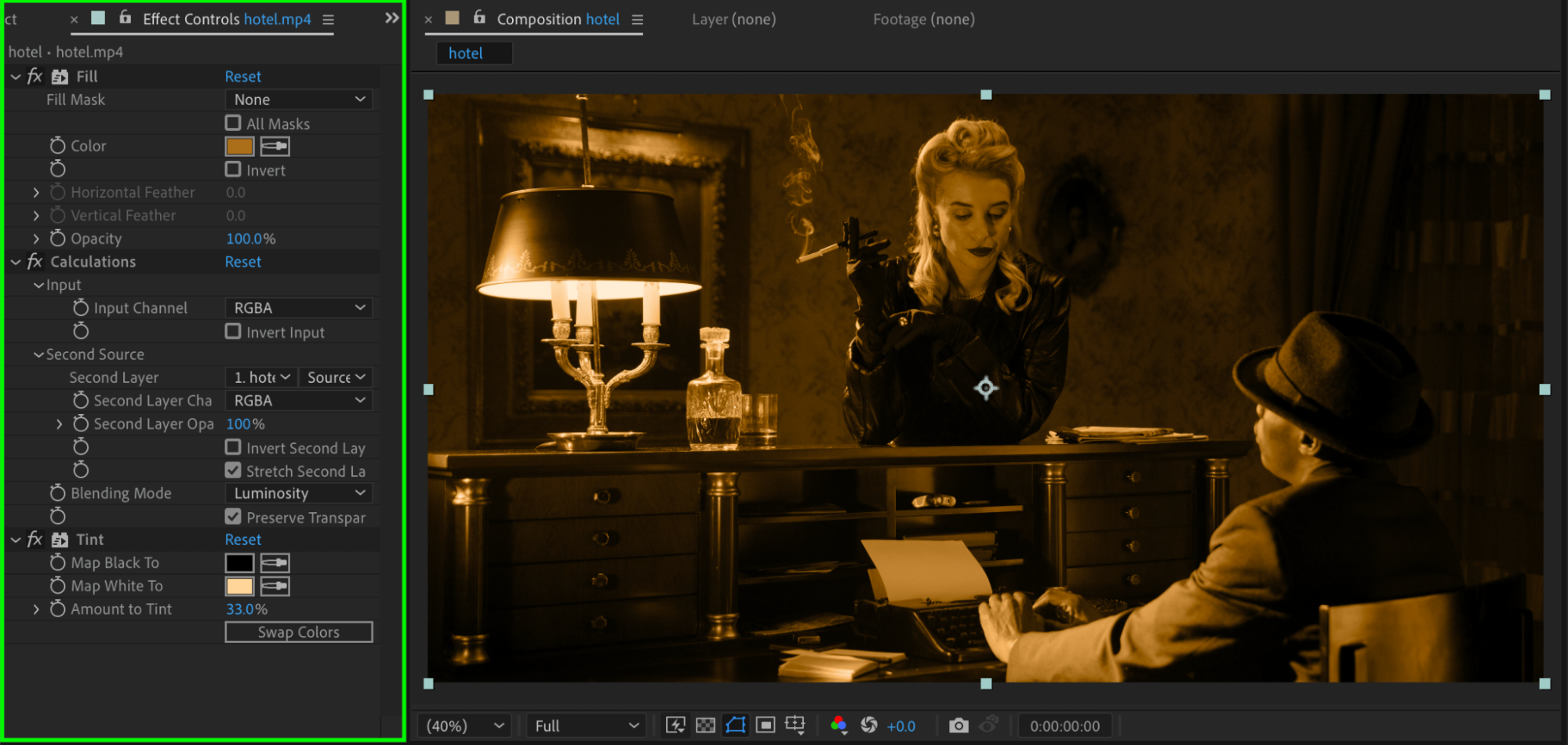 Step 4: (Optional) Add Film Grain
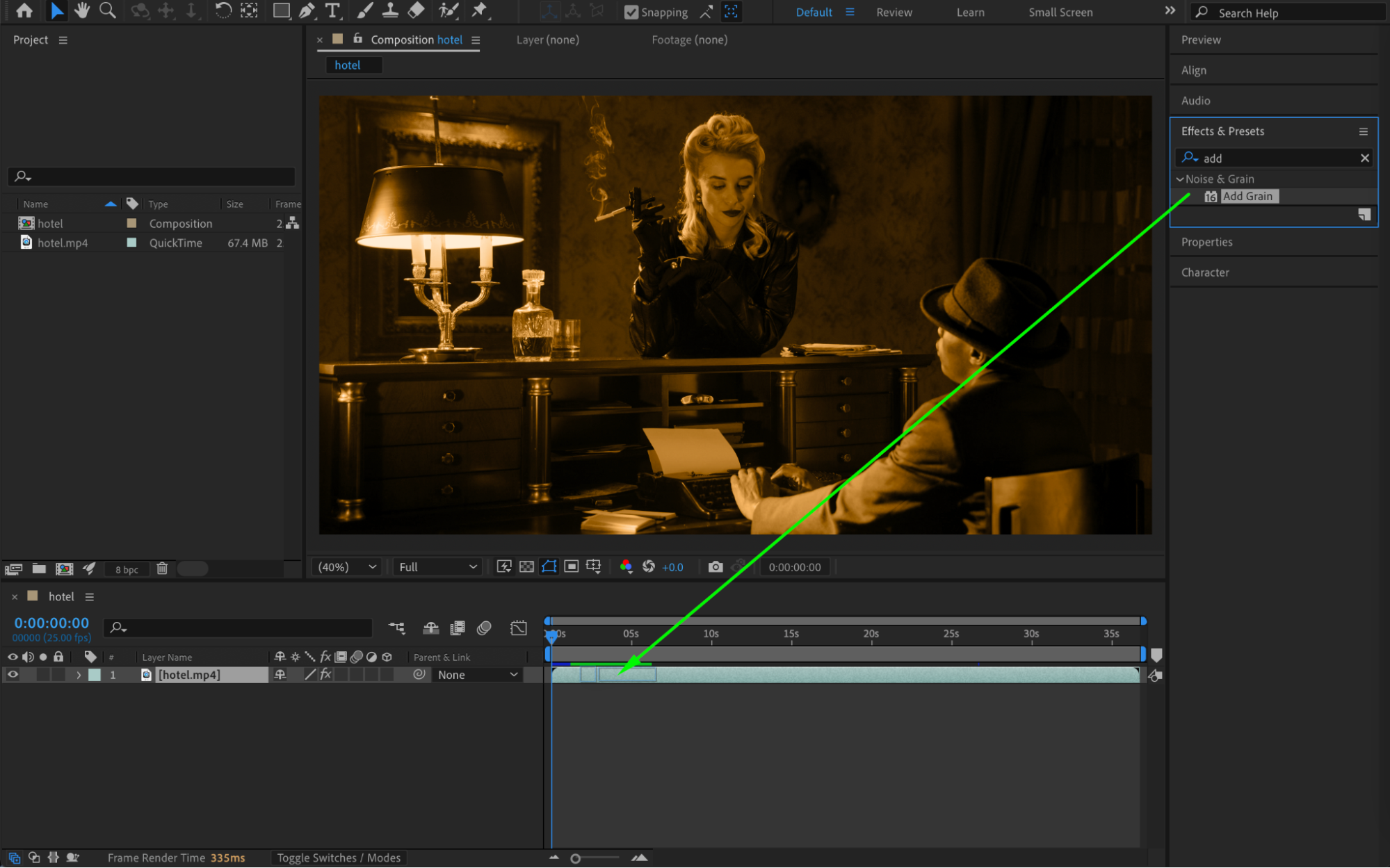
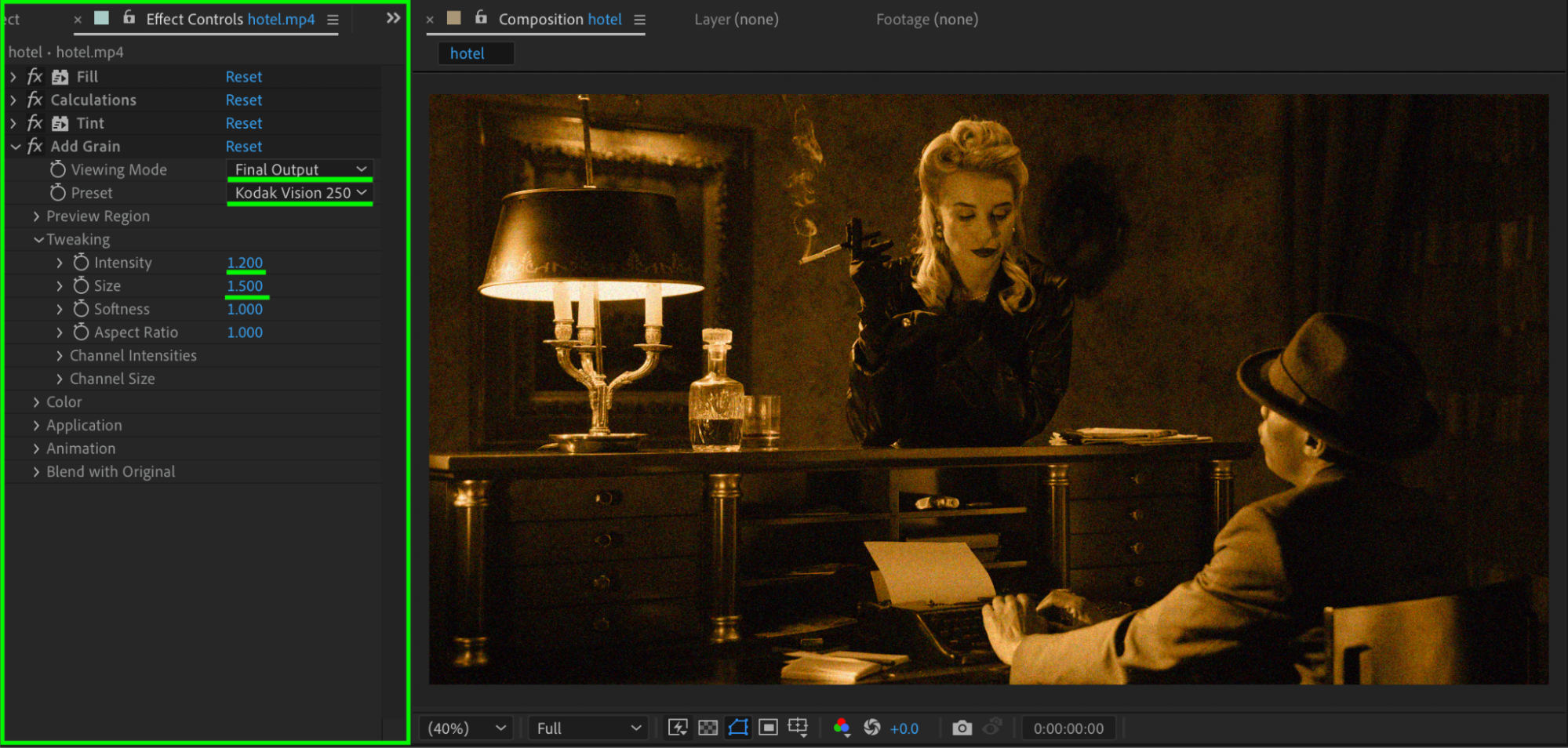
For a more cinematic look, you can add the Add Grain effect:
Set Viewing Mode to Final Output
Choose the preset Kodak Vision250D
Adjust Intensity to 1.2
Adjust Grain Size to 1.5
Step 5: Preview and Finalize
Preview the composition and make any adjustments to the Sepia effect or grain until you are satisfied with the look.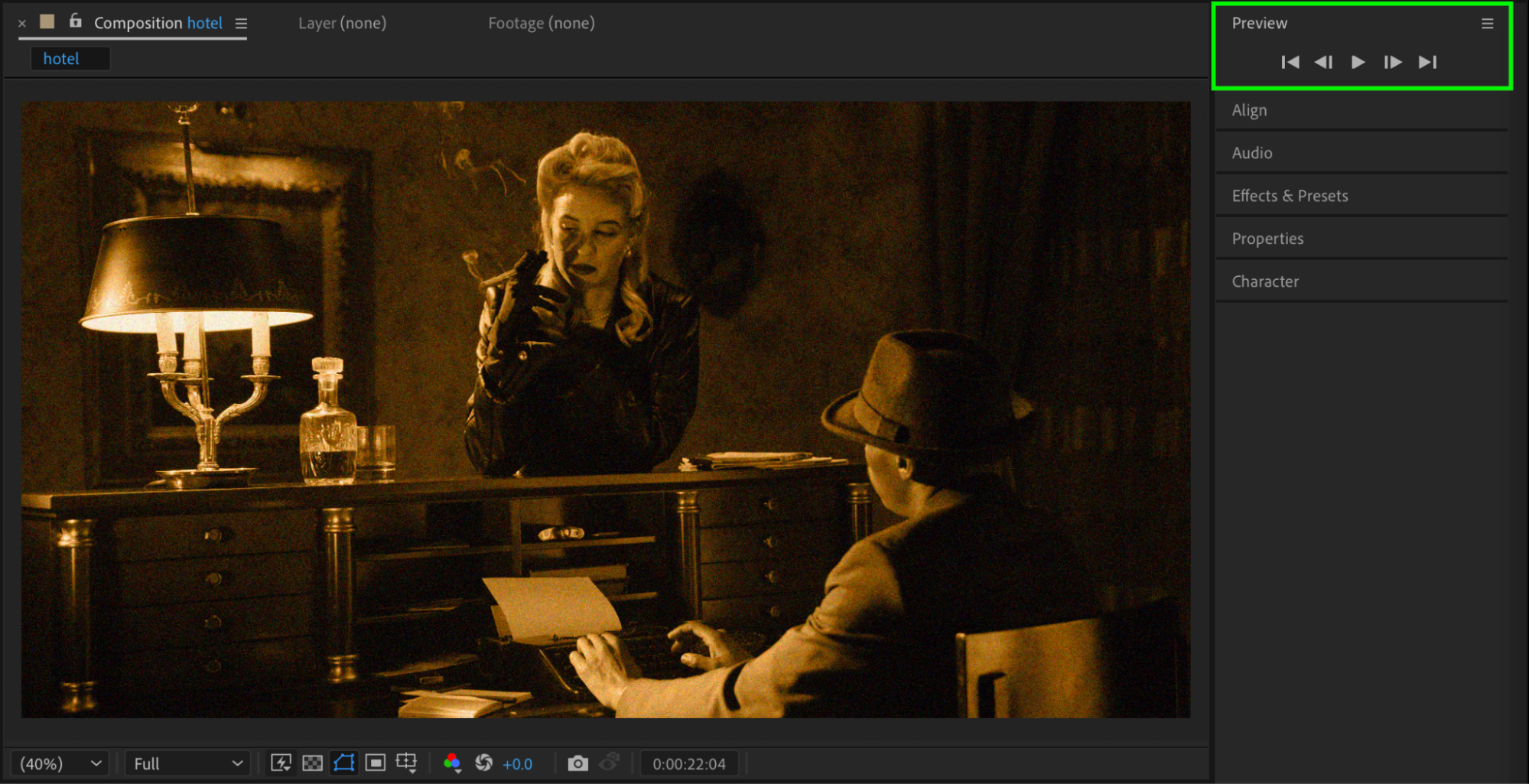
Conclusion
By applying the Sepia effect and optionally adding grain, you can easily give your videos a warm, vintage cinematic style in After Effects. This technique works well for films, social media content, and motion graphics projects.
Our Bestsellers
Our Bestsellers


