
Introduction
Aligning multiple masks can be tricky, but using shape layers, the Align panel, and track mattes makes the process precise and efficient. This method is ideal for masking, compositing, and motion design workflows.
Step 1: Import Your Footage
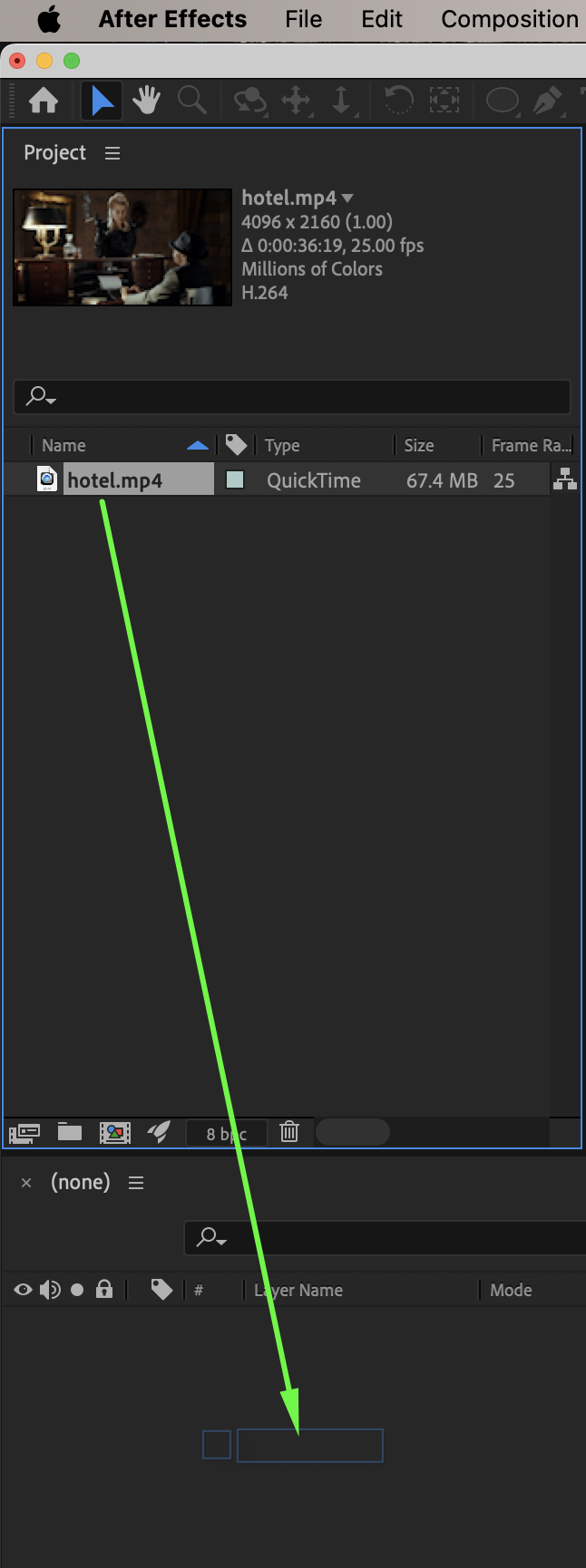
Go to File > Import > File and bring your video into the project. Drag it onto the timeline.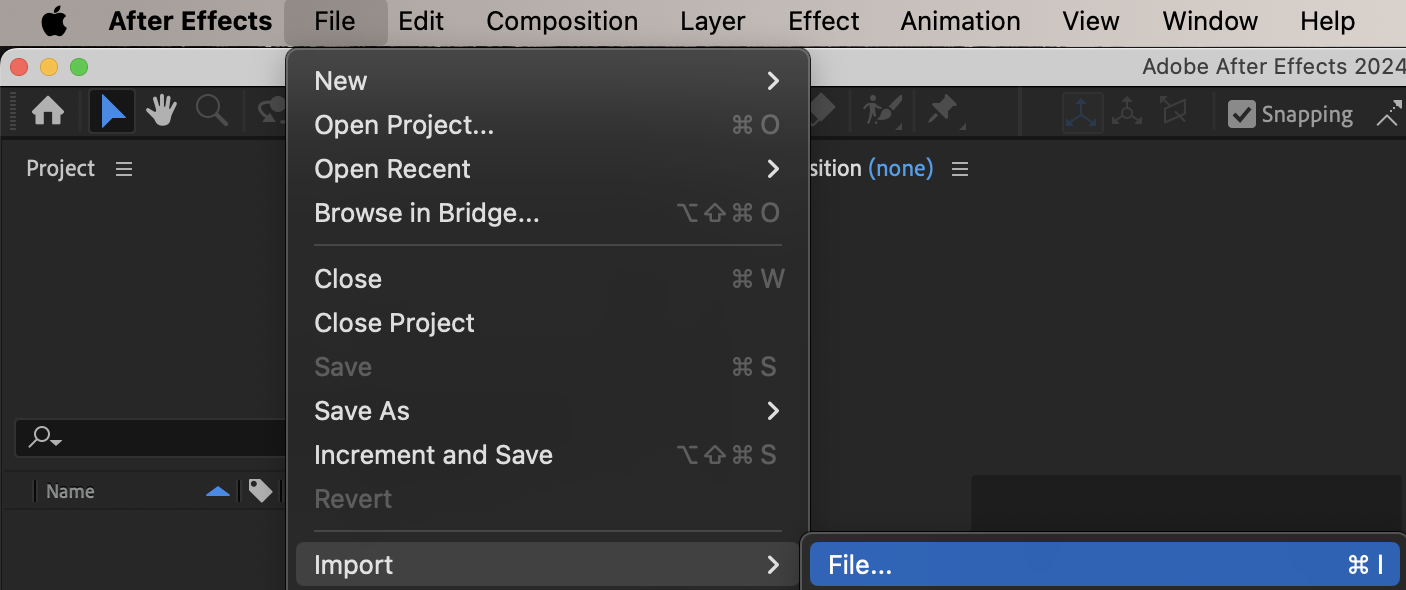
 Step 2: Create Shape Layers for Masks
Use the Shape Tool (Q) from the menu to create shapes that will later serve as masks. Set Fill to any color and Stroke to None.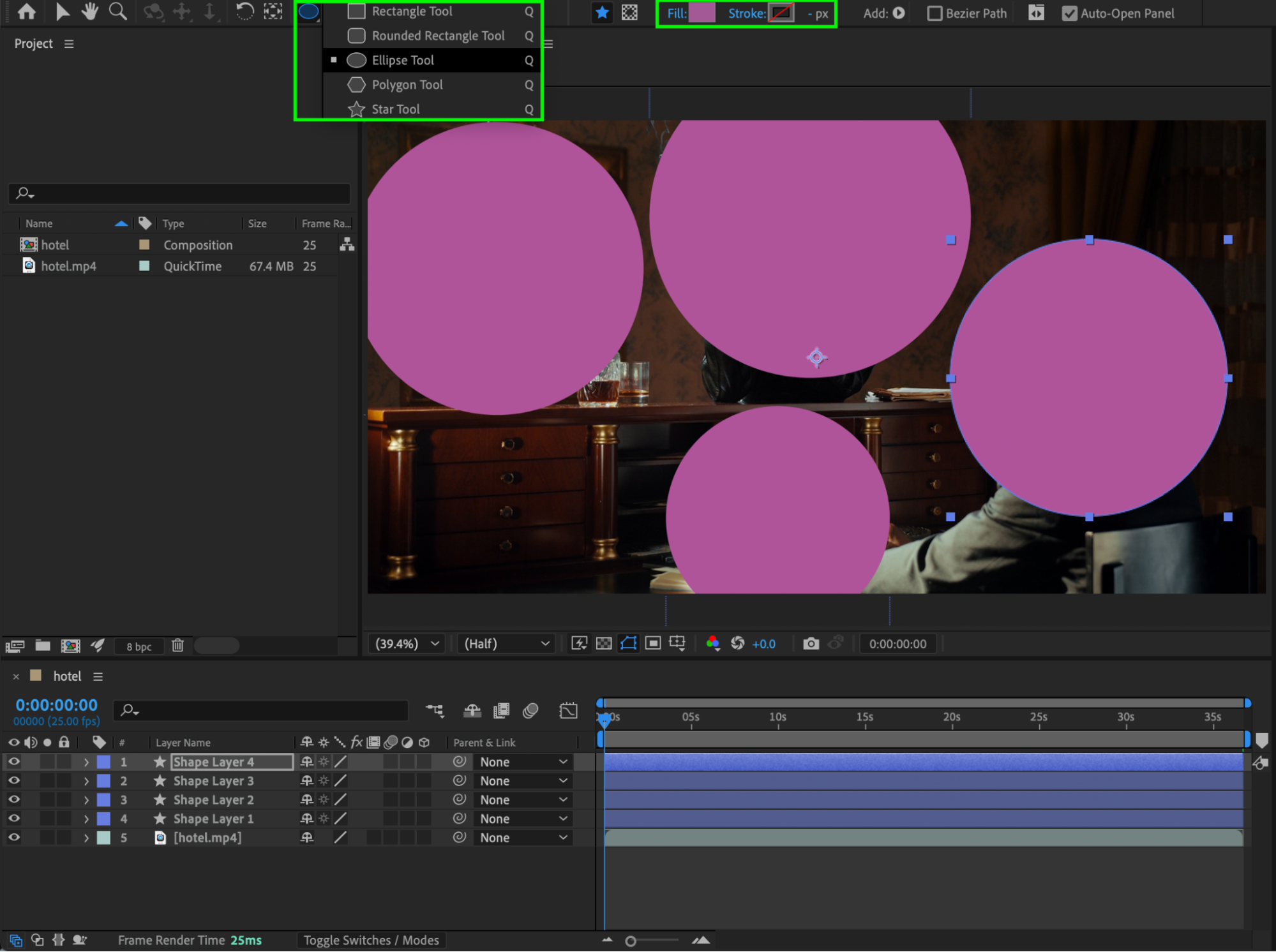
Step 3: Center Anchor Points
Select all the created shapes. Right-click and choose Transform > Center Anchor Point in Layer Content. This ensures accurate alignment.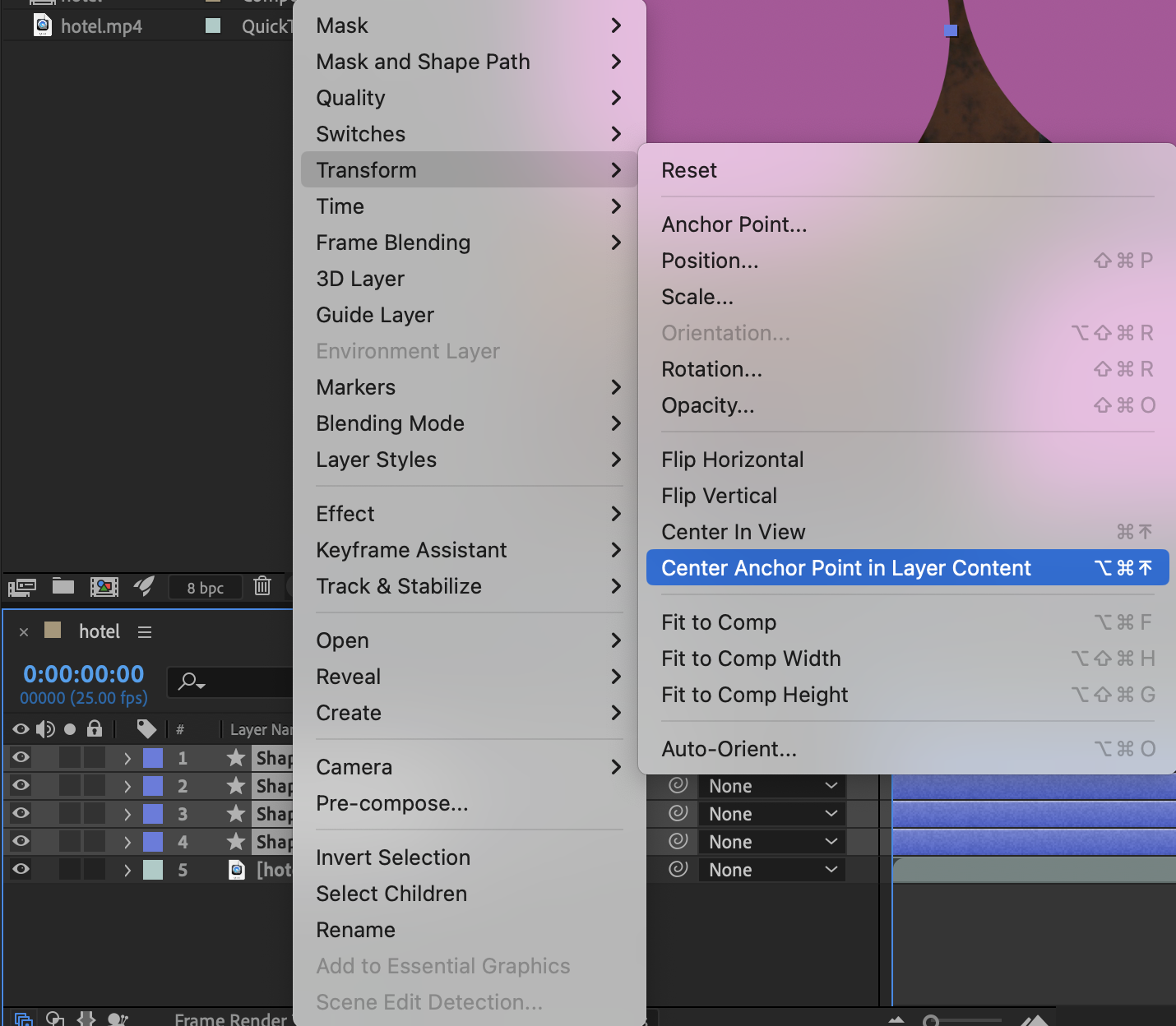 Step 4: Align the Shapes
Use the Align Panel to distribute and align your shapes precisely along the desired axis or spacing.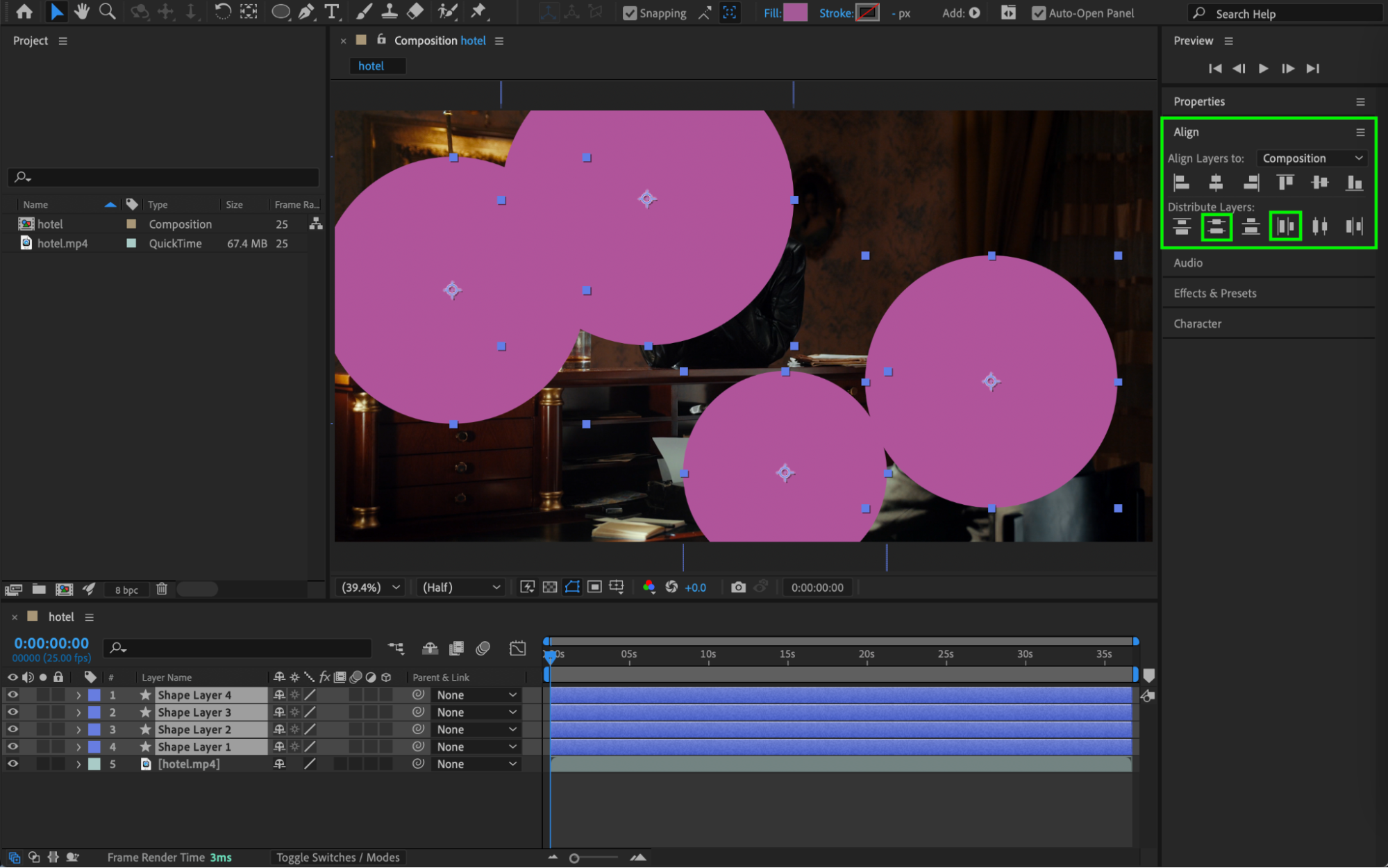 Step 5: Duplicate the Video Layer
Duplicate your video layer to match the number of shape layers created. Each shape will act as a mask for one video layer.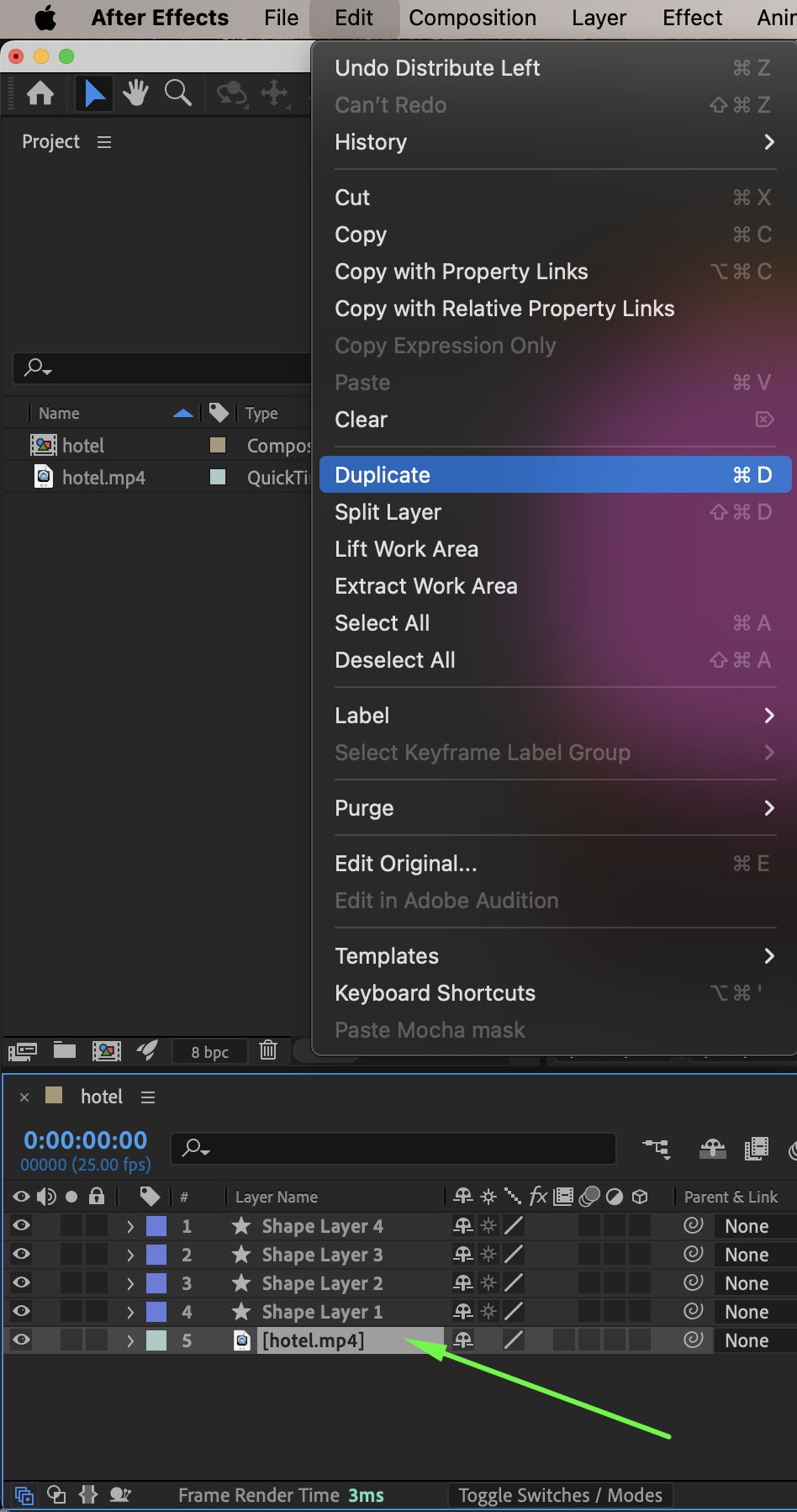
Step 6: Apply Track Mattes
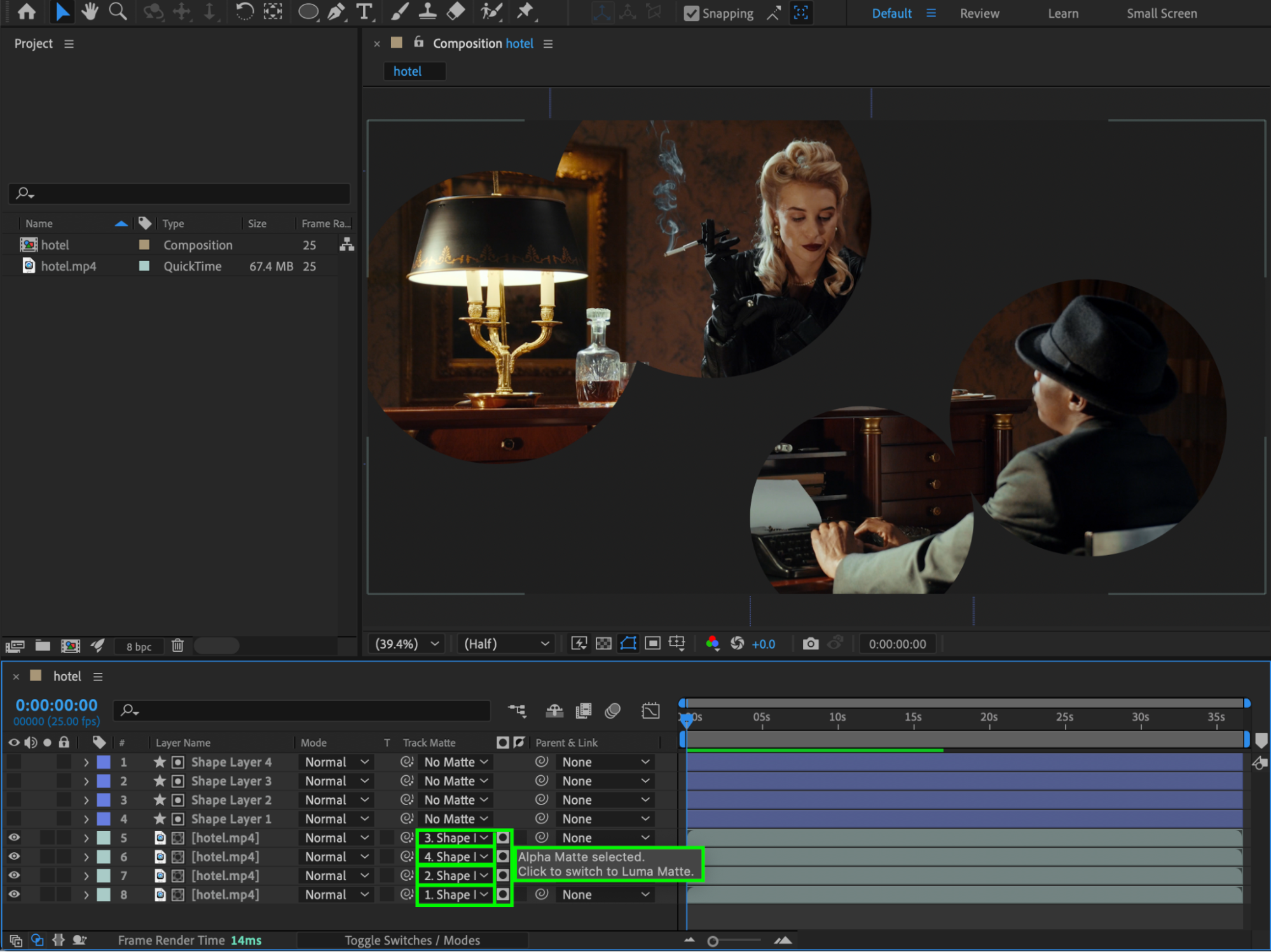
In the Track Matte column, assign Alpha Matte for each video layer to the corresponding shape layer. This will make each video layer visible only through its assigned mask.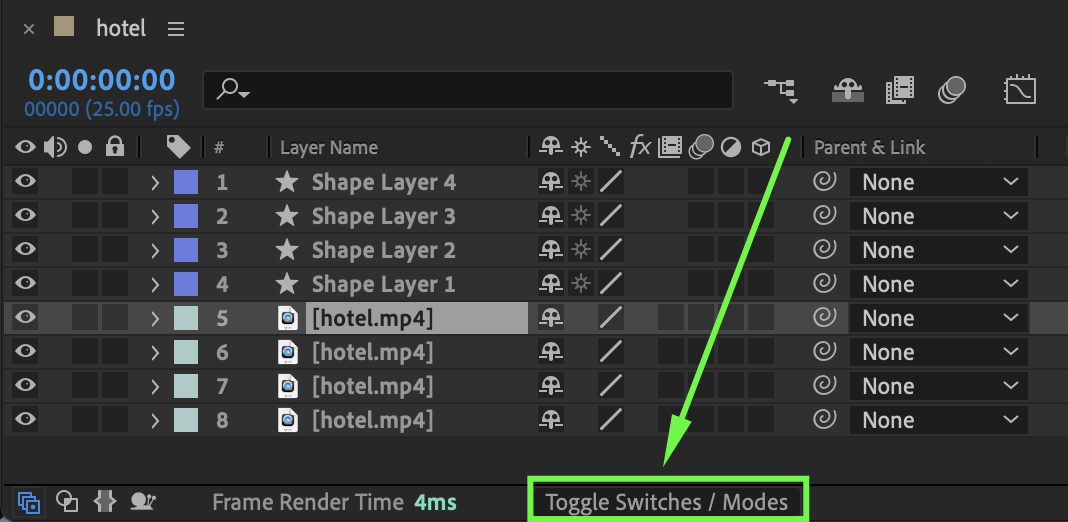
Step 7: Simulate Mask Feathering
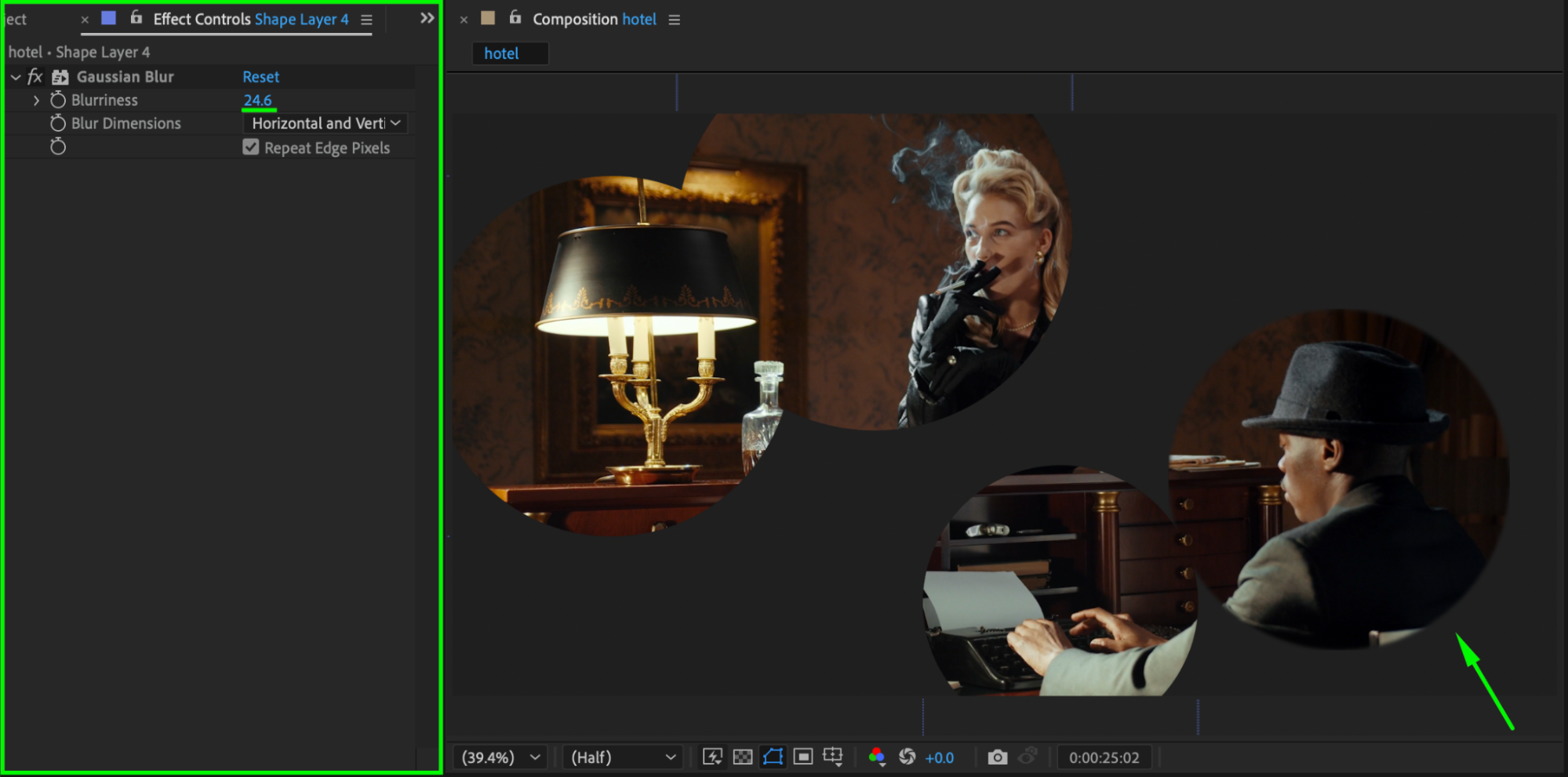
To create smooth edges, apply Gaussian Blur from the Effects & Presets panel to each shape layer. Adjust the blurriness to simulate mask feathering.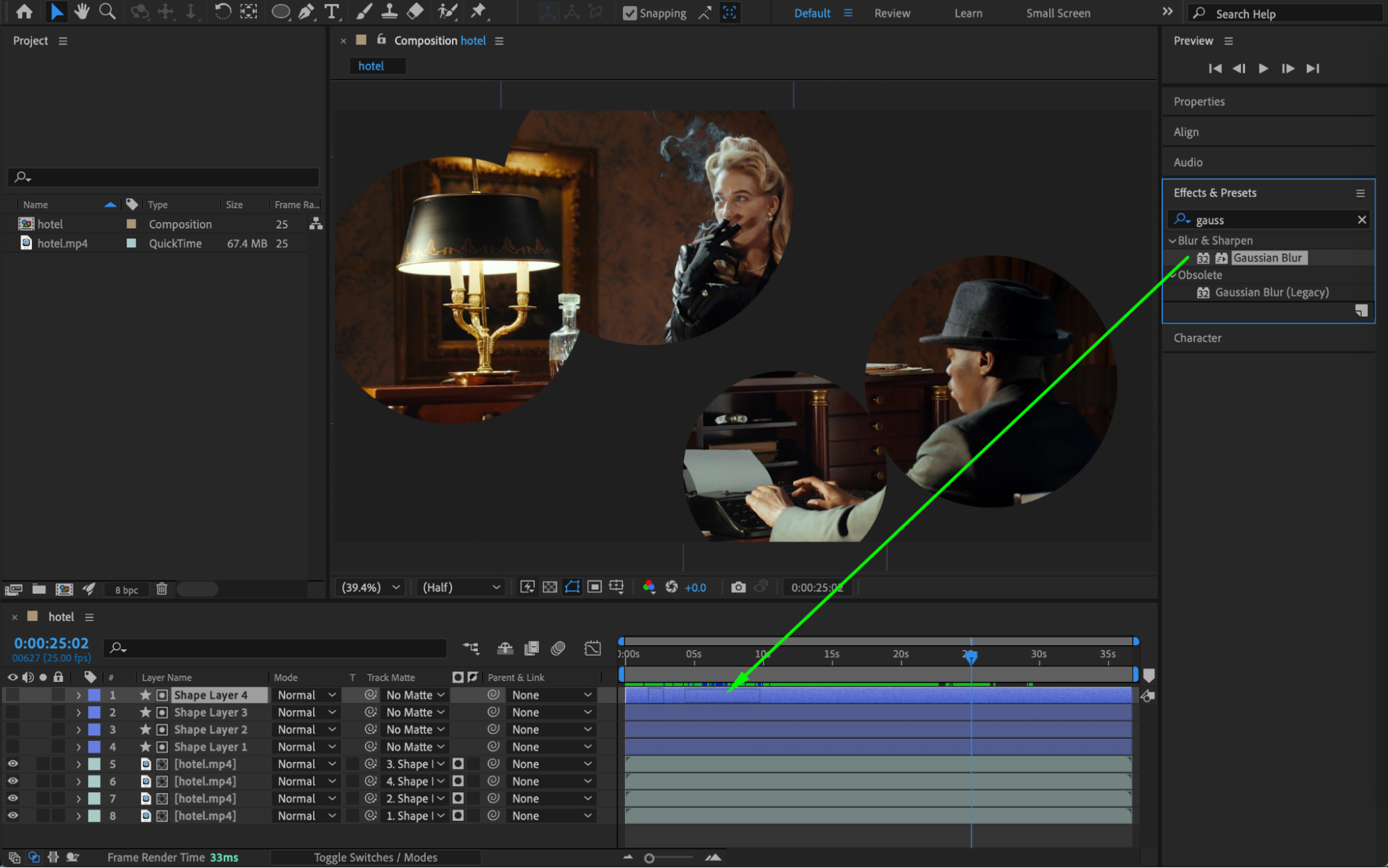
Step 8: Preview the Result
Play back your composition to ensure all masks are correctly aligned and blended with the video.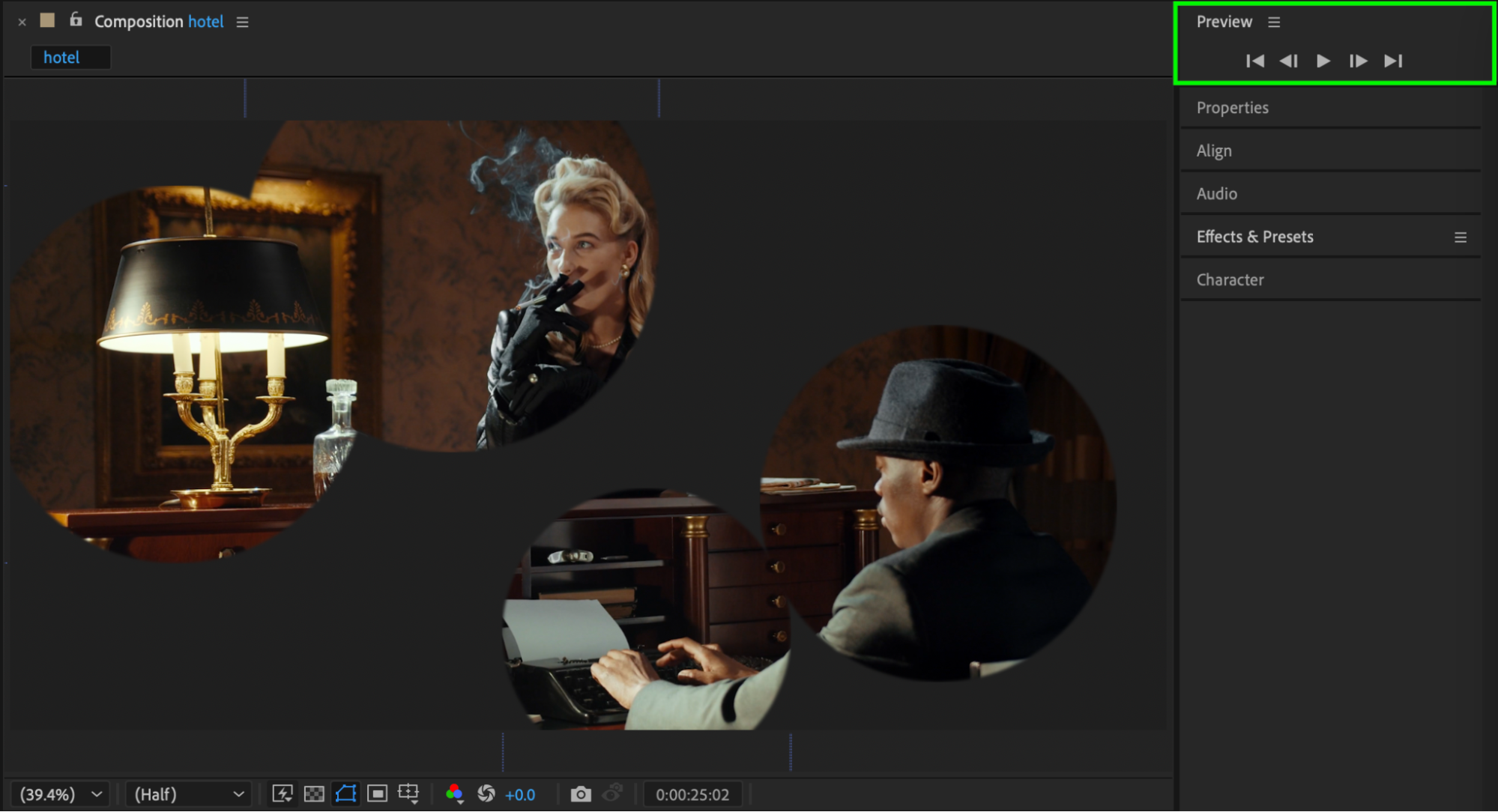
Conclusion
By using shape layers, the Align panel, and track mattes, you can efficiently align multiple masks in After Effects. This technique ensures precise control over masked areas and creates professional-looking results.
Our Bestsellers
Our Bestsellers


