
Description: Learn how to add and customize animations from Shape Elements 2 for motion graphics using AEJuice Pack Manager in After Effects.
Using Shape Elements 2 for Motion Graphics in After Effects
Introduction to Shape Elements 2 Pack for Creative Animations
Shape Elements 2 is a powerful tool for adding stylish motion graphics to your videos. Whether you’re working on titles, transitions, or background effects, this pack offers ready-to-use animated shapes that save time and improve your design quality. In this tutorial, you’ll learn how to apply and customize Shape Elements 2 animations inside After Effects using the AEJuice Pack Manager.
Step 1: Create a New Composition
Start by creating a new composition in After Effects. Go to Composition > New Composition and set your preferred resolution, frame rate, and duration. This will be the workspace where you add and edit your shape elements.
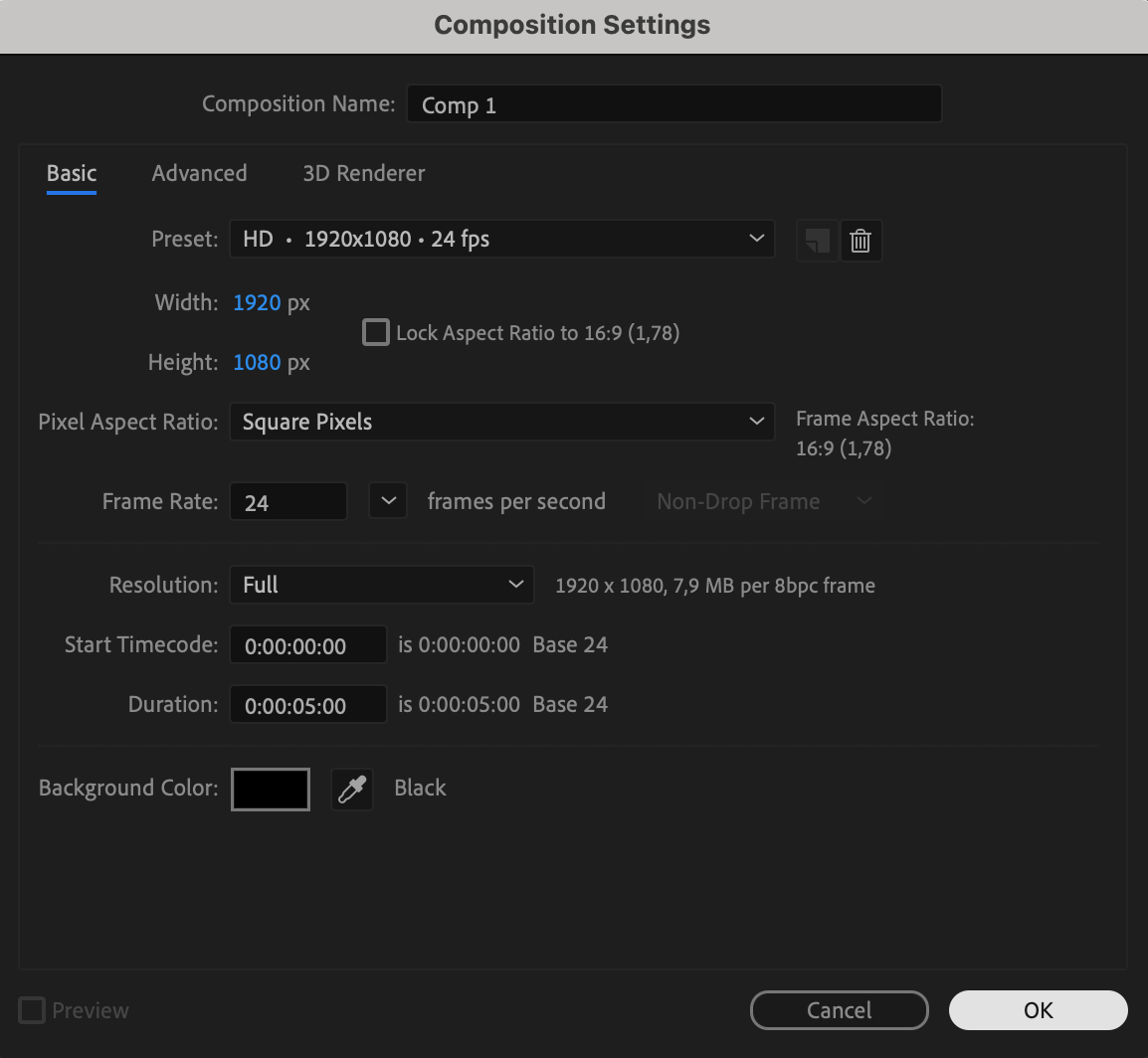 Step 2: Open AEJuice Pack Manager
To access the Shape Elements 2 pack, go to Window > AEJuice Pack Manager 4. This opens the panel where you can view all available AEJuice packs installed on your system.
Step 3: Download the Shape Elements 2 Pack
Inside the Pack Manager, locate Shape Elements 2 in the list of packs. Click on it to download if it hasn’t been installed yet. Once downloaded, you’ll be able to browse through all the included animated scenes.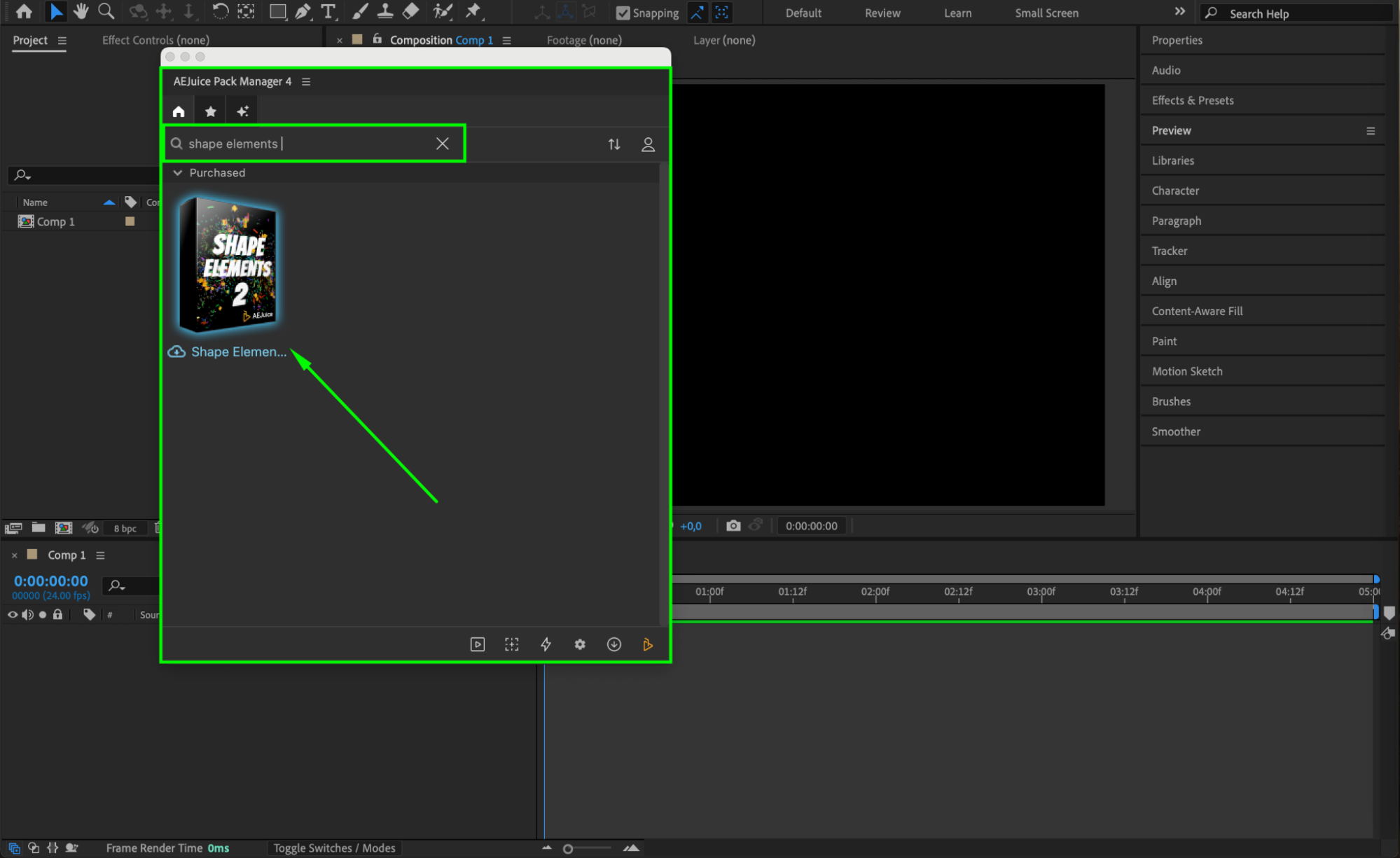 Step 4: Choose and Import a Shape Scene
Browse the pack and select a shape animation that fits your design — such as Confetti or any other animated scene. Click on it and press Import. The animation will be added to your timeline as a pre-composed layer.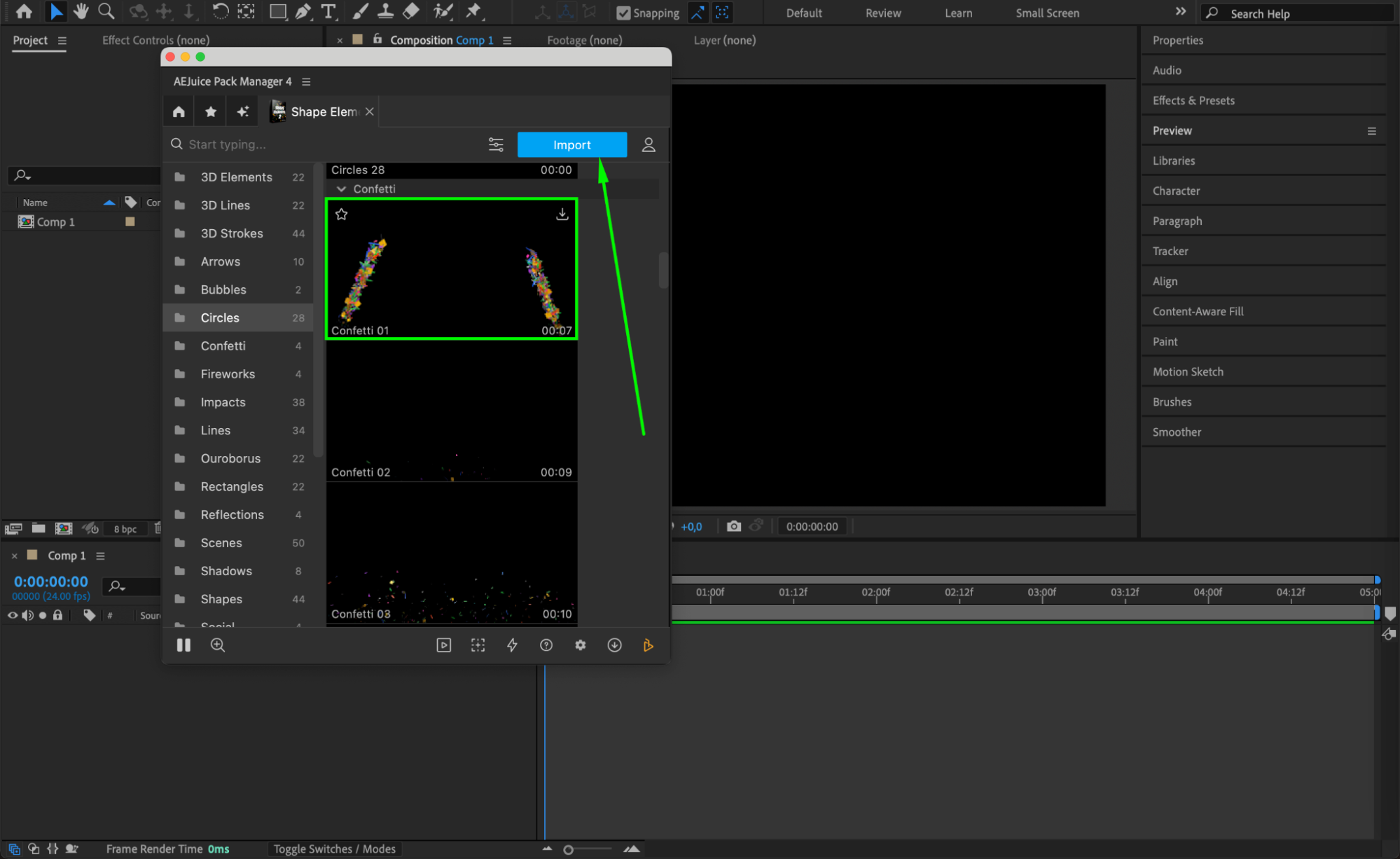 Step 5: Adjust the Position, Scale, and Rotation
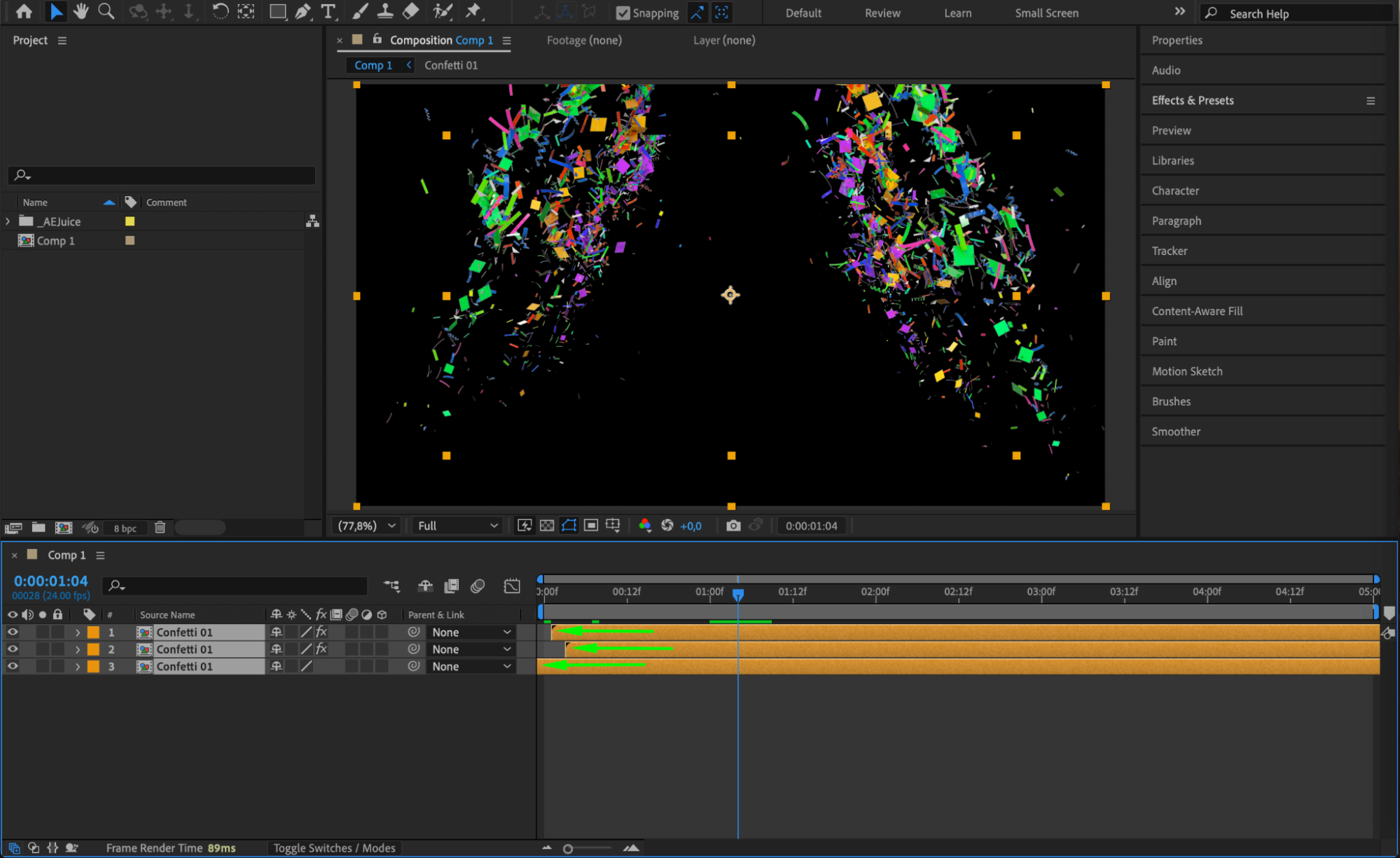
Once the pre-comp is on the timeline, use the Selection Tool (V) to move it. Press “S” to scale, “R” to rotate, and “P” to change the position. This lets you place the animation exactly where you want it in your composition.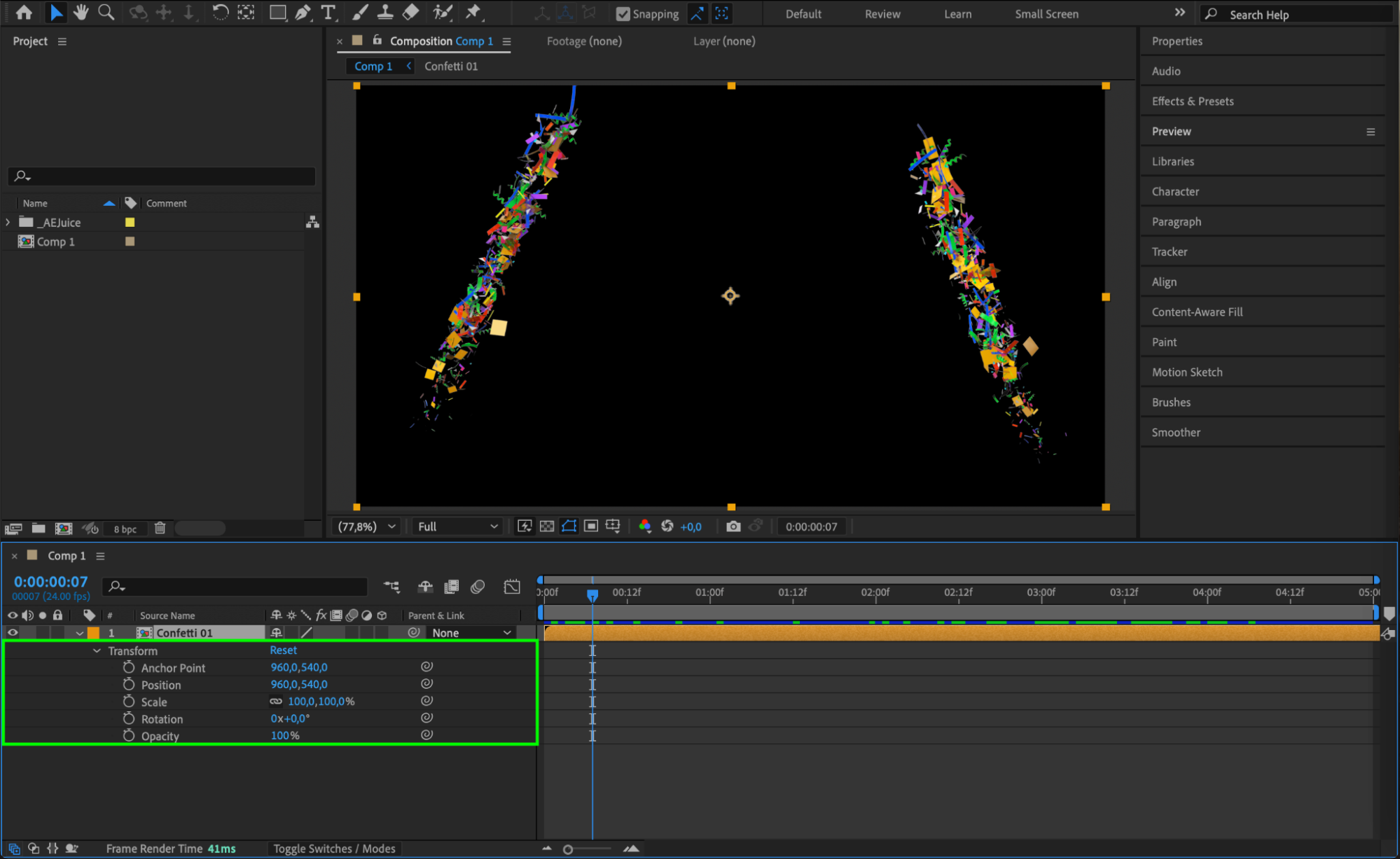
Step 6: Add Depth with Duplication and Effects
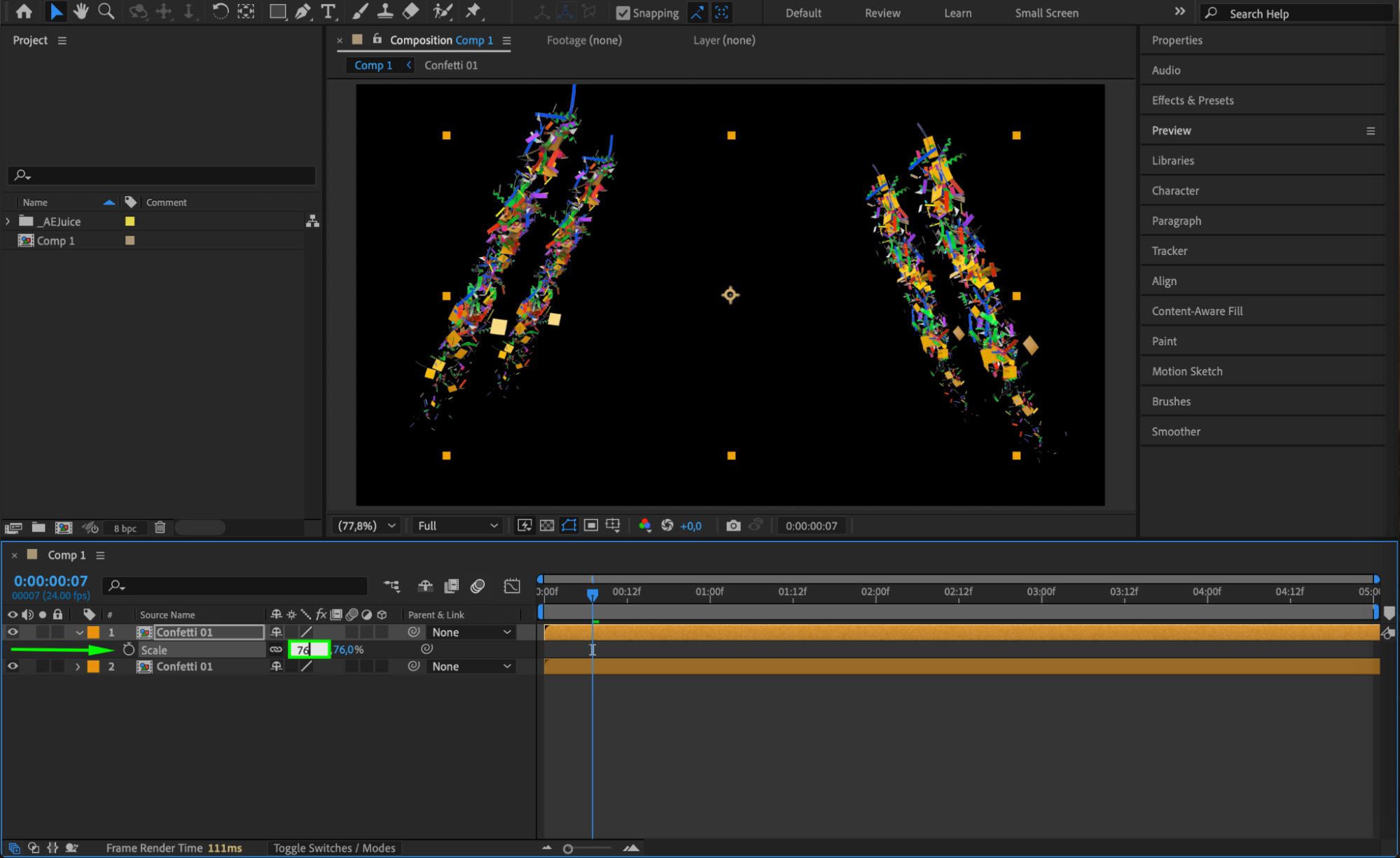
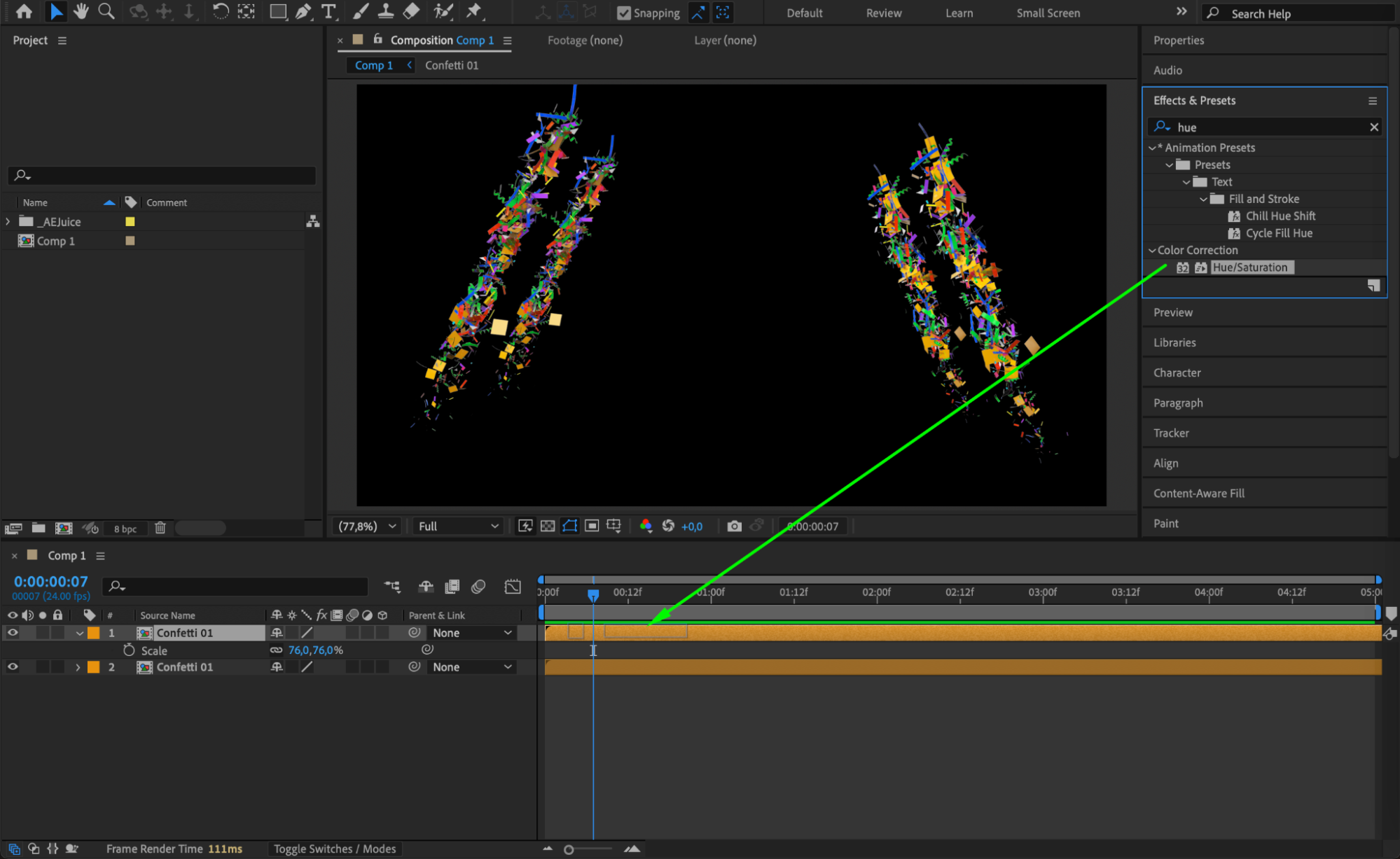
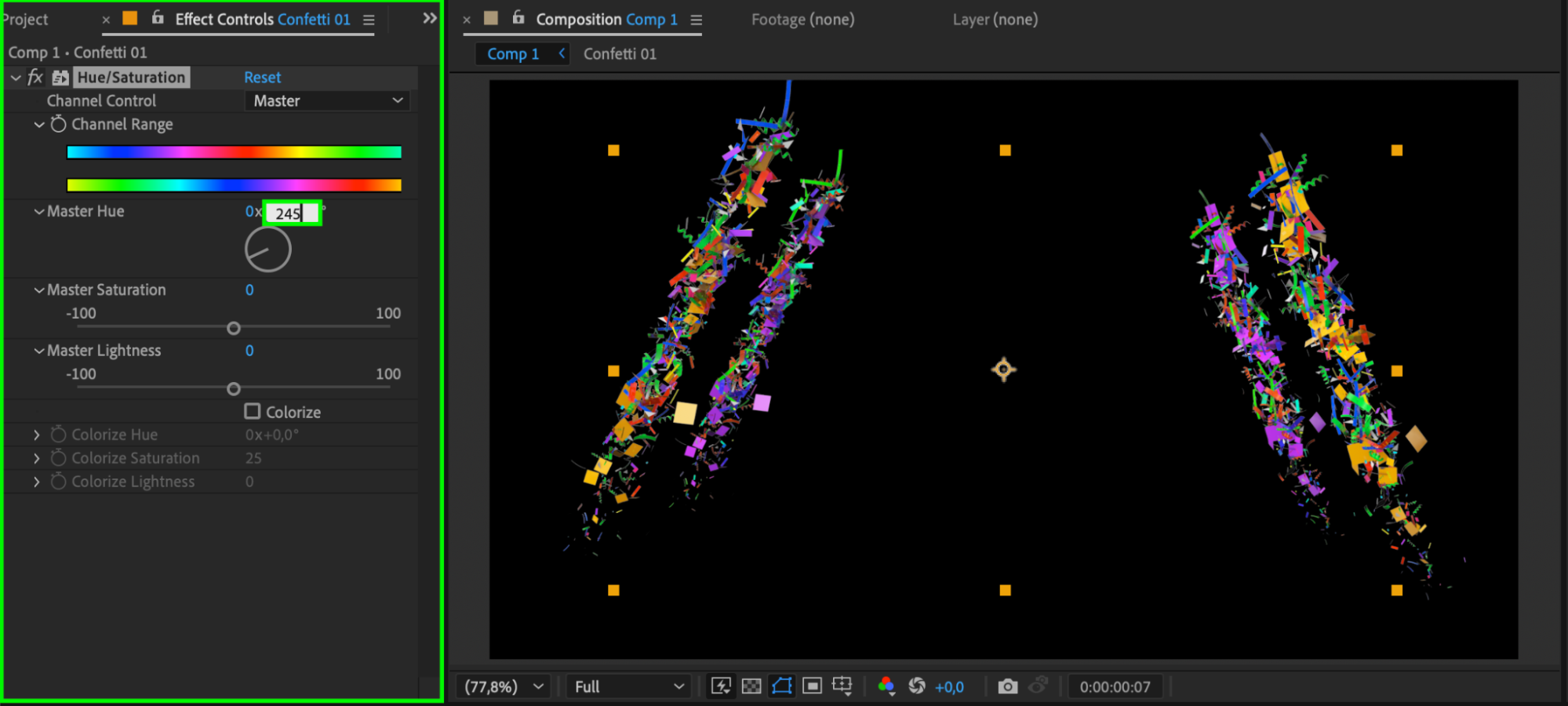
To give your animation more visual depth, duplicate the pre-comp by selecting it and pressing “Ctrl/Cmd + D”. Change the scale or position of the duplicate, then apply the Hue/Saturation effect from the Effects & Presets panel. This adds variation in color and layering.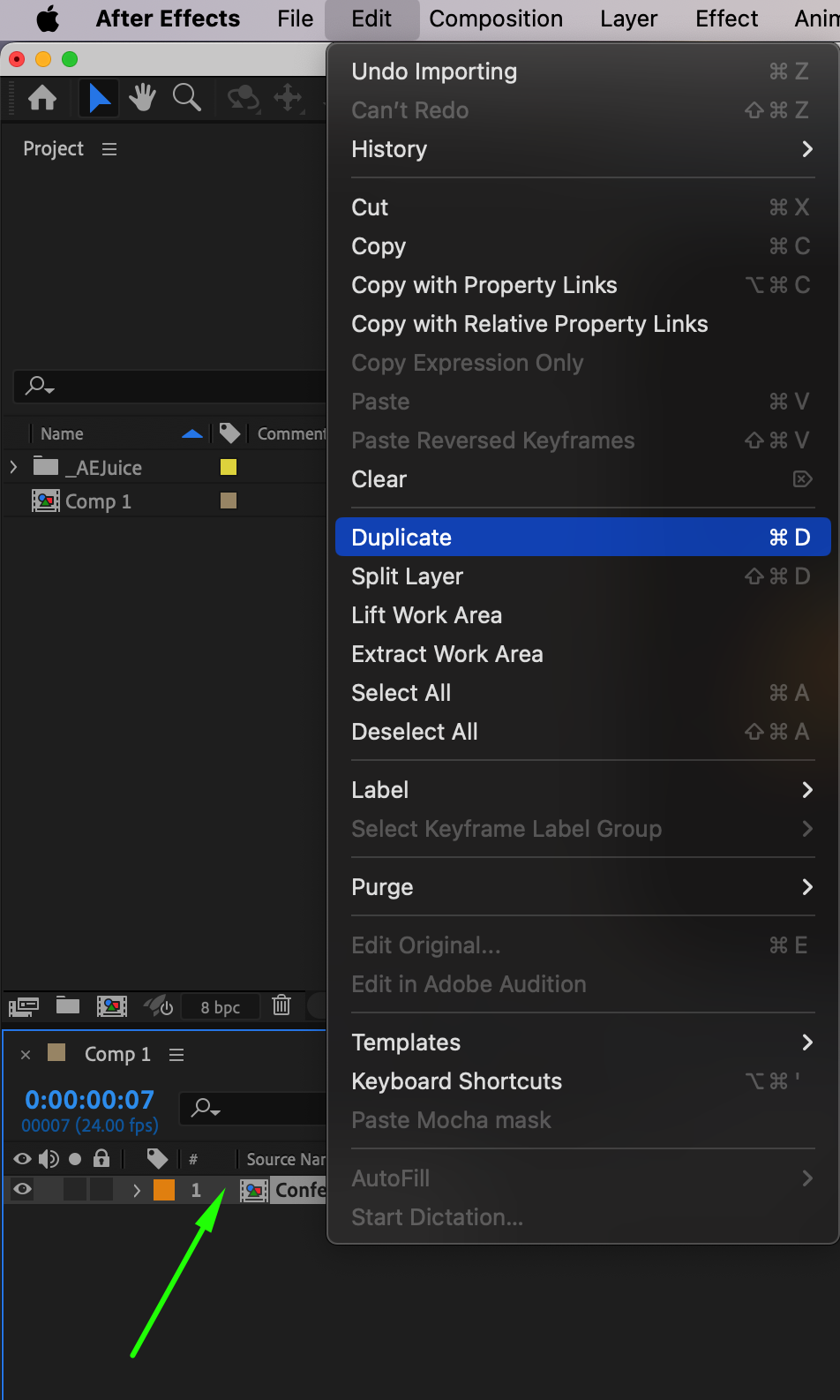
 Step 7: Preview and Final Adjustments
Press Spacebar to preview your animation. Make any final adjustments to the timing, placement, or colors. You can also combine multiple shape elements for more dynamic motion graphics.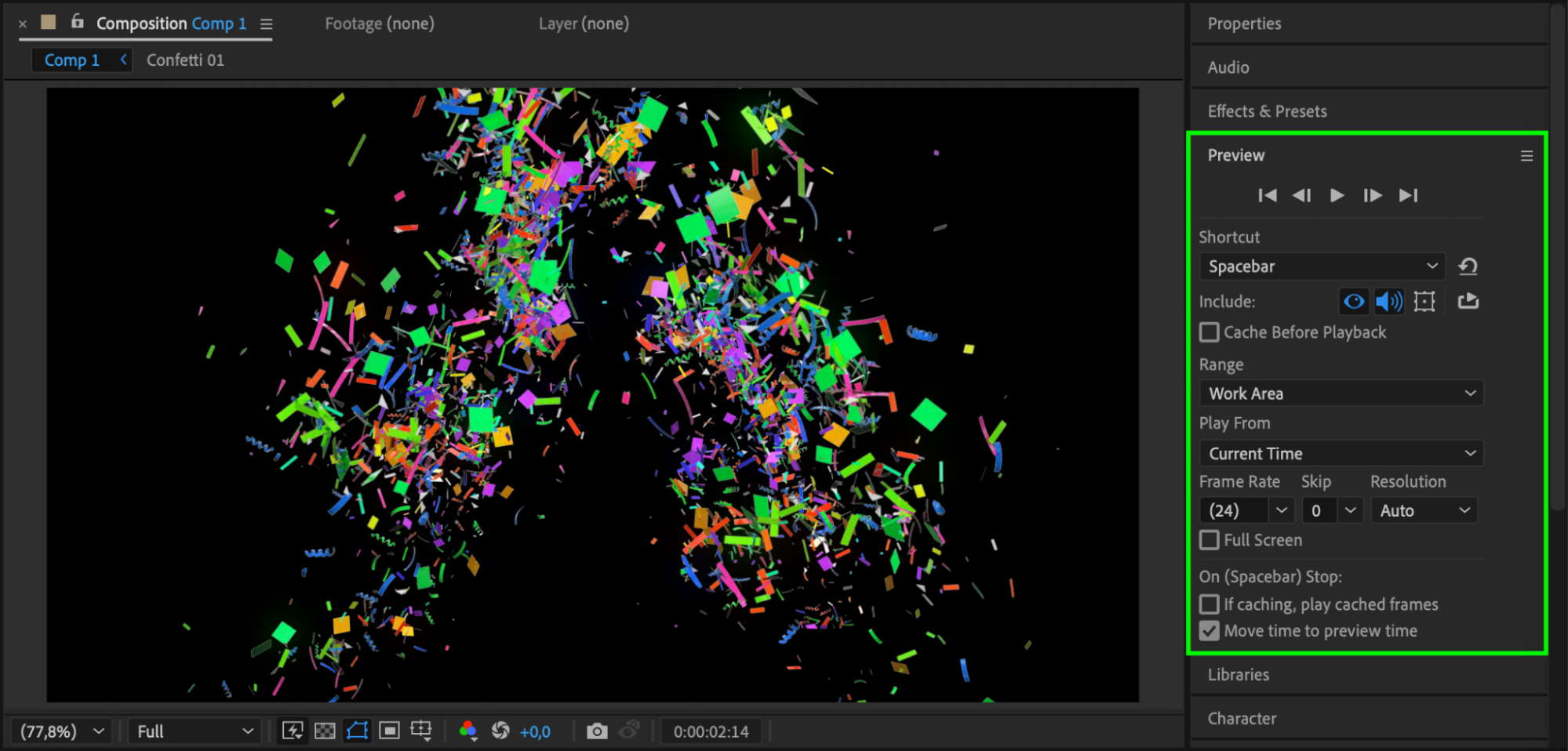 Conclusion
The Shape Elements 2 pack makes it easy to add creative animated shapes to any After Effects project. With just a few clicks, you can customize and layer animations that enhance your motion design and give your videos a polished, professional look.
Our Bestsellers
Our Bestsellers


