
Introduction
If you want to highlight or hide a specific object by making everything else around it go dark, you can easily achieve this with the Roto Brush Tool in After Effects. This technique helps you create a cinematic “blackout” or silhouette effect in just a few simple steps.
Step 1: Import Your Video
Go to File > Import > File and select the footage you want to work with.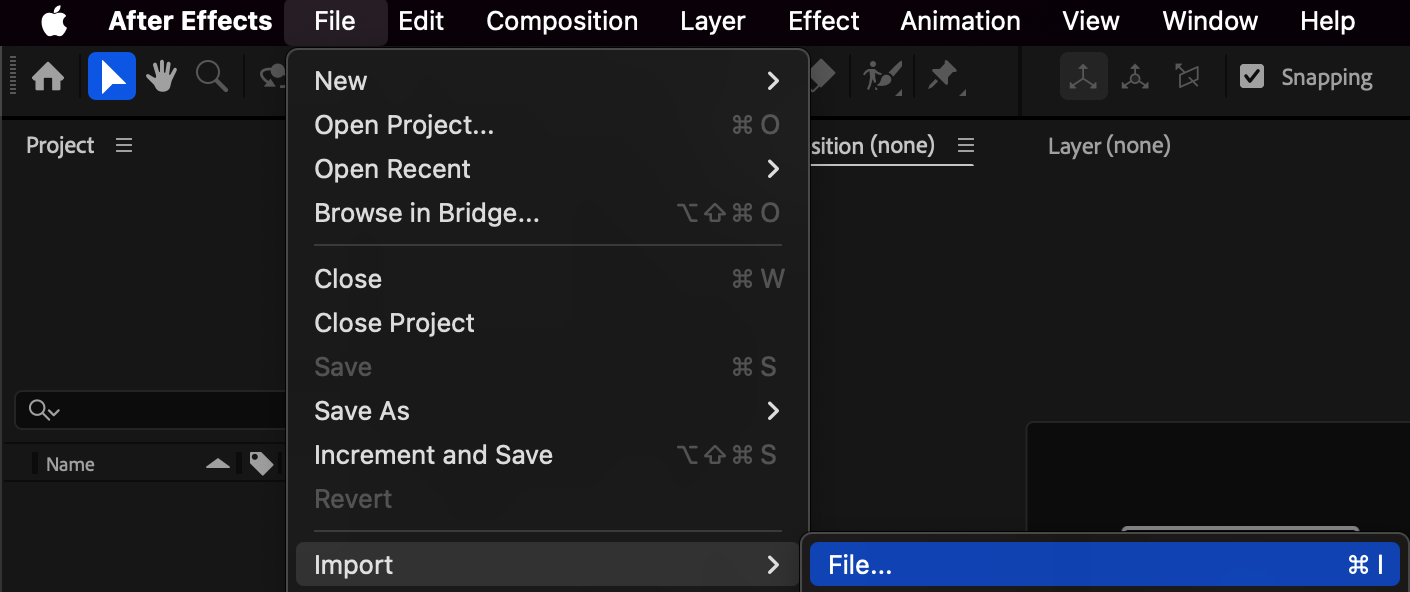 Step 2: Create a New Composition
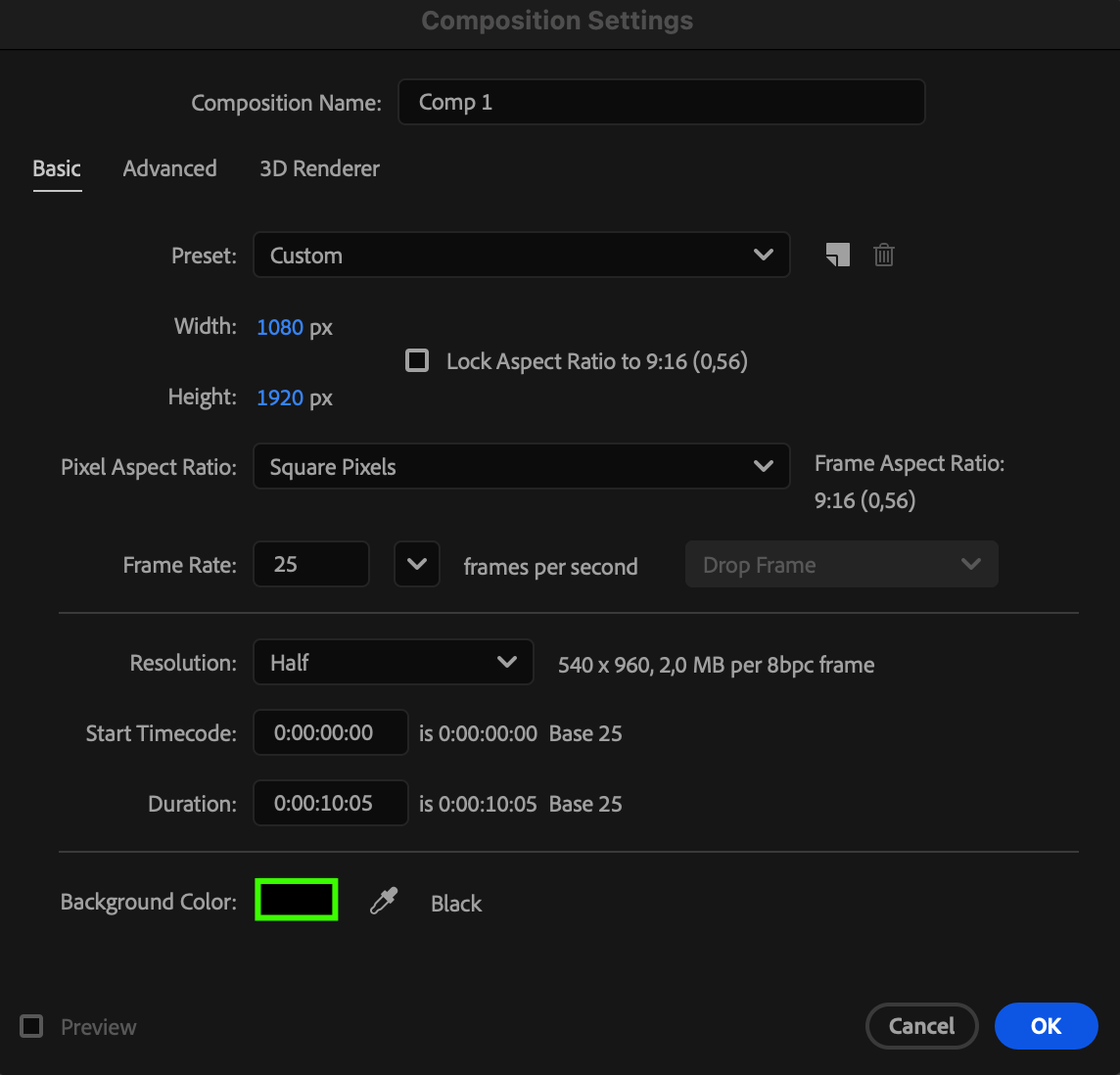
Create a new composition and choose a black background color to make the blackout effect more visible.
Step 3: Add the Video to the Timeline
Drag and drop your imported video into the timeline panel.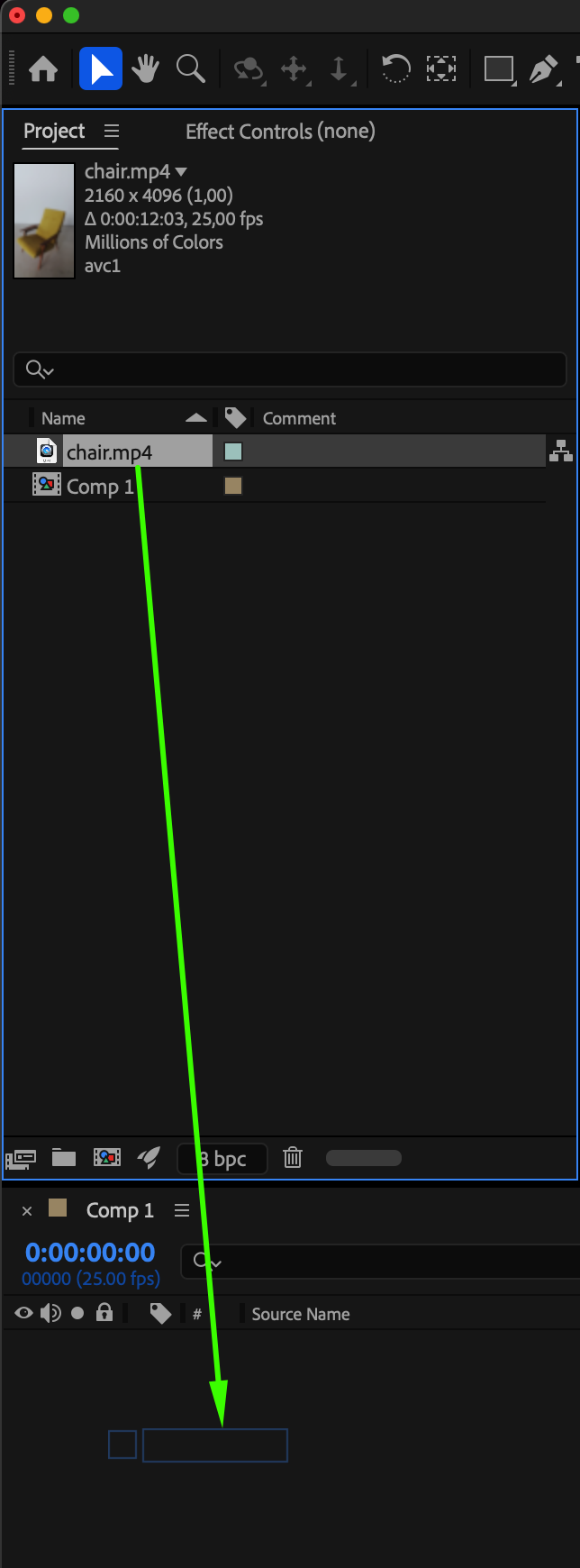 Step 4: Isolate the Object Using Roto Brush
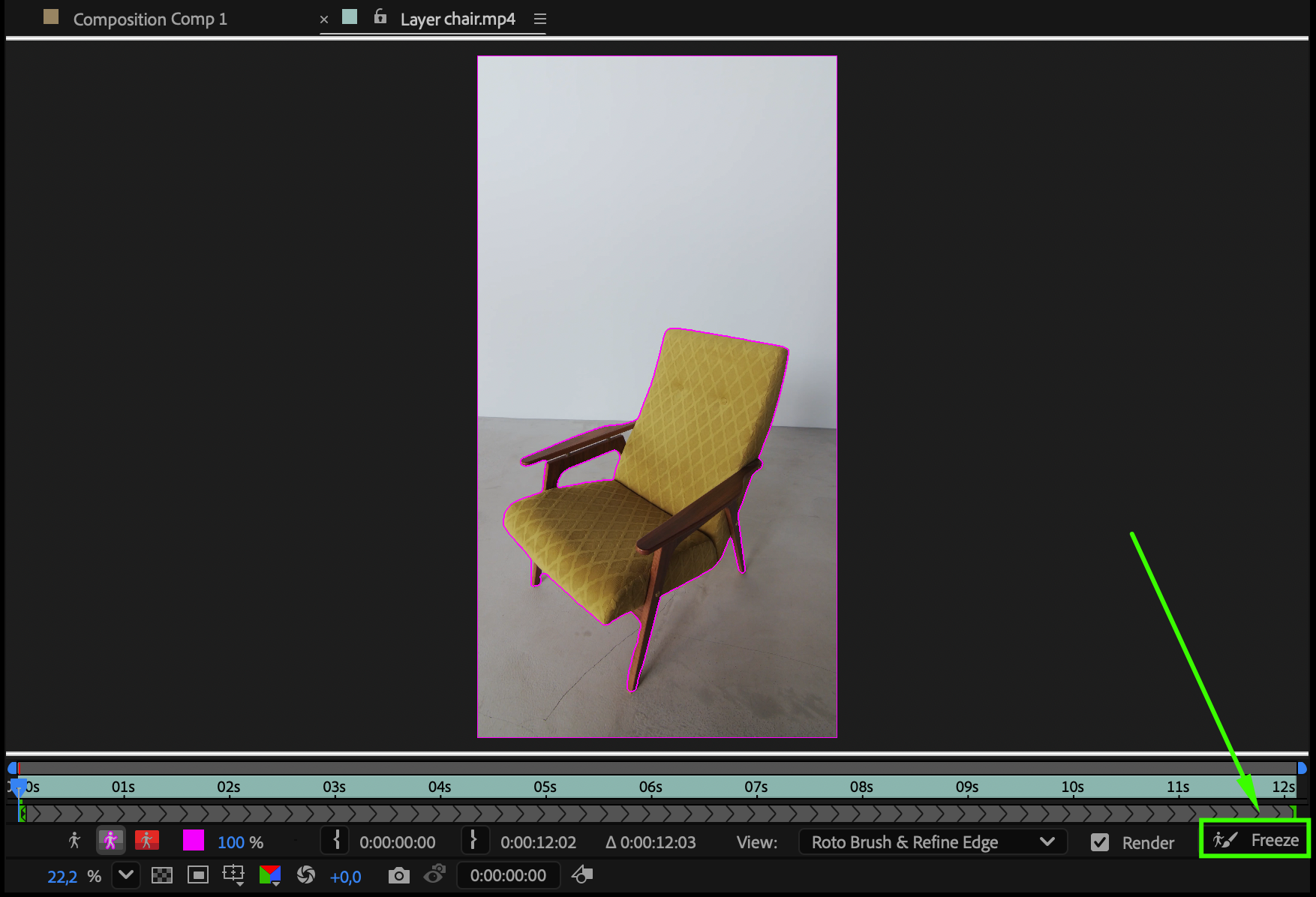
Double-click the video layer to open it in the Layer Panel. Select the Roto Brush Tool (Alt/Option + W) and paint over the area you want to keep visible (the object). In the Effect Controls panel, refine your selection using Feather and Shift Edge settings for smoother edges. Once satisfied, click the Freeze button to lock in the roto results.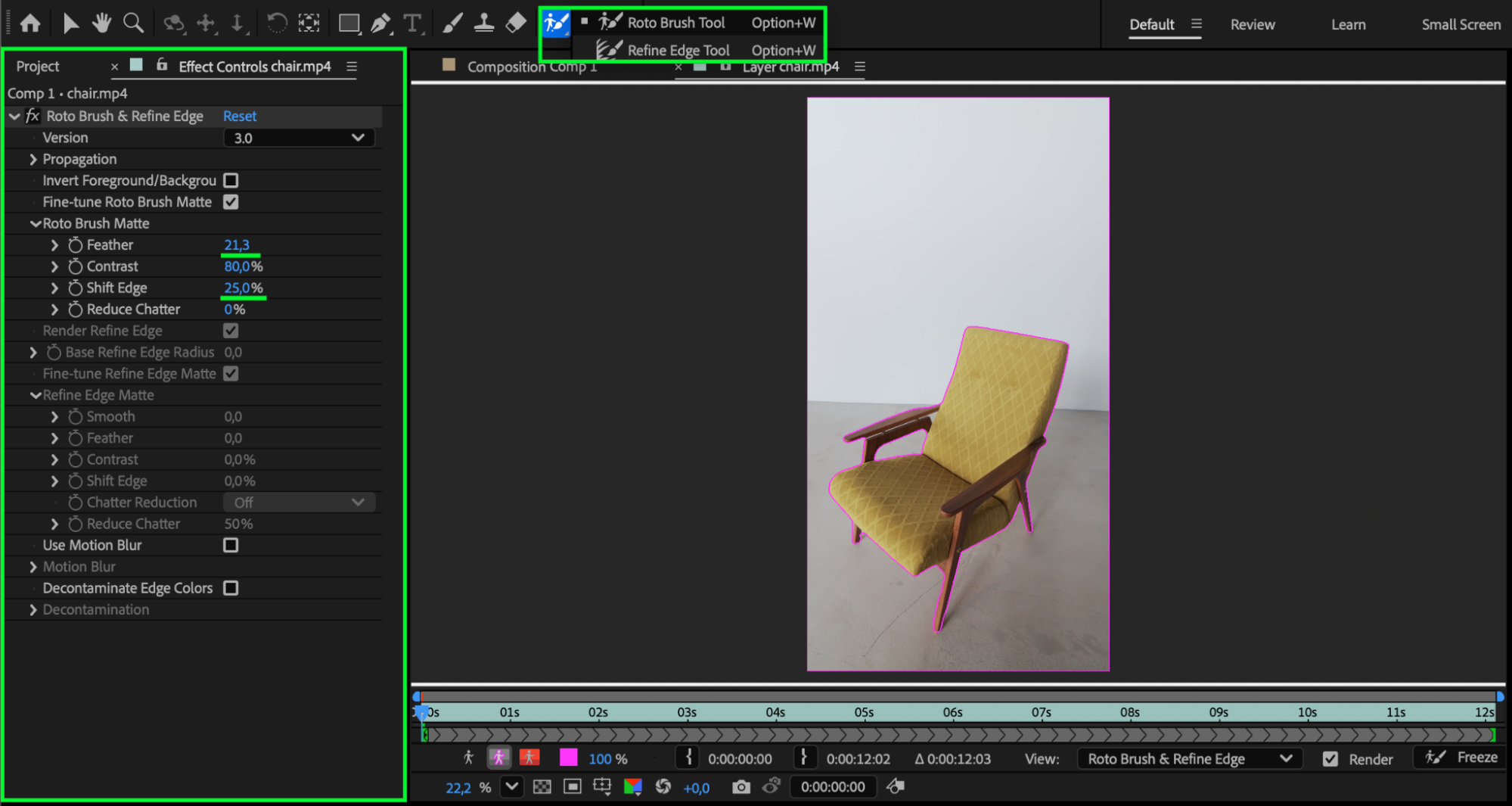
Step 5: Add the Original Video Above the Edited Layer
Return to the Composition Panel and drag your video into the timeline again — this time, place it above the roto-edited layer.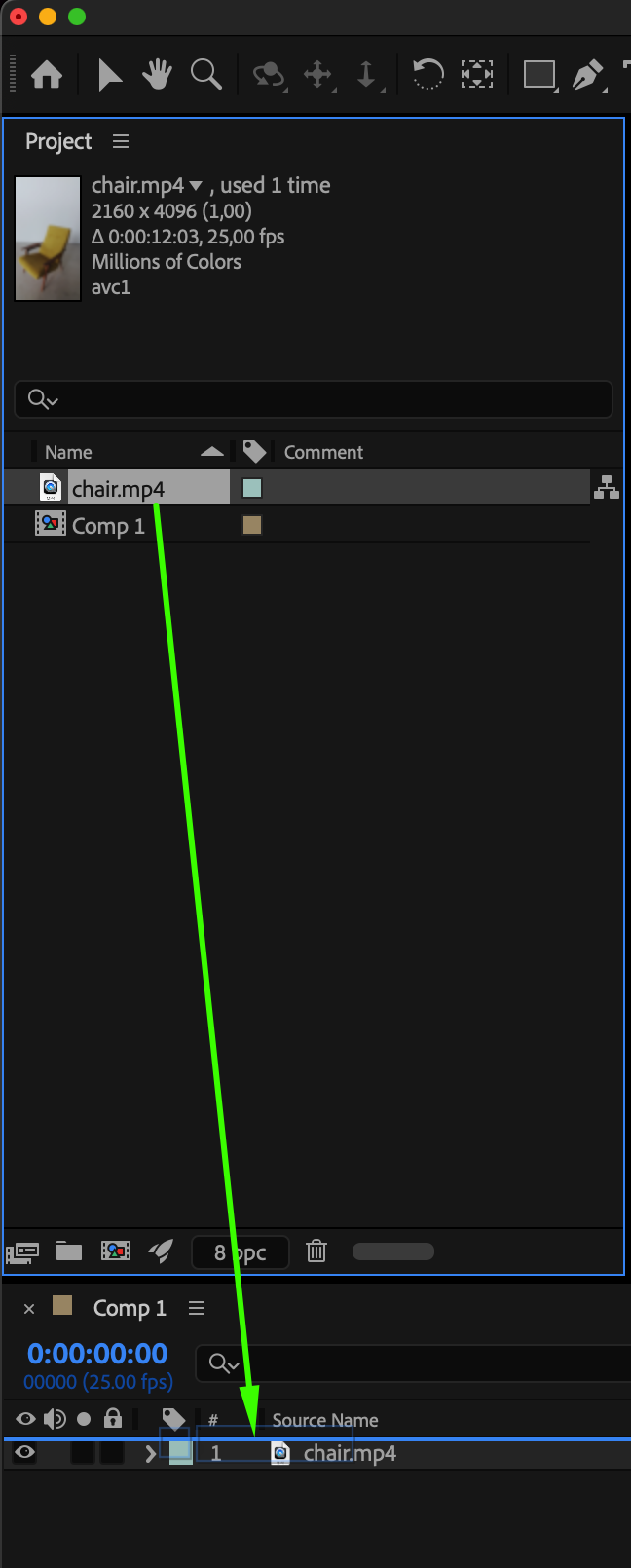 Step 6: Animate Opacity for the Blackout Effect
Select the top (imported) video layer, press “T” to open Opacity, and create keyframes. Set Opacity = 100% at the start, and when you want the blackout to appear, set Opacity = 0%. This will create a transition where everything but the isolated object becomes dark.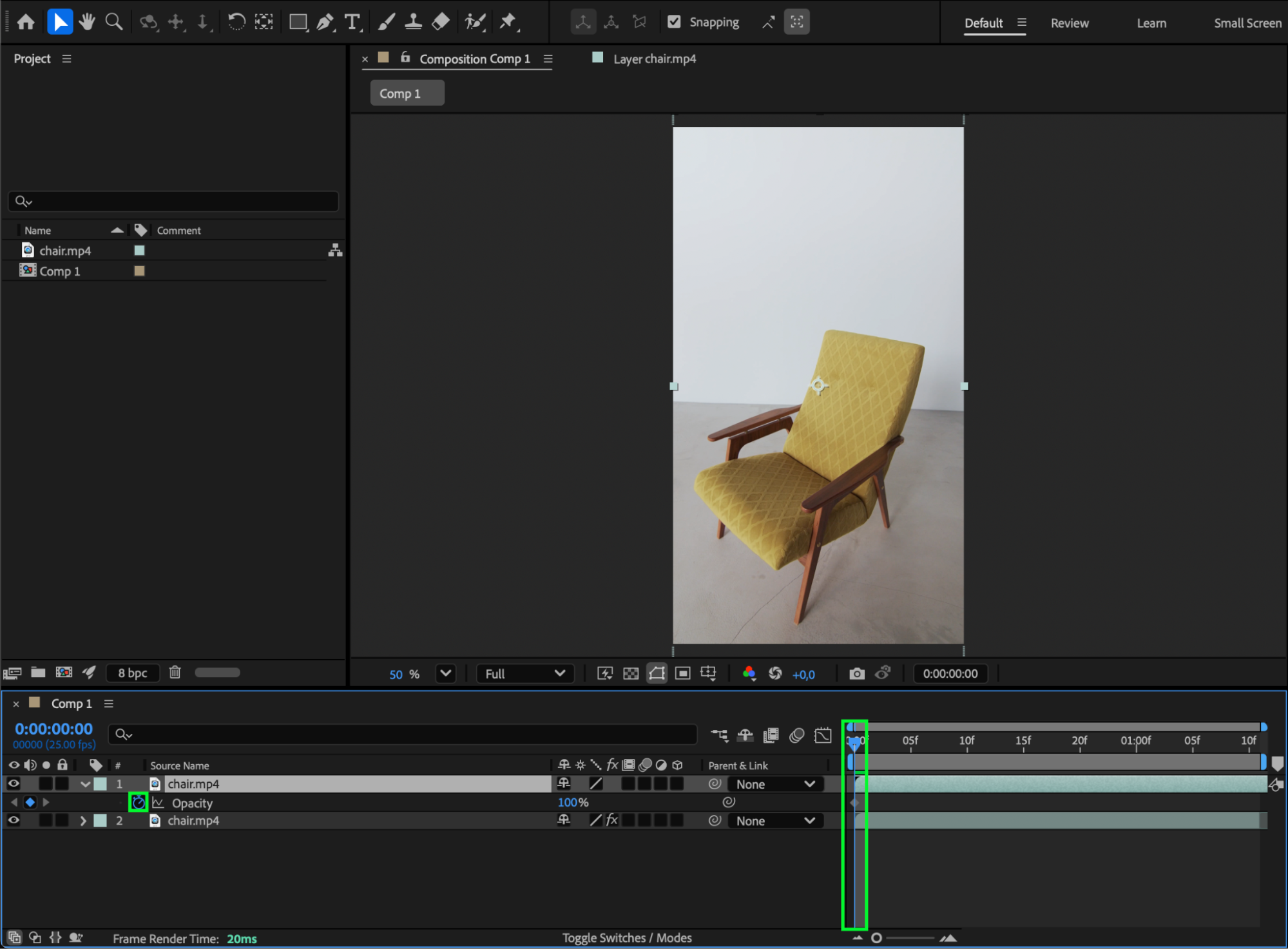
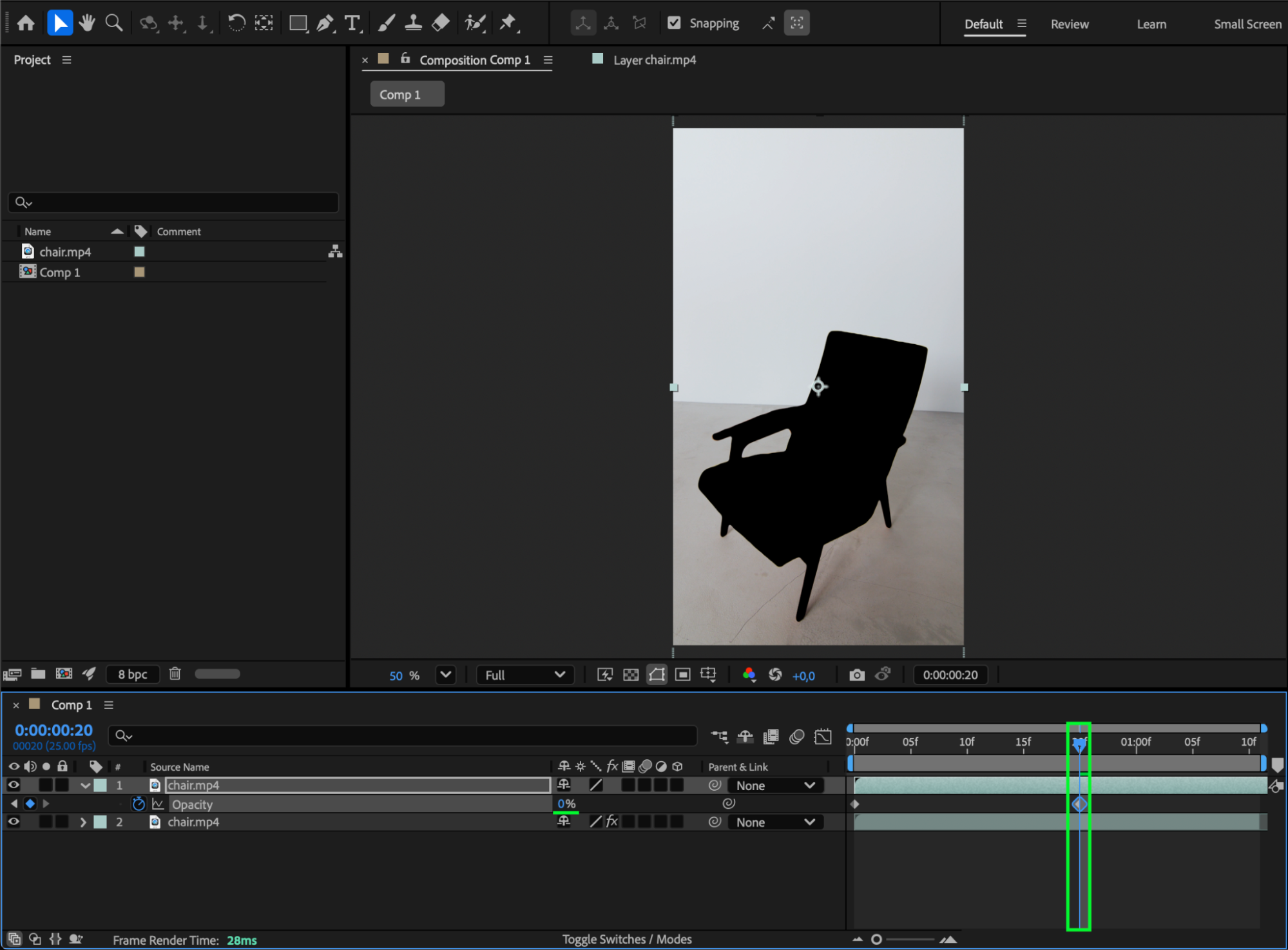 Step 7: Easy Ease and Preview
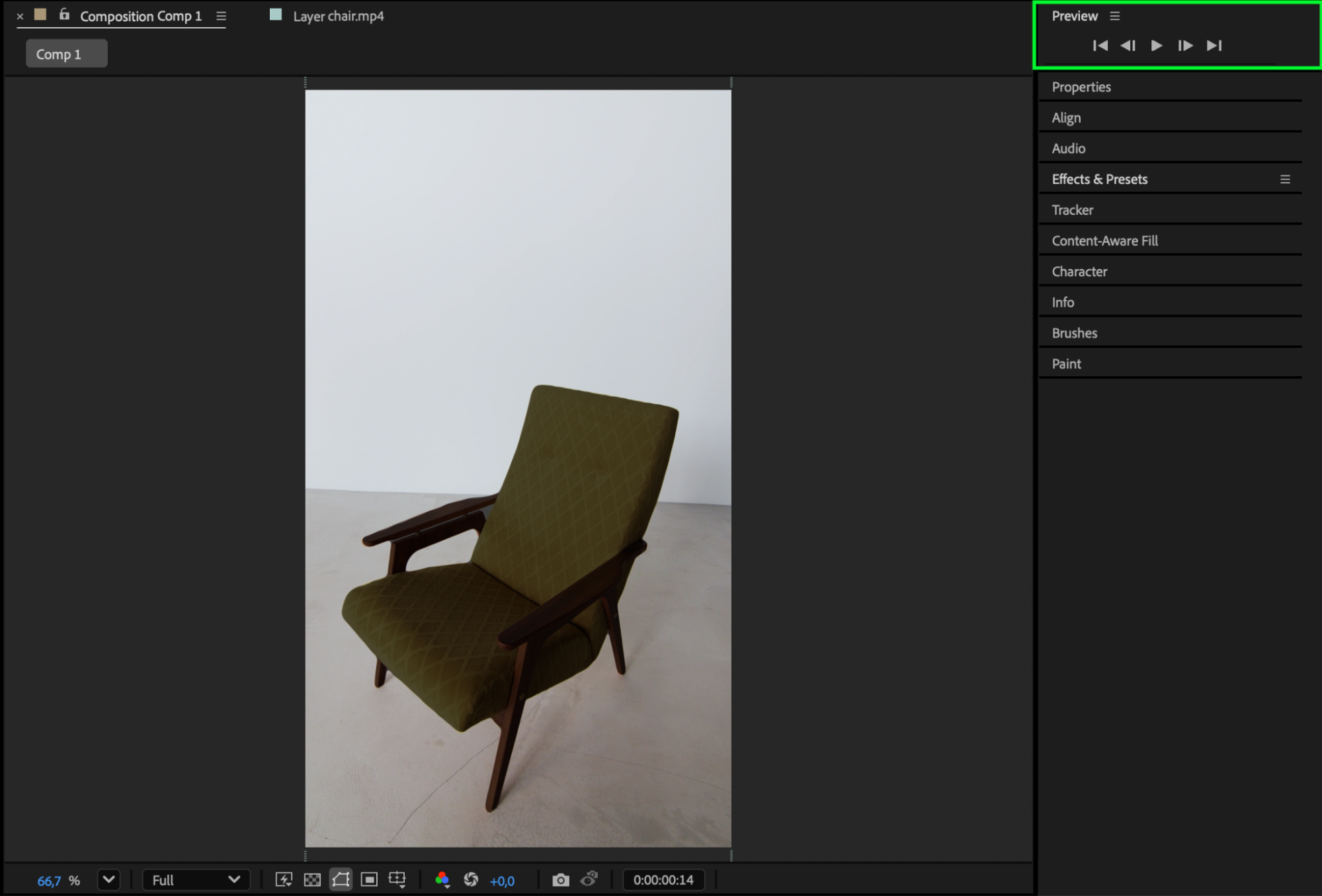
Select all keyframes, press F9 to apply Easy Ease, and preview your animation for smoothness.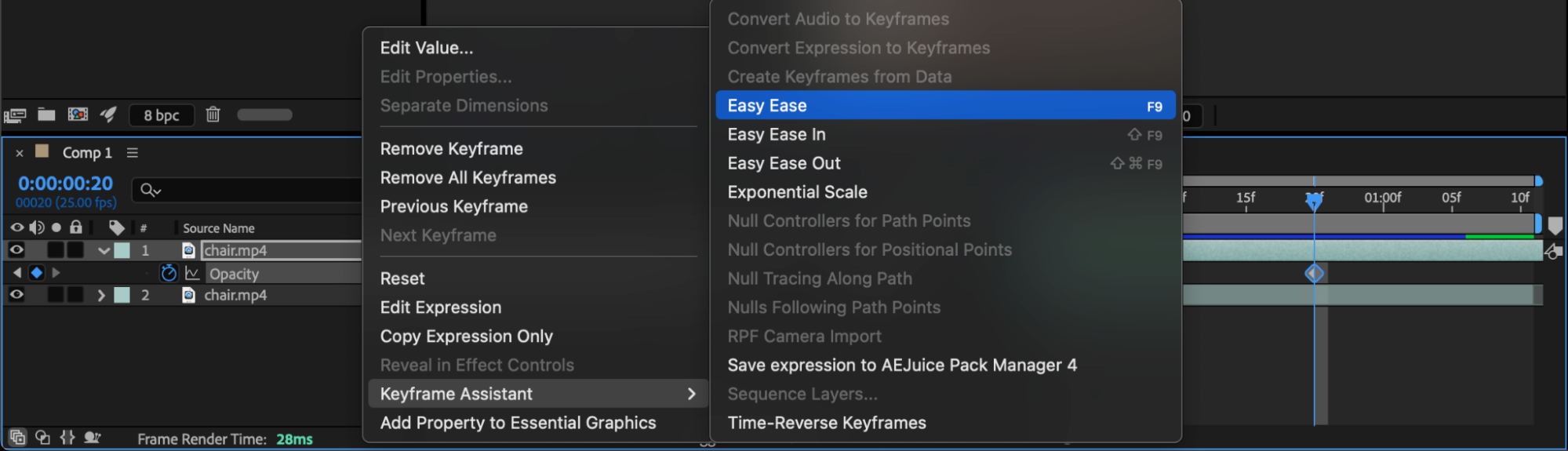
 Conclusion
You’ve just created a blackout effect in After Effects where only one object remains visible while the rest fades into darkness. This technique is great for emphasizing key subjects, creating mystery, or enhancing dramatic scenes in your video.
Our Bestsellers
Our Bestsellers


