
Introduction
In After Effects, you may want to interrupt an object’s movement along a path or have another object continue from where the first one stopped. While there’s no direct “Break Path” command, you can easily achieve this by working with position keyframes.
Step 1: Open Your Project
Open your project and select the layer that follows your created path.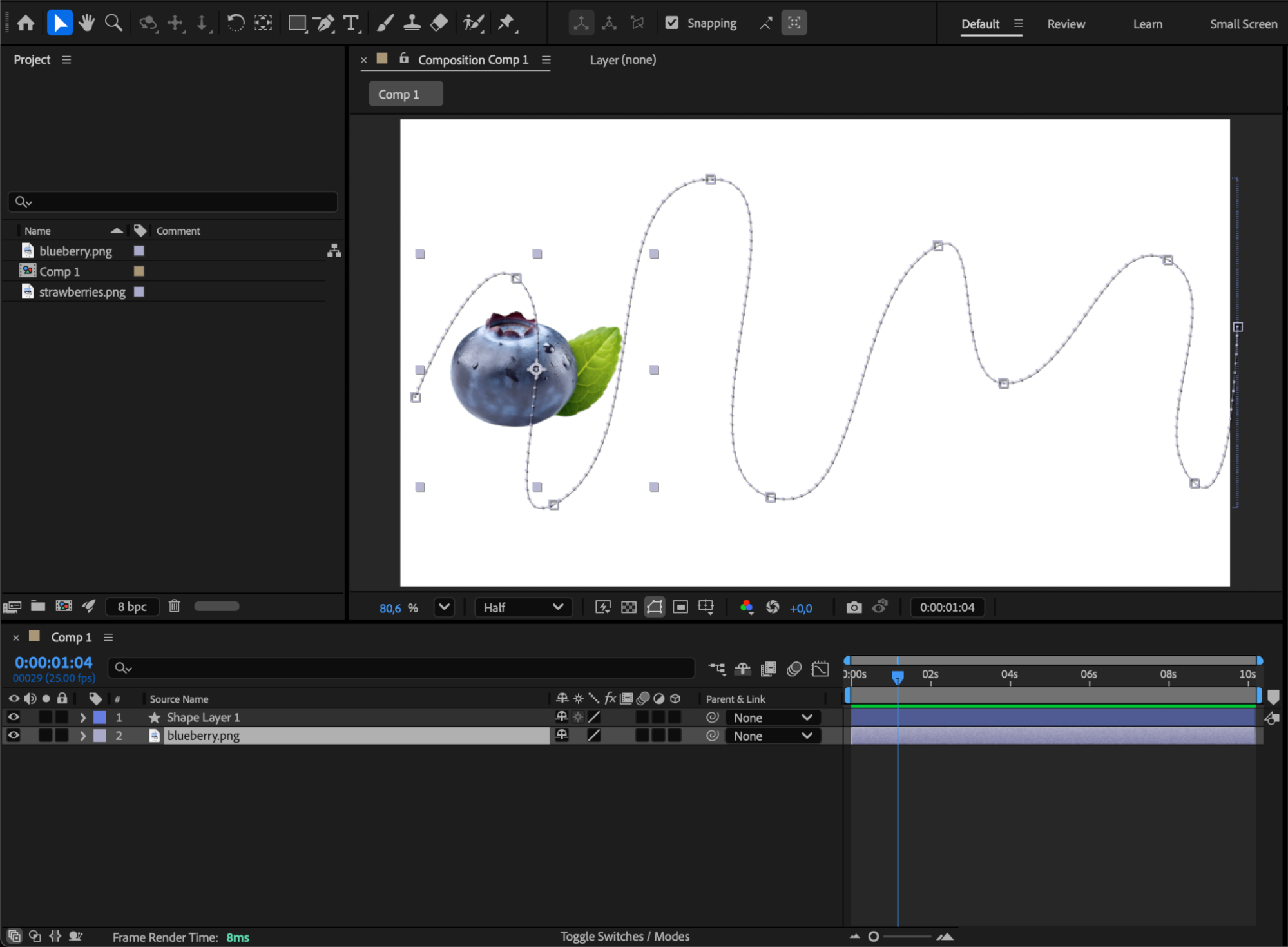 Step 2: Open the Position Property
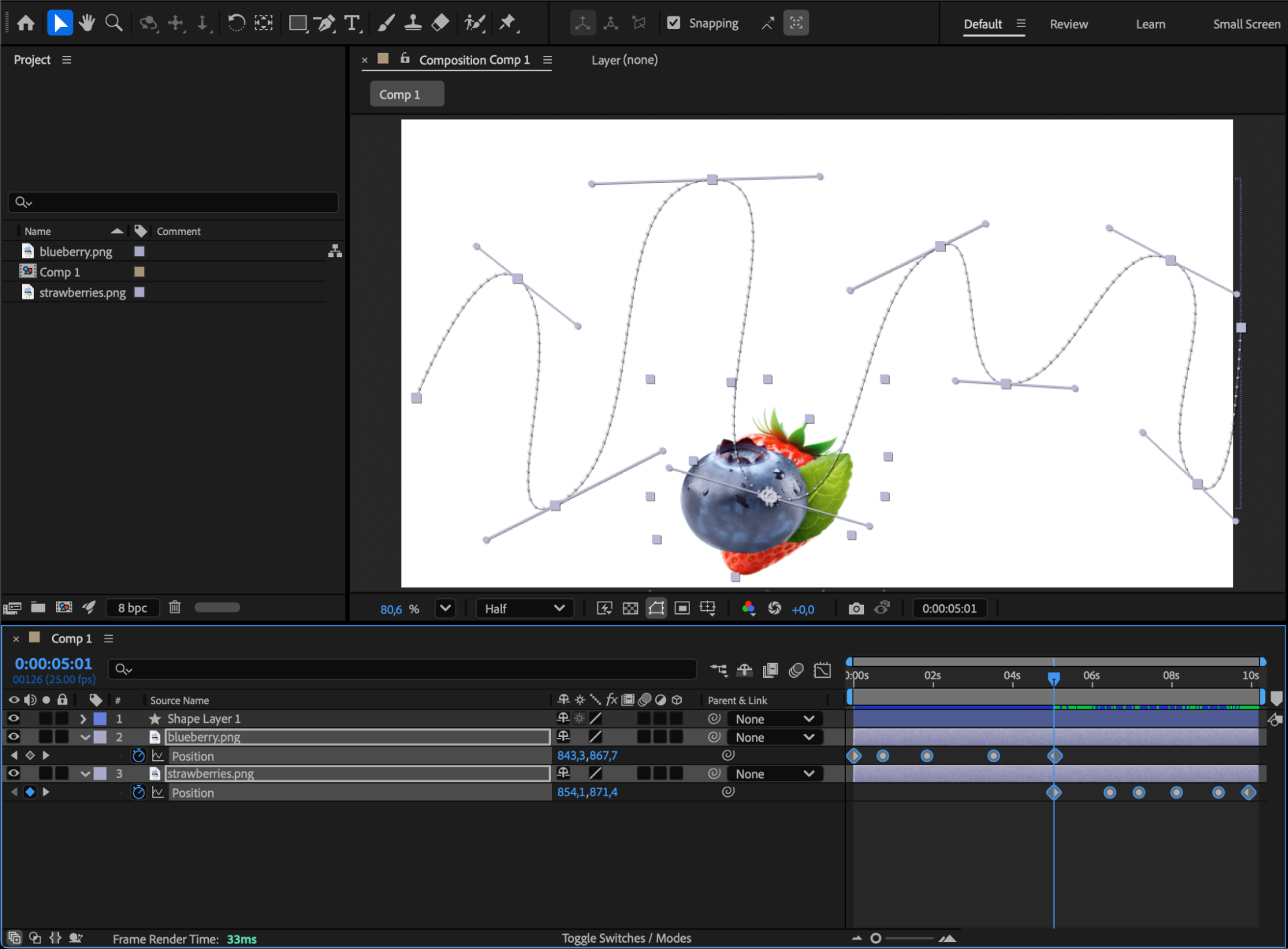
Press “P” to reveal the Position property. Move the CTI (Current Time Indicator) to the exact frame where you want the path to break. Select all keyframes that appear after this point — delete them if you want the motion to stop here, or copy them if you want another layer to continue along that part of the path.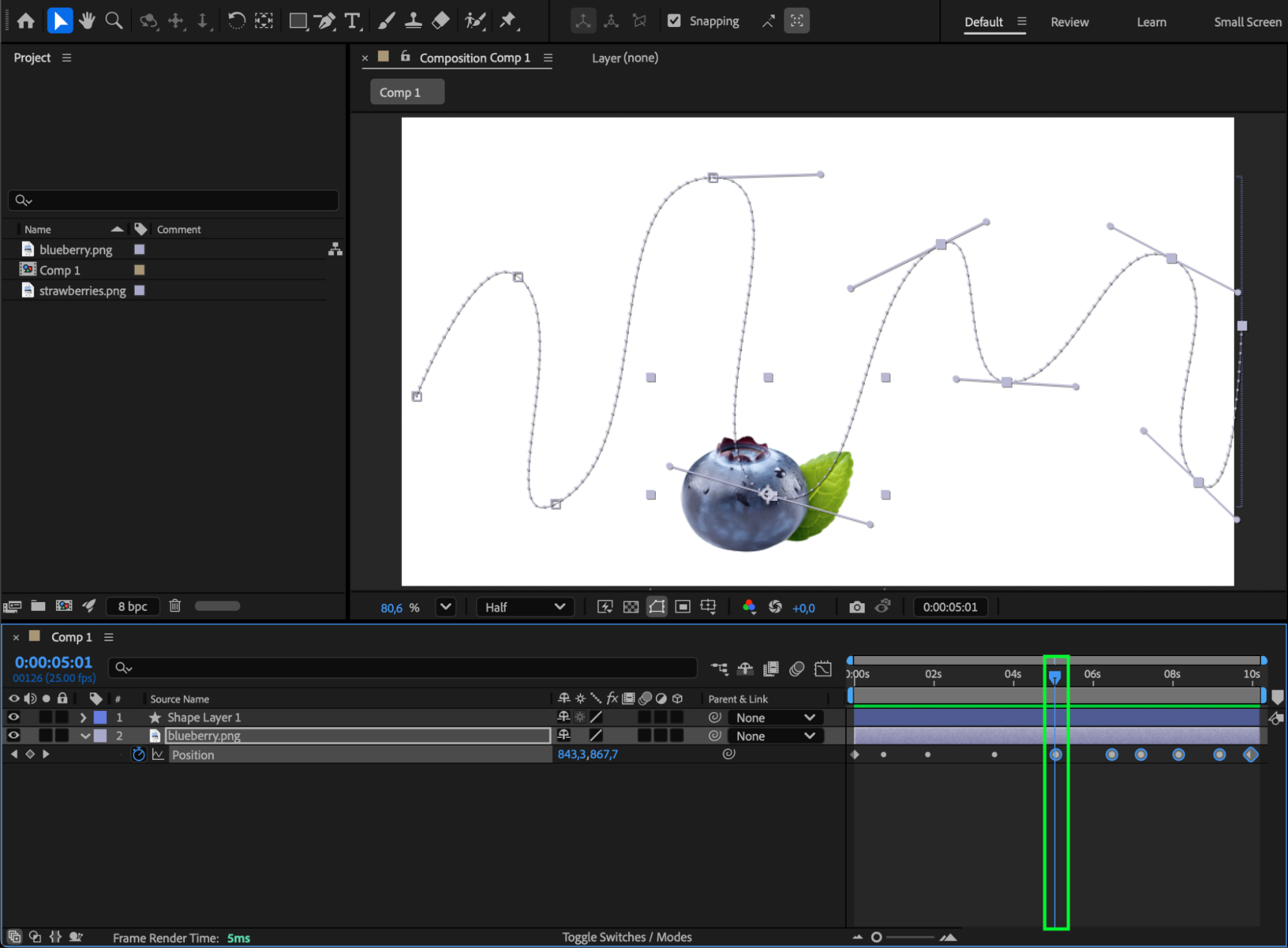
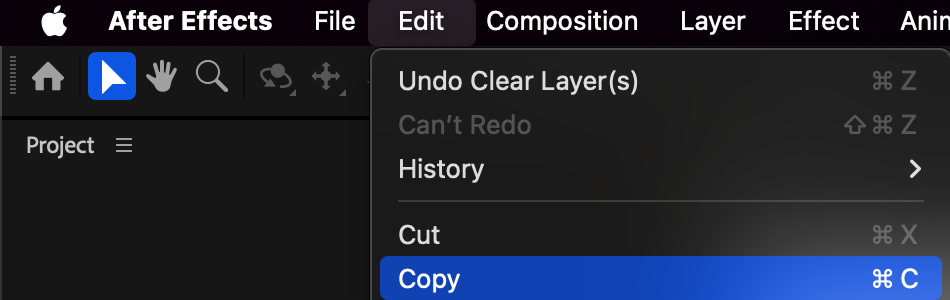
Step 3: Paste the Copied Keyframes to Another Layer
Select a second layer that will continue the motion. Press “P” to open its Position property and Paste the copied keyframes. This new layer will now move along the second segment of the original path.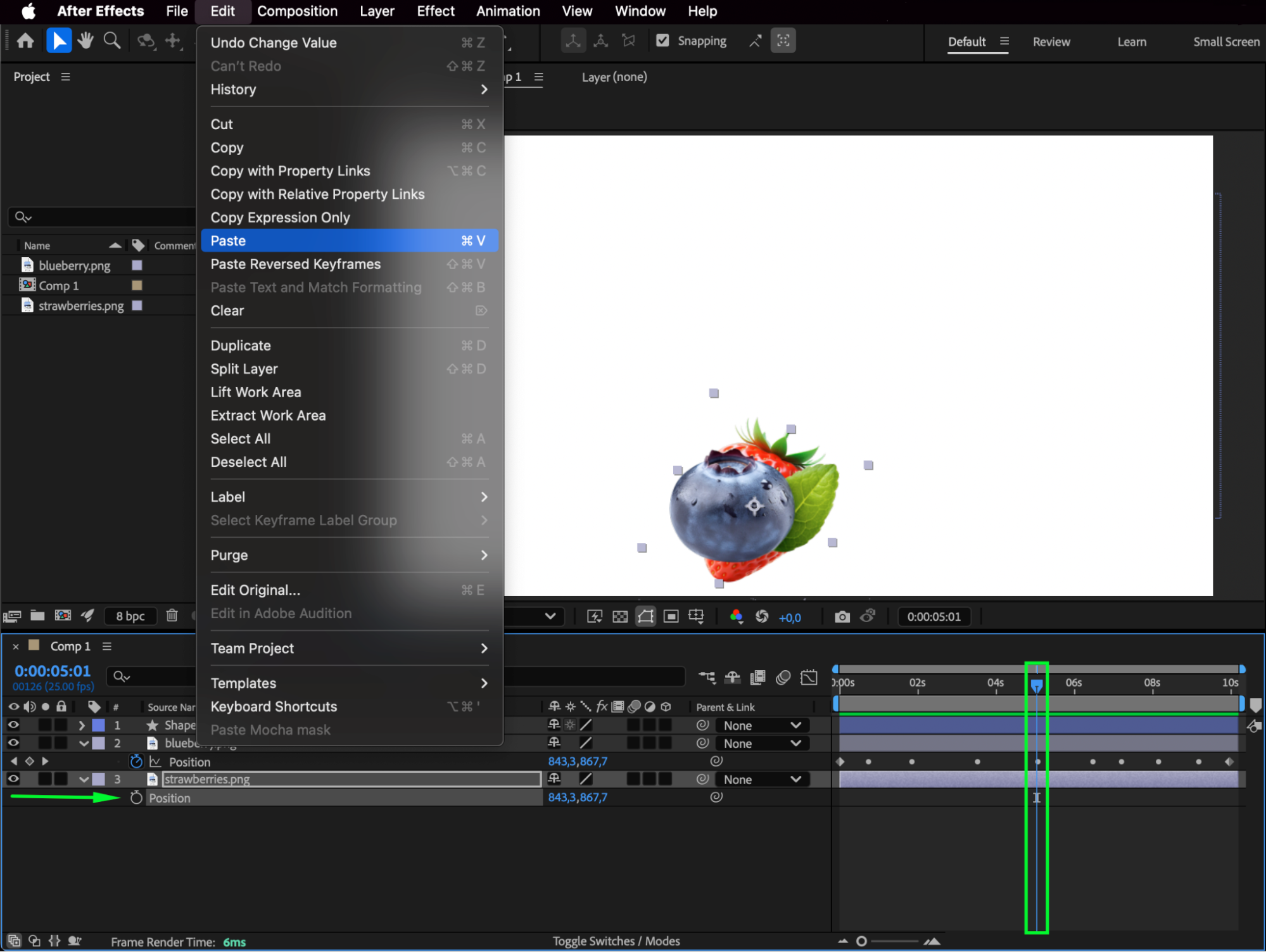
Step 4: Adjust the Transition Between Layers
Delete the extra keyframes from the first layer, keeping only the last one — the one that matches the starting point of the second layer. This ensures a seamless transition from one motion to another.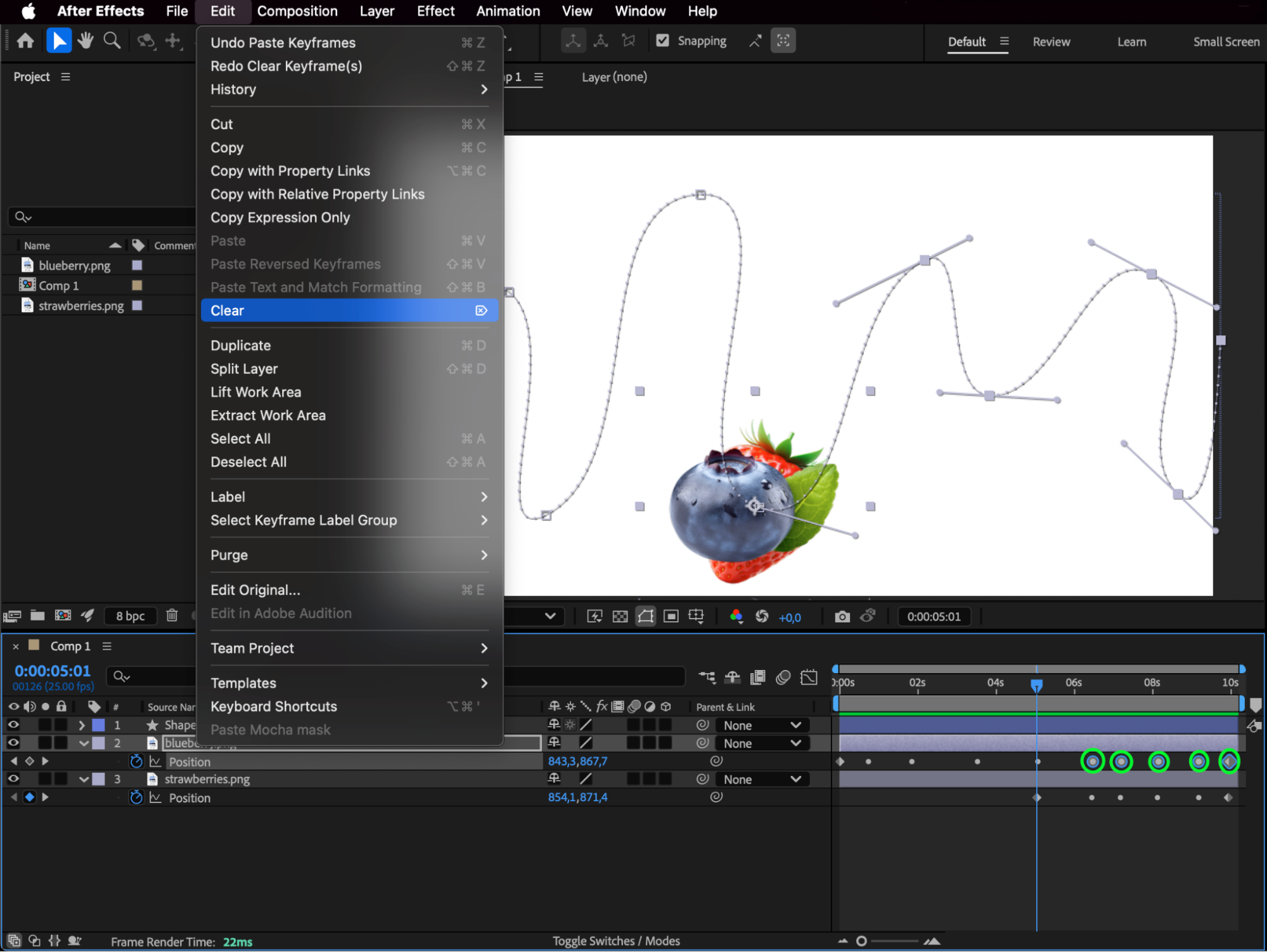
Step 5: Optional — Animate the Opacity
For a smoother visual effect, animate the Opacity of both layers so one fades out while the other fades in, making the transition appear continuous.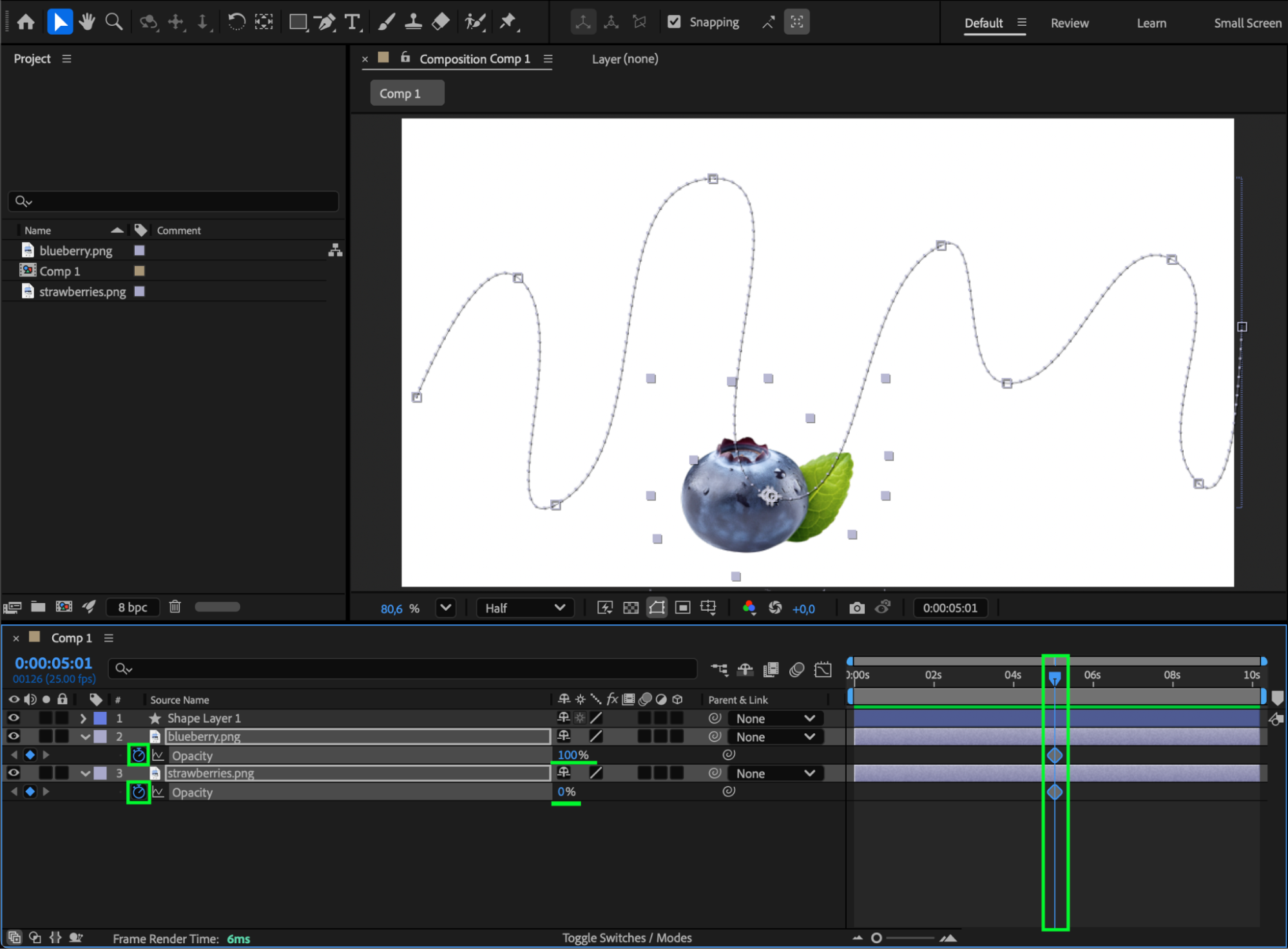
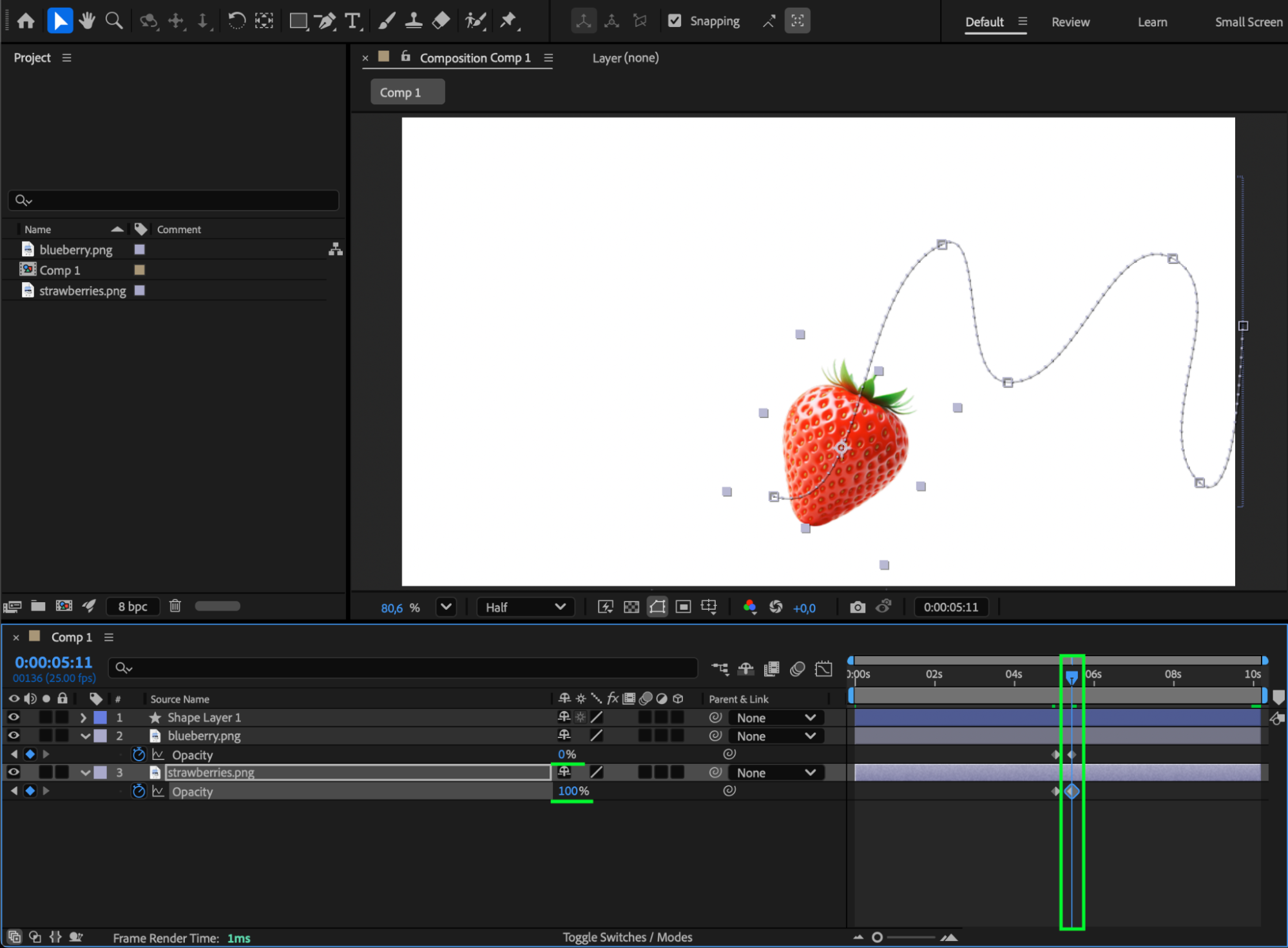 Step 6: Preview and Fine-Tune
Preview your animation to check that the motion break and transition look natural. Adjust timing or easing if needed.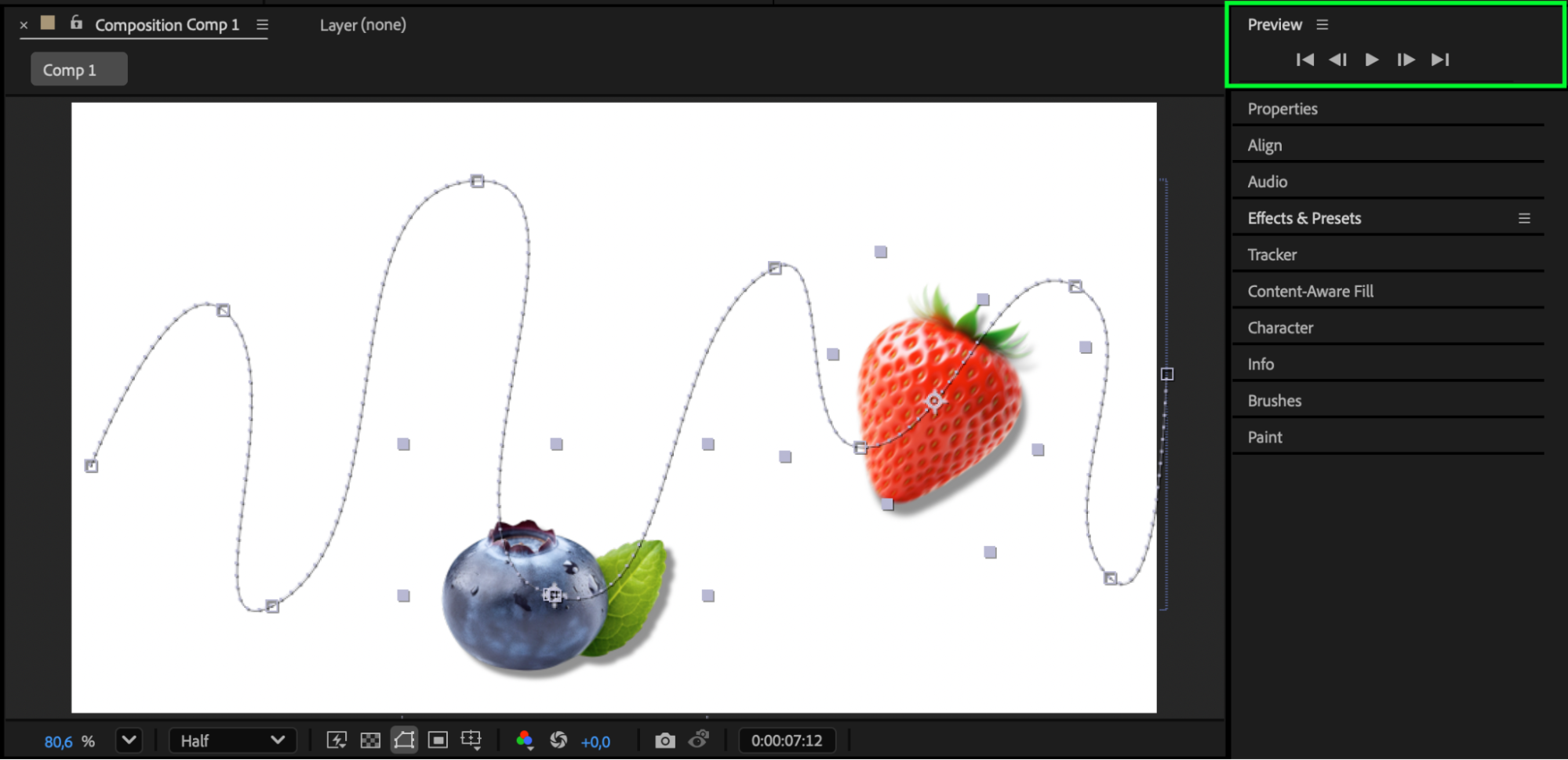
Conclusion
Breaking a path in After Effects is a great way to control the flow of motion between multiple layers. By managing position keyframes, you can split movement, blend transitions, and create smooth handoffs between different objects in your animation.
Our Bestsellers
Our Bestsellers


