
Introduction – Why Use a Black Circle Transition?
The black circle ending is a classic cinematic transition where a black circle gradually closes in, covering the entire screen. It’s a simple but elegant way to end a video, emphasize a scene change, or add stylistic flair. In After Effects, you can easily create this effect using a circular mask and keyframe animation. Here’s a step-by-step guide.
Step 1: Create a New Composition with Black Background
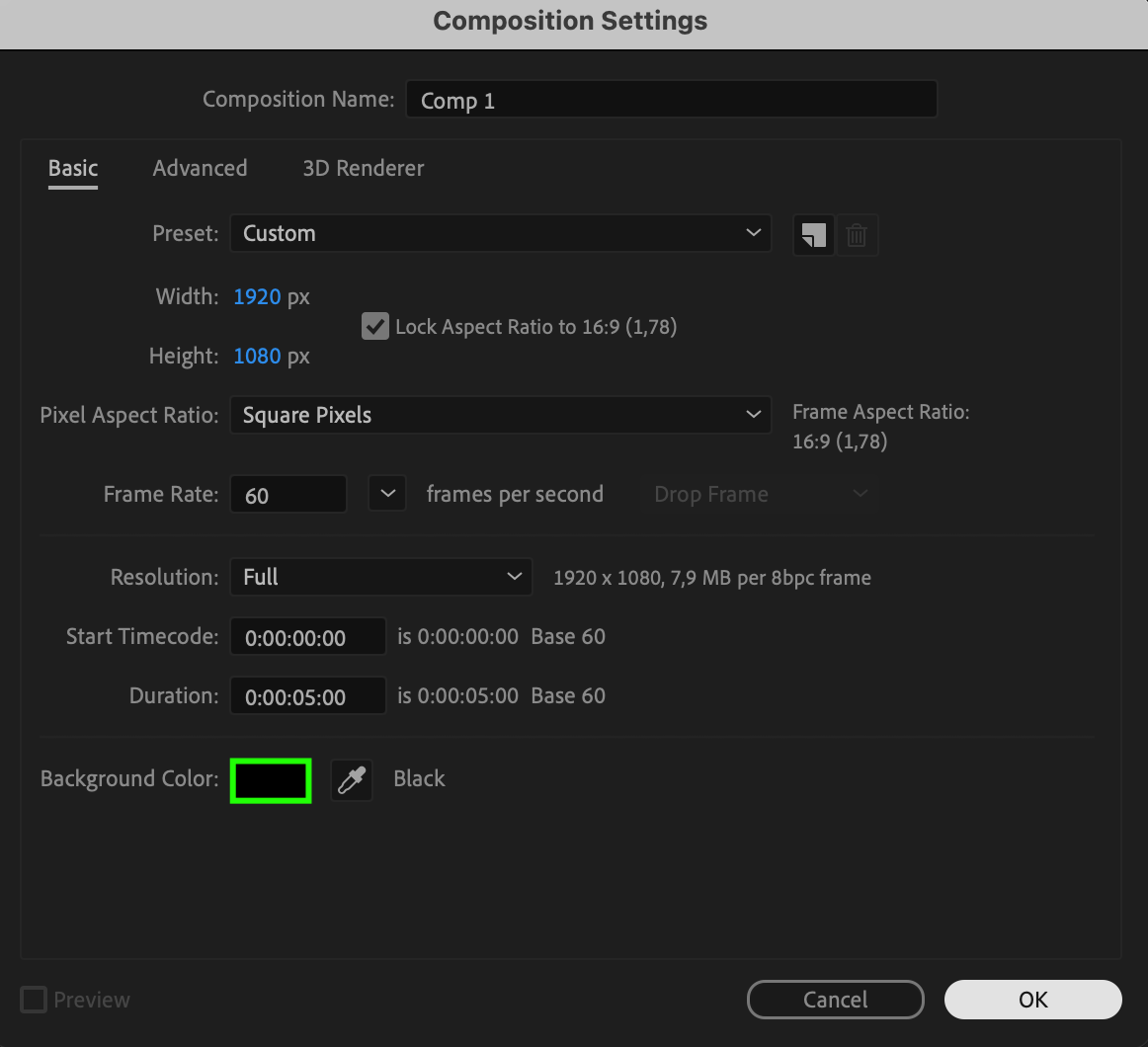
Go to Composition > New Composition and set your desired resolution and duration. Choose Black as the background color to match the circle effect. This composition will serve as the stage for your footage and the transition.

Step 2: Import Your Footage
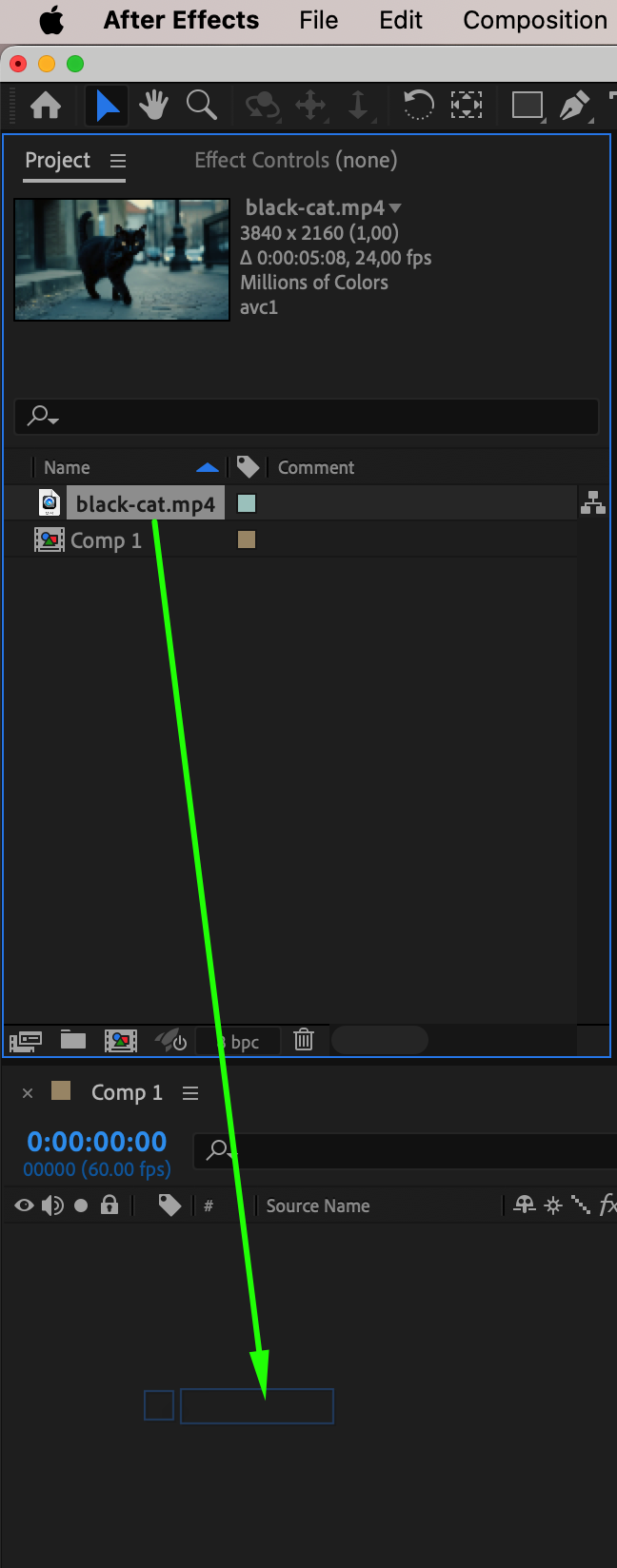
Go to File > Import > File, then drag and drop your video onto the timeline. This is the content you want to apply the black circle ending to.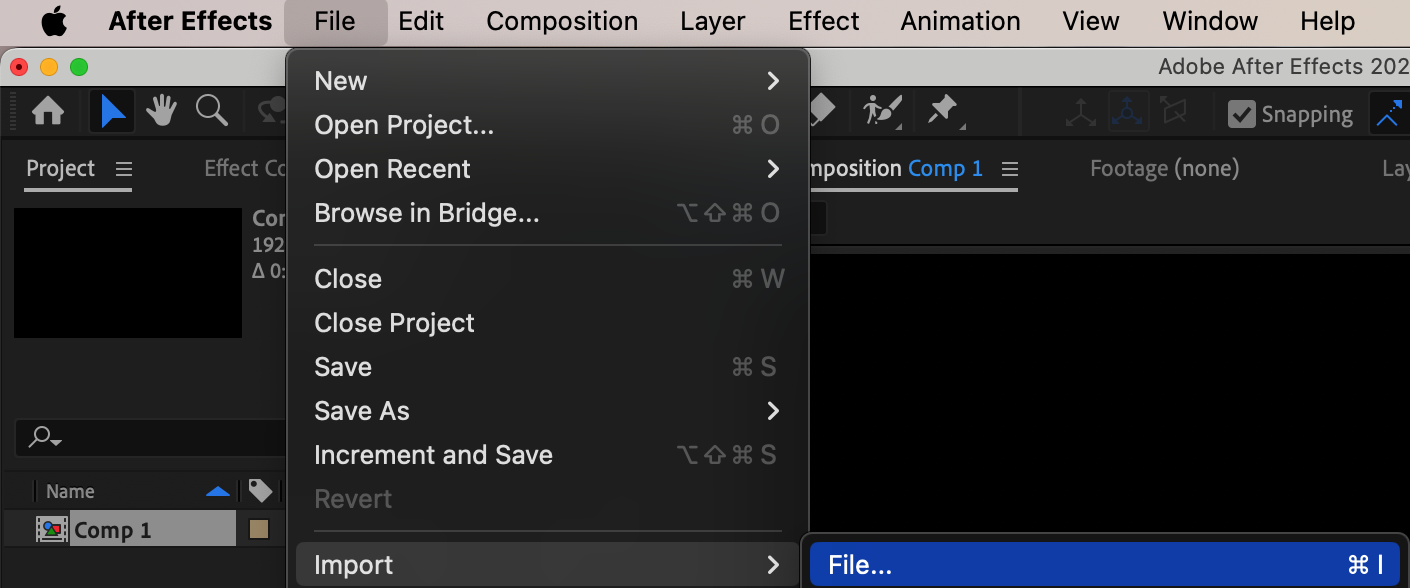
Step 3: Add a Circular Mask to Your Footage
Select your footage layer in the timeline. Choose the Ellipse Tool (Q), then hold “Ctrl/Cmd + Shift” and drag on the Composition panel to create a perfect circle mask from the center. Make sure the Mask Mode is set to Add, which keeps the visible area inside the mask.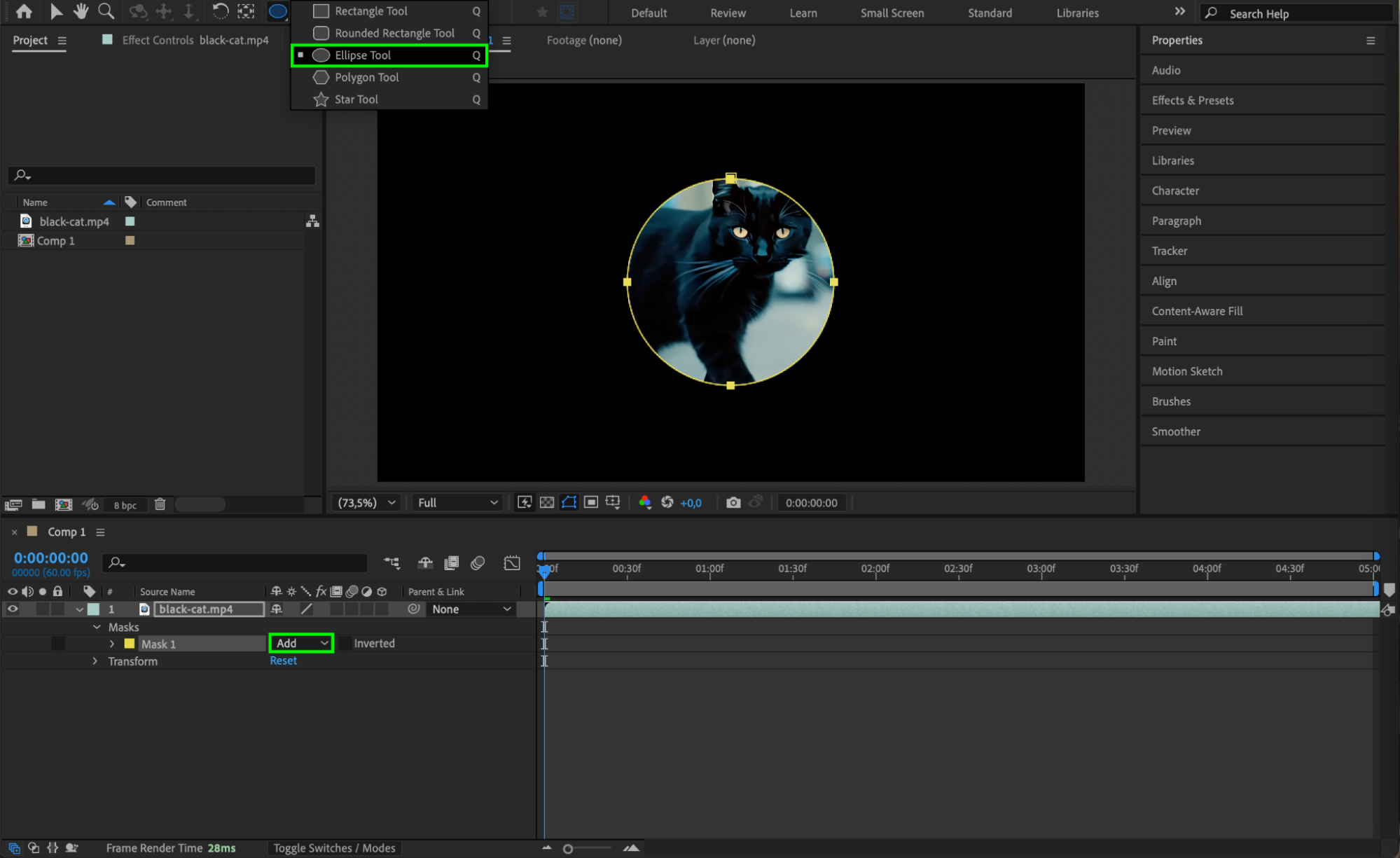
Step 4: Set Start Point and Keyframe Mask Expansion
Move the CTI (Current Time Indicator) to the point where you want the transition to begin. Open the Mask properties under your layer and set a Mask Expansion keyframe (click the stopwatch). Make sure the expansion value is large enough (e.g., 2000) so the black background is fully hidden by your footage.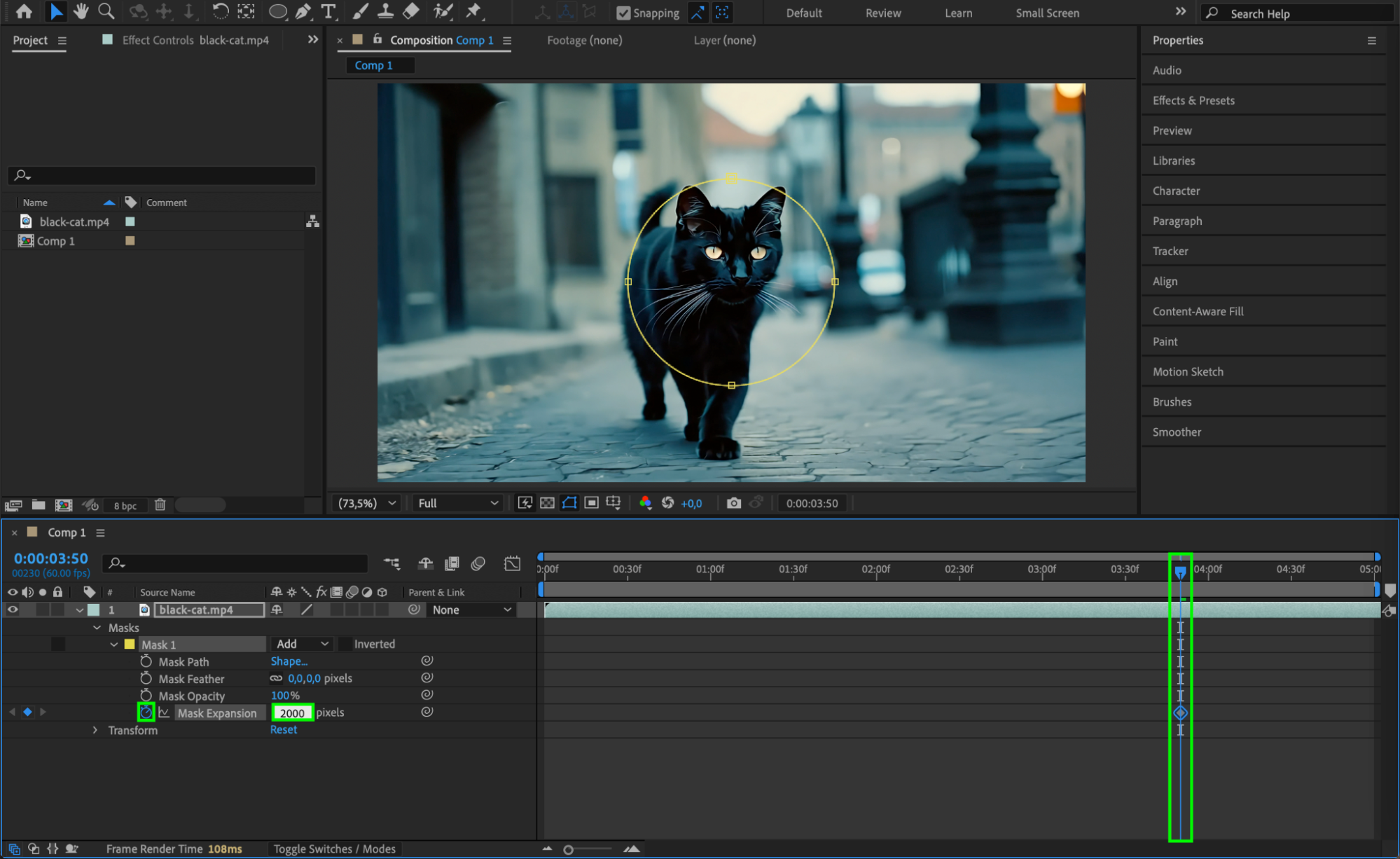
Step 5: Animate to Fully Closed Mask
Move the CTI to where the transition should end. Then, change the Mask Expansion value to a negative number like -545, or until the entire screen is filled with black. This creates the closing circle effect.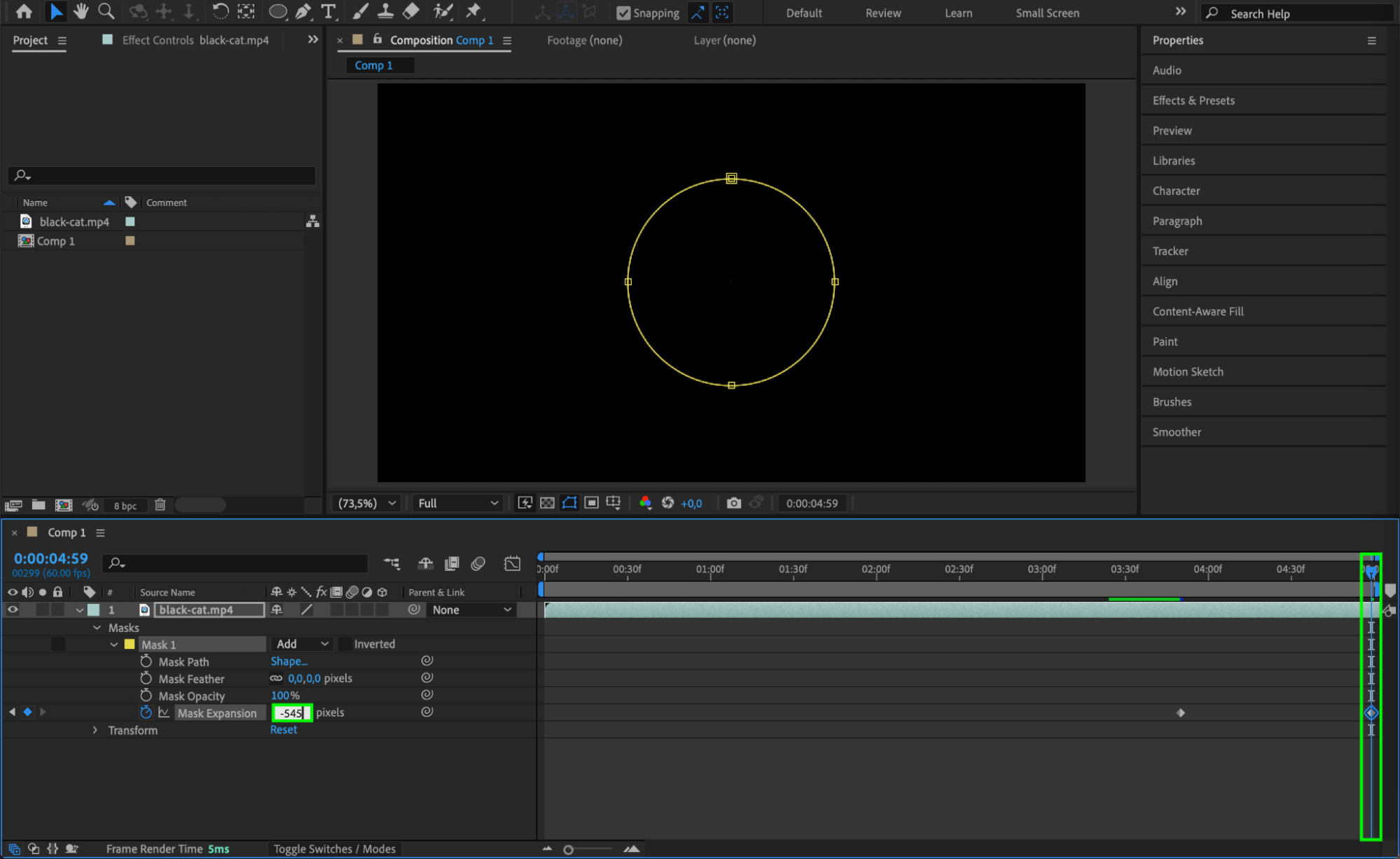
Step 6: Soften the Edges with Mask Feather
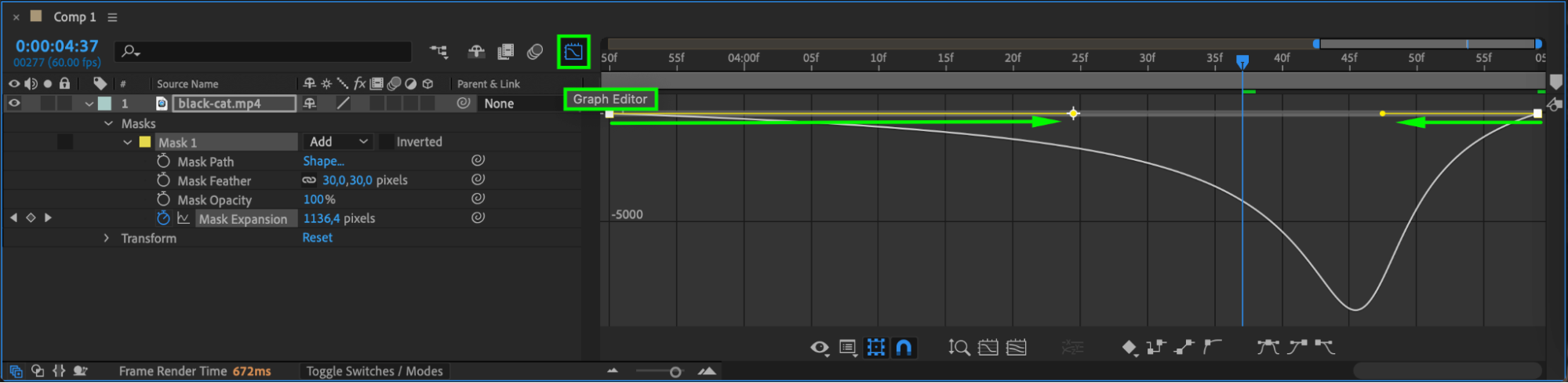
To make the transition smoother, set the Mask Feather to around 30 pixels. This softens the edges of the circle and makes the animation more cinematic and less abrupt.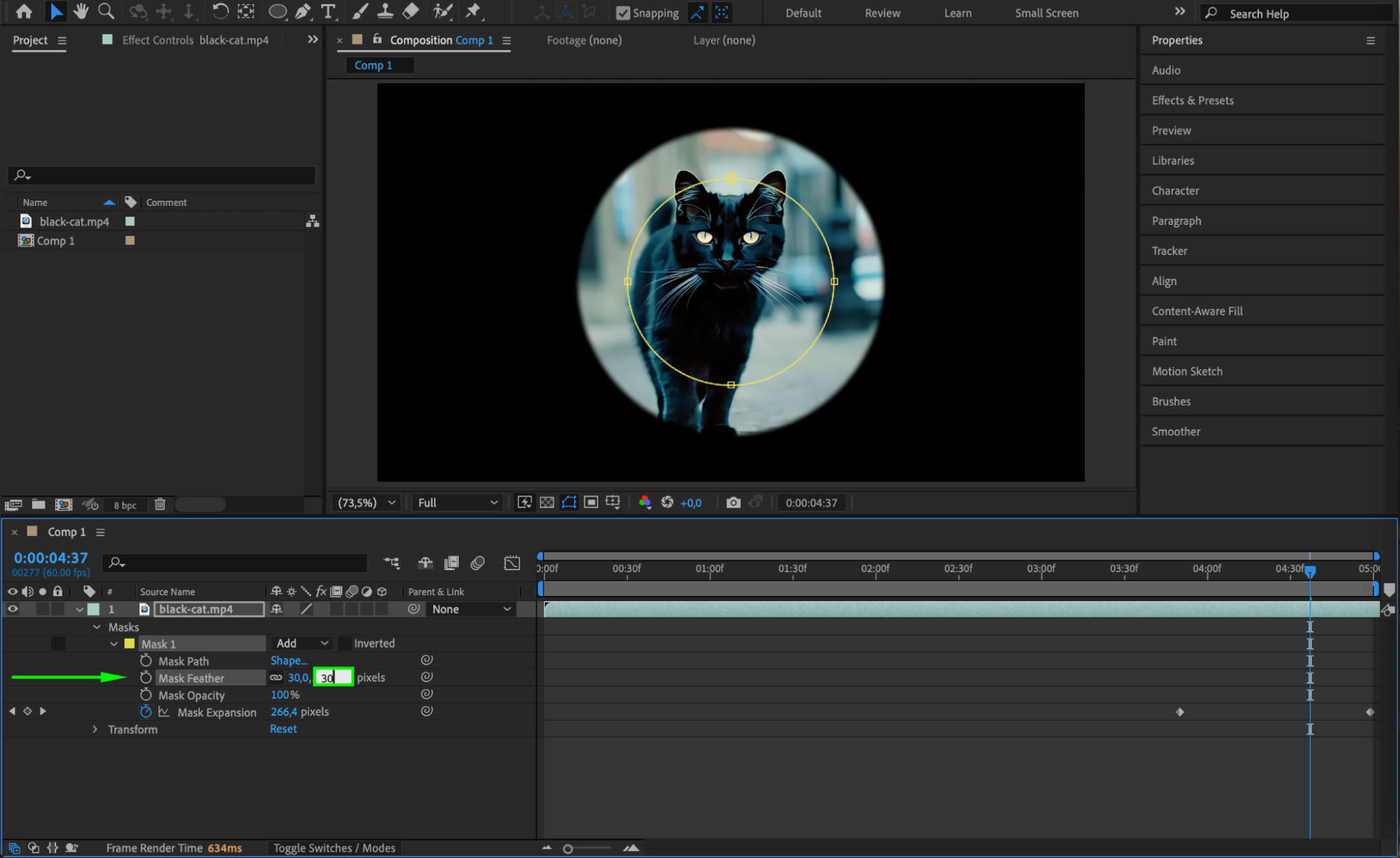 Step 7: Smooth the Animation with Easy Ease and Graph Editor
Select both keyframes, right-click and choose Keyframe Assistant > Easy Ease. Then, open the Graph Editor to fine-tune the speed using the curves. Drag the handles to create a more natural acceleration or deceleration for your transition.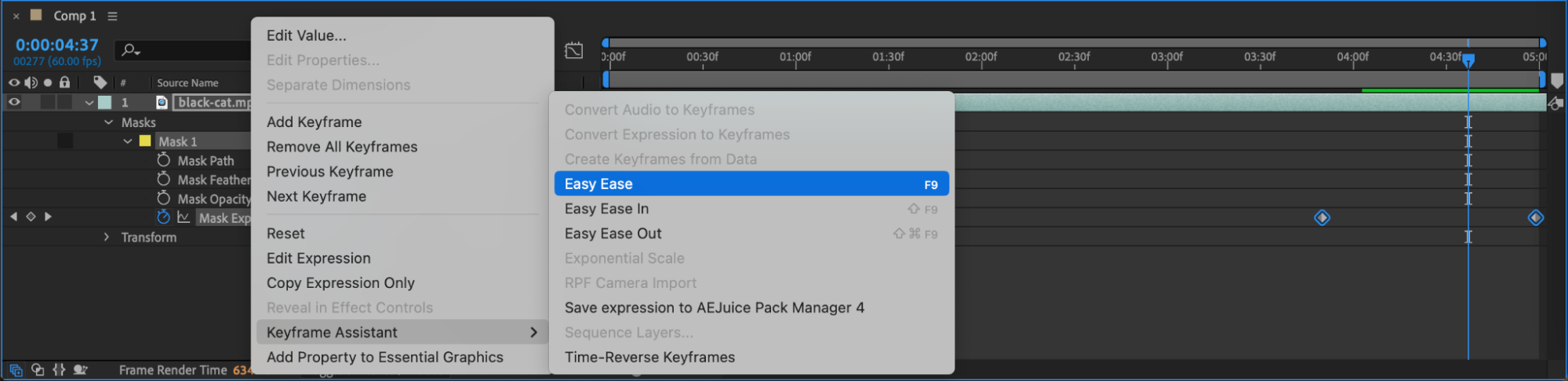
 Step 8: Preview Your Transition
Press Spacebar to preview the animation. Adjust timing, feathering, or mask size if needed for a better result. The transition should now smoothly close the scene with a black circle.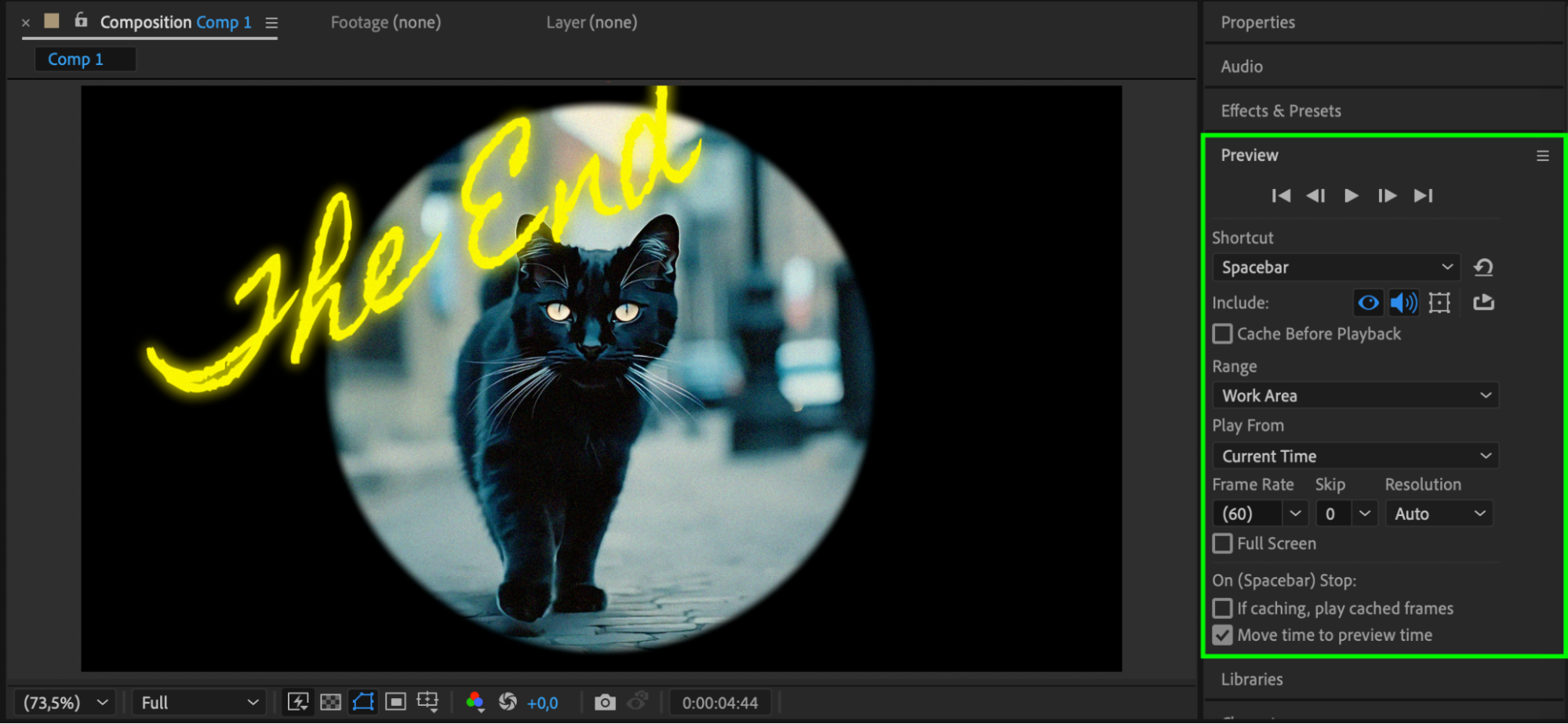
Conclusion
The black circle ending is an easy but powerful transition effect. Using just a mask and a few keyframes, you can give your video a stylized, professional finish. It’s ideal for outros, scene endings, or adding a retro cinematic touch. With a few adjustments, you can even colorize the circle or reverse the effect for an opening transition.
Our Bestsellers
Our Bestsellers


