
How to Create a Mask Reveal Animation in After Effects
Introduction – Simple Steps for Creating a Mask Reveal Effect
A mask reveal animation can significantly enhance the visual effect of your project, whether it’s for text, logos, or other elements. In this article, we’ll guide you through the process of creating an effect where elements gradually appear through a mask.
Step 1: Create a New Project and Add a Text Layer
Start by opening your project in After Effects. Use the Type Tool (Ctrl/Cmd+T) to create text. This will be the main element that you’ll animate with the mask reveal effect. You can adjust the font, size, and other text properties to match your design.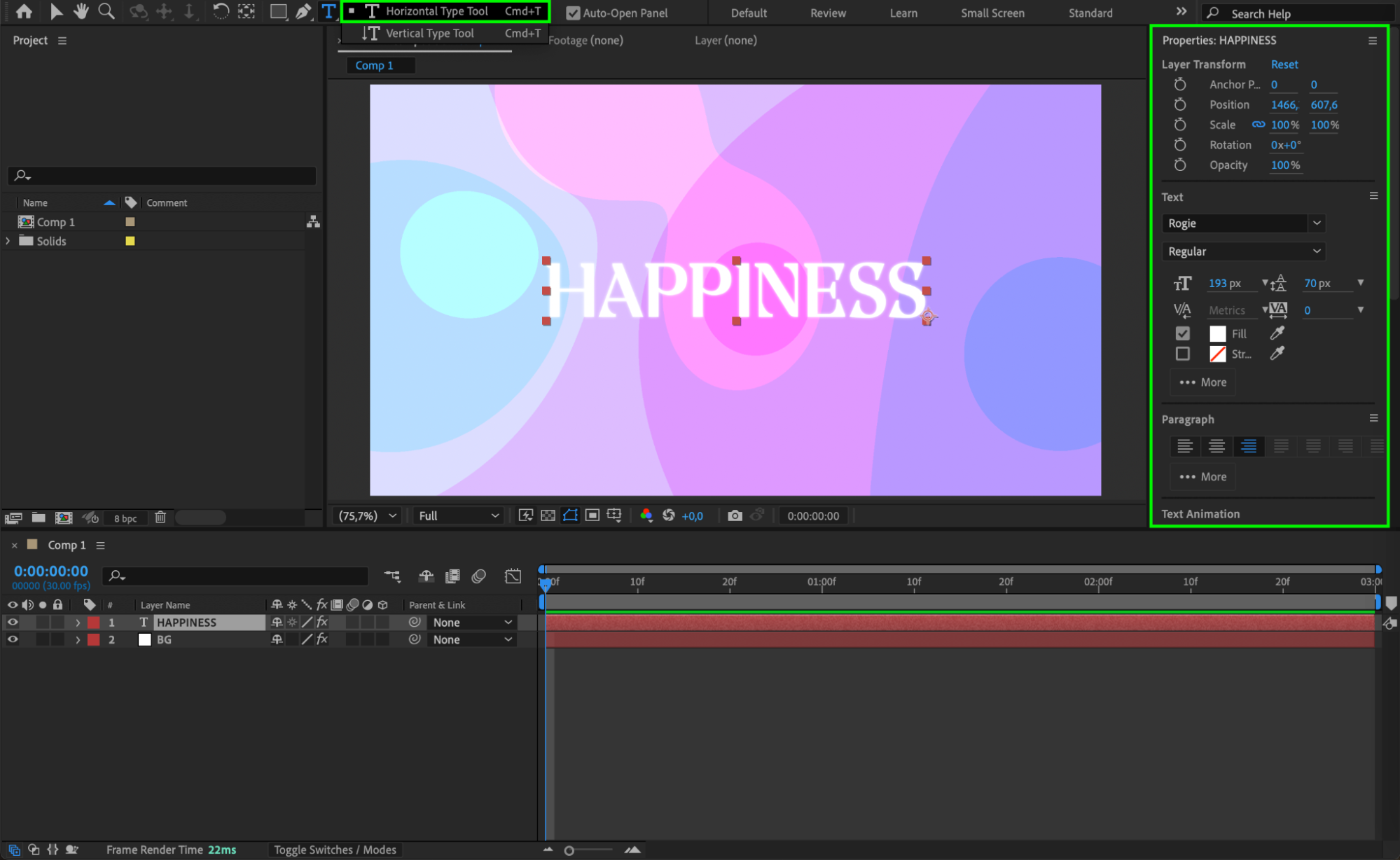 Step 2: Add a Shape or Logo for a More Dynamic Animation
To make the animation more interesting, you can add another element such as a shape using the Shape Tool (Q) or import a logo. This helps create a multi-layered, dynamic effect. The shape or logo can be animated in the same style as the text, adding more complexity and flair to the overall animation.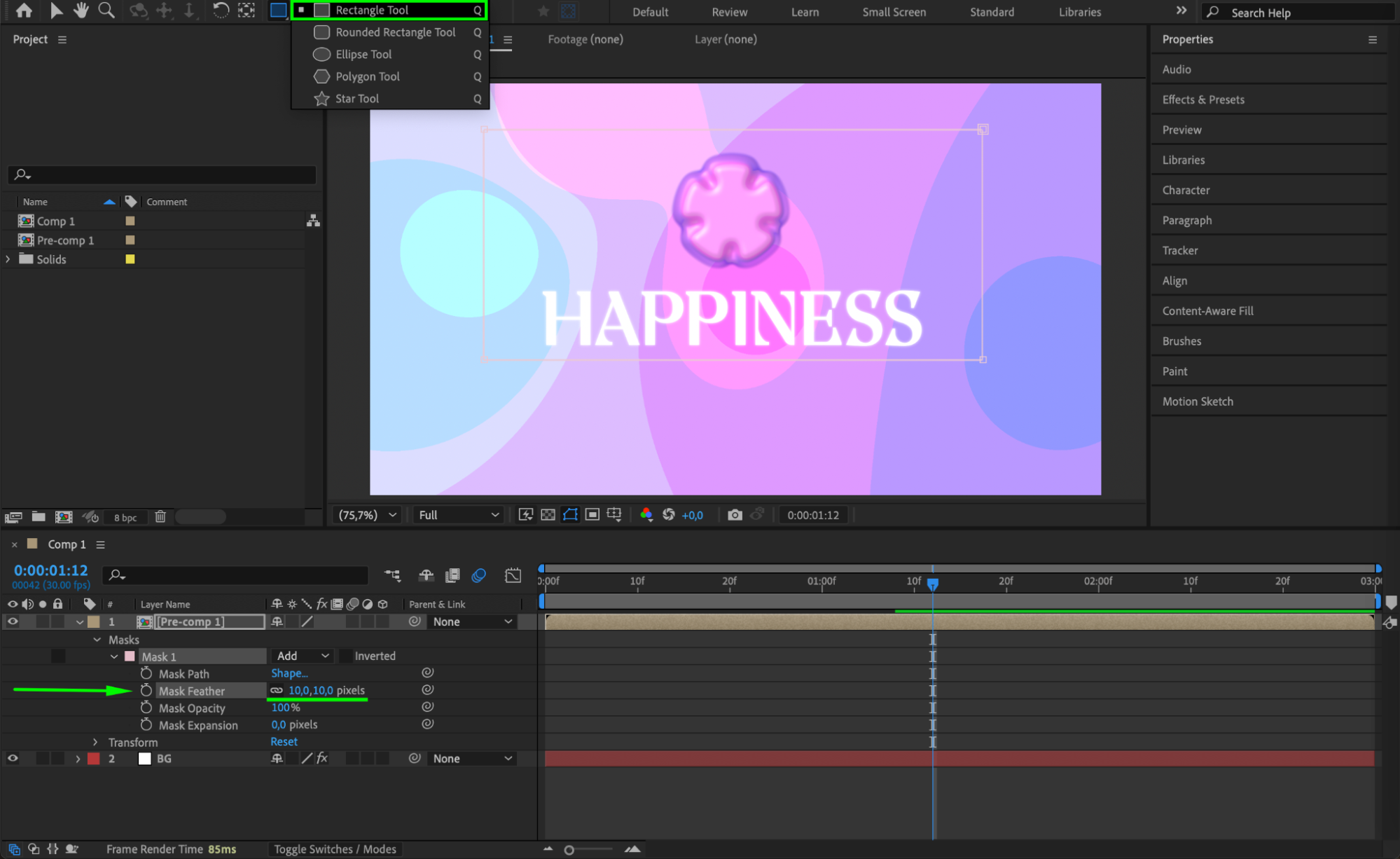
Step 3: Animate the Position of the Text and Shape
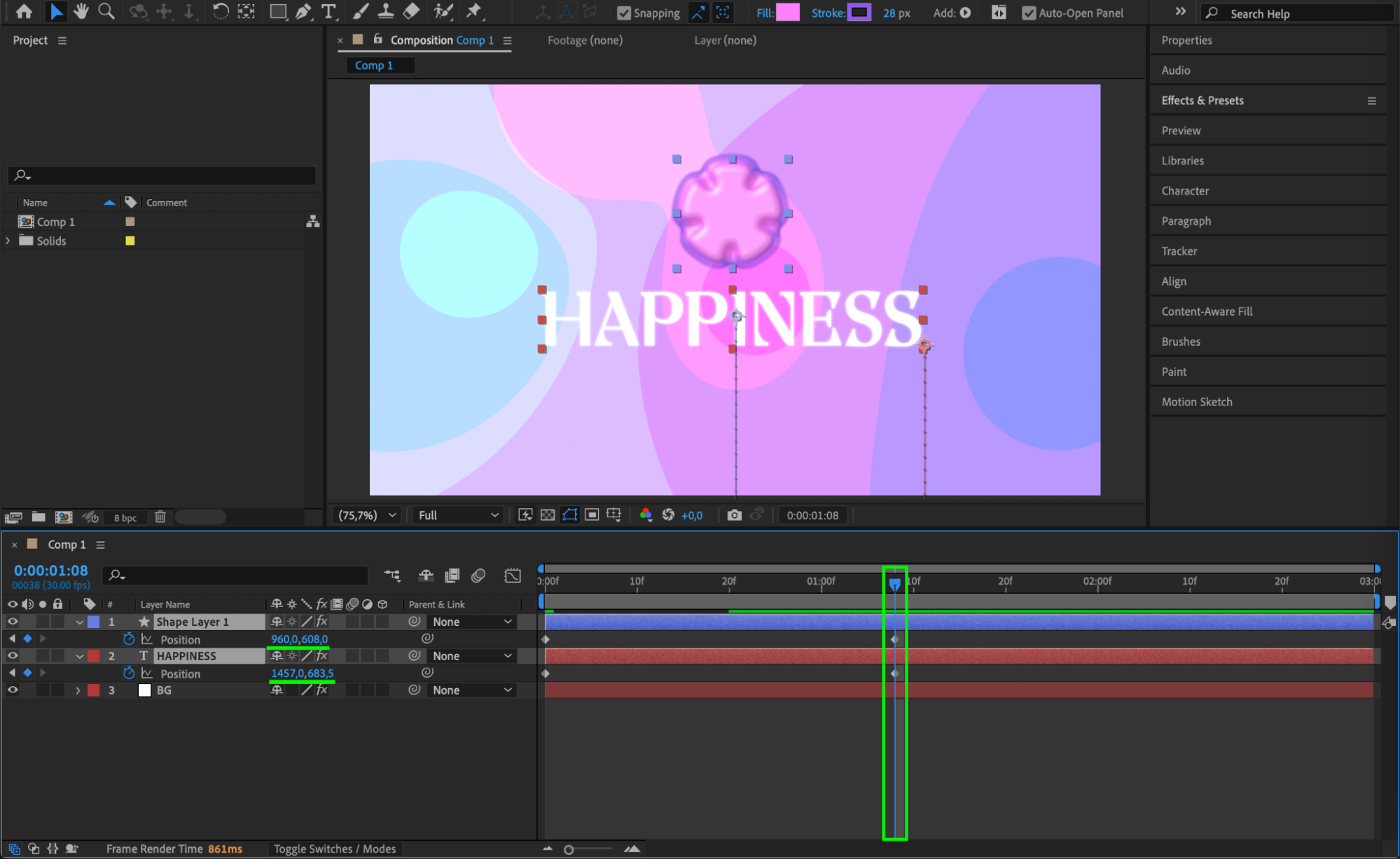
Select both layers (text and shape). Start by animating their Position so that both elements begin outside the composition (for example, off-screen at the bottom). At the center of the composition, they should be positioned in the middle of the composition panel.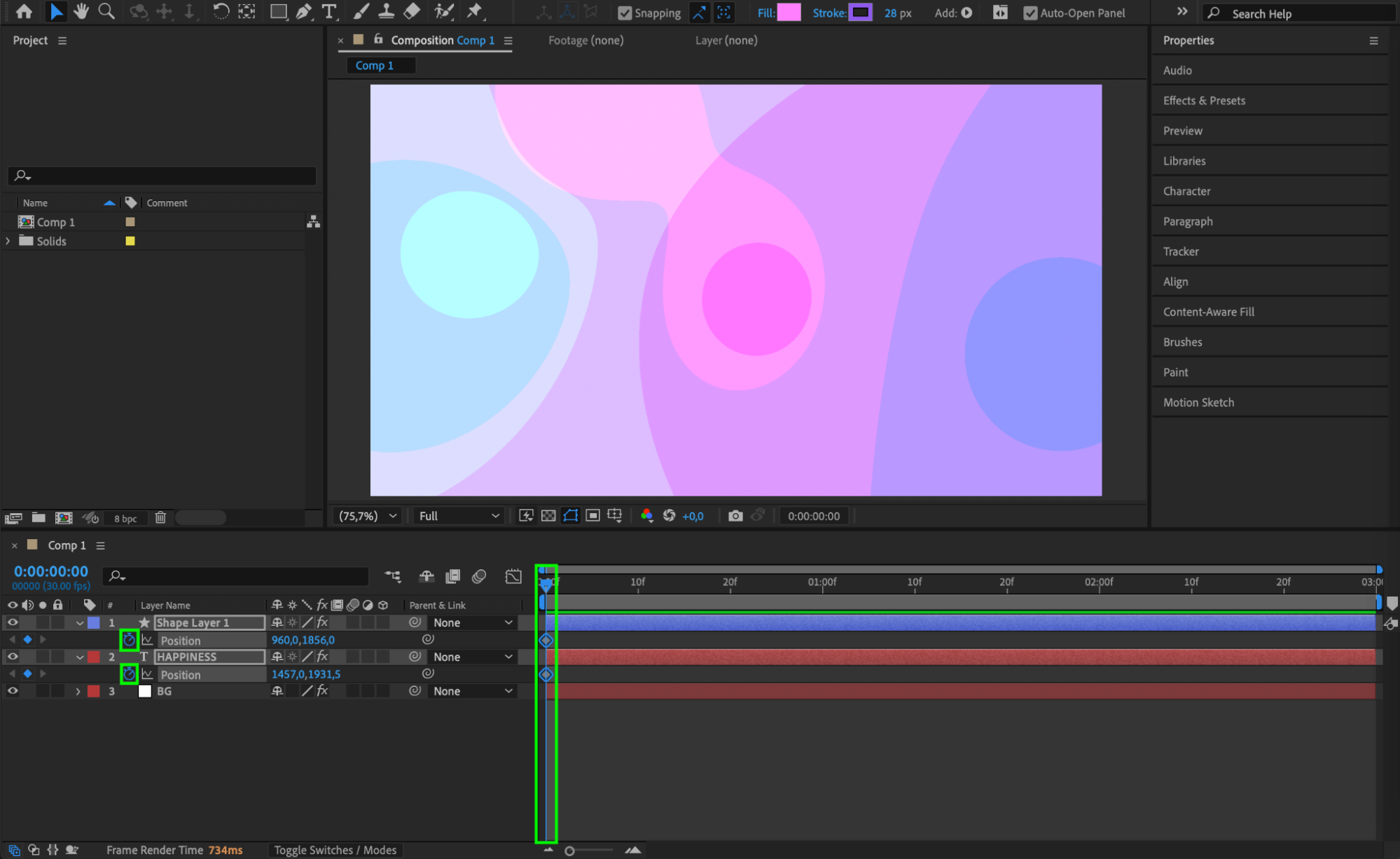
 Step 4: Apply Easy Ease for Smoothness
Once you’ve set the position keyframes, select all keyframes and apply Easy Ease (right-click on the keyframes > Keyframe Assistant > Easy Ease). This will make the movement of the elements smooth and natural, removing any sudden starts or stops.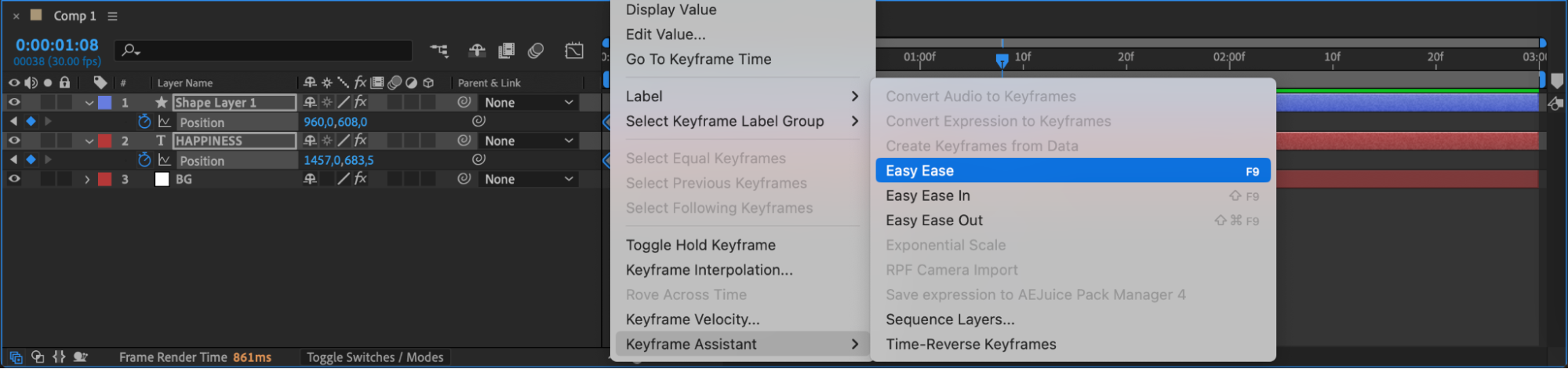 Step 5: Enable Motion Blur for Realism
To add more dynamism and make the animation feel more realistic, enable Motion Blur for both layers. This creates a blur effect during movement, making the motion look more natural. You can enable Motion Blur by clicking the icon in the layer panel.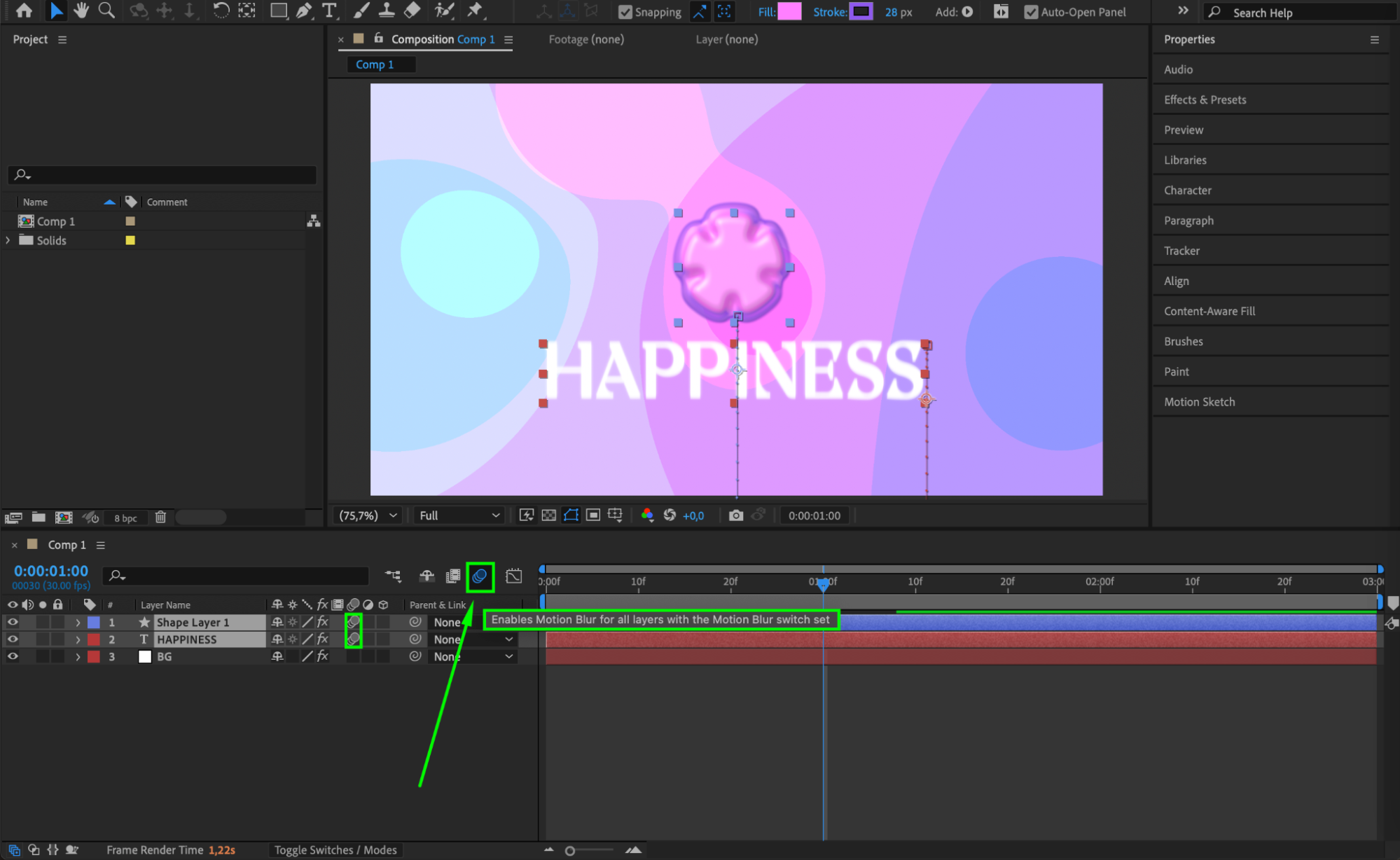
Step 6: Create a Pre-comp for Grouping Layers
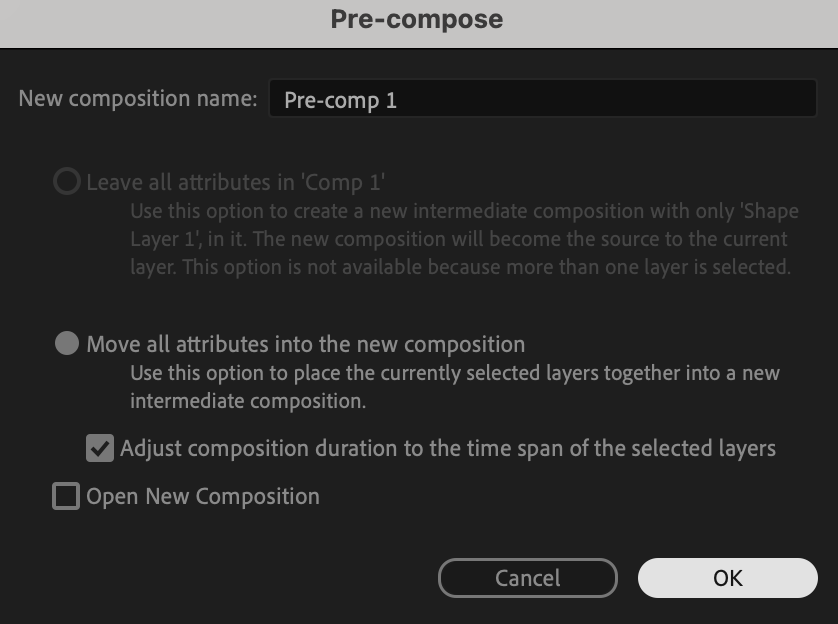
Now that your text and shape animations are ready, create a Pre-comp (right-click on the layers > Pre-compose). This will group the two elements into a single composition, making it easier to manage and apply further effects.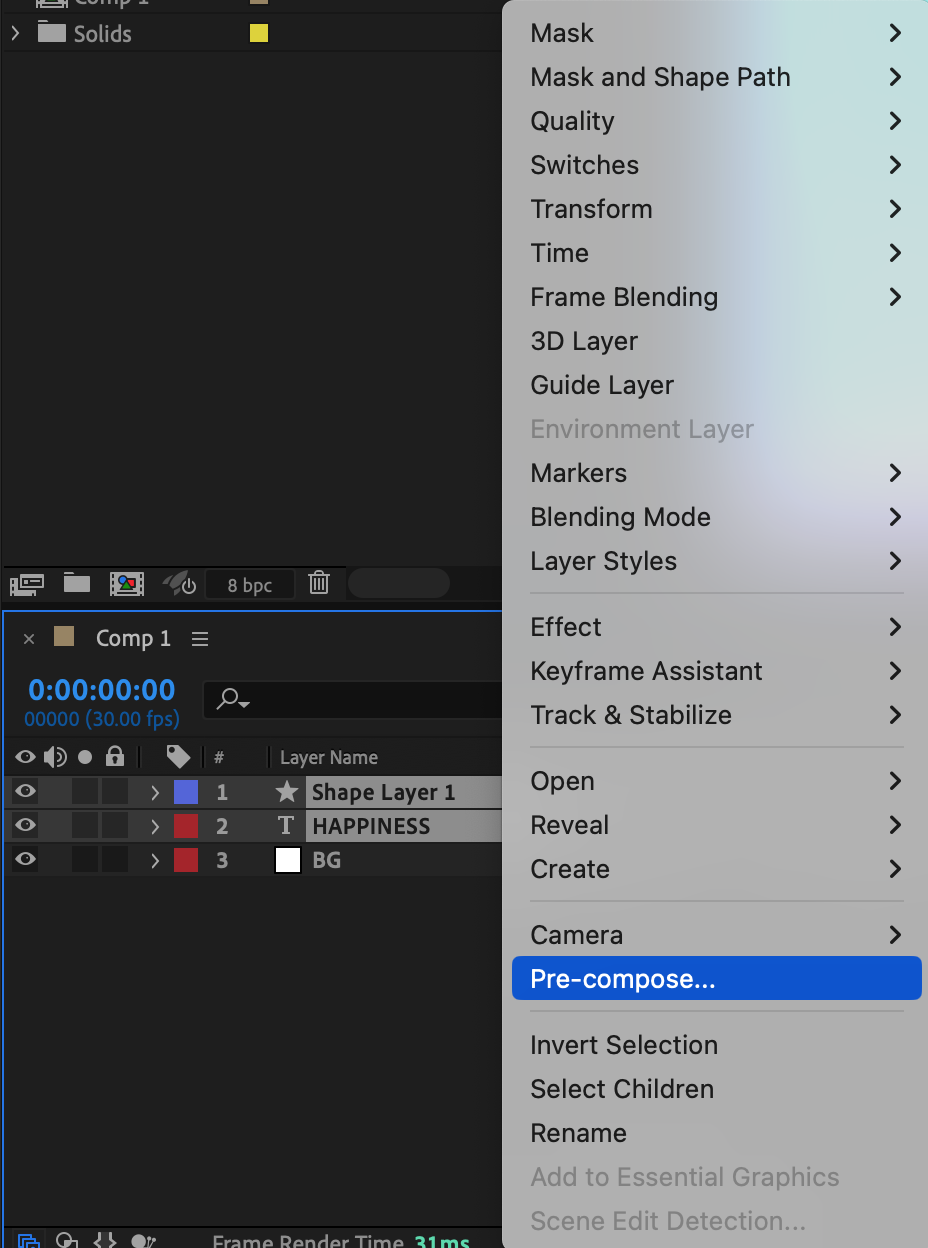
 Step 7: Create a Mask on the Pre-comp
Use the Rectangle Tool (Q) to create a mask on the Pre-comp, limiting the visible area of your composition. Place the mask in the middle of the composition. This mask will gradually reveal the elements inside as it animates, creating a smooth reveal effect.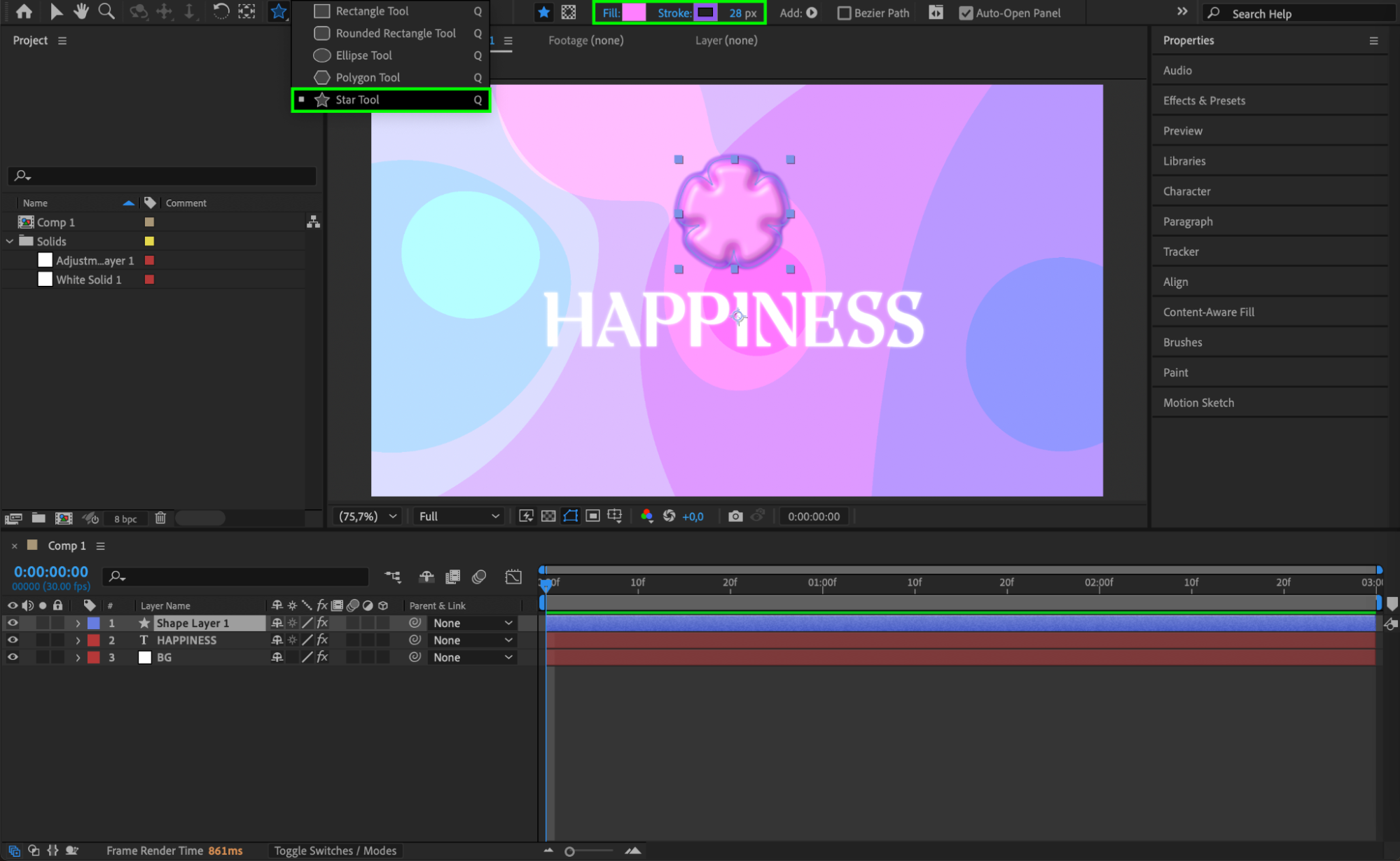
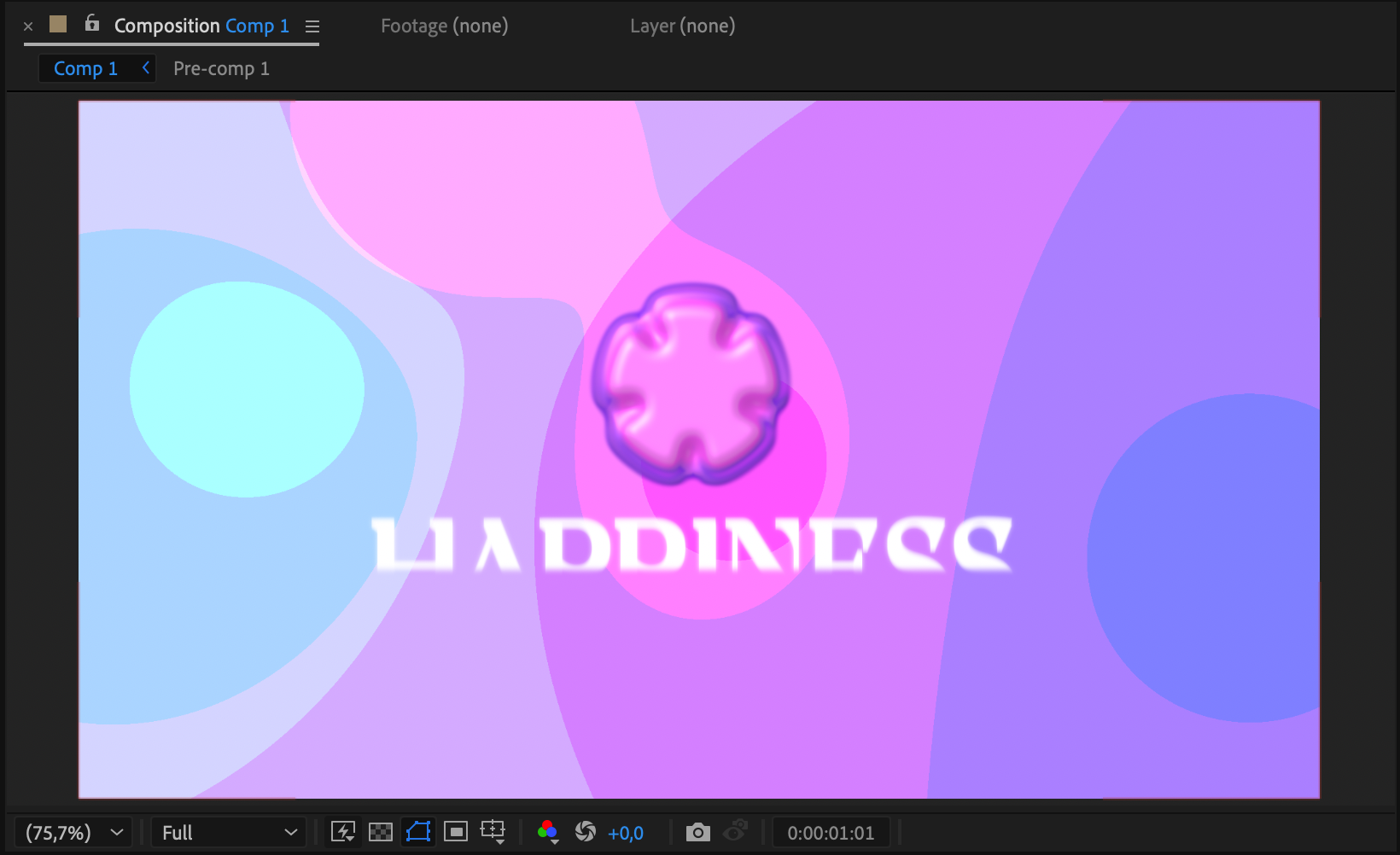 Step 8: Preview and Adjust
After setting up the mask, preview your animation by pressing the spacebar for preview. Make sure the elements are appearing through the mask as desired, and if needed, adjust the mask or animation parameters to fine-tune the effect.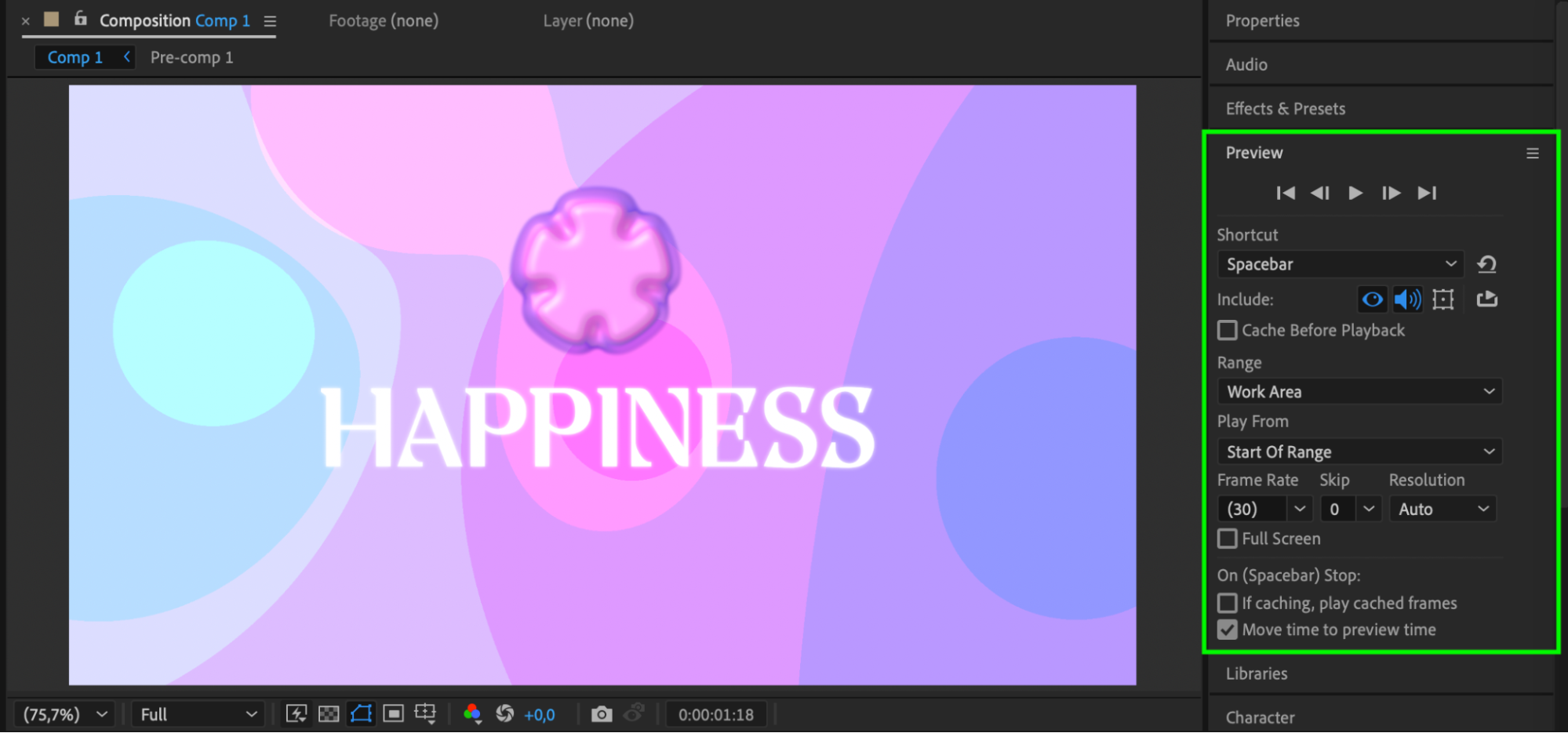 Conclusion
Masks in After Effects are a powerful tool for creating various effects, such as a mask reveal animation. With simple steps like creating a mask, animating position, and using Motion Blur, you can create an engaging effect where elements gradually appear through the mask, giving your project a dynamic and professional look.
Our Bestsellers
Our Bestsellers


