
Introduction to the Blue Fire Line Effect
A blue fire line is a dynamic and eye-catching effect often used in motion graphics, titles, or energy-themed animations. It combines organic distortion, texture, and glowing color to create the illusion of moving flame energy. The best part is that you can achieve this look entirely with native After Effects tools — no plugins required. In this tutorial, you’ll learn how to create and animate a glowing blue fire line from scratch.
Step 1: Create a New Composition
Open After Effects and go to Composition > New Composition. Set your resolution, duration, and background color, then click OK. This will be your base composition where you’ll build the blue fire line animation.
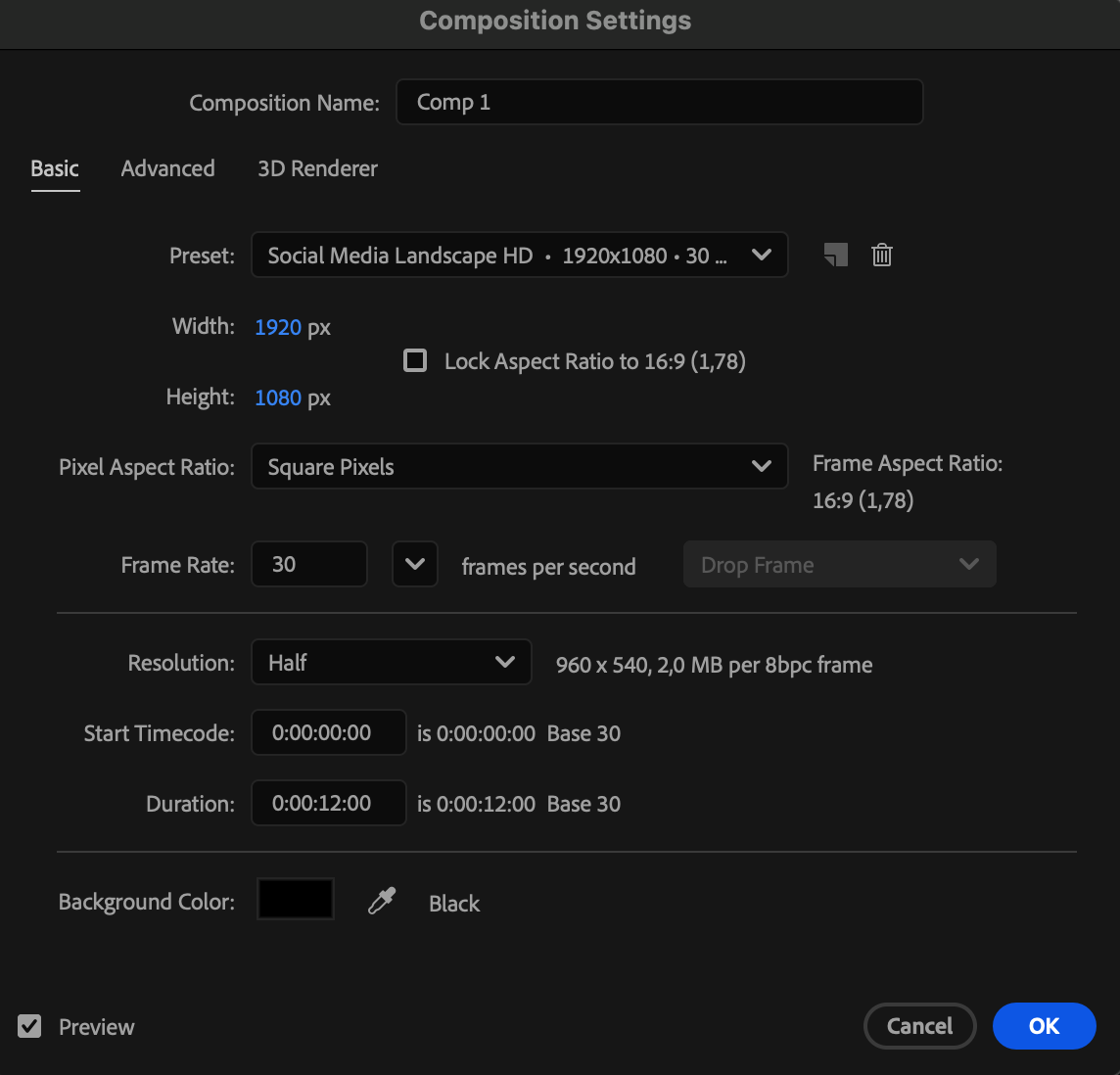 Step 2: Draw the Base Line
Select the Pen Tool (G) and draw a simple line across your composition. In the Shape Settings, set the Fill to None and the Stroke to a bright blue color with a width of around 24 px. This line will be the base that you’ll transform into a fiery energy effect.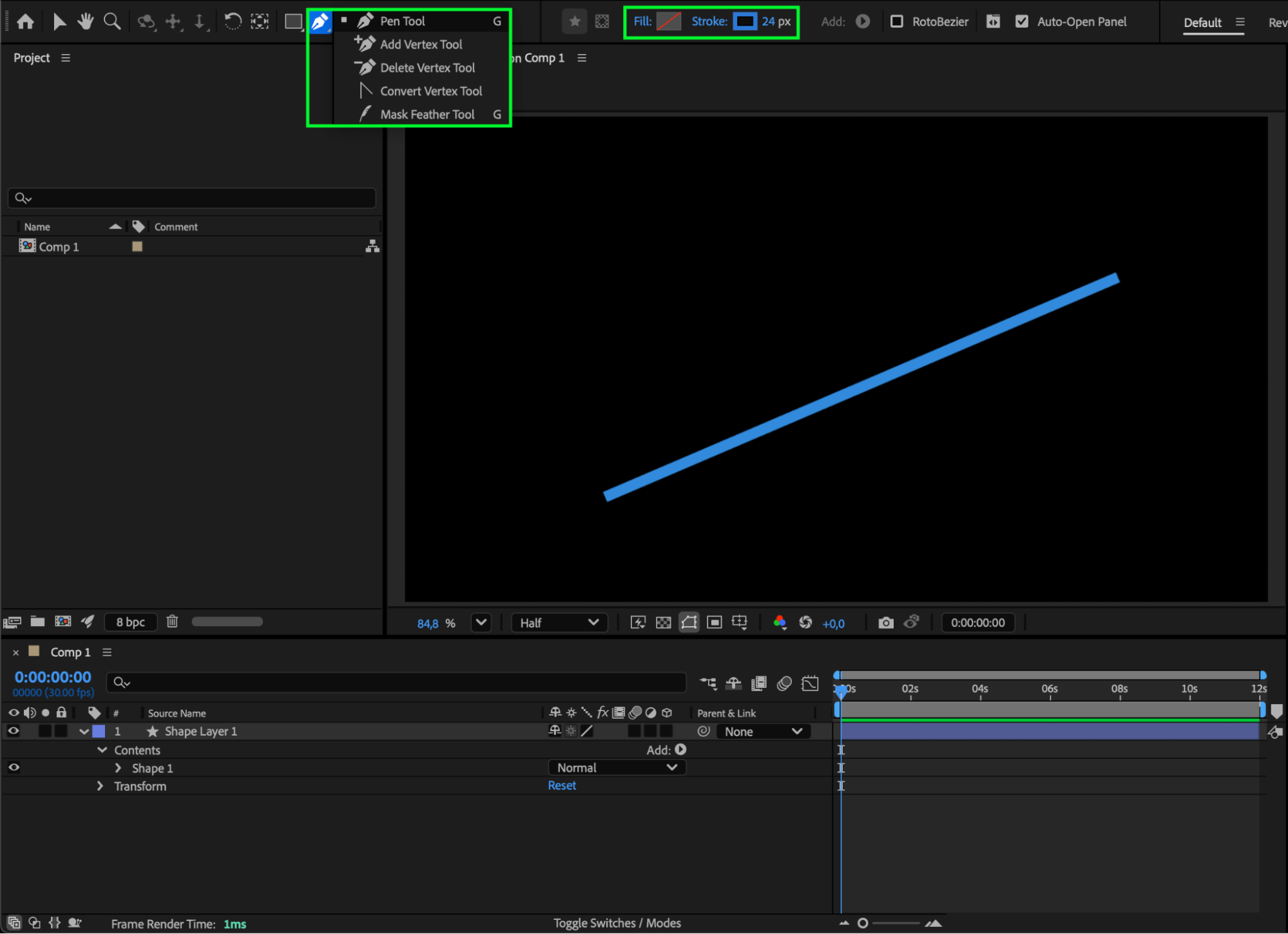
Step 3: Add Zig Zag for Flame Movement
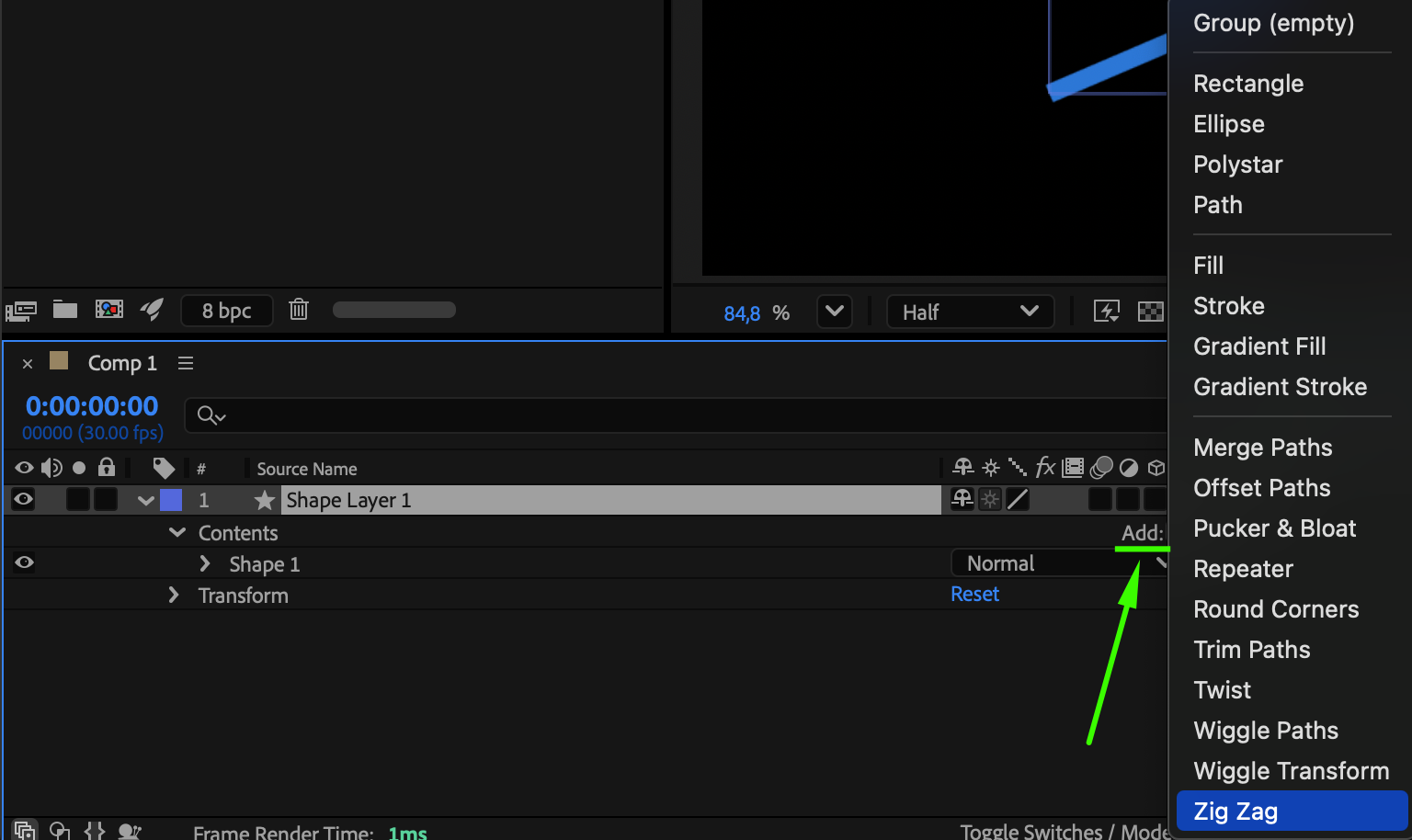
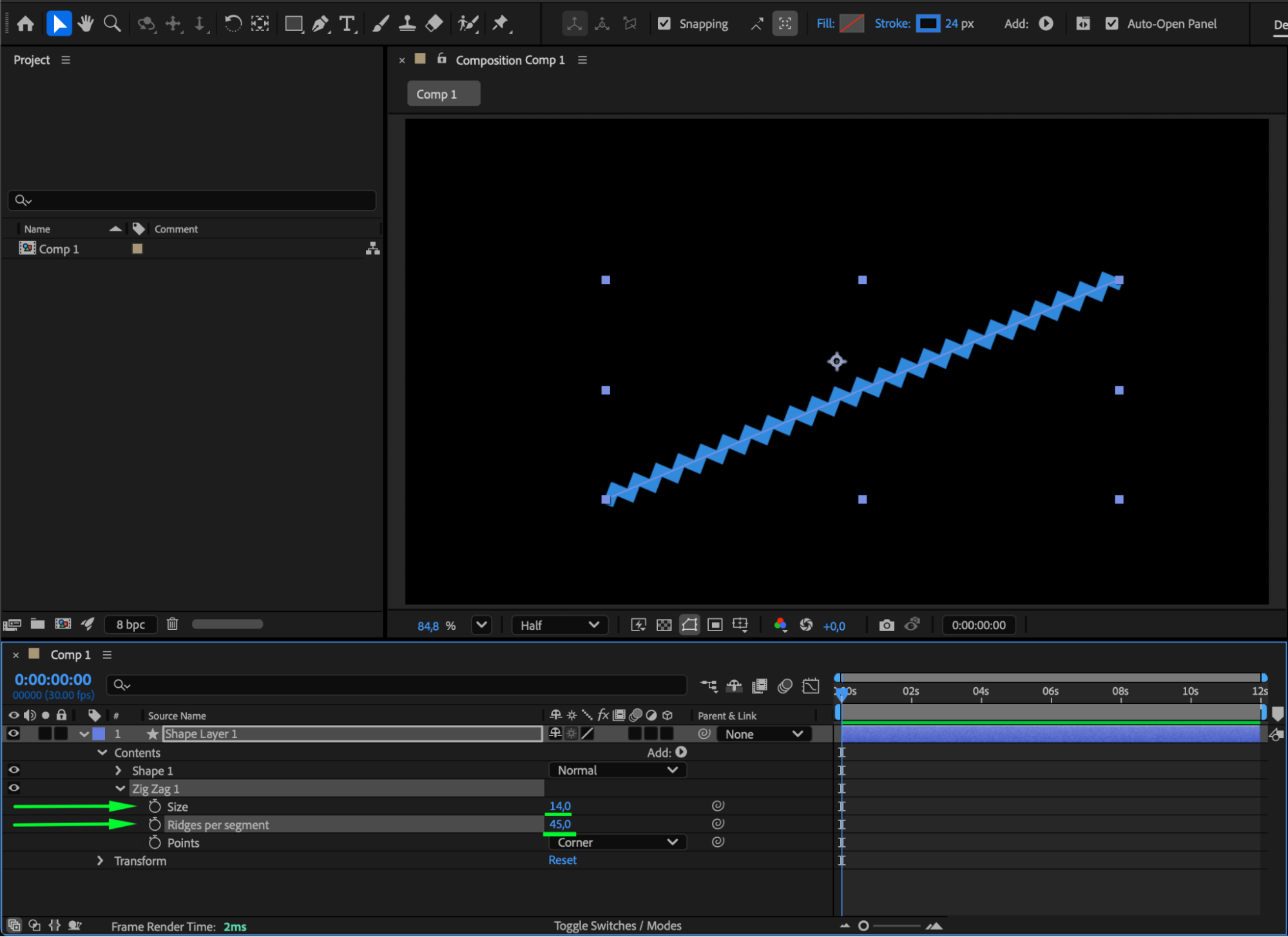
Expand the layer’s properties by clicking the small arrow next to its name. Click Add > Zig Zag to distort the line slightly. In the Zig Zag settings, set Size to 14 and Ridges per Segment to 47. This adds a wavy motion that will mimic the movement of fire.
Step 4: Add Roughen Edges for Texture
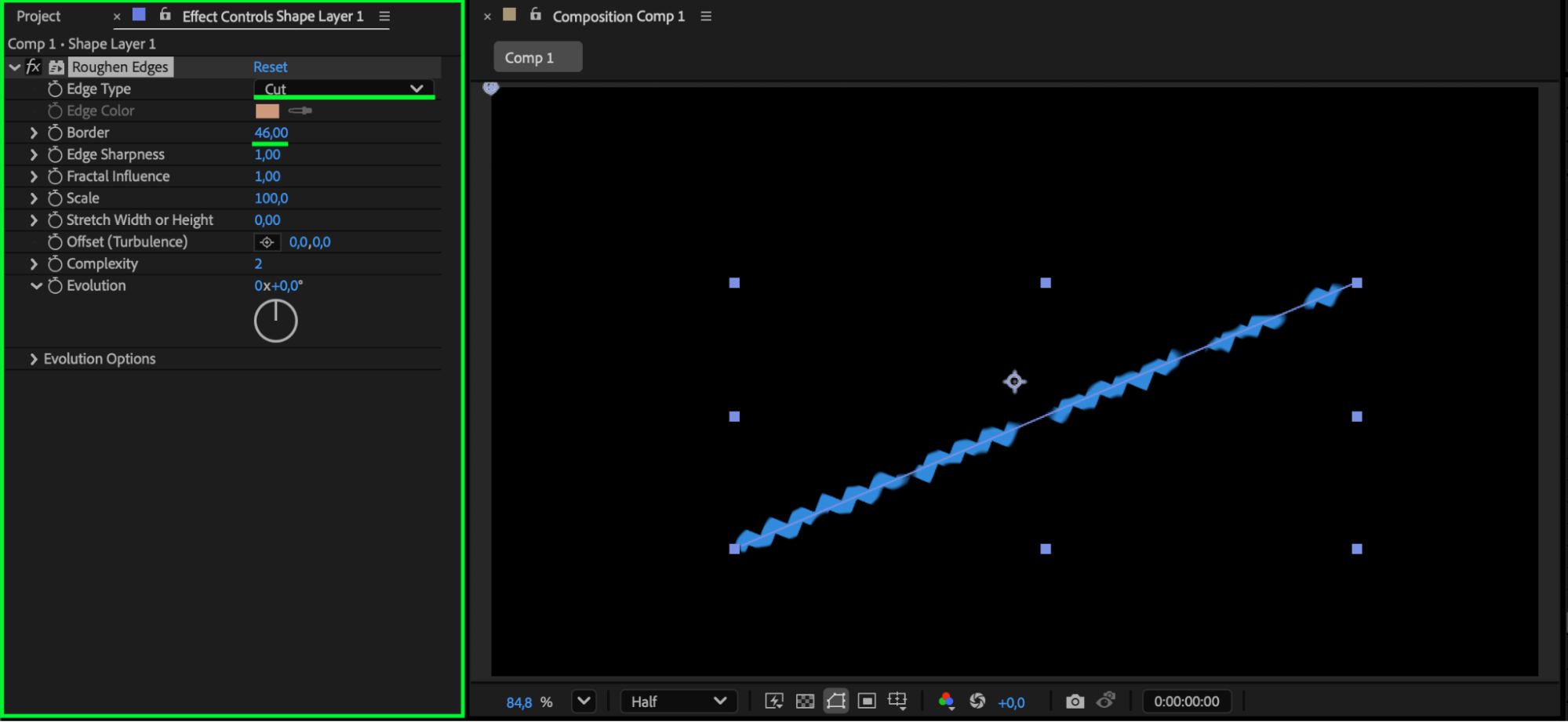
Go to the Effects & Presets panel and search for Roughen Edges. Apply it to your line layer. In the Effect Controls, set Edge Type to Cut and Border to 46. This gives the line a natural, uneven edge — similar to a flickering flame.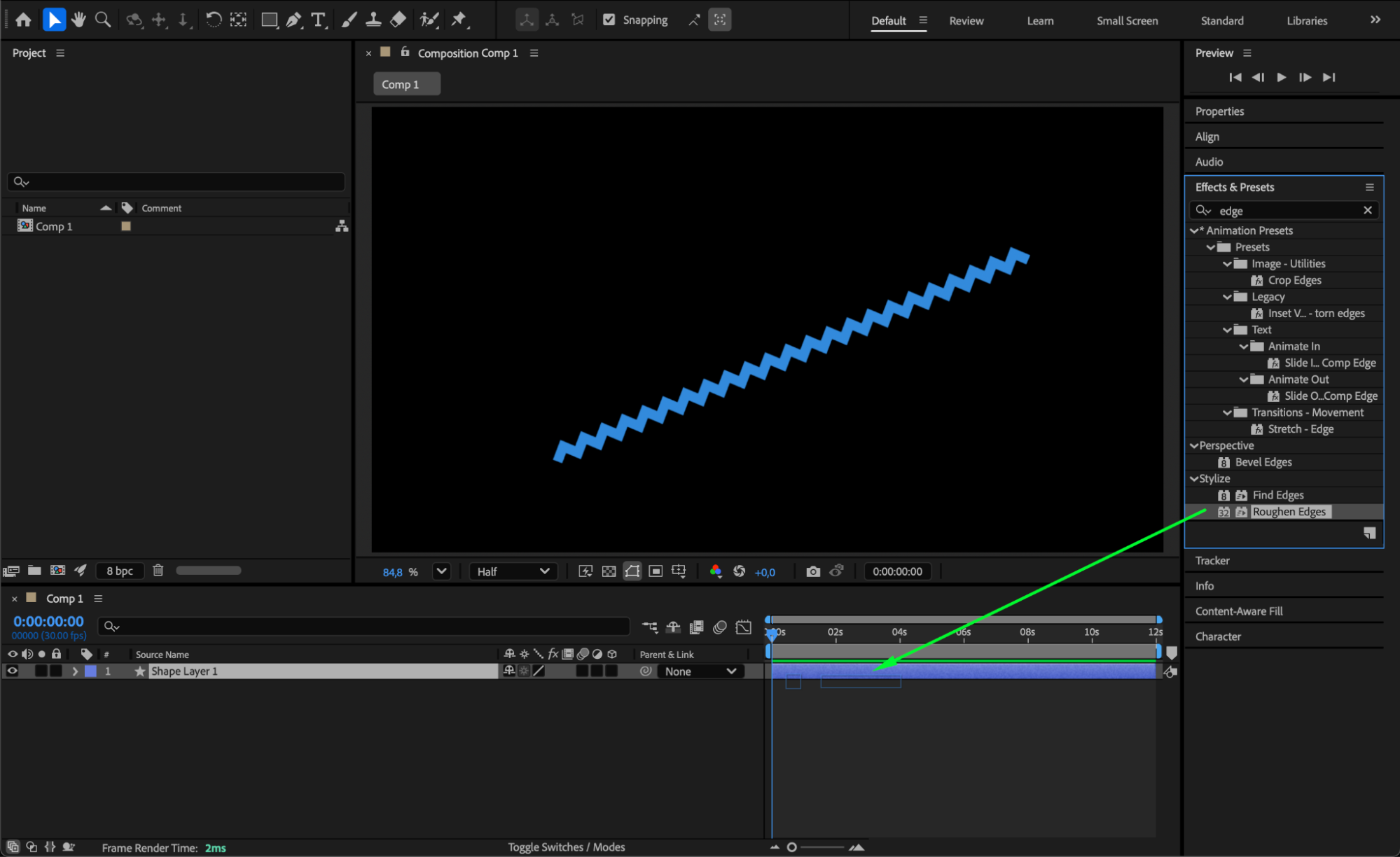
 Step 5: Apply Turbulent Displace for Fluid Motion
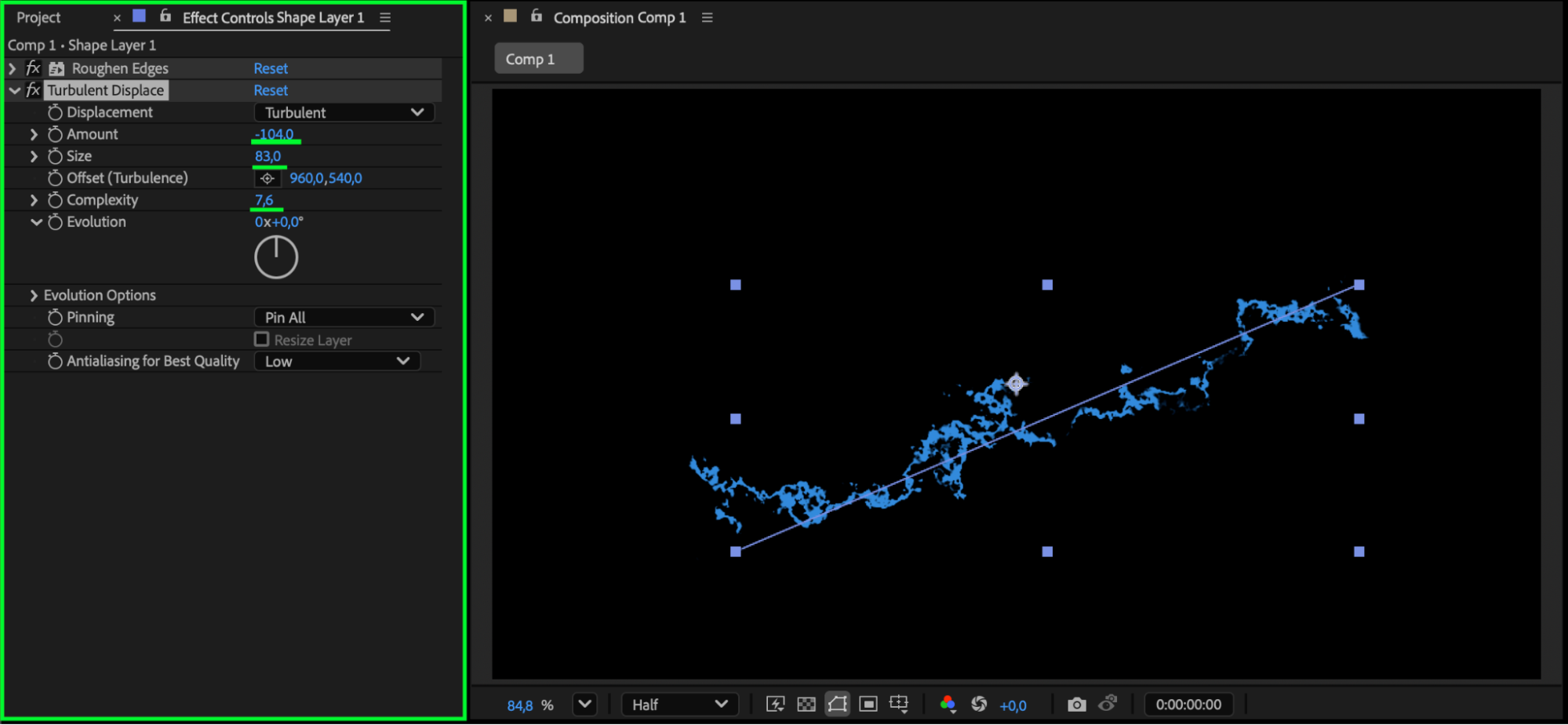
Add Turbulent Displace from the Effects & Presets panel. In the settings, choose Amount: 104, Size: 83, and Complexity: 7.6. This effect will give your fire line a more fluid, organic look, making it appear as though the flames are constantly moving.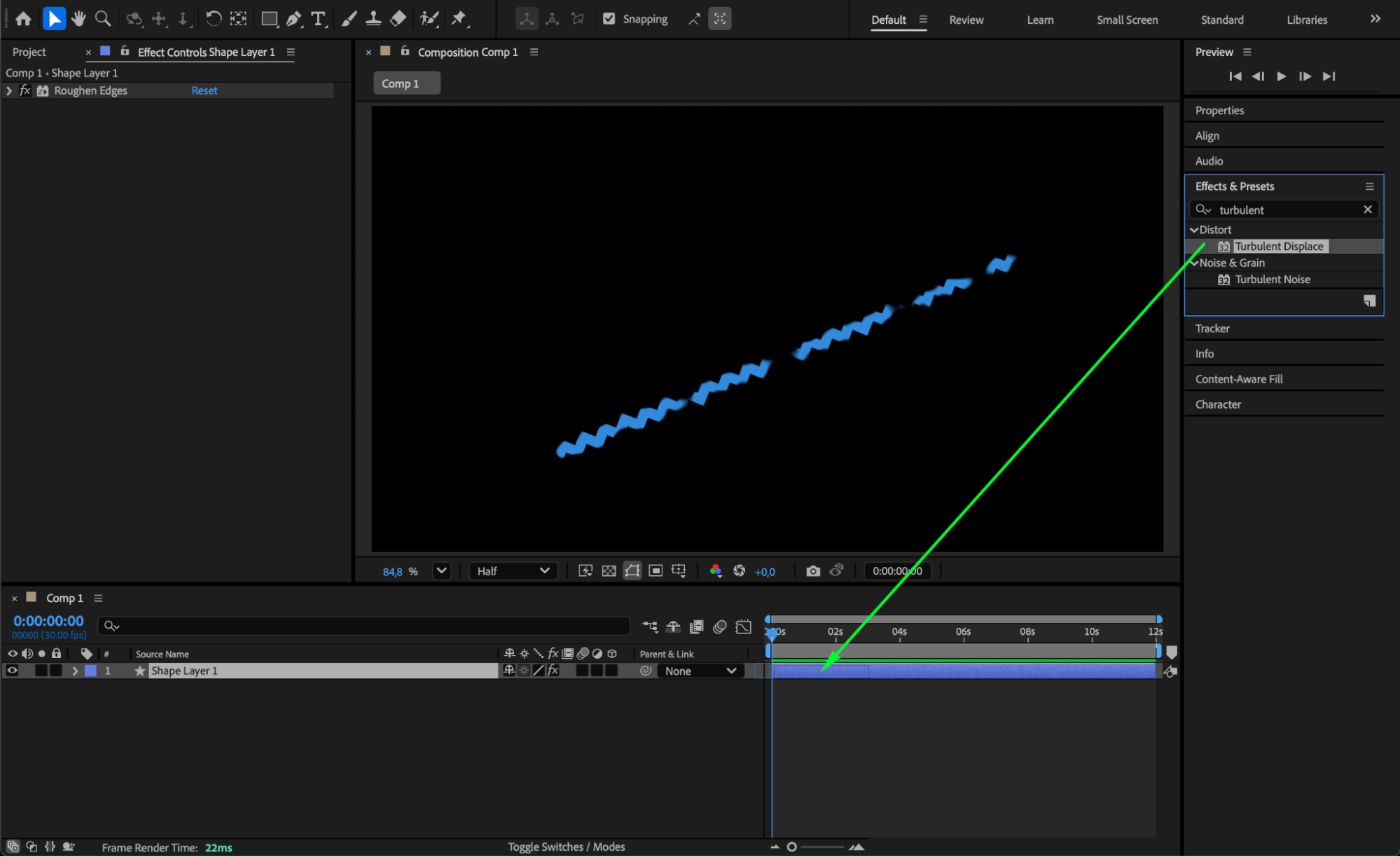
Step 6: Add Turbulent Noise for Flame Texture
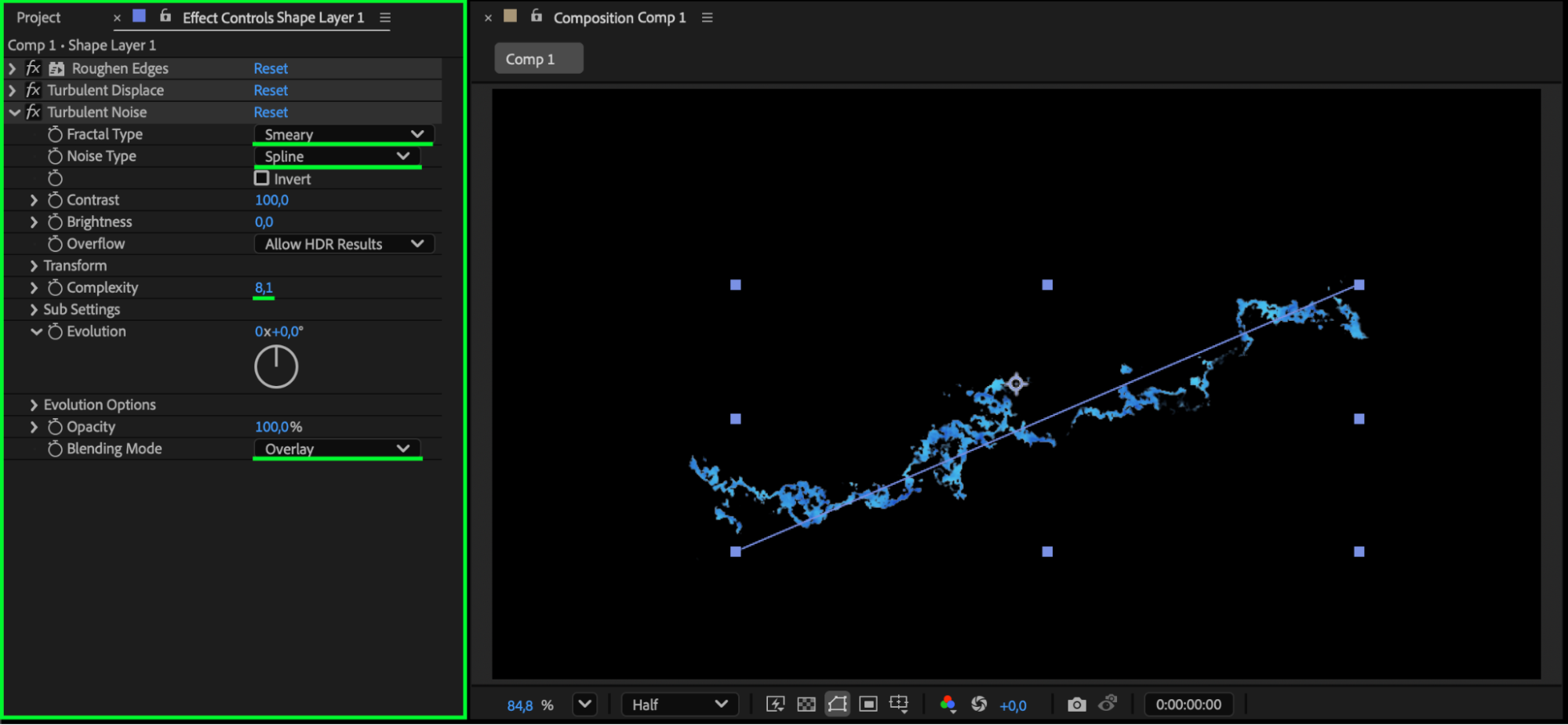
Apply Turbulent Noise to the same layer. Set Fractal Type to Smeary, Noise Type to Spline, and Complexity to 8.1. Change Blending Mode to Overlay for better color integration. This adds internal flame movement and a more realistic energy texture.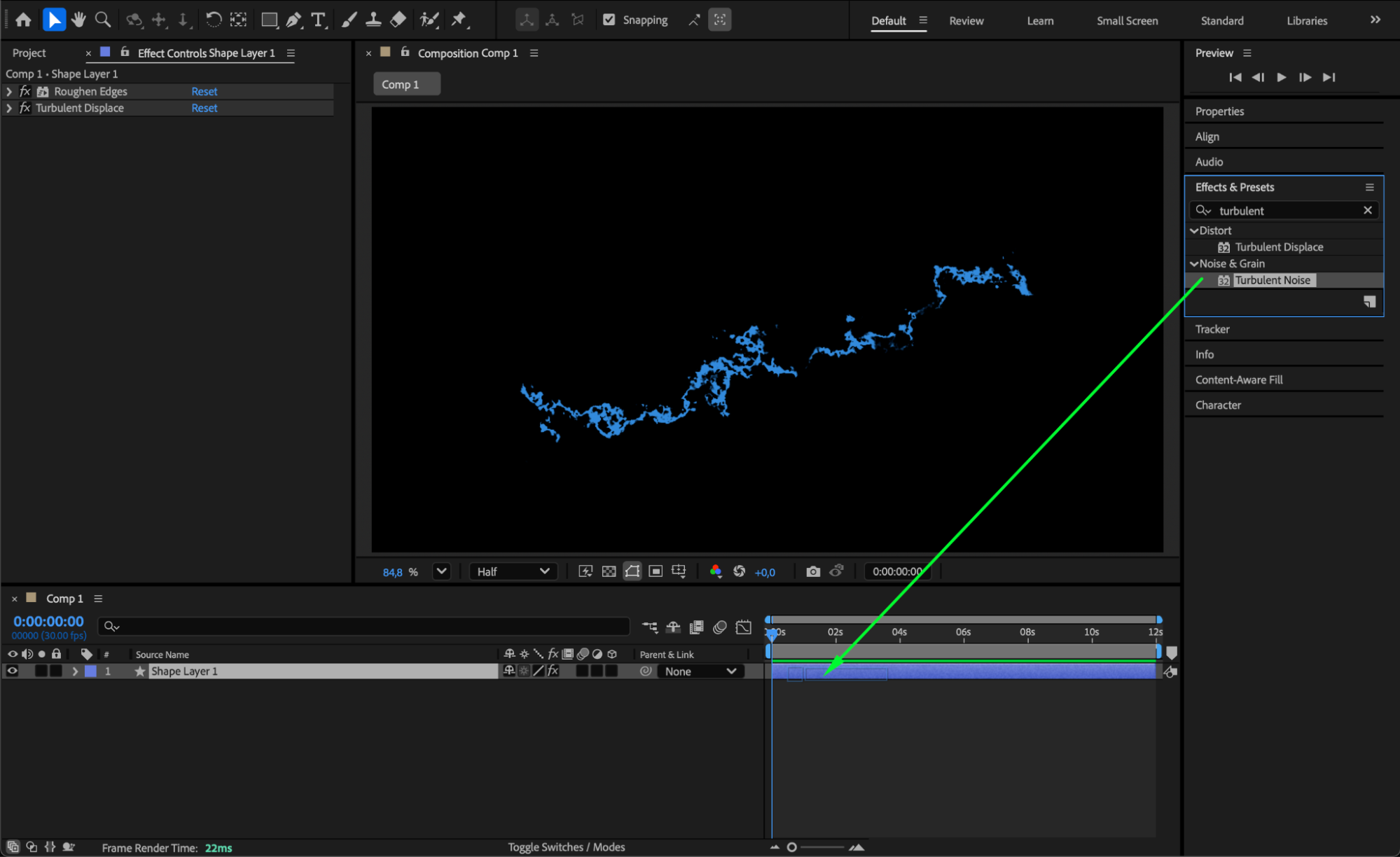
 Step 7: Add Glow for Light Emission
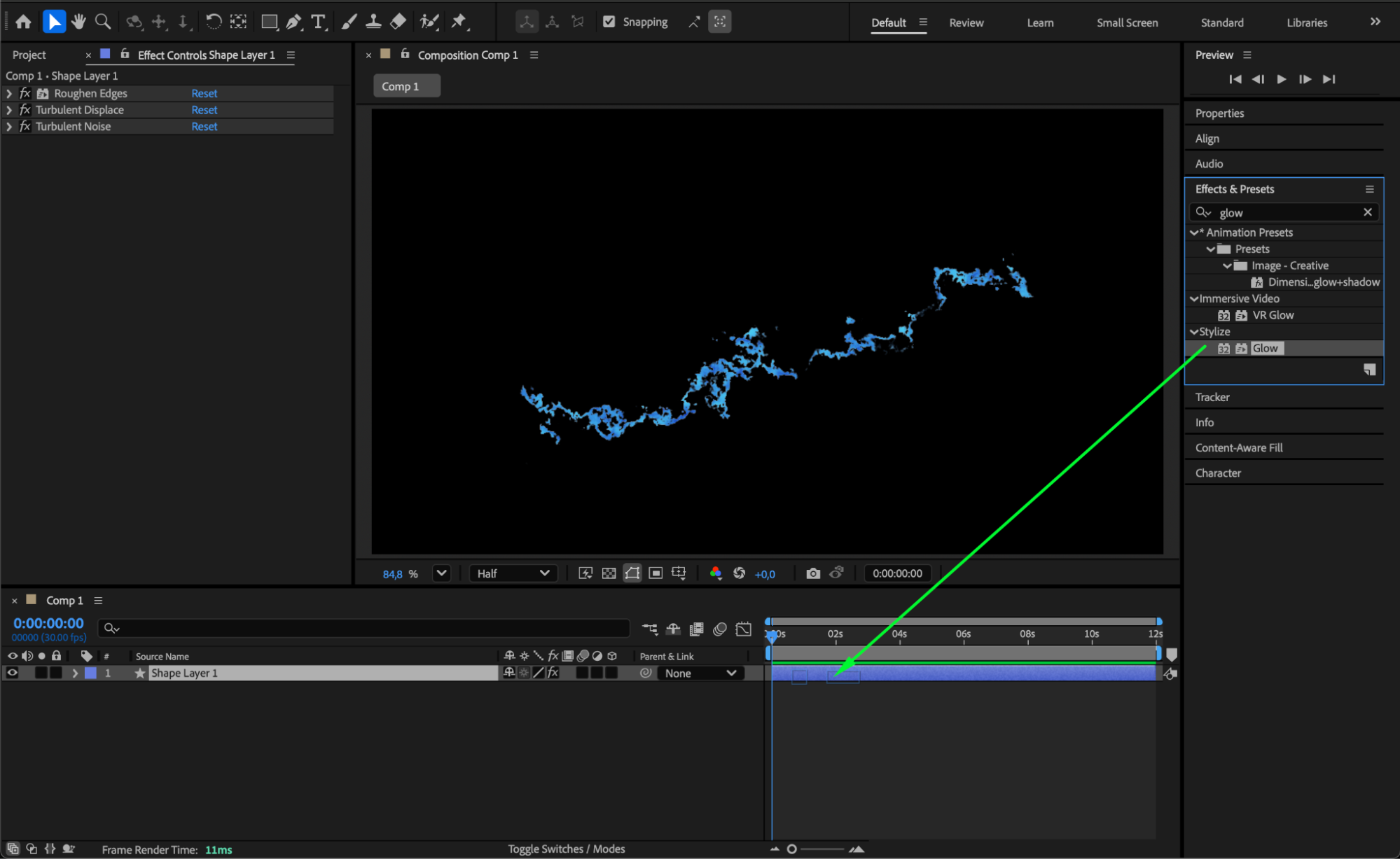
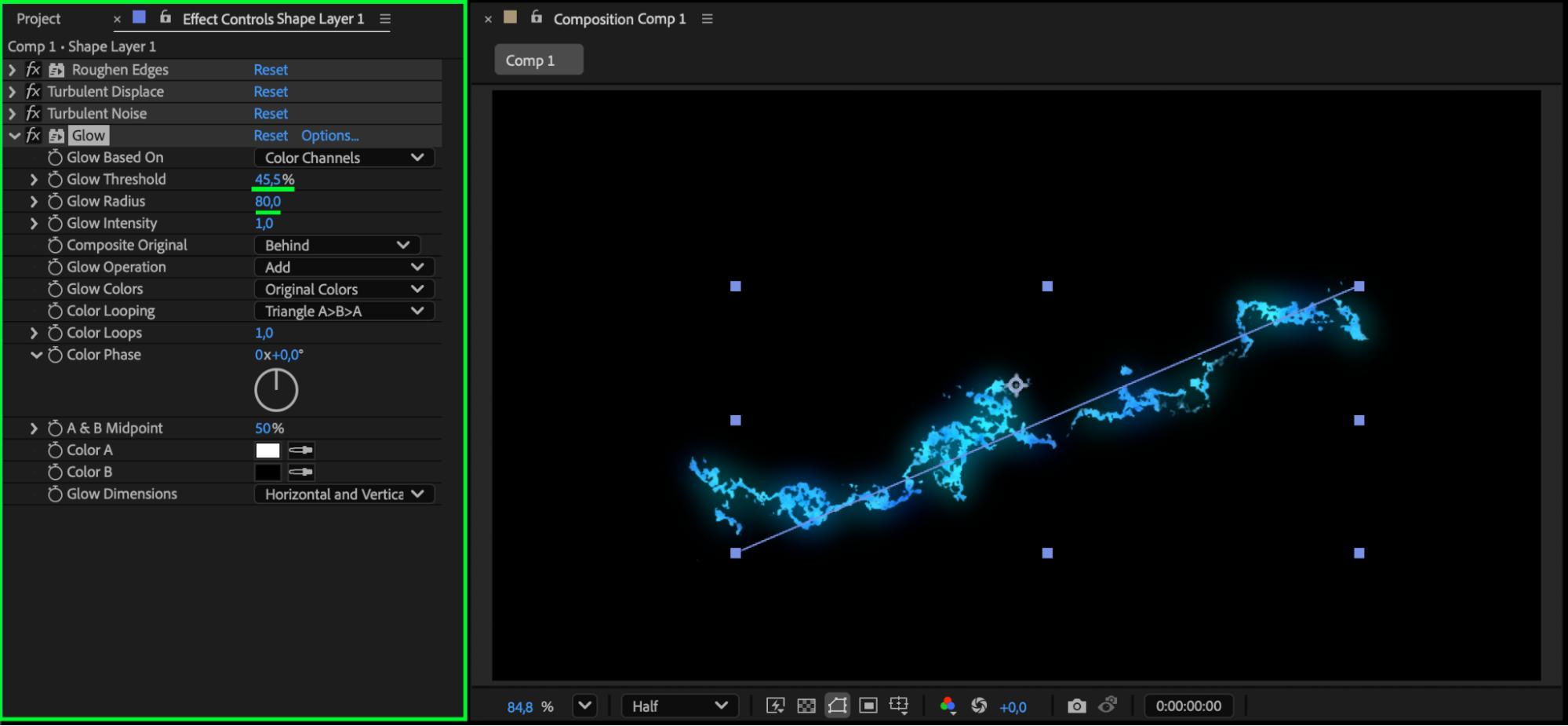
Go to Effects & Presets > Glow. In the Effect Controls, set Glow Threshold to 45 and Glow Radius to 80. This will make your blue line emit a soft light, enhancing its fiery look.
 Step 8: Animate the Flame Movement
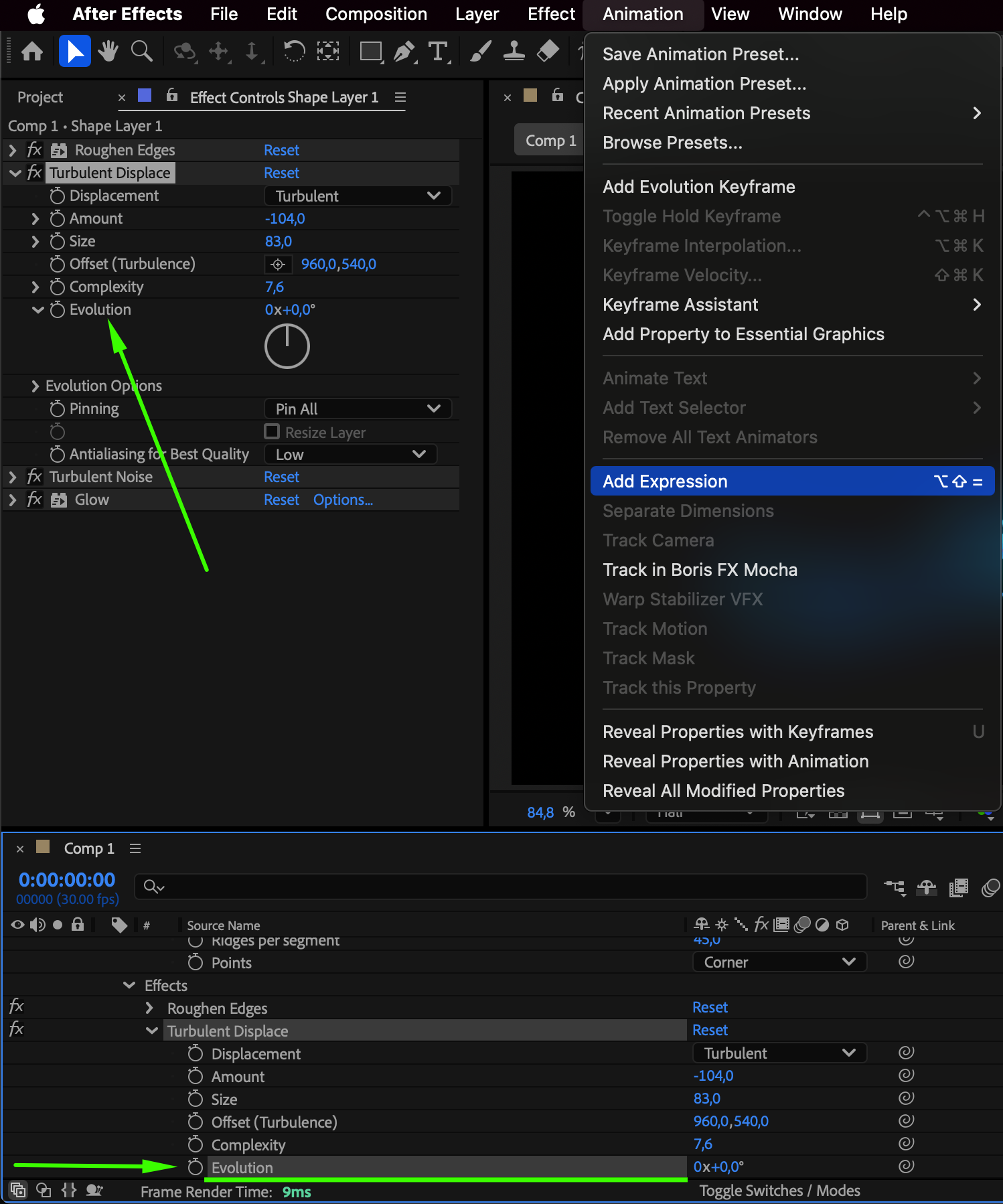
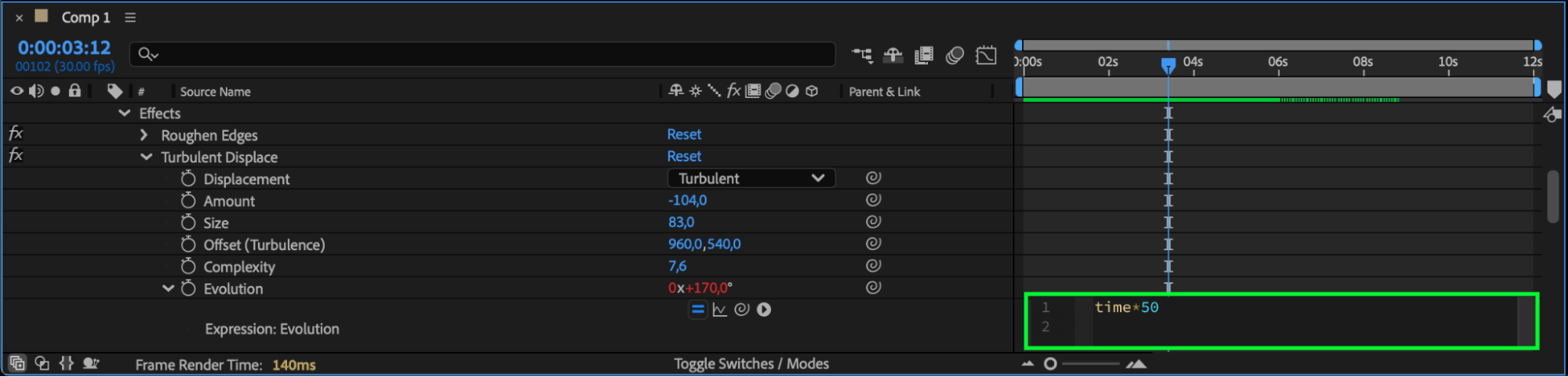
Hold Alt (Option) and click the stopwatch next to Evolution in the Turbulent Displace settings. Add the expression:
time*50
This continuously animates the turbulence, making the blue fire flicker and flow dynamically.
Step 9: Add Drop Shadow for Depth
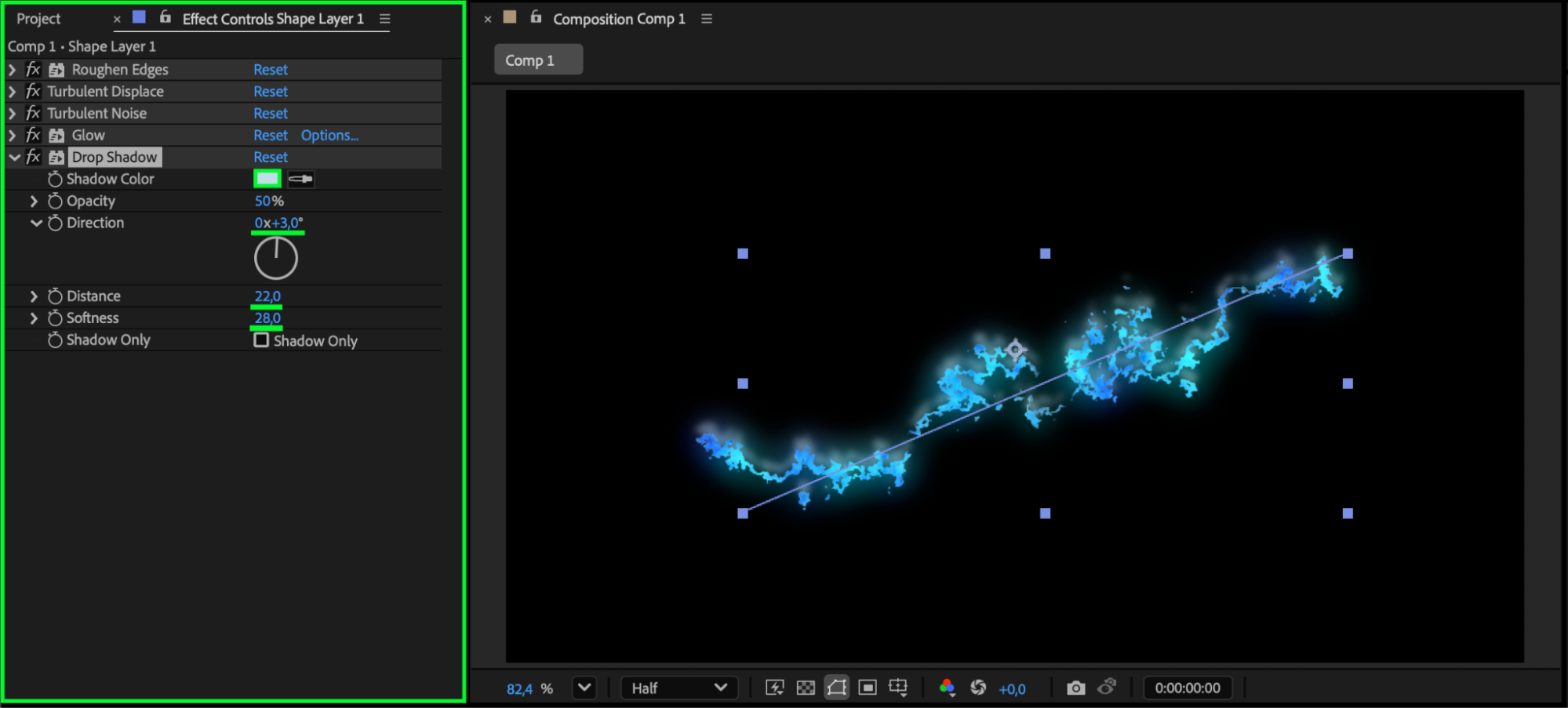
Apply Drop Shadow from the Effects & Presets panel. Set the Color to a light blue, Distance to 22, and Softness to 28. This gives the fire line a glowing halo and more visual depth.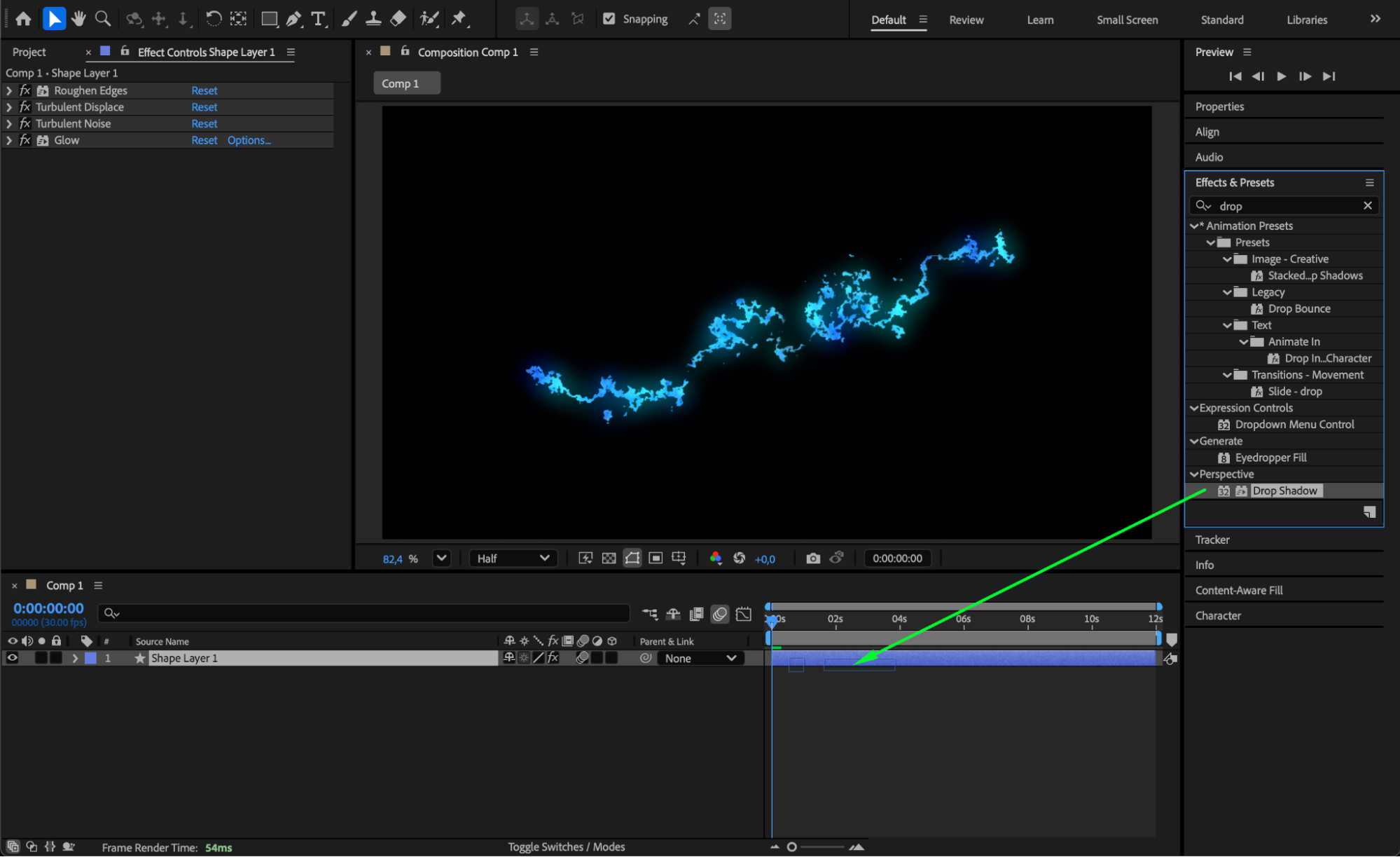
 Step 10: Duplicate the Layer
Select the line layer and press “Ctrl/Cmd + D” to duplicate it. This will enhance the brightness and give more intensity to the glowing fire effect.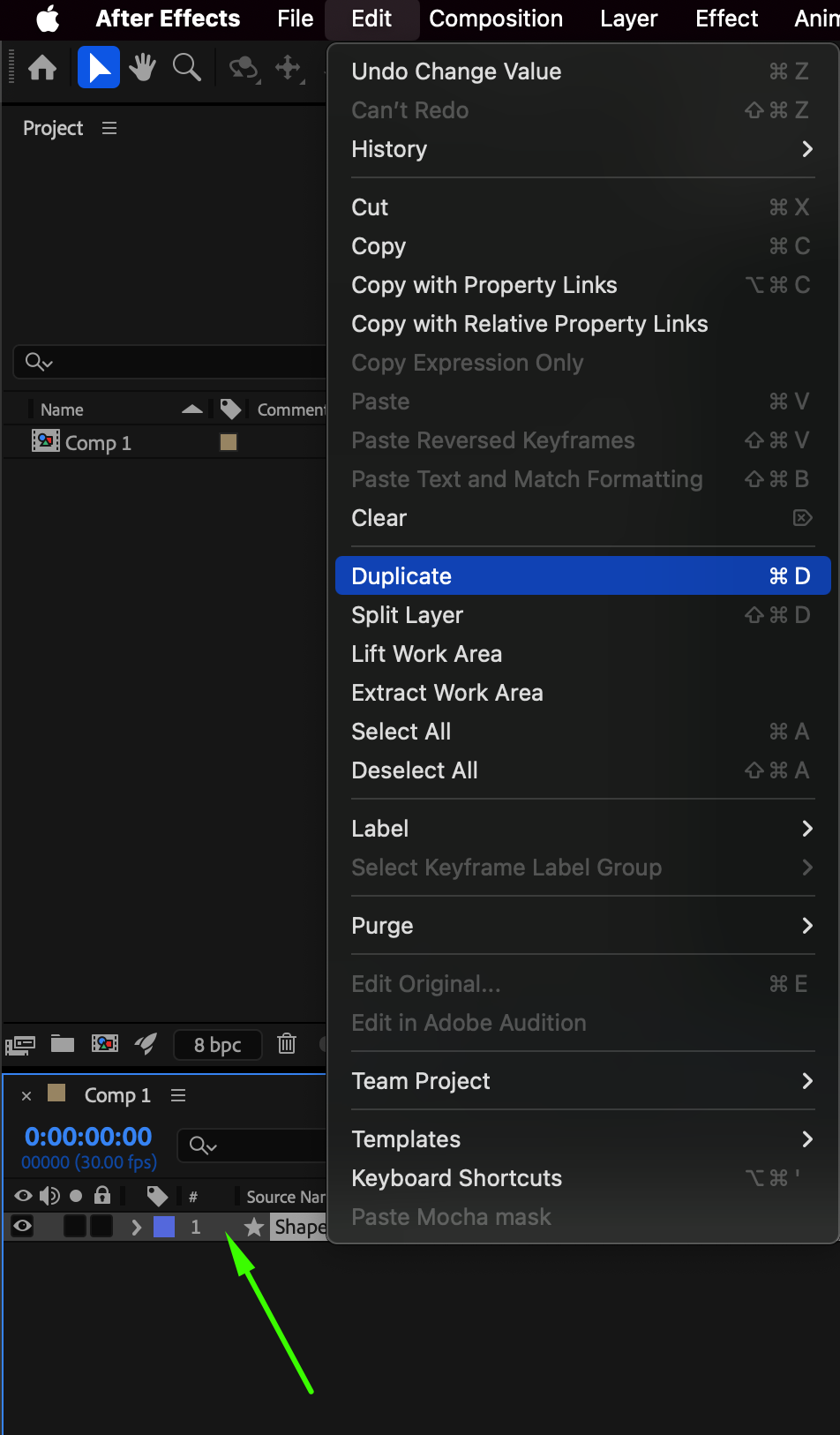 Step 11: Add Directional Blur for Motion
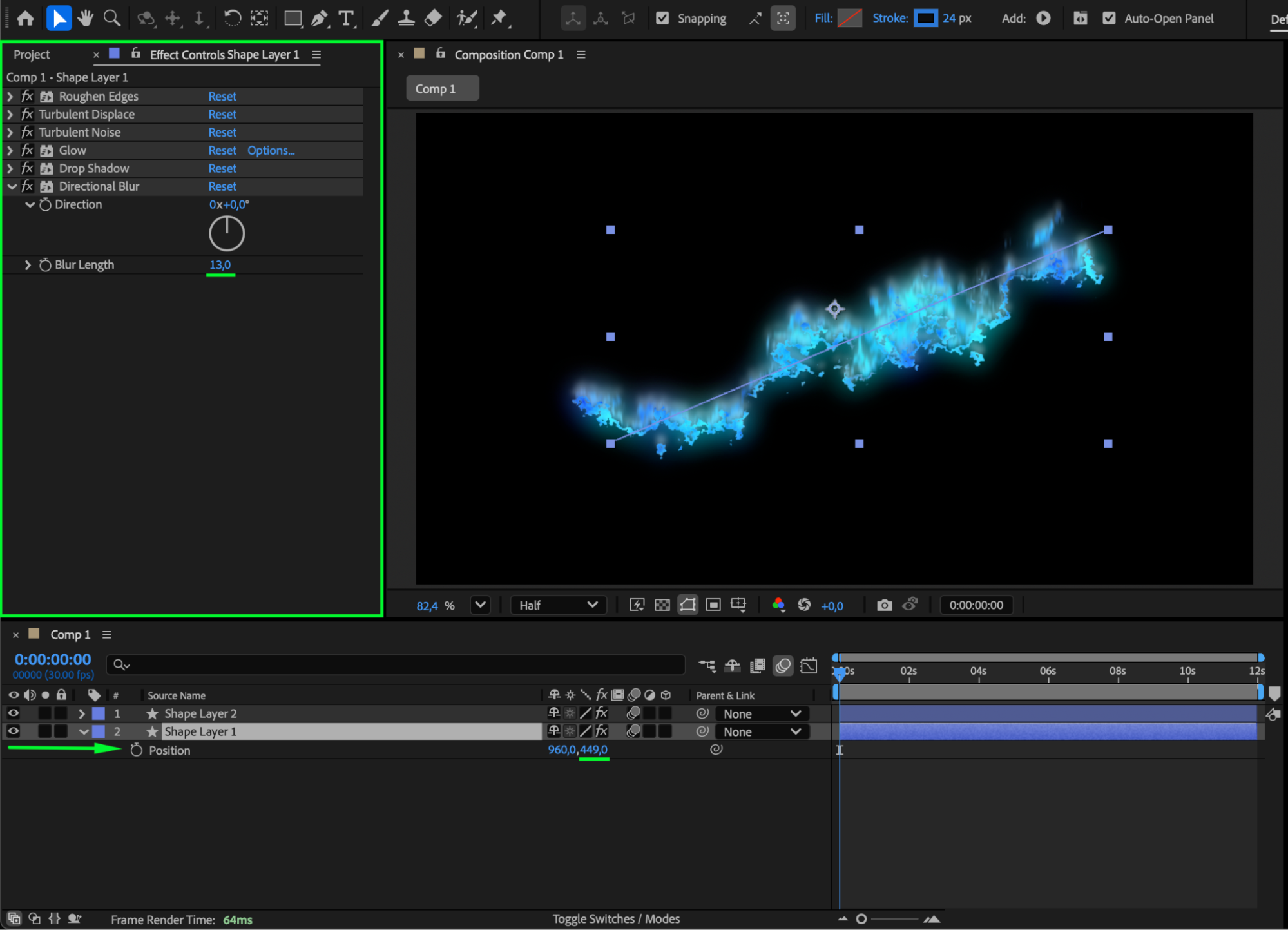
On the original layer (below the duplicate), apply Directional Blur. Set Blur Length to 13 and adjust the Y Position to 449 to slightly offset it upward. This creates a subtle glow trail effect, emphasizing the line’s motion and energy.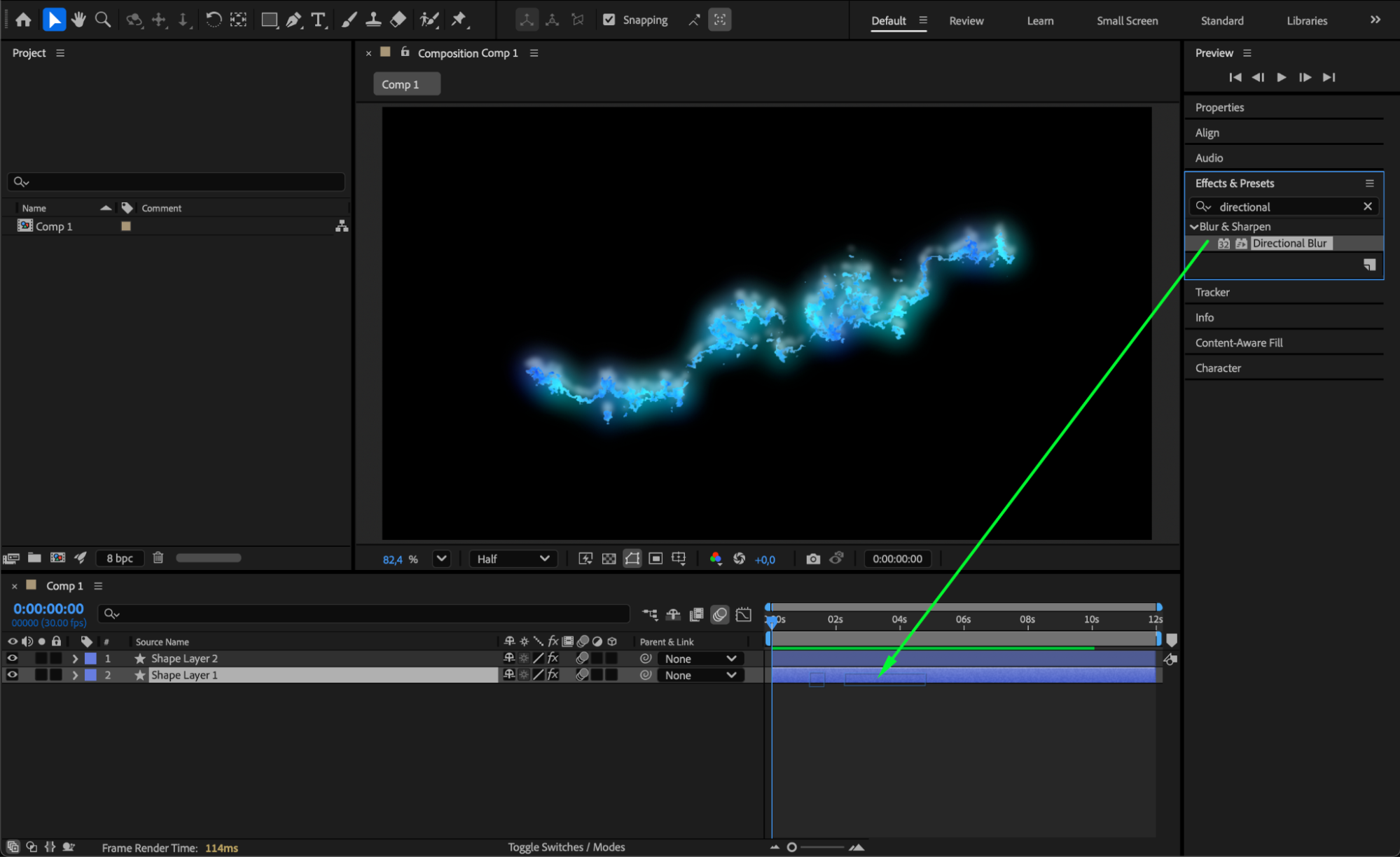
 Step 12: Preview and Finalize
Press Spacebar to preview your animation. If needed, adjust glow intensity, turbulence, or blur settings until the fire line moves smoothly and emits the right amount of light.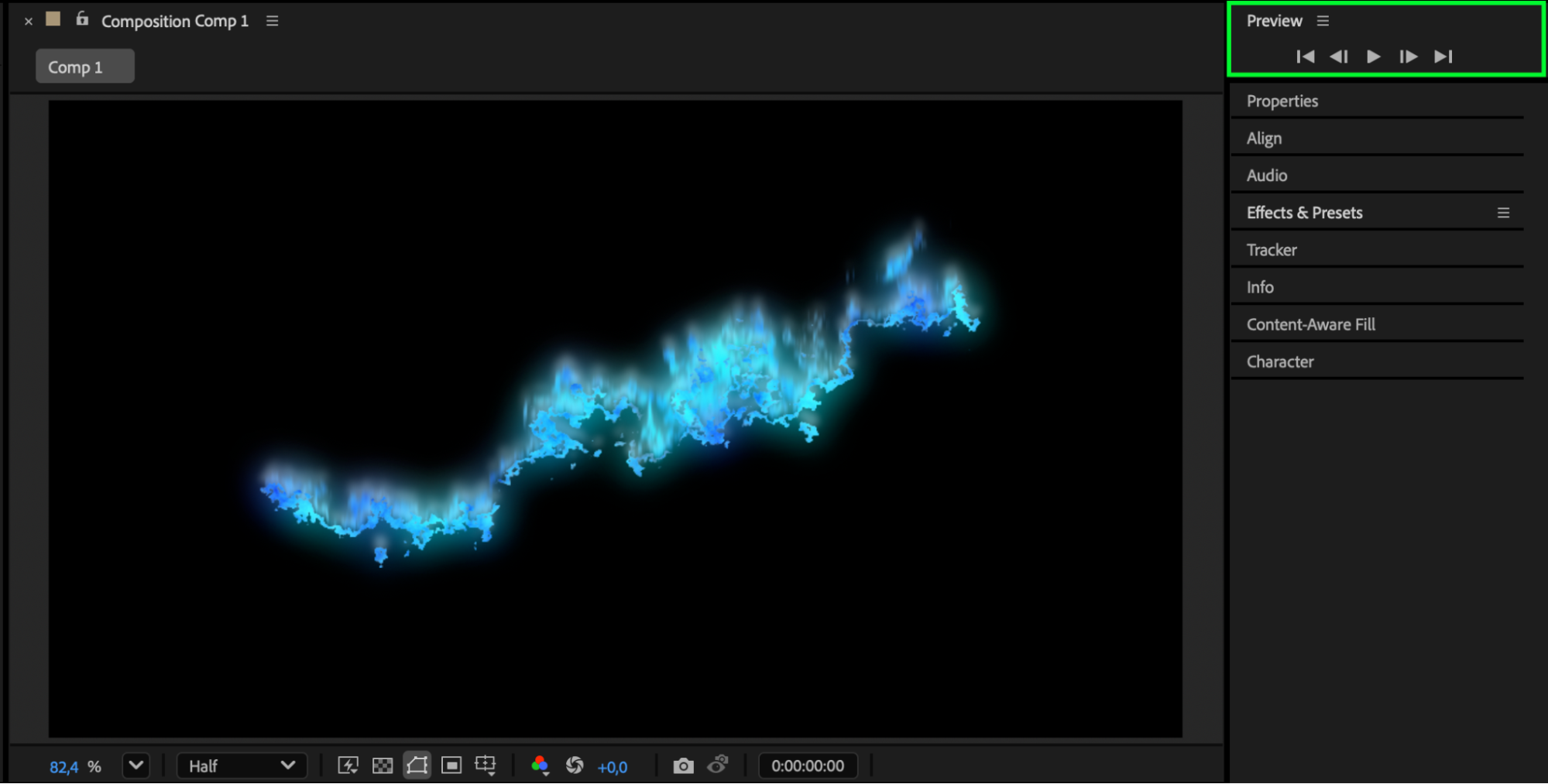 Conclusion
By combining a few simple native effects — Zig Zag, Roughen Edges, Turbulent Displace, and Glow — you can easily create a dynamic and realistic blue fire line in After Effects. This technique works great for visual effects, logo reveals, or motion design projects.
Our Bestsellers
Our Bestsellers


