
Learn how to design clean and dynamic split screen layouts in After Effects using AEJuice Split Screens pack for interviews, vlogs, and multi-cam edits.
Designing Split Screen Effects in Adobe After Effects
Introduction to Using Split Screens in Interviews and Edits
Split screen effects are a great way to show multiple perspectives at once. Whether you’re editing interviews, podcasts, or vlogs, they help tell the story by placing visuals side by side. In this tutorial, you’ll learn how to create split screen layouts using the AEJuice Split Screens Pack in After Effects.
Step 1: Create a New Composition
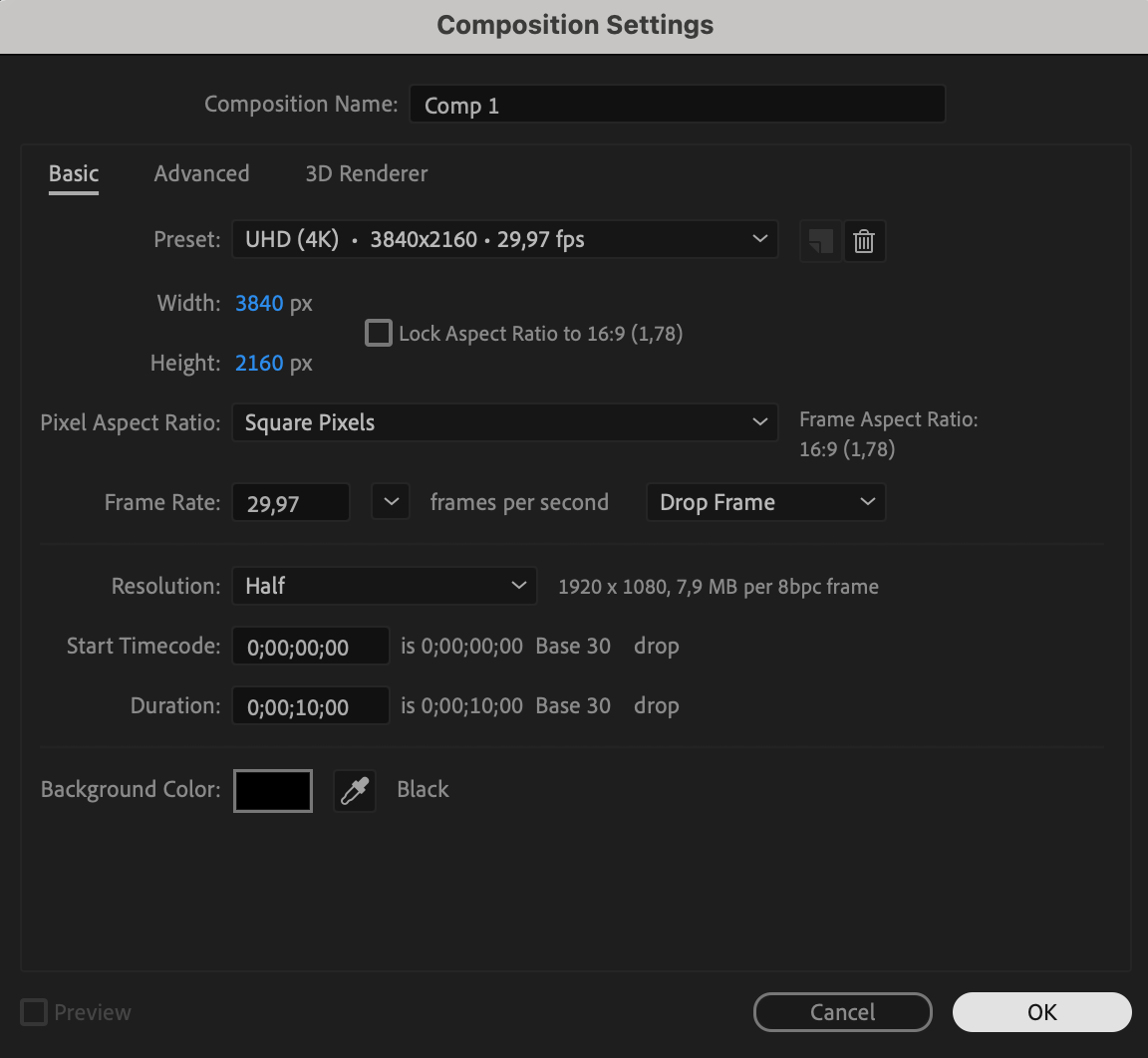
Go to Composition > New Composition and set the desired resolution and duration. This will be your main workspace where the split screens will appear.
 Step 2: Import Your Footage
Use File > Import > File to bring your video clips or images into the project panel. These clips will be placed into different sections of your split screen design.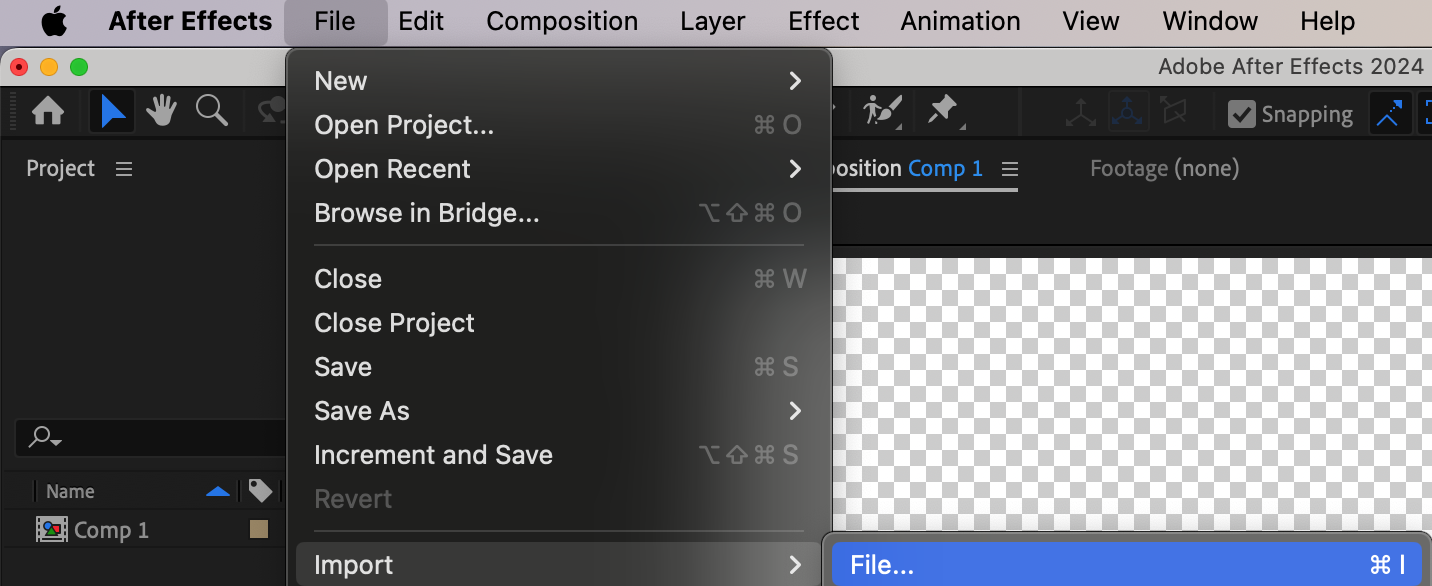 Step 3: Open AEJuice Pack Manager
Navigate to Window > AEJuice Pack Manager 4. This panel allows you to browse and manage all available AEJuice effects and tools. Make sure you are logged in for full access.
Step 4: Download the Split Screens Pack
In the Pack Manager, search for the Split Screens Pack. Click on it and download if you haven’t already. Once it’s installed, you’ll have access to a variety of split screen layout effects.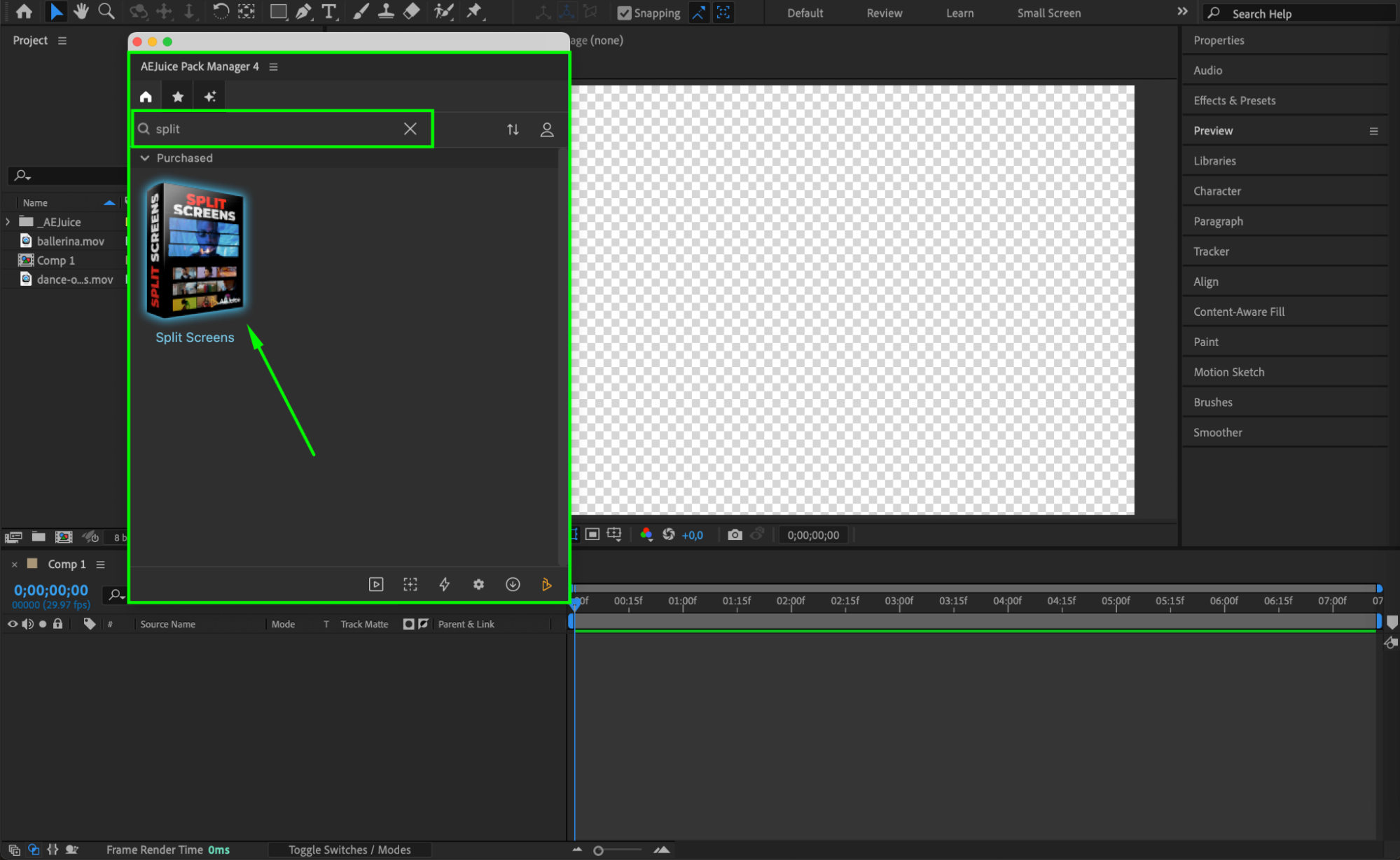 Step 5: Choose and Import a Split Screen Effect
Browse through the available split screen designs and choose one that fits your project’s layout (e.g., two, three, or four-panel split). Click on the one you like and hit Import to add it directly into your composition.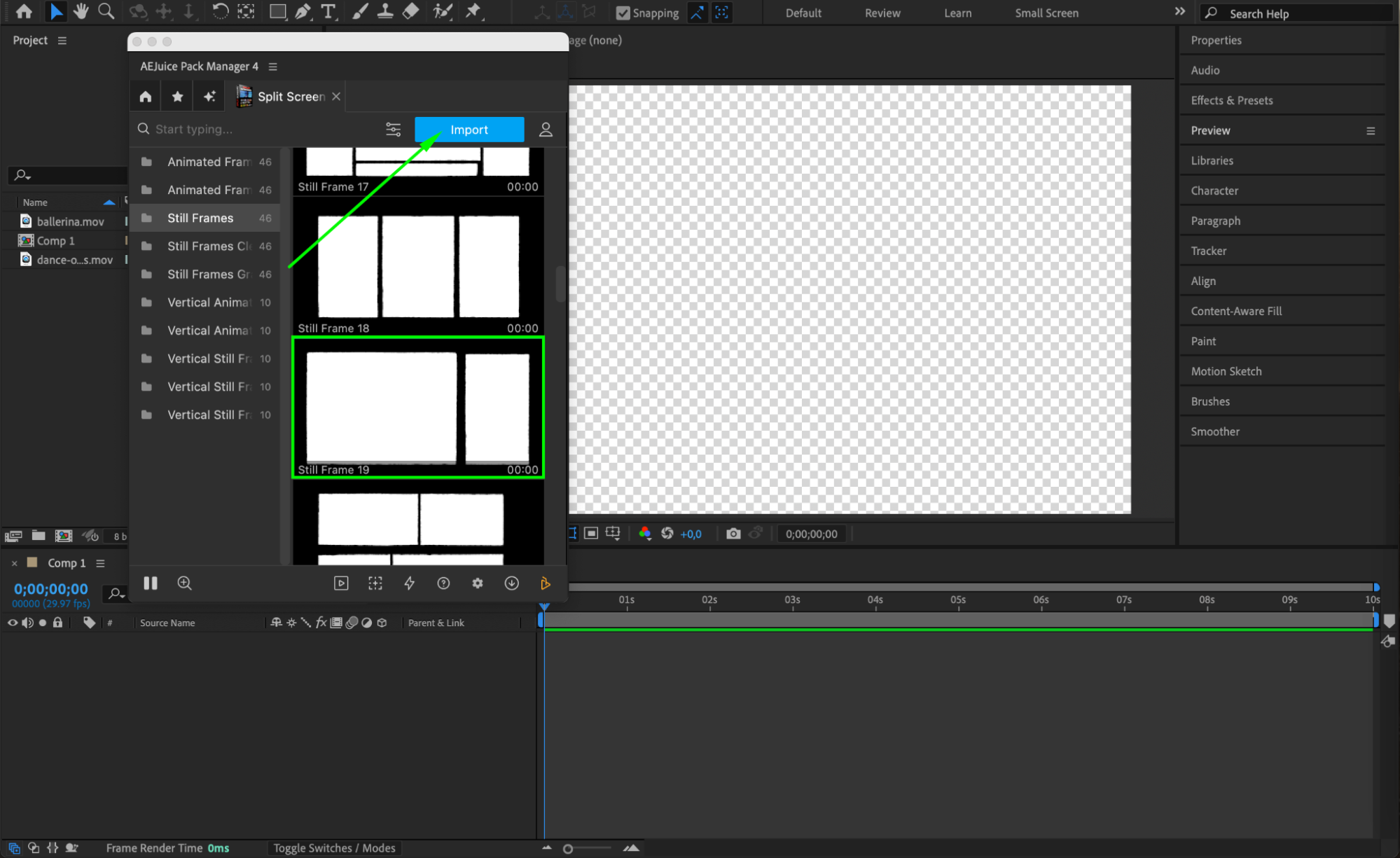 Step 6: Customize the Split Screen Layout
Select the imported pre-comp layer in the timeline. Click the Edit button (represented by three sliders) in the AEJuice panel. Here, you can adjust the layout’s colors, add sound options, or change the blending mode depending on the effect.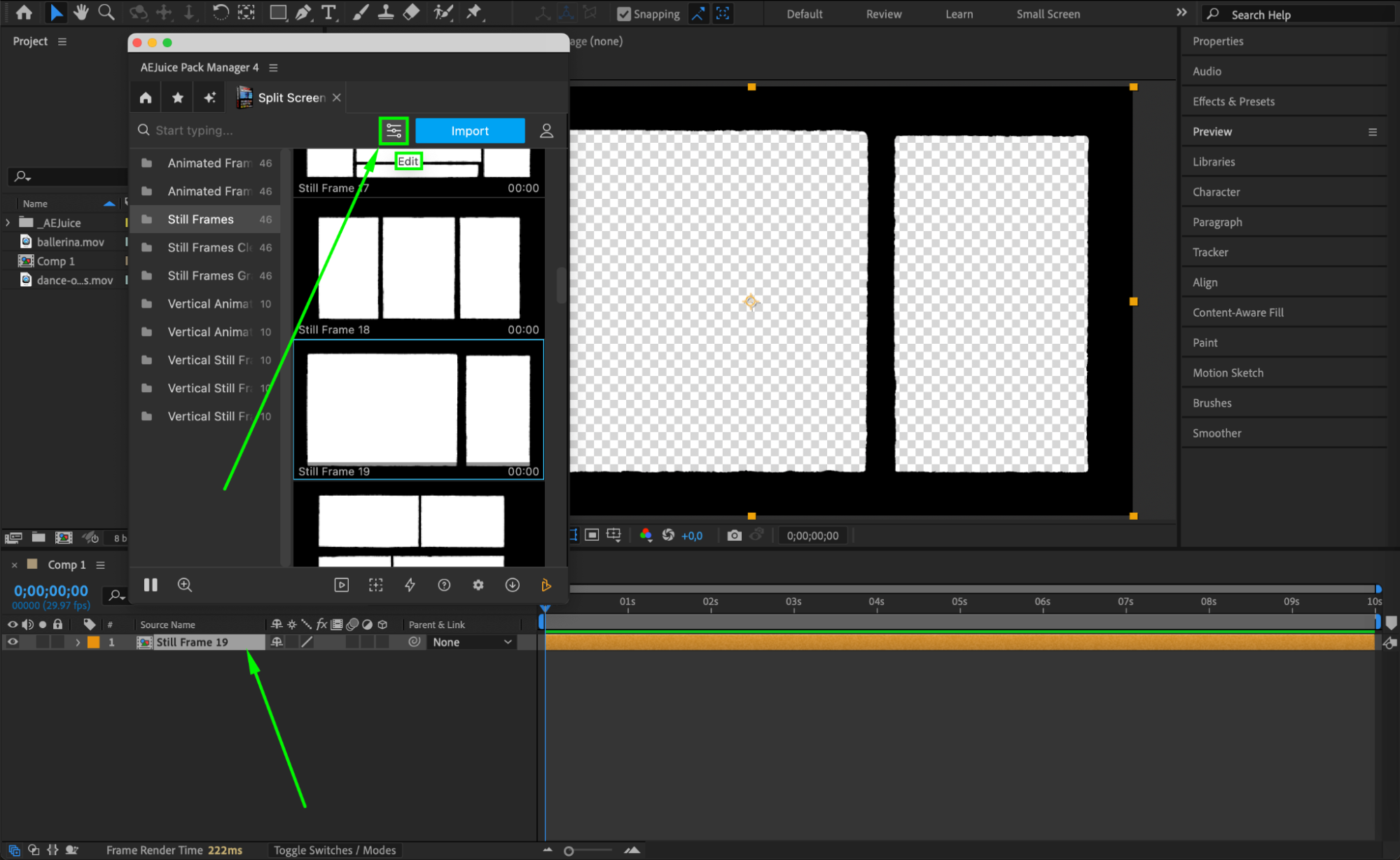
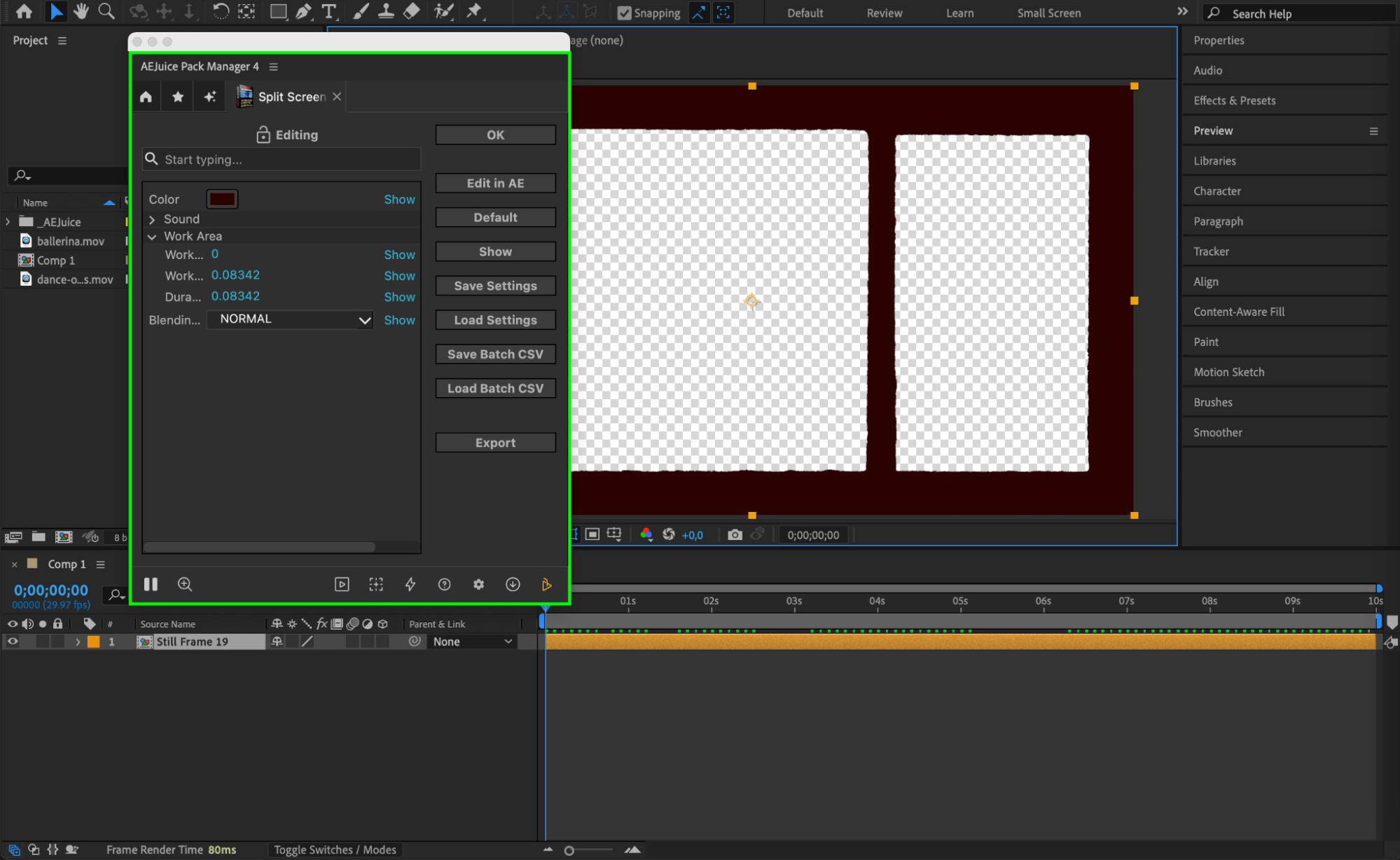
Step 7: Add and Position Your Footage
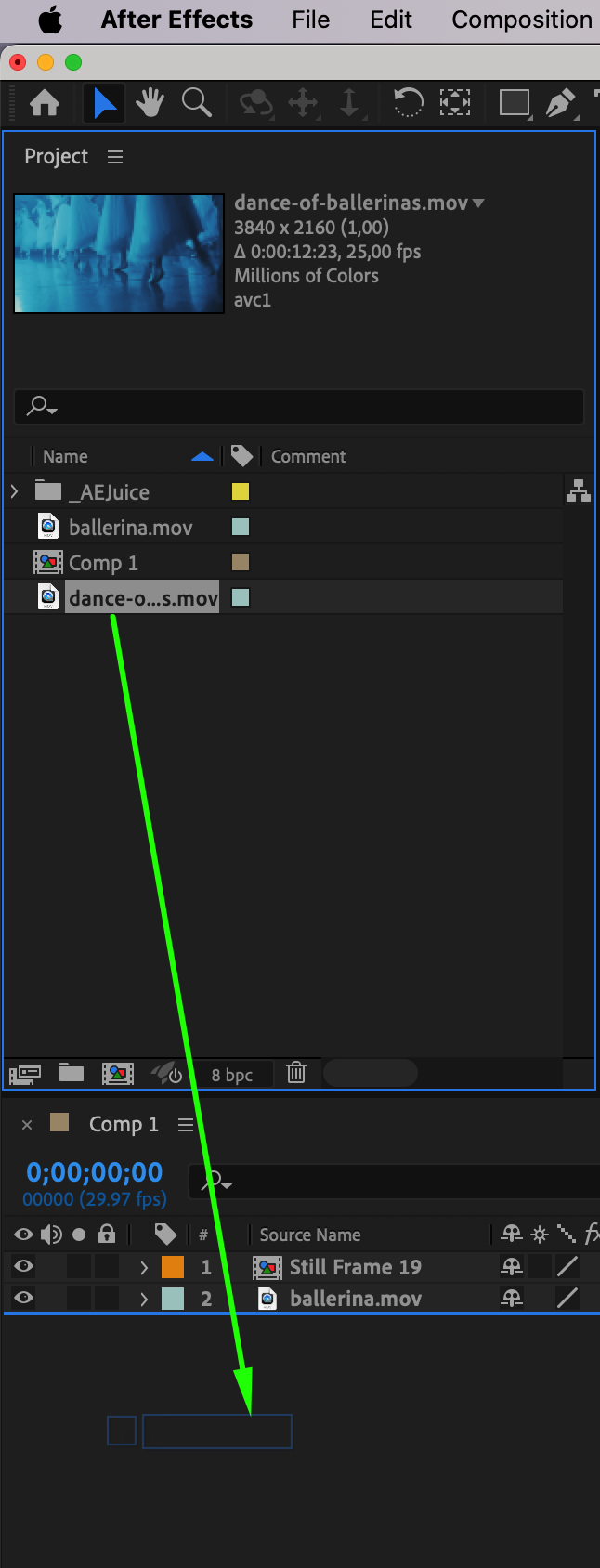
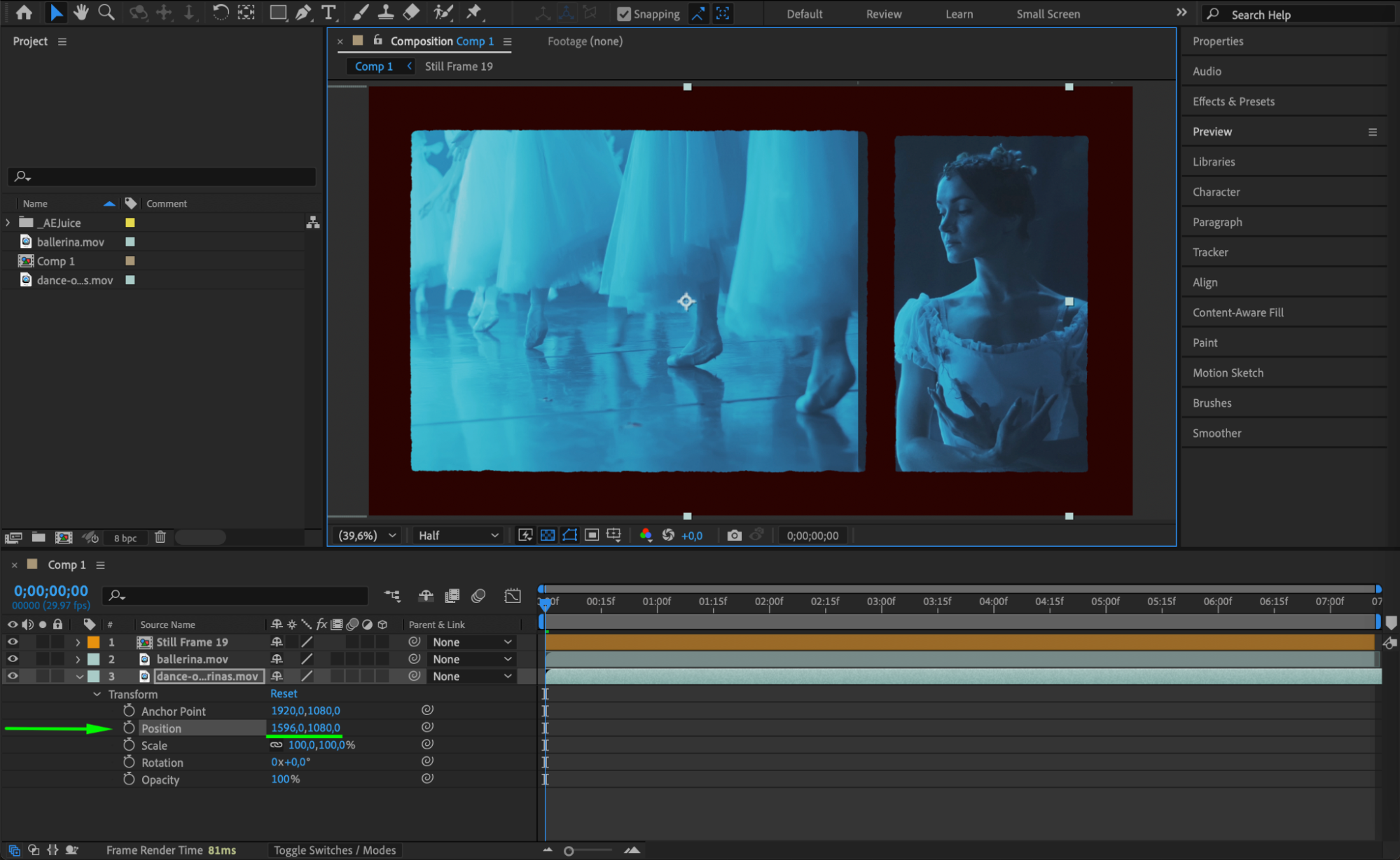
Drag your video clips into the timeline below the split screen pre-comp. Scale and reposition each clip to fit into its assigned section. You can temporarily lower the opacity of the overlay to help with alignment.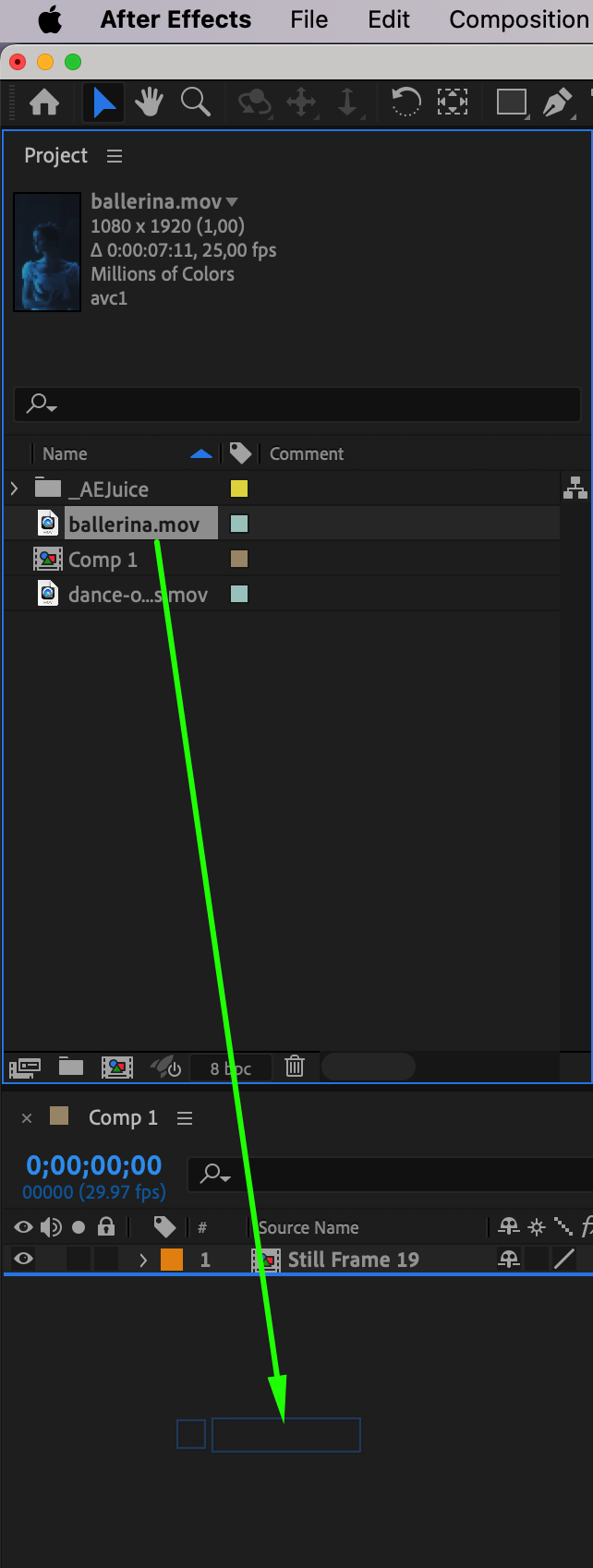
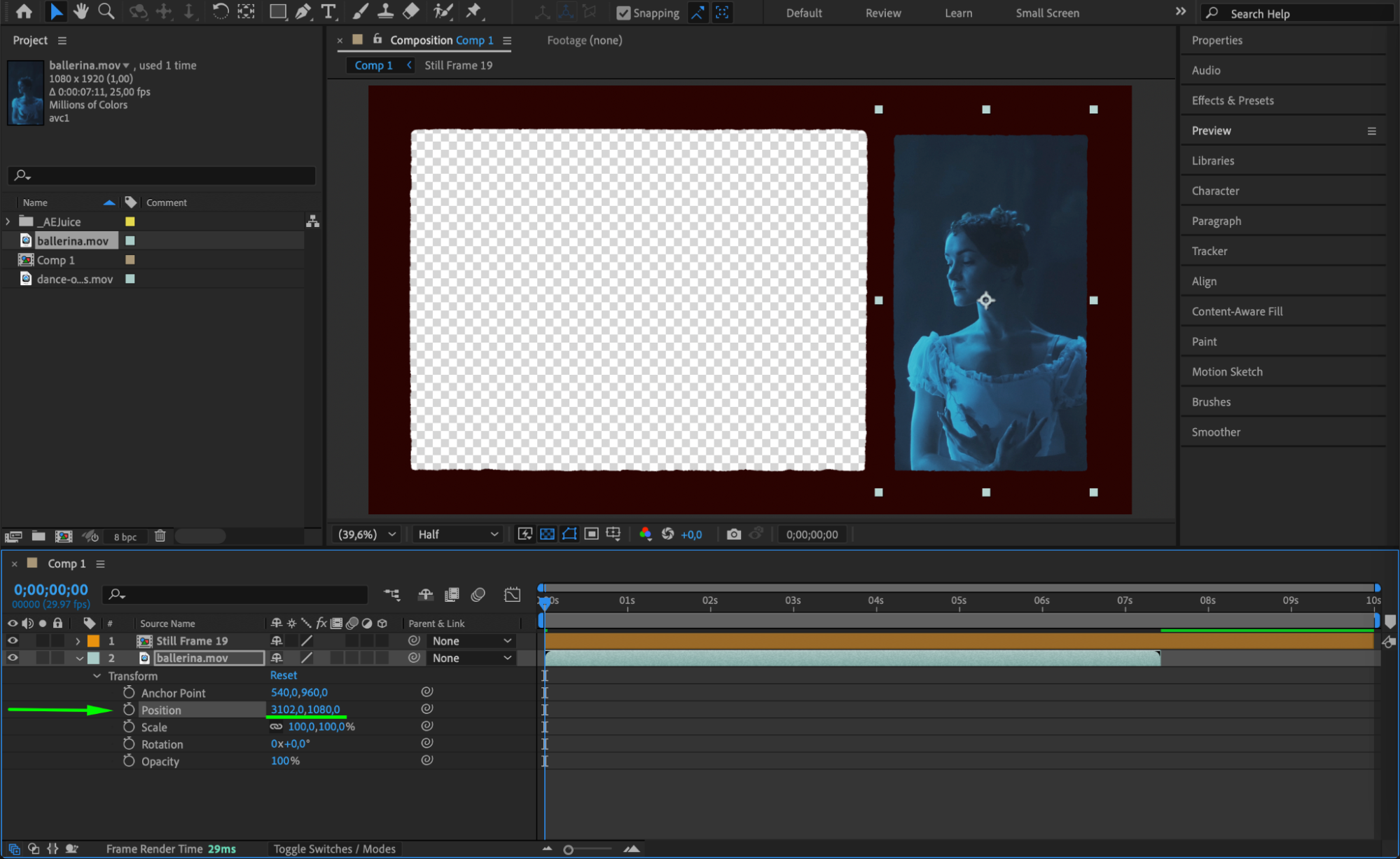
 Step 8: Mask Footage with the Rectangle Tool
Use the Rectangle Tool (Q) to draw masks around each footage layer so that they fit cleanly into the split layout. In the Mask settings, choose the mode as Add or Subtract to reveal or hide specific areas.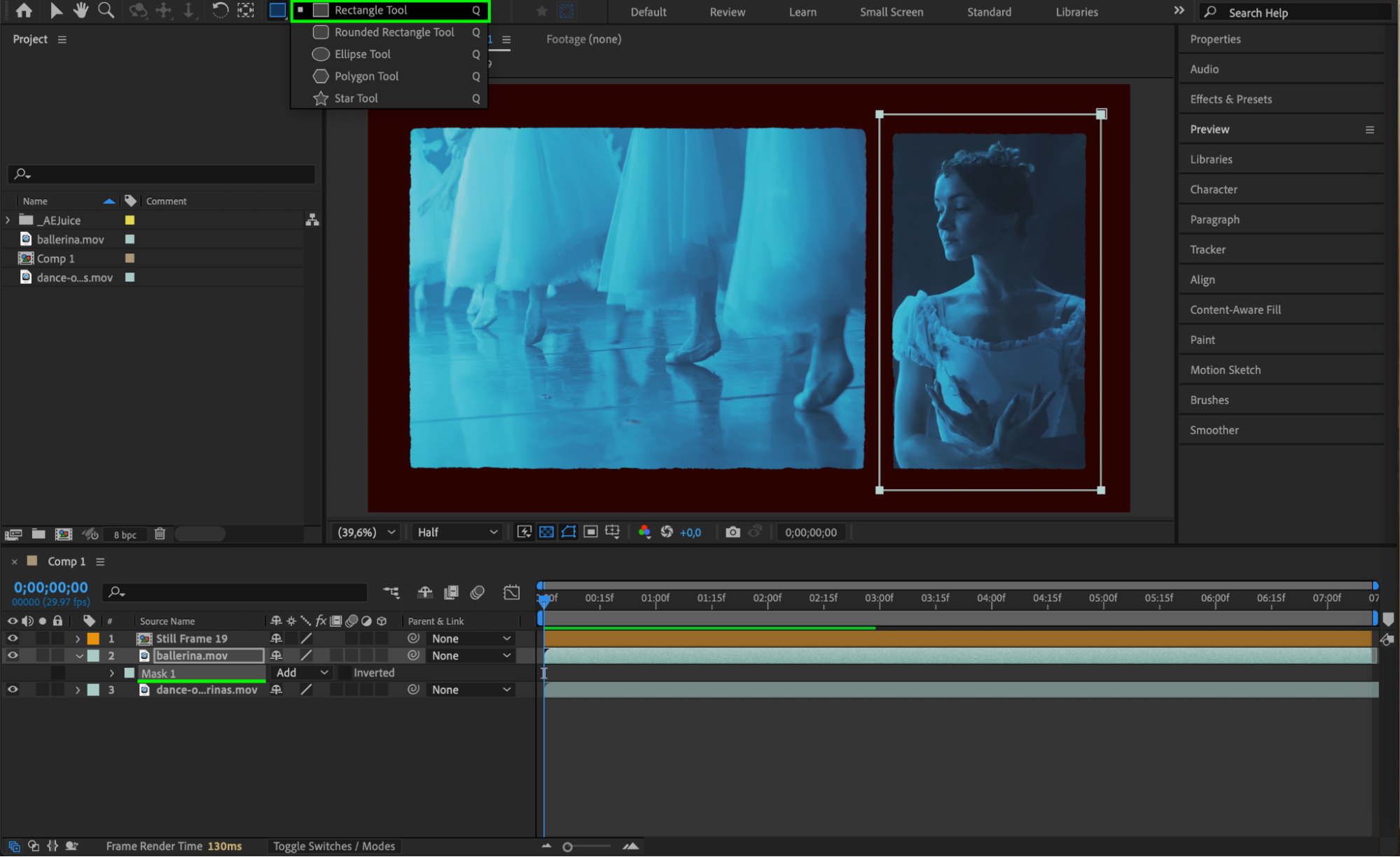 Step 9: Match the Look with Brightness & Contrast
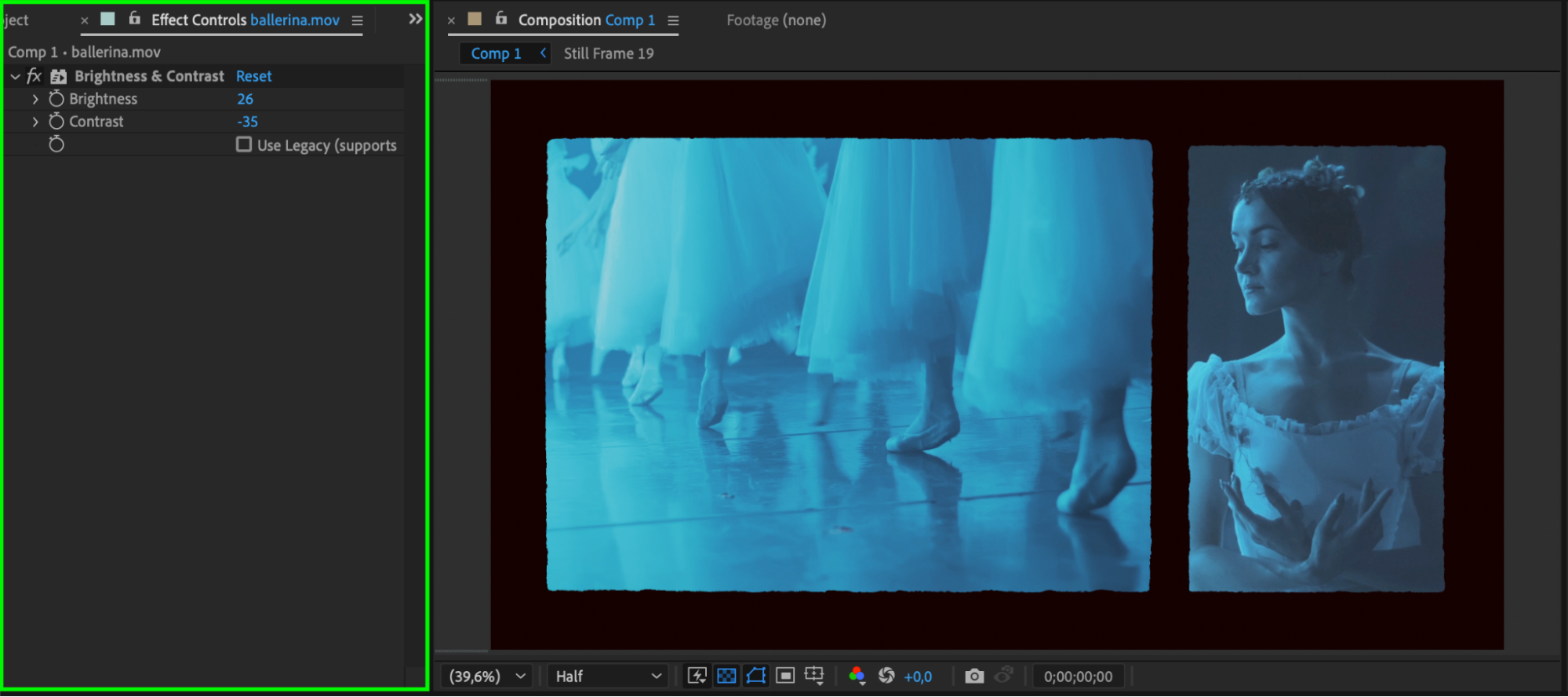
To ensure all clips look consistent, apply the Brightness & Contrast effect from the Effects & Presets panel. Adjust the values as needed to create a uniform color tone across all footage.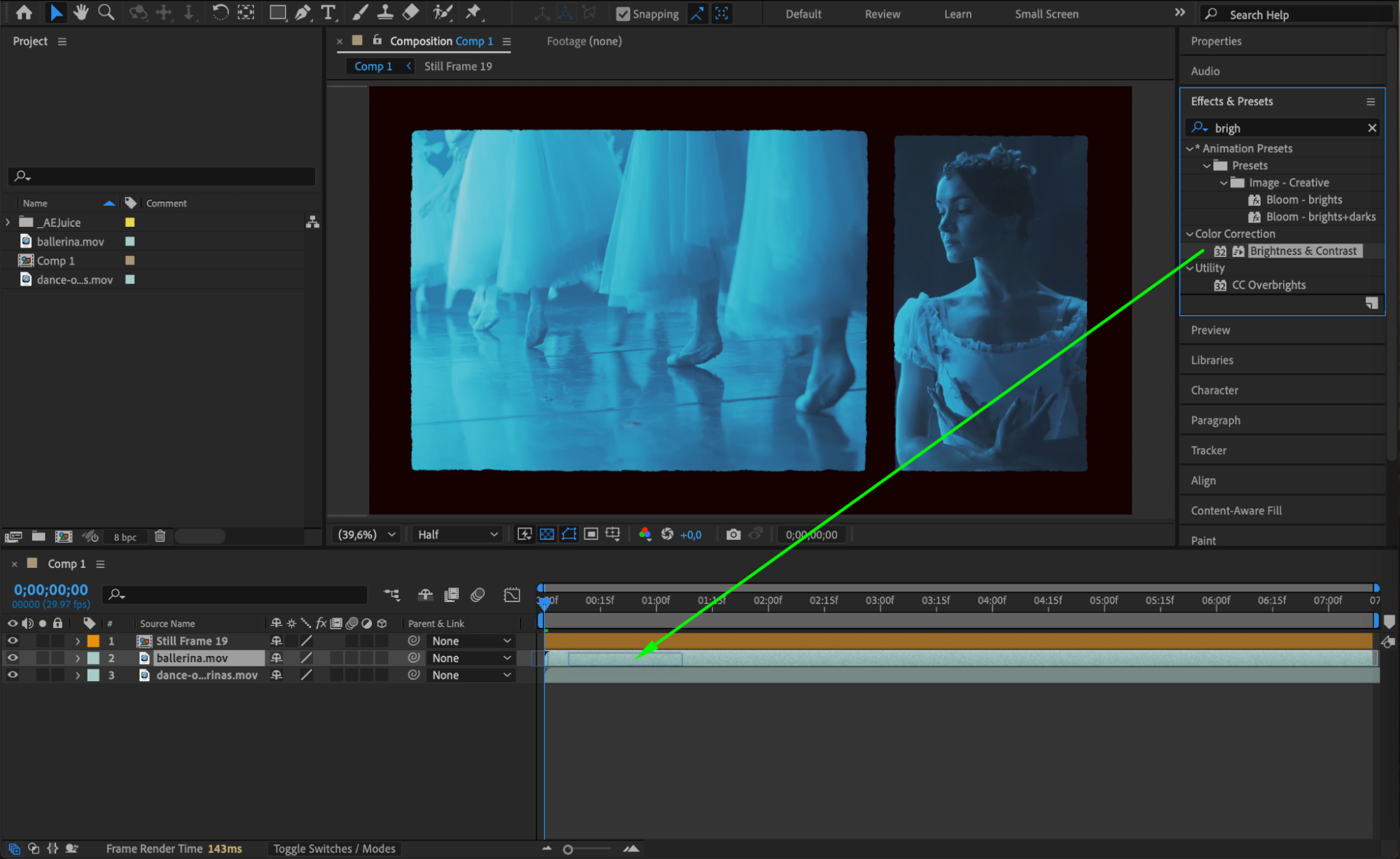
 Step 10: Preview and Finalize
Hit Spacebar to preview your animation in real time. Make any final tweaks to scale, alignment, or color correction. When satisfied, export your video.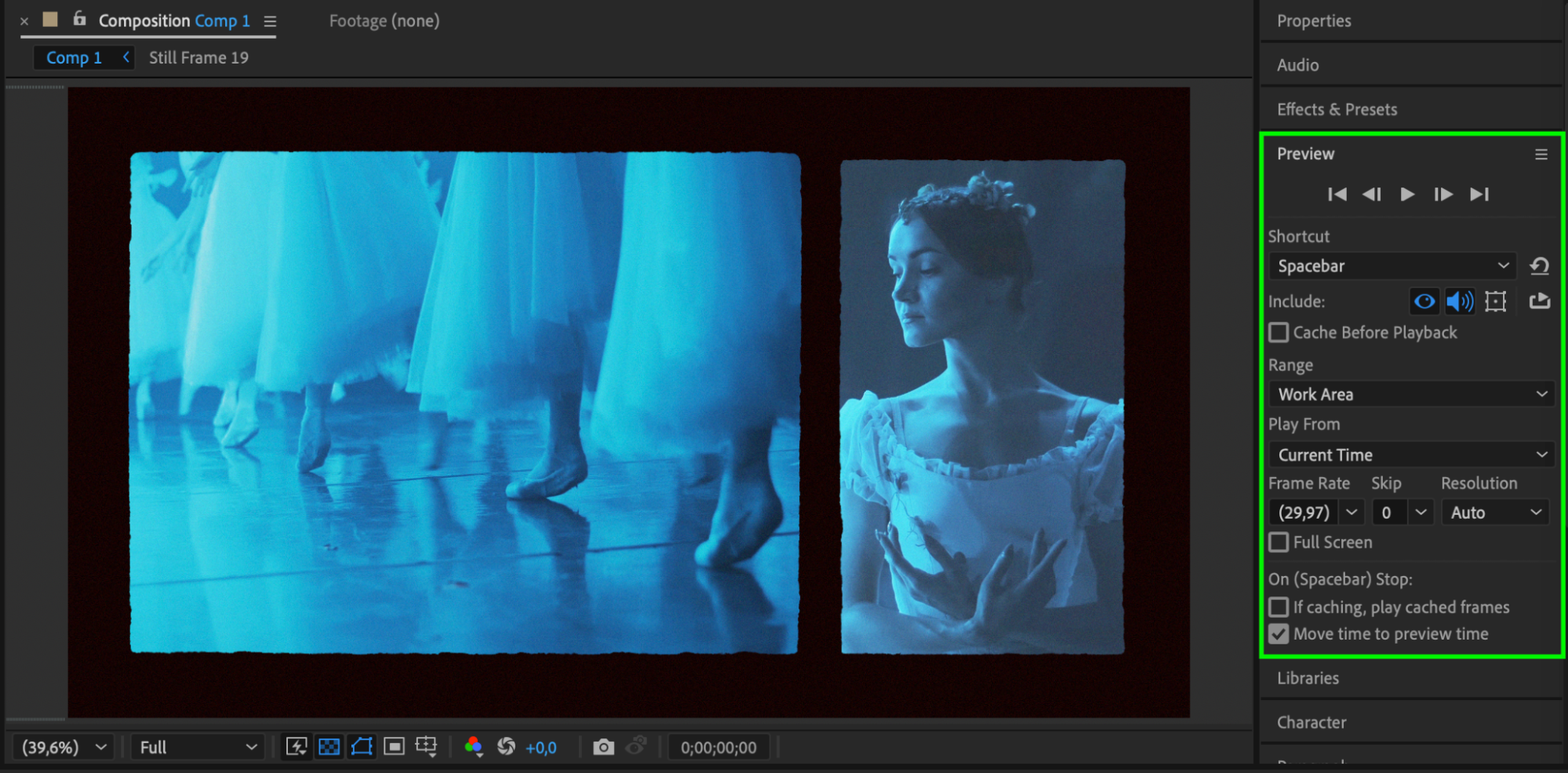 Conclusion
Split screen layouts add professionalism and structure to your edits. With AEJuice Split Screens, creating clean and modern layouts becomes fast and easy — no need to build from scratch. Use this technique for interviews, vlogs, or any scene where multiple visuals are key to the message.
Our Bestsellers
Our Bestsellers


