
Introduction to the Video Pop Up Effect
The video pop-up effect is a simple yet powerful animation that makes your footage appear as if it’s “popping up” onto the screen. It’s often used for transitions, intros, or to grab the viewer’s attention. The effect relies on scaling the video layer from small to full size with smooth easing and motion blur. In this guide, you’ll learn how to create a clean and professional pop-up effect in just a few easy steps.
Step 1: Create a New Composition
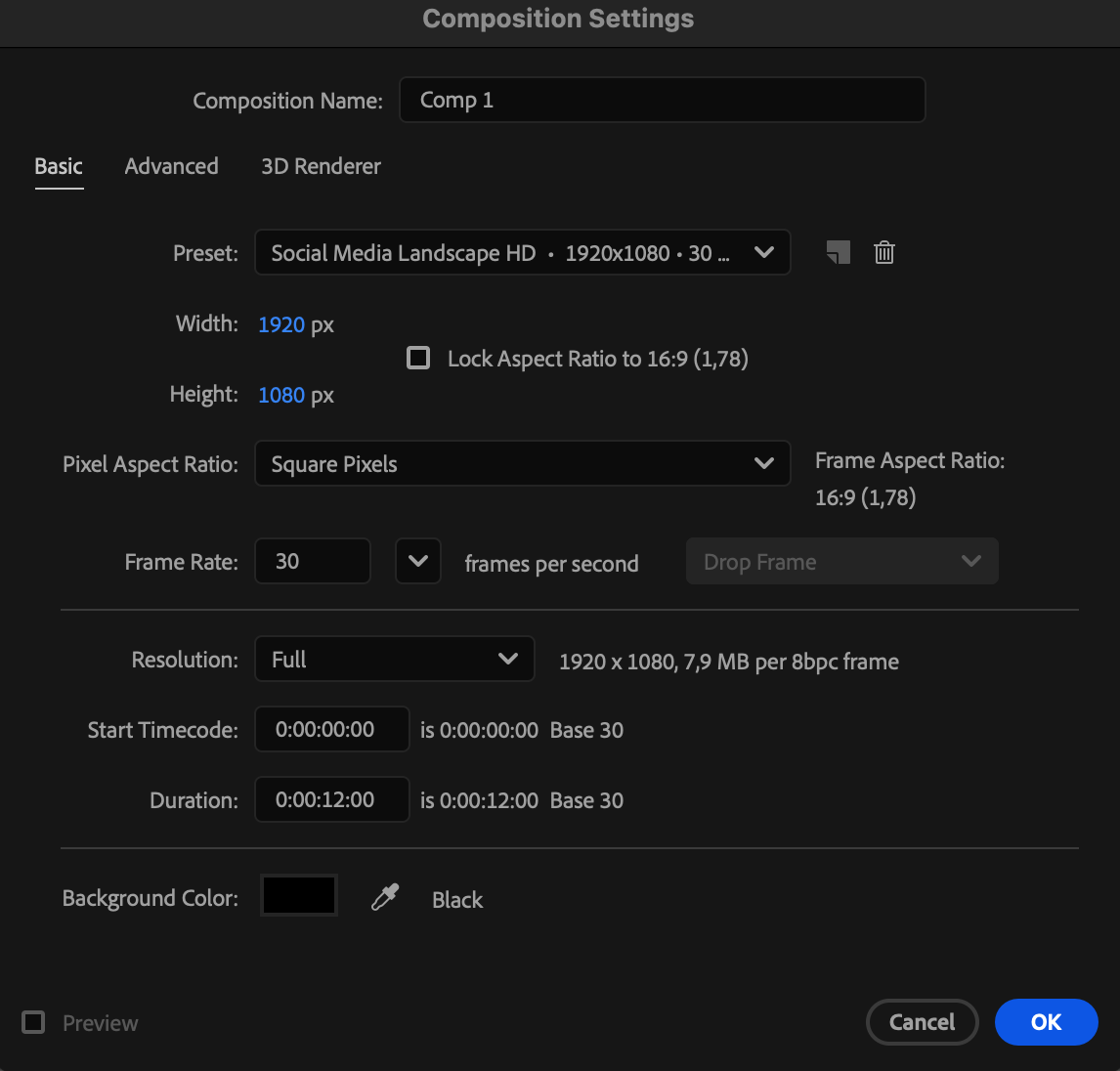
Start by opening After Effects and creating a new composition. Go to Composition > New Composition, name it, and choose your desired resolution and duration. This composition will be the base for your video pop-up animation.
 Step 2: Import and Add Your Video
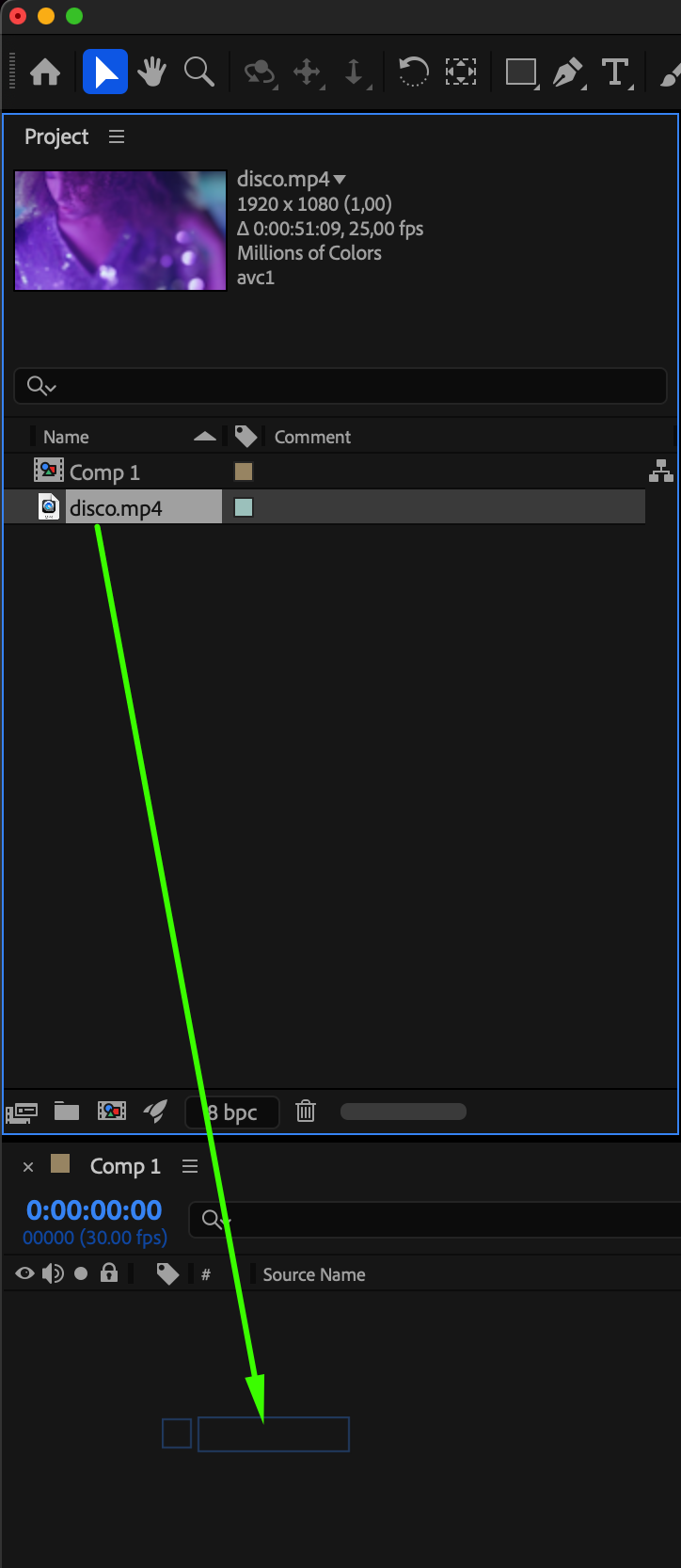
Go to File > Import > File and select the video you want to use. Once imported, drag the video onto the Timeline or directly into the composition panel. Make sure the layer is selected and visible in your workspace.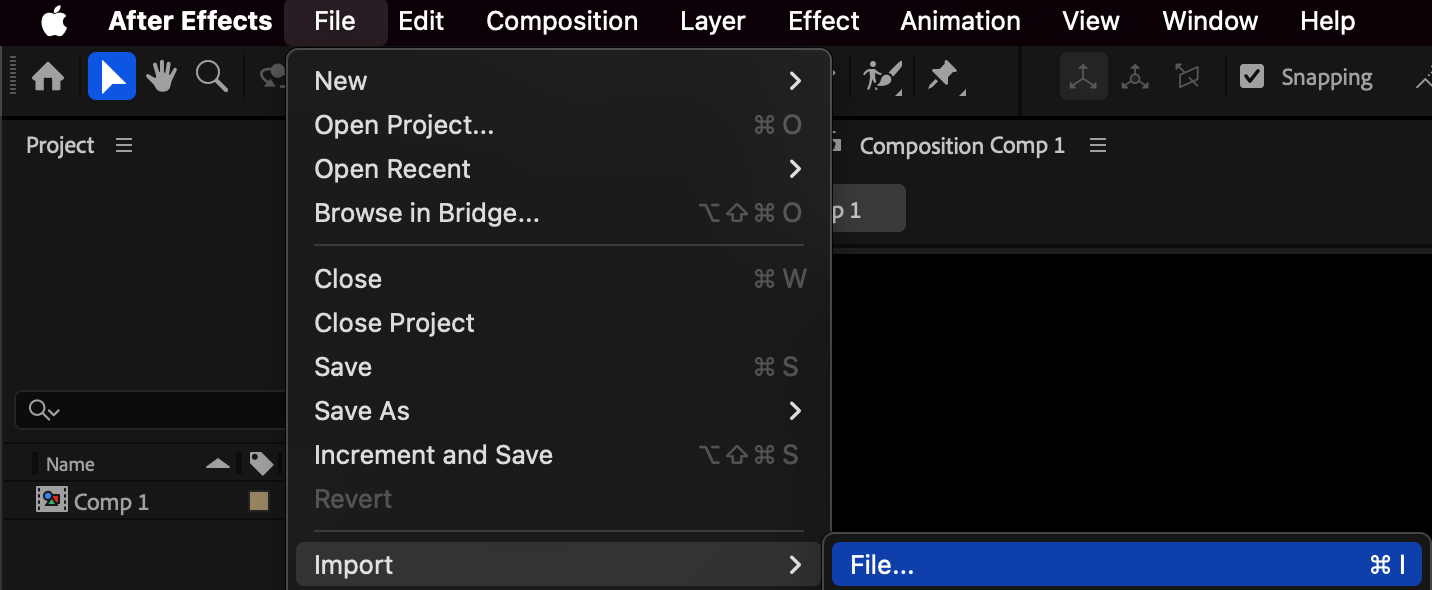
Step 3: Set Up Scale Keyframes
Expand your video layer by clicking the small arrow next to its name. Go to the Transform section and find Scale. Move the CTI (Current Time Indicator) to the beginning of the layer and click the stopwatch icon next to Scale to create your first keyframe. Set the Scale value to 0% — this will make your video start from an invisible size before it pops up.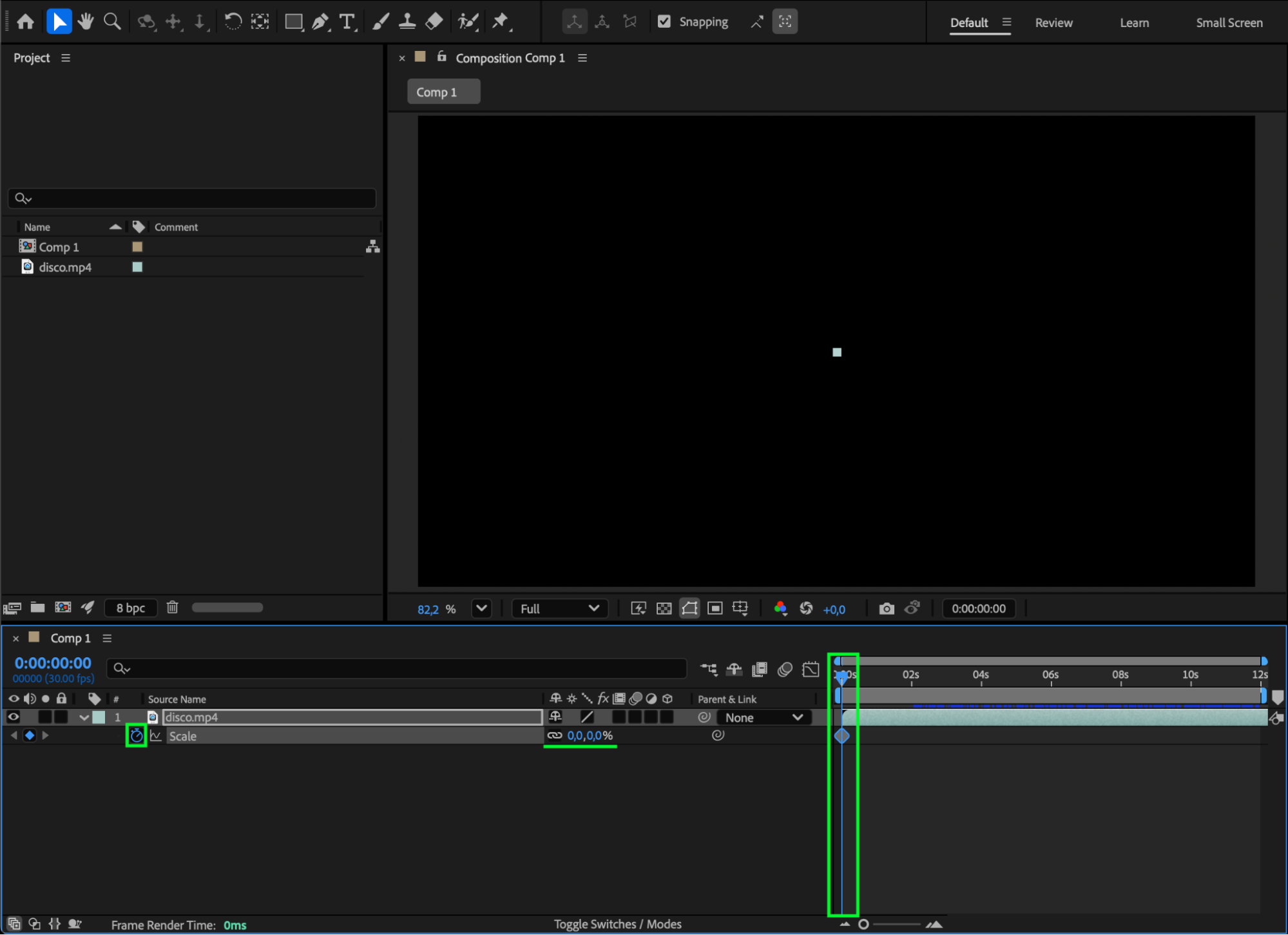 Step 4: Animate the Pop-Up
Move the CTI a few frames forward (for example, 10–15 frames) and change the Scale value to 100%. This creates a smooth animation where your video scales up from small to full size. You can adjust the timing later depending on how fast or slow you want the pop-up to appear.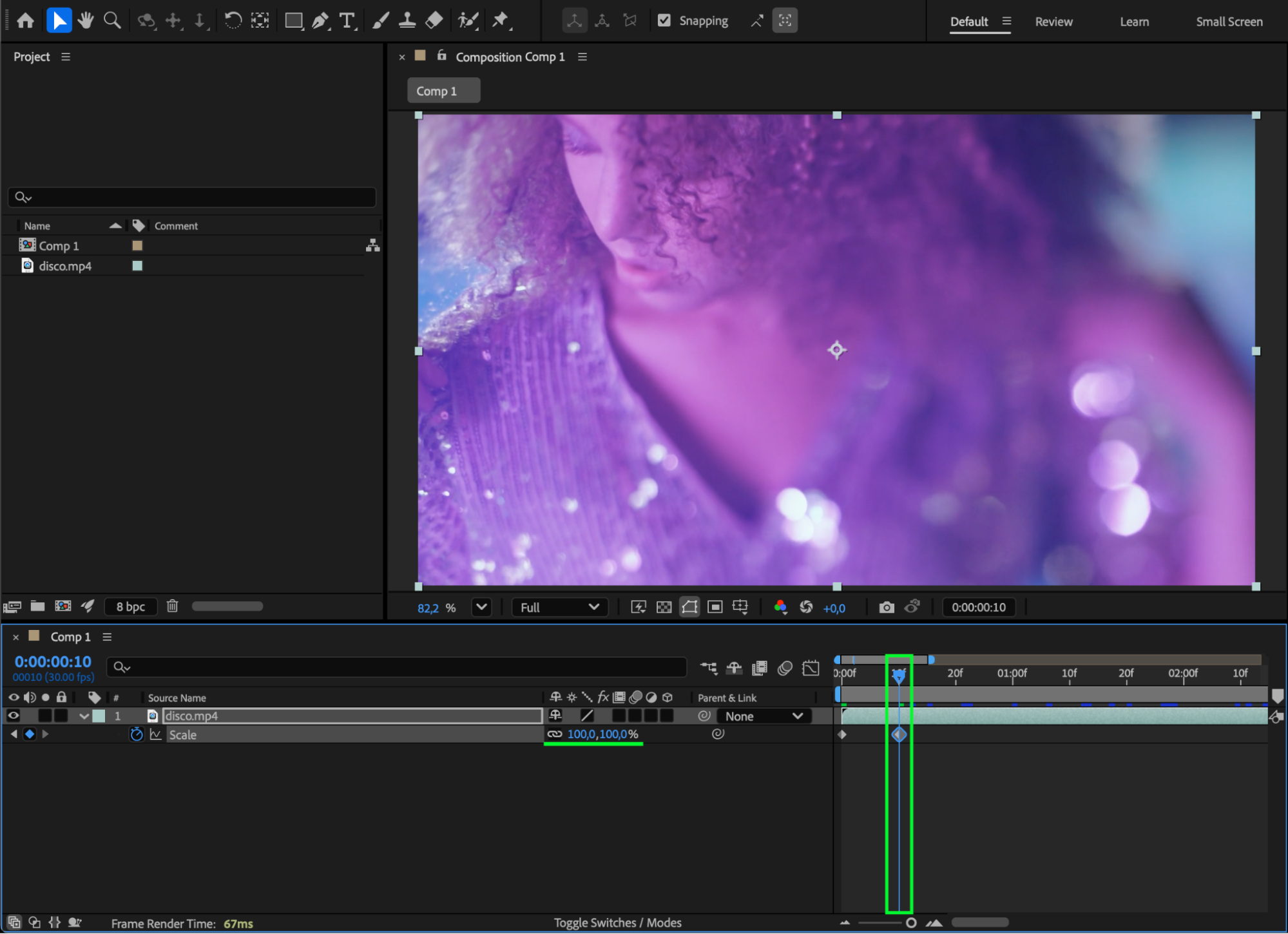
Step 5: Smooth the Motion with Easy Ease
Select both keyframes on the timeline, right-click, and choose Keyframe Assistant > Easy Ease. Then, open the Graph Editor to adjust the speed curve for a more natural look.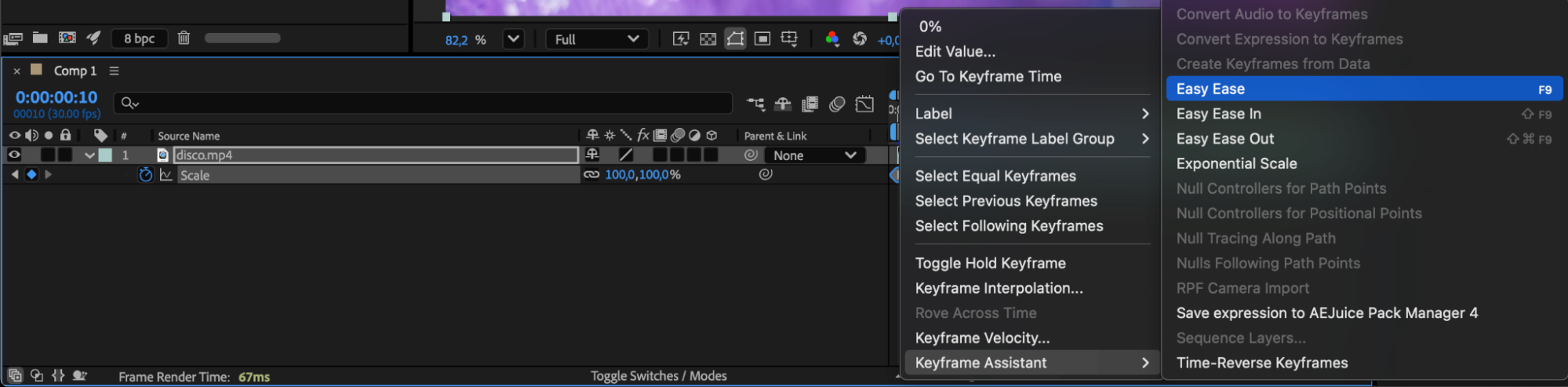
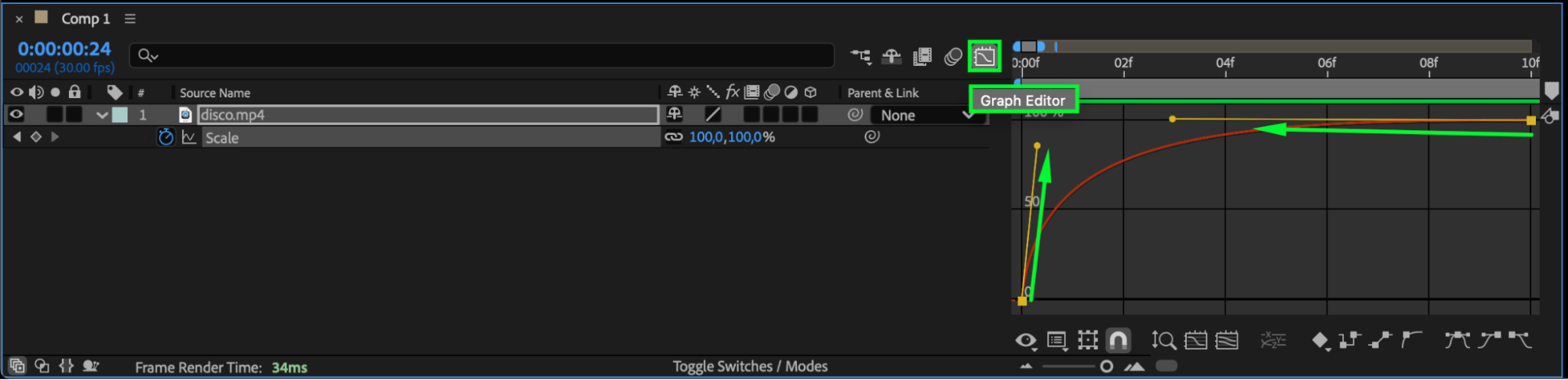
Step 6: Enable Motion Blur
For a more realistic appearance, enable Motion Blur on both your video layer and the composition. You can find this option as a small three-circle icon next to the layer name. This adds a soft blur during movement, making the pop-up animation feel smoother and more dynamic.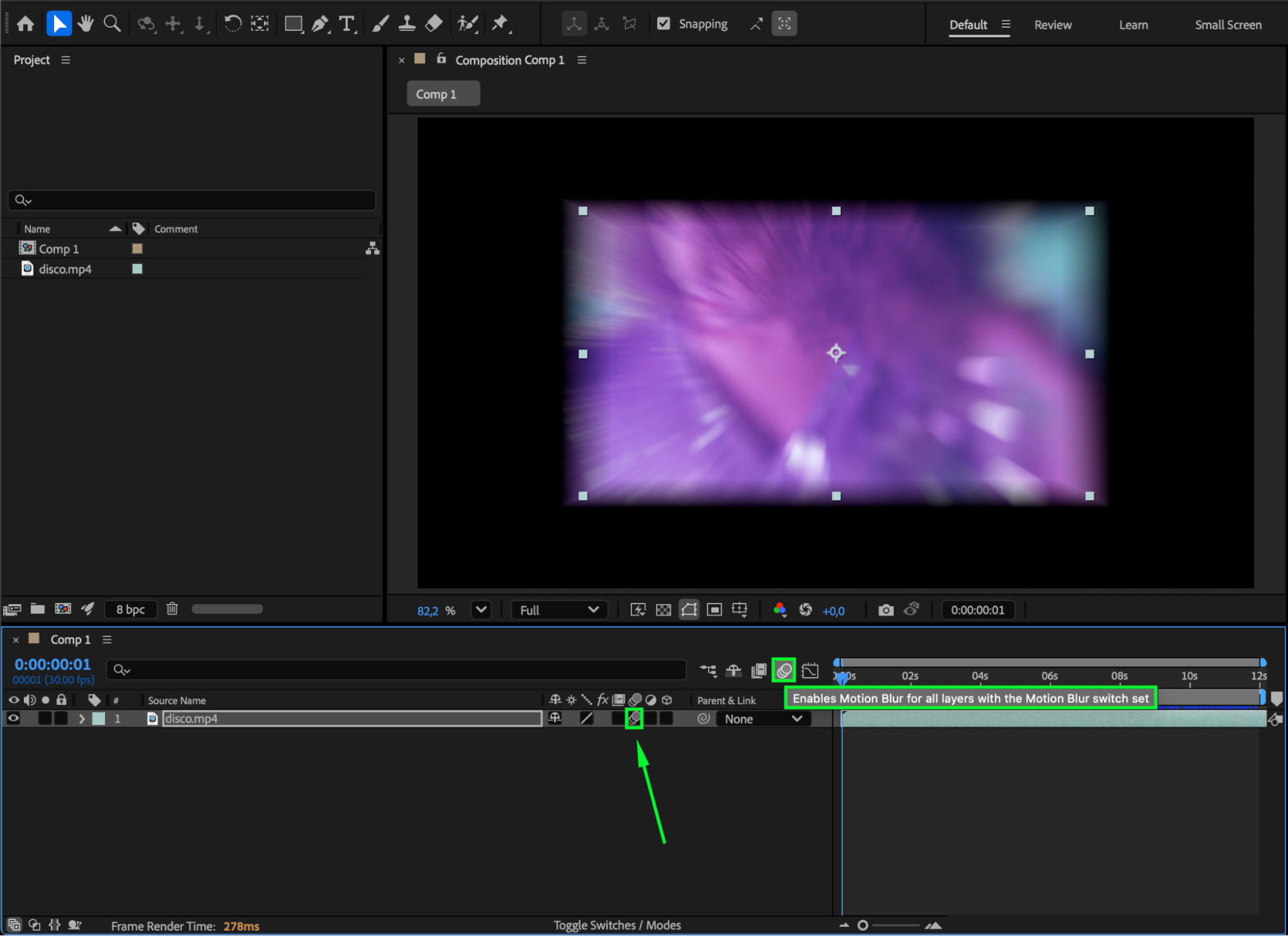
Step 7: Preview and Refine
Press the Spacebar to preview your animation. Watch how your video pops onto the screen. If the motion feels too fast or slow, drag the keyframes closer together or further apart. Small adjustments can make a big difference in the final result.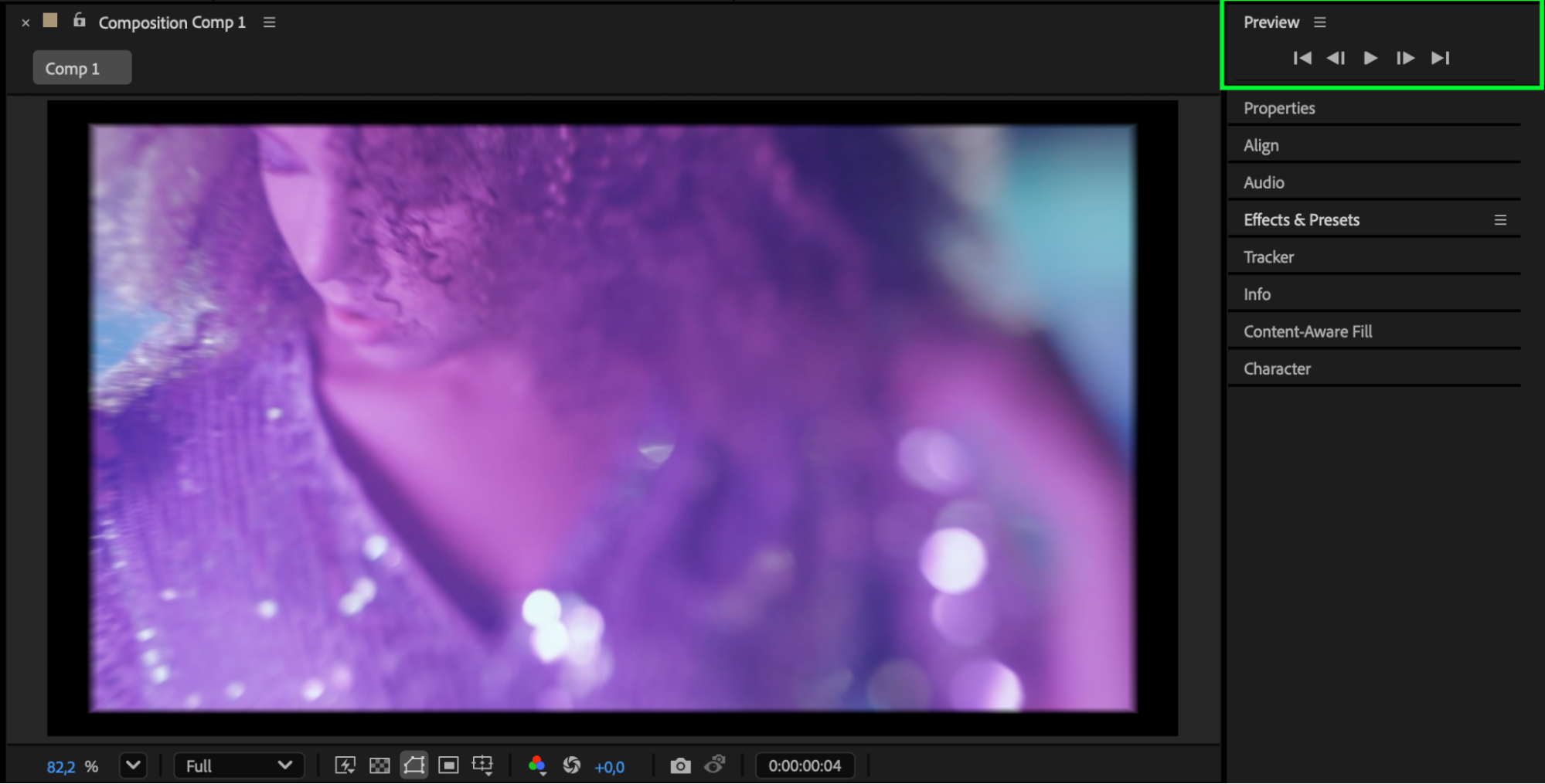
Conclusion
Creating a video pop-up effect in After Effects is quick and effective. By using scale animation, Easy Ease, and motion blur, you can make your videos appear more dynamic and engaging. This simple technique works great for intros, transitions, or emphasizing specific clips in your project — and it’s easy to master with just a few steps.
Our Bestsellers
Our Bestsellers


