
Introduction – Why Remove Blank Space at the End?
If your composition continues long after your animation ends, it may include unnecessary empty space. This can make your project harder to preview, increase render times, and confuse collaborators. Luckily, After Effects makes it easy to trim the composition length to match the actual duration of your content. Here’s how to do it in a few quick steps.
Step 1: Open Your Project
Start by launching After Effects and opening the project that contains the composition you want to trim. Make sure all the elements are loaded and visible in the timeline.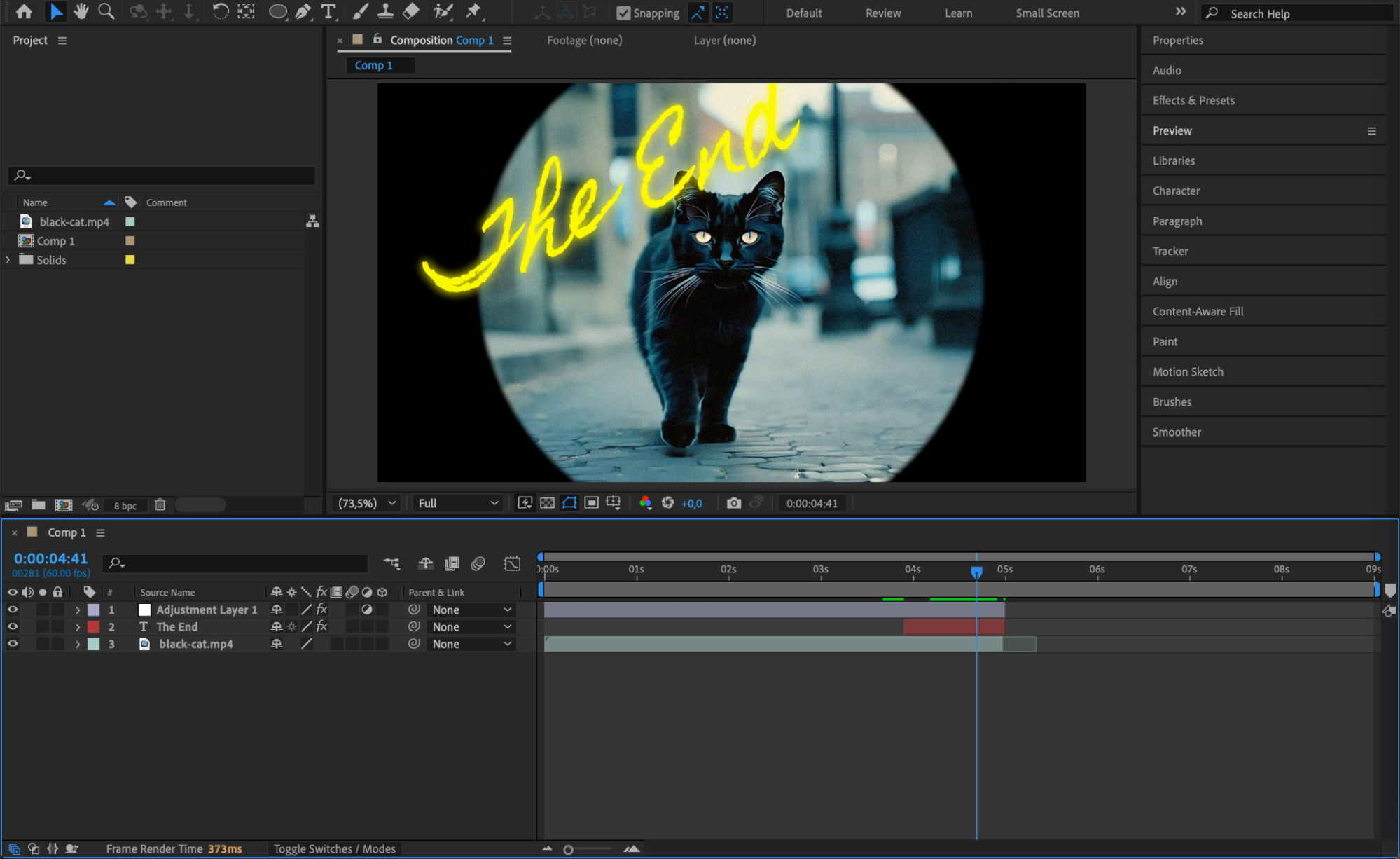
Step 2: Identify the End of Your Content
Drag the Current Time Indicator (CTI) along the timeline and check when your last animation, layer, or effect ends. This is the point where your composition should ideally stop. Make a mental note of this timestamp.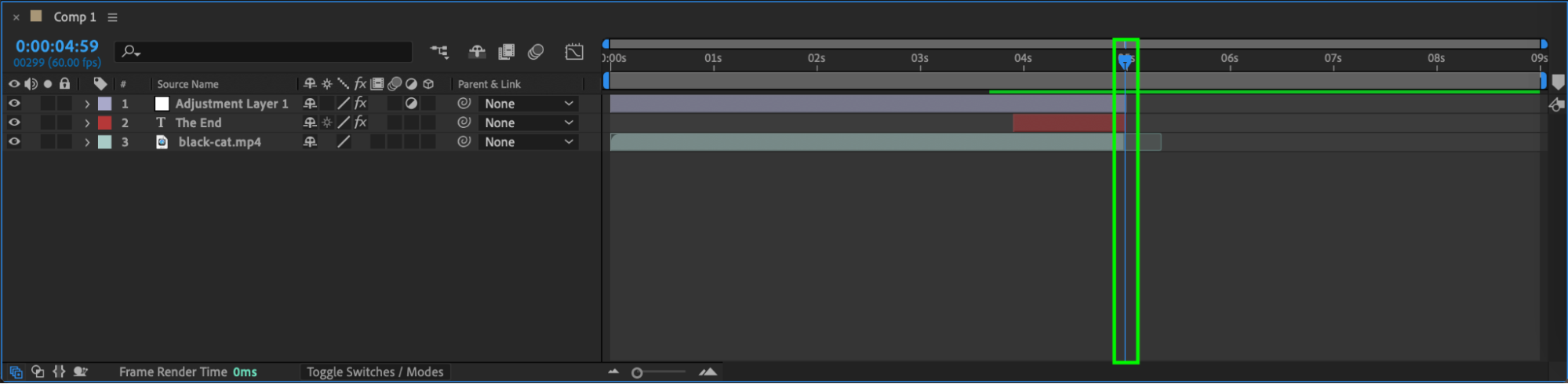 Step 3: Move the Work Area End Marker
On the timeline bar above your layers, drag the Work Area End handle so it matches the end of your actual content. This defines the visible portion of your composition and helps during trimming.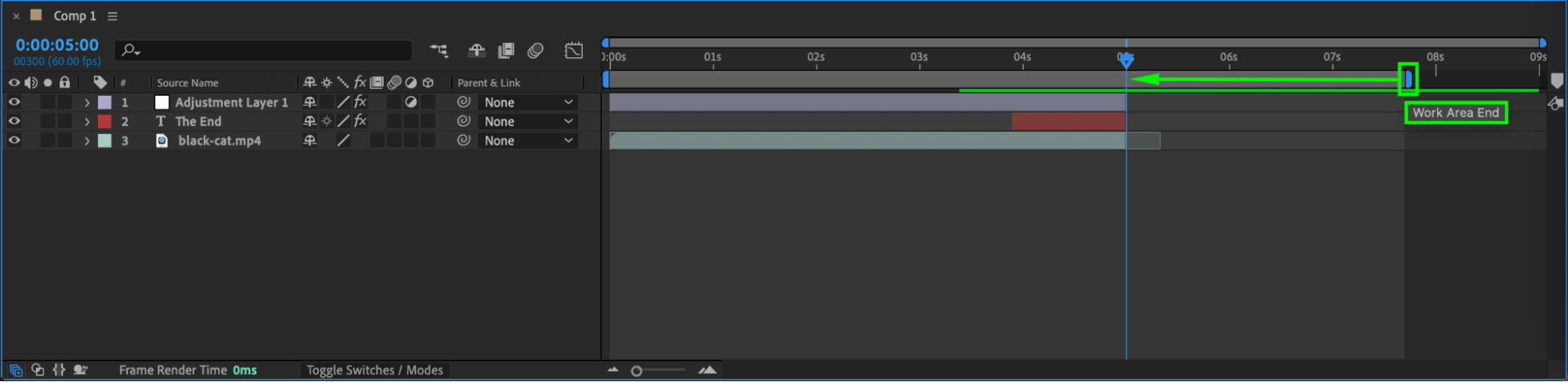
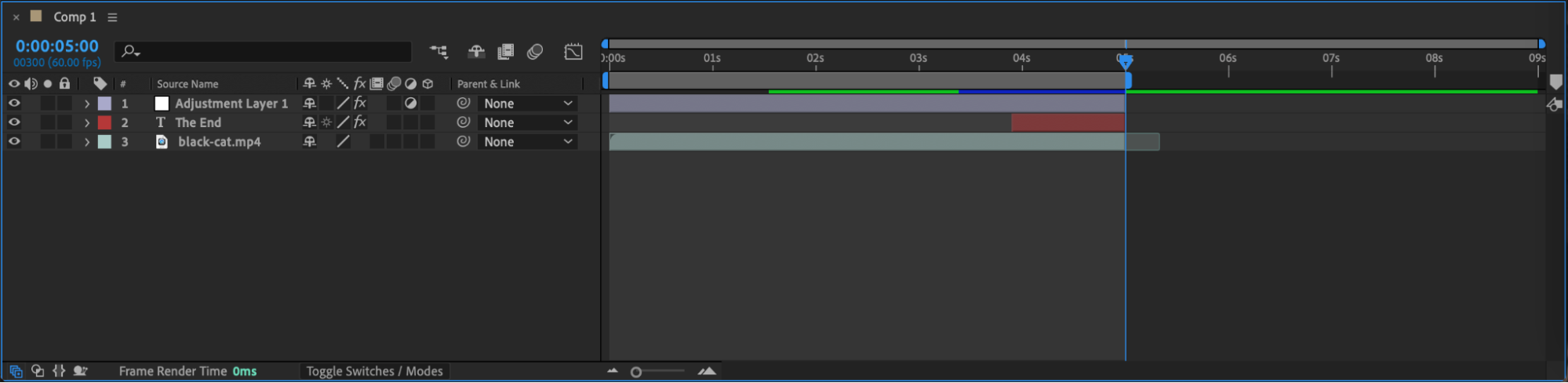 Step 4: Trim Comp to Work Area
Go to the top menu and click Composition > Trim Comp to Work Area. This will instantly cut the duration of your composition so that it ends exactly where your content does — removing all empty time after that.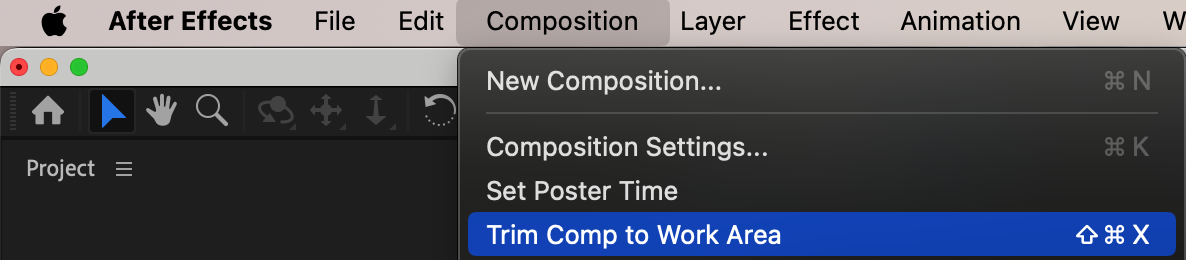
Step 5: Double Check Layer Timing
Review all layers in the timeline to ensure no layers accidentally extend beyond the new end point. If needed, drag layer ends or keyframes to match your updated composition length.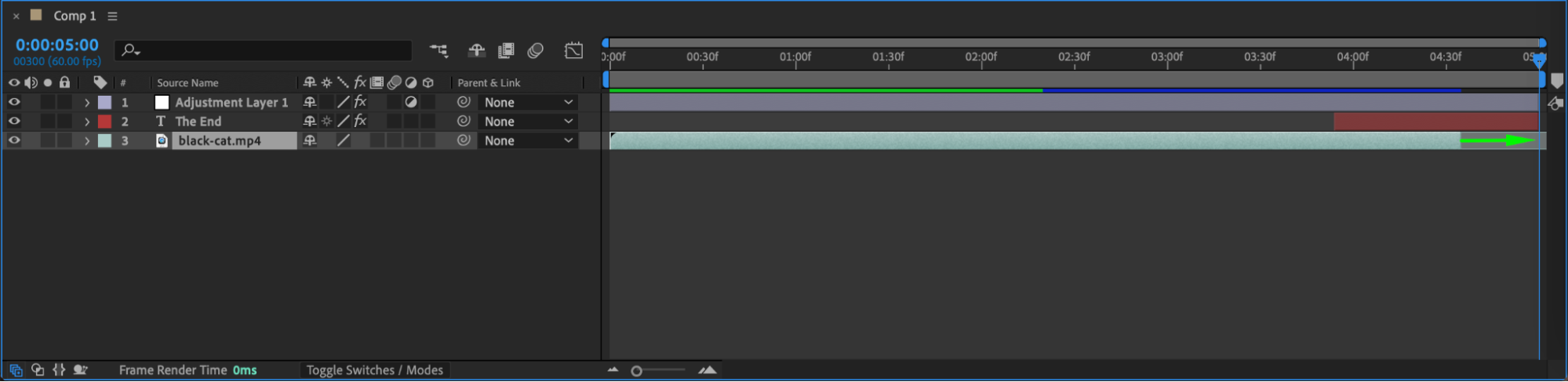 Step 6: Save and Preview
Press Spacebar to preview your trimmed composition. Everything should now stop cleanly without extra space or black frames at the end. Don’t forget to save your project!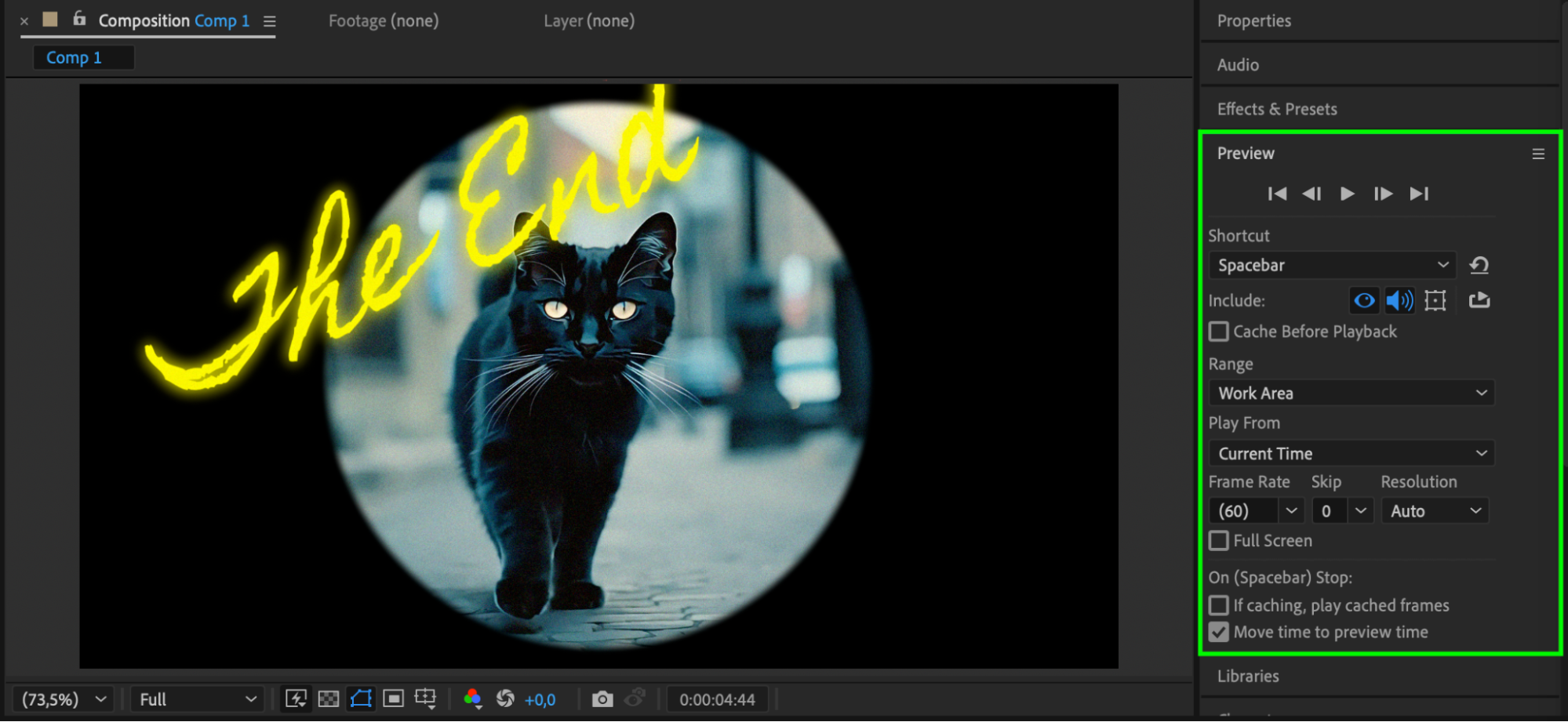
Conclusion
Trimming unused time at the end of your After Effects composition keeps your project tidy and efficient. It improves preview speed, reduces render time, and ensures your final export looks polished and professional. Use this habit in every project for cleaner results and faster workflow.
Our Bestsellers
Our Bestsellers


