
Learn how to create vibrant, animated typography in After Effects using AEJuice Colorful Typography templates.
Creating Vibrant Animated Typography in After Effects
Introduction to Colorful Typography for Motion Graphics
Adding colorful typography is a great way to make your motion design projects more eye-catching and expressive. Whether you’re designing titles, intros, or callouts, bright animated text can elevate your video content. In this tutorial, you’ll learn how to use AEJuice’s Colorful Typography Pack to create professional and fun-looking text animations with just a few clicks.
Step 1: Create a New Composition
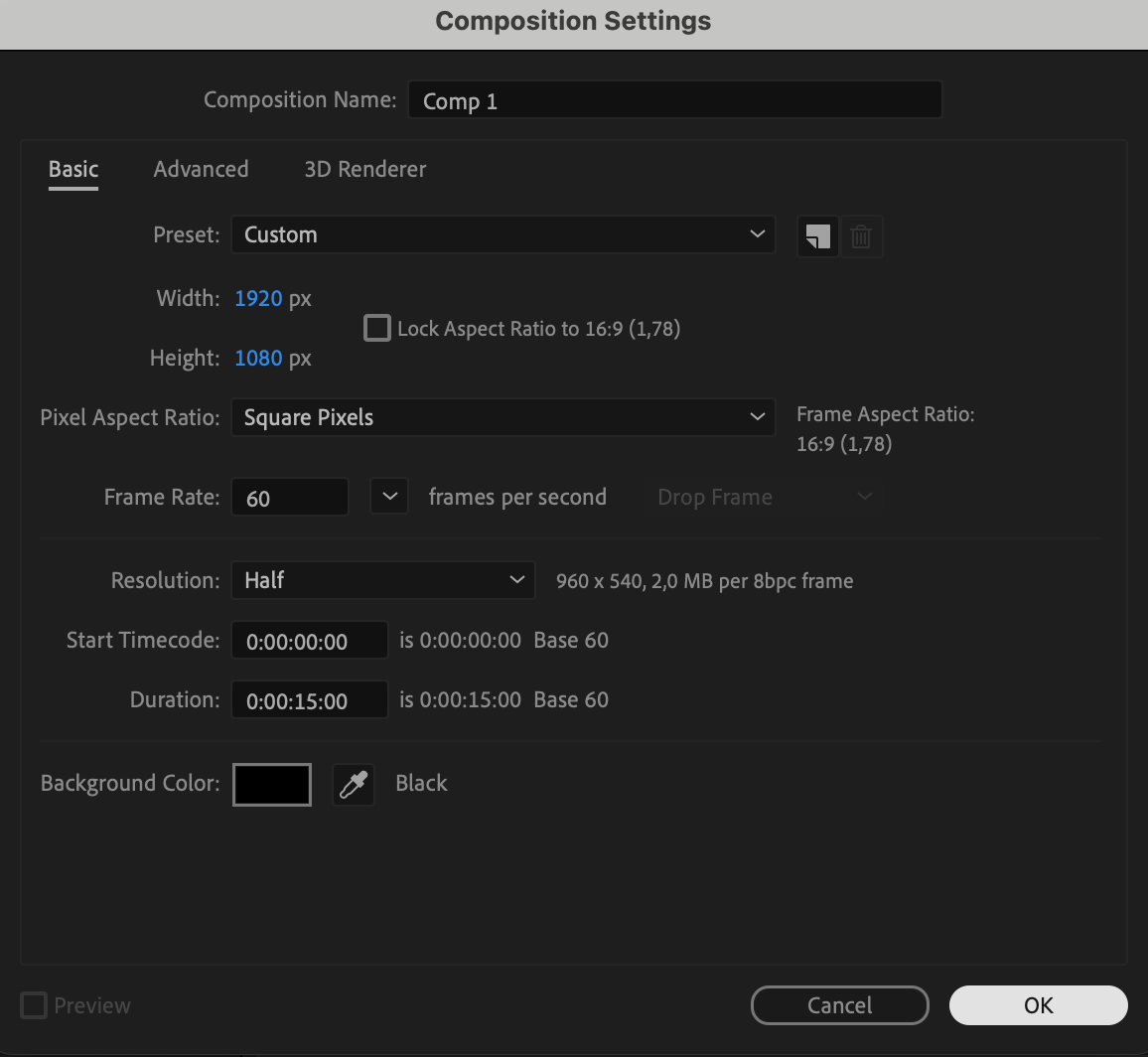
Start by opening After Effects and creating a new composition. Go to Composition > New Composition, name it, and set your desired resolution, frame rate, and duration. This will be your working space for adding and customizing typography elements.
 Step 2: Open AEJuice Pack Manager
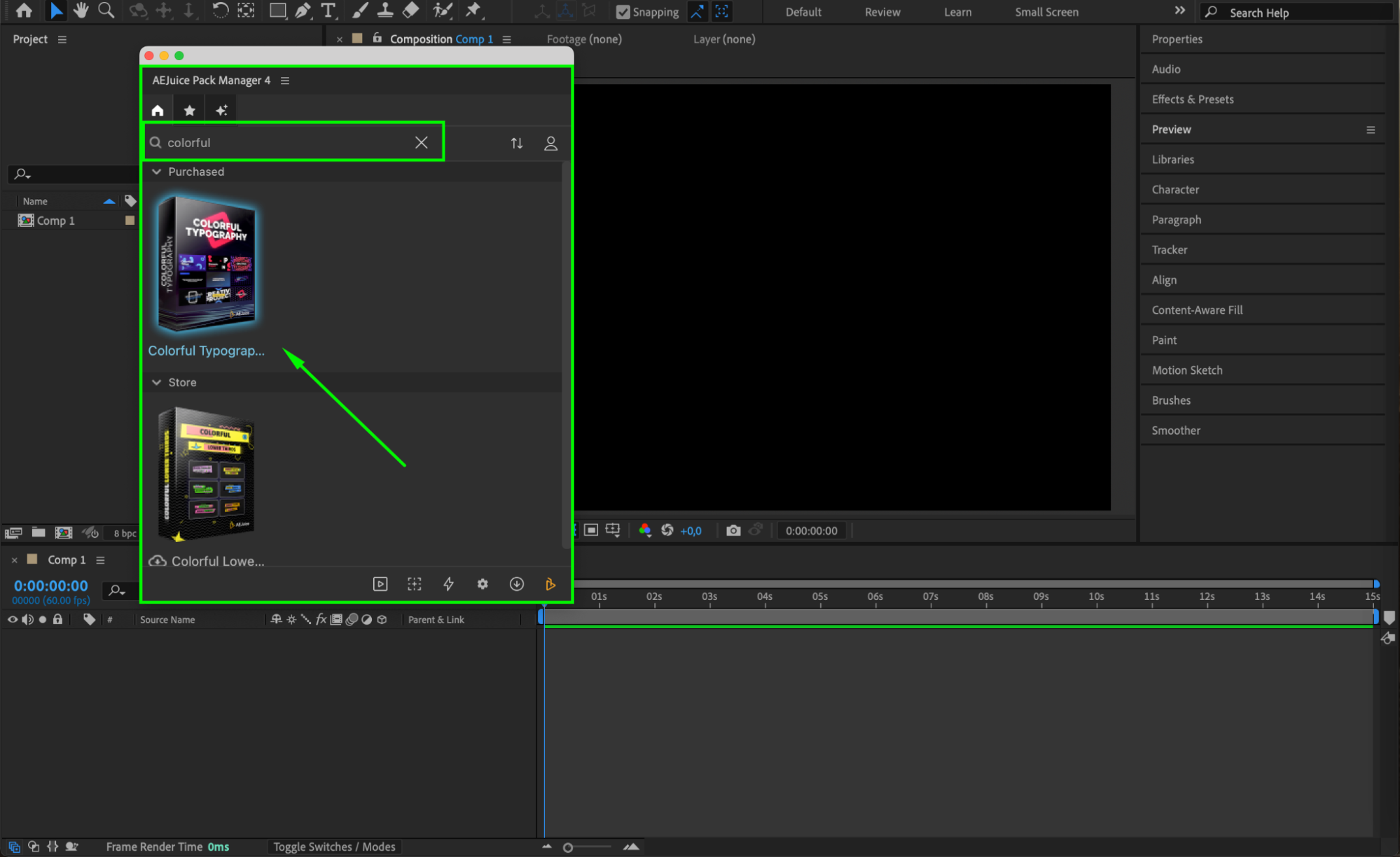
To access your templates, go to Window > AEJuice Pack Manager 4. This plugin panel contains all your AEJuice content. Make sure you’re logged into your AEJuice account to access the full library.
Step 3: Download the Colorful Typography Pack
Inside the Pack Manager, scroll or search for Colorful Typography. If the pack is not yet downloaded, click on it to start the download process. Once it’s ready, you’ll be able to browse and preview the various animated typography templates included in the pack.
 Step 4: Choose and Import a Template
Browse the available text animations and select one that fits your project. Click on the preview, then hit Import to bring the animation into your timeline. A pre-composition will be automatically added to your comp.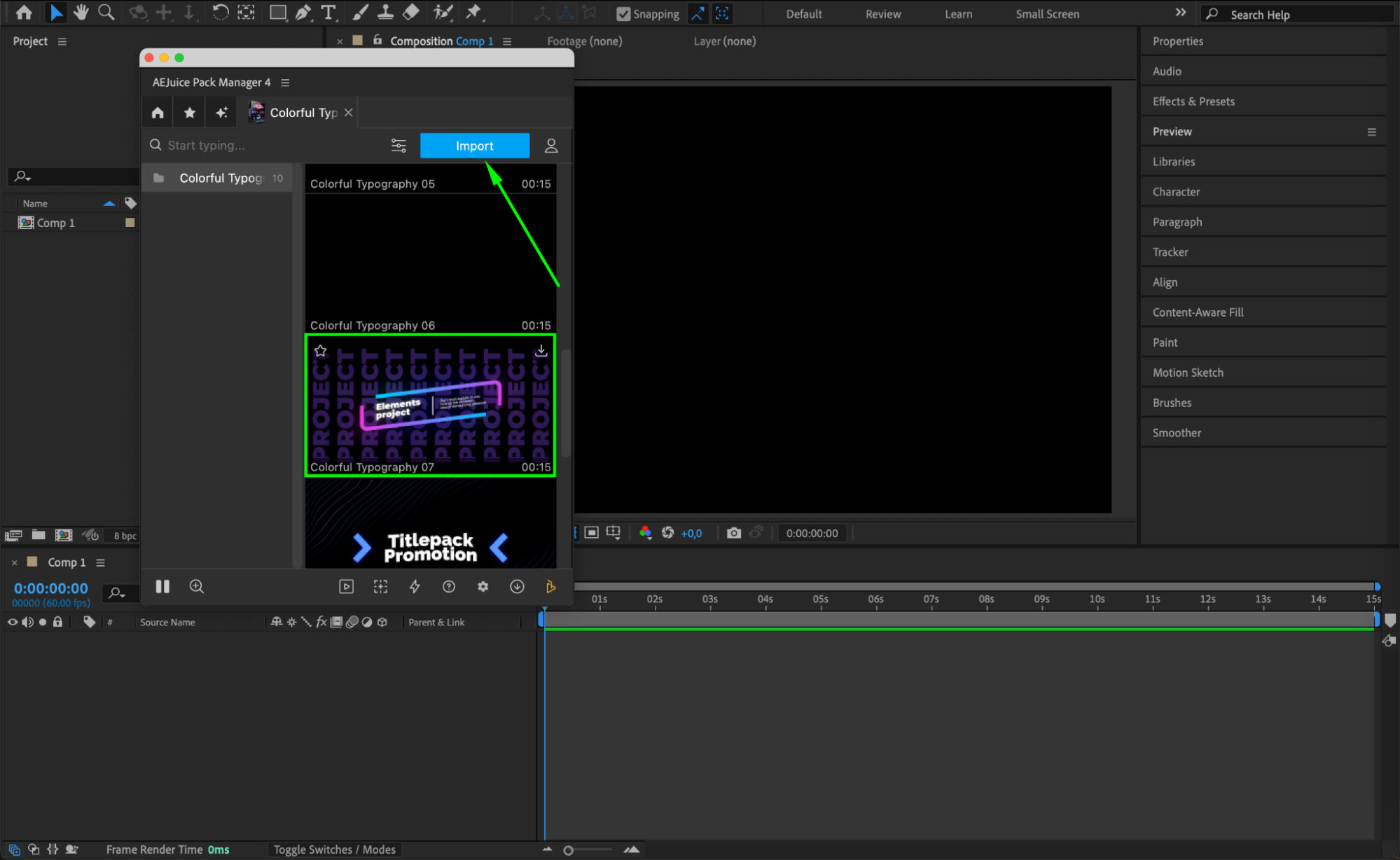 Step 5: Edit the Template Using the AEJuice Edit Panel
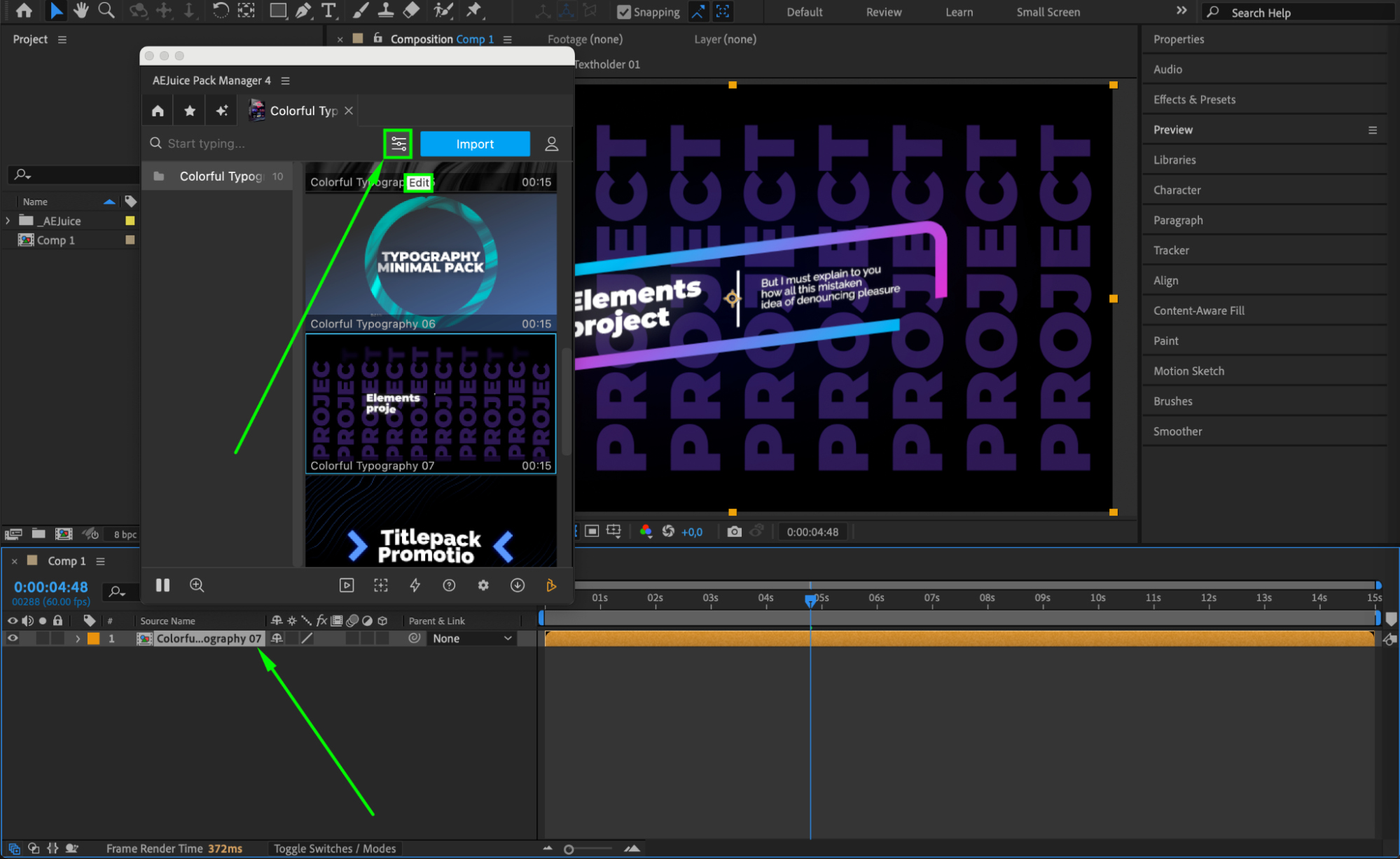
After importing, click the Edit button (represented by three sliders) next to the Import button. This opens a customization panel where you can change settings such as text, font, font size, color, and other template-specific properties. These quick edits make it easy to match the typography to your brand or video style.
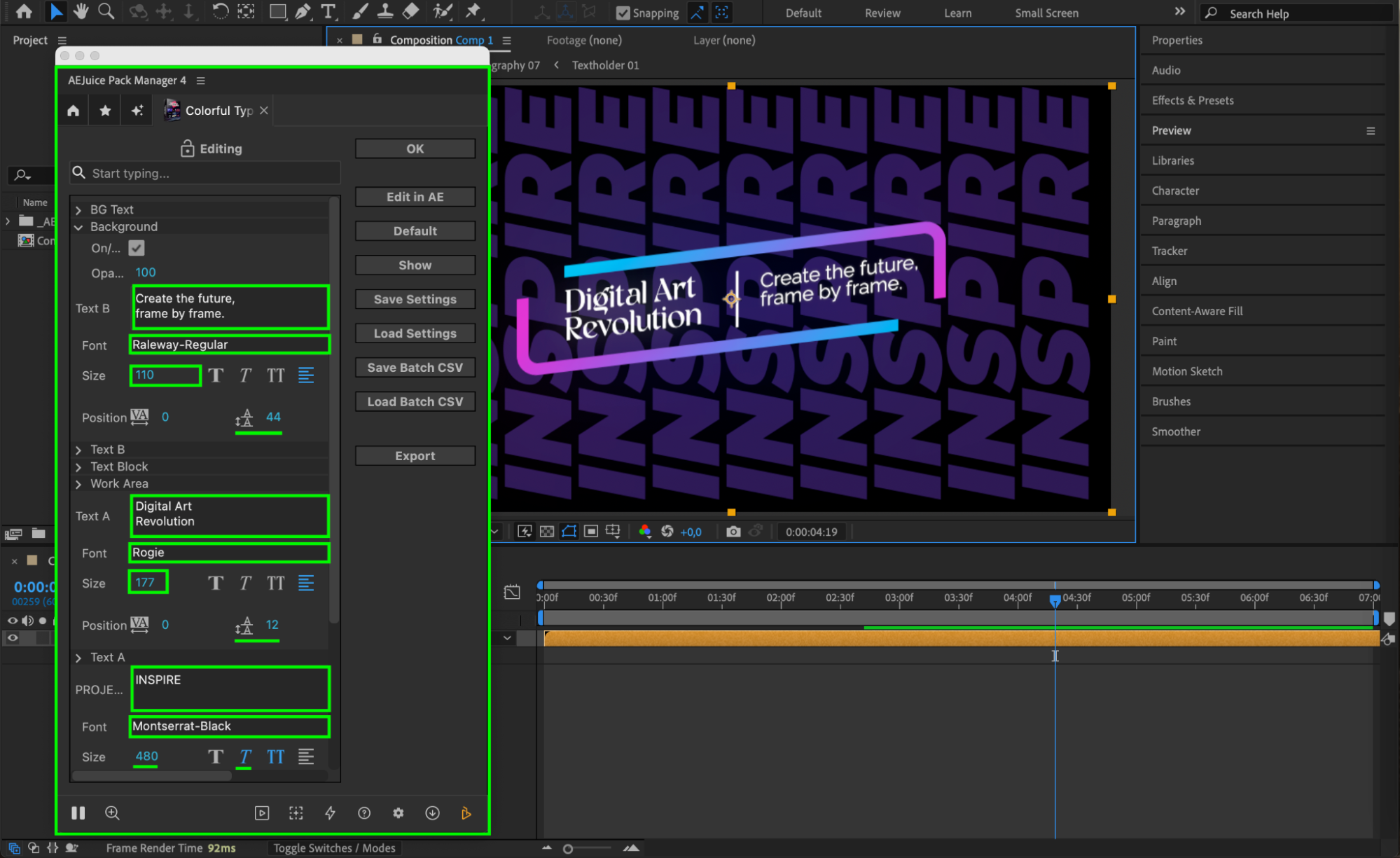
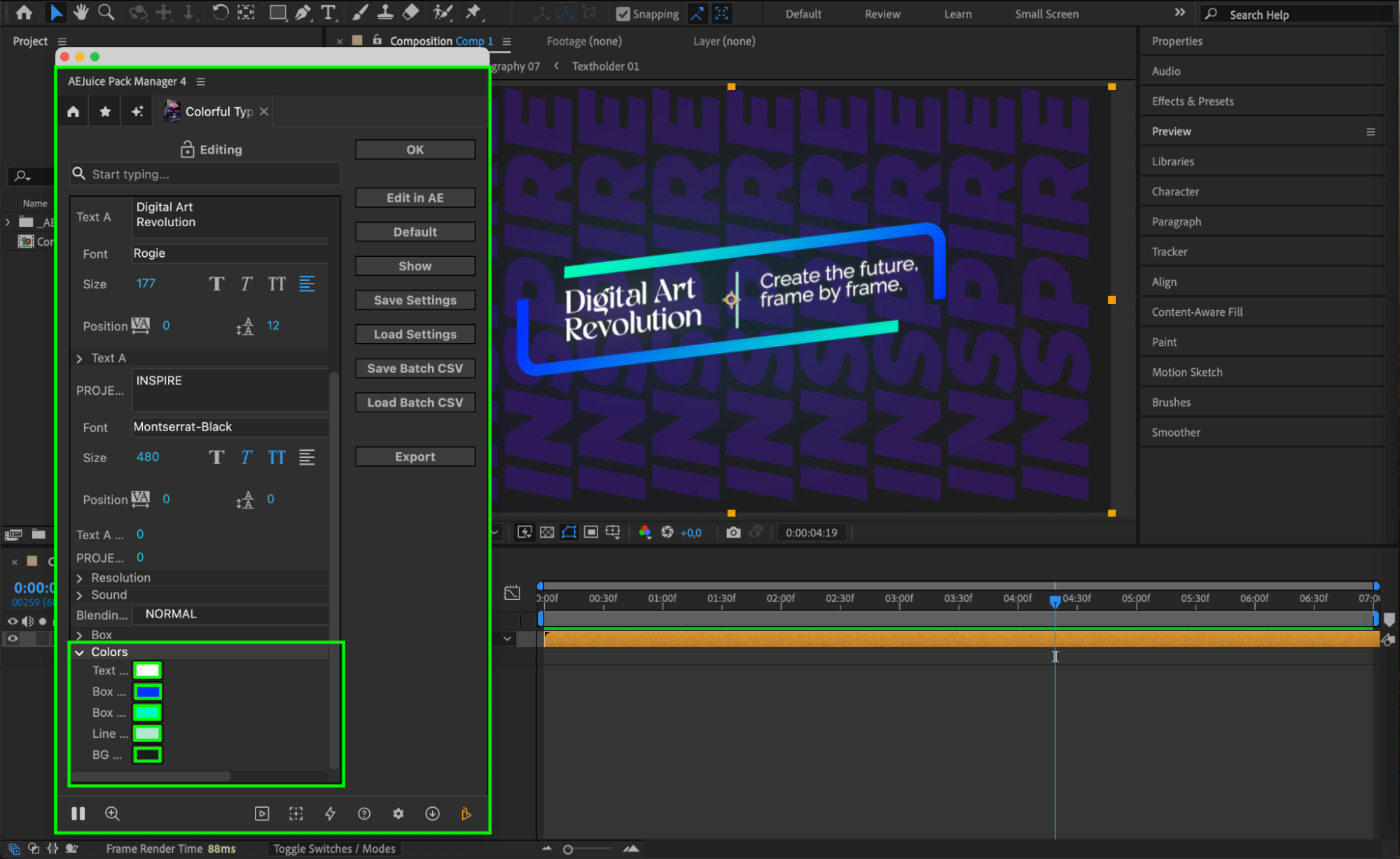
Step 6: Customize Further with Effects and Controls
For more detailed adjustments, double-click the pre-comp in the timeline to open it. Inside the composition, locate the Controls layer and open the Effect Controls panel. Here, you can fine-tune the parameters of the template, such as colors, scale, or animation settings. Additionally, you can enhance the look by applying effects from the Effects & Presets panel, like Glow, Noise, or Radial Blur for a more dynamic and professional result.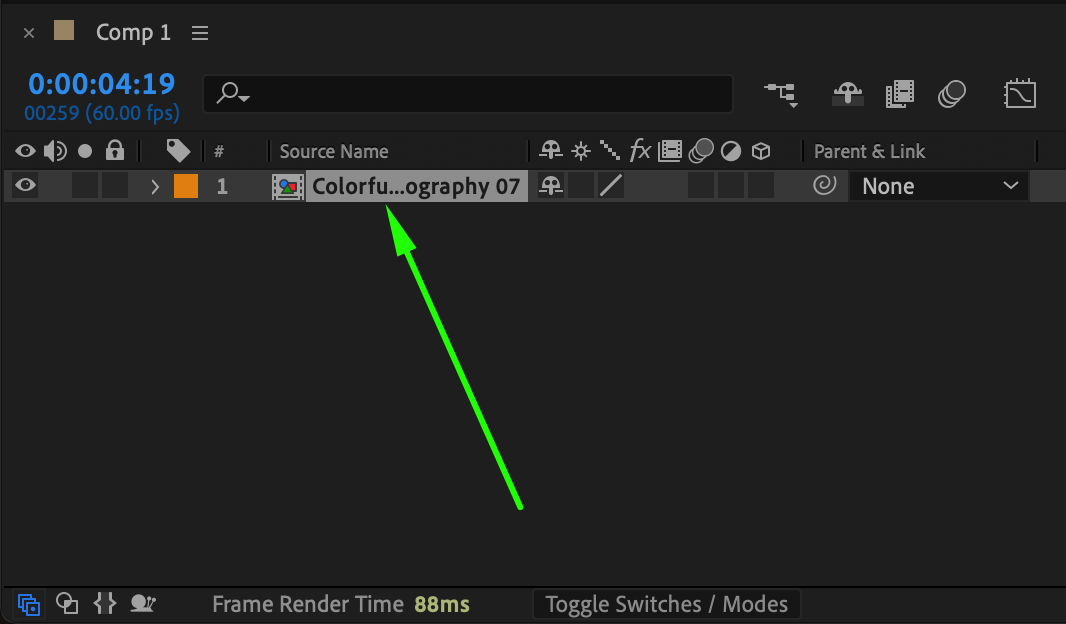
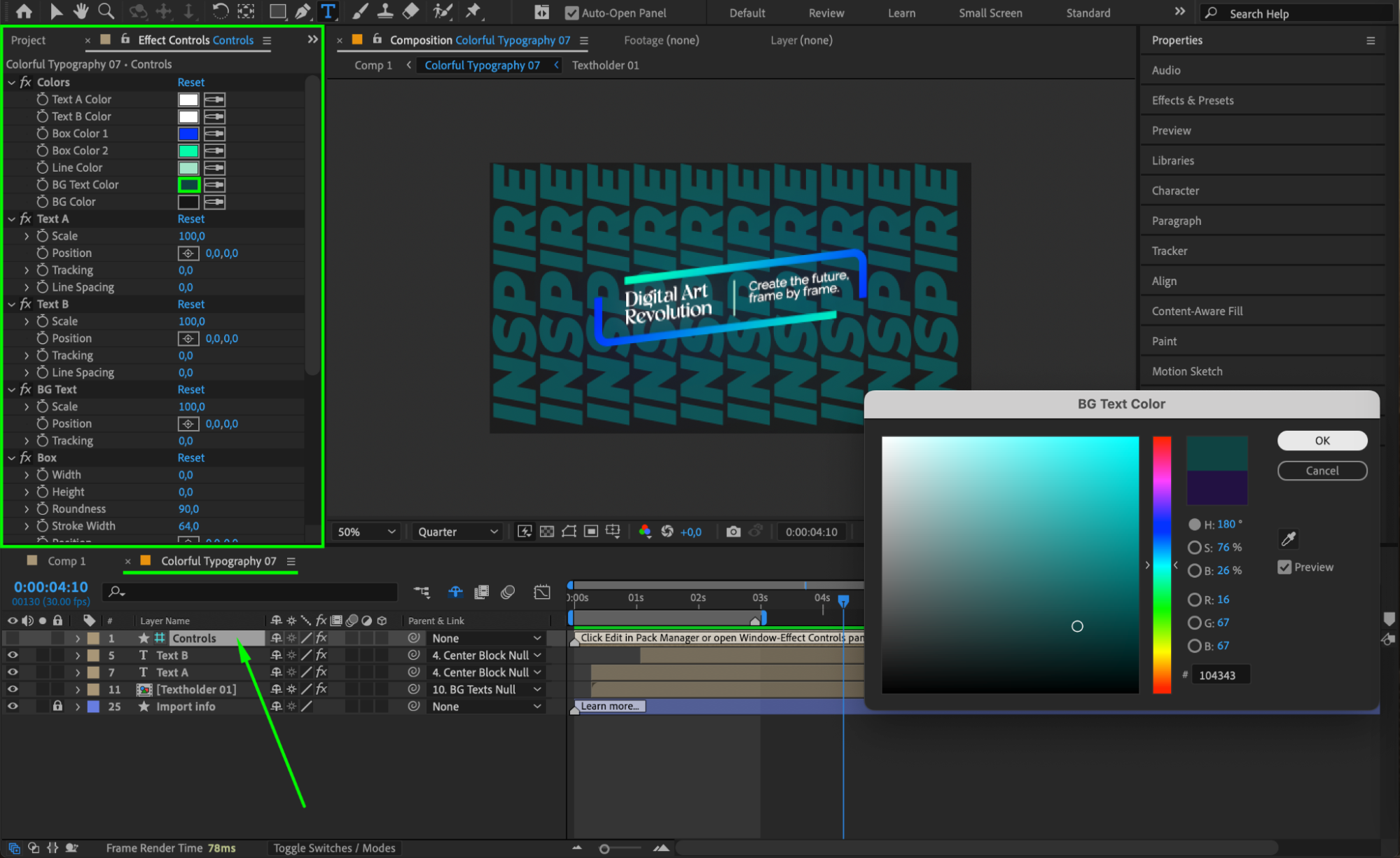 Step 7: Preview and Final Touches
Press the Spacebar to preview your animation. Tweak the timing, opacity, or positioning as needed. Once you’re happy with the result, you can render it out or integrate it into a larger motion design project.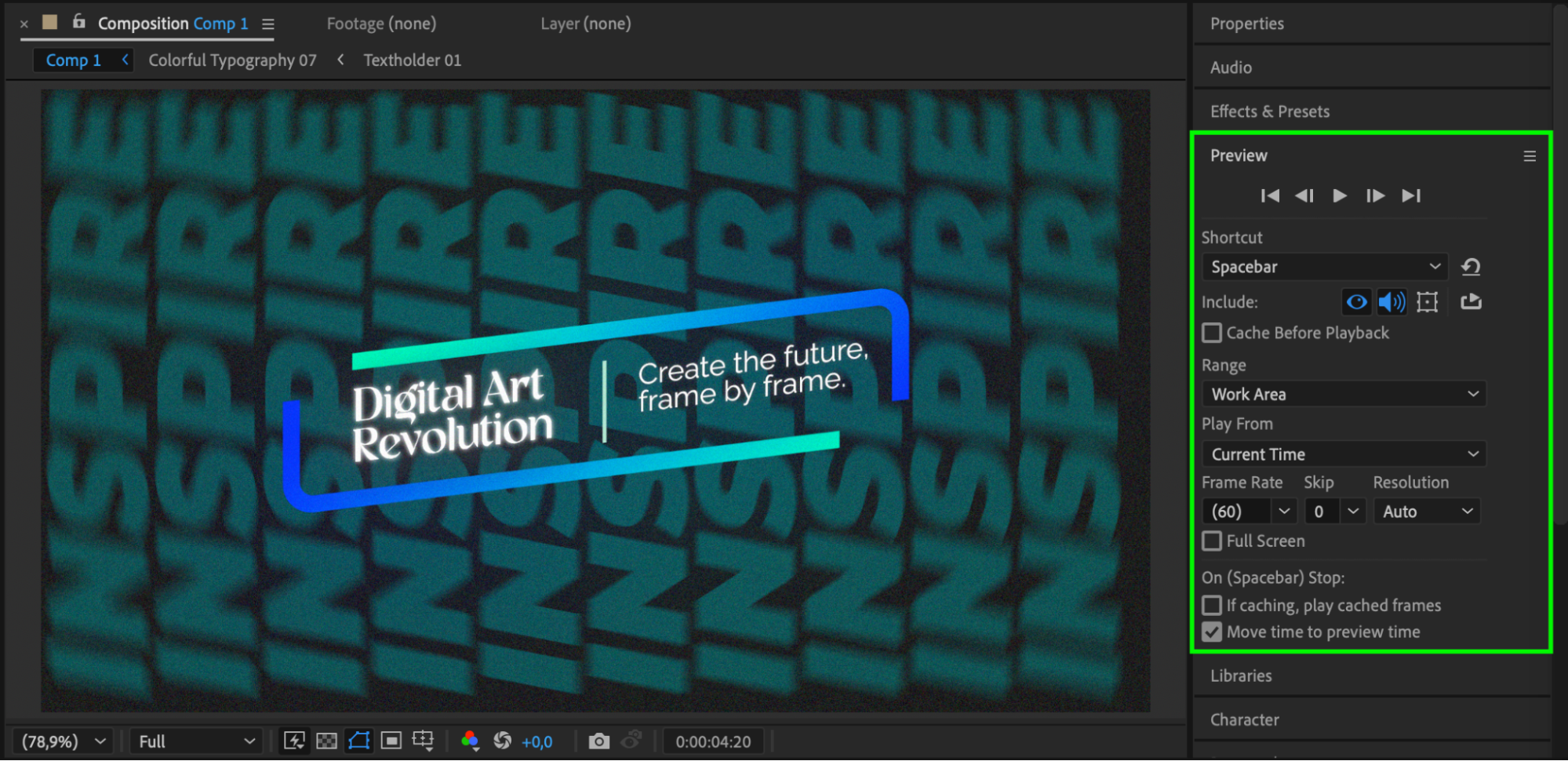 Conclusion
Colorful typography is one of the fastest ways to boost the visual appeal of your motion design. With AEJuice’s ready-to-use templates, you can create professional-quality animated titles in just minutes — no advanced skills required. Perfect for YouTube intros, Instagram promos, or client work.
Our Bestsellers
Our Bestsellers


