
Introduction to Green Screen Feathering Techniques
Green screen footage is a common technique for removing backgrounds, but even with good lighting, you might get hard or noisy edges around your subject. Feathering and other edge refinements help blend the keyed subject into the new background more naturally. In this tutorial, you’ll learn step-by-step how to smooth those green screen edges in After Effects using simple but effective tools.
Step 1: Import Your Footage
Start by going to File > Import > File and selecting your green screen clip. Once imported, drag it into the timeline to create a new composition. Make sure the clip is properly trimmed and framed to focus on the subject.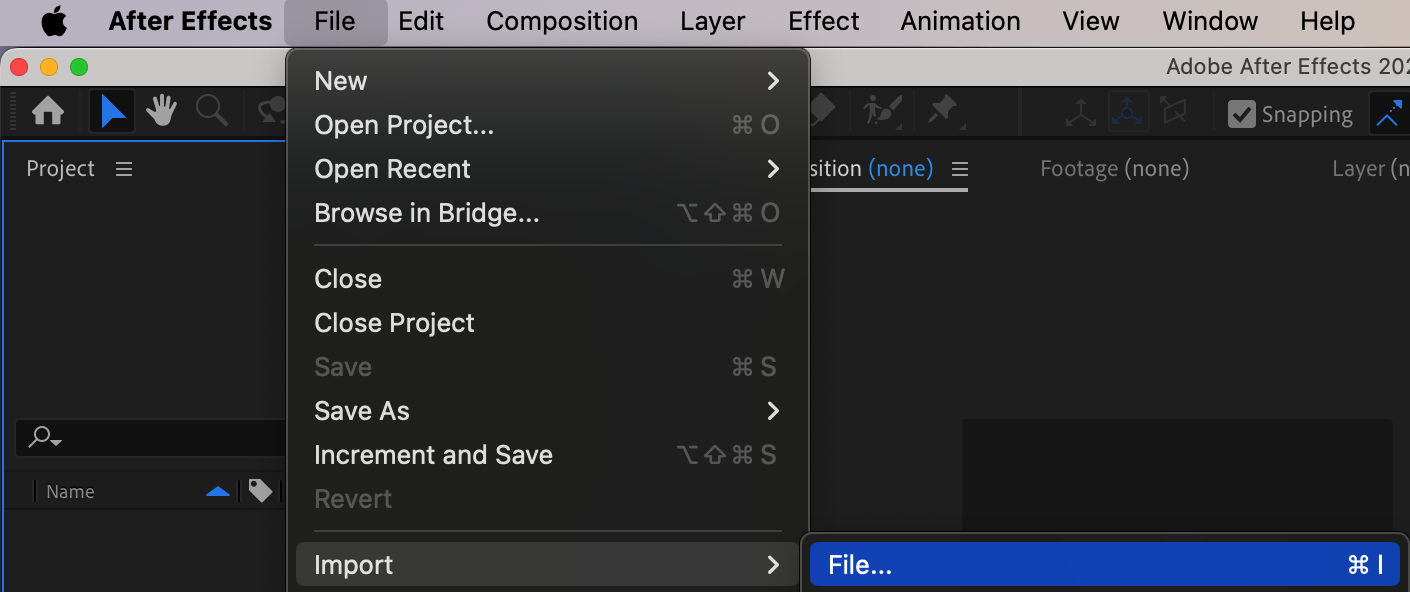
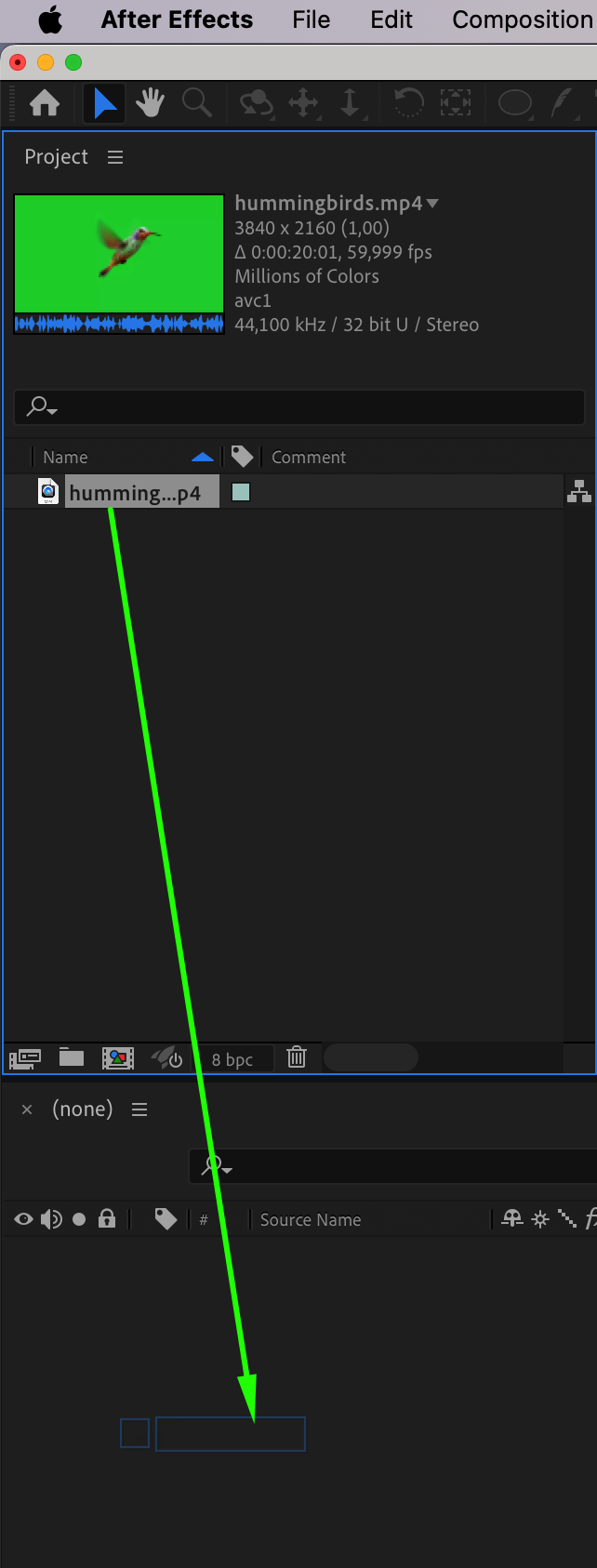 Step 2: Apply the Keylight Effect
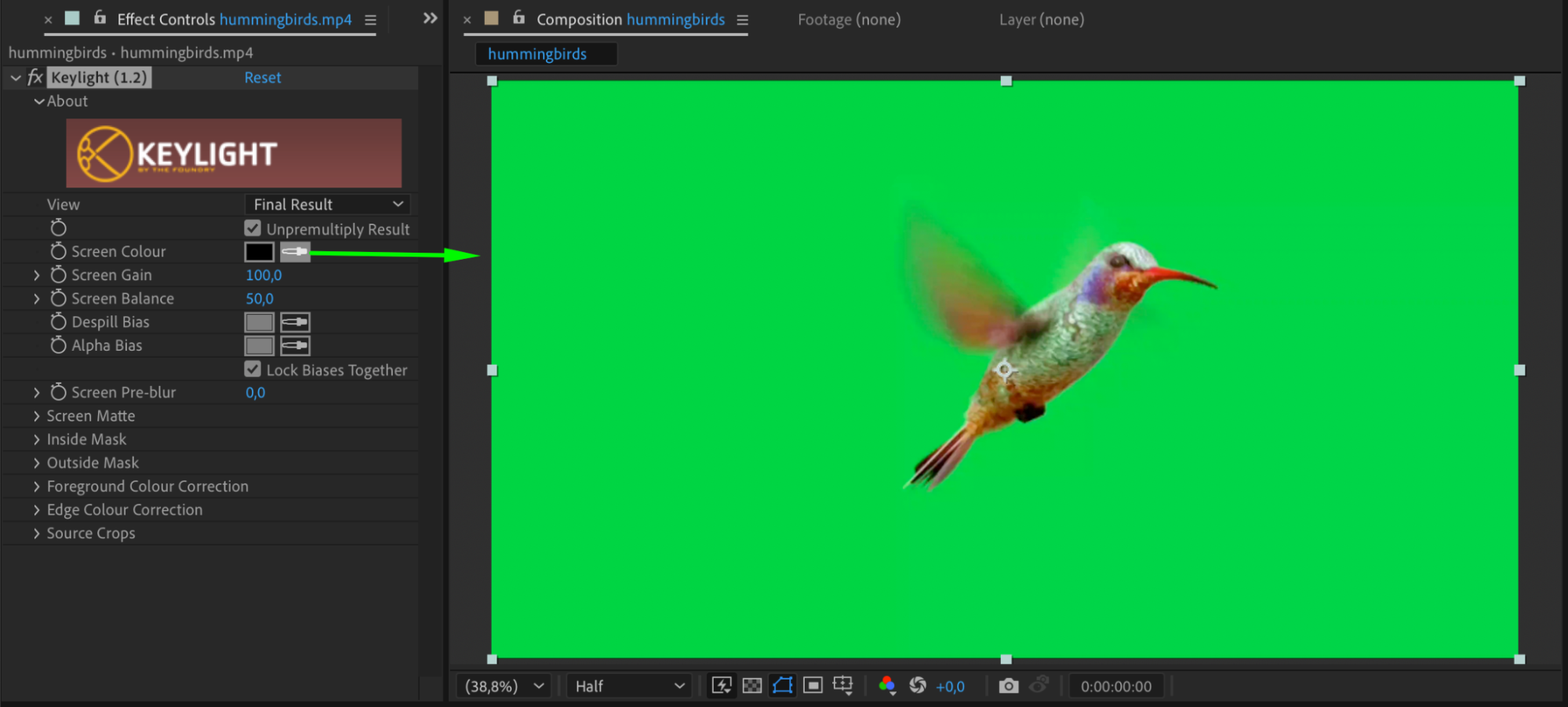
With your footage selected, go to the Effects & Presets panel and search for Keylight (1.2). Apply it to the layer. In the Effect Controls panel, use the Eyedropper tool next to “Screen Colour” and click on the green background in your shot. This will key out the green and reveal transparency behind the subject.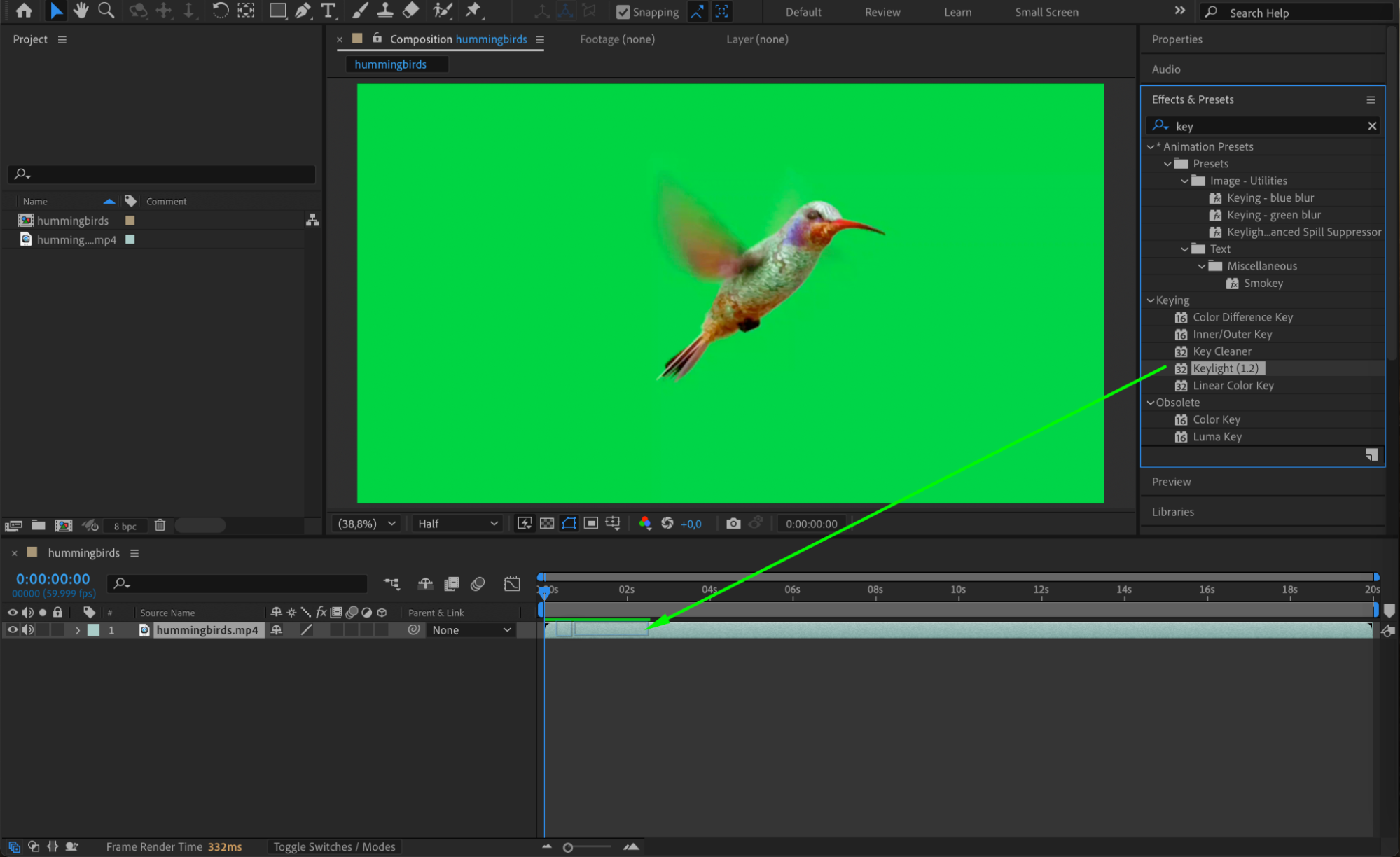
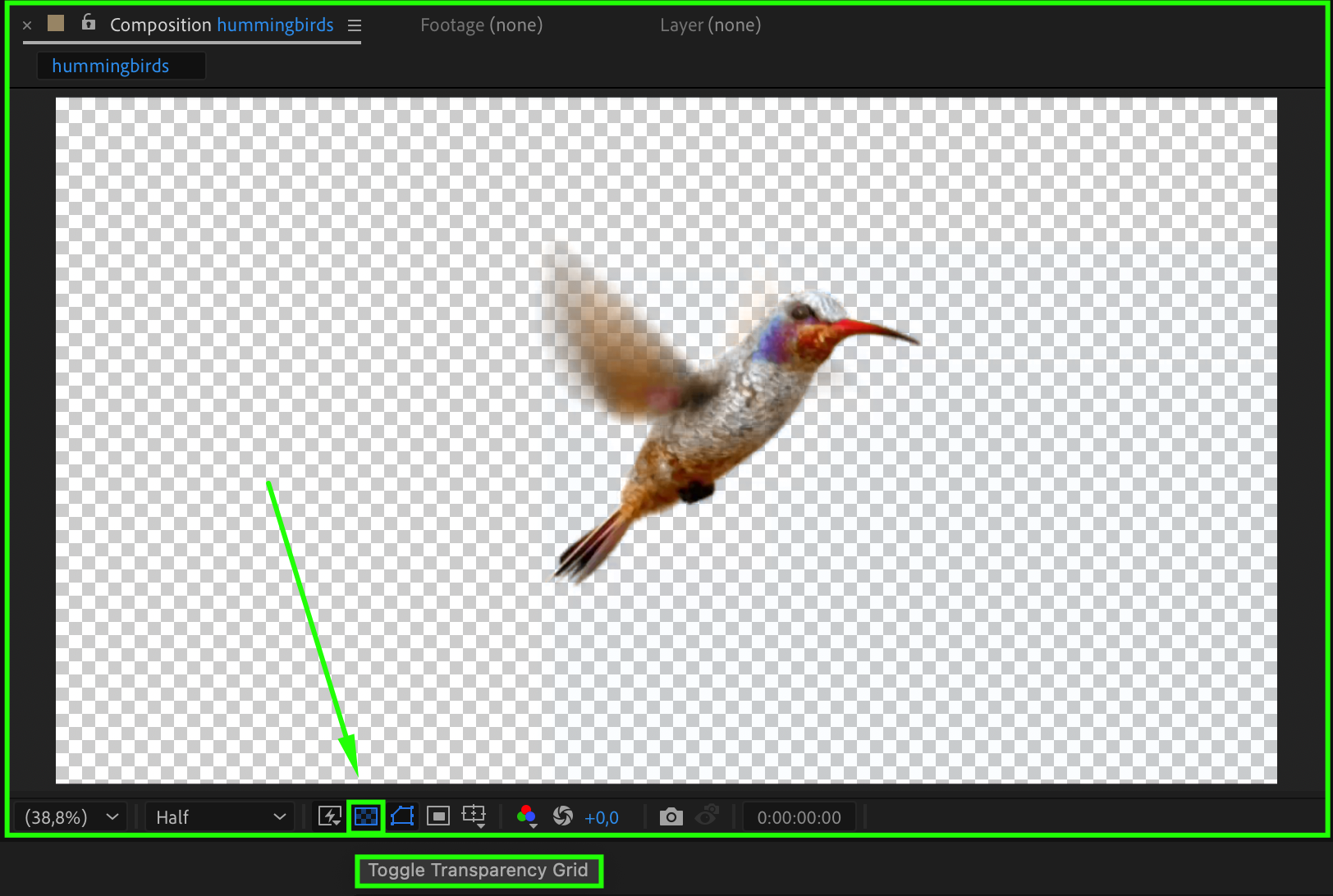
Step 3: Refine the Key with Screen Matte Settings
Still inside the Keylight effect, twirl down the Screen Matte section. Adjust Clip Black and Clip White to clean up the transparency. If the edges are too rough or choppy, increase Screen Softness slightly. You can also tweak Screen Shrink/Grow to remove unwanted outlines or halos around the subject.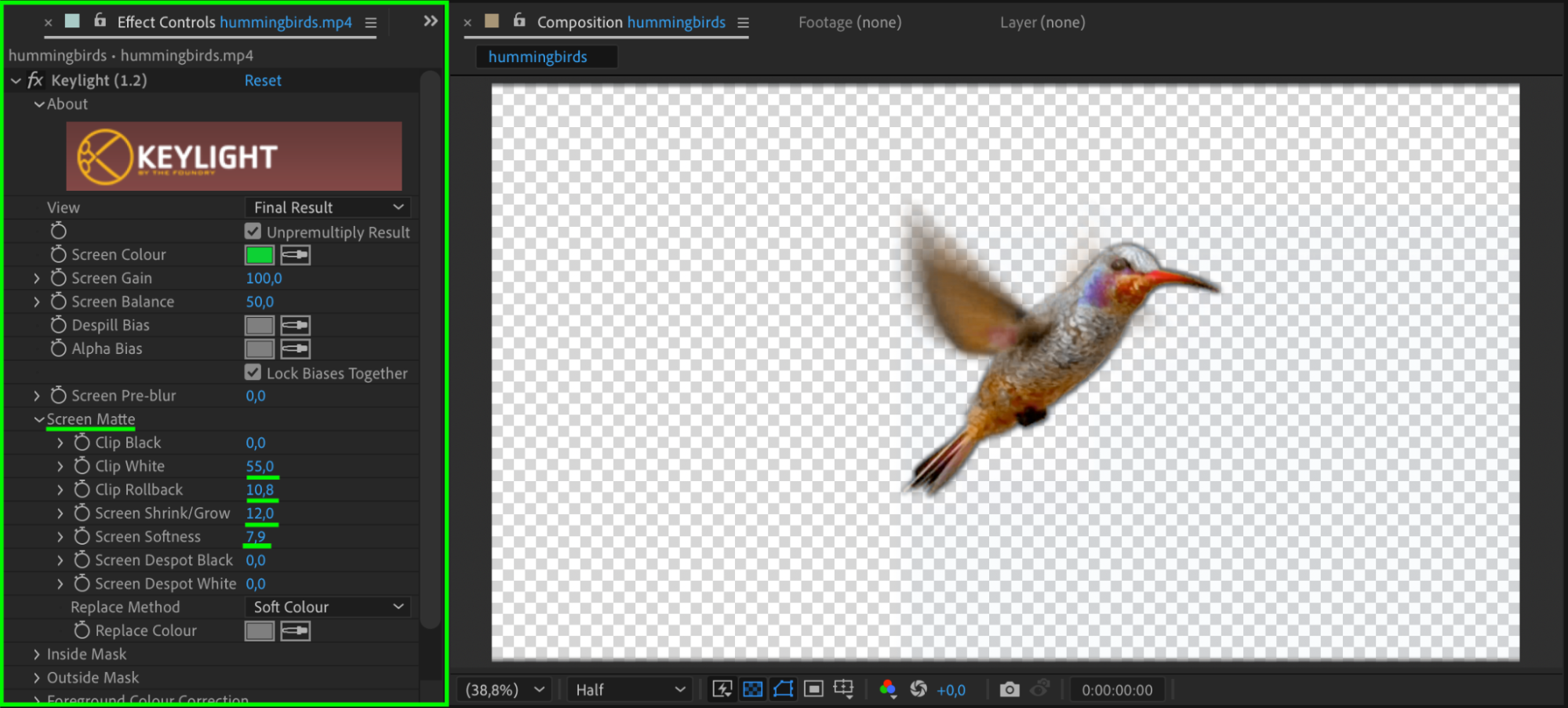
Step 4: Adjust Inside and Outside Mask Softness
Scroll down to the Screen Matte > Inside Mask Softness and Outside Mask Softness controls. Increase these slightly to feather the edges directly from the key. This helps create smoother, more natural transitions between the subject and background.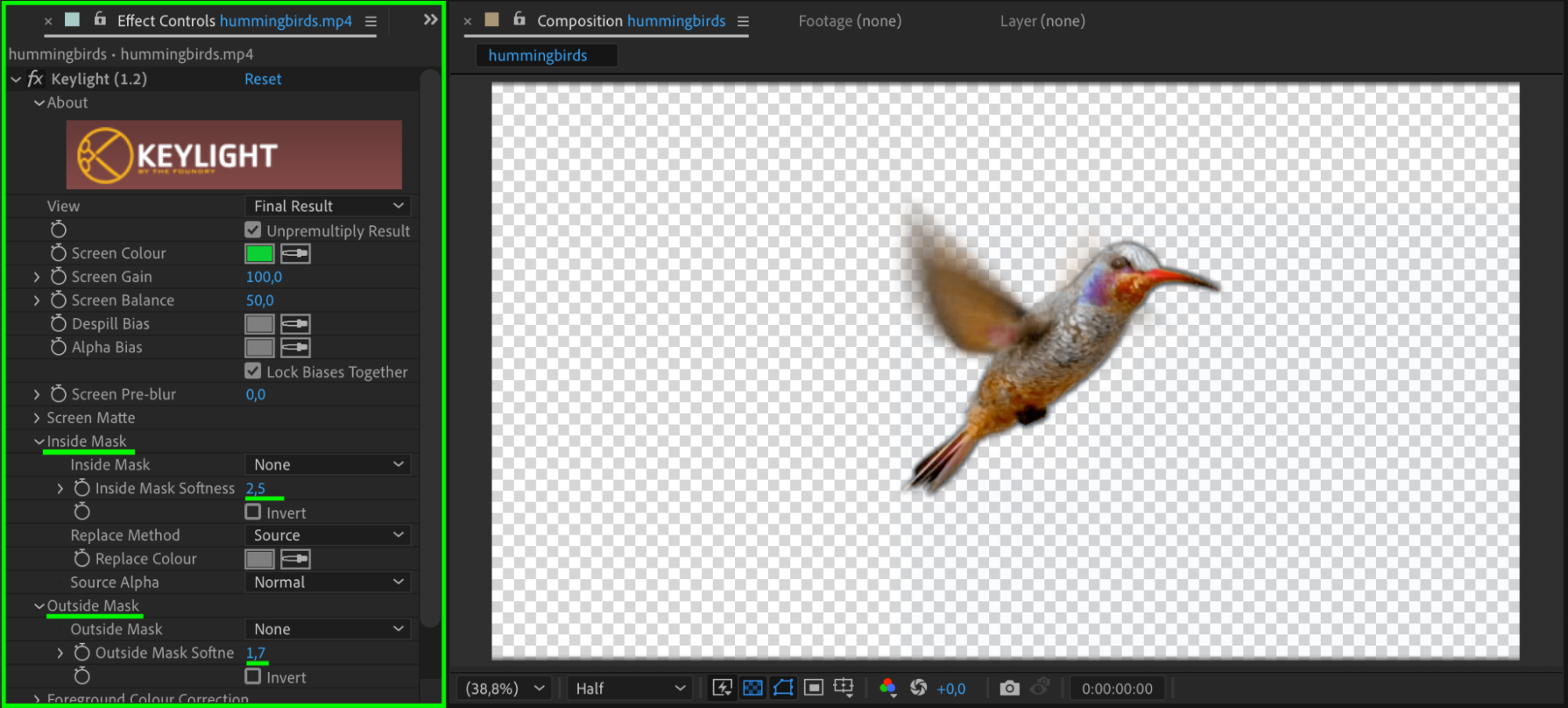
Step 5: Create a Custom Mask (Optional)
If your scene includes parts you want to hide (like studio lights or edges of the screen), use the Pen Tool (G) to draw a custom mask around the subject. Set the Mask Mode to Add. Then press MM to open mask settings and increase the Mask Feather value to softly blend the edge.
Step 6: Add Drop Shadow (Optional)
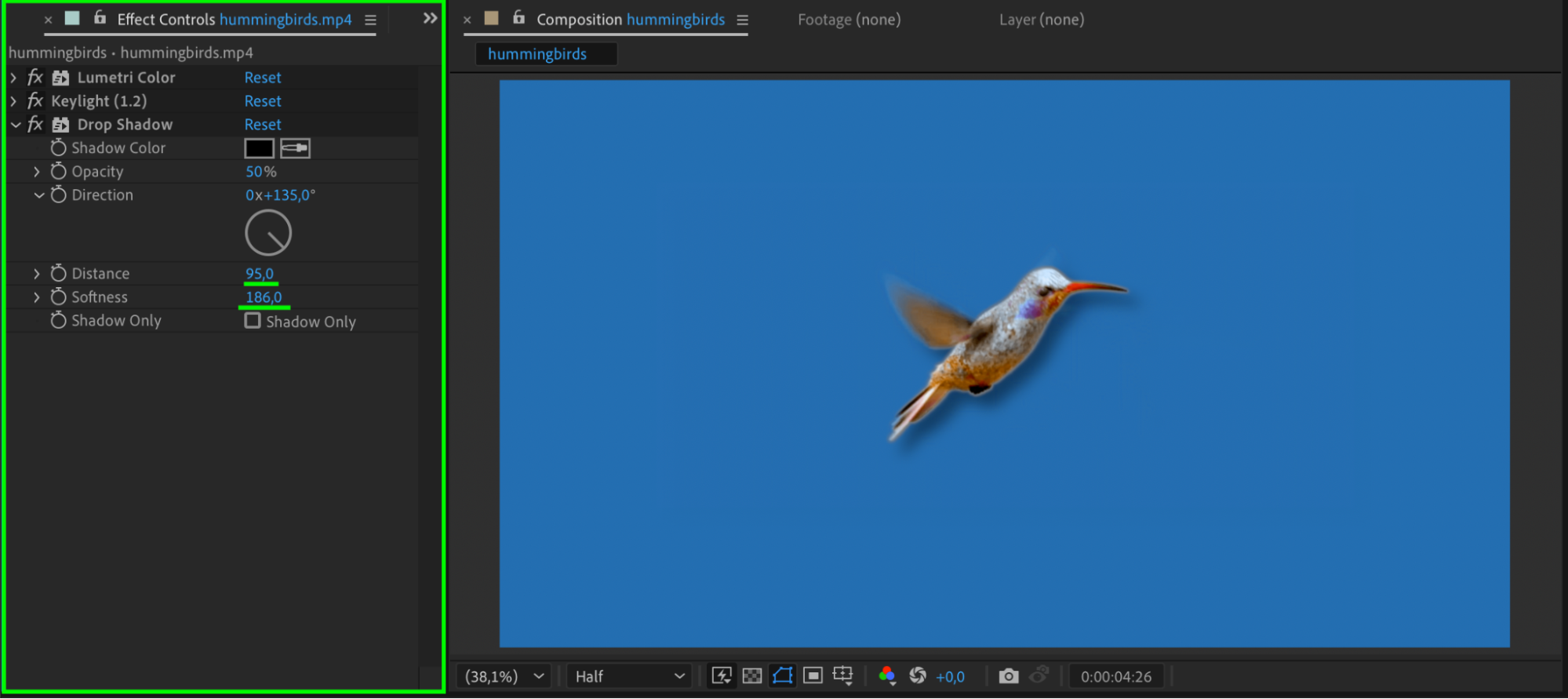
To add depth and separate the subject from the background, go to Effects & Presets, search for Drop Shadow, and apply it to your keyed layer. Adjust Distance, Softness, and Opacity until the shadow looks natural and subtle.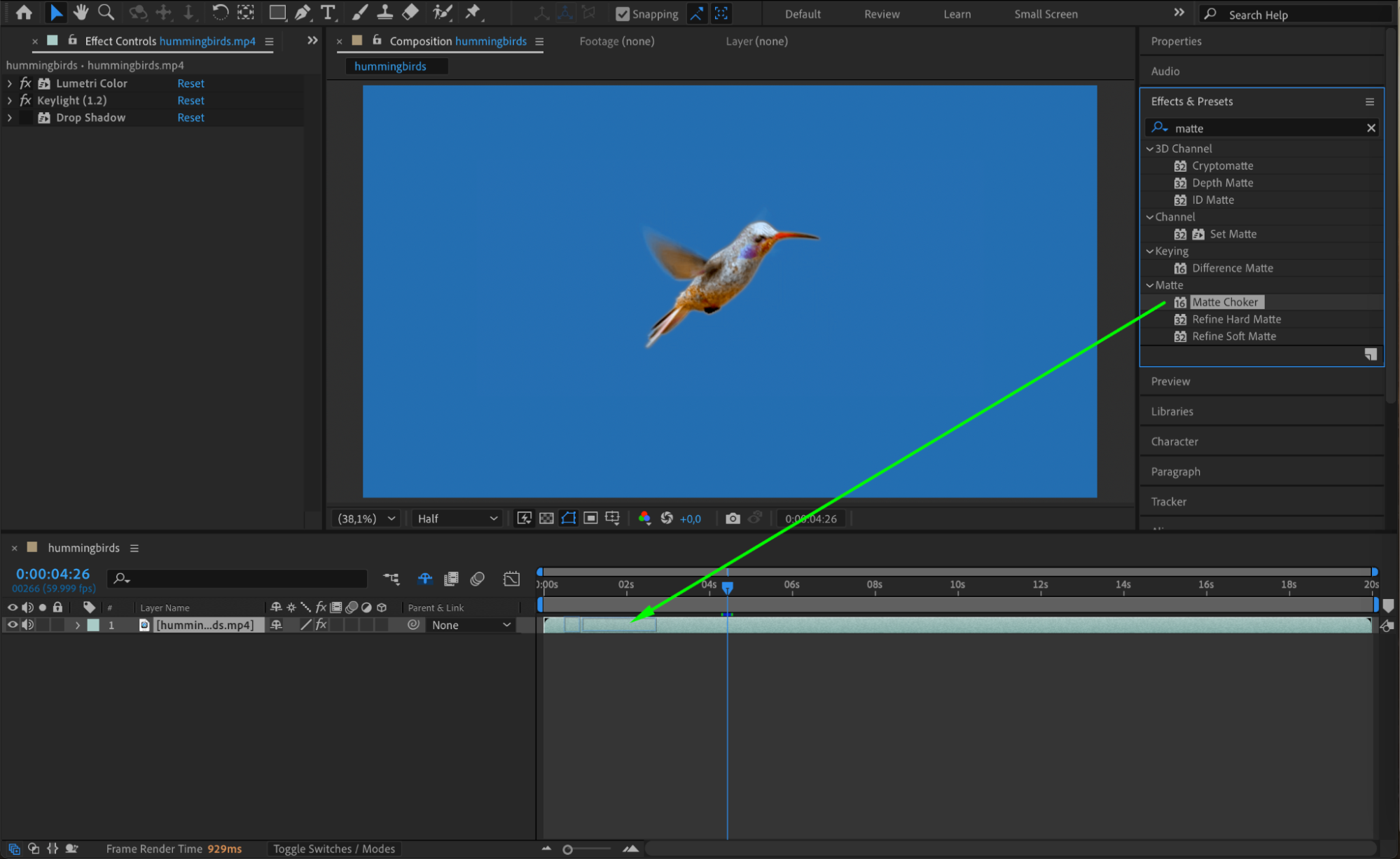
 Step 7: Refine with Matte Choker (Optional)
For extra edge refinement, apply the Matte Choker effect (Effect > Matte > Matte Choker). This tool is useful for tightening up edges and removing any remaining noise or green spill. Tweak the Choke and Feather sliders gently to avoid cutting into the subject.
Step 8: Preview and Final Adjustments
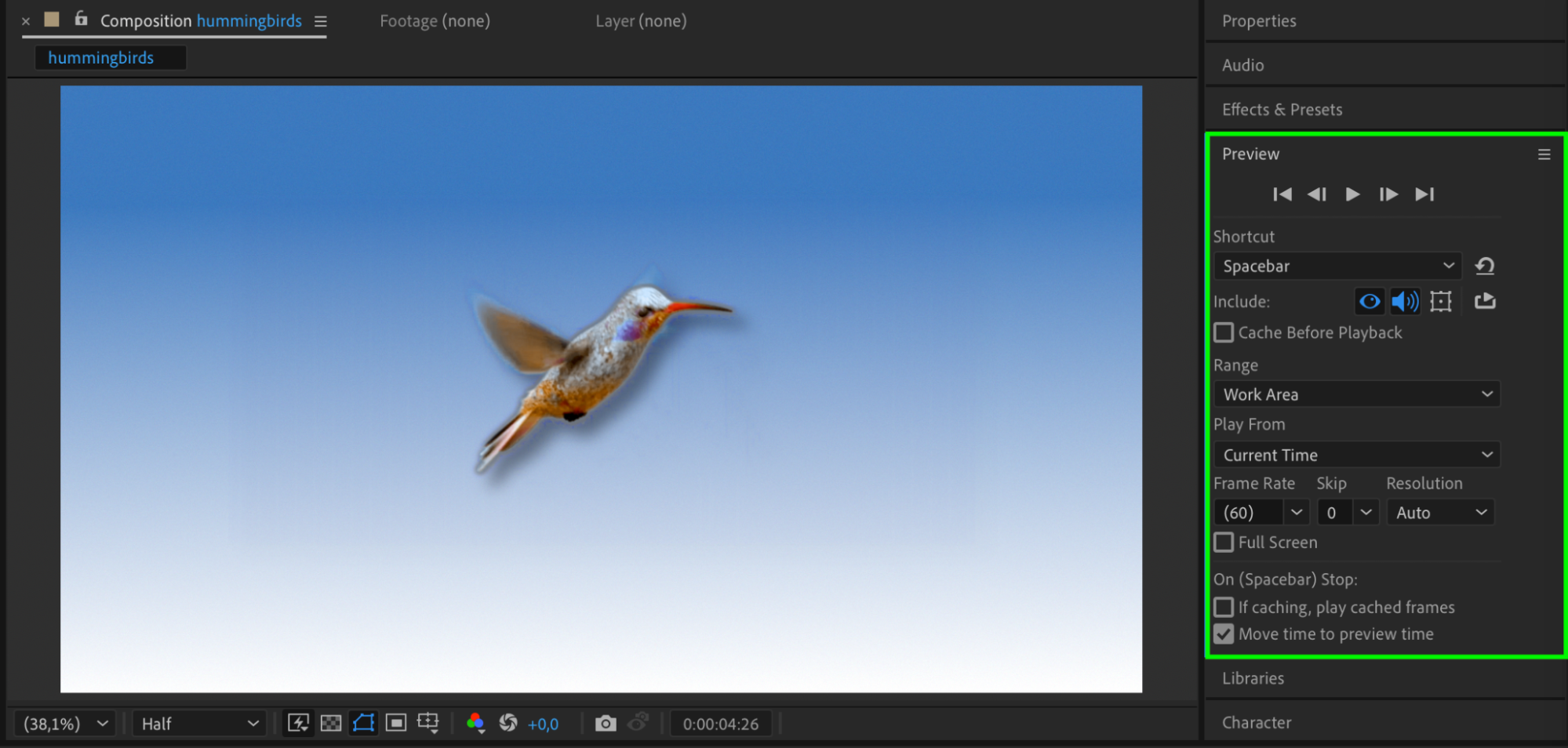
Press Spacebar to preview your animation. Review the edges closely. If necessary, go back and fine-tune the Keylight, mask, or Matte Choker settings. Make sure there are no hard outlines or leftover green spill.
Conclusion
Smoothing a green screen edge in After Effects is easy once you understand how to combine Keylight with mask feathering and matte controls. These simple steps will help you produce clean, professional-looking composites where the subject blends naturally into any background.
Our Bestsellers
Our Bestsellers


