
Introduction to Accessing Y Rotation Keyframes
In Adobe After Effects, Y Rotation controls how a 3D layer rotates around the vertical axis. If you’re animating objects in 3D space, it’s important to know how to set, view, and read the Y Rotation keyframe values. These values help you manage timing, speed, and direction of rotation. This guide will show you how to access those values quickly and clearly.
Step 1: Enable 3D for Your Layer
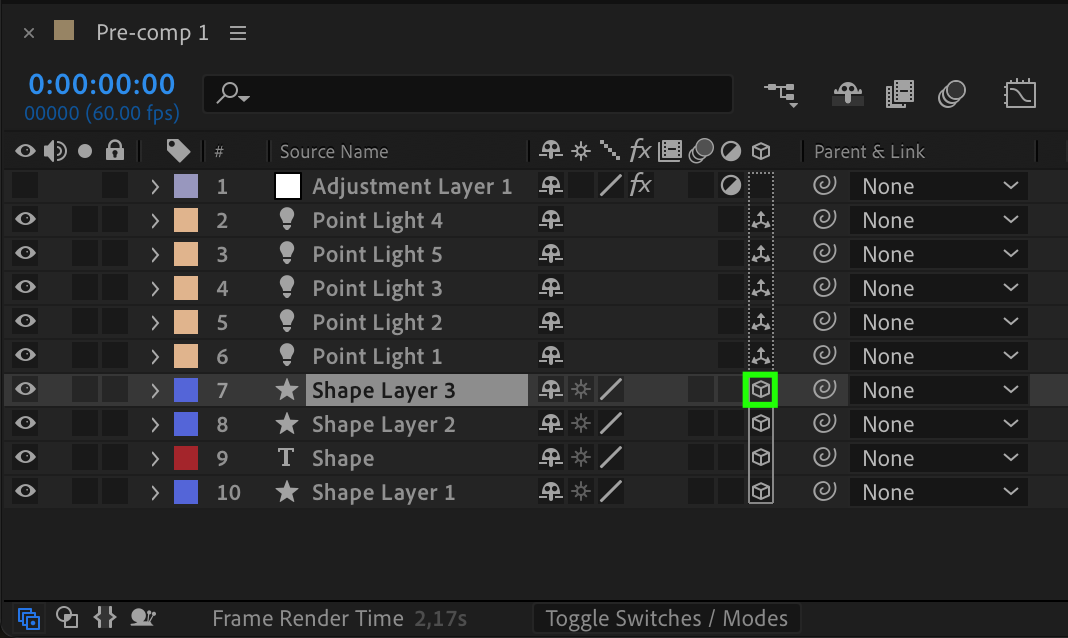
To use Y Rotation, your layer must be 3D. In the timeline, find the layer you want to work with and check the 3D Layer switch (a cube icon). This enables access to X, Y, and Z rotation properties.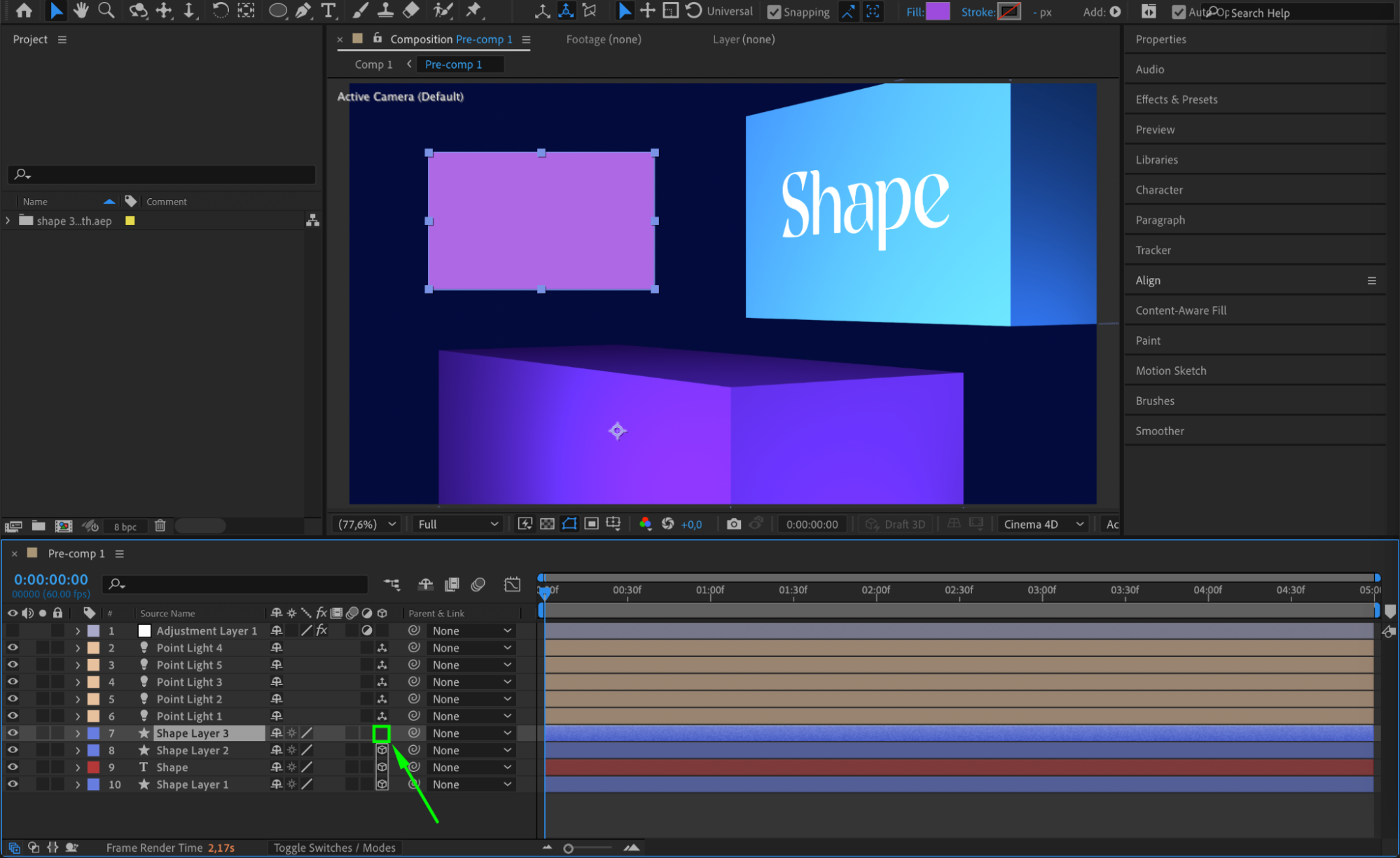
Step 2: Open the Rotation Property
Select your 3D layer and press “R” on your keyboard. This opens the Rotation section in the timeline, which includes X Rotation, Y Rotation, and Z Rotation. If you only see “Rotation,” make sure the layer is 3D-enabled.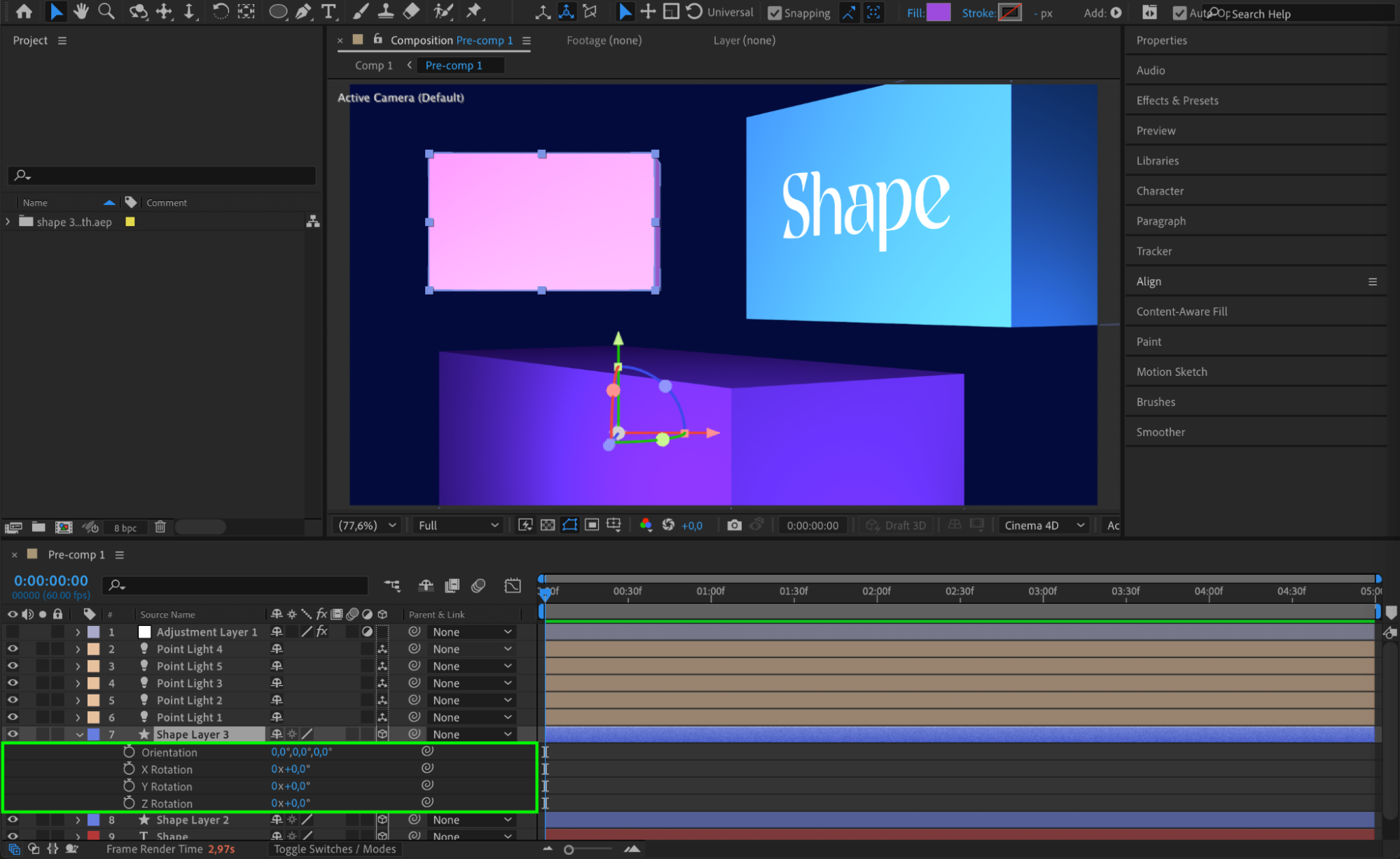 Step 3: Add or Select a Keyframe
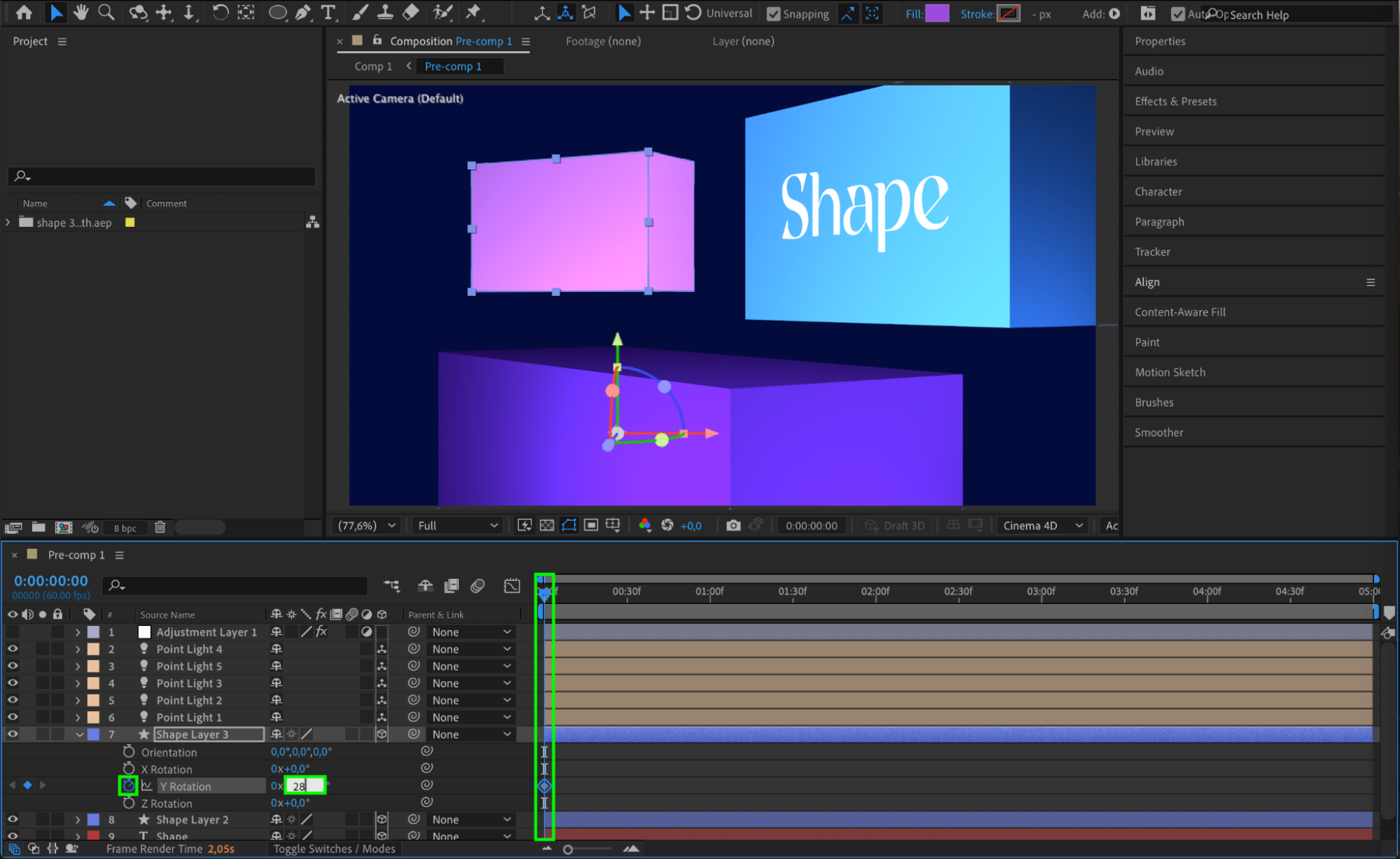
Click the stopwatch icon next to Y Rotation to add a keyframe at the current time. You can also move the playhead to an existing keyframe if one is already set. The diamond icon in the timeline marks where keyframes exist.
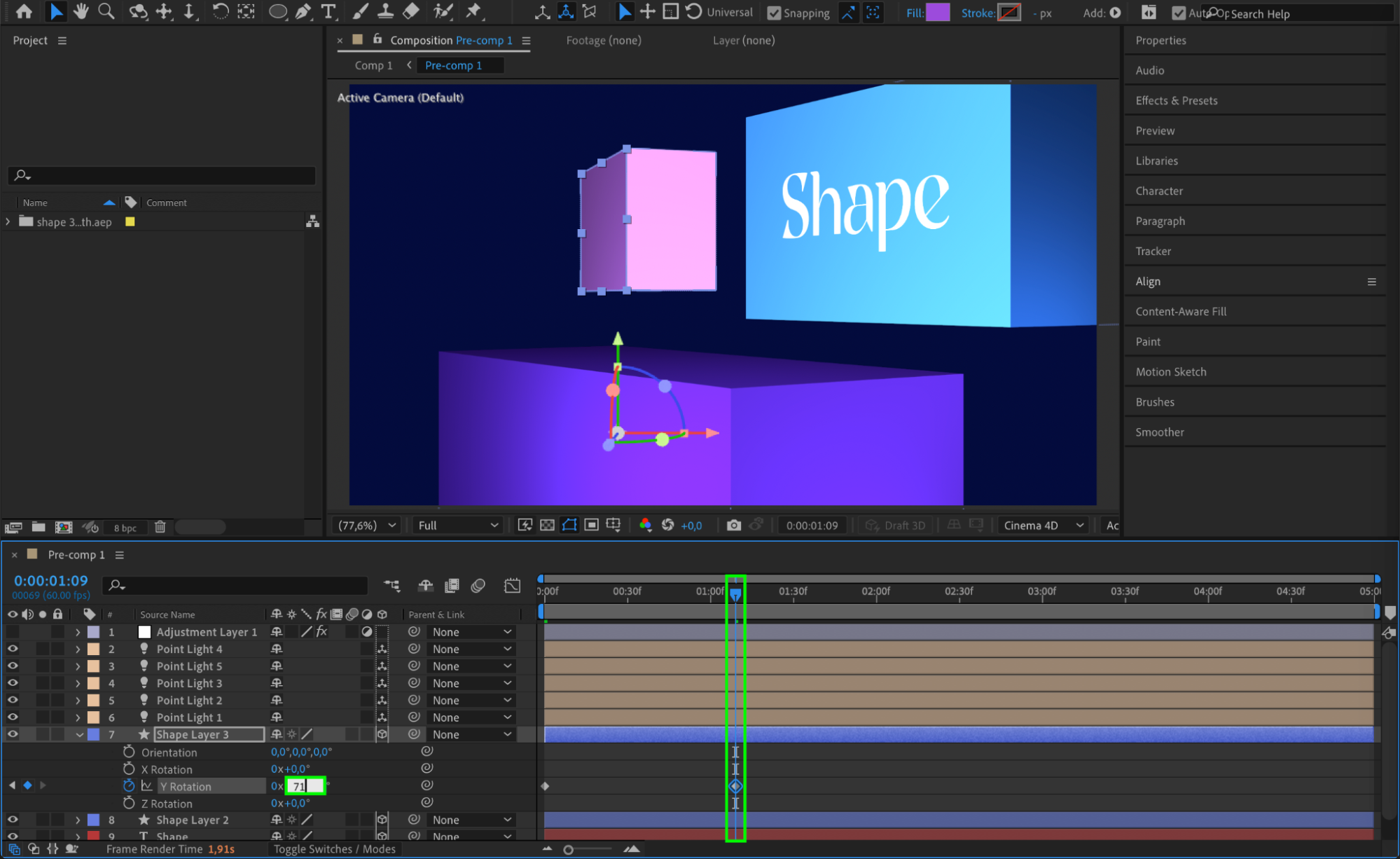
Step 4: View the Y Rotation Value
To read the value of the keyframe, simply move the playhead to that keyframe. The current Y Rotation value will be displayed in the timeline next to the property. You’ll see a number such as 1x + 45.0°, which means 1 full rotation plus 45 degrees.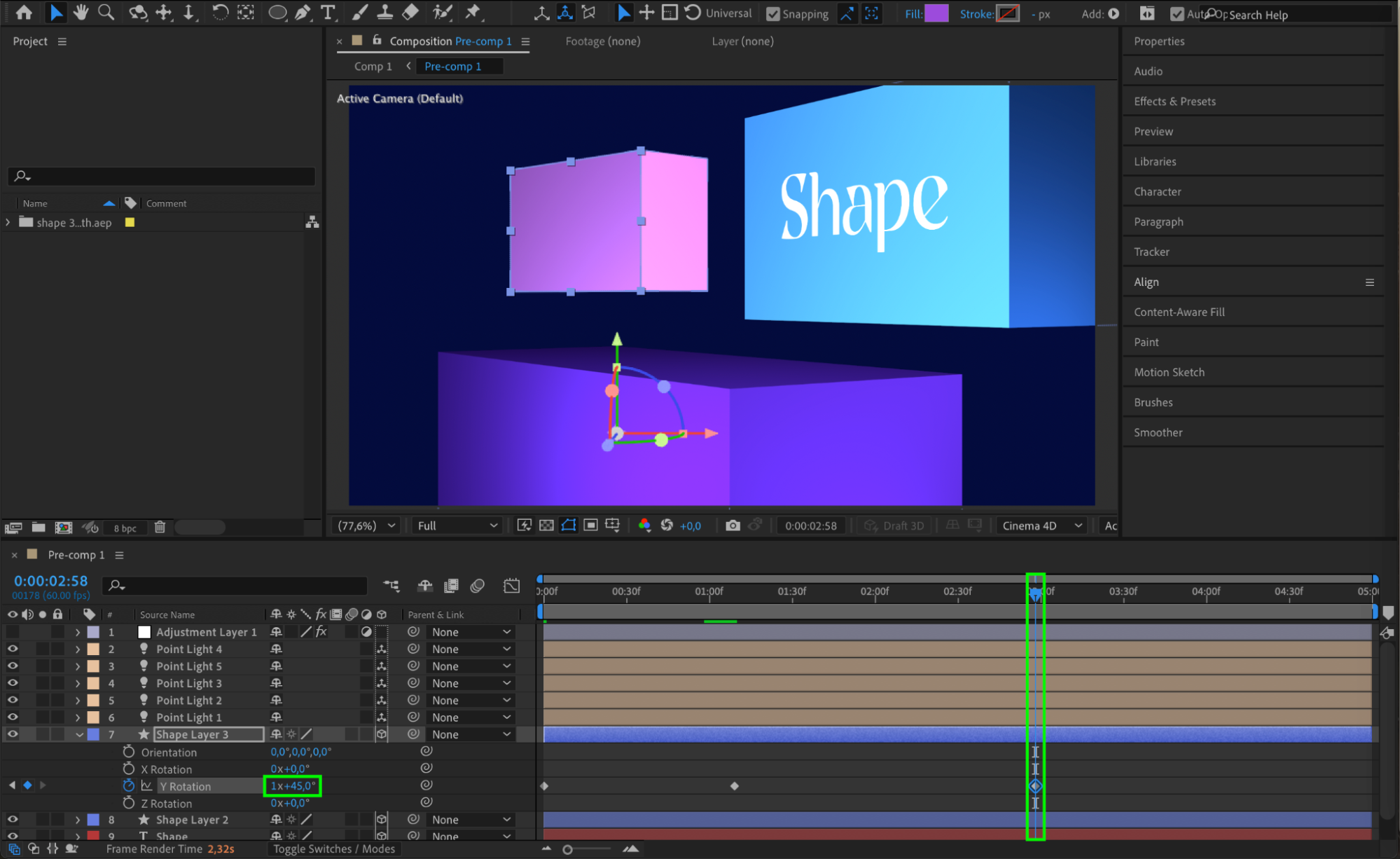 Step 5: Use the Graph Editor (Optional)
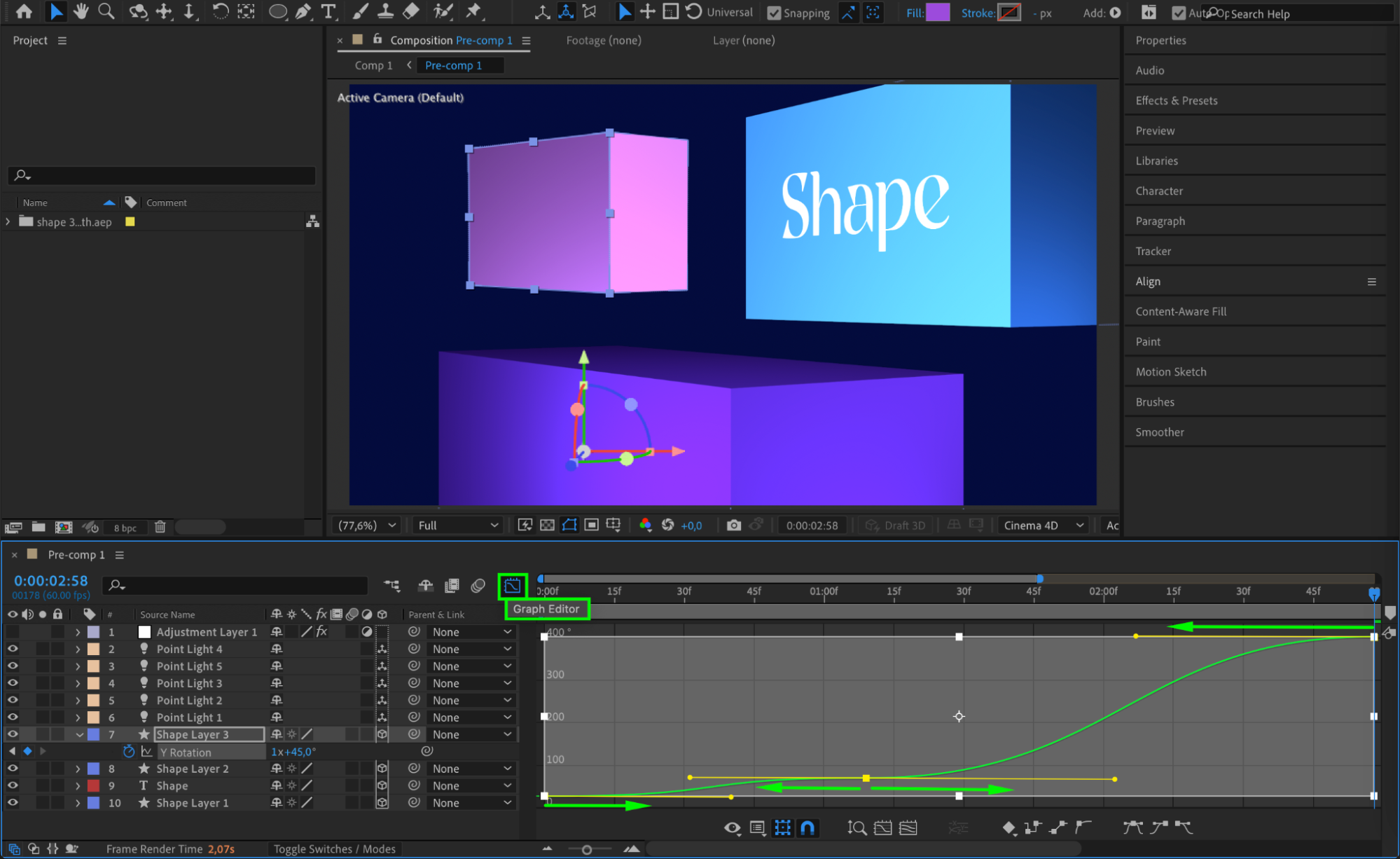
To better understand how your Y Rotation values change over time, click the Graph Editor button. Here you can see the speed and smoothness of the rotation and fine-tune your animation curves.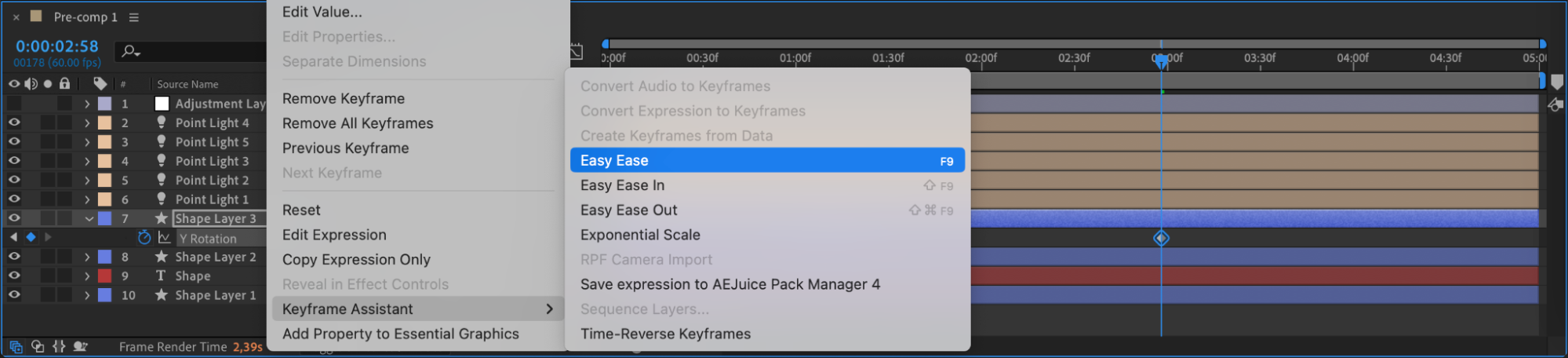
Conclusion
Accessing and adjusting Y Rotation keyframe values in After Effects is simple but powerful. Whether you’re spinning a logo or rotating a 3D layer in space, understanding how to read and control these values gives you greater precision in your animation workflow.
Our Bestsellers
Our Bestsellers


