
Introduction
After Effects allows you to turn simple shape lines into full 3D objects using the Advanced 3D Renderer. With just a few adjustments, you can extrude your line, customize its appearance, and even add effects using an adjustment layer.
Step 1: Create a New Composition and Enable Advanced 3D
Create a New Composition. In the 3D Renderer settings for this composition, switch the renderer to Advanced 3D to enable extrusion and other 3D features.
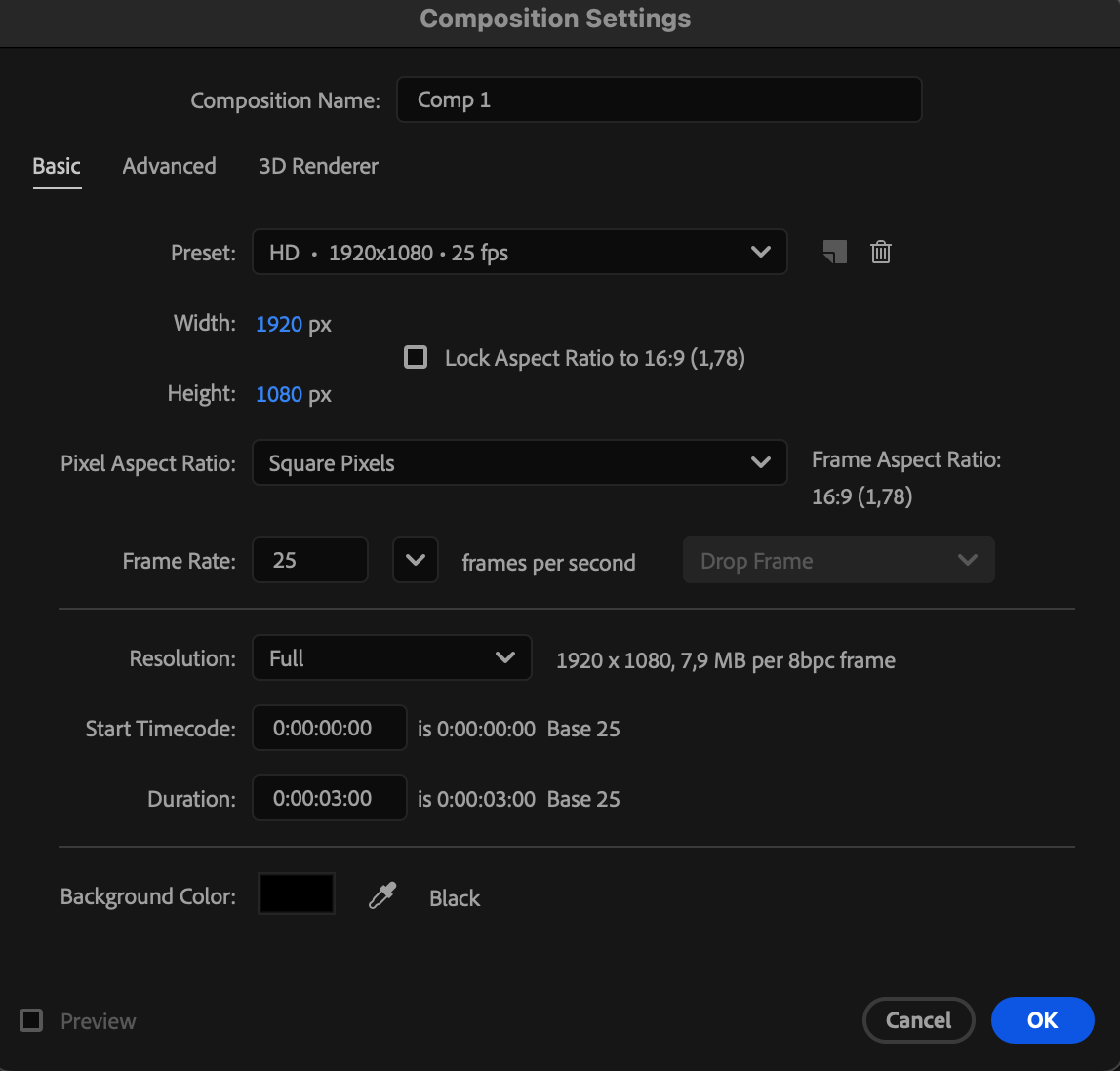
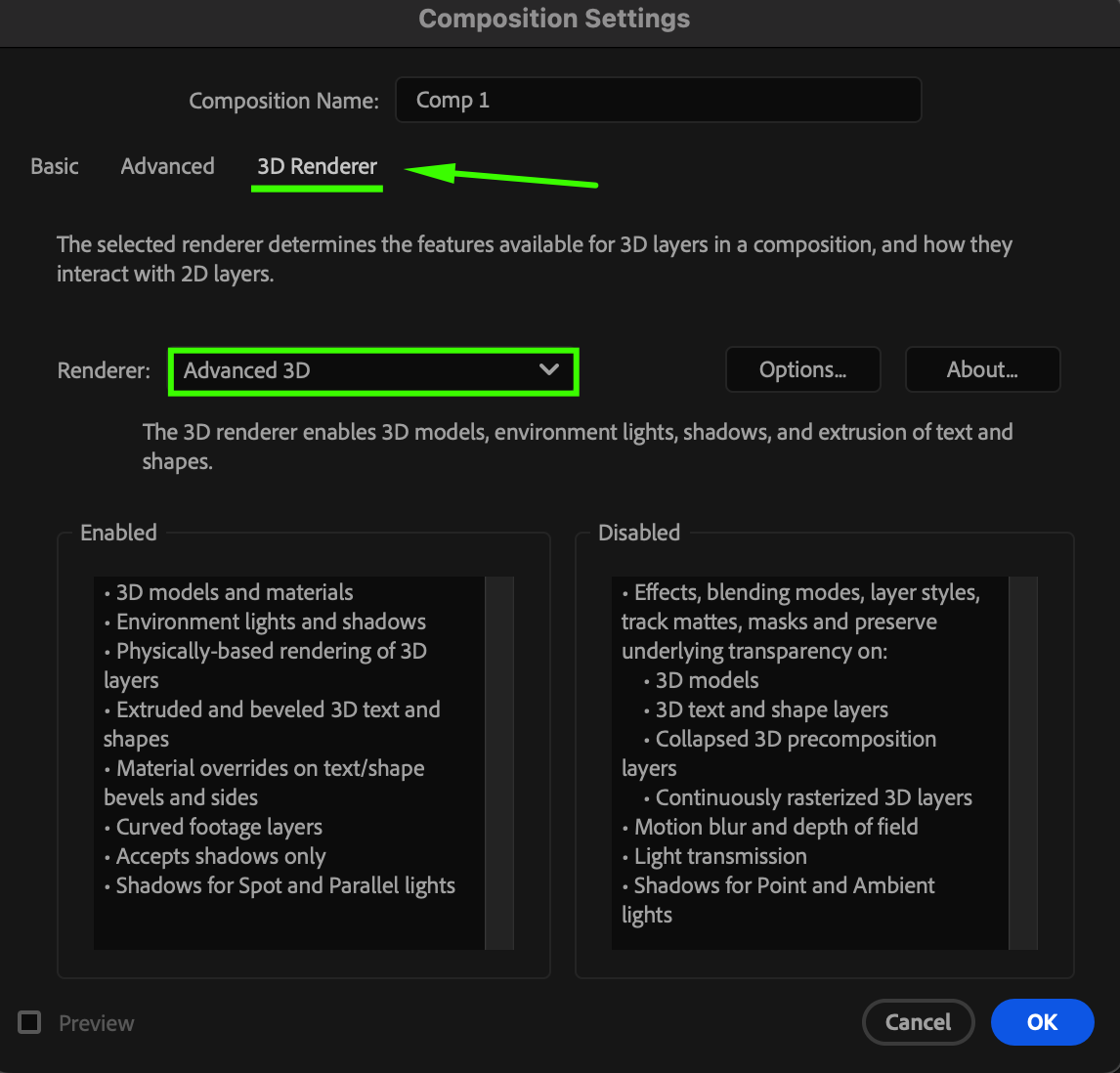
Step 2: Draw a Line Using the Pen Tool
Select the Pen Tool (G) and draw your line. Set Fill to None, then choose your Stroke Color and adjust the Stroke Width as needed.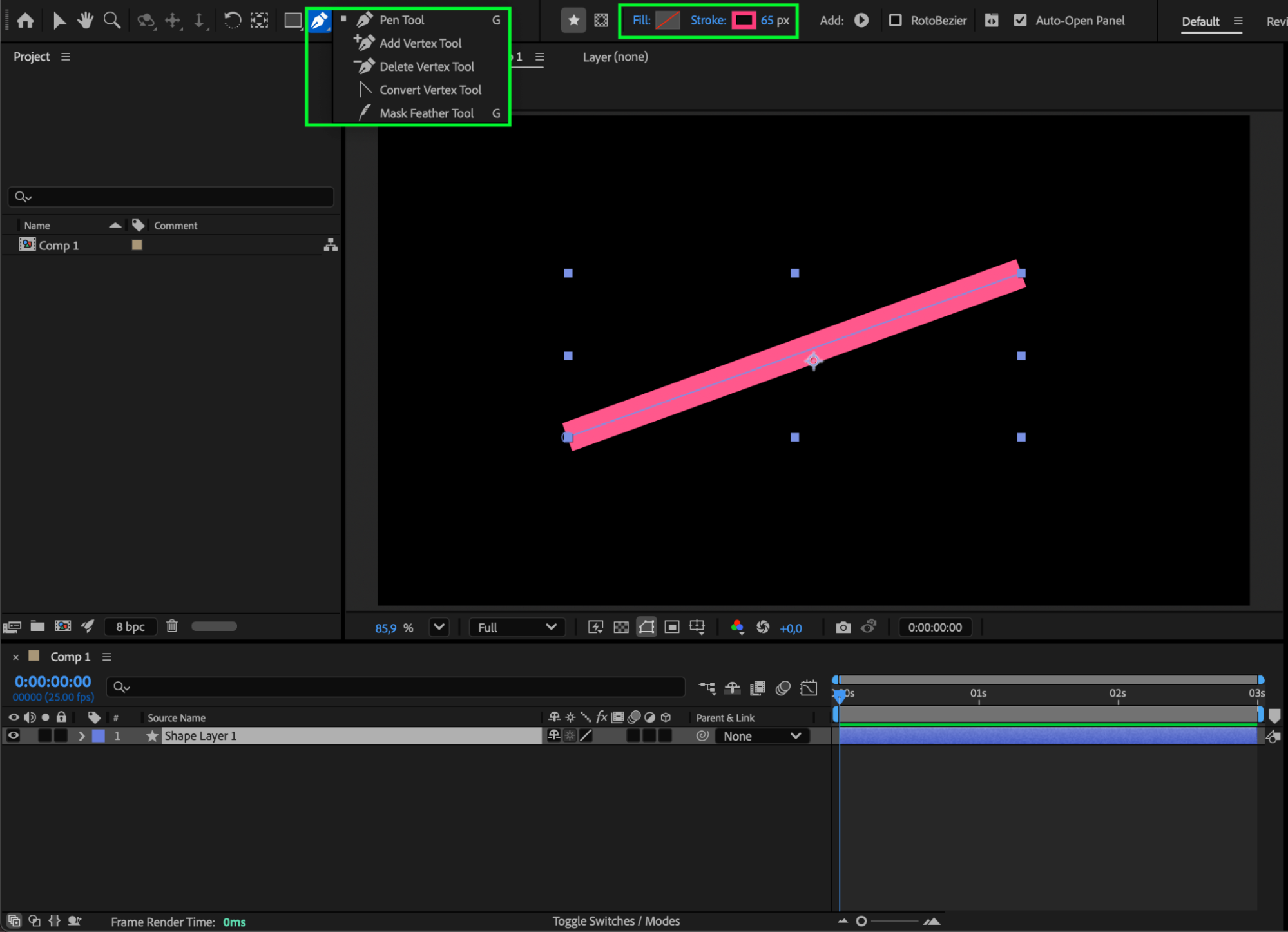 Step 3: Enable 3D for the Line Layer
Click the 3D cube icon next to your shape layer to enable 3D mode. This allows your line to gain depth and interact with 3D space.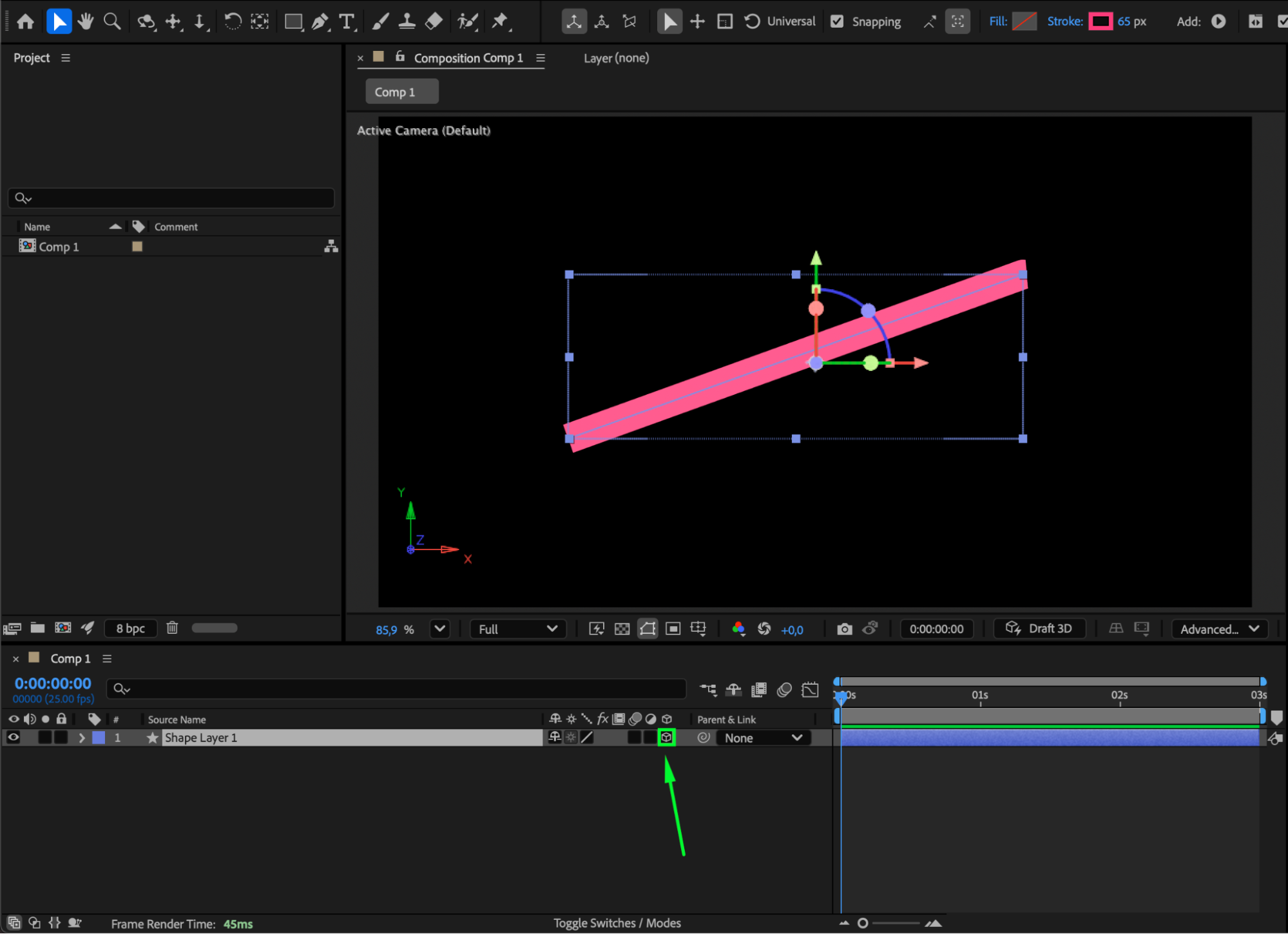
Step 4: Adjust Extrusion and 3D Properties
Twirl open the layer’s properties and adjust:
Extrusion Depth
Line Cap
Line Join
Orientation
Other 3D appearance settings
These parameters control the shape, edges, and depth of your 3D line.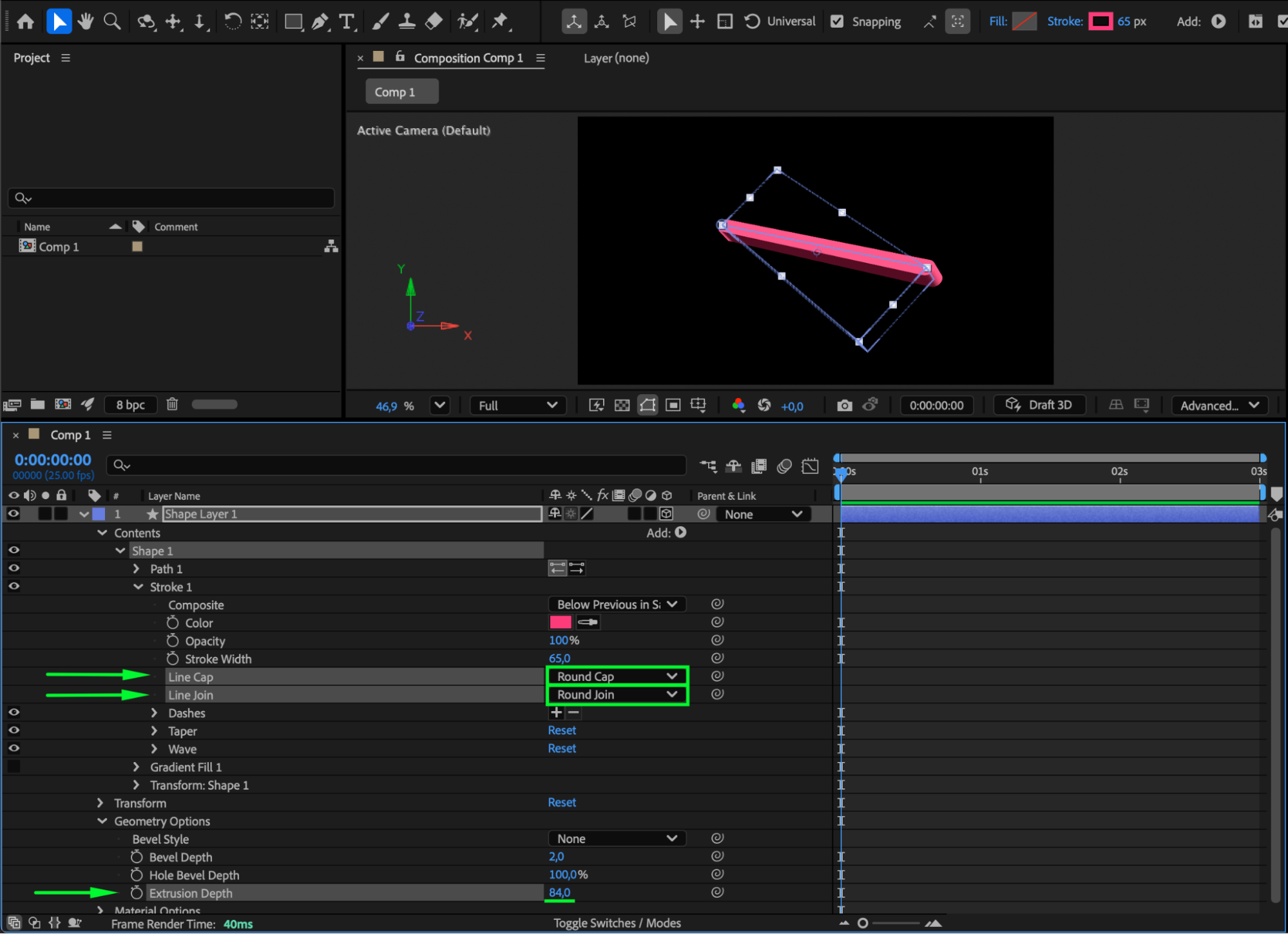
Step 5: Add Effects Using an Adjustment Layer (Optional)
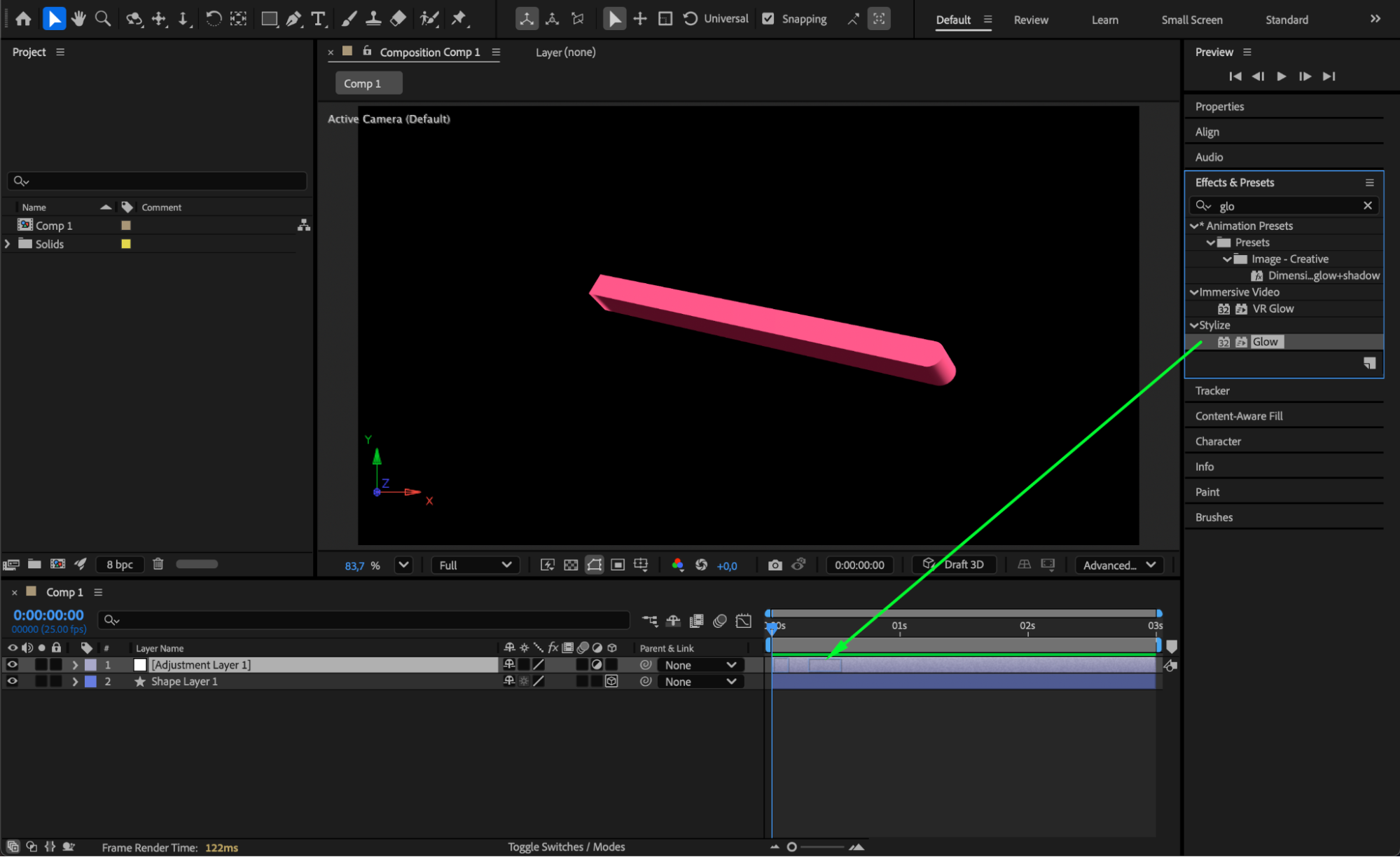
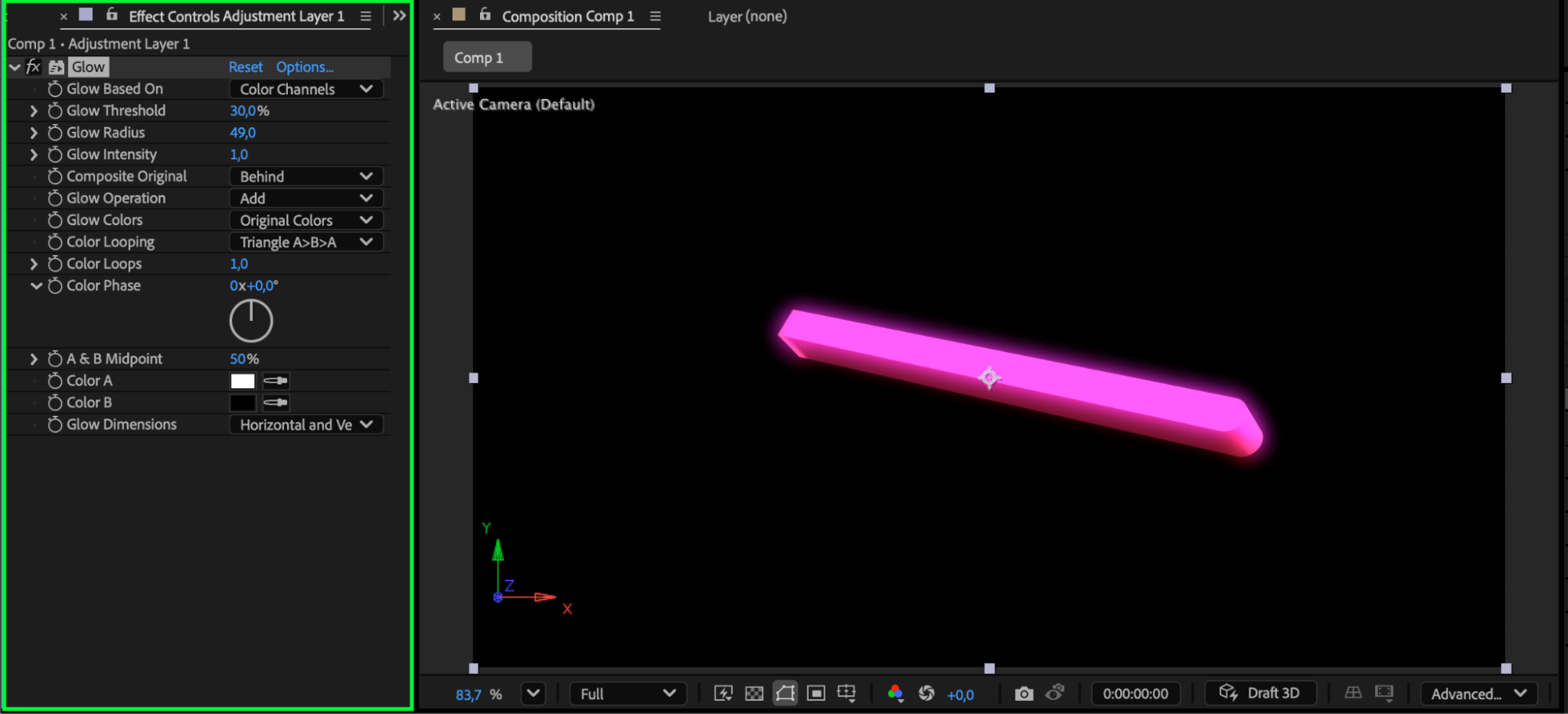
If you want to apply effects (such as glow, blur, or color correction), first create an Adjustment Layer and apply your effects to it. This ensures proper behavior with 3D layers and avoids rendering conflicts.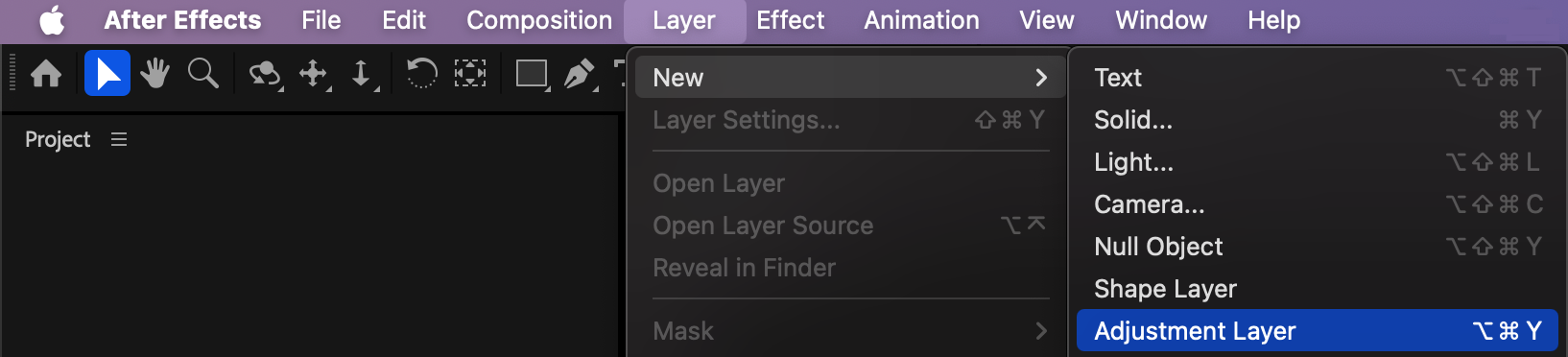
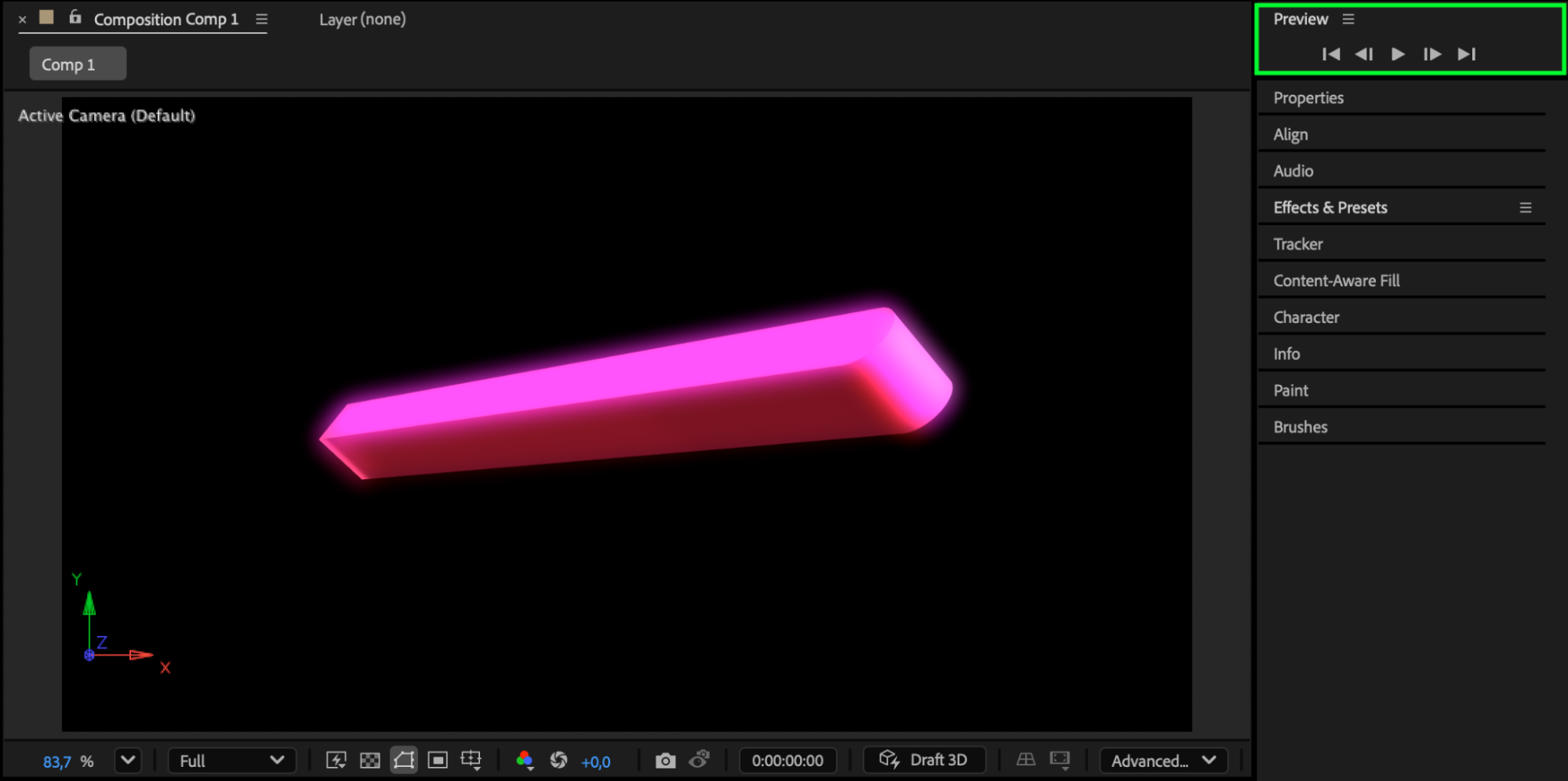
 Step 6: Preview and Refine
Press Spacebar to preview your animation or layout. Fine-tune depth, color, and orientation until your 3D line looks exactly how you want.
Conclusion
By combining the Advanced 3D renderer with shape layer controls, you can easily create and customize 3D lines in After Effects. Using an adjustment layer for effects ensures clean results and full flexibility for animation and design.
Our Bestsellers
Our Bestsellers


