
Introduction
Animating a circle so that part of it disappears is simple with the Radial Wipe effect. This technique is great for transitions, graphic elements, and UI animations.
Step 1: Create Your Circle
Open your project and use the Ellipse Tool (Q) to draw a circle. Set your Fill and Stroke colors as needed.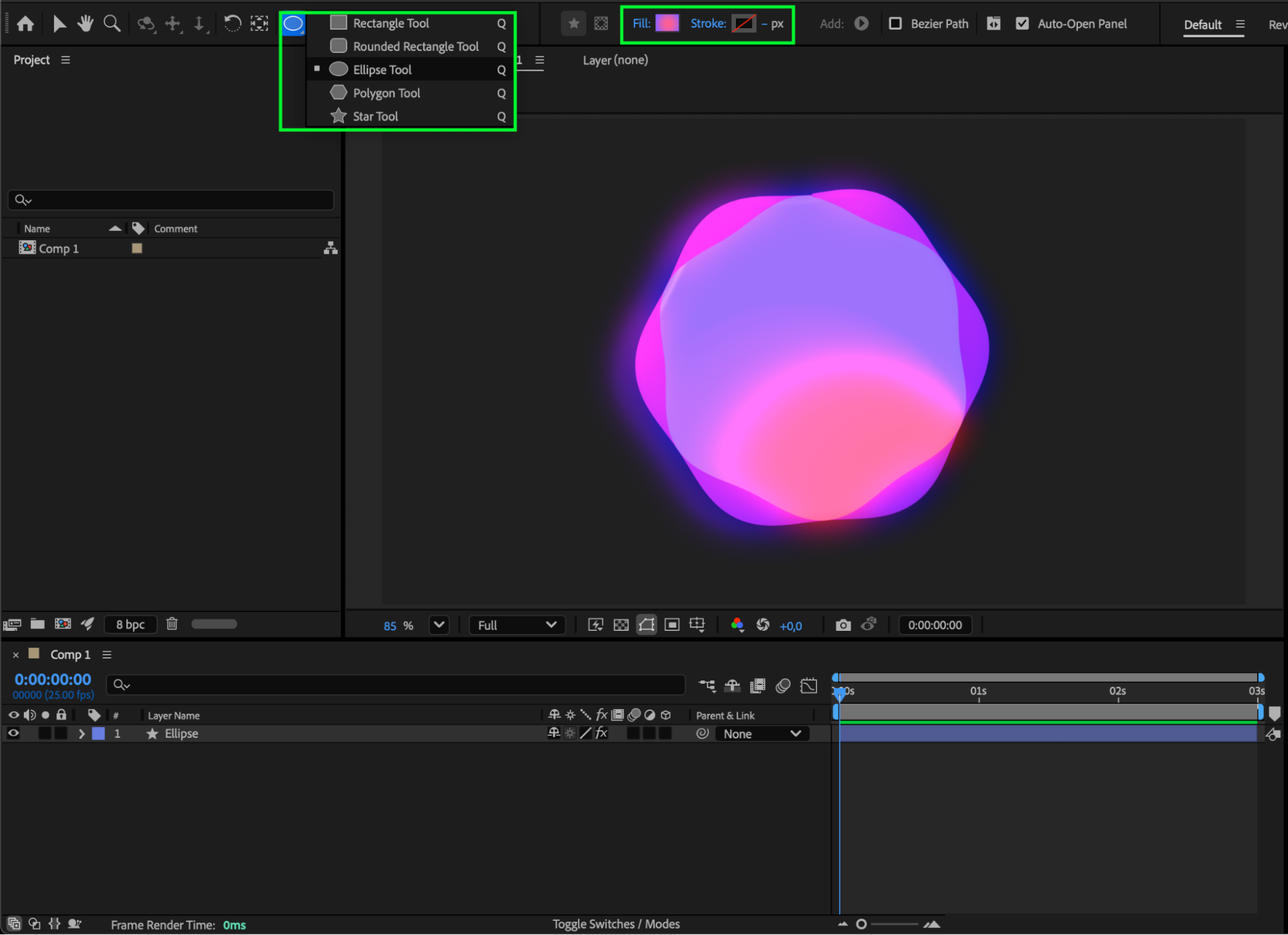 Step 2: Apply the Radial Wipe Effect
From the Effects & Presets panel, drag Radial Wipe onto your circle layer. This effect will allow you to reveal or hide parts of the shape.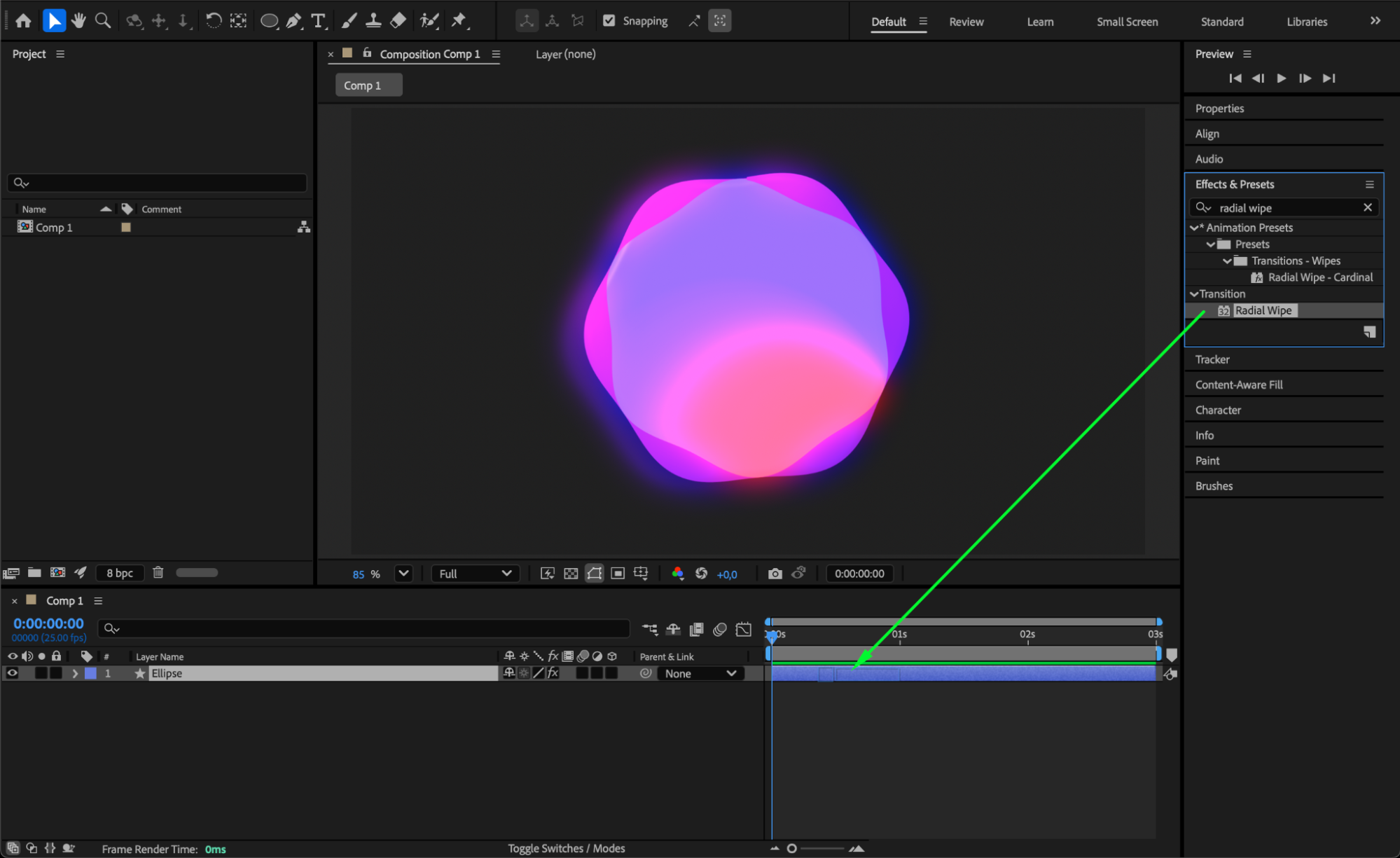
Step 3: Adjust the Radial Wipe Settings
In the Effect Controls panel, customize Wipe, Feather, and Wipe Center to shape the transition.
To animate the disappearing half:
Move the CTI to the start of the composition and set Transition Completion to 0% (click the stopwatch).
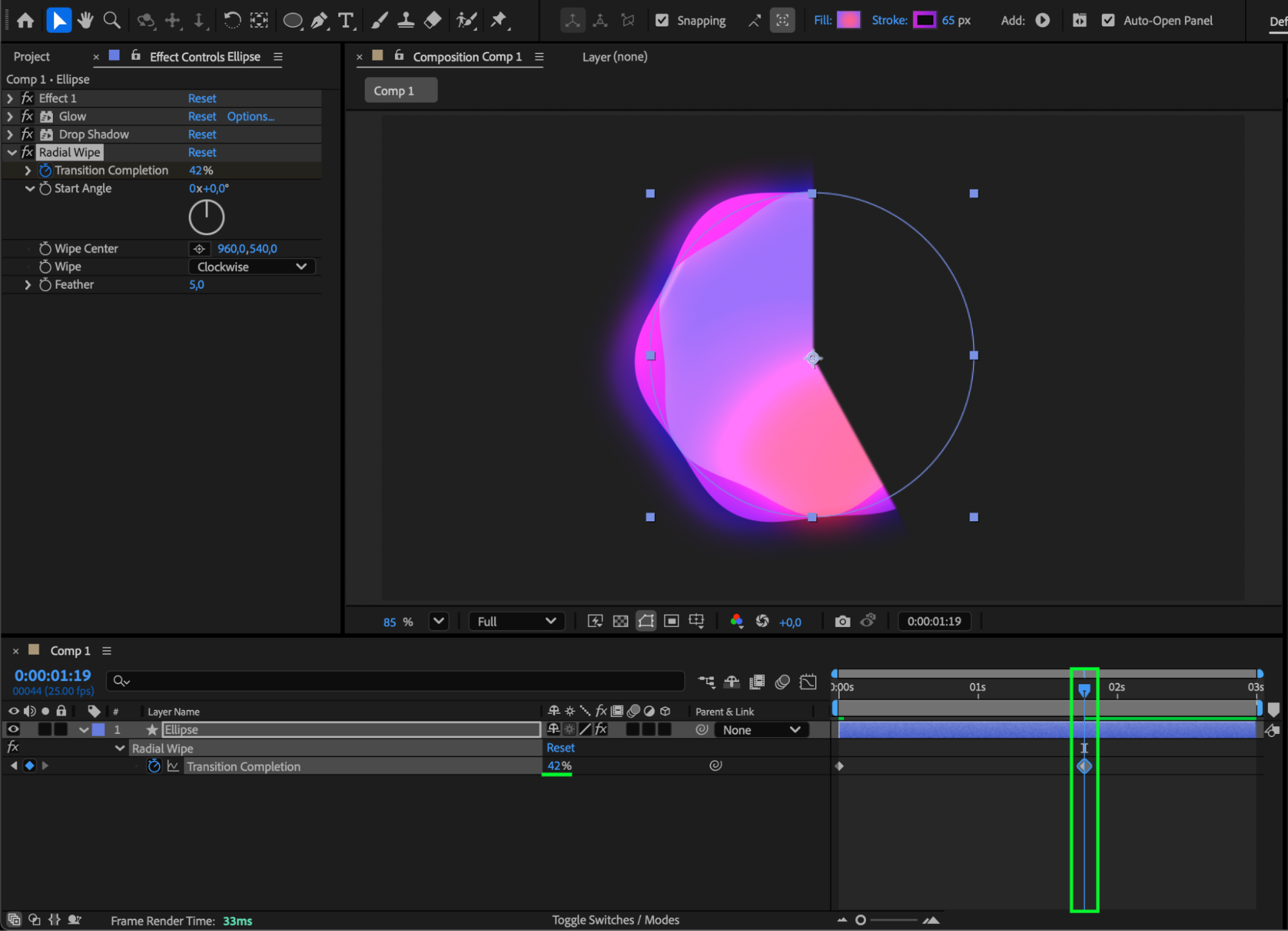
Move the CTI to the middle of the composition and increase Transition Completion until the desired portion of the circle disappears.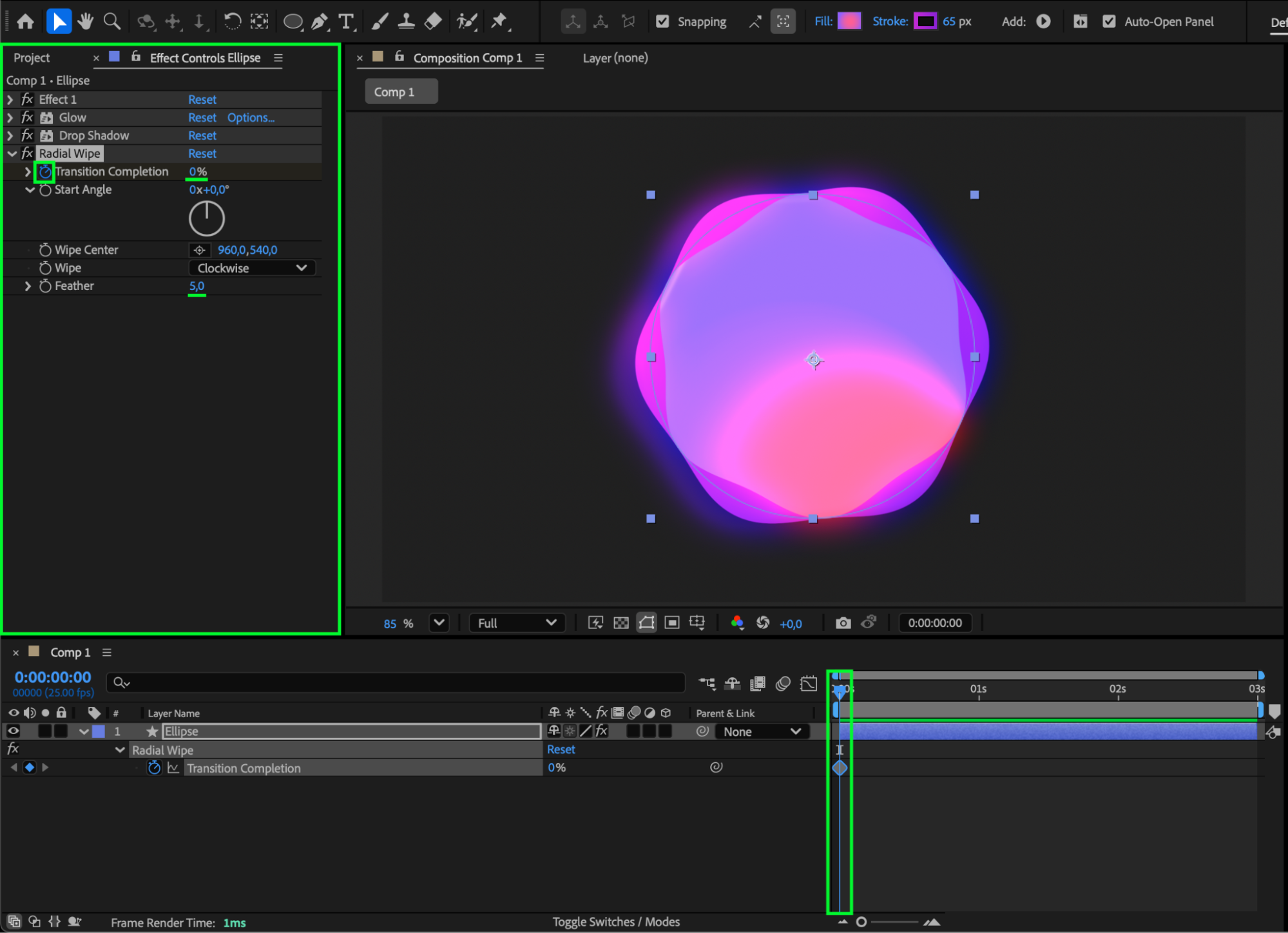
 Step 4: Apply Easy Ease
Select your keyframes and press F9 to apply Easy Ease for smoother animation.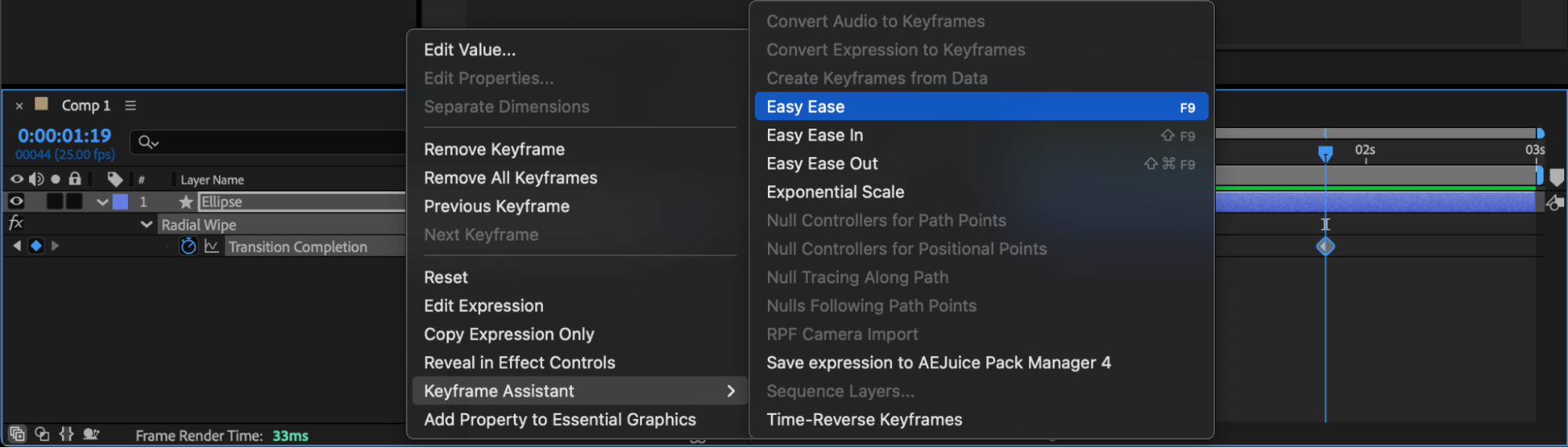
Step 5: Add CC Force Motion Blur (Optional)
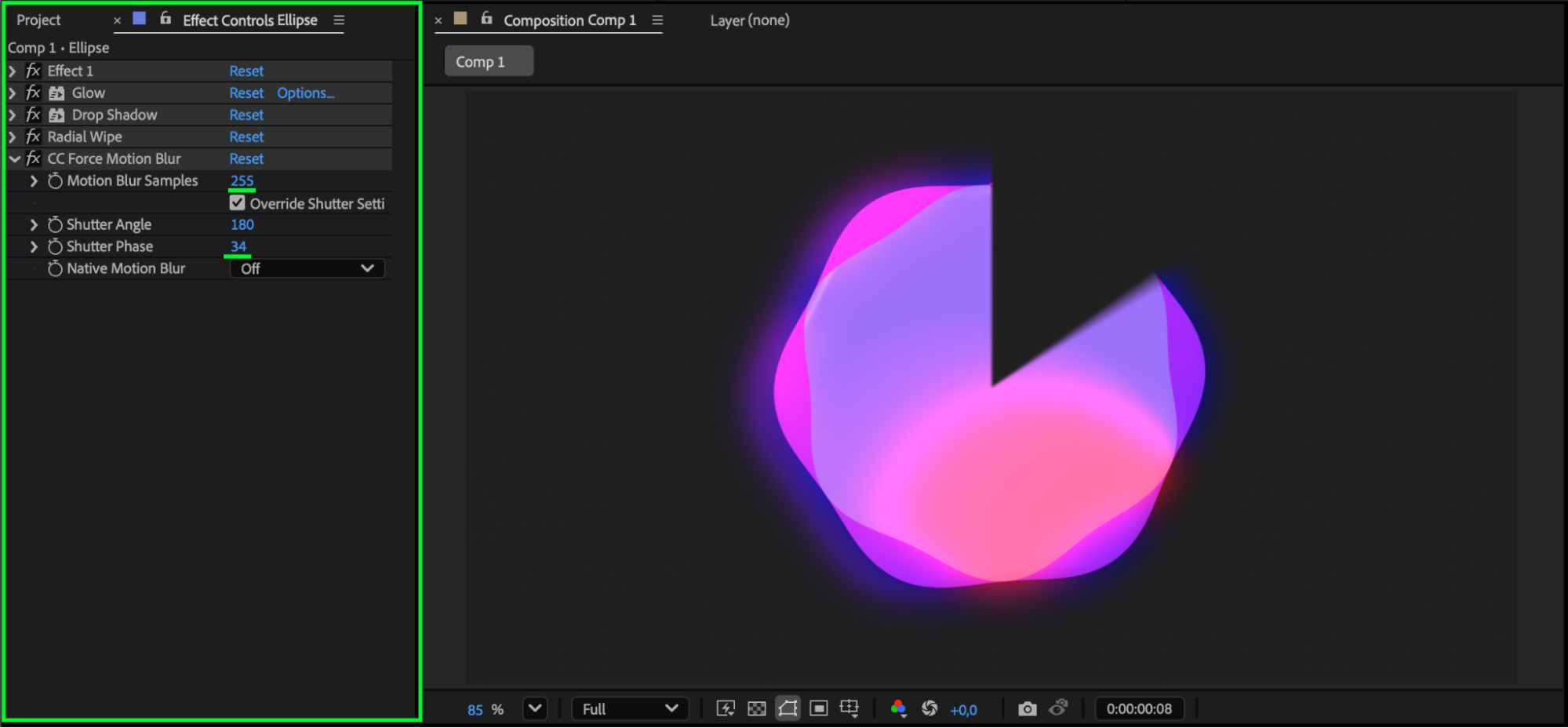
Apply CC Force Motion Blur to enhance the motion effect. Adjust:
Shutter Phase
Motion Blur Samples
This adds realistic blur as the circle disappears.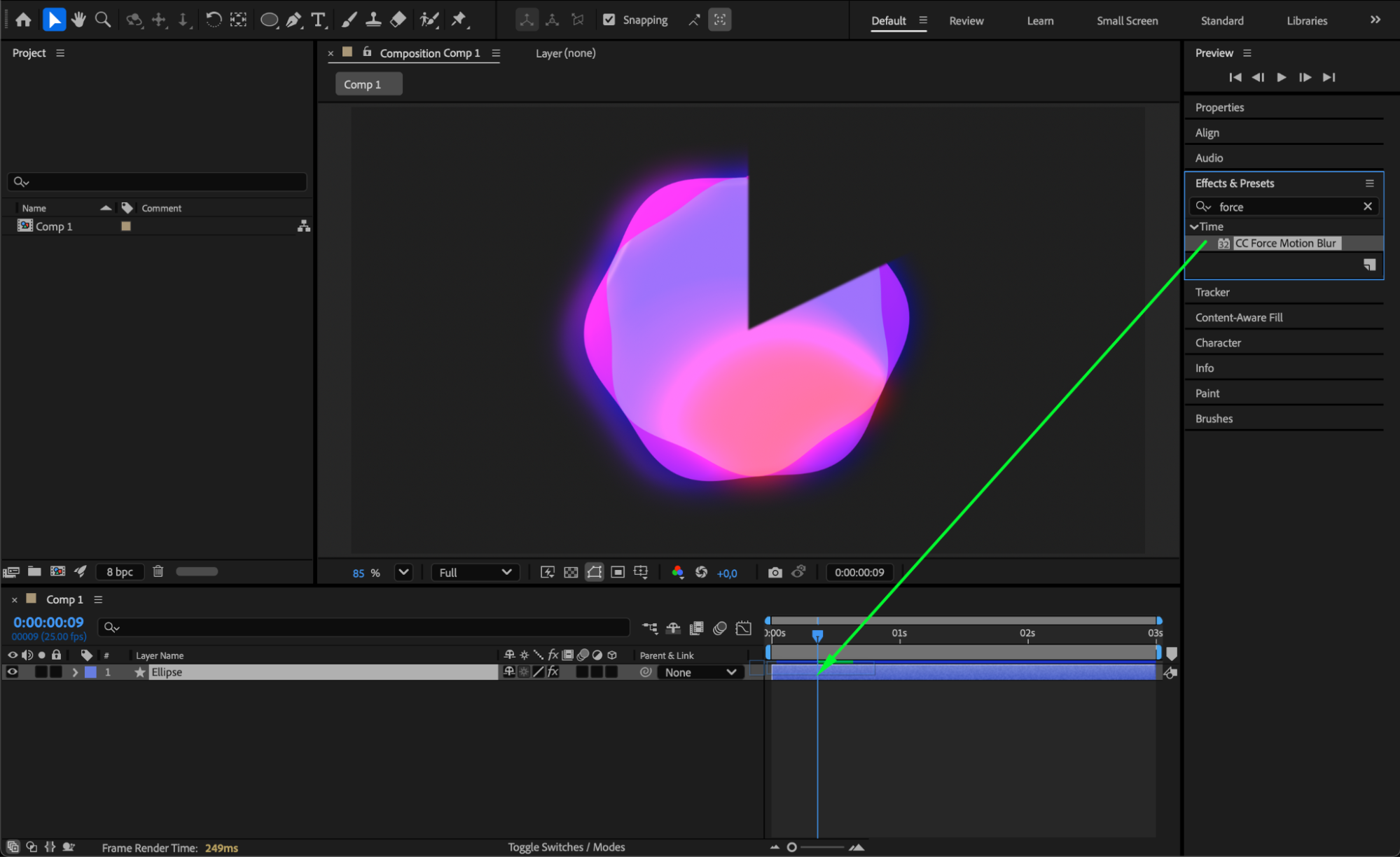
 Step 6: Preview and Refine
Press Spacebar to preview your animation. Adjust timing, feathering, or blur depending on the look you want.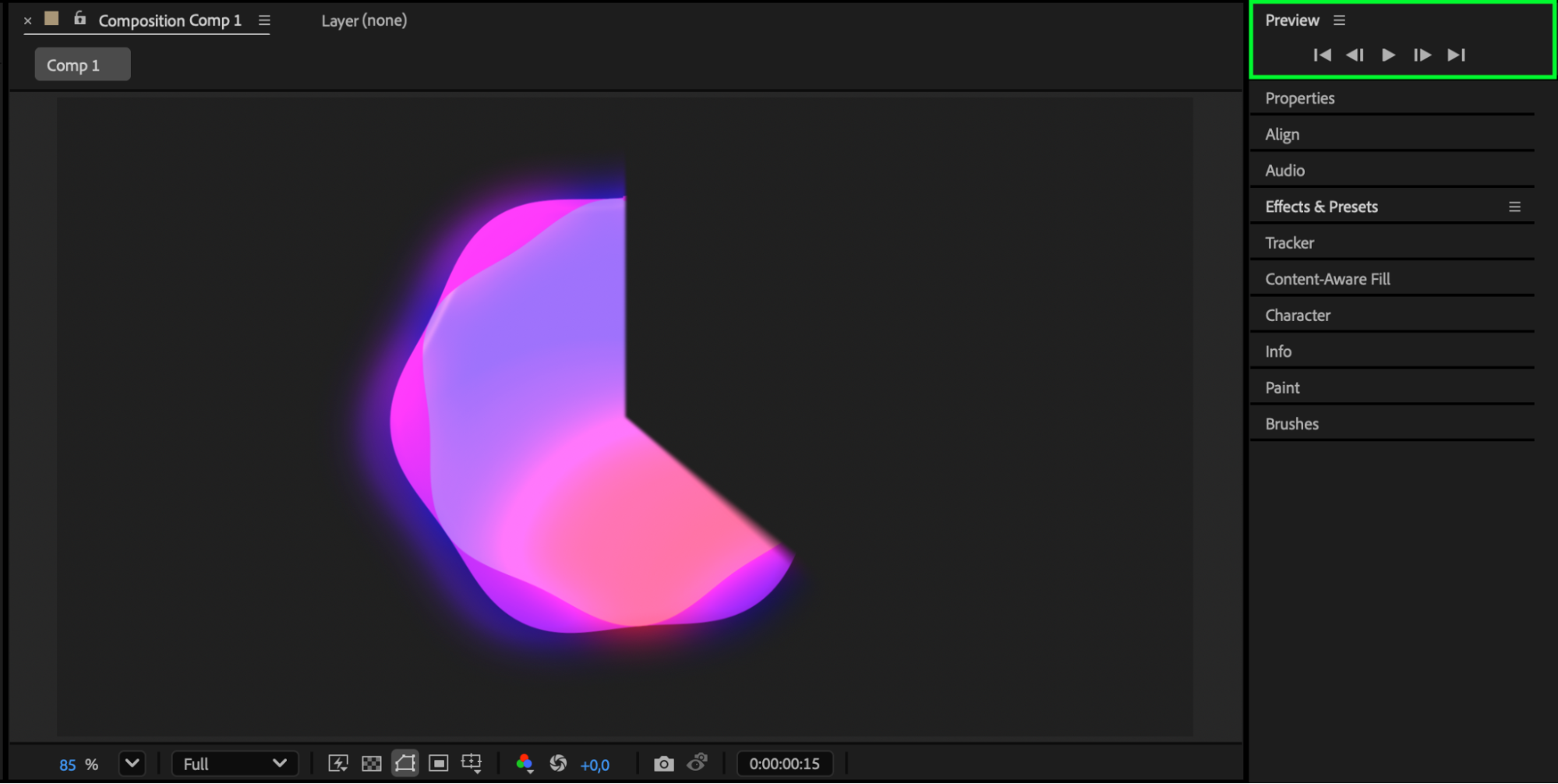 Conclusion
Using Radial Wipe and optional motion blur, you can easily make a half circle disappear smoothly in After Effects. This technique works great for transitions, loading graphics, and animated UI elements.
Our Bestsellers
Our Bestsellers


